




What to Know Before Buying Your First 3D Printer
3D printers are not “plug-and-play” like paper printers; they require calibration, maintenance, and a willingness to troubleshoot. Before purchasing, identify your goals, such as whether you want to print detailed miniatures or functional parts, as this dictates the printer type and necessary materials. Consider your environment, as printers are noisy and require ventilation, particularly for materials like ABS or resin that emit fumes. You must also budget for extras beyond the machine, including filament or resin, tools like calipers and scrapers, and spare parts like nozzles. While you don’t need CAD expertise to start because millions of free models exist online, learning 3D modeling eventually expands your capabilities.
FDM vs Resin 3D Printers for Beginners
FDM (filament) printers are generally more beginner-friendly, less messy, and use safer, more affordable materials. Resin printers offer superior detail (0.025 mm layer heights vs. FDM’s 0.1–0.2 mm) but involve toxic liquid chemicals and extensive post-processing with isopropyl alcohol and UV light. FDM is better for functional, durable parts using various materials like PLA, PETG, and ABS, whereas resin parts tend to be more brittle. FDM is usually the recommended starting point due to lower ongoing costs and easier setup.
Best Beginner 3D Printer Features
Certain features significantly ease the learning process. Automatic bed leveling uses sensors to compensate for unevenness, replacing tedious manual adjustments. A PEI build plate provides excellent adhesion when hot and allows prints to pop off easily when flexed. An enclosure is valuable for maintaining stable temperatures for warping-prone materials like ABS and for containing fumes and noise. Other helpful features include filament run-out sensors, power-loss recovery, and choosing a printer with a strong community for troubleshooting support.

How Much Does 3D Printing Cost for Beginners?
Initial costs for hobbyist printers range from $200 to $600. Ongoing costs include filament (roughly $20–$30 per kg) or resin ($30–$40 per liter). Electricity consumption is minor, similar to a few light bulbs. You should budget about $50 for initial tools and accessories, while replacement parts like nozzles and belts are inexpensive, often costing only a few dollars. Filament typically accounts for only 20% of the total long-term cost.
Best Websites to Download STL Files for 3D Printing
Beginners can find millions of ready-to-print models on various platforms. Thingiverse is the largest free repository, while Printables is highly regarded for its modern interface and community rewards. MyMiniFactory focuses on high-quality miniatures, and Cults 3D offers a mix of free and premium designs. CGTrader and Sketchfab provide more professional or artistic models. Search engines like Yeggi and Thangs allow users to search across multiple sites simultaneously. Always check the model’s license for commercial or personal use restrictions.
How to Prepare STL Files for 3D Printing
Preparing a model in slicing software involves scaling, orientation, and supports. Scaling must be done carefully to ensure functional parts fit correctly. Orientation should minimize overhangs (angles over 45 degrees) to reduce the need for supports. Supports act as temporary scaffolding for overhanging features and must be removed after printing. Wall thickness is also critical; walls should be at least 1–2 nozzle widths thick to ensure the printer can physically produce them.

How to Level a 3D Printer Bed and Set the Z-Offset Correctly
The first layer is the most critical for success. Bed leveling ensures the build plate is a consistent distance from the nozzle at all points, often calibrated using the “paper test” to feel slight friction. The Z-offset is a fine-tuning adjustment that determines exactly how much the first layer is “squished” onto the bed. A perfect Z-offset results in a flattened line that adheres well without being scraped by the nozzle or appearing as a loose, round string.
First Layer Not Sticking on a 3D Printer
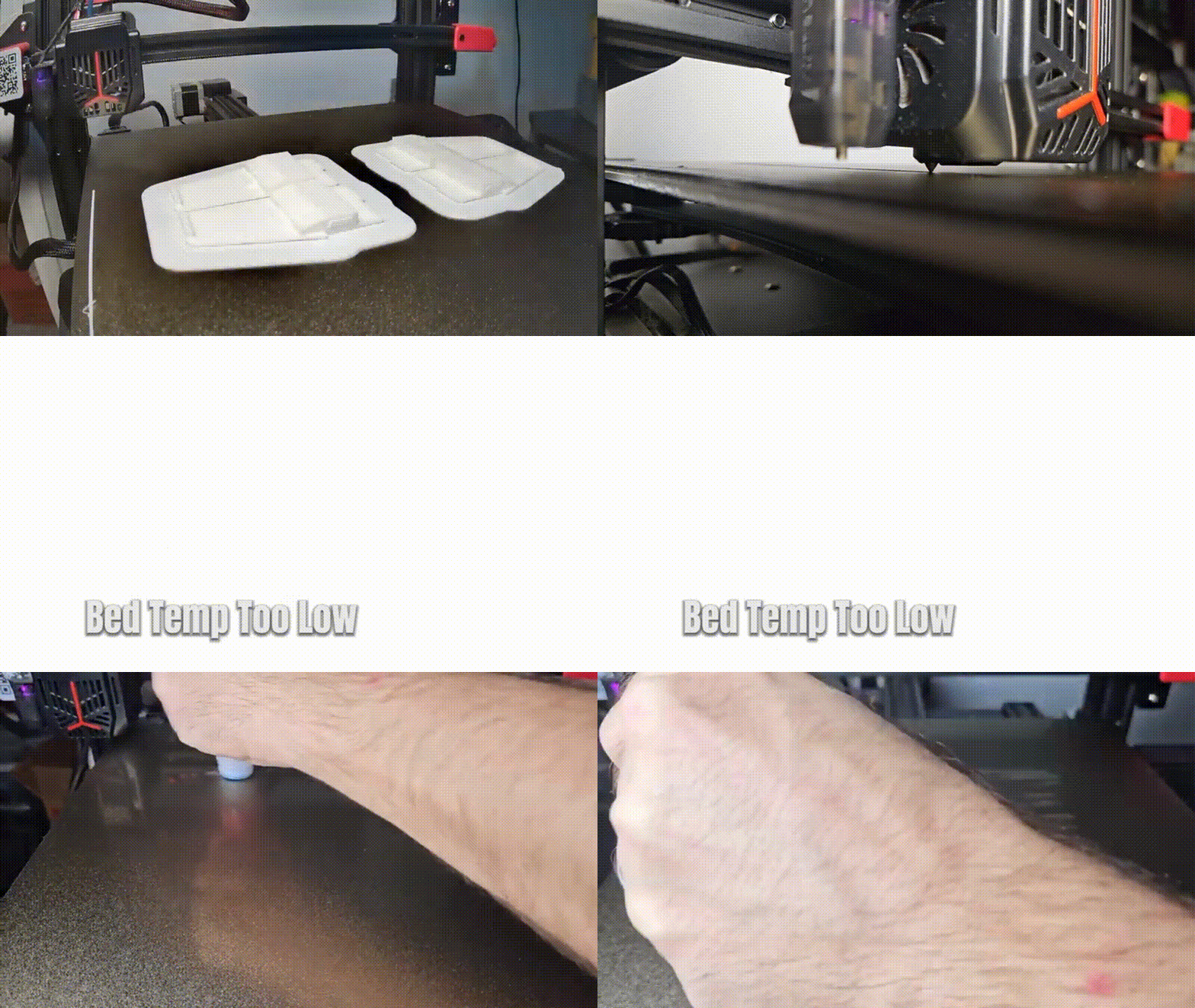
Adhesion issues are the most common cause of failure. Solutions include re-leveling the bed, cleaning the surface with isopropyl alcohol to remove finger oils, and adjusting temperatures (typically 60°C for PLA). Slowing down the first layer speed (e.g., 15–20 mm/s) helps the plastic bond. If issues persist, “adhesion helpers” like brims (extra rings around the base), rafts, glue sticks, hairspray, or painter’s tape can be used to secure the print.
Best Slicer Software for Beginners
Slicers convert 3D models into G-code instructions. Ultimaker Cura is the most popular due to its user-friendly interface and extensive plugin support. PrusaSlicer is praised for its logical layout, advanced features like organic supports, and excellent default profiles. Bambu Studio is optimized for speed and the Bambu Lab ecosystem but is also open-source. All three are free and capable of producing high-quality results.
3D Printing Slicer Settings for Beginners
Four main settings dictate print quality and speed. Layer height determines resolution, with 0.2 mm being the standard for a balance of speed and detail. Infill percentage determines the internal density; 15, 20% is sufficient for most prints. Wall (shell) count affects strength; 2, 3 walls are standard, but more can be added for functional parts. Finally, print speed should be kept moderate (around 40, 60 mm/s) for beginners to ensure consistency and quality before attempting faster prints.– ×3
Best 3D Printing Filament for Beginners (PLA vs PETG vs ABS and When to Use Each)
Choosing filament depends on the project. The “big three” are PLA, PETG, and ABS.
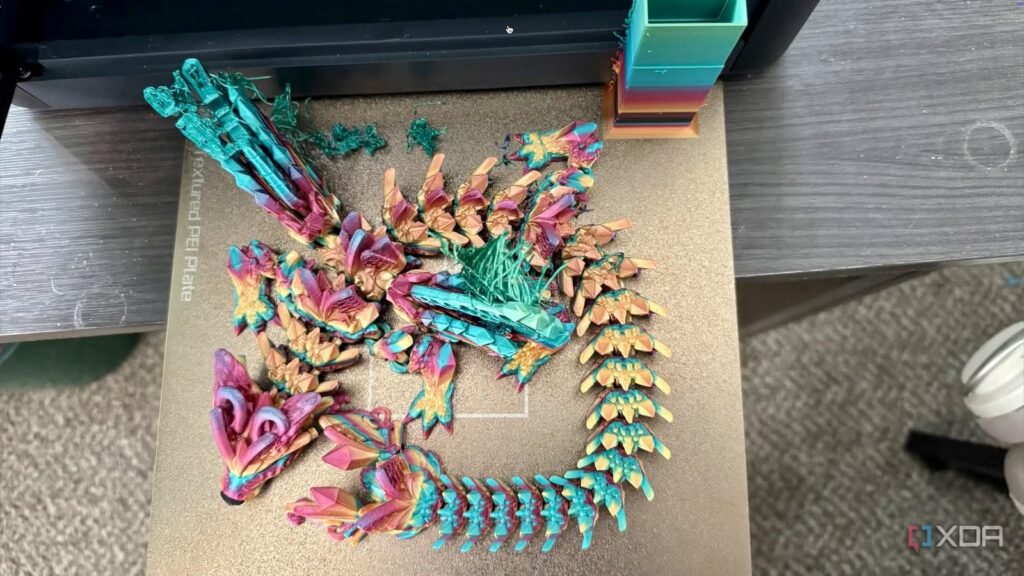
PLA (Polylactic Acid) is the most popular for beginners because it is the easiest to print. It extrudes at low temperatures (~200°C), requires minimal bed heating (~50-60°C), and has low warping. It sticks well to various surfaces and provides high detail. Made from corn starch or sugarcane, it is biodegradable in industrial settings and emits a sweet, non-toxic smell. It comes in many colors and variants like silk or wood-filled. However, it is brittle, has low heat resistance (50-60°C), and degrades under UV light. Use it for decorative items, prototypes, and low-stress props. Avoid it for high-heat environments or mechanical parts that must flex.
PETG (Polyethylene Terephthalate Glycol-modified) is a bridge between PLA and ABS. It is more ductile and tougher than PLA, with higher heat resistance (70-80°C) and decent weather resistance. It is trickier to print, requiring higher temperatures (~230°C nozzle, ~70°C bed) and is prone to stringing. It can stick too well to PEI beds, often requiring a glue stick as a release agent. It prefers moderate fan cooling and a slightly higher first-layer gap. Use it for functional parts like brackets or phone holders. Avoid it for ultra-fine details or if maximum rigidity is required.
ABS (Acrylonitrile Butadiene Styrene) is durable and heat-resistant (~100°C) but difficult for beginners. It requires a 100°C bed and an enclosure to prevent significant warping and layer delamination caused by cooling air. It emits toxic styrene fumes, requiring ventilation. It is unique for its ability to be vapor-smoothed or solvent-welded with acetone. Use it for high-heat or high-impact applications. Avoid it if you lack an enclosure or proper ventilation.
Other Filaments: PLA+ offers more strength with PLA ease; ASA is a UV-resistant alternative to ABS; TPU is flexible but hard to feed; Nylon is very strong but highly sensitive to moisture and heat. Beginners should start with PLA, progress to PETG for functional needs, and only use ABS with proper equipment.
How to Store and Dry 3D Printer Filament (humidity, Dry Box, Desiccant, Brittle Filament)
Filaments are hygroscopic, meaning they absorb moisture, leading to popping sounds, bubbles, stringing, and brittleness.
Storage: Keep spools in airtight bags or bins with desiccant (silica gel) when not in use. Squeeze out excess air. Color-changing silica gel is helpful for monitoring moisture. Store containers in cool, dark places to prevent degradation.
Desiccant Maintenance: Saturated silica gel can be recharged in an oven at 65–80°C for 2–3 hours. Desiccant maintains dryness but does not quickly dry already wet filament.
Drying Filament: Use a dedicated filament dryer, food dehydrator, or an oven (with caution) to dry wet spools. Dry PLA at 45-50°C and PETG/ABS at ~65°C for 4–6 hours. Drying can often restore brittle PLA or filament that is causing print artifacts.
Identifying Moisture: Brittle PLA that snaps easily or prints with audible popping indicates moisture. Advanced users use “dry boxes” to feed filament directly into the printer through PTFE tubes to keep it dry during long prints.
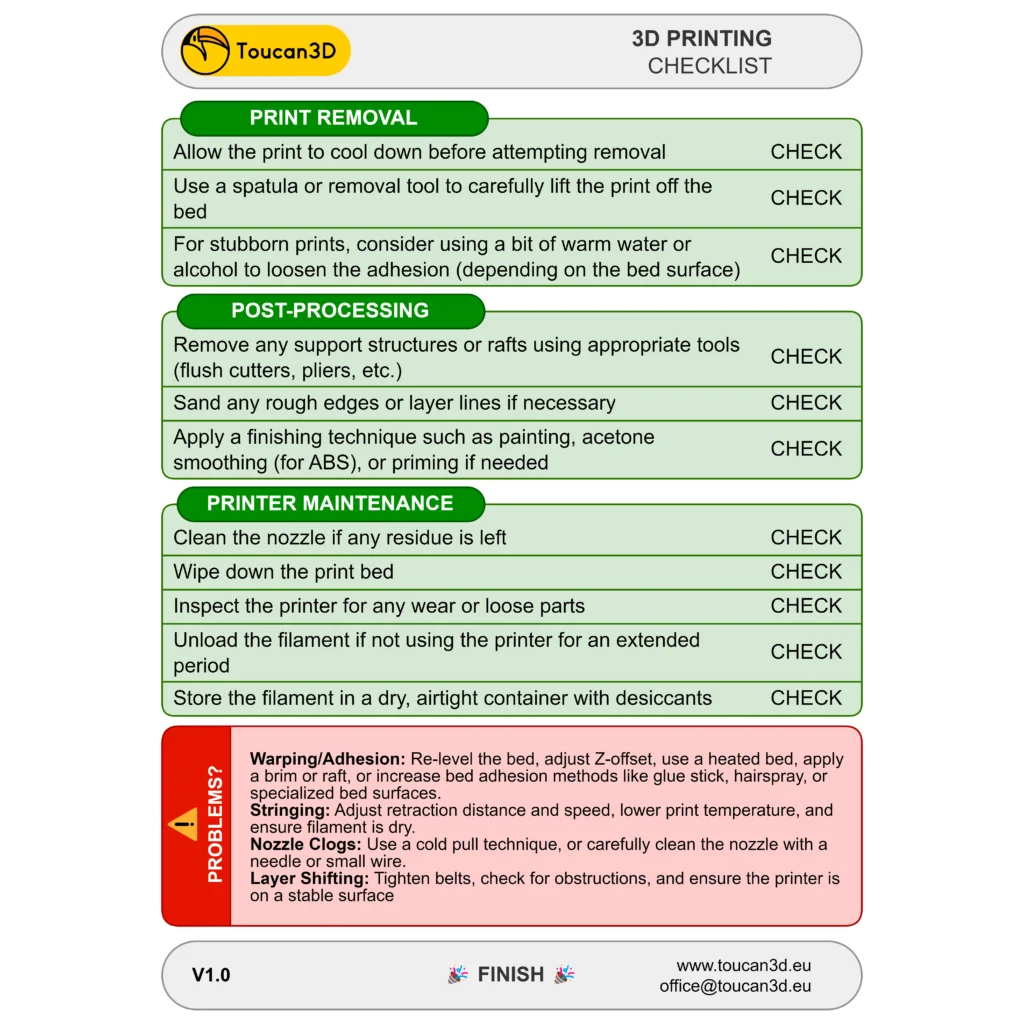
3D Printing Safety and Maintenance Checklist (ventilation, Fumes, Nozzle Clogs, Belts, Lubrication)
Ventilation: ABS and resins release VOCs (like styrene) which are harmful. Always print these in well-ventilated areas or enclosures with HEPA/carbon filters. PLA and PETG are safer but still benefit from airflow.
Heat and Fire Safety: Nozzles and beds reach dangerous temperatures. Keep flammables away and never leave a printer completely unattended. Ensure “thermal runaway protection” is enabled in the firmware. Treat the printer like a hot appliance.
Nozzle Maintenance: Keep the nozzle clean with a brass brush. Clear clogs using the “cold pull” method or cleaning needles. Replace nozzles if they become worn or out-of-round, especially after using abrasive filaments. Purge the nozzle when switching between different material types.
Bed Maintenance: Clean the bed surface regularly. Scuffed PEI can be lightly sanded. Ensure the bed remains level through manual or automatic calibration to maintain first-layer adhesion.
Mechanical Checks: Keep belts taut like a guitar string; loose belts cause ghosting or shifting. Tighten frame screws that may loosen from vibration. Check V-slot wheels for flat spots and ensure the X-gantry is level (especially on Dual Z-axis systems).
Lubrication: Apply a thin film of machine oil or lithium grease to metal linear rods and Z-axis leadscrews every few months. Wipe them clean before applying new lubricant. Do not lubricate rubber wheels on aluminum extrusions.
Electronics and Software: Manage cables to avoid snagging or strain. Keep electronics and fans free of dust. Update firmware and slicer software periodically to access safety improvements and new features.
Performing regular checks, daily for cleanliness, weekly for tension, and monthly for lubrication, will ensure consistent print quality and machine longevity.— ×2

Frequently Asked Questions (FAQs)
- Do I need to know 3D modeling or CAD to start 3D printing?
No. Beginners can start by downloading ready-made designs from various STL websites. While learning CAD software like Tinkercad, Fusion 360, or Blender is a valuable skill for creating custom parts or modifications later on, it is not a requirement to enjoy the hobby initially. - Is it safe to run a 3D printer in my home (in terms of fumes and heat)?
Generally yes, with precautions. PLA is largely non-toxic and safe with modest ventilation. ABS and similar materials require better ventilation due to styrene emissions. Safety risks include hot components (hotends and beds) and rare fire hazards from wiring faults. It is recommended to use smoke detectors, keep flammable items away, supervise the printer, and avoid leaving it entirely unattended for long periods. - How long does it take to 3D print something?
Print times vary based on size, layer height, and speed. Small items may take under an hour, while large, detailed models can take days. It is an additive, layer-by-layer process that requires patience. While settings can be tweaked to increase speed, it often sacrifices detail. Slicer software provides time estimates, though these are not always exact. - Can I leave my 3D printer running overnight or when I’m not home?
Many users run prints overnight, but it carries risks. Ensure the printer has thermal protection, no frayed wires, and is kept away from flammable materials. Using smoke alarms and remote monitoring cameras is advised. Leaving the printer while away from home is more controversial; it is best to build confidence with supervised prints first. - What should I do if a print fails mid-way or comes off the bed?
Stop the print immediately and clear the mess, being careful with hot components. Analyze the cause, such as poor adhesion, filament tangles, or mechanical shifts, to prevent future failures. Clean the nozzle and bed before reprinting. While some machines can resume prints, it is usually better to adjust settings and start fresh. - How can I improve my print quality (reduce stringing, ringing, etc.)?
Quality can be improved through various calibrations:- Stringing: Tune retraction settings, lower nozzle temperature, or dry the filament.
- Ghosting/Ringing: Lower print speeds and acceleration, ensure the frame is sturdy, and tighten belts.
- Inconsistent Layers: Check Z-axis smoothness, calibrate extruder e-steps, and ensure smooth filament feeding.
- Overhang Sagging: Use better layer cooling or supports.
- Elephant’s Foot: Adjust Z-offset or lower bed temperature.
- Rough Top Surfaces: Increase top solid layers or infill.
- What is the first upgrade or accessory I should get for my 3D printer as a beginner?
Before upgrading, get to know the stock machine. Useful additions include:- Bed leveling aids like a BLTouch sensor.
- PEI spring steel flex plates for easier part removal.
- Filament guides or improved spool holders.
- Enclosures for temperature-sensitive materials like ABS.
- LED lighting and webcams for monitoring.
- Improved cooling fans or all-metal hotends.
- Essential tools like scrapers, calipers, and hobby knives.
- Can I print objects in multiple colors or materials with a basic printer?
Basic printers typically have one extruder and print one material at a time. Multi-color effects can be achieved by pausing the print to swap filament at specific layers or by printing separate interlocking parts. True multi-material or multi-color printing within the same layer usually requires advanced hardware like a multi-extruder setup or an automated switching unit. - What is PixelHair and how can it help with 3D projects?
PixelHair is a library of pre-made 3D hairstyle models for CGI and game development, created by the artist Yelzkizi. It saves time for character designers using Blender or Unreal Engine. It is compatible with MetaHuman and is being updated to use Blender’s geometry nodes for easier customization. While not for physical printing, it is a valuable digital asset for 3D generalists. - Where can I find help or community support if I run into problems?
The 3D printing community offers various support channels:- Online forums like Reddit (r/3Dprinting) and Stack Exchange.
- Facebook groups and Discord communities.
- YouTube tutorials from creators like Teaching Tech and CNC Kitchen.
- Local maker spaces.
- Official manuals and firmware documentation.
When asking for help, providing specific details and photos of the issue is highly recommended.
Conclusion
Starting 3D printing involves a learning curve that covers printer types, filament, and troubleshooting. By understanding core principles, such as bed leveling, maintenance, and safety, beginners can progress from early failures to successful creations. Utilizing community resources and digital tools like PixelHair can further enrich the making experience. With patience and curiosity, users can reliably turn digital ideas into physical objects.— ×2
Sources and Citations
- Reddit – r/3Dprinting: User comment on what to know before buying a 3D printer, https://www.reddit.com/r/3Dprinting/comments/10ql8wc/what_should_i_know_before_buying_a_3d_printer/
- Phrozen 3D Blog – “Resin vs Filament 3D Printing: Which One is Right for You?”, https://phrozen3d.com/blogs/tutorials/resin-vs-filament-3d-printing
- Unionfab Blog – “FDM vs Resin: Key Differences”, https://unionfab.com/blog/2023/08/fdm-vs-resin-3d-printing
- SelfCAD Blog – Self-leveling 3D printers and auto bed leveling guide, https://www.selfcad.com/blog/self-leveling-3d-printer
- Kingroon – 3D Printer Tips: “Pros & Cons of PEI Sheet for 3D Printing”, https://kingroon.com/blogs/3d-print-101/pros-cons-of-pei-sheet-for-3d-printing
- Filamentive Blog – “3D Printing Cost Guide”, https://filamentive.com/3d-printing-cost-guide/
- All3DP – “PLA vs ABS vs PETG: The Main Differences”, https://all3dp.com/2/pla-vs-abs-vs-petg-differences-compared/
- EufyMake Blog – “Where to Get Free STL Files (2026)”, https://eufymake.com/blogs/3d-printing/where-to-get-free-stl-files
- Creality Cloud Beginner’s Guide – Model orientation and supports, https://www.crealitycloud.com/blog/tutorials/3d-printing-beginner-guide
- Tom’s Hardware – “How to Set a 3D Printer’s Z-Offset”, https://www.tomshardware.com/how-to/set-3d-printer-z-offset
- Sovol3D Blog – “How to Fix First Layer Not Sticking”, https://www.sovol3d.com/blogs/news/how-to-fix-first-layer-not-sticking
- All3DP – Slicer Comparison: Cura vs Bambu Studio, https://all3dp.com/2/bambu-studio-vs-cura/
- Obico Blog (Kenneth Jiang) – “PrusaSlicer vs Cura”, https://www.obico.io/blog/prusaslicer-vs-cura/
- Sovol3D Blog – “Optimize Layer Height, Infill, Patterns”, https://www.sovol3d.com/blogs/news/best-layer-height-and-infill-settings-for-3d-printing
- Yelzkizi (BlenderArtists Forum) – “PixelHair for Blender”, https://blenderartists.org/t/pixelhair-for-blender/1357605
- Elegoo Official Blog – “Everything About 3D Printing Fumes”, https://www.elegoo.com/blogs/3d-printing/everything-about-3d-printing-fumes
- Sovol3D Blog – “Complete Guide to Maintenance”, https://www.sovol3d.com/blogs/news/3d-printer-maintenance-guide
Recommended
- Love Death and Robots on Netflix: Everything You Need to Know About the Groundbreaking Animated Anthology Series
- Scrapped The Mandalorian Season 4 Scripts Featured Thrawn: What Was Planned Before the Star Wars Movie Pivot
- Warner Bros. Wants Bradley Cooper to Write, Direct, and Star in the Ocean’s Eleven Prequel
- Pokémon XD: Gale of Darkness Now Available on Nintendo Switch 2 – How to Play, Features, and Everything You Need to Know
- Gerry Conway, Punisher Co-Creator and Spider-Man Writer, Dies at 73: Legacy, Cause of Death, and Iconic Stories Explained
- The CEO Who Saved Marvel From Bankruptcy: Peter Cuneo’s Turnaround Playbook
- Fortnite Now Hides D4vd Emotes by Default: Epic Adds Them to “Confrontational Emotes,” Offers Refunds, and Fans Demand Full Removal
- Interactive Materials in Unreal Engine: How to Create Dynamic and Responsive Surfaces in Real Time
- How do I make the camera orbit around an object in Blender?
- The Elder Scrolls: Blades Will Shut Down on June 30, 2026: Shutdown Time, Delisting, and What Players Need to Know (Nintendo Life)