


Canva AI 2.0 research preview: what it is and who can access it
The latest research preview of Canva AI 2.0 marks a significant evolution in how users interact with design tools. Developed by Canva, this next-generation assistant introduces a more agentic, context-aware system capable of performing multi-step creative tasks with minimal user input.
Unlike earlier iterations of Canva’s AI features, which focused on isolated tools such as text-to-image or Magic Design, Canva AI 2.0 operates as a unified assistant. It understands intent, executes actions across the platform, and refines outputs dynamically.
Access to the research preview is currently limited. Canva is gradually rolling it out to selected users, including enterprise teams, educators, and early-access testers. The staged rollout allows Canva to gather feedback, refine performance, and ensure stability before a wider public release.
How to try the Canva AI assistant 2.0 research preview
Users interested in trying Canva AI 2.0 can join the research preview through Canva’s official waitlist or by enabling experimental features in supported accounts. Access typically depends on:
- Account tier (Pro, Teams, or Enterprise users are prioritized)
- Region-based rollout strategies
- Participation in Canva’s beta programs
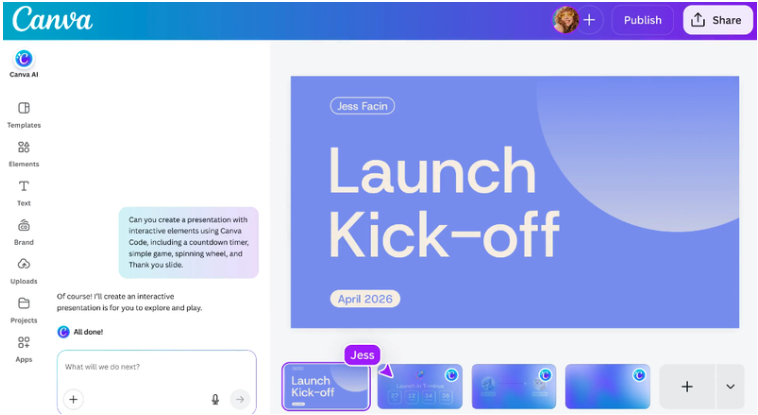
Once enabled, the AI assistant appears as a conversational interface within the Canva workspace. Users can interact with it using natural language commands, similar to modern AI chat systems.
Canva AI assistant tool-calling: how it uses Canva features for you
A defining feature of Canva AI 2.0 is its tool-calling capability. Instead of requiring users to manually navigate menus, the assistant can automatically invoke Canva tools such as:
- Background remover
- Magic Resize
- Text-to-image generator
- Animation tools
For example, a single prompt like “Create a social media post and resize it for Instagram and LinkedIn” triggers multiple backend actions. The AI selects templates, generates visuals, resizes layouts, and applies formatting all without manual intervention.
This automation transforms Canva from a toolset into an intelligent design agent.
Create editable designs from text prompts in Canva AI 2.0
Canva AI 2.0 enables users to generate fully editable designs directly from text prompts. Unlike static outputs from traditional generative AI, these designs remain flexible and customizable.
Users can input prompts such as:
- “Create a modern flyer for a tech conference”
- “Design a product launch banner with bold typography”
The assistant generates layouts complete with text, images, and styling, all of which can be edited using Canva’s standard interface. This bridges the gap between AI generation and professional design workflows.
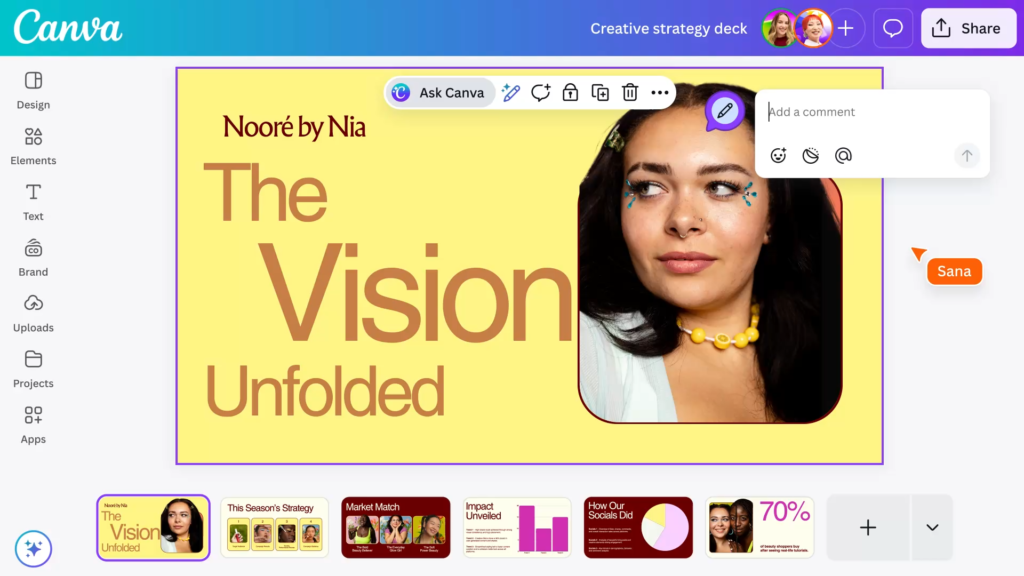
Conversational design in Canva: generate full campaigns from one prompt
The conversational design system allows users to build entire campaigns through dialogue. Instead of creating individual assets, users can request:
- Social media posts
- Email banners
- Presentation slides
- Print materials
For instance, a single prompt like “Create a full marketing campaign for a summer sale” can generate a cohesive set of branded assets. The assistant maintains visual consistency across all outputs, reducing the need for manual alignment.
Layered, editable AI designs in Canva (layers-based design output)
One of the most advanced features of Canva AI 2.0 is its ability to produce layered outputs. Each generated design includes:
- Separate text layers
- Image elements
- Background layers
- Effects and overlays
This ensures that AI-generated content integrates seamlessly into professional workflows. Designers retain full control over every element, enabling precise adjustments without starting from scratch.
Object-based intelligence in Canva AI: edit specific elements with prompts
Canva AI 2.0 introduces object-based intelligence, allowing users to target specific elements within a design using natural language.
Examples include:
- “Change the background color to blue”
- “Replace the image with a sunset”
- “Make the headline larger and bold”
The AI identifies and modifies only the relevant components, eliminating the need for manual selection and editing. This granular control significantly speeds up iterative design processes.
Canva AI memory library: save brand style and preferences automatically
The AI assistant includes a memory library that stores user preferences, brand guidelines, and frequently used styles. Over time, it learns:
- Brand colors
- Typography choices
- Layout preferences
- Tone and messaging
This allows the assistant to generate designs that align with a user’s brand identity without repeated instructions. The feature is particularly valuable for businesses managing consistent visual branding across multiple campaigns.
Canva AI integrations with Slack, Gmail, Google Drive, and Calendar
Canva AI 2.0 extends beyond the design environment through integrations with tools like Slack, Gmail, Google Drive, and Google Calendar.
These integrations enable the assistant to:
- Pull content from emails and documents
- Access brand assets stored in cloud drives
- Align designs with scheduled events
For example, a user can ask the AI to create a presentation based on documents stored in Google Drive or design an event flyer using details from a calendar entry.
Canva AI integrations with Zoom and meeting context for design work
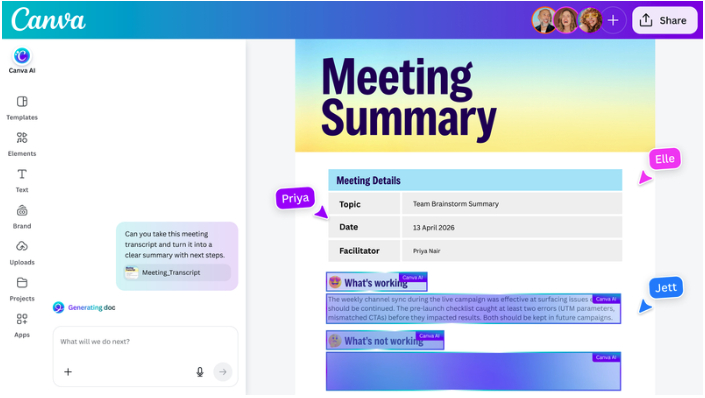
Integration with Zoom adds a new dimension to collaborative design. Canva AI can:
- Extract key points from meetings
- Generate summaries
- Create visual assets based on discussion topics
This feature transforms meeting insights into actionable design outputs, streamlining workflows for teams.
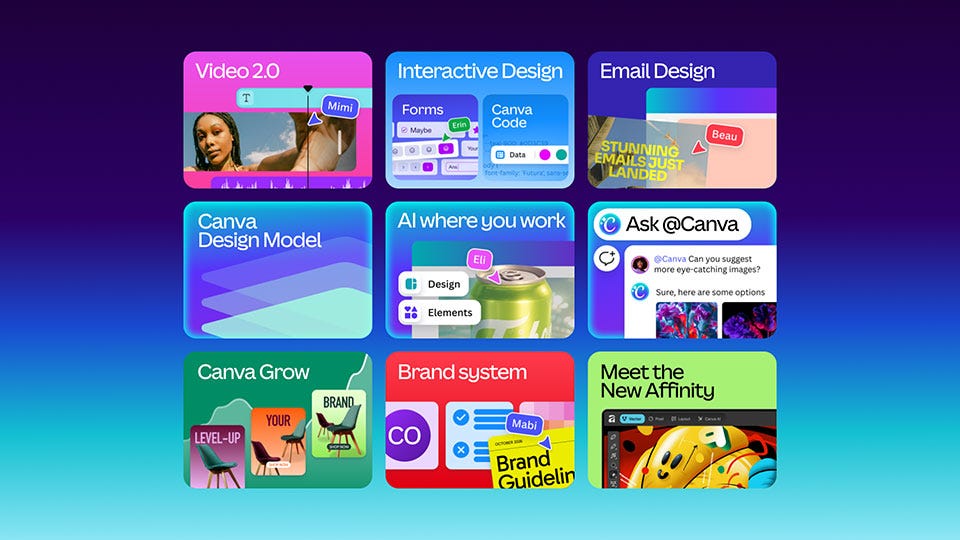
Canva Code 2.0 and HTML import: building web content with Canva AI
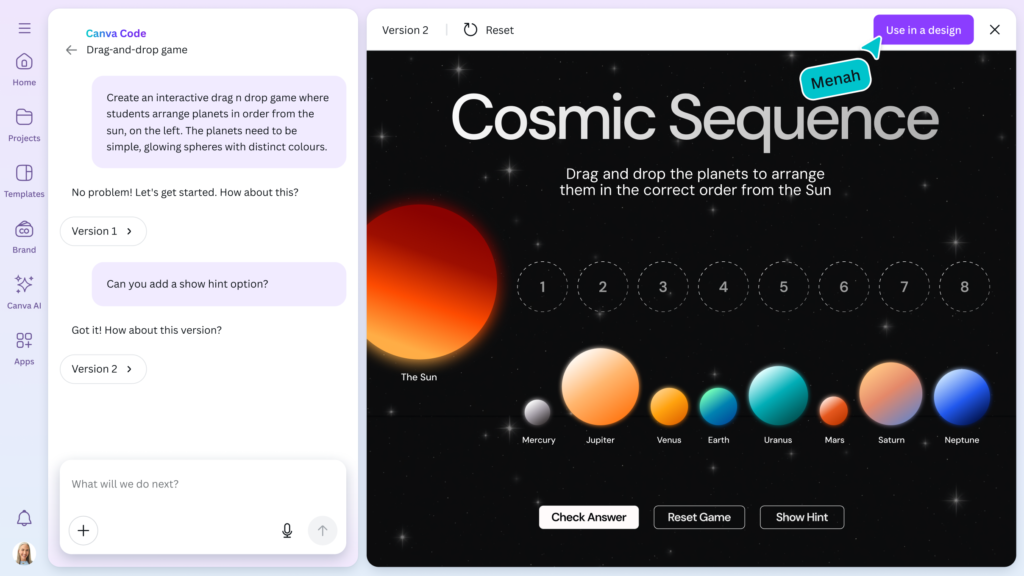
Canva Code 2.0 introduces the ability to generate and import HTML-based content. Users can:
- Create landing pages
- Import existing HTML designs
- Edit web layouts visually
This bridges the gap between design and development, allowing non-technical users to build web content using Canva’s interface while leveraging AI-generated code.
Canva Sheets AI: generate tables and spreadsheets from natural language
Canva Sheets AI expands the platform’s capabilities into data handling. Users can generate:
- Tables
- Charts
- Spreadsheets
Using simple prompts like “Create a budget spreadsheet for a marketing campaign,” the assistant produces structured data layouts that can be customized and integrated into presentations or reports.
Canva AI pricing and limits: free tier vs higher usage add-ons
Canva AI 2.0 follows a tiered pricing model:
- Free tier: Limited usage of AI features with restrictions on generation volume
- Pro and Teams: Increased limits, priority access, and advanced features
- Enterprise: Custom usage caps and integration capabilities
Additional usage-based add-ons may apply for high-volume AI operations, particularly for image generation and advanced automation tasks.
Canva AI privacy and data access: what connected app permissions mean
Privacy remains a critical consideration. Canva AI 2.0 requires access to connected apps and user data to function effectively. This includes:
- Emails and documents
- Calendar events
- Stored assets
Canva provides permission controls, allowing users to manage what data the AI can access. However, users must understand that enabling integrations increases the scope of data processing.
Canva AI vs Adobe Firefly assistant and other agentic design tools
Canva AI 2.0 competes with tools like Adobe Firefly and other emerging agentic design systems.
Key differences include:
- Canva AI focuses on end-to-end design workflows
- Firefly emphasizes high-quality generative visuals
- Canva integrates deeply with productivity tools
- Firefly integrates with Adobe Creative Cloud
Canva’s strength lies in accessibility and automation, while Adobe’s ecosystem remains dominant in professional-grade creative control.
Frequently Asked Questions (FAQs)
- What is Canva AI 2.0?
Canva AI 2.0 is an advanced AI assistant that automates design tasks and generates editable content using natural language. - Who can access the Canva AI 2.0 preview?
Access is limited to selected users, including beta testers and enterprise customers. - Can Canva AI create full design projects?
Yes, it can generate complete campaigns, including multiple design assets from a single prompt. - Are Canva AI designs editable?
Yes, all generated designs are fully layered and editable. - Does Canva AI integrate with other apps?
Yes, it integrates with tools like Slack, Gmail, Google Drive, and Zoom. - What is tool-calling in Canva AI?
It allows the AI to automatically use Canva features like resizing, editing, and generating content. - Is Canva AI free to use?
A limited version is available for free, with expanded features in paid tiers. - How does Canva AI handle user data?
It uses connected app data with user permission to generate context-aware outputs. - Can Canva AI generate spreadsheets?
Yes, Canva Sheets AI allows users to create tables and spreadsheets from text prompts. - How does Canva AI compare to Adobe Firefly?
Canva AI focuses on workflow automation, while Adobe Firefly emphasizes high-end generative visuals.
Conclusion
Canva AI 2.0 represents a major shift toward agentic design systems that combine automation, creativity, and productivity. By integrating conversational interfaces, tool-calling capabilities, and cross-platform data access, Canva is redefining how users create and manage visual content. As the research preview evolves, Canva AI 2.0 is positioned to become a central tool for both individuals and organizations seeking faster, smarter design workflows.
Sources and Citations
- Canva official announcements and product updates
https://www.canva.com/news/ - Adobe Firefly product overview
https://www.adobe.com/products/firefly.html - Canva Help Center and AI feature documentation
https://www.canva.com/help/ - Industry coverage on AI design tools (various tech outlets)
https://www.theverge.com/ai-artificial-intelligence
Recommended
- The Well Is Not Empty Announced for PC: Release Window, Story, Trailer, and Gameplay Details
- The Devil Wears Prada 2: Everything We Know (Release Date, Cast, Plot, Trailer, and Returning Characters)
- How do I make the camera orbit around an object in Blender?
- Mastering Water Simulation in Unreal Engine: Techniques, Tools, and Best Practices
- Hello Kitty: Island Adventure’s Next DLC Focuses Less On Coziness, More On Fun – City Town DLC Release Date, Features, Gameplay Changes
- How do I create a handheld camera effect in Blender?
- Assassin’s Creed TV Show: Here’s Who Will Star In And Direct (Netflix Cast & Director Update)
- Pokémon XD: Gale of Darkness Now Available on Nintendo Switch 2 – How to Play, Features, and Everything You Need to Know
- Bluey’s Happy Snaps Trailer Reveals Fall 2026 Launch, Platforms, Gameplay, and Co-Op Details
- Despite Studio Closures and Layoffs, Meta Quest Usage Hits All-Time High in 2025: What It Means for VR’s Future