







In This Article (19 sections)
Samsung Odyssey 3D Hub
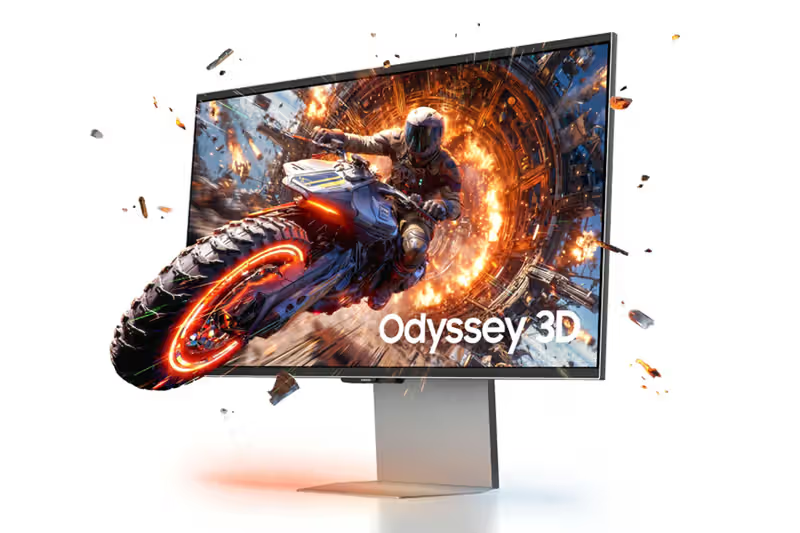
Samsung Odyssey 3D Hub is a Windows-based platform and “gateway” software for glasses-free 3D gaming and video on compatible monitors, such as the Odyssey 3D (model G90XF). It enables plug-and-play stereoscopic visuals by scanning for supported games, applying 3D effects, and allowing users to adjust depth settings. The Hub integrates with the monitor’s built-in eye-tracking and lenticular lens system to render visuals in real-time based on the user’s viewing position.
Beyond gaming, the Hub features an AI 3D Video Conversion function that adds depth to ordinary 2D, non-DRM videos in real-time, requiring an Nvidia GPU. It serves as the software backbone for Samsung’s 3D ecosystem, managing content libraries and providing user controls for an immersive experience without eyewear.
Samsung Odyssey 3D Hub 120 games announcement explained
At GDC 2026, Samsung announced that its 3D library will expand from over 60 titles to more than 120 by the end of the year. This growth is driven by partnerships with developers to create a robust ecosystem for both indie and AAA titles.
New 2026 additions include the action-adventure Hell is Us (arriving March 2026) and the survival horror Cronos: The New Dawn (slated for late 2026). This commitment signals that the platform is an evolving ecosystem rather than a niche gimmick, with native 3D support being integrated into modern, high-fidelity releases.
How Samsung’s glasses-free 3D gaming monitor works (Odyssey 3D)
The technology utilizes a 4K panel with a lenticular lens layer and dual eye-tracking cameras. This “Eye Tracking and View Mapping” system projects different perspectives to each eye, which the brain combines into a 3D image. The cameras continuously adjust the viewpoint based on head movement, allowing for a natural 3D effect without requiring the viewer to remain perfectly still.
While the stereoscopic process halves the effective resolution per eye and can create a slight “screen door” effect, the 4K resolution and 165Hz refresh rate maintain sharpness and fluidity. The software coordinates with the hardware to ensure stable depth during fast motion, reducing the eye strain associated with older 3D technologies.

Odyssey 3D Hub supported games list (current library)
As of early 2026, the Hub supports over 60 games, primarily those built on Unreal Engine. Notable supported titles include:
- The First Berserker: Khazan: Features significant “pop-out” effects.
- Lies of P: A dark fantasy action game integrated into the ecosystem.
- Palworld: An open-world title where 3D enhances environmental exploration.
- Like a Dragon: Ishin!: Uses Unreal Engine 4 for immersive historical environments.
- Octopath Traveler: Enhances the “HD-2D” diorama-like art style.
- Other titles: Dragon Ball Z: Kakarot, SpongeBob SquarePants: The Cosmic Shake, Psychonauts 2, Ghostrunner, Stray, and MONGIL: STAR DIVE.
The platform leverages Unreal Engine’s stereoscopic capabilities to support a wide range of games. While some titles like Grand Theft Auto: The Trilogy – DE are compatible, the quality of the experience can vary, with Samsung releasing regular updates to improve game profiles.
How many games are supported on Odyssey 3D Hub right now
There are currently over 60 games supported as of Q1 2026, a significant increase from the 10–15 titles available at launch in early 2025. Samsung met its late 2025 goal of 50 games and is now targeting 120+ by the end of 2026. This expansion occurs through quarterly software updates and developer partnerships. While the Hub uses a curated whitelist for quality control, it ensures a growing catalog for early adopters.
New Odyssey 3D Hub games coming in 2026 (Hell is Us and Cronos: The New Dawn)
Hell is Us and Cronos: The New Dawn are the headline 2026 additions. Hell is Us joins in March 2026, while Cronos: The New Dawn will be integrated by year-end. These horror and action titles demonstrate Samsung’s collaboration with studios to provide 3D support near the launch of new games. This content growth coincides with the release of a new 32-inch Odyssey 3D monitor model later in the year.

What “3D game support” means on Odyssey 3D Hub (native vs optimized)
There are two levels of support within the Hub:
- Native 3D Support (Co-Developed): Marked with a special badge, these games are specifically optimized with the developer. They feature in-game 3D settings, tuned UIs, and seamless “out-of-the-box” depth.
- Basic 3D Support (Generic/Driver-Based): These games use the Hub’s software to inject 3D into titles not originally designed for it. This often requires manual adjustment via a toolbar or hotkeys to fix visual quirks like misaligned UI elements or depth issues.
While the Hub uses a robust Unreal Engine wrapper that could theoretically work for many games, Samsung limits the official list to a whitelist to ensure quality control.
How to download and install Samsung Odyssey 3D Hub on Windows
Setting up the Samsung Odyssey 3D Hub is a straightforward process involving specific hardware and software steps. The application is available through Samsung’s official support pages and the Microsoft Store.
- Connect the Hardware: You must use a compatible monitor, such as the 27” Odyssey 3D (G90XF). Connect via DisplayPort for 4K 165Hz capabilities and connect the USB upstream port to your PC. The USB connection is mandatory for the Hub to communicate with the monitor’s tracking sensors.
- Download the App:
- Samsung Website: Visit the product support page, locate “Manuals & Software,” and download the installer for Windows 10 or 11 (64-bit).
- Microsoft Store: Search for “Samsung Odyssey 3D Hub” and click install.
- Install: Run the downloaded
.exeand follow the prompts, or let the Microsoft Store handle the automatic installation. - Register/Sign In: Upon first launch, you may be prompted to sign in with a free Samsung account to access supported games and updates.
- Permissions and Updates: Grant the app permission to scan game directories (Steam, Epic, etc.). Ensure the app is kept updated to the latest version (e.g., v1.3) to receive new game profiles.
The Hub typically resides in the system tray. It is recommended to allow it to run on startup. If the monitor is not detected, verify the USB connection and ensure you have installed any necessary monitor drivers or Windows system updates.

How to enable glasses-free 3D in supported PC games
The Odyssey 3D Hub handles 3D activation automatically through the following process:
- Run the Hub: The Odyssey 3D Hub must be active in the background.
- Launch the Game: You can launch games directly through the Hub interface or via your usual launcher (Steam, Epic, etc.). The Hub will detect the game’s execution and engage 3D mode.
- Activation Feedback: You will know 3D is active if the monitor’s OSD indicates 3D mode (HDR may disable automatically), or if an Odyssey Hub overlay appears. Visually, the image will appear doubled to a single eye but will fuse into depth when viewed with both eyes centered.
- Adjust Settings:
- Native Games: Use the game’s own options menu to adjust sliders for “3D Depth” or “Focus.”
- Basic Support Games: Use Hub hotkeys (typically
Ctrl + 1–5) to manually adjust the intensity and depth of the effect.
- Positioning: Stay centered approximately 2 feet from the screen. While eye-tracking offers leeway, staying head-on provides the best immersion.
- Troubleshooting: If 3D does not engage, ensure the game is on the supported list, the Hub is running, the monitor is set as the primary display, and the game is running in full-screen mode rather than windowed.
Odyssey 3D Hub system requirements and compatible Samsung monitors
To drive the stereoscopic 4K output, a high-end PC is required.
PC System Requirements:
- OS: Windows 10 or 11 (64-bit).
- GPU: NVIDIA GeForce RTX 3080 or higher is recommended. Note that AI 3D video conversion specifically requires an NVIDIA GPU.
- CPU: Intel Core i7 (e.g., 10700K) or AMD Ryzen 7 (e.g., 5800X) or higher.
- RAM: 16GB minimum, with 32GB (DDR5 5600) recommended.
- Connectivity: A USB-A 3.0/3.1 port is required for tracking data. For video, DisplayPort 1.4 (with DSC) is preferred for 4K 165Hz, though HDMI 2.1 can be used (often capped at 120Hz).
- Drivers: Latest NVIDIA/AMD drivers and the specific Odyssey 3D monitor driver.
Compatible Samsung Monitors:
- Samsung Odyssey 3D 27” (G90XF): The current reference model (LS27FG900).
- Samsung Odyssey 3D 32”: Announced for release by late 2026.
- Exclusions: Standard Odyssey monitors (G7, G8, Neo G9) are not compatible as they lack the necessary lenticular hardware and eye-tracking cameras.

HDR10+ GAMING on Samsung Odyssey devices (what it is and why it matters)
HDR10+ GAMING is an advanced, open HDR standard that uses dynamic metadata to optimize visuals scene-by-scene or frame-by-frame. It provides several advantages for Odyssey users:
- Source-Side Tone Mapping: The game queries the monitor’s specific brightness and color capabilities to optimize the output in real-time, preventing washed-out or blown-out images.
- Automatic Calibration: The display automatically switches to a low-latency HDR Game mode, removing the need for manual brightness sliders in game menus.
- Performance: It supports Variable Refresh Rate (VRR) and ensures low latency, meaning HDR does not interfere with 120Hz+ performance.
- Creator Intent: It eliminates “double tone-mapping” by ensuring the monitor displays exactly what the game engine intends.
Samsung has integrated this into Odyssey monitors and high-end TVs since 2022. By partnering with studios for games like Crimson Desert and Cyberpunk 2077, Samsung ensures that Odyssey owners see more accurate highlights and shadow details. Because it is an open standard without licensing fees, it is positioned as a competitive, forward-looking alternative to static HDR and Dolby Vision.
CyberpunkCyberpunk 2077 HDR10+ GAMING on Samsung displays
Samsung collaborated with CD PROJEKT RED to integrate HDR10+ Gaming support into Cyberpunk 2077, ensuring the game utilizes dynamic metadata on compatible Odyssey monitors and TVs. This implementation allows the display to automatically switch to HDR10+ Game Mode, optimizing Night City’s extreme lighting—such as bright neon against dark alleys—frame-by-frame.
Unlike static HDR, which can lead to clipped highlights or crushed shadows, HDR10+ Gaming balances contrast scene-by-scene. It eliminates tone-mapping conflicts, providing better saturation and detail without the need for manual calibration. This ensures that bright elements retain texture and dark scenes maintain visibility. For Samsung users, this partnership serves as a technical showcase, offering the best available HDR quality and responsiveness for one of gaming’s most demanding titles.

Best settings for Samsung Odyssey 3D monitor (4K, 165Hz, and latency tips)
To maximize the performance of the Odyssey 3D monitor, users should apply the following configurations:
- Resolution and Refresh Rate: Use native 3840 x 2160 (4K) at 165Hz. Set Windows scaling to 100% when gaming in 3D to avoid rendering bugs.
- 3D Mode: Ensure the specific input (ideally DisplayPort) is designated for 3D in the monitor’s OSD.
- Sync and Response: Enable Adaptive Sync (G-Sync/FreeSync) to eliminate tearing. Set Response Time (Overdrive) to “Faster” or “Fast” to minimize ghosting without introducing inverse artifacts.
- Game Mode: Enable “Low Input Lag” or “Game Mode” in the OSD to bypass unnecessary processing.
- HDR and 3D: Turn off Windows HDR when using 3D mode, as the Hub’s 3D conversion requires SDR. Use HDR10+ Gaming mode specifically for 2D gaming.
- Connectivity: Use DisplayPort 1.4 for the lowest latency and full 165Hz support. Connect the USB upstream cable directly to the motherboard for stable eye-tracking data.
- In-Game Tweaks: Disable motion blur and V-Sync in-game. Capping frame rates near 162 FPS can help maintain stability.
Troubleshooting Odyssey 3D Hub not detecting games
If the Hub fails to recognize games or activate 3D, follow these steps:
- Software Maintenance: Ensure the Hub is updated to the latest version (e.g., v1.3+). If issues persist, perform a clean reinstall: uninstall, reboot, and then reinstall.
- Hardware Check: Verify the USB upstream cable is connected to a USB 3.0 port. Install the monitor’s specific
.infdriver and update the monitor firmware via USB if available. - Display Settings: Set the Odyssey 3D as the “Main Display” in Windows and use “Extend” mode.
- Launcher Issues: The Hub scans standard paths for Steam, Epic, and GOG. Games from the Xbox app may be listed under “Microsoft.” Try launching the game directly from the Hub interface.
- Environmental Factors: Ensure the Hub is running in the system tray. If the image is doubled but not 3D, check for hardware compatibility issues, particularly with eGPUs or certain AMD chipsets.
- Visual Glitches: If 3D is active but glitched (e.g., shadows in one eye), try disabling in-game post-processing like motion blur or shadows.

Odyssey 3D Hub vs other 3D gaming solutions (how it compares)
Samsung’s solution enters a market with several alternatives:
- Vs. Acer SpatialLabs: Both use lenticular lenses and eye-tracking. Acer has a two-year head start with a larger library (hundreds of games) and more mature software. Samsung offers higher hardware specs (165Hz) and a 32-inch model roadmap but has a more “closed” software ecosystem limited largely to Unreal Engine.
- Vs. NVIDIA 3D Vision: The discontinued 3D Vision required active shutter glasses and provided full resolution per eye but dimmed the image. Odyssey 3D is glasses-free and brighter but halves the horizontal resolution per eye (mitigated by the 4K panel). Samsung uses curated “official” support rather than the driver-level approach of 3D Vision.
- Vs. Nintendo 3DS: Odyssey 3D is significantly more advanced, using eye-tracking to create a much wider viewing “sweet spot” and higher resolution than the 3DS’s parallax barrier.
- Vs. VR Headsets: VR is more immersive (360-degree stereo) but requires bulky hardware and can cause motion sickness. Odyssey 3D allows users to play traditional games with depth on a standard monitor without wearing equipment.
While Samsung’s ecosystem is currently smaller than some competitors, its focus on developer partnerships and high-end hardware positions it as a premium contender in the revival of stereoscopic gaming.
Frequently Asked Question (FAQs)
- What do I need to use Samsung’s Odyssey 3D Hub?
- A Samsung Odyssey 3D series monitor (like the 27-inch G90XF).
- A Windows 10/11 PC with an NVIDIA RTX 3080+ GPU and a capable CPU.
- The Odyssey 3D Hub software installed via Samsung’s site or the Microsoft Store.
- Connection via both DisplayPort and USB cables.
- Do I need to wear 3D glasses with the Odyssey 3D monitor?
No. It uses autostereoscopic technology consisting of a lenticular lens and eye-tracking cameras to deliver separate images to each eye. Users should sit approximately 2 feet away, front and center, for the best effect. - Can the Odyssey 3D Hub work on any monitor or only Samsung’s 3D monitor?
It only works on compatible Samsung 3D monitors (currently the 27” G90XF and an upcoming 32” model). The software requires the specific hardware’s lenticular layer and cameras to function. - How many games are supported on the Odyssey 3D Hub right now?
As of early 2026, over 60 games are supported, with a goal of 120+ by the end of the year. Supported titles span various genres, including The First Berserker: Khazan, Octopath Traveler, and Ghostrunner. - Can I play games that are not officially supported in 3D?
Officially, no. The Hub only activates 3D for recognized titles to ensure quality control. While some users attempt unofficial hacks by renaming executables, these are not user-friendly or guaranteed to work. - Does glasses-free 3D halve the resolution or affect picture quality?
Yes, the lenticular tech effectively halves horizontal resolution per eye. However, the 4K panel ensures the image remains sharp (roughly 1080p per eye clarity). Brightness may also be slightly lower in 3D mode compared to 2D. - Does the 3D effect cause eye strain or motion sickness?
Most experience minimal strain due to real-time eye-tracking adjustments. While some may feel initial discomfort during adjustment, motion sickness is rare since the viewer remains at a fixed distance from a screen. - Can I use the Odyssey 3D monitor for normal 2D work and gaming?
Yes. It functions as a high-end 4K 165Hz monitor with 100% sRGB coverage for all standard tasks. 3D only engages when supported content is launched via the Hub. - How does Odyssey 3D compare to using a VR headset for 3D gaming?
VR offers 360° immersion but requires a bulky headset and high-spec PC. Odyssey 3D provides depth on a standard monitor, making it more comfortable for long sessions and better suited for strategy games or UI-heavy RPGs. - Will future games and consoles support Odyssey 3D?
PC support is growing through partnerships with developers like CDPR and Bloober Team. Currently, 3D features are not supported on PS5 or Xbox, though consoles can still use the monitor in 2D mode at 4K 120Hz.
Conclusion
The Samsung Odyssey 3D Hub and its associated monitors represent a significant advancement in immersive display technology. By combining a 4K 165Hz panel with lenticular lenses and eye-tracking, Samsung has created a glasses-free 3D ecosystem that avoids the discomfort of previous 3D iterations. The platform’s rapid expansion to a promised 120+ games by the end of 2026, alongside native optimizations for major titles like Cyberpunk 2077 and Hell is Us, demonstrates a serious commitment to the format.
We have detailed the necessary high-end PC requirements, the differences between native and generic game support, and the specific settings needed to minimize latency and maximize visual fidelity. While the software is currently more curated and “closed” compared to competitors like Acer SpatialLabs, the inclusion of HDR10+ Gaming and the roadmap for larger 32-inch hardware show that Samsung is positioning the Odyssey 3D as a premium, versatile tool for both standard 2D excellence and cutting-edge 3D immersion. As the library grows and the technology matures, it offers a compelling, glasses-free alternative for gamers seeking depth without the isolation of VR.
Sources and Citations
- Samsung Newsroom – “Samsung Showcases Glasses-Free 3D and HDR10+ GAMING With Acclaimed Game Titles at GDC 2026” (March 9, 2026)
- The Verge – “Samsung says over 120 games will support its glasses-free 3D displays by the end of 2026” by Andrew Liszewski (March 9, 2026)
- Samsung Canada – Odyssey 3D G90XF 27″ 4K Gaming Monitor
- Best Buy – Samsung 27″ Odyssey Glasses-Free 3D G90XF Gaming Monitor
- Engadget – “Samsung Odyssey 3D monitor hands-on: This should be the new baseline for glasses-free 3D” by Sam Rutherford (April 16, 2025)
- PCMag – “I Tried Samsung’s New Glasses-Free 3D Gaming Monitor, and I’ve Got Questions” by Will Greenwald (April 16, 2025)
- Yahoo Tech (PCMag syndicated version)
- Reddit – r/Odyssey3D – “Odyssey 3D Hub Not Working. No 3D At ALL”
- Tridimensional.info – “Review of the Samsung Odyssey 3D: Samsung falls far behind other companies in the resurgence of Stereoscopic 3D Gaming”
- Tom’s Guide – “I thought glasses-free 3D gaming was a gimmick, but this monitor may change my mind” by Alex Wawro (June 8, 2025)
- Samsung Newsroom – “Samsung HDR10+ GAMING Gives More Accurate Colors & Contrast” (January 2022)
- Reddit – r/HDR_Den – “What exactly is Samsung’s HDR10+ Gaming doing…?”
- RTINGS – Samsung Odyssey 3D G90XF Review(if/when available)
- The FPS Review – “Red Dead Redemption 2 Adds Support for HDR10+ GAMING” (March 2023)
- Samsung HDR10+ Gaming Whitepaper(official technical document referenced in discussions)
- Microsoft Store – Odyssey 3D Hub
- Samsung Download Center – Odyssey 3D Hub & Drivers
Recommendations
- Meccha Chameleon Maps and Hiding Spot Ideas: Best Camouflage Locations, Pro Strategies, and Secret Hide Areas Guide
- NVIDIA RTX Spark Chip Could Deliver Windows’ Apple Silicon Moment in AI-Powered PCs
- The View Keeper Add-on: Why Every Blender Artist Needs It for Optimized Rendering Workflows
- Assassin’s Creed boss provides updates on Hexe, Invictus, and Jade, confirms Black Flag remake (Resynced)
- Anime Hack and Slash RPG Neverness to Everness Launches Worldwide: Release Date, Platforms, Cross-Play, and Launch Rewards
- Assassin’s Creed Black Flag Resynced Real-Life Treasure Hunt Details Explained
- After More Than 50 Years, Kolchak: The Night Stalker Is Finally Getting an Action Figure (Wandering Planet Toys Kickstarter)
- Overwatch April Fools 2026 Event Explained
- Blender and NVIDIA GeForce RTX 5090: Everything You Need to Know
- Oni Press and The Nacelle Company Join Forces for The Art of The Toys That Made Us Kickstarter