





In This Article (17 sections)
Blender 3D Render Farm Explained: How Distributed GPU Nodes Accelerate Renders
A render farm consists of networked computers, known as render nodes, that collaborate to process 3D renders. This distributed approach allows animations to be completed in a fraction of the time required by a single machine. For example, a 100-frame animation that might take 100 days on one PC could be finished in a single day using 100 parallel nodes. Modern farms utilize high-end GPUs and the Cycles renderer to provide immense computational power. This parallel processing significantly accelerates the rendering of complex scenes and high-resolution animations.
Praxilla Cloud Render Farm: Multi-GPU Speed, Seamless Blender Add-On & Flexible Packages
Praxilla is a Blender-focused render farm emphasizing speed and simplicity. It links idle computers into a network, allowing users to utilize up to 15 NVIDIA RTX 3000/4000-series GPUs simultaneously. A dedicated Blender add-on enables artists to upload .blend files and assets with one click directly from the software interface. Praxilla uses a flexible pricing model based on GPU hour packages without subscriptions or hidden fees. New users receive one free GPU hour to test the service.
GarageFarm.NET Blender Pricing: $0.024 per GHz-Hour for GPU Rendering
GarageFarm.NET provides both CPU and GPU rendering for Blender. CPU costs start at approximately $0.024 per GHz-hour on the lowest priority tier. GPU rendering is measured in OctaneBench-hours (OBh), with rates starting around $0.0033 per OBh. The farm offers Low, Medium, and High priority tiers to balance cost and speed. Features include 24/7 live chat support, support for all major Blender versions, and $25 in free trial credits for new users.

RebusFarm for Blender: Free $29 Trial & 1.39 ¢/GHzh Gigahertz-Hour Rate
RebusFarm offers a straightforward pricing system based on RenderPoints. CPU rendering costs approximately 1.39 cents per GHz-hour, while GPU rendering is roughly 0.52 cents per OBh. They provide a $29 free trial and volume discounts up to 60%. Users utilize the Rebus Farminizer plugin to prepare and upload projects directly from Blender. The farm uses high-end hardware, including AMD Threadripper 3970X CPUs and Nvidia Quadro RTX 6000 GPUs.
Ranch Computing Blender Plans: €30 Trial & Credits-Based Pricing Model
Ranch Computing utilizes a credit-based system with a €30 free trial for new users. CPU rendering rates range from €0.011 to €0.016 per GHz-hour, while GPU rates range from €0.005 to €0.01 per OBh, depending on priority. The high-priority GPU tier can allocate up to 120 GPUs across 30 nodes. They provide the RANCHecker add-on for project preparation and RANCHSync for automated file transfers. The service supports Cycles, Eevee, and various popular plugins.
SheepIt Free Blender Render Farm: Community-Powered Distributed Rendering
SheepIt is a free, community-driven distributed render farm that relies on peer-to-peer resource sharing. Users earn points by letting their computers render frames for others and spend those points when they submit their own projects. Points are earned four times faster than they are spent, and new users can begin with a limited “debt” of points. While effective for personal projects, it is not recommended for confidential work as files are rendered on volunteer machines. It has a 750 MB file size limit and requires physics to be baked beforehand.

Fox Renderfarm for Blender: Cost Estimator & $25 New-User Credits
Fox Renderfarm is a professional-grade service featuring an online cost estimator to help artists plan budgets. New users receive a $25 trial credit. CPU rendering starts at $0.0306 per core hour, and GPU rendering starts at $0.90 per node hour. The farm offers volume discounts up to 50% and education discounts of 20–30%. It is known for high reliability, 99.99% uptime, and enterprise-grade security protocols, including NDA support.
Installing & Using RenderBeamer: Blender Desktop App for Job Submission
RenderBeamer is a desktop application from GarageFarm.NET that works with a Blender add-on to automate the rendering workflow. After installation, the plugin packages the .blend file and all external assets (textures, simulations, etc.) for secure upload. Once uploaded, users manage settings via a Web Manager. The app features an “auto-download” function that retrieves finished frames in real-time as they complete on the farm, allowing for immediate progress checks.
Optimizing Hair & Fur Renders: Integrating PixelHair Assets with Cloud Farms
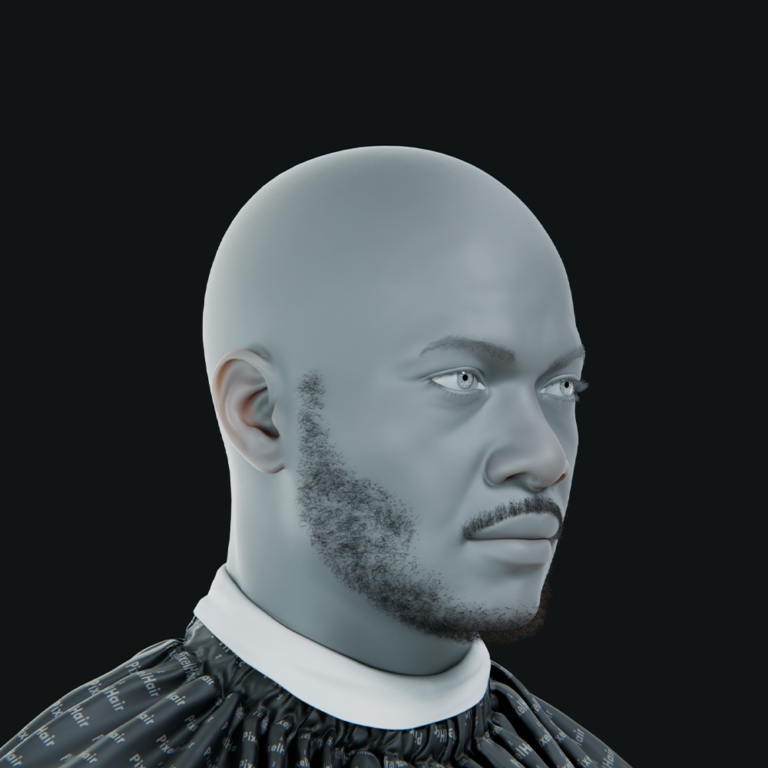
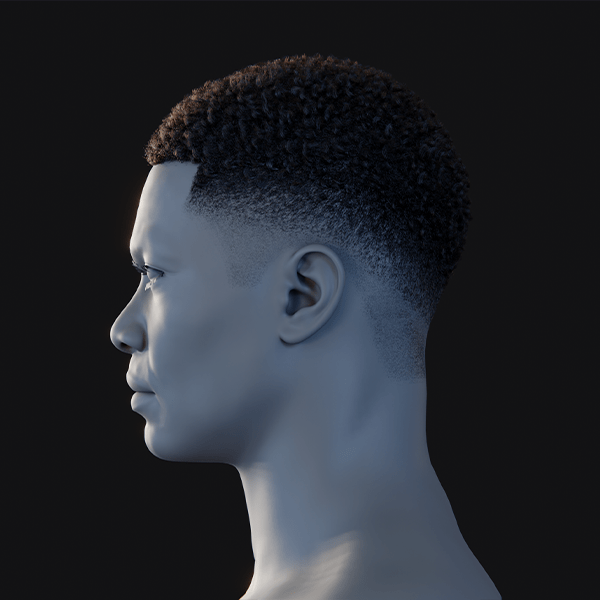
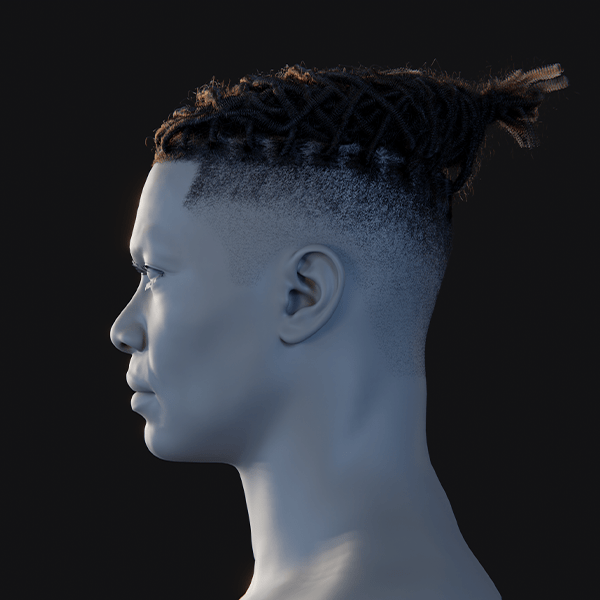
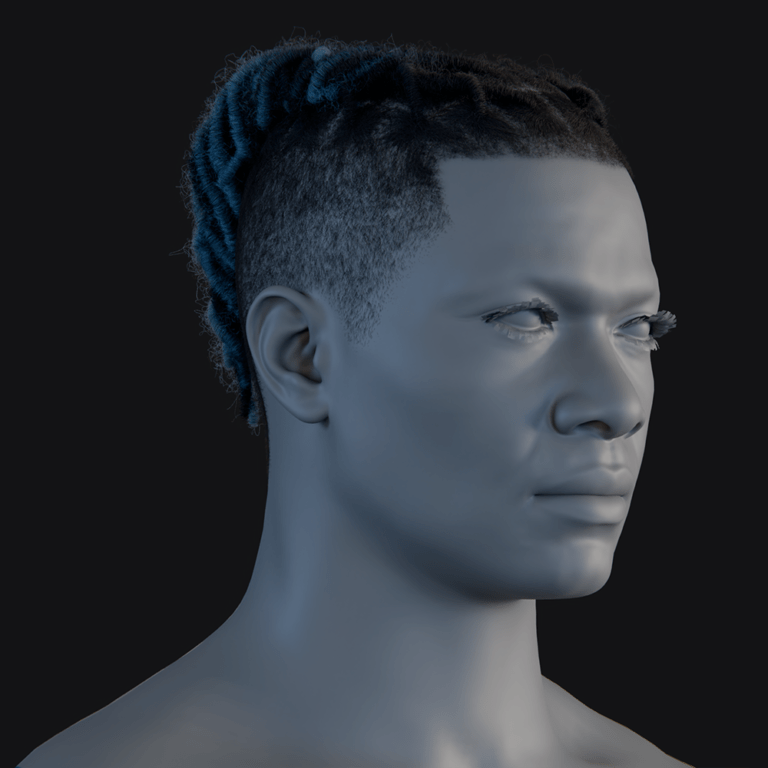
Rendering hair and fur is resource-intensive but can be managed using Blender-native systems like PixelHair. To ensure compatibility with render farms, all hair dynamics and physics simulations must be baked to a cache before submission. Users should use farm-specific plugins to ensure all particle caches and external resources are packaged. Optimization techniques include using the “Simplify” panel to cap child hair counts and running low-sample test frames to verify the look before committing to a full render.
Monitoring Render Jobs: Real-Time Dashboards & The View Keeper Add-On
Render farms provide real-time dashboards to track frame progress, view logs, and preview thumbnails. For creative management, The View Keeper add-on allows artists to store multiple camera angles and unique render settings within a single .blend file. This enables batch rendering of various shots (e.g., front, top, and close-up views) in one submission. Combining real-time farm monitoring with view management tools ensures technical accuracy and creative consistency across multiple shots.

Reducing Costs: Scene Optimization Tips for Faster GPU Rendering
Cost efficiency on render farms can be achieved through several optimization strategies:
- Geometry: Use the Decimate modifier to reduce poly counts and use instancing (linked duplicates) for repeated objects.
- Textures: Scale down background textures and limit light bounces in Cycles.
- Sampling: Use Denoising (OptiX or OpenImageDenoise) to allow for lower sample counts. Setting a Noise Threshold (e.g., 0.1) can also stop rendering early in clean areas.
- Settings: Enable “Persistent Data” for animations to cache scene data between frames. Use the lowest resolution necessary for the project and choose lower priority tiers or off-peak hours for cheaper rates.
Security & Data Management: Best Practices for Cloud-Based Render Farms
Professional farms like GarageFarm.NET hold ISO/IEC 27001 certifications, and others like Fox Renderfarm offer formal NDAs. Standard security practices include HTTPS encryption for transfers and automatic data deletion after 14–30 days. For data management, users should always pack external assets and clean scenes of unused materials or hidden objects to reduce upload sizes. Confidential projects should avoid community-based farms in favor of commercial services that guarantee data privacy.
Choosing the Best Blender 3D Render Farm: Feature Checklist & Decision Matrix
Selecting a farm depends on specific project needs:
- Performance: Check for modern GPU availability (RTX 30/40 series).
- Pricing: Compare GHz-hour, OBh, and node-hour rates alongside free trials.
- Integration: Look for dedicated Blender plugins and 24/7 customer support.
- Profiles: Budget-conscious users may prefer GarageFarm, Ranch, or SheepIt. Studios requiring high speed and security (NDA) often choose Fox Renderfarm. Professionals seeking a balance of multi-GPU speed and simple pricing may find Praxilla suitable.
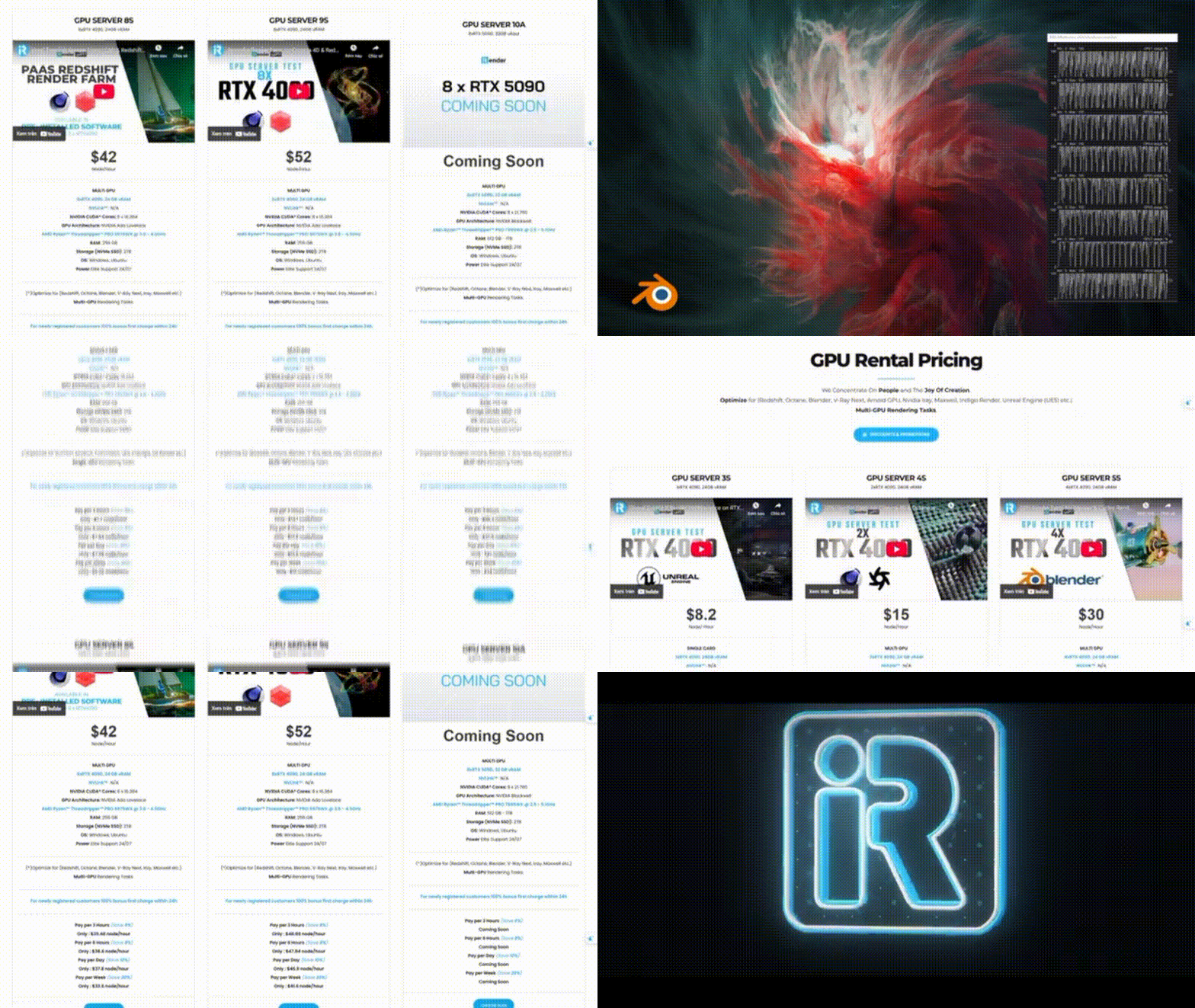
- Special Needs: Users requiring custom environments might opt for IaaS providers like iRender or AWS to rent and configure dedicated servers.
Frequently Asked Question(FAQS)
1: What is a Blender render farm and how does it work?
A Blender render farm is a network of computers, called nodes, that work in parallel to process 3D scenes significantly faster than a single PC. For animations, the job is split so each node renders specific frames or chunks of frames. For high-resolution stills, some farms use “tiling” to divide one image into sections rendered by different machines.
Using a farm with 100 GPUs can theoretically complete a render 100 times faster than a single GPU. Users prepare a .blend file and send it to the farm via an add-on or uploader. The farm’s nodes then load the scene using the same Cycles or Eevee engines to process the task concurrently before sending the rendered frames back to the artist.
2: How do I submit a Blender project to a render farm?
Most professional farms offer a Blender add-on, such as RebusFarm’s Farminizer or GarageFarm’s RenderBeamer. After installing the plugin, users can set frame ranges and priority levels within a dedicated panel in Blender.
The add-on automatically packages the .blend file with all necessary textures and assets for upload. Alternatively, some services use a web dashboard where users upload a zipped project folder and select the Blender version and render engine manually. Once submitted, users can monitor progress via a dashboard and download the completed frames either through the web or automatically via the farm’s application. It is essential to pack resources and bake simulations before submission to ensure all data is included.
3: How is rendering priced on cloud render farms?
Render farms typically use performance-hour metrics or per-node hourly rates. For CPU rendering, services like RebusFarm and Ranch Computing charge based on GHz-hours; for example, RebusFarm charges approximately 1.39 cents per GHz-hour. GPU rendering is often measured in OctaneBench-hours (OBh), with RebusFarm charging about 0.52 cents per OBh.
Other farms, like Fox Renderfarm, may charge a flat rate of around $0.90 per GPU node hour. Many farms employ a tiered priority system (Low, Medium, High), such as GarageFarm’s rates which range from $0.004 to $0.012 per OBh. Pricing is often handled through a credit system where 1 credit usually equals $1 or €1. Most farms offer cost calculators and free trial credits to help users estimate expenses without initial software licensing or data transfer fees.
4: Can I use a render farm for free (or very cheaply)?
Yes, SheepIt is a completely free, community-driven render farm where users “pay” by contributing their own computer’s idle time to render others’ frames in exchange for points. Commercial farms also provide free trial credits for new users, typically ranging from $20 to $50 (e.g., Fox Renderfarm gives $25, RebusFarm gives ~$28, and GarageFarm gives up to $50). Small projects can often be completed entirely within these trial limits. Additionally, some farms offer student discounts or referral promotions.
5: Are my files and data secure when using a render farm?
Professional farms prioritize data security for commercial and NDA-protected projects. Reputable services use encrypted HTTPS/SSL connections, isolate customer jobs in virtual machines, and often hold security certifications like ISO 27001. Farms such as Fox Renderfarm and RebusFarm will sign formal NDAs to guarantee confidentiality. Conversely, community farms like SheepIt distribute files to volunteer computers, making them unsuitable for proprietary or confidential work. Commercial farms generally delete project data within a few days of job completion to minimize risk.
6: Do render farms support my version of Blender and my add-ons?
Most farms support a wide array of Blender versions, including the latest releases and LTS versions. Users specify their version during submission. Pure Python add-ons usually work if embedded in the .blend file. Popular complex add-ons like Flip Fluids are often supported natively by farms like Ranch Computing. However, obscure add-ons or custom builds might require baking simulations (smoke, fluids, cloth) into caches or VDBs before upload. As a general rule, if a scene renders on a fresh Blender installation without extra plugins, it will render on a farm.
7: What is the best render farm for Blender?
The “best” farm depends on specific project requirements:
- Hobbyists/No Budget: SheepIt is the best free option.
- Beginners: GarageFarm.NET and RebusFarm are recommended for their user-friendly plugins and excellent customer support.
- Large Projects/Speed: Fox Renderfarm offers massive infrastructure for tight deadlines.
- Custom Setups: iRender provides full control over remote GPU workstations.
- Value/Europe: Ranch Computing is favored for its competitive credit-based pricing and RANCHecker plugin.
- Others: RenderStreet and Drop & Render are also popular for their Blender-centric interfaces.
8: How can I optimize my Blender scene to reduce render farm costs?
Optimizing a scene reduces compute time and costs. Key strategies include:
- Optimize Geometry: Remove invisible objects and use “Alt+D” linked duplicates to save memory.
- Optimize Materials/Lighting: Downscale background textures and use denoising (OptiX/OIDN) to allow for lower sample counts.
- Cycles Settings: Enable “GPU Compute,” use adaptive sampling with a higher noise threshold (0.05–0.1), and turn on “Persistent Data.”
- Simplify Physics: Lower child counts for hair/fur and bake all physics simulations to caches.
- Lower Resolution: Render at 50% for initial tests to verify settings before the final full-resolution render.
- Profile Scene: Identify time-heavy objects using render stats.
- Priority Options: Use “low priority” tiers for non-urgent jobs to save money.
- Free Tests: Use trial credits to estimate the final cost per frame.
9: Can render farms render a single high-resolution still image faster than my PC?
Yes, many farms use “tiling” or “strip rendering” to split a single high-resolution image into a grid. Multiple nodes render different sections simultaneously, and the farm stitches them back together into one file. Even without tiling, a farm’s high-end nodes (potentially featuring multiple GPUs or 128-thread CPUs) will significantly outperform a standard desktop. Users should check if their chosen farm supports “distributed rendering” for stills to maximize speed.
10: When should I consider using a render farm instead of rendering locally?
Consider a render farm in the following scenarios:
- Long Animations: When a project would take days or weeks to finish locally.
- Deadline Crunch: When local hardware cannot meet a delivery date.
- Heavy Scenes: When a scene exceeds local RAM or VRAM capacities.
- Productivity: To free up your workstation for continued modeling or compositing.
- Environment: To avoid the heat, noise, and electricity costs of running a PC at 100% capacity for extended periods.
- Scaling: To handle occasional massive projects without investing in expensive permanent hardware.
- Quality: When you want to use higher sample counts or resolutions that are otherwise too slow to render locally.

Conclusion
In 2025, Blender 3D render farms have become a vital resource for artists, from hobbyists to major studios. By utilizing distributed GPU nodes, artists can bypass hardware limitations and accelerate workflows. Whether using free community resources like SheepIt or professional services like GarageFarm.NET, RebusFarm, Fox Renderfarm, Ranch Computing, and Praxilla, there is a solution for every budget and timeline.
Success on a farm relies heavily on project preparation and scene optimization. Techniques such as baking simulations, packing assets, and utilizing adaptive sampling can drastically reduce costs. Tools like the real-time dashboards provided by farms and the View Keeper add-on offer artists technical and creative control over remote renders. Ultimately, render farms allow Blender users to prioritize creativity over waiting, enabling the production of higher-quality, more ambitious projects within realistic timeframes. Cloud rendering has transformed Blender’s potential, making 2025 a productive era for 3D artistry.
Sources and Citation
- RebusFarm – Pricing & Trial for Cloud Rendering
- GarageFarm.NET – Pricing Structure
- GarageFarm / RadarRender community comparison
- Fox Renderfarm – Pricing
- Fox Renderfarm – Free Trial / Registration
- Fox Renderfarm – Security / NDA
- Ranch Computing – Blender Render Farm
- Ranch Computing – Pricing
- SheepIt Render Farm – FAQ / How It Works
- SheepIt points / security discussion via GameDev.tv
- The View Keeper Add-On – Official Product Page
- RebusFarm – Blog / Scene Optimization Tips
- WhoisRyosuke – Blender Render Time Tips
- Fox Renderfarm – Blog / Cost-Saving Tips
- Praxilla – Render Farm Testimonials / Benefits
Recommendations
- Helldivers 2’s First Content Roadmap Reveals New Enemies Are Coming Soon — What to Expect in Updates 6.1–6.3
- Academy Software Foundation adopts OpenPGL: What the new ASWF Sandbox project means for path guiding renderers
- Nova Roma – Official Early Access Launch Trailer Reveals Roman City Builder Gameplay, Features, and Early Access Details
- OptiX vs CUDA: Comprehensive Comparison of NVIDIA’s Rendering Technologies
- Implementing Blender MCP Server in Python: Build an AI Tool-Calling Bridge for Blender
- Cyberpunk 2077 Hair Mods: Top Custom Hairstyles, Installation Guides, and Community Favorites
- Can I Improve My Metahuman in Blender? A Comprehensive Guide
- Mesh to Metahuman: How to Scan Yourself and Create a Realistic Digital Double in Unreal Engine 5
- God of War TV Series Adds Lost Star Sonya Walger as Freya in Prime Video Adaptation
- Attack on Titan Creator Hajime Isayama Admits Ending Regrets: Why He Says the Finale Felt “Insincere”