






In This Article (29 sections)
Choosing Between Blender Alpha, Beta, or Stable Builds
Deciding whether to use Blender’s alpha or beta versions depends on your tolerance for risk versus your desire for new features.
- Alpha Builds: These offer early access to cutting-edge features currently under active development. They are updated daily but are prone to crashes or file corruption.
- Beta Builds: These are feature-complete previews where the focus has shifted to bug fixes and polishing. They are more stable than alphas but still carry a moderate risk.
- Stable/LTS Releases: Recommended for professional, long-term, or critical production projects where reliability is mandatory.
- Workflow Advice: Use alpha or beta builds primarily for experimental projects, testing new tools, or providing feedback to developers. Always maintain backups of your work when using any pre-release version.
Blender Alpha vs. Beta: What’s the Difference
The primary difference between these stages is the “feature freeze” status and the level of stability.
- Alpha Stage: Features are still being implemented and modified. Because the code is changing rapidly, these builds are the least stable.
- Beta Stage: This begins once all planned features for the upcoming version are complete. No new features are added; the development team focuses exclusively on improvements and resolving bugs.
- Risk Profile: Alpha represents high risk with the newest features, while beta represents moderate risk with a nearly complete feature set. Both are intended for testing rather than production.

What “Alpha,” “Beta,” and “RC” Mean on Blender Downloads
Labels on the Blender download page indicate where a specific build stands in the development cycle:
- Alpha: Early development stage. Features are under construction, functionality may be missing, and the build is updated frequently (often daily). It is considered experimental.
- Beta: Feature-freeze stage. Major features are present, and the focus is on optimization. It is more stable than alpha and represents the near-final state of the software.
- RC (Release Candidate): The final stage after beta. An RC build is typically released about a week before the official launch. It is the last testing version; if no critical bugs are discovered, the RC becomes the official stable release.
When Does Blender Switch from Alpha to Beta
The transition from alpha to beta occurs at a defined point in the release cycle known as the feature freeze.
- Development Phases: In development terminology, this transition typically marks the move from phase Bcon2 to Bcon3.
- Code Branching: Once the switch occurs, the code is branched; no new features are added, and all subsequent changes are limited to optimizations and bug fixes.
- Schedule: Blender generally follows a four-month release cycle. For a mid-November release, the alpha stage typically ends in late September, with the beta phase beginning in early October and lasting several weeks.
- Identification: Users will see an official announcement, and the label on the download site will change from Alpha to Beta once the features are locked in.

Blender Beta vs. Release Candidate: Which One Should You Download
Choosing between a beta and a release candidate depends on your goal for using the software.
- Release Candidate (RC): This is the safer choice for those wanting to experience the upcoming version with minimal risk. It is a “polished” version of the beta and represents the build intended for final release.
- Beta: While feature-complete, the beta is earlier in the bug-fixing process and may contain more known or unknown issues. It is intended for users who want to help with active testing.
- Recommendation: Download the RC over the beta when available, as it includes all the fixes made during the beta period. However, both are still testing builds, and backups of important projects should always be maintained.
Are Blender Daily Builds (Alpha) Safe to Use
Daily builds are experimental alpha versions compiled from the latest development code and are not considered safe for critical production work.
- System Safety: Official builds from blender.org are virus-free and safe from a security standpoint. They typically run as standalone applications without requiring a full installation.
- Project Safety: These builds are inherently unstable. They may crash frequently or, in rare cases, cause file corruption.
- Usage Guidelines:
- The Blender Foundation warns users to use these builds at their own risk.
- They are intended for exploring new features rather than serious work.
- If using a daily build, users should save work incrementally and keep frequent backup copies of .blend files to prevent data loss.

Is Blender Beta Stable Enough for Production Work
Blender beta versions offer more stability than alpha builds but remain pre-release software without a guarantee of production-level stability.
- Risk Assessment: Whether a beta is “stable enough” depends on the project’s nature and the user’s risk tolerance. While some users find late-cycle betas robust enough to use as daily drivers, others report significant bugs such as viewport glitches or random keyframe deletions.
- Production Recommendations: It is generally advised to avoid using Blender beta for time-sensitive or client-critical work.
- Safe Strategy: Perform non-critical or exploratory work in the beta while keeping the core production pipeline on a Stable or LTS (Long Term Support) version.
- Best Practices: If using a beta for production, update the build frequently to receive daily fixes, monitor development channels for critical bug reports, and perform frequent backups.
Blender Alpha vs Beta Performance: What to Expect
Performance levels in pre-release builds can vary significantly compared to stable versions.
- Alpha Performance: Features in the alpha stage are often unoptimized. Developers prioritize functionality over speed, and builds may contain debug code or unrefined algorithms. For example, new systems like “Eevee-Next” may initially perform poorly or be nearly unusable on certain hardware during the alpha phase.
- Beta Performance: Tuning and optimization typically begin during the beta stage. Bug fixes, such as addressing memory leaks, often lead to improved performance.
- Overall Trend: While a beta usually runs closer to the final release speed, new systems may still lag behind the performance of established older systems. Generally, software performance increases as it moves from Alpha to Beta and finally to the official Stable release.

Blender Alpha and Beta Stability and File Safety
When using pre-release builds, it is expected that Blender alpha versions will feel less refined, with less responsive viewports and slower rendering for new features. These issues are typically mitigated by the beta stage, though some slowdowns may persist until the final optimized release.
- Performance Bottom Line: Alpha builds are for feature exploration, not speed or reliability. Beta builds provide a better performance preview, but the final release offers the best optimization. Users should check development logs for known performance issues.
Will Blender Alpha Crash More Than Blender Beta
In general, Blender alpha builds are significantly more prone to crashing than beta builds due to the use of less-tested code.
- Alpha Instability: Factors contributing to alpha crashes include incomplete features, debugging code that triggers asserts, and rapid daily changes to the codebase.
- Beta Stability: Beta builds benefit from a dedicated focus on bug fixing. While they are “mostly stable,” they are not bulletproof and can still crash more often than the official stable release.
- Risk Progression: The progression from alpha to beta to RC is designed to progressively reduce crash occurrences. Users are advised to save work frequently and maintain multiple file versions.

Can Blender Alpha or Beta Break My .blend Files
Using pre-release software carries the risk of damaging project files through corruption, data loss, or compatibility shifts.
- Corruption or Data Loss: While rare, a serious bug or a crash during a save operation in an alpha build can destroy or corrupt a file.
- Incompatible Data Changes: As Blender’s file format evolves, an alpha build may save data in an experimental format. If that feature changes drastically before the beta or final release, the later versions may have trouble recognizing the early alpha data.
- API and Script Breaks: Changes to the Python API during the alpha or beta cycles can cause embedded scripts, drivers, or add-ons within a .blend file to error out or stop functioning until they are updated.
Can Stable Blender Open Files Made in Blender Alpha or Beta
Blender maintains strong backward compatibility (opening old files in new versions), but forward compatibility (opening new files in old versions) is limited.
- Feature Mismatch: A stable version of Blender may not recognize data created using features exclusive to a newer alpha or beta, such as new nodes or modifiers.
- Handling Unsupported Data: In these cases, the older stable version may ignore the unknown data, throw errors, or fail to open the file correctly. For instance, a hair system created in a 5.0 alpha will likely not display or function if opened in version 4.0.
- Breaking Changes: Official development notes often specify version thresholds; for example, files saved in version 5.0 may be entirely incompatible with versions prior to 4.5 due to structural changes in data-blocks.

Tips for Managing Version Compatibility
If you must move a project between a pre-release build and a stable release, consider the following strategies:
- Maintain Versioned Copies: Always keep a copy of your file in the original stable format before opening it in a newer alpha or beta build.
- Commit to the Upgrade: Once a project is saved in a newer build, plan to continue using that version (or the subsequent stable release) for the remainder of the project.
- Data Appending: If a file becomes difficult to open in an older version, you can attempt to “rescue” the scene by using File -> Append in the stable version to bring in individual objects or collections, potentially filtering out unsupported new features.
In essence, Blender is very multi-version friendly. Many artists keep multiple Blender versions for compatibility or testing. Just stay organized (label your shortcuts or folders clearly by version). By doing so, you can enjoy stable and experimental features on the same machine, side by side, with no problems. This side-by-side approach is recommended over replacing your install, because it gives you flexibility and a fallback if the alpha misbehaves.
How to backup Blender preferences before installing alpha or beta
Trying out an alpha or beta should ideally not mess up your existing Blender preferences, but it’s wise to back them up anyway – especially if the new version shares the same preferences folder. Here’s how you can backup your Blender settings:
- Locate your Blender configuration folder: Blender stores user preferences, startup file, and installed add-ons in a specific directory. On Windows, this is typically in
%APPDATA%\Blender Foundation\Blender\<version>\(for example,Blender\4.0\config\for Blender 4.0). On macOS, it’s in~/Library/Application Support/Blender/<version>/. On Linux, in~/.config/blender/<version>/. The<version>corresponds to the major.minor version number of Blender (e.g., “3.6”, “4.0”). If you have used multiple versions, you’ll see multiple folders here. - Copy the config folder: Once you locate the folder for your current stable Blender (say Blender 4.0), simply make a copy of the entire folder (e.g., copy the
4.0/folder and maybe rename the copy to4.0_backup_before_alpha/). This contains your userpref.blend, startup.blend, recent-files, and addon settings. Having this backup means you can restore your settings if something goes wrong. - Use separate config for alpha (optional): As described, if the alpha/beta is a new major version (like 4.1 alpha), it will create its own folder (4.1) and not touch 4.0’s config. But if you are testing, say, a beta of 4.0 while you already have 4.0 stable (which share the same folder), then you might want to isolate the beta. The portable
configfolder method can be used here too: create aconfigdirectory in the beta’s folder to force it to use that for preferences. Alternatively, run the beta with the--factory-startupcommand-line flag to ensure it doesn’t auto-load your existing prefs (you can actually find ablender_factory_startup.exein Blender’s directory for this purpose). - Backing up add-ons: If you have a lot of custom add-ons installed, note that those reside in the config folder under
addons/. By copying the whole config, you’ve backed them up too. If an alpha uses a new config folder, it won’t see your addons until you reinstall them or copy them over. Sometimes it’s better to reinstall to get updated versions compatible with the new Blender.
In summary, to backup preferences: find the Blender config directory for your current version and copy it somewhere safe. This way, even if the alpha or beta changes some setting or if you want to revert to exactly your old setup, you can restore from the backup (by replacing the config folder). It’s relatively rare for Blender to irreversibly mess up prefs, but taking 2 minutes to back them up can save you the hassle of re-setting all your themes, keymaps, and add-ons. After testing the alpha/beta, if you decide not to continue with it, you can just delete its config or let it be – your backup ensures peace of mind.

Blender alpha vs beta performance: what to expect
(This header seems slightly repetitive – possibly a mix-up in the list. We already discussed performance above. For completeness, we’ll summarize any remaining points.)
When comparing Blender alpha and beta performance, you can generally expect:
- Alpha builds might have inconsistent or slower performance due to unoptimized features. For example, a new simulation system in alpha could run slowly until it’s optimized in later beta. There might also be temporary performance issues (like new viewport technology causing lag) that get ironed out by beta. We saw this with Blender 4.x alphas using Eevee-Next – initial performance was poor, then improved as devs optimized it.
- Beta builds typically see improved performance relative to alpha, as glaring inefficiencies are fixed. Any broad performance regressions found by alpha testers are addressed. By late beta, performance should be close to or better than the previous stable release (especially if the new version includes intentional performance enhancements).
It’s also worth noting that sometimes new Blender versions bring performance boosts in specific areas (e.g., a faster Cycles, better geometry handling, etc.). Beta testers might notice these improvements early. Conversely, if a beta is integrating something like Vulkan or a new rendering backend, there could be transitional performance hits that get resolved by the time of the final release.
In summary, expect performance to progressively get better from alpha to beta to final. If you need to use an alpha for a certain feature but find it too slow, keep an eye on subsequent beta updates – speed might improve. And always check if any debug modes are inadvertently on in alpha (sometimes alpha builds might run with certain debug flags that slow things down; by beta, those are usually off).
Blender LTS vs Beta: Which is Better for Long Projects
Choosing between a beta and a Long-Term Support (LTS) version depends on the duration and required stability of a project.
- Blender LTS (Long-Term Support): These versions are maintained for two years, receiving critical bug fixes (e.g., 3.6.1, 3.6.2) without introducing new features or changes to functionality. This ensures a predictable environment for large-scale productions like films or games, where software changes mid-stream could be disruptive.
- Blender Beta: This is a temporary state for testing upcoming features. It is not suitable for long-term projects because a beta build becomes obsolete within weeks once the stable version launches.
- Project Strategy: For long-term execution where stability and file compatibility are paramount, LTS is the superior choice. Studios often lock to an LTS version and skip interim releases to avoid pipeline risks. Beta builds should be reserved for short-term evaluation and preparation for future updates.

Add-on Compatibility on Blender Alpha and Beta Builds
Add-on functionality can be inconsistent in alpha and beta versions due to ongoing changes in Blender’s Python API (Application Programming Interface).
- API Updates: Each Blender release may include tweaks to the API. If an add-on references a function, property, or operator that has been renamed or removed, it will fail to function.
- Complexity vs. Stability: Simple add-ons often survive version updates if they interface with stable areas of the software. However, complex add-ons such as those involving rendering engines or physics frequently require updates for every major release.
- Built-in vs. Third-Party: Official built-in add-ons (like Node Wrangler) are updated by developers alongside the core software. Third-party add-on authors often wait until the beta or RC stage, when the API is settled, to release compatibility updates.
- Proactive Testing: Users who rely on specific tools should test them during the beta phase to identify breaks. If an add-on is no longer maintained, it may require manual source code adjustments (such as updating
bl_infoor API calls) to function in newer versions.
In summary, add-on compatibility can be a hit-or-miss on alpha/beta. Be prepared that not all your favorite plugins will run until they’re updated. This is a significant reason many users keep the stable Blender around – to use all their add-ons – while testing new Blender versions separately. When using alpha or beta, check for updated versions of add-ons on their official channels, or consider disabling non-essential add-ons when testing (to avoid a cascade of error pop-ups). Blender only guarantees that built-in add-ons will work with the version (since they’re part of it); third-party must be updated by their developers.
PixelHair Compatibility with Blender Alpha or Beta
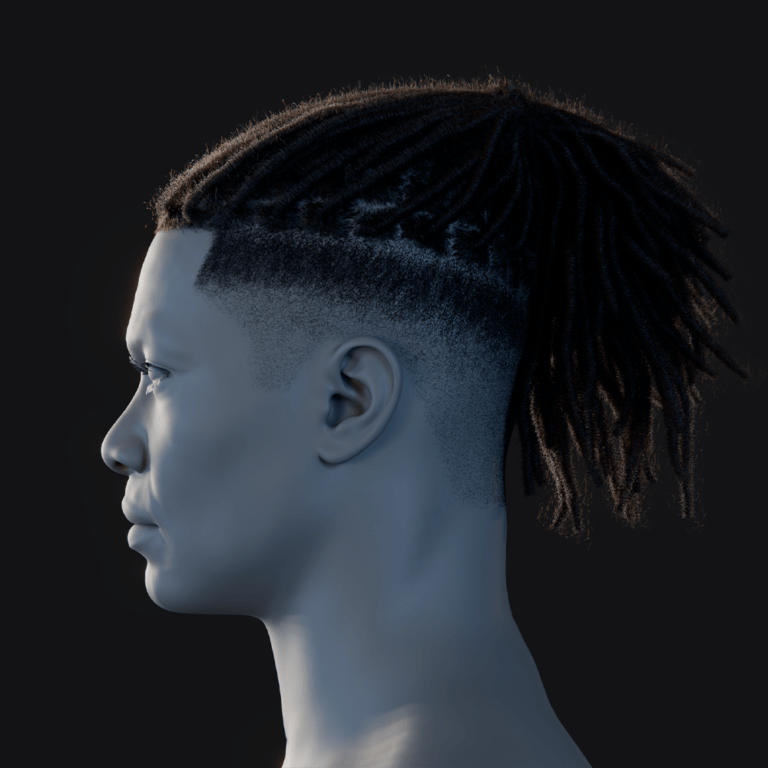
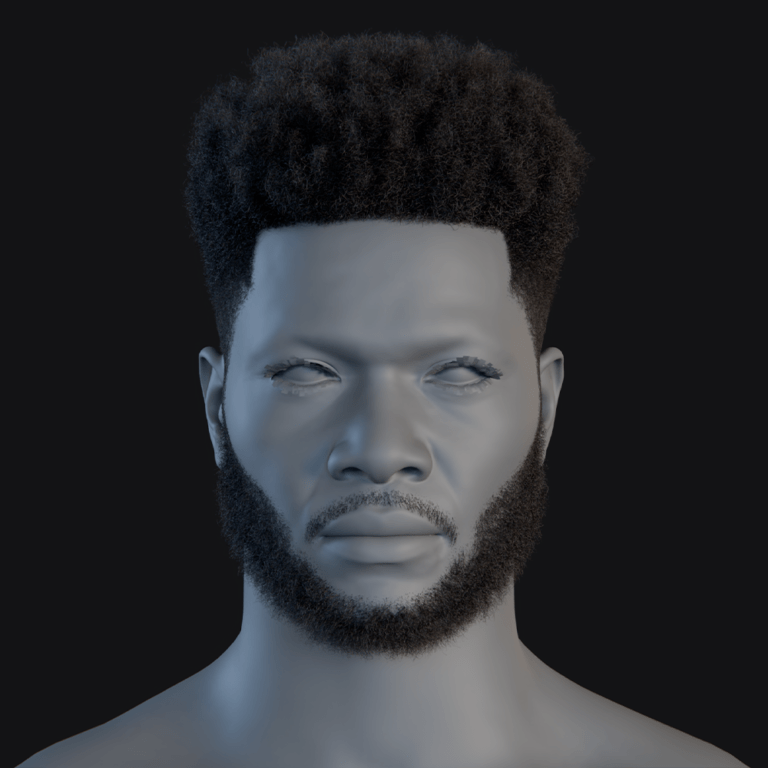
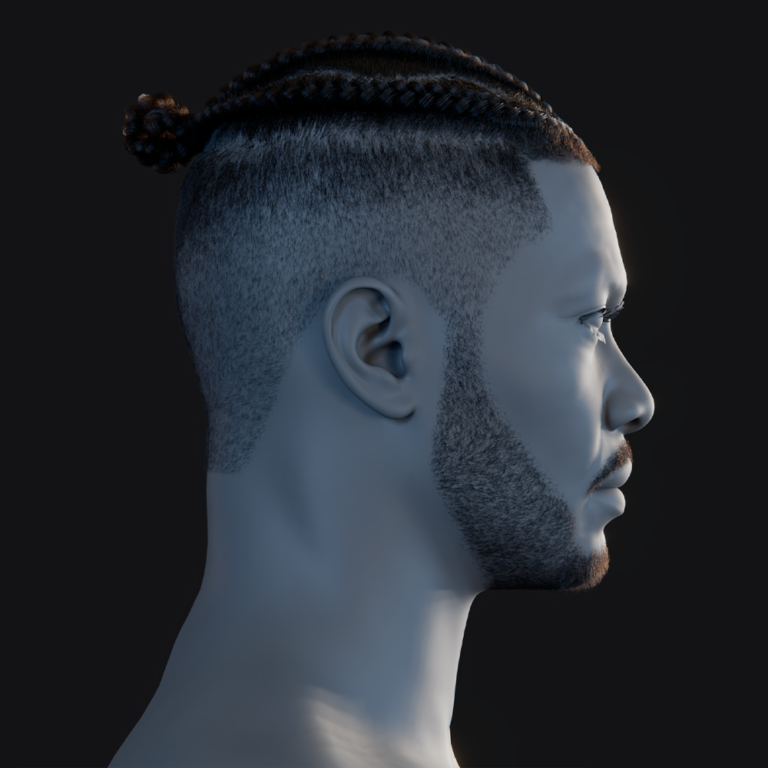
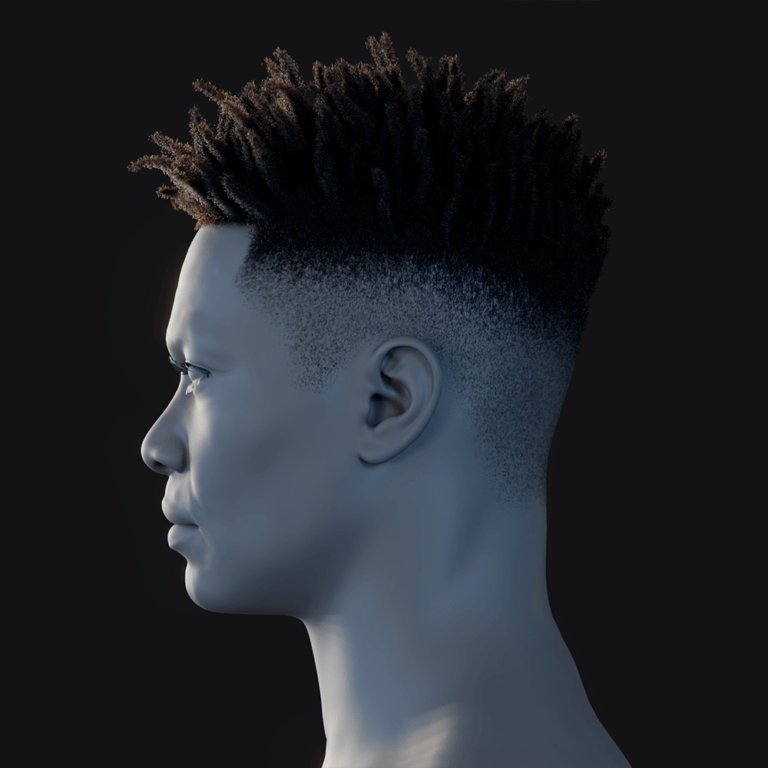
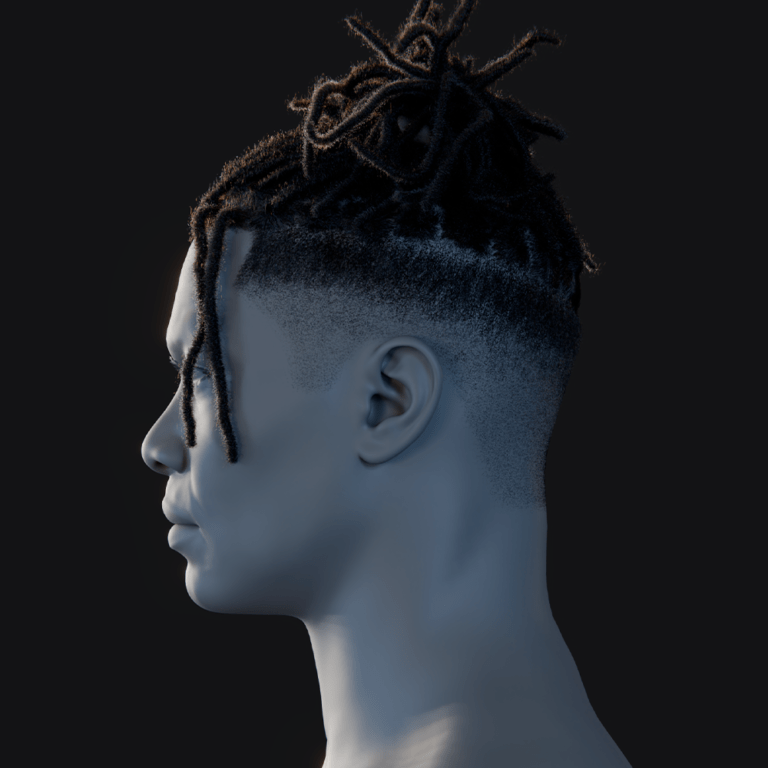
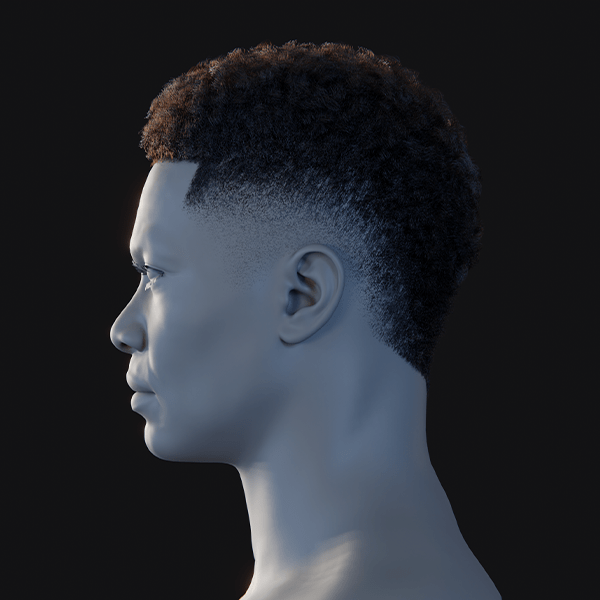
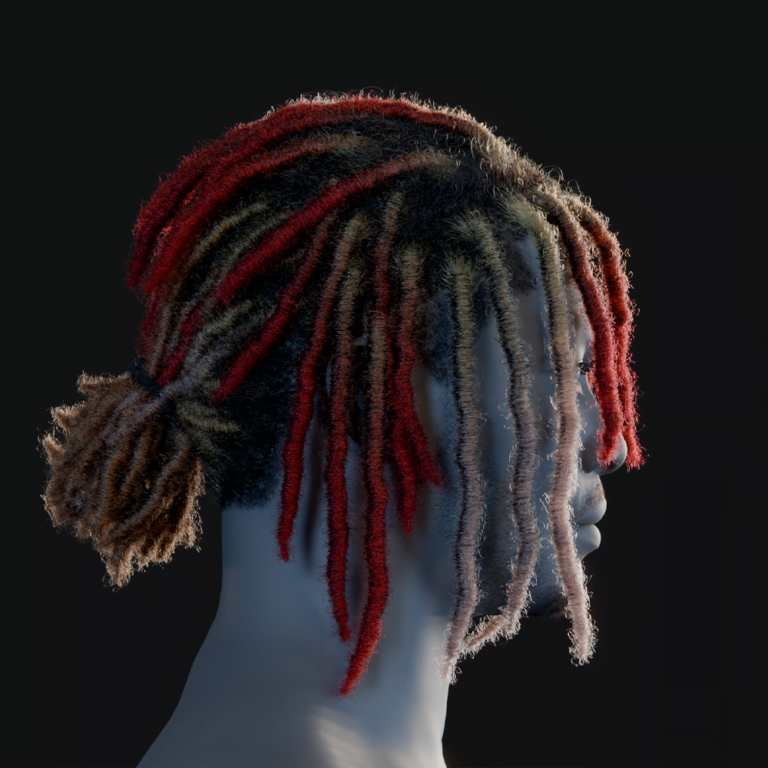
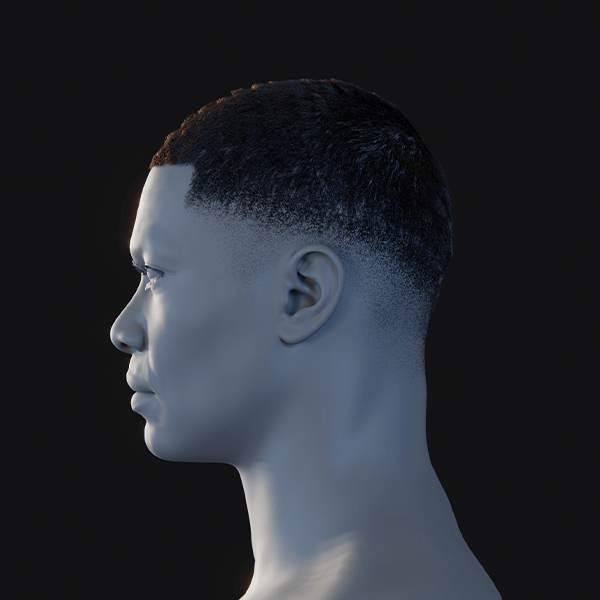
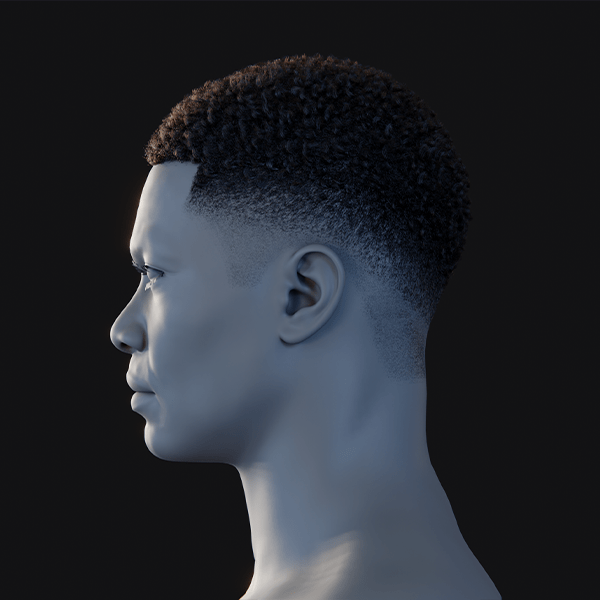
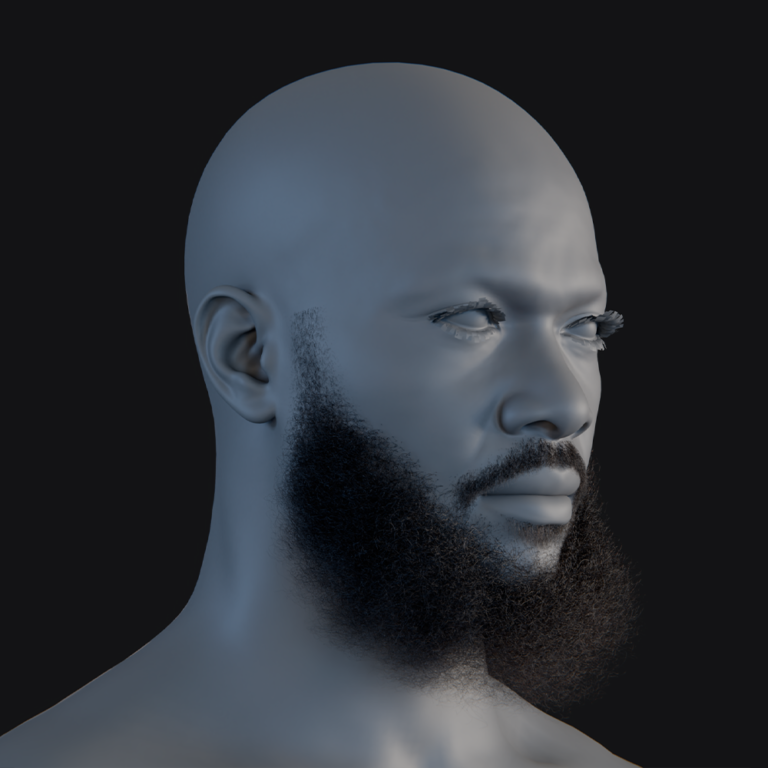
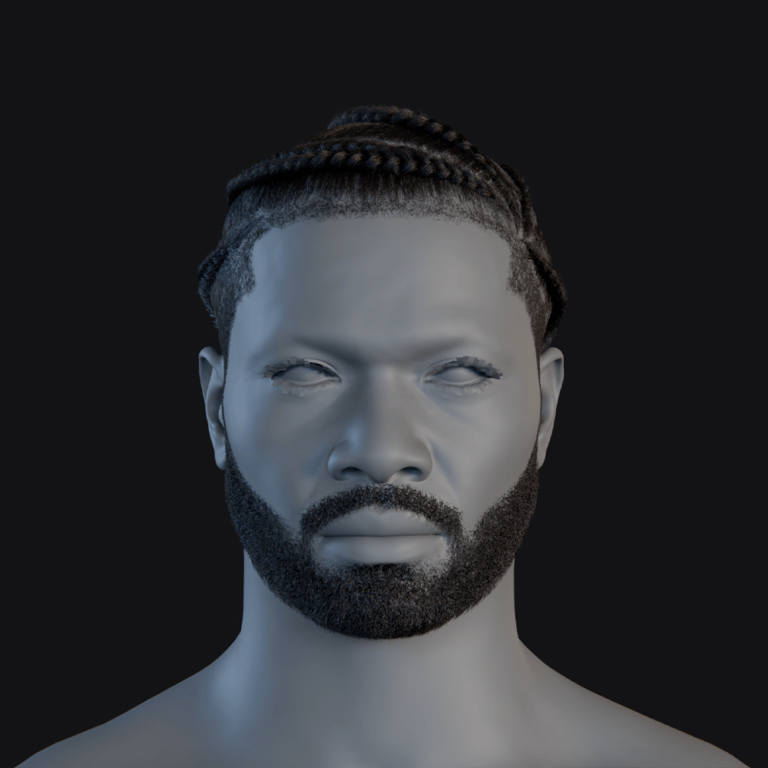
PixelHair consists of 3D hairstyle assets created by Yelzkizi. Unlike a standard Python-based add-on, its compatibility is tied to changes in Blender’s internal hair systems.
- Current Particle Hair System: PixelHair is currently built using Blender’s longstanding particle hair system. It remains compatible with any alpha or beta version that still supports particle emitters (including 3.x and 4.x versions).
- Legacy Support: If the Blender UI changes, users may need to enable “legacy hair” options, but the underlying data remains functional across recent pre-release builds.
- Transition to Geometry Nodes: Blender is moving toward a new hair system based on hair curves and Geometry Nodes. Once the old particle system is phased out, PixelHair assets in their current form may require conversion.
- Developer Roadmap: The creator, Yelzkizi, is actively working to integrate the new Geometry Nodes hair technology into the PixelHair collection. Future updates are expected to ship with native support for the new curves system.

Practical Usage of PixelHair in Pre-release Builds
- Recent Alpha/Beta Use: Assets should be appended as usual. Because they consist of objects and particles, they will render correctly. Minor setting adjustments may be needed if a beta changes default particle behaviors.
- Future-Proofing: In a hypothetical future alpha where particle hair is completely removed, users will require the updated PixelHair version utilizing Geometry Nodes. As of early 2026, Blender continues to support both systems simultaneously, allowing for continued use of existing assets.
PixelHair Asset Compatibility and Features
PixelHair functions primarily as an asset library rather than a Python-based add-on script, meaning compatibility is tied to Blender’s internal feature support rather than code changes.
- Core Functionality: The library serves as a time-saving alternative to creating hair from scratch. It utilizes a fitted mesh cap and a shrink-wrap technique to adapt hairstyles to character heads, a method that remains functional in newer Blender versions.
- Platform Versatility: PixelHair assets can be exported to other platforms, specifically Unreal Engine and MetaHuman. Since the hair is essentially geometry or curves, it can exist outside of Blender; newer Blender versions may even improve these export workflows through enhanced USD support.
- Future Compatibility: In current alpha and beta builds, PixelHair remains compatible as long as the particle hair system is present. The developer, Yelzkizi, plans to integrate the Geometry Nodes hair system once it becomes the industry standard to ensure long-term compatibility.
- Usage Advice: Users should download updated versions of PixelHair when moving to a new Blender release and consult the documentation for specific version notes.

The View Keeper Add-on Compatibility with Blender Alpha or Beta
The View Keeper is a Python-based add-on designed for camera management, allowing users to save and switch between multiple camera setups and render settings. Its compatibility with pre-release builds depends on the stability of Blender’s camera and scene API.
- API Stability: Basic camera properties such as transforms, focal length, and clipping are considered stable parts of the Blender API and rarely undergo radical changes between versions.
- Technical Implementation: The add-on automates the recording of camera data and manages UI panels and scene custom properties. If a Blender alpha introduces changes to UI registration or renames properties in the Render settings API, the add-on may require minor script tweaks.
- Developer Maintenance: As an active project, the developer is expected to provide updates to maintain compatibility. If a Blender beta causes a break in functionality, an update is typically issued to address the changes in the Python API.
For a user, if you try to use The View Keeper in an alpha/beta and it doesn’t work (perhaps it fails to register or throws an error when clicking a function), the steps would be:
- Check if there’s an updated version of the add-on (maybe on the Yelzkizi website or wherever it’s distributed).
- If not, it might be a simple fix – sometimes even changing the bl_info version or a single line can re-enable compatibility.
- You could also contact the developer or follow their social channels; since they actively promote it, they’d want to know if it breaks in the upcoming Blender.
The View Keeper and Add-on Troubleshooting in Blender Pre-release Builds
The View Keeper add-on is expected to remain functional in Blender alpha and beta builds, as it relies on stable parts of the camera and scene API. While no public reports of incompatibility exist for current versions like Blender 4.x, users should verify core features before relying on them for critical workflows.
- Operational Benefits: The add-on centralizes camera management, automating what can be a manual and error-prone process in complex animations or architectural visualizations.
- Verification Practice: Users should perform a quick run-through in new Blender versions saving camera views, switching scenes, and rendering from multiple cameras to ensure the add-on behaves as expected.
- Developer Support: Small issues arising from API tweaks are typically addressed quickly by the developer, given the active nature of the project.

How to Troubleshoot Add-ons That Break on Blender Beta
If an add-on fails in a Blender beta or alpha, follow these structured steps to identify and resolve the issue:
- Identify the Problem: Determine if the add-on fails during activation or if specific operators trigger errors. Check the Blender Info bar or console for error messages, which often specify the exact line of Python code and the reason for the failure, such as an “attribute not found.”
- Check for an Update: Verify if the developer has released a version specifically labeled for the new Blender build. Many developers of complex tools, such as render engines, provide pre-release updates during the beta period.
- Interim Fixes: Users comfortable with Python can attempt manual edits if the fix is trivial, such as a renamed property.
- Example: If an error indicates
bpy.types.Scene.render.layersis missing, consult the API release notes to find the replacement (e.g.,Scene.view_layers) and update the add-on’s code accordingly.
- Example: If an error indicates
- Community and Developer Outreach: If a quick edit is insufficient, check forums like Blender Artists or the add-on’s GitHub/Discord for community patches. Reporting the break to the developer helps them fix the issue before the official Blender release.
- Fallback and Alternatives: If the add-on is essential and cannot be fixed, perform that specific task in a stable Blender version or seek an alternative add-on that is compatible with the beta.
- Monitor API Changes: Use the “Latest Changes” log on the Blender buildbot or the official developer wiki to identify specific Python API differences that may be causing the conflict.
How to Report Bugs When Using Blender Alpha or Beta
Reporting bugs is a vital part of the testing process for alpha and beta builds. Following a structured reporting method ensures developers can effectively identify and resolve issues before the final release.
- Verify the Bug: Confirm the issue is a bug rather than user error by attempting to reproduce it from scratch in a fresh scene. Ensure you are testing on the most recent daily build, as the problem may have already been addressed in an update.
- Use Blender’s Bug Report Tool: Access the reporting interface via Help > Report a Bug within Blender. This directs to the official issue tracker (projects.blender.org), where a free Blender ID account is required for submission. Reports can also be submitted directly via the web interface.
- Fill Out the Bug Report Form: A high-quality report includes specific technical details:
- Blender Version: Include the specific version and build hash (e.g., Blender 4.0 Beta, hash abcdef1234). Explicitly mention if it is an alpha or beta build.
- Short Description: A concise summary of the error (e.g., “Crash when switching to Edit Mode”).
- Steps to Reproduce: A numbered list of exact actions required to trigger the bug.
- Expected vs. Actual Behavior: A clear explanation of what should have happened versus what actually occurred.
- System Information: Hardware and driver details, which can be generated via Help > Save System Info.
- Attachments: Provide a simple .blend file if the bug is file-specific, screenshots for visual glitches, or crash logs from the system’s temporary directory.
- Search for Duplicates: Before submitting, search the tracker to see if the issue has already been reported. If a report exists, add your findings to it instead of creating a new entry.
- Submit and Follow Up: After submission, monitor the report for questions from developers or triagers. Testing suggested workarounds or new builds helps move the fix forward.
- Communication: Use clear language and avoid unnecessary jargon to help developers identify the problem quickly.

Where to Download Blender Alpha, Beta, and Daily Builds
Downloading official Blender test versions is a straightforward process through the Blender Foundation’s dedicated web pages.
- Blender Experimental Builds Page: The primary source for non-stable versions is the official buildbot site (builder.blender.org), accessible via the “Download” section on blender.org under the “Experimental” or “Daily Builds” tab. The site emphasizes that these builds are unstable and can potentially damage files.
- Daily Builds (Alpha): These are experimental nightly builds updated frequently (sometimes multiple times a day). They are listed under the “Daily” section for various operating systems (Windows, macOS, Linux) and are typically labeled as Alpha.
- Beta and RC Builds: When a version reaches the beta or Release Candidate stage, it is listed on the buildbot page with a clear “Beta” or “RC” label. These are also occasionally highlighted on the main Blender download page.
- Specific Branches: The buildbot sometimes offers builds for specific feature branches intended for developer-centric testing, though most users stick to the main daily or beta builds.
- Previous Versions and LTS: Archived versions and Long-term Support (LTS) releases, such as Blender 2.93 LTS, are available under the “Previous Versions” or “Long-term Support” sections of the main site.
- Alternative Management Tools:
- Blender Launcher: A community-made tool that automates the downloading and management of multiple Blender versions.
- Steam/Microsoft Store: These platforms occasionally offer opt-in beta branches for the latest versions.
Frequently Asked Questions (FAQs)
- Can I install multiple versions of Blender (stable, beta, alpha) on the same computer?
Yes. Blender is portable, allowing multiple versions to exist side by side. By using .zip versions, you can extract each into its own folder and run them independently. Each version uses a unique configuration folder based on its version number, preventing conflicts. Users should use “Open With” or open files directly from the desired Blender version to avoid accidentally launching the system’s default associated version. - Will Blender auto-update from a beta to the final release?
No. Blender lacks an in-app auto-updater. You must manually download the final release from the official website, Steam, or the Microsoft Store. While the beta will continue to function, it does not transition into the stable version. It is best to move to the official release to access final bug fixes. - Is it safe to open my existing projects in a Blender beta or alpha?
It is generally safe to open a copy, but you should never open and save the only copy of a critical project in an unstable build due to the risk of corruption or data changes. Saving a file in a newer version may prevent it from being opened in older versions. Always maintain backups when moving between different version streams. - How can I check if my add-ons are compatible with a new Blender version?
The most direct method is to run the new Blender version and attempt to enable the add-on. If it throws an error or fails to activate, it is incompatible. You can also review the add-on’s website, release notes, or Blender’s Python API change logs. Community platforms like Reddit and BlenderArtists are also helpful for identifying which popular add-ons are functional in a new beta. - What’s the difference between Blender’s stable releases and LTS releases?
Stable releases (e.g., 4.0, 4.1) are regular versions that introduce new features. LTS (Long Term Support) releases are designated versions that receive only critical bug fixes for two years without any new features or functional changes. LTS is ideal for studios requiring a consistent environment for long-term projects, while Stable releases provide the latest technology. - How often does Blender release new versions, and how long do alpha/beta periods last?
Blender typically releases a new version every 3–4 months, totaling about three releases and one LTS per year. A typical cycle includes 6–8 weeks in alpha for new features, 4–6 weeks in beta for bug fixing, and roughly one week as a Release Candidate (RC). These phases often overlap across different versions. - If I use a Blender alpha and a new feature I used gets removed before final release, what happens to my file?
This is rare, but if an experimental feature is pulled or changed, data associated with it may be ignored or lost when opened in the final release. Developers may also hide these features behind an “Experimental” toggle. It is advised not to rely on alpha-only features for critical work until they are officially included in a stable release. - What does “RC” actually stand for and mean (in simple terms)?
“RC” stands for Release Candidate. It is a final test build that developers believe is ready for official release unless a major bug is discovered. If issues are found, subsequent versions (RC2, RC3) may be issued. For users, an RC offers a very low-risk way to access the new version just before the stable launch. - If my important add-on doesn’t work in the Blender beta, should I wait to upgrade?
Yes. If an add-on is vital to your production workflow, you should stay on the stable version until compatibility is confirmed. You can test the beta separately, but do not move your primary production to a new version if essential tools are broken. Checking with the add-on developer regarding their update plans is recommended. - Can I use the same Blender settings and preferences across multiple versions (like import my theme, hotkeys)?
Yes. Upon the first run of a new version, Blender usually offers an option to “Copy Settings” from the previous version. You can also manually copy the contents of the config folder. While most preferences like themes and keymaps migrate smoothly, you should verify that all enabled add-ons are still functional in the new environment, as incompatible scripts may cause errors on launch.
Conclusion
The decision to use Blender’s alpha or beta builds involves weighing innovation against stability. Alpha builds provide access to bleeding-edge features months before official release, allowing experienced users and hobbyists to influence development through feedback. Beta builds offer a near-final sneak-peek with lower risk, serving as an essential tool for studios and add-on creators to prepare for upcoming versions.
- Stable and LTS Releases: These are the recommended choice for beginners, long-term endeavors, or mission-critical work. They are battle-tested and free from the surprises of incomplete features or significant bugs.
- A Balanced Approach: Many users maintain a stable version for primary production while keeping an alpha or beta installed for research and development. This allows for exploration without risking the core workflow.
- Practical Management: Navigating pre-release builds requires caution, frequent backups, and the duplication of files. Users should ensure that preferences are backed up and that assets, such as PixelHair, and various add-ons remain compatible.
- Community Contribution: Testing and reporting issues in alpha and beta builds directly contributes to the polish of the final stable release. By identifying problems early, pre-release users help ensure a smoother experience for the broader community.
In summary, the choice of build should fit the user’s specific needs:
Alpha: For the newest features, provided the user accepts the associated risks and caveats.
Stable/LTS: For rock-solid reliability.
Beta: For a near-final experience and preparation.
Sources and Citations
- Blender Artists Forum – “What is Blender Alpha and Candidate?”
- Blender Buildbot (daily experimental builds warning)
- Blender Manual – Release Cycle
- StackExchange (Blender) – API stability (Bcon3 / beta rules)
- Reddit r/blender – Blender 4.5 beta stability discussion
- Blender Secrets Blog – BlenderUpdater / daily builds warning
- BlenderArtists Forum – PixelHair for Blender announcement
- FlippedNormals Store – PixelHair product page
- Yelzkizi statement – PixelHair Geometry Nodes future update
- Yelzkizi.org – The View Keeper Add-on
- Reddit r/blender – Blender 4.0 add-ons compatibility thread
- Reddit r/blender – Fixing add-ons between versions discussion
- Manjaro Linux Forum – Blender LTS info
- CGCookie Blog – Blender 5.0 release guide
- Blender.org Experimental Builds warning page
- Blender Manual – Installing on Windows (portable mode)
- Blender StackExchange – Bug reporting guidance
- Blender Manual – Troubleshooting / bug reporting
Recommendations
- Fortnite Season 2 Launch Trailer Shows Off Wacky New Mobility Items and Gameplay Features
- Mario Movies Got One Thing Right: Why Skipping Toilet Humor Doesn’t Rule Out Wario in a Future Sequel
- The Kingdom Come: Deliverance 2 Studio Somehow Has Time to Make a New Sequel and an Entire Lord of the Rings RPG, Warhorse Studios is Also Working on a “New Kingdom Come Adventure” Explained
- According to YouTube, “Independant Animators Are Changing the Industry” What the 2026 Animation Trends Report Reveals
- All katsu curry recipes in Romeo Is a Dead Man: complete list, ingredients, buffs, and how to unlock them
- UK Social Restrictions on Kids’ Games: What New Regulations Could Mean for Roblox and Fortnite
- Far Far West Sales Surpass One Million Copies: Full Breakdown, Success Factors, and Industry Impact
- The Witcher 3: Songs of the Past Expansion Explained, Prologue Theory, Story Details, Release Window, and Geralt’s Return
- A Kratos-less God of War Spin-Off Is In The Works: Latest Rumors, Leaks, and What We Know So Far (March 2026)
- Blue Prince and The Darkest Files Win Big at the German Computer Game Awards 2026: Full Winners, Categories, and Key Takeaways