


Blender DLSS is an exciting new feature that brings NVIDIA’s AI-powered Deep Learning Super Sampling (DLSS) technology into Blender’s Cycles render engine. In simple terms, it uses artificial intelligence to upscale and denoise your viewport in real-time, giving you near-final render quality with a fraction of the computing effort.
This 2026 guide explains what DLSS does in Blender, how to enable it, and what to expect in terms of performance, requirements, and image quality. We’ll also compare DLSS Ray Reconstruction with Blender’s existing denoisers (OptiX and OpenImageDenoise), address common artifacts like ghosting, and provide tips for troubleshooting. By the end, you’ll know how to leverage Blender’s experimental DLSS integration for faster, smoother viewport rendering and whether it’s the right choice for your projects.
In This Article (20 sections)
Blender DLSS explained: what DLSS does in the Cycles viewport

DLSS in Blender functions as a real-time AI upscaling and denoising tool for the Cycles viewport. By rendering at a lower resolution or with fewer samples, it uses a trained neural network to intelligently fill in details, creating a full-quality appearance. This significantly reduces the GPU’s ray tracing workload, leading to smoother interactivity. Originally developed for gaming, DLSS (Deep Learning Super Sampling) allows Cycles to provide clean, high-fidelity previews even in complex scenes, with some users comparing the responsiveness to the EEVEE engine.
Currently focused on the viewport, DLSS acts as an AI-powered overlay that reconstructs missing details rather than simply blurring noise like traditional denoisers. Because it is trained on vast amounts of ray-tracing data, it preserves fine textures and edges effectively. This “AI wizard math magic” results in near-instant, noiseless previews, making look development and scene iteration much faster by eliminating the need to wait for hundreds of samples to converge.
DLSS Ray Reconstruction in Blender: how the real-time denoiser works
The core of this technology is DLSS Ray Reconstruction, an AI-driven denoiser that replaces manual filters with a neural network. By analyzing noisy frames alongside motion vectors, normals, and depth data, it predicts pixels to match a fully-sampled render. Unlike traditional spatial or temporal denoisers that can struggle with complex effects, Ray Reconstruction recognizes specific patterns, such as the difference between glossy reflections and shadows, to produce smarter results.
In the viewport, Cycles passes partially rendered images to the DLSS network, which uses GPU Tensor Cores to denoise and upscale them in real-time. This system is specifically optimized for low ray counts, allowing it to infer high-quality images from very sparse data. While it excels at maintaining high-frequency details, it is a post-process with limitations; certain elements like transparency or volumetrics may experience flickering or “ghosting” artifacts if the AI lacks consistent frame-to-frame information.
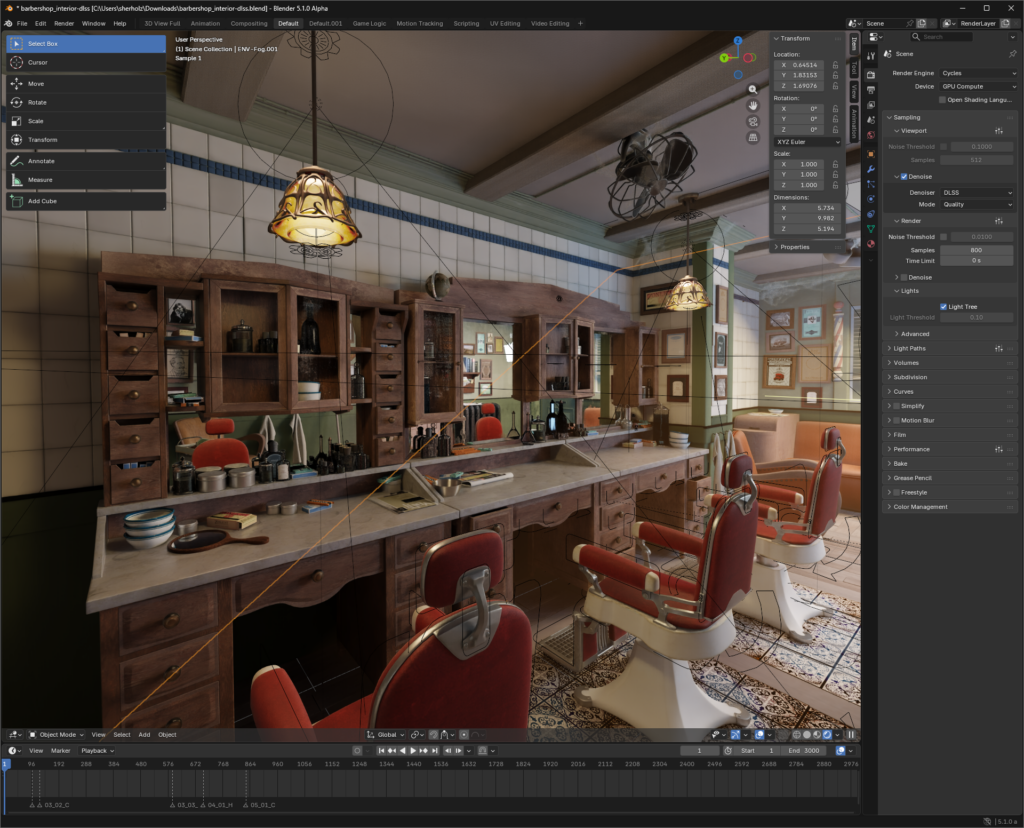
Is DLSS officially supported in Blender yet?
As of early 2026, DLSS is not officially supported in main Blender releases. It remains an experimental feature demonstrated at SIGGRAPH 2025 but excluded from stable builds due to technical and licensing concerns. The Blender Foundation is cautious about shipping proprietary code and would prefer NVIDIA to handle distribution via drivers to maintain Blender’s open-source integrity.
Currently, the feature exists only as a code patch from NVIDIA engineers. It is not available in standard Blender 4.x or 5.x downloads. Users wishing to use DLSS must use special community builds or compile the code themselves. Consequently, there is no official timeline for when or if DLSS will be integrated into a stable, out-of-the-box Blender release.
Blender DLSS pull request 153077: current status and what’s being tested
The integration progress is tracked via pull request #153077, contributed by NVIDIA. This prototype focuses on using Ray Reconstruction for Cycles viewport denoising. Early testing reveals that while the performance gains are significant, the implementation currently suffers from bugs, such as visual artifacts and issues rendering particle systems or volumes.
The feature is currently in an experimental phase under review by the Cycles team. While the quality is praised, the primary hurdle remains the distribution of proprietary NVIDIA binaries. Developers may eventually merge the code into the source without enabling it for official releases until these licensing issues are resolved. Currently, an NVIDIA engineer is actively updating the PR based on community feedback from users testing the branch on various RTX GPUs. Testing continues to focus on resolving issues like animation ghosting and ensuring compatibility with all render passes.
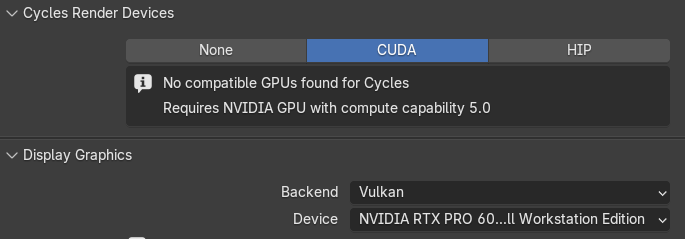
Blender DLSS requirements: RTX GPU, CUDA, and minimum NVIDIA driver version
To use DLSS in Blender, your system must meet specific hardware and software criteria:
- NVIDIA RTX GPU: Support is exclusive to NVIDIA RTX series cards (RTX 20, 30, 40-series, and newer). These GPUs contain Tensor Cores necessary for AI computation. Non-RTX NVIDIA cards and all AMD/Radeon GPUs are unsupported.
- CUDA and Compatible Drivers: The feature is tied to CUDA support and requires NVIDIA drivers version 590 or higher. These drivers, released in late 2025, include the necessary DLSS 3.5 Ray Reconstruction support.
- NVIDIA NGX and DLSS Libraries: Integration relies on NVIDIA NGX technology. While the driver includes the NGX core, the specific DLSS neural network model resides in separate library files like
nvngx_dlssd.dll(Windows) orlibnvidia-ngx-dlssd.so(Linux). These must be present in the system or Blender folder for the feature to function. - Operating System: Support is limited to 64-bit Windows (10/11) and Linux. macOS is not supported due to the lack of NVIDIA RTX hardware. Linux users must use proprietary NVIDIA drivers rather than open-source alternatives.
- Blender Build with DLSS: Because official releases lack the code, you must use a version compiled with the DLSS patch or an experimental community build.
Blender DLSS build options: test builds vs compiling Blender from source
Since DLSS is not yet in official releases, users have two main options:
- Community Test Builds: Tech-savvy members have shared pre-compiled, patched versions of Blender (such as those from Mix 3D Design) that have DLSS features unlocked. While these are the easiest to use, they are unofficial, may be unstable, and should not be used for production without testing.
- Compiling from Source with DLSS Patch: This involves using the code from pull request #153077. Requirements include:
- A development setup (Visual Studio, GCC/Clang, CMake, etc.).
- NVIDIA DLSS SDK files.
- NVIDIA OptiX SDK (often required alongside the DLSS SDK).
Compiling allows for the latest updates but is a complex process involving potential trial and error with dependencies.
How to enable Blender DLSS in Cycles viewport denoising
In a compatible DLSS-enabled build, follow these steps:
- Switch to Cycles Render Engine: DLSS currently only supports Cycles.
- Enable Viewport Rendered Mode: Toggle the 3D viewport to Rendered mode.
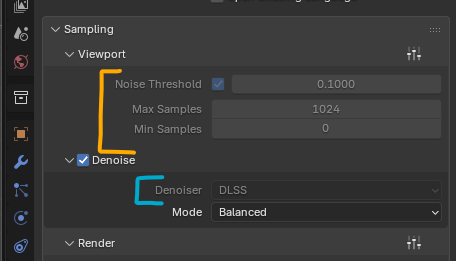
- Find the Denoising Settings: Navigate to the Render Properties panel and find the Denoising section.
- Select DLSS as the Viewport Denoiser: Choose “DLSS” from the Viewport Denoiser dropdown menu.
- Choose a DLSS Mode: Select a preset such as Quality, Balanced, Performance, or DLAA to balance speed and fidelity.
- Viewport DLSS Activates: The viewport will refresh and use AI to provide a near-noiseless image.
- Adjust as Needed: Switch between modes or toggle the denoiser to compare results.
- Final Render (optional): Some builds allow DLSS for final renders, though this may cause inter-frame flicker.
Blender DLSS quality presets: Performance vs Balanced vs Quality
These presets allow users to manage the trade-off between image quality and rendering speed:
- Quality Mode: Prioritizes sharpness and detail by using higher input resolution. It preserves fine textures best but offers a smaller performance boost.
- Balanced Mode: A middle-ground option that provides a good performance increase while maintaining decent image clarity.
- Performance Mode: Maximizes speed by using a lower internal resolution. The viewport becomes highly responsive (comparable to EEVEE), though images may appear blurrier with more artifacts.
- DLAA Mode: Uses DLSS at full resolution for high-quality anti-aliasing and denoising without upscaling. It offers the best fidelity but no performance boost from lower-res rendering.
Users can think of these as a spectrum from Performance (fastest, blurriest) to Quality/DLAA (slowest, sharpest).

Blender DLSS vs OptiX denoiser for Cycles viewport preview
While both are NVIDIA-based AI tools, they differ significantly:
- Performance and Smoothness: DLSS is much more responsive than OptiX because it can upscale from lower resolutions, whereas OptiX only denoises at the current resolution.
- Image Quality and Detail: DLSS Ray Reconstruction preserves high-frequency details (like fine textures and sharp edges) better than OptiX, which can sometimes blur or smear these details.
- Temporal Stability: OptiX treats frames individually, leading to potential flicker. DLSS uses temporal data for better stability, though it may introduce ghosting or motion “smear” on moving objects.
- Compatibility: OptiX is officially integrated and more stable across various NVIDIA GPUs. DLSS is currently experimental, requires RTX-specific Tensor Cores, and necessitates custom Blender builds.
- Use Case Differences: OptiX is a reliable choice for high-quality stills or when stability is paramount. DLSS is better for interactive look-development and navigating heavy scenes due to its superior speed and detail reconstruction at low samples.ve a DLSS build, you could compare the two by switching the viewport denoiser between OptiX and DLSS on the fly to see the difference in your scene’s clarity and frame rate.
Blender DLSS vs OpenImageDenoise for viewport denoising
OpenImageDenoise (OIDN) is an open-source, vendor-agnostic AI denoiser integrated into Blender that primarily runs on the CPU.
- Performance: DLSS significantly outperforms OIDN in the viewport because it uses dedicated GPU Tensor Cores and utilizes upscaling to reduce the number of pixels rendered. OIDN can cause choppy viewport updates on slower CPUs, while DLSS keeps the experience fluid, often described as a “night-and-day” difference in FPS.
- Image Quality: OIDN is a spatial denoiser that can suffer from flickering in animations. DLSS typically produces cleaner images at very low samples (e.g., 5–10 samples) and includes upscaling to sharpen lower-resolution images, a feature OIDN lacks.
- Cross-vendor and Open-Source: OIDN works on all hardware (AMD, Intel, NVIDIA) and follows Blender’s open-source principles. DLSS is proprietary and restricted to NVIDIA RTX cards. Blender developers are monitoring OIDN 3.0, which may bring GPU acceleration and temporal stability, as a preferred open alternative to DLSS.
- Workflow Use: OIDN remains a standard for final renders and high-quality previews with moderate samples. DLSS is currently optimized for live viewport interaction and fast iteration at extremely low sample counts.
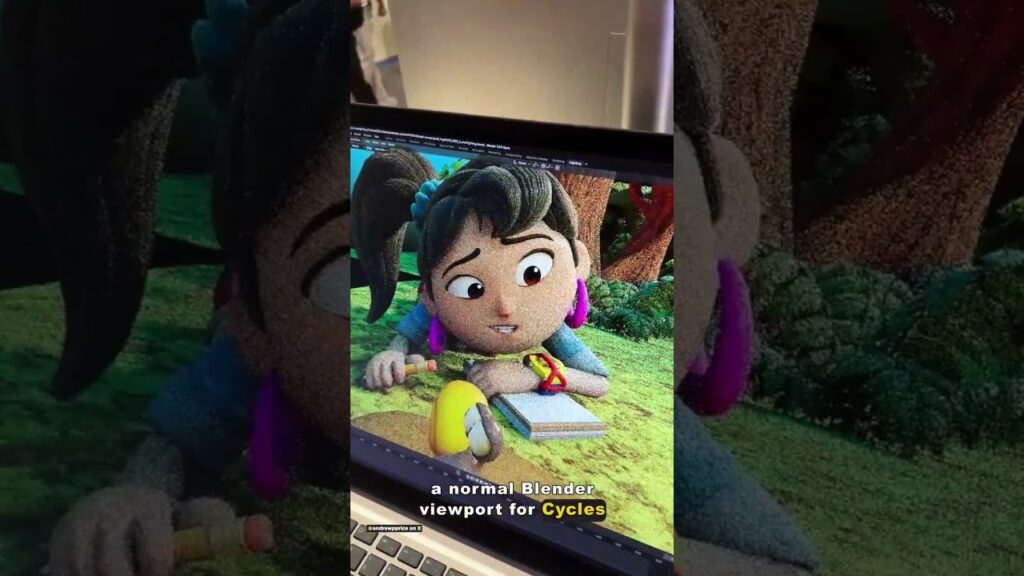
Blender DLSS ghosting and flickering: common artifacts and fixes
Despite its benefits, DLSS can introduce AI-specific visual artifacts:
- Ghosting: A faint trail or afterimage appearing behind moving objects or during camera motion. This occurs because the AI uses temporal data from previous frames that may not align with rapid new movements.
- Flickering: Frame-to-frame inconsistency where parts of the image “flutter.” This is common with transparent materials like glass or fine geometry like hair.
- Missing Objects: Early integration bugs can cause small elements, like particles or fine instances, to be smoothed out or ignored by the denoiser.
- Fixes and Workarounds:
- Use a higher quality mode: Quality or DLAA modes use more data and less temporal accumulation, reducing ghosting.
- Increase samples slightly: Moving from 1 sample to 4 or 8 samples provides the AI with more ground-truth data to resolve tricky features.
- Avoid extreme motion: Moving the camera or objects more slowly helps the temporal algorithm keep up.
- Keyframe pausing: Letting the viewport pause allows the AI to converge on a stable, ghost-free image for critical evaluation.
- Stay updated: Newer versions of the DLSS SDK and library files often contain refinements to stability and quality.
Blender DLSS not supported or greyed out: troubleshooting checklist
If the DLSS option is unavailable in a compatible build, use this checklist:
- GPU Compatibility: Verify you are using an NVIDIA RTX card. Non-RTX and AMD cards will not work.
- CUDA Device and OptiX Setting: Ensure the GPU is selected under CUDA or OptiX in Blender’s System Preferences and that Cycles is set to GPU Compute mode.
- NVIDIA Driver Version: Version 590 or higher is required. Older drivers will cause the option to be greyed out.
- DLSS Library Present: The integration requires specific library files (
nvngx_dlssd.dllfor Windows orlibnvidia-ngx-dlssd.sofor Linux) to be manually placed in the Blender application directory. - NGX Driver Components: Ensure the full NVIDIA driver is installed and that NGX core components have not been removed.
- Build Mismatch: Confirm you are using a specific custom build that includes the DLSS code, as official versions do not.
- Command-line Feedback: Launch Blender from a terminal to check for error logs such as “library not found” or “unsupported device.”

Blender DLSS on Windows: nvngx DLL and DLSS library installation notes
- Core Component: The NVIDIA driver installs
_nvngx.dllin system folders, acting as a bridge for AI features. - Implementation DLL: Users must manually source
nvngx_dlssd.dll(the “d” indicates the Ray Reconstruction denoiser). This can be found in the NVIDIA DLSS SDK, certain games (like Cyberpunk 2077), or community repositories. - Installation: Place the DLL directly in the folder containing
blender.exe. - Verification: Use tools like Process Explorer to confirm
nvngx_dlssd.dllis loaded by the Blender process. - Updates: Newer versions of the DLL are generally backward compatible and can be swapped manually to potentially improve quality.
Blender DLSS on Linux: libnvidia-ngx and driver setup tips
- Driver Requirements: Use proprietary NVIDIA drivers (590+). The system should have
libnvidia-ngx.so.1present in system libraries. - Library Installation: Obtain
libnvidia-ngx-dlssd.sofrom the DLSS SDK. Copy it to the Blender folder and create a symlink namedlibnvidia-ngx-dlssd.so.1pointing to the versioned file. - Library Path: If the library isn’t found, you may need to set the
LD_LIBRARY_PATHenvironment variable to point to the Blender directory. - Security Policies: Ensure SELinux or AppArmor isn’t blocking the loading of external libraries from the Blender directory.
- Native vs. Wine: It is recommended to use the native Linux Blender build with the native
.solibrary rather than running the Windows version via Wine.

Blender DLSS performance benchmarks: viewport FPS and interactivity gains
DLSS provides a massive boost to viewport responsiveness:
- Interactive FPS: Scenes that typically run at 5–10 FPS can reach 20–30 FPS or higher. Some users report smoothness comparable to the EEVEE engine while maintaining path-tracing quality.
- Heavy Scenes: DLSS allows for fluid navigation in scenes with complex geometry, indirect lighting, and volumetrics by rendering at a lower internal resolution and upscaling.
- Shading Reduction: By rendering fewer internal pixels (e.g., rendering 540p for a 1080p display), GPU shading work is reduced by approximately 90%, leading to 3x to 6x faster update rates.
- High-Resolution Benefits: The performance gain is most significant on 4K monitors, where the GPU can render at 1080p or 1440p and upscale, saving massive amounts of computation.
- Productivity: Real-time feedback in lighting and material adjustments allows artists to iterate more quickly, significantly reducing the “waiting time” for a noisy viewport to clear.
Blender DLSS licensing and distribution concerns in open‑source Blender
The primary obstacle to officially integrating DLSS into Blender is centered on licensing and distribution rather than technical challenges. Because Blender is open-source under the GPL license, all distributed code must comply with those terms, whereas NVIDIA’s DLSS is proprietary.
- Can Blender include DLSS?: While the integration hooks in Blender’s source code can be open-source, the actual DLSS neural network libraries (
.dll/.so) are closed-source. Bundling these libraries with Blender would violate its license and open-source ethos. Currently, users must provide these libraries themselves. This differs from OptiX, which is part of the NVIDIA driver and therefore does not need to be shipped by Blender. - Blender Devs’ Stance: Developers have stated they are “not comfortable shipping it with the current mechanism.” Their preference is for NVIDIA to include the DLSS runtime in the standard driver installation—similar to OptiX—so Blender could safely utilize it without distributing proprietary files.
- Merge but Not Ship: There is a possibility that the support code will be merged into Blender’s codebase without the proprietary binaries. In this scenario, the DLSS option would appear in official releases but remain inactive unless the user manually adds the required libraries.
- Licensing Terms: The DLSS SDK license often conflicts with the GPL, particularly regarding clauses against reverse engineering. While dynamic loading allows Blender to interface with the technology “at arm’s length,” the requirement for users to manually find files is not considered user-friendly.
- NVIDIA’s Role: As the contributor of the feature, NVIDIA may eventually reach an agreement with the Blender Foundation, perhaps by moving the DLSS denoiser into standard driver packages to simplify the legal and distribution landscape.
- Open-Source Alternatives and Neutrality: Blender aims to remain vendor-neutral. Integrating a proprietary NVIDIA-only feature raises questions about whether AMD’s FSR or Intel’s XeSS should also be included. Developers have explicitly stated that a cross-vendor solution like OpenImageDenoise (OIDN) 3 is preferable, even if it is currently further away from release.
- User Responsibility Model: One bypass is the “DIY” model where the user downloads binaries manually. This prevents licensing conflicts but significantly compromises the user experience.
- Patent Issues: As a patented technology, DLSS requires caution. While using NVIDIA’s libraries on NVIDIA hardware likely covers patent licensing for the user, the Blender Foundation is historically careful about indirectly implicating patents within their software.
In summary, Blender developers are prioritizing the project’s open-source integrity and are waiting for a distribution method from NVIDIA that does not require bundling closed-source binaries. Until a more integrated or open alternative (like OIDN 3) is available, DLSS is likely to remain an experimental or manual setup for users.

Frequently Asked Questions (FAQs)
- What DLSS mode is best for previewing animations?
Balanced mode is recommended for general animation previews as it strikes a compromise between performance and stability. While it preserves more detail than Performance mode, some ghosting should still be expected on moving objects. For scenes with a moving camera but static objects, Quality mode can further reduce artifacts. To minimize flicker, consider increasing viewport samples to 4 or 8 to provide the algorithm with more data. - What is the best DLSS setting for working on a still image or single frame?
DLAA (Deep Learning Anti-Aliasing) or Quality mode are best for stills. DLAA is ideal because it operates at full resolution without upscaling, providing the sharpest denoised result. If DLAA is unavailable, Quality mode offers the highest internal resolution and best texture retention for fine-tuning materials and lighting. - Can I use DLSS for final renders or only for viewport previews?
DLSS is currently intended for viewport previews and is not part of the official final render pipeline. While some experimental builds may allow it for final frames, it is not reliable for final animations due to ghosting and flicker. For professional work, it is best to use DLSS for iteration and switch to stable denoisers like OIDN or OptiX for final exports. - How does DLSS handle animations with lots of movement?
Rapid movement can cause ghosting and flickering, especially on transparent surfaces or fine details. While higher quality modes and increased sample counts can mitigate these issues, DLSS is not flawless for heavy motion. It remains a valuable tool for checking lighting and timing, but critical motion should be verified with DLSS disabled or through conventional low-res renders. - Does DLSS work with motion blur or depth of field in the viewport?
Since Cycles viewport does not currently support true motion blur, the point is mostly moot; however, DLSS typically handles out-of-focus noise from depth of field (DOF) very effectively, producing smooth bokeh. If these effects are present in the viewport render, DLSS will denoise them as part of the image. - Should I use DLSS or stick to OptiX/OIDN for preview?
For NVIDIA RTX users, DLSS is generally superior for previews because it is faster and provides a clearer picture with fewer samples. However, OptiX remains the reliable choice for official Blender releases. Use DLSS for high interactivity and fall back to OptiX/OIDN for reference checks or on non-RTX hardware. - How do I capture or export a viewport render with DLSS?
You can capture DLSS results by taking a viewport screenshot or using the “Viewport Render Animation” tool to create an OpenGL flipbook. These captures will include DLSS artifacts and are limited by screen resolution. For stills, wait for the viewport to fully converge before capturing. - The DLSS option is greyed out – how can I enable it?
Greyed-out options usually indicate a missed requirement. Follow these steps:- Confirm you have an RTX GPU selected as a CUDA device in Preferences.
- Update NVIDIA drivers to version 590 or newer.
- Place the
nvngx_dlssd.dll(Windows) orlibnvidia-ngx-dlssd.so(Linux) in the Blender directory. - Restart Blender.
- Check the system console for specific error messages if it remains disabled.
- Will using DLSS affect my final render results or only the viewport?
DLSS is a viewport post-processing filter and does not change scene data or final F12 render output. However, because DLSS makes the viewport look cleaner at lower samples, you must be careful not to set final render samples too low based on the AI-enhanced preview. - What about AMD FSR or Intel XeSS – can those work in Blender for non-NVIDIA cards?
As of 2026, these are not officially integrated. While FSR 2 is open-source and could theoretically be added by the community, DLSS remains NVIDIA-exclusive. AMD and Intel users must currently rely on OIDN for AI denoising in the viewport.

Conclusion
NVIDIA’s DLSS Ray Reconstruction provides a major advancement for Blender, allowing the Cycles viewport to reach levels of responsiveness previously associated with EEVEE. By utilizing AI to denoise and upscale in real-time, it allows for nearly instant feedback on complex scenes. While currently experimental and requiring manual setup of proprietary libraries due to licensing hurdles, its performance gains are undeniable.
DLSS outperforms existing denoisers in speed and clarity at low sample counts, though users must manage temporal artifacts like ghosting. As the technology matures, it is expected to become a standard tool for look development, potentially alongside updated open-source solutions like OIDN 3.0. Ultimately, DLSS allows artists to focus more on creativity and less on waiting for renders to clear.
Sources and Citations
- Phoronix – NVIDIA DLSS For Blender Under Review
Citation: Michael Larabel’s report covering NVIDIA’s DLSS Blender pull request, Ray Reconstruction viewport denoising, and Blender developer licensing concerns. - Creative Bloq – Blender’s Nvidia DLSS Upscaling
Citation: Joe Foley’s coverage of the SIGGRAPH 2025 DLSS Blender demo, including viewport upscaling, AI denoising, and ghosting/flicker observations. - 80.lv – Blender Guru Showcased Blender’s New DLSS
Citation: Amber Rutherford’s article explaining Blender’s experimental DLSS viewport rendering and AI upscaling workflow shown at SIGGRAPH. - Reddit – Blender With DLSS!
Citation: Community post from u/bbcool2002 discussing compiling Blender with the DLSS branch, artifacts, and NVIDIA engineer involvement. - Reddit – DLSS Responsiveness Comparison
Citation: User impressions from testing Blender’s DLSS branch, including viewport smoothness and responsiveness comparisons. - Blender Artists Forum – DLSS Improves Viewport Performance
Citation: Community discussion on DLSS integration skepticism and licensing concerns within Blender development. - NVIDIA Blog – Rays Up: Decoding AI-Powered DLSS 3.5
Citation: Henry Lin’s technical explanation of DLSS 3.5 Ray Reconstruction and neural-network denoising technology. - Patreon – Blender DLSS Experimental Build
Citation: Mix 3D Design release notes for an RTX-only Blender DLSS experimental build with supported modes and features. - Devtalk Blender – 2026-02-03 Render & Cycles Meeting
Citation: Blender Render & Cycles meeting notes discussing developer opinions on DLSS shipping and licensing mechanisms. - Creative Bloq – Blender Guru Instagram DLSS Commentary
Citation: Coverage of Andrew Price’s SIGGRAPH commentary about DLSS viewport responsiveness, ghosting, and flickering transparency. - 80.lv – Blender 5.1 Beta Tested With DLSS
Citation: Amber Rutherford’s article discussing Blender 5.1 DLSS testing, RTX 3090 performance, bugs, and unofficial status. - Reddit – Blender’s New Real-Time Denoiser
Citation: NVIDIA community discussion comparing Blender DLSS denoising with modern DLSS implementations in games. - CGI Coffee Blog – Sneak Peek At Blender’s DLSS
Citation: Armen Barsegyan’s impressions of Blender’s DLSS build, transparency limitations, and post-process AI upscaling behavior. - Intel XeSS GitHub Issue #46 – Adding XeSS to Blender
Citation: Intel XeSS repository discussion referencing Blender’s DLSS integration and requests for XeSS support. - PixelHair Official Store
Citation: PixelHair realistic Blender and Unreal Engine hair asset collection created by Yelzkizi, including geometry nodes workflow support. - PixelHair Instagram
Citation: Ongoing updates and previews for PixelHair Blender and Unreal Engine hair assets and workflow improvements.
Recommended
- How Did the Director of the Final Fantasy 7 Remake Trilogy Find Time to Beat His Next Game 40 Times? Naoki Hamaguchi Explains the “Over 40 Full Playthroughs” Claim
- The Wizard of the Kremlin: Jude Law as Vladimir Putin, Cast, Plot, Release Date, and Reviews
- 007 First Light’s First 13 Minutes Officially Released After Leaks Surface
- Animating 2D Illustrations in Blender: A Comprehensive Guide for Vocaloid and J-Pop Themed Characters
- Review: in the Grey Starring Henry Cavill and Jake Gyllenhaal
- Invincible VS Official Rex Splode Towel Skin Trailer: Fan Reaction, Price, and How to Get It
- The Godfather Book Series to Continue with New Connie Corleone Story in 2027: Everything We Know About the Upcoming Novel
- Philippines iGaming Revenue Overtakes Offline Gambling in 2025 for the First Time
- Ved: Recure – Official Demo Launch Trailer: Steam Demo, Gameplay Breakdown, and Release Date Updates
- A Lego PlayStation Is Coming This Year, Report Claims: PS1 Set Leak, Price, Piece Count, and Release Date