



In This Article (14 sections)
What Is the Best Free 3D Sculpting Software in 2025?
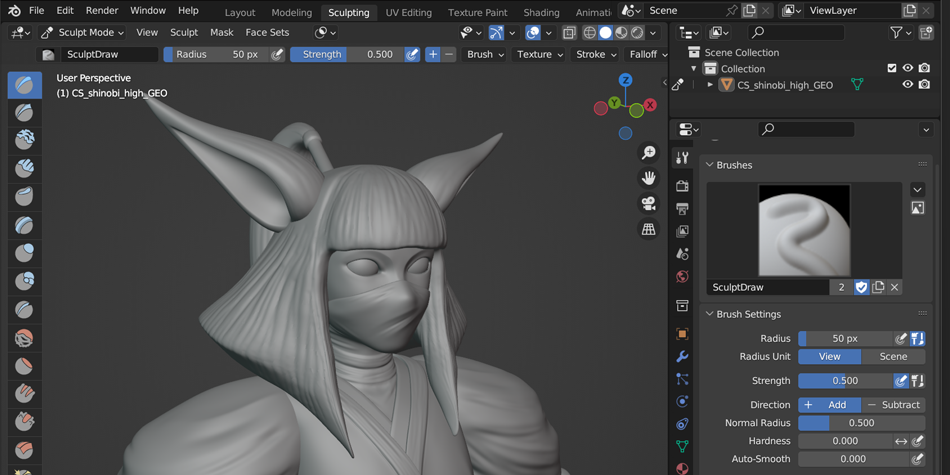
Blender is widely regarded as the top free 3D sculpting software in 2025 due to its comprehensive sculpting tools and versatility. Its Sculpt Mode includes numerous brushes, multi-resolution subdivision sculpting, and dynamic topology (dyntopo) for adding fine details dynamically. As an open-source platform, Blender is regularly updated and used in professional workflows. Other free sculpting tools include ZBrushCoreMini, Sculptris, SculptGL, and Meshmixer, each suited to specific needs. Below is a comparison of these programs:
| Software | Platforms | Key Features | Limitations | Best For |
|---|---|---|---|---|
| Blender | Windows, macOS, Linux | Full 3D suite with 20+ sculpt brushes (Crease, Clay, Grab, etc.), multi-res sculpting, dynamic topology, texture painting, rigging, and animation integration. | Steeper learning curve; requires decent hardware for high-poly models; complex UI for beginners. | Intermediate to professional users needing an all-in-one 3D tool for films, games, and art. |
| ZBrushCoreMini | Windows, macOS | Beginner-friendly with 12 brushes and materials, dynamic tessellation (“Sculptris Pro”) for clay-like sculpting, auto-decimation OBJ export for 3D printing. | 750k polygon cap; no custom mesh imports; limited features (no layers or advanced tools). | Kids, students, and hobbyists exploring sculpting or 3D printing miniatures. |
| Sculptris | Windows (legacy), macOS (legacy) | Intuitive clay sculpting with dynamic tessellation, simple UI with grab, draw, smooth brushes, symmetry, masking, and GoZ integration with ZBrush. | Discontinued, limited brushes, no advanced features, performance lags on dense meshes, 32-bit app. | Beginners learning sculpting basics or creating concept sculpts for refinement elsewhere. |
| SculptGL | Web browser (any OS) | No installation, WebGL-based, basic sculpting with symmetry, dynamic topology, voxel remesh, OBJ/STL import/export for 3D printing. | Few brushes, no texture painting or layers, browser-dependent performance, manual export saves. | Hobbyists wanting a quick sculpting sandbox, especially on low-end devices or Chromebooks. |
| Meshmixer | Windows, macOS | Mesh editing with sculpting brushes, mesh mixing, auto-repair, hollowing, and support generation for 3D printing. | Limited sculpting brushes, UI focused on editing, last updated in 2017. | Makers and 3D printing enthusiasts tweaking or combining models for print preparation. |
Blender’s robust feature set makes it the most comprehensive free sculpting solution, used professionally. However, the best tool depends on user needs: ZBrushCoreMini and Sculptris offer simpler interfaces for beginners, SculptGL provides browser-based convenience, and Meshmixer excels in 3D printing utilities.

Is Blender a Good Free Option for 3D Sculpting?
Blender is an outstanding free option for 3D sculpting, offering professional-grade tools at no cost. Its Sculpt Mode includes a variety of brushes (Draw, Clay Strips, Crease, Smooth, Grab), multi-resolution subdivisions, and dynamic topology, allowing artists to create rough forms and add intricate details within one environment. Blender’s all-in-one nature supports sculpting, retopology, normal map baking, texture painting, rigging, and rendering, eliminating the need for additional software. Features like masking, hiding tools, symmetry, stroke stabilization, voxel remeshing, and geometry nodes enhance sculpting workflows, with graphics tablet support for natural brush strokes. The vast community provides tutorials and add-ons (e.g., radial symmetry, extra brushes), and Blender’s 20+ brush types and custom brush options offer creative flexibility.
While Blender’s complex interface may overwhelm beginners, switching to Sculpt Mode or the sculpting workspace simplifies the experience. It handles multi-million polygon sculpts, though it’s slightly less efficient than specialized tools like ZBrush for extreme polycounts. Blender’s capabilities support indie game development and films, making it a top choice for serious sculpting work with a manageable learning curve.
Which Free 3D Sculpting Software Is Best for Beginners?
For beginners, simplicity and intuitive interfaces are key. ZBrushCoreMini and Sculptris are top choices due to their ease of use:
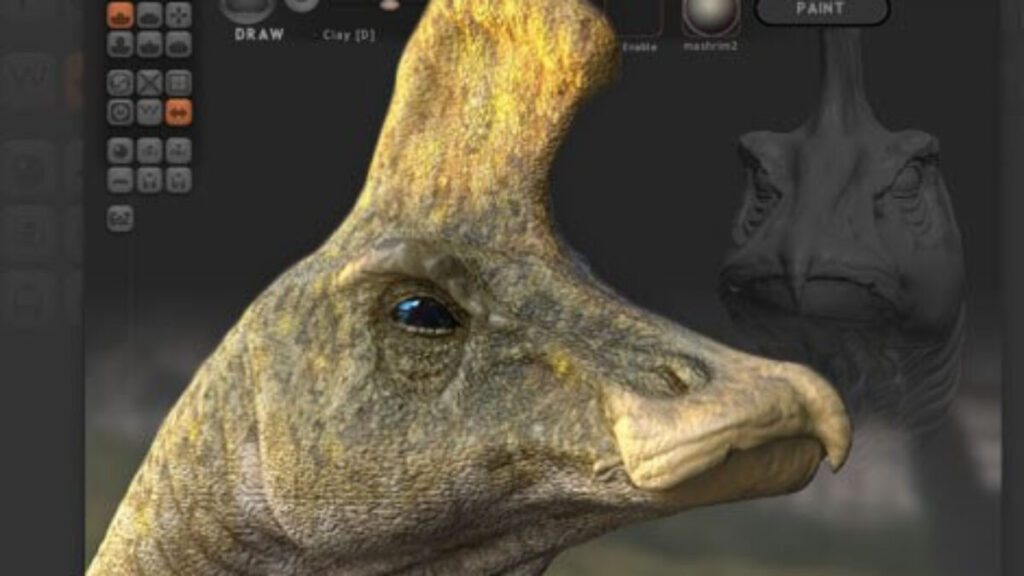
- ZBrushCoreMini: A simplified ZBrush version with 8–12 essential brushes and a user-friendly interface. Dynamic tessellation (“Sculptris Pro”) automatically adjusts mesh detail, and VDM brushes add features like ears with one click. Free for non-commercial use, it’s ideal for beginners with a 750k polygon cap and limited features to keep things straightforward.
- Sculptris: Offers intuitive clay-like sculpting with dynamic tessellation, a minimal UI, and tools like grab, draw, and smooth. It supports painting, symmetry, and GoZ integration with ZBrush, but is no longer updated, limiting its features and performance. Perfect for immediate, jargon-free sculpting.
- SculptGL: A browser-based app requiring no installation, with basic sculpting, symmetry, dynamic topology, and STL/OBJ support. Its minimal interface suits beginners, though it lacks advanced features and relies on browser performance.
- Blender: While more complex, Blender’s sculpting workspace and beginner tutorials allow isolated sculpting practice. It’s viable for motivated beginners planning to explore broader 3D skills.
ZBrushCoreMini and Sculptris are the easiest entry points for their simplicity, while SculptGL suits those avoiding software installation. Blender is better for beginners with long-term 3D goals.

What Is the Best Free 3D Sculpting Software for Character Design?
Blender is the best free software for character design due to its robust sculpting and pipeline integration. Its Sculpt Mode supports detailed anatomy and costume sculpting, starting from base meshes, metaballs, or skin modifiers. Multi-resolution sculpting allows fine details like wrinkles while adjusting broader proportions, with masking and face sets for isolating parts (e.g., eyelids). Blender’s retopology tools (Shrinkwrap modifier, RetopoFlow add-on), rigging system, and texture painting enable a complete character pipeline from sculpt to animation-ready model.
ZBrushCoreMini and Sculptris are suitable for concept sculpts (e.g., heads, creatures) with dynamic tessellation for organic shapes, but their limitations (no custom mesh imports for ZBrushCoreMini, limited symmetry for Sculptris) hinder full character workflows. Blender’s ability to handle high-poly sculpts (up to 20-30 million polys), pose brushes, and add-ons like Rigify make it ideal for professional character design, from concept to game or film assets.
Which Free 3D Sculpting Software Is Best for Stylized Art?
Stylized art, emphasizing exaggerated forms and smooth surfaces, benefits from intuitive sculpting tools. Sculptris and SculptGL excel for quick, playful sculpting:
- Sculptris: Dynamic tessellation allows free-form creation of cartoonish shapes like oversized ears, with a simple UI keeping artists in creative flow.
- SculptGL: Browser-based, it supports quick stylized sculpts with minimal setup, ideal for doodling character heads or fun shapes.
- Blender: Offers Flatten and Polish brushes for clean, stylized planes, and the Pose brush for exaggerated proportions. Modifiers like Subdivision Surface or Decimate enhance smooth or blocky stylized looks. Grease Pencil integration supports 2D/3D hybrid styles.
- Mobile Options: Sketch 3D (iPad) and D3D Sculptor (Android) support basic stylized sculpting with vertex painting, suitable for simple cartoonish models.
Blender provides the most complete stylized art pipeline, with rendering options (Cycles/Eevee) for polished outputs. Sculptris and SculptGL are ideal for lightweight, creative exploration.

What Is the Best Free 3D Sculpting App for Mobile Devices?
Free mobile sculpting apps are limited but viable:
- Sketch 3D (iPad): Supports sculpting from primitives with touch or Apple Pencil, basic animation, rigging, and OBJ/STL/3DS export. It’s powerful but may have a learning curve or in-app purchases (check App Store for pricing).
- D3D Sculptor (Android): Offers extrude, push/pull, and vertex painting for simple stylized concepts, exporting as OBJ. It’s limited for detailed models but great for quick ideas.
- Sculpt+ (Android): A free, alpha-stage app with dynamic topology, subdivision, and remeshing, allowing head or creature sculpts for OBJ export.
- SculptGL: Runs in mobile browsers for touch-based sculpting, though not fully touch-optimized.
Sketch 3D and D3D Sculptor/Sculpt+ are top free mobile options for low-poly, stylized sculpts, with SculptGL as a no-install alternative. Mobile apps suit idea sketching rather than high-detail work.
Do Free 3D Sculpting Programs Support 3D Printing Workflows?
Free sculpting programs support 3D printing by offering STL/OBJ export and preparation tools:
- Blender: Exports STL/OBJ, with a 3D Printing Toolbox add-on to check non-manifold edges, normals, and thickness. Solidify modifier hollows models, and Decimate/Remesh reduce poly counts for printing.
- Meshmixer: Excels in print preparation with auto-repair, hollowing, support generation, and Boolean tools. It’s ideal for combining models and fixing scan data for STL/OBJ export.
- ZBrushCoreMini: Auto-decimates sculpts for OBJ export optimized for 3D printing, suitable for hobbyist figurines.
- SculptGL: Supports STL import/export for quick sculpts, though lacks analysis tools, requiring Blender/Meshmixer for final prep.
Blender and Meshmixer offer robust print preparation (mesh repair, scaling), while ZBrushCoreMini and SculptGL provide simple export options. Artists can sculpt, refine, and print entirely with free tools, empowering makers to create physical models.

What Are the System Requirements for Running Free 3D Sculpting Software?
Free 3D sculpting software demands varying hardware, with sculpting generally requiring a robust CPU, ample RAM, and a capable GPU for smooth performance, especially for Blender. Below is a comparison of system requirements for popular free sculpting tools:
| Software | Operating System | CPU & Memory | Graphics |
|---|---|---|---|
| Blender | Windows 8.1/10/11 (64-bit); macOS 11+; Linux (64-bit) | CPU: 64-bit quad-core minimum (8-core recommended); RAM: 8 GB minimum (32 GB recommended). | GPU: OpenGL 4.3+ compatible, 2 GB VRAM minimum (8 GB for high-poly sculpting). Sculpting is CPU-heavy, but a strong GPU improves viewport performance. |
| ZBrushCoreMini | Windows 7/8/10 (64-bit); macOS 10.11+ (64-bit) | CPU: Modern 64-bit dual-core or better; RAM: 4 GB minimum (more for up to 750k polys). | GPU: Basic OpenGL 3.3 for display; CPU-based rendering means no powerful GPU needed. |
| Sculptris | Windows XP/Vista/7/8 (32/64-bit); macOS 10.7 (legacy) | CPU: Lightweight, runs on older dual-core CPUs; RAM: 2 GB minimum, 4+ GB for detailed sculpts. | GPU: Basic OpenGL 2.0 card; runs on integrated graphics from the last decade. |
| SculptGL | Any OS with WebGL-enabled browser (Chrome, Firefox) | CPU: Modern dual/quad-core recommended; RAM: 4 GB for moderate sculpts, browser-limited. | GPU: WebGL-compatible; mid-range GPU ensures smooth interaction, mobile GPUs for small models. |
| Meshmixer | Windows 7+ (64-bit); macOS 10.11+ (64-bit) | CPU: 64-bit processor, faster CPU aids booleans; RAM: 4 GB minimum, 8 GB recommended for high-res files. | GPU: OpenGL 3.3 compatible; modern or integrated GPUs suffice for basic sculpting feedback. |
| Mobile Apps (Sketch 3D, Sculpt+) | iOS (iPadOS 13+ for Sketch 3D); Android 8.0+ (Sculpt+) | CPU: Modern mobile SoC (e.g., A12 Bionic/M1 for iPad); RAM: 4+ GB (iPad), 3-4 GB (Android) for simple sculpts. | GPU: OpenGL ES/Metal; mid/high-end tablets/phones from the last 3-4 years handle basic sculpting. |
Blender requires the most robust hardware for high-poly sculpts, ideally with 16-32 GB RAM and a dedicated GPU. ZBrushCoreMini and Sculptris run on low-end systems due to their lightweight design and poly caps. Meshmixer is moderately demanding, while SculptGL’s performance depends on browser and device capabilities. A graphics tablet enhances sculpting but isn’t required; a mouse suffices for beginners, though a tablet improves precision.
Can Free 3D Sculpting Software Be Used for Game Development?
Free 3D sculpting software is widely used in game development, particularly for creating high-poly sculpts that are retopologized and baked for game engines. Blender is the standout, supporting the full pipeline:
- Sculpting: Create detailed models (e.g., characters, environments).
- Retopology: Use tools like Shrinkwrap or add-ons to create low-poly meshes.
- UV Unwrapping and Baking: Generate UVs and bake normal maps/ambient occlusion.
- Export: Output low-poly models and textures via FBX for Unity/Unreal.
- Animation: Rig and animate characters within Blender for game-ready assets.
Indie developers favor Blender for its cost-free, all-in-one capabilities, used in games like “Temtem” and mods for Skyrim. ZBrushCoreMini and Sculptris are useful for concept sculpts but lack retopology tools, requiring Blender for game-ready meshes. Meshmixer aids in kitbashing or modifying meshes but is less suited for full asset creation. Free tools like GIMP/Krita and Godot/Unity complement Blender, enabling a zero-cost game development pipeline. High-poly sculpts must be optimized via retopology and baking to meet game engine requirements.
What Is the Best Open-Source 3D Sculpting Software?
Blender is the premier open-source 3D sculpting software under the GNU GPL, offering professional-grade tools and community-driven development. Its Sculpt Mode includes multi-resolution sculpting, dynamic topology, masks, and advanced features like Voxel Remesher, rivaling commercial tools like ZBrush. Benefits include:
- Rapid Development: Community contributions, like the 2019-2020 Sculpt Mode overhaul, add features like Cloth brushes and performance boosts.
- Customization: Python scripting enables custom brushes and add-ons like Sculpt Toolkit.
- No Vendor Lock: Open-source ensures longevity and no licensing fees.
SculptGL, also open-source (MIT License), is a lightweight browser-based tool but lacks Blender’s depth. Other open-source projects like Dilay are outdated. Blender’s professional use and customization make it the top open-source choice for sculpting and broader 3D workflows.

Frequently Asked Questions (FAQs)
- Can I use free 3D sculpting software for commercial projects (e.g., to sell 3D models or do freelance work)?
Yes, most allow commercial use. Blender and Sculptris have no restrictions, and Meshmixer is free for commercial work. ZBrushCoreMini is non-commercial only, so use Blender for monetized projects. Check each tool’s license for confirmation. - How do I reduce the polygon count of a sculpt for use in games or to share online?
Use decimation (Blender’s Decimate modifier, Meshmixer’s Reduce function) or retopology (Blender’s snapping or Instant Meshes). Bake normal maps from high-poly to low-poly for games. Decimate (e.g., 0.1 ratio in Blender) for web sharing. - I’m experiencing lag while sculpting high-detail models in Blender – what can I do?
Use Multi-Resolution instead of Dyntopo, periodically remesh, hide unused mesh parts, stay in Solid display mode, disable modifiers, or split models into sub-objects. More RAM or Fast Navigate mode helps. - How does Blender’s sculpting compare to ZBrush?
Blender offers robust sculpting but lags ZBrush in extreme poly counts (10-20M vs. 50M+). ZBrush has advanced features like layers, but Blender’s integrated pipeline and zero cost make it a strong alternative for most users. - My sculpted model has jagged edges/facets when I export it. How can I get a smooth result?
Enable Shade Smooth, increase mesh resolution, or bake normal maps for low-poly models. For 3D printing, slicers often smooth STL exports. Check platform smoothing options. - The free sculpting app I’m using doesn’t have a particular brush I need (e.g., Snake Hook or Trim). Are there alternatives?
Mimic missing brushes (e.g., Grab in Sculptris for Snake Hook) or export to Blender for its comprehensive brush set. Community add-ons or custom alphas in Blender can replicate advanced brushes. - Is it possible to 3D sculpt on a touchscreen laptop (Windows) without a drawing tablet?
Yes, pen-enabled laptops (e.g., Surface Pro) support sculpting in Blender/ZBrushCoreMini via Windows Ink. Touch-only is less precise; a pen or tablet is recommended for detailed work. - My sculpt in Sculptris/Blender has weird dark patches or lines after a lot of editing – what is that and how do I fix it?
Likely stretched triangles or flipped normals. Remesh (Blender’s Voxel Remesh, Sculptris’ Reduce) or recalculate normals (Shift+N). Smooth brushes or checking for duplicate geometry resolves most issues. - What format should I use to export my sculpted model for use in other programs?
Use OBJ for cross-software transfers, STL for 3D printing, PLY for vertex colors, or FBX for game engines. Decimate high-poly models to reduce file size; disable normals in Blender exports if unneeded. - Are there any completely free ZBrush alternatives that have sculpting layers and advanced features?
Blender is the closest, offering dynamic topology and multi-res but lacks native sculpting layers. Workarounds like shape keys exist, and add-ons bridge some gaps. No free tool fully matches ZBrush’s advanced features.
Conclusion
Selecting the best free 3D sculpting software depends on your goals and resources:
- Comprehensive Needs: Choose Blender for its all-in-one capabilities, supporting sculpting, modeling, rigging, and rendering. Ideal for professional pipelines (games, films) despite a learning curve.
- Beginner Simplicity: ZBrushCoreMini or Sculptris offer intuitive, low-barrier sculpting for novices, perfect for learning or casual projects like 3D printing.
- 3D Printing/Mesh Editing: Meshmixer excels in print preparation and model tweaking, with tools for repairs and supports, suitable for makers.
- Mobile/Portability: Sketch 3D (iPad), Sculpt+/D3D Sculptor (Android), or browser-based SculptGL enable sculpting on the go for low-poly concepts.
- Pipeline Compatibility: Blender’s format support (OBJ, FBX) ensures seamless integration with game engines or teams. Other tools export OBJ for universal use.
- Hardware Limitations: Use Sculptris or SculptGL on low-end systems; Blender suits mid-to-high-end PCs for complex sculpts.
- Personal Preference: Test tools to find the most intuitive workflow, as enjoyment drives practice and improvement.
Free tools like Blender, ZBrushCoreMini, Sculptris, SculptGL, and Meshmixer enable professional-grade sculpting in 2025. Combine them (e.g., concept in Sculptris, refine in Blender) to suit your workflow. These tools empower artists to create stunning 3D models without cost, building transferable skills for any sculpting platform. Start sculpting and bring your ideas to life!
Sources
- Blender Foundation. “Sculpting.” Blender Official Website.
- Blender Foundation. “Sculpting Introduction.” Blender Manual.
- Maxon. “ZBrushCoreMini.” Maxon.
- Pixologic. “Sculptris.” Pixologic.
- Stéphane Ginier. “SculptGL.” SculptGL.
- Autodesk. “Meshmixer.” Meshmixer.
- Blender Foundation. “Blender System Requirements.” Blender Official Website.
- Blender Foundation. “3D Print Toolbox.” Blender Manual.
- Orange Turbine. “RetopoFlow.” Blender Market.
- Wenzel Jakob. “Instant Meshes.” GitHub.
Recommendations
- Dead by Daylight Devs Celebrate 10 Years of Eldritch Evil and Hope for Many, Many More
- The Dragon Age: Inquisition Servers Are Finally Going Offline Over A Decade Later – What It Means for Players
- Christopher Nolan Confirms The Odyssey Runtime Is Shorter Than Oppenheimer But Still an “Epic Film” ([AP Summer Movie Preview])
- What Is the Purpose of the Camera View in Blender?
- Microsoft Gaming Returns to Using the Xbox Branding: What Changed, Why It Matters, and What’s Next
- Mesh to Metahuman: How to Scan Yourself and Create a Realistic Digital Double in Unreal Engine 5
- Rockstar Confirms New Data Breach After Hacker Group Threatens “Pay or Leak” – What Was Stolen and What It Means
- Pickmon Game: Release Date, Steam Details, Gameplay, Creatures, and the Pickmos Name Change Explained
- Mina the Hollower Preview: Kinda Like Bloodborne as a Cute 8-Bit Adventure Game – Gameplay, Release Date, and Full Breakdown
- Maxima Confirmed for Superman Sequel Man of Tomorrow What We Know So Far