





What is a hexagon fan grill (honeycomb fan cover) and why use it
A hexagon fan grill, or honeycomb fan cover, is a protective mesh with a repeating hexagonal pattern used to shield cooling fans from debris or fingers while allowing for high airflow—often around 79% open area. This design offers a balance of high rigidity, structural strength, and lightweight performance, effectively minimizing noise and airflow obstruction. In 3D printing, the hexagonal geometry is particularly beneficial as it distributes forces evenly, making it more durable for materials like PLA or ABS compared to traditional radial spoke designs. It is a popular choice for custom PC builds due to its functional strength and modern, high-tech appearance.
Hexagon fan cover sizes explained (40mm, 60mm, 80mm, 120mm, 140mm)
Fan grills must match standard fan sizes so that mounting holes align correctly. Sizes refer to the length of one side of the fan frame. Common sizes and their center-to-center screw hole spacings include:
- 40mm fans: 32 mm spacing; used for small electronics or 3D printer extruders.
- 60mm fans: 50 mm spacing; common in small power supplies or network equipment.
- 80mm fans: ~71.5 mm spacing; often found in older desktop cases or budget power supplies.
- 92mm fans: ~82.5 mm spacing.
- 120mm fans: 105 mm spacing; the current standard for PC cases, CPU coolers, and radiators.
- 140mm fans: ~124.5 mm spacing; used for high airflow at lower noise levels.
When designing a grill, precision is vital; for example, a 120mm fan requires holes positioned 52.5mm from the center both horizontally and vertically.
How to make a perfect hexagon in Blender
A perfect hexagon can be quickly created in Blender using the circle mesh primitive.
- In Object Mode, press Shift + A -> Mesh -> Circle.
- In the settings panel, set Vertices to 6.
- Set the Fill Type to Ngon or Triangle Fan for a solid face.
- Ensure the hexagon is oriented on the XY plane for a flat grill design.
Alternatively, a 6-sided cylinder can be used by deleting the top and bottom faces. The hexagon can then be scaled to specific dimensions based on the distance across the flats or across the corners.
How to create a honeycomb pattern in Blender (hexagon grid method)
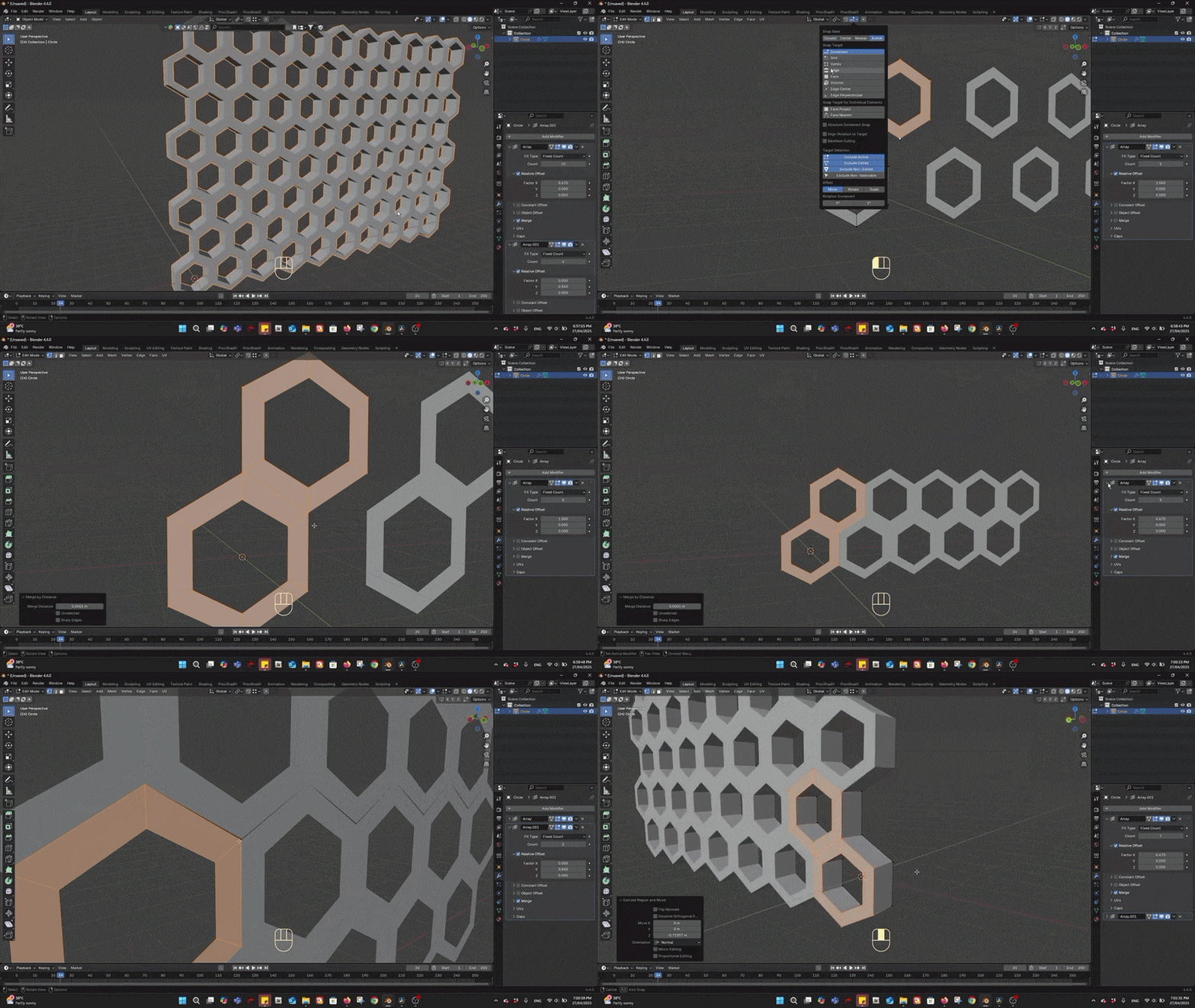
Creating a honeycomb grid involves tiling hexagons in a staggered arrangement where every other row is offset.
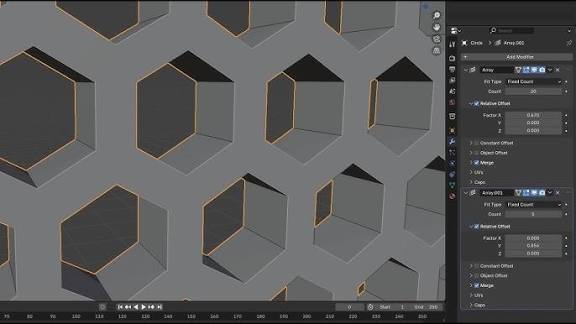
- Method 1: Array Modifiers. Apply one Array modifier for horizontal duplication. Apply a second Array modifier for vertical duplication, using a relative X-offset of 0.5 and a specific Y-offset (approximately 0.866) to create the staggered effect.
- Object Offset: An Empty object rotated 60° can be used with an Array modifier to duplicate hexagons in a radial or staggered pattern.
- Merging: Check the “Merge” box in the modifier settings to weld the vertices together, creating a single continuous mesh lattice rather than individual tiles.
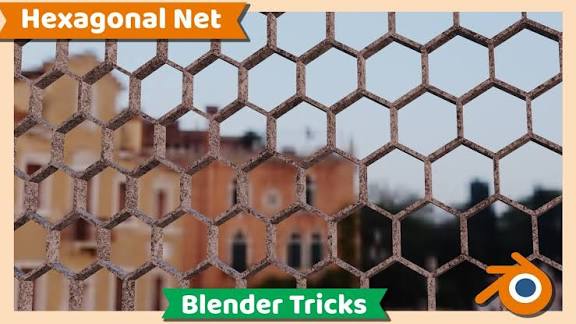
Blender Geometry Nodes hexagon grid setup for a fan grill
Geometry Nodes provide a procedural way to generate adjustable honeycomb patterns.
- Extra Objects Add-on: Enabling the “Add Mesh: Extra Objects” add-on provides a “Honeycomb” mesh preset. This allows users to adjust the number of rows, columns, and cell sizes through a menu.
- Manual Node Setup: This involves creating a grid of points, using modulo math to offset the position of alternate rows, and then instancing a 6-sided circle on those points.
- Procedural Benefits: This method is highly flexible, allowing for easy updates to the grill density or cell size without manually moving geometry. It also allows for advanced techniques like using a circular mask to cut the honeycomb into a round shape.
How to make a hexagonal net / hex grill in Blender (fast modeling workflow)
There are several efficient ways to create a honeycomb mesh in Blender using built-in tools and add-ons:
- Option 1: Add Mesh Extra Objects (Honeycomb mesh): This is the fastest method. Enable “Add Mesh: Extra Objects” in Preferences, then press Shift + A -> Mesh -> Honeycomb. You can immediately adjust the number of rows, columns, and cell sizes in the operator panel to cover the necessary area.
- Option 2: Fast manual modeling trick (bevel method): Start with a subdivided plane and select the center vertex. Use the Bevel tool (Ctrl+B) in Vertices mode with 2 segments to create a hexagonal shape. Delete the resulting face to create a hole, then use Array modifiers to tile this cell across the X and Y axes.
- Option 3: Wireframe modifier on a triangular grid: Subdivide a plane, apply a Triangulate modifier, and then add a Wireframe modifier. While this creates a net-like structure, it is less direct for achieving perfect hexagons than the other methods.
How to cut a hexagon pattern into a circular fan cover using Boolean
To turn a flat honeycomb sheet into a round fan cover, use the Boolean modifier as a “cookie-cutter”:
- Create the cutting object: Add a cylinder or circle (e.g., 64 vertices for smoothness) with a diameter matching your fan size (such as 120mm).
- Apply Boolean: Select the honeycomb mesh and add a Boolean modifier set to “Intersection.” Target the cylinder to trim away everything outside the circular boundary.
- Cleanup: Ensure the honeycomb mesh is a single unified object with consistent normals before applying the modifier to avoid errors.
How to add thickness to a hexagon fan grill (Solidify settings that work)
A flat mesh needs depth to be a functional 3D part. Use the Solidify modifier with these specific settings:
- Thickness: Set to approximately 2.0mm to 3.0mm for a balance of strength and airflow.
- Offset: Set to 0 to add thickness equally on both sides of the original plane.
- Even Thickness: Enable this to ensure uniform wall thickness across the hexagonal angles.
- High Quality Normals: Enable this for better shading and accuracy on the extruded side walls.
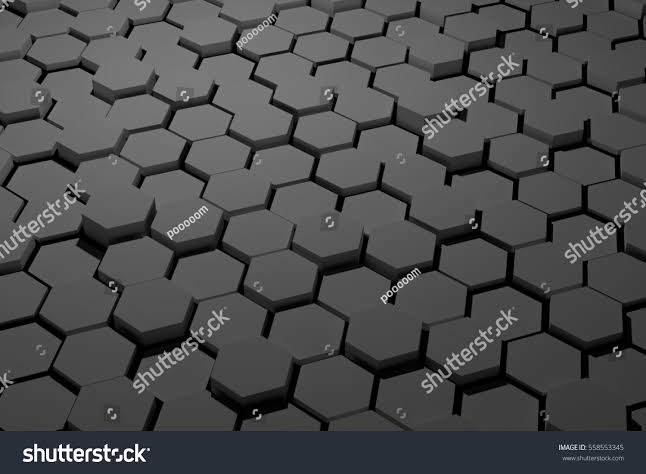
How to add a border ring around a honeycomb fan cover
A solid border ring strengthens the grill, hides jagged hex edges, and provides a mounting surface for screws.
- Method 1: Repurpose the cylinder used for the Boolean cut. Delete the top/bottom faces to leave a loop, then extrude it or add width to create a band that overlaps the honeycomb edges.
- Method 2: Create a new ring from scratch by adding two concentric circles, selecting both loops, and using “Bridge Edge Loops” to create a band.
- Integration: Join the ring and the honeycomb using Ctrl+J or a Boolean Union modifier to fuse them into a single manifold object.
- Design: A border width of 3-5mm is typically used to provide enough space for mounting while maintaining maximum airflow.
How to model fan screw holes in Blender (105mm spacing foHow to model fan screw holes in Blender (105mm spacing for 120mm fans)
Fan grills require four mounting holes arranged in a square pattern that matches standard fan sizes. For a 120mm fan, the mounting holes are spaced 105mm apart, meaning they are located at (±52.5, ±52.5) mm from the center.
- Hole Sizing: Holes are typically 3.5mm to 4mm in diameter to accommodate #6-32 or M4 screws.
- Modeling Process: Add cylinders at the correct coordinates and use a Boolean Difference modifier to subtract them from the grill mesh.
- Alignment: Ensure the holes are positioned within the solid border ring of the grill.
- Verification: Double-check the distance between hole centers in Edit Mode to ensure they match standard specifications (e.g., 71.5mm for 80mm fans, 105mm for 120mm fans).
How to add countersinks/counterbores for fan screws in Blender
To allow screws to sit flush with the surface, you can model countersinks or counterbores.
- Countersinks: Create a cone matching the screw head angle (typically 82° or 90°) and use a Boolean Difference to carve a tapered recess.
- Counterbores: Use a cylinder slightly larger than the screw head and subtract it to create a flat-bottomed pocket.
- Manual Method: Inset the top edge of the screw hole and move the loop down the Z-axis to create a clean, conical recess without using booleans.
- Structural Integrity: Ensure the border ring is thick enough so that the recess does not break through the side of the grill.
How to bevel and smooth a hexagon fan grill without ruining the pattern
Smoothing a complex mesh requires care to maintain the sharp geometric integrity of the hexagons.
- Beveling: Add a small Bevel modifier (0.2mm to 0.5mm). Use the “Angle” limit to ensure only 90° edges are beveled, preventing the 120° internal hexagon corners from being distorted.
- Smoothing: Use “Shade Smooth” in combination with “Auto Smooth” (set to approximately 30°). This preserves sharp edges while allowing highlights to smooth over flatter surfaces.
- Cleanup: Use a “Weighted Normals” modifier to improve shading on flat surfaces and mitigate glitches caused by boolean-generated n-gons.
- Caution: Avoid heavy bevels or subdivisions, as these will round off and ruin the sharp hexagonal pattern.
How to make a 3D printable fan grill in Blender (manifold checks and fixes)
A 3D-printable model must be a closed, “manifold” volume.
- 3D Print Toolbox: Enable this add-on to check for non-manifold edges, intersecting faces, and thin walls.
- Manifold Issues: Use the “Make Manifold” tool or manually fill holes and delete internal faces that may have been left by boolean operations.
- Normals: Check “Face Orientation” in the overlays; all outward-facing surfaces should be blue. Flip any red faces so the normals face outward.
- Geometry Cleanup: Use “Merge by Distance” (M) to weld coincident vertices and remove doubles.
- Printability: Ensure wall thickness is sufficient for your printer’s nozzle and verify that the final object matches real-world dimensions before exporting.
How to export an STL from Blender for a hexagon fan cover
Exporting to STL is the final step for 3D printing, but requires careful attention to scale and modifiers:
- Export Settings: In the Export STL dialog, check “Selection Only” to export just the grill and “Apply Modifiers” to ensure the Solidify and Boolean operations are baked into the final mesh.
- Scale: Since STL files are unitless, you must ensure the dimensions match the slicer’s expectations (usually millimeters).
- Method A: Set Blender’s Unit Scale to 0.001 (1 unit = 1mm) and export at a scale of 1.0.
- Method B: Use default settings (1 unit = 1m) and export with a scale factor of 1000.
- Orientation and Origin: Align the model flat on the Z-axis for easier printing and center the object’s origin.
- Verification: Import the STL into a slicer to confirm the dimensions (e.g., 120mm) are correct before printing.
How to reduce polycount on a honeycomb fan grill (without losing strength)
Maintaining an efficient mesh makes files easier to handle and slice without sacrificing structural integrity:
- Circle Resolution: Reduce the number of vertices on round features. A 120mm ring looks smooth at 32 or 48 vertices, while 4mm screw holes only need 12 to 16 vertices.
- Limited Dissolve: Use this tool in Edit Mode on flat areas (like the border ring) to remove redundant coplanar edges and triangles created by Booleans.
- Bevel Segments: Use single-segment bevels (chamfers) rather than multi-segment rounding to save faces.
- Structural Focus: Do not remove the edges defining the honeycomb pattern itself, as these are necessary for the shape and strength of the grill.
How to render a hexagon fan cover in Blender (clean product shots)
A professional render highlights the design using clean lighting and composition:
- Background and Camera: Use a simple white or grey studio backdrop. Use a focal length of 50mm or higher to avoid distortion, and position the camera at an angle to show both the pattern and the depth.
- Lighting: Implement a three-point lighting setup consisting of a key light, a fill light to soften shadows, and a back/rim light to highlight the edges of the hexagons.
- Materials: Apply a realistic shader, such as a black plastic with a roughness of approximately 0.4.
- Engine and Shading: Cycles is preferred for realistic shadows and highlights. Ensure “Auto Smooth” is enabled so the faces appear flat while the beveled edges catch the light.
The View Keeper workflow for saving multiple camera angles of your fan cover
The View Keeper add-on streamlines the process of managing multiple perspectives:
- Camera Management: It allows you to store unlimited camera positions and rotations within a single camera object, such as “Front,” “Side,” and “Perspective” views.
- Unique Settings: Each stored view can have its own specific focal lengths and render settings.
- Batch Rendering: The tool can automatically render all saved views in a queue, saving time when creating documentation or portfolio images.
- Consistency: This workflow ensures that if you update the model, you can re-render all angles with identical framing, which is useful for comparing different designs.
Frequently Asked Question (FAQs)
- Can I design a hexagon fan grill in Blender if I’m a beginner?
Yes. Beginners can follow a step-by-step process using modifiers like Array and Boolean. Blender’s built-in “Extra Objects” add-on provides ready-made honeycomb patterns, making it an excellent project for learning basic modeling. - What Blender version or add-ons do I need for this?
Any recent version (2.8+ or 3.x) works. It is recommended to enable the “Add Mesh: Extra Objects” add-on for its honeycomb generator. For rendering, the “View Keeper” add-on is an optional convenience, but core modeling uses standard tools. - How thick should I make the fan grill for 3D printing?
A common thickness is 2 to 3 mm. While 2mm is typically sturdy, 3mm offers extra strength for larger fans or specific materials. The Solidify modifier allows for easy adjustments to these dimensions. - Will a honeycomb pattern affect my fan’s performance (airflow or noise)?
Honeycomb is highly efficient, often offering approximately 79% open area, which minimizes airflow impedance. While any grill adds minor turbulence, the hexagonal distribution helps maintain low noise levels. - How do I ensure the grill’s screw holes line up with my fan?
Use standard mounting dimensions. For a 120mm fan, holes are placed in a square with 105mm spacing (±52.5mm from the center). Other sizes follow known specs, such as 71.5mm for 80mm fans and 125mm for 140mm fans. - Do I need to include a border ring? What if I skip it?
A border ring is highly advised. It provides essential structural support for fragile outer cells and creates a solid area for mounting holes. Without it, the grill is prone to breaking and difficult to mount. - My boolean operations caused weird shading or artifacts – how do I fix that?
Shading issues on n-gons can be fixed by:- Turning on “Auto Smooth” and setting it to an angle like 30°.
- Manually cleaning up geometry by adding supporting edge loops or triangulating n-gons.
- Applying scale before booleans and using the “Exact” solver if the “Fast” solver fails.
- What material settings should I use when 3D printing the grill?
Use PLA, PETG, or ABS. PLA is strong enough for most cases, while PETG and ABS offer better heat resistance. Use at least 2 perimeters and 20%+ infill for the border. Print the part flat on the bed with a fine layer height (0.16mm–0.2mm) to capture countersink details. - Can I customize the pattern or use a different grid shape?
Yes. You can adjust cell size by scaling the base hexagon or changing array repeats. Coarser meshes allow more airflow, while finer meshes provide better protection. You can also integrate logos or alternative grid shapes using the same techniques. - What is PixelHair (mentioned in the instructions) and is it related to fan grills?
PixelHair is an unrelated collection of 3D hair assets by Yelzkizi. It was mentioned as an analogy for how asset libraries (like the honeycomb add-on) speed up complex workflows. It utilizes Blender’s geometry nodes and is compatible with Unreal Engine.
Conclusion
Designing a honeycomb fan cover in Blender combines aesthetic appeal with functional efficiency. The workflow involves creating a base hexagon, tiling it into a grid, and shaping it into a circular cover using modifiers and add-ons. Key practical features include a 3-5mm border ring for stability, 105mm screw hole spacing for 120mm fans, and countersunk recesses for flush mounting. To ensure 3D printability, models should be checked with the 3D Print Toolbox to remain manifold and robust.
The process is valuable for all skill levels: beginners learn modifiers (Array, Boolean, Solidify), intermediate users practice precision modeling, and advanced users can explore parametric variations with geometry nodes. Just as tools like PixelHair simplify complex character design, Blender’s native ecosystem and helper add-ons allow for efficient, professional-grade fan grill creation. The final result is a custom-sized, visually modern part ready for mounting and effective cooling.other projects (like speaker grilles, ventilation panels, or decorative meshes). Happy modeling, and enjoy the airflow!
Sources and Citations
- Mnpctech – Honeycomb Fan Grill Product Description – Noted honeycomb design airflow (79% open area) and use for PC fan/radiator grills. https://www.mnpctech.com/products/honeycomb-hex-hexagon-modders-mesh-120-pc-fan-grills
- PC Fan Standard Dimensions – Gagner-Toomey Associates Blog – Confirmed standard fan sizes and hole spacing (e.g., 120mm fan has 105mm hole spacing). https://gagner-toomey.com/how-are-pc-fans-measured-essential-insights-for-engineers/
- Reddit r/buildapc Thread – Provided specific mounting hole distances (e.g., 80mm fan uses 71.5mm, 92mm uses 82.5mm). https://www.reddit.com/r/buildapc/comments/lnkgp7/the_holes_where_i_could_screw_in_a_fan_are_8cm/
- Blender StackExchange – “How can I make a hexagonal grill?” – Aleph’s answer outlined a modeling trick using bevel on a plane to create a hex pattern. https://blender.stackexchange.com/questions/40997/how-can-i-make-a-hexagonal-grill
- Blender StackExchange – Array Hexagonal Grid Solutions – Discussed using empties and multiple arrays to create a hex grid procedurally. https://blender.stackexchange.com/questions/6934/how-to-distribute-an-object-to-a-hexagonal-grid
- Blender Manual – Solidify Modifier – Importance of Even Thickness for uniform wall thickness. https://docs.blender.org/manual/en/latest/modeling/modifiers/generate/solidify.html
- Blender StackExchange – Honeycomb Boolean Q&A – Tips on smooth shading issues and enabling Auto Smooth for 90° edges. https://blender.stackexchange.com/questions/223591/honeycomb-boolean-around-cylinder
- Superhive (Blender Market) – The View Keeper Add-on – Features of View Keeper (storing multiple camera angles, switching, unique settings per view, etc.). https://superhivemarket.com/products/the-view-keeper
- Instagram / Yelzkizi – PixelHair info – PixelHair library details: ready hair grooms, geometry nodes integration, Unreal Engine Groom export. https://www.instagram.com/yelzkizi/ | https://yelzkizi.org/pixelhair-3d-hair-assets/
- Blender StackExchange – STL Export Scale – Discussion on units for STL (Blender units vs. mm, using scale 1000 or scene unit scale https://blender.stackexchange.com/questions/7503/scale-settings-for-exporting-to-stl-for-3d-printing
Recommended
- Interactive Materials in Unreal Engine: How to Create Dynamic and Responsive Surfaces in Real Time
- Toy Story 5 Trailer Teases Woody’s Big Return: Trailer Breakdown, Lilypad Villain, Cast & Release Date
- Daz Studio vs Character Creator: Comprehensive Comparison of Features, Workflows, and Asset Integration
- A Kratos-less God of War Spin-Off Is In The Works: Latest Rumors, Leaks, and What We Know So Far (March 2026)
- Helldivers 2: Comprehensive Guide to Gameplay, Features, Factions, and Strategies
- Can you animate multiple cameras in one Blender project?
- All Playable Characters in Marathon: Bungie’s New FPS – Community Reactions, Developer Insights, and Unique Visual Style
- How do you change the render resolution of a Blender camera?
- Managing Camera Settings and Reducing Scene Clutter in Blender Projects with The View Keeper
- Nudity in Love, Death and Robots: Episode Guide, Artistic Use, and Viewer Insights