




In This Article (23 sections)
How to Change Hair in MetaHuman Creator Before Exporting to Unreal Engine 5
In MetaHuman Creator, customize hair via the Head section’s Hair category. Use the Style tab for presets and the Details tab to adjust length, weight, curls, or shave patterns. Colors are set using a base color and Hair Dye for secondary tints like ombre or highlights. Use sliders for Roughness (shine) and Salt & Pepper (gray hair). Be aware that some strand-based grooms lack lower LOD meshes, causing hair to disappear at LOD 2+ in Unreal Engine; to avoid this, choose styles with full LOD support or plan to force high LODs or add hair cards in Unreal.
Common Metahuman Hair Problems After Importing into UE5 and How to Fix Them
Key hair issues in Unreal Engine 5 include:
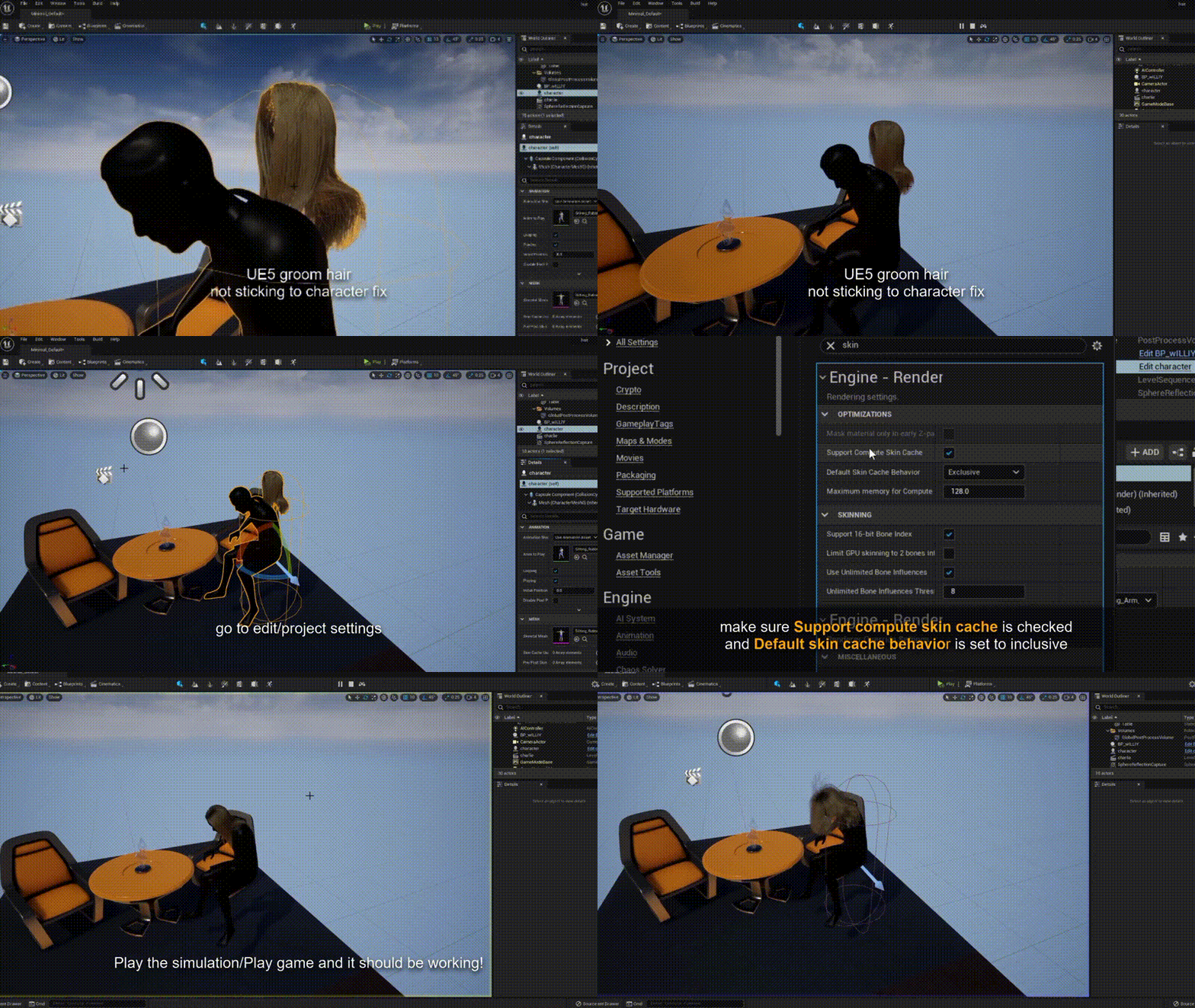
- Missing/Invisible Hair: Often caused by grooms lacking LOD 2+ data. Fix by setting Forced LOD to 0 in the LODSync component or ensuring the Groom and Support Compute Skin Cache plugins are enabled.
- Flickering/Glitching: Caused by aggressive LOD transitions or bounding issues. Fix by forcing a fixed LOD, enabling “Use Attach Parent Bound,” or using Temporal Super Resolution (TSR).
- Binding Issues: Hair lagging behind the head requires a Groom Binding Asset, created by right-clicking the groom and targeting the MetaHuman head mesh.
- Transparency/Lighting: For rendering over translucent objects, set
r.HairStrands.ComposeAfterTranslucency = 0. Use masked materials for thin-looking hair. - Physics: Static hair requires enabling simulation in the Groom Asset Editor. Adjust stiffness and damping to fix bouncy or jittery hair and use a Wind Directional Source for environmental effects.
How to Export MetaHuman Hair Correctly from Quixel Bridge to Unreal Engine
Use Quixel Bridge to select a MetaHuman and a Quality Level (Medium, High, or Epic). Ensure the MetaHuman, Alembic Groom Importer, and Groom plugins are enabled, and “Support Compute Skin Cache” is active in Project Settings. Post-import, verify the presence of Head, Body, Groom, and Binding assets. Avoid special characters in names and use the UE5 preset rather than UE4.
Why Your MetaHuman Hair is Missing in UE5 and How to Restore It
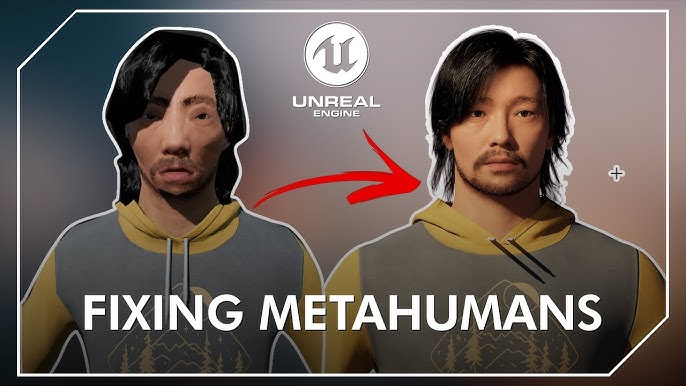
Hair loss is typically due to LOD limitations where grooms only support LOD 0-1. Fix this by forcing LOD 0 in the Blueprint’s LODSync or choosing a full-LOD hairstyle in Creator. Ensure the HairStrands plugin is active and that the Groom Binding Asset is correctly assigned in the Blueprint.
How to Fix MetaHuman Hair Glitches and Binding Issues in Unreal Engine
Resolve visual glitches by disabling Auto LOD or increasing distance thresholds. Fix physics “explosions” by increasing Solver Iteration Count or Substeps. For binding issues, ensure a Groom Binding Asset is created and assigned to the correct scalp cap or head skeletal mesh. For retargeted skeletons, recreate the binding for the new rig.
What Causes MetaHuman Hair Loss or Transparency Artifacts in UE5 Rendering
Artifacts stem from alpha dithering, low-res scalp textures, or translucent sorting. Use TSR to improve clarity. For sorting issues, adjust the r.HairStrands.ComposeAfterTranslucency console variable. Ensure “Cast Hair Strands Shadows” is enabled and the Hair shading model is used with an Opacity Mask.
How to Solve MetaHuman Hair Not Binding to the Scalp or Rig
If hair floats or lags, verify the Groom Component has a Binding Asset. If missing, right-click the Groom asset to create one targeting the head skeletal mesh. For hair cards or accessories, use sockets to attach them to the head bone or treat them as cloth for movement.

Exporting MetaHuman Hair to Maya: Pipeline Steps, Alembic/GroomCache Formats
Export hair cards as FBX and strand-based hair as Alembic curves. Use the SourceAssets folder to find original Alembic files. In Maya, use XGen or Interactive Groom for editing. Understand that static grooms use Alembic (.abc), while animated simulations require a Groom Cache for Unreal playback.
How to Transfer MetaHuman Hair from UE5 to Maya for Cinematic Grooming
Export the MetaHuman head as FBX to Maya for scale. Use XGen to create matching hair and nHair for cinematic physics. Export the result as an Alembic cache and re-import into Unreal, using the Groom Component and Sequencer for high-fidelity playback.
How to Troubleshoot UE5 MetaHuman Hair Wind Simulation Settings
Verify that “Enable Simulation” and “Enable Wind” are active in the Groom Asset Editor. Ensure a Wind Directional Source actor is in the level with sufficient Strength and Speed. If hair is non-responsive, lower the groom’s stiffness or increase wind strength to counter gravity.
How to Activate or Disable MetaHuman Hair Wind in Unreal Engine’s Groom System
To activate wind, enable simulation and wind settings in the Groom asset and add a Wind Directional Source. To disable it, either remove the wind actor, uncheck “Enable Wind” in the asset, or disable simulation in the Blueprint.

How to Use the Unreal Groom Asset Editor for MetaHuman Hair Wind and Physics
Use the Physics tab to adjust Strand Gravity, Bend Stiffness, Damping, and Hair Mass. A Stiffness Scale curve allows for rigid roots and flexible tips. Enable collisions with the Physics Asset for shoulder interactions. Increase Substeps for stability during fast movement and assign a MetaHuman hair material for proper rendering.
What is the Baked Hair Texture in MetaHuman and How to Edit it Manually
The baked texture is a scalp or hair cap simulating short hair or stubble for lower LODs. Export the M_HairScalp maps as PNG/TGA to edit in Photoshop. You can upscale resolution, adjust the hairline, or add pore details before re-importing and applying them via a material instance.
How to Fix Baked Scalp Texture Alignment Issues in MetaHuman Hair Exports
Correct mismatches by repainting the texture in Photoshop or re-baking in 3D software by projecting the groom onto scalp UVs. Adjust scalp mesh geometry in the Blueprint to hide seams and ensure texture consistency across all LOD levels.
Using PixelHair as a Custom Groom Solution for MetaHuman Characters
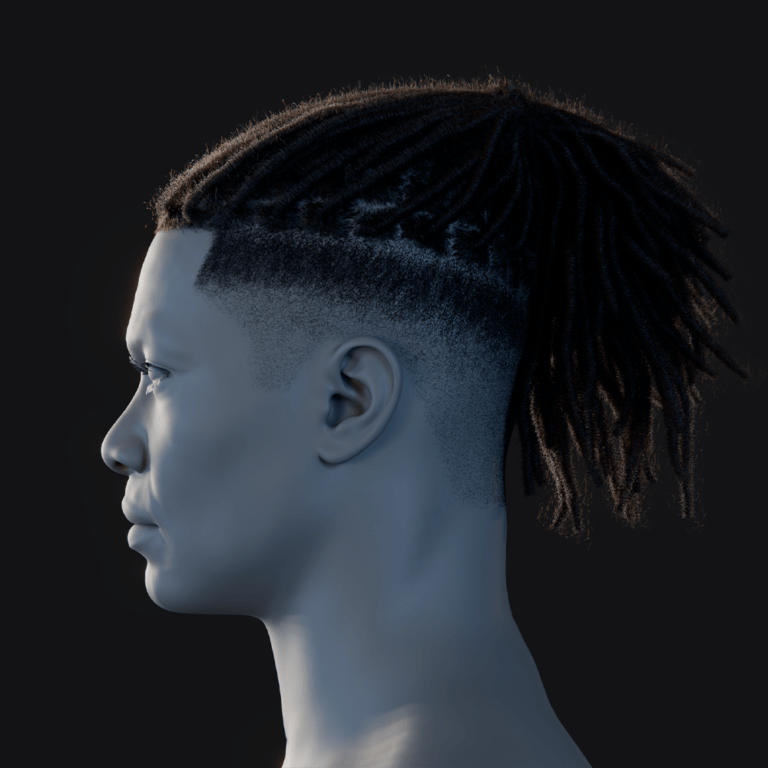
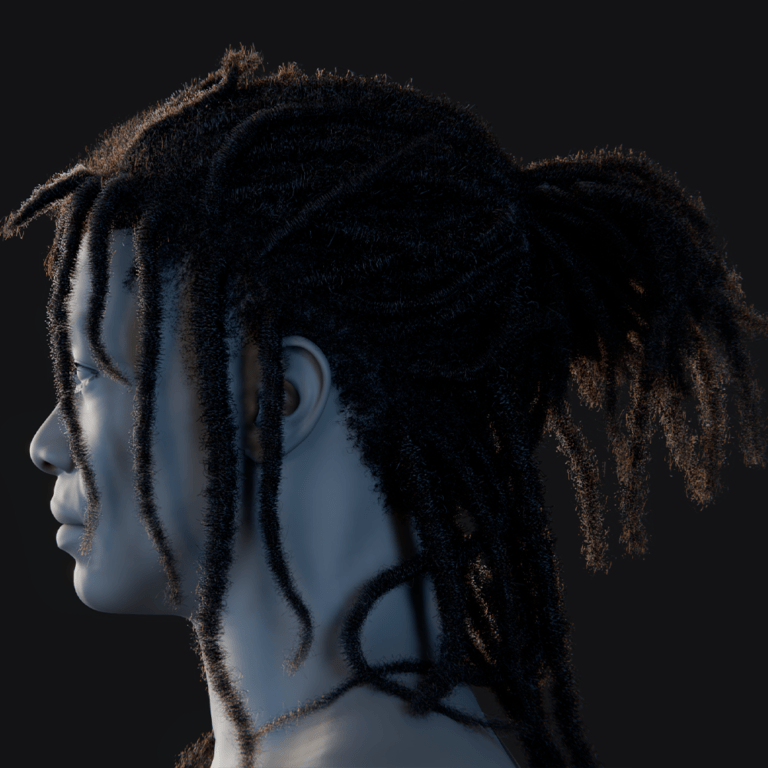
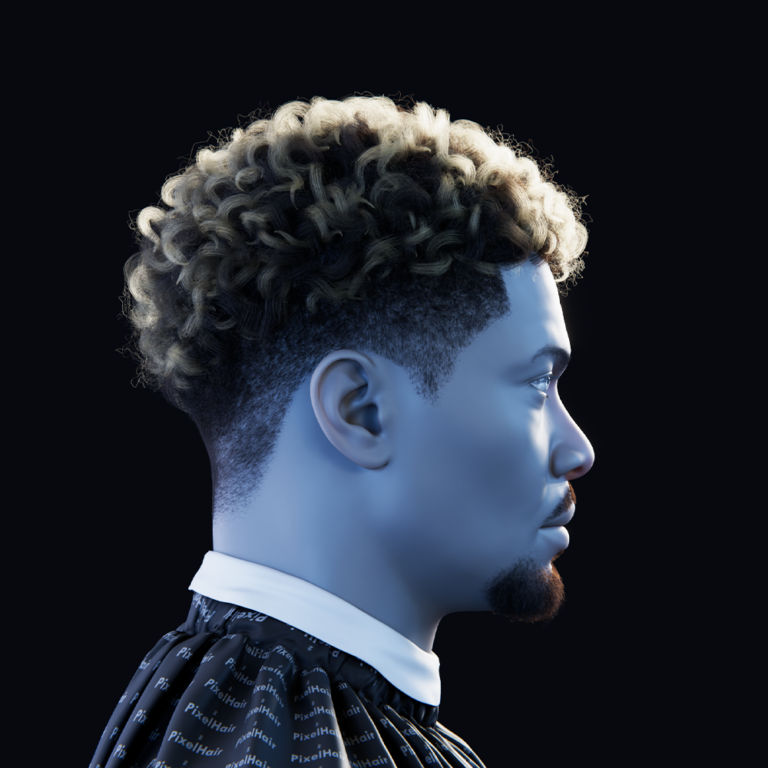
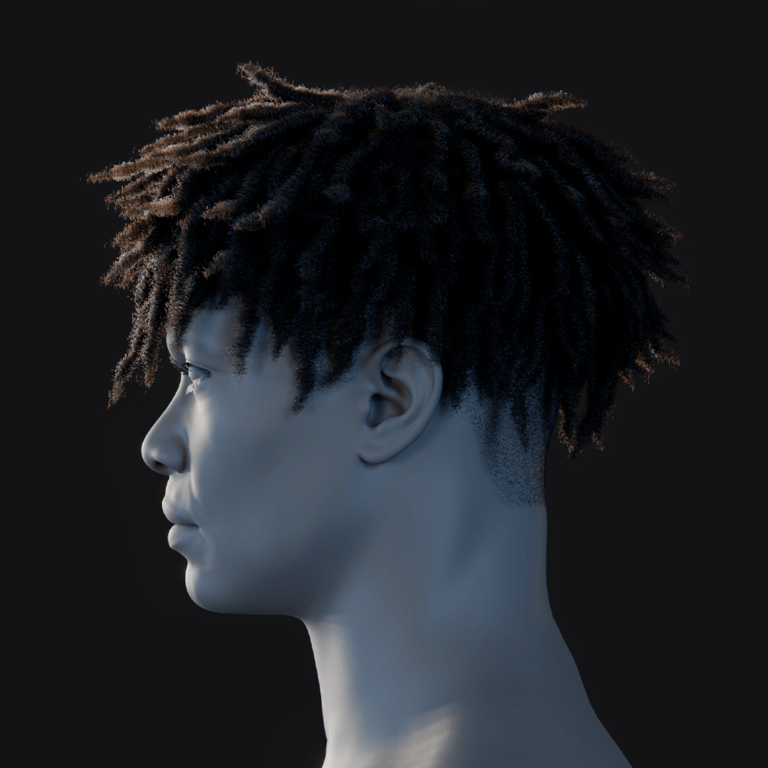
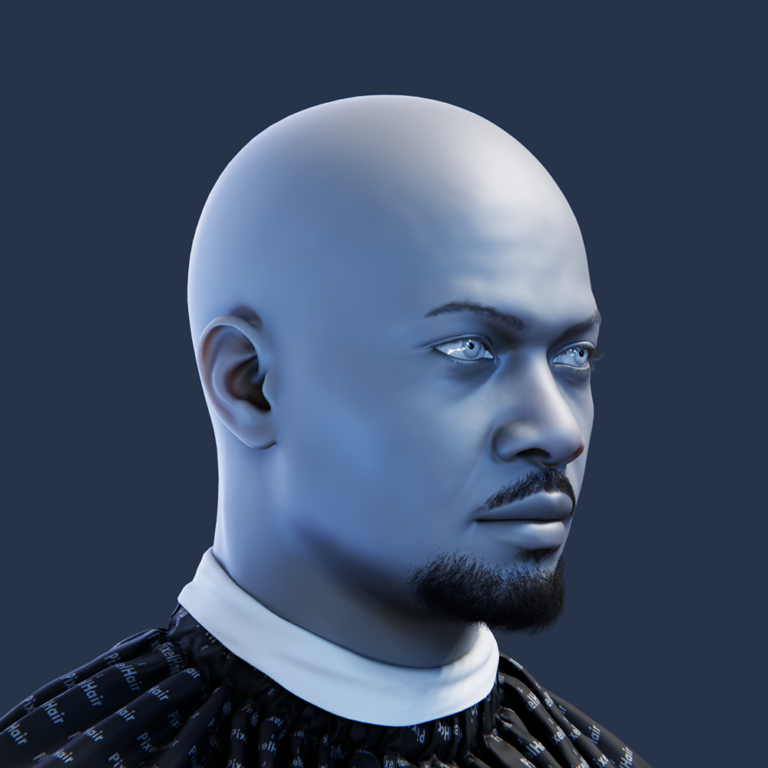
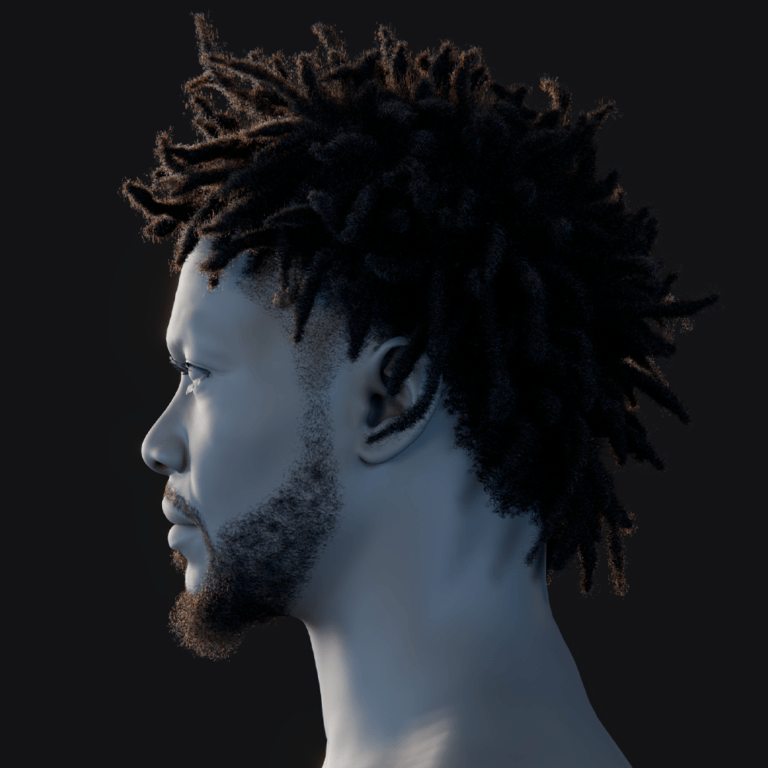
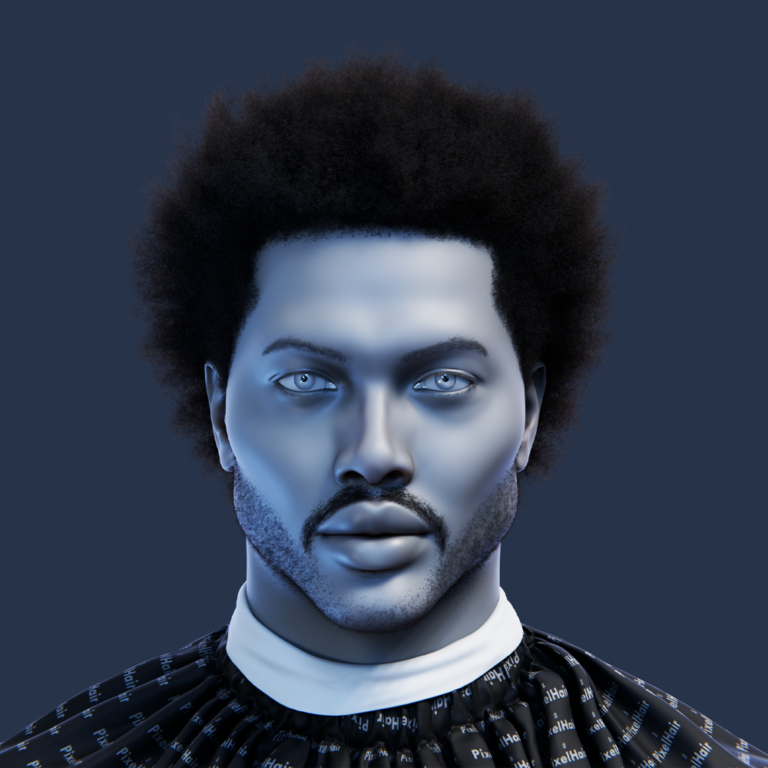
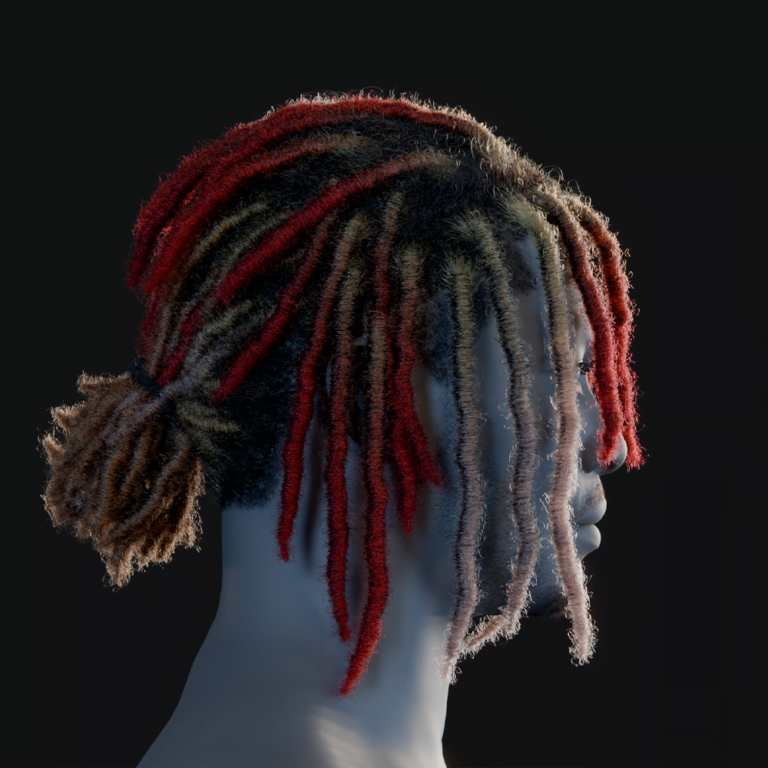
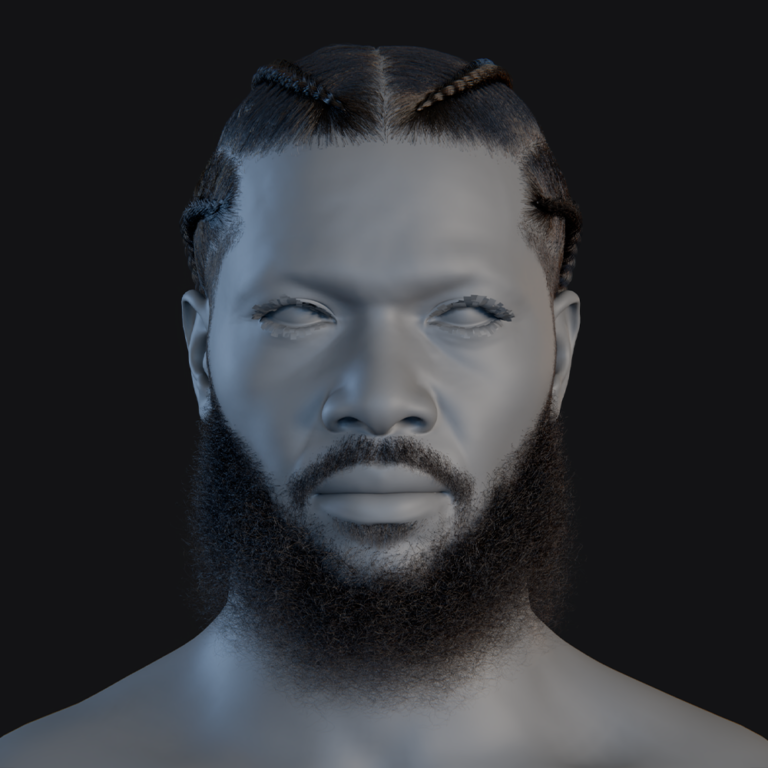
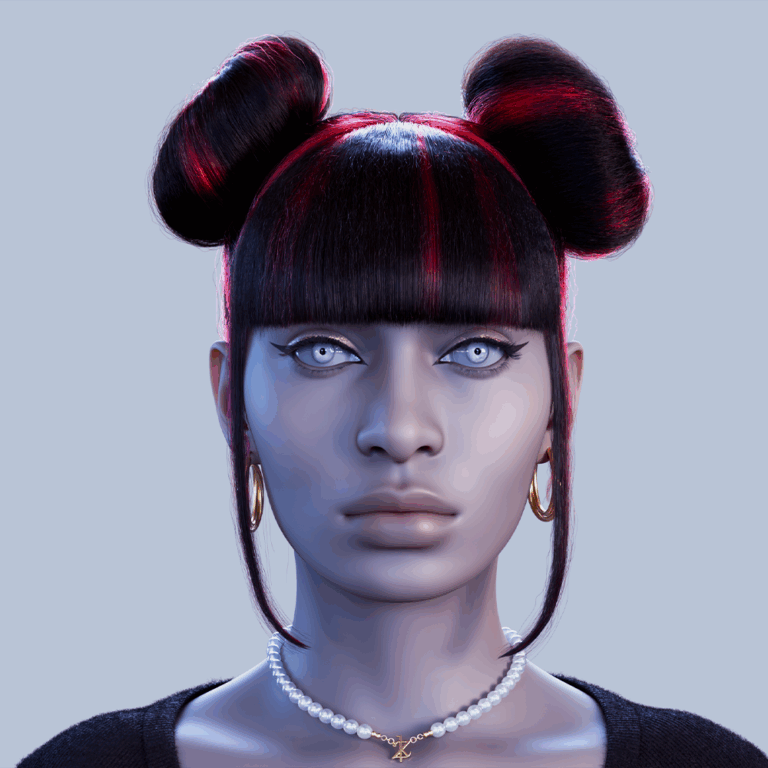
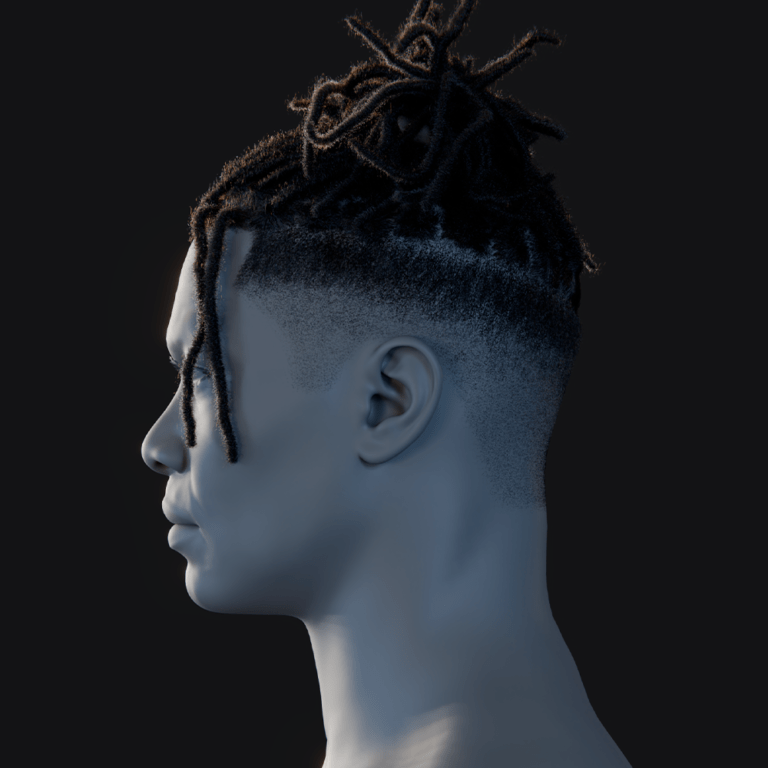
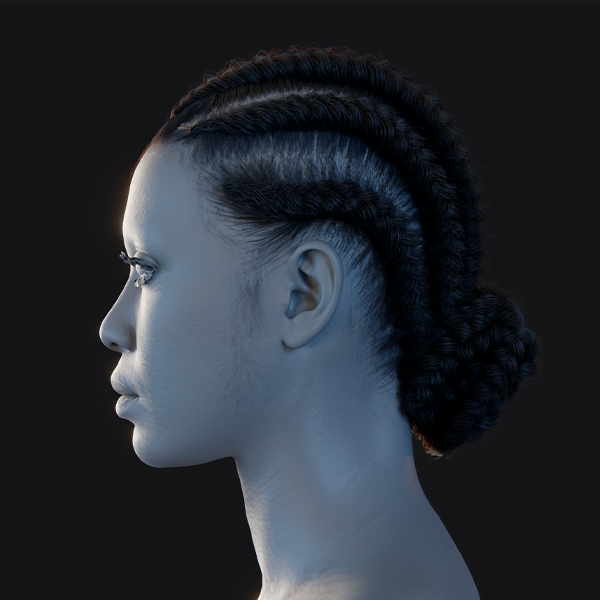
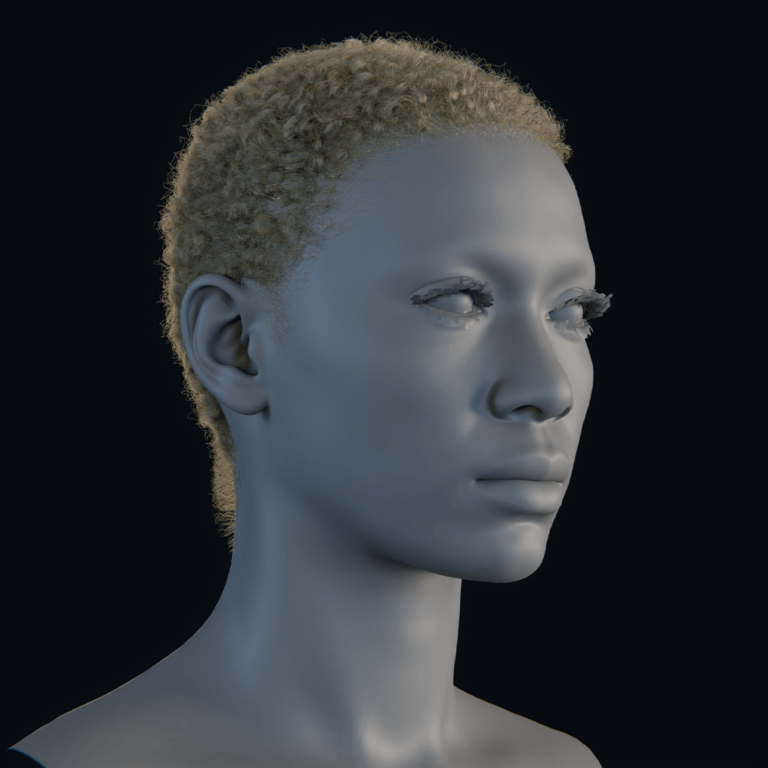
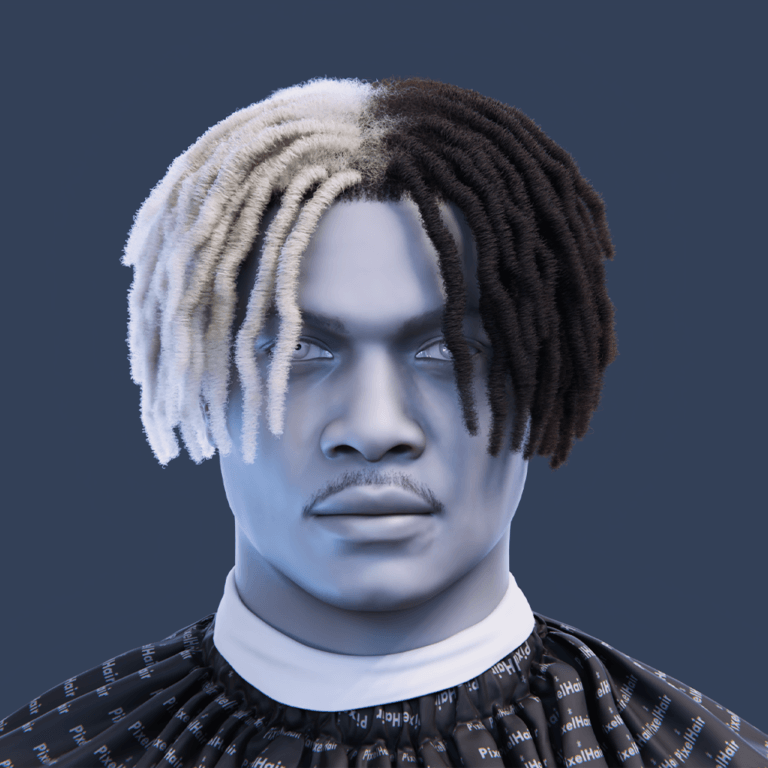
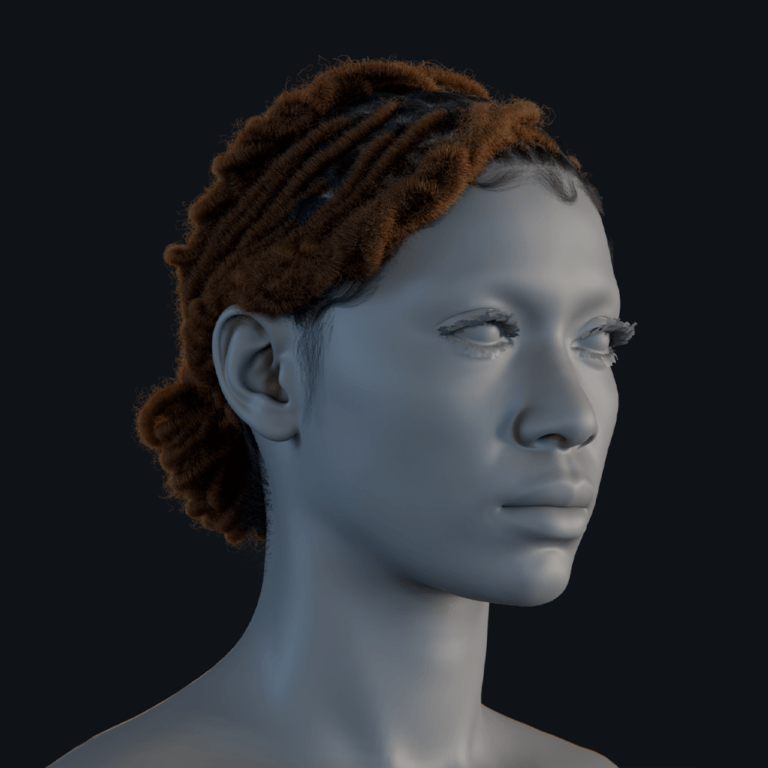
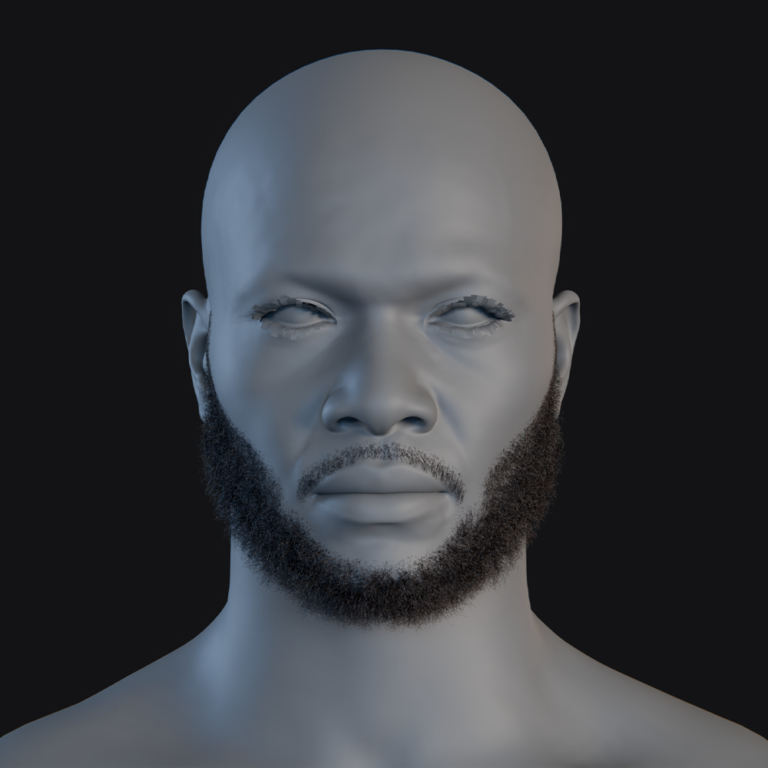
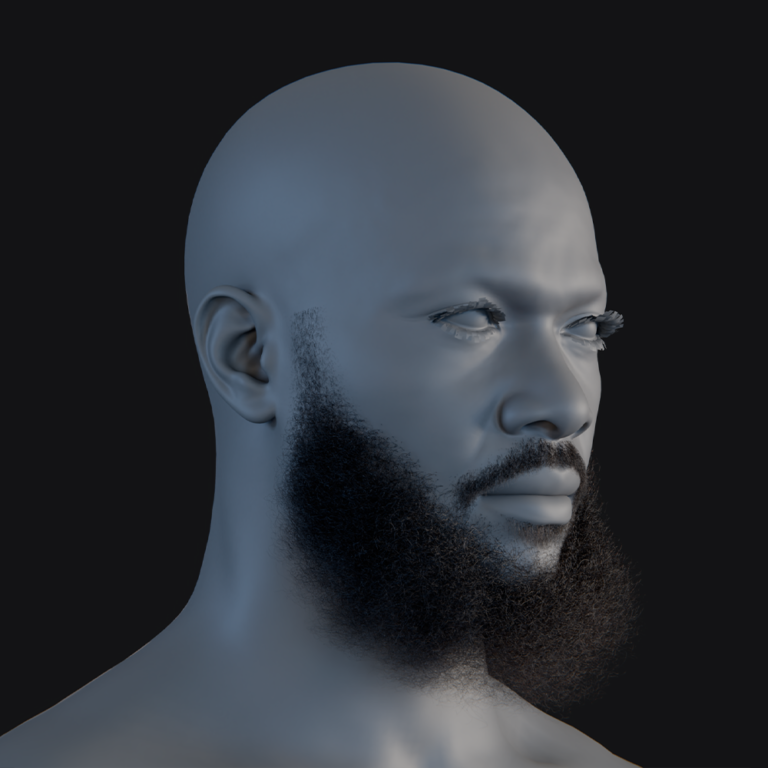
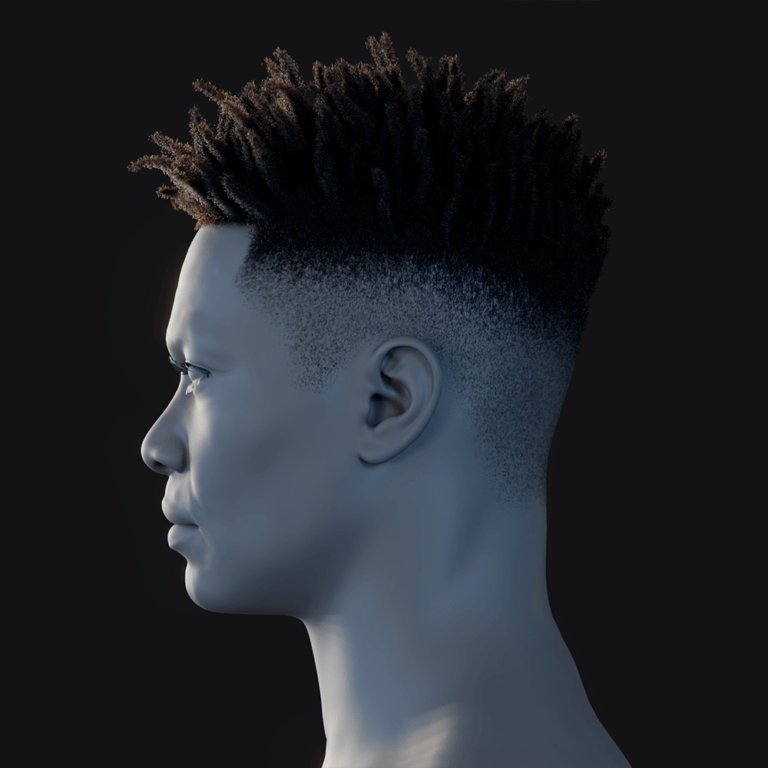
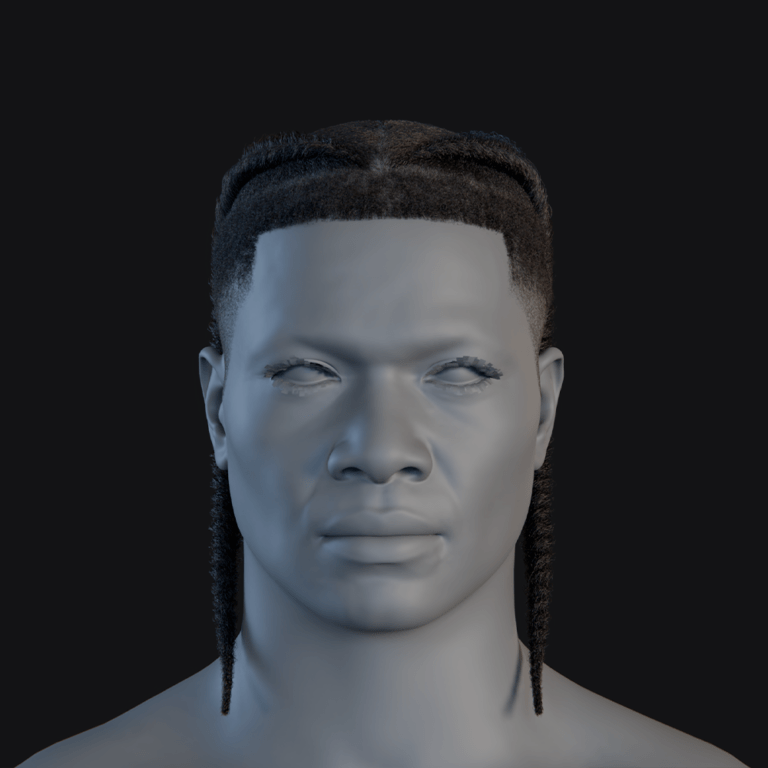
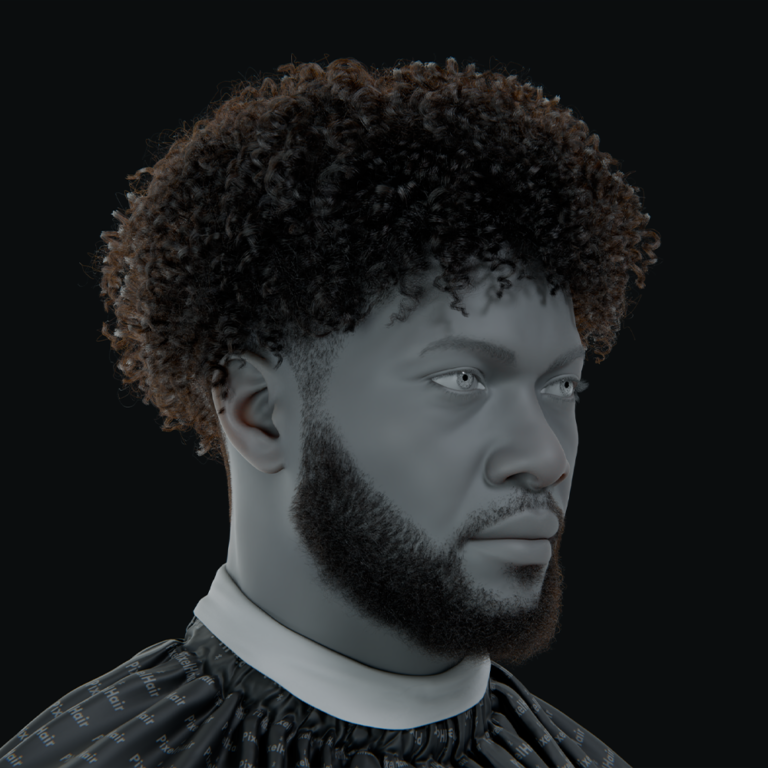
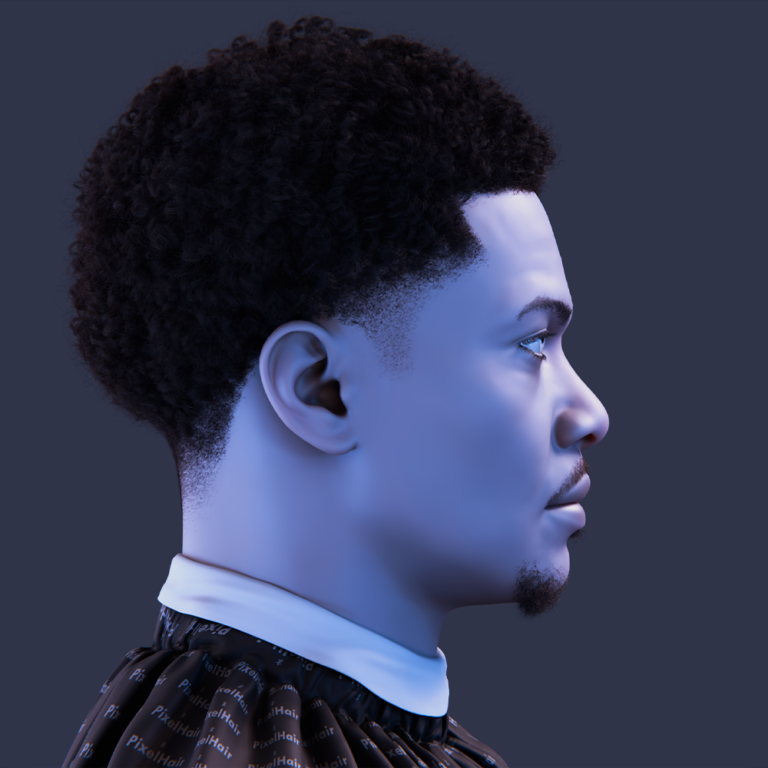
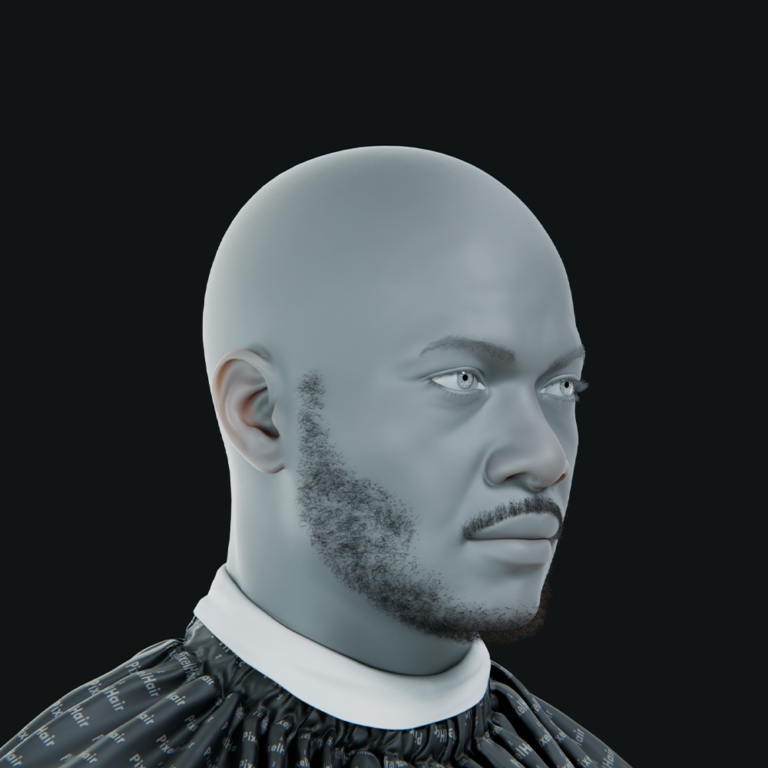
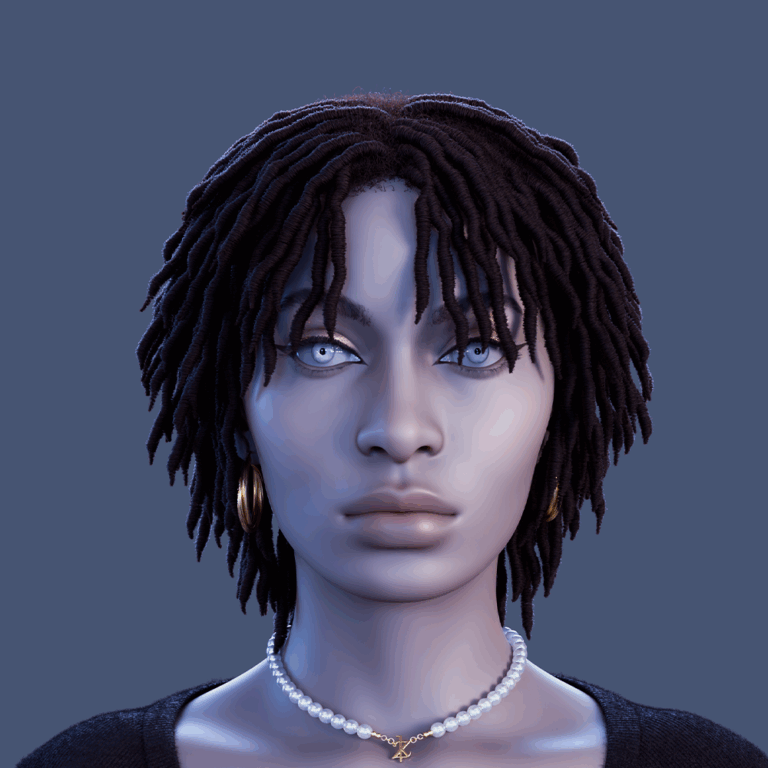
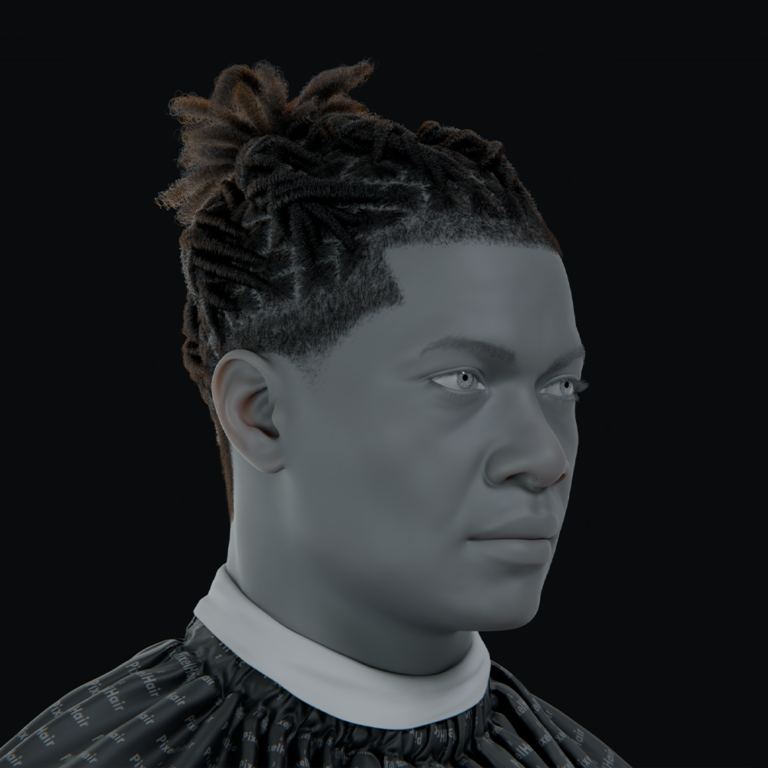
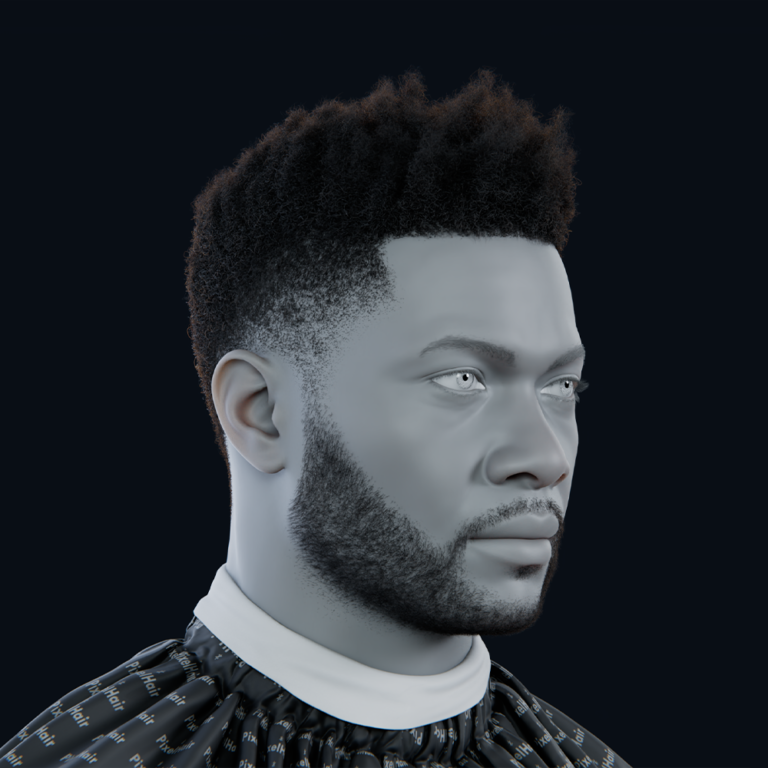
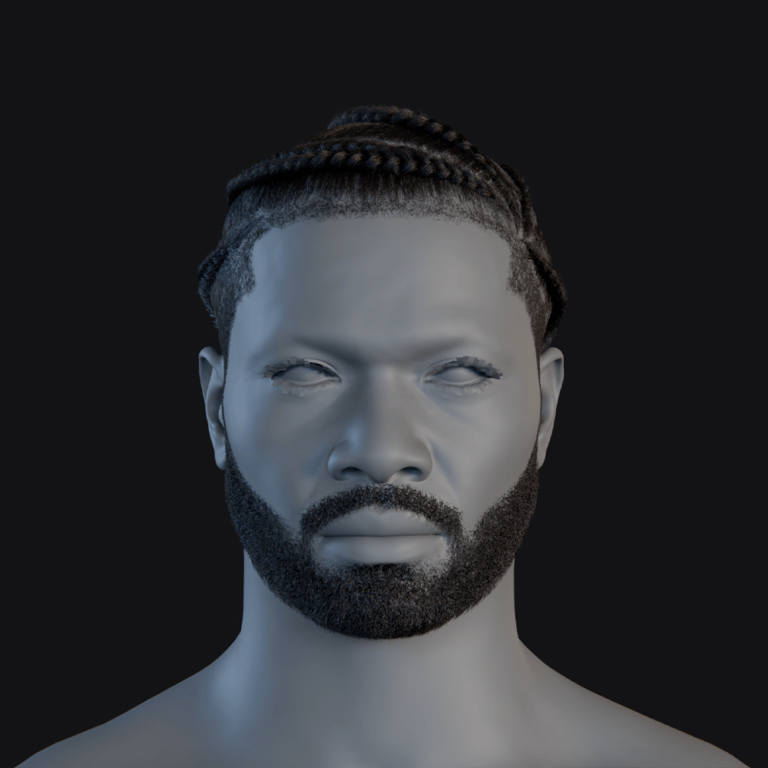
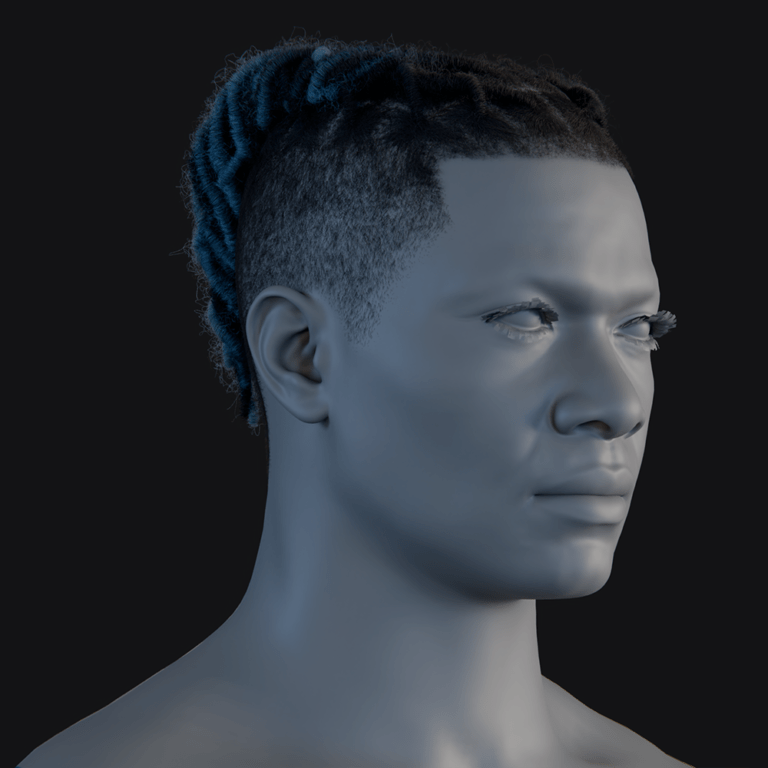
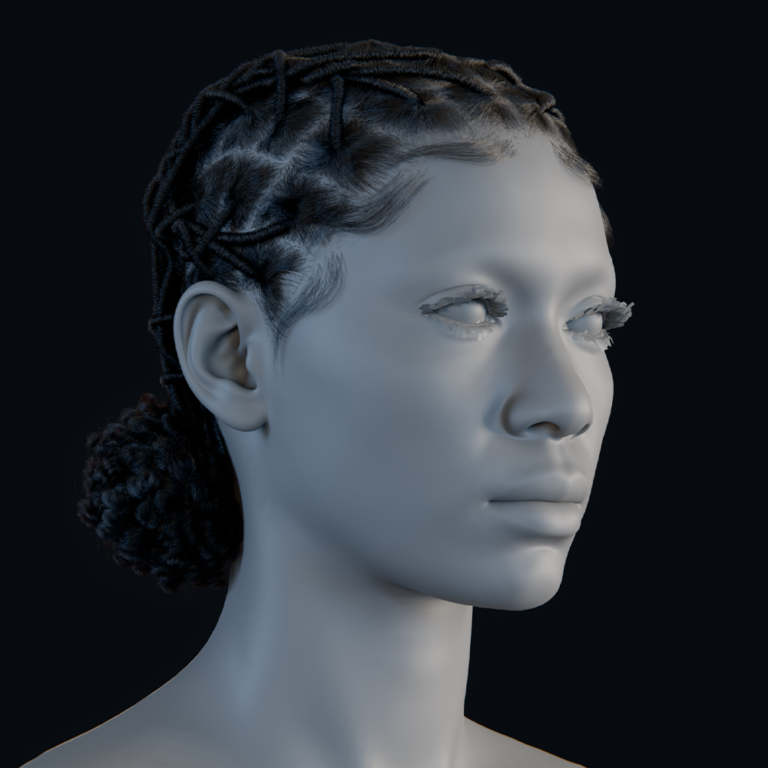
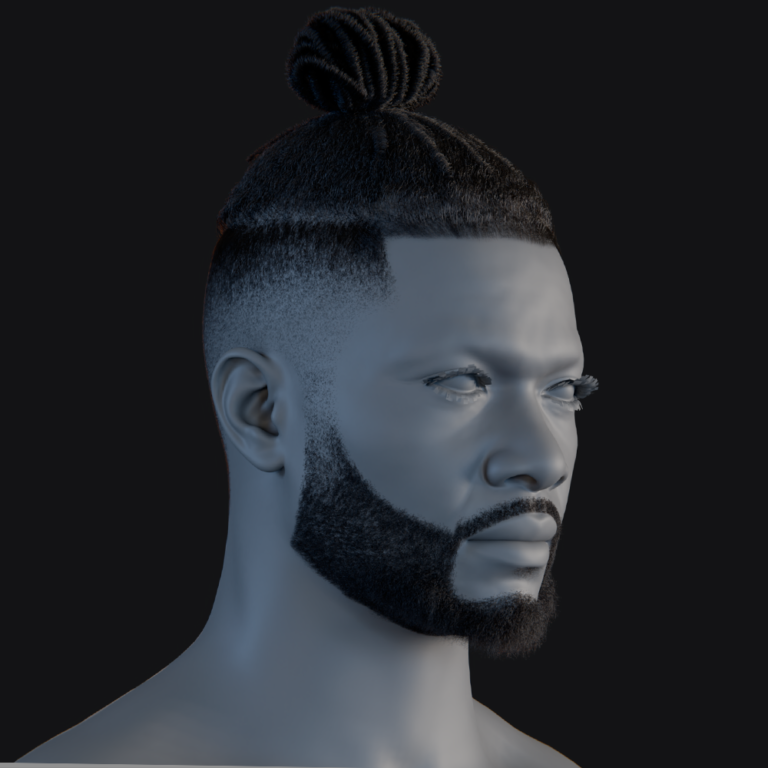
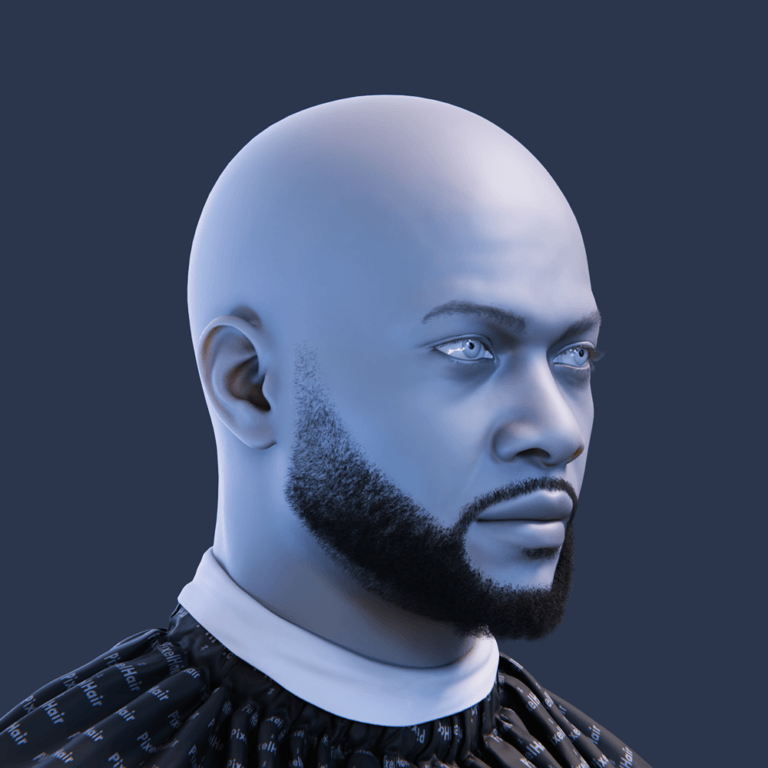
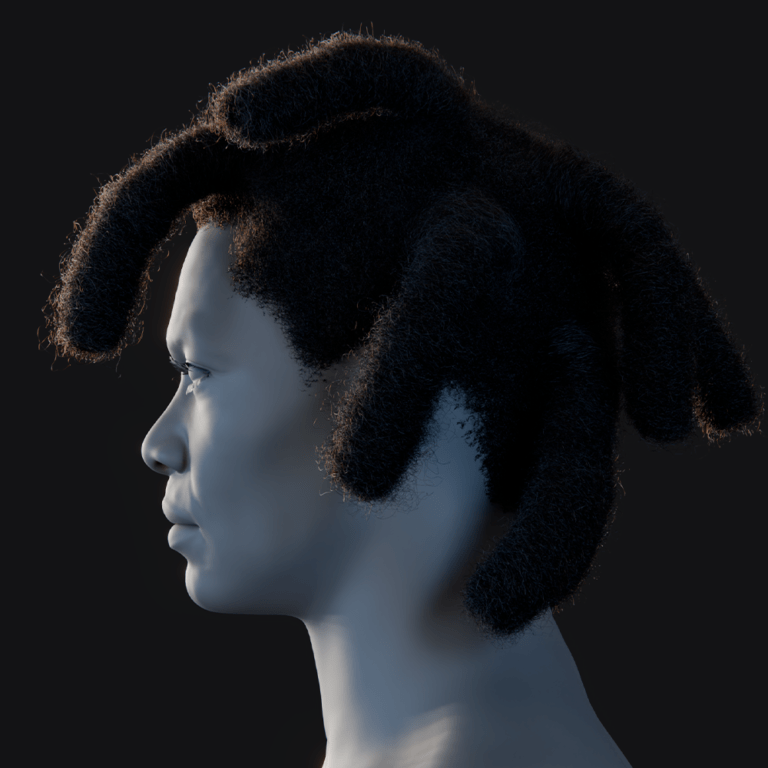
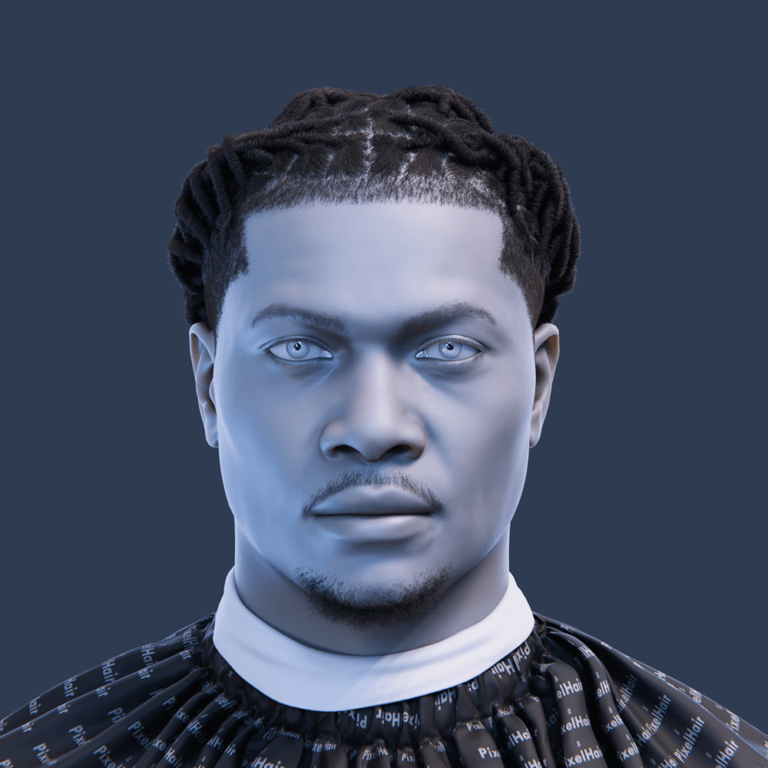
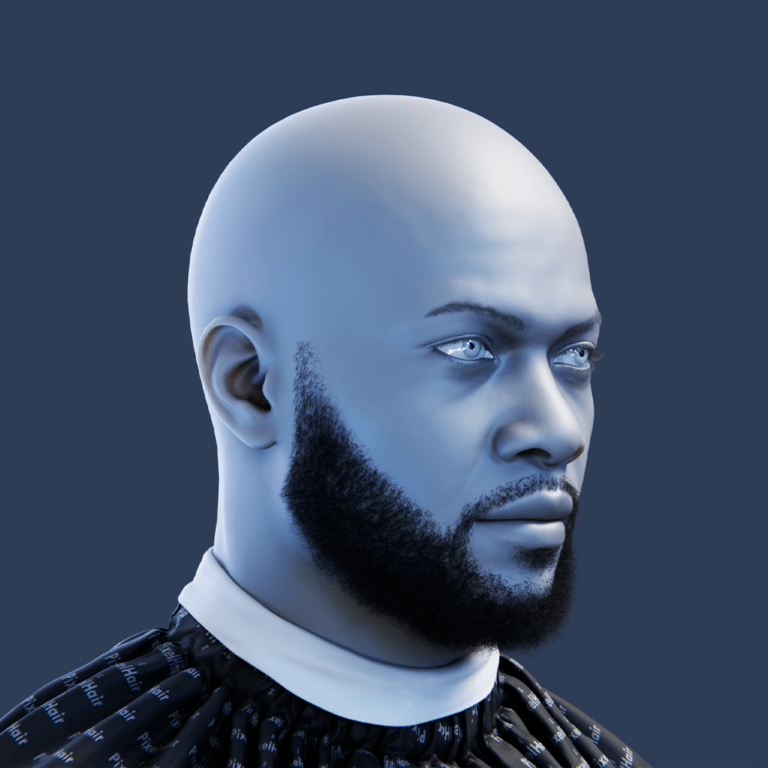
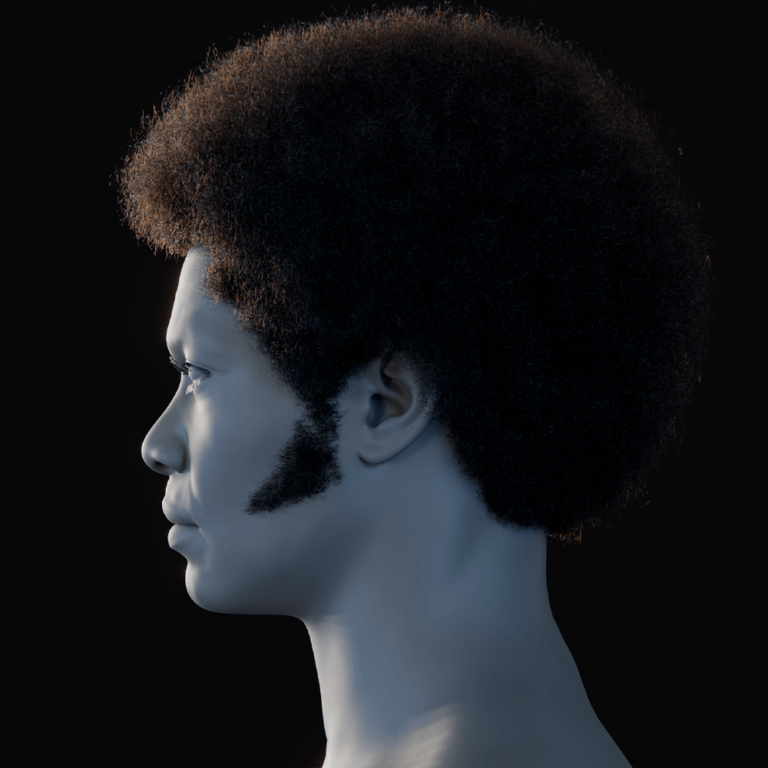
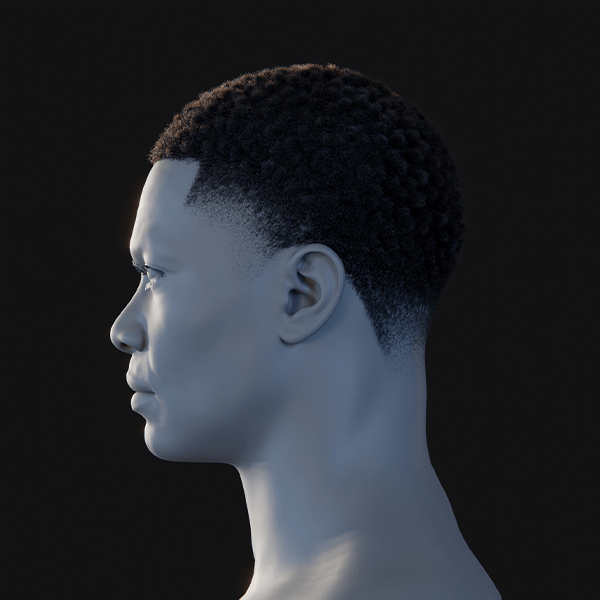
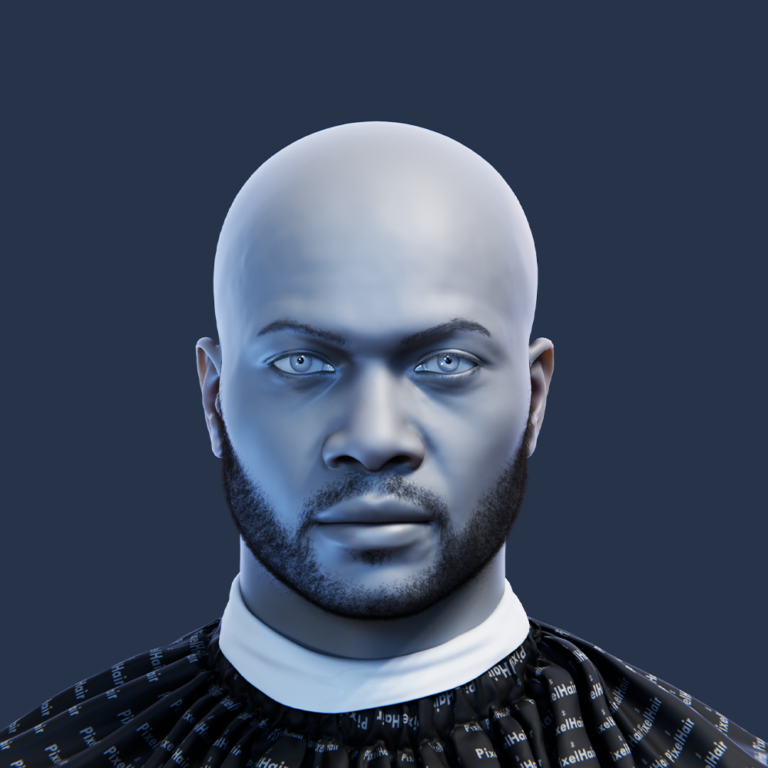
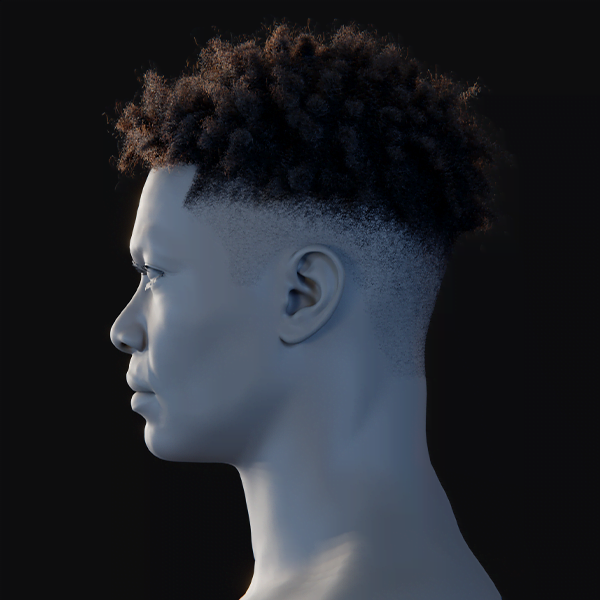
PixelHair provides professional, diverse hairstyles (afros, braids, etc.) designed in Blender. It offers high-quality strand density and volumetric accuracy. These assets are royalty-free for commercial use and serve as plug-and-play replacements for default MetaHuman hair, supporting Unreal’s groom pipeline.

How to Replace Default MetaHuman Hair with PixelHair Styles in Blender and UE5
Acquire the PixelHair .blend file and import the MetaHuman head into Blender. Use a Shrinkwrap modifier to fit the scalp cap to the head. Convert particles to curves and export as an Alembic (.abc) file. In Unreal, import the Alembic, create a Groom Binding Asset targeting the head, and assign it to the Groom Component, replacing the default hair.
How to Apply Physics to Custom MetaHuman Hair Imports Using Niagara or Chaos Cloth
For strands, use Niagara by enabling simulation in the Groom Asset Editor and tuning stiffness and damping. For hair cards or rigged meshes, use Chaos Cloth by painting vertex data in the Skeletal Mesh Editor or using a Physics Asset for boned elements. Shader-based motion (WPO) can be used for low-cost ambient movement.
Why Your MetaHuman Baked Hair Texture Looks Pixelated or Blurry, and How to Re-Bake It
Blurriness is caused by low resolution, compression, or Mipmap bias. Fix this by upscaling textures to 2K/4K, sharpening filter settings, or re-baking the groom onto the scalp UV in Blender/Maya. Use “NoMipmaps” for cinematic shots and incorporate normal maps for added depth.
How to Preview MetaHuman Hair Shot Sequences Using the View Keeper
The View Keeper is a Blender add-on that manages multiple camera views without scene clutter. Use it to save key angles (close-ups, profiles) to check hairline integrity and silhouettes. Iterate hair edits in Blender across these views before exporting camera data or groomed hair to Unreal for final rendering.

Frequently Asked Questions (FAQs)
- How can I change my MetaHuman’s hairstyle after exporting to Unreal Engine?
Use MetaHuman Creator to select a new Epic hairstyle and re-export via Quixel Bridge, or swap hair in Unreal by importing a new Groom asset (e.g., PixelHair Alembic). Attach it to the MetaHuman’s Groom Component, create a Binding asset for the head skeletal mesh, and disable the original hair, allowing access to custom or preset styles beyond defaults. - Why does my MetaHuman appear bald at a distance?
Some hairstyles lack card-based LODs for lower levels, causing hair to vanish beyond LOD 0-1. Force LOD 0 in the MetaHuman’s LODSync component or switch to a hairstyle with complete LODs (including cards). For performance, use hair with card LODs or create them manually to maintain hair at distance. - Why is my MetaHuman’s hair missing after exporting from Bridge to UE5?
Ensure the Groom plugin (HairStrands) and Support Compute Skin Cache are enabled in Project Settings. Re-import the MetaHuman if needed. Check Scalability settings (set to Epic or use console command r.HairStrands.Visibility 1) and confirm compatibility with your platform’s RHI (e.g., Metal on Mac). Low settings or disabled plugins can prevent hair rendering. - Why doesn’t the MetaHuman’s hair follow the head during movement?
A missing or incorrect Groom Binding asset causes this. In the MetaHuman Blueprint, assign a Binding asset to the Groom Component (create via right-click on Groom > Create Binding, targeting the head skeletal mesh). For hair cards, ensure the mesh is parented to the head bone or weighted correctly to track head motion. - How do I create a completely custom hairstyle for a MetaHuman?
Export the MetaHuman head to Blender/Maya, groom hair using tools like Blender’s particle hair/curves or Maya’s XGen, and export as Alembic. Import into Unreal, assign a hair material, and attach to the MetaHuman’s Groom Component. PixelHair offers editable presets to simplify this, allowing tweaks for unique styles like custom braids. - Why is the MetaHuman’s hair flickering or popping when I move the camera?
LOD transitions between strands and cards cause flickering. Disable auto-LOD in the Groom asset or enable Use Attach Parent Bound to use the character’s bounding box, preventing culling. Ensure the LODSync component synchronizes hair and body LODs. In Sequencer, verify “Allow Cinematic LOD” settings to avoid forced LOD mismatches. - How do I enable wind on MetaHuman hair in Unreal?
Enable simulation in the Groom Asset Editor’s Physics tab and check Enable Wind. Add a Wind Directional Source actor to the level, adjusting strength/speed. Lower stiffness and increase bendiness in the Groom asset for noticeable wind response. Disable wind by removing the Wind actor or unchecking Enable Wind/Simulation. - Why does the hair cap texture look misaligned after changing the MetaHuman’s hairstyle?
The scalp texture is baked for the original hairstyle, mismatching new grooms. Export the texture, edit in Photoshop to align stubble with the new hairline, and re-import. For precision, re-bake in Blender/Maya by projecting the new groom onto the scalp UV, ensuring seamless integration with the updated style. - Can I export MetaHuman hair to Blender/Maya, modify it, and re-import?
Direct export is challenging, but check the MetaHuman’s SourceAssets folder for the original Alembic groom (via Quixel Bridge). Import into Blender/Maya for curve edits, or recreate a similar groom using the MetaHuman head as reference. Export the modified groom as Alembic and import into Unreal, replacing the original hair asset. - How can I optimize MetaHuman hair simulation performance?
Reduce strand count via Curve Decimation or LODs in the Groom Asset Editor. Use hair cards for distant LODs to lower rendering costs. Decrease guide strand simulation percentage (e.g., 5% instead of 10%). Disable simulation for off-screen NPCs via Blueprints. Profile with Unreal’s GPU/CPU tools to identify bottlenecks, simplifying materials or density as needed.
Conclusion
A robust pipeline requires:
- Stability: Enabling plugins, using proper bindings, and managing LODs to prevent vanishing hair.
- Editability: Utilizing external tools like Blender and PixelHair for customization and The View Keeper for previsualization.
- Dynamism: Applying Niagara for strands and Chaos Cloth for meshes to achieve realistic motion and wind response.
This modular approach ensures MetaHuman characters remain high-quality and flexible for both games and cinematics.
Sources and Citations
- Epic Games Documentation: MetaHuman Hair LOD Warning
- Epic FAQ: MetaHuman hair missing at distance
- Unreal Engine Forums: Hair flicker and LOD sync fixes
- Yelzkizi / PixelHair Guide: Custom hair integration steps
- Yelzkizi / PixelHair Q&A: Geometry Nodes plans
- Reddit: Groom physics and wind
- Yelzkizi / Maya Workflow: Hair and clothes not in Bridge export
- Unreal Documentation: Groom Import and Plugins
- Unreal Documentation: Binding asset ensures hair follows face/head
- Yelzkizi / Hair Physics tips: Wind influence and physics tuning
Recommendations
- EVE Online Studio Goes Indie in “New Era” Rebrand: Fenris Creations, Google DeepMind AI Partnership, and What It Means for EVE Online
- Sitni Sati Releases FumeFX 7.0 for Maya with FumeFX GPU: Faster Smoke and Fire Simulation Explained
- Metahuman Creator in Unreal Engine: How to Build High-Fidelity Digital Humans Step by Step
- Despite Studio Closures and Layoffs, Meta Quest Usage Hits All-Time High in 2025: What It Means for VR’s Future
- Disney Lorcana TCG: Stitch Edition Starter Set Guide – Coolest Card, Contents, Price & Why It’s Perfect for Beginners
- Ved: Recure – Official Demo Launch Trailer: Steam Demo, Gameplay Breakdown, and Release Date Updates
- Intergalactic Reveal Trailer Breakdown: First Look at Naughty Dog’s Sci-Fi Epic “The Heretic Prophet”
- Ucupaint for Beginners: How to Texture Paint With Layers in Blender (Step-by-Step)
- New Horrified D&D board game goes to Ravenloft, and here’s your exclusive first look at it
- Warhorse Studios Works on Two New Games Set in Kingdom Come & Middle-Earth Universes: Latest Rumors, Development Insights, and RPG Expansion News