






In This Article (24 sections)
What is the RapidPipeline plug-in for Substance 3D Painter
RapidPipeline for Substance 3D Painter is a plugin integration that brings powerful CAD import and model preparation tools directly into Adobe Substance 3D Painter. Developed by DGG (Darmstadt Graphics Group), it allows artists to load native CAD files and complex 3D formats straight into Substance Painter and automatically perform essential data prep steps (tessellation of CAD surfaces, mesh cleanup, UV unwrapping, etc.) in one click. Normally, prepping CAD models for texturing is labor-intensive – you’d have to convert formats (since Substance can’t natively read CAD like CATIA or SolidWorks), fix normals winding, remove hidden parts, create UVs, and more.
RapidPipeline automates all these steps inside Substance Painter, so you can import over 20 CAD/3D formats, have the plugin generate UV maps and optimize the mesh on-the-fly, and then immediately start texture painting. In short, RapidPipeline supercharges Substance 3D Painter with CAD import, one-click data preparation, and automatic UV workflow capabilities – saving hours of manual work per model.
RapidPipeline Substance 3D Painter plug-in download and installation guide
To use the plugin, ensure you have Adobe Substance 3D Painter version 10.1.0 or newer. The plugin is distributed as a .zip package containing the integration and processing engine, available from the RapidPipeline platform for users with a valid plan or trial:
- Sign up / Login: Start a trial or subscription with API/Integrations access and log in to the RapidPipeline Web Platform.
- Download the plugin: Navigate to the Integrations section to download the latest version for Windows or macOS. A public repository exists, but a license token is required.
- Install into Painter: In Substance 3D Painter, go to Python → Plugins folder and extract the .zip contents into the plugins subfolder.
- Restart and verify: Restart the application. Ensure RapidPipeline is enabled in the Python → Plugin Manager. If missing, verify the directory and activation status.
Once installed, the RapidPipeline tool can be launched within the software.
How to activate RapidPipeline in Substance 3D Painter (Python menu)
Launch Substance 3D Painter and go to the “Python” menu. Ensure RapidPipeline is checked or toggled on. If it does not appear, use “Rescan plugins” or restart the software. Once active, functions are accessible via the File menu.
How to open RapidPipeline 3D Processor in Substance 3D Painter
With the plugin enabled, navigate to File → RapidPipeline 3D Processor to launch the plugin window. This panel allows you to select 3D/CAD files and choose import options like UV mode and tessellation quality before running the import process. This interface acts as a mini-application for processing models using one-click workflows.
How to import CAD files into Substance 3D Painter with RapidPipeline
Importing a model involves these steps:
- Open the RapidPipeline panel via File → RapidPipeline 3D Processor.
- Select your file: Use the “Select 3D or CAD File” button to browse for formats such as SolidWorks, CATIA, Rhino, or STEP.
- Choose an import action: Select from Paintable UVs per Material, Paintable Single Atlas, or Tiling UVs.
- Adjust settings if needed: Tweak parameters such as tessellation quality, mesh simplification, winding fixes, or removing occluded parts.
- Run the import: Click “Run” to allow RapidPipeline to convert the data, generate UVs, and optimize the mesh for the Substance Painter scene.
The processed model will appear in the viewport with automatic UVs and optimized geometry, ready for baking maps or painting without external preparation.
Import SolidWorks, CATIA, Rhino, and STEP into Substance Painter (RapidPipeline workflow)
RapidPipeline allows users to import native CAD formats that Substance Painter does not support natively, such as SolidWorks, CATIA, Rhino, STEP/STP, IGES, Creo, Autodesk Inventor, and more. While Painter typically requires polygonal mesh formats like FBX or OBJ, RapidPipeline handles the CAD-to-mesh conversion internally.
The plugin tessellates NURBS surfaces into triangle meshes, corrects orientation and scale, generates UV maps, and imports the data into Painter in one step. This supports over 20 formats, including those from PTC Creo, Autodesk Revit, Siemens NX, and Solid Edge. This streamlined workflow is particularly beneficial for professionals in product design, automotive, architecture, and engineering. Although importing complex models may take time for tessellation, the automated one-click process saves hours of manual preparation.
Supported CAD and 3D formats in RapidPipeline for Substance Painter
RapidPipeline supports a wide range of formats across several categories:
- Native CAD formats: Includes SolidWorks (.sldprt, .sldasm), CATIA V5/V6 (.catpart, .catproduct, etc.), PTC Creo (.asm, .prt), Autodesk Inventor (.ipt, .iam), Autodesk Revit (.rvt, .rfa), Siemens NX, Solid Edge, STEP/STP, IGES, JT, Parasolid, and ACIS SAT.
- Standard 3D formats: Supports OBJ, FBX, glTF/GLB, USD/USDA/USDC/USDZ, COLLADA, 3DS, 3MF, and VRML. RapidPipeline can be used to optimize these or auto-unwrap UVs even if Painter supports the format natively.
- Others: Includes Rhino .3dm models, IFC for BIM, and Navisworks.

Paintable UVs per Material in RapidPipeline (Substance Painter)
The “Paintable UVs per Material” workflow generates a separate, non-overlapping UV atlas for every material present on the model. This preserves the original material segmentation, names, and color assignments. In Substance Painter, each material becomes a distinct Texture Set, allowing for granular control and independent painting without manual UV work. This is ideal for complex models like cars, where different parts (glass, rubber, paint) require separate texturing while maintaining their original material identity.
Paintable Single Atlas UV workflow for Substance 3D Painter
The “Paintable Single Atlas” mode creates one unified UV layout for the entire model, merging all original materials into a single texture set. This simplifies material management and is beneficial for real-time applications like games or AR/VR, where reducing draw calls and managing texture memory is a priority. While this mode loses per-material separation in the viewport, RapidPipeline packs all UV islands optimally into one 0–1 space, allowing for continuous painting across the entire asset and export of a single set of texture maps.
Tiling UVs with triplanar “box” mapping for Substance materials
The “Tiling UVs” workflow uses triplanar “box” mapping to generate UV coordinates optimized for seamless, repeating textures. By projecting UVs from the X, Y, and Z axes and blending them at the seams, it allows tileable materials like wood or metal to be applied evenly across a model with consistent scaling. This mode is ideal for procedural texturing where unique painting is not required, as it eliminates the need for manual unwrapping or a unified 0–1 atlas. However, it is less suitable for custom painted details that require specific placements.
Winding order correction for CAD imports in Substance 3D Painter
RapidPipeline includes an automated “Fix Winding Order” setting to address flipped normals and inconsistent face orientations common in CAD-to-mesh conversions. When enabled, the plugin detects and flips inverted polygons so all faces consistently point outward. This prevents issues with backface culling in Substance Painter, where inverted faces might otherwise appear transparent or cause errors during the baking process.
Tessellation settings for CAD models before texturing in Substance Painter
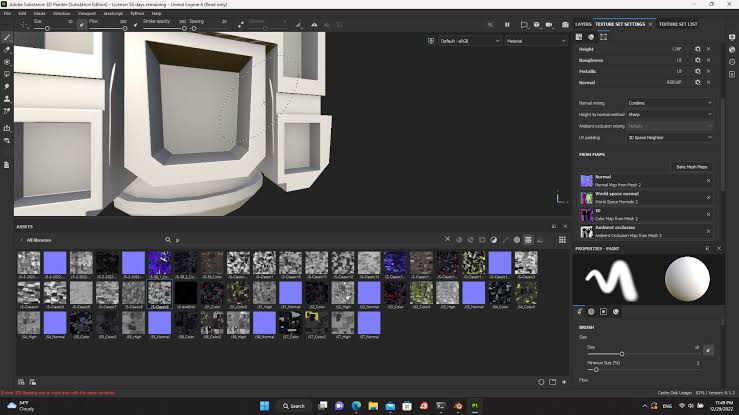
Because CAD models use NURBS or B-reps, RapidPipeline must tessellate them into polygon meshes upon import. Users can control this via a Tessellation Resolution parameter with presets ranging from Extra Coarse to Extra Fine, or via Custom settings for specific tolerances like surface deviation and edge length. “Fine” is the default for a balance of detail and performance. Users can re-tessellate from the source file if the resulting mesh is too heavy or too low-resolution for their specific texturing needs.
Mesh simplification for faster baking and painting in Substance 3D Painter
RapidPipeline offers a “Simplify Mesh” option to reduce polygon counts through automatic decimation. This process targets flat or low-detail areas while preserving the overall shape and UV boundaries, which improves software responsiveness and speeds up map baking. The algorithm respects UV seams to ensure the generated unwrap remains intact. This is optional but useful for converting heavy CAD files (e.g., 2 million triangles) into manageable assets (e.g., 300k–500k triangles) without significant visual loss.
Remove occluded parts and invisible geometry culling before texturing
The “Remove Occluded Parts” feature identifies and deletes internal components and hidden geometry that are not visible from the exterior. This culling process reduces polygon overhead, prevents unwanted occlusion during baking, and ensures UV space is not wasted on unseen surfaces. It is particularly effective for complex engineering assemblies, such as car models with internal engine parts. While beneficial for streamlining models for exterior texturing, this option should be disabled if internal components are required for the final project.
How to keep material IDs, names, and colors when importing into Substance Painter
RapidPipeline preserves original material information by default, particularly when using the “Paintable UVs per Material” mode. In this mode, source materials are kept one-to-one, including their names and colors. This allows for easy identification in Substance Painter, as texture sets will reflect the original material tags (e.g., “red plastic”).
- Single Atlas Mode: Materials are merged, but the plugin typically carries over the base color as an initial fill.
- Naming: Texture sets are named after the original materials rather than generic defaults.
- Limitation: While colors and IDs are kept, original texture maps are not imported because the plugin generates new UV layouts.

Does RapidPipeline run locally inside Substance 3D Painter (no cloud processing)
RapidPipeline operates 100% locally on the user’s machine. Tasks such as CAD tessellation and UV generation are handled by the computer’s CPU and RAM rather than a cloud server.
- Speed: Local processing is faster as it eliminates network transfer wait times.
- Privacy: Data stays on the local machine, which is critical for industries with strict intellectual property controls.
- Offline usage: The plugin functions without an internet connection after the initial license verification.
RapidPipeline authentication token setup in Substance 3D Painter
Users must activate the plugin with an authentication token upon the first launch.
- Launch the plugin via File → RapidPipeline 3D Processor to trigger the “Authentication Required” dialog.
- Click “Create Auth Token” to open the web platform’s token generation page.
- Generate and copy a new integration token key.
- Paste the token into the plugin’s input field in Substance Painter.
- Accept the Terms & Conditions and click OK.
Tokens are typically tied to a single machine seat. Management of seats and tokens is handled through the RapidPipeline account dashboard.
RapidPipeline Substance Painter plug-in limitations and known issues
The developers have identified several limitations and specific behaviors:
- Material count limitation: RapidPipeline cannot automatically split a single-material model into multiple texture sets; material grouping must be defined in the source file.
- Scene reload issue: To avoid errors regarding mesh units or scale when importing a new model, users should close the current project (File → Close) before running the import.
- Original textures not retained: Because new UVs are generated, any original texture maps are stripped. Materials will appear with default parameters.
- Plugin update caching issue: Painter may cache old plugin versions. If an update isn’t appearing, users should close Painter, delete old files, install new ones, and potentially restart their computer.

Fix “Failed to load 3D scene” and scale mismatch errors in Substance Painter
The error message “Failed to load 3D scene. Cannot replace mesh with strokes preservation. The meshes units and/or scales do not match” commonly occurs when importing a new model into an active project that contains paint strokes. This happens because Substance Painter cannot reconcile the scale or unit differences between the original and the replacement mesh while attempting to preserve existing strokes.
- How to fix/prevent this error: Avoid loading a new model over an existing one. Use File → Close to clear the current scene before initiating a RapidPipeline import.
- Alternative Solutions: If the error appears, you can close the project and hit “Run” again, or restart the software.
- Technical Root Cause: While RapidPipeline manages unit conversions, the primary issue is Painter’s stroke preservation mechanism, which cannot be disabled during import.
Closing the current project before loading a new mesh via RapidPipeline is the best practice to ensure each model loads cleanly and to avoid this error.
RapidPipeline CLI batch processing for large CAD libraries and digital twins
RapidPipeline includes a Command-Line Interface (CLI) designed for the automated batch processing of massive CAD libraries. This tool allows organizations to apply the same “recipes” used in the Painter plugin—such as tessellation, UV mapping, and decimation—to hundreds or thousands of files simultaneously. For instance, a retail company can automate the preparation of an entire catalog for 3D viewers overnight, bypassing slow manual work. This backend automation is currently utilized by multiple large tech companies to ensure consistency across digital twin pipelines.
The CLI is typically available to enterprise or higher-tier users and can run on Windows or Linux servers. It allows technical artists to script operations for entire libraries, ensuring uniform UV styles and polygon targets. The resulting models can be loaded into Substance Painter for further hand-painting or exported directly to engines like Unreal or Unity. Essentially, the CLI extends the one-click workflow to a large-scale scripted pipeline, which is vital for e-commerce and manufacturing industries handling massive amounts of CAD data.
Even if not used personally, the existence of the CLI underlines the overall reliability of the RapidPipeline engine.ay not use the CLI, it’s good to know that RapidPipeline’s tech is robust enough to handle batch jobs, which underlines the reliability of the plugin you use in Painter.

Frequently Asked Questions (FAQs)
- What exactly does the RapidPipeline plugin do in Substance 3D Painter?
It allows the direct import and preparation of nearly any CAD or 3D format into Substance 3D Painter. It handles tessellation, fixes flipped normals, removes hidden geometry, and generates UV maps in one step, eliminating the need for external conversion tools for programs like SolidWorks, CATIA, or Rhino. - How do I install and enable RapidPipeline in Substance Painter? Is there a free trial?
Download the .zip from the website after starting a free 14-day trial or subscription. Place the files in the Painter Python plugins folder, restart the app, and enable it in the Python menu. A 14-day trial is available without a credit card, and students may access free plans. - Does RapidPipeline require internet or upload my models to the cloud?
No, it runs 100% locally. Internet is only required for a one-time license token activation. Your data stays private on your machine, ensuring security and offline functionality. - Which file formats can I import with RapidPipeline for Painter?
It supports 20+ formats including SolidWorks, CATIA, Rhino, STEP/IGES, Creo, Inventor, Revit, and Parasolid, as well as standard formats like OBJ, FBX, glTF, and USD. - Can RapidPipeline preserve my model’s original materials and colors?
Yes. By default, it preserves material assignments, names, and flat colors. The “UVs per Material” mode keeps each material as its own Texture Set in Painter. - How do I fix the “Failed to load 3D scene… the meshes units and/or scales do not match” error?
Close the current project via File → Close before importing a new model. This error occurs because Painter tries to preserve strokes on a mismatched mesh. Starting a fresh scene resolves it. - How can I reduce the polygon count of a CAD model for easier painting?
You can use a coarser tessellation preset during import or enable the simplification option to decimate the mesh to a target triangle count while preserving detail. - Is RapidPipeline free or do I need a license?
It is a paid subscription product with a 14-day free trial. It uses an account-based system with various tiers, including educational options. - What is PixelHair and how can it help with creating hair for 3D characters?
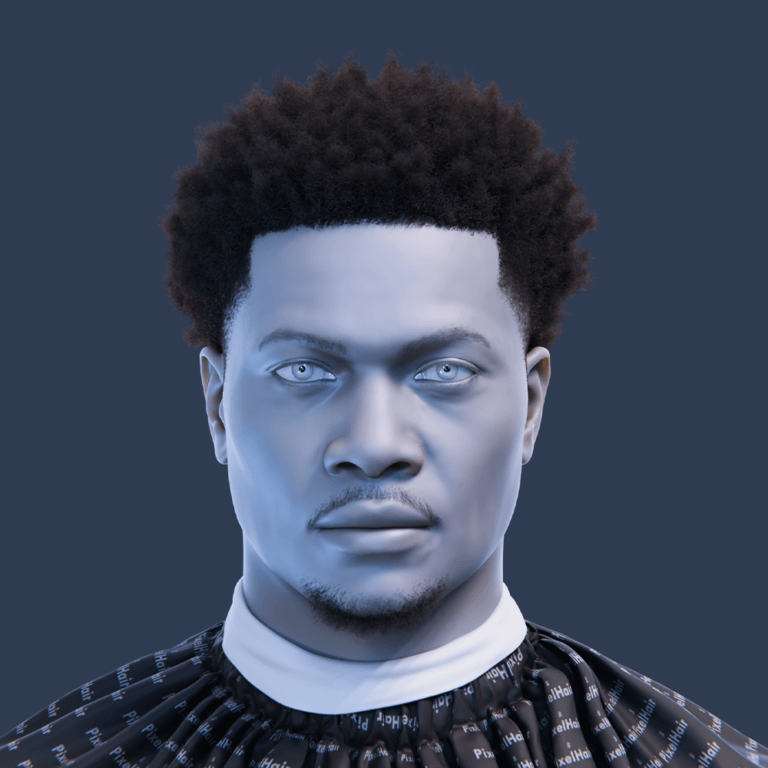
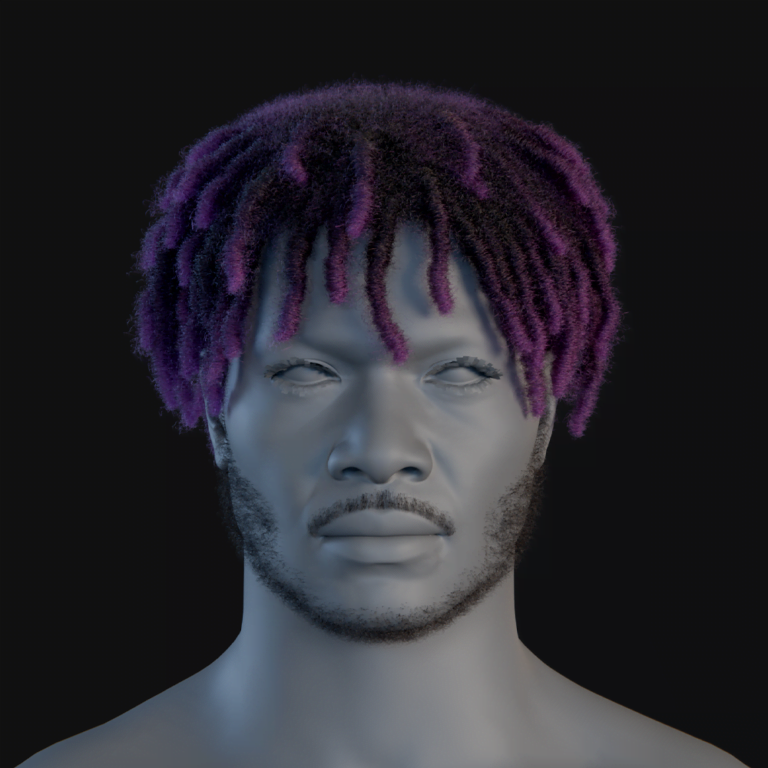
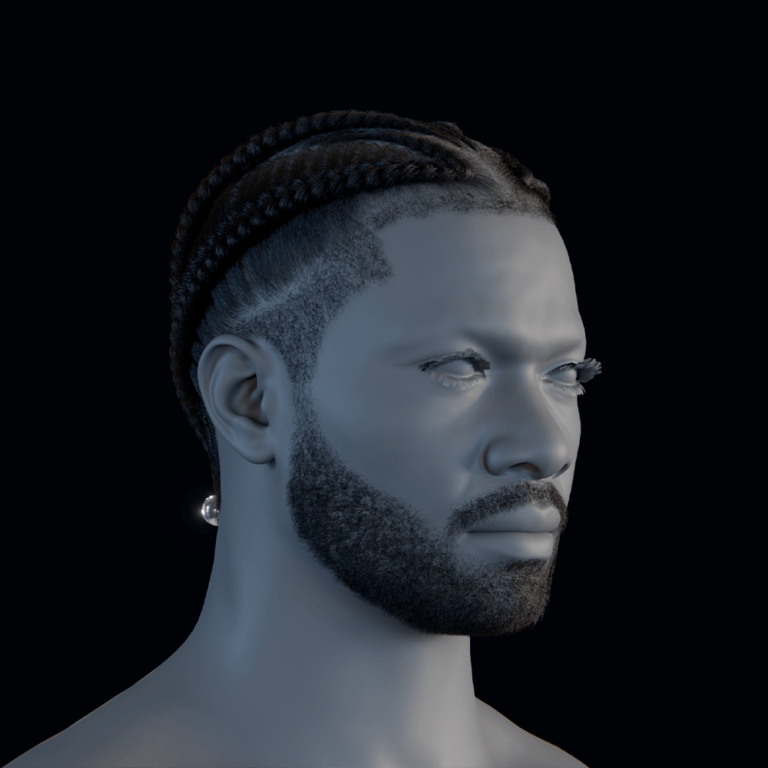
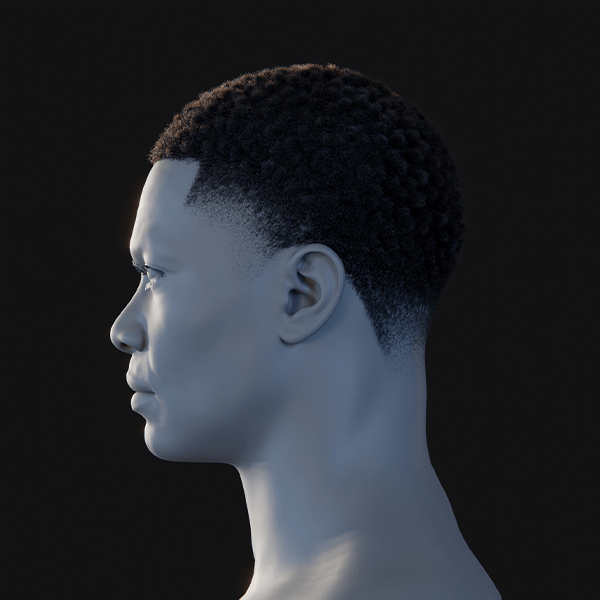
It is a library of pre-made, realistic 3D hair grooms for Blender and Unreal Engine. It uses hair curves and Geometry Nodes, allowing for customization and export as Alembic data or hair cards for UE5. - What is The View Keeper plugin?
A Blender plugin for camera management that stores unlimited camera positions and settings under one camera object. It simplifies multi-shot workflows and allows for one-click batch rendering.

Conclusion
RapidPipeline for Substance 3D Painter is a transformative tool for artists handling CAD or unoptimized models. It bridges the gap between engineering and artistry by providing native CAD import, automated tessellation, and UV generation within Painter. This condenses hours of manual cleanup into a single click, increasing productivity for industries like automotive, product design, and AEC.
The plugin’s various UV workflows and optimization tools, such as simplification and occlusion culling, provide a robust toolkit within a user-friendly interface. It allows artists to focus on creativity rather than technical preparation. Additionally, tools like PixelHair and The View Keeper complement the 3D pipeline by streamlining hair grooming and camera management. RapidPipeline runs locally for data security and serves as a natural extension of Painter, making it an essential add-on for those looking to accelerate the journey from raw CAD data to textured assets.
Sources and Citations
- 80.lv — “Bring CAD & Data Prep Directly Into Substance 3D Painter With This Plug-In”
- RapidPipeline Official Site — Substance 3D Painter integration/product page
- RapidPipeline Documentation — Installation & Usage
- RapidPipeline Documentation — Known Issues
- RapidPipeline Documentation — Advanced Settings
- Yelzkizi — PixelHair on FlippedNormals
- Yelzkizi — PixelHair update/blog snippet
- ArtStation — The View Keeper by Yelzkizi
Recommendations
- A Star Wars Expansion Is Coming to PowerWash Simulator 2: Everything You Need to Know About the Galactic Cleaning Adventure
- Tales of Eternia Remastered Appears on Age Rating Website: PEGI Listing Leak, Platforms, Release Date Rumors, and What It Could Mean
- The Outer Worlds Companions – How to Recruit, Abilities, and Best Combinations
- Riot Details New Legends, Mechanics, and More For Riftbound’s Third Set, Unleashed: Release Dates, Ambush, XP, Hunt, and Baron Nashor Ultimate Rare
- Family Guy Stewie Spinoff Series Greenlit for 2 Seasons: Release Date, Plot, Cast, and Everything We Know
- 4:LOOP Official Gameplay Overview Trailer (State of Play 2026): Community Reaction and Everything We Know
- All characters and color variations in Mario Tennis Fever: Full roster, unlocks, and alternate colors
- Blender Studio Releases Its First 4K HDR Short Film “Singularity”: Full Breakdown of the Cinematic Space Adventure
- Real VR Fishing Launches on Android XR With Hand Tracking: Release Date, Features, Crossplay, and Everything to Know
- Papaya Gaming Ordered to Pay $420 Million for False Advertising: Lawsuit Details, Bots Controversy, and What It Means for Mobile Gaming