




In This Article (9 sections)
Installing Discord on SteamOS for Steam Deck and Steam Machine
Using Discord on a Steam Deck or a Steam Machine running SteamOS is entirely possible, but it works differently from using Discord on a Windows gaming PC. SteamOS is a Linux-based operating system, and Valve describes modern SteamOS as an Arch Linux-based distribution tailored for Steam devices and compatible hardware. Because of that, the most reliable setup is to install the Linux desktop version of Discord in Desktop Mode, then add it to Steam as a non-Steam application if you want access from the controller-friendly Gaming Mode interface.
The main limitation is feature parity, not basic installation. Discord can handle simple voice chat while you play, and Valve confirms that desktop apps can run at the same time as Steam games in Deck mode. That is what makes background voice chat practical. However, Discord’s official overlay does not work on Linux, and Discord’s Go Live documentation says Linux does not support desktop or application audio sharing in the same way Windows does. If your goal is voice chat during games, SteamOS can support that workflow well. If your goal is a fully native Windows-style Discord setup with overlay pop-ups and effortless game-audio streaming, you need to plan around those Linux restrictions from the beginning.
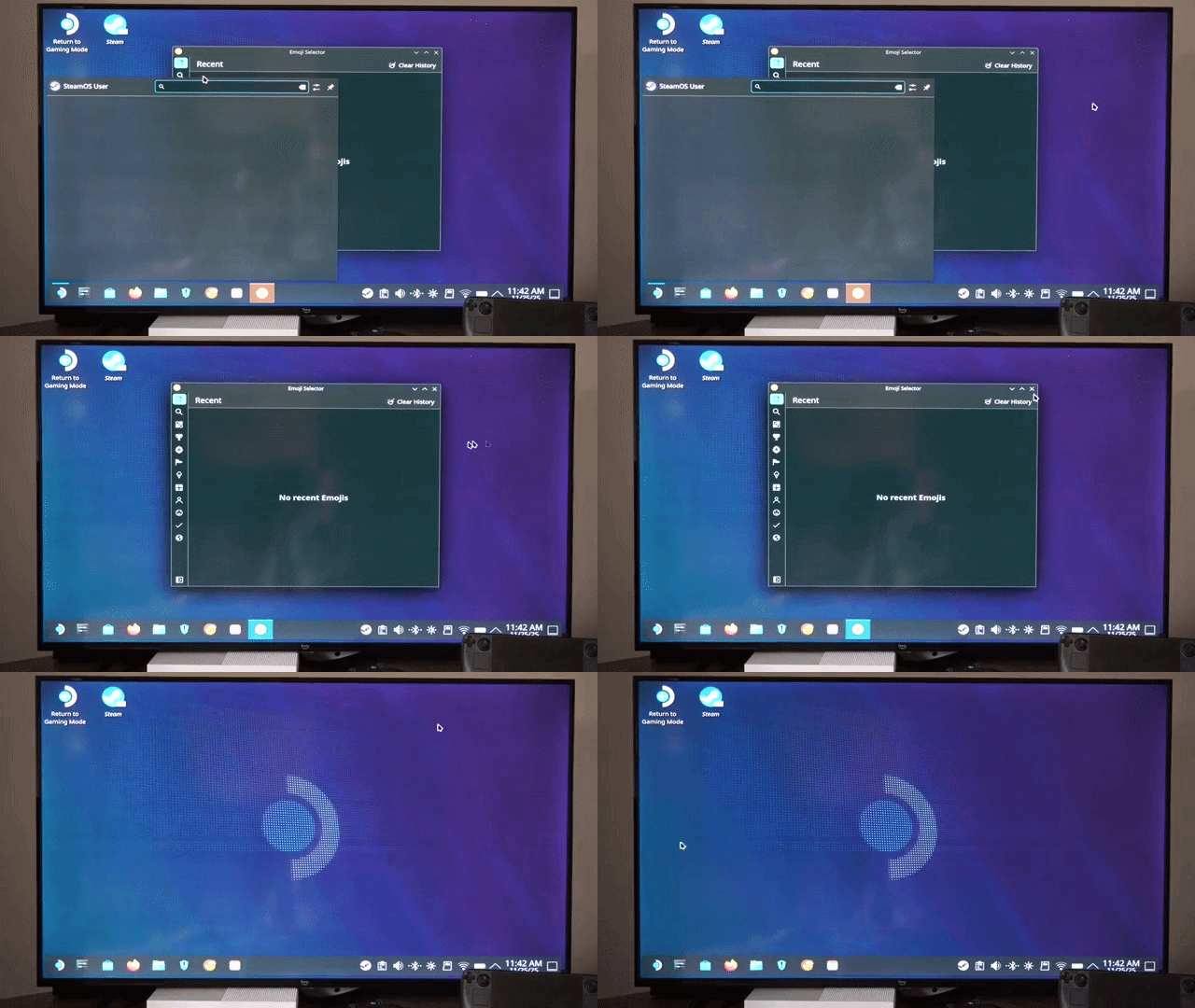
The cleanest installation process starts in Desktop Mode. Valve’s Steam Deck guidance says you can enter Desktop Mode from Steam by opening the Power menu and choosing Switch to Desktop. It also notes that the right trackpad acts as the mouse and R2 acts as left-click, which makes setup easier once you treat the Deck like a regular Linux desktop. From there, the typical route is to open Discover, KDE’s software centre. KDE describes Discover as the place to find and install applications, games, and tools, while Flatpak documentation confirms that Linux apps can be installed through graphical software centres such as KDE Discover.
In Discover, search for Discord and install the official Linux package distributed through Flathub. Flathub’s Discord page describes Discord as the desktop voice, video, and messaging client for Linux, while Flatpak documentation explains that Flatpak apps are sandboxed desktop applications that can be installed through either graphical tools or the command line. On Steam Deck, installing through Discover is generally preferred because it is easy to maintain through the SteamOS desktop environment and avoids manual package setup.
If Discover is slow or fails to show Discord, the command-line route is still available because Flatpak supports installing, updating, uninstalling, and repairing apps from the terminal. For maintenance, the most useful options are the standard Flatpak update, uninstall, and repair commands. Even if you never use the terminal for the first install, knowing that Flatpak supports direct update and repair operations is helpful if Discord later stops launching after an update or a damaged runtime.
Adding Discord to Steam, Launching it in Gaming Mode, and Using Voice Chat
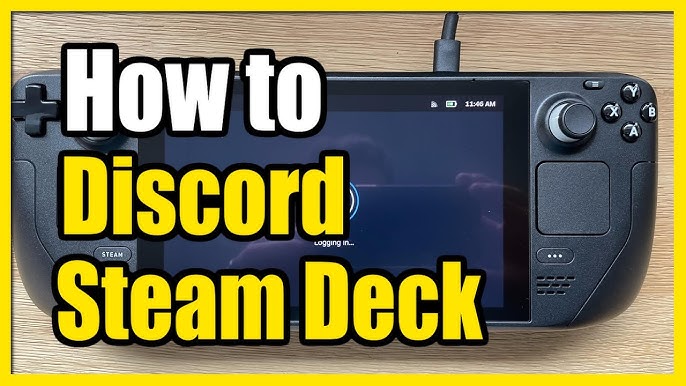
Installing Discord in Desktop Mode is only half the setup if you want convenient access while using Steam Deck like a gaming handheld. Valve’s support article for non-Steam software says that in the Steam client you can open the Games menu, choose Add a Non-Steam Game to My Library, then browse for the application or select it from the list. This is the step that turns Discord from a desktop-only app into something you can launch from Steam’s controller-first interface.
On Steam Deck, the usual workflow is to leave Steam running in Desktop Mode, open the Games menu in the desktop Steam client, add Discord to your library, then optionally rename or categorise it so it is easy to find later. Steam Deck users consistently report that once Discord is added this way, it appears in the non-Steam section of the library and can be launched from Gaming Mode. It will not behave exactly like a native Steam app, but it becomes manageable through the same interface you use to open games.
This step matters because Deck-mode multitasking depends on Steam seeing Discord as an app it can manage. If Discord is installed in Desktop Mode but never added to Steam, you lose the easiest way to launch it from Gaming Mode and switch back to it while a game is open. For anyone who wants Discord voice chat without leaving the couch-friendly Steam interface, adding Discord to the Steam library is effectively part of the setup, not an optional extra.
After adding Discord as a non-Steam title, return to Gaming Mode. Valve’s Steam Deck desktop guidance notes that there is a desktop shortcut to Return to Gaming Mode, which is the standard way to leave the Linux desktop and go back to the Deck interface. Discord should then appear in your library under non-Steam software. When launched from Gaming Mode, it usually opens as a full-screen Linux application managed by Steam. This is not a custom Steam Deck Discord client and it is not deeply integrated into Valve’s UI, but it is usable for text chat, voice channels, and switching between apps from the Steam menu.
For voice chat, the most practical sequence is to open Discord, join the server or direct call you want, confirm your voice settings, and then launch your game. Discord’s own troubleshooting guidance says microphone problems should first be checked through operating-system permissions, Discord input and output device selection, and the microphone test inside Voice Settings. Discord also recommends trying both the Standard and Legacy audio subsystems if audio or video problems continue.
Steam Deck audio routing can change when you dock the device, plug in wired headphones, connect a Bluetooth headset, or wake the system from sleep. Valve’s SteamOS 3.8.11 notes include fixes related to switching input devices when a wired headset is plugged in, restoring internal audio after it was disabled, and audio underruns after sleep and resume.
Those fixes are helpful, but they also show why Discord voice issues on SteamOS often come down to device selection rather than your Discord account. Bluetooth headset users should also expect a trade-off because Valve says Bluetooth headset microphones can be used, but playback quality becomes worse while capture is active. For longer sessions, a wired headset or external USB microphone is often more stable.
Switching Between Discord and Games, Using Steam Machine, and Setting Controls
Valve’s Steam Deck Desktop FAQ says desktop apps can run at the same time as Steam games in Deck mode, and that you can use the Steam button to go to Home or Library and switch between them. That official behaviour is the foundation of Discord multitasking on Steam Deck. Discord does not float over your game through an overlay. Instead, Steam treats Discord and your game as separate live applications that you can move between.
In practice, Discord usually sits beside the running game in the Steam menu list, allowing you to jump into Discord and then return to the game. The Steam button effectively becomes your task switcher. If you need to answer a message, change channels, or accept a call invite, you are leaving the active game view for a moment and handing focus to Discord rather than opening an in-game Discord panel.
Because this is a focus switch rather than a true overlay, some games behave better than others. Games that insist on exclusivity or react poorly to focus changes may feel awkward when you move away from the game to Discord. If that happens, the most reliable approach is to do as much Discord setup as possible before starting the game, then minimize Discord interaction while the game is running unless you really need it. This matches how many Steam Deck owners use Discord in Game Mode: mainly for voice-first play rather than constant text management.
A Steam Machine running SteamOS follows the same basic logic, even if the hardware is different. Valve’s SteamOS page describes SteamOS as an Arch Linux-based distribution that ships with the Steam client and is designed for Steam hardware and compatible devices. Steam support articles for SteamOS installation and recovery also still refer to Steam Deck, Steam Machine, and other devices, so the same Linux Discord setup remains relevant when the device is using SteamOS rather than Windows.
On a Steam Machine, the biggest advantage is usually input. A keyboard and mouse, or the ability to add them comfortably in a living-room setup, makes Desktop Mode setup easier. Install Discord in the desktop environment, add it as a non-Steam app through the Steam client, then launch it later through Big Picture or the modern SteamOS interface depending on the version you are running. Valve’s Big Picture documentation confirms that the mode is built for controller use on a TV, which fits the Steam Machine context.
The main difference with Steam Machines is version fragmentation. Some older Steam Machines may run older SteamOS generations or custom community setups, while newer SteamOS installations on third-party living-room hardware behave more like the current Steam Deck ecosystem. The safest approach is to think in layers. First make sure Discord works correctly in desktop Linux. Then focus on Steam integration. If Discord fails at the Linux-app level, adding it to Steam will not fix the underlying problem.
For controls, the best Discord layout is one that makes the app feel like a mouse-and-keyboard program without forcing you to reach for external peripherals constantly. Valve’s support guidance already provides the foundation by explaining that the right trackpad can act as a mouse and R2 can act as left-click in Desktop Mode. Steam also allows per-title control customisation, which means you can tailor Discord controls separately from your games.
A practical layout keeps the right trackpad as mouse, maps R2 to left-click, maps L2 to right-click, assigns one rear button to Enter, assigns another to Escape, and uses Steam plus X whenever the on-screen keyboard is needed. If you want faster navigation through servers and channels, the left trackpad or a face-button layer can be assigned to scroll, Tab, or page movement.
This works because Discord is fundamentally a pointer-driven desktop application, and Steam Input is designed to reshape controls around that kind of interface. For heavy text chat, though, even a good controller layout is slower than a real keyboard. Text chat is possible in Game Mode, but a Bluetooth or USB keyboard makes longer messages much easier.
Fixing Discord Launch, Audio, Overlay, and Streaming Limits on Steam Deck
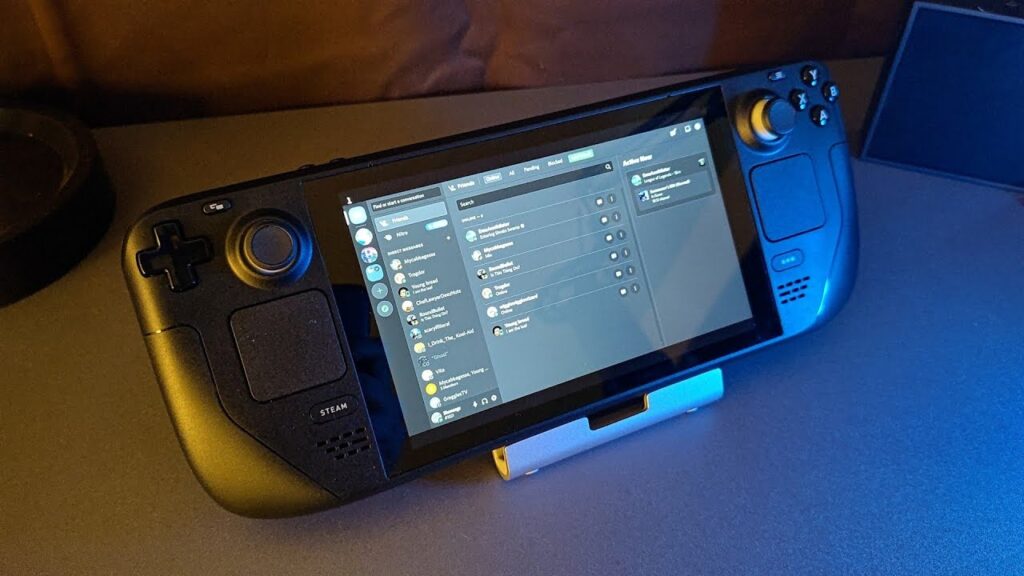
If Discord does not open on Steam Deck, start with the simplest layer first. Discord’s troubleshooting guidance recommends restarting Discord completely as a quick first fix for audio and video issues, and the same logic applies when the app hangs during launch. If the Deck itself becomes unresponsive, Valve’s Steam Deck support says you can force a restart by holding the power button down for several seconds. Restarting the app and device clears many SteamOS-side launch glitches.
If Discord still will not open, update the Flatpak package. Flatpak documentation explains that installed applications can be updated directly, and that users on the command line can run Flatpak update to pull new versions. A stale runtime or partially updated app is one common Linux reason for a program failing to start correctly after system changes. If updating does not help, Flatpak’s command reference also includes repair and uninstall options, which can help when the local installation has been damaged.
On the Steam side, remove and recreate the non-Steam shortcut if Discord launches in Desktop Mode but not in Gaming Mode. Valve’s non-Steam-game support flow is simple enough that rebuilding the entry is often faster than debugging a broken shortcut path. If Discord crashes or freezes after opening in Gaming Mode, another widely reported Steam Deck fix is to disable Discord hardware acceleration. Discord’s own streaming and system-requirements guidance also recommends disabling hardware acceleration when lag or streaming problems happen, which matches community reports from Deck users who found Gaming Mode more stable after turning it off.
Microphone and audio issues usually fall into four categories: permissions, wrong device selection, Bluetooth transport-profile changes, or docking and post-suspend confusion. Discord’s official troubleshooting instructions say to verify operating-system permissions, confirm the correct input and output devices inside Voice Settings, run the microphone test, and try both Standard and Legacy audio subsystems if the default path is unreliable. Those steps target both Discord configuration issues and Linux audio-stack mismatches.
SteamOS can also be part of the problem. Valve’s recent SteamOS notes mention fixes for input-device switching when wired headsets are plugged in, restoring the internal audio device on reboot, and audio underruns after sleep and resume. Those notes show the platform is improving, but they also confirm that device hand-offs on SteamOS can create bugs. If Discord suddenly loses your microphone after docking or waking the Deck, disconnect and reconnect the audio device, then reopen Discord Voice Settings and manually reselect the correct input and output devices.
Discord overlay support is not available on Steam Deck. Discord’s official Game Overlay documentation says the overlay is compatible with Windows only and does not function on Mac or Linux. Since Steam Deck and SteamOS are Linux-based, there is no official Discord overlay experience. The closest substitute is Steam’s app-switching model, where Discord stays alive in the background and you use the Steam button to move between Discord and the running game.
Streaming games to Discord from Steam Deck is possible in a limited form. At a high level, the Discord flow is the same as on other desktop platforms: join a voice channel, click the screen-share or streaming control, choose the game window or the entire screen, and go live. Discord documentation also says the game needs to be recognised by its game-detection system or manually added through Discord’s game-activity tools for game streaming to work as intended.
The crucial Steam Deck caveat is audio. Discord’s Go Live documentation says audio sharing is unavailable on Linux, so viewers should not expect native application-audio capture like they would on Windows. If streaming performs badly, Discord recommends checking screen permissions, updating the operating system, disabling hardware acceleration, lowering stream quality and frame rate, and making sure bandwidth is stable.
Performance Tips and Common Discord Problems on Steam Deck and Steam Machine
The first performance tip is to use Gaming Mode for actual play and reserve Desktop Mode for installing, updating, or repairing Discord. Valve’s SteamOS notes mention fixes for cases where Desktop Mode performance was reduced compared with Game Mode, which suggests Desktop Mode is not always the best place for demanding play sessions. Once Discord is installed and added to Steam, Gaming Mode is the more natural place for Discord-plus-gaming use.
The second tip is to reduce Discord overhead. Discord’s official system-requirements and streaming guidance recommends disabling hardware acceleration if lag appears and lowering stream quality when streaming causes performance issues. The same support materials suggest reducing visual load by disabling automatically playing GIFs and animated emoji. On a lower-power device like Steam Deck, these are practical performance adjustments because Discord is running while the game is already using CPU, GPU, memory, and bandwidth.
Audio hardware should also be chosen deliberately. Bluetooth headset microphones are supported, but Valve warns that playback quality drops while capture is active. If in-game audio quality matters, a wired headset or docked USB solution usually performs better. Keeping both SteamOS and Discord updated also matters because recent SteamOS releases have included screencast, audio-switching, and Desktop Mode improvements, while Flatpak makes app updates routine.
One common problem is Discord freezing or becoming unresponsive while a game is open. Steam Deck users have reported that disabling desktop notifications fixed certain hard freezes in Game Mode, while others found better stability after disabling Discord hardware acceleration. These are Deck-specific community findings rather than universal official rules, but they align with Discord’s advice to disable hardware acceleration when performance and streaming problems occur. If Discord freezes only while gaming and not in Desktop Mode, those are sensible first tests.
Another common problem is that a game does not show up in Discord activity or cannot be selected for streaming. Discord support materials say games can be managed through Registered Games or related activity settings, and manually adding the running game is part of the official troubleshooting path when detection fails. If a Steam game is invisible to Discord, first make sure the game is actually running, then check Discord’s activity settings and add it manually where possible.
A third frequent issue is expecting Windows features that Linux does not provide. Discord overlay support does not exist on Linux, and official audio sharing for Linux streams remains unavailable. If you know those limits in advance, you can build a better workflow around app switching, voice-first use, and visual-only streaming when needed. Many frustrations with Discord on Steam Deck come from expecting full Windows parity rather than understanding where Linux currently stands in Discord’s support model.
Audio misrouting after hardware changes is another recurring problem. Docking, undocking, plugging in a headset, switching to Bluetooth, or resuming from sleep can all affect the active input or output device. Valve’s SteamOS release notes show ongoing fixes in these areas, but the best user habit is still to verify the active device in both SteamOS and Discord whenever your hardware setup changes.

Frequently Asked Questions (FAQs)
- Can you use Discord on Steam Deck without installing Windows?
Yes. Steam Deck can run Discord through the Linux desktop environment in SteamOS, so you do not need to install Windows just to use Discord. The usual method is to install the Linux version of Discord in Desktop Mode, then add it to Steam as a non-Steam application so it can also be launched from Gaming Mode. - Do you need Desktop Mode to install Discord on Steam Deck?
In normal practice, yes. Desktop Mode is where the Linux app-install workflow lives on Steam Deck, including Discover and Flatpak-based software installation. Valve says Desktop Mode is accessed through Steam’s Power menu, and once there, you can install Discord much like you would install a desktop Linux application. - Can Discord run at the same time as a Steam game on Steam Deck?
Yes. Valve’s Steam Deck Desktop FAQ says desktop apps can run at the same time as Steam games in Deck mode. Once Discord has been added as a non-Steam application, you can keep it open while a game is running and use the Steam button to switch between Discord and the game. - Can you use Discord overlay on Steam Deck?
No. Discord’s official overlay documentation says the overlay works only on Windows and does not function on Linux. Since Steam Deck and SteamOS are Linux-based, you cannot use the normal Discord in-game overlay. The practical workaround is to keep Discord running in the background and switch to it with the Steam button when needed. - Can you stream Steam Deck gameplay to Discord?
Yes, but with limits. Discord supports Go Live and screen sharing, so you may be able to share visuals from the Steam Deck. However, Discord’s official documentation says Linux does not support application-audio sharing, which means viewers should not expect the same game-audio streaming experience available on Windows. - Why does Discord microphone quality drop on Bluetooth headsets?
Valve’s SteamOS notes explain that Bluetooth headset microphones can be used, but playback quality becomes worse while capture is active. This is a known trade-off with Bluetooth headset profiles rather than necessarily a Discord account problem. If you want better voice and game audio quality, a wired headset, USB-C audio device, or separate microphone is often more reliable. - What is the best way to fix Discord if it will not open on Steam Deck?
Start by restarting Discord and the Steam Deck, since many temporary launch issues clear after a restart. If the problem continues, update the Flatpak app, then use Flatpak repair or reinstall Discord if the installation appears damaged. If Discord works in Desktop Mode but not Gaming Mode, recreate the non-Steam shortcut so Steam points to the correct application. - Why does Discord sometimes behave better with hardware acceleration turned off?
Discord’s own support articles recommend disabling hardware acceleration when streaming or app lag becomes a problem. Steam Deck users have also reported improved Game Mode stability after turning it off. Because the Deck is running the game, Discord, Steam, and Linux graphics handling at the same time, reducing Discord’s hardware demands can make the overall setup more stable. - Can you use Discord on a Steam Machine the same way as on Steam Deck?
Broadly, yes. SteamOS remains a Linux-based platform with Steam integration, and Valve’s support materials still treat Steam Machine as a SteamOS device class for installation and recovery purposes. The same general workflow applies: install Discord in the desktop Linux environment, add it to Steam as a non-Steam app, then launch it from the Steam interface. - Is a keyboard necessary for Discord on Steam Deck?
Not strictly, but it helps a lot. Steam Deck controls can handle pointer navigation, joining voice channels, muting, and light interaction, especially with a good Steam Input layout. For longer text chat, a Bluetooth or USB keyboard is much easier than relying on the on-screen keyboard and controller inputs.

Conclusion
The best way to use Discord on a Steam Deck or Steam Machine is to treat it as a Linux desktop app first and a Steam-accessible utility second. Install it in Desktop Mode through Discover and Flathub, verify that voice and audio devices work correctly there, add it to Steam as a non-Steam application, and then launch it from Gaming Mode when you want a controller-friendly voice chat setup. That gives you the smoothest balance between SteamOS convenience and Discord functionality.
The biggest things to remember are the limitations and the workarounds. Discord overlay is not available on Linux, Linux audio sharing for Discord streams is still officially unavailable, Bluetooth headset microphone use can reduce playback quality, and occasional stability issues are often improved by turning off hardware acceleration, rechecking audio devices, or updating and repairing the Flatpak installation. If you build your setup around those realities, Discord on Steam Deck and SteamOS becomes practical, stable, and good enough for everyday voice chat, party coordination, and light streaming.
Sources and Citations
- Steam Support. Steam Deck – Basic Use and Navigation.
https://help.steampowered.com/en/faqs/view/671A-4453-E8D2-323C - Steam Support. Steam Deck – Desktop Mode.
https://help.steampowered.com/en/faqs/view/588C-C67D-0251-C276 - Steam Support. Add Non-Steam Games to Your Library.
https://help.steampowered.com/en/faqs/view/638F-D952-DA10-7C04 - Steam Support. SteamOS Recovery Instructions.
https://help.steampowered.com/en/faqs/view/1B71-EDF2-EB6D-2BB3 - Steam. Steam Deck News & SteamOS Update Notes.
https://store.steampowered.com/news/app/1675200 - Discord Support. Game Overlay.
https://support.discord.com/hc/en-us/articles/217659737-Discord-Game-Overlay - Discord Support. Go Live and Screen Share.
https://support.discord.com/hc/en-us/articles/360040816151-Go-Live-and-Screen-Share - Discord Support. Recently Played Games & Registered Games.
https://support.discord.com/hc/en-us/articles/360041301071-Game-Activity - Discord Support. Voice and Video Troubleshooting.
https://support.discord.com/hc/en-us/articles/360045138571-Voice-and-Video-Troubleshooting - Discord Support. Discord Troubleshooting.
https://support.discord.com/hc/en-us/categories/200404378-Troubleshooting - Flathub. Discord.
https://flathub.org/apps/com.discordapp.Discord - KDE. Discover User Guide.
https://docs.kde.org/stable5/en/discover/discover/ - Flatpak Documentation. Using Flatpak.
https://docs.flatpak.org/en/latest/using-flatpak.html - Steam Community. Steam Deck Discussions.
https://steamcommunity.com/app/1675200/discussions/ - Steam Community. Discord on Steam Deck Discussions.
https://steamcommunity.com/app/1675200/discussions/search/?q=Discord
Recommended
- Crimson Desert Surpasses 6 Million Sales: Full Breakdown of Milestone Success, Launch Performance, and Player Impact
- Nobody Wants to Die Noir Retrofuturistic Detective Game: Trailer, Reviews & Player Feedback
- Battlefield 6 Helped EA Achieve the Highest Annual Revenue in the Company’s History: Inside EA’s FY26 Record Year
- Tati Gabrielle Shares a New Update on Naughty Dog’s Long-in-Development Intergalactic: the Heretic Prophet, Calling it a “Different Side” of Naughty Dog
- Everwind Early Access Launch Explained: Why This Minecraft-Like Voxel Sandbox RPG With Flying Islands Is Getting Attention
- Netflix Persona Live-Action Series: Everything We Know, Joker Casting Rumors & Release Updates
- Shannon Elizabeth Reveals ‘Difficult’ American Pie Audition: Dancing for Jason Biggs Was “Opposite of the Movie”
- Rockstar Calling GTA 6 a Single-Player Experience Sparks GTA Online Questions
- Marathon Open Play Week Starts June 2: How to Join, What to Expect, and What Resets
- Clair Obscur: Expedition 33 Wins Game of the Year at the 2026 D.I.C.E. Awards