




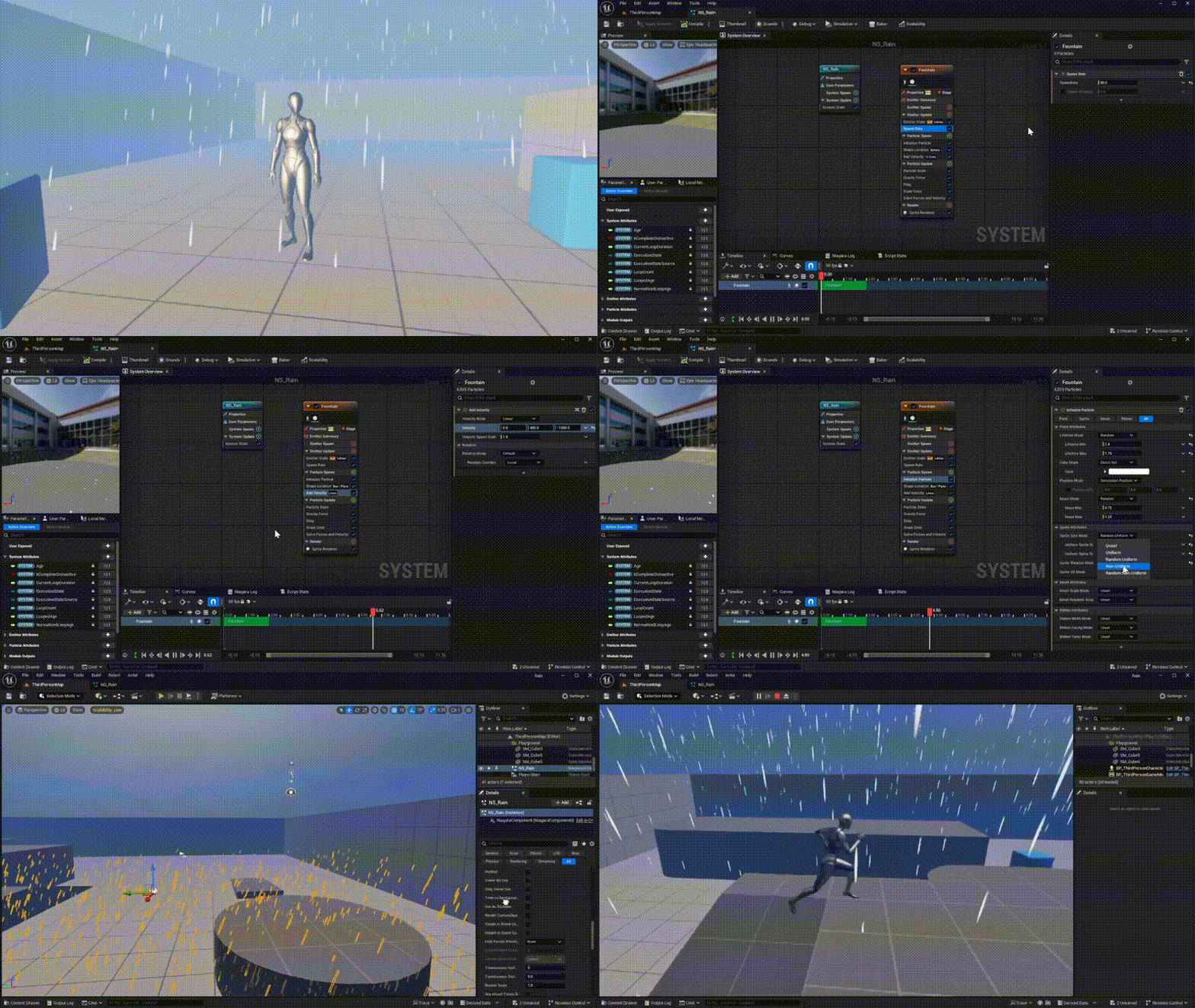
Niagara rain particle system setup in Unreal Engine 5
Creating a convincing rain system in Unreal Engine 5 starts with Niagara, the engine’s advanced VFX framework. Begin by creating a new Niagara System using a GPU emitter template for high particle counts. GPU emitters are essential for rain because they can handle tens of thousands of particles efficiently.
Set the emitter to spawn particles in a box shape above the player or environment. Increase spawn rate to simulate density and adjust particle lifetime so raindrops fall from the spawn height to the ground. Use a stretched sprite (elongated along velocity) to mimic fast-moving droplets.
Velocity should be strongly downward on the Z-axis, with slight random variation on X and Y to avoid uniform motion. Enable motion blur for realism. Apply a translucent material with a subtle gradient and opacity falloff to simulate light interaction.
Blueprint-controlled dynamic weather system for rain intensity in UE5
A dynamic rain system requires Blueprint control for flexibility. Create a Weather Controller Blueprint that exposes variables such as RainIntensity, RainSpeed, and WindStrength.
Link RainIntensity to Niagara parameters using a Niagara Parameter Collection or direct user parameters. Scale spawn rate, particle size, and opacity based on this value.
Use timelines or curves in Blueprint to smoothly transition between weather states (clear → light rain → heavy storm). This allows seamless environmental storytelling and gameplay-driven weather changes.
How to attach a rain Niagara system to the player (camera-follow rain)
To maintain consistent rain density around the player without rendering unnecessary particles across the entire level, attach the Niagara system to the player camera.
Spawn the Niagara system as a component in the player Blueprint and position it slightly above the camera. Use a large box emitter to simulate rain falling in a localized volume.
This technique ensures the illusion of full-world rain while keeping performance optimized. Combine this with distant rain sheets or fog to maintain visual continuity in the background.

Niagara rain collision in UE5: making raindrops hit surfaces properly
Enable collision in the Niagara emitter to ensure raindrops interact with geometry. Use Scene Depth or Distance Field collision depending on your project setup.
GPU particles typically use Scene Depth collision, which is efficient but screen-space dependent. Configure collision response to “Kill” particles on impact to prevent unrealistic bouncing.
Adjust collision radius and friction to ensure droplets disappear naturally upon hitting surfaces. This step is critical for triggering splash effects.
How to create rain splash particles in Niagara when droplets collide
To simulate splashes, create a secondary Niagara emitter triggered on collision events. Use Event Handlers in Niagara to spawn splash particles when a raindrop collides.
Splash particles should be short-lived, expanding outward with a circular motion. Use flipbook textures or simple radial gradients for water impact visuals.
Add variation in size, rotation, and lifetime to avoid repetition. This layered approach significantly enhances realism, especially on hard surfaces like concrete.
Global wetness control with Material Parameter Collection (MPC) in Unreal Engine
Material Parameter Collections (MPCs) allow global control over wetness across all materials. Create an MPC with parameters like WetnessAmount, RoughnessScale, and DarkeningFactor.
In your materials, reference these parameters to dynamically adjust surface properties. This ensures that when rain intensity increases, all affected materials respond consistently.
Control the MPC values via Blueprint, linking them to the same RainIntensity variable used in Niagara for synchronized behavior.

Wet materials in UE5: roughness, darkening, and wet normal detail workflow
Wet surfaces behave differently under light. Reduce roughness to make surfaces more reflective, but not fully glossy. Multiply base color by a darkening factor to simulate saturation.
Blend in a secondary normal map representing water streaks or surface tension. Use a Lerp node controlled by WetnessAmount to transition between dry and wet states.
This workflow ensures materials react physically accurately to rain conditions.
Puddles and ripples in Unreal Engine 5: rain accumulation shader approach
Puddles can be created using height-based masks or vertex painting. Use a shader that blends a water layer into the base material based on accumulation.
Add ripple effects using animated normal maps or procedural sine-based distortions. These ripples can be intensified based on rain intensity.
For realism, ensure puddles form in low areas by using world position or height maps to control distribution.
Dynamic sky and clouds during rain in UE5 (storm look without heavy overhead)
Adjust the Sky Atmosphere and Volumetric Clouds to create a stormy environment. Lower sun intensity and shift light color toward cooler tones.
Increase cloud density and reduce light scattering for a darker sky. Use exponential height fog to enhance depth and mood.
Avoid heavy volumetric simulations if performance is a concern—simple parameter tweaks can achieve convincing results.

Rainy atmosphere setup: fog, post process, and color grading for storms
Atmospheric effects sell the rain experience. Increase fog density and slightly desaturate the scene using Post Process Volume settings.
Adjust contrast and gamma to create a moody tone. Add subtle blue or gray color grading to simulate overcast lighting.
Optional: introduce screen-space droplets or lens effects for cinematic presentation.
Wind-driven rain in Niagara: directional rain and gust controls
Wind adds dynamism to rain. Modify particle velocity to include directional force based on wind direction.
Expose wind parameters in Blueprint and apply them to Niagara systems. Use noise functions to simulate gusts, causing rain direction and intensity to fluctuate.
This creates a more natural and less uniform rainfall pattern.
Keeping rain out of interiors: occlusion and indoor masking techniques
Prevent rain from appearing indoors by using occlusion techniques. One approach is to use collision volumes that disable rain emitters when the player enters interiors.
Another method involves using depth masks or custom stencil buffers to block particles from rendering under roofs.
For advanced setups, use distance fields to detect overhead geometry and dynamically suppress rain.

Optimizing Niagara rain for performance (GPU vs CPU emitters, overdraw, culling)
Use GPU emitters for large-scale rain to handle high particle counts efficiently. Reduce overdraw by using small, efficient textures and limiting transparency.
Enable frustum culling and distance-based LODs to reduce particle count when far from the camera.
Avoid excessive spawn rates and test different configurations to balance quality and performance.
Measuring Niagara VFX performance in Unreal Engine (tools and stats to check)
Use built-in tools like Stat Niagara, Stat GPU, and Unreal Insights to monitor performance.
Check particle counts, draw calls, and GPU time. Identify bottlenecks such as overdraw or expensive materials.
Profiling ensures your rain system remains scalable and efficient across different hardware.
Rain VFX scalability settings in UE5 (quality levels for PC and console)
Implement scalability settings using Niagara’s built-in system. Create multiple quality levels with varying particle counts and effects.
For lower-end systems, reduce spawn rate, disable splashes, and simplify materials. For high-end systems, enable full effects including ripples and dynamic wetness.
Expose these settings to users for customizable performance.

Frequently Asked Questions (FAQs)
- What is the best emitter type for rain in UE5?
GPU emitters are best for rain due to their ability to handle large particle counts efficiently. - How do I make rain follow the player?
Attach the Niagara system to the player camera and use a box emitter. - Why are my raindrops not colliding properly?
Ensure collision is enabled and correctly configured in the Niagara emitter. - How do I create realistic rain splashes?
Use collision events to spawn secondary splash particles. - What controls global wetness in UE5?
Material Parameter Collections allow centralized control of wetness values. - How do I prevent rain indoors?
Use occlusion volumes or masking techniques to block rain in interior spaces. - Can I simulate wind in rain systems?
Yes, by modifying particle velocity and adding directional forces. - How do I optimize rain performance?
Use GPU emitters, reduce overdraw, and implement LODs and culling. - What creates puddle effects?
Shaders using height masks and animated normals simulate puddles and ripples. - How do I measure Niagara performance?
Use Stat Niagara, Stat GPU, and Unreal Insights profiling tools.

Conclusion
A dynamic rain system in Unreal Engine 5 combines Niagara particle effects, Blueprint-driven logic, and material-based wetness to create a fully immersive environment. By integrating collision-based splashes, global wetness control, and atmospheric adjustments, developers can achieve cinematic-quality rain that responds to gameplay. Proper optimization and scalability ensure the system performs well across platforms, making it suitable for both high-end and real-time applications.
Sources and citation
- Unreal Engine Documentation – Niagara Overview
https://docs.unrealengine.com/5.0/en-US/niagara-overview-in-unreal-engine/ - Unreal Engine Documentation – Material Parameter Collections
https://docs.unrealengine.com/5.0/en-US/material-parameter-collections-in-unreal-engine/
Recommended
- Avatar Aang Movie Footage Leak: What We Know About the Alleged Paramount+ Leak Before Release
- Nacon Subsidiaries Enter Insolvency Proceedings: Spiders, Kylotonn, Cyanide, and Nacon Tech Explained
- Nintendo Switch Is More Popular Among Japanese Teens Than Disney, Pokémon and Nintendo Itself, Survey Finds – Full Breakdown of Brand Japan 2026 Results
- IShowSpeed Anime in the Works With One Piece Showrunner as Its Writer: What We Know So Far
- A Kratos-less God of War Spin-Off Is In The Works: Latest Rumors, Leaks, and What We Know So Far (March 2026)
- How to Create Metahuman Child Characters and Convert MakeHuman Models to Metahuman in Unreal Engine 5
- How do I toggle between camera views in Blender?
- How to Make Your Own Character for Unreal Engine 5: A Step-by-Step Creation Guide
- Marvel Rivals Character Design: A Deep Dive into Visual Aesthetics and Gameplay Integration
- The Sims 4 Will Open an Official Marketplace to Let Content Creators Sell Mods: Release Date, “Moola” Currency, and Maker Program Explained