







What are soft warm shadows in Unreal Engine and why they look more cinematic
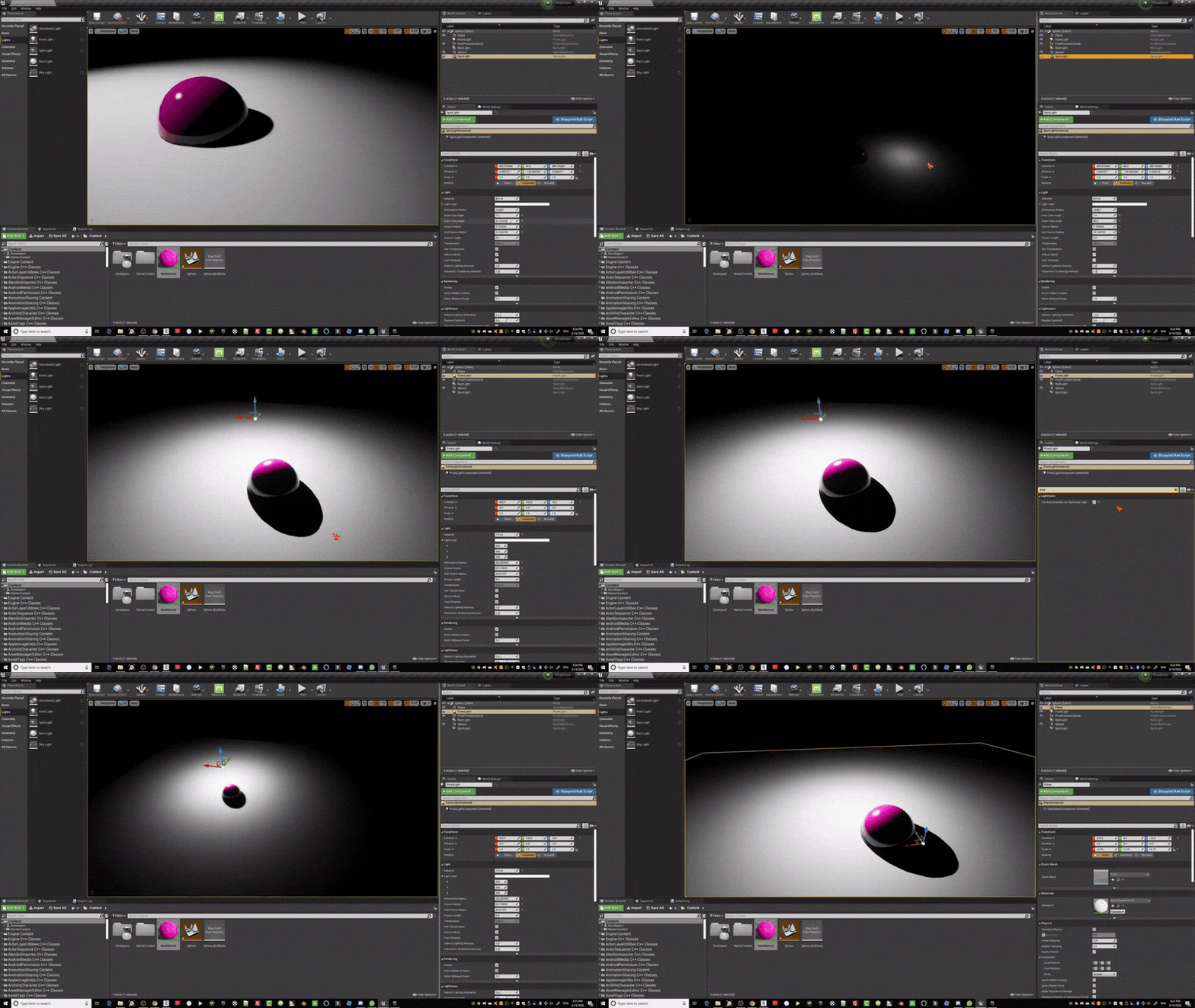
Soft warm shadows in Unreal Engine 5 are shadows with gradual penumbra transitions and subtle warm color tones rather than harsh, high-contrast edges. In real-world lighting, shadows are rarely pure black; they often carry bounced light from surrounding surfaces, which introduces warm hues and soft gradients.
Cinematic realism comes from:
- Large light sources creating wide penumbra regions
- Indirect light bounce adding warmth
- Reduced contrast between lit and shadowed areas
- Smooth falloff instead of hard shadow edges
This combination mimics physically accurate lighting and is widely used in film and high-end real-time rendering.

How to make shadows softer in UE5 using Source Angle and Source Radius
Shadow softness in UE5 is primarily controlled by the size of the light source:
- Directional Light → Source Angle
- Increase Source Angle (e.g., 0.5 → 2.0+)
- Larger angle = softer sun shadows
- Point Light / Spot Light → Source Radius
- Increase Source Radius value
- Larger radius = softer shadow edges
- Rect Light → Source Width/Height
- Naturally produces soft shadows due to area light simulation
Key principle:
Larger light source = softer shadows
Virtual Shadow Maps in Unreal Engine 5 settings for smoother shadow penumbra
Virtual Shadow Maps (VSM) are UE5’s default high-quality shadowing system.
Important settings:
- Enable Virtual Shadow Maps (Project Settings)
- Increase Shadow Map Resolution Scale
- Use Nanite-compatible geometry for best results
- Adjust:
r.Shadow.Virtual.ResolutionLodBiasr.Shadow.Virtual.SMRT.RayCountLocal
Benefits:
- High-resolution contact detail
- Smooth penumbra transitions
- Reduced aliasing compared to cascaded shadow maps

Why Source Radius isn’t affecting shadows in UE5 and how to fix it
If Source Radius or Source Angle appears to do nothing, common causes include:
- Using Virtual Shadow Maps with low ray counts
- Shadow method not supporting area shadows
- Light mobility set incorrectly (Static vs Movable)
- Distance too far from receiver (penumbra not visible)
Fixes:
- Increase ray tracing samples or VSM quality
- Ensure light is Movable
- Enable Distance Field Shadows for non-VSM fallback
- Check scalability settings (Shadow Quality must be High/Epic)
Distance Field Shadows in Unreal Engine: how they change shadow softness
Distance Field Shadows simulate soft shadows using mesh distance fields.
Enable:
- Project Settings → Generate Mesh Distance Fields
Benefits:
- Soft shadow falloff over distance
- Works well for large outdoor scenes
- Independent of shadow map resolution
They create natural penumbra widening as distance increases, closely matching real-world light behavior.
How to get realistic shadow penumbra with Lumen in Unreal Engine 5
Lumen enhances shadow realism through indirect lighting:
- Enable Lumen Global Illumination
- Enable Lumen Reflections
- Use high-quality settings:
- Final Gather Quality
- Lumen Scene Detail
Lumen contributes:
- Bounce light inside shadow areas
- Softens perceived shadow edges
- Adds color bleeding (critical for “warm” shadows)

Contact Shadows in UE5: adding detail without harsh hard-edged shadows
Contact Shadows add small-scale shadowing near surfaces:
- Enable in light settings → Contact Shadows
- Adjust Length (shorter = tighter detail)
Use cases:
- Ground contact for characters
- Fine geometry detail
- Prevents floating appearance
They complement soft shadows without making them harsh.
Shadow Bias vs Normal Bias in Unreal Engine: fix shadow acne and light leaks
Bias settings control shadow accuracy:
- Shadow Bias
- Too low → shadow acne
- Too high → floating shadows
- Normal Bias
- Offsets shading along surface normals
- Helps reduce artifacts on angled surfaces
Balanced values:
- Shadow Bias: ~0.3–0.6
- Normal Bias: small increments
Goal: eliminate artifacts while preserving contact.
How to make shadows warmer using Post Process Volume color grading (shadows tint)
To create warm shadows:
- Add Post Process Volume
- Enable Color Grading
- Adjust:
- Shadows → Tint (slightly orange/brown)
- Shadows → Gamma (lift slightly)
This simulates real-world indirect lighting where shadows inherit warm tones from surroundings.

Simple post process material math to tint shadowed areas in Unreal Engine
A custom post-process material can isolate and tint shadowed regions:
Basic idea:
- Sample Scene Color
- Compare luminance
- Apply tint to darker values
Formula concept:
- Shadow Mask = 1 − luminance(scene color)
Then:
- Final Color = lerp(scene color, tinted color, shadow mask)
This allows precise artistic control over shadow warmth.
Smoothstep shadow mask math for softer shadow transitions in UE materials
Smoothstep improves gradient transitions:
f(x)=smoothstep(a,b,x)
Usage in UE materials:
- Replace hard threshold with smoothstep
- Produces gradual transitions between lit and shadow
Effect:
- Eliminates harsh banding
- Creates film-like softness
Soft shadow quality vs performance in UE5: the settings that actually matter
Key performance factors:
- Virtual Shadow Maps resolution
- Ray count for shadow filtering
- Light source size (larger = more expensive)
- Lumen quality settings
Optimization tips:
- Use medium ray counts
- Limit dynamic lights
- Prefer baked/static lighting where possible

Rect Light vs Spot Light vs Directional Light for soft shadows in Unreal Engine
Comparison:
- Directional Light
- Best for sunlight
- Uses Source Angle
- Spot Light
- Focused beam
- Controlled softness via Source Radius
- Rect Light
- True area light simulation
- Naturally soft shadows
Rect Lights produce the most realistic soft shadows in interior scenes.
PCSS soft shadows in Unreal Engine: r.ShadowFilterMethod and what it changes
Percentage Closer Soft Shadows (PCSS):
- Console command:
r.ShadowFilterMethod=1
Effects:
- Dynamic penumbra scaling
- Softer shadows with distance
- More realistic light behavior
Trade-off:
- Higher GPU cost

Troubleshooting blurry, noisy, or low-resolution shadows with Virtual Shadow Maps
Common issues and fixes:
- Blurry shadows
- Increase resolution scale
- Adjust LOD bias
- Noisy shadows
- Increase ray count
- Enable temporal filtering
- Low resolution
- Ensure high scalability settings
- Use Nanite meshes
- Flickering
- Stabilize camera
- Increase shadow cache quality
Frequently Asked Questions (FAQs)
- Why do my shadows look too sharp in UE5?
Because the light source size is too small or Source Angle/Radius is low. - What is the best light type for soft shadows?
Rect Lights for interiors, Directional Light with high Source Angle for outdoors. - Does Lumen affect shadow softness?
Indirectly, by adding bounce lighting and reducing contrast. - Why are my shadows noisy?
Low ray count or insufficient filtering. - Can I make shadows colored in UE5?
Yes, using post-process color grading or custom materials. - What causes shadow acne?
Low shadow bias. - What causes floating shadows?
High shadow bias. - Are Virtual Shadow Maps better than cascaded shadows?
Yes, for quality and detail. - Do soft shadows impact performance?
Yes, especially with large light sources and high ray counts. - What is the easiest way to improve shadows quickly?
Increase Source Angle and enable Virtual Shadow Maps.
conclusion
Soft warm shadows in Unreal Engine 5 are achieved through a combination of physically accurate light sizing, high-quality shadow systems like Virtual Shadow Maps, and subtle post-processing techniques. By understanding how light source size, shadow filtering, and simple mathematical blending functions work together, developers can create cinematic, realistic lighting that enhances depth, mood, and visual fidelity without unnecessary complexity.
sources and citation
- Unreal Engine Documentation – Virtual Shadow Maps
https://docs.unrealengine.com/5.0/en-US/virtual-shadow-maps-in-unreal-engine/ - Unreal Engine Documentation – Lumen Global Illumination
https://docs.unrealengine.com/5.0/en-US/lumen-global-illumination-and-reflections-in-unreal-engine/ - Unreal Engine Documentation – Distance Field Shadows
https://docs.unrealengine.com/5.0/en-US/distance-field-soft-shadows-in-unreal-engine/ - Unreal Engine Documentation – Lighting Basics
https://docs.unrealengine.com/5.0/en-US/lighting-the-environment-in-unreal-engine/ - Epic Games – Post Process Effects Guide
https://docs.unrealengine.com/5.0/en-US/post-process-effects-in-unreal-engine/
Recommended
- Crimson Desert Reveals Console Specs, Some Compromises on PS5 Explained
- The Animal Crossing Where Villagers Bully You Is Now (Unofficially) Available On PC: How It Works, Download Guide, and What’s Different
- Blender 3D vs Cinema 4D: The Ultimate 2025 Comparison Guide for 3D Artists
- Best Black Mirror Season 7 Episodes: Ranked List, Reviews, and What to Watch First
- Sony’s Spider-Man Universe Headed For Reboot After Disastrous Morbius, Madame Web, And Kraven Movies: What Tom Rothman Confirmed
- Cyberpunk 2077 Hair Mods: Top Custom Hairstyles, Installation Guides, and Community Favorites
- How to Add Realistic Dust, Hair, and Surface Imperfections in Blender to Increase Scene Realism
- How to Export MetaHuman to Blender: Comprehensive Step-by-Step Guide
- 10 Tips to Start Clawing Your Way to Victory in Mewgenics (Beginner Strategy Guide)
- How to Use Decals and Stickers in Substance Painter: A Complete Guide for 3D Artists