





Bezier Curve Editor is a free Blender add-on inspired by After Effects Flow that enables Flow-style keyframe easing edits directly in the Timeline. This research article covers installation via Blender Extensions, Timeline workflow, F-Curve handle fundamentals, speed vs value graphs, cubic-bezier values, preset libraries, overshoot/undershoot motion, troubleshooting, and Flow alternatives.
In This Article (19 sections)
What is Bezier Curve Editor in Blender and what does it do
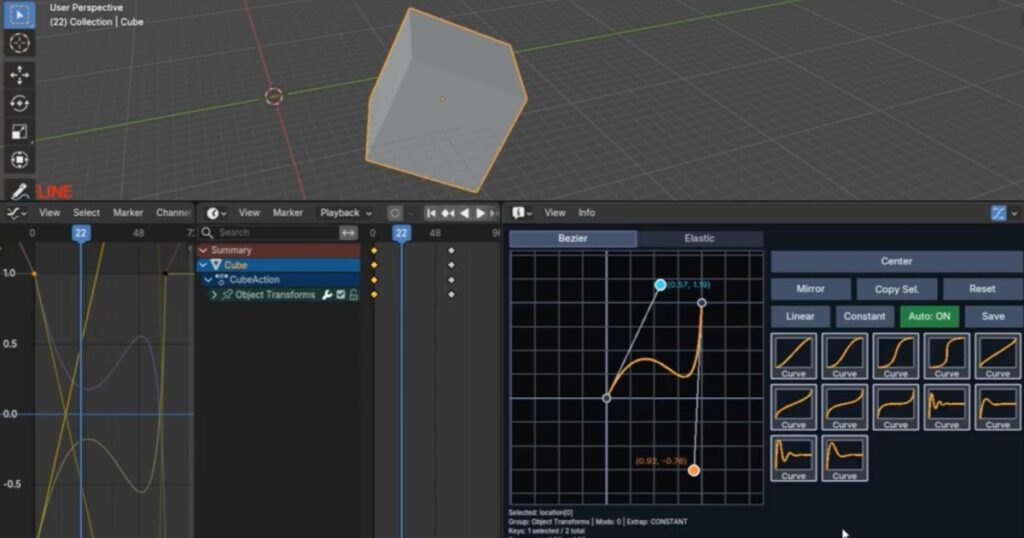
Bezier Curve Editor is a Blender add-on designed to make keyframe easing edits feel more like “Flow-style” curve editing, but inside Blender’s Timeline workflow. The core value proposition is direct manipulation: instead of jumping into the Graph Editor for every small timing/easing tweak, easing curves can be shaped by dragging control points in a dedicated curve UI and then applying the resulting curve to selected keyframes.
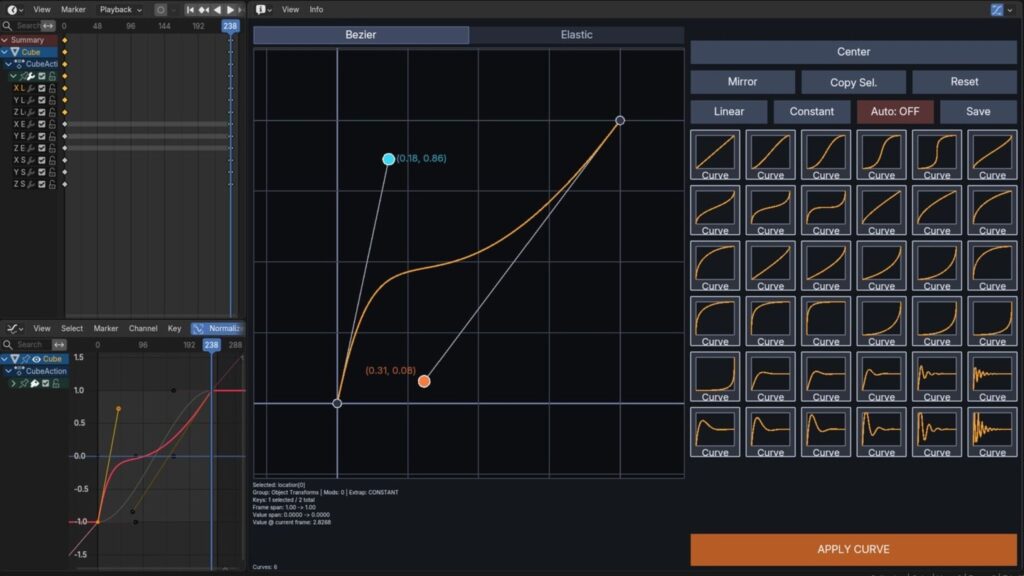
The author’s product description highlights several workflow features that are specifically aimed at motion-design style iteration: instant launch from a button in the upper-right of the Timeline (or the Info editor), real-time preview via an “Automatic Application” mode, support for elastic-style curves, and the ability to save frequently used curves as presets. It also describes built-in shortcuts for snapping and navigation (Shift snap-to-edge, Ctrl snap-to-grid, MMB pan, mouse wheel zoom, Shift+click to delete presets), plus tooltips for UI guidance.
This add-on should be understood in the context of how Blender animation normally works. In Blender, keyframed animation is represented as function curves (“F-Curves”) that interpolate values between keyframes over time; editing those curves (and their handles) is the standard way to shape easing, overshoot, and timing nuance.
Licensing and availability also matter for production adoption. The Booth listing shows a price of 0 JPY (free download) and specifies a “GNU General Public License v3.0 or later” licence for the add-on.

Bezier Curve Editor Blender add-on download and install guide (Blender Extensions)
This section focuses on the Blender Extensions workflow because Blender 4.2+ introduced a more formal “extensions” pipeline for distributing and installing add-ons through an integrated manager (“Get Extensions”), alongside “Install from Disk” and drag-and-drop installation options. Guidance below reflects documented installation flows used by extension-published add-ons.
Download sources
- Blender Extensions listing: Bezier Curve Editor is listed on the Blender Extensions platform (as an add-on by IcedDog).
- Direct download (BOOTH): The author provides a free listing with the downloadable
.zipnamedbezier_curve_editor-1.0.4.zipand a GPL-3.0-or-later licence statement.- Note: the download endpoint may require signing in to BOOTH/pixiv in some contexts.
Installation path A (inside Blender): Preferences → Get Extensions
This is the “browse and install” flow for extensions published on the official platform:
- Open Blender.
- Go to Edit → Preferences.
- Select Get Extensions.
- Search for the extension name (for example, “Bezier Curve Editor”) and choose Install.
If the extension list does not populate, ensure Blender is allowed to access the internet (the “Get Extensions” browser depends on online access and repository connectivity).
Installation path B: Preferences → Add-ons → Install from Disk (zip install)
When a .zip has already been downloaded (for example from BOOTH or another source), Blender 4.2+ supports “Install from Disk” from a menu in the Add-ons preferences:
- Open Blender.
- Go to Edit → Preferences.
- Select Add-ons.
- Use the upper-right drop-down menu and choose Install from Disk…, then select the downloaded
.zip.
Installation path C: drag-and-drop .zip into Blender
Blender 4.2+ also supports drag-and-drop install for .zip packages in documented add-on installation workflows:
- Open Blender.
- Drag the downloaded
.zipfile into Blender and follow prompts to install.
Compatibility and “missing manifest” pitfalls
A common installation error in Blender 4.2+ is attempting to install an older “legacy” add-on via the Extensions workflow when the .zip lacks the required manifest file (blender_manifest.toml). Community guidance distinguishes extension installs vs legacy add-ons, recommending that legacy add-ons be installed via the Add-ons tab (old method) rather than forcing an extension conversion.
How to use Bezier Curve Editor to edit keyframe easing directly in the Timeline
The add-on is explicitly designed around Timeline-first iteration. The author describes a workflow that can be summarised into a repeatable sequence:
- Create or select animated keyframes (any keyframed property that produces an editable curve).
- In the Timeline, select the keyframes that should receive the easing curve.
- Launch Bezier Curve Editor from the upper-right of the Timeline panel (or Info editor).
- Shape the curve by dragging control points; apply the result to the selected keyframes.
- Optionally enable “Automatic Application” to preview the easing results in real time while adjusting the curve.
- Use the built-in interaction shortcuts for precision and speed:
- Shift to snap to edges and Ctrl to snap to a grid while dragging control points.
- Middle mouse button to pan and mouse wheel to zoom.
- Shift+click to delete presets.
The net effect is to compress what would normally be a Graph Editor micro-workflow (select keys, adjust handles, preview, repeat) into a Timeline-friendly loop optimised for “try, feel, tweak, reapply”.

How to apply custom easing curves to selected keyframes in Blender
There are two conceptually distinct ways to apply “custom easing” in Blender:
- Handle-shaped Bézier curves (manual curve sculpting)
This is the conventional F-Curve method: set interpolation to Bézier and sculpt the curve using handles (Automatic/Auto Clamped/Free/etc.). When using Bézier-interpolated curves, Blender allows explicit control of the curve slope at control points using handles, and handle types can be set per keyframe. - Preset easing functions (equation-based easing families)
Blender also provides a menu of easing families and “dynamic effects” that are described as “Robert Penner easing equations” and are intended to reduce manual keyframe tweaking for common motion shapes (for example snappy movements and bounce/spring effects).
In both cases, selection matters. Bezier Curve Editor specifically describes applying the created curve to “selected keyframes”, so selecting the correct keyframes in the Timeline is a first-order requirement for predictable results.
For Graph Editor-based application, Blender’s manual describes keyframe operations that explicitly target selected keyframes, including:
- Handle Type (shortcut
V) - Interpolation Mode (shortcut
T) - Easing Mode (shortcut
Ctrl-E)
A crucial technical caveat from Blender’s documentation: the “Easing Type” (ease in/out direction behaviour for the easing equations) has no effect when interpolation is set to Constant, Linear, or Bézier. In practice, that means equation-based easing settings are separate from (and do not override) manual Bézier handle sculpting.
Fixing common issues: curve not applying, keyframes not updating, wrong selection in timeline
Most “curve didn’t apply” reports in Flow-style editors reduce to one of three categories: selection, interpolation mode mismatch, or install/enable issues.
Selection and targeting problems
- No keyframes selected: The add-on’s workflow applies curves to selected keyframes. If the selection is empty (or the wrong keys are selected), the change will appear to “do nothing.”
- Wrong editor context: Bezier Curve Editor is launched from the Timeline/Info editor button area, which implies it is designed to operate in the Timeline context; operating in a different editor state may lead to confusion about what is being targeted.
Interpolation and easing-type mismatch
- Expecting easing-type settings to affect Bézier interpolation: Blender documents that the “Easing Type” control does not affect segments when interpolation is Constant, Linear, or Bézier. If the goal is to see explicit “ease in/out” equation-based behaviour, the correct easing families must be used; if the goal is handle-based custom curves, Bézier interpolation and handle types are the correct toolset.
- Unwanted overshoot from automatic handles: Blender warns that fully Automatic handle behaviour (especially under certain smoothing modes) can overshoot and oscillate; Auto Clamped is recommended to prevent overshoots and unwanted S-shapes between keyframes.
Installation and visibility problems
- Add-on installed but not visible: Extension-published add-ons are commonly installed via Preferences → Get Extensions and then become available to enable/configure. Documented add-on install flows for Blender 4.2+ use this pattern.
- “Missing manifest” error: Blender 4.2+ introduces a manifest-based extension format; community support threads note that older “legacy” add-ons can still be installed via the Add-ons tab without converting them into extensions.
- BOOTH download access: If downloading from BOOTH, a sign-in screen may appear at the download endpoint in some circumstances; ensuring access to the
.zipis a prerequisite for “Install from Disk”.

Faster animation workflow: when to use Timeline curve editing vs Graph Editor polishing
Timeline-first curve editing is most effective when the objective is rapid iteration on easing feel especially early in blocking-to-polish workflows where many curves need a consistent “motion language” quickly. Bezier Curve Editor’s “Automatic Application” (real-time preview) and preset saving are directly aligned with this iterative loop.
Graph Editor polishing remains essential when work requires higher-dimensional control or deeper curve hygiene:
- Blender’s F-Curves represent interpolation over time and are designed for detailed curve editing; the manual explicitly frames interpolation between keyframes as the mechanism that reduces workload while enabling smooth variations.
- Handle types and smoothing behaviour can materially change curve quality and predictability (Automatic vs Auto Clamped vs Free; None vs Continuous Acceleration), and those controls are part of classic Graph Editor craft.
A practical heuristic used in many motion-design pipelines is: use Timeline curve editing for a fast “first pass” on easing consistency, then use the Graph Editor for shot-level polish where overshoots, constraints, overlapping actions, and curve cleanliness matter more than speed of iteration. This mirrors a frequently stated limitation of Flow-style tools in After Effects: they can be extremely efficient for shaping and reusing easing, but the full graph editor remains necessary for deeper, more complex animation flourishes.
Best easing curves for motion design in Blender (ease in, ease out, smooth S-curve)
In motion design, “best” easing is context-dependent, but three curve families recur because they map cleanly to how audiences perceive weight, intent, and polish:
- Ease in: movement starts slowly and accelerates.
- Ease out: movement starts quickly and decelerates into the settle.
- Ease in-out (smooth S-curve): slow start → fast mid → slow end, often perceived as “natural” or “premium” when used appropriately.
These terms are especially precise in cubic-bezier systems, where common easing keywords correspond to standard cubic-bezier control point values (for example, ease-in and ease-out map to specific control points in CSS documentation).
In Blender, the foundational concept is that Bézier interpolation is the default “smooth animation” mode, because it produces smoothed curves between keyframes. This makes it the natural baseline for S-curve style motion.
From there, motion design usually benefits from two Blender-specific curve hygiene practices:
- Prefer Auto Clamped handles when the goal is clean easing without accidental overshoot or unintended S-shapes between keys; Blender documents Auto Clamped as clamping Automatic handles to prevent overshoots and direction changes.
- Switch to Free or Aligned handles when intentional asymmetry or sharper direction changes are needed; Blender documents that these modes enable manual control over handle direction and independence.

Blender F-Curve handles explained: controlling interpolation and easing in Graph Editor
Blender’s manual defines the conceptual model clearly: after keyframing a property, Blender shows an F-Curve that interpolates values between keyframes over frames (time). This is the fundamental mechanism behind easing in Blender.
Several properties of F-Curves matter directly for easing control:
- Time direction constraint: a property curve cannot have more than one value at a given time, so Blender prevents curves “going back in time”; control points can swap order to preserve time monotonicity, and closed F-Curves are impossible.
- Interpolation modes: Blender documents Constant (no interpolation, “stairway” result, often used in blocking), Linear (straight interpolation), and Bézier (default, “smooth animations”).
- Handle types and slope control: For Bézier-interpolated curves, Blender explains that slope at control points is controlled by handles, and handle type can be set per point (shortcut
V).
Handle types are not just about convenience; they determine curve behaviour:
- Automatic handles aim to produce smooth curves automatically.
- Auto Clamped handles prevent overshoots and “changes in curve direction between keyframes (S-shapes)”.
- Vector handles create linear-like transitions between keys (and can switch to Free if handles are manually moved).
- Aligned locks handles to opposite directions, maintaining smoothness at the keyframe.
- Free allows independent handle movement, enabling sharp changes in direction.
Blender also documents “Handle Smoothing” modes (None vs Continuous Acceleration). Continuous Acceleration solves for smoother acceleration transitions but can propagate changes across longer stretches of the curve and may increase overshoot/oscillation with fully Automatic handles; Auto Clamped is explicitly recommended as a default in that context.
Overshoot and undershoot easing curves: how to build punchy motion
Overshoot and undershoot are core tools for “punchy” motion design: a value briefly exceeds (or undershoots) the target and then settles, communicating energy, elasticity, or anticipation.
Blender supports this both via handle behaviour and via built-in dynamic easing effects:
- Back: described as “Cubic easing with overshoot and settle,” useful for overshoot into a keyframe or “wind-up anticipation”; Blender also documents a “back” property controlling overshoot size and direction.
- Bounce: described as an exponentially decaying parabolic bounce, useful for collision-like motion (bouncing balls, impacts).
- Elastic: described as an exponentially decaying sine wave “like an elastic band,” with parameters for amplitude (strength) and period (oscillation frequency).
Handle choices can also generate (or prevent) overshoot:
- Blender warns that certain smoothing/automatic-handle configurations can overshoot and oscillate; it explicitly recommends Auto Clamped by default to prevent overshoots and only switching to Automatic where overshoot is desired.
Bezier Curve Editor’s own feature list is aligned with this motion-design need: it states explicit support for applying “elastic curves,” plus previewable curve adjustment via “Automatic Application” and preset saving for repeatable punchy motion.

After Effects Flow vs Blender Bezier Curve Editor: what’s the difference
Flow (After Effects extension) and Bezier Curve Editor (Blender add-on) solve the same creative pain fast, consistent easing inside different animation engines, with different curve models and editor constraints.
Flow in After Effects (high-level characteristics)
- Flow is presented as a curve editor and preset library for keyframe easing: a modern curve editor paired with a library for saving and reusing “on-brand” easing curves.
- It supports sharing libraries, applying curves as expressions, copying/pasting curve values as cubic-bezier values, and exporting libraries to KBar; the product page also highlights multi-library support and “responsive overshoot & undershoot.”
- The product page lists a $35.00 price and a “Free Trial” option.
Bezier Curve Editor in Blender (high-level characteristics)
- The add-on is free (0 JPY) and GPL-3.0-or-later, with Timeline-first curve authoring: drag control points to build freeform curves, apply to selected keyframes, preview with Auto Apply, use elastic curves, and save curve presets.
- It is positioned in coverage as an After Effects Flow-inspired tool that brings similar “curve preset + quick application” sensibilities to Blender.
Underlying curve/editor differences
- After Effects provides both a value graph and a speed graph in its Graph Editor, and defaults differ for spatial vs temporal properties.
- Blender uses F-Curves representing value over time for animated properties, emphasising interpolation across frames and handle-based shaping.
That difference becomes visible in how Flow-style tools present curves. A Flow review notes that Flow displays a value curve and that this can be more intuitive than speed-graph thinking for many users, while also warning that Flow’s editor only operates on the Bézier curve between two keyframes at a time (a limitation that becomes relevant when layering complex motions).
Speed graph vs value graph in After Effects and how Flow-style curves relate
Adobe’s documentation defines the two graph types precisely:
- Value graph: shows property values over time.
- Speed graph: shows rates of change in property values (speed/velocity).
Adobe further documents that:
- For temporal properties (e.g., Opacity), the Graph Editor defaults to the value graph.
- For spatial properties (e.g., Position), the Graph Editor defaults to the speed graph.
The speed graph is explicitly described as showing value/rate-of-change information at any frame, where graph height indicates speed (level = constant speed; higher = faster), and its direction handles control incoming/outgoing speed and influence.
In Flow-style tools, the “normalised” curve editor often aims to make easing feel like a consistent curve template independent of property scale, improving visual comparability and reuse. Flow is explicitly described as a modern, snappier, “normalised environment,” and third-party reviews describe it as a curve editor plus a curve library with one-click preset application.
A specific Flow review emphasises that Flow shows a value curve and that this can make easing more intuitive, especially when the built-in After Effects workflow forces speed-graph usage to avoid altering curved motion paths.
Cubic-bezier, presets and cross-app consistency
“Cubic-bezier” values are best known from CSS animation, but the underlying concept mapping a linear time progress to a non-linear output progress is broadly useful for motion design across tools.
The W3C CSS Easing Functions specification defines a cubic Bézier easing function as four real numbers specifying two control points (P1 and P2) of a cubic Bézier curve, with endpoints fixed at (0,0) and (1,1). It restricts the x coordinates of the control points to the range [0,1].
MDN describes cubic Bézier easing functions as correlating an input progress to an output progress, where 0.0 is the initial state and 1.0 is the final state; it also notes that invalid cubic Bézier curves cause CSS to ignore the property.
Why cubic-bezier values matter in an animation workflow:
- They create a numerical “lingua franca” for easing, allowing a curve to be communicated as four parameters instead of a screenshot or subjective description.
- They map directly to common easing keywords (ease-in, ease-out, ease-in-out), which MDN documents as specific cubic-bezier value presets.
- Tools can bridge ecosystems: Flow explicitly supports copying/pasting a curve as cubic-bezier values and even lists “Ability to copy curves in the css
cubic-bezier()format” in its version history.
For Blender users, the practical impact is not that Blender runs CSS, but that “cubic-bezier thinking” offers a transferable mental model: the curve shape encodes acceleration/deceleration feel, and a standardised description helps keep motion consistent across After Effects, UI animation, and 3D motion design.
Creating and saving easing presets in a Flow-style curve editor
Preset libraries are the key feature that turns easing into a reusable “motion system” rather than per-shot improvisation.
Flow presets and libraries (After Effects)
Flow is designed around two components: a Graph Editor and a Library. The Library is explicitly described as a preset system where saved curves can be built into custom easing libraries, shared, and exported (including to KBar).
Flow also states it ships with 25 commonly used animation curves as built-in presets, and reviews describe the curve preset library as Flow’s “killer feature.”
Bezier Curve Editor presets (Blender)
Bezier Curve Editor states it supports saving frequently used curve presets and provides shortcut operations for managing them (including Shift+click to delete presets), reinforcing the same “library of eases” concept within Blender.
From a workflow perspective, preset saving becomes most valuable when paired with consistent selection/application:
- Define a small house style library (for example: gentle ease-in-out, snappy ease-out, bounce settle, elastic overshoot).
- Apply presets across multiple objects and properties to keep timing consistent.
- Use Graph Editor polish only where shot-specific nuance is needed.
Best Blender add-ons for animation curve control and graph editing (Flow alternatives)
Bezier Curve Editor is narrowly focused on Timeline-first easing edits, but Blender’s ecosystem includes other tools that address adjacent problems: applying preset eases quickly, cleaning curves, and managing complex F-Curve sets.
Easeit
Easeit is described as a small Blender add-on for quickly applying easing presets to animation keyframes. Its README indicates it is accessed via the Graph Editor or Dope Sheet sidebar and is intended to speed up applying common easing shapes across keyframes.
GraphKit
GraphKit is marketed as an animation workflow toolkit with multiple Graph Editor-oriented features, including aligning curves, distributing keyframe timing, fading animations using standard ease functions, and inserting anticipation/overshoot keyframes between keyframe pairs (“Overshoots”).
GraphTools
GraphTools positions itself as a “smarter graph editing” add-on with ready-to-use presets (including “24 commonly used easing patterns” in its update notes) and features for copying the “shape and feel” of an F-Curve (“Copy Curve DNA, Not Values”).
F-Curve Wizard
F-Curve Wizard is presented as a management-focused toolset: filtering and soloing curves, saving curve visibility/mute states, and batch operations including setting interpolation and handle types and applying modifiers across multiple curves.
Taken together, these alternatives suggest a practical “stack” for animators who want Flow-like speed without losing Graph Editor power: a Timeline-first easing editor for quick iteration (Bezier Curve Editor) plus one tool for preset application or curve management when projects scale.
Bezier Curve Editor review: is this the best Flow-inspired easing tool for Blender
Based on the available primary description and independent coverage, Bezier Curve Editor is a strong candidate for “best Flow-inspired easing tool for Blender” specifically within the niche it targets: editing keyframe easing directly in the Timeline via an interactive curve UI.
Evidence-based strengths:
- Timeline-first access: Launch from a Timeline/Info panel button, enabling fast iteration without living in the Graph Editor.
- Interactive curve manipulation: Drag control points to author freeform curves and apply them to selected keyframes.
- Fast feedback loop: “Automatic Application” mode for real-time preview of curve adjustments.
- Motion design features: Support for elastic curves and saving frequently used curve presets for consistency.
- Cost and licence: Free listing (0 JPY) with GPL-3.0-or-later licensing, which is materially different from paid commercial tools in the same category.
Likely limitations and practical cautions (grounded in documented Blender/Flow realities):
- Not a replacement for Graph Editor mastery: Blender’s curve system exposes handle smoothing, handle types, and interpolation/easing modes that are essential for complex polish; Flow-style tools frequently complement rather than replace full graph editing.
- Distribution friction can exist: direct downloads may require platform sign-in (BOOTH/pixiv in some cases), while extension-manager installs depend on the Blender “Get Extensions” workflow and online access settings.
Overall assessment: for Blender users specifically seeking a Flow-like curve editor that works in the Timeline, Bezier Curve Editor’s design (Timeline button, real-time preview, presets, elastic curves) is well aligned with that requirement, and its free GPL distribution makes adoption low-risk. For broader curve manipulation, curve cleanup, and large-scene curve management, pairing it with Graph Editor-focused add-ons (Easeit, GraphTools, F-Curve Wizard, GraphKit) is a more complete solution than trying to force one tool to cover all animation curve tasks.

Frequently Asked Questions (FAQs)
- Is Bezier Curve Editor free?
The author’s BOOTH listing shows a 0 JPY price (free) and specifies a GNU GPL v3.0-or-later licence. - Where is Bezier Curve Editor located inside Blender once installed?
The add-on is described as launching from a button in the upper-right of the Timeline panel (or the Info editor). - Does Bezier Curve Editor apply curves to one keyframe or many?
It is described as applying the created curve to selected keyframes, implying that selection governs the target set. - What does “Automatic Application” (auto apply) mean in practice?
The author describes an “Automatic Application” mode that previews curve adjustment results in real time. - Does Bezier Curve Editor support elastic or springy easing?
The author states it supports applying “elastic curves.” Blender’s own easing system also documents an “Elastic” dynamic effect characterised as an exponentially decaying sine wave, reinforcing that elastic-style motion is a standard easing family concept. - Why do some curves overshoot the target value in Blender?
Blender documentation notes that certain automatic handle configurations can overshoot and oscillate, and recommends Auto Clamped handles to prevent overshoots and unwanted changes in direction between keyframes. - What is the difference between the After Effects speed graph and value graph?
Adobe documentation states that the value graph shows property values, while the speed graph shows rates of change in property values. It also notes default behaviour: temporal properties default to the value graph, spatial properties default to the speed graph. - Does Flow show a speed graph or a value graph?
A Flow review describes the curve that Flow shows as a value curve (showing how values change over time), and frames this as being more intuitive for many users. - What is a cubic-bezier value and why is it useful for easing?
The W3C spec defines cubic-bezier easing as a curve with two control points specified by four numbers (endpoints fixed at (0,0) and (1,1)), with control-point x values restricted to [0,1]. MDN describes it as mapping input progress to output progress between 0 and 1. - Can Flow export easing curves as cubic-bezier values for reuse elsewhere?
Flow’s product page states it can copy or paste curves as cubic-bezier values and lists the ability to copy curves in the CSScubic-bezier()format.

Conclusion
Bezier Curve Editor represents a specific “Flow-inspired” design pattern applied to Blender animation: an interactive easing curve editor positioned to work directly from the Timeline, with real-time preview and reusable presets to speed up motion iteration.
For best results in production, Flow-style Timeline editing should be treated as the fast iteration layer, while Blender’s Graph Editor remains the precision layer for handle smoothing, curve management, and high-polish control over F-Curve behaviour.
Sources and Citations
- https://icedog.booth.pm/items/7049504
Citation: IcedDog BOOTH listing for Bezier Curve Editor, including feature overview, curve presets, auto-apply functionality, shortcut support, compatibility details, and license information. - https://80.lv/articles/flow-inspired-bezier-curve-editor-for-blender-makes-animation-easier/
Citation: 80 Level coverage positioning Bezier Curve Editor as a Blender add-on inspired by Flow, discussing workflow improvements and animation curve editing features. - https://github.com/dfelinto/blender-manual
Citation: Official Blender Manual repository containing documentation for F-Curves, interpolation modes, handle types, graph editing workflows, and animation systems. - https://docs.blender.org/manual/en/latest/editors/graph_editor/fcurves/index.html
Citation: Blender Manual documentation covering F-Curves, curve editing, interpolation methods, and animation graph workflows. - https://docs.blender.org/manual/en/latest/editors/graph_editor/fcurves/properties.html
Citation: Blender documentation detailing interpolation modes, handle types, extrapolation, modifiers, and dynamic animation effects. - https://helpx.adobe.com/after-effects/using/graph-editor.html
Citation: Adobe After Effects Graph Editor documentation explaining value graphs, speed graphs, keyframe manipulation, and animation timing controls. - https://helpx.adobe.com/after-effects/using/keyframe-interpolation.html
Citation: Adobe documentation covering interpolation, temporal easing, speed adjustments, and animation curve control. - https://aescripts.com/flow/
Citation: Official Flow product page describing Flow’s curve editor, preset library, cubic-bezier export capabilities, overshoot and undershoot controls, workflow features, and pricing. - https://blog.motionarray.com/learn/after-effects/flow-after-effects/
Citation: Motion Array review of Flow covering custom easing workflows, curve libraries, animation presets, and hotkey-based editing. - https://www.schoolofmotion.com/blog/flow-after-effects-plugin
Citation: School of Motion review discussing Flow’s value-curve workflow, usability benefits, limitations, and motion design applications. - https://www.w3.org/TR/css-easing-1/
Citation: W3C CSS Easing Functions specification covering easing keywords, cubic-bezier functions, linear easing, and animation timing standards. - https://developer.mozilla.org/en-US/docs/Web/CSS/easing-function
Citation: MDN reference for CSS easing functions, including predefined easing keywords and custom cubic-bezier curves. - https://developer.mozilla.org/en-US/docs/Web/CSS/easing-function/cubic-bezier
Citation: MDN documentation explaining cubic-bezier syntax, parameters, and implementation examples. - https://docs.blender.org/manual/en/latest/editors/preferences/extensions.html
Citation: Blender documentation for Extensions, Get Extensions workflow, and add-on installation methods in Blender 4.2 and newer. - https://docs.blender.org/manual/en/latest/editors/preferences/addons.html
Citation: Blender add-on installation guidance, including Install from Disk workflows and add-on management. - https://blender.stackexchange.com/questions/321124/how-do-i-install-an-extension-in-blender-4-2
Citation: Blender Stack Exchange guidance on Blender 4.2 extension installation, repositories, and manual installation options. - https://blendermarket.com/products/easeit
Citation: Easeit Blender add-on page covering animation easing tools, curve presets, and workflow enhancements. - https://github.com/Shriinivas/GraphTools
Citation: GraphTools add-on repository featuring advanced Graph Editor utilities and animation curve management tools. - https://github.com/BenWallis/GraphKit
Citation: GraphKit project page describing graph editing enhancements and animation workflow utilities for Blender. - https://github.com/Italic-/fcurve_wizard
Citation: F-Curve Wizard repository providing procedural curve generation and animation easing tools for Blender. - https://extensions.blender.org/
Citation: Official Blender Extensions platform used for discovering, installing, and managing Blender add-ons in Blender 4.2+.
Recommended
- EA FY26 Record Performance Explained: How Battlefield 6 and Apex Legends Drove EA’s Strongest Financial Year Yet
- Helldivers 2: Comprehensive Guide to Gameplay, Features, Factions, and Strategies
- Activision Launches New Way To Talk With Call Of Duty Fans Through the Call of Duty CM Account
- Mortal Kombat 1 Has Sold Over 8 Million Copies: Latest Sales Milestone, Timeline, and What’s Next
- Pokémon Scalpers Are Now Reselling Limited Edition Pop-Tarts: Target Drop, Prices, and How to Find Them
- Blizzard Responds to Overwatch 10Th Anniversary Event Backlash Explained
- PlayStation 3 Just Got An Update: PS3 System Software 4.93 Patch Notes, Download, and What Changed
- Customizable Godot Toon Shader with Patterns for Godot 4
- Netflix Has Introduced a Standalone App Specifically Designed for Children’s Games: Everything to Know About Netflix Playground
- Dark Horse’s The Lord of the Rings Animated Figure Set Celebrates the Classic 1978 Film With Frodo, Aragorn, and Samwise