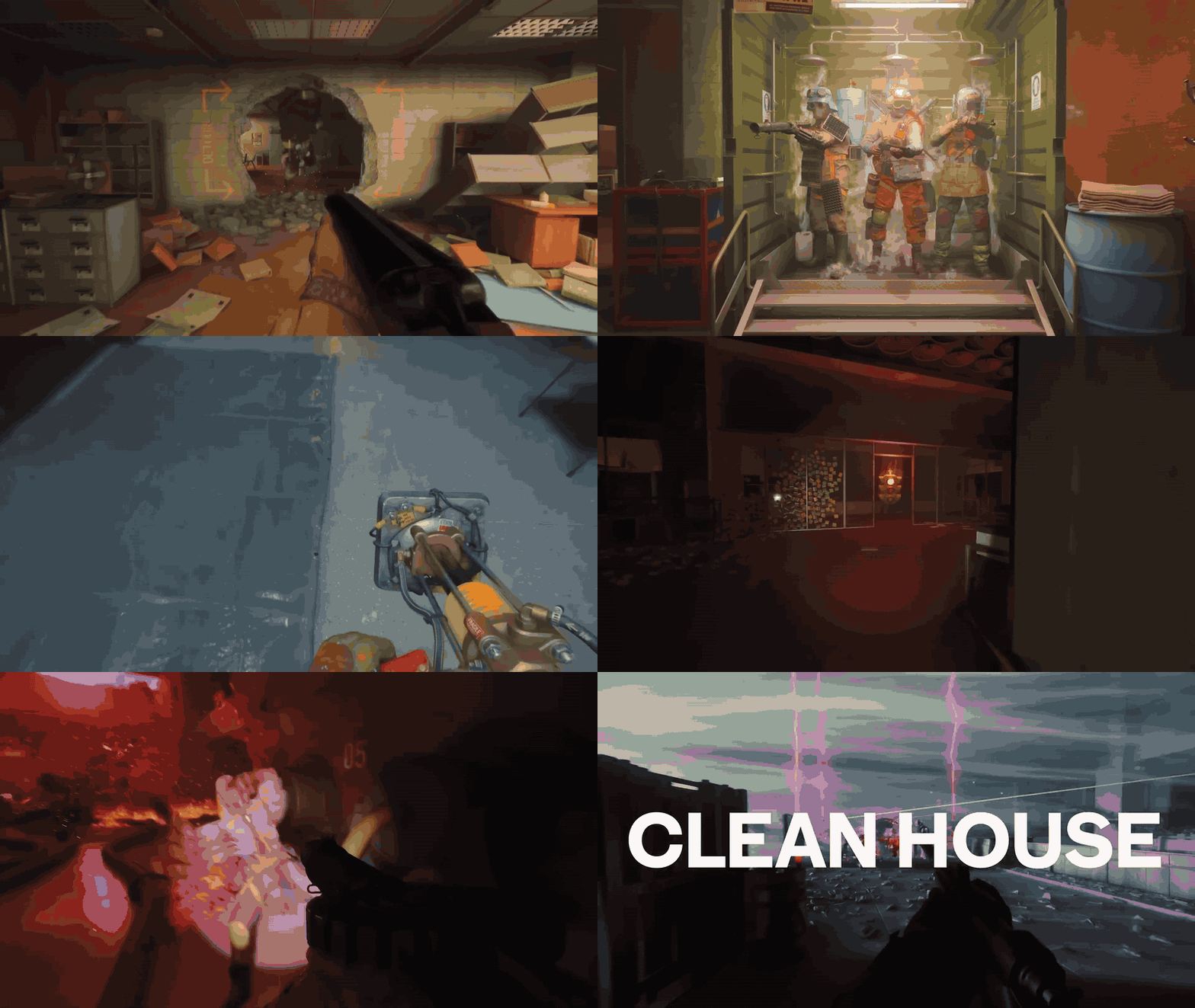
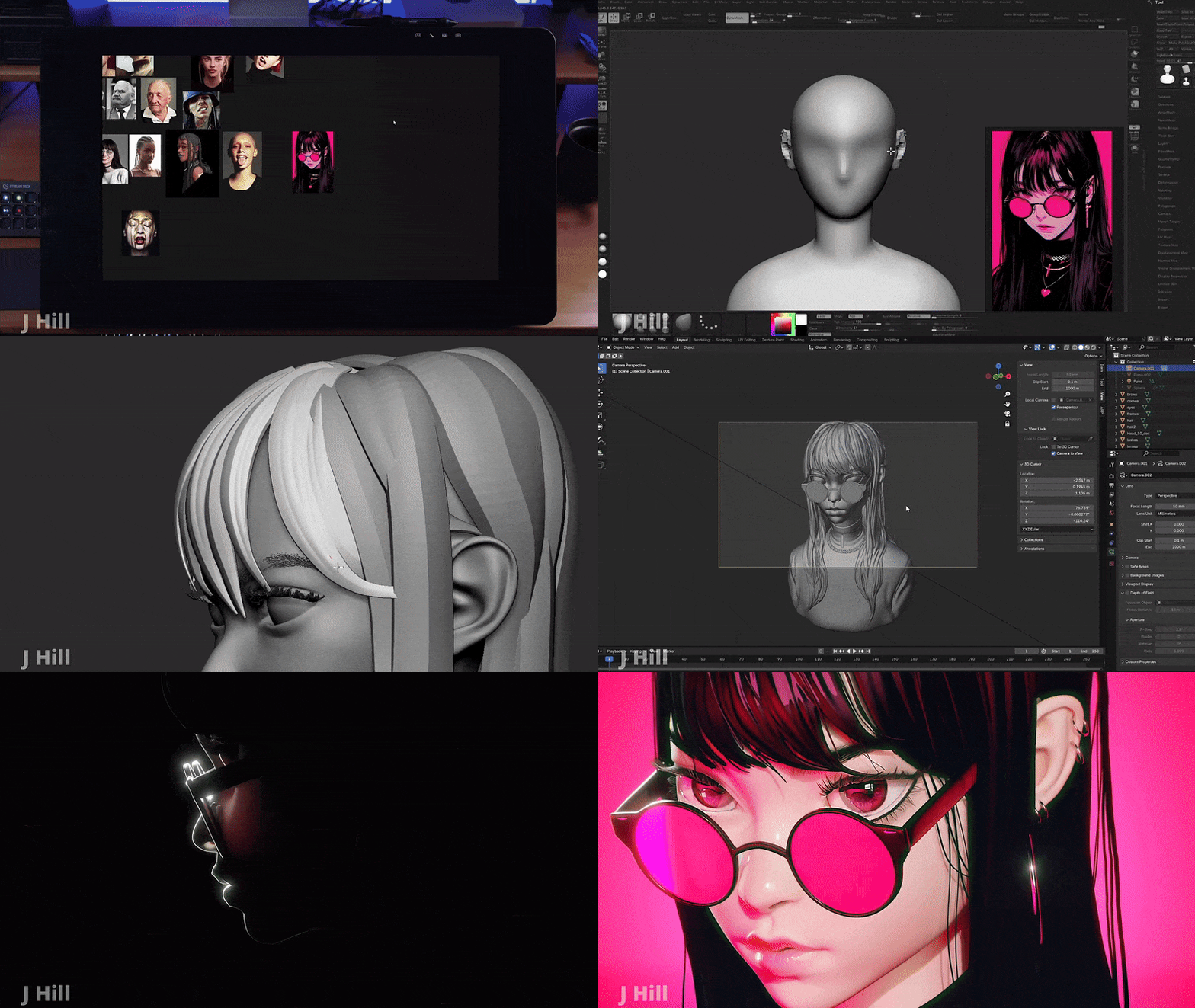
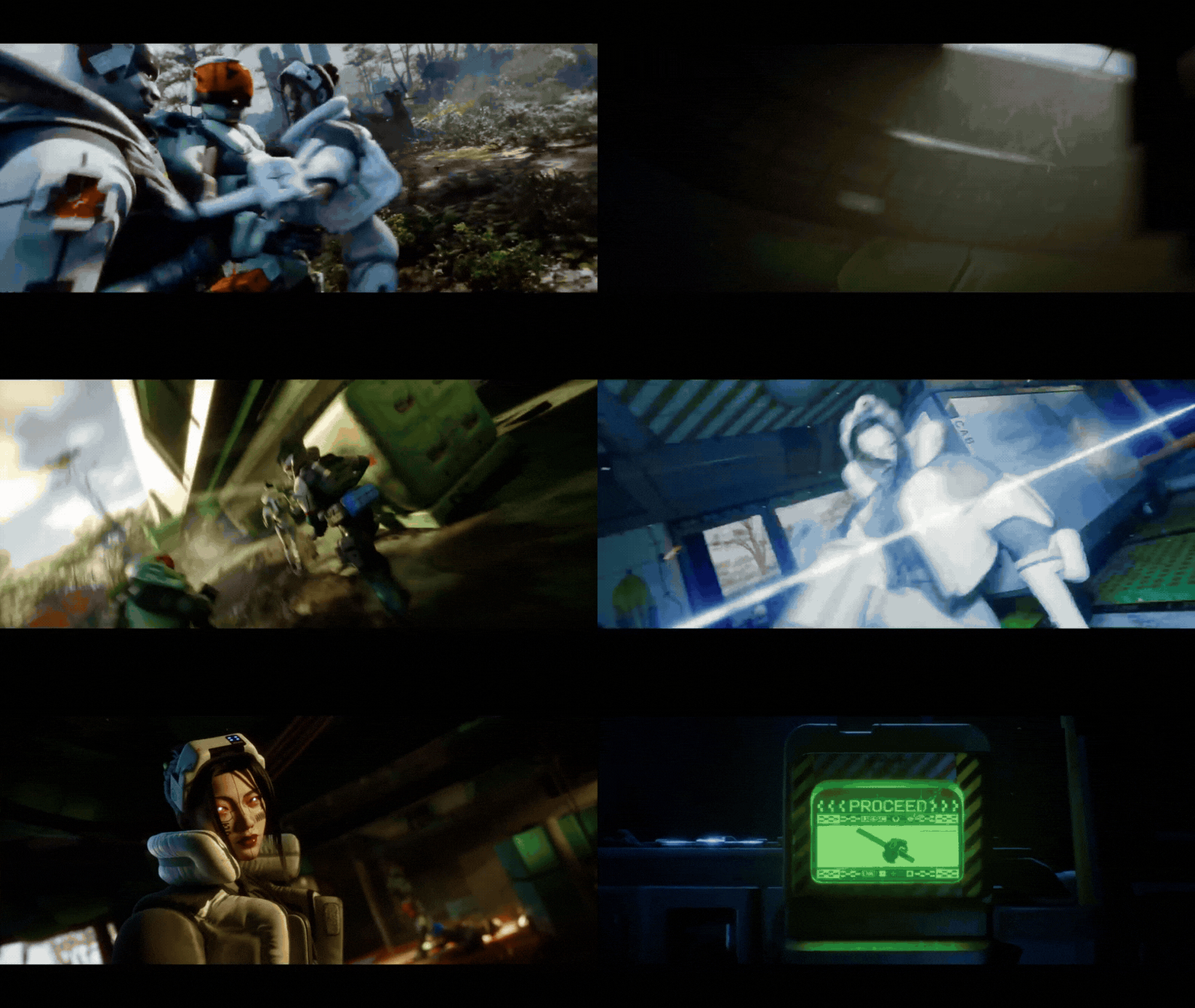
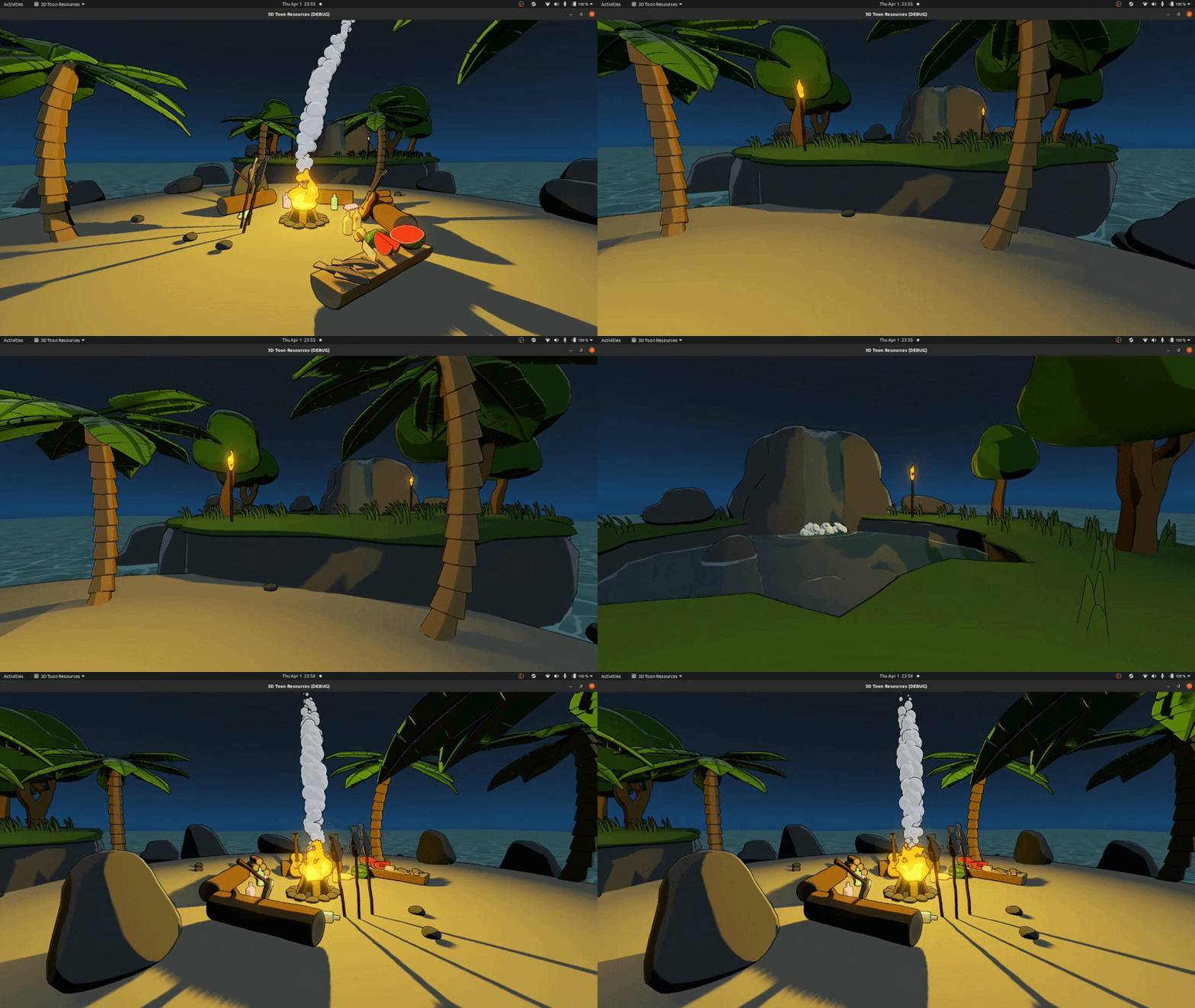
Godot 4’s rendering engine can produce beautiful non-photorealistic visuals. One popular style is toon shading (a.k.a. cel shading), which gives 3D objects a flat, cartoon-like look with hard shadows and stylized lighting. In this article, we explore how to achieve and customize a toon shader in Godot 4, including using patterns (like halftones or hatching), adding rim lighting, and even creating a painterly effect. We’ll also cover a powerful community-made shader (“Godot Ultimate Toon Shader” by Binbun) that offers advanced features for Godot 4.x, and discuss setup, performance tips, FAQs, and more. Let’s dive in!
What is a toon shader in Godot 4
A toon shader is a non-realistic shading technique that renders objects with discrete color bands and sharp transitions between light and shadow to emulate cartoons or comic books. Instead of smooth gradients and physically accurate lighting, it simplifies lighting into a few levels (often just “lit” and “shadow”) for a flat look, and is often called cel shading (like old animation cels). Common traits include hard-edged shadows, minimal shading gradations, and often an outline to accentuate shapes.
In Godot 4, toon shading is fully achievable. Although Godot’s rendering is PBR-based by default, you can implement toon looks by quantizing lighting (forcing light intensity into set bands). Artists often add stylized touches like shadow color tints, rim highlights on edges, and textured patterns (cross-hatching or halftone dots) in shaded areas to mimic comic art.
Godot 4 is flexible: you can write custom shaders or use the visual shader graph, and you can also tweak standard materials and lighting to approximate cel shading without a fully custom shader. Overall, toon shading in Godot 4 intentionally breaks realism to achieve an illustrative style.

Godot 4 toon shading using diffuse_toon and specular_toon render modes
Godot 4 introduced render modes that make toon shading easier. Using diffuse_toon and specular_toon in a 3D shader switches the lighting model to a toon style with minimal effort. At the top of a custom Spatial shader, you declare:
shader_type spatial;
render_mode diffuse_toon, specular_toon;
This makes diffuse lighting and specular highlights use hard cutoffs instead of smooth falloff, producing distinct shading bands. Specular highlights become a simple “toon blob” whose size varies with roughness rather than a realistic glossy reflection.
Under the hood, diffuse_toon uses a hard lighting cut (brightness jumps abruptly at a certain light/surface angle), with transition softness influenced by roughness (higher roughness can slightly smooth the edge). specular_toon produces a round highlight that doesn’t fade gradually, and roughness affects its size. Together, they create a classic cartoon look.
You may not need a custom shader to use this: Godot’s built-in StandardMaterial3D likely exposes similar options, allowing you to set diffuse mode to Toon and specular mode to Toon in the material inspector (or use a ShaderMaterial with the render modes). This built-in approach is a good starting point for flat shades.
However, the built-in toon mode is basic: it gives hard shadows and highlights but doesn’t add extra stylistic controls like shadow tinting, multiple light bands, patterned shading, outlines, and similar artistic adjustments. For more control, a customizable toon shader solution is used.
Customizable Godot Toon Shader feature list (hard shadows, patterns, rim light, painterly look)

The community provides advanced toon shaders for Godot 4, including a notable shader by Godot user Binbun, commonly referred to as the Godot Ultimate Toon Shader. It expands basic toon shading and supports stylization features such as:
Hard, tintable shadows: Shadowed areas can be tinted to a chosen hue (not just a darker version of the base color), enabling stylized shadow colors like bluish or purplish tones instead of pure black.
Customizable shadow steps and smoothing: You can control the number of shadow bands (steps) and add smoothing between them, allowing anything from a hard two-tone look to multiple bands (bright/mid/shadow) with adjustable transition softness.
Patterned shading using textures: You can overlay grayscale pattern textures (cross-hatching, halftone dots, pencil strokes, canvas textures) to modulate lit vs. shadow areas for more artistic results than flat colors.
“Local Screen UV” mapping for patterns: A hybrid mapping mode where the pattern faces the camera (reducing distortion as objects rotate) while still scaling with distance so distant objects don’t show oversized pattern blobs. The shader may also support standard UV mapping and full screen-space mapping.
Customizable rim lighting: Adds a rim-light highlight around edges/silhouette to help objects stand out, with adjustable intensity and color.
Painterly look with noise: By combining patterns, shadow tint, smoothing, and noise textures, the shader can produce a hand-painted feel rather than perfectly uniform shading. The full pack includes preset materials that use noise textures to mimic brush strokes or uneven paint for an illustrative (including “studio Ghibli-like”) appearance.
These features make the shader adaptable to styles ranging from crisp comic-book cel shading to softer concept-art/painterly shading.
Godot Ultimate Toon Shader by Binbun download and setup
A common way to start advanced toon shading in Godot 4 is Binbun’s Godot Ultimate Toon Shader. It was showcased in early 2026, became popular for hard shadows, patterns, and painterly effects, and is compatible with Godot 4.x.
Downloading: It’s available as a small asset pack on Binbun’s itch.io page under the title “Godot Ultimate Toon Shader” with a name-your-own-price model. Entering $0 provides the free shader source; paying around $4.49 (or more) provides the full pack. The download typically includes a shader file (such as a .gdshader/shader text file). The full version also includes ready-made material files and example textures.
Setting up in Godot:
- Add the shader file to your project folder (and any preset materials/textures if included).
- Create a
ShaderMaterialfor a 3D mesh and assign the Godot Ultimate Toon Shader file to it. - Adjust the newly exposed parameters in the Inspector (shadow colors, number of steps, pattern texture, rim light strength, etc.). If you imported presets, you can assign the
.tresmaterial presets directly to objects. - Ensure your scene has lighting (for example, a
DirectionalLight3D), since the shader reacts to lights.
No additional code is needed beyond using the material. It works with Godot 4’s Vulkan renderer. The shader code is short (around ~1.7 KB) and uses Godot’s light() function plus built-in variables like LIGHT and SCREEN_UV. The author notes performance should be good because it “is not doing too much” heavy computation and mostly relies on Godot’s lighting with extra math for patterns and related effects.

Free vs full version Godot Ultimate Toon Shader (22 preset materials)
Binbun offers a free version (primarily the shader code) and a paid full version. The shader logic is the same in both, so the free version does not lose core functionality. The difference is convenience and included content.
Full version: Includes 22 preset materials showing different looks (simple flat toon through various painterly styles), with configured parameters and example pattern/noise textures. Examples of preset types mentioned include halftone comic looks, painted strokes styles, and anime flesh-style setups. These presets let you drag-and-drop materials onto models to quickly see different results.
Free version: Provides the shader source (GDShader) and essentially just that (possibly with one basic material). You can still create the same looks as the full version, but you must configure parameters yourself and supply your own textures. The developer notes the presets are all achievable with the free shader plus appropriate noise/pattern textures.
Godot toon shader shadow tinting for stylized lighting
Shadow tinting lets you deliberately color shadows rather than treating them as only “less light.” In stylized art, shadows are often given intentional hues (like cool blues/purples against warm light). The Godot Ultimate Toon Shader supports this by allowing a Shadow Color parameter used in shadowed regions.
When set, the shader blends that chosen color into dark areas. For example, a bright yellow base color with a purple shadow tint makes shadowed regions appear purplish instead of a dull dark yellow. This can improve mood and visual cohesion (such as suggesting ambient moonlight) and supports techniques like complementary shadow colors (warm light with cool shadow tint, or vice versa). The tint intensity may be adjustable via a factor/alpha-style control.
Godot’s standard material system doesn’t directly provide a simple “shadow tint” control (shadows come from light calculations), so direct control through a custom shader is especially useful for stylized lighting. Shadow tinting is highlighted as a core feature of Binbun’s shader.

Godot toon shader shadow steps and smoothing controls
Cel shading is often two-step (lit vs unlit), but this shader allows control over the number of shadow steps (bands) for more nuance. Conceptually, 1 step yields two tones (light and shadow), while more steps add intermediate tones (for example, bright/mid/shadow).
It also provides smoothing between steps, which adds a slight gradient/feathering at band borders. With smoothing at 0, transitions are razor-sharp; adding smoothing can reduce aliasing and produce a slightly softer cartoon look while staying stylized.
Practically, the shader is described as quantizing the light intensity (from the dot product between light direction and surface normal) into discrete ranges. Smoothing is typically implemented by blending around thresholds (e.g., via a smoothstep-style approach). For usage:
- Steps = 1 and smoothing = 0 gives a bold, classic anime-style hard edge.
- Increasing steps adds more tones for form and nuance.
- A small smoothing amount (example range mentioned ~0.1–0.2) can reduce jaggies without losing the cel effect.
Godot’s built-in toon mode ties edge softness to roughness (higher roughness can soften edges). Binbun’s shader is described as providing smoothing control independent of roughness, allowing combinations like shiny materials with smooth shadow edges.
Godot toon shader patterns using grayscale texture masks
A standout capability is overlaying pattern textures onto shading so shadows/lights aren’t perfectly uniform. This enables cross-hatching, halftone dots, pencil strokes, noise, and similar effects that create a drawn or painterly appearance common in pen-and-ink or graphic novel styles.
The shader uses grayscale texture masks: the pattern is supplied as a monochrome texture that modulates shading. Typical usage is to tile a seamless pattern and apply it in shadowed regions so lit areas remain flatter while shadows carry texture.
How to use in Godot:
- Import a pattern image (ideally seamless if it needs to tile).
- Assign it to the shader’s pattern texture uniform (for example, something like
pattern_tex). - Use the shader’s mapping options (UV/screen-based modes, including Local Screen UV) to control how the pattern is placed on the model.
Because the pattern is a grayscale mask, the shader likely samples one channel or converts to grayscale internally. Preparing the texture as grayscale avoids confusion and may save memory. Since this is a mask, linear (not sRGB) handling is commonly relevant. This pattern approach helps break a “computer-perfect” look and can make real-time rendering appear hand-crafted.
UV mapping vs Screen UV mapping for toon shader patterns in Godot

When applying a 2D pattern texture in a shader, you must choose how to project it onto a 3D surface. Two common approaches are:
- UV mapping (Object UV): Use the object’s own UV coordinates (the ones used for its normal textures), so the pattern moves with the object and sticks to its surface.
- Screen UV mapping (Screen-space): Map the texture using screen coordinates (often
SCREEN_UV). The pattern aligns to the camera like a screen overlay and does not move with the object, so moving objects can look like they’re “swimming” through a static pattern.
Each approach has trade-offs for toon shading:
- UV mapping:
- Pros: The pattern stays consistent on the object’s surface when you rotate it.
- Cons: It can distort if UVs are stretched or not uniform, and the pattern rotates with the object (which can look odd because shading patterns ideally don’t rotate with every object movement in world space).
- Screen mapping:
- Pros: Pattern orientation stays fixed relative to the camera (often looks good for shading), and it avoids UV distortion completely.
- Cons: If the object moves in depth or sideways, the pattern slides over the surface (like the object moving under a stationary light stencil). Far objects still show the same screen-space pattern scale, which can look too large (e.g., a small distant character covered by huge dots).
Binbun noted the distance problem with screen mapping: “Mapping to the screen is cool, but when there’s objects far away the pattern doesn’t really fit into the object.” For example, a far tree might end up with only one big shadow dot, which looks wrong.
Developers often face this choice: accept screen-space “swimming” or accept UV deformation. This led to the Local Screen UV method, intended to combine the benefits.
Clarifying examples:
- UV mapping example: A checkerboard pattern applied via UV sticks to each cube face; rotating the cube keeps the checkers on the faces.
- Screen mapping example: A screen-UV pattern can look consistent across multiple objects at first, but rotating the cube doesn’t rotate the pattern (it behaves like a camera projection), and moving the cube makes the pattern slide.
When to use which:
- If an object is mostly static or you want a pattern locked to the material, UV mapping is fine.
- If you want a unified look across the whole screen (like a film filter), screen mapping can be better.
Godot shaders can support both UV-based and Screen UV-based mapping (typically via a toggle or choosing which coordinates sample the pattern). However, neither alone solves distance scaling, which Local Screen UV addresses.
Local Screen UV in Godot shaders (camera-facing pattern mapping)
Local Screen UV is Binbun’s approach to make pattern mapping camera-facing like screen-space, but still “local” to each object. In practice:
- The pattern rotates with the camera, not with the object, avoiding odd texture rotations as objects turn.
- As objects move closer or farther, the pattern scales with distance to maintain consistent apparent size.
- If an object moves, the pattern moves with it, so it doesn’t slide, while orientation stays consistent from the viewer’s perspective.
Technically, this likely uses the object’s view-space (camera-space) position in the UV calculation, such as projecting UVs/local positions onto a camera-facing plane, or combining screen UV with a depth (fragment depth) function. The name “Local Screen UV” implies a custom transform.
Binbun’s description: “Local Screen UVs basically scale the pattern down the further away you are.” This keeps a character’s pattern from turning into a single giant shadow blob as they move into the distance.
From a user perspective:
- The shader likely provides a dropdown or boolean to enable Local Screen UV mapping.
- Once enabled, the shader handles scaling; objects at different distances should show normalized pattern size.
- Mipmaps are still recommended so distant patterns filter properly and don’t alias.
- You can test by toggling:
- Pure Screen UV: far objects look very coarse relative to themselves.
- Local Screen UV: the pattern “sticks” more to object scale.
Binbun said dissatisfaction with normal mapping methods led to implementing Local Screen UV (mentioned on Reddit). It solves:
- Prevents pattern swimming: Because it scales/moves locally with objects, the pattern doesn’t slide when objects move.
- Prevents pattern scale mismatch: Because it scales with distance, far objects aren’t covered by oversized pattern elements.
Note: Because the mapping is camera-facing, a rotating object may still not rotate the pattern, which is usually fine for shading (it can resemble how projected shadows behave rather than texture-locked patterns). Implementation may involve using SCREEN_UV multiplied by a depth-related factor (e.g., 1.0/frag_depth).

Godot toon shader pattern scaling with distance (avoiding “swimming” textures)
“Swimming” textures are when a texture appears not attached to an object, sliding independently as the object or camera moves (like ripples moving over a surface). Pure screen-space patterns cause this because the pattern stays fixed in screen coordinates and objects “swim” through it.
Local Screen UV combats swimming by:
- Scaling the pattern with distance, effectively dividing pattern UVs by a depth function (e.g., if an object is twice as far, the pattern can become half the scale on it), preventing blown-up patterns on far objects.
- Likely offsetting the pattern using the object’s position so lateral motion moves the pattern with the object (anchoring each object’s screen-projected pattern origin).
User takeaways:
- Enabling Local Screen UV largely resolves swimming without additional tweaking.
- If you intentionally use pure Screen UV mapping, you may see swimming; one mitigation is a distance fade (far objects become flat-shaded to hide oversized patterns). Binbun’s shader doesn’t explicitly mention distance fading, likely because Local Screen UV handles scale.
- Texture filtering matters:
- Keep mipmaps enabled (Godot imports typically generate mipmaps unless turned off) to avoid aliasing/flicker when patterns become tiny.
- Anisotropic filtering helps on surfaces at grazing angles.
Distance-based scaling is presented as what makes patterned toon shading practical in full 3D scenes while preserving the illusion of drawn shadow patterns during movement.

Godot toon shader rim lighting settings for stylized characters
Rim lighting (rim highlights/edge lighting) illuminates object edges often on the side opposite the main light or around the silhouette to make characters stand out or simulate a simple backlight. It’s common in stylized rendering (e.g., bright outlines on a character’s shadowed side in anime).
Godot supports rim lighting concepts via RIM and RIM_TINT in the shader language, and Binbun’s shader exposes customizable rim lighting (likely toggle + intensity/color controls).
Rim lighting behavior and controls (as described):
- Rim factor is based on view angle; built-in
RIMis strongest at glancing angles and typically depends onROUGHNESSfor rim width. - A custom shader may compute a rim term (e.g.,
max(0, dot(view_dir, normal))) to highlight edges.
Practical settings:
- Intensity: A slider from no rim (0) to a brighter outline; may be implemented by adding color to
EMISSIONor brightening edges in the light function. - Color/Tint: Can be white or tinted by albedo;
RIM_TINTblends between pure white and using the albedo color (e.g., a white shirt can have a white rim, or an albedo-tinted rim whenRIM_TINT = 1). - Width: May be tied to roughness (built-in behavior) or controlled directly by the shader.
How to use:
- Turn rim light on in the material (checkbox/slider).
- Choose a rim color (often neutral or slightly tinted to match the main light).
- Adjust intensity until it’s readable without looking overly glow-like.
A reference example is that games like The Legend of Zelda: Breath of the Wild use rim lighting to accentuate toon-shaded characters.
Painterly toon shader effects in Godot using noise textures
Toon shading is often flat, but a painterly look can be created by adding noise/variation so the render resembles brushwork. The Godot Ultimate Toon Shader (especially full-version presets) includes materials that use noise textures for painterly effects.
How it works (as described):
- Noise can be used as the pattern texture (or as an input that perturbs lighting).
- Replacing clean dots/lines with Perlin-like noise can make the light/shadow boundary irregular and shadows non-uniform.
- When applied subtly, it can resemble brush strokes or watercolor blotches.
Techniques using noise:
- Textured shadows: Use a grayscale noise texture as the pattern mask to make shadows patchy like paint; fine noise can mimic canvas/paper grain.
- Color variation: Use low-frequency noise to slightly vary
ALBEDOacross the surface (not necessarily built-in, but can be combined by multiplying noise intoALBEDO). - Normal map noise: Mentioned as another painterly trick to break up lighting, though Binbun’s approach is presented as more focused on pattern masks.
Guidance:
- Keep it subtle; too much becomes “just noisy.”
- Presets likely tune this (e.g., swapping a uniform gray pattern for fractal noise and possibly adding an extra shadow step).
- To create your own painterly effect:
- Use a tiling noise texture (Perlin, Worley/cell noise, scanned paper texture).
- Adjust scale (UV scaling/pattern UV parameters) to control “brush stroke” size.
- Combine with shadow tinting for a stronger art style.
- Optionally layer multiple noises at different scales (detail vs broad strokes).
- Godot 4 includes a
NoiseTextureresource (FastNoiseLite-based) for runtime-generated noise, though static textures may be enough.
Example scenario given: aiming for a Van Gogh-like look by using a swirling noise pattern for shadows; with tinted shadows and rim light, models can resemble oil paintings. This is framed as relatively low-cost (texture lookups and multiplications).
Godot Visual Shader toon shading setup (shader graph workflow)

Godot’s Visual Shader Editor supports a node-based workflow for toon shading (connecting math nodes rather than writing shader code). It can achieve most of what code can.
For a basic toon shader in Visual Shader:
- Diffuse & Specular Toon:
- There may be a way to set toon render modes in the visual editor; if not exposed, you can manually recreate the effect.
- Manual Threshold:
- Compute the dot product of light and normal (Normal·Light) and feed it into a
Stepnode for a hard cutoff shadow. - Use
SmoothStepfor a softer cutoff.
- Compute the dot product of light and normal (Normal·Light) and feed it into a
- Multiple Lights:
- Visual shaders may need special handling to accumulate lights, but Godot’s pipeline calls the shader’s
light()per light; you may be able to rely on built-in toon mode for multi-light support rather than manually summing. - Godot’s docs example suggests setting
render_modeto toon can provide multi-light support without manual summing.
- Visual shaders may need special handling to accumulate lights, but Godot’s pipeline calls the shader’s
- Specular:
- You could threshold reflection/view terms, but using
specular_toon(if available) is simpler.
- You could threshold reflection/view terms, but using
Easier alternative:
- Use StandardMaterial toon modes (no shader graph), but StandardMaterial cannot do patterns, so patterns require Visual Shader or code.
Patterns in Visual Shader:
- Sample a pattern texture (texture uniform node).
- Choose mapping:
- Object UV: use UV input.
- Screen UV: use a Screen UV node (likely available).
- Use the texture grayscale to modulate lighting (multiply intensity or use it as part of a threshold such as subtracting from Normal·Light then applying
Step).
Local Screen UV in nodes is described as possible but complex because it requires camera distance/depth math. The text frames using Binbun’s written shader as simpler than rebuilding the full shader in nodes, though a simpler learning version could include toon render modes, Fresnel-based edge highlight (rim via emission), and shadow tint (which may require a custom light function and may not be trivial in visual shader). Godot’s official Visual Shader documentation covers basics, and community graphs exist (e.g., on GodotShaders or Reddit).
Godot 4 lighting setup for cel shading (DirectionalLight3D, shadows, ambient light)
Toon shading depends on both the shader and intentional lighting setup.
Key lighting recommendations:
- Main light:
- Use a
DirectionalLight3Das the key light (like the sun with parallel rays). - It’s ideal for toon shading because it gives consistent shadow direction across objects (common anime look).
- Directional lights are also the cheapest light type to compute; often one strong directional is enough.
- Use a
- Shadows (must be enabled on the DirectionalLight):
- Shadow Resolution: Higher resolution produces crisp toon shadows; low resolution causes jagged shadows that become jagged toon bands.
- Shadow Bias: Tune to avoid shadow acne without causing detached “peter pan” shadows; increasing Normal Bias slightly is described as the typical fix (pushes shadows outward along normals).
- Shadow Blend/Blur: Softer shadows can be achieved via blur or contact-hardening (set light angular size > 0), but classic cel shading often wants hard shadows. Godot 4 supports PCF soft shadows; use a sharp filter (e.g., Nearest or low blur) for crisp edges.
- Ambient light (WorldEnvironment):
- For true black/high-contrast shadows, disable ambient or set it very low (e.g., Ambient Light Energy near 0), since bright skies can wash shadows to gray.
- You can also use
ambient_light_disabledrender mode to ignore ambient entirely (the shader might do this internally). - Some ambient can be useful to retain detail in deep shadow; colored ambient (e.g., faint blue skylight) can set mood, but combining it with shader-level tint can cause double-tinting.
- Additional lights:
- You can add fill lights (low-intensity OmniLight or another Directional from another angle, possibly tinted).
- Each light can add its own banding; too many lights can muddy the stylized look due to overlapping shadows.
- Camera/exposure:
- Auto exposure/HDR can introduce bloom and lift shadows; locking exposure can help keep the look consistent.
- Shadow color:
- DirectionalLight has a Shadow Color property for global shadow tint (e.g., blue). If using material-level shadow tinting, leaving Shadow Color at default (black) may be preferable to avoid stacking tints.
Example outdoor setup:
- One
DirectionalLight3Dabove, intensity ~8 (PBR units), slightly warm color. - Shadows enabled, 4 cascades, high detail near the camera.
- Ambient light disabled or low with a slight complementary tint.
- Optional second DirectionalLight opposite direction, very low intensity, no shadows (fill), or use ambient instead.
- Low-brightness sky (if any) or an environment color.
GI probes (SDFGI, etc.) are noted as generally less relevant for a strictly cartoon look (they add realism), so they’re often off or used subtly for NPR consistency.
How to add outlines in Godot 4 toon shading (post-process edge detection vs inverted hull)
Outlines (often black) are a hallmark of toon rendering. The text describes multiple methods:
- Inverted Hull (Scaled Duplicate) method:
- Duplicate the mesh, scale it slightly larger, flip normals, and render it behind the original in a solid outline color to form an outline “shell.”
- In Godot 4, this is described as being facilitated by a built-in Stencil Outline mode:
- Set a material’s “Stencil” property to Outline, and Godot automatically uses a
next_passto draw the outline, avoiding manual duplicate meshes.
- Set a material’s “Stencil” property to Outline, and Godot automatically uses a
- Pros:
- Outlines each object individually.
- Can appear as a constant screen-space width if scaled appropriately (though at extreme distances it may look thinner).
- Captures silhouette edges (not interior feature lines, only outer silhouette).
- Cons:
- Doubles geometry rendering for outlined objects (performance cost).
- Can produce artifacts if the outline intersects other geometry.
- Doesn’t outline where two objects overlap only each object boundary.
- Post-process edge detection (Screen-space):
- Render the scene normally, then run an image-space edge filter using depth and/or normals.
- Examples include:
- Sobel filter on depth to detect discontinuities (object boundaries).
- Comparing neighboring pixel normals to find sharp changes (model edges).
- Godot doesn’t include this as built-in; it requires a full-screen ShaderMaterial on a Viewport or similar post-processing step.
- Pros:
- Can catch edges within objects (normal changes) that inverted hull won’t.
- Naturally outlines between separate objects where there’s a depth difference.
- Potentially one pass for the whole scene (though high-resolution filtering may be heavier).
- No need to modify individual meshes/materials.
- Cons:
- Harder to tune per object (it outlines everything unless masked, e.g., by object ID).
- Thickness is screen-space and may need adjustment if resolution changes.
- Can be jaggy without smoothing (MSAA/FXAA helps).
- Corners can get double lines.
- Combination / Other:
- A shader can expand vertices along normals (like inverted hull but in the vertex shader) and draw the backside; stencil outline likely does this via
next_pass. - Wireframe/backface tricks exist but are less common for clean outlines.
Godot 4 built-in outline usage (stencil):
- In
StandardMaterial3DorShaderMaterial, set Material > Stencil > Outline. - Godot automatically applies a required
Material.next_pass; manual edits tonext_passare lost if stencil properties change. - Outline color/width are typically adjustable via outline properties.
Post-process outline approach (high-level):
- Render to a Viewport (or use the main viewport with an add-on effect).
- Apply a ShaderMaterial to a
ColorRectthat samples the viewport texture and does edge detection.
- Another approach is using ScreenTexture and comparing neighboring pixel normals (if available).
- Community outline shaders (e.g., Sobel-based) can be adapted.
Which to choose:
- For bold character outlines and precise silhouettes: stencil/inverted hull is straightforward.
- For outlining an entire scene including environment edges: post-process is often better.
- You can combine both (e.g., inverted hull for stable character outlines, plus a lower-intensity post-process for environment/detail lines).
- Consider render order: inverted hull draws behind the object; post-process draws over the final image.
Compatibility note: stencil outline is described as new/experimental but expected to work in Godot 4.x (with possible minor bugs). In Godot 3, many users did inverted hull outlines manually, so Godot 4’s built-in support is presented as a welcome improvement. The text ends by noting that after outlines, anti-aliasing settings help keep toon edges smooth.
Godot 4 Anti-Aliasing Settings for Clean Toon Edges
Anti-aliasing is crucial for toon rendering because of high-contrast edges like outlines and hard shadow borders. Godot 4 offers several AA methods, each with trade-offs:
- MSAA (Multi-Sample Anti-Aliasing): Smooths geometry edges without blurring the image. Available in all renderers (Forward+, Mobile, Compatibility) with 2x/4x/8x options. MSAA 4x or 8x is ideal for toon styles, especially for geometry-based outlines. It does not affect shader-based/post-process edges or transparency.
- TAA (Temporal AA): Forward+ only. Excellent at reducing flicker and specular aliasing but can blur or smear crisp outlines during motion. Sometimes combined with MSAA or sharpening.
- FXAA: Post-process AA that slightly blurs high-contrast edges. Cheap and available in Forward+ and Mobile (not Compatibility). Useful when MSAA is unavailable but can soften details.
- FSR 2: Acts like TAA with upscaling. At native resolution, it serves as advanced AA with less blur than TAA but higher cost; often overkill for toon styles.
Best Practices:
- PC/Console: MSAA 4x or 8x.
- Mobile: MSAA 2x or 4x; FXAA if performance is tight.
- Geometry outlines (inverted hull or stencil): MSAA works well.
- Post-process outlines (Sobel): Not smoothed by MSAA; rely on FXAA/TAA, resolution, or slight blur.
Enable via Project Settings under Rendering > Anti-Aliasing. MSAA 2D is separate from 3D. Avoid AA only if pixelated style is desired.

Godot Toon Shader Performance Optimization
Godot 4 renderers differ in capabilities:
- Forward+ (Vulkan): Default for PC/consoles, supports many lights and advanced effects. Toon shaders run efficiently.
- Mobile (Vulkan Mobile): Simpler, max ~8 lights per object. Toon shaders work well but keep lights and texture usage modest.
- Compatibility (OpenGL): Fallback for older hardware, fewer features, FXAA unsupported, but MSAA works.
Optimization Tips:
- Limit light count, especially on mobile/compatibility.
- Use simpler materials for background objects if needed.
- Avoid excessive shader complexity or extra texture lookups.
- Outlines add extra passes; apply selectively on weak hardware.
- Consider disabling specular if not artistically needed.
Troubleshooting Toon Shader Artifacts
- Banding: Use dithering/noise or simplify gradients. Ensure proper color space.
- Flicker:
- Shadow flicker: Enable stable directional shadows, adjust cascades.
- Pattern flicker: Enable mipmaps and anisotropic filtering.
- Outline flicker: Increase outline thickness or apply AA.
- Shadow Acne: Increase light shadow normal bias (preferred over bias) and adjust resolution.
- Color Washout: Adjust shader parameters like albedo influence if present.
Toon Shader Resources
- Community Shader Repositories: Many toon shaders shared for learning and direct use.
- Asset Library: Ready-made toon shaders (often MIT licensed).
- Tutorials and Forums: YouTube, forums, Discord, and Reddit offer examples and troubleshooting.
- Specialized Shaders: MToon (VRM), advanced multi-light toon shaders, hatching effects.
Licensing and Commercial Use
- CC0 shaders: Free for any use, no attribution required.
- MIT shaders: Free for commercial use; include license/credit.
- Asset Packs: Check individual licenses; usually allow use in games but not redistribution.
- Shaders: Rarely GPL; most are permissive. Always verify licenses.
Frequently Asked Questions (FAQs)
- How do I set up a toon shader in Godot 4?
The Godot Ultimate Toon Shader (by Binbun) works out-of-the-box in Godot 4.x. Just apply the preset material files and textures to your objects, then tweak parameters (shadow tint, steps, etc.) in the Inspector. No scripts or add-ons required. - Can I get a toon look without writing a custom shader?
Partially. Godot’s StandardMaterial3D has built-in Toon modes for diffuse and specular lighting, giving basic cel shading. However, for advanced features like shadow tints, patterns, or rim lights, you’ll need a custom shader, a community asset like Binbun’s, or Godot’s Visual Shader Editor. - Does the toon shader work with multiple lights and shadows?
Yes. The shader handles multiple lights natively in Godot 4’s Forward+ renderer each light contributes its own hard shadow and highlight. The Mobile/Compatibility renderer caps at 8 lights per object, but that’s an engine limit, not a shader one. - How do I add outlines to toon-shaded objects?
Two main methods:- Stencil / Inverted Hull : Godot 4 has a built-in stencil outline mode. Set the material’s Stencil property to Outline and adjust thickness/color. Simple and per-object.
- Post-Process Edge Detection :A full-screen shader that detects edges via depth/normals (e.g., Sobel filter). Outlines everything globally but is more complex to set up.
- Can I use textures and normal maps with the toon shader?
Yes. Albedo textures, normal maps, and other traditional maps all work. The toon lighting is applied on top. Flat or stylized textures tend to look best. Detailed normal maps may create uneven shadow edges, which can actually add an organic feel. - Is the Godot Ultimate Toon Shader free for commercial projects?
Yes. It’s released under CC0 (public domain) free for personal and commercial use with no attribution required. Most other community toon shaders are MIT or CC0 as well, but always verify the specific license. - Will the toon shader run on mobile and low-end hardware?
Yes. The shader is lightweight (no complex PBR calculations). To optimize for mobile:- Use MSAA 2x–4x instead of 8x
- Limit lights (one directional + ambient is ideal)
- Enable mipmaps on pattern textures
- Simplify shadows (fewer cascades, smaller shadow maps) if needed
- What is PixelHair and how does it help with stylized characters?
PixelHair is a library of ~200 pre-made 3D hairstyles and beards by Yelzkizi, designed for Blender and compatible with game engines. Export the hair as mesh (hair cards or poly strands), import into Godot, and apply a toon material for stylized hair saving significant time versus modeling hair from scratch. - What is The View Keeper plugin for Blender?
A Blender add-on (also by Yelzkizi) that lets you save and switch between multiple camera setups on a single camera object. Useful for cinematics, previz, and rendering during content creation. It’s a Blender-side workflow tool, not used inside Godot directly. - How do I fix color banding or flicker in my toon-shaded game?
Banding :Add subtle noise/dither to gradients, or slightly increase shadow smoothing.
Edge shimmer/aliasing :Enable MSAA 4x–8x in Project Settings; consider TAA for remaining flicker (may slightly blur sharp edges).
Pattern flicker :Enable mipmaps on hatching/pattern textures.
Shadow acne :Increase the light’s Normal Bias setting.

Conclusion
Godot 4 enables high-quality toon shading through built-in toon modes, custom shaders, and strong AA support. MSAA is the best choice for clean edges, performance is manageable across platforms, and most community shaders are permissively licensed. With proper lighting, AA, and optimization, developers can achieve polished, distinctive toon visuals efficiently.ctly fits your project’s style – and have fun in the process, knowing you have full control over the final appearance.
Sources and Citations:
- Binbun – Godot Ultimate Toon Shader (Itch.io page)
- Binbun – Godot Ultimate Toon Shader Devlog (New Release post)
- Emma Collins – 80.lv: Customizable Godot Toon Shader (Binbun)
- Reddit (r/godot) – “Here’s my customizable toon shader with patterns!”
- Godot Docs – Spatial Shader Reference
- Godot Docs – Your First Shader (3D): “Your second 3D shader”
- Godot Docs – Lights and Shadows
- Godot Docs – 3D Antialiasing
- Godot Asset Library – Flexible Toon Shader
- GodotShaders.com – Complete Cel Shader for Godot 4 (Eldskald)
Recommended
- Secrets to Blender Photorealism: How to Make Your Renders Look Real
- How to Make Gen Z Slang Meme Videos with MetaHuman: Brainrot, Sigma, and Gooning-Style Content for Social Media
- How to Create a Metahuman from a Photo: The Ultimate Guide to Digital Character Creation
- Blender Add-ons for Animators: Why The View Keeper Stands Out
- What is the View Keeper?
- Is Arcane 3D Animated? Unveiling the Secrets Behind Its Revolutionary Style
- The Future of 3D Modeling: Insights on AI Advancements
- Daz 3D: Building a 3D Character from Start to Finish – Step-by-Step Guide for Artists and Creators
- Saving and Switching Blender Camera Angles with The View Keeper
- The Fastest Way to Groom Short Hair for Game Characters