








In This Article (10 sections)
BlenderMCP, Claude AI Integration, and Setup Requirements for Blender Users
BlenderMCP is an open-source integration that connects Blender with Claude AI through Anthropic’s Model Context Protocol (MCP). It works as a bridge that lets users control Blender with natural language prompts, making it possible to create, modify, and manage 3D scenes without manually navigating every part of Blender’s interface. The tool was developed by Siddharth Ahuja and is designed for local, community-driven AI-assisted modeling, where text instructions are translated into Blender operations in real time.
The integration supports two-way communication between Claude and Blender. Claude can execute commands such as creating objects, running scripts, adjusting scene elements, or modifying materials, while BlenderMCP can return information from the scene back to Claude. This feedback can include queried scene data or viewport screenshots, allowing the AI to better understand what is happening in the project and respond with more accurate follow-up actions.
At the center of this workflow is MCP, a standardized protocol from Anthropic that allows AI models to communicate with external applications through JSON-based messaging. In the Blender setup, Claude sends structured commands to a BlenderMCP server, which then executes Python calls inside Blender and returns the results. This gives Claude access to Blender’s features as if they were built-in tools, without requiring custom code for every individual task. New capabilities can also be added as MCP “tools,” which Claude can then use as part of the workflow.
To use BlenderMCP, several prerequisites are required:
- Blender 3.0 or higher: Needed because it includes the required Python 3.10+ environment.
- Python 3.10+: Used by Blender and the MCP server to run the necessary commands and scripts.
- uv/uvx package manager: Required to launch the BlenderMCP server using the
uvxcommand. - System PATH access: The
uvxtool must be available in the system PATH so it can be run correctly.
Installation of uv depends on the operating system. Windows users can install it through npm or PowerShell, macOS users typically use Homebrew, and Linux users often use pipx. Once installed and properly added to the system PATH, uvx can be used to launch the server that enables Claude and Blender to communicate.

How to Install, Configure, and Connect Blender MCP with Claude Desktop
The Blender MCP integration requires a single Python file named addon.py. Download the file, open Blender, navigate to Preferences > Add-ons, and click Install to select it. After installation, enable Interface: Blender MCP. This adds a dedicated Blender MCP tab to the 3D View sidebar, also known as the N-panel, where users can manage connections and available features.
To connect Claude Desktop to the MCP server, open Claude Desktop’s settings and edit the claude_desktop_config.json file. Add a "blender" entry to the mcpServers section, specifying uvx as the command and blender-mcp as the argument. Windows users may need to run the command through cmd /c. After saving the configuration, fully restart Claude Desktop so it can recognize and load the new Blender MCP tool.
Communication between Blender and Claude occurs through a TCP socket, usually on port 9876. In Blender, open the MCP tab in the sidebar and click Connect to Claude. The MCP backend can then be launched automatically by Claude Desktop or started manually with the terminal command uvx blender-mcp. During the first run, uvx downloads the required packages. Once the connection handshake is complete, Claude can route prompts and commands directly to Blender, although the first command may occasionally need to be retried.
Using Claude AI with BlenderMCP for Prompts, Object Editing, Materials, and Lighting
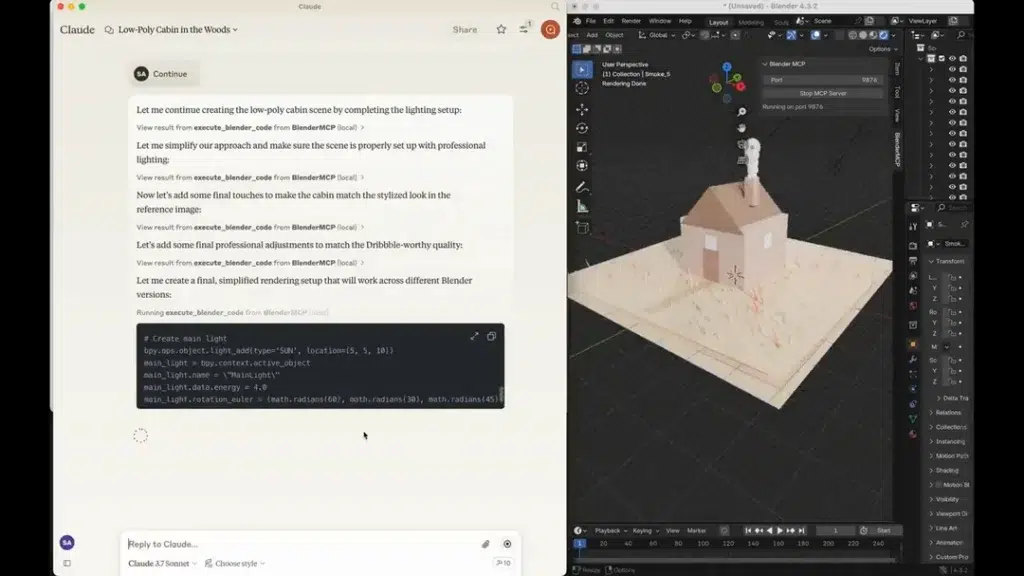
Claude can interpret a wide range of prompts through BlenderMCP, from simple scene descriptions to more detailed 3D modeling instructions. Users can ask it to create themed scenes such as “a low poly dungeon,” generate objects from asset library requests using tools like Poly Haven or Hyper3D, or recreate scenes based on reference images. It can also handle iterative instructions, meaning users can build a scene step by step by asking Claude to adjust, refine, or add new elements as the project develops. More complex prompts, such as setting up studio lighting or placing objects at specific coordinates, work best when the instructions are clear and specific.
Claude manages object creation, modification, and deletion through Blender’s Python API. It can add basic primitives, move objects, rotate them, scale them, rename items, and delete specific objects from the scene. For basic modeling, it can use high-level tools to quickly generate geometry, but it can also write custom Python scripts for more advanced tasks such as extruding faces, applying modifiers, creating duplicates, organizing objects into collections, or setting up parent-child hierarchies.
Claude can also create and edit materials in Blender by adjusting properties in the Principled BSDF shader, including color, metallic value, and roughness. It can apply image textures and HDRIs through Poly Haven integration, helping users build more realistic or stylized scenes from natural language prompts. For lighting, Claude can create different lamp types such as Sun, Point, and Area lights, and it can arrange them into more complex setups like three-point studio lighting. It can also configure environmental lighting or sky textures based on the user’s description, making it useful for quickly establishing the mood and visual style of a scene.

Using Claude AI with BlenderMCP for Camera Control, Viewport Feedback, and Safe Python Execution
Claude can act as a virtual cameraman in Blender by positioning and orienting cameras to frame specific subjects in a scene. Through BlenderMCP, it can set focal lengths, switch cameras into orthographic mode for isometric shots, and manage multiple camera objects when a project needs different render angles. Claude can also use spatial reasoning to point cameras toward selected objects and make adjustments based on commands such as “dolly,” “tilt,” or “reframe.” This makes it useful for setting up render cameras, improving composition, and quickly testing different shot styles without manually adjusting every camera parameter.
BlenderMCP also gives Claude a way to “see” the scene through viewport screenshots. Version 1.5.x introduced the get_viewport_screenshot tool, which allows Claude to capture and analyze the active Blender viewport. This visual feedback helps the AI verify object placement, check whether objects are intersecting, and confirm lighting, camera framing, or general scene layout. These screenshots also act as a preview within the Claude interface, making the workflow more visual and iterative because users can ask Claude to inspect the scene and make corrections based on what is visible.
The execute_blender_code tool allows Claude to run Python code directly inside Blender’s interpreter, giving it access to the full Blender API through bpy and other available libraries. This is powerful for advanced tasks such as procedural mesh generation, modifier automation, custom scene tools, and complex object manipulation. However, it also carries security risks because Python code can potentially read and write files, modify projects, access system resources, or execute system-level commands. For that reason, it should be treated with the same caution as installing or running an unknown Blender add-on.
To use Blender Python execution safely:
- Review the code: Ask Claude to show the code before running it so you can inspect what it will do.
- Give consent carefully: Only proceed once you have checked that the script is safe and matches the intended task.
- Save your work first: Use Save or Save As with incremental versions before running scripts, in case something breaks or Blender crashes.
- Limit the scope: Use Python execution for specific, constrained tasks rather than broad or vague instructions.
- Watch performance: Complex scripts or algorithms can hang Blender, so use step-by-step execution or smaller operations for heavier tasks.
- Be cautious with system access: Remember that Python code may technically access local files, system commands, or the internet.
- Disable or avoid it if needed: If security is a major concern, rely on built-in BlenderMCP commands instead of arbitrary code execution.
- Check audit logs: Review the MCP server console logs to trace what commands were executed.
- Verify results: Double-check changes in the viewport and iterate with Claude if something needs to be corrected.

Using BlenderMCP Asset Libraries and AI 3D Model Generation in Blender
BlenderMCP v1.5.0 and later allows users to search for and import 3D models from Sketchfab directly into Blender. To use it, make sure Sketchfab support is active; public free models usually work out of the box. Users can prompt Claude with requests such as “Search Sketchfab for a medieval barrel” or “Find a low-poly spaceship on Sketchfab.” More specific keywords usually produce better results. Claude can then present several options or choose the best match based on the user’s feedback. Once selected, the download_sketchfab_model tool fetches the file, typically in formats such as glTF or OBJ, and imports it into the Blender scene. After import, Claude can scale, rotate, reposition, re-center, or fix materials on the model if needed.
When using Sketchfab through BlenderMCP, users are still responsible for checking model licenses and attribution requirements. It is also helpful to specify quality needs in the prompt, such as “low-poly,” “game-ready,” or “small file size,” especially when working on performance-sensitive scenes. If an imported model appears invisible or incorrectly placed, it may simply need re-centering, scaling, or material correction, which Claude can usually handle through Blender tools or Python.
BlenderMCP also supports Poly Haven assets, including CC0 HDRIs, textures, and models. To use Poly Haven, users should enable the Poly Haven option in the BlenderMCP sidebar. Claude can then fetch assets through the download_polyhaven_asset tool. For HDRIs, users can request environments such as “sunset HDRI,” “studio lighting HDRI,” or “forest HDRI,” and Claude can apply them as world lighting while adjusting strength and rotation. For textures, Claude can search for materials such as wood, marble, concrete, or fabric, then apply them to objects and connect the required maps, including albedo, normal, and roughness. Poly Haven models can also be imported as curated environmental props.
For best results with Poly Haven, users should mention “Poly Haven” directly in the prompt so Claude knows to use that free asset library. It is also useful to specify resolution, such as “2K,” to reduce memory usage, since high-resolution HDRIs and textures can be large. If Claude behaves inconsistently while handling assets, users can guide it step by step or temporarily disable the feature in the BlenderMCP sidebar.
BlenderMCP also supports AI-powered 3D model generation through Hyper3D Rodin from v1.4.0 and Hunyuan3D from v1.5.5. The workflow is prompt-based: users request a model, such as “Generate a garden gnome” or “Create a sci-fi crate,” then Claude sends the request, checks the generation status, and imports the finished result into Blender. Some systems may also allow image guidance, where a reference image helps steer the style or structure of the generated model.
AI-generated models may require cleanup, so users can ask Claude to regenerate the asset or apply operations such as remeshing, decimation, scaling, and material adjustment. These tools are best suited for unique concepts, early prototypes, background props, or idea exploration rather than polished final production assets. Free usage may also be limited by daily quotas, though users can provide their own API keys from services such as hyper3d.ai or fal.ai where supported.

Cursor Integration, Remote Host Setup, and BlenderMCP Troubleshooting
Cursor can act as an MCP client, allowing users to control Blender directly from within a code editor. To set it up, add the MCP server in Cursor settings using the command uvx with the arguments ["blender-mcp"]. Blender must be open, and the BlenderMCP add-on should be connected and listening on port 9876 through the Connect to Claude option in the sidebar.
Once configured, users can issue instructions through Cursor’s AI chat, such as /blender create a cube, making it possible to automate 3D tasks while working alongside code. This is especially useful for developers who want to generate Blender scripts, automate scene setup, or integrate 3D workflows into larger coding projects. However, the MCP server should not be run in both Cursor and Claude Desktop at the same time, as this can cause port conflicts.
BlenderMCP can also be configured to control Blender on a different machine or inside a container by adjusting network settings. The BLENDER_HOST environment variable should be set to the remote machine’s IP address, while BLENDER_PORT should match the port used by the Blender add-on. The default host is localhost, and the default port is 9876. For remote connections, the Blender add-on must be configured to bind to the correct network interface, such as 0.0.0.0. In Docker-based setups, host.docker.internal can be used as the host. Because the socket can allow arbitrary code execution, remote setups should only be used on private networks or through secure methods such as SSH tunnels.
Common BlenderMCP troubleshooting steps include:
- Connection issues: Make sure
uvx blender-mcpis running and that the Blender add-on is connected. If the first command fails, try sending the command again. - Timeouts: Break complex requests into smaller, simpler steps so Blender and the MCP server can process them more reliably.
- Port conflicts: If port
9876is already in use, change the port by settingBLENDER_PORTto another value. - Errors: Check both the Blender console and the
uvxterminal for tracebacks or error messages. - Crashes or freezing: Restart Blender and Claude Desktop if the system becomes unresponsive.
- AI confusion: Use explicit prompts, such as “Use Poly Haven to import a 2K HDRI,” so Claude or Cursor knows which tool or asset source to use.

Frequently Asked Questions (FAQs)
- What is BlenderMCP?
BlenderMCP is an open-source integration that connects Blender with AI applications such as Claude through the Model Context Protocol. It lets users control Blender with natural-language instructions instead of manually performing every action through the interface. For example, users can ask Claude to create objects, adjust a scene, apply materials, position cameras, or run Blender Python code. The main purpose is to make 3D creation more interactive and faster by allowing Claude to translate text prompts into Blender operations. - How does Claude AI communicate with Blender through BlenderMCP?
BlenderMCP works through two connected parts: a Blender add-on that runs inside Blender and an MCP server that communicates with Claude. The Blender add-on operates a socket server, while the MCP server receives tool requests from Claude and forwards them to Blender. Claude sends structured commands through MCP, Blender performs the requested actions, and the results are sent back to Claude. These results can include object data, scene information, errors, or viewport screenshots, giving Claude enough context to continue assisting with the project. - What are the system requirements for BlenderMCP?
The main requirements are Blender 3.0 or newer, Python 3.10 or newer, the uv package manager with theuvxcommand, and an MCP-compatible client such as Claude Desktop or Cursor. Theuvxexecutable must be accessible to the application using BlenderMCP. In some cases, desktop apps may not recognize the same PATH settings as the terminal, so users may need to provide the full path touvxin the configuration file. The current repository also recommends Python 3.11 for users who encounter conflicts with Conda, Pyenv, or package compatibility. - How do you install and connect BlenderMCP to Claude Desktop?
First, download the project’saddon.pyfile. In Blender, go to Edit → Preferences → Add-ons, select Install, choose theaddon.pyfile, and enable Interface: Blender MCP. This adds the BlenderMCP panel to Blender’s 3D View sidebar. Next, configure Claude Desktop by editing itsclaude_desktop_config.jsonfile and adding BlenderMCP as an MCP server. The configuration usually points Claude to theuvxcommand withblender-mcpas the argument. After saving the configuration, fully restart Claude Desktop so it can detect the new tool. In Blender, open the sidebar, go to the BlenderMCP tab, and click Connect to Claude. Windows users may need to runuvxthroughcmd /cor provide the complete executable path if Claude cannot find it. - What types of 3D tasks can Claude perform through BlenderMCP?
Claude can perform many common Blender tasks through BlenderMCP. It can create, rename, duplicate, transform, organize, and delete objects. It can also add primitives, modify their position, rotation, and scale, create materials, inspect the current scene, arrange lighting, position cameras, and import external assets. For more advanced work, Claude can run custom Python scripts through Blender’sbpyAPI. This makes it useful for both simple scene-building and more technical workflows. For example, Claude can generate procedural objects, apply modifiers, extrude geometry, organize items into collections, or manage parent-child object relationships. However, users should still inspect the results, since AI-generated modeling steps may need artistic cleanup or technical correction. - Can Claude control materials, lighting, and cameras?
Yes. Claude can create and edit materials by changing properties such as base color, metallic value, roughness, and texture inputs. If an asset integration such as Poly Haven is enabled, Claude can also apply image textures or environmental HDRIs to improve realism. For lighting, Claude can add Sun, Point, Spot, or Area lights and arrange setups such as three-point studio lighting. For cameras, it can adjust position, rotation, focal length, orthographic settings, and framing. Prompts like “frame the object,” “create an isometric view,” or “set up a studio portrait camera” can be translated into actual Blender camera and lighting changes. - How does Claude “see” what is happening in the Blender scene?
Claude can receive structured scene information from BlenderMCP, such as object names, transformations, materials, and other scene properties. BlenderMCP can also capture screenshots of the active Blender viewport, giving Claude a visual reference for the current scene. These viewport screenshots help Claude understand composition, object placement, camera framing, lighting, and possible intersections between objects. However, screenshots are still only a preview of the scene, not a perfect understanding of every detail in the Blender file. Users should still verify important results directly in Blender, especially for final renders or complex scenes. - Can BlenderMCP import or generate external 3D assets?
Yes. BlenderMCP supports several external asset and generation workflows. With Poly Haven, Claude can locate and import HDRIs, textures, and 3D models. Poly Haven assets use a CC0 license, so they can generally be used for commercial or noncommercial work without required attribution. With Sketchfab, Claude can search for, download, and import supported models, but users must check each model’s individual license and follow any attribution rules. BlenderMCP also supports AI model generation through services such as Hyper3D Rodin and Hunyuan3D, depending on setup and availability. These tools can generate models from text prompts or supported image inputs. However, imported or AI-generated assets may still need cleanup, including scaling, re-centering, material fixes, remeshing, or polygon reduction before they are ready for a finished project. - Is it safe to let Claude execute Python code inside Blender?
Theexecute_blender_codecapability is powerful, but it should be used carefully. It allows Claude to run Python code inside Blender’s local environment, which means the script can modify the scene and potentially read or write files, access external services, or perform other local operations depending on permissions. - How can common BlenderMCP connection problems be fixed?
Start by confirming that the Blender add-on is enabled, Blender is listening for a connection, and the MCP server is running. If Claude Desktop or Cursor cannot connect, fully restart the MCP client after changing its configuration. Also check thatuvxis installed and accessible; if the client reports that the executable cannot be found, use the full path touvx.
Other common fixes include making sure both Blender and the MCP server use the same host and port, with the default port usually being9876. If another application is already using that port, changeBLENDER_PORT. Check the Blender console and MCP terminal for error messages, and break long or demanding prompts into smaller steps if requests time out. Only run one BlenderMCP server instance at a time, since using Claude Desktop and Cursor simultaneously can cause port conflicts. For remote or containerized setups, configureBLENDER_HOSTandBLENDER_PORT, but keep the connection private or protect it with a secure tunnel.
Conclusion
BlenderMCP provides a practical bridge between conversational AI and professional 3D software. By connecting Claude to Blender through MCP, it allows users to describe scenes, manipulate objects, configure materials and lighting, position cameras, import assets, and automate advanced operations with Python. This can significantly accelerate concept development, repetitive scene preparation, prototyping, and experimentation.
Its strongest workflow is collaborative rather than completely autonomous: the user supplies a clear creative objective, Claude translates that objective into Blender operations, viewport feedback supports iteration, and the user evaluates the artistic and technical quality of the result. High-quality artist-made resources (such as Poly Haven assets or specialized character and camera add-ons) can further improve the output.
BlenderMCP does not remove the need for Blender knowledge. Precise prompts, incremental changes, frequent project saves, visual inspection, license verification, and careful review of executable code remain essential. Used with those safeguards, it can make Blender more accessible to beginners while giving experienced artists and developers a flexible new automation interface.
Sources and Citations
- Siddharth Ahuja BlenderMCP Blender Model Context Protocol Integration Official GitHub Repository
https://github.com/ahujasid/blender-mcp - Model Context Protocol What Is the Model Context Protocol
https://modelcontextprotocol.io/docs/getting-started/intro - Model Context Protocol Official Documentation
https://modelcontextprotocol.io/docs/ - Blender Foundation Blender Python API Documentation
https://docs.blender.org/api/current/ - Blender Foundation Blender Python API Introduction
https://docs.blender.org/api/current/info_quickstart.html - Poly Haven Asset License
https://polyhaven.com/license - Poly Haven Official Website
https://polyhaven.com/
Recommendations
- Ultimate Team Takes Center Stage in New EA Sports FC 27 Deep Dive
- Duskfade: Release Date, Gameplay, Demo, Platforms, Story, and Everything We Know
- GTA VI 60 FPS Mode Rumors: Why the Performance Mode May Not Be Available at Launch on PS5 and Xbox Series X/S
- The Pokémon Character Guide Launches: New Book Covers 30 Years of Pokémon
- New HD-2D Final Fantasy Announced for Consoles and PC: Everything We Know About Final Fantasy Resonance
- A Collaboration Between NARUTO Shippuden and EFootball Has Been Announced: Everything We Know so Far and Fan Reaction
- Overwatch New Hero Shion Can Throw a Motorcycle at Enemies
- Freelance and Indie Commercial License
- MXGP 26: The Official Game Release Date, Platforms, Tracks, and Features
- Final Fantasy XIV Online Is Now Available on Nintendo Switch 2 with a Free Trial