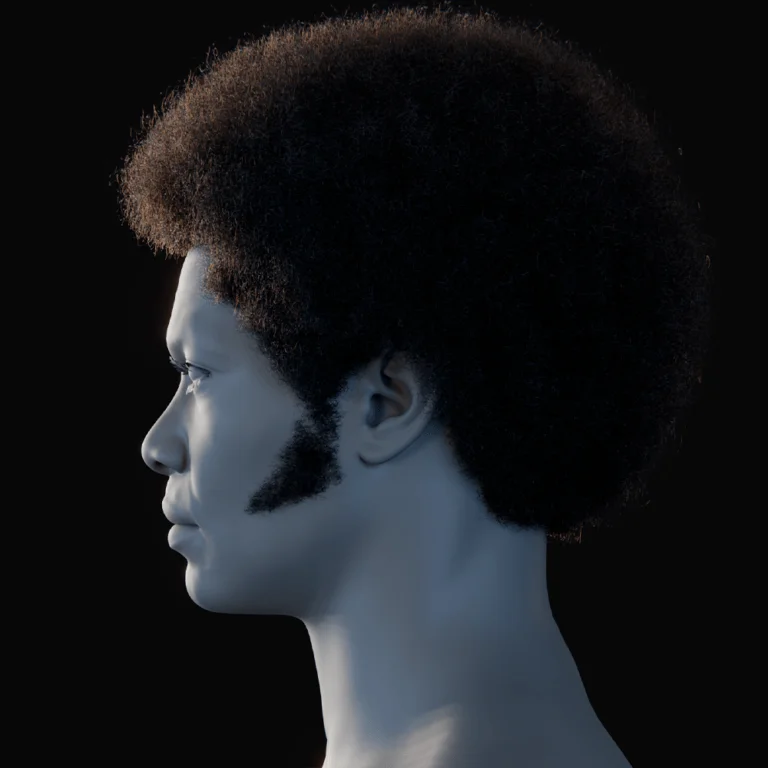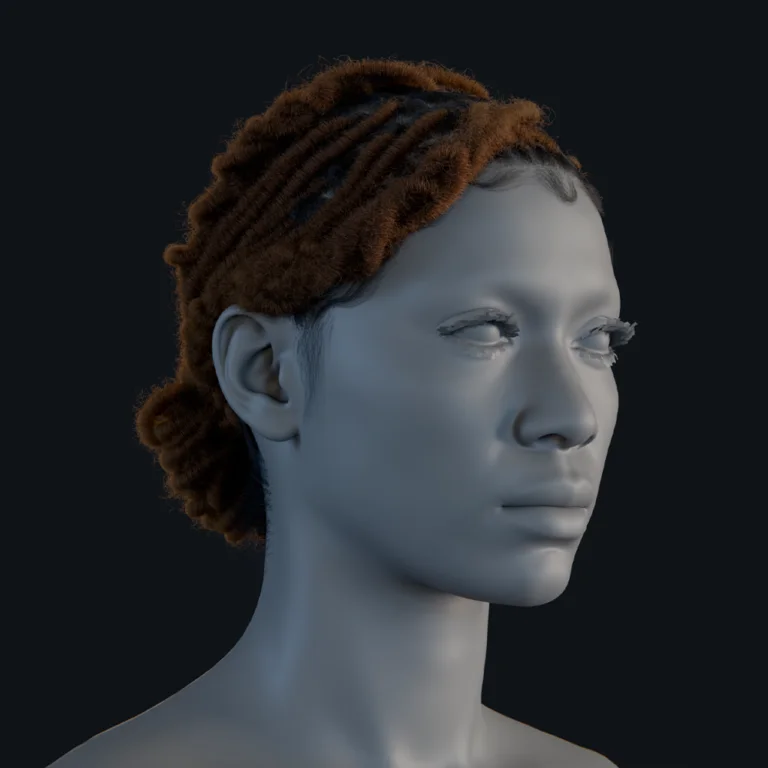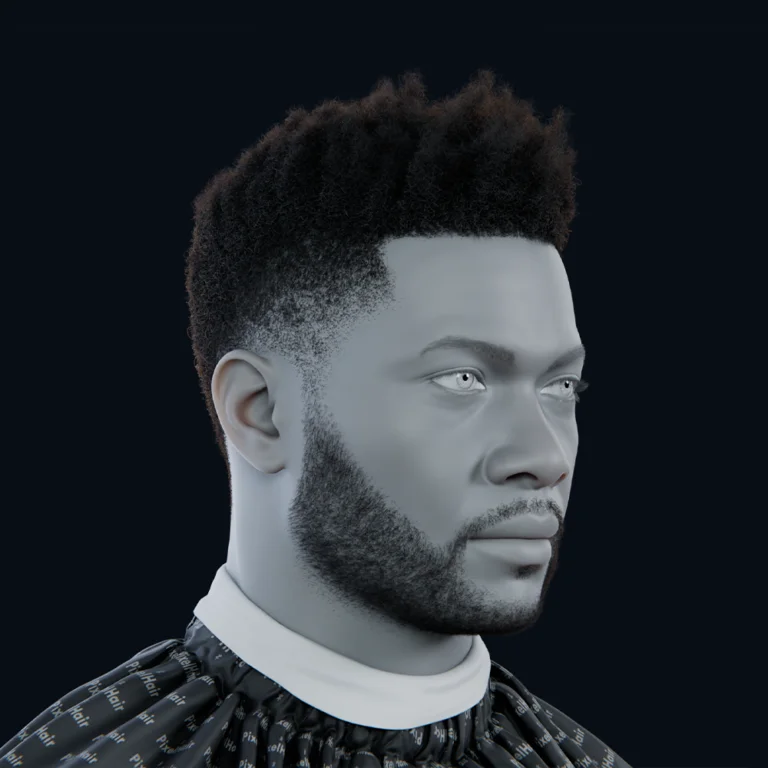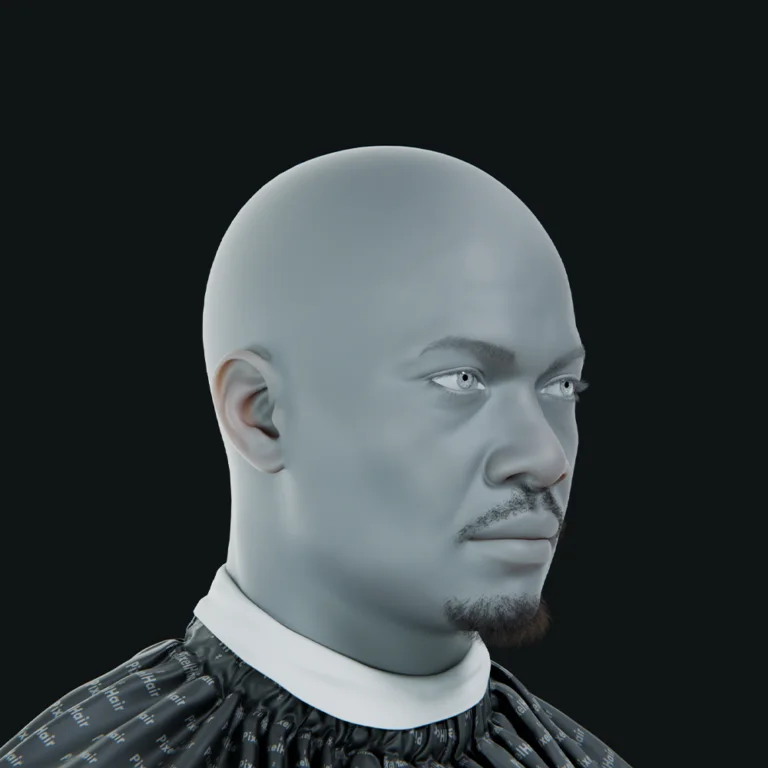







Introduction: The Rise of Metahumans in Unreal Engine 5
MetaHumans in Unreal Engine 5 (UE5) have revolutionized digital character creation by enabling artists to generate fully rigged, photorealistic 3D humans in minutes, drastically reducing the time compared to traditional months-long processes. These hyper-realistic characters are transformative for gaming, film, virtual production, and real-time animation, allowing studios and indie creators to achieve cinematic-quality visuals with real-time performance. Industry professionals in film have embraced MetaHumans as an essential tool for photorealistic projects, seamlessly bridging the gap between game graphics and live-action visuals. This comprehensive guide details the process of animating a MetaHuman in UE5, covering project setup, character import, keyframing, motion capture, and cinematic sequence creation, providing professional techniques and best practices to bring digital humans to life.
What Are Metahumans? An Overview of Unreal’s Cutting-Edge Digital Characters
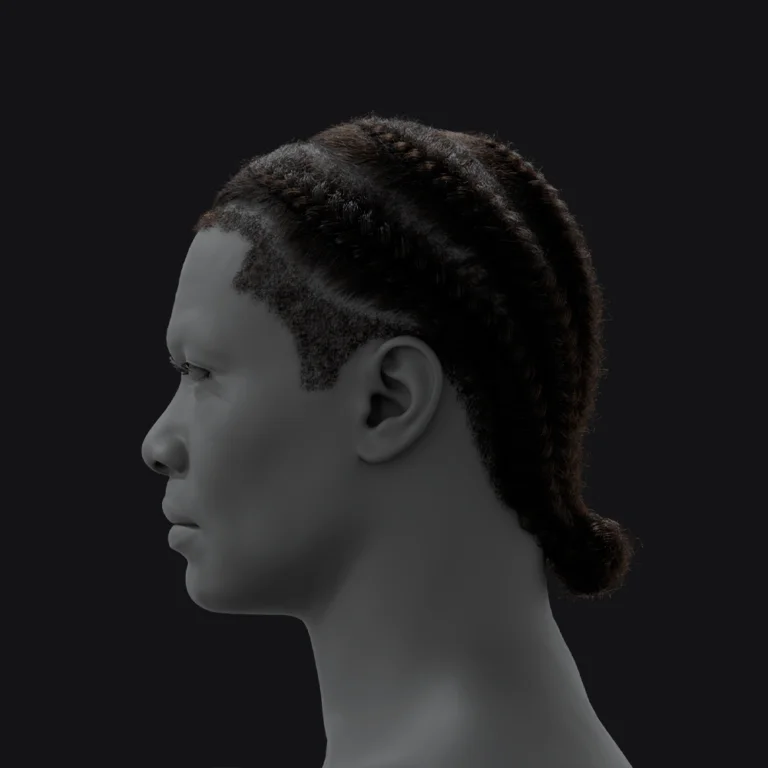
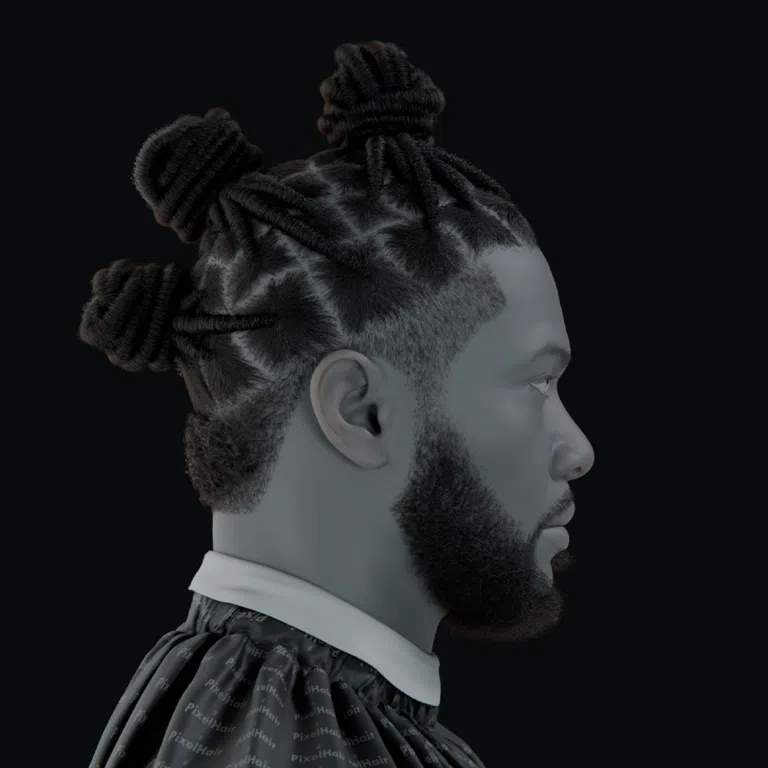
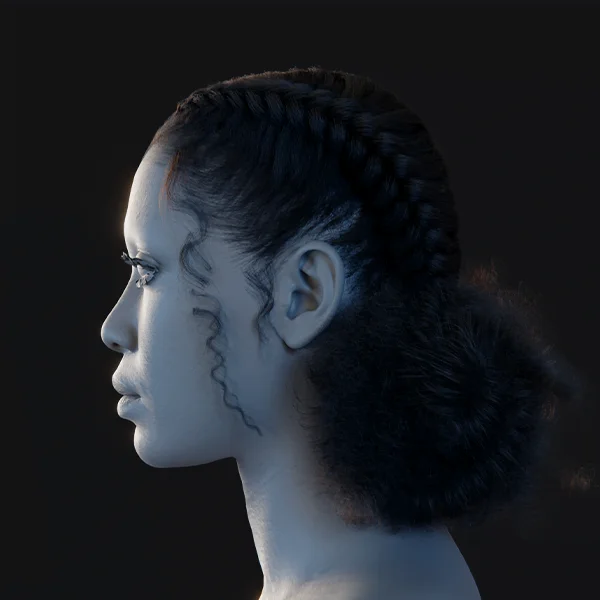
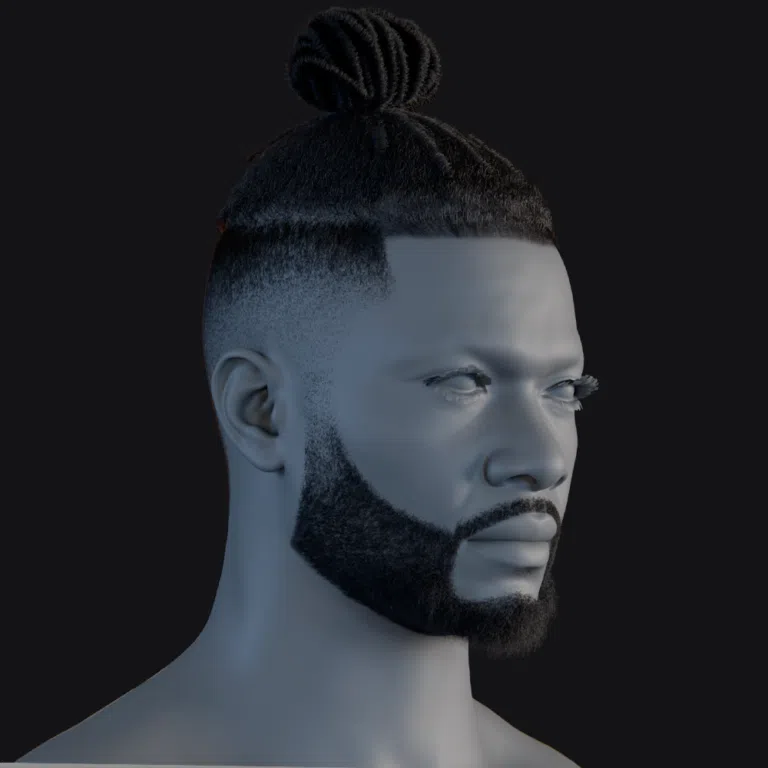
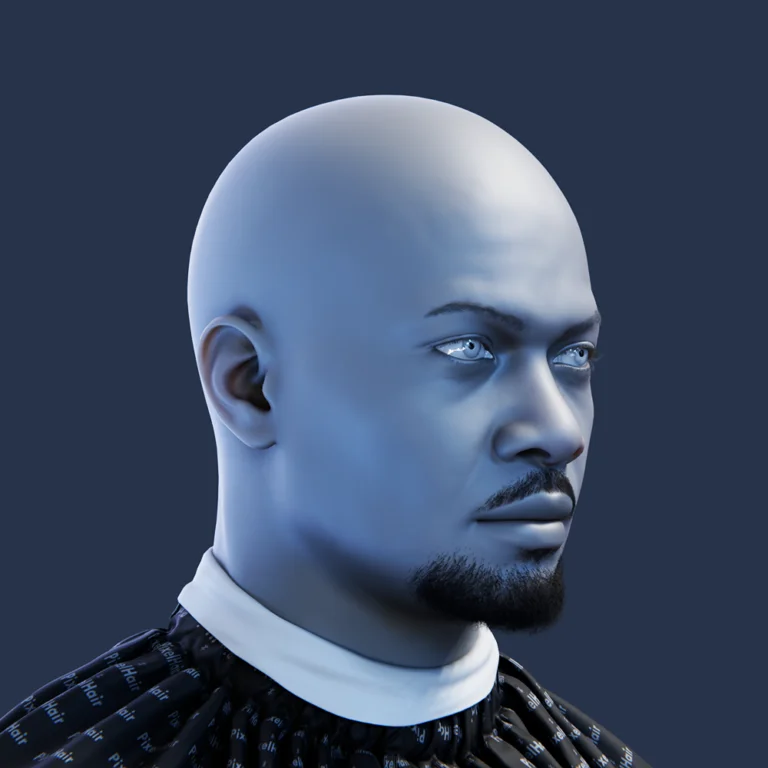
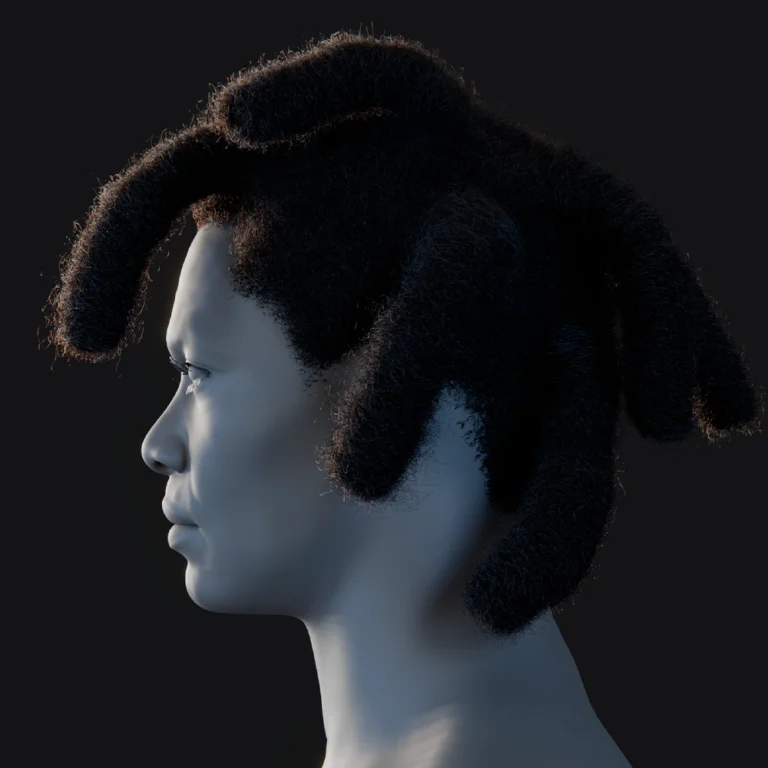
MetaHumans are Unreal Engine’s advanced framework for crafting highly realistic, customizable 3D characters that come pre-textured, fully rigged, and ready for immediate animation. Using the cloud-based MetaHuman Creator, artists can personalize facial features, body types, hair, and clothing, creating diverse characters that maintain authenticity through physically plausible adjustments derived from real human scans. With built-in skeletal and facial rigs, MetaHumans integrate effortlessly into UE5, enabling 3D artists, game developers, and filmmakers to populate their projects with lifelike digital actors suitable for next-generation games, virtual production, and film, delivering unparalleled realism and animation readiness.

Setting Up Unreal Engine 5 for Metahuman Animation
Setting up UE5 for MetaHuman animation requires ensuring adequate hardware and installing specific plugins to support the high-fidelity demands of these characters.
Hardware and software requirements
Animating MetaHumans demands robust hardware to handle their complexity. Epic Games recommends a multi-core processor such as an Intel Core i7 6700 or AMD Ryzen 5 2500X, a powerful GPU like an NVIDIA RTX 2070 with at least 6 GB VRAM, and a minimum of 32 GB RAM, though a higher-end setup with an Intel i9 or Ryzen 9 CPU, an NVIDIA RTX 3080 or 4080 (or AMD equivalent), and 64 GB RAM is preferred for optimal performance.
A fast SSD or NVMe drive is essential to manage the large MetaHuman asset files efficiently. Unreal Engine 5 requires a 64-bit operating system, with Windows 10/11 being the primary choice, though macOS is supported for development; however, certain features like MetaHuman Animator are Windows-exclusive. Using UE 5.2 or newer ensures access to the latest MetaHuman features, preventing slowdowns during animation workflows.
Installing necessary plugins and tools
Several plugins are critical for MetaHuman functionality in UE5, enhancing animation capabilities:
- Quixel Bridge: Integrated into UE5’s Content Browser, this tool allows seamless downloading and importing of MetaHuman assets directly within the editor, accessible via the Add/Import button and requiring an Epic Games account login for access.
- MetaHuman Plugin: An optional plugin that supports advanced features like Mesh to MetaHuman conversion for custom model integration and MetaHuman Animator for high-fidelity facial animation capture, enabled through Edit > Plugins in the UE5 editor.
- Control Rig: Typically enabled by default, this plugin provides interactive controls for manipulating MetaHuman skeletal and facial rigs, allowing precise animation within UE5, activated in the Plugins menu if not already enabled.
- Full Body IK: Supports realistic limb movements through Unreal’s Full-Body IK solver, generally enabled by default but verifiable in the Plugins menu, ensuring natural character posing.
- Live Link: Essential for real-time motion capture, this plugin enables UE5 to receive animation data from external sources, with additional Live Link Face or ARKit Face Support plugins for iPhone-based facial tracking using Apple’s ARKit technology.
After enabling these plugins, restarting UE5 ensures they load correctly. UE5 automatically prompts to enable any missing plugins during MetaHuman import, but pre-configuring them ensures a seamless animation setup, avoiding interruptions.

Importing and Configuring Your Metahuman in UE5
Importing a MetaHuman into UE5 involves using Quixel Bridge to bring in the character and optimizing its settings to balance performance and visual quality for animation.
Step-by-step import process
- Launch Quixel Bridge: Open Quixel Bridge within UE5 by selecting Add/Import > Add Quixel Content in the Content Browser, signing in with your Epic Games account to access the MetaHuman library.
- Find or create a MetaHuman: Browse the MetaHumans section in Bridge to select a premade character or locate a custom MetaHuman created via MetaHuman Creator, listed under My MetaHumans.
- Download the assets: Choose a Quality Level (Medium, High, or Epic) based on your needs, with Medium or High suitable for initial work to conserve space and Epic for maximum detail, then click Download to fetch the multi-gigabyte asset files.
- Add/Export to project: Click Add or Export in Bridge to transfer the MetaHuman to your UE5 project, monitoring the progress bar as it imports skeletal meshes, textures, materials, and other components.
- Enable plugins if prompted: Respond to any UE5 prompts to enable required plugins like IK Rig or Control Rig during the first MetaHuman import, restarting the editor if prompted to finalize settings.
- Locate assets: After import, find the MetaHuman in a new Content Browser folder (e.g., BP_CharacterName), containing the Blueprint, meshes, materials, and other assets organized in sub-folders.
- Add to level: Drag the MetaHuman Blueprint into the viewport of a new or existing Level, waiting for shader compilation to complete for full-quality rendering of skin, hair, and eyes, initially appearing in a T-pose or A-pose.
This process delivers a fully rigged MetaHuman ready for animation within your UE5 project.
Optimizing asset settings for animation
To manage the high resource demands of MetaHumans:
- Level of Detail (LOD) settings: Utilize the LODSync component in the MetaHuman Blueprint to adjust LODs (0–7), using LOD0 for close-up detail and LOD1/2 for editing to maintain frame rates, reserving higher LODs for final rendering.
- Groom (hair) optimization: Adjust hair density in the Groom Asset settings or switch to hair cards/meshes at lower LODs, disabling hair physics during animation to reduce CPU load, especially in complex scenes.
- Texture and material settings: Lower texture resolution or enable performance-oriented material options like simplified subsurface scattering for distant views, using UE5’s Scalability settings to dynamically adjust shader and texture quality.
- Disable unnecessary features: Turn off cloth simulation or physics bodies (e.g., for ragdoll) during keyframe animation, enabling them only for final renders to save processing power.
- Use a proxy or bounds: Hide the MetaHuman mesh when not animating or use unlit/wireframe viewport modes for faster scrubbing of complex animations, switching to lit mode for visual checks.
These optimizations ensure smooth animation workflows while preserving high-quality output for final renders.

Using Control Rig and Animation Blueprints for Metahumans
Control Rig and Animation Blueprints (AnimBPs) are central to animating MetaHumans, providing tools for direct posing and managing animation logic.
Overview of UE5’s Control Rig
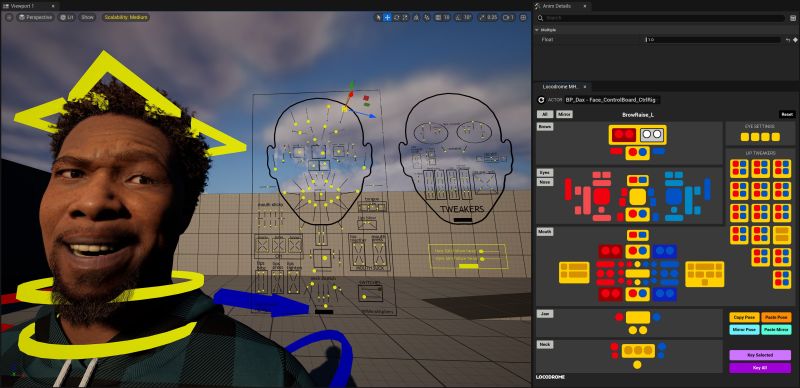
Control Rig enables intuitive, in-engine posing of MetaHumans without external software, featuring separate Body (MetaHuman_ControlRig) and Face (Face_ControlBoard_CtrlRig) rigs. Accessible in Sequencer, the Body rig offers IK controls for limbs and spine, while the Face rig includes a Facial Control Board GUI for adjusting expressions via brows, eyes, and lips. Animators manipulate colored controllers in the viewport or through the Picker UI, keyframing hierarchical controls for broad movements (e.g., head rotation) or fine details (e.g., finger curls), streamlining the animation process within UE5.
Creating and customizing Animation Blueprints
Animation Blueprints define how MetaHuman skeletons play animations, blend states, or respond to inputs, compatible with the Unreal Mannequin skeleton via IK Retargeting. To create:
- In Content Browser, select Animation > Animation Blueprint, choosing the MetaHuman’s Skeletal Mesh or Skeleton as the target.
- In the AnimBP’s AnimGraph, apply animations via Slots, Poses, or embed Control Rig nodes to combine procedural control with baked animations.
- Use AnimBPs for game inputs, state machines (e.g., Idle to Talking transitions), or blending animations, though Sequencer with Control Rig is sufficient for cinematic keyframing.
AnimBPs excel for pre-recorded animations or interactive scenarios, complementing Control Rig’s manual posing for flexible animation workflows.

Keyframe Animation Techniques for Metahumans
Keyframe animation in UE5’s Sequencer involves setting poses at specific frames, with interpolation creating fluid motion for MetaHumans.
Setting up keyframes and timelines
- Create a Level Sequence (Content Browser > Animation > Level Sequence).
- Add the MetaHuman to Sequencer via + Track > Actor to Sequencer, including Body and Face Control Rig tracks.
- At frame 0, pose the character (e.g., relaxed stance) using viewport controls, keying with S or the Details panel key button.
- Move the timeline (e.g., frame 48 at 24 fps for 2 seconds), set a new pose (e.g., arm wave), and key.
- Add breakdown keys (e.g., frame 24) for complex motions, refining interpolation in the Curve Editor.
- Enable Auto-Key for faster posing, label timeline sections (e.g., “Wave Start”), and preview animations in the viewport.
Tips for smooth transitions and natural movement
- Ease-in and ease-out: Adjust curve tangents in Sequencer’s Curve Editor for gradual acceleration/deceleration, ensuring smooth motion starts and stops.
- Overlap and follow-through: Offset keyframes for body parts (e.g., head turns before shoulders) to mimic natural motion layering, avoiding rigid unison movements.
- Add secondary motion: Incorporate subtle weight shifts, finger loosening, or breathing to enhance realism, using MetaHuman’s detailed controls for nuanced animations.
- Check arcs and spacing: Ensure movements follow arcs via trajectory views, adjusting spacing for natural acceleration/deceleration across frames.
- Leverage animation blends: Use Sequencer or AnimBPs to blend tracks (e.g., walking with upper-body waving), layering animations for complex scenes.
- Animate at higher frame rates: Add extra keys for fast motions, temporarily using 48/60 fps for nuanced interpolation, playable at 24 fps.
- Use reference footage: Mimic real human timing and postures from video references to capture authentic motion details like head bobs or weight shifts.
- Iterate with playblast: Render previews in Sequencer to identify stiffness, refining with smoothing filters for polished animations.
These techniques create lifelike, expressive MetaHuman animations within UE5’s interactive environment.

Enhancing Facial Animations: Tools and Techniques
MetaHuman facial rigs enable detailed, emotive animations through advanced controls and specialized tools, elevating character realism.
Utilizing facial control systems
The Face ControlBoard in Sequencer provides a GUI for manipulating facial blendshapes, accessible as a 2D diagram for selecting brow, eye, and lip controls. Disable viewport snapping for precise adjustments, posing expressions (e.g., frown with raised inner brows, lowered mouth corners) and keying with S. Use the Facial Pose Library for preset expressions (e.g., happy, sad), applying them to frames and tweaking for character-specific nuances. Add secondary motions like cheek raises or eye squints, and animate eye direction and periodic blinks to bring vitality, leveraging the rig’s multiple controls for complex, layered expressions.
Blending expressions and achieving realistic emotions
- Blend shapes gradually: Smooth transitions between expressions (e.g., happy to sad via neutral) using Sequencer’s curve editor, avoiding abrupt changes for natural flow.
- Asymmetry: Apply independent controls for uneven expressions (e.g., one-sided smirk or single eyebrow raise) to avoid unnatural symmetry, enhancing lifelike quality.
- Micro-expressions and motion: Add subtle twitches, blinks, or eye shifts to keep faces dynamic, preventing a static, CGI appearance during held expressions.
- Pay attention to eyes: Animate smooth saccades and periodic blinks to convey emotion and focus, ensuring correct eye lines for interactions.
- Use phonemes and lip sync: Drive lips with audio or manual jaw/lip controls, adjusting for emotional context to align speech with expressions.
- Leverage MetaHuman Animator: Use iPhone TrueDepth capture (UE 5.2+) for realistic facial performances, refining via Control Rig for fine-tuned results.
- Reactions and timing: Reflect emotional motivation (e.g., eyes widen before a gasp) to ensure believable transitions, acting out cues for accuracy.
- Context: Align facial expressions with body language and scene context (e.g., soft smile with a nod for agreement) for cohesive, realistic performances.
These techniques ensure MetaHuman facial animations are authentic and emotionally compelling, leveraging UE5’s tools for lifelike results.
Integrating Motion Capture Data with Metahumans
Motion capture (mocap) accelerates MetaHuman animation in Unreal Engine 5 (UE5) by providing realistic human motion, complementing keyframing with data from full-body suits or facial capture devices like iPhones. This section details preparing and importing mocap data and refining animations to align with a MetaHuman’s unique personality.
Preparing and importing mocap data
- Full-Body Motion Capture: Mocap suits (e.g., Rokoko, Xsens, Vicon) provide live streams via Live Link or recorded animations (e.g., FBX). Enable the Live Link plugin, add the mocap source in UE5’s Live Link panel, and use an IK Retargeter or Live Link Anim Blueprint to map the data to the MetaHuman skeleton. For recorded FBX, import as a Skeletal Animation asset, retarget to the MetaHuman skeleton using UE5’s IK Retargeter, aligning source and target bones, often with presets for common rigs like the UE4 mannequin.
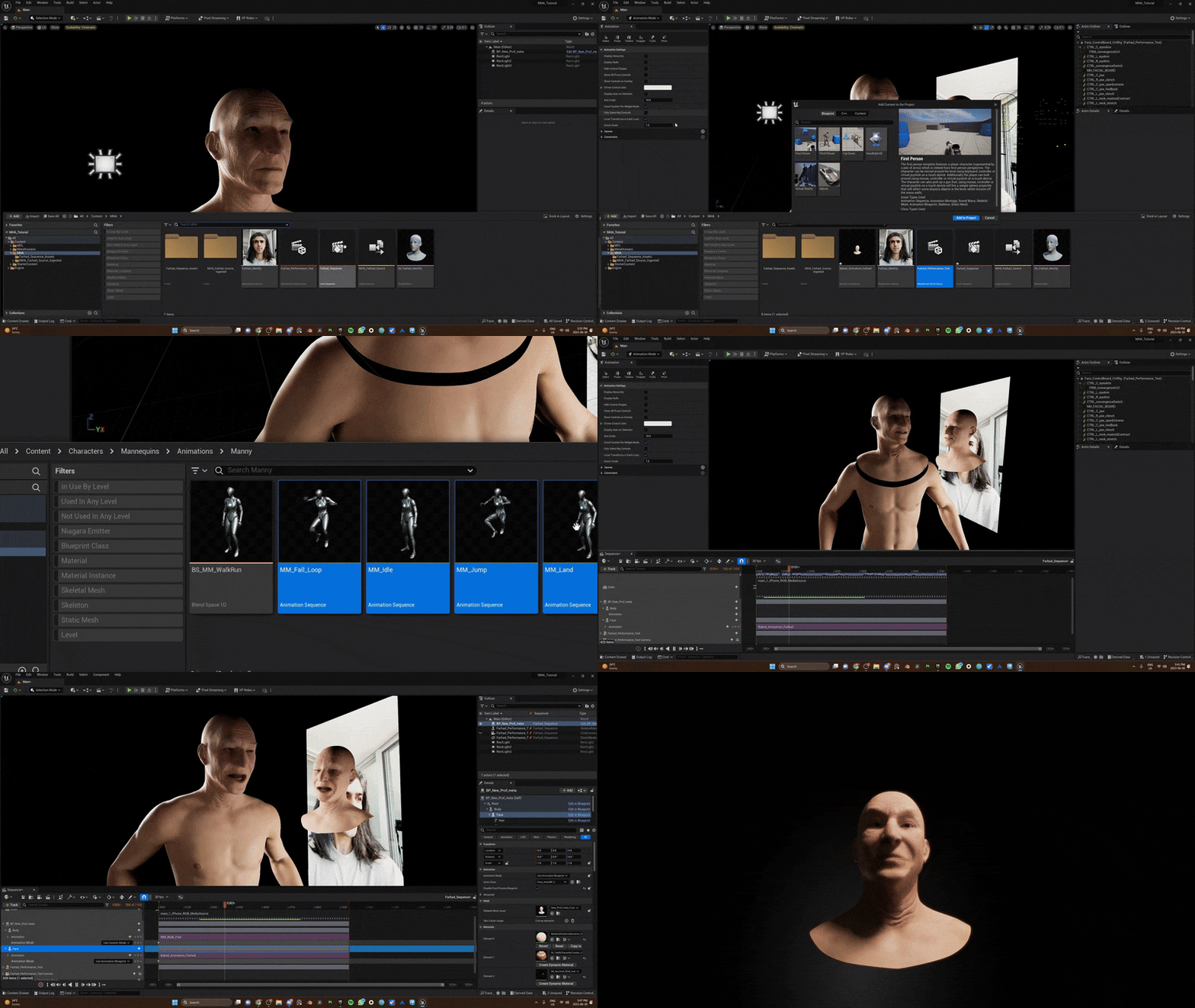
- Facial motion capture: Use the Live Link Face app on an iPhone/iPad to stream ARKit facial data to UE5, adding an ARKit Face subject in Live Link and mapping to the MetaHuman’s face rig via the LiveLinkFace AnimBP or component. Record performances in Take Recorder for Sequencer. Alternatively, UE5.2’s MetaHuman Animator converts iPhone-recorded video and calibration poses into high-fidelity facial animation assets automatically.
- Hands and other data: Integrate glove mocap or Leap Motion for finger animations via Live Link or imported assets. For props, animate objects to follow hand attachments in UE5, ensuring interaction realism.
- Skeleton compatibility and calibration: Ensure mocap data matches the MetaHuman’s UE4 mannequin-based skeleton (with added facial bones). Perform T-pose calibration in the IK Retargeter to align source and target poses, minimizing mapping errors. Test the applied mocap by playing or scrubbing in Sequencer, checking for accurate motion translation.
Mocap integration leverages UE5’s tools to apply realistic motion, requiring refinement to perfect the performance.
Refining animations to suit your character’s personality
- Use Control Rig for tweaks: Bake mocap animations to the Control Rig in Sequencer (right-click track, select Bake to Control Rig), converting them to editable keyframes. Adjust specific controls, like raising head keys for better posture or animating finger curls for expressive hands, to enhance the mocap’s base motion.
- Layer animations (additive tweaks): Apply additive animation layers in Sequencer or AnimBP to modify mocap non-destructively, adding subtle movements like hip bounces for exaggerated styles while preserving the original data.
- Trim and edit timing: Adjust animation timing in Sequencer by trimming or stretching clips, slowing gestures for drama or removing unwanted actions like stumbles, ensuring smooth loops for cyclical motions like walks.
- Personalize body language: Tailor mocap to the character’s personality (e.g., raised root motion for confident stances, hunched shoulders for timidity) by tweaking controls to add swagger or subtle pauses, transforming generic motion into character-specific performances.
- Clean up artifacts: Fix mocap issues like foot sliding by adjusting foot IK targets in Control Rig to maintain ground contact, or correct hand clipping by repositioning controls. Use Sequencer’s smoothing filters to reduce jittery curves, ensuring clean motion.
- Facial mocap refinement: Enhance facial mocap (e.g., from Live Link Face or MetaHuman Animator) by amplifying expressions like wider jaw opens for laughs or adjusting smile transitions for clarity, using the Face Control Rig to align with emotional beats and dialog.
- Synchronize body and face: Align body and facial mocap tracks in Sequencer to correct mismatches (e.g., offsetting head turns to sync with facial gaze), ensuring cohesive intensity between body language and expressions.
Refining mocap combines realistic motion with artistic adjustments, ensuring MetaHumans reflect their intended character traits.

Creating Cinematic Sequences with Sequencer
UE5’s Sequencer serves as both an animation and cinematic tool, enabling compelling presentation of MetaHuman animations through camera work, lighting, and editing.
Setting up cameras and lighting for dramatic effects
- Add a Cine Camera: In Sequencer, add a Camera Cuts track and create a Cine Camera Actor via the + Camera button, configuring focal length, aperture, and focus distance to mimic real camera behavior.
- Compose your shot: Use longer focal lengths (50–85mm) for emotional close-ups, focusing on eyes, or wider lenses (35mm or less) for dynamic full-body shots, applying composition rules like the Rule of Thirds with UE5’s viewport guides.
- Depth of Field: Enable DoF with a low f-stop for background blur, setting focus on the MetaHuman’s eyes using the eyedropper tool for cinematic emphasis.
- Camera movement: Animate cameras in Sequencer for dolly shots or handheld wobble, keying subtle movements to guide viewer attention, like zooming in during key dialogue moments.
- Lighting for mood: Use a key light (e.g., directional or spotlight) for main illumination, a softer fill light to reduce shadows, and a back light for edge outlining, adjusting intensity and color for mood (e.g., warm for cozy, blue for dramatic). Incorporate practical lights (e.g., TV glow, streetlamps) and volumetrics for atmospheric depth.
- Environment and background: Choose simple or blurred backgrounds to focus on the MetaHuman, or design complementary environments with fog to enhance lighting effects.
- Test with High Quality: Use Cinematic scalability or Path Tracer to verify lighting on MetaHuman shaders, ensuring realistic skin translucency and eye catchlights.
Strategic camera and lighting setups elevate MetaHuman animations, aligning visuals with narrative tone.

Editing and refining animated sequences
- Sequencing multiple shots: Use one Level Sequence with multiple Camera Cuts or create Sub-Sequences for each shot, combining them in a master sequence for complex projects to maintain organization.
- Trimming and cutting: Trim animation clips or sequence sections in Sequencer for pacing, cutting on action for seamless transitions, adjusting shot lengths to fit the narrative flow.
- Transitions: Apply hard cuts or key Camera Cuts for fades (e.g., crossfades or fade-to-black via a Fade track) to signal time passage or scene changes.
- Post-process effects: Use a Post Process Volume for color grading, vignettes, or bloom, animating settings for dynamic effects like monochrome flashbacks or DoF shifts, and adjust camera motion blur and exposure for visual balance.
- Audio and Lip Sync: Import audio into Sequencer, aligning lip sync with waveforms and adding subtle gestures (e.g., head nods, eyebrow raises) to emphasize dialogue, ensuring precise timing.
- Review in real-time: Play sequences in the editor to check flow, ensuring pose continuity across cuts and correcting issues like foot sliding during transitions for seamless playback.
- Use the Movie Render Queue: Export cinematics via Movie Render Queue with high-quality settings (e.g., anti-aliasing, 1080p/4K resolution, optional path tracing) for clean final videos, supporting separate passes for post-production.
- Iteration: Render drafts to identify issues like poor camera angles or lighting, returning to Sequencer for quick adjustments, leveraging UE5’s real-time environment for rapid iteration.
These techniques create polished, cinematic MetaHuman sequences that captivate viewers.
Troubleshooting Common Animation Issues in UE5
MetaHuman animation in UE5 can encounter technical challenges, addressed through targeted solutions for rigging, skinning, and performance issues.
Addressing rigging and skinning problems
- Misaligned or twisted bones: Correct odd limb behavior (e.g., twisted elbows) by adjusting IK/FK settings or pole vectors in the Control Rig, switching to quaternion interpolation to avoid gimbal lock issues.
- Skin weight issues: Fix custom geometry deformations (e.g., collapsing coats) by painting weights in UE5’s Weight Paint mode or a 3D tool, or use cloth physics for dynamic elements.
- Facial rig problems: Ensure the Face track is active in Sequencer and disable Snap to Grid for smooth facial control movements, adjusting neighboring controls to prevent issues like lip intersections in extreme poses.
- Animation not playing: Verify the AnimBP’s skeletal mesh assignment and disable active Control Rig tracks if testing baked animations, ensuring correct retargeting settings to avoid T-pose issues.
- Glitchy Cloth or Hair: Stabilize physics-driven cloth or hair by increasing substeps or damping in physics settings, or disable simulations for key shots, manually animating if needed.
These solutions address visual glitches in MetaHuman rigging and skinning.

Tips for fixing playback and performance issues
- Low Frame Rate during animation editing: Apply optimization techniques (lower LODs, simplified hair) and hide non-essential scene actors via World Outliner, using Unreal Insights or ProfileGPU to identify bottlenecks like expensive shaders.
- Sequencer lag or jumping frames: Reduce Playback resolution or skip frames in Sequencer’s toolbar to maintain real-time playback, or render previews at lower resolution for timing checks.
- Live Link latency or disconnections: Record Live Link data via Take Recorder to eliminate latency, ensuring network stability with wired connections or dedicated routers, and avoid duplicate device sources.
- Animation popping at loop or cut: Match first and last frames for loops or use cross-fades, ensuring pose continuity across cuts or forcing consistent LODs to prevent mesh shifts.
- Memory issues: Use lower LODs for secondary MetaHumans, download Medium Quality assets via Bridge, and remove unused assets to manage memory with multiple characters.
- Control Rig not keying or weird keys: Confirm keyframes are set (visible as diamonds) with Auto-Key enabled or manual S presses, resolving IK/FK conflicts by adjusting rig switches.
- Audio sync issues: Lock Sequencer to audio clock or scrub audio for timing, offsetting audio slightly if needed, ensuring final renders maintain sync.
These steps resolve performance and playback issues, maintaining a smooth workflow.
Expert Tips and Best Practices for Metahuman Animation
- Plan and block out first: Create storyboards and block rough key poses in Sequencer to validate timing and storytelling, refining details after approval to streamline the process.
- Use the MetaHuman facial pose library as starting points: Begin with preset expressions (e.g., smile, frown) for anatomically correct bases, layering unique tweaks to save time and ensure realism.
- Keep animations modular and reusable: Save common actions (e.g., walks, nods) as Animation Sequences or Control Rig assets for reuse across MetaHumans, building a library for efficiency.
- Leverage Take Recorder for iterations: Record multiple mocap takes with Take Recorder, organizing them by date/time to select or blend the best segments, mimicking film production workflows.
- Optimize for large-scale projects: Split scenes into levels or sequences, use Level Streaming, employ source control (Git LFS/Perforce), and establish naming conventions for team collaboration.
- Third-Party plugins and tools: Use community tools like custom Control Rig pickers, Rokoko Studio Live Link, Faceware, or Allright Rig for enhanced mocap or rigging workflows, integrating with MetaHuman pipelines.
- Animation Layers in UE5: Experiment with UE5’s Animation Layering for non-destructive layering (e.g., base motion, breathing), enabling easy adjustments by toggling layers.
- Physics blends for realism: Apply subtle ragdoll physics for secondary motion or use Look At nodes for accurate eye targeting, recording physics for consistency if needed.
- Review on target hardware: Test animations on target platforms for real-time applications, optimizing bone counts for crowds or adjusting for lower frame rates in interactive contexts.
- Continual learning: Stay updated with Unreal Engine releases, community forums, and shared assets to adopt new features like improved mocap solving or control rig enhancements.
- Story and performance first: Prioritize character intent with subtle cues (e.g., head tilts for curiosity), seeking feedback to ensure emotional clarity and engaging timing.
These practices enhance efficiency and quality in MetaHuman animation workflows.

FAQ Questions and Answers
- What is a MetaHuman and how is it different from a regular 3D character?
A MetaHuman is a photorealistic digital human from Epic Games, pre-built with textures, hair, and a full rig, unlike typical 3D characters requiring manual modeling and rigging, enabling immediate customization and animation. - Do I need Unreal Engine 5 to use MetaHumans, or can I use them in UE4?
MetaHumans work with UE4.26.2+ but are best in UE5 for integrated Quixel Bridge, new features like MetaHuman Animator (UE5.2+), and enhanced rendering like Lumen. - What kind of hardware do I need to animate MetaHumans smoothly?
A multi-core CPU (8+ threads), modern GPU (NVIDIA RTX 20-series, 6–8 GB VRAM), and 32 GB RAM are minimum, with high-end CPUs (i9/Ryzen 9), RTX 3080/4080, 64 GB RAM, and an SSD preferred for optimal performance. - Can I use motion capture to animate MetaHumans?
Yes, MetaHumans support body mocap via Live Link (Rokoko, Xsens) and facial mocap via Live Link Face or MetaHuman Animator (UE5.2+), with retargeting for seamless integration, requiring cleanup for best results. - Is coding required to animate MetaHumans in UE5?
No, Control Rig and Sequencer enable visual animation without coding, though Blueprints can enhance interactivity, with C++ only needed for advanced customizations. - Are MetaHumans used in real games or films, or are they just for demos?
MetaHumans are used in real productions, including short films (e.g., The Well), game cutscenes, and virtual production, optimized for high-end NPCs or main characters. - How can I make my MetaHuman’s facial animations more realistic?
Use mocap or reference for primary movements, add micro-expressions (e.g., eyebrow twitches), animate lively eyes with blinks, and layer pose library expressions with manual tweaks for nuanced realism. - Can I animate a MetaHuman entirely by hand, without any mocap?
Yes, hand-keyframing via Control Rig and Sequencer is possible, though time-intensive, requiring careful refinement with video references to achieve realistic human motion. - What additional software or resources do I need besides UE5 to animate MetaHumans?
UE5 is sufficient, but MetaHuman Creator, DCC tools (Maya, Blender), mocap software, audio editors, and community plugins can enhance workflows, with reference footage being highly valuable. - Where can I find more resources or tutorials on MetaHuman animation?
Explore Unreal Engine documentation, YouTube tutorials, Unreal Online Learning, Epic Developer Community forums, Epic’s blog, and community platforms like Discord or Reddit, plus sample MetaHuman projects for practical learning.
Conclusion: The Future of Metahuman Animation in Unreal Engine 5
MetaHuman animation in UE5 empowers small teams and individuals to create realistic digital humans, once a big-budget task. AI and machine learning, like MetaHuman Animator, are enhancing facial and potentially body animation, automating realism while allowing artistic refinement. Future MetaHumans will feature greater detail (e.g., dynamic wrinkles, improved hair) and real-time rendering nearing film quality via Lumen and ray tracing.
Integration with platforms like Fab and cloud-based collaboration will expand accessibility, while virtual production and live events will leverage MetaHumans for real-time puppeteering. In games, stronger hardware will enable MetaHumans in gameplay, with advanced real-time animation systems. The growing community and evolving tools, like intuitive UIs and node-based editors, will make MetaHuman animation increasingly accessible, blending classic principles with cutting-edge technology for limitless creative possibilities.

References & Additional Resources
- Epic Games / Unreal Engine official sources
- Epic Games — MetaHuman Documentation: Animation (Animating MetaHumans hub)
Link: https://dev.epicgames.com/documentation/en-us/metahuman/animation
APA 7: Epic Games. (n.d.). Animation | MetaHuman Documentation. Epic Developer Community. Retrieved February 18, 2026, from https://dev.epicgames.com/documentation/en-us/metahuman/animation - Epic Games — Animating MetaHumans with Control Rig (step-by-step page)
Link: https://dev.epicgames.com/documentation/en-us/metahuman/animating-metahumans-with-control-rig-in-unreal-engine
APA 7: Epic Games. (n.d.). Animating MetaHumans with Control Rig in Unreal Engine. Epic Developer Community. Retrieved February 18, 2026, from https://dev.epicgames.com/documentation/en-us/metahuman/animating-metahumans-with-control-rig-in-unreal-engine - Epic Games — Animating MetaHumans with Live Link (real-time performance)
Link: https://dev.epicgames.com/documentation/en-us/metahuman/animating-metahumans-with-livelink-in-unreal-engine
APA 7: Epic Games. (n.d.). Animating MetaHumans with Live Link in Unreal Engine. Epic Developer Community. Retrieved February 18, 2026, from https://dev.epicgames.com/documentation/en-us/metahuman/animating-metahumans-with-livelink-in-unreal-engine - Epic Games — Retargeting animations between MetaHumans (retargeting guide)
Link: https://dev.epicgames.com/documentation/en-us/metahuman/retargeting-animations-between-metahumans-in-unreal-engine-5
APA 7: Epic Games. (n.d.). Retargeting Animations Between MetaHumans. Epic Developer Community. Retrieved February 18, 2026, from https://dev.epicgames.com/documentation/en-us/metahuman/retargeting-animations-between-metahumans-in-unreal-engine-5 - Unreal Engine / MetaHuman Creator main pages (overview + entry points)
Main MetaHuman overview: https://www.metahuman.com/en-US
MetaHuman Creator (documentation overview): https://dev.epicgames.com/documentation/en-us/metahuman/metahuman-creator
MetaHuman Creator web app entry: https://metahuman.unrealengine.com
APA 7 (overview page): Epic Games. (n.d.). MetaHuman | Digital Humans. Retrieved February 18, 2026, from https://www.metahuman.com/en-US
APA 7 (creator doc page): Epic Games. (n.d.). MetaHuman Creator. Epic Developer Community. Retrieved February 18, 2026, from https://dev.epicgames.com/documentation/en-us/metahuman/metahuman-creator - Unreal Engine spotlight — “MetaHumans star in Treehouse Digital’s animated short horror film The Well”
Link: https://www.unrealengine.com/en-US/spotlights/metahumans-star-in-treehouse-digital-s-animated-short-horror-film-the-well
APA 7: Epic Games. (2022, March 2). MetaHumans star in Treehouse Digital’s animated short horror film The Well. Unreal Engine. Retrieved February 18, 2026, from https://www.unrealengine.com/en-US/spotlights/metahumans-star-in-treehouse-digital-s-animated-short-horror-film-the-well - Unreal Online Learning — MetaHuman tutorials / courses hub
Learning hub (MetaHuman): https://dev.epicgames.com/community/metahuman/learning
APA 7: Epic Games. (n.d.). Learning – MetaHuman. Epic Developer Community. Retrieved February 18, 2026, from https://dev.epicgames.com/community/metahuman/learning - Unreal Online Learning course — MetaHuman Workflows with Faceware Studio
Course page: https://dev.epicgames.com/community/learning/courses/d66/unreal-engine-metahuman-workflows-with-faceware-studio
APA 7: Epic Games. (2023, January 22). MetaHuman Workflows with Faceware Studio. Epic Developer Community. Retrieved February 18, 2026, from https://dev.epicgames.com/community/learning/courses/d66/unreal-engine-metahuman-workflows-with-faceware-studio - Unreal Online Learning course — MetaHumans for Virtual Production
Course page: https://dev.epicgames.com/community/learning/courses/ML/unreal-engine-metahumans-for-virtual-production
APA 7: Epic Games. (2022, September 26). MetaHumans for Virtual Production. Epic Developer Community. Retrieved February 18, 2026, from https://dev.epicgames.com/community/learning/courses/ML/unreal-engine-metahumans-for-virtual-production - Unreal Engine blog (Faceware learning announcement) — “Learn how to create real-time facial animation for your MetaHumans”
Link: https://www.unrealengine.com/en-US/blog/learn-how-to-create-real-time-facial-animation-for-your-metahumans
APA 7: Epic Games. (2022, February 17). Learn how to create real-time facial animation for your MetaHumans. Unreal Engine. Retrieved February 18, 2026, from https://www.unrealengine.com/en-US/blog/learn-how-to-create-real-time-facial-animation-for-your-metahumans - Unreal Engine Developer Community Forum — MetaHuman tag (browse threads / troubleshooting)
Link: https://forums.unrealengine.com/tag/metahuman
APA 7: Epic Developer Community. (n.d.). Topics tagged “metahuman”. Retrieved February 18, 2026, from https://forums.unrealengine.com/tag/metahuman - Third-party workflow guides
- Rokoko — Guide to Animating MetaHumans with Motion Capture
Link: https://www.rokoko.com/insights/guide-to-animating-metahumans-in-ue4
APA 7: Rokoko. (2022, July 5). Guide to animating MetaHumans in UE4. Retrieved February 18, 2026, from https://www.rokoko.com/insights/guide-to-animating-metahumans-in-ue4 - YouTube tutorials (Control Rig, Sequencer, facial animation)
- Unreal Engine (official YouTube channel)
Link: https://www.youtube.com/unrealengine
APA 7: Unreal Engine. (n.d.). Unreal Engine (YouTube channel). YouTube. Retrieved February 18, 2026, from https://www.youtube.com/unrealengine - Unreal Engine — “Animating MetaHumans with Control Rig in UE” (example tutorial video)
Link: https://www.youtube.com/watch?v=2k2gNc_7CT0
APA 7: Unreal Engine. (n.d.). Animating MetaHumans with Control Rig in UE [Video]. YouTube. Retrieved February 18, 2026, from https://www.youtube.com/watch?v=2k2gNc_7CT0 - Unreal Engine — “Using the MetaHuman Facial Rig in UE” (facial rig walkthrough)
Link: https://www.youtube.com/watch?v=GEpH3o44_58
APA 7: Unreal Engine. (n.d.). Using the MetaHuman Facial Rig in UE [Video]. YouTube. Retrieved February 18, 2026, from https://www.youtube.com/watch?v=GEpH3o44_58 - JSFilmz (notable independent tutor channel)
Link: https://www.youtube.com/jsfilmz
APA 7: JSFilmz. (n.d.). JSFilmz (YouTube channel). YouTube. Retrieved February 18, 2026, from https://www.youtube.com/jsfilmz - William Faucher (notable independent tutor channel)
Link: https://www.youtube.com/@WilliamFaucher
APA 7: William Faucher. (n.d.). William Faucher (YouTube channel). YouTube. Retrieved February 18, 2026, from https://www.youtube.com/@WilliamFaucher - Faceware + Glassbox Live Client (pro facial capture pipeline)
- Epic Dev Community tutorial — Glassbox Live Client (setup/config)
Link: https://dev.epicgames.com/community/learning/tutorials/aqvX/unreal-engine-glassbox-live-client
APA 7: Epic Games. (2023, April 13). Glassbox Live Client. Epic Developer Community. Retrieved February 18, 2026, from https://dev.epicgames.com/community/learning/tutorials/aqvX/unreal-engine-glassbox-live-client - Faceware Support — “MetaHumans and Glassbox Live Client for Unreal plugin”
Link: https://support.facewaretech.com/live-client-metahumans
APA 7: Faceware Technologies. (2021, April 13). MetaHumans and Glassbox Live Client for Unreal plugin. Retrieved February 18, 2026, from https://support.facewaretech.com/live-client-metahumans - Glassbox product page — Live Client for Unreal Engine
Link: https://glassboxtech.com/products/live-client
APA 7: Glassbox Technologies. (n.d.). Live Client. Retrieved February 18, 2026, from https://glassboxtech.com/products/live-client - MetaHuman FAQ (Official)
- MetaHuman FAQ (official)
Link: https://www.metahuman.com/en-US/faq
APA 7: Epic Games. (n.d.). MetaHuman | FAQ. Retrieved February 18, 2026, from https://www.metahuman.com/en-US/faq - Epic documentation — FAQ and Troubleshooting for MetaHumans
Link: https://dev.epicgames.com/documentation/en-us/metahuman/faq-and-troubleshooting-for-metahumans
APA 7: Epic Games. (n.d.). FAQ and Troubleshooting for MetaHumans. Epic Developer Community. Retrieved February 18, 2026, from https://dev.epicgames.com/documentation/en-us/metahuman/faq-and-troubleshooting-for-metahumans - Community Discords + social tags
- Unreal Engine Community Discord (large independent UE community)
Invite link: https://discord.com/invite/unreal-engine-978033435895562280
APA 7: Discord. (n.d.). Unreal Engine (Discord invite). Retrieved February 18, 2026, from https://discord.com/invite/unreal-engine-978033435895562280 - Unreal Source (formerly widely known as “Unreal Slackers”) Discord
Invite link: https://discord.com/invite/unrealsource
APA 7: Discord. (n.d.). Unreal Source (Discord invite). Retrieved February 18, 2026, from https://discord.com/invite/unrealsource - X (Twitter) hashtag — #metahuman
Link: https://x.com/hashtag/metahuman
APA 7: X. (n.d.). #metahuman (hashtag). Retrieved February 18, 2026, from https://x.com/hashtag/metahuman - Instagram popular tag page — “metahumans” (community reels/posts)
Link: https://www.instagram.com/popular/metahumans/
APA 7: Instagram. (n.d.). Metahumans (popular tag). Retrieved February 18, 2026, from https://www.instagram.com/popular/metahumans/
Recommend
- Top Video Games with Really Good Foley Work: The Best Sound Design in Gaming
- How to Create Warhammer Sisters of Battle Characters with MetaHuman in Unreal Engine 5
- Why Does Hair Look Bad in Video Games? Exploring the Challenges of Realistic Hair Rendering
- Clair Obscur: Expedition 33 – Sales Milestones, Developer Insights, and Community Reactions
- How to Get the Perfect Hair Roughness for a Realistic Look
- Animating 2D Illustrations in Blender: A Comprehensive Guide for Vocaloid and J-Pop Themed Characters
- Top Wonder Dynamics Alternatives: Exploring AI-Powered VFX Platforms for Creators
- What is the “Follow Path” constraint for cameras in Blender?
- inZOI vs The Sims 4: A Comprehensive Comparison of Life Simulation Games
- How do I make the camera follow a path in Blender?