








Fix Blender Unsupported graphics card or driver – Seeing this error in Blender can be frustrating, as it prevents the program from even launching. In this comprehensive guide, we’ll explain what the “Unsupported Graphics Card or Driver” error means, why it happens, and most importantly how to fix it.
We’ll cover solutions for Blender 3.6+ as well as older versions, on both Windows and macOS (with Linux notes where relevant). You’ll learn how to update your GPU drivers, switch between integrated and dedicated graphics, enable GPU compute, recover from crashes, and more. We’ll also include official links to driver update pages (NVIDIA, AMD, Intel), Blender’s system requirements, and compatibility documentation to ensure you have accurate, up-to-date information. Whether you’re a beginner or an advanced 3D artist, this step-by-step guide will help you resolve Blender’s GPU errors and get back to creating. Let’s dive in!
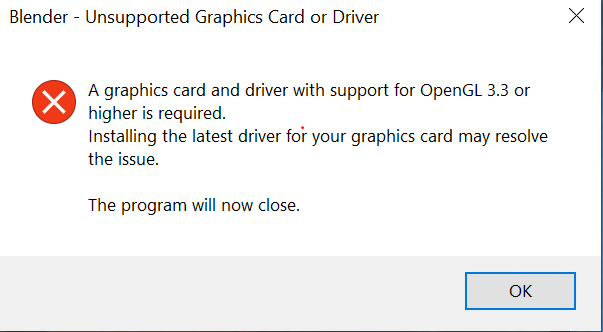
What Does “Unsupported Graphics Card or Driver” Mean in Blender?
The “Unsupported Graphics Card or Driver” error in Blender indicates that your GPU or its driver lacks the required OpenGL support (minimum OpenGL 3.3 for Blender 2.80+, or OpenGL 4.3 for newer versions) for the interface and 3D viewport. Blender relies on OpenGL for its UI and EEVEE rendering, and if the GPU is outdated or the driver doesn’t provide the necessary features, Blender halts with a message like: “Error! Unsupported graphics card or driver. A graphics card and driver with support for OpenGL X.X or higher is required. The program will now close.” This prevents crashes or glitches. The issue may stem from an outdated driver, even on a capable GPU, or hardware that doesn’t meet Blender’s standards.
Why Am I Seeing the Unsupported Graphics Card Error in Blender?
Common reasons for this error include:
- Outdated Graphics Drivers: Old drivers may not support the required OpenGL version, such as a generic Windows driver lacking OpenGL 3.3+ functionality. Updating to the latest driver often resolves this.
- GPU Below Blender’s Minimum Requirements: Older GPUs (e.g., Intel HD 3000 or pre-2010 NVIDIA/AMD cards) may only support OpenGL 2.x, failing to meet Blender’s OpenGL 3.3 (or 4.3 for newer versions) requirement.
- Multiple GPUs or Wrong GPU Being Used: On systems with integrated and dedicated GPUs, Blender may default to the weaker GPU (e.g., Intel chip) that lacks sufficient OpenGL support, triggering the error.
- Corrupted or Improper Driver Installation: Corrupted or incomplete driver installations, often after OS updates, can prevent Blender from detecting GPU capabilities.
- Running Blender in Remote Desktop/Virtual Machine: Remote Desktop or VMs without GPU passthrough may use virtual GPUs lacking OpenGL support, causing the error.
- Operating System Limitations (macOS/Linux): Older macOS versions or hardware (pre-Metal) or Linux with incorrect drivers (e.g., Nouveau for NVIDIA) may limit OpenGL support.
In summary, the error occurs when Blender cannot find a compatible graphics environment due to driver or hardware issues. The next sections verify GPU compatibility and provide fixes.
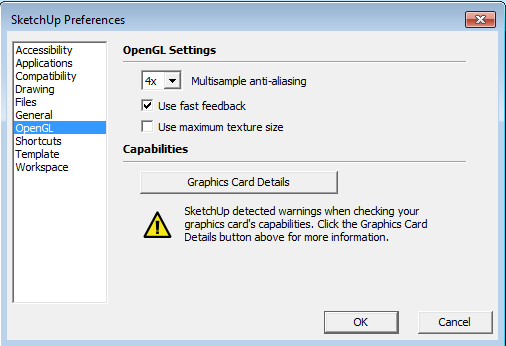
How to Check If Your Graphics Card Is Compatible with Blender
To confirm GPU compatibility with Blender:
- Identify Your GPU Model: On Windows, use dxdiag or Device Manager; on macOS, check System Report; on Linux, use lspci or glxinfo commands to identify your GPU.
- Compare with Blender’s Supported GPU List: Blender supports NVIDIA GeForce 400 series+, AMD Radeon HD 7000 series+, and Intel Broadwell (5th gen)+ GPUs, roughly from 2010–2015 depending on the brand.
- NVIDIA: GeForce GTX 400+ to RTX 40xx are compatible; older GTX 200 series are not.
- AMD: Radeon HD 7000, RX series+ work; HD 5000/6000 may lack features.
- Intel: HD 5000, Iris+ (2014+) are supported; HD 3000/4000 (2011–2012) often fail.
- Check OpenGL Capability: Tools like GLCapsViewer or glxinfo reveal your OpenGL version. Blender needs 3.3+ (or 4.3 for newer versions); e.g., Intel HD 3000 supports only 3.1, while modern GPUs support 4.x.
- Use Blender’s System Info (if accessible): In Blender, Help > Save System Info provides GPU, driver, and OpenGL details, confirming what Blender detects.
If your GPU isn’t supported (e.g., Intel 4th gen), use older Blender versions (2.79b) or upgrade hardware. If supported, driver updates or configuration fixes are likely solutions.
What Are the Minimum GPU Requirements for Running Blender?
Blender’s minimum GPU requirements are:
- OpenGL Version: Blender 2.80+ needs OpenGL 3.3; Blender 3.3+ (including 3.6 LTS, 4.x) effectively requires OpenGL 4.3. Older Blender 2.7x needed only OpenGL 2.1.
- Graphics Memory (VRAM): Minimum 2 GB VRAM, with 4–8 GB recommended for better performance. Low VRAM GPUs are often older and may face limitations.
- Supported GPU Models: NVIDIA Fermi (GeForce 400+), AMD GCN (Radeon 7000+), Intel Broadwell (5th gen)+. Pre-2010 NVIDIA/AMD or pre-2015 Intel GPUs may not work reliably.
- Metal for macOS: Blender 3.0+ uses Metal 2.2 on macOS 11+, supporting Macs from 2012+ with Intel Skylake or AMD GPUs.
In summary, Blender requires a GPU with 2 GB VRAM supporting OpenGL 4.3 (or Metal 2 on macOS). Meeting these ensures Blender runs, though powerful GPUs enhance performance.

How to Fix Blender Unsupported Graphics Card or Driver Error
To resolve the error on a capable GPU:
- Update Your Graphics Drivers: Download the latest drivers from the GPU manufacturer to unlock OpenGL support and fixes.
- Verify the Correct GPU is Being Used: On dual-GPU systems, force Blender to use the dedicated GPU via Windows Graphics Settings or NVIDIA/AMD panels.
- Check Blender’s System Requirements vs Your GPU: Confirm your GPU meets OpenGL and model requirements; if not, use older Blender versions or upgrade hardware.
- Install the Appropriate Drivers: On Windows, use NVIDIA Studio/Game Ready, AMD Adrenalin/Pro, or Intel drivers; on Linux, use proprietary NVIDIA or updated Mesa drivers.
- Try Launching Blender Again: Use –debug-gpu flag for error details if it fails.
- Use Compatibility Mode: Run Blender in Windows 8 compatibility mode to bypass driver conflicts.
- Adjust Blender Settings: Switch EEVEE to CPU rendering or disable GPU in Cycles for stability.
- Fallback Plan: Use Blender 2.79 for older GPUs or consider hardware upgrades.
Most issues are resolved by updating drivers, as advised by Blender’s error message.
How to Update Your Graphics Driver to Fix Blender Errors
Updating drivers ensures Blender accesses required OpenGL support:
- On Windows (NVIDIA/AMD/Intel GPUs):
- NVIDIA: Download from NVIDIA’s site or use GeForce Experience; opt for Studio Drivers for stability. Use clean installation to remove old settings.
- AMD: Get Adrenalin drivers for Radeon or Pro drivers for workstation cards from AMD’s site; factory reset for old drivers.
- Intel: Use Intel’s Download Center or Driver Assistant for UHD/Iris graphics; older HD 4000 may need specific drivers.
- Clean Installation: Use DDU in Safe Mode for stubborn issues.
- On macOS: Update to the latest macOS version supported by your Mac for newer Metal/OpenGL frameworks.
- On Linux: Use proprietary NVIDIA drivers, update Mesa for AMD/Intel; ensure current kernel/Mesa versions for new GPUs.
In summary, source the latest drivers from NVIDIA, AMD, or Intel, and perform clean installs if needed. If issues persist, further troubleshooting follows.
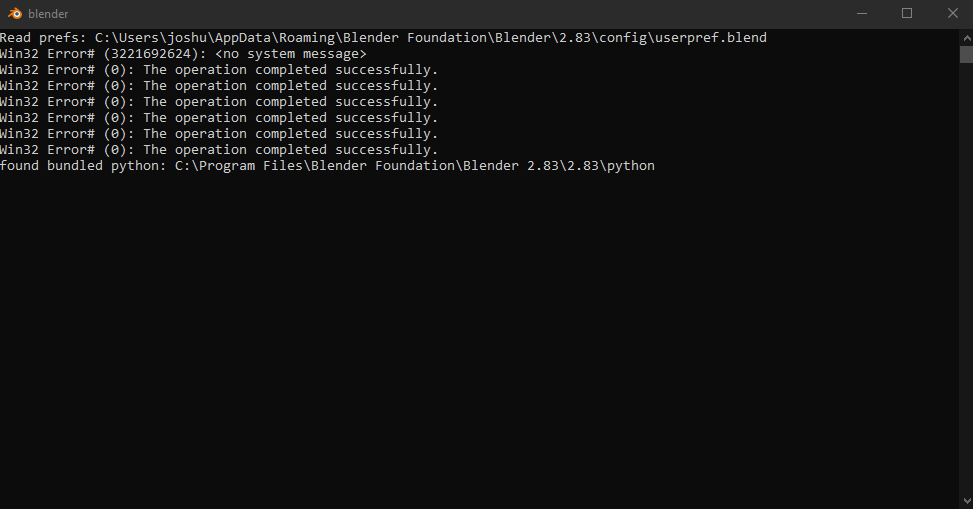
How to Fix Blender Not Opening Due to GPU Driver Issues
When Blender fails to launch or crashes immediately, it may be due to GPU or driver issues, even without an error message. Steps to resolve this include:
- Run Blender from the Command Line to Catch Errors: Use Command Prompt (Windows) or terminal (Linux/macOS) to run blender.exe or blender. Errors like “Unsupported graphics card or driver” or OpenGL-related crashes may appear, pinpointing driver issues.
- Use Blender’s –debug-gpu and –debug Flags: Run blender –debug-gpu for GPU-specific logs or –debug/–debug-all for verbose output, revealing issues like “GLEW Initialization Error” or failed OpenGL context creation, confirming driver problems.
- Windows Compatibility Mode Workaround: Right-click blender.exe, set Properties > Compatibility to Windows 8 or 7 to bypass driver issues temporarily, allowing Blender to start for further troubleshooting.
- Safe Mode Driver Cleanup: In Windows Safe Mode, use Display Driver Uninstaller (DDU) to remove broken drivers, then install fresh ones to resolve conflicts from Windows Update or bad installations.
- Ensure No Remote Desktop or Virtual Session: Run Blender directly on the machine, not via remote desktop, which lacks OpenGL support, or virtual machines without GPU passthrough.
- Try an Older Blender Version: Test Blender 2.79b or 2.80, which have lower requirements; if they work, the issue is likely compatibility with newer versions, else driver issues persist.
- Look for Known Issues (Intel HD 4000 series example): For Intel HD 4000/4600, Blender may crash with newer drivers; use older driver (e.g., 20.19.15.4835) to avoid crashes.
- Monitor GPU Utilization/Logs: Check Windows Event Viewer for driver crashes (e.g., “Display driver stopped responding”) at launch, indicating a need for driver reinstallation.
In summary, focus on driver integrity by uninstalling conflicting drivers and installing fresh ones. Use compatibility mode or older drivers for specific hardware issues to get Blender running.
How to Switch Between Integrated and Dedicated GPU for Blender
Laptops or systems with dual GPUs may use the weaker integrated GPU, causing errors. To switch to the dedicated GPU:
- On Windows 10/11: Use Graphics Settings (Preferred GPU):
- Go to Settings > System > Display > Graphics, add blender.exe, and set to “High performance” (e.g., NVIDIA GeForce RTX 4050), ensuring Blender uses the dedicated GPU.
- On Windows: NVIDIA Control Panel or AMD Software:
- For NVIDIA, in NVIDIA Control Panel > Manage 3D Settings, set blender.exe to “High-performance NVIDIA processor.”
- For AMD, in AMD Radeon Settings, set Blender to “High Performance” under Switchable Graphics.
- On macOS: Disable “Automatic graphics switching” in System Preferences > Battery to use the discrete GPU on dual-GPU MacBook Pros.
- On Linux: Use prime-run blender for NVIDIA Optimus or set NVIDIA as primary; for AMD, use DRI_PRIME environment variable.
- Verify Which GPU Blender is Using: Check Edit > Preferences > System or Help > Save System Info to confirm Blender uses the dedicated GPU (e.g., NVIDIA, not Intel).
Switching to the dedicated GPU avoids errors and boosts viewport and rendering performance.

How to Install the Correct GPU Drivers for Blender on Windows
To ensure Blender uses proper drivers:
- NVIDIA (Game Ready vs Studio Drivers): Download Studio Drivers from NVIDIA’s site for stability, select your GPU model, and perform a clean install to remove old settings.
- AMD (Adrenalin vs Pro Drivers): Use Adrenalin drivers for consumer Radeon GPUs or Pro drivers for Radeon Pro/FirePro from AMD’s site, avoiding Windows Device Manager updates.
- Intel: Get the latest drivers from Intel’s Download Center or laptop manufacturer; use generic Intel drivers for newer OpenGL support, uninstalling OEM drivers if needed.
- Avoid Microsoft Basic Display Adapter: Ensure a proper NVIDIA/AMD/Intel driver is installed, as Basic Display lacks OpenGL support.
- Multiple GPU Drivers: Install and update drivers for both integrated and dedicated GPUs, rebooting between installations.
- Windows Update considerations: Prevent Windows Update from downgrading drivers; re-install manufacturer drivers after major updates if needed.
Using manufacturer drivers eliminates errors and improves performance, as Blender requires the latest drivers from NVIDIA, AMD, or Intel.
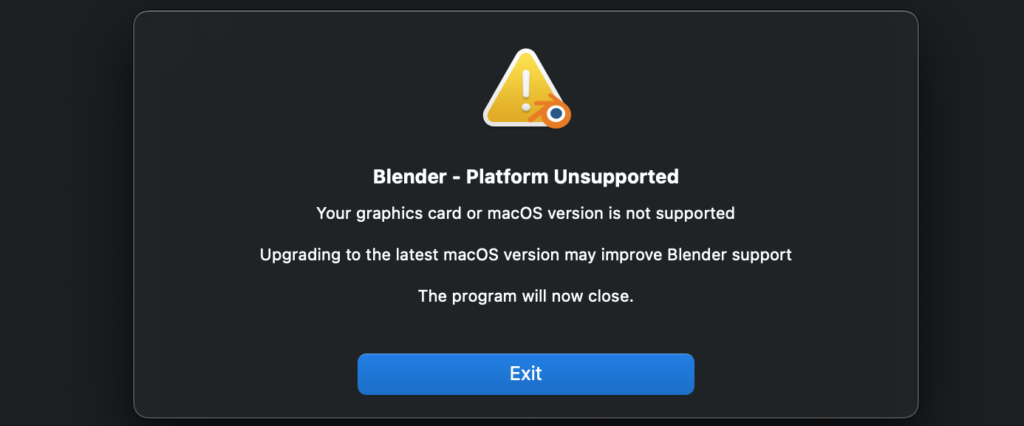
How to Fix Blender GPU Errors on macOS and Linux
GPU errors on macOS and Linux require platform-specific fixes:
- Blender GPU Errors on macOS:
- Old macOS Version: Upgrade to macOS 10.13+ for Blender 3.0+ or 11+ for newer versions; use Blender 2.8x/2.79 for older OS.
- No Metal Support / Older GPU: Pre-2012 GPUs lacking Metal support require Blender 2.79 or hardware upgrade; Metal-supported GPUs (e.g., Intel HD 4000) may run slowly.
- MacBook with Dual GPUs: Disable “Automatic graphics switching” to use discrete GPU for better performance.
- Apple Silicon (M1/M2) Macs: Use ARM64 Blender builds on macOS 12.3+ for Metal support; update OS to avoid driver issues.
- Blender Preferences for Metal: Enable Metal GPU in Preferences > System for Cycles rendering.
- Blender GPU Errors on Linux:
- NVIDIA on Linux: Use proprietary NVIDIA drivers, not Nouveau, via distro tools (e.g., Ubuntu’s Additional Drivers) for full OpenGL 4.x support.
- AMD on Linux: Update Mesa drivers for OpenGL support; recent Mesa versions provide OpenGL 4.5 for older GPUs like Radeon HD 7000.
- Intel on Linux: Ensure updated Mesa for Gen 8+ GPUs (OpenGL 4.6); older GPUs may need Blender 2.83 LTS.
- Wayland vs X11: Test X11 session if Wayland causes issues like black screens.
- Flatpak/Snap vs Native: Ensure Flatpak/Snap has OpenGL access; test native Blender download to rule out sandbox issues.
In summary, macOS users should update the OS, while Linux users ensure proprietary NVIDIA or updated Mesa drivers, leveraging modern graphics stacks for older hardware.
How to Enable or Disable GPU Compute in Blender Settings
Manage GPU usage for rendering and stability:
- Enabling GPU Rendering (Cycles):
- In Edit > Preferences > System, select CUDA/OptiX (NVIDIA), HIP/OpenCL (AMD), oneAPI (Intel), or Metal (macOS) under Cycles Render Devices.
- Check your GPU (e.g., NVIDIA RTX 4080), then in Render Properties, set Device to GPU Compute for faster renders.
- Disabling GPU Compute / Using CPU:
- Set Cycles to None/CPU in Preferences or choose CPU in Render Properties to avoid GPU crashes.
- EEVEE uses GPU only; use Workbench/Solid view or fix drivers if EEVEE fails.
- GPU Compute on Multiple GPUs: Enable all GPUs in Preferences for parallel rendering (e.g., two NVIDIA GPUs with CUDA).
- When to Disable GPU Compute:
- Disable for low GPU memory or driver bugs; use CPU or alternate backend (e.g., CUDA vs OptiX).
- Test CPU rendering to isolate GPU issues.
Blender’s GPU toggling allows use on marginal GPUs by falling back to CPU rendering, ensuring workflow continuity.
What to Do If Blender Crashes After Updating Graphics Drivers
If Blender crashes post-driver update:
- Determine if the Driver Update Caused the Crash: Confirm crashes started after the update (e.g., Intel HD 4600 issues post-driver update); use System Restore to test previous driver.
- Check for Known Issues / Beta Drivers: Research forums for driver version issues; revert to stable versions if the latest is problematic.
- Perform a Clean Reinstallation: Use driver’s clean install or DDU to eliminate conflicts from old driver remnants.
- Try an Older Driver (Rollback): For Intel HD 4000/5000, use driver 20.19.15.4835; for NVIDIA/AMD, install a prior stable version (e.g., NVIDIA 527 vs 531).
- Report the Issue: Submit crash logs to GPU manufacturer and Blender’s bug tracker with GPU and driver details.
- Workaround in Blender Settings: Toggle Workbench anti-aliasing or Region Overlap in Preferences to mitigate driver-related crashes.
- Use a Different API: Switch between CUDA/OptiX or CPU rendering if one backend crashes.
In summary, roll back to a stable driver if the latest causes crashes, ensuring Blender’s stability through clean reinstalls or settings adjustments.
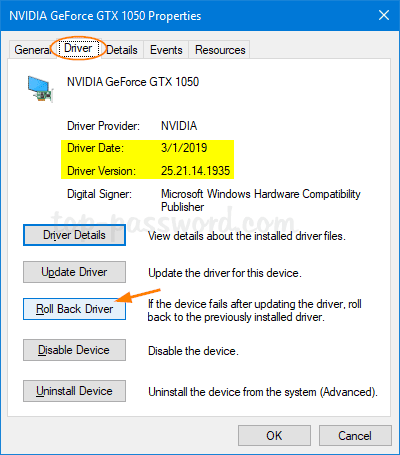
How to Roll Back a GPU Driver That Causes Issues in Blender
If a GPU driver causes Blender to malfunction, reverting to a stable version can help:
- Using Device Manager Roll Back (Windows):
- Open Device Manager (Win+R, type devmgmt.msc), expand Display Adapters, and double-click your GPU.
- In the Driver tab, click Roll Back Driver if active, select a reason (e.g., “The driver was unstable”), confirm, and restart to test Blender.
- If greyed out, no previous driver exists, requiring manual installation of an older version.
- Manually Installing an Older Driver:
- Identify a stable driver version from the vendor’s archive (e.g., NVIDIA 527.xx or Intel 15.36.x for HD 4600).
- Uninstall the current driver via Apps & Features or use Display Driver Uninstaller (DDU) in Safe Mode.
- Install the older driver and reboot.
- Prevent Windows Updates from overwriting by pausing updates or using Group Policy/Registry tweaks.
- Test Blender for stability to confirm the newer driver was the issue.
On macOS, reverting OS updates is impractical; use an older Blender version instead. On Linux, install older NVIDIA .run drivers or earlier Mesa packages, though newer Mesa is typically better. Block problematic updates and monitor vendor release notes for fixes. Rolling back is a temporary fix; update to a corrected driver later for full GPU support.
How to Use Blender with a Low-End or Unsupported GPU
Options for running Blender on unsupported or low-end GPUs include:
- Use Older Blender Versions: Blender 2.79b supports OpenGL 1.4, ideal for very old GPUs; Blender 2.93 or 3.3 LTS may work for OpenGL 3.3 GPUs, offering compatibility without modern features like Eevee.
- Leverage Software Rendering Workarounds: Use Mesa3D’s software opengl32.dll to emulate OpenGL on CPU, allowing Blender 2.80+ to open, though extremely slow and glitchy, suitable only for lightweight tasks.
- Simplify Graphics Settings: In Preferences > Viewport, disable Anti-Aliasing, lower shadow quality, and turn off Region Overlap; use Solid mode or Material Preview to reduce GPU load.
- Use Workbench Engine for Display: Workbench mode is lightweight, enabling modeling and texturing on weak GPUs; switch to Cycles (CPU) for rendering previews if Eevee fails.
- External Rendering or Baking: Use CPU rendering or export scenes to software compatible with your hardware for rendering.
- Cloud or Remote Solutions: Run Blender on a powerful remote machine via services like AWS AppStream or Vagon.io, bypassing local GPU limitations.
- Upgrade When Possible: Consider affordable GPUs like NVIDIA GTX 960 or AMD RX 570 for full Blender support, or use eGPU enclosures for laptops.
A user with an OpenGL 2.1 GPU ran Blender 2.83 using a Mesa software renderer but found it slow and unstable, highlighting the limitations of such workarounds. Older versions or hardware upgrades are more practical.

Frequently Asked Questions (FAQ)
- My Blender says “A graphics card and driver with support for OpenGL 4.3 or higher is required.” Does that mean my GPU is obsolete?
Not necessarily; update drivers if your GPU (e.g., GeForce GTX 1050) supports OpenGL 4.6. If below OpenGL 4.3 (e.g., Intel HD 3000), use older Blender versions or upgrade hardware. - Blender worked fine before, why do I get the unsupported GPU error after a Blender update?
Newer Blender versions may require advanced OpenGL features. Update drivers or revert to an LTS version (e.g., 2.93) if your GPU can’t meet new requirements. - Can I install OpenGL to fix this?
OpenGL is part of GPU drivers, not a separate install. Update NVIDIA/AMD/Intel drivers (or Mesa on Linux) to enable proper OpenGL support. - My laptop has an NVIDIA GPU but Blender is using Intel and shows the error – how do I force Blender to use NVIDIA?
Use Windows Graphics Settings or NVIDIA Control Panel to set Blender to high-performance NVIDIA GPU; on macOS, disable “Automatic Graphics Switching”; verify in Blender’s Preferences. - I updated my drivers and now Blender crashes or performs worse – what happened?
A: New drivers may have bugs; roll back to a stable version, perform a clean install, and check forums for known issues with the driver version. - Does Blender work on integrated graphics (like Intel UHD or AMD APU)?
Modern integrated GPUs (Intel UHD 620+, AMD Vega) support OpenGL 4.5 and run Blender for lighter tasks; update drivers and avoid heavy Eevee effects. - Blender is running, but my GPU isn’t being used for rendering – how do I enable it?
In Preferences > System, select CUDA/OptiX (NVIDIA), HIP (AMD), oneAPI (Intel), or Metal (macOS) and check your GPU; set Render Properties to GPU Compute. - Will adding more VRAM or RAM fix the unsupported card error?
No, the error relates to GPU capabilities (OpenGL/Metal), not memory; VRAM affects rendering capacity, not compatibility. - Is there a list of GPUs that are known to not work with Blender 2.8+?
GPUs lacking OpenGL 3.3 (e.g., Intel HD 3000, NVIDIA GeForce 200 series, AMD pre-HD 5000) are unsupported; check Blender’s requirements for supported families (GeForce 400+, Radeon HD 7000+). - Blender starts but crashes when I do certain things – could this be a GPU issue?
Yes, crashes in Rendered view or texture loading may indicate GPU issues; use –debug-gpu for logs, try CPU rendering, update/roll back drivers, or disable anti-aliasing.

Conclusion: How to Resolve Blender’s Unsupported GPU or Driver Issues
Key solutions for Blender’s “Unsupported Graphics Card or Driver” error include:
- Keep Your Drivers Updated: Install the latest NVIDIA/AMD/Intel drivers for proper OpenGL/Metal support, using manufacturer sources.
- Meet Blender’s Hardware Requirements: Ensure GPU has 2GB VRAM and OpenGL 3.3+ (4.3+ for newer versions); use older Blender versions if unsupported.
- Configure the Right GPU: Set dual-GPU systems to use high-performance GPU via Windows Graphics Preferences or control panels.
- Use Workarounds for Older GPUs: Run Blender 2.79/2.83 LTS or use software OpenGL for minimal functionality on unsupported GPUs.
- Stability First: Roll back unstable drivers and check forums for known issues.
- Leverage Official Documentation: Use Blender’s manual for GPU-specific workarounds (e.g., Intel HD 4000 fixes).
- Plan for the Future: Upgrade to a modern GPU for better performance and compatibility.
Following these steps—updating drivers, verifying hardware, and adjusting settings—resolves the error, enabling Blender use across various systems.
In the end, when Blender and your GPU are in harmony, you can focus on what really matters: creating amazing 3D art. Happy blending!
Sources:
- Blender Manual – Troubleshooting Graphics Hardwaredocs.blender.orgdocs.blender.org
- Blender System Requirementsblender.orgblender.org
- User experiences on Blender Stack Exchange and Developer forumsblender.stackexchange.comdeveloper.blender.org
- Official GPU driver download pages (NVIDIA, AMD, Intel) and documentationdocs.blender.orgdocs.blender.org
Recommended
- Can You Render Multiple Camera Angles at Once in Blender?
- How The View Keeper Improves Blender Rendering Efficiency
- Water Simulation in Blender: A Complete Beginner’s Guide to Realistic Fluid Effects
- Devil May Cry Netflix Series: Release Date, Plot, Cast, and Everything We Know So Far
- How do I make the camera follow a character in Blender?
- Customizable Godot Toon Shader with Patterns for Godot 4
- Advanced Camera Switching Techniques with The View Keeper in Blender
- Mastering Water Simulation in Unreal Engine: Techniques, Tools, and Best Practices
- How to Retarget Any Animation in Unreal Engine: Mixamo, CC3, Daz3D, and Metahuman Workflow Guide
- How to Convert a Real Human to Metahuman Using Photogrammetry: Complete Workflow Guide for Unreal Engine 5