

In This Article (8 sections)
Nomad Sculpt 2.9.24 App Linking, Requirements and Local Network Setup
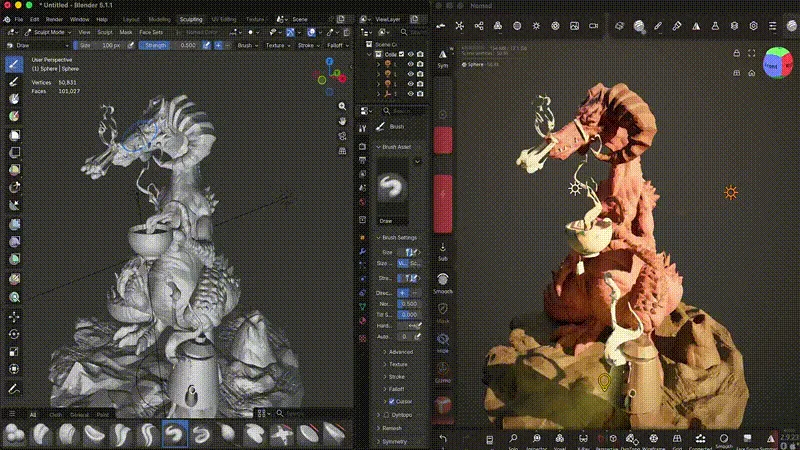
Nomad Sculpt’s app-linking development around version 2.9.24 makes mobile-to-desktop sculpting more practical by reducing repeated export and import steps. The developer announced Blender linking for iPad and Android, including texture support and automatic handling of PBR vertex-paint information. The important change is the connection between applications rather than a new interchange format. Instead of repeatedly saving a sculpt, locating the exported file and importing another copy, artists can establish a session between Nomad and a compatible desktop application, revise the sculpt and inspect the result with fewer interruptions.
Version numbers still need to be kept separate because Nomad’s application version and the Blender extension version are different identifiers. The reference extension examined here identifies itself as 0.11.45, and later bridge changelog entries document fixes and behavioral changes that should not automatically be attributed to the original 2.9.24-era announcement. Availability also depends on the installed mobile build actually exposing the Link interface, so announced iPad and Android support should not be confused with guaranteed availability in every public, beta or regional release channel.
In the documented architecture, Nomad hosts the connection and the desktop bridge connects to it, using TCP port 48312 by default. A new connection requires approval in Nomad, after which pairing information can support later reconnections. The system is designed as an application-to-application local connection rather than a workflow that depends on uploading each mesh to a cloud folder.
Automatic discovery and actual data transfer are separate concerns: the reference transport supports broadcast and Bonjour or mDNS discovery but also allows the host address to be entered directly, so a failed automatic search does not necessarily mean the tablet cannot be reached. For a tablet-to-Blender session, the address supplied to Blender needs to be the tablet’s reachable local address rather than an address belonging to the desktop.
Compatibility checks should come before production work. A compatible Nomad build with the Link interface is required, and the current Blender extension manifest specifies Blender 4.5.0 as the minimum version. On iPad, local-network permission is separate from normal internet access and can be controlled through the Local Network privacy settings. For desktop ZBrush, GoZ needs to be functional, while the mobile workflow additionally requires the external bridge described by the Nomad Link project. Before beginning a serious project, it is useful to record the Nomad version, Blender or ZBrush version, bridge version and operating systems involved so later troubleshooting starts with known compatibility information rather than the vague assumption that a setup once worked.
For Blender installation, the developer’s extension repository should be used instead of an unidentified copy of the add-on. In Blender, the workflow is to open Preferences, go to Get Extensions, add the remote repository through the repository controls, search for Nomad Blender Link, install it and confirm that it is enabled. Blender’s online-access setting may also need to be enabled during installation. Repository installation is useful because remotely installed extensions can participate in the normal update mechanism, unlike a ZIP package installed only as a local copy. After installation, first confirm that the extension appears, that its version is visible and that the connection controls are available before testing more complicated behavior.
The first connection test should remain deliberately small. In Nomad, open the Link interface and start the hosting session. In Blender’s 3D View sidebar, open the Nomad tab, use Find Nomad or enter the tablet’s address manually, then connect and approve the request in Nomad. The Listen for Nomad Web control is not the native iPad connection path. Use a duplicate test sculpt with one clearly recognizable object, transfer it once, make an obvious but reversible deformation and verify that Blender receives the intended change. Then test the return direction before opening a production character.
A connection label alone is not enough to prove the workflow is working correctly because geometry, paint, selection and transfer direction all need independent confirmation. The Android workflow follows the same basic host-and-connect model when a compatible build is installed, but Android availability should be verified on the actual device rather than inferred from an iPad demonstration.

Two-Way Blender Synchronization, PBR Vertex Painting and Material Handling
Two-way synchronization means supported changes can move in either direction between Nomad and Blender, but it does not mean both applications should overwrite the same object simultaneously. The protocol maintains an active editing source, with automatic and explicitly directed synchronization modes controlling which side sends updates. The current specification describes sparse mesh updates containing vertices affected by a completed sculpt or paint stroke, and those updates depend on matching topology. If topology changes, a full mesh transfer may be required instead. “Live” should therefore not be understood as every intermediate pen sample being transmitted instantly or every operation having identical latency.
For production use, deliberate editing phases are safer than continuous back-and-forth modification. An artist might sculpt in Nomad, inspect the result in Blender and then intentionally switch to desktop editing when needed. Topology-changing operations deserve separate validation because a small deformation and a remesh are not equivalent interchange events.
Modifier handling also introduces limits: the current extension uses evaluated geometry when sending modifier results and prevents incoming geometry updates to that object. Blender Edit Mode support has also evolved through later bridge updates, so behavior should be judged against the installed extension rather than an older demonstration. Saving both projects before destructive operations and testing those operations on duplicates reduces the chance that a synchronization mistake becomes a production problem.
Nomad’s PBR vertex painting stores more than visible color. It can include properties such as roughness and metalness directly on mesh vertices, allowing artists to paint material characteristics without depending entirely on UV-mapped image textures. The Blender-link announcement specifically addresses this workflow by routing Nomad’s PBR vertex-paint data into suitable Blender shader inputs automatically. That removes the need to rebuild the same material interpretation manually after every transfer, but the channels still need to be validated separately because correct base color does not prove correct roughness or metalness.
A useful validation object should contain visually different regions, such as one broad matte nonmetallic area and another clearly metallic region. Test color, roughness and metalness independently before introducing complicated mixed materials. Vertex painting should also be distinguished from image textures because Nomad supports texture-based channels alongside vertex information, and a textured sculpt therefore requires additional checks beyond those used for a purely vertex-painted mesh. The current reference extension uses the attributes Nomad Color, nomad_roughness and nomad_metalness for relevant vertex-painted data and connects them to the Principled shader’s Base Color, Roughness and Metallic inputs.
Lighting and shading mode can make a correct transfer appear wrong. Nomad’s Matcap mode ignores physically based roughness and metalness, so it is not an appropriate reference when comparing those channels with Blender. A better test uses Nomad’s physically based shading, restrained lighting and minimal exposure changes while inspecting one channel at a time.
If the transferred material looks unexpected, first determine whether the difference comes from the material data, the viewing mode or the lighting rather than immediately repainting the sculpt. Because bridge-managed material updates can rebuild their node trees, extensive custom Blender shader work should be preserved separately. Treat the linked material as an interchange representation and maintain a deliberate final production shader outside that automatically managed setup.

Nomad Sculpt to ZBrush with GoZ and the Mobile Bridge
The documented iPad-to-ZBrush workflow uses an external bridge running on the computer where desktop ZBrush is installed. Nomad hosts the session through its Link interface, the desktop bridge connects to it and the user approves the request on the tablet. Once connected, the current script provides a command for pulling Nomad’s selected geometry into ZBrush, while ZBrush’s GoZ operation can return exported geometry to Nomad. The script also distinguishes requesting a fresh ZBrush export from resending the last exported result, so the workflow is an explicit interchange process rather than the same continuous two-way synchronization model provided by the Blender extension.
The first ZBrush test should use one clearly named mesh rather than an entire character assembled from many SubTools. Transfer the object, make a recognizable change in ZBrush, send it back and confirm that the intended object receives the update. Once plain geometry works, test the types of data the project actually depends on. The reference bridge documents transfer of geometry, UVs, polypaint, masks and polygroups or face-group information, but it does not claim complete equivalence between a Nomad project and a ZBrush project. A successful sphere transfer therefore does not prove that a complex production sculpt with organization and painted data will survive every round trip unchanged.
The bridge package requires Python 3 and NumPy on the ZBrush computer. Its companion files should remain together because the main ZBrush script imports transport.py, meaning copying only the primary script into another folder can break the setup. A Python virtual environment is a practical way to isolate the dependency and ensure the same interpreter installs NumPy and runs the bridge. On macOS, the sequence can use:
python3 -m venv .venv
.venv/bin/python -m pip install numpy
.venv/bin/python zbrush.py
On Windows, the equivalent can use:
py -3 -m venv .venv
.venv\Scripts\python.exe -m pip install numpy
.venv\Scripts\python.exe zbrush.py
GoZ itself must also be working correctly. Maxon documents the Preferences, GoZ, Update all Paths command for locating supported applications and repairing configuration. Another current detail is that ZBrush 2026.2.0 and newer no longer bundle the standalone GoZ installer in the older location, even though automatic GoZ installation remains and separate installers are available. Older tutorials may therefore point to an installer path that no longer matches the current software.
Desktop Nomad and mobile Nomad reach ZBrush through different arrangements. Desktop Nomad supports GoZ directly through its Link menu and does not require the separate mobile bridge. The iPad route is relevant when maintaining tablet-based sculpting is actually part of the workflow. It should also not be confused with a connection to ZBrush for iPad because the documented bridge targets desktop ZBrush. Material expectations need to remain conservative as well.
The ZBrush bridge does not advertise the same live PBR roughness-and-metalness handling as the Blender connection, so a material setup proven in Blender should not be assumed to survive a ZBrush round trip unchanged. The documentation examined explicitly describes the iPad bridge path, so identical Android-to-ZBrush availability should be verified rather than assumed.

Manual Export, Troubleshooting and a Reliable Production Workflow
Live linking and manual export solve different problems and are most useful when combined rather than treated as replacements for one another. Linking shortens repeated revision cycles, while saved interchange files provide deliberate checkpoints that can be inspected, archived or delivered without requiring an active session. Nomad supports formats including OBJ and glTF or GLB, while its native NOM format remains the more appropriate choice for preserving Nomad-specific project information. An interchange export should therefore not be treated automatically as a complete native-project backup.
OBJ is best regarded primarily as a geometry-focused exchange option in this workflow and should not be assumed to reproduce Nomad’s complete PBR painting and layer behavior. For glTF-based export, Nomad documents additional vertex information in which a secondary attribute packs roughness into red, metalness into green and masking into blue. An imported mesh can therefore have correct geometry while still requiring material interpretation in the destination application. Texture baking offers another downstream route by transferring painted and geometric detail onto a UV-mapped target, which can be more appropriate for optimized assets than expecting every destination application to understand the original vertex-paint arrangement directly.
Troubleshooting should separate four questions instead of changing multiple settings at once: does the required feature exist in the installed build, can the applications connect, does the correct object transfer and does the destination display the transferred data correctly? On iPad, local-network permission should be checked early because normal internet access does not substitute for permission to communicate with devices on the local network. If automatic discovery fails, use the host address directly to determine whether the problem is discovery or basic reachability. Version mismatches should be checked next because the bridge changelog records compatibility fixes and changes to stalled-update reporting, making it important to record both the Nomad version and bridge version rather than updating one side blindly.
If geometry stops updating, return to a simple test object and uncomplicated editing state before introducing topology changes, modifiers or elaborate scene organization again. If the Python bridge reports a NumPy error, verify that NumPy was installed into the same interpreter used to run the bridge, which is easier to confirm when using the explicit Python path inside a virtual environment. For ZBrush-side failures, test GoZ independently and inspect the configured application paths. A transfer failure should also be distinguished from a rendering difference. Use simple materials and appropriate shading modes before concluding that paint or surface data is missing, and record the smallest reproducible failing example rather than diagnosing an entire production scene at once.
A dependable production workflow assigns a clear purpose to each application. Use the tablet for sculpting and painting tasks that benefit from Nomad’s interface, then move to Blender or ZBrush for the specific evaluation or production task that motivated the connection. Start from a native Nomad save and a clearly named working duplicate, test silhouette changes first, broad surface painting second and more complicated object organization only after those fundamentals work. Save checkpoints whenever the authoritative editing application changes so it remains clear which copy contains the current source.
For optimized assets, downstream preparation remains a separate production stage. Nomad documents a baking workflow involving a detailed source, a duplicated and reduced target, UV unwrapping and texture baking. Linking a high-resolution sculpt into Blender or ZBrush does not remove the need to decide on final topology, texture representation and delivery format. A sensible workflow therefore uses app linking for iteration, native saves for recoverability and tested interchange exports at agreed milestones.
Final validation should include reopening the saved desktop project without relying on the active link and confirming that geometry, materials and supporting files remain available, then reopening the native Nomad project to verify that the editable source is also intact. The real goal is not simply to keep applications connected, but to shorten iteration while maintaining clear ownership of the source sculpt, the desktop working asset and the final deliverable.

Frequently Asked Questions (FAQs)
- Does Nomad Sculpt 2.9.24 support linking with both Blender and ZBrush?
The app-linking development around Nomad Sculpt 2.9.24 includes workflows for both Blender and desktop ZBrush, but they do not work in the same way. Blender uses a reference client designed for live, two-way synchronization of supported changes, while the current mobile-to-desktop ZBrush workflow relies on explicit transfers through GoZ and an external bridge. That means Blender linking can behave more like an ongoing connected editing session, whereas the ZBrush path should be understood as controlled transfers between applications rather than continuous mirroring of every sculpting action. - Is Blender 4.2 sufficient for the current Nomad Blender Link extension?
The current Nomad Blender Link extension manifest specifies Blender 4.5.0 as the minimum supported version. Blender 4.2 having access to the Extensions system does not automatically make it compatible with an extension that declares a later minimum version. Artists should therefore check the manifest for the exact Nomad Blender Link version they intend to install instead of assuming that any Blender release with extension support will work. - Is app linking available in every public iPad and Android installation?
That was not established by the store pages examined. The developer announced iPad and Android support, but a platform announcement does not prove that every public App Store or Google Play installation received the feature at the same time. Before troubleshooting networking or bridge problems, first confirm that the installed Nomad build actually includes the Link interface and check whether the device is using a public, beta, regional or otherwise different release channel. - Does Nomad Sculpt Live Link need cloud storage to transfer a mesh?
No cloud-file handoff is required for the documented mesh-transfer path. Nomad hosts the connection and the desktop bridge communicates with it over the network, so the applications can exchange supported data directly rather than uploading and downloading files through a cloud folder. Separate parts of setup, such as downloading the extension, installing software or completing account and licensing requirements, may still require internet access, but those are different from the actual linked transfer between Nomad and the desktop application. - Do vertex-painted Nomad models need UVs before linking to Blender?
Not for vertex painting itself. Nomad stores vertex-painted information directly on the mesh vertices, including properties such as color, roughness and metalness, so UV coordinates are not required simply to transfer that type of painted data. UVs become important when the workflow uses image textures or when the artist wants to bake surface information onto a UV-mapped target. Vertex painting and texture-based materials are therefore separate representations and should be tested independently. - Why can a linked model look different in Nomad and Blender?
A visual difference does not necessarily mean the transfer failed because appearance also depends on lighting, shading mode and material interpretation. Nomad’s Matcap mode, for example, ignores roughness and metalness, so it is not an appropriate reference when checking whether PBR material channels arrived correctly in Blender. A better comparison uses physically based shading in Nomad, restrained lighting in both applications and separate checks of base color, roughness and metalness before assuming that the linked data itself is wrong. - Does live synchronization transmit every intermediate brush movement?
That should not be assumed. The current protocol describes sparse mesh updates associated with completed sculpt or paint strokes rather than a guarantee that every individual pen sample is transmitted continuously while the stroke is being made. It also distinguishes those smaller updates from full mesh transfers, particularly when topology changes. As a result, different operations can synchronize differently, and the word “live” should not be interpreted as identical, frame-by-frame mirroring of every editing action. - Where should the ZBrush Python bridge run?
The bridge should run on the desktop computer where ZBrush is installed, not inside Nomad on the tablet. The developer’s package requires Python 3 and NumPy on that workstation and then communicates across the network with the mobile Nomad session. Keeping the bridge scripts and their companion files together is also important because the main script depends on other files in the package, and GoZ must already be working correctly on the ZBrush side. - Does desktop Nomad require the same external ZBrush bridge?
No. The developer documents direct GoZ support for desktop Nomad through its Link menu, so the separate Python bridge is not required for that desktop-to-desktop arrangement. The external bridge is specifically part of the documented mobile workflow in which Nomad on iPad communicates with desktop ZBrush. Those two setups should therefore be treated separately rather than assuming every Nomad-to-ZBrush connection uses the same architecture. - Can live linking replace native project backups?
No. Live linking is best treated as an interchange and iteration workflow rather than a backup system. Artists should continue saving the native Nomad project as well as the Blender or ZBrush project used on the desktop, because interchange transfers do not necessarily preserve every application-specific feature in the same way as the native format. A reliable workflow uses linking for fast revision, native saves for recoverability and deliberate OBJ, glTF or baked exports when a stable interchange or delivery file is needed.

Conclusion
Nomad Sculpt’s app-linking development around version 2.9.24 offers a useful way to reduce repetitive handoffs between mobile sculpting and desktop work. Its value lies in making revisions easier to evaluate without repeatedly treating each change as a new export.
The important qualifications are practical. Confirm that the mobile build actually includes linking, install a compatible Blender extension, approve the local connection, and test the information the project needs. For ZBrush, use the documented desktop bridge and understand that its GoZ transfers are not equivalent to Blender’s live synchronization.
The strongest workflow combines convenience with deliberate checkpoints. Start with a small test, validate geometry and painting separately, preserve native files, and prepare final topology and textures as explicit production tasks. Used this way, app linking can support faster iteration without obscuring where the authoritative sculpt, desktop working asset, and final deliverable are stored.
Sources and Citations
- Nomad Link, Developer-Maintained GitHub Repository: The official
stephomi/nomad-linkrepository is the primary technical source for Nomad’s application-linking system. It describes a socket-based protocol for live two-way scene synchronization covering meshes, sculpt layers, paint, materials, lights, and cameras. The repository identifies version 0.11.45, protocol 1, and contains the protocol specification, changelog, Blender reference client, ZBrush bridge, and transport code. GitHub
Nomad Link GitHub Repository
Nomad Link Protocol Specification
Nomad Link Changelog - Nomad Link Blender Extension: The repository identifies
blender/nomad_blender_linkas the complete Blender reference client implementing the protocol. It recommends installing through Polygonflow’s remote-style extension repository athttps://nomadsculpt.com/blender/index.json, rather than only installing a bare ZIP, because repository-installed extensions can participate in update handling. GitHub
Nomad Blender Link Source
Nomad Blender Extension Repository - Nomad Link ZBrush Bridge: The same developer repository documents the desktop ZBrush workflow. It states that desktop Nomad can use GoZ directly, while Nomad on iPad requires the bridge script running on the ZBrush computer. The bridge uses Python 3 and NumPy, discovers Nomad on the local network, and requires the connection to be approved from Nomad. GitHub
Nomad ZBrush Bridge Source
Nomad Link Transport Code - Nomad Official Manual, Painting: Nomad’s manual confirms that it uses PBR vertex painting, with color, roughness, metalness, and opacity stored on mesh vertices rather than requiring textures. It also explains that vertex painting itself does not require UVs and that painted vertex data can later be baked into textures. Matcap mode ignores roughness and metalness, which is important when validating material transfers to Blender. Nomad Sculpt
Nomad Painting and PBR Vertex Paint Manual - Nomad Official Manual, Materials and Shading: The Material documentation explains Nomad’s color, roughness, metalness, opacity, reflectance, and texture channels. The Shading manual distinguishes Lit/PBR from Matcap and confirms that Nomad can store color, roughness, and metalness in sculpt vertices. These pages support the article’s recommendation to validate transferred material channels under PBR shading rather than assuming a visual mismatch indicates failed data transfer. Nomad Sculpt
Nomad Materials Manual
Nomad Shading Manual - Nomad Official Manual, Layers: Nomad documents layers as non-destructive containers for sculpt and paint changes. Paint layers can carry color, roughness, metalness, and opacity, while sculpt layers can function similarly to morph targets or blend shapes. This supports the distinction between transferring a mesh and preserving all application-specific editable project structure. Nomad Sculpt
Nomad Layers Manual - Nomad Official Manual, File Interchange: Nomad’s Files documentation describes export behavior for formats such as glTF/GLB and explains that layer colors, roughness, and metalness may be exported even though other software can ignore them. It also notes that exporting textures is different from baking them, reinforcing why interchange files should not automatically be treated as complete substitutes for native Nomad projects. Nomad Sculpt
Nomad File Import and Export Manual - Nomad Official Manual, Texture Baking: The topology documentation describes transferring sculpted and painted information between vertex data and textures, including workflows for baking vertex properties to textures and reprojecting texture information back to vertices. This supports the article’s distinction between live linking and downstream preparation of optimized UV-mapped assets. Nomad Sculpt
Nomad Topology and Texture Baking Documentation - Blender Official Documentation, Extensions: Blender’s manual confirms that users can install extensions through Get Extensions, install from disk, and add third-party remote repositories by URL. Remote repositories support listing and updating extensions, whereas manually installed ZIP packages are handled as local repositories and do not receive the same automatic repository update path. Blender Documentation
Blender Get Extensions Documentation - Apple, Local Network Privacy: Apple confirms that on iPhone and iPad, apps must request permission before interacting with devices on the local network. Access can later be changed under Settings → Privacy & Security → Local Network. Apple’s developer documentation also explains that Bonjour and direct local-host connections fall under local-network privacy requirements. Apple Developer
Apple: If an App Would Like to Connect to Devices on Your Local Network
Apple Developer: Understanding Local Network Privacy - Python Documentation,
venv: Python’s official documentation describesvenvas a way to create isolated Python environments with their own interpreter and package set. It confirms the standardpython -m venvworkflow and that packages installed with pip inside the environment remain isolated from the base installation. This supports using a virtual environment for the Nomad ZBrush bridge and its NumPy dependency. Python documentation
Python venv Documentation - Maxon, GoZ Installation and Configuration: Maxon’s official ZBrush documentation states that GoZ is installed by default and that Preferences → GoZ → Update All Paths can be used to search for supported applications and reinstall or repair integration files. This supports the article’s recommendation to verify GoZ independently when diagnosing the Nomad-to-ZBrush bridge. Maxon Documentation
Maxon GoZ Installing and Upgrading Documentation - Maxon, ZBrush 2026.2.0 Release Notes: Maxon’s April 15, 2026 release notes state that the standalone GoZ installer is no longer bundled with ZBrush, although GoZ itself remains automatically installed with ZBrush and a separate installer remains available through Maxon support. This confirms why older tutorials referring to a bundled standalone installer may no longer match current installations. Maxon Support
ZBrush 2026.2.0 Release Notes
Recommendations
- Vivian Kubrick Debunks Eyes Wide Shut Deleted Scenes Theory
- Battlefield 6 2026 Roadmap: More Maps, “Legendary” Battlefield 4 & Battlefield 3 Remakes, and Wake Island’s Return
- Apple TV’s Widow’s Bay is the First Breakout TV Hit of 2026: Why Everyone is Talking About the Horror Comedy
- Pitchify Launches New Service to Connect Developers and Publishers: How Pitch Direct Works
- Pokémon Pokopia Bubbly Basin DLC Release: Date, New Pokémon, and Everything You Need to Know
- Nordic Game 2026 (NG26 Spring): Dates, Venue, Passes, Speakers, Expo & Awards in Malmö
- Subnautica 2 Early Access Roadmap: Co-Op Updates, Sprinting, and More
- Virtua Fighter 6 Leak Explained
- The Future of 3D Modeling: Insights on AI Advancements
- GTA 6 is Already Outselling Everything Else: Why Pre-Orders Are Dominating Gaming