




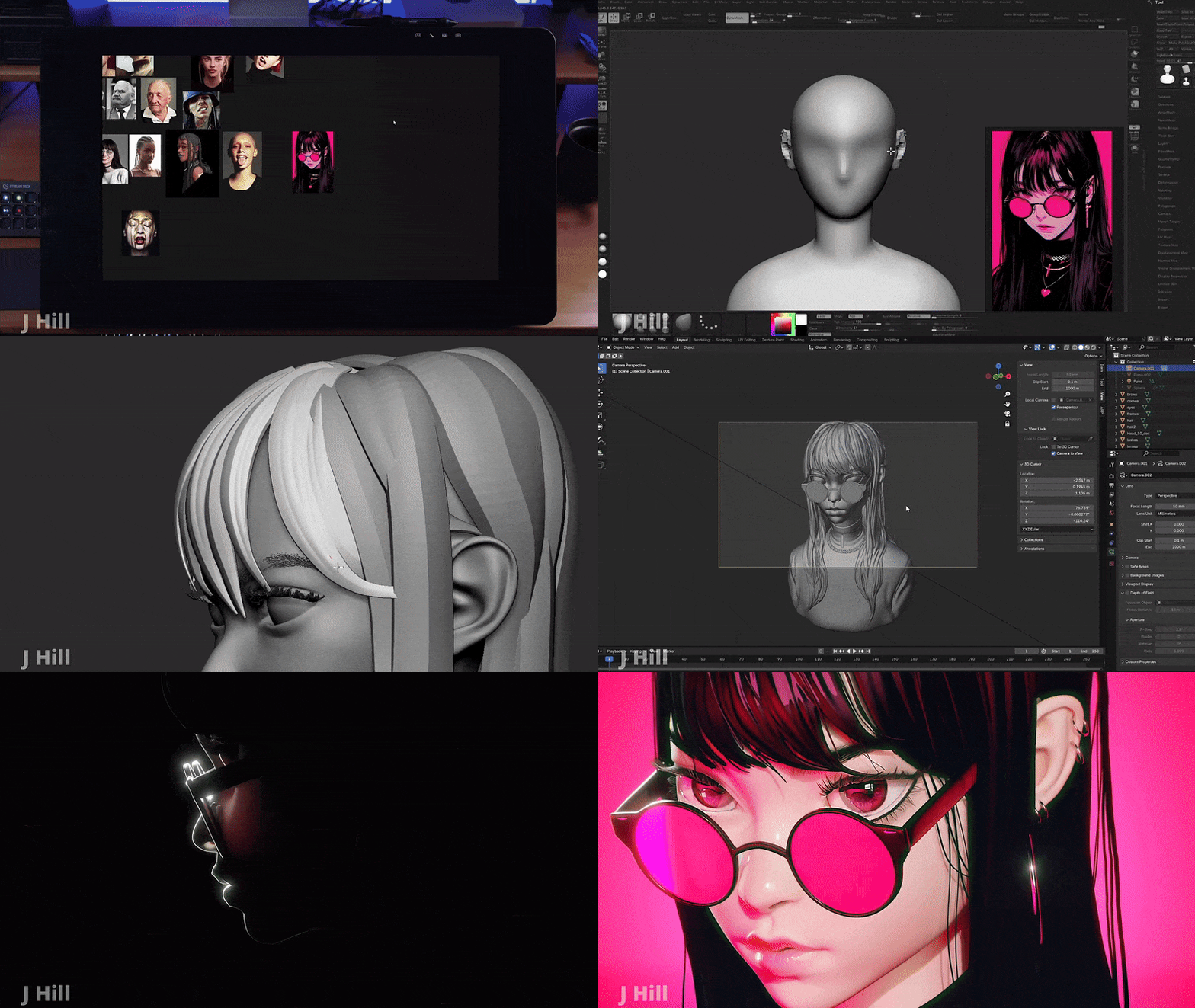




What Is Rotate Object in Photoshop Beta
Rotate Object uses a dedicated 2D-to-3D AI model to analyze a flat image and generate its unseen dimensions. Unlike standard 3D modeling, it does not create a complex mesh; instead, it uses generative AI to “imagine” and render new pixels from different angles.
- Purpose: It simplifies compositing by allowing designers to match an object’s perspective to a new scene without re-photographing it.
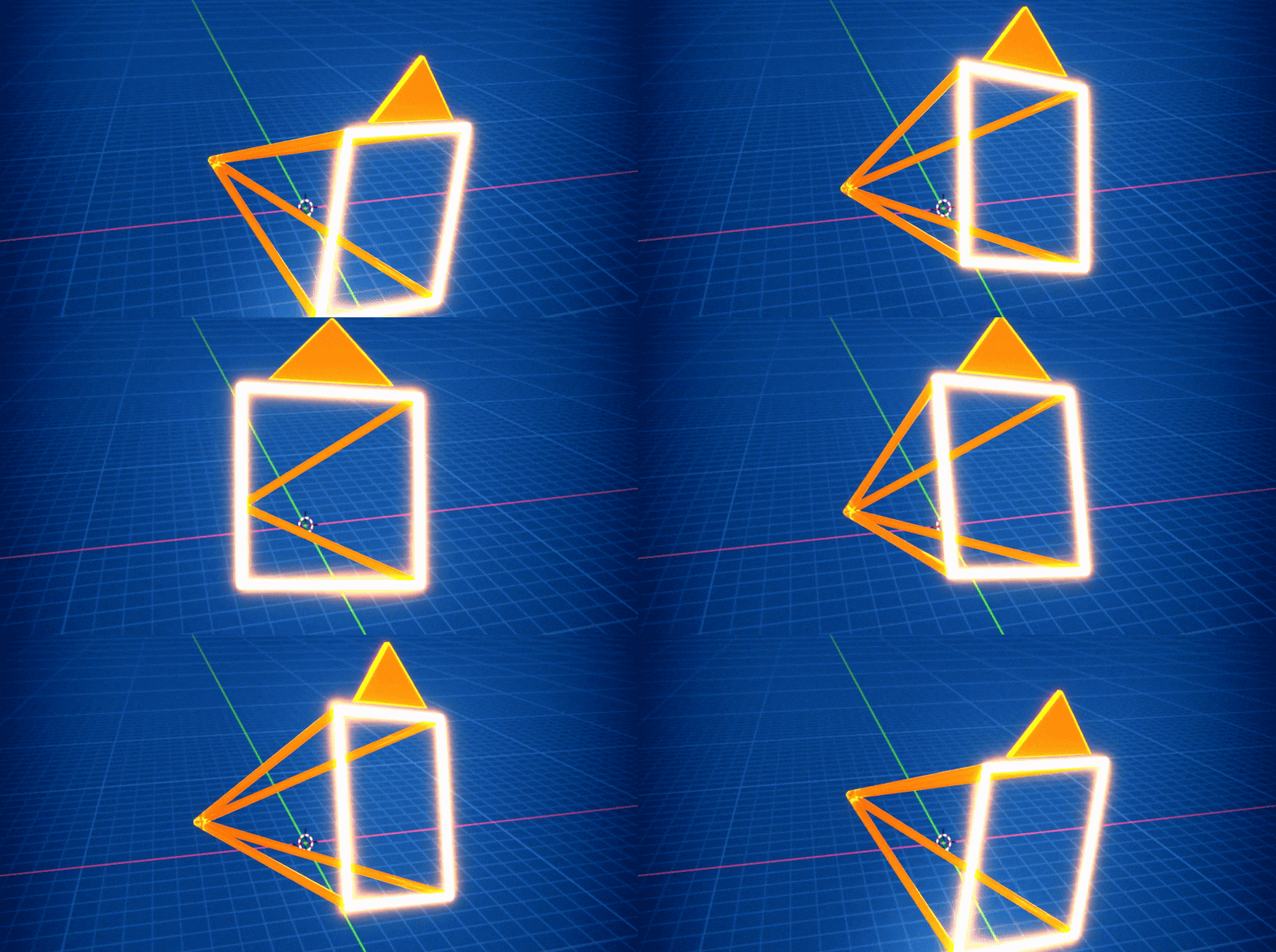
- Interactive Controls: Users can spin (horizontal), tilt (vertical), or “dolly” (perspective/distance) the object.
- Technology: This feature is distinct from Adobe Firefly Image Model 5, utilizing a specific engine for spatial synthesis.
Where to Find the Rotate Object Tool
The tool is located within the standard transformation and menu options in the Photoshop Beta app:
- Transform Mode: Select a pixel layer and press Ctrl+T (Cmd+T). A “Rotate Object” icon will appear in the top options bar.
- Edit Menu: Navigate to Edit > Rotate Object.
- Contextual Task Bar: If enabled, a “Transform Image → Rotate Object” suggestion may appear when an object layer is selected.
- Requirements: The tool currently only functions in RGB 8-bit mode on rasterized pixel layers. It will not appear for Smart Objects, text, or 16-bit images unless they are converted or rasterized.
How to Turn 2D Objects Into 3D Images
The workflow follows a specific AI-assisted conversion process:
- Preparation: Isolate the object on its own layer (ideally with a transparent background).
- Conversion: Activate the tool via the Edit menu or Transform bar. Photoshop will display a “preparing rotatable object” progress bar.
- Preview: A low-resolution 3D preview appears. Use on-canvas handles or sliders to orient the object.
- Finalization: Click Done. The AI upscales the image, adding photorealistic textures and details to the newly generated sides.
How to Use Rotate Object Step by Step
- Duplicate the Layer: Keep an original copy as the conversion is transformative.
- Check Image Mode: Ensure the document is 8-bit RGB.
- Isolate Subject: Use “Remove Background” for a clean cutout.
- Trigger Tool: Press Ctrl+T and click the Rotate Object button.
- Adjust View:
- Rotate: Spin the object left or right.
- Tilt: Pitch the object up or down.
- Dolly: Change the virtual camera distance to alter perspective.
- Render: Click the checkmark to generate the high-resolution final version.
- Refine: Use the Harmonization Neural Filter to match the object’s lighting to its new background.

Capabilities and Limitations
While powerful, the tool has specific technical constraints in its Beta phase:
- Supported Layers: Only single, rasterized pixel layers are eligible.
- Color Depth: Strictly limited to 8-bit. 16-bit or CMYK files will grey out the option.
- Non-Destructive Editing: Once converted, a layer stays a “Rotate Object” layer. You can re-edit the angle at any time by entering Transform mode again without spending additional generative credits.
- Generative Credits: Converting a new layer costs credits, but subsequent adjustments to the same layer are free.
- Visual Output: The tool generates static 2D pixels that simulate 3D; it does not export 3D file formats (like .obj or .stl).
Despite these limitations, Rotate Object is a phenomenal tech preview. Used with understanding of its quirks, it can be a huge time-saver. As the technology and Adobe’s implementation improve, some of these limitations will likely diminish
Frequently Asked Questions (FAQs)
- Is Rotate Object available in the regular (non-beta) Photoshop?
Not yet. As of March 2026, Rotate Object is exclusively available in Photoshop (Beta) (version 27.5.0). Adobe uses the Beta track to gather feedback and refine the AI before a stable, official release. To access it, you must install the Beta version via the Adobe Creative Cloud desktop app. - Do I need an internet connection to use Rotate Object, and does it cost extra?
Yes, an active internet connection is required because the feature processes data through Adobe’s cloud-based Firefly AI services. The tool operates on a Generative Credit system:- Each conversion costs 20 credits.
- New users typically receive their first 3 uses for free.
- Monthly credit allocations depend on your specific Creative Cloud subscription plan.
- Why is the Rotate Object option grayed out or not showing up for me?
This usually occurs if specific technical requirements are not met. To fix this, ensure:- You are specifically using the Beta application.
- You have a pixel layer selected (it will not work on Type, Shapes, Smart Objects, or Groups).
- Your document is in RGB 8-bit mode (Image > Mode > 8 Bits/Channel).
- Your GPU drivers are fully updated to the latest version.
- Can I use Rotate Object on a background with multiple objects or does it only work on isolated images?
It is designed for single, isolated objects. While the AI will attempt to detect a subject in a full photo, results for the surrounding background are often distorted. For the most reliable results, isolate your subject on its own transparent layer before activating the tool. - Can Rotate Object really show the back of an object that wasn’t in the photo?
Yes, the AI “imagines” and generates the hidden sides of an object to allow for a full 360° spin. While highly effective for common items like chairs or cars, it is an AI approximation. If the real-life object has unique, specific details on its back (like a specific serial number or custom sticker), the AI will instead fill that space with a plausible, generic alternative. - Will the rotated image be perfectly photorealistic and accurate?
The output is generally photorealistic and visually convincing, but it is not always technically accurate. The AI struggle with fine details such as legible text, logos, or complex patterns, which may become blurred or “gibberish” upon rotation. It is a creative simulation rather than a precise 3D scan. - Does Rotate Object work on people or animals (for example, turning a face to the side)?
While the tool will attempt to rotate living subjects, the results are hit-or-miss. The AI may struggle to preserve the exact likeness of a specific person’s facial features when generating a new angle. For high-stakes portraits, many professionals still prefer using stock photography at the correct angle to ensure authenticity. - When I use Rotate Object, does it create a 3D model or just a new image?
It creates a 2D image on a specialized layer, not a true 3D geometry file. While you can re-rotate the object within Photoshop, you cannot export it as a 3D asset (such as an .OBJ file) for use in software like Blender or Unreal Engine. - Can Photoshop’s Rotate Object handle complex details like hair, and what if I need ultra-realistic 3D elements?
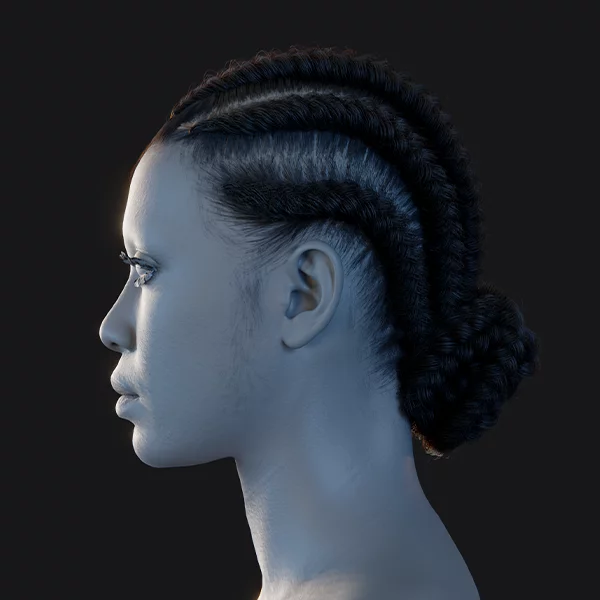
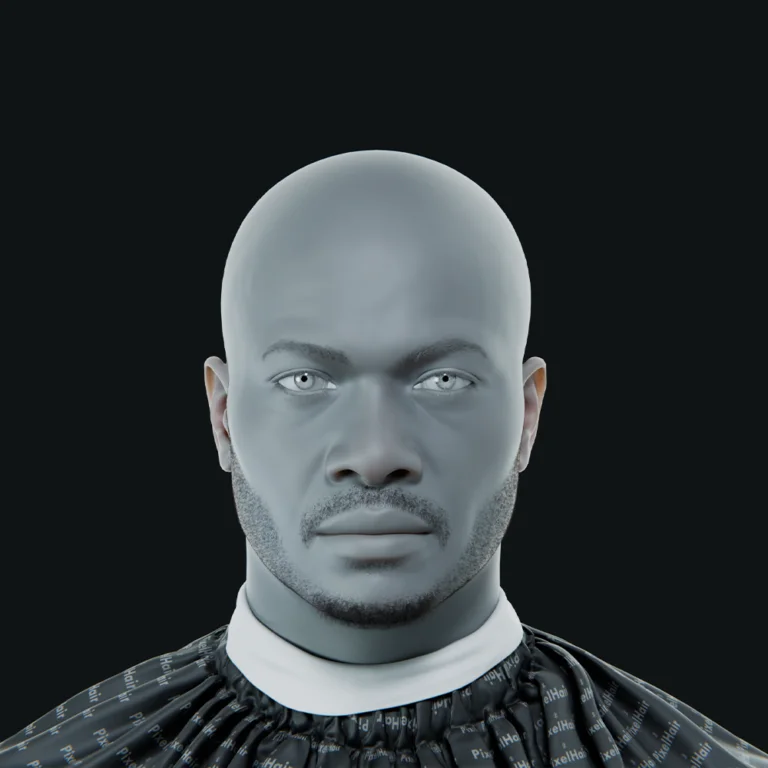
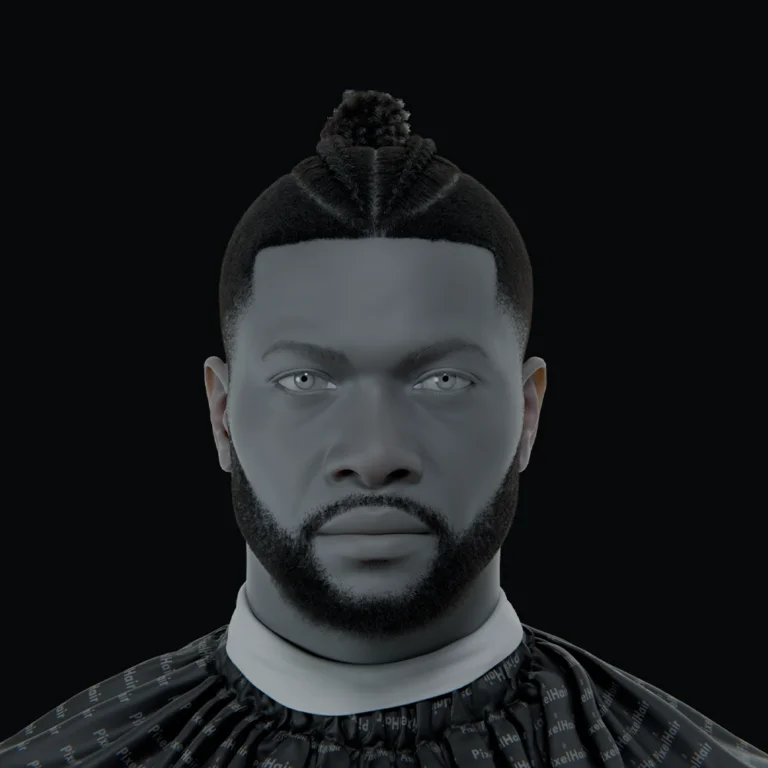
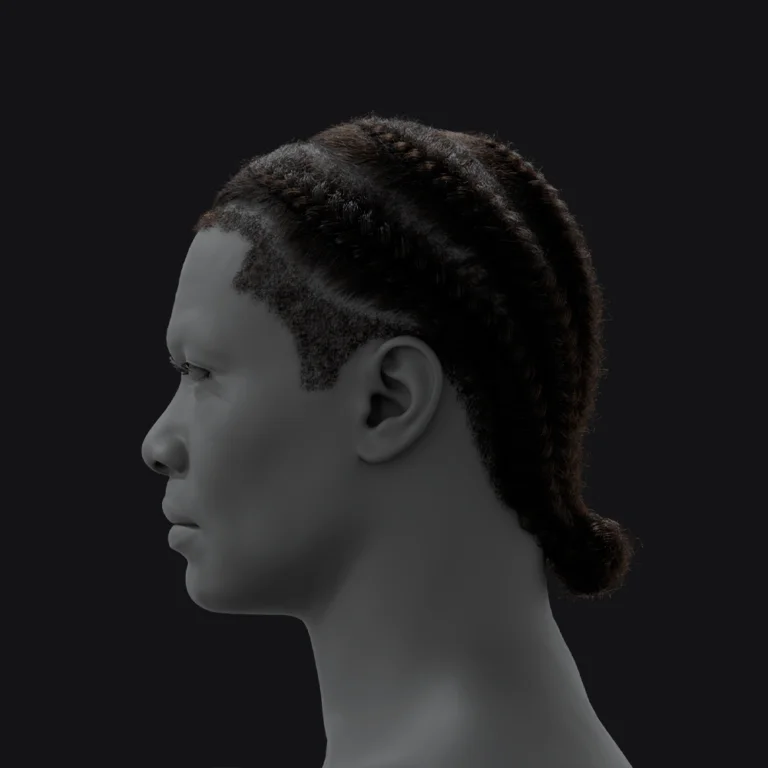
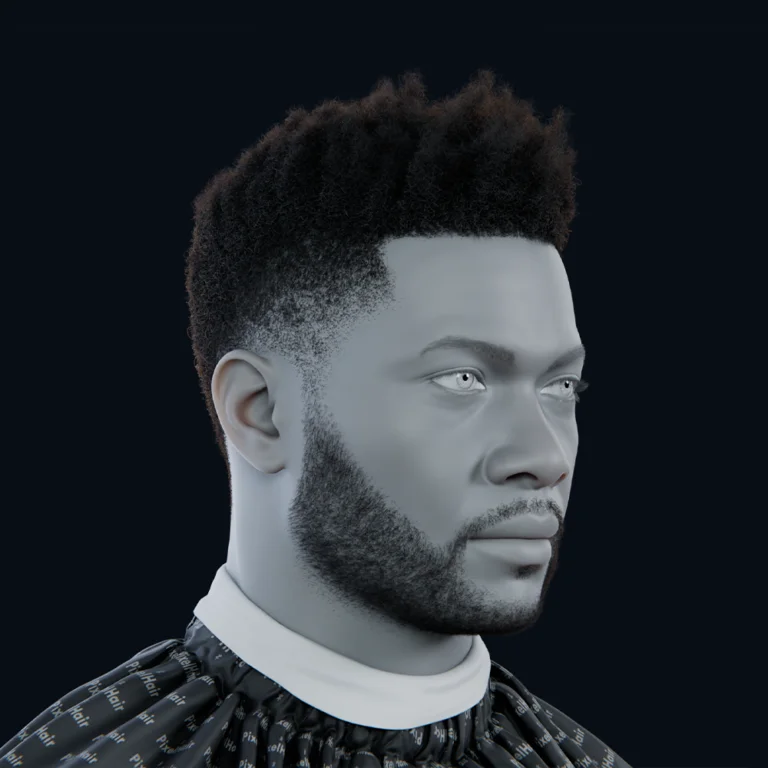
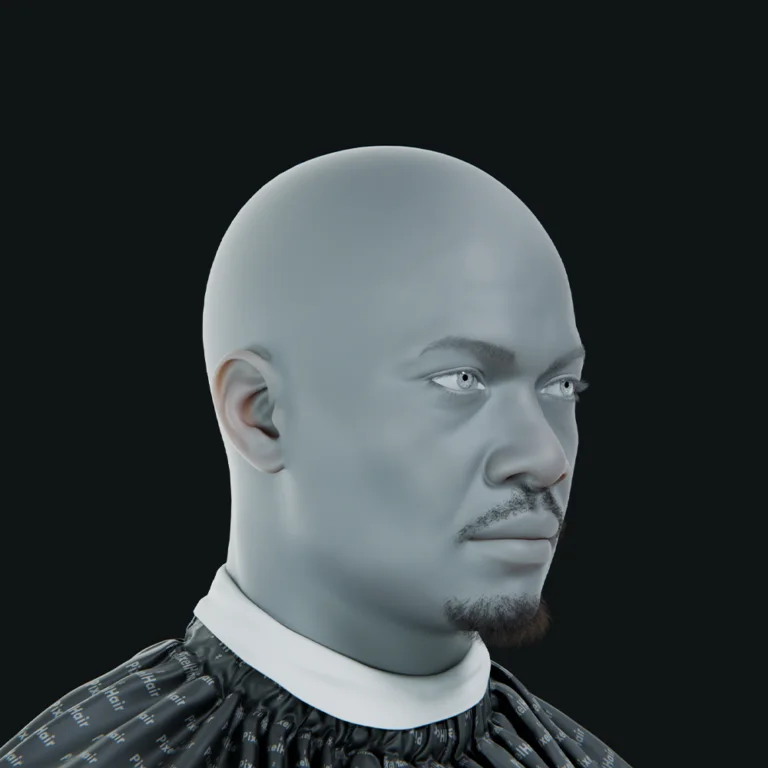
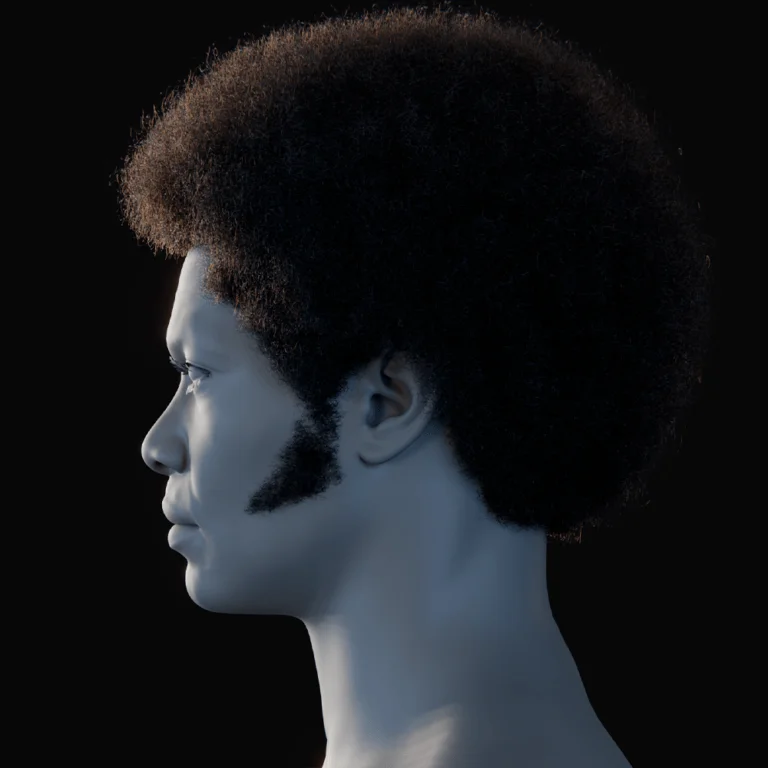
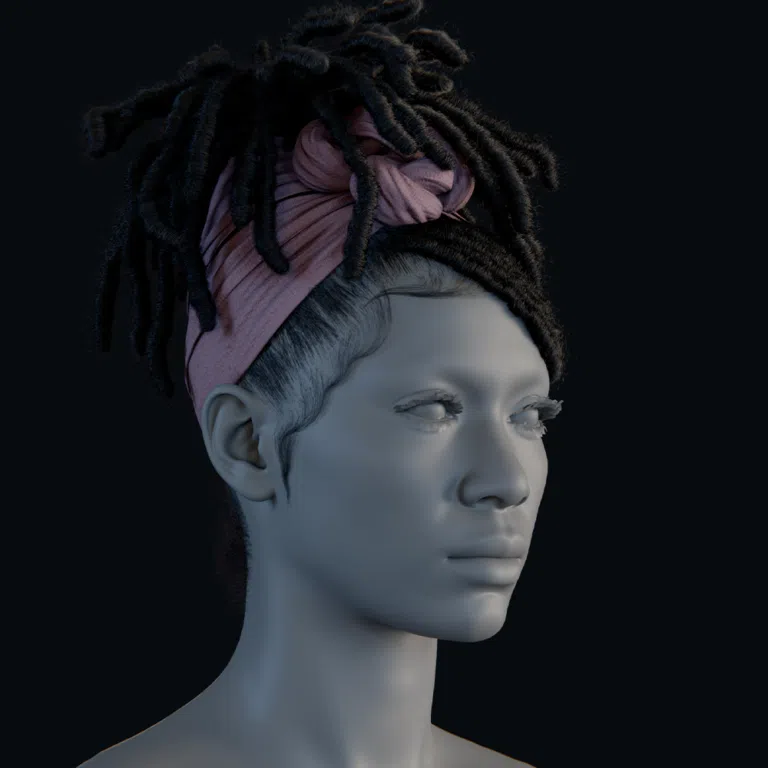
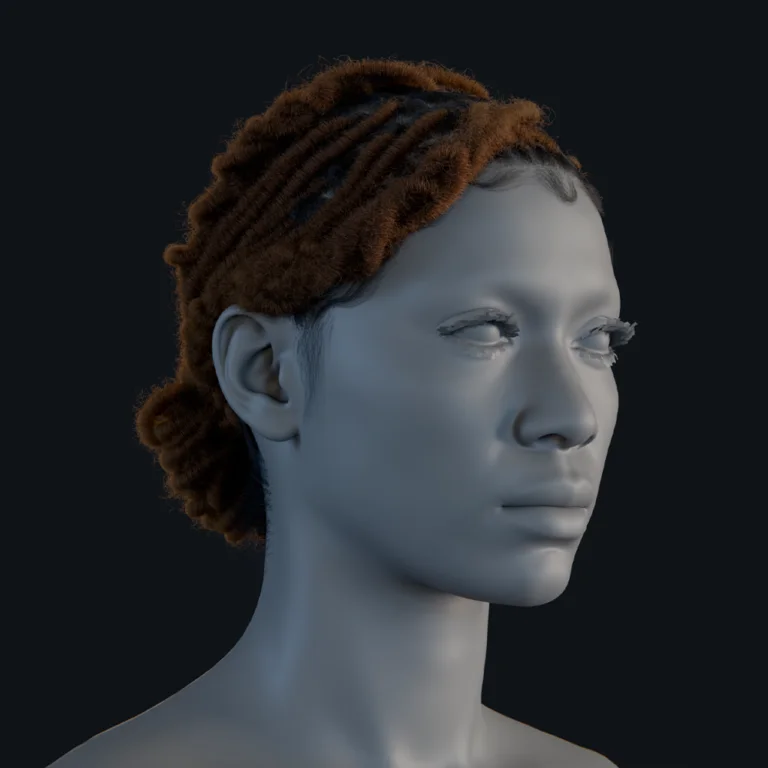
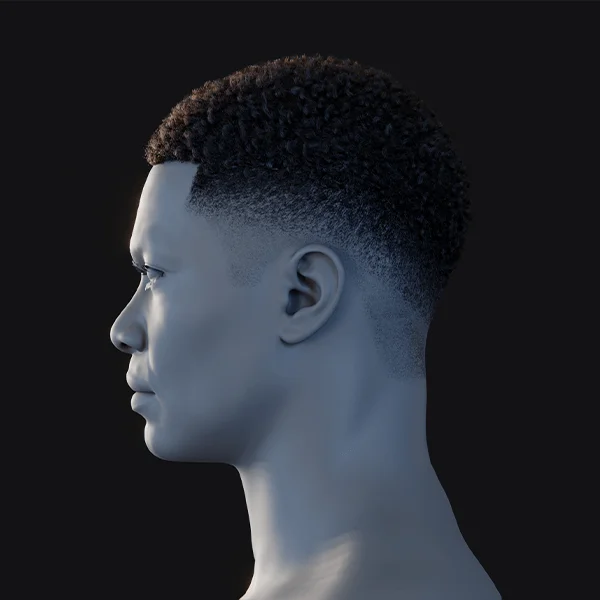
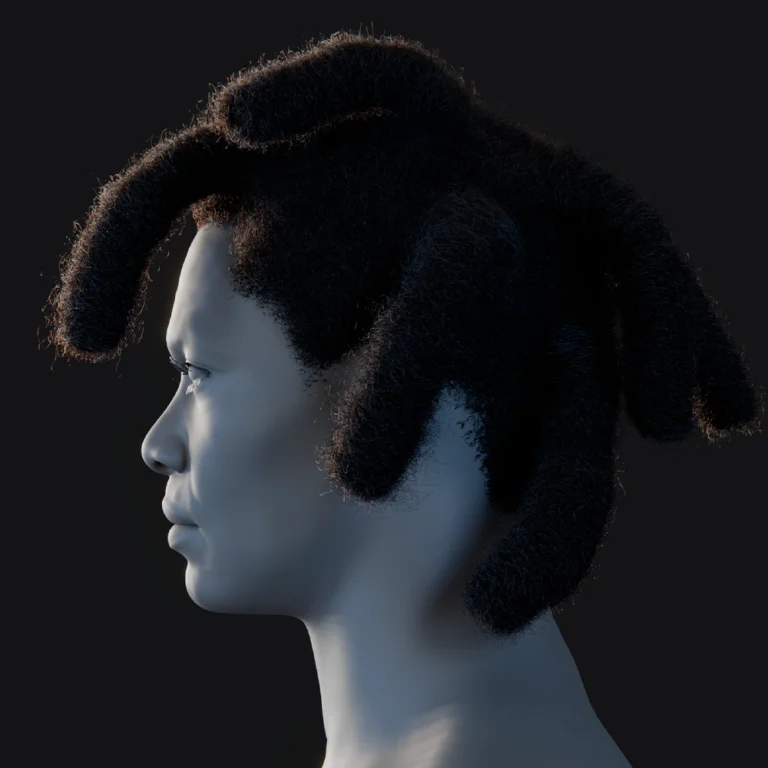
Intricate organic details like hair or fur are extremely difficult for the AI to synthesize accurately and may appear simplified or blurry. For projects requiring maximum fidelity, professional 3D assets (such as the PixelHair collection) or dedicated 3D software remain the superior choice for generating consistent, high-detail results across all angles. - What are some tips to get the best results with Rotate Object?
To maximize the quality of your AI-generated rotations:- Start with High-Res: Higher resolution originals provide better data for the AI.
- Isolate First: Use a clean cutout on a transparent background.
- Gradual Adjustments: Rotate in smaller increments and preview the form before the final render.
- Post-Processing: Use the Harmonize neural filter to match lighting to your background and manually paint in shadows to “ground” the object in the scene.
- Refine for Free: Once a layer is converted, use “Edit Rotation” to tweak the angle as much as needed without spending further credits.
By following these tips, you’ll get the most out of Rotate Object and achieve results that impress. It’s a new workflow, so a bit of practice helps, but it’s quite user-friendly once you get the hang of it.

Conclusion
Adobe’s new Rotate Object tool in Photoshop Beta represents a major leap forward in simplifying 3D-like manipulations for 2D images. It enables users of all levels to achieve what used to require advanced skills or multiple tools – namely, changing the perspective of an object in a photograph – with just a few clicks. By leveraging powerful generative AI, Photoshop can “fill in” the unseen sides of an object, allowing us to seamlessly integrate that object into different scenes and angles. This is a boon for designers creating product mockups, digital artists composing imaginative scenes, and photographers extending the versatility of their shots.
Throughout this article, we explored how to use Rotate Object step-by-step and discussed its capabilities. We also made sure to address its limitations: it’s not a magical cure-all for every situation, and it works best with certain types of content and under specific conditions (like 8-bit images and clear subject isolation). We compared it to Photoshop’s legacy 3D features and saw that while it doesn’t replace full 3D modeling for complex tasks, it vastly accelerates many common workflows in compositing and design.
For those needing ultra-realism or working with very complex elements (like realistic hair or precise 3D structures), we pointed out that traditional 3D tools and assets (such as Yelzkizi’s PixelHair collection for hair, or using Substance 3D/Blender for full 3D scenes) still have their place. In fact, Photoshop’s development seems to be heading towards a harmonious marriage of AI-assisted 2D editing with integration into more dedicated 3D pipelines when needed. Rotate Object is a shining example of this AI-assisted approach – it handles in seconds what would otherwise be tedious, if not impossible, in pure 2D editing.
The SEO keyword “Photoshop Beta Gets a New Tool That Transforms 2D Objects Into 3D Images” truly sums it up: this feature transforms the way we can work with images, blurring the line between 2D and 3D. It empowers creatives to rotate anything in any scene with convincing results, which opens up new possibilities for creativity and efficiency. Early users have been amazed at how it “changes how you approach product mockups and ad layouts” and have hailed it as a “game changer” for quick composites.
Photoshop’s Rotate Object tool is a groundbreaking capability that exemplifies the future of image editing – intelligent, intuitive, and incredibly powerful. While it’s still in beta and has room to grow, it already offers immense value. By understanding its use and constraints (as detailed in this article), you can start leveraging it today to save time and bring your creative visions to life from new angles.
As Adobe continues to refine their AI tools and integrate feedback, we can expect Rotate Object to become even better and eventually a staple feature in every creative’s toolkit. The days of being “stuck” with the original angle of a photo are numbered – now you can simply rotate your way to the image you imagine.
Sources and Citation
- Adobe Community Forum – “Rotate Object is now available in Beta!” (Amy D./Amy Durocher, March 12, 2026).
https://community.adobe.com/announcements-698/rotate-object-is-now-available-in-beta-1553466 - The Rookies Blog – “Adobe Introduces Rotate Object Feature in Photoshop Beta” (The Scout, March 16, 2026).
https://www.therookies.co/blog/headlines/adobe-introduces-rotate-object - 80.lv News – “Photoshop Beta Gets a New Tool That Transforms 2D Objects into 3D Images” (Emma Collins, March 16, 2026).
https://80.lv/articles/photoshop-beta-gets-a-new-tool-that-transforms-2d-objects-into-3d-images - CG Channel – “Photoshop’s Rotate Object lets you rotate 2D images in 3D” (March 17, 2026).
https://www.cgchannel.com/2026/03/photoshops-rotate-object-lets-you-rotate-2d-images-in-3d/ - Thomas Fitzgerald Photography Blog – “Photoshop 27.5 Introduces an Incredible New AI Tool that Rotates 2D Images in 3D” (Thomas Fitzgerald, March 13, 2026).
https://blog.thomasfitzgeraldphotography.com/blog/2026/3/photoshop-275-introduces-an-incredible-new-ai-tool-that-rotates-2d-images-in-3d - Ad-hoc News – “Adobe Photoshop’s New Rotate Object Feature Revolutionizes 2D to 3D Image Transformation in Latest Beta” (Dr. Elena Voss, March 18, 2026).
https://www.ad-hoc-news.de/boerse/ueberblick/adobe-photoshop-s-new-rotate-object-feature-revolutionizes-2d-to-3d-image/68772498 - Adobe HelpX – “Photoshop 3D | Common questions on discontinued 3D features” (updated October 14, 2024).
https://helpx.adobe.com/photoshop/kb/3d-faq.html - Instagram social media reaction – representative March 2026 example surfaced in search.
https://www.instagram.com/reel/DVyyqKUDKsT/ - Adobe HelpX – “Blend objects and people into any background with Harmonize” (official Harmonize help page).
https://helpx.adobe.com/photoshop/desktop/repair-retouch/remove-objects-fill-space/blend-subjects-with-harmonize.html - Adobe Learn – official Harmonize tutorial page.
https://www.adobe.com/learn/photoshop/web/harmonize-photoshop-web
Recommended
- How do I lock a camera to an object in Blender?
- How to Retarget Mixamo Animations to Metahuman in Unreal Engine Using the IK Retargeter
- The Future of 3D Modeling: Insights on AI Advancements
- Helldivers 2: Comprehensive Guide to Gameplay, Features, Factions, and Strategies
- Top Video Games with Really Good Foley Work: The Best Sound Design in Gaming
- Fortnite’s Original Save the World Mode Finally Going Free-to-Play, Launching on Switch 2 April 16
- Castlevania: Belmont’s Curse is a New Castlevania Game Coming in 2026 — Release Date, Trailer, Platforms, Story & Gameplay
- Hair20K vs PixelHair: Comparing High-Fidelity 3D Hair Datasets for Machine Learning, Simulation, and Production Use
- Amazon Introduces New DDoS Protection for Devs Using AWS GameLift Servers (How It Works + Setup)
- Nipsey Hussle’s Braids: A Symbol of His Legacy