







What is PlayStation Portal and what does it do
The PlayStation Portal
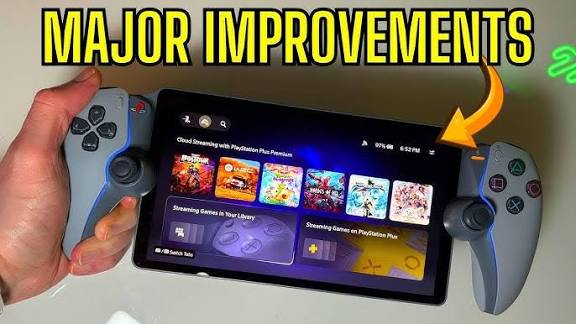
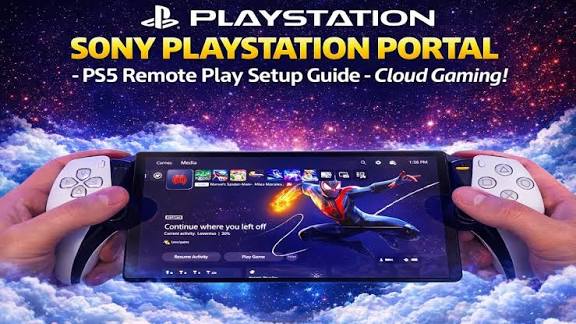
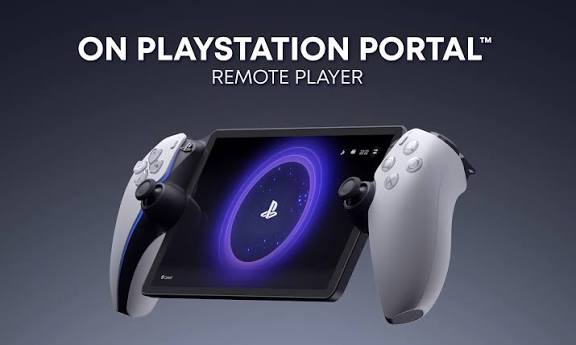
The PlayStation Portal is a dedicated remote-play handheld designed for the PS5.
- Capabilities: It streams PS5 games over Wi-Fi to an 8-inch 1080p, 60 fps display.
- Features: It supports full DualSense functionality, including haptic feedback, adaptive triggers, and motion controls. It also utilizes Tempest 3D Audio.
- Versatility: It allows users to play compatible PS5 and PS4 games while the console is on or in Rest Mode. With a PS Plus Premium subscription, it also supports cloud streaming without the console being powered on.
PlayStation Portal requirements (PS5, Wi-Fi speed, and internet setup)
To function, the Portal requires specific hardware and network conditions.
- Hardware: A PlayStation 5 console (PS4 is not supported) updated to the latest firmware.
- Network Speed: A minimum of 5 Mbps upload/download speed is required, though 15 Mbps or higher is recommended for optimal performance.
- Connectivity: The PS5 should ideally be connected to the router via Ethernet.
- Accounts: A PlayStation Network (PSN) account is required. Cloud streaming specifically requires an adult account with a PlayStation Plus Premium membership in a supported region.
How to set up PlayStation Portal for the first time
Initial setup involves linking the handheld to the user’s home network and console.
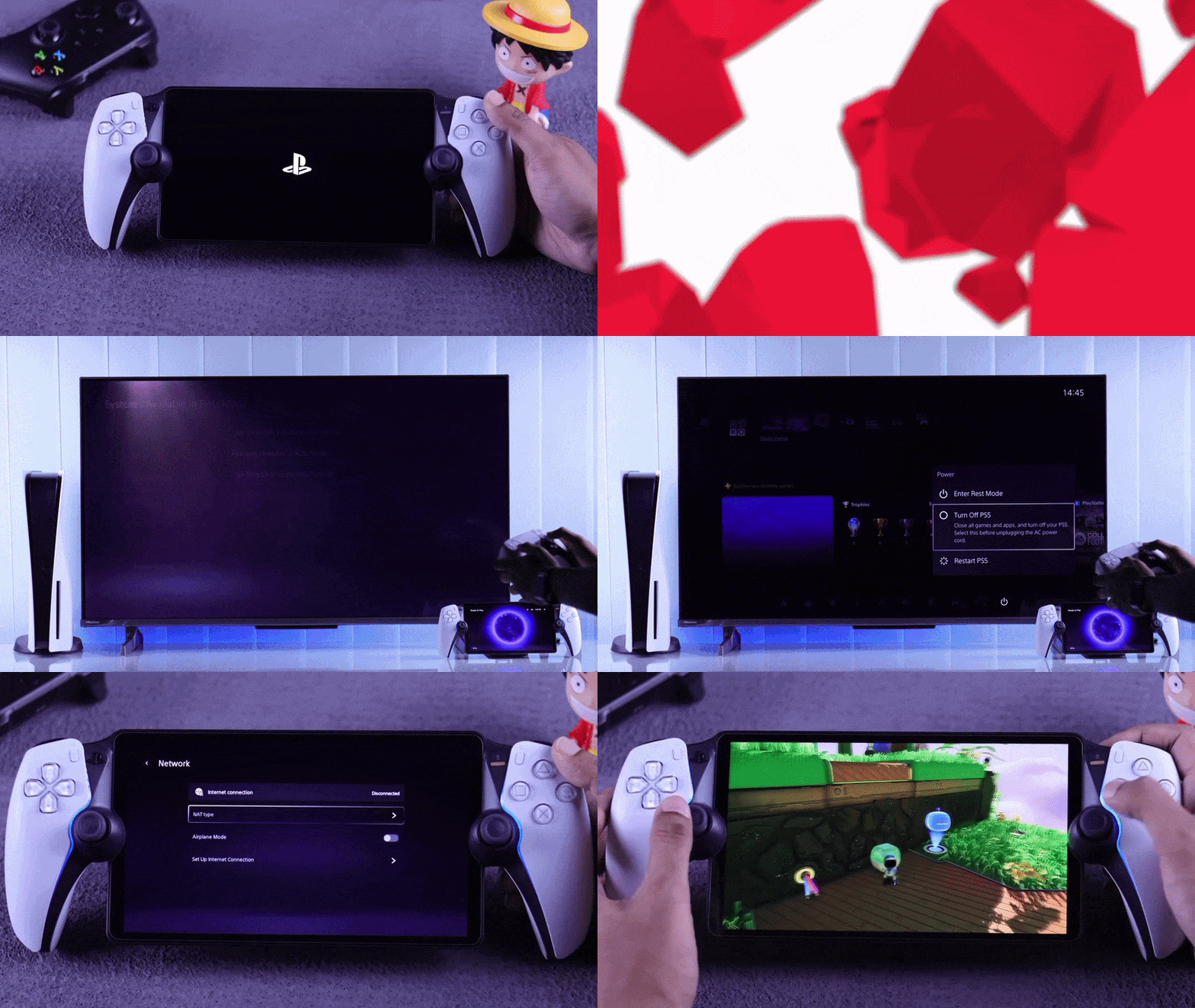
- On the Portal: Power on the device, select a language, and connect to the same Wi-Fi network as the PS5. Sign in to the same PSN account used on the console.
- On the PS5: Navigate to Settings > System > Remote Play and toggle “Enable Remote Play.”
- Rest Mode Configuration: Navigate to Settings > System > Power Saving > Features Available in Rest Mode and enable “Stay Connected to the Internet” and “Enable Turning On PS5 from Network.”
- Connection: Select your PS5 from the list on the Portal screen to pair and begin streaming.
How to pair PlayStation Portal with PS5
Pairing is primarily an automated process linked to the user’s account.
- Automatic Pairing: Once signed into the same PSN account, the Portal will automatically pair with the console upon selection.
- Multiple Consoles: Users with more than one PS5 can switch between them via the Portal’s quick menu.
- Manual Pairing: If automatic pairing fails, users can go to Settings > System > Remote Play > Pair Device on the PS5 to enter a manual link code provided by the Portal.
Best PS5 settings for PlayStation Portal Remote Play (Rest Mode, network, and power options)
Refining system settings can significantly reduce lag and improve connection stability.
- Power Settings: Ensure the PS5 is set to remain connected to the internet and can be woken from Rest Mode via the network. Avoid full power-downs.
- Network Optimization: Use the 5 GHz Wi-Fi band for the Portal and an Ethernet connection for the PS5.
- Router Configuration: Use an Open (Type 2) NAT. If connectivity issues persist, consider enabling UPnP or forwarding Remote Play ports (UDP 8572, UDP 3478–3479, TCP 3478–3480).
- Software: Regularly update both the PS5 and Portal firmware to benefit from Sony’s ongoing networking and streaming improvements.
.
Using Remote Play on PlayStation Portal (step-by-step)
Operating the Portal is designed to mirror the standard PS5 experience.
- Connection: Wake the Portal while the PS5 is in Rest Mode or powered on. Tap the “PlayStation Portal” icon or press X to link to the last used console.
- Controls: The physical sticks and buttons function as a DualSense controller. The touchscreen emulates the PS5 touchpad by tapping the left or right areas of the screen.
- Navigation: The Quick Menu (PS button) allows for on-the-fly adjustments to resolution and audio. Users can disconnect and remotely put the PS5 back into Rest Mode through this menu.

PlayStation Portal away from home: how to use it on different Wi-Fi networks
The device supports gaming over any broadband Wi-Fi connection with at least 15 Mbps.
- Remote Connectivity: Users can stream from their home PS5 from any location, such as cafes or hotels.
- Public Hotspots: For networks requiring web-portal logins, firmware 3.0.1 or later allows users to complete validation via a smartphone or PC to bridge the Portal’s connection.
- Flexibility: Users can switch Wi-Fi networks via Settings > Network on the handheld.
PlayStation Portal Cloud Streaming: how it works and who can use it
Cloud streaming allows for gameplay without a PS5 console being powered on.
- Requirements: This feature requires an adult PSN account with a PlayStation Plus Premium membership. It is not available for Extra or Deluxe tiers.
- Game Access: Members can stream hundreds of titles from the Game and Classic Catalogs, as well as digital PS5 games they own personally (following the late 2025 update).
- Performance: High-resolution 1080p streaming requires a 15 Mbps connection.
How to enable Cloud Streaming (Beta) on PlayStation Portal
Users must manually opt into the cloud feature within the device settings.
- Activation: Ensure the system is on the latest firmware (post-Fall 2024). Open the Quick Menu > Settings > Cloud Streaming (Beta) and toggle it ON.
- Access: Once enabled, a dedicated “Cloud Streaming” tab appears on the home screen for browsing the available catalog.
Best PlayStation Portal settings to change right away
Adjusting default settings can improve both battery life and immersion.
- Battery and Comfort: Lowering screen brightness and reducing vibration/adaptive trigger intensity in Controller Settings can extend play sessions.
- Audio: For 3D audio, use the 3.5 mm jack or PlayStation Link wireless devices (e.g., Pulse Explore).
- Accessibility: Screen readers and text size adjustments are available under Settings > Cloud Streaming > Accessibility Settings.
PlayStation Portal system software updates: latest features
Sony has released several major firmware versions to expand the device’s utility:
- v3.0.0: Added public Wi-Fi support and battery percentage indicators.
- v4.0.0: Introduced the Cloud Streaming Beta for Game Catalog titles.
- v5.0.0: Added gameplay captures during streaming and improved volume controls.
- v6.0.0 (Late 2025): Enabled full cloud streaming of owned library games, 3D Audio support, and enhanced UI for game invites.
How to take captures while cloud streaming
Starting with v5.0, users can capture media during cloud sessions.
- Function: Press the Share button or select Take Screenshot in the Quick Menu.
- Storage: These captures are saved directly to the PlayStation Plus Cloud Storage (up to 100 GB). Note: This is currently exclusive to cloud streaming sessions.
PlayStation Portal lag, stutter, and input delay fixes
Network optimization is the most effective way to eliminate latency.
- Frequency: Use a 5 GHz Wi-Fi band; avoid 2.4 GHz due to interference.
- Router Tweaks: Disable IPv6 if stuttering persists. Set the PS5 to NAT Type 2 and consider forwarding specific Remote Play ports (UDP 8572, 3478–3479; TCP 3478–3480).
- Quality Settings: If the network is weak, manually lower the streaming resolution (e.g., from 1080p to 720p) in the Quick Menu.
Best router settings for PlayStation Portal
Router configuration is critical for a stable stream.
- QoS and Band Steering: Enable Quality of Service (QoS) to prioritize the PS5/Portal. Disable “band steering” to prevent the Portal from dropping to a slower 2.4 GHz frequency.
- UPnP: Turn on UPnP to allow the router to manage port assignments automatically.
PlayStation Portal connection and audio troubleshooting
Solutions for common technical hurdles:
- Connection Issues: Ensure “Enable Remote Play” is active on the PS5. If the Portal won’t connect, reboot the router and ensure both devices are signed into the same PSN account.
- Rest Mode Drops: Verify that “Stay Connected to Internet” is enabled in the PS5’s Power Saving settings.
- Audio/Mic: The Portal has no built-in microphone; voice chat requires a headset with a mic. Ensure the headset is not muted in the PS Link Device settings.
PlayStation Portal battery life and charging
The Portal typically offers 2–4 hours of gameplay per charge.
Charging: Use a USB-C Power Delivery (PD) charger between 18W and 30W. Avoid full battery depletions; charging when the device reaches 20% is recommended.
Conservation: To save power, dim the screen and turn off the light bar and controller haptics.
Frequently Asked Questions (FAQs)
- Can I use PlayStation Portal without owning a PS5 console?
Only partially. The Portal’s primary function (Remote Play) requires a PS5 to stream from. However, with a PlayStation Plus Premium (Cloud) subscription you can stream select PS5 games directly from Sony’s servers without the console. In that cloud mode, you effectively have a “portable PS5” in your hands, but only for games that Sony makes available in the PS Plus streaming catalog. If you don’t have a PS5 or you turn it off, you can still play those cloud games with the Portal, but you cannot play digital PS5 games from your library unless the PS5 is online or the games have cloud support. - What games are compatible with PS Portal?
Virtually any PS5 game that you own (or stream) can be played on Portal via Remote Play, except titles that strictly require PS VR or unique peripherals. PS4 games you own on the PS5 will also work (the PS5 will run them and stream the image). For cloud streaming, only games that Sony has included in the PS Plus Game Catalog, Classics, or those you own digitally on PS5 are playable. Most major PS5 titles (e.g. Spider-Man, Ratchet & Clank, etc.) are supported, but check Sony’s “Cloud Streaming Games” list for any exclusions. Notably, PS Portal cannot play PS3 games, PS2 games, or any PS4/PS5 game that mandates VR hardware or special extras (except DualSense). - Do I need a PlayStation Plus Premium membership to use PS Portal?
For pure Remote Play on your PS5, no membership is needed – you just stream from your own console. But to use the Portal away from home via Cloud Streaming, you must have PlayStation Plus Premium. (PS Plus Extra/Deluxe is not enough.) In short, PS Plus is optional for home use, but mandatory for cloud gaming. - Does the Portal support PS4 games or older PlayStation titles?
Yes and no. The Portal itself is only compatible with PS5, but the PS5 can run most PS4 games (and some older titles via PS+ or emulation). Thus any PS4 game you’ve installed or in your library on the PS5 can be streamed to the Portal. Classic PS1/PS2 games on PS5 may also stream if the console supports them. However, there is no direct “PS4 mode” – the Portal does not connect to a PS4, only to a PS5. - Can I use Portal on a mobile hotspot or public Wi-Fi?
Yes, as long as the network provides stable broadband internet. You can connect the Portal to any Wi-Fi (home, work, cafe, etc.) if it meets the 5/15 Mbps guideline. For public Wi-Fi with login portals, ensure the Portal is on v3.0.1+ and complete the login on a phone first. Keep in mind data limits and lag: cellular hotspots often have limited bandwidth, so a strong Wi-Fi connection is preferred. - Can I play split-screen or use multiple controllers with Portal?
No. The Portal is a single-player, single-controller device. You cannot connect more controllers to the Portal, nor does it support local multi-screen play. It essentially mirrors one PS5 player – if a game had local co-op, the Portal can only show one player’s view at a time. For multiplayer games, use the regular controllers on the PS5 or remote-play multiple consoles (each Portal only works with one console at once). - How do I charge the Portal, and what adapter should I use?
Charge the Portal via its USB-C port. The easiest way is to plug it into the PS5 console’s USB port or use the included USB-C cable with a wall adapter. Any USB-C PD (Power Delivery) charger between 18W and 30W will charge it properly. Avoid low-power chargers (like old phone chargers) since the Portal may not charge quickly or may even discharge under heavy use. You can use the Portal while charging, but it charges fastest when off. There’s no special charger needed beyond a standard USB-C power brick. - What audio/headset options are available for PS Portal?
You can plug wired headphones or headsets into the 3.5 mm jack on the Portal to hear game audio. For wireless audio, Portal supports Sony’s PlayStation Link devices – for example, the Pulse Explore earbuds connect directly with very low latency. Generic Bluetooth headphones do NOT work; only Link-compatible devices are supported. The Portal itself has a built-in speaker (for basic audio), but for full quality and 3D audio you should use a headset. Remember: the Portal has no mic, so voice chat requires your headset’s mic or a separate solution. - Can I use Portal on a mobile hotspot or public Wi-Fi?
Yes, as long as the network provides stable broadband internet. You can connect the Portal to any Wi-Fi (home, work, cafe, etc.) if it meets the 5/15 Mbps guideline. For public Wi-Fi with login portals, ensure the Portal is on v3.0.1+ and complete the login on a phone first. Keep in mind data limits and lag: cellular hotspots often have limited bandwidth, so a strong Wi-Fi connection is preferred. - What games are compatible with PS Portal?
Virtually any PS5 game that you own (or stream) can be played on Portal via Remote Play, except titles that strictly require PS VR or unique peripherals. PS4 games you own on the PS5 will also work (the PS5 will run them and stream the image). For cloud streaming, only games that Sony has included in the PS Plus Game Catalog, Classics, or those you own digitally on PS5 are playable. Most major PS5 titles (e.g. Spider-Man, Ratchet & Clank, etc.) are supported, but check Sony’s “Cloud Streaming Games” list for any exclusions. Notably, PS Portal cannot play PS3 games, PS2 games, or any PS4/PS5 game that mandates VR hardware or special extras (except DualSense).
Conclusion
The PlayStation Portal is a powerful niche device for PS5 owners, effectively acting as a portable extension of your console. It unlocks flexible ways to play PS5 games – whether lounging in another room, traveling, or even on the go via cloud streaming – without losing the DualSense experience. Setting it up is straightforward, and numerous firmware updates have continued to improve its stability, connectivity, and feature set (such as full cloud streaming and accessibility options).
For best results, pair it with a fast home network, optimize your router, and keep both PS5 and Portal firmware updated. With these optimizations and a PS Plus Premium subscription if desired, the Portal can greatly expand when, where, and how you play PS5 games. By following the tips above, you can enjoy a smooth remote-play experience, solve common issues, and make the most of this dedicated PS5 handheld.
Sources and Citation
- Official Sony / PlayStation
- PlayStation Portal™ Remote Player for PS5® console — official product page, with the FAQ section on the same page.
- How to use Remote Play on your PS Portal — PlayStation Support guide.
- Cloud streaming for PS5 games on PlayStation Portal Remote Player — PlayStation Support page.
- The PlayStation Portal remote player experience to evolve with new system update — PlayStation Blog, November 19, 2024.
- Cloud Streaming officially arrives on PlayStation Portal today, with new support for digital PS5 games in your library — PlayStation Blog, November 5, 2025.
- System software update features for PS Portal — current PlayStation Support page for PS Portal update history/features.
- Press / retail / setup
- I waited two years to get a PlayStation Portal, and now wish I’d bought one sooner — TechRadar, January 9, 2026.
- PlayStation Portal Remote Player 5 — Amazon product page with the “About this item” section.
- How to Set Up PlayStation Portal For Remote Play with PS5 — YTechB, November 23, 2023.
- New accessibility features arrive to PlayStation’s Cloud Streaming and Remote Play — Can I Play That?, November 5, 2025.
- Community / Reddit guide matches
Recommended
- Hades 2: Release Date, Platforms, Gameplay, Characters, and Everything You Need to Know
- The Fate of Rocket 3F 3D Modeling Software
- How to Make Hair in Blender
- Musgrave Texture Removed in Blender 4.1 – Workarounds and Alternatives
- How to Convert Hair Curves and Geometry Nodes to Mesh in Blender: A Complete Workflow Guide
- How to Make Anything a LEGO in Blender with Geometry Nodes: A Step-by-Step Guide
- Netflix Joins Blender: What Netflix Animation Studios Funding Means for Blender and the Community
- How do I make the camera follow a character in Blender?
- What Is Depth of Field in Blender, and How Do I Set It?
- How to Create a 3D Environment Like Arcane: A Step-by-Step Guide