

In This Article (11 sections)
Pokémon Pokopia Mouse Controls Explained
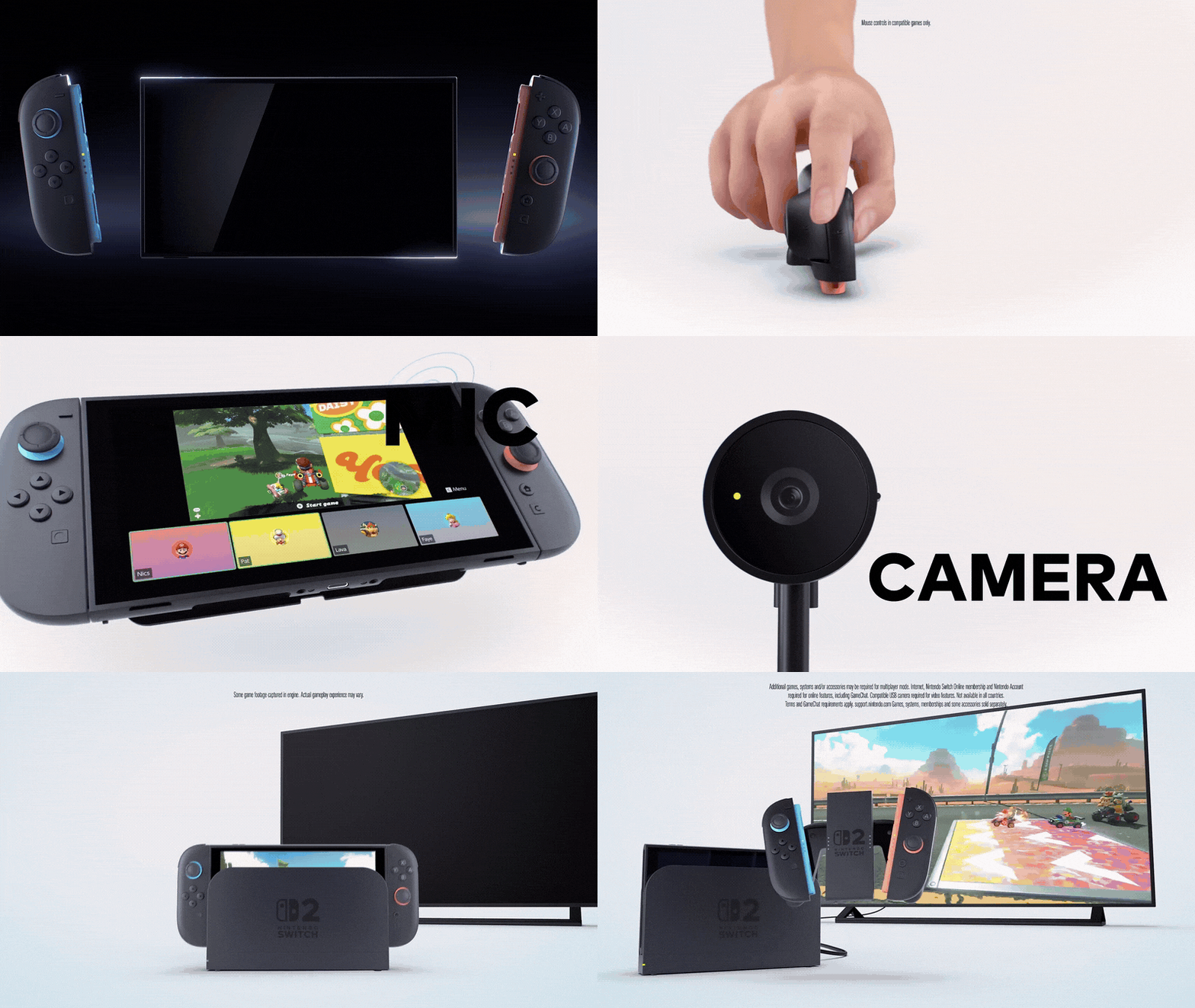
Pokémon Pokopia is a cozy life-simulation game exclusive to the Nintendo Switch 2 that features a unique “Mouse Mode.” This allows you to use a Joy-Con 2 like a computer mouse, utilizing its built-in optical sensor for precise point-and-click actions. This mode is particularly useful for town-building and interior decorating, as it allows you to manipulate the environment by pointing at the screen rather than moving your character.
The feature is somewhat hidden; it activates when a Joy-Con is placed flat on its side. While it doesn’t work in handheld mode with controllers attached, it provides PC-like precision for creative tasks, such as placing furniture or building structures as a friendly Ditto.
How to turn on Mouse Mode in Pokémon Pokopia
Enabling Mouse Mode is straightforward but requires the Joy-Cons to be detached.
- Open Settings: Navigate to the Game tab in the settings menu.
- Toggle Mouse Mode: Switch the “Mouse Mode” option to On.
- Detach Joy-Cons: Remove both Joy-Con 2 controllers from the console.
- Position the Joy-Con: Place one Joy-Con flat on a surface (buttons/colored side down). It is recommended to use the wrist strap for a better grip.
- Move to Sync: Slide the Joy-Con on the surface; a cursor will appear on-screen.
To deactivate: Either toggle the setting off in the menu or simply pick the Joy-Con up. The game will automatically return to standard analog controls.
Quick Tip: Detach both Joy-Cons even if you only use one as a mouse, as leaving one attached can prevent the mode from initializing properly.

Does Pokémon Pokopia support mouse controls on Nintendo Switch 2
Yes. This feature is a Switch 2 exclusive because it relies on the new optical sensors found in the Joy-Con 2 hardware.
- Hardware Dependent: It is not available on the original Nintendo Switch.
- No External Mice: The game supports “Mouse Mode” via the Joy-Cons specifically; it does not officially support plugging in a standard USB computer mouse.
- Built-in Feature: This is an official Nintendo Switch 2 capability intended to showcase the new hardware’s precision.
Pokémon Pokopia Mouse Mode controls list
In Mouse Mode, the button layout shifts to mimic a two-button computer mouse:
- Primary Action (Place/Confirm): Press R (Right Joy-Con) or L (Left Joy-Con). This acts as the “left-click.”
- Secondary Action (Rock Smash): Press ZR (Right Joy-Con) or ZL (Left Joy-Con). This acts as the “right-click” to break blocks.
- Movement and Camera: Use the analog sticks on the Joy-Con not being used as the mouse.
- Jump: Remapped to the A button (since R/L are used for clicking).
- Interact/Pick Up: Usually requires exiting Mouse Mode or using the A button (which primarily jumps in this mode).
- Other Actions: Buttons like X (Bag) and B (Run) remain the same, but most Pokémon moves are disabled.

Pokémon Pokopia Mouse Mode button mapping changes
Switching to Mouse Mode introduces several specific reassignments:
- R/L Repurposing: These buttons stop functioning as the jump command and become the primary interaction/placement click.
- The Jump Shift: Jump moves from the shoulder button to the A face button.
- Move Restrictions: All transformation powers except Rock Smash are disabled while the cursor is active.
- Ambidextrous Support: The game detects which Joy-Con is flat; if you use the Left Joy-Con, the functions of R/ZR swap to L/ZL automatically.
Why Pokémon Pokopia mouse controls feel better for building and menus
The pointer system offers several advantages over standard analog stick movement:
- Pixel-Perfect Placement: You can drop items exactly where you want without “wrestling” with character alignment or camera overshooting.
- Extended Reach: You can interact with objects much further away from Ditto than usual, including blocks high above your head.
- Vertical Efficiency: It is significantly easier to stack blocks upward or clear high debris by simply pointing the cursor at the target.
- Menu Navigation: Dragging a cursor through inventory grids or crafting recipes is often faster than scrolling through items one by one.
- Reduced Camera Fiddling: You can keep the camera at a static angle and move the cursor around the field of view, rather than constantly rotating the view to line up a shot.

Best settings for Pokémon Pokopia mouse controls
To optimize your building experience, consider these adjustments:
- Calibration: If the cursor stutters, use the Switch 2 system settings to calibrate the Joy-Con motion and IR sensors.and give it a try in Pokopia; your Pokémon villagers will surely appreciate the expertly placed furniture and well-planned town that result!
- Default “On”: Keep Mouse Mode toggled to “On” in settings so you can trigger it instantly by laying the controller down.
- Surface Selection: Use a mousepad or a non-reflective flat surface. Glossy or glass tables may cause the optical sensor to jitter.
- Joy-Con Straps: Use the wrist straps to make the controller feel more like a mouse and to access the side of the rail more comfortably.
- Camera Sensitivity: Dial down camera sensitivity in the settings if you find the view swings too wildly while you are trying to do fine placement work.
Frequently Asked Questions (FAQs)
- Do I need a Nintendo Switch 2 to use Mouse Mode, or will it work on Switch 1?
Mouse Mode is a Nintendo Switch 2 exclusive feature, as it requires the new Joy-Con 2 hardware. Pokémon Pokopia is only available on the Switch 2 and fully supports these controls. The original Nintendo Switch does not have the necessary functionality or access to this game. - Can I use a regular USB mouse or keyboard with Pokémon Pokopia?
No, the game does not support direct USB mouse or keyboard input. The term “mouse controls” refers specifically to using the Joy-Con 2 in its dedicated Mouse Mode. You must use the Joy-Con’s pointer capability as a pseudo-mouse. - Which controllers work for Mouse Mode – can I use the Pro Controller?
Only Joy-Con 2 controllers work for Mouse Mode. The Pro Controller currently lacks the specific sensor required for pointer controls. While you can use a Pro Controller for standard gameplay, the Joy-Con is mandatory for activating the actual Mouse Mode cursor. - What exactly can I do with mouse controls in Pokopia?
Mouse controls allow you to move an on-screen cursor to:- Place furniture or items with higher accuracy.
- Target specific blocks for building or using Rock Smash.
- Navigate certain menus.
- Terraform terrain and select objects from a distance. It is designed to make any task requiring precise placement or targeting significantly easier.
- Why can’t I use any other Pokémon moves (like watering or digging) in Mouse Mode?
For technical and balance reasons, Mouse Mode is restricted to the Rock Smash move. Other transformations, such as the watering can, are disabled while the cursor is active. To use other abilities, you must exit Mouse Mode by picking up the Joy-Con. - How do I switch back to normal controls from Mouse Mode quickly?
Simply lift the Joy-Con off the surface. The on-screen cursor will disappear, and the game will immediately revert to standard analog stick and button controls. You can also disable it in the settings menu, but physical lifting is the fastest method. - Mouse Mode isn’t working – I set it on, but no cursor appears. What did I do wrong?
Ensure both Joy-Cons are detached from the console; the mode will not activate if even one remains attached. Hold the detached Joy-Con flat on a surface with the buttons/colored side facing down. If it still fails, ensure Mouse Mode is toggled “On” in the Game settings and keep the controller still for a moment to let it register. - Is using Mouse Mode actually better than using the controller sticks?
In the context of building and precise tasks, yes. It offers finer accuracy, faster placement, and the ability to target objects further away. However, for general exploration, standard sticks are still preferred. Most players use Mouse Mode as a supplement for creative work. - I’m left-handed, can I use the left Joy-Con as the mouse instead of the right?
Yes. The game supports either Joy-Con acting as the mouse. If you use the left Joy-Con, the L button acts as the primary click and ZL triggers Rock Smash. The system detects which controller is laid flat and mirrors the prompts automatically. - Does Mouse Mode work in handheld mode or only on TV?
It cannot be used in a one-piece handheld configuration because the Joy-Cons must be detached. However, it works in TV mode and tabletop mode (where the console screen is propped up and Joy-Cons are separate).
Conclusion
Pokémon Pokopia’s mouse controls are a standout feature that enriches the gameplay, especially for builders and creative tinkerers. By allowing players to use the Nintendo Switch 2’s Joy-Con as a makeshift mouse, the game developers have provided a level of precision and ease that traditional controls simply can’t match in certain scenarios. We’ve explored how to enable this Mouse Mode, the changes it brings to the control scheme, and why it can be so beneficial for tasks like crafting, building structures, and managing your cozy town.
With Mouse Mode activated, crafting a paradise with your Pokémon pals becomes more intuitive – you can point, click, and create with a new degree of accuracy. Placing furniture exactly where you want it, or breaking that one pesky block that’s out of reach, becomes a breeze when you’re not fighting the camera or analog stick drift. We also discussed how this feature compares to standard controls: it’s not meant to replace the classic controller experience for everything (you’ll still run around and perform many actions the usual way), but it’s a powerful complement that you can toggle on whenever the situation calls for fine control.
To answer the titular “PSA” – yes, Pokémon Pokopia has mouse controls, and they’re pretty great! Once you start using them in the appropriate contexts, you may wonder how you managed without this feature. It transforms terraforming and decorating from what could be a slow chore into a more engaging, almost relaxing activity. And since it’s so easy to toggle, there’s really no downside to using it when it benefits you.
In closing, if you’re playing Pokémon Pokopia on Switch 2, we highly recommend giving Mouse Mode a try. Follow our guide to set it up, practice a little with the new controls, and soon you’ll likely find that building your dream Pokopia is smoother and more enjoyable than ever. Whether you’re a perfectionist planner for whom every block must be just so, or a casual player who’d like things to be a bit easier to manage, the Joy-Con mouse controls can elevate your gameplay experience. Embrace this unique feature of the Switch 2 and watch as your cozy Pokémon world comes together with precision and ease. Happy crafting in Pokopia, and may your towns be ever beautiful (and perfectly aligned)!
Sources and Citations
- Nintendo Official Site – Pokémon Pokopia (Nintendo UK)
- GameSpot – Steve Watts, “PSA: Pokemon Pokopia Has Mouse Controls, And They’re Pretty Great”
- Nintendo Life – Alana Hagues, “Does Pokémon Pokopia Use Mouse Mode Controls?”
- Shacknews – Aidan O’Brien, “Does Pokemon Pokopia have mouse support?”
- Game8 – How to Use Mouse Mode (Pokémon Pokopia)
- Game8 – List of Controller and Mouse Mode Controls
- Gizmodo – Pokémon Pokopia Review
- Reddit r/Pokopia
- Reddit Discussion – Mouse Controls and Ergonomics
- Reddit Discussion – Mouse Mode Feedback
- Nintendo UK – Pokémon Pokopia Overview Page
- GameSpot Pokémon Pokopia Coverage Hub
- Nintendo Life Pokémon Pokopia Guides Hub
- Shacknews Pokémon Pokopia Coverage
- Game8 Pokémon Pokopia Wiki
Recommendations
- Modern Warfare 4 DMZ Returns as Extraction Shooter Battles Arc Raiders and Marathon for Genre Dominance
- Slay The Spire 2 Finally Enters Early Access on March 5, 2026: 4-Player Co‑Op, New Characters, and What to Expect
- QuadSpinner Releases Gaea 2.3: Macros, Advanced Erosion Upgrades, and Major Workflow Improvements for Gaea 2 Terrain Generator
- Cross-Platform Rendering for AAA Titles: Optimizing Graphics Across PC, Console, and Cloud Gaming
- How Baki-Dou: The Invincible Samurai Will Continue in a “Very Scary” Part 2 – Musashi Miyamoto’s Dark Evolution Explained
- The State Duma Has Proposed to Restrict Loot Box Sales in Games to Minors in Russia
- Covenant: the Final Chapter Finally Wraps up the Beloved Supernatural Romance Comic
- Onimusha: Way of the Sword Will Be More Challenging than the Demo: Difficulty and Combat Expectations
- LEGO Batman: Legacy of the Dark Knight Balances Fan Service with an Arkham-Style Open World: Release Date, Gameplay, and Gotham Details
- The Eternal Life of Goldman Official Game Pass Trailer: Everything Revealed at Xbox Partner Preview Showcase 2026