




RealBlend is a Unity Asset Store tool developed by AdamNapper to replace the deprecated Polybrush package. It allows users to paint on 3D meshes, blend multiple textures via vertex colors, sculpt geometry, and create new mesh surfaces directly within the Unity Editor. It was created to fill the functional gap left when Unity deprecated Polybrush in version 6.3 and later. RealBlend replicates Polybrush’s core features while introducing workflow improvements, functioning like a mini 3D modeling program inside Unity. It supports Scriptable Render Pipelines (URP and HDRP) and uses RGBA vertex colors as mask channels, making it compatible with many existing shaders.
In This Article (18 sections)
Why Developers Are Searching for a Polybrush Alternative in Unity
Developers sought an alternative because Polybrush was a critical tool for environment art, used for texture blending and mesh deformation. Unity removed Polybrush due to the challenges of maintaining it alongside newer rendering pipelines (URP/HDRP) and its history of being buggy. Its removal forced developers into a time-consuming “round-trip” workflow, requiring them to move assets to external software like Blender for minor edits. RealBlend emerged to provide a modern, actively maintained solution that works with current rendering pipelines, allowing artists to iterate quickly within the Unity environment and maintain parity with tools found in other engines like Unreal.
Best Unity Mesh Painting Tool for Vertex Color and Texture Blending
RealBlend is positioned as a leading solution due to its comprehensive feature set. It supports up to 5 texture layers in HDRP and 3 layers in URP/Built-in pipelines, allowing for complex material transitions within a single draw call. It integrates sculpting brushes (Push/Pull, Smooth) and topology editing (subdivide/remove triangles) that simpler painting tools lack. The tool is optimized for performance, staying within shader sampler limits. Unlike older or more basic tools, RealBlend is under active development, offering ongoing support and features like a procedural Noise module and a Mask Packer to combine texture maps.

How RealBlend Improves Mesh Creation and Surface Detailing in Unity
RealBlend enhances realism by allowing artists to paint grime, moss, or plaster onto tiled textures to break up repetition. Its sculpting tools enable physical detailing, such as denting walls or eroding cliffs, while viewing the results under real-time scene lighting. A “Create” mode allows for the procedural generation of paint-ready meshes like curved walls or platforms with adjustable vertex density. Key features include “Revert Topology,” which restores a mesh’s original shape while preserving painted colors, and a “Refine” tool for local subdivision. This workflow encourages using a single material for multiple textures, ensuring lighting consistency and better performance.
Unity Vertex Painting Tool for Environment Art and Level Design
Vertex painting is essential for creating organic variation in modular environments. RealBlend allows level designers to add contextual storytelling details—such as soot near pipes or dirt in high-traffic areas—without needing unique textures. While Unity’s built-in Terrain tools are limited to heightmaps, RealBlend handles arbitrary meshes like buildings and props. This brings Unity’s workflow in line with industry standards, allowing for faster iteration and optimized content. It also enables old-school techniques like baking ambient occlusion into vertex colors to guide the player’s eye and improve realism.
Step-by-Step Guide to Mesh Painting in Unity Using RealBlend
- Install: Import RealBlend from the Unity Asset Store.
- Prepare Mesh: Add a collider to the target mesh (required for brush detection) and enable Read/Write in import settings.
- Assign Material: Use a material with a shader that blends textures based on vertex color channels (RGBA).
- Open Interface: Select the mesh and open the RealBlend tool window to enter Paint mode.
- Paint: Use brushes to apply textures via vertex color channels, adjusting size, strength, and falloff.
- Sculpt (Optional): Switch to Sculpt mode to move vertices or smooth surfaces. Use “Revert Topology” to undo shape changes while keeping paint data.
- Fine-Tune: Use the Noise module for natural distribution or the Refine tool to add geometry detail where needed.
- Bake: Use “Bake to Asset” to save the modified mesh as a new, optimized asset file.
- Finalize: Place the baked mesh in the scene; it no longer requires the RealBlend script to function at runtime.
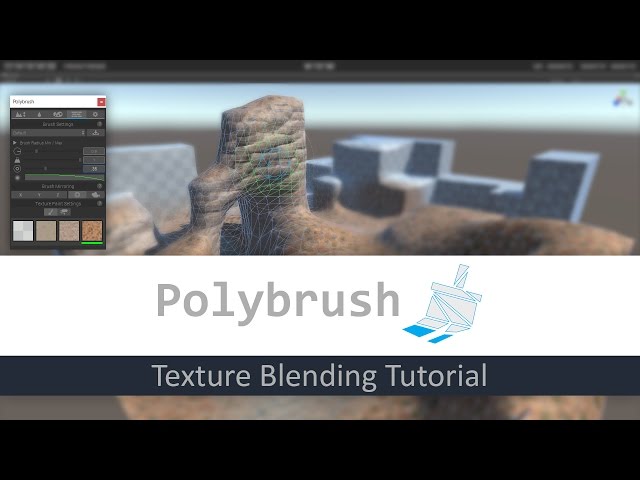
Real-Time Mesh Editing and Painting Inside the Unity Editor
RealBlend eliminates context-switching by allowing all mesh modifications to happen within Unity. This “What You See Is What You Get” (WYSIWYG) approach means edits are viewed under final game lighting and post-processing. It serves as a unified process layer for level design, allowing for the simultaneous refinement of aesthetics and gameplay—such as testing character traversal over newly sculpted terrain in play mode. The tool is optimized for interactive feedback through raycasting against colliders and offers non-destructive safety nets. This integrated workflow facilitates better collaboration and allows small teams to achieve a higher level of detail without leaving the engine.
Comparing RealBlend vs Unity Polybrush for Mesh Painting
RealBlend is the spiritual successor to Unity’s deprecated Polybrush, matching its core features while offering several enhancements. Both tools provide vertex color painting for texture blending and mesh sculpting (push/pull and smooth), but RealBlend expands these capabilities. Specifically, RealBlend supports up to 5 texture layers in HDRP (RGBA plus a base layer), exceeding Polybrush’s 4-layer limit. RealBlend also introduces topology editing tools, such as Refine and Remove, allowing users to subdivide or remove triangles—a feature Polybrush lacked.
While Polybrush included a prefab scatter mode, RealBlend focuses on mesh surface modification and instead adds a “Create” mode for generating new procedural shapes like planes or curves. Technically, RealBlend replaces Polybrush’s problematic and deprecated “Additional Vertex Streams” system with a VertexPaintStorage component and a “Bake to Asset” workflow, ensuring better data persistence and stability. Built natively for modern Unity versions (2023+), RealBlend includes guardrails for Scriptable Render Pipelines, such as restricting URP to 3 layers for efficiency, making it a more stable and future-proof alternative.
How to Create Custom Mesh Surfaces in Unity Without Polybrush
RealBlend enables the creation of custom mesh surfaces entirely within Unity. Its “Create” mode allows users to generate procedural meshes, such as subdivided planes or curved walls, with adjustable “vertices per meter” density. For more complex geometry, RealBlend can be paired with Unity ProBuilder; users model the shape in ProBuilder, convert it to a mesh, and then use RealBlend for sculpting and painting.
Other workflows include converting Unity Terrain sections into meshes or importing simple shapes from external DCC tools like Blender to perform all high-detail texture blending within the Unity Editor. This consolidation reduces third-party clutter by replacing multiple niche scripts with a single integrated tool that manages vertex colors, sculpting, and mask packing. This “What You See Is What You Play” workflow allows designers to craft and detail unique environment pieces on the fly.
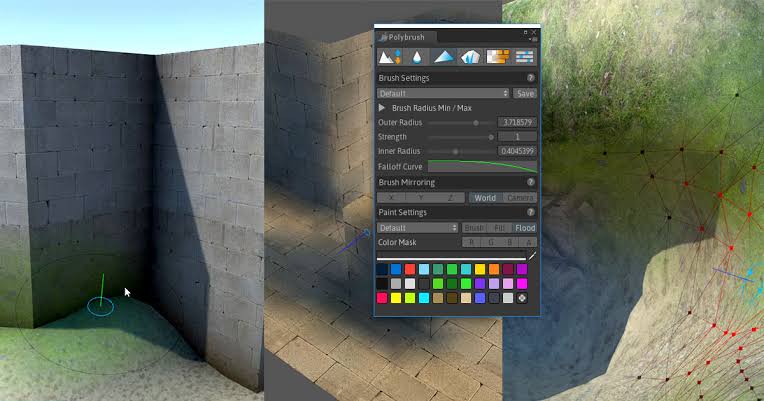
Optimizing Vertex Color Workflows for Game Development in Unity
Optimizing vertex color workflows with RealBlend centers on performance and memory management. Using a single material for multiple blended textures reduces draw calls, which is a major GPU performance win. To maximize this, developers should use static batching for objects sharing the same RealBlend material. Vertex density should be managed by using the “Refine” tool only in areas requiring high-detail blends or sculpts to keep polygon counts low.
RealBlend’s Mask Packer optimizes PBR workflows by combining Metallic, AO, Height, and Smoothness into a single RGBA texture, reducing texture samples. After editing, the “Bake to Asset” feature should be used to finalize meshes and remove editor script overhead for runtime builds. This workflow shifts the processing load from the CPU (managing separate objects and decals) to the GPU (interpolating vertex data), which is generally more efficient on modern hardware. Establishing consistent channel conventions (e.g., Red for moss, Green for dirt) further optimizes the production pipeline for teams.
Unity Terrain and Static Mesh Painting Without Third-Party Clutter
Unity environment art is split into terrain painting and static mesh painting. For large landscapes, developers should use the built-in native Terrain system. For all other arbitrary meshes—like cliffs, buildings, and props—RealBlend serves as the primary tool. This combination, alongside ProBuilder for mesh construction, provides a comprehensive environment toolkit without the need for a clutter of separate third-party add-ons.
Using a single integrated tool like RealBlend for both sculpting and painting ensures data consistency and prevents the conflicts that arise when using multiple disjointed scripts. RealBlend is a lightweight package (approximately 164.5 MB) that offers a consistent UI/UX experience alongside Unity’s native tools, helping artists maintain creative focus while keeping project hierarchies clean and memory footprints low.
Common Mesh Painting Problems in Unity and How RealBlend Solves Them
RealBlend addresses several historical pitfalls of mesh painting in Unity:
- Data Loss: Unlike Polybrush’s “Additional Vertex Streams,” RealBlend uses a storage component and a bake-to-asset system to prevent paint work from being lost.
- SRP Incompatibility: RealBlend is built for HDRP and URP, providing specific layer support and shaders for each pipeline.
- Repeating Patterns: The inclusion of a 5th layer in HDRP and a procedural Noise module helps break up obvious texture tiling.
- Performance Bottlenecks: RealBlend replaces high-draw-call decals with a single-material blend, reducing CPU and GPU strain.
- Workflow Gaps: It eliminates the need for time-consuming round-tripping to external 3D software for minor mesh or texture tweaks.
- Stability: As an actively supported tool, RealBlend fixes bugs and quirks found in the unmaintained Polybrush package, providing a reliable platform for serious projects.
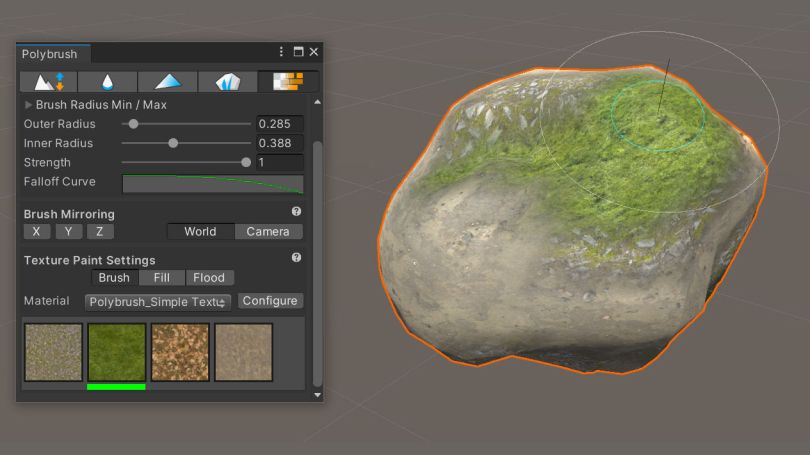
Performance Benefits of Using a Polybrush Alternative in Unity
Adopting a tool like RealBlend offers significant performance advantages. It reduces draw calls by consolidating multiple material variations into a single draw per object. This reduction in GameObject count lowers CPU overhead for transforms and culling. On the GPU side, vertex color blending is often more efficient than using decals because it reduces overdraw and utilizes tiling textures that share memory.
The vertex data itself is extremely lightweight compared to unique high-resolution textures. Because RealBlend results in standard mesh data once baked, it fully supports Unity’s static batching and GPU instancing systems. This approach allows developers to increase visual fidelity while remaining within performance budgets for CPU-constrained platforms like mobile and VR. Ultimately, it enables quicker iteration for performance tuning, allowing artists to adjust layer counts and texture resolution dynamically to meet target frame rates.
Best Practices for Unity Mesh Creation and Vertex Blending
- Plan Your Texture Layers and Materials: Group logically related textures (like rock, moss, and dirt) into specific materials to ensure efficiency and allow for batching. Maintain consistent color channel conventions (e.g., Red channel always means “moss”) and use descriptive naming conventions like “MAT_Blend_RockMossDirt.”
- Ensure Adequate Mesh Density Where Needed: Vertex painting requires sufficient geometry. Subdivide or add edges in areas needing detailed transitions to avoid “chunky” blends. Use tools to refine sparse areas or dial in “verts per meter,” but keep unpainted areas low-poly to save performance.
- Use Colliders Appropriately: Use non-convex MeshColliders for accuracy during the painting process. For runtime performance, swap these out for simpler shapes like BoxColliders once painting is finalized.
- Manage Vertex Colors When Modeling Externally: Clear any leftover vertex colors from external modeling tools before importing to Unity to ensure a clean slate, unless you intend to incorporate existing data like baked AO.
- Smooth Normals and Hard Edges Consideration: Because hard edges use duplicate vertices, paint may not automatically propagate across them. Soften normals temporarily while painting or manually ensure both sides of a seam receive the same vertex color.
- Keep an Eye on UVs: While blending uses vertex masks, the textures still rely on UVs. Maintain good unwrapping and consistent texel density, especially when sculpting, to avoid texture distortion or stretching.
- Leverage Revert Topology Before Finalizing: Use revert features to return to original shapes while keeping paint data before baking to an asset. Maintain manual backups or duplicates for safety during heavy editing.
- Baking and Version Control: Save baked meshes with clear names and check them into source control. Apply painting to prefab instances to propagate changes or break links for unique instance variations.
- Optimize After Painting: Remove painting scripts and unnecessary colliders after baking. Consider merging static meshes that share the same material to reduce draw calls, provided it does not negatively impact culling.
- Continually Refer to Source Material: Use reference images to mimic natural blending patterns. Keep vertex colors normalized and avoid using channels that are not required by the shader.
- Document Your Layer Usage: Maintain documentation for teams explaining which texture corresponds to which vertex color channel (RGB) to prevent painting errors.

RealBlend Workflow Tips for Faster Unity Scene Production
- Start Broad, Then Detail: Apply base textures to large surfaces with big, soft brushes first to establish a cohesive look, then refine with smaller brushes for localized details like grime or moss.
- Use Brush Presets: Save time by creating presets for brush size, strength, and noise settings for recurring tasks.
- Mirror and Symmetry Techniques: Paint one side of symmetrical structures and mirror or duplicate the asset to avoid redundant work.
- Combine RealBlend with Decals Strategically: Use vertex blending for the majority of the environment and reserve decals for high-resolution specifics, such as sharp text or signs, that vertex density cannot capture.
- Hotkeys and Scene View Navigation: Learn tool-specific hotkeys and master Unity’s scene navigation to paint quickly from various angles without breaking flow.
- Use Real-Time Lighting and Post-Processing While Painting: Paint with final lighting, ambient occlusion, and color grading enabled to see exactly how the textures will appear in the final game.
- Iteration: Don’t Strive for Perfect on First Pass: Take advantage of the tool’s flexibility by laying down bold ideas quickly and refining or smoothing them later.
- Coordinate with Level Design: Use vertex blending to subtly guide players by highlighting paths or points of interest through material changes.
- Use “Ghost Assets” for Complex Paint: For complex structures, temporarily merge pieces into a single mesh to paint across seams continuously, then transfer the vertex colors back to the original individual parts.
- Backup Before Big Changes: Duplicate scenes or meshes before performing heavy sculpting or experimental texture changes to allow for quick recovery.
- Stay Organized in Project View: Use dedicated folders and clear naming for baked assets to ensure the team uses the correct modified versions.
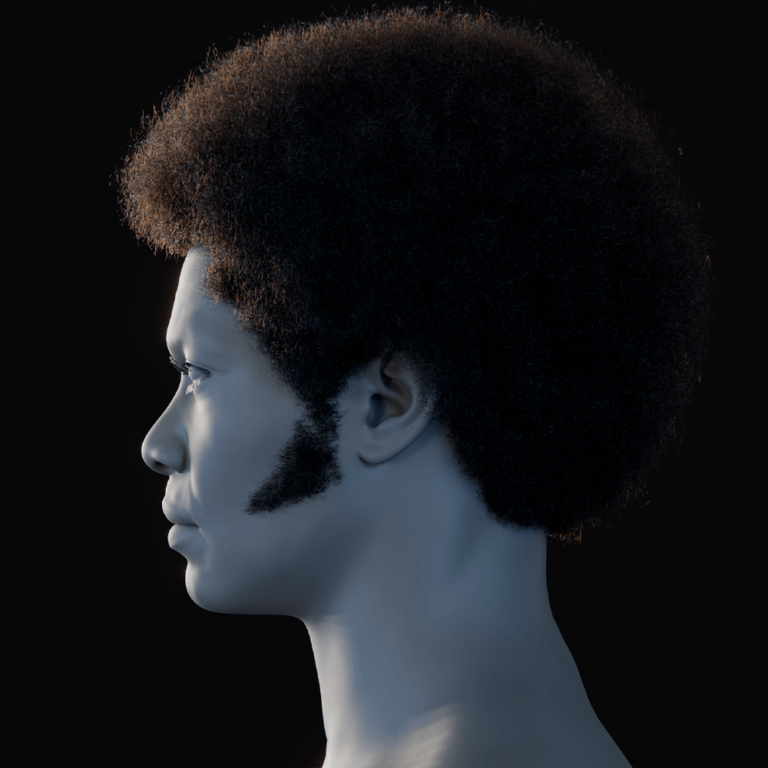
- PixelHair & External Tools Integration: Use pre-made resources like PixelHair for high-quality hair assets and The View Keeper for Blender camera management to save time on characters and presentation, allowing more focus on environment blending.

Frequently Asked Questions (FAQs)
- What is RealBlend and who is it for?
RealBlend is a Unity editor tool designed as an alternative to the deprecated Polybrush. It is intended for game developers, environment artists, and level designers who need to paint textures on meshes, blend materials using vertex colors, sculpt geometry, or create simple shapes directly within Unity. It allows users to add details like wear or dirt to models without using external software. - What happened to Unity’s Polybrush and why do I need an alternative?
Unity’s Polybrush has been deprecated and is no longer supported in recent versions of Unity due to compatibility issues with new render pipelines. Because it is no longer maintained, it is considered risky for new projects. RealBlend was created to replace and improve upon Polybrush, offering better support for modern Unity versions and additional texture layers. - How do I get started with RealBlend in my Unity project?
To begin using the tool:- Import the RealBlend asset from the Asset Store.
- Select a mesh in the scene that has a Collider attached.
- Open the RealBlend window via the Tools menu.
- Select a mode such as Paint, Sculpt, or Create.
- Assign a material configured for vertex color blending to your mesh.
- Use the brush in the Scene view to paint or sculpt, adjusting size and strength as needed.
- Use the Bake function to save your changes into a permanent new mesh asset.
- Do I need special shaders or materials to use RealBlend?
Yes, you must use a shader capable of reading vertex colors to blend textures. RealBlend provides sample shaders for Unity Standard, URP, and HDRP that support 3-layer or 5-layer blending. You can also use custom shaders (such as those made in Shader Graph) by setting them up to use RGBA vertex color channels to interpolate between texture samples. - Does RealBlend work with Universal Render Pipeline (URP) and High Definition RP (HDRP)?
Yes, RealBlend supports both. In HDRP, it allows for up to 5 texture layers. In URP and the Built-in pipeline, it is optimized for 3-layer blending (one base and two overlays) to maintain performance. While the tool provides the vertex data, the visual result depends on assigning the correct pipeline-specific shader. - Can RealBlend sculpt and edit any mesh, or only ones it creates?
RealBlend can edit any Unity mesh, whether imported or created in-editor, provided the mesh is “Read/Write” enabled and has a Collider during the editing process. It is not intended for use on Terrains or runtime SkinnedMeshRenderers. It is an Editor tool meant for design-time modifications rather than runtime gameplay deformation. - Will using RealBlend hurt my game’s performance?
Generally, no. As an Editor tool, it has no script overhead at runtime after the meshes are baked. It can actually improve performance by allowing multiple textures to be blended within a single material and a single draw call, reducing the need for extra geometry or multiple material instances. While multi-texture shaders slightly increase fragment shader work, the reduction in draw calls and CPU usage often offsets this. - Can I use RealBlend at runtime (for players to paint or for procedural effects during the game)?
No, RealBlend is primarily an Editor tool and does not support out-of-the-box runtime painting for players. All painting and sculpting changes are intended to be baked into assets during development. While vertex data can be manipulated via custom scripting at runtime, the tool itself is focused on design-time usage. - Are there alternatives to RealBlend if I need simpler or different tools?
Alternatives include:- VertPaint: A simpler tool for basic vertex color painting without multi-texture layering or sculpting.
- MeshBrush: A tool used for scattering detail meshes/props onto other meshes rather than texture blending.
- Unity Terrain Tools: The standard choice for painting heightmap-based landscapes.
- Shader-based approaches: Procedural techniques like triplanar mapping, though these lack manual artistic control.
- I’m struggling with making realistic character hair or other assets – does this vertex painting technique apply or are there other tools?
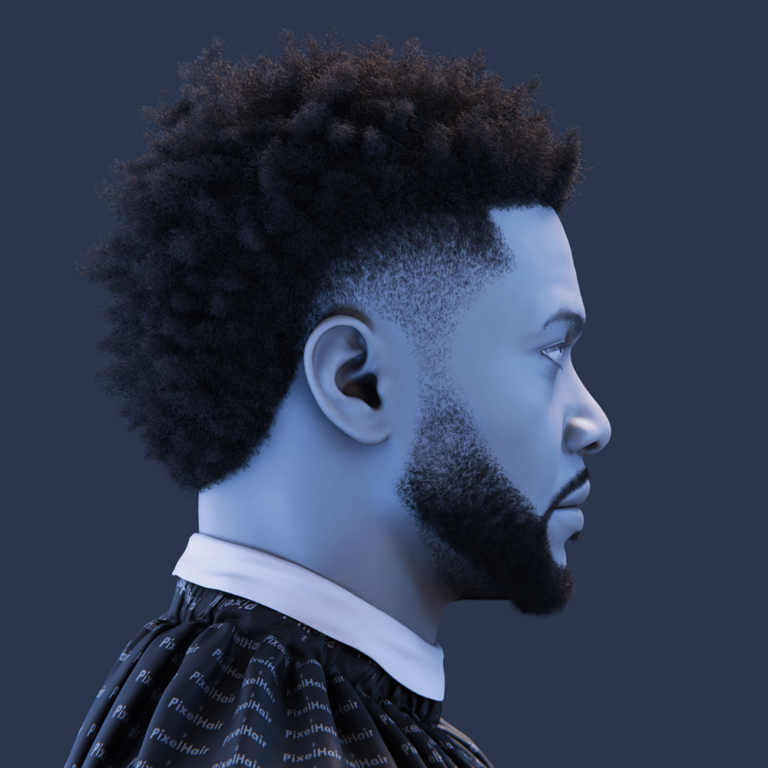
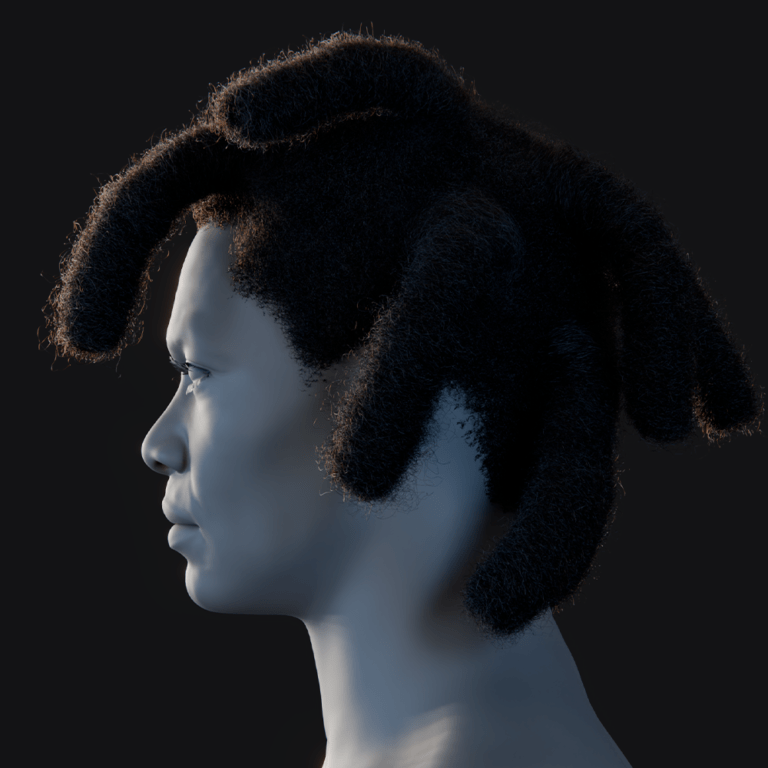
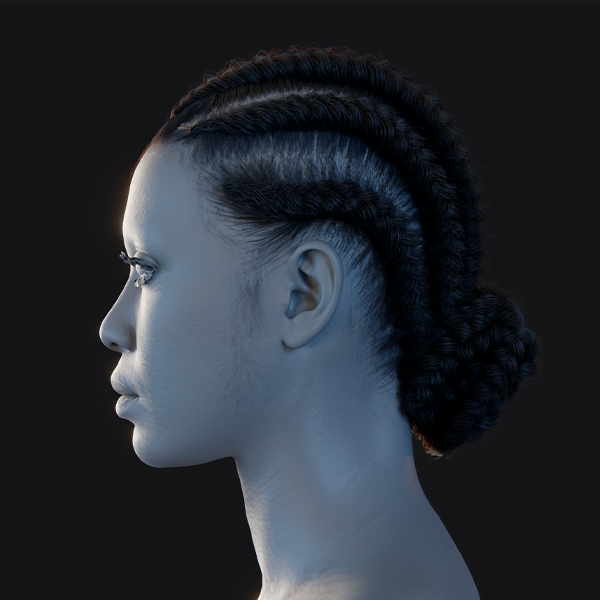
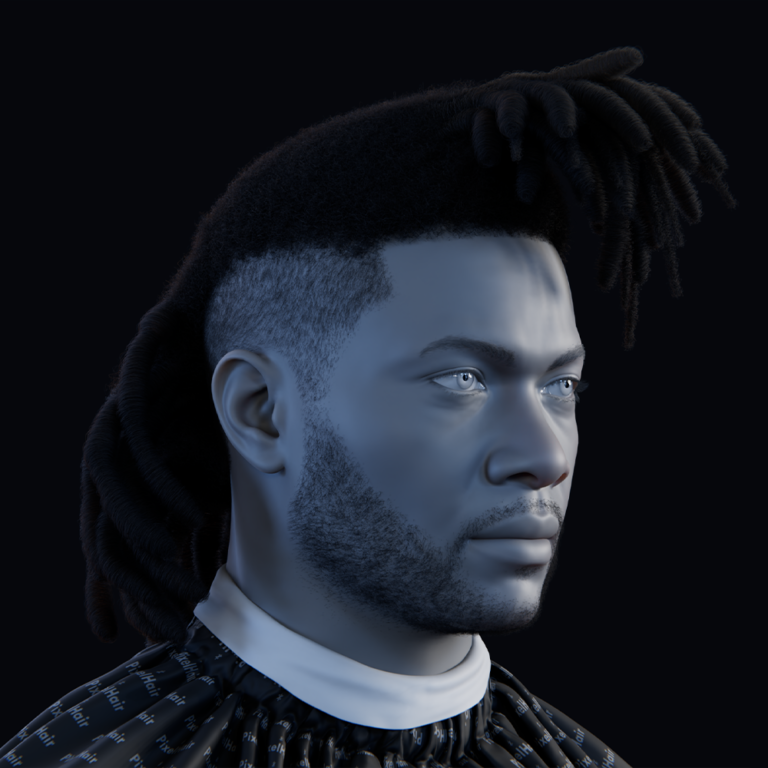
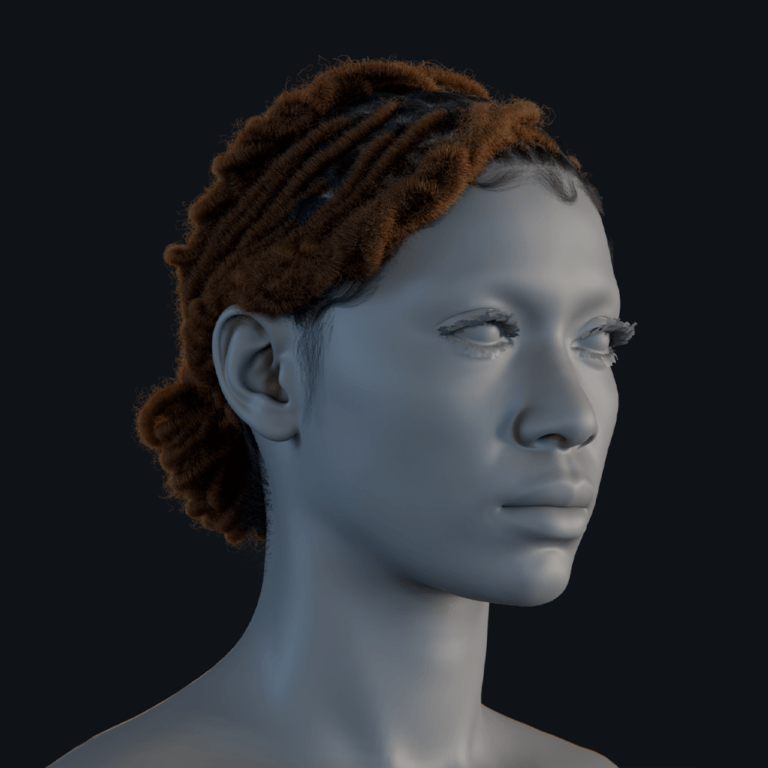
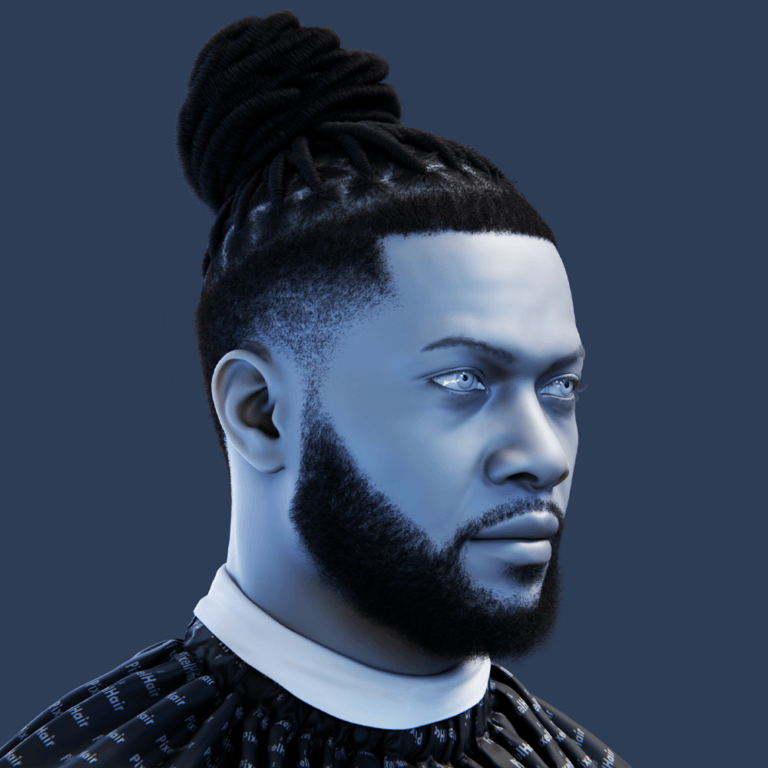
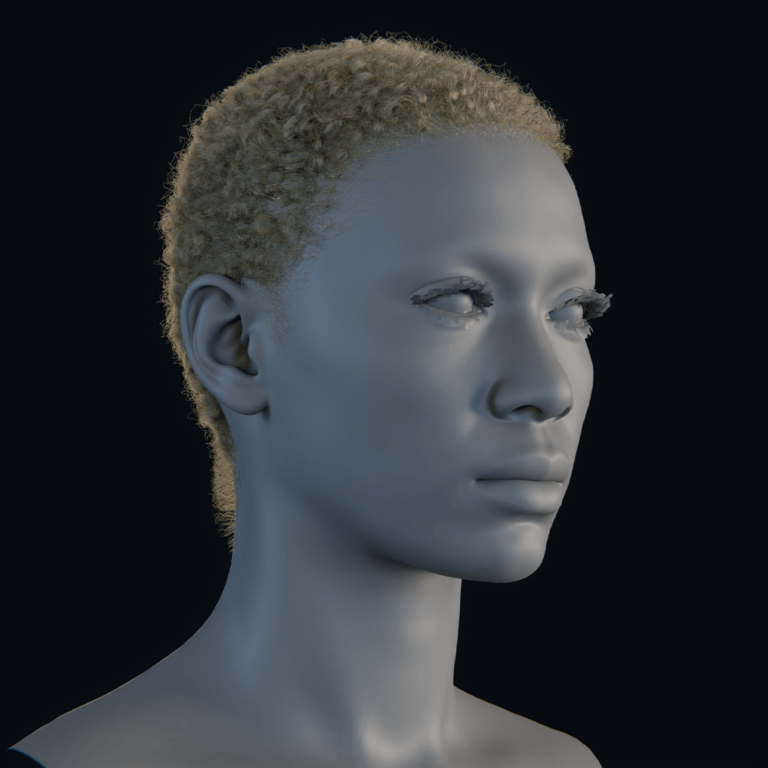
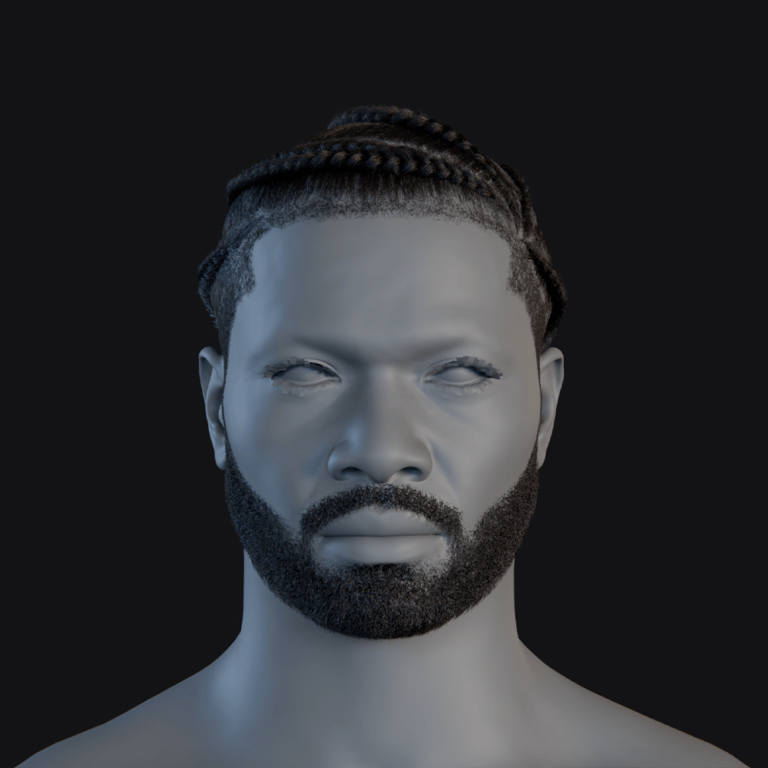
Vertex painting is better suited for environments than for character hair. For hair, specialized tools like PixelHair by Yelzkizi are recommended. PixelHair offers a library of approximately 200 professional hairstyles created in Blender and Unreal Engine that can be exported to Unity as hair cards or meshes. Utilizing such specialized resources for characters alongside RealBlend for environments allows for faster, high-quality production. Other useful external tools include The View Keeper for Blender camera management.

Conclusion
- A Comprehensive Replacement: RealBlend serves as more than just a replacement for the deprecated Polybrush; it is an expanded toolkit for mesh painting, sculpting, and creation. It integrates into modern Unity workflows, allowing developers to paint textures, blend materials in a single draw call, and sculpt geometry directly within the editor.
- Performance and Workflow Advantages: The tool enables high levels of detail and organic realism without negatively affecting performance or development timelines. By utilizing vertex blending, artists can reduce repetitive tiling and add unique environmental storytelling elements—like moss or scorch marks—efficiently. This reduces the need for external tools and constant exporting, allowing for faster creative iteration.
- Community Evolution: RealBlend represents the Unity community’s ability to adapt and build superior workflows when official support for crucial features ends. This ensures Unity developers can match or exceed the capabilities found in other game engines.
- Implementation and Integration: To maximize the tool’s potential, users should follow established best practices: planning texture layers, ensuring proper mesh density, baking/optimizing meshes, and utilizing interactive feedback. It can be combined with other specialized tools, such as PixelHair for characters or Unity’s terrain system for large-scale landscapes.
- Final Impact: RealBlend restores a missing piece of the Unity toolset while pushing it to new heights. It is an indispensable alternative to Polybrush that empowers creators to produce immersive, high-quality environments with increased speed and ease.

Sources and Citations
- Unity Documentation – Polybrush package deprecation notice
- Reddit (r/Unity3D) – AdamNapper (RealBlend creator) post and comments
- 80.lv Article – “Unity’s Polybrush Alternative For Mesh Painting & Creation”
- Jettelly Blog – “RealBlend: Vertex Painting and Mesh Sculpting Directly in Unity”
- I could not locate a live article under this exact title. The closest matching source covering the same feature set is:
- https://assetstore.unity.com/packages/tools/painting/realblend-mesh-painting-creation-352952
- Unity Forums (Polybrush discussions) – User inquiries and Unity staff notes
- Additional Unity staff discussion:
- BlenderArtists.org – Yelzkizi’s PixelHair announcement thread
- FlippedNormals Marketplace – PixelHair product description (Bantu Knots example)
- Search result snippet (Yelzkizi blog) – Geometry Nodes Hair in PixelHair
- Additional supporting article:
- Additional references from Reddit comments – RealBlend performance Q&A and RealBlend vs Polybrush usage
Main discussion thread: - Related community discussion:
- Unity manual/tutorial reference for Polybrush functionality (if needed for citation)
- Unity community discussion about the removal of Polybrush and lack of replacement
Recommendations
- VTuber Model Guide: Everything You Need to Know About Creating and Using VTuber Avatars
- BitSummit 2026 Breaks Attendance Record with 68,208 Visitors (+17% Growth): Full Breakdown of Japan’s Biggest Indie Game Festival Surge
- How to Export Metahuman to Maya: A Step-by-Step Guide for Seamless Integration and Customization
- Camera Mapping in Blender: A Complete Guide to 3D Projection Techniques
- Ashes of Creation Director Responds: Steven Sharif Breaks Silence on Allegations, Layoffs, and Studio Collapse
- Wizards of the Coast and Hasbro Miss Union Recognition Deadline: MTG Arena Developers’ Union Fight Explained
- Arc Raiders Event Timers and Trackers Guide (2026): Best Tools, Reset Times, and Live Event Schedules
- Life Is Strange TV Show Adds a Veteran Emmy-Nominated Director: Karyn Kusama to Helm Prime Video’s First Episodes
- Wanderstop Developer Ivy Road Is Shutting Down: Why the Studio Closed
- Mina the Hollower Trinket Location Guide: All Trinket Locations, Effects, and Best Farming Routes Explained