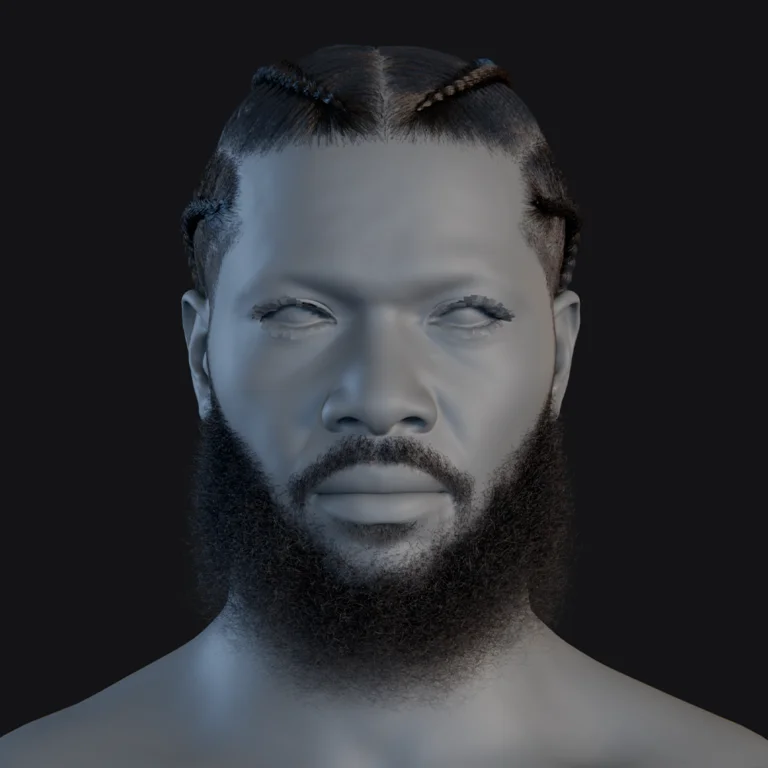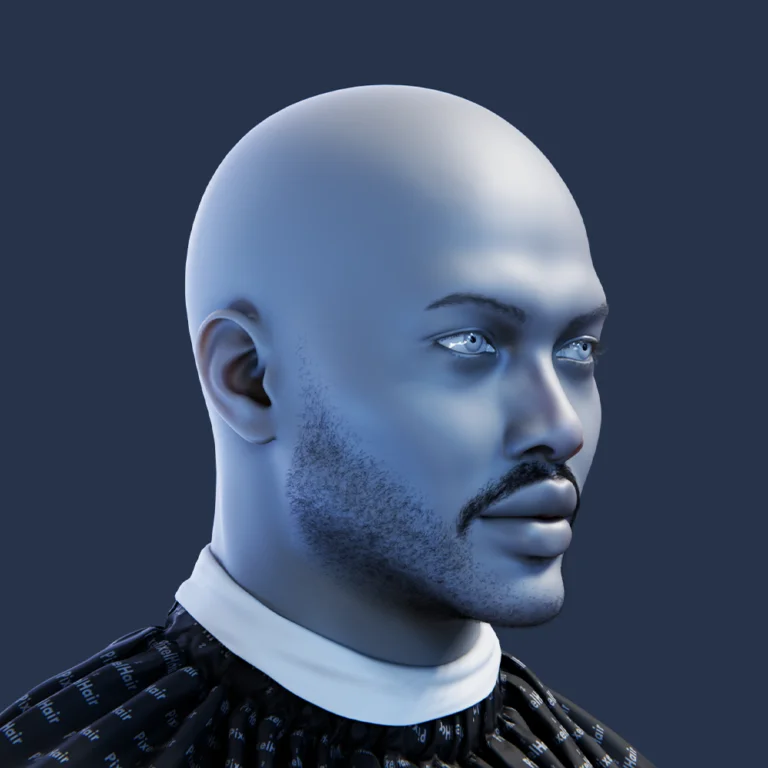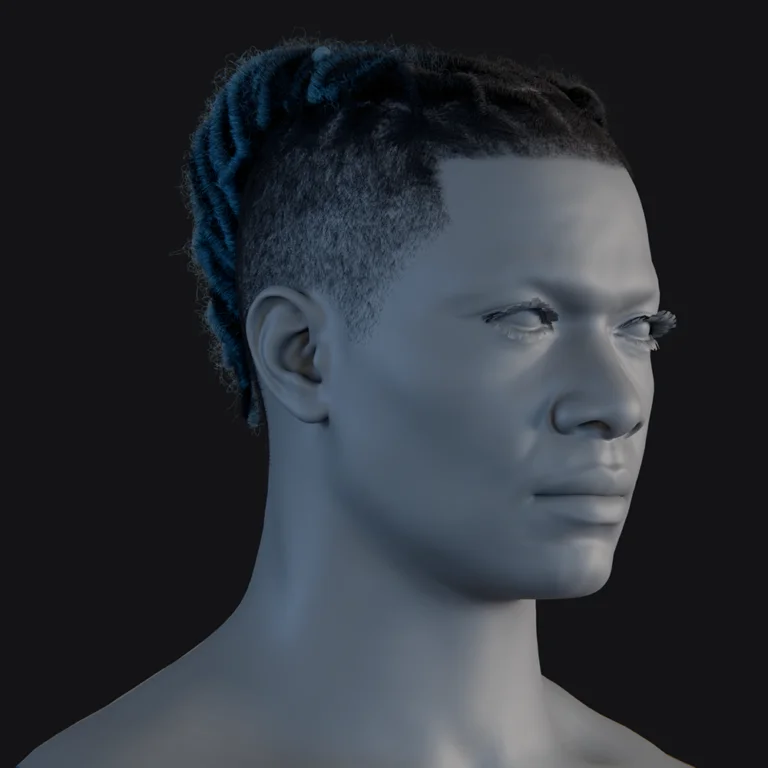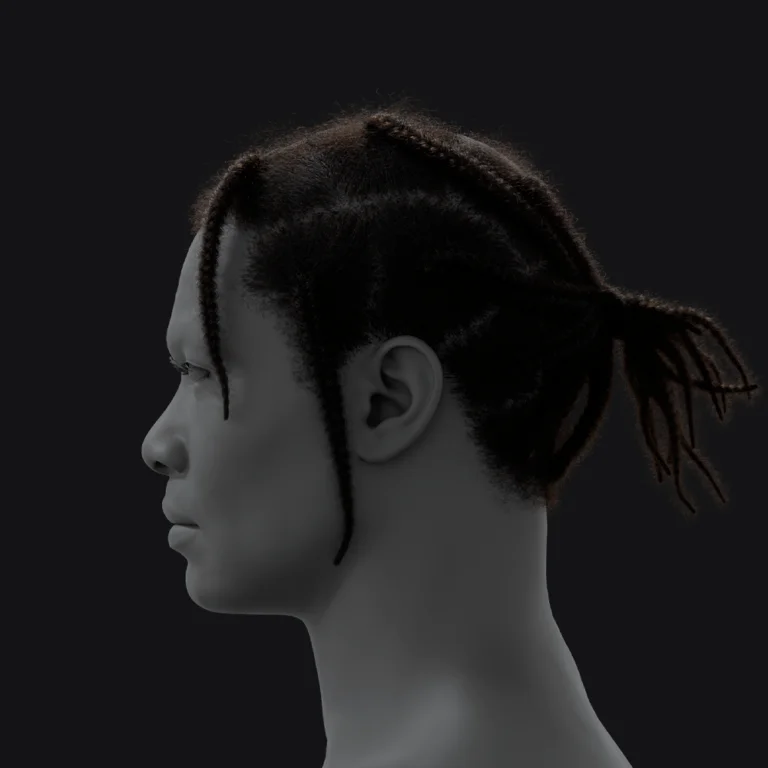






Unity developers have long relied on vertex painting and mesh sculpting tools to add detail and variation to their game environments. When Unity Polybrush (the official mesh painting and sculpting tool) was deprecated without a replacement, creators were left searching for an alternative. Enter RealBlend – a new Unity tool designed as Polybrush’s successor, bringing powerful mesh painting, texture blending, and even geometry editing features directly into the Unity Editor. This comprehensive article explores what RealBlend is, why it’s generating buzz as Unity’s Polybrush alternative, and how it elevates vertex color and texture workflows for game development.
In This Article (19 sections)
What Is RealBlend Unity’s Polybrush Alternative For Mesh Painting & Creation
RealBlend is a Unity Asset Store tool developed by AdamNapper as a replacement for the defunct Polybrush package. It allows users to paint on 3D meshes, blend multiple textures using vertex colors, sculpt mesh geometry, and create new mesh surfaces directly within the Unity Editor. It was created in response to Unity’s deprecation of Polybrush in Unity 6.3 and later, which previously provided mesh painting, sculpting, and prefab scattering. RealBlend replicates Polybrush’s core features while adding workflow improvements, such as the ability to modify meshes without switching to external software like Blender. It supports Unity’s Scriptable Render Pipelines and uses RGBA vertex colors as mask channels, making it compatible with many existing Polybrush shaders.
Why Developers Are Searching for a Polybrush Alternative in Unity
The removal of Polybrush left a significant gap for environment artists who relied on it for vertex painting, texture blending, and in-editor sculpting. Unity deprecated the tool due to challenges maintaining it alongside newer Scriptable Render Pipelines (URP and HDRP) and because it had become buggy and outdated. Without a built-in replacement, developers were forced into a slower workflow of exporting meshes to external 3D software for minor adjustments. RealBlend emerged to fill this void, offering a tool that is actively maintained, supports modern render pipelines, and allows for fast iteration within the Unity editor.
Best Unity Mesh Painting Tool for Vertex Color and Texture Blending
RealBlend is considered a top alternative for mesh painting and texture blending due to several specific capabilities:
- Multi-Layer Texture Blending: It supports up to 5 texture layers in HDRP and 3 layers in URP and Built-in pipelines, allowing for complex material transitions in a single draw call.
- Seamless Vertex Color & Texture Workflow: The tool uses vertex colors as masks for textures, offering brush settings for size, opacity, and falloff to create natural transitions.
- Integrated Mesh Sculpting and Editing: It includes sculpting modes like Push/Pull and Smooth, as well as topology editing functions like subdivision.
- Optimized for Unity’s Pipelines: It is tuned for performance by offering different layer limits based on the specific render pipeline used.
- Active Development & Support: The tool is currently in beta with frequent updates and active developer support.
Unlike simpler tools like VertPaint or decoration-focused tools like MeshBrush, RealBlend provides a comprehensive suite for vertex color painting, texture layering, and mesh editing.

How RealBlend Improves Mesh Creation and Surface Detailing in Unity
RealBlend enhances the process of adding realism to scenes through several specialized features:
- Adding Surface Detail: Artists can paint patches of grime, moss, or dirt onto tiled textures. A procedural Noise module helps generate these patterns automatically to break up repetition.
- In-Editor Mesh Sculpting: Real-time sculpting tools allow developers to physically deform meshes, such as adding dents or cracks, while viewing the results under the scene’s actual lighting.
- Procedural Mesh Creation: A “Create” mode generates paint-ready meshes like planes or curved surfaces with customizable vertex density.
- Revert and Refine Topology: The “Revert Topology” feature allows users to undo geometry changes while preserving painted textures, while the “Refine” tool allows for local subdivision of triangles to add detail where needed.
- Improved Surface Cohesion: By using one material with multiple blended textures, the tool ensures consistent lighting and better performance compared to using multiple material instances.
Unity Vertex Painting Tool for Environment Art and Level Design
Vertex painting is used by environment artists to add organic variation to modular pieces without increasing texture memory. RealBlend allows artists to paint contextual details, such as soot at the base of a wall or moss in rock crevices. For level designers, it facilitates fast iteration by allowing them to tweak assets to fit specific storytelling needs, like adding blood stains or guidance strips, without needing new assets from the art team. While Unity has a built-in Terrain tool for heightmaps, RealBlend is designed for arbitrary meshes like buildings and props. This functionality brings Unity closer to the standard vertex painting workflows found in engines like Unreal Engine.
Step-by-Step Guide to Mesh Painting in Unity Using RealBlend
The basic workflow for using RealBlend for mesh painting includes:
- Install RealBlend: Import the asset into a supported Unity project (2023+).
- Prepare a Mesh: Select the mesh, ensure Read/Write is enabled in import settings, and add a Collider for brush detection.
- Assign a Vertex-Blending Material: Use a shader that can interpret vertex color channels to blend multiple textures.
- Open the RealBlend Interface: Access the Paint mode through the RealBlend editor window.
- Paint on the Mesh: Use the brush tools to apply vertex colors which reveal different texture layers.
- Sculpt or Modify (Optional): Switch to Sculpt mode to deform geometry using Push/Pull or Smooth brushes, or use the Refine tool to increase vertex density.
- Blend and Fine-Tune: Adjust paint distribution and utilize noise modules to eliminate repeating patterns.
- Bake the Edited Mesh: Use the “Bake to Asset” function to save the modifications into a new, optimized Mesh asset file.
- Use the Painted Mesh: Place the finalized mesh into the scene as a standard asset. editing and painting.

Real-Time Mesh Editing and Painting Inside the Unity Editor
RealBlend provides real-time mesh editing and painting within Unity, which increases productivity by eliminating context-switching between external 3D tools. This allows artists and designers to stay “in the zone” and refine assets within the engine.
- Stay in Context, Iterate Faster: Sculpting and painting occur under final lighting, post-effects, and environmental context (WYSIWYG), cutting iteration time from hours to minutes.
- Unified Workflow Layer: The tool acts as a process layer that can be toggled on or off, allowing for a fluid creative momentum during level design.
- Real-Time Feedback: Changes are visible immediately and can be tested in Unity’s Play mode for both visual and gameplay impacts, such as testing character traversal over sculpted ground.
- Efficiency and Performance During Editing: The tool uses Unity’s handles and editor API for interactive feedback. It requires a collider on the target object to leverage Unity’s optimized collision detection for brush raycasting.
- Safe Editing & Non-Destructive Options: Features like “Revert Topology” allow users to backtrack on geometry changes while preserving vertex paint, encouraging experimentation without ruining assets.
- Collaboration and Level Editing: Level designers and artists can collaborate in the same scene file, reducing bottlenecks and turning Unity into a limited Digital Content Creation (DCC) tool.
Comparing RealBlend vs Unity Polybrush for Mesh Painting
RealBlend serves as the spiritual successor to Polybrush, matching its core features while offering several upgrades:
- Texture Layers: RealBlend supports up to 5 layers in HDRP, compared to Polybrush’s 4-layer limit.
- Sculpting: Both tools allow vertex manipulation, but RealBlend adds topology editing, such as refining (subdividing) or removing triangles.
- Mesh Creation: RealBlend includes a “Create” mode for planes and curves, a feature Polybrush lacked.
- Scatter/Placement: Polybrush included prefab scattering, which is not the primary focus of RealBlend’s mesh-centric toolset.
- Technical Implementation: RealBlend uses a “VertexPaintStorage” component and a baking system instead of the older “Additional Vertex Streams” system, which was often buggy with Scriptable Render Pipelines (SRP).
- Stability and Support: RealBlend is actively maintained for Unity 2023+ and SRP, whereas Polybrush is deprecated and lacks support for modern Unity versions.
- Performance: Both tools result in one draw call for multiple textures, but RealBlend includes extra features like a Mask Packer to further optimize materials.
How to Create Custom Mesh Surfaces in Unity Without Polybrush
RealBlend provides a streamlined path for generating mesh surfaces directly within the Unity engine:
- RealBlend “Create” Mode: Procedurally generates basic shapes like planes or curved walls with customizable vertex density for immediate painting.
- ProBuilder Integration: Complex shapes can be modeled with Unity’s ProBuilder and then detailed, sculpted, and painted using RealBlend.
- Terrain Conversion: Users can convert Unity Terrain to a mesh and then apply vertex blending via RealBlend.
- External Modeling: Artists can import simple shapes from external DCC apps and use RealBlend to handle all texture detailing, reducing the need for bespoke texture creation in other software.
- Tool Consolidation: RealBlend bundles multiple functions into one tool to keep the project cleaner.
- Memory and Performance: It is recommended to subdivide meshes locally rather than globally to maintain high-detail blends only where necessary.

Optimizing Vertex Color Workflows for Game Development in Unity
To achieve high performance using vertex colors, developers should follow these best practices:
- Single Material, Fewer Draw Calls: Use a single blended material to replace multiple materials, and leverage static batching to reduce draw call counts.
- Manage Vertex Density and Memory: Subdivide only the areas that require high-detail blends or sculpting. Large flat areas should remain low-poly.
- Use Mask Packing: Utilize the RealBlend Mask Packer to combine Metallic, AO, Height, and Smoothness maps into a single RGBA texture, reducing texture sample counts.
- Baking and Data Storage: Bake edited meshes into permanent assets for final builds to remove editor-script overhead and ensure data persistence.
- Shader Complexity: Balance the number of texture layers and map types (like normals) against the performance of the target GPU.
- LODs and Mobile Considerations: Use the LODGroup component. For distant objects, consider baking blends into textures to reduce vertex processing.
- CPU vs GPU Trade-off: Vertex painting shifts the workload from the CPU (handling multiple objects) to the GPU (handling shading), which is generally more efficient in modern engines.
- Organization and Consistency: Establish team conventions for vertex color channels (e.g., Green always equals dirt) to ensure materials are reusable and predictable.
- Testing and Profiling: Use Unity’s Frame Debugger to monitor performance and remove editing-related components like MeshColliders if they are not needed for runtime gameplay.
Unity Terrain and Static Mesh Painting Without Third-Party Clutter
Unity provides distinct tools for terrain painting and static mesh painting, allowing developers to manage environments without a large number of third-party add-ons.
- Terrain Painting: Unity’s built-in Terrain system is optimized for heightmaps and large landscapes like mountains or hills. It handles height sculpting, vegetation placement, and texture blending with chunk LODing. It is a native feature that does not require third-party assets and is accessed via the Terrain Editor window.
- Static Mesh Painting: For objects like cliffs, caves, and buildings, RealBlend serves as a consolidated tool. It replaces the need for multiple disjointed scripts by combining a vertex painter, mesh sculptor, mesh builder, and mask texture generator into one 164.5 MB package.
- Minimal Dependency Workflow: A clean project structure utilizes native Terrain for landscapes, RealBlend for mesh detailing, and ProBuilder for mesh construction. This prevents data conflicts, such as geometry changes wiping vertex colors, and ensures the “Revert Topology” feature can sync changes.
- Consistency and Memory: Using a streamlined toolset provides a unified UI/UX and reduces project bloat. Consolidating functions into RealBlend avoids the overlap of different third-party assets that might have conflicting editor GUIs or data storage methods.
Common Mesh Painting Problems in Unity and How RealBlend Solves Them
RealBlend addresses several technical and workflow challenges that were common in the Polybrush era:
- Data Reliability: Instead of using the unstable and deprecated “Additional Vertex Streams,” RealBlend uses a VertexPaintStorage component and a baking system to ensure painted data is saved directly into standard mesh assets.
- Pipeline Incompatibility: RealBlend is designed for modern Scriptable Render Pipelines (URP and HDRP). It provides specific layer support and clear documentation for shader property reference names to avoid the common “pink material” errors.
- Repeating Patterns: To overcome the limits of RGBA blending, RealBlend supports up to 5 layers in HDRP and includes a procedural noise module to create natural, uneven edges in texture transitions.
- Performance Costs: The tool consolidates variety into one material and one draw call per object, solving the performance issues associated with multi-pass materials or the high object counts required by decals.
- Workflow Bottlenecks: RealBlend eliminates the need for “round-tripping” assets to external software like Blender for minor sculpting or color adjustments, preventing scale issues and import errors.
- Tool Stability: As an actively supported tool, RealBlend offers a fresh codebase and patches for bugs that remained in the unsupported Polybrush package, such as issues with Undo or mesh colliders.
- Prefab and Source Control: By baking edits into actual mesh assets, RealBlend makes it easier to manage painted objects within prefabs and team-based version control systems.

Performance Benefits of Using a Polybrush Alternative in Unity
Utilizing a modern vertex painting tool like RealBlend offers several performance advantages for game development:
- Reduced Draw Calls: RealBlend allows for complex visual variety within a single draw call by blending textures in one material, which is more efficient for the CPU than using multiple materials or decals.
- Lower CPU Overhead: Painting details directly onto meshes reduces the number of GameObjects and transforms the CPU must process, culling the complexity of the scene.
- Optimized GPU Usage: Shifting detail to a single-pass blended shader reduces overdraw compared to stacked decals. The use of tiling textures also allows for high detail with lower memory consumption than unique high-res bitmaps.
- Mask Packing: The Mask Packer combines Metallic, AO, Height, and Smoothness maps into one RGBA texture, reducing the number of texture samples the GPU must perform.
- Batching and Instancing: Consolidating objects into a shared material enables more efficient use of Unity’s static batching and GPU instancing.
- Zero Runtime Scripting: Baking finalized meshes removes all editor-time script overhead, ensuring that the finished product has no runtime performance cost beyond the mesh and shader.
- Hardware Balancing: Vertex painting shifts the workload from the CPU to the GPU, which is ideal for platforms like mobile or VR where the CPU is often a bottleneck.
- Iterative Optimization: The real-time nature of the tool allows developers to quickly simplify shaders or reduce texture layers during profiling to maintain target frame rates.
Best Practices for Unity Mesh Creation and Vertex Blending
Following best practices ensures high-quality results and maintains performance when using RealBlend and similar vertex blending workflows.
- Plan Your Texture Layers and Materials: Group textures that logically belong together into single materials (e.g., rock, moss, and dirt). Maintain consistent color channel conventions, such as using the Red channel for “moss” across all similar materials, to simplify the painting process for artists.
- Ensure Adequate Mesh Density Where Needed: Detailed patterns require vertices to interpolate colors smoothly. Subdivide or add edges in areas designated for transitions. Use RealBlend’s refine tool to address sparse areas, but avoid over-subdividing parts of the mesh that will not be seen or painted.
- Use Colliders Appropriately: RealBlend requires a collider to register brush hits. Use MeshColliders during the editing phase for accuracy, but consider swapping them for simpler BoxColliders at runtime to save physics costs. Ensure MeshColliders are not marked as “Convex” during painting unless necessary for rigidbodies.
- Manage Vertex Colors When Modeling Externally: Clear any existing vertex colors from external modeling tools before importing meshes into Unity. Starting with a clean slate prevents unexpected initial colors from interfering with RealBlend.
- Smooth Normals and Hard Edges Consideration: Since vertex painting occurs per-vertex, hard edges with duplicate vertices require painting on both sides for consistency. Finalize mesh normals before painting to understand where these seams exist.
- Keep an Eye on UVs: While vertex masks do not use UVs, the blended textures do. Ensure proper unwrapping and texel density. Be mindful that heavy sculpting can stretch geometry and cause texture distortion, though it does not technically alter the UV maps.
- Leverage Revert Topology Before Finalizing: Use the revert feature to backtrack on geometry changes while preserving vertex paint. This should be done before baking to a permanent asset.
- Baking and Version Control: Save baked assets with descriptive names and check them into source control. For repetitive elements, paint on a prefab instance and apply the baked mesh to the prefab to update all instances simultaneously.
- Optimize After Painting: Remove the RealBlend script and unnecessary colliders after baking. Consider combining static meshes that share the same material to further reduce draw calls.
- Continually Refer to Source Material: Use reference images to mimic natural patterns like moss growth or wood peeling. Use noise and brush falloffs to avoid “gamey,” artificial shapes.
- Document Your Layer Usage: Maintain documentation for team members defining which texture corresponds to each RGBA channel (e.g., Red = Mud, Green = Grass) to prevent errors during the production cycle.

RealBlend Workflow Tips for Faster Unity Scene Production
Applying specific workflow habits can significantly accelerate the environment art pipeline.
- Start Broad, Then Detail: Use large, soft brushes for initial gradients and base layers across large surfaces before switching to small, strong brushes for localized details like cracks or stains.
- Use Brush Presets: Save settings for size, strength, and noise to jump quickly between common tasks like “large soft wash” and “detail speckle.”
- Mirror and Symmetry Techniques: Paint one side of a symmetrical structure and duplicate or mirror the mesh to save time.
- Combine RealBlend with Decals Strategically: Use vertex painting for 90% of environmental blending and reserve decals for high-resolution graphics, such as posters or specific signs, that exceed vertex resolution.
- Hotkeys and Scene View Navigation: Master navigation and brush-related hotkeys to maintain a fluid creative flow without stopping to adjust sliders manually.
- Use Real-Time Lighting and Post-Processing While Painting: Paint with final lighting and effects like Ambient Occlusion enabled. This ensures that the color blends look correct under actual game conditions.
- Iteration: Do Not Strive for Perfection on First Pass: Use the ability to easily repaint or erase to lay down ideas quickly. Iterative painting allows for bolder choices that can be refined later.
- Coordinate with Level Design: Use vertex painting to provide visual guidance, such as subtly highlighting a path for the player or adding wear to high-traffic gameplay areas.
- Use “Ghost Assets” for Complex Paint: For complex assemblies, temporarily merge pieces into a single mesh to paint across seams continuously, then transfer colors back to individual pieces.
- Backup Before Big Changes: Duplicate scenes or meshes before performing heavy sculpting, as geometry changes are harder to “paint back” than texture layers.
- Stay Organized in Project View: Use dedicated folders for baked meshes to ensure the correct version is referenced by prefabs and scene objects.
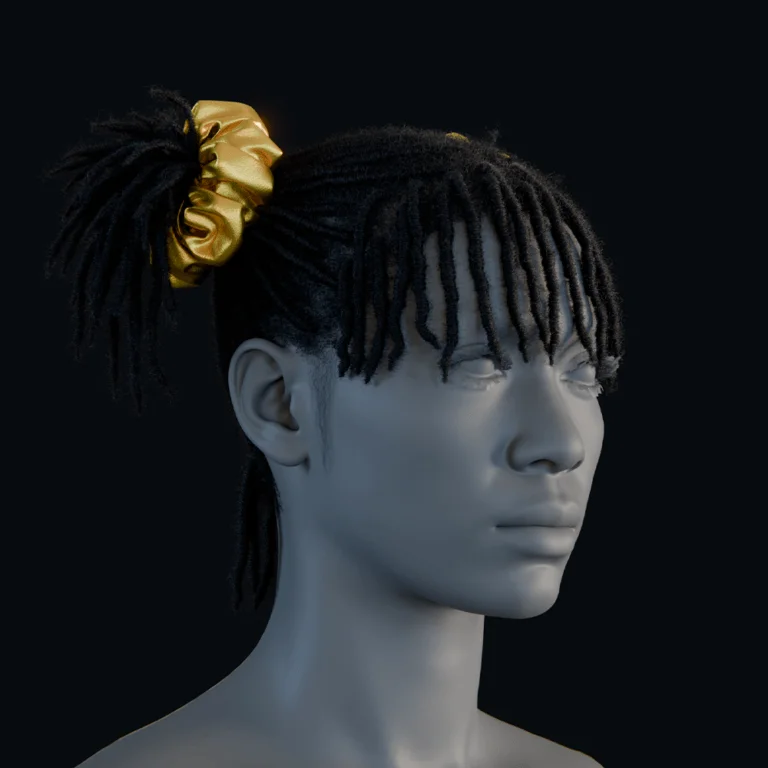
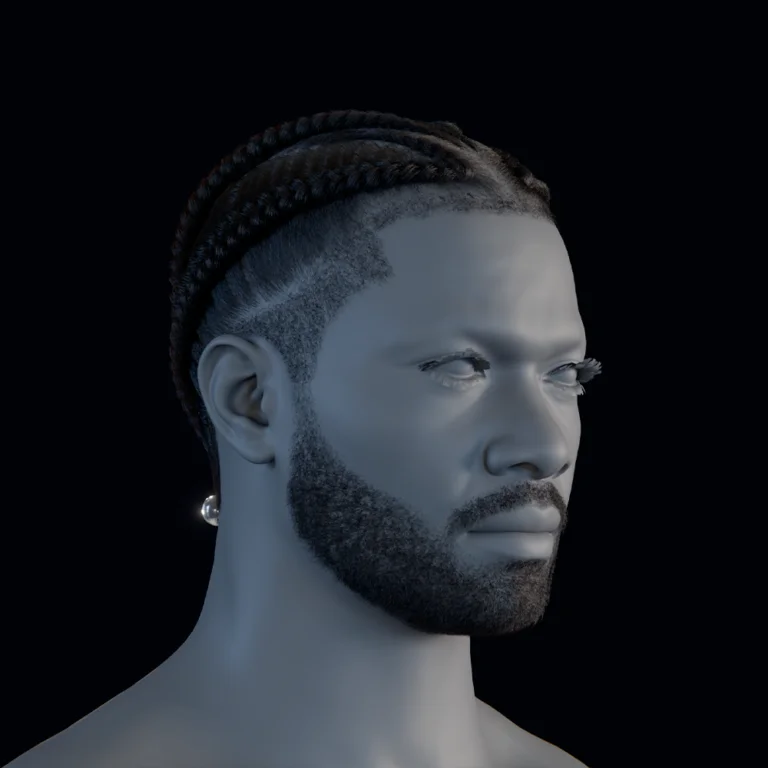
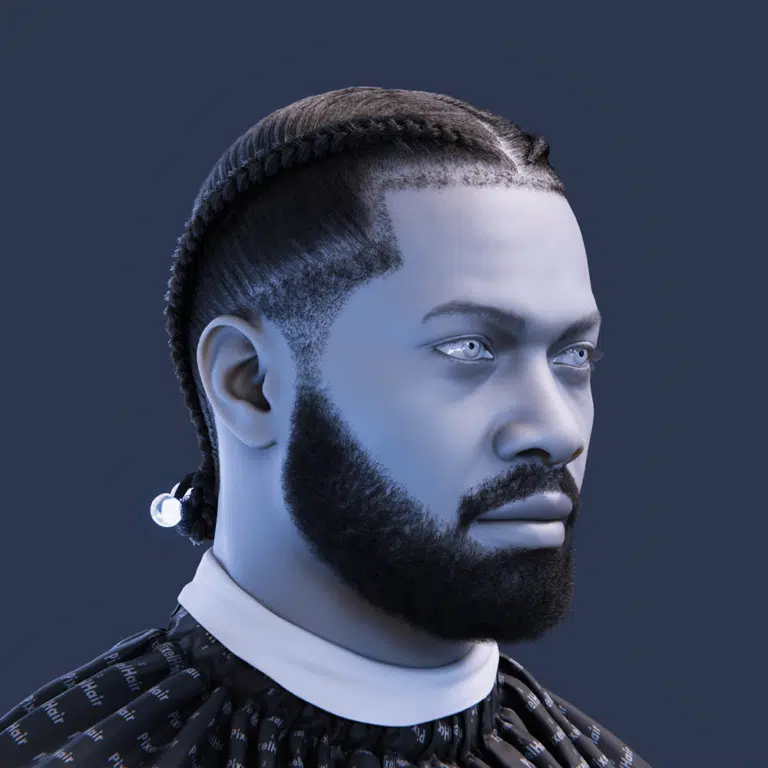
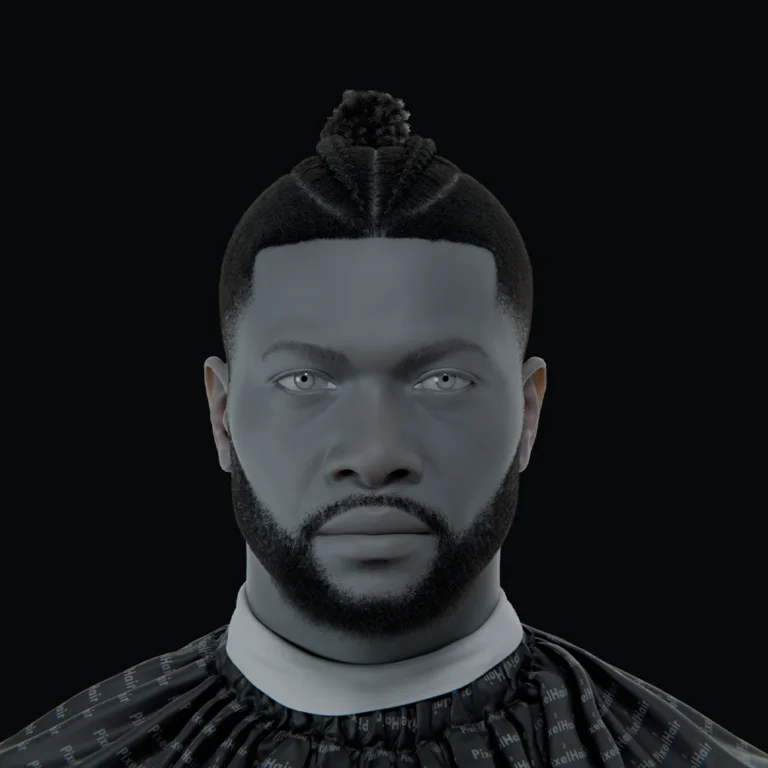
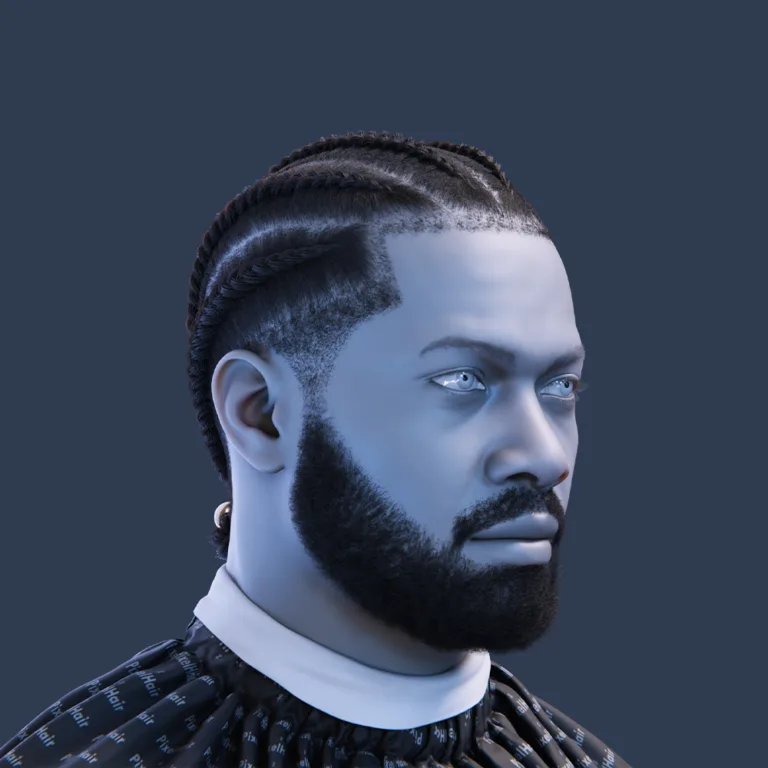
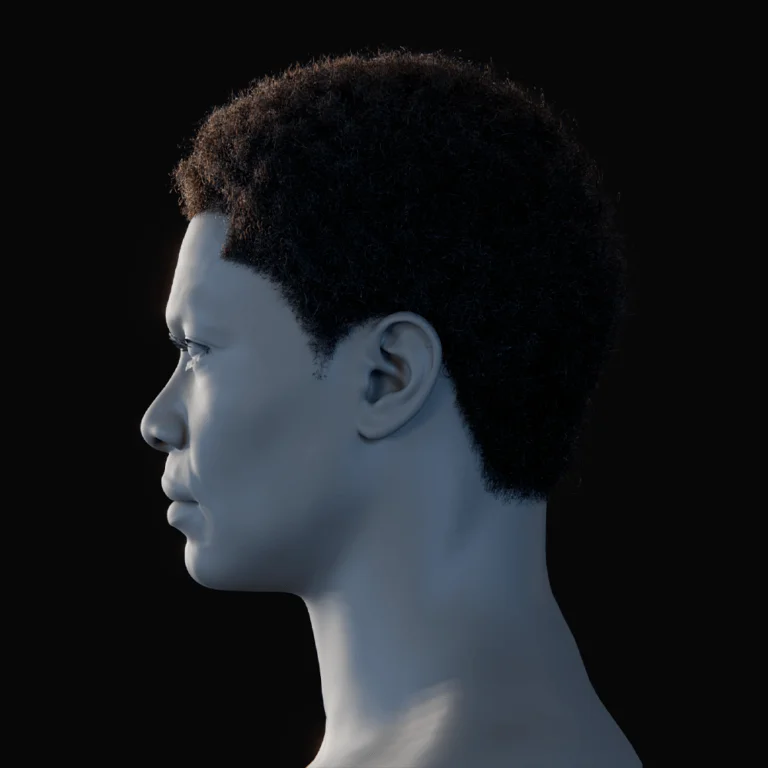
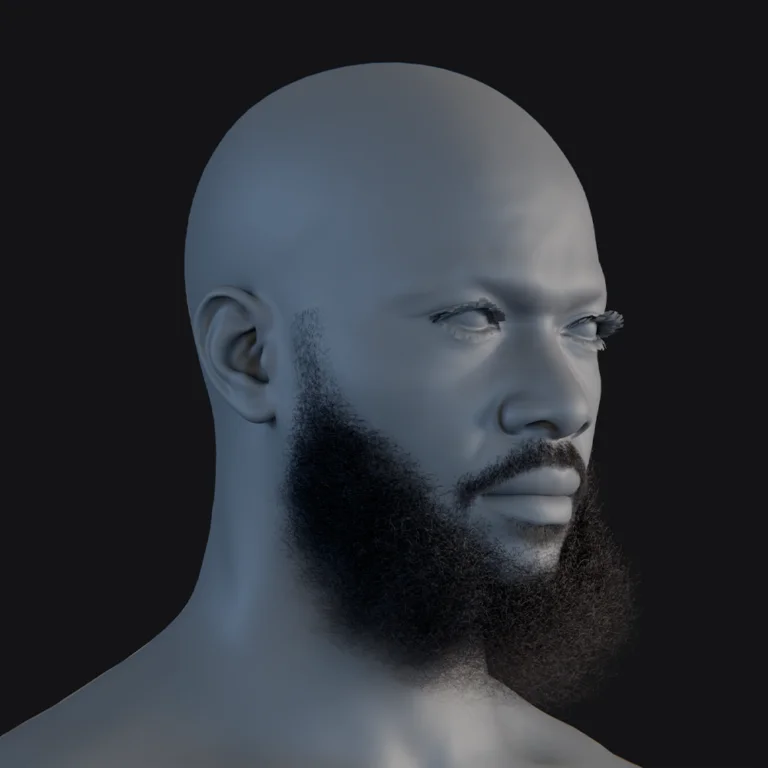
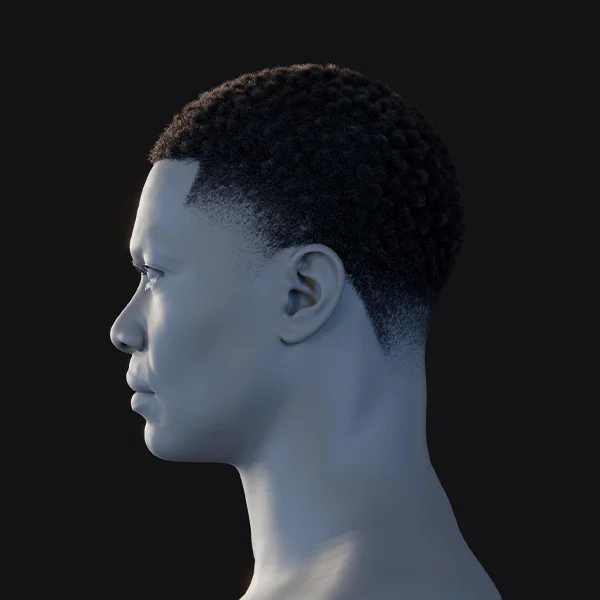
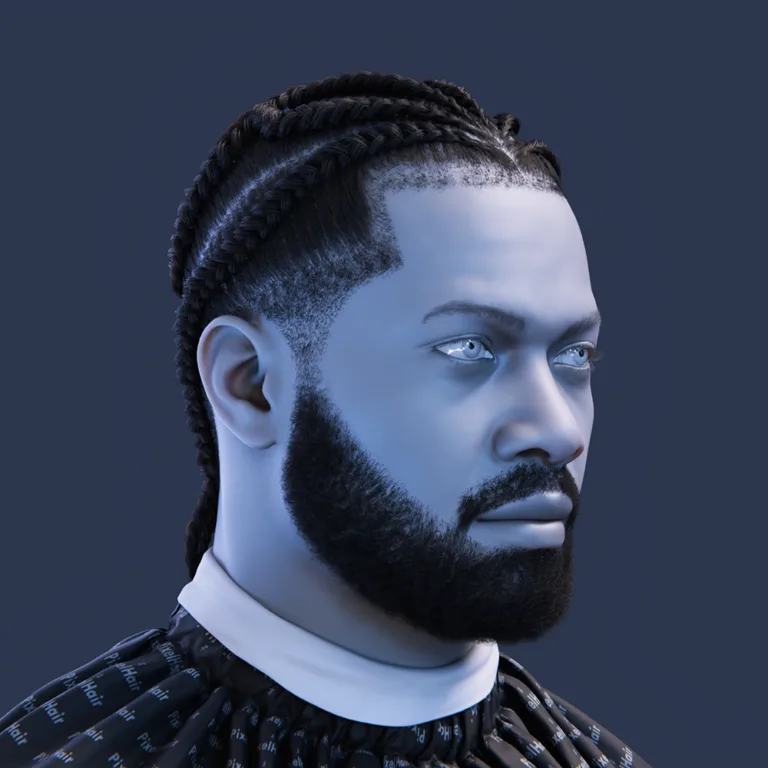
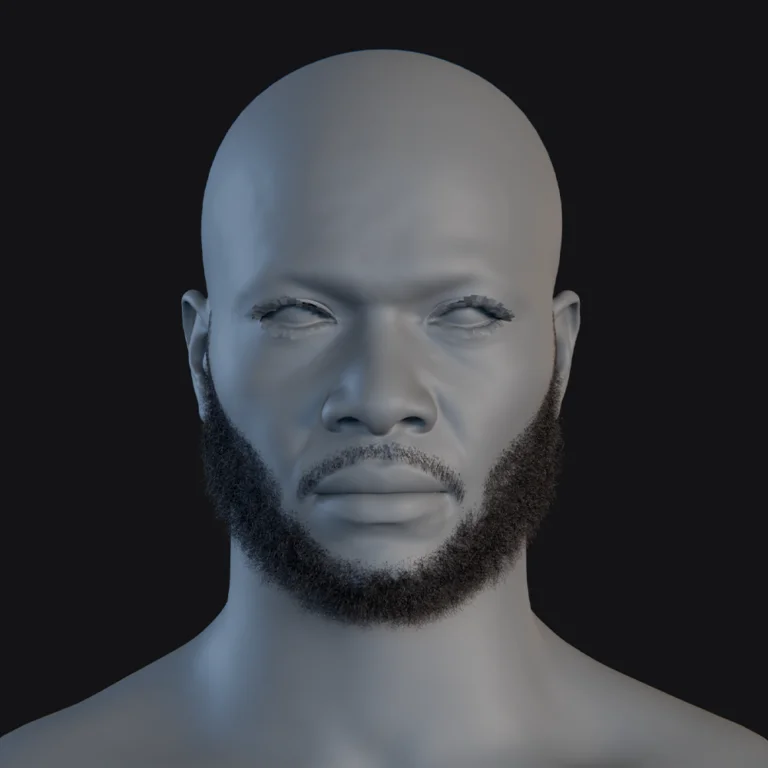
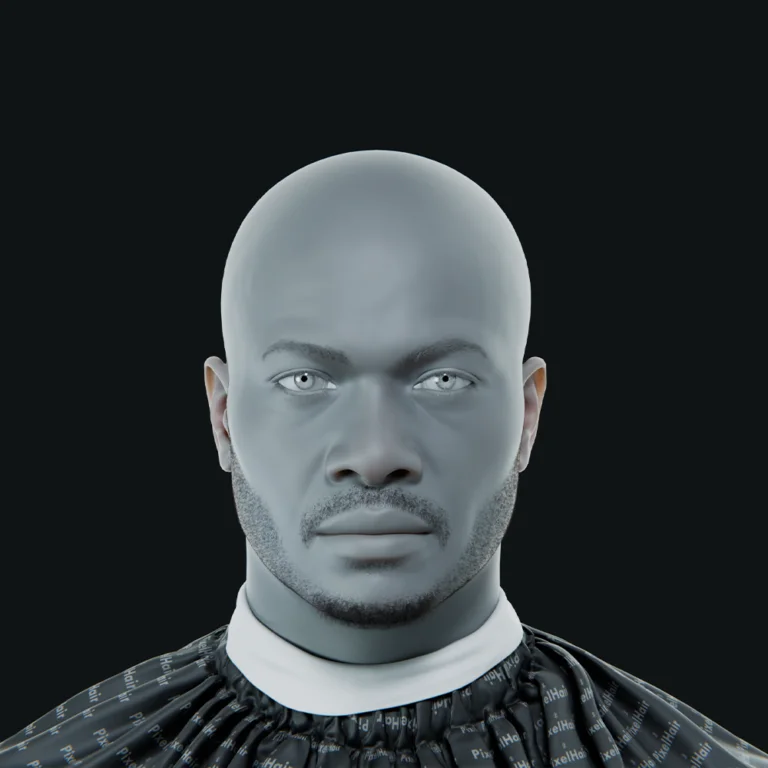
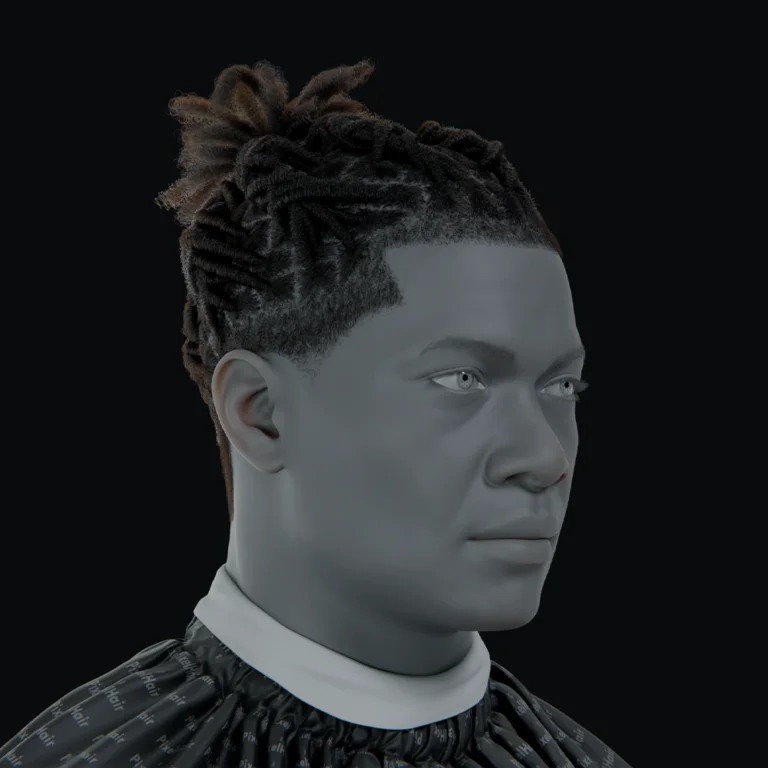
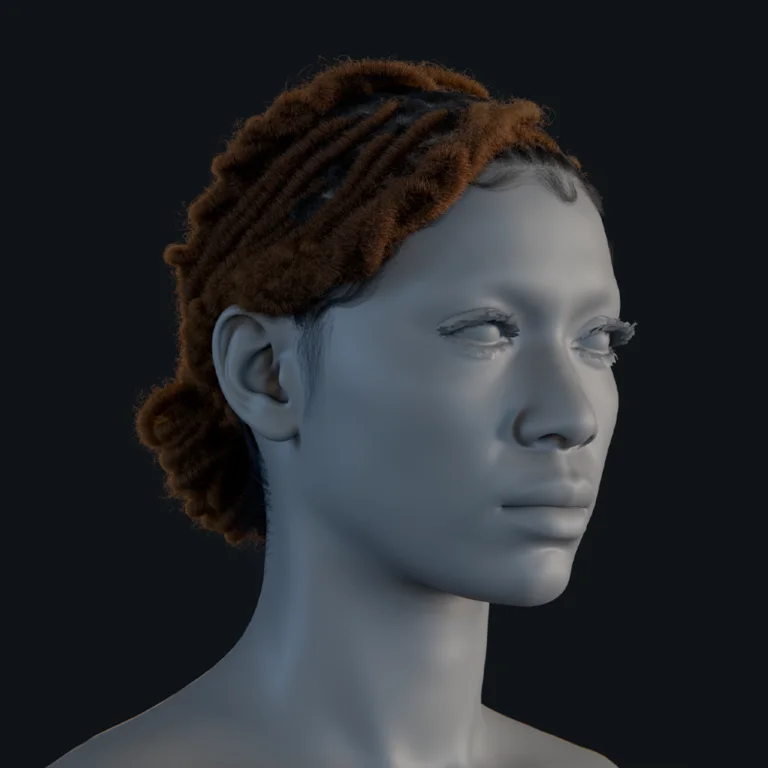
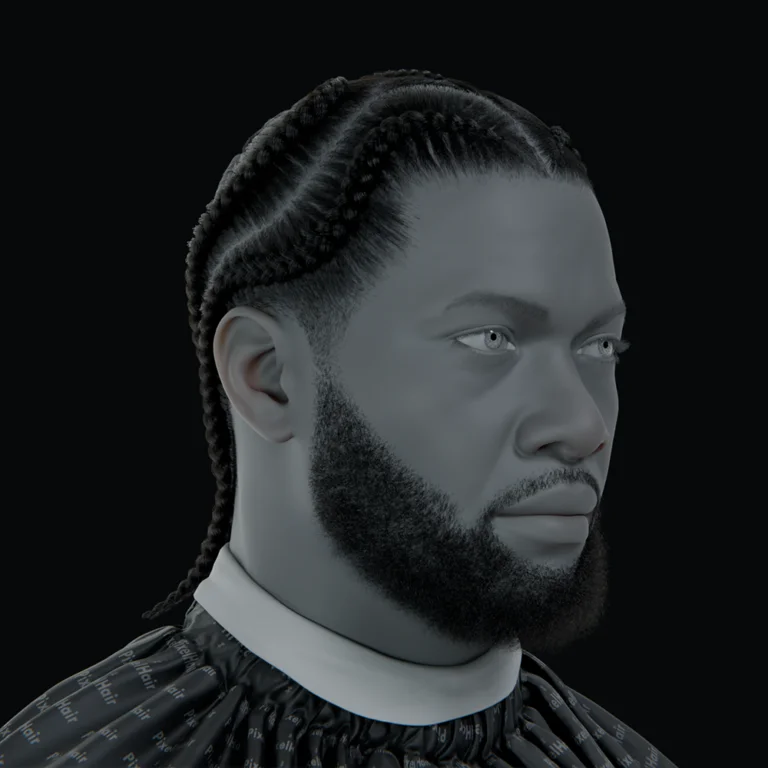
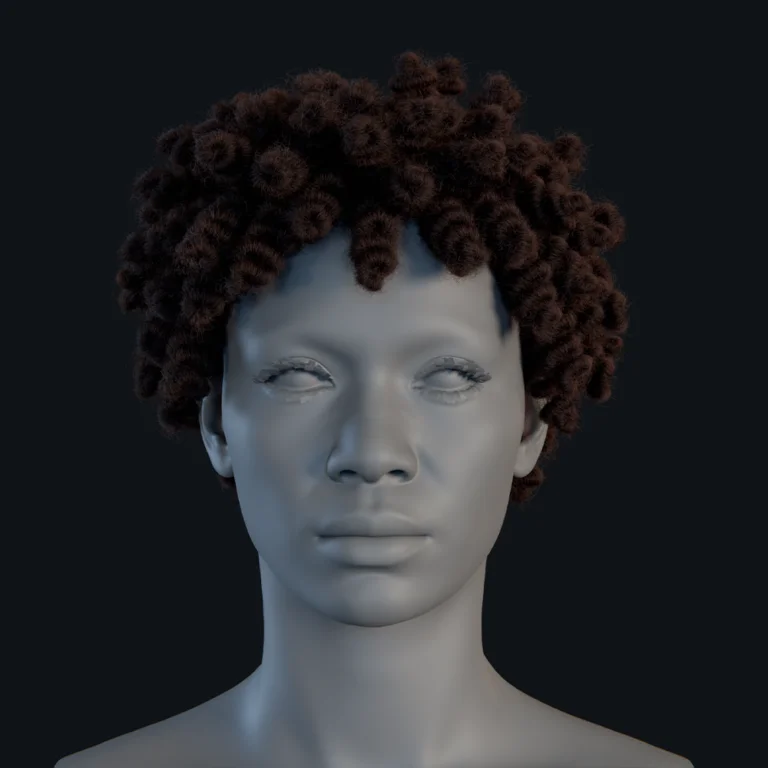
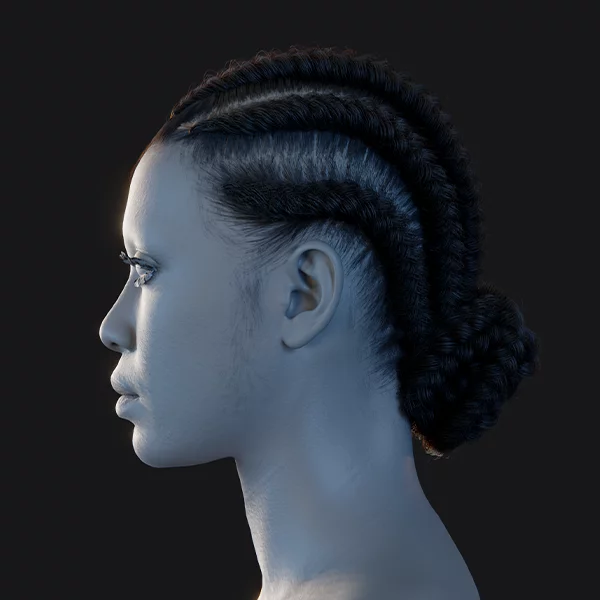
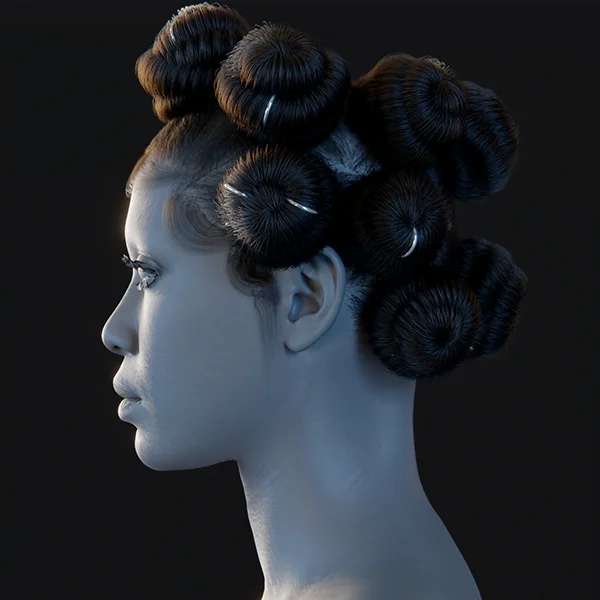
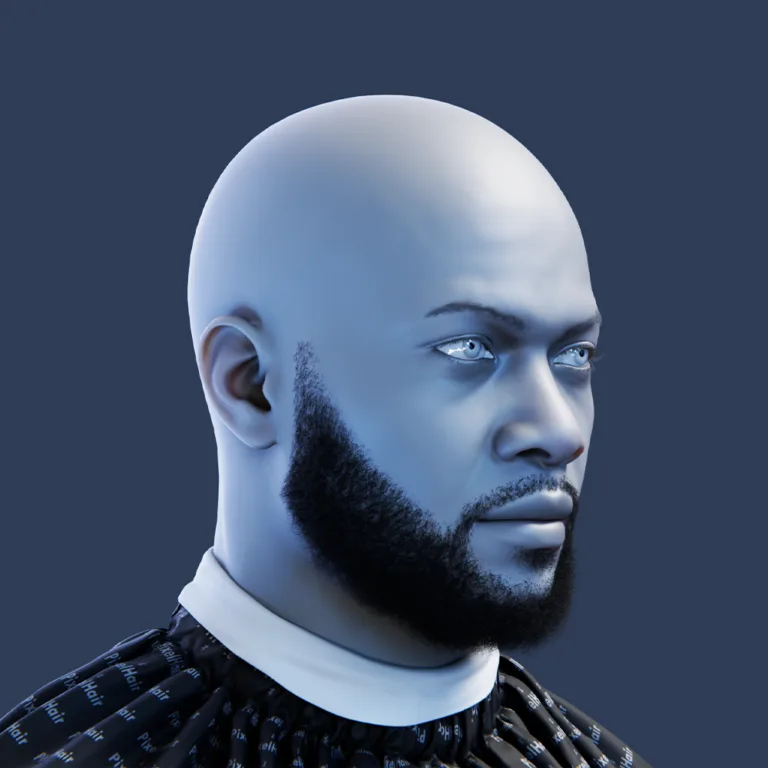
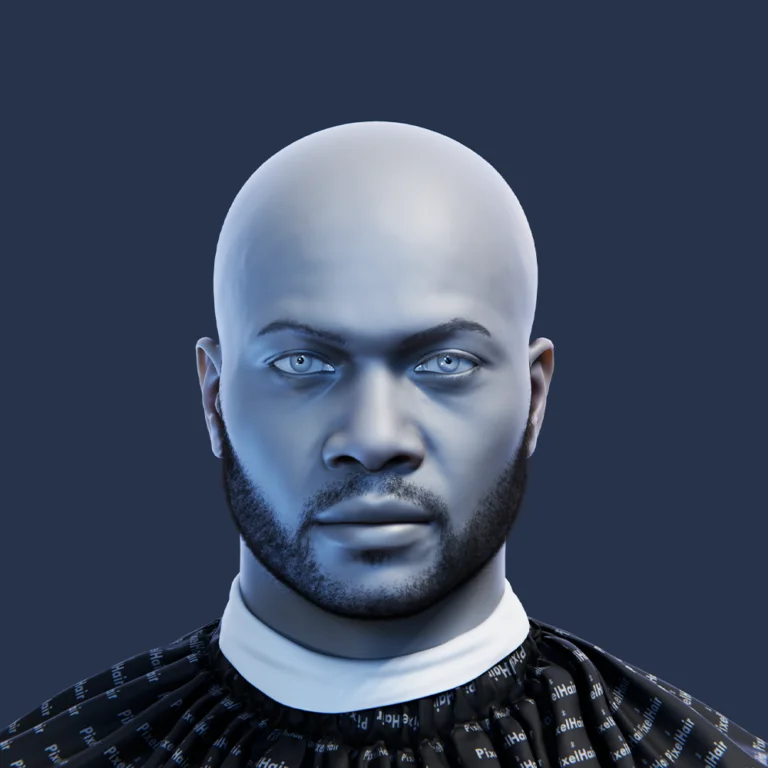
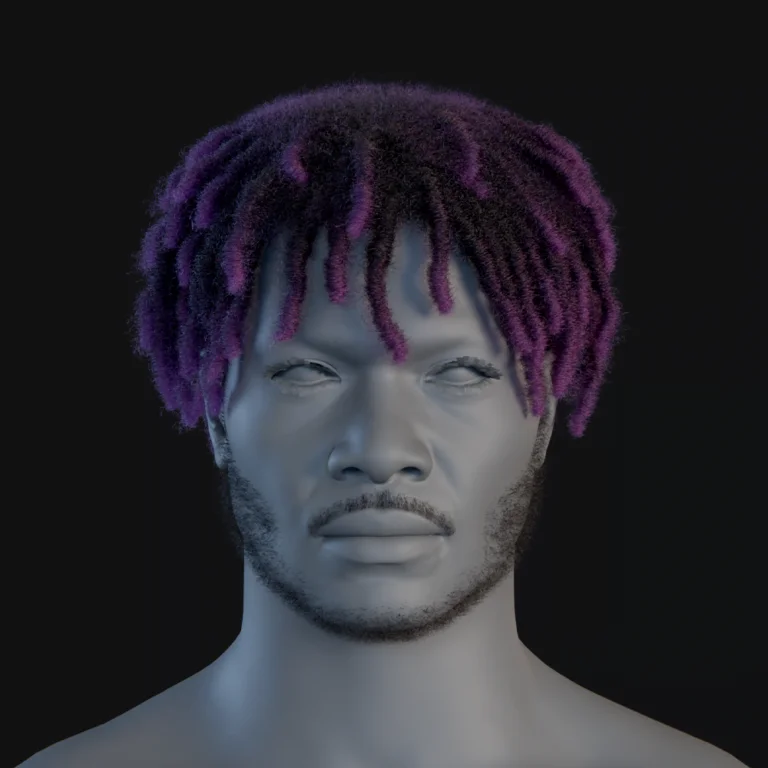
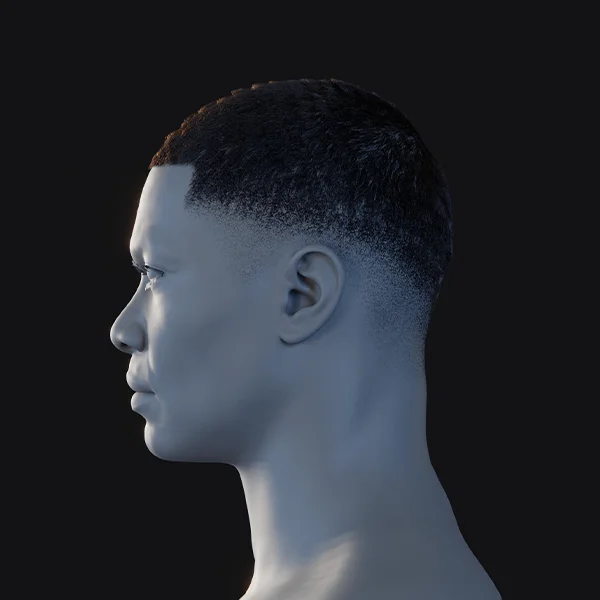
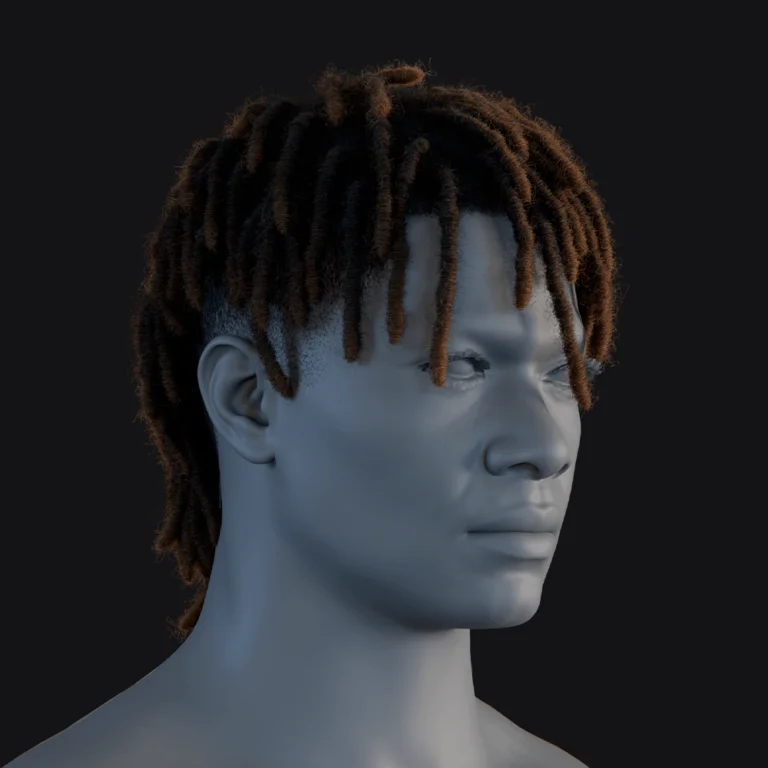
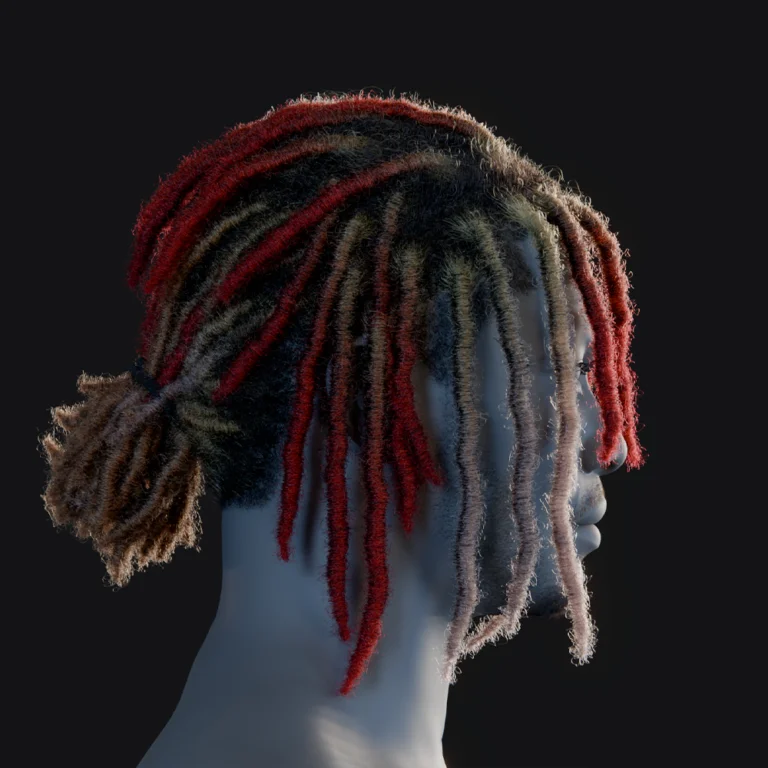
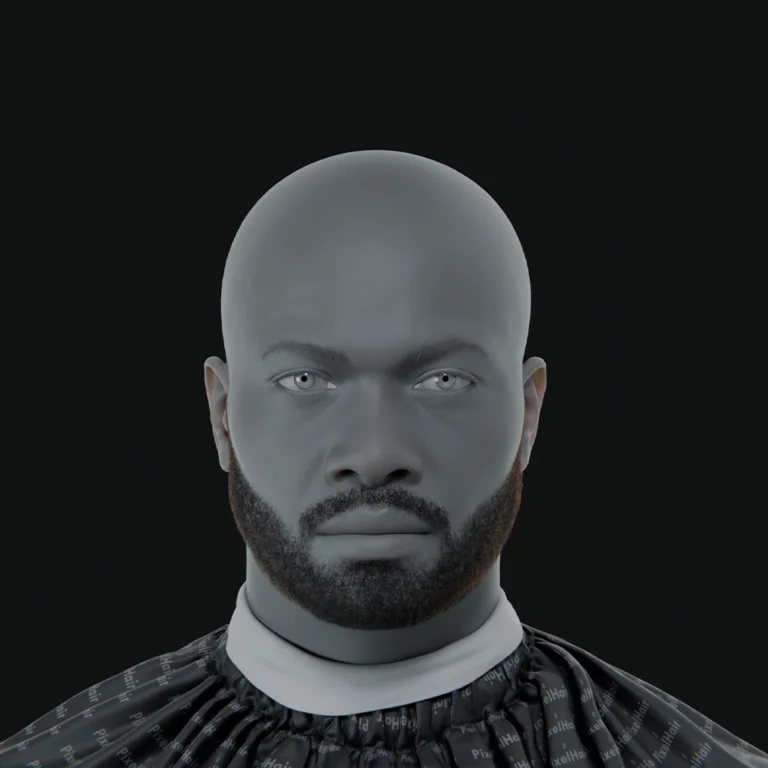
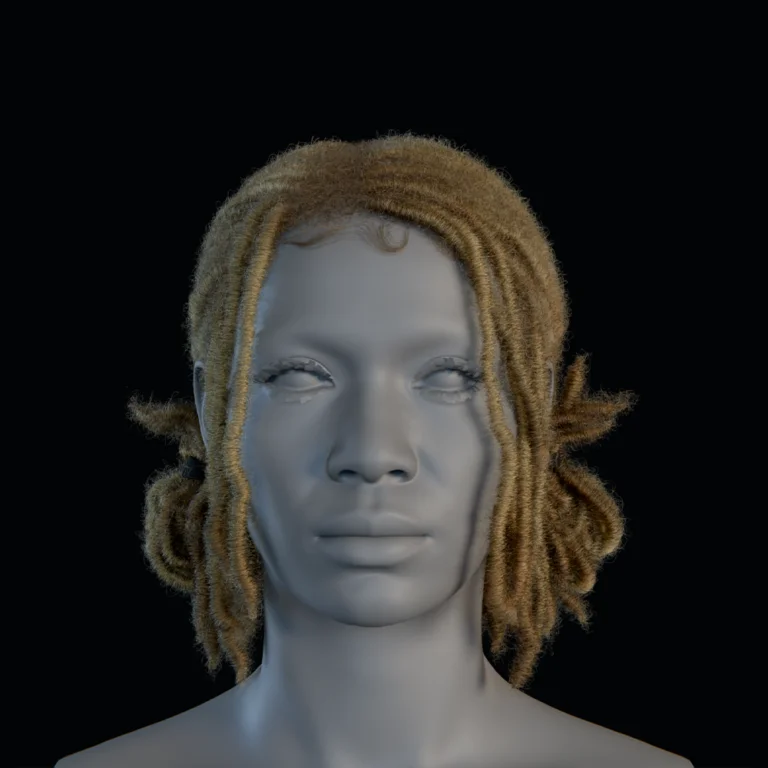
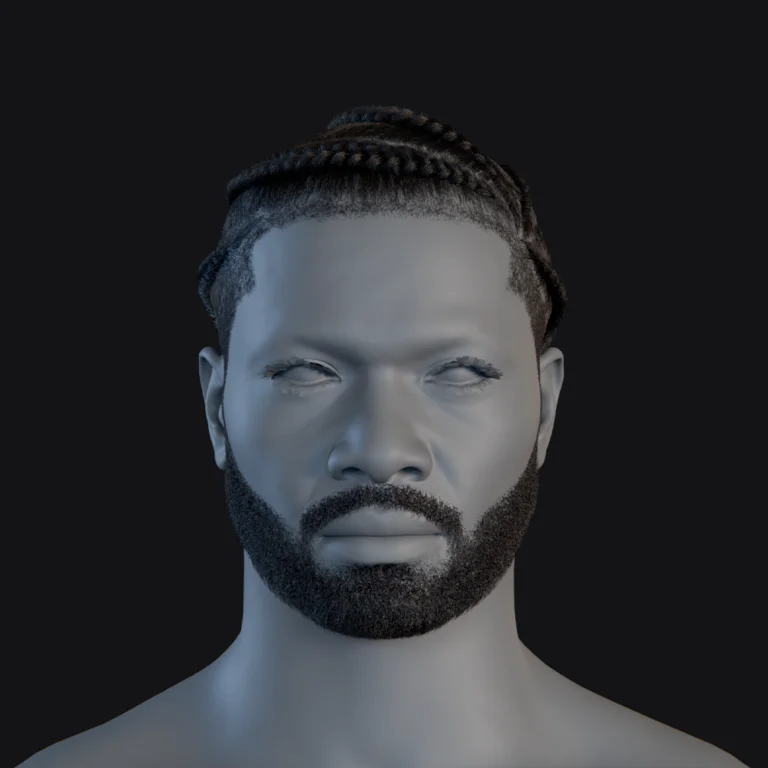
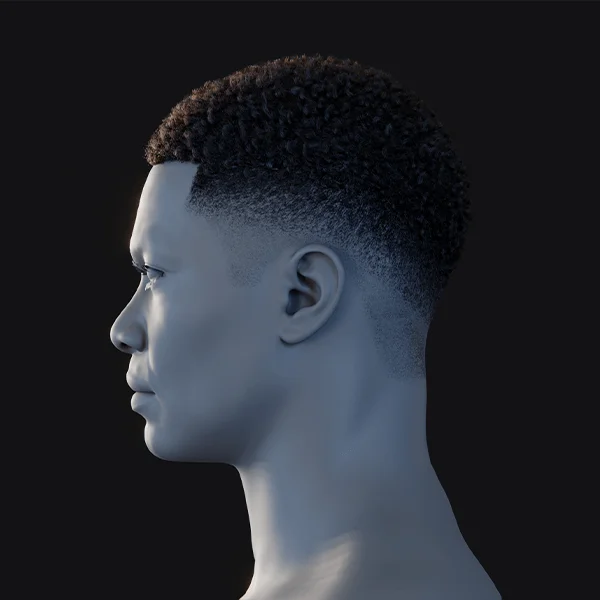
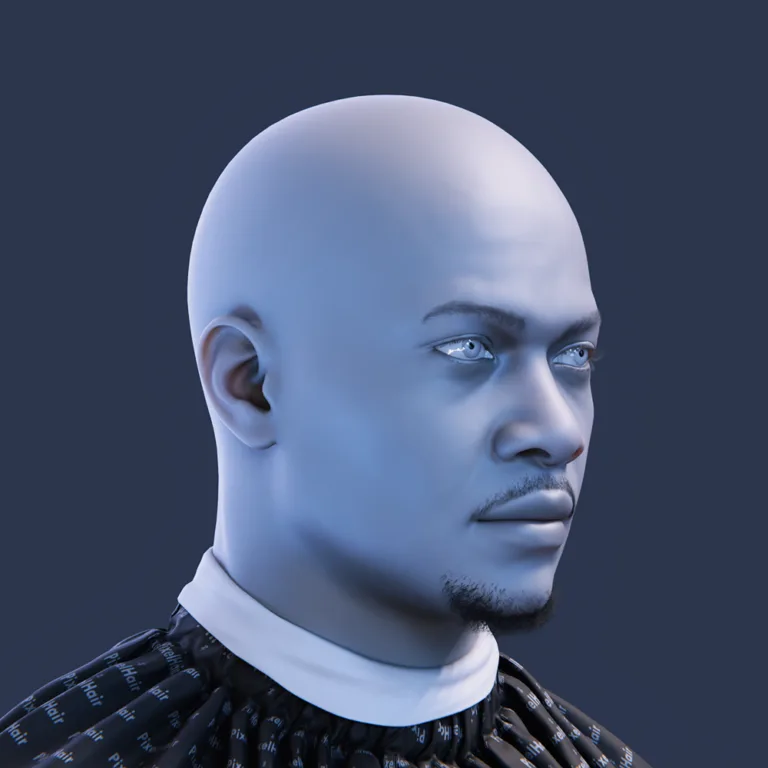
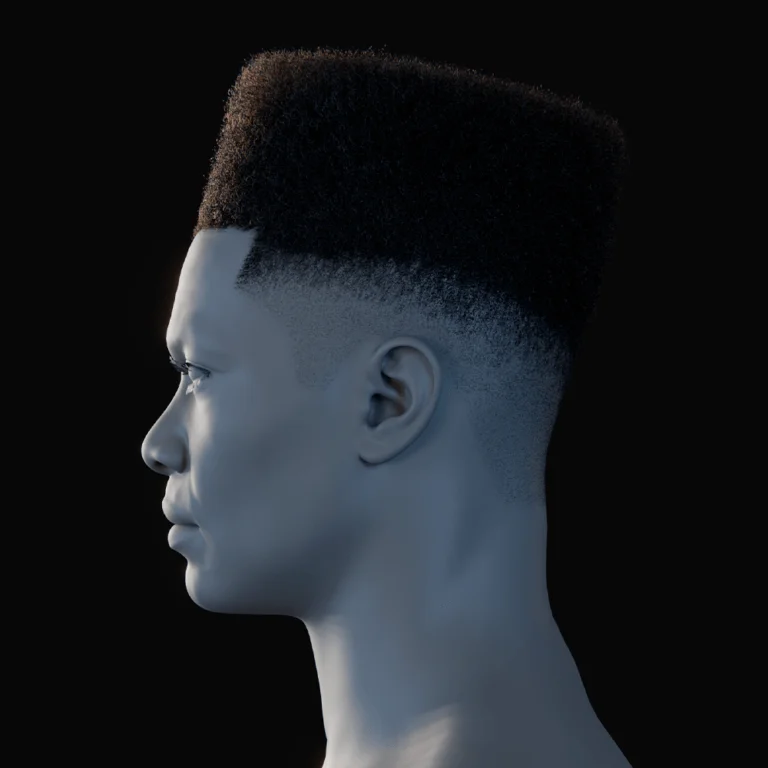
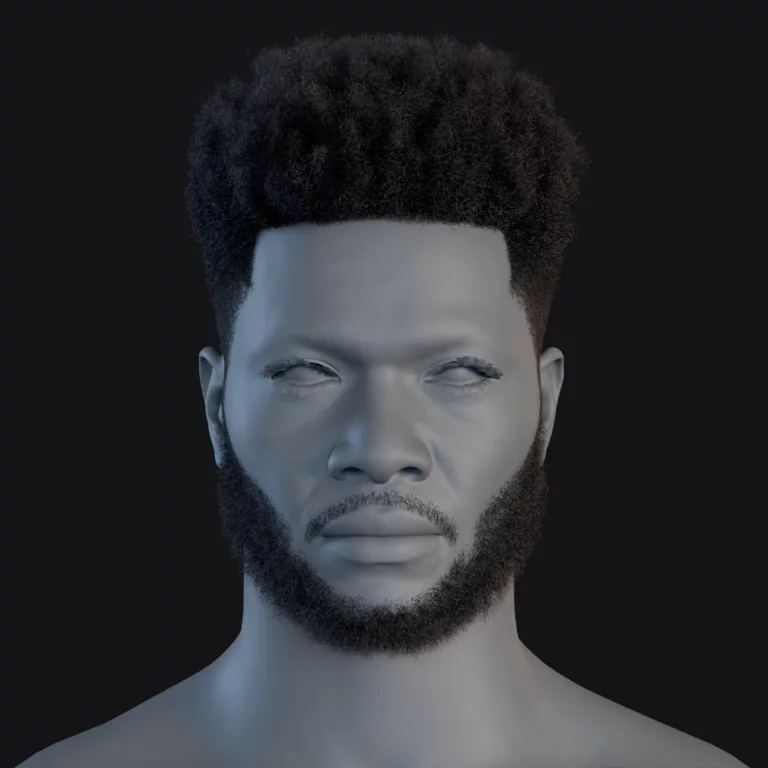
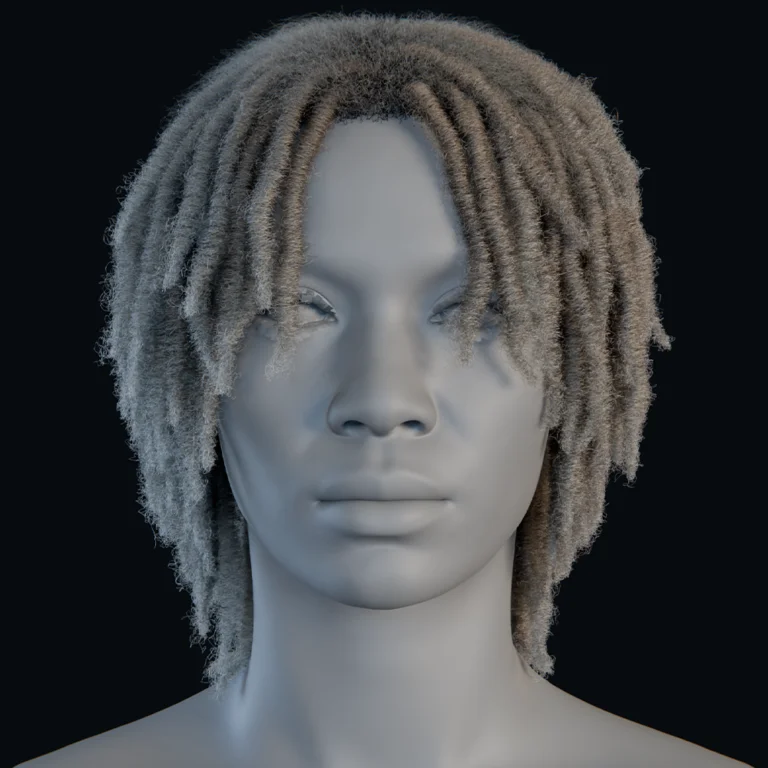
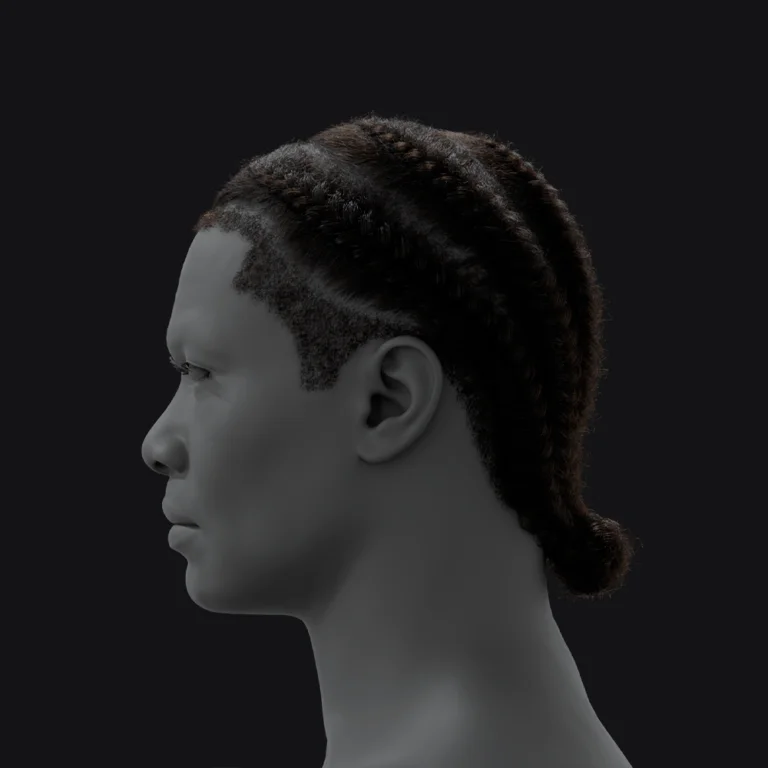
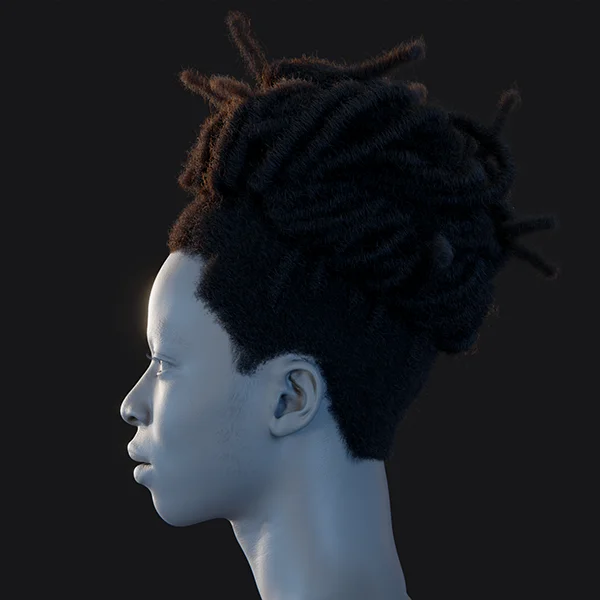
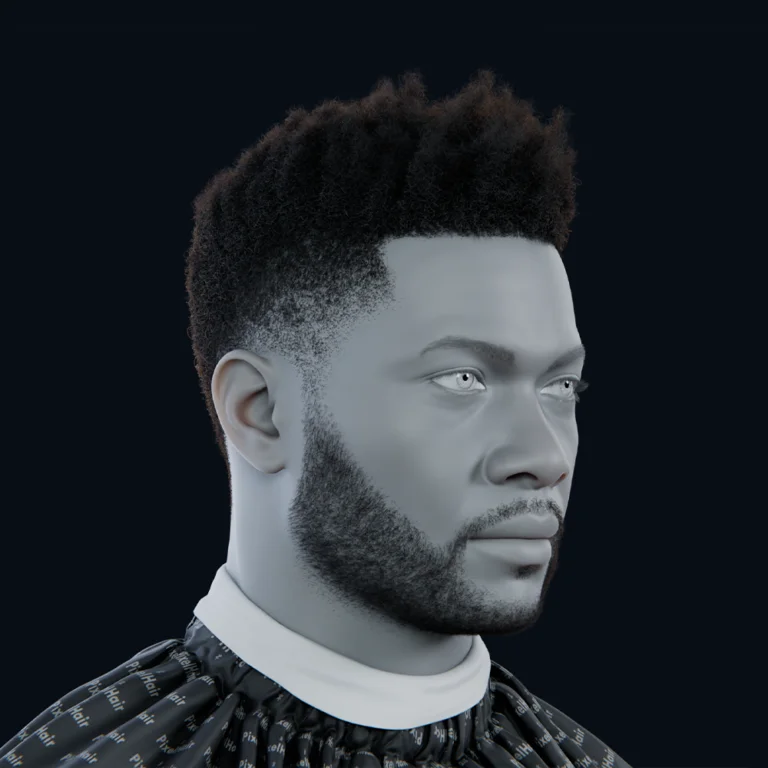
- External Tools Integration: Leverage pre-made assets like PixelHair by Yelzkizi for realistic 3D hair styles. Tools like The View Keeper for Blender can also speed up cinematic camera management. Utilizing these specialized resources saves time that can be redirected toward environment polish with RealBlend.

Frequently Asked Questions (FAQs)
- What is RealBlend and who is it for?
RealBlend is an editor tool for game developers and environment artists. it allows for painting textures, blending materials via vertex colors, sculpting geometry, and creating simple shapes directly in Unity. - What happened to Unity’s Polybrush and why do I need an alternative?
Polybrush was deprecated and is no longer supported in modern Unity versions or Scriptable Render Pipelines. RealBlend was built to replace this defunct tool and improve upon its layer support and stability. - How do I get started with RealBlend in my Unity project?
Import the asset, select a mesh with a collider, open the RealBlend Paint mode, assign a vertex-blending material, and paint directly in the scene view. Finally, use the Bake function to save the changes to a new mesh asset. - Do I need special shaders or materials to use RealBlend?
Yes, you need a material with a shader capable of reading vertex colors (RGBA) to blend textures. RealBlend provides sample shaders for Standard, URP, and HDRP pipelines. - Does RealBlend work with Universal Render Pipeline (URP) and High Definition RP (HDRP)?
Yes. It supports up to 5 layers in HDRP and is optimized for 3-layer blending in URP and the Built-in pipeline. - Can RealBlend sculpt and edit any mesh, or only ones it creates?
It can edit any Read/Write enabled Unity mesh, including imported FBX files, provided they have a collider during the editing process. - Will using RealBlend hurt my game’s performance?
Generally, no. It can improve performance by consolidating multiple textures into a single material and draw call. The editor-only scripts are removed after baking, leaving only standard meshes and shaders at runtime. - Can I use RealBlend at runtime?
RealBlend is primarily an editor tool for design-time use. Implementing similar features at runtime for players would require custom scripting. - Are there alternatives to RealBlend if I need simpler or different tools?
VertPaint offers basic vertex coloring, MeshBrush allows for prop scattering, and Unity’s Terrain Tools handle heightmap landscapes. However, RealBlend is the most feature-rich replacement for Polybrush’s full suite. - I’m struggling with making realistic character hair or other assets—does this vertex painting technique apply?
Vertex painting is for environment blending. For hair, specialized assets like PixelHair by Yelzkizi provide groomed styles for Blender and Unreal that can be exported to Unity, saving substantial modeling time.

Conclusion
The deprecation of Polybrush created a gap in Unity’s workflow that RealBlend has filled by offering an expanded toolkit for mesh painting, sculpting, and creation. By allowing these tasks to happen entirely within the Unity editor, RealBlend streamlines the production of detailed, organic environments while maintaining performance through draw-call reduction and material consolidation. Adopting best practices—such as planning layers, managing mesh density, and baking assets—allows developers to create immersive worlds that rival those of any modern game engine. RealBlend represents a community-driven evolution that empowers creators to iterate faster and achieve higher visual fidelity without leaving the Unity ecosystem.
Sources and Citations
- Unity Documentation – Polybrush package (deprecation / status)
- Reddit (r/Unity3D) – AdamNapper (RealBlend creator) post/comments
- 80.lv Article – “Unity’s Polybrush Alternative For Mesh Painting & Creation”
- Jettelly Blog – “RealBlend: Vertex Painting and Mesh Sculpting Directly in Unity”
- Unity Forums – Polybrush discussions / support & replacement talks
- BlenderArtists.org – PixelHair announcement thread (Yelzkizi)
- FlippedNormals Marketplace – PixelHair product page
- Yelzkizi Blog – Geometry Nodes Hair / PixelHair updates
Recommendations
- Rayman Legends Remake Leaks Reveal Release Date, Price, and Clair Obscur Crossover Details
- All Alan Wake Doll Locations and Puzzle Solutions in Phasmophobia
- Manga Artist’s Struggles Go Viral as Fans Donate Over $5,600 – Shiten Akiyama’s Horizon Story Explained
- Creating Interactive Water in Godot: Ripples, Splashes, Shaders, and Buoyancy (Godot 4)
- Stylized Trees for Games: How to Create Stylized Procedural Trees in Houdini
- Prince of Persia Creator on Sands of Time Remake Cancelation: Fan, Developer, and Community Reaction
- Krafton Shuts Down PUBG: Blindspot Two Months After Launch as Early Access Strategy Faces Scrutiny
- According to UKIE, the UK’s Video Game Market Will Hit £8.7 Billion by 2025: Trends, Breakdown, and What’s Next
- Pickmon Game: Release Date, Steam Details, Gameplay, Creatures, and the Pickmos Name Change Explained
- Maseylia: Echoes of the Past Preview: 3D Metroidvania Platformer With Ancient Tech Exploration