

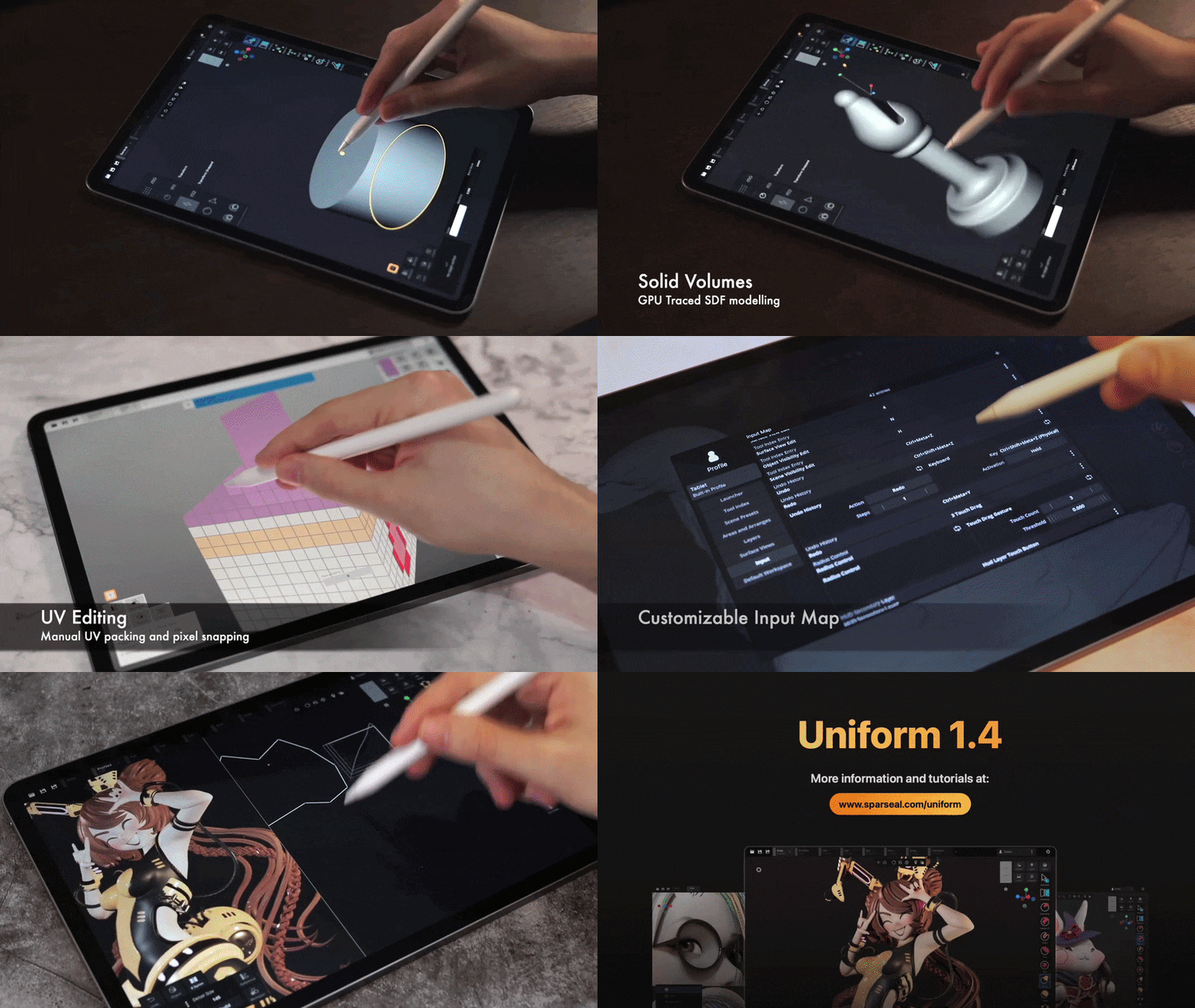
Wafer 3D texture painting app for iPad overview
Wafer is a dedicated mobile application created by Sparseal for high-quality, stylized, and hand-painted 3D texturing. It transitions the traditional digital painting experience into a 3D environment, offering a non-destructive workflow.
- Core Features: Includes pressure-sensitive brushes, layers, masks, and various blend modes.
- Performance: Optimized to run smoothly on a wide range of iPad hardware, including older models.
- Artistic Focus: Specifically designed for PBR (Physically Based Rendering) texture painting with an emphasis on stylized game assets and hand-crafted aesthetics.
What is Wafer by Sparseal and who is it for
Wafer is a specialized tool for 3D artists who prefer a tactile, Apple Pencil-driven approach to texturing.
- Target Audience: Professional game artists, illustrators, indie developers, and students.
- Primary Use Case: Creating hand-painted or non-photorealistic (NPR) textures for characters, props, and environments.
- User Experience: Features an intuitive interface similar to 2D painting apps, making it accessible for those transitioning from 2D illustration to 3D texturing.
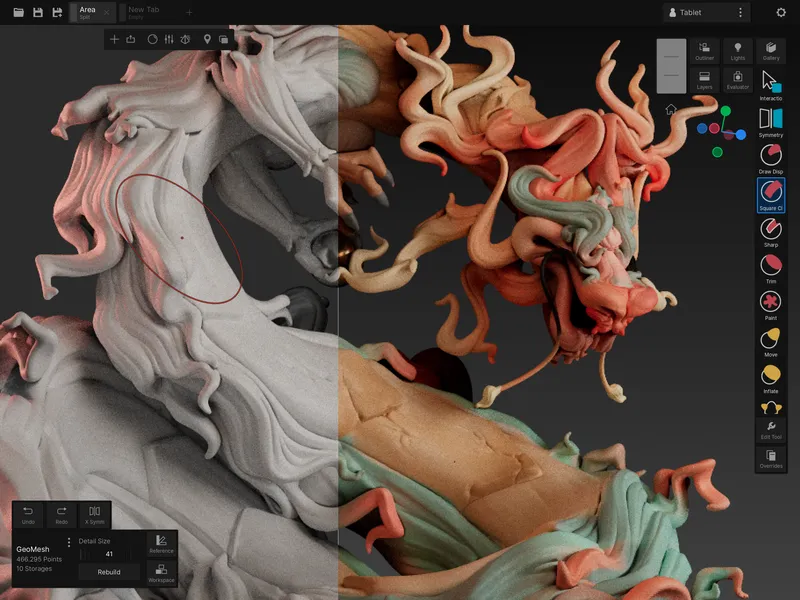
Wafer vs Uniform vs CozyBlanket for iPad 3D workflows
Wafer completes a specialized 3D production suite on iPadOS, where each app handles a distinct stage of the asset pipeline:
- Uniform: A generalist 3D power-tool used for modeling, high-poly sculpting, lighting, and rendering.
- CozyBlanket: A utility focused on technical preparation, specifically retopology, UV unwrapping, and map baking.
- Wafer: The dedicated creative painting solution, offering advanced features like simultaneous multi-channel PBR painting not found in generalist editors.
- Integrated Pipeline: An artist can sculpt in Uniform, retopologize in CozyBlanket, and perform final texturing in Wafer to create game-ready assets entirely on mobile.
Wafer iPadOS 16.6 requirements and compatible iPad models
The app is engineered for broad compatibility across the iPad ecosystem.
- Software Requirement: Must run iPadOS 16.6 or later.
- Hardware Range: Supports iPad Pro, iPad (5th gen+), iPad Air (3rd gen+), and iPad mini (5th gen+).
- Optimization: Written in Rust, the engine is designed for high efficiency. It is capable of running on hardware over a decade old (such as A9/A10 chips), though newer M1/M2 chips allow for higher texture resolutions and more complex layer stacks.

Wafer pricing and the exporting and saving in-app purchase
Wafer utilizes a “try before you buy” model to ensure artists are satisfied with the toolset before committing.
- Free Download: The app and all painting tools are free to use for testing and evaluation.
- Full Version Unlock: A one-time in-app purchase of $19.99 USD is required to enable saving projects and exporting texture files.
- No Subscriptions: The purchase is a one-time fee that includes future feature updates, providing a permanent license to the software.
Wafer supported import formats (OBJ and GLB) and file setup tips
Artists can import models from major desktop software like Blender, Maya, or ZBrush using standard formats.
- Supported Formats: OBJ and GLB (glTF Binary).
- UV Preparation: Models must have clean, non-overlapping UV unwraps. Wafer manages multiple materials as separate texture sets.
- Export Tips: It is recommended to apply all transformations and scaling in the source software before importing to Wafer to ensure predictable brush behavior.
- Complexity Management: While the app can handle high-poly meshes, it is optimized for painting on game-resolution models. Using unique material names is essential for maintaining organized texture sets within the app.
The following summary details the model import process and the creative techniques for hand-painting 3D textures within the Wafer app.
Wafer supported import formats (OBJ and GLB) and file setup tips
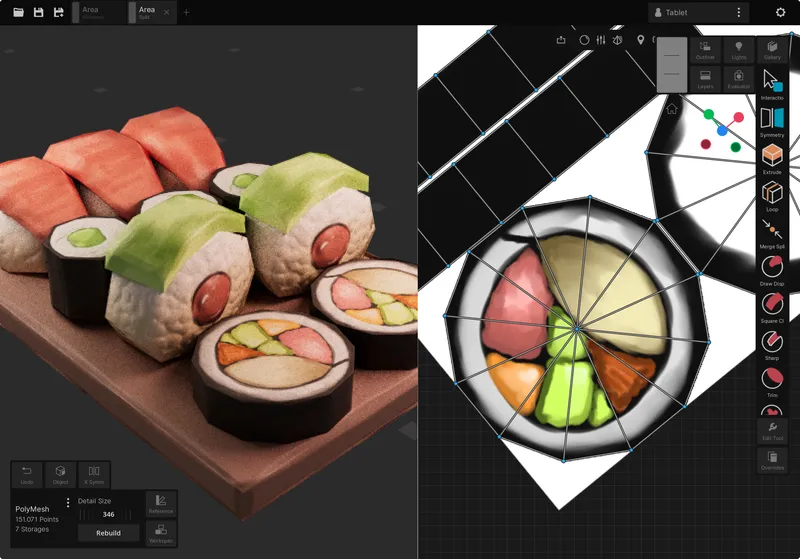
Importing a model into Wafer is a straightforward process using the iPad’s built-in asset browser to load files from storage.
- Process: Once a model is loaded, artists can begin painting immediately.
- View Options: The app supports painting directly on the 3D model or working within a 2D texture (UV) view, which can be displayed side by side.
- Format Summary: By using OBJ or GLB formats and ensuring proper UV maps are in order, Wafer effectively converts the 3D model into a functional canvas.
How to paint stylized hand-painted textures on iPad with Wafer
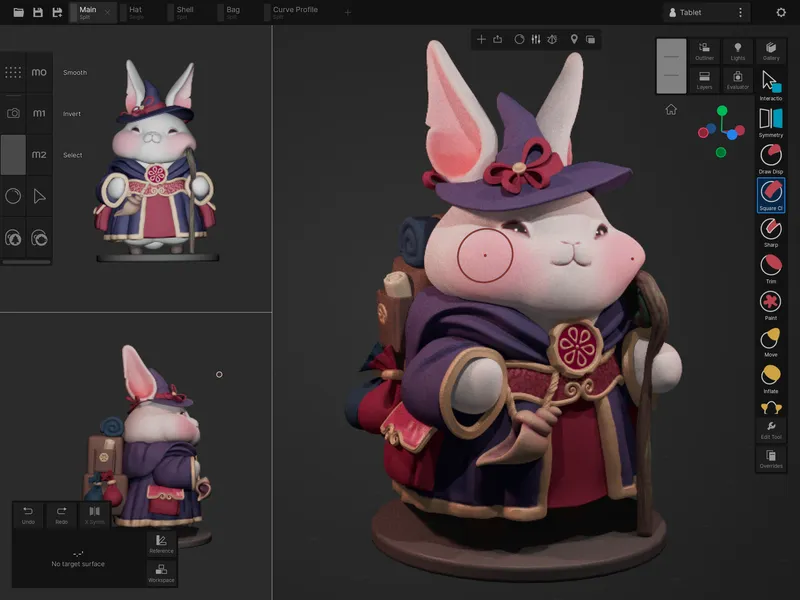
Wafer provides a creative environment that mirrors the workflow of digital painting software like Procreate or Photoshop, adapted for 3D surfaces.
- Set up your workspace: Artists can toggle between a split-screen 3D/2D view or focus entirely on the 3D model. A built-in Reference Board allows for pinning moodboards and color picking.
- Brush-based painting: The app supports full pressure and tilt sensitivity with the Apple Pencil. This allows for manual control over line weight and opacity directly on the 3D surface.
- Use layers for different details: A non-destructive layer system allows artists to separate base colors, shadows, highlights, and patterns. Users can adjust layer opacity and utilize blending modes, such as Multiply for shadows, to achieve painterly effects.
- Leverage stylized brushes and alphas: Wafer includes various brush tips and supports custom alphas. It features wet paint and blur tools to enable smooth color blending and soft transitions.
- Hand-paint details with stencils and decals: Intricate or repeating motifs, such as brick patterns, can be projected onto the model using stencils or stamped on as decals to ensure consistency.
- Work with lighting off (unlit) for accuracy: To ensure color precision in non-photorealistic (NPR) styles, artists can use an “unlit” view to see pure texture colors. The app allows for quick toggling between unlit, shaded, and full PBR preview modes.
- Iterate and refine: The 3D viewport allows for constant rotation to check textures from all angles. Familiar illustration tools, such as the lasso tool for selections and erasing/repainting functions, provide fine control over the final artwork.
How to paint stylized hand-painted textures on iPad with Wafer
Painting on the iPad with Wafer is designed to be a fluid and responsive experience, combining intuitive touch gestures with the precision of the Apple Pencil.
- Tactile Controls: Artists can pan, zoom, and rotate 3D models using standard touch gestures, creating a workflow that feels similar to painting a physical miniature.
- Performance: The app is optimized to ensure that brush strokes remain smooth and provide immediate feedback, even when working with high-resolution textures.
- Creative Flexibility: The portable workflow allows artists to achieve a variety of high-quality looks, including cartoonish, painterly, or anime-inspired styles, without being tethered to a desktop.
Multi-channel PBR painting in Wafer (color, roughness, metalness)
A primary feature of Wafer is its support for simultaneous multi-channel painting within a Physically Based Rendering (PBR) workflow.
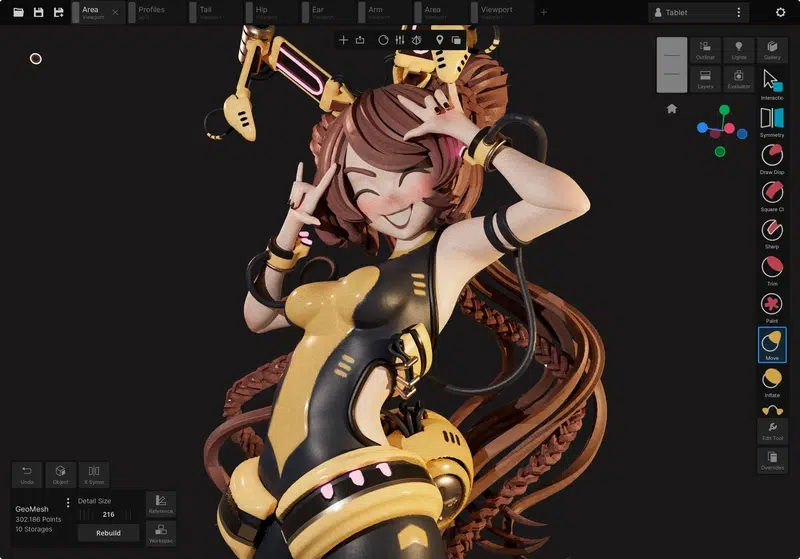
- Simultaneous Workflow: Unlike traditional methods where color, roughness, and metalness are painted separately, Wafer allows artists to apply all three channels in a single brush stroke.
- Layer Integration: Each layer can carry multiple channels. For example, a single “rusty metal” stroke can define the brownish-red base color, a high roughness value for a matte finish, and a specific metallic value.
- Material Definition: Artists can define specific “materials” on a per-layer basis. A “gold” layer can be set with yellow color, low roughness, and full metallic properties, while a “dirt” layer can be configured with gray color and high roughness.
- Custom Channel Layouts: For non-photorealistic (NPR) or stylized projects, Wafer supports custom channel configurations. Artists can define channel slots for specific needs, such as emissive glow maps or unique masks for toon shaders.
- Efficiency and Realism: This system speeds up the creation of complex textures, such as worn edges, by allowing light paint color, smoother roughness, and exposed metal values to be applied together. This bridges the gap between simple painting and technical PBR texturing.
An example from Wafer demonstrating multi-channel painting: the artist paints on a 3D model and Wafer applies base color, roughness, and metallic channel data simultaneously. The result is a cohesive material appearance (here showing a shiny stylized armor with colored accents) achieved with a single brush stroke.
Wafer layer system explained (masks, blend modes, opacity)
Wafer features a comprehensive layer system very much like what you’d find in 2D image editors, and this is crucial for building up complex textures non-destructively. Each layer in Wafer can hold paint across the various channels (color, roughness, metalness, etc.) and you can stack layers to blend materials and details. Here’s how the layer system works:
- Paint Layers: These are standard layers where you paint directly. You can create a new paint layer and start brushing color (and other channels) onto it.
- Fill Layers: Wafer also allows fill layers – layers that fill the entire texture with a solid color or even a procedural fill (like a noise or pattern). You might use a fill layer to set a base material (e.g., a base color and roughness for the whole object) without manual painting.
- Layer Masks: Every layer can have a mask which you can paint on to hide or reveal parts of that layer. For example, you could have a fill layer that makes the object all metal, and then mask it to only show that metal in certain areas (masking out the rest). Masks themselves are edited in grayscale – painting on a mask with black conceals that part of the layer, white reveals it. This is great for adding weathering or details selectively without affecting underlying layers.
- Blend Modes: Layers can be set to various blending modes (just like Photoshop: multiply, overlay, add, etc.) when combining with layers below. Color blend modes are supported, so you can, for instance, paint a highlight layer and set it to “Screen” or a shadows layer set to “Multiply” to intuitively lighten or darken underlying colors.
- Opacity: Each layer has an opacity slider, letting you make the layer’s effect more subtle or more intense by adjusting transparency. This is useful if you overdid a dirt pass or want to dial back the intensity of a painted detail without repainting it.
- Reordering and Grouping: You can reorder layers by dragging them, and likely group them (the documentation hints at a fully featured layer system, though grouping wasn’t explicitly mentioned, it’s often included). By organizing layers, you maintain a clean workflow (for example, group all “weathering” layers separately from “base materials”).
How to paint stylized hand-painted textures on iPad with Wafer
Wafer utilizes a non-destructive layer workflow, ensuring that edits to one layer do not permanently affect the others.
- Non-Destructive Editing: Users can erase on a layer, change blend modes, or disable layers entirely to test effects without losing data.
- Texture Sets: The layer system operates per texture set, allowing individual layer stacks for each material on a model.
- Layer Masks: Artists can use masks to create complex effects, such as a paint layer revealing a gold material underneath, by painting on the mask rather than erasing the underlying content.
- Familiar Interface: The system provides Photoshop-like controls, including opacity adjustments and fills, making it accessible for 2D artists transitioning into 3D painting.

Stencils, decals, stamps and brush alphas in Wafer
Beyond freehand strokes, Wafer includes a suite of tools for applying precise patterns and intricate details to 3D models.
- Stencils: These allow artists to project a 2D image onto a 3D model as a guide. Paint is only applied where the stencil has content, which is ideal for transferring logos, tiled patterns, or maintaining symmetry in complex designs.
- Decals: This feature allows for the stamping of pre-made images directly onto the model. Users can quickly place elements like rivets, bullet holes, or cloth patterns from a library without manual painting.
- Stamps: Used for single-tap applications of brush alphas, this tool is effective for creating repetitive motifs across a surface, such as scales or polka dots.
- Brush Alphas / Custom Brush Tips: Wafer supports custom brush tips to define the shape and texture of a stroke. Using various alphas, such as speckled textures for dry-brush effects or leaf silhouettes for foliage, enables artists to achieve a specific hand-painted or painterly aesthetic.
Stencils, decals, stamps and brush alphas in Wafer
Wafer provides a comprehensive toolkit for applying complex details efficiently, allowing artists to move beyond simple freehand painting.
- Efficient Detailing: Using stamps and decals (such as the purple splat marks on a creature) allows for the rapid placement of repetitive symbols or textures without manual recreation.
- Consistency: Character artists can use stencils to ensure ornate engravings are applied uniformly across armor pieces, while environment artists can project seamless rocky patterns or noise.
- Non-Destructive Workflow: Stamping and stenciling are non-destructive actions. Because Wafer is layer-based, these details can be placed on separate layers to allow for future opacity adjustments or selective erasing.
- Integrated Asset Browser: A dedicated panel organizes brush alphas, stencils, and HDRIs, allowing artists to switch between resources without interrupting their creative flow.

Triplanar projection texturing on iPad in Wafer
Triplanar projection allows for the seamless application of textures by projecting them from the X, Y, and Z axes and blending the intersections.
- Seamless Coverage: This technique is ideal for applying base textures like stone, dirt, or noise patterns across complex models without worrying about visible UV seams or stretching.
- iPad Implementation: Users can select a texture, set it to triplanar mode, and adjust scale and rotation within the UI. This is particularly effective for 3D scans or models with imperfect UV unwraps.
- Workflow Foundation: Triplanar mapping can serve as a starting point. An artist can project a full multi-channel PBR material over a model and then use masks to refine specific areas.
- Optimization: Despite the computational requirements of triplanar mapping, Sparseal’s engine is optimized for iPad hardware, ensuring “desktop-class” performance for procedural texture foundations.
Wafer influence system for painting by normals, UV islands and topology
The Influence System provides high-level control over brush behavior, allowing artists to constrain paint application based on specific geometric and topological criteria.
- By Normals (Angle): Brushes can be restricted to surfaces facing a specific direction. For example, an artist can configure a brush to only affect upward-facing surfaces to simulate the settling of dust or sun bleaching.
- By UV Islands: This setting prevents paint from spilling over the borders of a UV island. It ensures that painting near an edge does not accidentally affect an unrelated part of the texture map, helping to maintain clean seams.
- By Topology (Connectivity): Influence can be limited to contiguous surfaces. This prevents paint from “leaking” across separate, non-connected mesh parts that happen to be physically close in 3D space, such as a belt and the character wearing it.
- Custom Maps (Texture Mask Influence): Wafer supports the use of grayscale maps—such as curvature, ambient occlusion (AO), or material IDs—as influence masks. This allows for procedural-style painting, such as constraining a dirt brush to only apply paint within the crevices defined by an AO map.
Wafer influence system for painting by normals, UV islands and topology
Wafer’s influence system provides artists with high-level control usually found in desktop software like Substance Painter, allowing for precise paint application with minimal cleanup.
- Advanced Masking: Artists can achieve complex effects by combining influence types. For example, painting wear only in recessed areas can be done by using inward normal-based influence alongside a custom curvature map.
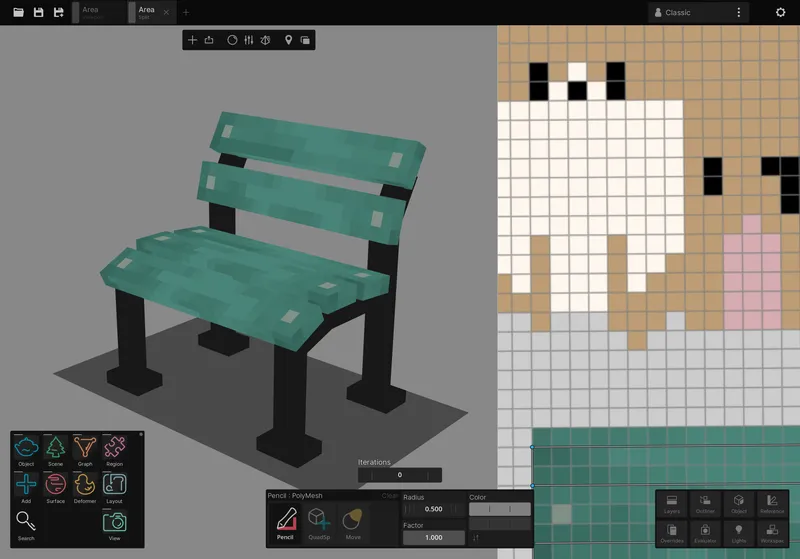
- UV Island Constraint: By enabling UV island influence, an artist can scribble across a model and the paint will automatically stop at UV seams. This allows for coloring individual pieces of armor or parts without manual masking.
- Front-Face Restriction: Normals influence can be used to restrict painting to only the front faces of a model, preventing a decal or texture from bleeding around the sides.
- User Interface and Flexibility: These settings are managed via an “Influence” panel with checkboxes and sliders for adjusting thresholds and criteria. The system is non-destructive and can be toggled on or off at any time.
- Precision Detailing: The system allows for localized detailing, such as constraining strokes to a creature’s shell while avoiding its claws, by leveraging topology and normal-based masking.
Wafer symmetry tools for 3D and 2D texture painting
Symmetry tools are essential for efficiently texturing symmetrical objects like characters, vehicles, and creatures. Wafer provides robust options for mirroring work across both 3D and 2D views.
- 3D Symmetry: Users can enable real-time mirroring across the X, Y, or Z axes. Painting on one side of a character (e.g., the left arm) automatically updates the opposite side, which is invaluable for maintaining consistency on faces and bodies.
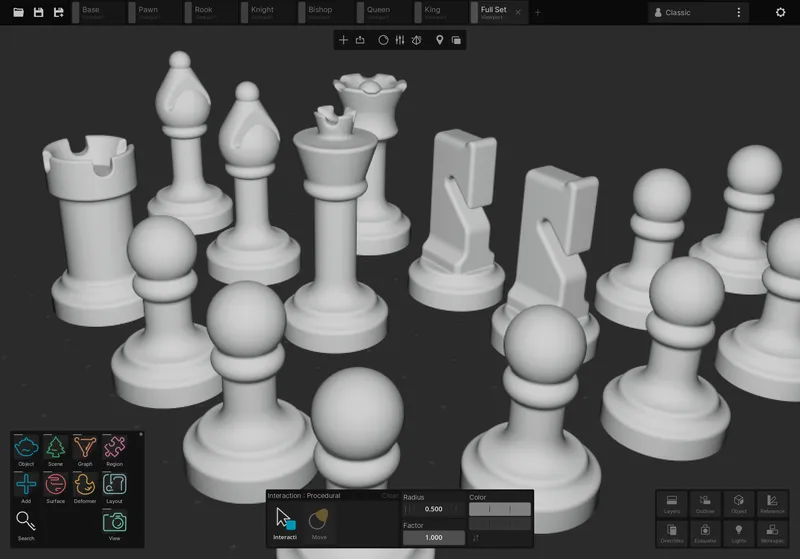
- 2D (UV) Symmetry: The app supports symmetry within the 2D UV painting mode. This is particularly effective if the UV layout itself is symmetrical.
- Independent Pivot/Axis Configuration: Wafer allows for the adjustment of the symmetry plane and pivot point. This is useful if a model is not perfectly centered in the world space, as the artist can define a custom origin relative to the model’s center. It also allows for simultaneous mirroring across multiple axes if required.
- 2D-3D Synced Views: Wafer supports a side-by-side display of the 3D model and the 2D flat UV map. Symmetry applies to both views simultaneously, allowing the artist to monitor how mirrored 3D strokes align with the underlying UV map in real-time.
Wafer symmetry tools for 3D and 2D texture painting
Symmetry tools in Wafer are designed to drastically reduce texturing time for symmetrical objects such as characters and creatures.
- Efficiency and Consistency: Features like mirroring allow artists to paint both eyes of a character or complex wing patterns simultaneously. This ensures perfectly mirrored results without the need to manually match sides.
- Creative Flexibility: Symmetry can be toggled off at any time to add unique, asymmetrical details—such as weathering or specific decals—to break the “perfect mirror” for increased realism.
- Professional Workflow: A common workflow involves painting base elements with symmetry enabled and then using new layers with symmetry disabled for unique variations.
- Platform Advantage: The inclusion of 3D symmetry on a tablet prevents artists from performing “double work,” a feature that distinguishes Wafer from simpler iPad art applications.
Wafer channel packing exporter for game engines and NPR shaders
Wafer includes a configurable exporter that supports flexible channel packing, a critical feature for optimizing performance in game development.
- Channel Packing Explained: To save memory and reduce file counts, game artists often pack multiple grayscale maps (such as roughness, metallic, and ambient occlusion) into the individual Red, Green, Blue, and Alpha channels of a single image.
- Configurable Export Matrix: The UI allows users to define exactly which data maps to which output channel. For example, an artist can create an “ORM” texture where Red = Ambient Occlusion, Green = Roughness, and Blue = Metallic.
- Format and Resolution Control: Users can choose their preferred resolution (e.g., downscaling a 4K painting to a 2K export) and file formats such as PNG, JPEG, or TIFF.
- Support for NPR and Custom Shaders: For non-photorealistic (NPR) workflows, such as toon shaders, the exporter can be configured to pack non-standard maps like gradient or specular masks into specific channels.
- Pipeline Compatibility: Wafer exports texture images that are ready to be applied to models in external environments. This eliminates the need for third-party software to shuffle channels before importing into engines:
- To Blender: Separate or packed maps for Eevee/Cycles.
- To Unity: Typically an Albedo map and a packed Metallic-Smoothness map.
- To Unreal Engine: Base color, normal maps, and a packed ORM map.
Wafer performance on older iPads and energy efficiency claims
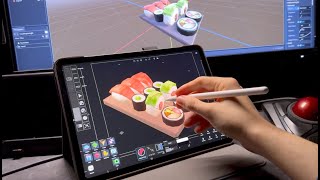
Wafer is engineered for high efficiency using a custom engine built in Rust and WGPU, allowing advanced features to run on a wide range of iPad hardware.
- Hardware Optimization: The app is designed to maintain smooth interactions regardless of texture size or layer count. It is optimized so that brush performance is virtually unaffected by stroke speed or resolution, up to the device’s memory limits.
- Compatibility: While iPadOS 16 is the minimum software requirement, the renderer is compatible with OpenGL ES 2.0 capabilities found in devices nearly a decade old. Reports indicate responsive performance on models as old as the 2016 iPad Pro.
- Energy Efficiency: The app utilizes an efficient rendering loop and low-level GPU control to minimize resource usage. This prevents overheating and extends battery life, making the app viable for long, portable painting sessions without a power source.
- Scaling: On older devices with limited RAM (e.g., 2 GB), Wafer comfortably handles 2K or 4K textures. On newer M-series iPads, the high performance headroom allows for significantly more layers and higher resolutions.
16K and 24K textures on iPad with Wafer (memory limits explained)
Wafer supports extreme texture resolutions that traditionally exceed mobile hardware capabilities, reaching up to 16K and 24K dimensions.
- Resolution Support: Any compatible iPad can support 16K textures (16384 x 16384 pixels), while the iPad Pro (2018 3rd gen) and newer can handle up to 24K textures.
- Tiling Technology: To manage massive data sets without overwhelming RAM, Wafer breaks textures into smaller 4K chunks or “tiles.” A 16K texture is managed as a 4×4 grid of tiles, while 24K uses a 6×6 grid (36 tiles), with the app loading only necessary sections into memory.
- Memory Management: Sparseal estimates that a 16K project with four layers across four materials uses approximately 900 MB of RAM. This is well within the 4GB+ RAM found in most modern iPads.
- Hardware Limits: On the 2018 iPad Pro, 24K resolution pushes the hardware to its functional limit. On M1 and M2 models with 8GB or 16GB of RAM, the engine’s resolution-independent design suggests even higher theoretical limits, such as 64K, though 16K to 24K remains the practical professional standard for the app.
From a user perspective, painting a 16K texture on an iPad means you can create assets for high-end use (like a detailed hero asset for a game or film) without compromise. However, you’d want to be mindful of memory:
- Expect longer save/export times for these gigantic maps.
- You might do the bulk of painting at lower res (e.g., 4K or 8K) and only crank up to 16K for final detailing if needed (since Wafer’s painting engine is resolution-independent, you could increase resolution mid-project as it likely handles it via re-tesselating the texture space).
- Keep layer count reasonable when at extreme res, to avoid hitting memory ceilings. The more layers, the more memory.
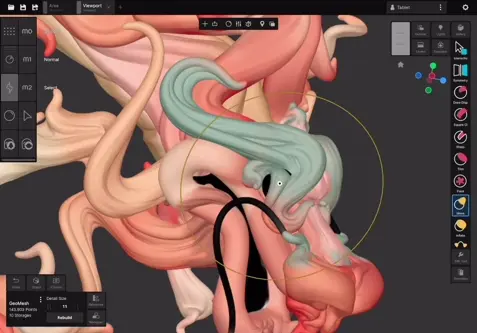
16K and 24K textures on iPad with Wafer (memory limits explained)
Wafer’s texture resolution is primarily limited by available device memory rather than software constraints.
- Tiled Memory Management: By utilizing a tiled approach, the app avoids holding an entire high-resolution image in the RAM at once, ensuring brushes remain responsive even at 16K or 24K.
- Practical Guidelines: While 16K and 24K are reliable guidelines for supported iPads, pushing beyond these (e.g., too many 16K layers on a base model) may lead to project instability or forced adjustments.
- Use Cases: This headroom is intended for ultra-detailed assets, such as hero props or large environments, where 4K or 8K textures are insufficient.
Wafer reference board workflow for color picking and style matching
Wafer includes an integrated Reference Board that functions as an in-app moodboard to keep artists focused within a single interface.
- Moodboard Integration: Artists can import and freely arrange concept art, sketches, or photos on a secondary panel visible alongside the 3D workspace.
- Color Picking: The board supports direct sampling; users can use an eyedropper tool on reference images to instantly pick up specific colors for their brushes.
- Consistency and Style: This feature is essential for matching specific art styles or maintaining a consistent color palette across multiple assets. It also allows for zooming into photo details to replicate realistic material features.
- Project Sync: Reference setups are saved with the project, ensuring that the necessary visual guides are available whenever the file is reopened.
Wafer export workflow to Blender, Unity and Unreal Engine
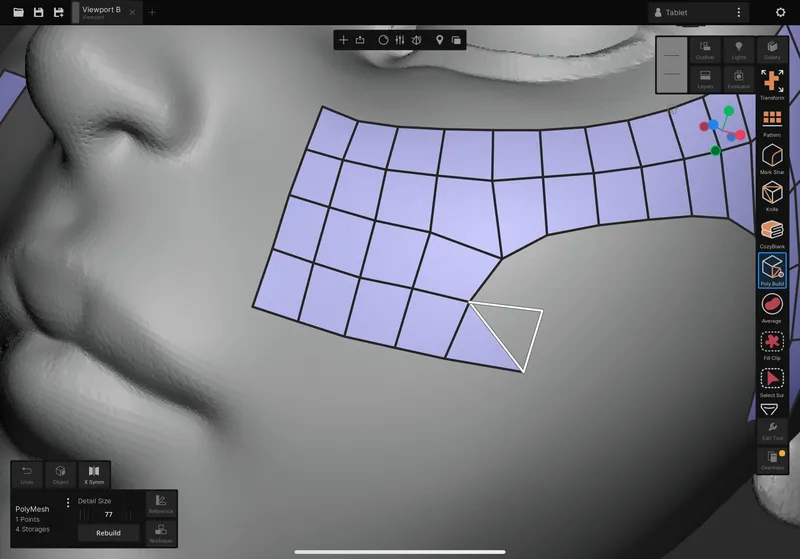
Since Wafer does not modify the original 3D geometry, the workflow involves exporting texture maps and applying them to the model in an external target environment.
- Blender (Eevee/Cycles): Users export textures (Base Color, Roughness, Metalness, etc.) and plug them into the Principled BSDF node. If packed textures are used, a “Separate RGB” node is required to isolate individual channels.
- Unity: The exporter can be configured for URP or Standard shaders. For example, it can pack Metallic into the Red channel and Smoothness/Roughness into the Alpha channel of a single mask map, which is then assigned to the material in Unity.
- Unreal Engine: Wafer can produce a standard “ORM” packed map (Red = Ambient Occlusion, Green = Roughness, Blue = Metallic). In Unreal’s material editor, these channels are wired to their respective inputs, ensuring the PBR look remains consistent with what was seen in Wafer.
- Technical Considerations:
- Geometry: The original OBJ/GLB used for painting must be the same one used in the target engine to ensure UV alignment.
- Scale/Orientation: Wafer does not alter model scale; any unit corrections must be handled during the final import to the game engine.
- Additional Maps: While Wafer focuses on painting color and PBR values, normal or AO maps generated in external tools (like CozyBlanket) can be integrated during the final material setup.
- File Transfer: Painted textures are exported via the iPad’s Files app, AirDrop, or cloud services to be moved to desktop environments for final implementation.
Wafer export workflow to Blender, Unity and Unreal Engine
Wafer serves as a professional texturing stage in an asset pipeline that can be managed almost entirely on an iPad.
- Production Pipeline: An artist can create a model, perform UV/retopology in CozyBlanket, and texture paint in Wafer. The resulting exported maps are production-ready and of high quality.
- Workflow Integration: While Wafer currently focuses on exporting texture images rather than 3D scene files, this integrates well with established industry standards. If an artist is comfortable assigning textures in their chosen engine, Wafer slots into the workflow seamlessly.
- Future Developments: Developers have indicated that if there is sufficient demand, future versions of Wafer may support the direct export of 3D formats containing embedded textures.

Sources used for app details
Information regarding features, requirements, and pricing was gathered from the following professional and official sources:
- 80.lv (Amber Rutherford): Reported on the February 26, 2026, launch, highlighting the stylized focus, performance on older iPads, and the one-time $19.99 pricing model.
- Sparseal Official Website: Provided the technical breakdown of brushes, symmetry, the influence system, reference boards, and performance statistics.
- CG Channel: Offered an in-depth comparison of Wafer’s multi-channel painting to desktop tools like Mari, while confirming import/export formats.
- Apple App Store: Confirmed the iPadOS 16.6 requirement and the 16K/24K texture support.
- Daniel “Yelzkizi” Isaac: Provided context on modern 3D asset integration, including the PixelHair collection for Blender/Unreal and “The View Keeper” add-on for cinematic camera management in Blender.
Frequently Asked Questions (FAQs)
- What is Wafer and how is it different from other 3D painting tools?
Wafer is an iPad 3D texture painting app optimized for stylized and hand-painted art. It brings desktop-level features like layers, masks, and blending modes to a mobile context. It distinguishes itself with multi-channel PBR painting (simultaneous color, roughness, and metalness) and an engine optimized for smooth performance on both new and older iPad hardware. - Is Wafer free to use or do I have to pay for it?
The app is free to download for testing all features, including brushes and layers. To save projects or export textures, a one-time in-app purchase of $19.99 is required. There are no subscriptions or recurring fees. - What are the requirements to run Wafer (iPad model and iOS version)?
It requires iPadOS 16.6 or later. Compatible devices generally include iPads from 2017 onward (iPad 5th gen+, iPad Pro 1st gen+, iPad Air 3rd gen+, and iPad mini 5+). While newer iPads handle higher resolutions better, the app is designed to run on any device supporting the required OS. - What 3D model formats can I import into Wafer and how do I prepare my model?
Wafer supports OBJ and GLB (glTF) files. Preparation requires a proper UV unwrap performed in external software, as Wafer does not auto-unwrap. Users should freeze transformations and apply scaling before importing. The app supports multiple meshes and texture sets within a single project. - Does Wafer support really high-resolution textures and will it lag on big projects?
Yes, it supports up to 16K on all compatible iPads and 24K on iPad Pros from 2018 onward. A tiled system keeps brush performance independent of resolution, though hardware RAM remains the primary limitation. The app is also tuned for low power consumption to preserve battery life. - Can Wafer export a textured 3D model or only the textures?
Currently, Wafer exports only texture image files. Users must apply these exported maps to their original 3D model in external software like Blender, Unity, or Unreal Engine. Channel-packing options are available to tailor exports to specific game engine requirements. - How do Wafer, Uniform, and CozyBlanket complement each other? Do I need all three?
These three tools cover different pipeline stages:- Uniform: General 3D editing, modeling, and sculpting.
- CozyBlanket: Specialized retopology, UV mapping, and baking.
- Wafer: Advanced, focused texture painting. Using all three allows for a complete professional 3D pipeline entirely on iPad.
- Can Wafer be used for realistic PBR texturing or is it only for stylized art?
While marketed for stylized art, it is fully PBR-capable, supporting albedo, roughness, and metallic channels. Features like photo-detail stencils and an influence system with curvature and normal mapping allow for realistic results, though procedural “Smart Materials” must be created manually. - What is PixelHair and how does it relate to Wafer or 3D texturing?
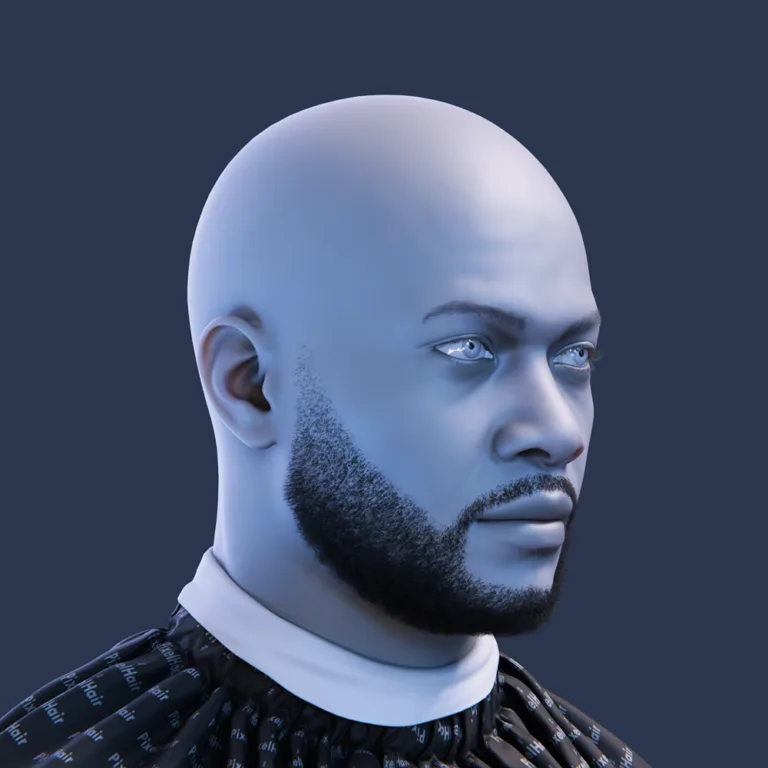
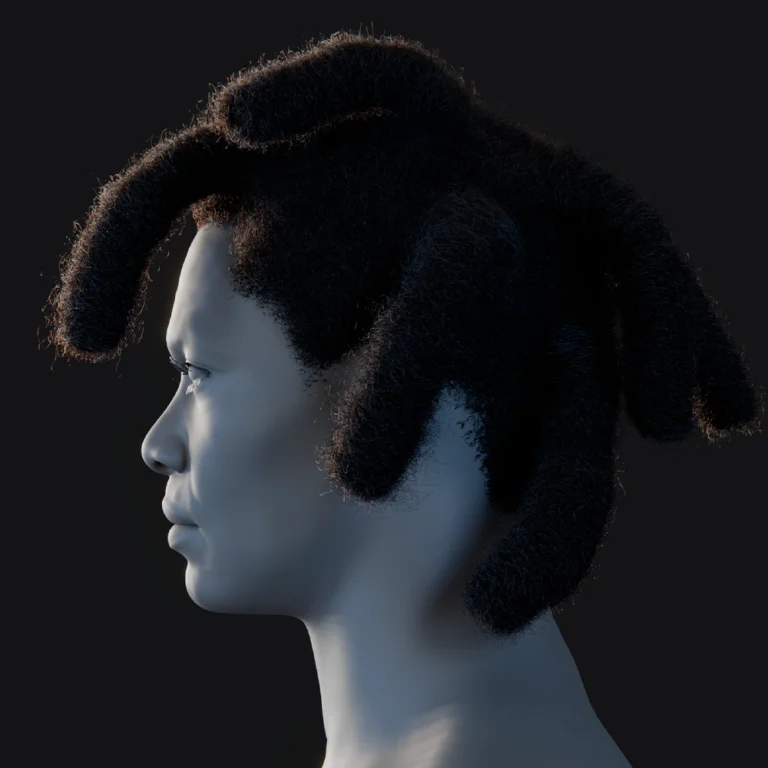
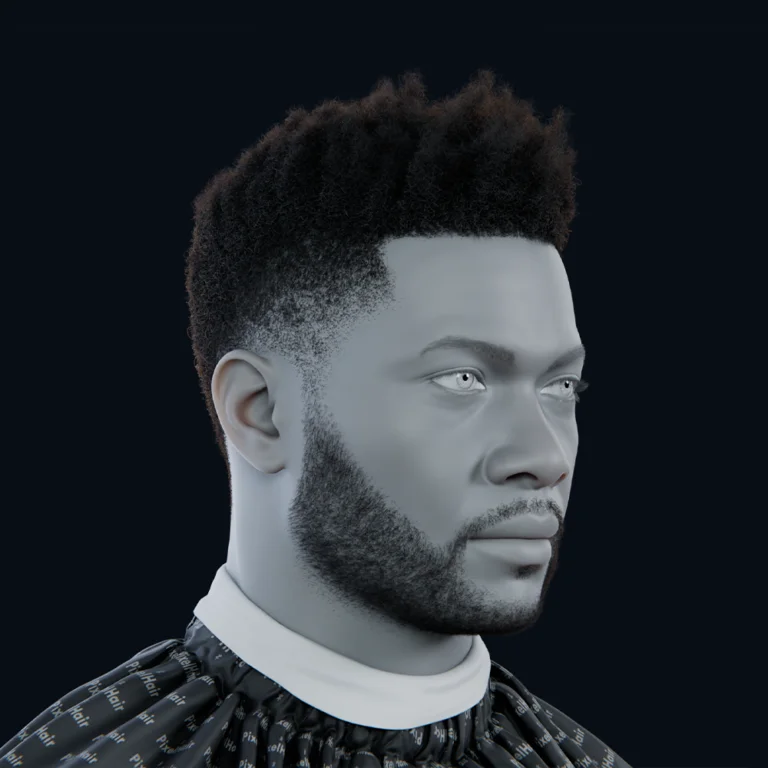
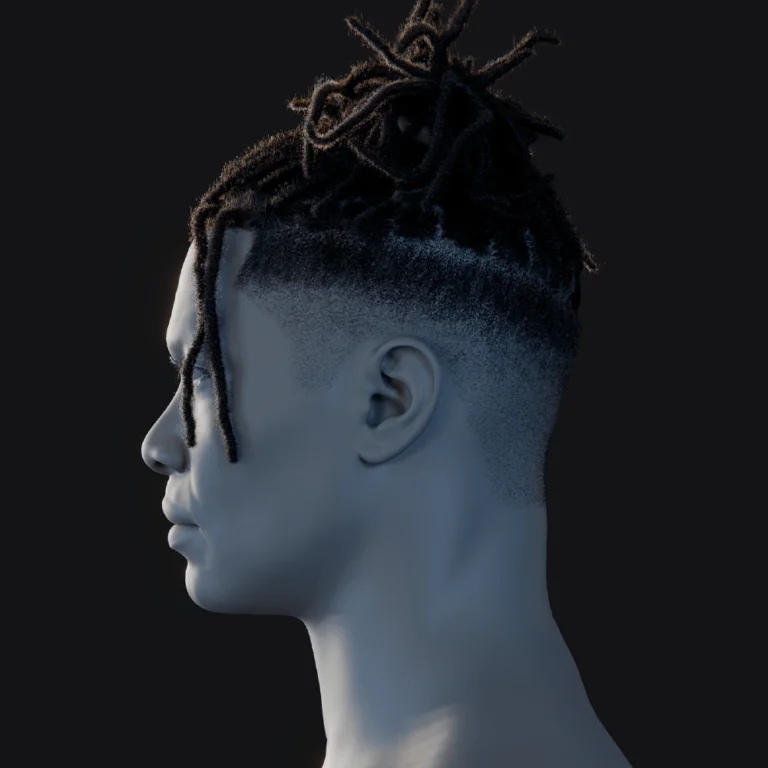
PixelHair is a collection of premade 3D hairstyles for Blender and Unreal Engine by artist Yelzkizi. While not a part of Wafer, these assets can be imported into Wafer to paint custom color variations or highlights, serving as a time-saving alternative to modeling hair from scratch. - Will Wafer be available on other platforms (PC, Mac) or is it iPad-exclusive?
It is currently iPad-exclusive. However, because the engine is built with cross-platform technologies (Rust and WGPU), the developers have indicated that a desktop version for Windows or macOS is a future possibility.

Conclusion
Wafer represents a significant step forward in bringing advanced 3D texturing capabilities to the mobile sphere. With its launch, Sparseal has essentially put a mini “Substance Painter” into the iPad, tailored for stylized and hand-painted workflows but fully capable of standard PBR texturing. The app’s blend of familiar 2D painting paradigms (layers, brushes, blending modes) with 3D necessities (UV view, symmetry, triplanar mapping, multi-channel support) makes it approachable to artists across skill levels. Beginners can pick it up and start painting cute characters or game assets with intuitive tools, while seasoned professionals appreciate the depth – influence masks, 16K texture support, channel packing, etc., which enable integrating Wafer into real production pipelines.
Performance-wise, Wafer’s ability to run on older iPads and its efficient use of resources address a common pain point: many creatives don’t have the latest hardware or want to work untethered from a desk. Wafer lets artists sketch out texture ideas on the couch or on a flight, and with iCloud/Files, they can easily move assets to desktop for final touches if needed (though increasingly, the need for a desktop is diminished by apps like these). The one-time purchase model is also a welcome relief in an era of subscriptions – you buy it, and you own it.
In the broader ecosystem, Wafer complements modeling tools (like Sparseal’s own Uniform or other iPad apps) and bridges to game engines seamlessly. It shows how the iPad is maturing as a content creation device, not just a content consumption one. We also discussed PixelHair and The View Keeper – while tangential, they illustrate the growing landscape of specialized tools that, when combined, allow individual artists or small teams to punch above their weight. PixelHair offers a shortcut for one of the trickiest modeling tasks (hair), and Wafer handles the often tedious texturing phase with ease and even fun.
In conclusion, Wafer brings professional-grade 3D painting to the iPad in a way that’s both powerful and user-friendly. Whether you’re texturing a cartoon character, a realistic prop, or anything in between, Wafer provides the tools to do it on the go. As the app continues to evolve (with promised updates and possible desktop versions), it could become a staple in every 3D artist’s toolkit, especially for those who love the freedom of creating art anywhere. The launch of Wafer is not just the release of one app, but a signal that mobile 3D content creation has truly arrived at a new level.
Sources and citation
- 80 Level News: Amber Rutherford – “Sparseal Launched New 3D Texturing App For iPad” (Feb 26, 2026).
- CG Channel: “Check out promising new 3D texture painting app Wafer” (Feb 26, 2026).
- Sparseal Official Site (Wafer): Wafer.
- Apple App Store Listing – Wafer: Wafer – 3D Texture Paint.
- Sparseal Official Site (CozyBlanket & Uniform): Uniform and CozyBlanket.
- FlippedNormals – PixelHair (Yelzkizi): Yelzkizi creator page and PixelHair product page (Afro 005).
- BlenderArtists Forum – PixelHair Release: “Pixelhair for blender” (July 13, 2023).
Recommended
- Walton Goggins Shares Unexpected Inspiration Behind The Ghoul In Fallout 76 & Fallout Season 2: Behind the Voice, Character, and Gaming Legacy
- Top 10 Blender Add-ons for Camera Animation (Cinematic Shots & Workflow Boosters)
- Diverse and Attractive Video Game Characters: Exploring Stellar Blade, Hades, and More
- Cyberpunk Orion: Everything We Know About CD Projekt Red’s Next Cyberpunk Adventure
- Metahuman Animator: How to Animate Realistic Characters in Unreal Engine 5
- Blender 3D vs Cinema 4D: The Ultimate 2025 Comparison Guide for 3D Artists
- PlayStation Portal Guide (2026): Setup, Remote Play Tips, Cloud Streaming, and Troubleshooting
- Blender Shrinkwrap Hair Curves Geometry Nodes Preset: Complete Guide
- Closure of Midsummer Studios: What Happened to Jake Solomon’s Burbank Life Sim
- Top Gun Celebrates Its 40th Anniversary With New Limited Edition 4K Steelbook Blu-ray — Release Date, Preorder Details, Specs & Special Features