
Unity low poly environment workflow for beginners
Creating stylized low-poly environments in Unity begins with a clear and efficient workflow. The process typically starts outside Unity in a 3D modeling tool such as Blender, where assets are created using minimal polygon counts and flat shading principles. These assets are then exported (usually as FBX files) and imported into Unity.
Inside Unity, the workflow follows these key stages:
- Scene blockout using primitive shapes or ProBuilder
- Importing modular assets and assembling environments
- Applying materials and shaders
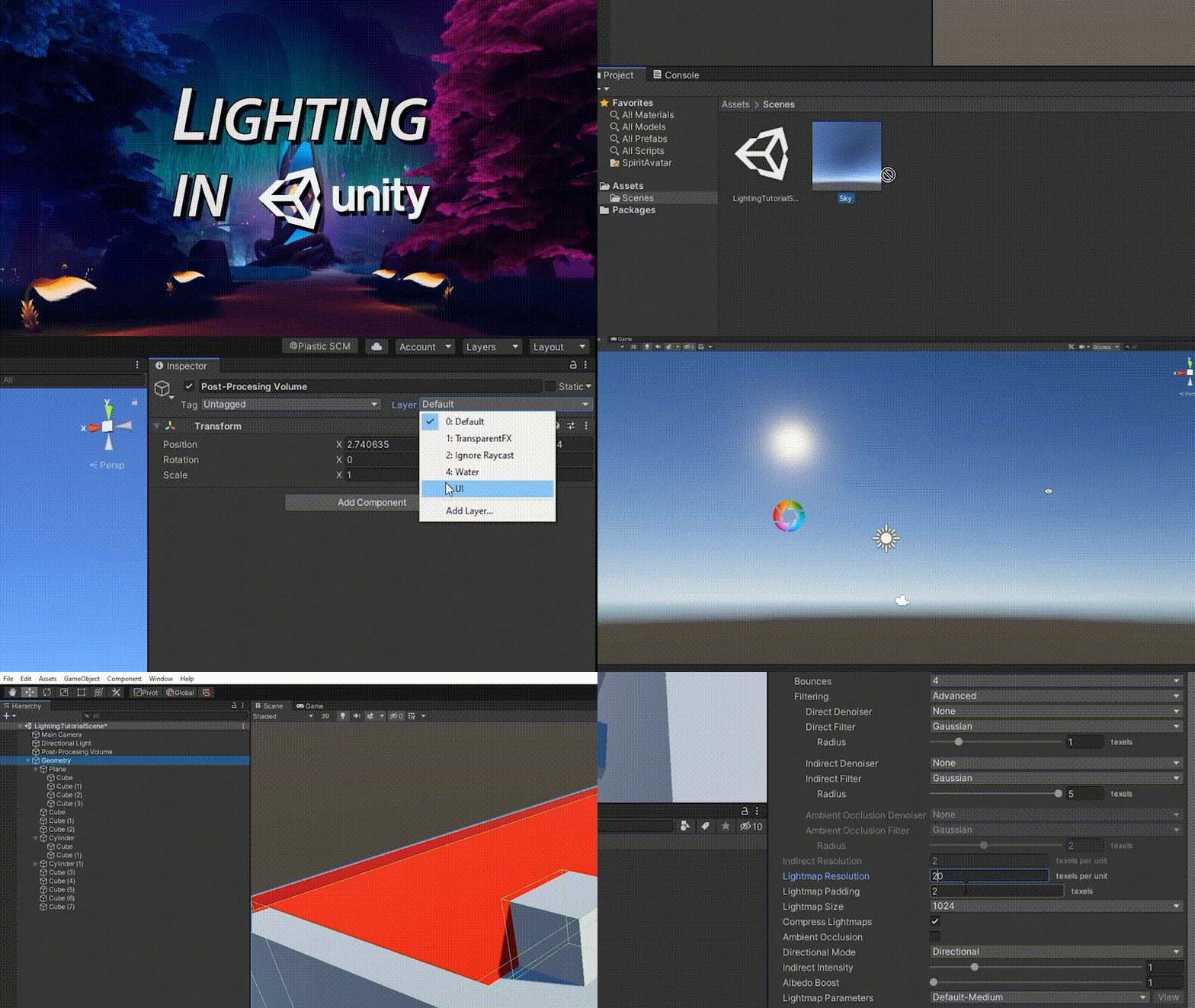
- Lighting setup (baked or real-time)
- Adding atmosphere and post-processing
- Optimization and build export
The goal of a low-poly workflow is not just performance, but achieving a clean, stylized visual identity using simple geometry and strong color design.
Best Unity URP settings for stylized low-poly scenes
The Universal Render Pipeline (URP) is ideal for stylized low-poly scenes due to its performance and flexibility. Key URP settings include:
- Enable URP Asset with Forward Rendering
- Disable HDR if targeting mobile
- Set MSAA to 2x or 4x for smooth edges
- Use Soft Shadows sparingly to maintain stylization
- Reduce shadow resolution for performance
Additional optimizations:
- Turn off unnecessary features like Depth Texture unless needed
- Use lightweight shaders via Shader Graph
- Adjust render scale (0.75–1.0 for performance tuning)
URP allows precise control over lighting and post-processing, making it perfect for stylized visuals.

How to make low-poly terrain in Unity (ProBuilder vs Terrain)
There are two main approaches to creating low-poly terrain in Unity:
ProBuilder (Recommended for stylized scenes):
- Create custom terrain meshes manually
- Use vertex editing for sharp edges and geometric shapes
- Ideal for handcrafted, stylized worlds
Unity Terrain System:
- Designed for realistic landscapes
- Requires heavy modification to achieve low-poly look
- Can be combined with custom shaders for flat shading
For stylized low-poly environments, ProBuilder offers greater artistic control and better consistency with the low-poly aesthetic.
Using Polybrush to sculpt and paint low-poly meshes in Unity
Polybrush is a powerful Unity tool used to modify meshes directly inside the editor.
Key features:
- Sculpt terrain-like meshes while maintaining low-poly structure
- Paint vertex colors for gradients and stylization
- Scatter objects like rocks, grass, and trees
Polybrush enhances workflow by allowing real-time adjustments without returning to external modeling tools. It is especially useful for adding organic variation to otherwise rigid low-poly geometry.

Unity Shader Graph low-poly material setup (flat shading look)
Flat shading is essential for low-poly visuals. In Shader Graph, this is achieved by:
- Using vertex normals instead of smooth shading
- Disabling normal maps
- Using a simple color or gradient texture
- Applying a dot product between normal and light direction for stylized shading
Key setup steps:
- Create a Lit Shader Graph
- Use a Color node for base color
- Avoid smooth lighting calculations
- Optionally quantize lighting for toon effects
This approach ensures crisp edges and stylized lighting across all meshes.
Vertex color workflow for stylized low-poly art in Unity
Vertex colors allow artists to paint directly onto mesh vertices instead of relying on textures.
Advantages:
- No texture memory usage
- Perfect for gradients and stylized transitions
- Works seamlessly with Shader Graph
Workflow:
- Paint vertex colors using Polybrush or external tools
- Access vertex colors in Shader Graph
- Blend colors with lighting for stylized results
This method is widely used in stylized games to maintain performance and visual clarity.
Toon lighting setup in Unity URP for low-poly environments
Toon lighting enhances stylization by simplifying light interaction.
Steps:
- Use a custom Shader Graph with step functions
- Clamp lighting values to create hard shadows
- Add rim lighting for highlights
- Use a gradient ramp texture for lighting control
Toon lighting removes realism and replaces it with bold, artistic shading perfect for low-poly scenes.

How to light a low-poly scene in Unity (baked vs real-time)
Lighting choice significantly impacts both visuals and performance.
Baked Lighting:
- Precomputed lighting stored in lightmaps
- Best for static scenes
- High performance
Real-Time Lighting:
- Dynamic and interactive
- More expensive performance-wise
- Useful for day/night cycles
For most low-poly environments:
- Use baked lighting for environment
- Combine with a single real-time directional light for dynamic effects
Unity URP post-processing stack for stylized visuals (bloom + color grading)
Post-processing is essential for achieving a polished look.
Key effects:
- Bloom: adds glow to bright areas
- Color Grading: adjusts tone and mood
- Vignette: focuses attention
- Depth of Field: adds cinematic feel
Best practices:
- Use subtle bloom for stylization
- Apply LUTs for consistent color palettes
- Avoid over-processing to maintain clarity
Creating stylized low-poly water in Unity URP
Low-poly water is typically stylized rather than realistic.
Techniques:
- Use simple plane meshes
- Apply vertex displacement via Shader Graph
- Animate UVs for movement
- Add color gradients and transparency
Optional features:
- Foam edges using fresnel effect
- Reflection approximation using cubemaps

Low-poly foliage and grass shaders in Unity (URP Shader Graph)
Foliage in low-poly scenes is usually simple but stylized.
Approach:
- Use planes or simple meshes
- Apply vertex animation for wind
- Use gradient coloring
Shader Graph setup:
- Add sine wave movement for wind
- Use world position offset
- Combine with vertex colors
How to set up fog and atmosphere for stylized Unity scenes
Fog adds depth and mood.
Options:
- URP built-in fog (linear or exponential)
- Custom fog via Shader Graph
Best practices:
- Use color-matched fog for cohesion
- Adjust density for scale
- Combine with skybox gradients
Atmosphere enhances immersion and reinforces stylized visuals.

Low-poly props and modular assets pipeline for Unity scenes
A modular workflow speeds up production.
Key principles:
- Create reusable assets (walls, rocks, trees)
- Maintain consistent scale
- Use grid snapping in Unity
Benefits:
- Faster scene assembly
- Consistent art style
- Easier optimization
Performance optimization tips for low-poly scenes in Unity (URP)
Even low-poly scenes require optimization.
Tips:
- Use GPU instancing
- Combine meshes where possible
- Limit draw calls
- Use LODs for distant objects
- Optimize lightmaps
URP-specific:
- Reduce shadow cascades
- Lower render scale for mobile
Exporting low-poly scenes for PC, mobile, and WebGL in Unity
Different platforms require different optimizations.
PC:
- High-quality lighting and effects
- Higher resolution textures
Mobile:
- Lower poly count
- Reduced lighting complexity
- Disable expensive effects
WebGL:
- Minimize memory usage
- Reduce draw calls
- Optimize asset sizes
Always test builds on target platforms to ensure performance.

Frequently Asked Questions (FAQs)
- What is low-poly art in Unity?
Low-poly art uses minimal polygons to create stylized visuals with simple geometry. - Why use URP for low-poly scenes?
URP offers better performance and flexible shader customization. - Is Shader Graph necessary for low-poly art?
Not required, but it greatly enhances stylization and control. - Can I use Unity Terrain for low-poly games?
Yes, but ProBuilder is better for stylized results. - What is flat shading?
A shading technique where each face has a single normal, creating sharp edges. - How do I optimize low-poly scenes?
Reduce draw calls, use instancing, and optimize lighting. - What lighting works best for stylized scenes?
Baked lighting combined with simple directional light. - How do I create stylized water?
Use Shader Graph with vertex animation and color gradients. - Are textures needed for low-poly art?
Not always vertex colors can replace textures. - What platform is best for low-poly games?
Low-poly works well across PC, mobile, and WebGL due to efficiency.

Conclusion
Creating stylized low-poly 3D scenes in Unity requires a balance of artistic direction and technical execution. By leveraging tools like URP, Shader Graph, ProBuilder, and Polybrush, developers can build visually striking environments that are both performant and scalable. From terrain creation to lighting, shaders, and post-processing, every step contributes to a cohesive stylized aesthetic. With proper optimization and export strategies, low-poly scenes can run smoothly across multiple platforms while maintaining their unique visual charm.
Sources and Citations
- Unity Documentation – Universal Render Pipeline (URP)
https://docs.unity3d.com/Packages/com.unity.render-pipelines.universal - Unity Manual – Shader Graph
https://docs.unity3d.com/Packages/com.unity.shadergraph - Unity Learn – Lighting and Rendering Tutorials
https://learn.unity.com - Unity Manual – Terrain System
https://docs.unity3d.com/Manual/terrain-UsingTerrains.html - Unity Polybrush Tool Overview
https://docs.unity3d.com/Packages/com.unity.polybrush - Unity Manual – Post Processing in URP
https://docs.unity3d.com/Manual/PostProcessingOverview.html - Unity Optimization Guide
https://docs.unity3d.com/Manual/OptimizingGraphicsPerformance.html
Recommended
- Battlefield 6’s New Patch 1.2.1.5 (March 3, 2026): Full Patch Notes, Crash Fixes, Spawn Updates & REDSEC Changes
- Substance Painter vs Mari: Which 3D Texturing Tool Is Best for You?
- Marvel Heroes Omega 1.0: What It Is, How It Works, and How Players Are Bringing the Game Back
- Resurrection of the Insomnia Gaming Festival cancelled: Insomnia 74 (i74) called off, refunds, and what happens next
- Simplifying Camera Control in Blender with The View Keeper Plugin
- How to Unlock the Blacksmith in Nioh 3: The Hamamatsu Incident, Eternal Rift Location, and Crafting Basics
- The Witcher 4: Everything We Know About CD Projekt Red’s Next Epic RPG
- Hair Texturing in Substance Painter: How to Create Realistic and Stylized Hair Textures
- How to Download MetaHuman: The Ultimate Step-by-Step Guide to Accessing Digital Humans
- Warner Bros. Wants Bradley Cooper to Write, Direct, and Star in the Ocean’s Eleven Prequel