



In This Article (24 sections)
Introduction to Walk and Run Toggles in Unreal Engine
Implementing walk and run toggles in Unreal Engine involves coordinating input controls, the Character Movement system, and animation assets like Blend Spaces and Animation Blueprints. This ensures smooth transitions where character animations match movement speeds. By using Blueprints to adjust speed and configuring the Animation Blueprint to respond, developers can achieve seamless locomotion.
Setting Up Basic Walk and Run Functionality
The Character Movement Component’s Max Walk Speed property governs movement speed. To set this up, define desired speeds (e.g., 150 for walk, 375 for run) using float variables in the Character Blueprint. Use the Set Max Walk Speed node to switch speeds during gameplay. Animation logic must stay in sync with these values to prevent visual discrepancies; Unreal’s default Blend Spaces are typically driven by the character’s speed value.
Implementing Shift Key Toggle for Walk and Run
Use the input system to map a “Run” action to the Shift key. For a hold-to-run mechanic, use Pressed and Released events to switch MaxWalkSpeed between values like 600 and 300. For a toggle, use a FlipFlop node or a boolean on the Pressed event. The Animation Blueprint reads these speed changes to drive Blend Space transitions automatically.
Using Animation Blueprints for Movement Transitions
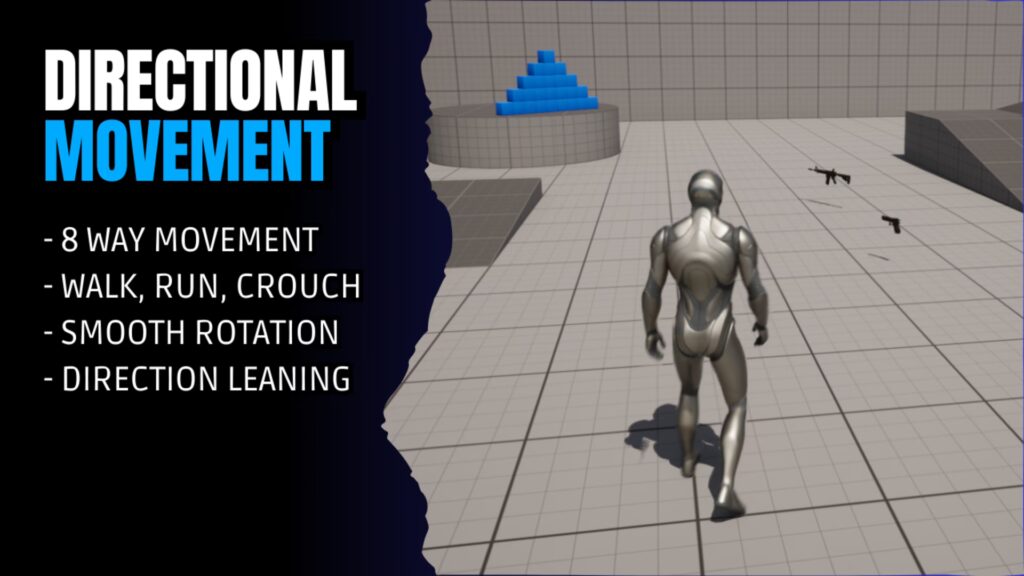
Animation Blueprints (AnimBPs) use variables like Speed and booleans to drive visuals. In the Event Graph, calculate Speed from the Pawn’s Velocity Vector Length (XY). You can also track states like IsInAir or IsCrouching. These variables are used in the AnimGraph’s State Machine or Blend Space to ensure animations blend proportionally with movement speed.
Creating Blendspaces for Smooth Animation Blending
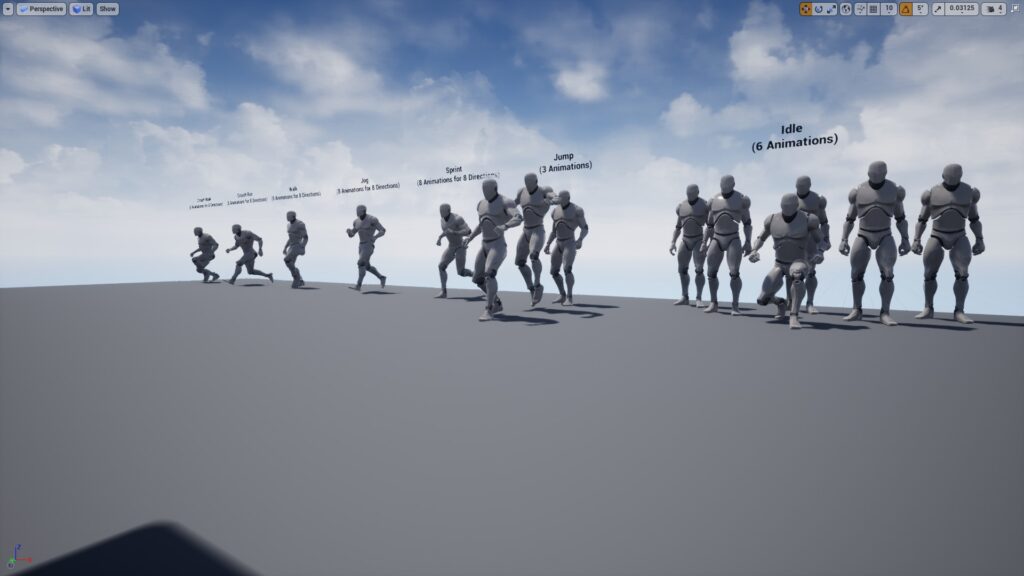
A Blend Space 1D allows fluid transitions between Idle, Walk, and Run by interpolating poses based on a Speed axis. Set the axis range from 0 to your maximum speed and place animations at specific points (e.g., Idle at 0, Walk at 150, Run at 600). Integrating this into the AnimBP’s locomotion state ensures natural acceleration and prevents animation “pops.”
Adjusting Max Walk Speed for Different Movement States
Fine-tune MaxWalkSpeed and MaxWalkSpeedCrouched to match animation footspeed, which prevents foot sliding. For example, the UE4 mannequin often uses ~375 units/sec for running. For multiplayer, ensure speed changes are applied on the server for proper replication. Dynamic adjustments can also be made for power-ups or stealth modes.
Incorporating Sprint Mechanics into Character Movement
Sprinting is a faster speed state (typically 1.5x–2x run speed) often controlled by a stamina system. Use Blueprints to drain stamina during sprints and regenerate it when idle, disabling the sprint if stamina hits zero. Enhance the feel with unique sprint animations, panting audio via AnimNotifies, or camera effects like FOV changes.
Utilizing State Machines for Animation Control
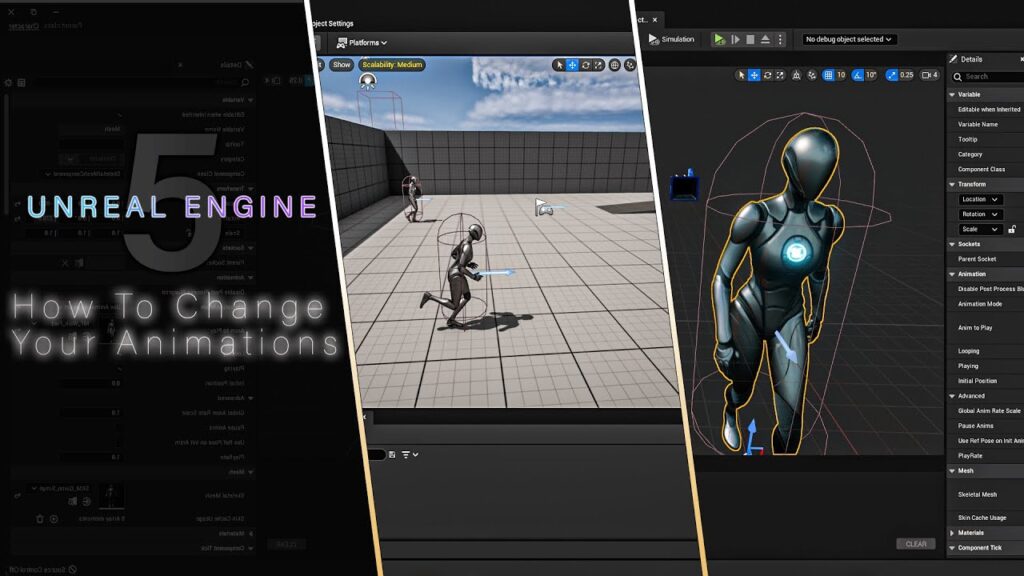
State Machines organize distinct animation states such as GroundLocomotion, Jump, and Crouch. They use transition rules (e.g., IsInAir == true) to switch between states. This visual layout simplifies complex logic and ensures smooth blends between different types of movement, such as shifting from running to jumping.
Retargeting Animations for Custom Characters
Retargeting allows you to reuse animations across different humanoid skeletons. Use the Retarget Manager to map bones to a Humanoid Rig on both source and target skeletons. When retargeting, you may need to adjust for A-pose vs. T-pose differences and ensure root bone mapping is correct to maintain movement integrity and prevent mesh distortion.
Handling Root Motion in Walk and Run Animations
While most walk/run setups use in-place animations with CharacterMovementComponent, root motion allows the animation’s root bone to drive the character’s movement. Root motion provides precise visuals but is less flexible for dynamic speed changes and requires Montages for multiplayer replication. It is best used for specific actions like lunges rather than general locomotion.
Troubleshooting Common Animation Transition Issues
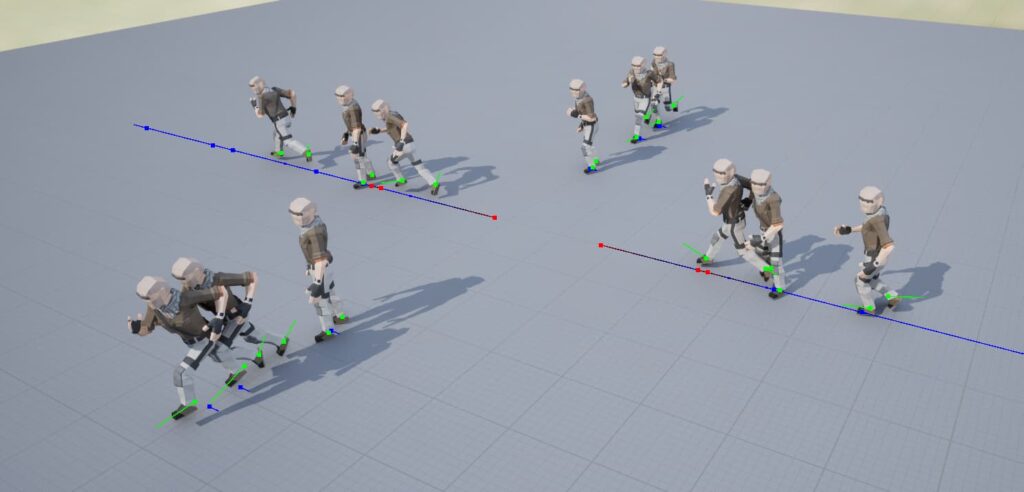
Address foot sliding by matching Max Walk Speed to the animation’s pace. Prevent “popping” by increasing blend durations and using hysteresis (buffers) in transition rules to stop state flickering. If animations lag, ensure variables are updated within the proper animation tick. Use “ShowDebug Animation” to identify logic or timing bugs.
Optimizing Performance for Movement Animations
Use the “Animation Fast Path” by keeping AnimBP logic simple to avoid Blueprint VM overhead. Implement Update Rate Optimization (URO) and Level of Detail (LOD) for skeletal meshes to reduce evaluation costs for distant characters. The Animation Sharing Plugin is useful for crowds, while animation compression helps reduce memory usage.
Adding Footstep Sounds to Enhance Realism
Use AnimNotifies at specific footfall frames within animations to trigger Sound Cues. To prevent overlapping sounds during transitions, you can align footfalls with Sync Markers or use logic to skip sounds if one played too recently. Advanced setups can use line traces to detect physical materials and play surface-specific audio.
Integrating Crouch and Jump States with Movement
Integrate crouching using the built-in Crouch() and UnCrouch() functions, which adjust capsule height and speed. For jumping, use Jump() and transition through JumpStart, JumpLoop, and Land states in the AnimBP. Using Sync Markers and proper transition rules ensures that shifting between standing, crouching, and jumping remains fluid and visually consistent.

Customizing Input Actions for Movement Control
Unreal Engine uses Action and Axis Mappings to decouple logic from specific keys, enabling easy rebinding and multi-input support for keyboard and controllers. Action Mappings handle discrete events like jumping or toggling runs, while Axis Mappings manage continuous movement like walking or looking around. This system allows developers to scale speed via analog input, implement “hold to walk” logic without code changes, and add custom behaviors like double-tapping to sprint. Using these mappings instead of hardcoded key nodes improves maintainability, supports diverse input styles, and prepares the project for future player customization.
Leveraging Unreal Engine’s Character Movement Component
The Character Movement Component provides a robust framework for locomotion, handling physics, collision, and automatic networking with client prediction. It features built-in modes for walking, falling, swimming, and flying, alongside configurable properties like Max Walk Speed, Air Control, and Ground Friction to define game feel. The component automates complex tasks such as crouching (capsule shrinking), jumping, and rotation logic (e.g., Orient Rotation to Movement). It also integrates with the NavMesh for AI and allows for custom modes like ladder climbing, freeing developers to focus on design rather than low-level mechanics.
Best Practices for Animation Asset Management
Maintaining organization as projects scale requires a strict naming convention (e.g., “AS_” for sequences, “BS_” for blend spaces) and a clear folder hierarchy. Reusing animations via shared skeletons and utilizing AnimMontages for specific actions reduces asset bloat. Developers should use Sync Markers to keep animations in phase and organize Animation Blueprints with State Machines or Animation Layers for clarity. Other essential practices include using source control to protect binary assets, optimizing memory through compression, and regularly cleaning up unused prototype assets via the Reference Viewer to ensure project integrity and efficiency.
Testing and Debugging Movement Transitions
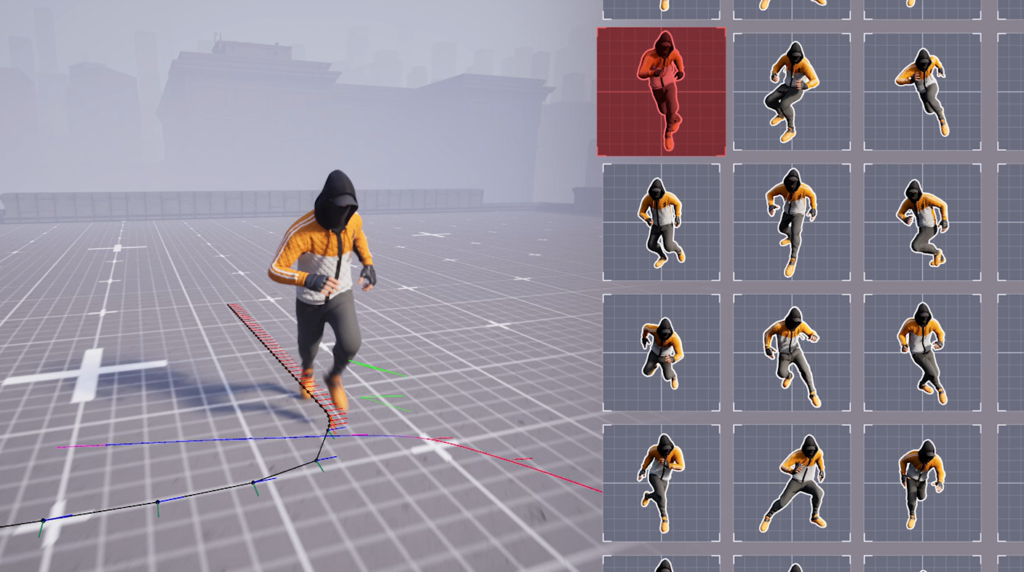
Systematic testing ensures smooth transitions between movement states by checking edge cases like rapid input switching or analog scaling. Tools like the AnimBP debugger in PIE and console commands like ShowDebug Animation provide real-time data on active states and blend weights. Developers should use Print Strings for logic verification, test at low frame rates to ensure stability, and verify network replication to prevent visual glitches like foot sliding on remote clients. Iterative profiling and community research help refine these transitions, resulting in a polished and responsive player experience.
Exploring Advanced Movement Techniques
Advanced mechanics like strafing with Aim Offsets, “Turn In Place” logic, and Foot IK for uneven terrain enhance realism and immersion. More complex traversal features—such as mantling, wall jumping, sliding, or leaning during turns—expand gameplay possibilities. Developers can also use procedural animation to match play rates to movement speed or employ ragdoll blending for dynamic knockdowns. Leveraging community-driven frameworks like ALS can accelerate the implementation of these high-quality locomotion features, though they require careful integration to maintain system stability.
Conclusion: Enhancing Gameplay with Seamless Movement
A mastered movement system creates fluid, intuitive character actions that serve as the foundation for immersive gameplay. Seamless transitions and responsive controls remove barriers for the player, supporting creative level design and a high-quality “game feel.” While a well-executed locomotion system often goes unnoticed by players, its reliability and polish significantly enhance the overall experience. By utilizing Unreal Engine’s built-in tools and following established best practices, developers can create a standout movement system that ensures project longevity and player engagement.

10 FAQ Questions and Answers
- Q1: How can I toggle between walking and running in Unreal Engine 4 via Blueprints?
To toggle walk/run, adjust the Character Movement Component’s Max Walk Speed using an Input Action (e.g., “Sprint”). Use the Pressed event to set a higher speed for running and Released to revert to walking speed. For a true toggle, employ a FlipFlop node to switch speeds and sync animations via the Animation Blueprint. - Q2: How do I make the character sprint using the Shift key, and can I make it a hold-to-sprint instead of a toggle?
Bind the Shift key to a “Sprint” Action in Project Settings, setting Max Walk Speed to a sprint value (e.g., 800) on Pressed and back to default (e.g., 600) on Released. This creates a hold-to-sprint mechanic. For a toggle, use a boolean or FlipFlop to alternate speeds on each press. - Q3: My character’s feet slide on the ground when switching from walk to run – how can I fix that?
Foot sliding occurs when movement speed and animation are misaligned; calibrate MaxWalkSpeed to match the animation’s foot cycle distance. Adjust the animation play rate or use SpeedWarping to sync with speed. Enabling root motion can eliminate sliding but reduces speed flexibility; tweaking speed or animation usually resolves the issue. - Q4: What is a Blend Space and how do I use it for Idle/Walk/Run animations?
A Blend Space blends animations based on a parameter, typically Speed, for smooth transitions. Create a 1D Blend Space with Idle (Speed=0), Walk, and Run animations at increasing speeds. In the Anim Blueprint, feed the character’s Speed to the Blend Space for seamless idle-to-walk-to-run transitions. - Q5: Can I reuse the default Unreal Engine mannequin animations on my custom character?
Yes, retarget mannequin animations to your character’s skeleton using the Retarget Manager with a Humanoid rig. Retarget animations or the Anim Blueprint to your skeleton, creating compatible assets. Adjust retarget pose or bone scales if proportions differ to ensure proper animation application. - Q6: How do I add footstep sounds when my character walks or runs?
Add Sound notifies to walk/run animations at foot contact frames to trigger footstep Sound Cues. Use notifies for both feet and vary sounds based on surface type via Blueprint events or line traces. This syncs audio with animation, enhancing realism with minimal setup. - Q7: How can I make my character crouch and have separate crouching animations?
Enable “Can Crouch” in the Character Movement Component and bind an InputAction (e.g., C key) to call Crouch() on Pressed and UnCrouch() on Released. Use the “IsCrouched” bool in the Anim Blueprint to switch to crouch idle/walk animations. Adjust MaxWalkSpeedCrouched to match slower crouch movement. - Q8: The transition between my animations (like from running to idle) feels abrupt. How can I make it smoother?
Increase Blend Duration (e.g., 0.2s) in the Anim State Machine’s transition rules to soften state changes. Use a Blend Space for idle-walk-run to interpolate smoothly based on Speed. Ensure transition conditions avoid premature switches and animations have compatible start/end poses. - Q9: How can I change my character’s movement speed during gameplay (for example, a power-up that makes the player run faster)?
Set a new MaxWalkSpeed (e.g., 1200) in the Character Movement Component via Blueprints when a power-up activates. Use a timer or timeline to interpolate or reset the speed after a duration. Ensure animation sync by adjusting play rate or using faster animations for significant speed changes. - Q10: Should I use Root Motion for walking and running animations, or stick to in-place animations?
In-place animations with the CharacterMovementComponent are recommended for flexible, responsive locomotion, supporting speed changes and network prediction. Root motion, where animations drive movement, suits specific actions like vaults but limits basic locomotion flexibility. Use in-place for general movement and root motion for precise, controlled animations.

Conclusion
Building a seamless walk/run toggle system in Unreal Engine 4 involves a combination of Blueprint scripting, careful animation setup, and utilization of the engine’s built-in movement component. By following best practices—like using Blend Spaces for smooth blends, syncing animation speed with movement, and leveraging state machines—you can create fluid transitions that significantly improve player experience. We started with simple speed toggles and progressed to integrating crouch and jump, optimizing performance, and even exploring advanced techniques. The end result is a character that responds naturally to input, whether creeping slowly or dashing at full speed, all while the underlying systems ensure animations and physics stay in harmony.
Achieving polished locomotion is an iterative process, but it pays dividends in gameplay feel. A character with responsive, smooth movement makes the entire game more enjoyable, whether the player is stealthily sneaking or sprinting into battle. As you develop your project, keep refining these systems—test different scenarios, gather player feedback, and adjust parameters to perfection. Remember that Unreal Engine provides a robust framework (CharacterMovementComponent, Animation Blueprint tools) that you can build upon; mastering these will save you time and allow you to focus on creativity and level design.
By implementing the techniques and tips discussed, you’ll enhance your game with seamless movement that not only looks great but also enriches gameplay. Players may not explicitly praise “the walk/run toggle,” but they will certainly notice how smooth and immersive your character feels to control. Good luck with your development, and enjoy the process of fine-tuning your character’s motion until it’s buttery smooth!
Sources and Citations
- Unreal Engine Documentation – Setting Up Character Movement
- Explains setting
Max Walk Speedon sprint key pressed/released in Blueprint. - https://dev.epicgames.com/documentation/en-us/unreal-engine/setting-up-character-movement?application_version=4.27
- Explains setting
- Unreal Engine Forums – “How to toggle walk run with shift button”
- Suggests using a
FlipFlopnode to toggleMaxWalkSpeedbetween values. - https://forums.unrealengine.com/search?q=%22How%20to%20toggle%20walk%20run%20with%20shift%20button%22
- Suggests using a
- Unreal Engine Forums – “Walk/Run toggle” thread
- Emphasizes controlling walk/run through the
CharacterMovementspeed variable, since blend spaces use character speed for animation. - https://forums.unrealengine.com/search?q=%22Walk%2FRun%20toggle%22
- Emphasizes controlling walk/run through the
- J. Versluis – How to control the walk speed of a Character in Unreal Engine
- Notes that the default template run speed is around 375, while 100 is a typical walking speed, giving useful reference values for realistic movement.
- https://www.versluis.com/2020/10/how-to-control-the-walk-speed-of-a-character-in-unreal-engine/
- Unreal Engine Forums – Foot sliding animation issue
- Advises reducing
Max Walk Speedwhen feet slide, so character movement speed better matches the animation speed. - https://forums.unrealengine.com/search?q=%22foot%20sliding%20animation%22
- Advises reducing
- Unreal Engine Documentation – Blend Spaces Overview
- Describes using a Blend Space 1D for Idle-Walk-Run animation blending based on Speed.
- https://dev.epicgames.com/documentation/en-us/unreal-engine/blend-spaces-overview?application_version=4.27
- Unreal Engine Documentation – Animation Retargeting
- Defines animation retargeting as using animations between different skeletons through a shared rig or compatible setup.
- https://dev.epicgames.com/documentation/en-us/unreal-engine/animation-retargeting?application_version=4.27
- Unreal Engine Documentation – Animation Notifies
- States that Sound Notifies are useful for syncing footstep sounds and other audio events with animations.
- https://dev.epicgames.com/documentation/en-us/unreal-engine/animation-notifies-in-unreal-engine
- Unreal Engine Forums – “Changing from walk to crouch animation in a state machine”
- Suggests using CharacterMovement’s built-in
IsCrouchedboolean to drive crouch animation states. - https://forums.unrealengine.com/search?q=%22Changing%20from%20walk%20to%20crouch%20animation%20in%20a%20state%20machine%22
- Suggests using CharacterMovement’s built-in
- Unreal Engine Documentation – Character Movement Component
- Describes CharacterMovement features such as movement modes, acceleration, walking, falling, swimming, and networking support.
- https://dev.epicgames.com/documentation/en-us/unreal-engine/character-movement-component?application_version=4.27
- Unreal Engine Forums – “Anim state machine debug logging”
- Recommends using the Animation Blueprint debugger to visually inspect state transitions while debugging.
- https://forums.unrealengine.com/search?q=%22Anim%20state%20machine%20debug%20logging%22
- Unreal Engine Forums – “ShowDebug Animation – other characters?”
- Shows how to use commands such as
viewactorandShowDebugForReticleTargetToggleto debug animation on non-player characters. - https://forums.unrealengine.com/search?q=%22ShowDebug%20Animation%22%20%22other%20characters%22
- Shows how to use commands such as
- Unreal Engine Documentation – Animation Fast Path Optimization
- Explains optimizing Animation Blueprints by using direct variable access through the fast path instead of Blueprint logic where possible.
- https://dev.epicgames.com/documentation/en-us/unreal-engine/animation-fast-path-optimization?application_version=4.27
- Unreal Engine Documentation – Animation Update Rate Optimization
- Suggests using Update Rate Optimization to reduce animation tick frequency for distant characters and improve performance.
- https://dev.epicgames.com/documentation/en-us/unreal-engine/animation-optimization?application_version=4.27
- Source: Fab – Advanced Locomotion System V4
- Provides an example of an advanced locomotion system implementation for studying how multiple movement and animation features are integrated.
- https://www.fab.com/search?q=Advanced%20Locomotion%20System%20V4
Recommendations
- Injustice 3 Rumor Explodes: Why NetherRealm’s Next Fighting Game Might Be a DC Comeback
- Virtual Influencers: Exploring the Rise of Digital Personas in Modern Marketing
- Camera Switching in Blender Animations: Mastering The View Keeper
- How do I reset the camera position in Blender?
- Can you have multiple cameras in one Blender scene?
- Fans Who Paid Up To $450 For Barbie Dream Fest Are Calling It a ‘Barbie Nightmare Fest’: Refunds, Reviews, and What Happened
- How to Create Hair Cards in Blender for Game-Ready Characters: Complete Workflow Guide
- Every Ability The Mega Evolutions Have In Champions
- Mixtape is Earning Widespread Acclaim for Its Animation, Soundtrack, and Emotionally Driven Coming-of-Age Storytelling
- Darkest Dungeon Dev Says They’ll Never AI-Clone Wayne June’s Iconic Narrator Voice: What Red Hook Said, Why it Matters, and What Comes Next