






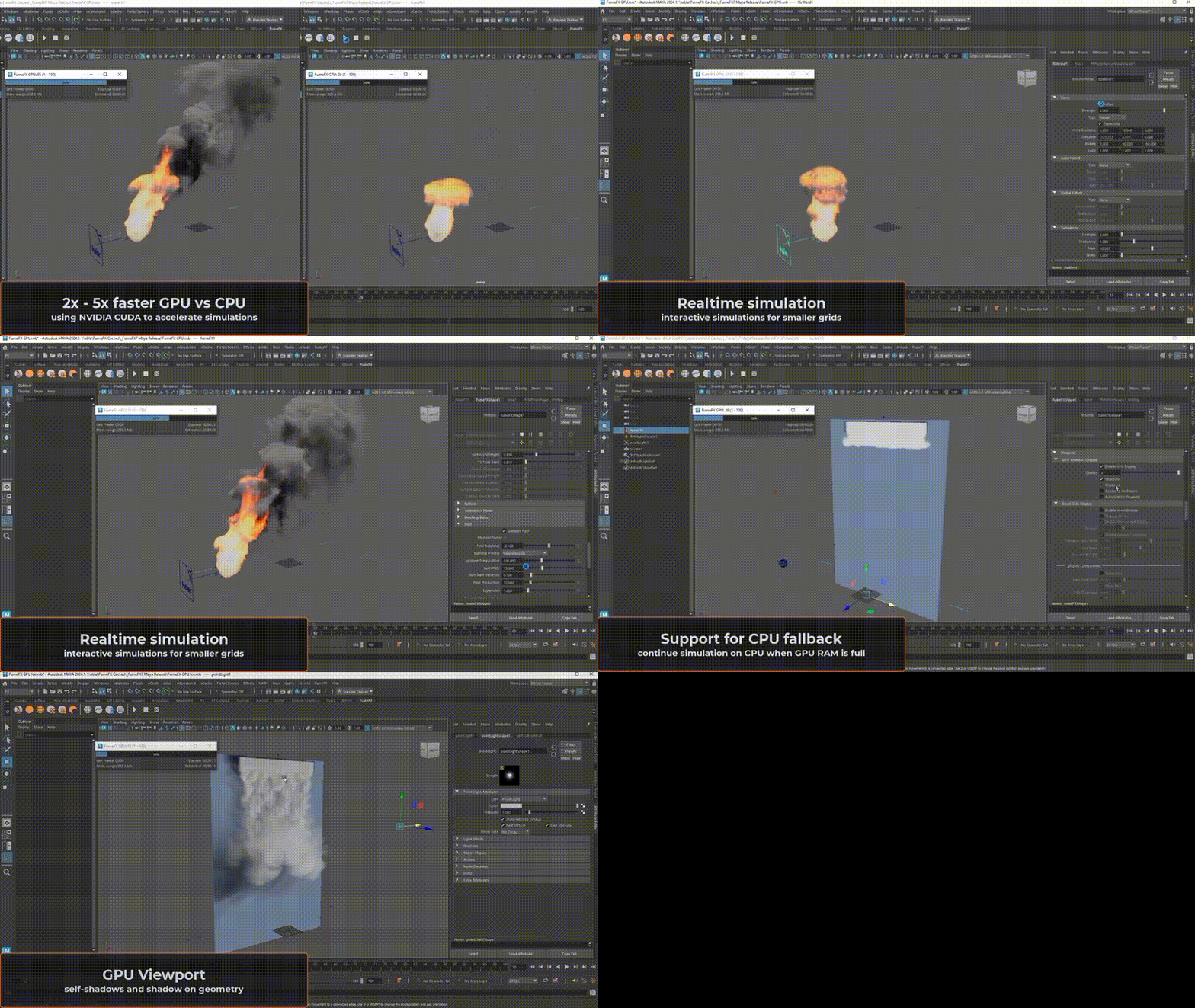
Sitni Sati has officially released FumeFX 7.0 for Maya, bringing a major update called FumeFX GPU – a CUDA-powered simulation engine that dramatically accelerates smoke and fire simulations in Autodesk Maya. This update promises 2× to 5× faster simulation times on supported NVIDIA graphics cards, enabling VFX artists to iterate more quickly and achieve high-quality results in less time.
FumeFX has long been a go-to fluid dynamics plugin for creating realistic explosions, smoke, and fire in films and games, dating back to its 3ds Max debut in 2007 and a Maya port in 2013. It has been used in countless blockbuster movies (from Dr. Strange to Iron Man) and game cinematics, cementing its reputation for delivering Hollywood-quality gaseous effects. In this article, we’ll break down what’s new in FumeFX 7.0 for Maya, explain how the new GPU simulation works, compare GPU vs CPU performance, and cover practical details like system requirements, workflow improvements, and whether this upgrade is worth it for Maya users.
FumeFX 7.0 for Maya New Features Breakdown
FumeFX 7.0 for Maya introduces performance-driven features and user experience enhancements:
- FumeFX GPU Solver (CUDA Acceleration): A new NVIDIA CUDA-based solver enables fluid dynamics on the GPU, providing a 2×–5× speed increase over the CPU (tested on an RTX 4090 vs. Ryzen 9 7900X). It uses the same dense voxel grid method as the CPU and includes a seamless fallback to the CPU if GPU memory is exceeded.
- Improved Viewport Performance: Viewport 2.0 now features GPU-accelerated rendering, eliminating lag and allowing real-time previews of multiple grids with correct geometry occlusion.
- Faster CPU Simulations: CPU-based simulations are approximately 10–15% faster due to new memory pre-allocation that avoids dynamic allocation during runs.
- Updated Forces and Controls: The Vortex force is now multi-threaded and GPU-compatible. The Wind force gained CUDA support, radial falloff, and “front side only” influence. The Simulation Status window has also been updated for better usability.
- Legacy Cleanup: Support for the FumeFX 4.x engine has been dropped to focus on the newer unified solver framework.
What is FumeFX GPU in Maya and How It Works
FumeFX GPU is a CUDA-powered engine for smoke and fire calculations:
- CUDA-Based Solver: Heavy fluid dynamics calculations—such as advection, diffusion, and buoyancy—are offloaded to NVIDIA GPU parallel threads.
- Dense Voxel Grid Approach: It utilizes the same simulation principles and equations as the CPU version to maintain high-end realism and fine detail without sacrificing resolution.
- Enabling GPU Simulation: Users enable “Use CUDA Acceleration” in the General Parameters. The workflow for emitters and forces remains unchanged, but iteration and viewport updates become near-real-time.
- Automatic Fallback to CPU: If a simulation exceeds available VRAM, FumeFX automatically transitions the calculation to the CPU to prevent crashes and ensure completion.

FumeFX GPU vs CPU Simulation Performance Comparison
- Speed Advantage: The GPU solver is 2× to 5× faster than the CPU. High-resolution, complex simulations (explosions, turbulence) see the greatest gains due to the thousands of parallel cores on a GPU.
- Real-World Gains: Simulations that previously required an overnight run can often be completed in a few hours. A fireball taking 1 minute per frame on CPU may take 12–30 seconds on GPU.
- Consistency: While FumeFX 7.0 improves CPU speed by 10%, the GPU remains the preferred mode for speed, scaling effectively as simulation complexity increases.
How Much Faster is FumeFX 7.0 GPU in Maya
- Time Savings: Average simulation time is reduced by 50% to 80%.
- Benchmarks: On an RTX 4090, simulations can reach 4 frames per minute compared to 1 frame per minute on a high-end CPU.
- Interactive Iteration: Faster turnaround allows artists to tweak parameters and see results much sooner, turning overnight tests into mid-day results.
- Comparison: FumeFX 7.0 balances speed and film-quality physics, performing significantly faster than Maya’s native CPU-based tools.
NVIDIA GPU Requirements for FumeFX 7.0 Maya
- Hardware: Requires an NVIDIA CUDA-capable GPU (Pascal architecture or newer).
- VRAM: A minimum of 24 GB (e.g., RTX 3090 or 4090) is recommended for complex simulations. Smaller VRAM (8GB/12GB) is supported but will trigger CPU fallback more frequently.
- OS and Software: Windows 10 (64-bit) or higher and Maya 2024 or later are required. Linux and macOS are not supported.
How to Use FumeFX GPU for Smoke and Fire Simulation in Maya
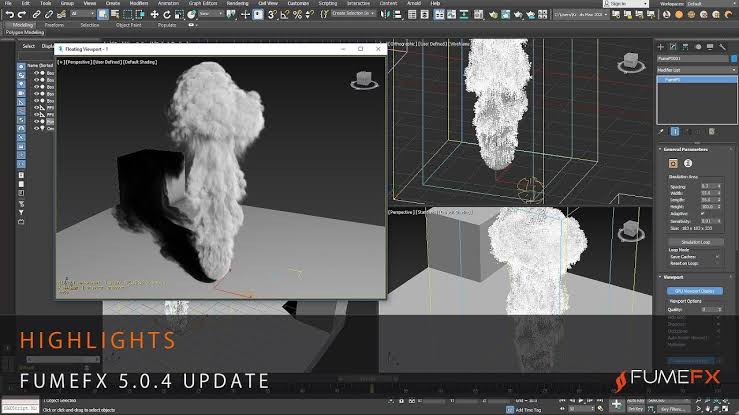
- Activation: In a FumeFX container, check the “Use CUDA Acceleration” box under General Parameters.
- Workflow: Set up the grid, emitters, and forces as usual. Use Adaptive Grid settings to optimize memory usage.
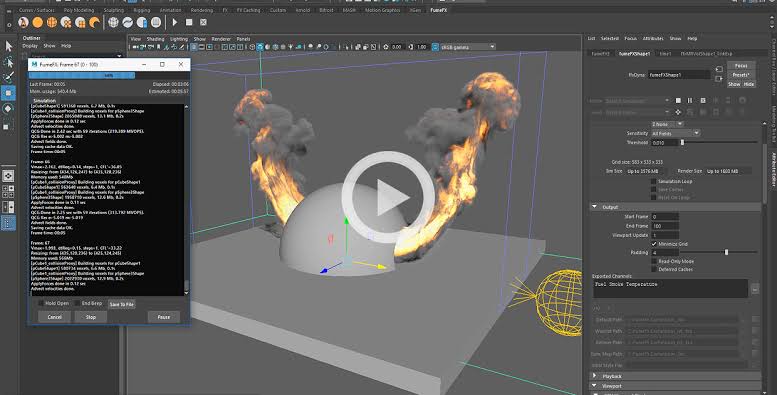
- Monitoring: The Simulation Status window tracks memory; if VRAM is exhausted, the system seamlessly switches to CPU.
- Caching: Simulations are saved as FXD or VDB caches, which are identical regardless of which solver (CPU or GPU) was used.
FumeFX 7.0 Maya System Requirements and Compatibility
- Software Compatibility: Compatible with Autodesk Maya 2024 and newer on Windows 10/11.
- Hardware: Requires a multi-core 64-bit CPU and at least 32 GB of system RAM (64 GB+ recommended) to handle large simulations and CPU fallback.
- Renderer Support: Supports Arnold out-of-the-box and provides shaders for Redshift and V-Ray to read FumeFX volumetric data.
FumeFX 7.0 Maya Pricing and Licensing Options
- Perpetual License: $695 USD for the Maya edition.
- Subscription: $395 USD per year, which bundles both Maya and 3ds Max editions.
- Upgrades: Owners of FumeFX 5 or 6 can upgrade for $395 USD.
- Simulation Licenses: Additional sim-only licenses for render nodes are $95 USD per year.
Benefits of GPU-accelerated Fluid Simulation in Maya
- Creativity: Faster iterations allow artists to experiment more within deadlines.
- Productivity: Offloading sims to the GPU frees the CPU for other tasks.
- Reliability: The hybrid CPU-GPU approach ensures simulations finish even if they exceed GPU memory.
- Competitiveness: Provides studios with a high-speed, integrated solution for complex fire and smoke effects.

FumeFX 7.0 Maya Workflow Improvements for VFX Artists
- Responsive Viewport: Real-time scrubbing and accurate occlusion for multiple grids allow for better pre-visualization.
- Force Optimization: Multi-threaded and GPU-optimized Vortex and Wind forces encourage the use of complex turbulence without heavy performance penalties.
- UI Polish: Updated Simulation Status controls allow for cleaner pausing and stopping of simulations.
- Pipeline Integration: Direct support for Arnold, V-Ray, and Redshift ensures a smooth transition from simulation to final render.
Does FumeFX GPU Replace CPU Simulations in Maya
The CPU solver remains relevant in FumeFX 7.0 and has not been entirely replaced by the GPU for several reasons:
- Continued Support: The traditional CPU engine is still available and has been optimized to run approximately 10% faster. Users can manually disable CUDA acceleration to use it.
- Result Variations: While both solvers use the same algorithms, they do not produce bit-for-bit identical results due to differences in floating-point calculations and parallel processing. Some pipelines requiring exact deterministic repeatability may still favor the CPU.
- Collaborative Logic: The GPU is intended as the primary solver, while the CPU acts as a safety net. The system will automatically switch to the CPU if GPU memory is exhausted mid-simulation.
- Specific Use Cases for CPU:
- Hardware Limitations: Machines lacking NVIDIA cards or render nodes with only CPUs must use the CPU solver.
- Memory Constraints: Simulations requiring more memory than available VRAM can utilize the larger pool of system RAM via the CPU solver.
- Farm Consistency: Standardizing on CPU simulations ensures identical results across mixed-hardware render farms.
- Debugging: CPU mode serves as a reliable troubleshooting tool if edge-case instabilities occur in the GPU solver.
- Performance Balance: On low-end GPUs, a powerful multi-core CPU might offer comparable or better efficiency.
FumeFX 7.0 Maya Features for Realistic Fire and Smoke Effects
FumeFX 7.0 combines its legacy of high-end features with new GPU-accelerated performance:
- Physically-Based Fire Combustion: Includes an Oxygen parameter to simulate realistic fire behavior, such as suffocation in sealed spaces or intensification in oxygen-rich environments.
- Multiple Vorticity Models: Offers various algorithms to add curl and swirl, allowing artists to match specific real-world references like campfires or explosions.
- Wavelet Turbulence: Allows users to “up-res” a low-resolution simulation post-calculation, adding fine details without re-simulating the entire effect.
- Effectors: Provides procedural control to drive simulation parameters (like density or dissipation) on a per-voxel basis using custom logic.
- Render Warps: Enables non-destructive deformation of simulation caches, such as applying lattice-like warps, without re-simulating.
- Post Processing Tools: Includes features for cache retiming (for slow-motion), format conversion (native to OpenVDB), and channel management to reduce disk space.
- Collision and Interaction: Supports full interaction with moving geometry and particle sources, with the physics solver ensuring fluid curls around objects realistically.
- Volume Shader and Rendering: Integrated with Arnold for blackbody shading and self-shadowing. It also supports Redshift and V-Ray through specialized shaders.
FumeFX GPU Memory Limits and Fallback to CPU Explained
- VRAM Constraints: GPU simulations are limited by the graphics card’s VRAM (typically 8 GB to 24 GB), whereas CPU simulations use system RAM.
- Limit Detection: FumeFX monitors VRAM usage during the simulation. If an allocation is expected to exceed available memory, the system triggers a fallback.
- Seamless Transition: The simulation automatically switches to the CPU mid-run, moving the state from VRAM to system RAM. A log message informs the user of the switch.
- One-Way Process: To maintain stability, once a simulation falls back to the CPU, it remains in CPU mode for the rest of that specific simulation session.
- Stability Advantage: This hybrid approach prevents the crashes common in other GPU-only solvers when memory limits are reached, ensuring simulations complete regardless of size.
Best GPUs for Running FumeFX 7.0 in Autodesk Maya
- NVIDIA GeForce RTX 3090 (24 GB): The baseline recommendation for complex simulations, offering a 2× speed increase over high-end CPUs.
- NVIDIA GeForce RTX 4090 (24 GB): Currently the top-tier consumer choice, providing 3× to 5× faster simulation speeds.
- NVIDIA “RTX 5090” (32 GB): Projected next-gen card expected to be 30% faster than the 4090 with more VRAM.
- NVIDIA RTX A6000 (48 GB): Recommended for professional studios needing maximum VRAM for extremely large simulation grids.
- NVIDIA RTX 4080 (16 GB) / 3080 Ti (12 GB): Viable high-end alternatives, though smaller VRAM may trigger CPU fallback sooner on large sims.
- Note on Multi-GPU: FumeFX utilizes one GPU per simulation. Multiple GPUs are useful for running different simulations in parallel rather than accelerating a single one.
Is FumeFX 7.0 Worth Upgrading for Maya Users
- Performance: The 2× to 5× speed boost on the GPU significantly reduces iteration time.
- Workflow Integration: Faster Viewport 2.0 previews and optimized CPU usage improve the daily artist experience.
- Capability: All advanced tools like Wavelet Turbulence and Effectors are retained and enhanced with GPU speed.
- Cost Efficiency: The upgrade price ($395) or subscription is often offset by the time saved in production.
- Competition: FumeFX 7.0 provides faster pyro simulation than Maya’s built-in CPU-bound Bifröst and remains more integrated than standalone GPU tools like EmberGen.

Side Note: PixelHair and The View Keeper
- PixelHair: A collection of nearly 200 production-ready 3D hair assets by Yelzkizi for Blender and Unreal Engine (MetaHuman). It saves time by providing pre-made grooms with accurate volume and detail.
- The View Keeper: A Blender add-on for managing multiple cameras and bookmarks in complex scenes, useful for layout and previs.
Frequently Asked Questions (FAQs)
- How do I enable GPU simulation in FumeFX 7.0 for Maya?
To use the GPU-accelerated solver, you need to turn it on in the FumeFX settings. In Maya, select your FumeFX container and open the FumeFX UI or attribute editor. Under General Parameters, enable the “Use CUDA Acceleration” option. This tells FumeFX to run the sim on your NVIDIA GPU. Make sure you have a supported NVIDIA card installed and the latest drivers. Once enabled, just start the simulation – FumeFX will execute it on the GPU and you should see a significant speed boost. (If for any reason you want to go back to CPU, simply uncheck that option.) - Do I need an NVIDIA graphics card to use FumeFX GPU?
Yes. FumeFX’s GPU simulation is built on NVIDIA’s CUDA technology, so an NVIDIA GPU is required. AMD or Intel GPUs are not supported (they lack CUDA support). You’ll want an NVIDIA card from the GTX/RTX series with a decent amount of VRAM. If you try to enable CUDA acceleration without an NVIDIA card, FumeFX won’t be able to use the GPU and will default to CPU. In summary, NVIDIA only – ideally an RTX 30-series or 40-series for best performance. - What version of Maya and Windows do I need for FumeFX 7.0?
FumeFX 7.0 for Maya is compatible with Maya 2024 and later on Windows 10 (64-bit) or higher. It will not work with older Maya versions (like 2022 or 2023) – you’ll need to upgrade Maya to 2024+. Additionally, it’s a Windows-only plugin; there is currently no Mac or Linux support for FumeFX 7 in Maya. So the environment requirements are Maya 2024+ on 64-bit Windows 10/11. Ensure your system meets Maya’s own requirements as well (for example, Maya 2024 requires a fairly recent OS and hardware). - Is the GPU simulation output identical to the CPU output in FumeFX?
Not exactly, but very close. GPU and CPU solvers use the same physics, so behavior is similar, but differences in floating-point precision and parallelization can cause slight variations in fine details like turbulence or noise. The results are usually visually interchangeable, though not numerically identical. For repeatable deterministic results, it is best to stay with one mode consistently. - What happens if my GPU runs out of memory during a FumeFX simulation?
FumeFX 7.0 automatically switches from GPU to CPU if VRAM is exceeded during simulation. This prevents crashes and allows the sim to continue and finish successfully. The transition is seamless, though the simulation becomes slower. The final cache may include frames computed partly on GPU and partly on CPU. A high-memory GPU, such as 24GB, helps reduce the chance of this happening. - Can I still use FumeFX 7.0 if I don’t have a powerful GPU?
Yes. FumeFX 7.0 can run fully in CPU mode if no supported CUDA GPU is available. CPU simulations are about 10–15% faster than in earlier versions because of optimizations, although users will not get the 2–5× speed boost of GPU acceleration. All other features and fixes are still available, and the license can use GPU acceleration later if hardware is upgraded. - Does FumeFX 7.0 for Maya support liquid simulations or only smoke/fire?
In Maya, FumeFX 7.0 supports only gaseous fluids such as smoke, fire, and explosions. It does not currently support liquids like water or splashes. Although the 3ds Max version includes NodeWorks-based liquid and ocean tools in version 7.x, those features are not in the Maya 7.0 release. Maya users needing liquids must use other tools like Bifröst or Phoenix FD. - How much does it cost to upgrade or buy FumeFX 7.0 for Maya?
Pricing is as follows: a new perpetual license of FumeFX 7.0 Maya edition is $695 USD. If you already own FumeFX 5 or 6 and want to upgrade, the upgrade cost is $395 USD for a perpetual upgrade to 7.0. Alternatively, you can opt for a subscription at $395 USD per year which includes both Maya and 3ds Max versions of FumeFX. The subscription might be attractive if you use multiple 3D platforms or want always-updated versions. For additional simulation nodes (for network rendering/simulation), simulation-only licenses are ~$95/year each on subscription. In summary, upgrade from recent version: $395, new purchase: $695 perpetual or $395/yr subscription. - Can I render FumeFX simulations with renderers like Redshift or V-Ray in Maya?
Yes, FumeFX caches can be rendered with several popular render engines:- Arnold: FumeFX has direct integration with Arnold (the default Maya renderer). You can render volumes through Arnold’s volume shader, and FumeFX provides features like cache sharpening to enhance detail.
- Redshift: Redshift supports FumeFX volumes via an Arnold/Redshift Volume shader provided by Sitni Sati. You assign this shader to a Redshift Volume shape, and it will read the FumeFX simulation data directly, so you get your smoke/fire rendered in Redshift.
- V-Ray: V-Ray doesn’t natively read FumeFX caches, but Sitni Sati supplies a custom Arnold/V-Ray Volume Grid shader for FumeFX. Using that, you can render FumeFX sims with V-Ray in Maya. Essentially, the shader bridges FumeFX’s data to V-Ray’s volume grid. This shader also enables Arnold GPU to render FumeFX volumes.
- Others: If needed, you can always export FumeFX sims to OpenVDB format (using the post processing tools) and then import those into any renderer that supports VDBs. But for Arnold, Redshift, and V-Ray, the provided integrations mean you usually don’t need this extra step – they can work directly with FumeFX caches.
So, regardless of whether you’re using CPU or GPU rendering, you can integrate FumeFX’s fire/smoke into your renders with the major render engines in Maya.
- How does FumeFX 7.0 compare to Maya’s built-in Bifröst fluids or other solutions?
FumeFX 7.0 is faster for smoke and fire in Maya because of GPU acceleration, while Bifröst and older Maya Fluids are CPU-based and slower for high-detail pyro. It also offers specialized controls and strong art-directability for gaseous effects. Phoenix supports smoke, fire, and liquids but is CPU-based for fire/smoke. Houdini offers deeper control but is harder to learn and can be slower without GPU pyro. EmberGen is very fast but is standalone and may not match FumeFX’s detail. Overall, FumeFX 7.0 is one of the fastest, most production-proven options for high-quality smoke and fire directly in Maya.

Conclusion
FumeFX 7.0 for Maya is a major update focused on speed and production reliability. The introduction of the CUDA-powered GPU solver allows for 2× to 5× faster simulations, enabling more artistic iterations. With its responsive viewport, automatic CPU fallback for memory management, and deep integration with major renderers, it remains a premier tool for high-end fire and smoke effects in Maya. For professional VFX artists, the upgrade provides a significant competitive advantage through drastically reduced simulation times and a refined workflow.
Sources and Citations
- CG Channel – “Sitni Sati releases FumeFX 7.0 for Maya with FumeFX GPU” (Jim Thacker, March 26, 2026)
https://www.cgchannel.com/2026/03/sitni-sati-releases-fumefx-7-0-for-maya-with-fumefx-gpu/ - Sitni Sati Documentation – FumeFX 7.0 for Maya Release Notes / Release History
https://docs.afterworks.com/FumeFX6maya/Release%20History.htm - Sitni Sati Documentation – FumeFX 7.0 GPU Simulation FAQ
https://docs.afterworks.com/FumeFX6maya/FAQ_1.htm?Highlight=fumefx+gpu - Sitni Sati (Afterworks) – FumeFX 7.0 for Maya Product Page
https://afterworks.com/FumeFXMaya.asp - Digital Production – “FumeFX 7.5: Fire Meets GPU soon” (Nov 27, 2025)
https://digitalproduction.com/2025/11/27/fumefx-7-5-fire-meets-gpu-soon/ - CG Channel – “Sitni Sati releases FumeFX 7.0 for 3ds Max” (Aug 19, 2025)
https://www.cgchannel.com/2025/08/sitni-sati-releases-fumefx-7-0-for-3ds-max/ - Sitni Sati (Afterworks) – FumeFX Product Overview / Usage
https://afterworks.com/FumeFX.asp - Sitni Sati (Afterworks) – FumeFX for 3ds Max Fire/Smoke Feature Overview
https://afterworks.com/FumeFX-Fire_Smoke.asp
Recommended
- Metahuman Facial Motion with Faceware: Complete Workflow for Realistic Face Animation in Unreal Engine 5
- Famous 3D and AI Virtual Influencers and Avatars: Exploring the Digital Trendsetters of 2025
- Pirates Have A Field Day With Death Stranding 2 After It Accidentally Leaks Early On Steam
- Top Places to Buy 3D Hair Assets: Best Marketplaces and Solutions
- How do I parent a camera to an object in Blender?
- Crimson Desert Reveals Console Specs, Some Compromises on PS5 Explained
- How to Tell If a Pokémon Card Is Fake: 15 Quick Tests Collectors Use (Texture, Light Test, Fonts & Holo)
- MetaHuman Creatures: Crafting Non-Human Characters with Unreal Engine’s MetaHuman Framework
- Endorphin 3D Animation Tutorial: NaturalMotion Behavioral Physics Workflow (DMS + FBX Export)
- Project Hail Mary Has Out of This World Start at the Box Office With $140 Million Opening Weekend