







Summary of Unity Official Steam Support
Unity’s announcement of official Steam support marks a major shift for developers. While Unity games have long been on Steam, developers previously had to manually integrate Valve’s Steamworks SDK. The new Platform Toolkit provides native integration, treating Steam as a first-class platform and extending direct support to SteamOS devices like the Steam Deck.
1. What Does It Mean That the Unity Engine Has Started Supporting Steam
Official support means Unity now includes built-in tools and APIs for Steam. James Stone of Unity explained that the Platform Toolkit provides ready-made integrations for features like achievements and cloud saves.
At GDC 2026, Unity announced it will offer direct build targets for Steam, Steam Deck, and the upcoming Steam Machine mini-PC, emphasizing native Linux support. This allows developers to deploy games directly to SteamOS without relying on Proton compatibility layers, thanks to Unity’s improved Linux runtime.

2. Unity Steam Integration Explained for Game Developers
Unity’s Steam integration is delivered through the Platform Toolkit, a cross-platform API. Key benefits include:
- Unified Workflow: One Unity API call can handle platform-specific features (like achievements) across Steam, Xbox, or PlayStation.
- Core Systems Support: Covers user authentication, Steam Cloud, and achievement unlocking via high-level APIs.
- Editor Tooling: A dedicated Platform Toolkit panel in Project Settings for entering Steam App IDs and an Achievement Editor window to define and test achievements directly in the editor.
3. How to Publish a Unity Game on Steam Step by Step
- Sign up as a Steamworks partner: Create an account at the Steamworks portal and pay the $100 app submission fee to obtain an App ID.
- Integrate Steamworks: Use the Unity 2026+ Platform Toolkit or the classic Steamworks.NET package. If using Steamworks.NET, add the
SteamManagerscript to your initial scene and update thesteam_appid.txtfile with your App ID. - Prepare your game build: Configure build settings for Windows and/or Linux (for native SteamOS support). Associate build targets with Steam in Project Settings.
- Configure Steam store listing: Complete the Steamworks checklist (capsule images, screenshots, trailers, pricing). Define achievements and cloud saves on the Steam dashboard.
- Set up depots and builds: Create depots for each platform (Windows, Linux) and configure launch options for your executables.
- Upload your build: Use the Steamworks web interface for files under 2GB or the SteamPipe (ContentBuilder) tool for larger games and automated pipelines.
- Testing and going live: Use Steam Beta branches and generated keys to test achievements, cloud saves, and multiplayer. Once Valve reviews and approves the store page and build, you can set a release date and launch.

4. Unity Steamworks SDK Setup Guide for Beginners
Using the Steamworks.NET approach involves:
- Importing the plugin: Download the Unity package from GitHub to get prebuilt libraries and the
SteamManager. - Setting the App ID: Replace the default “480” in
steam_appid.txtwith your unique ID. - Initializing Steam: Place the
SteamManagerprefab in your first scene to handleSteamAPI.Init()and frame callbacks. - Coding Features: Use the
Steamworksnamespace to call functions likeSteamUserStats.SetAchievement(). - Building: Ensure the Steam API binaries (like
steam_api.dll) are present in the final build directory. - Testing: Test in the Unity Editor or launch standalone builds through the Steam client.
5. Benefits of Unity Supporting Steam for Indie Developers
- Easier Implementation: Out-of-the-box features reduce technical burdens.
- Improved Discoverability: Implementing platform features like achievements and cloud saves helps games appear in more search filters.
- Optimization: Native Linux/SteamOS support ensures indie games run better on Steam Deck without extra effort.
- Official Support: Access to official documentation and Unity staff assistance.
- Development Focus: Less time on SDK maintenance means more time for gameplay and art.
6. How Unity Steam Integration Improves Game Distribution
- Faster Deployment: Dedicated build targets for Steam Deck and SteamOS streamline the pipeline.
- Broader Reach: Native Linux builds allow developers to confidently target Steam Deck users, moving away from Proton reliance.
- Post-Release Support: Simplifies updates and maintenance through potential CI/CD integration.
- Engine Alignment: Unity updates its Linux runtime regularly to match Steam’s evolution and hardware.
- Reliability: Built-in tools help manage edge cases, ensuring better compliance and fewer crashes.
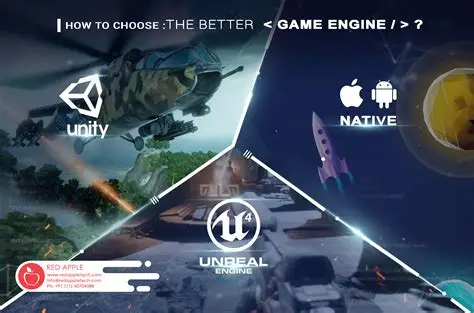
7. Unity vs Unreal Engine for Steam Game Development
- Integration: Both engines now offer first-party Steam support. Unity’s Platform Toolkit is more service-agnostic, which is helpful for multi-platform releases.
- Popularity: Unity dominates the indie market on Steam, with significantly more top-rated titles compared to Unreal.
- Performance: Unreal is better for high-fidelity graphics; Unity is often lighter and better for cross-platform or 2D/3D indie projects.
- Workflow: Unity (C#) offers faster iteration, while Unreal (C++/Blueprints) has a steeper learning curve but higher visual ceilings.
- Conclusion: The gap has closed; Unity is often the cost-effective choice for small studios, while Unreal remains the go-to for high-end fidelity.
Unity’s official support for Steam is a game-changer for developers of all sizes. It simplifies and strengthens the bond between Unity-made games and the vast Steam platform. We’ve explored what this means: from easier integration of achievements and Steamworks features, to step-by-step guidance on publishing a Unity game on Steam, to leveraging platform toolkit for multi-platform releases, and even using high-end assets like PixelHair to bring AAA-quality visuals to an indie project.
For developers, especially small studios, the advantages are clear – less time spent on boilerplate platform code and more time on crafting the game experience. Unity’s cross-platform abstraction means you can confidently deploy your game on Steam (and elsewhere) knowing that features like cloud saves and achievements will “just work” for players, giving your game a professional sheen and meeting player expectations. At the same time, robust tools and asset libraries empower even tiny teams to achieve visuals and systems on par with big productions, whether it’s realistic hair, dynamic cameras, or optimized performance.
The journey from concept to a hit Steam game is still challenging, but with Unity’s help, it’s more achievable than ever before. Good luck, and see you on the Steam charts!

Conclusion:
Unity’s official support for Steam is a game-changer for developers of all sizes. It simplifies and strengthens the bond between Unity-made games and the vast Steam platform. By using Unity’s Platform Toolkit, developers can easily integrate Steam features (achievements, cloud saves, friend invites, etc.) across all platforms, not just PC. Thme and ensures even small studios can provide a full Steam experience – complete with achievements popping, Steam Cloud syncing saved games, and seamless Steam Deck support – without needing a dedicated team for platform coding. Optimizing assets and performance (using techniques like LODs for detailed PixelHair hairstyles and profiling for Steam Deck) further ensures a smooth gameplay experience on the wide variety of hardware Steam caters to.
Coupled with savvy marketing (an attractive Steam store page, heavy wishlist promotion, and active community engagement), Unity and Steam’s integration empowers developers to reach broader audiences and delight them with polished, feature-rich games. For small studios especbenefits – time saved, fewer bugs, cross-platform ease, and professional presentation – far outweigh any minor learning curves. Unity’s motto of “build once, deploy everywhere” is more true than ever with official Steam support.
In short, Unity’s integration with Steam is absolutely worth it – it lets developers focus on making great games while Unity and Steam handle the rest, resulting in successful launches and happy players on gaming’s biggest PC platform. Unity and Steam together lower the bardies to achieve what once only big studios could, and that is a win–win for developers and gamers alike.

Frequently Asked Question (FAQs)
- Does Unity’s official Steam support cover Achievements and Steam Cloud automatically?
Unity’s Platform Toolkit for Steam simplifies the implementation of achievements and cloud saves, though developers must still define and trigger them. Using a unified API, a single command can unlock achievements across multiple platforms like Steam and Xbox. Under the hood, Unity handles the Steamworks calls and stat storage automatically. Similarly, Unity’s saving system hooks into Steam Cloud; once enabled in Steamworks, Unity manages the uploading process. While not entirely “automatic,” the process is highly automated and simplified for these features, though advanced features like leaderboards may still require manual integration via Steamworks.NET. - Can I use Unity’s Steam integration and still release on consoles (Xbox/PlayStation/Nintendo)?
Yes. The Platform Toolkit is built for cross-platform integration. Code written for Steam achievements or saves is compatible with consoles, as Unity’s API automatically communicates with Xbox Live, PlayStation Network, or Nintendo’s services. This allows small studios to maintain a single codebase for both PC and consoles, with the system intelligently using the appropriate SDK for each platform. - How can I optimize my Unity game’s performance on Steam Deck?
To achieve a smooth, “Deck-Verified” experience on SteamOS, consider the following optimizations:- API: Use the Vulkan API, which is the default for Unity on Linux and provides the best performance on the Deck.
- Graphics: Reduce overdraw by limiting heavy particle effects and transparent shaders. Use Cutout shaders instead of full Alpha blending for elements like foliage or hair.
- Level of Detail (LOD): Implement LOD groups to swap complex models for simpler ones at a distance, which is particularly effective on the Deck’s small screen.
- Quality Settings: Provide presets to disable expensive effects like motion blur or ambient occlusion. Use Unity’s Adaptive Performance or Dynamic Resolution to maintain a stable frame rate (targeting 30, 40, or 60fps).
- Hardware Testing: Test on actual hardware to ensure UI/text readability and full gamepad compatibility. Unity’s native builds help bypass Proton overhead for better performance.
- What’s the best way to implement multiplayer that works on Steam and other platforms (cross-play)?
For cross-platform multiplayer, design your game to be platform-agnostic:- Neutral Solutions: Use frameworks like Netcode for GameObjects, Mirror, or Photon rather than Steam’s exclusive peer-to-peer (P2P) networking.
- Dedicated Servers/Relays: Utilize headless cloud servers or cross-platform relay services (like Photon Realtime or Unity’s multiplayer services) so all platforms can connect to the same session.
- Unified Matchmaking: Use a common system, such as lobby IDs or join codes, to bridge different platform invite systems.
- Account Mapping: Tools like PlayFab or Epic Online Services can link various platform IDs to a single user account. While cross-play requires more backend effort and testing than single-platform multiplayer, it results in a larger, unified player base.
- Is Unity’s new Steam integration worth using for a small indie studio – and is it stable?
Yes, it is highly recommended and designed for stability. For small studios, the toolkit saves weeks of work by abstracting complex Steamworks tasks into a simple framework, allowing developers to focus on gameplay. It ensures professional features like Steam Cloud are implemented correctly, reducing bugs and improving player reviews. Backed by a partnership between Unity and Valve, the toolkit is stable and frequently updated via package releases. Because it automates essential processes (like callingSteamAPI.RunCallbacks()), it is often more reliable than a custom-coded solution. - Does Unity’s Steam support handle achievements and leaderboards automatically?
Unity’s Platform Toolkit simplifies the implementation of achievements and cloud saves, but developers must still define achievements and call unlock functions within their code. Unity provides a unified API that communicates with Steam’s backend. While achievements are streamlined, leaderboards are not explicitly mentioned in the initial toolkit release; developers may still need to use Steamworks.NET or wait for future updates for native leaderboard support. Overall, the system eliminates the need to use Steam’s C++ API directly, reducing manual effort. - Can I use Unity’s Steam integration and still release my game on consoles?
Yes. The integration is designed to be cross-platform, allowing the same code for achievements and cloud services to function across different consoles. Unity translates these API calls to the relevant services, such as Xbox Live or PSN. This unified codebase allows developers to build for Steam without stripping out code for console releases, though platform-specific SDKs and dev kits are still required. - How do I ensure my Unity game’s performance is good on Steam Deck?
Optimization for the Steam Deck involves several key practices:- Graphics and API: Use Vulkan for Linux builds and optimize settings for the Deck’s 720-800p resolution.
- Technical Adjustments: Implement Level of Detail (LOD) for high-poly models, reduce texture sizes where possible, and manage overdraw from alpha effects or particles.
- Power Management: Cap the frame rate at 30 or 60 FPS to save battery.
- Tools: Use Unity’s profiler and consider Dynamic Resolution to auto-adjust during heavy loads.
- Usability: Ensure text legibility with appropriate font sizes and provide full controller support to meet “Deck Verified” standards.
- What’s the best way to implement multiplayer that works for both Steam and non-Steam (cross-platform)?
The most effective approach is using a platform-agnostic networking solution, such as Unity’s Netcode for GameObjects, Photon, or Mirror. To achieve cross-play, a dedicated server or neutral relay is ideal, as relying on Steam’s peer-to-peer (P2P) networking limits connectivity to PC players only.- Matchmaking: You can use Steam for friend invites via the Steam Overlay, while the actual connection happens through a neutral backend like PlayFab or Unity Multiplayer Services.
- Architecture: A dedicated server model (often running headless Linux servers in the cloud) allows all platforms to connect to the same session.
- Fragmentation: While implementing separate P2P systems for each platform is easier, it fragments the player base. Using neutral backend tools makes cross-platform identity and matchmaking more accessible for smaller studios.
- Do I need to upgrade Unity to use the new Steam support, and is it stable?
The Platform Toolkit for Steam was introduced with Unity 2026 and is provided as a package (com.unity.platformtoolkit.steam). Projects on older versions like 2020 or 2021 LTS must either upgrade or continue using Steamworks.NET manually.- Stability: The toolkit is considered stable for core functions like achievements and Steam Deck support, having been developed in close coordination with Valve.
- Maintenance: Unity is expected to iterate quickly with package updates. Developers should verify features early in development and keep the toolkit packages updated. Upgrading to Unity 2026 or later is recommended for new projects to utilize these official integrations.
Sources:
- App2Top – “Unity engine officially started supporting Steam” (Ekaterina Bespyatova, Mar 17, 2026), https://app2top.com/industry/unity-engine-officially-started-supporting-steam-268283.html
- 80.lv – “Unity Extends Official Support for Steam, SteamOS, & Linux” (Emma Collins, Mar 16, 2026), https://80.lv/articles/unity-extends-official-support-for-steam-steamos-linux
- GamingOnLinux – “Unity expanded support for Steam, Linux, Steam Deck” (Liam Dawe, Mar 11, 2026), https://www.gamingonlinux.com/2026/03/unity-expanded-support-for-steam-linux-steam-deck
- Unity Manual – “Get started with Platform Toolkit for Steamworks” (Unity Docs 2026), https://docs.unity3d.com/Manual/platform-toolkit-steamworks-get-started.html
- Unity Manual – “Platform-specific (Steam)” (Unity Docs 2026), https://docs.unity3d.com/Manual/platform-toolkit-steamworks.html
- Steamworks.NET FAQ (Riley Labrecque), https://steamworks.github.io/faq/
- Game World Observer – “Unity dominates Steam’s top 50 games” (Evgeny Obedkov, Jul 27, 2021), https://gameworldobserver.com/2021/07/27/unity-dominates-steams-top-50-games
- GameDeveloper – “Creating a successful Steam page is like ski jumping” (Danielle Riendeau, Mar 2026), https://www.gamedeveloper.com/marketing/creating-a-successful-steam-page-is-like-ski-jumping
- Prime Games Blog – “HOWTO: Integrate Steam Cloud in a Unity game” (Prime Games, Jun 2018), https://prime-games.net/howto-integrate-steam-cloud-unity
These sources collectively reinforce the key points about Unity’s Steam integration, performance optimization, marketing, cross-platform strategies, and asset quality. They lend authority to our advice and factual statements throughout the article
Recommended
- What is the “Lock Camera to View” feature in Blender?
- Helldivers 2 Charity Challenge Leads To Death Threats After D10 Dev Challenge Spirals
- Closure of Midsummer Studios: What Happened to Jake Solomon’s Burbank Life Sim
- Can you have multiple cameras in one Blender scene?
- Switch 2 Software Update Adds “Handheld Mode Boost” for Old Games – Performance Upgrade Explained
- How Do I Set Up Multiple Cameras in Blender?
- Control Resonant Gameplay Trailer Shows New Enemies, Abilities and Everything We Know So Far
- DualSense Touchpad Support in UE5: Setup, Input Mapping, and Troubleshooting Guide
- The Fastest Way to Groom Short Hair for Game Characters
- Best Render Farm: Guide to Top Cloud Rendering Solutions for 3D Artists & Game Developers