






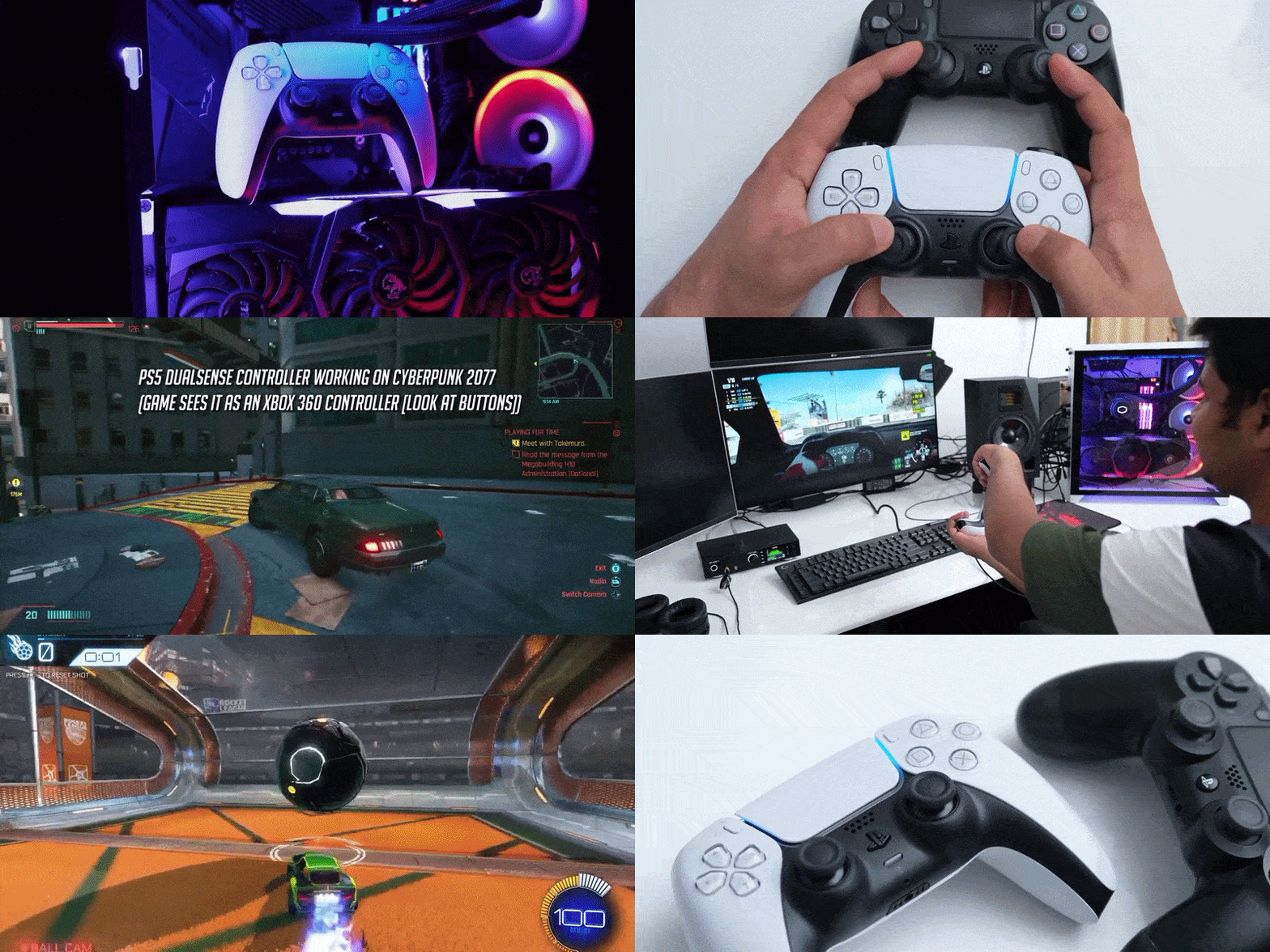
Does DualSense touchpad work in Unreal Engine 5
Yes, the DualSense (PS5) controller’s touchpad can work in Unreal Engine 5 – but it is not plug-and-play by default on Windows. Unreal Engine (UE5) doesn’t natively interpret the DualSense touch surface out-of-the-box, since Windows itself lacks built-in support for PlayStation controller touch data . By default, if you connect a DualSense to a PC, UE5 will recognize its analog sticks, face buttons, and triggers (often via XInput emulation or basic DirectInput), but not the touchpad’s position data or gestures without additional setup. The touchpad’s click (the physical button press of the pad) may register as a generic gamepad button if configured, but the touch coordinates and swipe gestures require extra configuration or plugins.
That said, developers have successfully enabled DualSense touchpad functionality in UE5 projects. For example, one UE5-based game developer showcased adding DualSense touchpad support to trigger in-game actions via swipes and taps . This demonstrates that with the proper approach, the controller’s touch surface can be used for gameplay input on PC.
In summary, the DualSense touchpad does work in UE5, but you must implement support for it through either Unreal’s Raw Input or Enhanced Input systems (with custom mapping), or by using a dedicated plugin that exposes the touchpad data. It won’t just respond by default as an Xbox controller would, because of the missing native driver support on Windows . In the sections below, we’ll explain how to enable and use DualSense touchpad input in UE5, how to map its clicks and touches using the Enhanced Input system, and how to troubleshoot common issues.
HowDoes DualSense touchpad work in Unreal Engine 5
The DualSense touchpad can work in Unreal Engine 5, but it is not plug-and-play by default on Windows. UE5 does not natively interpret the touch surface data because Windows lacks built-in support for PlayStation controller touch data. While analog sticks, face buttons, and triggers are recognized via XInput or DirectInput, the touchpad’s position data and gestures require extra configuration. The physical touchpad click may register as a generic button, but coordinates and swipes require specific setup or plugins.
Developers have successfully implemented touchpad support for swipes and taps. To use it, you must implement support through Unreal’s Raw Input or Enhanced Input systems with custom mapping, or use a dedicated plugin. It does not respond by default like an Xbox controller due to missing native driver support on Windows.
How to enable DualSense touchpad input in UE5
Enabling the touchpad involves getting the engine to recognize and forward touch events. There are two primary methods:
- Enable the Raw Input plugin (built-in): Use the Windows Raw Input plugin to capture input from generic HID devices. You must add a Device Configuration for the DualSense using its Vendor ID (0x054C) and Product ID (0x0CE6 for DualSense or 0x09CC for DualShock 4). You then map the controller’s axes and buttons. The touchpad click typically corresponds to Button 14. Note that Raw Input does not automatically provide coordinates and requires manual HID report mapping to parse touch positions.
- Use a DualSense support plugin (recommended): Community plugins, such as WindowsDualSenseUnreal, provide full support. These plugins handle the HID details and typically require calling an initialization function, such as “Enable Touch,” at startup (e.g., in the Player Controller’s BeginPlay). Once enabled, the plugin feeds touchpad data into Unreal as standard screen touches.
- Plug in via USB (preferred for setup): A USB connection is recommended during setup for a stable input stream. While Bluetooth works, Windows treats the DualSense as a generic DirectInput controller, which may require additional troubleshooting.

UE5 Enhanced Input mapping for DualSense touchpad
UE5 uses the Enhanced Input system to map physical inputs to gameplay actions. The setup differs for the click versus the touch position:
- Mapping the Touchpad Click as an Action: The physical click is treated as a regular button, often named “Gamepad Touchpad Button.” You can add this to an Input Action within an Input Mapping Context. If using Raw Input, it may appear as “GenericUSBController Button 14.”
- Handling Touchpad Touch positions with Enhanced Input: Because Enhanced Input lacks a native “Touchpad X/Y” axis for controllers, plugins usually inject data as standard “InputTouch” events. You respond to these via the InputTouch node in Blueprints or Touch events in C++. This provides “Pressed,” “Released,” and “Moved” states along with “Location” and “Finger Index.”
- Using Enhanced Input for Gestures: While you could create an Axis2D Input Action for relative movement, using direct InputTouch events is generally easier for tracking and gestures.
DualSense touchpad click and press mapping in UE5
The touchpad supports physical clicks and capacitive touches, which are handled separately:
- Touchpad Click: Mapped to “Gamepad Touchpad Button.” It is handled like a face button press with OnPressed events. On PlayStation consoles, this may be aliased to “Special Left.”
- Touchpad Touch (finger contact): Detected through InputTouch events. “Pressed” indicates contact with the surface, not a physical button click. You can distinguish between a light touch and a hard click by checking if an InputTouch event is accompanied by a Gamepad Touchpad Button event.
- Mapping Left/Right Side Clicks: On Windows, the pad usually registers as one unified button. To replicate the left/right split found on consoles, you can manually script logic to check the X coordinate during a click. If the X position is less than half the width, it is treated as a left click; otherwise, it is a right click.
How to read DualSense touch coordinates in UE5
Reading coordinates is essential for gestures or cursor movement. Once enabled, coordinates are accessed through InputTouch events:
- Location: Provided as an FVector2D (X, Y). If using a plugin, these often map to the game’s viewport resolution (e.g., 1920×1080). Raw hardware reports coordinates in a range of roughly 0–1920 (X) by 0–943 (Y).
- Finger Index: Supports multi-touch for up to two points. Finger Index 0 is the first touch, and Finger Index 1 is the second.
- Getting Touch State Manually: The “GetInputTouchState” node in the PlayerController can be used to poll the touch position and state (whether it is currently down) at any time, such as during a Tick.

DualSense touchpad swipe gestures in Unreal Engine 5
Swipe gestures are implemented by comparing touch start and end positions:
- Capture the Start Position: Record the coordinates when the “InputTouch Pressed” event fires.
- Capture the End Position: Record the coordinates when the “InputTouch Released” event fires. Subtract the start from the end to get a “SwipeVector.”
- Analyze the Swipe Vector: Compare the X and Y movement. If X is greater than Y, it is a horizontal swipe. Use thresholds to distinguish deliberate swipes from accidental taps or jitters.
- Trigger Response: Use the vector’s direction (positive/negative) to trigger specific actions, such as “Swipe Up” for a menu or ability.
DualSense multi-touch support in UE5
UE5 supports the DualSense’s two-point multi-touch capability through the Finger Index system:
- Finger Index 0 and 1: The engine identifies concurrent touches as Index 0 and Index 1.
- Handling two touches: You can use a “Switch” on the Finger Index to store separate start and end locations for each finger. This allows for independent swipe tracking or multi-finger gestures like pinches and rotations.
- Pinch/Zoom or Rotation: By comparing the relative movement of both Finger 0 and Finger 1, you can implement zoom or rotation logic, although the small surface area may make complex multi-finger gestures difficult for players.
DualSense touchpad not working in UE5 fix
If the DualSense touchpad is not working after following setup instructions, check these common issues:
- Ensure the controller is being detected as a device: Verify that UE5 recognizes the controller. In Project Settings > Raw Input, confirm the Vendor ID (0x054C) and Product ID (0x0CE6 for USB) are correct. Use the console command
ShowDebug Inputwhile the game is running to see if touch or click events are registering on-screen. - Disable conflicting software (Steam Input, DS4Windows): Steam Input can intercept DualSense data and emulate it as an Xbox controller, which hides touchpad data. Disable “PlayStation Configuration Support” in Steam or exit Steam entirely. Similarly, close wrappers like DS4Windows that emulate XInput.
- Call the plugin’s enable function: If using a plugin, you must call the initialization node, such as “Sony Gamepad Enable Touch,” in your
BeginPlaylogic. Without this, the touchpad remains inert even if the buttons work. - Update the plugin or engine version: Check for the latest plugin version compatible with your engine. Review documentation for changes, such as new requirements for mapping player indices or enabling “Use Physical Input.”
- Packaged game vs Editor differences: Ensure you are packaging for 64-bit Windows. Verify that Raw Input mappings in
DefaultInput.iniare included in the build. Some devices may only register if connected before the game launches. - Check for underlying OS recognition: Use an online gamepad tester to see if Windows recognizes the touchpad. Try switching between USB and Bluetooth or reinstalling the “Wireless Controller” driver in Device Manager.
- PS5 Remote Play driver conflict: Virtual HID drivers from PS Remote Play can interfere with native recognition; disable these when testing.
- Blueprint logic issues: Ensure the UI is not consuming the input. Check your Input Mode settings (e.g., “Set Input Mode Game and UI”) and verify that “Consume Input” is false on input events if needed elsewhere.
- Logging and debugging: Use
PrintStringnodes in theInputTouchevent to verify the event is firing. If it fires but nothing happens, the issue is in your interpretation logic.

DualSense touchpad works in editor but not in packaged build UE5
If the touchpad fails only in packaged builds, consider these solutions:
- Include the Raw Input config in your build: Ensure Device Configurations are saved in
DefaultInput.ini. Export the settings to an.inifile to ensure they propagate. SetbRegisterDefaultDevice = Trueto auto-activate the controller. - Plugin not included or initialized in shipping build: Verify the plugin is enabled for all target platforms and not marked as “Development only.” Ensure initialization code is not wrapped in editor-only macros like
#if WITH_EDITOR. - Differences in input focus or subsystem: Ensure the game window has focus upon startup. Use “Set Input Mode Game and UI” if the game starts with a menu to ensure the Player Controller receives events.
- Steam or background apps in release environment: Testing through Steam may trigger Steam Input, converting the controller to XInput. Test the
.exedirectly to ensure native input works without Steam’s interference. - Shipping build differences in Enhanced Input: Confirm the Input Mapping Context is explicitly added via the “Add Mapping Context” node at runtime.
- Testing and Logging in packaged game: Run a Development build with the
-Logcommand line. UseShowDebug Inputin the packaged build to confirm if the engine sees the hardware.
Steam Input vs native DualSense touchpad support in UE5
Developers must choose between Steam Input and native support:
- Steam Input approach: Steam emulates the DualSense as an Xbox controller. While it allows mapping the touchpad to a virtual mouse or extra buttons via Steam’s UI, the game only receives emulated outputs (like mouse moves), losing raw coordinate and multi-touch data.
- Native support approach: Using Raw Input or plugins provides full access to coordinates, multi-touch, and gestures. This allows for creative uses like drawing or precise gesture detection and ensures consistency across different PC storefronts.
- Feature limitations: Steam Input often flattens unique features. Native support is required to access the raw touch stream, gyro, and adaptive triggers.
- Development complexity: Steam Input is easier to set up but harder to control. Native support requires more coding but offers a “just works” experience regardless of the launcher used.
- Using Both: You can implement native support but advise players to disable Steam Input for the best experience. If Steam Input remains on, the game will likely see an Xbox controller and fall back to standard controls.
Windows DualSense touchpad support for Unreal Engine 5
Windows does not treat the touchpad as a standard input device (like a mouse), requiring specific workarounds:
- Raw HID via Raw Input: The Raw Input plugin taps into HID reports, but parsing these coordinates is complex as they are bundled in packets rather than simple axes.
- DirectInput / XInput limitations: XInput ignores all DualSense features beyond standard buttons and sticks. DirectInput sees more buttons but does not natively handle the touchpad data stream.
- Windows GameInput API: This modern replacement for XInput may offer better support in future UE versions (experimental in 5.4), but currently requires the GDK and may still not expose all Sony-specific features.
- Windows DualShock plugin (official): This Epic-released plugin for DS4 translates inputs to Xbox-style controls but typically only reads the touchpad click, not the touch data.
- Custom drivers: Third-party drivers like ViGEm can be used, but in-engine plugins are generally preferred for development.
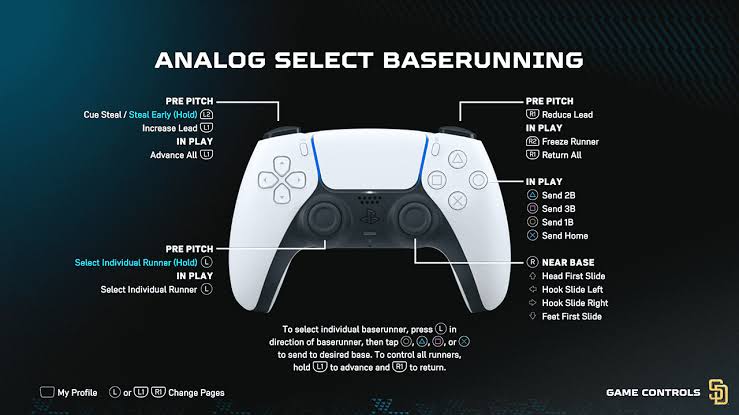
PS5 DualSense touchpad support for Unreal Engine 5
On the PS5 console, the DualSense is natively supported:
- Unreal’s PlayStation Platform SDK: Licensed developers use Sony-specific plugins to read touchpad coordinates, adaptive triggers, and haptics.
- No need for extra setup: You do not use Raw Input or third-party plugins on the console. The engine sends touch events natively via Sony’s libraries.
- Mapping considerations: The “Common Input” plugin helps manage differences between PC (plugin-based) and PS5 (native-based) button codes and UI prompts.
- Testing on Devkits vs PC: Platform checks should be used to ensure PC-specific plugins do not run on PS5 hardware, though the core gameplay logic for gestures can remain the same.
Using DualSense touchpad as a mouse cursor in UE5
You can implement a virtual cursor in UE5 using the touchpad:
- Absolute positioning: Map the touchpad directly to the viewport. Touching a point on the pad moves the cursor to the corresponding relative point on the screen.
- Relative positioning: Track touch deltas (movement between frames) to move the cursor like a laptop trackpad. This requires ignoring absolute positions to prevent the cursor from jumping when a new touch begins.
- Using the pad click as mouse click: Map the physical button press to a left-click action. This can be done by performing a hit test at the current virtual cursor coordinates to interact with UI widgets.
- Common UI method: Use the “Synthetic Cursor” system in the Common UI plugin, feeding it touch deltas instead of analog stick data for menu navigation..
DualSensDualSense touchpad UI navigation in Unreal Engine 5
The DualSense touchpad can be used for structured UI navigation, including menu selections, scrolling, and shortcuts:
- Button-like regions: The pad can be divided into virtual zones. For example, checking the X coordinate upon a touch release allows you to distinguish between a “Left Tap” and a “Right Tap,” effectively turning the physical pad into multiple virtual buttons for actions like opening a map or inventory.
- Swipe to navigate menus: Swipe gestures can be used to switch between UI panels or tabs, mimicking smartphone interactions. This is useful for cycling through menus or panning across in-game map screens.
- Using the touchpad as a virtual D-pad: Quick flicks can move menu focus, though this may feel less responsive than a physical D-pad. It is often better reserved for high-level actions like switching screens.
- Pinch/Zoom on UI (multi-touch): Multi-touch data can be used to implement pinching gestures for zooming in on maps or inspecting inventory items, a feature familiar to PlayStation users.
- UI gestures for shortcuts: Simple swipes can act as shortcuts for gameplay actions, such as swiping down to toggle a chat menu or summon a guiding wind, as seen in Ghost of Tsushima.
- CommonUI integration: Gestures can be mapped to trigger existing CommonUI actions. For instance, a “Swipe Left” can be coded to call the same function as a “Right Bumper” press.
Developers should provide alternative button-based inputs for accessibility and for players using controllers without a touchpad.
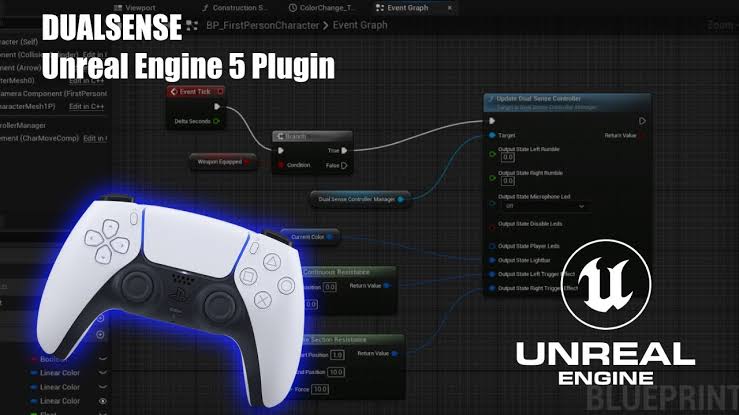
Best practices for DualSense touchpad input latency in UE5
To ensure the touchpad feels responsive, follow these latency-reduction practices:
- Use wired connection when possible: USB connections provide lower latency and avoid the potential interference issues associated with Bluetooth.
- Avoid unnecessary filtering: Smoothing or averaging touch coordinates can introduce slight delays. Only use these if the raw data is too jittery.
- Frame rate and thread synchronization: UE5’s “One Frame Thread Lag” adds about one frame of latency for stability. This can be reduced using console variables like
r.GTSyncType 1or2to sync the game thread closer to render presentation. - Use high frame rates: Higher FPS (60 or 120 Hz) linearly reduces input lag and makes touch tracking feel smoother.
- Keep processing lightweight: Ensure the logic within touch events is optimized to avoid slowing down the game thread.
- Audio/Visual sync: Trigger feedback (sounds or haptics) immediately upon the touch event rather than waiting for the next Tick.
- Bluetooth quirks: On Windows, advise players to stay close to the adapter or use a wired connection if they experience stutter.
- Low Latency Input Mode: Enabling this mode in UE5 is recommended for high-precision or competitive actions.
Frequently Asked Questions (FAQs)
- Q: Can Unreal Engine 5 detect the DualSense touchpad without any plugins?
A: Not by default. UE5 sees it as a generic gamepad. You must enable the Raw Input plugin or use a custom plugin to access touch coordinates and swipes. - Q: What is the easiest way to get DualSense touchpad input working in UE5?
A: The easiest way is using a community plugin like WindowsDualSense. You simply install it and call the enable function inBeginPlay. - Q: How do I get the position where the touchpad was touched?
A: Use theInputTouchevent in Blueprints, which provides a Location Vector2D (X, Y) containing the coordinates. - Q: Can I tell if two fingers are on the touchpad at the same time?
A: Yes. The touch system provides a “Finger Index.” If you receive data for Index 0 and Index 1 simultaneously, two fingers are present. - Q: Why is my DualSense touchpad working in the editor but not in the packaged game?
A: This is usually due to missing configurations inDefaultInput.inior the plugin not being enabled for the shipping build. - Q: Does the DualSense touchpad work on PC games outside of Steam?
A: Yes, if the game natively implements support via plugins or Raw Input. Without native support, it only works if a wrapper like Steam Input emulates it. - Q: How can I use the DualSense touchpad for UI navigation?
A: You can script it to act as a cursor (pointer) or use gestures (swipes) to trigger UI navigation functions like switching tabs. - Q: Is it possible to use the DualSense touchpad as a mini drawing surface in-game?
A: Yes, by tracking the continuous coordinate data from the Location output and translating that path into lines or decals. - Q: Do I need to worry about input latency with the DualSense touchpad?
A: For most UI and menu tasks, minor latency is fine. For high-precision gameplay, use high frame rates and consider disabling “One Frame Thread Lag.” - Q: Can I use DualSense-specific features (adaptive triggers, haptics) in UE5 on PC?
A: Not natively with stock UE5. While touchpad and gyro can work via plugins, adaptive triggers usually require Sony’s private SDK, though some community plugins attempt to bridge this.
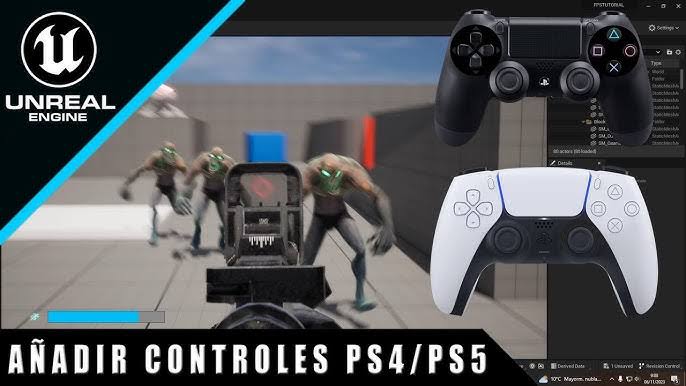
Conclusion
The DualSense touchpad offers various interaction possibilities in UE5, from extra buttons to complex gestures. While it requires setup on Windows—either through Raw Input or dedicated plugins—it allows PC developers to mirror the PlayStation experience. Because not all players have a DualSense, touchpad features should generally be designed as enhancements with button-based fallbacks.
Technical responsiveness can be optimized by minimizing frame delays and maintaining high frame rates. Developers can also use external tools to streamline related workflows; for example, the PixelHair collection by Yelzkizi provides high-quality hair assets for MetaHumans, and The View Keeper add-on assists with camera management in Blender. By utilizing these resources and following proper input integration steps, developers can create immersive, professional, and responsive gameplay experiences.
Sources and citation
- Developer community Q&A (Windows has no native DualSense support without wrappers): https://learn.microsoft.com/en-us/answers/questions/4019996/couldnt-connect-bluetooth-errors-with-dualsense-co
- News article (UE5 project adding DualSense touchpad attacks): https://80.lv/articles/developer-showcases-dualsense-touchpad-support-in-ue5-project
- Unreal Engine forum thread (PHninha09) – DualSense plugin setup steps & features: https://forums.unrealengine.com/t/dualsense-for-unreal-engine-5-2-5-7/2549742?page=3
- Unreal Engine forum thread – Enhanced Input mapping suggestion for Gamepad Touchpad Button: https://forums.unrealengine.com/t/dualsense-for-unreal-engine-5-2-5-7/2549742?page=5
- UE4 forum Raw Input tutorial – DualShock 4 touchpad click identified as Button 14 (mapping details): https://forums.unrealengine.com/t/tutorial-ue4-using-dualshock4-controller-via-usb-ps4-ds4-gamepad/133314
- Community tutorial (InputTouch events: Pressed/Moved/Location/FingerIndex multi-touch): https://forums.unrealengine.com/t/dualsense-for-unreal-engine-5-2-5-7/2549742?page=3
- Community tutorial snippet (swipe gestures via stored touch start/end positions): https://forums.unrealengine.com/t/dualsense-for-unreal-engine-5-2-5-7/2549742?page=3
- Forum discussion (user verifying touchpad functionality incl. two-finger support via plugin): https://forums.unrealengine.com/t/dualsense-for-unreal-engine-5-2-5-7/2549742?page=3
- E4 AnswerHub/Forum – Raw Input not working in packaged build (issue + resolution): https://forums.unrealengine.com/t/bug-raw-input-plugin-does-nothing-in-packaged-build/385737
- JoyShockLibrary4Unreal blog – Steam Input limitations (no native gyro/touch data access): https://renan.games/2024/12/31/developing-joyshocklibrary4unreal-a-controller-plugin-for-unreal-engine/
- UE5 CommonInput / platform-specific input handling + GameInput plugin usage:
- https://dev.epicgames.com/documentation/en-us/unreal-engine/common-ui-quickstart-guide-for-unreal-engine
- https://dev.epicgames.com/documentation/en-us/unreal-engine/unreal-engine-5.4-release-notes?application_version=5.4
- https://learn.microsoft.com/en-us/gaming/gdk/docs/gdk-dev/pc-dev/tutorials/get-started-with-unreal-pc/gc-get-started-with-unreal-pc?view=gdk-2510
- Unreal Engine documentation – Low Latency Frame Sync: https://dev.epicgames.com/documentation/en-us/unreal-engine/low-latency-frame-syncing-in-unreal-engine
- SuperHivemarket PixelHair product page (Blender + Unreal/MetaHumans notes): https://superhivemarket.com/products/pixelhair-for-blender–ue5–knots-002-3d-hairstyle
- Yelzkizi announcements (Instagram) – Geometry Nodes + PixelHair: https://www.instagram.com/p/DKTQ1clig4h/
- Instagram post referencing The View Keeper (Blender camera add-on) alongside PixelHair: https://www.instagram.com/p/DLdjS_pC22m/
Recommended
- The Expanse: Osiris Reborn — Everything We Know So Far
- How to Create a Metahuman from a Photo: The Ultimate Guide to Digital Character Creation
- The Best Bearded Video Game Characters: Iconic Facial Hair and Their Impact on Gaming
- How to Create Professional Textures and Materials with Blender and Substance Painte
- How Do I Track an Object With a Camera in Blender?
- Best 10 Water Simulation Add-ons in Blender: Everything You Need to Know Before You Install
- How to Create Metahuman Child Characters and Convert MakeHuman Models to Metahuman in Unreal Engine 5
- How do I focus the camera on an object in Blender?
- Can I add motion blur to a Blender camera?
- How to Use Film Grain: A Complete Guide to Achieving a Cinematic Look