




What is parallax scrolling in Godot 2D games
Parallax scrolling is a technique where background layers move at different speeds relative to the camera to simulate depth in a 2D scene. Distant elements move more slowly than foreground elements, creating a 3D illusion using 2D art. Godot provides built-in nodes to achieve this effect with minimal computation. In Godot 4, the primary node used is Parallax2D, which automatically adjusts child backgrounds based on camera movement. This system replaces the older Godot 3 method (ParallaxBackground and ParallaxLayer) to provide a more dynamic and professional visual polish.
How to create parallax effect in Godot 4 using Parallax2D
To set up a parallax effect in Godot 4.3 or later:
- Add Parallax2D nodes: Create one Parallax2D node for each background layer (e.g., sky, mid-ground, foreground).
- Add sprites: Place a Sprite2D, AnimatedSprite2D, or TileMap as a child of each Parallax2D node.
- Position textures at (0,0): Uncheck the “Centered” property of the Sprite2D and set its position to (0,0) to avoid gaps during looping.
- Add a Camera2D: Ensure an active Camera2D exists; Parallax2D nodes follow the current camera by default.
- Adjust scroll speeds: Set the
scroll_scaleproperty for each layer. Lower values (e.g., 0.3) make layers appear distant, while higher values make them appear closer. - Test: Move the camera to see the layers scroll at varied rates.
Note: Adjust scroll_offset if you need to change the starting position, but avoid manually moving Parallax2D nodes during runtime if ignore_camera_scroll is false.
Parallax2D vs ParallaxBackground and ParallaxLayer in Godot
Parallax2D is the modern replacement for the legacy ParallaxBackground/ParallaxLayer system.
- Node Structure: Unlike the old system which required a specific hierarchy under a CanvasLayer, Parallax2D inherits from Node2D and can be placed anywhere in the scene tree.
- Ease of Use: It consolidates scrolling and looping into one node and renames properties (like “mirroring” to
repeat_size) for clarity. - New Features: It supports camera rotation and zoom naturally, includes an
autoscrollproperty, and usesrepeat_timesfor better handling of zoomed-out views. - Deprecation: Parallax2D is the recommended stable approach as of Godot 4.4. The old nodes are marked for future removal, though current versions offer tools to convert old setups.
- Performance: Parallax2D is more flexible and offers optimizations for repeating sub-trees without needing separate canvas layers.

How to set scroll_scale in Godot Parallax2D for depth
The scroll_scale (Vector2) determines a layer’s perceived depth relative to camera movement:
- (1,1): Moves at the same speed as the camera (no parallax).
- Less than 1 (e.g., 0.5): Moves slower than the camera, appearing farther away.
- Greater than 1 (e.g., 1.5): Moves faster than the camera, appearing as a close foreground element.
- 0: Remains stationary, simulating infinite distance.
You can set X and Y axes independently. For side-scrollers, a scale like (0.3, 1) provides horizontal depth while keeping the background vertically fixed. Typical setups use lower X values for skies and higher X values for near-ground forests.
How to make an infinite parallax background in Godot
To create seamless looping:
- Use tiling images: Ensure the left and right edges of your art match.
- Set repeat_size: Set this Vector2 to the dimensions of your content. For horizontal looping, set X to the width of the texture.
- Mechanism: Godot duplicates the children once. When the camera reaches the end of the original, the node “snaps” back invisibly to create the illusion of an endless loop.
- Ensure coverage: The image should be at least as large as the viewport to prevent blank spaces.
- Axes: You can loop on X, Y, or both (grid fashion) by setting the respective
repeat_sizevalues.
How to use Parallax2D repeat settings to loop backgrounds
- repeat_size: Defines the interval (usually texture width/height) at which the content wraps.
- repeat_times: Default is 1 (one extra copy). Increase this if the camera zooms out significantly; it adds extra duplicates to ensure the background always covers a wide viewport.
- follow_viewport: Enabled by default so the layer reacts to the Camera2D.
- Node handling:
repeat_sizeaffects all children of a Parallax2D node. If you want only certain elements to loop, separate them into different Parallax2D nodes. - Implementation steps: Ensure “Repeat” is enabled in the texture’s Import settings if using region-based tiling. Align sprites to (0,0) and disable “Centered.” Match the
repeat_sizeexactly to the texture size to avoid visible seams or jumps.
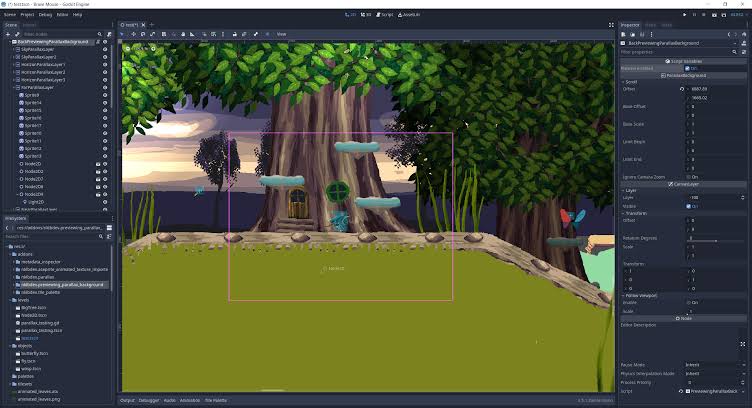
How to set up parallax backgrounds with Camera2D in Godot
In most cases, a Camera2D drives the parallax effect. When the camera moves, parallax layers scroll automatically.
- Setup: Attach an active Camera2D to the scene (often as a child of the player). By default, Parallax2D has
follow_viewportset to true, meaning it responds to the camera’s global position automatically. - Logic: No scripts are needed for basic scrolling if
follow_viewportis true andignore_camera_scrollis false. The engine updates the positions based on the camera movement multiplied by thescroll_scale. - Zoom: Parallax2D nodes scale with camera zoom like other world elements. If you zoom out significantly, you may need to increase
repeat_timesto ensure the background still covers the screen. - Limits: Use
limit_beginandlimit_endon the Parallax2D to match your level boundaries. This stops the background from scrolling further once the camera hits its own limits. - Multiple Cameras: For split-screen or multiple viewports, you must duplicate the Parallax2D setup for each camera and use visibility layers or canvas cull masks so each set only renders in its respective viewport.
How to make parallax work without Camera2D in Godot
You can achieve parallax effects in static scenes (like menus) or infinite runners where the camera doesn’t move:
- Autoscroll: Set the
autoscrollproperty (pixels per second) to create constant movement without a camera. This can be combined with camera movement for effects like drifting clouds. - Manual Scroll: Adjust
scroll_offsetvia script in_process. Unlike moving the node’s position,scroll_offsetisn’t overridden by the camera system. - No Camera: If no camera is present, use autoscroll or manual scrolling. You might also set
ignore_camera_scrollto true if you intend to move the node manually.
Godot ParallaxBackground and ParallaxLayer setup for Godot 3 projects
Godot 3 uses a different node system for parallax:
- ParallaxBackground: A container (subclass of CanvasLayer) that tracks the camera.
- ParallaxLayer: A child of ParallaxBackground that holds the visuals.
- motion_scale: Equivalent to
scroll_scale; it determines the speed of the layer relative to the camera. - motion_offset: Sets the starting position of the layer.
- motion_mirroring: Used for infinite looping; set this to the texture’s size to tell Godot where to repeat the image.
- Settings: Ensure sprites are not centered and are positioned at (0,0). Set
scroll_ignore_camera_zoomto true if you want the background to ignore zoom levels.
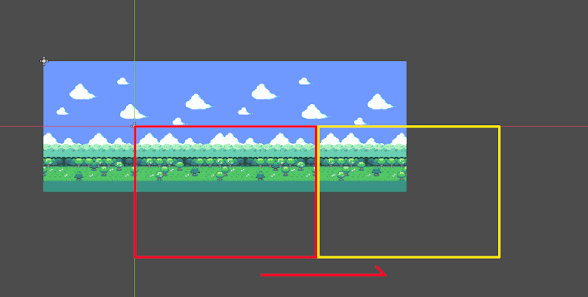
ParallaxLayer motion_offset and motion_scale explained
In Godot 3:
- motion_scale: Multiplies camera movement. (0,0) is static, (1,1) moves with the camera, and values greater than 1 move faster (foreground).
- motion_offset: A constant value added to the scroll. It is used to stagger layers or set a specific starting composition without moving the actual nodes.
How to stop parallax background jitter and camera stutter in Godot
Jitter often occurs in pixel-art games or due to frame timing:
- Pixel Snapping: If “Snap 2D Transforms to Pixel” is on, fractional parallax speeds can cause “jumping.” You may need to disable snapping for background layers or scale up assets to allow for smoother sub-pixel movement.
- Camera Smoothing: This can eliminate stutter in high-res games but may conflict with pixel snapping in pixel-art games.
- Physics vs. Idle: If movement is in
_physics_processbut rendering is faster, usephysics_interpolation_modein Godot 4. Alternatively, try moving the camera in_process. - V-sync: Enable V-sync or a frame rate limiter to ensure consistent frame pacing.
- Camera Process Mode: Switching Camera2D to “Idle” process mode can sometimes resolve stutter.
How to fix seams and gaps in looping parallax backgrounds
- Seamless Art: Ensure the left edge of your texture matches the right edge.
- Import Settings: Enable “Repeat” in the texture import settings. For pixel art, use “Nearest” filtering.
- Exact repeat_size: Ensure
repeat_sizeexactly matches the texture dimensions (multiplied by any scale applied to the sprite). - Uncheck “Centered”: Centered sprites often cause misalignment in tiling. Align the top-left of the sprite to (0,0).
- Region Rect: You can tile a texture within a single Sprite2D by enabling “Region” and “Texture Repeat,” then setting a large
region_rect. - Rounding/Snapping: Use pixel snapping to prevent sub-pixel gaps, though this may introduce jitter.
Best parallax layer speed values for foreground, midground, and background
Speed is determined by scroll_scale (Godot 4) or motion_scale (Godot 3):
- Background (Farthest): 0.1 to 0.2. Very slow movement.
- Far Midground: 0.3 to 0.5. Useful for distant hills or clouds.
- Near Midground: 0.6 to 0.8. Good for elements just behind the play area.
- Main Layer (Gameplay): 1.0. This layer moves 1:1 with the camera.
- Foreground: 1.2 to 1.5. Objects in front of the player that whiz by quickly.
- Vertical Speed: Usually,
scroll_scale.yis kept at 1.0 to prevent backgrounds from “floating” when the player jumps, unless the game is top-down.
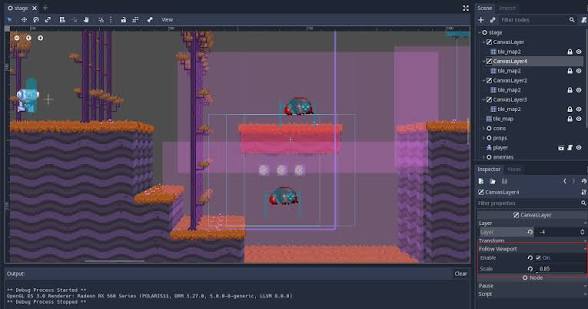
How to optimize Parallax2D performance in Godot
Parallax scrolling is generally lightweight, but efficiency can be improved with these steps:
- Limit layers: Use the minimum number of layers (typically 3–5) to achieve the desired depth. Dozens of large layers can increase draw calls and overhead.
- Optimize textures: Use reasonable texture sizes and compression. Avoid massive images when a smaller tiling texture or shader would suffice.
- Use repeat_times conservatively: Keep
repeat_timesat the default (1) for infinite scrolling. High values (e.g., 100) create excessive duplicates that can tank performance. - Culling and visibility: Use
limit_beginandlimit_endto stop rendering background repeats beyond the playable area. - Combine static layers: Group multiple sprites that share the same depth under a single Parallax2D node to reduce node count and overhead.
- Simpler materials: Avoid complex shaders or unnecessary transparency on background layers to reduce GPU blend times and execution costs.
- Profiling: Use Godot’s monitor to check frame times and ensure alpha blending or large textures aren’t causing bottlenecks.
Common Parallax2D mistakes in Godot and how to fix them
- Centering sprites: Centered sprites result in partial coverage at (0,0). Fix: Uncheck “Centered” on Sprite2D and align the top-left corner to (0,0).
- Small textures: Textures smaller than the viewport create gaps. Fix: Ensure texture coverage is larger than the viewport or use region repeat to tile it.
- Wrong repeat values: Typos or ignoring sprite scale breaks the loop. Fix: Match
repeat_sizeexactly to the (texture width * scale). - Too many repeats: Brute-forcing
repeat_timesto fix gaps causes lag. Fix: Correct the alignment and sizing instead. - No Camera2D: Expecting movement without an active camera. Fix: Add a Camera2D (current = true) or use
autoscroll. - Mixing systems: Using Parallax2D and ParallaxLayer together. Fix: Stick to Parallax2D in Godot 4.3+.
- Layer order: Backgrounds appearing in front of foregrounds. Fix: Adjust tree order or Z-index.
- Manual coordinate conversion: Moving child nodes via code while the system is also moving them. Fix: Use
scroll_offsetorautoscroll. - Aspect ratio gaps: Gaps appearing on different screen shapes. Fix: Design backgrounds with safe margins.
How to convert ParallaxBackground to Parallax2D in Godot 4
Godot 4.4+ provides an automatic conversion tool:
- Automatic: Select the
ParallaxBackgroundnode and click “Convert to Parallax2D.” This mapsmotion_scaletoscroll_scale,motion_offsettoscroll_offset, andmotion_mirroringtorepeat_size. - Manual: Create a Node2D container, add Parallax2D nodes for each old layer, move the sprites over, and manually copy the scale, offset, and mirroring values.
- Benefits: Conversion enables modern features like
autoscroll, better rotation support, and removes deprecated node warnings.

Frequently Asked Question (FAQs)
- How do I create a parallax background in Godot 4?
Use Parallax2D nodes, with each layer (e.g., sky, mountains, foreground) as a separate Parallax2D. Add Sprite2D or TileMap children and adjust their scroll_scale values to control how fast each layer moves. A Camera2D is required to drive the effect. - Why isn’t my parallax layer showing or moving?
Make sure you have an active Camera2D. Check that your layers are correctly ordered (Z-index or scene tree), and that sprites are positioned near (0,0) so they’re visible. Also ensure scroll_scale values differ between layers so motion is noticeable. - How can I scroll a background without using a Camera2D?
Use the autoscroll property in Parallax2D to move layers automatically, or update scroll_offset in code. This is especially useful for menus or looping backgrounds that move on their own. - Should I use Parallax2D or the older ParallaxBackground system?
Parallax2D is the modern and recommended approach in Godot 4. The older ParallaxBackground/Layer system still works but is deprecated and may be removed in future versions. - How do I fix jitter in pixel art parallax backgrounds?
Jitter often comes from conflicts between pixel snapping and camera smoothing. Try disabling one of them, scaling assets for smoother motion, or separating background layers so they move more fluidly than gameplay elements. - How do I make a parallax background loop seamlessly?
Set repeat_size to match your texture dimensions and ensure your image tiles perfectly. If zooming out, increase repeat_times so the background continues to fill the screen. - Can I use multiple sprites or a TileMap in one parallax layer?
Yes. You can group multiple sprites or even a TileMap under a single Parallax2D if they share the same depth, which keeps your scene simpler and more efficient. - Do parallax backgrounds affect performance?
They’re generally lightweight, but performance can drop if you use very large textures, too many layers, excessive repeats, or heavy transparency effects. Keep assets optimized. - Do parallax backgrounds work with camera rotation and zoom?
Yes. In Godot 4, Parallax2D properly supports both rotation and zoom. You may need to tweak repeat settings to ensure full coverage when zooming out. - Are PixelHair and The View Keeper related to Godot parallax?
No. These are external tools for 3D workflows—PixelHair provides hair assets for Blender/Unreal, and The View Keeper is a Blender camera tool. They are not related to Godot’s parallax system.m.
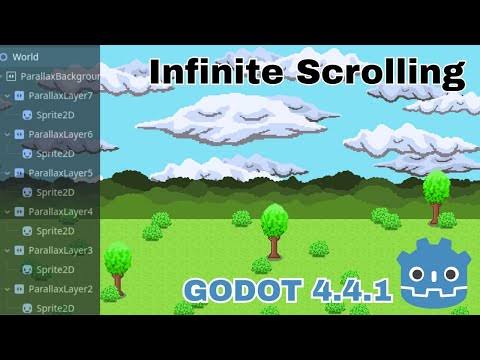
Conclusion
Parallax scrolling in Godot 4 via the Parallax2D node is a powerful, optimized way to add depth to 2D games. By mastering scroll_scale for depth and repeat_size for infinite loops, and by avoiding common mistakes like centered sprites or excessive repeats, developers can create professional, smooth vistas. Godot’s modern system handles rotation, zoom, and autoscrolling out of the box, making it a significant upgrade over legacy methods.
Sources
- Godot Engine Official Documentation – 2D Parallax (Godot 4.x)
https://docs.godotengine.org/en/stable/tutorials/2d/2d_parallax.html - Godot Engine Class Reference – Parallax2D
https://docs.godotengine.org/en/stable/classes/class_parallax2d.html - Godot Engine Official Documentation (3.6) – ParallaxLayer
https://docs.godotengine.org/en/3.6/classes/class_parallaxlayer.html - Godot Engine Official Documentation (3.6) – ParallaxBackground
https://docs.godotengine.org/en/3.6/classes/class_parallaxbackground.html - Godot Engine Blog – “Parallax2D Progress Report” by Mark DiBarry
https://godotengine.org/article/parallax-progress-report/ - Godot Forum – “4.4 parallax insanely convoluted” (closest direct match for the Parallax2D intro/stable/deprecation discussion)
https://forum.godotengine.org/t/4-4-parallax-insanely-convoluted/113320 - GameDev StackExchange – “Godot parallax background is not covering the entire screen”
https://gamedev.stackexchange.com/questions/202912/godot-parallax-background-is-not-covering-the-entire-screen - Godot Forum – “How to optimize the Parallax2D node”
https://forum.godotengine.org/t/how-to-optimize-the-parallax2d-node/96074 - Godot Forum – “Smooth camera in pixel perfect game”
https://forum.godotengine.org/t/smooth-camera-in-pixel-perfect-game/112586 - GitHub – “Simplify smooth camera movement in pixel perfect games” (closest umbrella thread for Snap 2D transforms jitter)
https://github.com/godotengine/godot-proposals/issues/6389 - GitHub – “Jitter on player sprite during movement after enabling Snap 2D Transforms to Pixel”
https://github.com/godotengine/godot/issues/71074
Recommended
- Oscars 2026: Everything You Should Know (98th Academy Awards Date, Host, Nominees, and How to Watch)
- Real-Time Hair for AAA Games: Full Tutorial and Workflow Using ZBrush, Maya, Blender, and Marmoset
- How do I set a camera to render in orthographic mode in Blender?
- ALS Metahuman Motion Matching: How to Combine Realistic Movement and Character Animation in Unreal Engine 5
- Top 10 Blender Add-ons for Camera Animation (Cinematic Shots & Workflow Boosters)
- Hades 2 Aphrodite Guide: Boons, Character Design, and Gameplay Mechanics
- Improving Blender Rendering: How The View Keeper Makes Rendering a Fun Experience
- How to Build an RPG Character Creator Using MetaHuman in Unreal Engine 5
- The Expanse: Osiris Reborn — Everything We Know So Far
- Simplifying Camera Control in Blender with The View Keeper Plugin