




Introduction
Parallax scrolling is a classic 2D game effect that creates an illusion of depth by moving background layers at different speeds. In Godot (a popular open-source game engine), implementing a parallax background can greatly enhance your game’s visual depth and immersion. This article will guide you through creating parallax effects with Godot, covering the new Parallax2D system in Godot 4, how to achieve infinite looping backgrounds, common issues (like jitter or seams) and how to fix them, and differences from the older Godot 3 approach. Whether you’re a beginner or experienced developer, you’ll find tips here to optimize your parallax setup for smooth, beautiful 2D scenes. Let’s dive in!

In This Article (20 sections)
What is parallax scrolling in Godot 2D games
Parallax scrolling simulates 3D depth in 2D scenes by moving background layers at different speeds relative to the camera. Distant elements, like skies or mountains, move slower than foreground elements, creating a dynamic sense of scale without heavy computation. Godot provides built-in nodes to achieve this effect, allowing developers to arrange backgrounds into multiple layers that move at varied speeds to create a professional depth illusion. In Godot 4, the primary node for this is Parallax2D, which handles scrolling logic automatically as the camera moves.
How to create parallax effect in Godot 4 using Parallax2D
Godot 4.3 introduced Parallax2D as a streamlined replacement for the older system. To set it up:
- Add Parallax2D nodes: Create one node for each layer of your background (e.g., far background, mid-ground, foreground).
- Add sprites: Place a
Sprite2D,AnimatedSprite2D, orTileMapas a child of eachParallax2Dnode. - Position at (0,0): To avoid gaps during looping, uncheck the “Centered” property of your
Sprite2Dand set its position to (0,0) relative to theParallax2Dorigin. - Add a Camera2D: Ensure an active
Camera2Dis in your scene.Parallax2Dnodes follow the current camera by default. - Adjust scroll_scale: Use the
scroll_scaleproperty to set movement speeds. Distant layers typically use lower values (e.g., 0.3), while closer layers use values nearer to 1. - Test: Move the camera to see the layers offset at different rates.
Parallax2D manages the math automatically. You can use scroll_offset to change a layer’s starting position, but avoid moving the nodes manually during runtime if ignore_camera_scroll is false.

Parallax2D vs ParallaxBackground and ParallaxLayer in Godot
Parallax2D replaces the Godot 3 system of ParallaxBackground and ParallaxLayer.
- Structure: Unlike the old system which required a
CanvasLayercontainer,Parallax2Dinherits fromNode2Dand can be placed anywhere in the scene tree. - Ease of Use: It consolidates logic into one node type and renames properties for clarity (e.g., “mirroring” is now
repeat_size). - New Features: It supports automatic camera rotation and zoom, features an
autoscrollproperty, and includesrepeat_timesto handle high-zoom scenarios. - Deprecation: While the old nodes remain for compatibility, they are deprecated as of Godot 4.5.
Parallax2Dis the stable, recommended approach for modern projects.
How to set scroll_scale in Godot Parallax2D for depth
The scroll_scale property (a Vector2) determines a layer’s perceived depth relative to the camera:
- (1,1): Moves exactly with the camera (player-level depth).
- Less than 1: Moves slower than the camera, appearing farther away.
- Greater than 1: Moves faster than the camera, appearing very close (foreground).
- 0: Remains stationary, simulating infinite distance or a fixed backdrop.
You can set X and Y axes independently to restrict parallax to a single direction. Standard guidelines suggest values like 0.1 for sky, 0.3 for clouds, 0.5 for hills, and 0.7 for near backgrounds.
How to make an infinite parallax background in Godot
For seamless looping, Parallax2D uses the repeat_size property:
- Use Tiling Art: Ensure textures are designed to match edge-to-edge.
- Set repeat_size: Set the X and/or Y components of
repeat_sizeto the width and height of your texture. For example, a 1024px wide texture needs arepeat_size.xof 1024. - Internal Logic: Godot duplicates the layer’s children and snaps the origin back once the camera passes the repeat distance, creating an invisible transition.
- Coverage: The background image should be at least as large as the viewport to prevent blank spaces during the loop.

How to use Parallax2D repeat settings to loop backgrounds
Additional configurations for looping include:
- repeat_size: Defines the specific dimensions for looping on the X and Y axes. Setting an axis to 0 disables repetition for that direction.
- repeat_times: Defaults to 1. If the camera zooms out significantly, the viewport might become larger than the original image plus its one copy. Increasing
repeat_timesadds more duplicates to maintain coverage. - Node Hierarchy: The repeat settings apply to all children of a
Parallax2Dnode simultaneously. - Import Settings: While
Parallax2Dduplicates nodes, ensuring the “Repeat” flag is enabled in the texture’s Import settings is a best practice for tiling.
How to set up parallax backgrounds with Camera2D in Godot
Parallax2D is designed to integrate seamlessly with Camera2D:
- Automatic Tracking: As long as
follow_viewportis true andignore_camera_scrollis false, the engine automatically calculatesscreen_offsetbased on camera movement multiplied byscroll_scale. - Zoom Handling: By default, layers scale with camera zoom. If zooming out reveals the edges of your background, use
repeat_timesto fill the extra space. - Camera Bounds: Use the
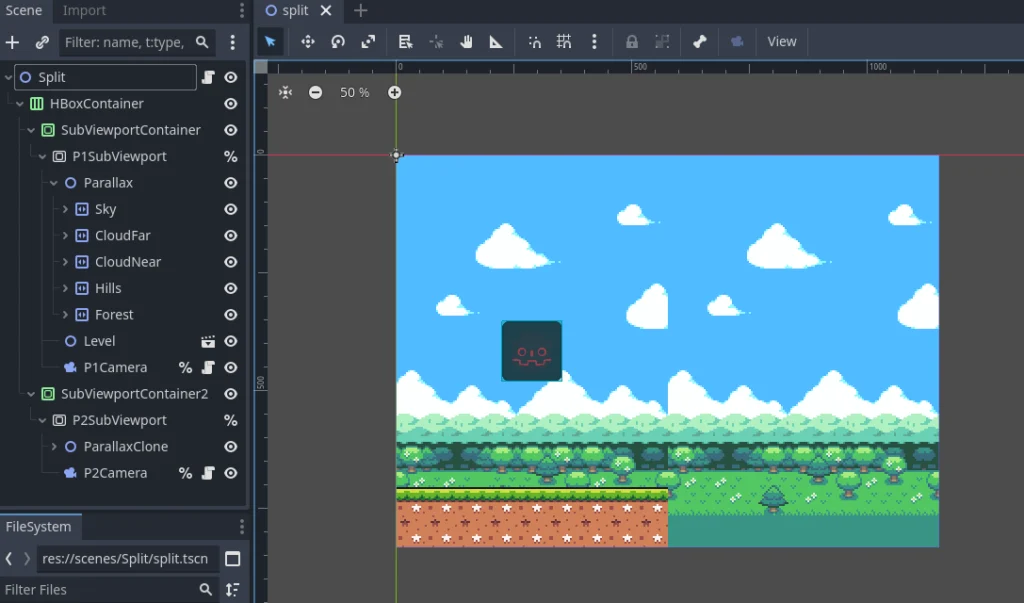
limit_beginandlimit_endproperties on theParallax2Dnode to stop background scrolling once the camera reaches the edges of a level. - Multi-camera setups: For split-screen games, duplicate the parallax layers and use
canvas_cull_maskto ensure each set of backgrounds follows its specific camera.
How to make parallax work without Camera2D in Godot
Parallax effects can be achieved without an active Camera2D, which is useful for static menus or infinite runners where the environment moves instead of the player. In Godot 4, Parallax2D offers several ways to handle this:
- Autoscroll: The
autoscrollproperty (aVector2) allows you to set a constant scrolling velocity in pixels per second. This works independently of a camera and can be used for drifting backgrounds like clouds. It can also be combined with camera movement to create dynamic effects like wind. - Manual Scripting: For more control, you can manually adjust the
scroll_offsetproperty in a script (e.g., using_process(delta)). Unlike the node’s position,scroll_offsetis not overridden by camera tracking, making it ideal for variable speeds or event-based movement. - No Camera Scenarios: If no camera is present,
Parallax2Dnodes default to the origin. You must drive movement viaautoscrollor by settingignore_camera_scroll = trueand moving the node manually.
In Godot 4, autoscroll simplifies the workflow by removing the need for the manual scripts required in Godot 3.
Godot ParallaxBackground and ParallaxLayer setup for Godot 3 projects
Godot 3 uses a different system involving ParallaxBackground and ParallaxLayer nodes.
- ParallaxBackground: A subclass of
CanvasLayerthat acts as a container. It automatically tracks the currentCamera2D. - ParallaxLayer: Children of the
ParallaxBackgroundthat hold the visual content. - Setup: Sprites should have “Centered” disabled and be positioned at (0,0) to prevent alignment issues.
- motion_scale: Equivalent to Godot 4’s
scroll_scale, this multiplies movement relative to the camera. - motion_offset: Sets the starting position of the layer.
- motion_mirroring: This is essential for infinite looping. You set it to the width/height of the texture so the engine knows when to repeat the image.
- Limits and Zoom: You can use
scroll_limit_begin/endandscroll_ignore_camera_zoomto control how the background reacts to camera boundaries and scaling.
ParallaxLayer motion_offset and motion_scale explained
In Godot 3, these two properties define how a ParallaxLayer behaves:
- motion_scale: Determines speed and depth. A value of (1,1) matches the camera, while lower values (e.g., 0.5) make the layer appear farther away by moving slower. Values higher than 1 create a foreground effect.
- motion_offset: Defines the initial shift of a layer. This allows you to stagger patterns or ensure specific background elements are visible at the start of a scene without moving the actual node.
The effective offset for a layer is calculated as: scroll_offset * motion_scale + motion_offset.

How to stop parallax background jitter and camera stutter in Godot
Jitter or stutter often occurs in pixel-art games or low-framerate scenarios. Common fixes include:
- Pixel Snapping: If “Snap 2D Transforms to Pixel” is on, sub-pixel movements are rounded, causing jumps. Disabling this for background layers can smooth motion.
- Camera Smoothing: While smoothing can help high-res games, it can conflict with pixel snapping in pixel art.
- Physics vs. Idle: If the camera moves in
_physics_processbut the game renders at a higher refresh rate, stutter may occur. EnsureParallax2Duses physics interpolation or try moving the camera in_process. - V-sync and Frame Pacing: Unstable frame rates cause inconsistent jumps. Enable V-sync or a frame limiter for consistency.
- Camera Process Mode: Switching the
Camera2Dprocess mode to “Idle” in Godot 4 can sometimes result in smoother background updates.
How to fix seams and gaps in looping parallax backgrounds
Visible lines or gaps during loops can be fixed with these steps:
- Seamless Art: Use textures designed to tile edge-to-edge.
- Texture Import Settings: Enable “Repeat” in the Import tab. For pixel art, use “Nearest” filtering; for high-res, use “Linear” to help blend edges.
- Accurate repeat_size: The
repeat_sizemust exactly match the texture’s dimensions (texture width * scale). - Disable Centering: Uncheck “Centered” on
Sprite2Dnodes so the origin (0,0) is at the top-left corner, ensuring correct alignment for repeats. - Region Rect: You can use a
Sprite2D‘s region settings to tile a texture internally across a larger area, reducing the reliance on node-level repeats.
Best parallax layer speed values for foreground, midground, and background
While values depend on art style, these ratios are standard starting points for scroll_scale or motion_scale:
- Farthest Background (Sky): 0.0 to 0.2.
- Far Midground (Clouds/Hills): 0.3 to 0.5.
- Near Midground (Trees/Buildings): 0.6 to 0.8.
- Main Play Area: 1.0 (Moves 1:1 with camera).
- Foreground (Vines/Railings): 1.2 to 1.5.
Generally, vertical scroll_scale is kept at 1.0 to ensure backgrounds don’t appear to “float” or lag behind when the player jumps.

How to optimize Parallax2D performance in Godot
Parallax is generally efficient, but performance can be optimized by:
- Limiting Layers: Use only 3–5 layers where possible.
- Texture Optimization: Use reasonable texture sizes and compression.
- Conservative Repeat Settings: Keep
repeat_timeslow (usually 1 or 2). High values (like 100) create unnecessary duplicates that drain resources. - Culling: Use
limit_beginandlimit_endto prevent the engine from rendering background repeats far beyond the actual level boundaries. - Grouping Nodes: If multiple sprites are at the same depth, place them as children of a single
Parallax2Dnode to reduce node overhead. - Simple Materials: Avoid complex shaders or excessive alpha blending (transparency) on full-screen background layers, especially for mobile platforms.
Common Parallax2D mistakes in Godot and how to fix them
- Centering sprites at (0,0): If a
Sprite2Dis centered, its texture is half in negative coordinates, which prevents proper tiling. Fix: Uncheck “Centered” in the Sprite offset and align its top-left corner with theParallax2Dorigin (0,0). - Texture not covering the viewport: If the image is smaller than the screen, gaps appear during repeats. Fix: Use larger textures, scale the sprite, or use the region property to repeat the texture until it is larger than or equal to the viewport size.
- Wrong repeat/mirroring values: Typos or failing to account for sprite scaling breaks the loop. Fix: Ensure
repeat_sizeequals the texture dimension multiplied by the sprite’s scale. - Too many repeats: Setting
repeat_timesexcessively high for performance or to fix gaps is a mistake. Fix: Fix alignment first;repeat_times = 1is usually sufficient for infinite scrolling. - No Camera2D: Parallax does not move by default without a camera. Fix: Add a
Camera2Dand set it to current, or use theautoscrollproperty for static scenes. - Mixing systems: Using
ParallaxBackgroundandParallax2Dnodes together causes confusion. Fix: In Godot 4.3+, use onlyParallax2Dnodes. - Improper layer draw order: Backgrounds appearing in front of foregrounds. Fix: Reorder nodes in the scene tree (top nodes are drawn first/behind) or adjust the
z_index. - Manual child positioning: Moving children via script while the parallax system is also moving them. Fix: Let
Parallax2Dhandle offsets; avoid manually scripting child positions. - Ignoring aspect ratio changes: A background that fits one resolution might show seams in another. Fix: Design backgrounds with safe margins or use larger
region_rectvalues to handle different window sizes.

How to convert ParallaxBackground to Parallax2D in Godot 4
Godot 4.4+ includes an automatic conversion tool. To use it, select the ParallaxBackground node in the scene tree and click the “Convert to Parallax2D” button in the editor. This replaces the old nodes with Parallax2D siblings, mapping motion_scale to scroll_scale, motion_offset to scroll_offset, and motion_mirroring to repeat_size.
For manual conversion in earlier Godot 4 versions:
- Add a
Node2Dto act as a container. - Create a
Parallax2Dfor each oldParallaxLayer. - Move child sprites to the new nodes.
- Manually copy scale, offset, and mirroring values to the new properties.
- Transfer any
limit_beginorlimit_endsettings from the old background to the individual new layers.
Frequently Asked Questions (FAQs)
- How do I implement a parallax background in Godot 4?
Add a Parallax2D node for each layer, place a Sprite2D as a child, and adjust the scroll_scale property. Ensure an active Camera2D is in the scene to drive the movement. - Why isn’t my parallax layer showing or moving in Godot?
Ensure you have an active Camera2D, the scroll_scale is not set to (1,1) for all layers, the nodes are in the correct Z-order, and the sprites are positioned at the node’s origin without being “Centered.” - How can I scroll a background without using a Camera2D?
Use the autoscroll property in Parallax2D to set a constant pixel-per-second velocity, or manually update the scroll_offset via script in _process(delta). - Can I still use ParallaxBackground and ParallaxLayer in Godot 4?
Yes, they still function for compatibility but are deprecated as of Godot 4.5. You should use Parallax2D for new projects. - How do I stop my parallax background from jittering in a pixel art game?
Try disabling “Snap 2D Transforms to Pixel” for background layers, ensure your camera and parallax update in the same loop (Physics vs. Idle), and maintain a stable framerate with V-sync. - How do I make a parallax background loop seamlessly (no visible gaps)?
Set repeat_size to the exact width/height of your texture. Ensure the texture is designed to be seamless and the sprite child is not “Centered.” - Can I put multiple sprites or a TileMap in one parallax layer?
Yes. Parallax2D moves all its children as a single group. This is efficient for grouping elements that exist at the same depth. - Will parallax backgrounds slow down my game?
Generally, no. To maintain performance, avoid excessive layers, extremely high repeat_times, or massive uncompressed textures. Use the built-in repeat functionality rather than manually duplicating sprites. - Will parallax backgrounds work if the camera rotates or zooms?
Yes, Parallax2D supports rotation and zoom natively. If zooming out causes edges to show, increase the repeat_times property to add more background copies. - What are PixelHair and The View Keeper, and are they related to Godot’s parallax?
No, these are external 3D tools for Blender and Unreal Engine. PixelHair provides 3D hair assets, and The View Keeper is a Blender camera management add-on. Neither is related to Godot’s 2D parallax system.

Conclusion
Parallax scrolling is an essential technique for adding depth to 2D games. Godot 4’s Parallax2D node simplifies this process by providing built-in handling for camera movement, zooming, rotation, and infinite looping. By understanding key properties like scroll_scale and repeat_size, and avoiding common setup mistakes like sprite centering, developers can create professional, multi-layered environments. Converting from older Godot 3 systems is straightforward and future-proofs your project for modern engine updates. Tweak your layer speeds and ensure seamless textures to provide your players with a dynamic, immersive visual experience.
Sources and Citations
- Godot Engine Blog – “Parallax2D Progress Report” by Mark DiBarry (April 2024)
https://godotengine.org/article/parallax-progress-report/ (Godot Engine) - Godot Engine Forum – Parallax2D discussions / introduction / conversion context
https://forum.godotengine.org/t/progress-report-parallax2d/54204 (Godot Forum) - StackExchange (GameDev) – “Godot parallax background is not covering the entire screen”
https://gamedev.stackexchange.com/questions/202912/godot-parallax-background-is-not-covering-the-entire-screen - Godot Forum – “How to optimize the Parallax2D node”
https://forum.godotengine.org/ - Godot Forum – “Smooth camera in pixel perfect game”
https://forum.godotengine.org/ - Reddit – Godot discussions on parallax jitter / pixel snapping issues
https://www.reddit.com/r/godot/ - GitHub – Godot Engine issues (pixel snap / transform jitter discussions)
https://github.com/godotengine/godot/issues
Recommended
- Grave Seasons: 11 Minutes of Gameplay Reveals Farming, Horror, Romance, and Ashenridge Mysteries
- NeXus for Blender: Release, Features, Price, and Workflow Guide
- Remedy releases its final content update for FBC: Firebreak — what the “Open House” patch adds and what it means
- Fire Emblem: Fortune’s Weave this September: Release Date, Story, Heroes, and Switch 2 Details
- Belkin Charging Case Pro for Switch 2 Review: Price, Battery Life, Features, and Is It Worth It?
- InKONBINI: One Store. Many Stories Has Launched on PC and Console, Feel the Vibes of 1990s Japan in this Cozy Slice-of-Life Sim
- Exclusive Trailer for Yuen Woo-ping’s Next Action Epic: Everything We Know
- Heroes of Might and Magic: Olden Era, Schism Strategy Guide, Best Builds, Units & Gameplay Tips
- The Social Reckoning Official Trailer (2026): the Social Network 2 Explained, Cast, Plot, Release Date & Bill Burr Role Breakdown