








⸻
What Is a Stylized Water Shader in UE5 and How Does It Work
A stylized water shader is a custom material designed for artistic or cartoon aesthetics rather than physical accuracy. It simplifies light and fluid physics into layered visual effects like bold colors and exaggerated movement. Key functional aspects include:
- Shading Models: While traditional shaders use complex physics, stylized versions often utilize the Single Layer Water model for efficient transparency and lighting or Unlit models for a flat, hand-painted look.
- Visual Elements: Shaders combine base color gradients (depth-based), scrolling normal maps for ripples, and intersection effects (foam) to create a real-time illusion of water.
- Performance: These shaders run efficiently by approximating behaviors through the material graph rather than heavy physical simulations.

How to Create a Stylized Water Shader in UE5 Step by Step
- Configuration: Create a new material, set the Material Domain to Surface, and the Blend Mode to Translucent. Enable Two-Sided rendering.
- Base Color: Use a Lerp node to blend between “Shallow” and “Deep” water colors. Use a Fresnel or Depth Fade node as the alpha to drive the color transition.
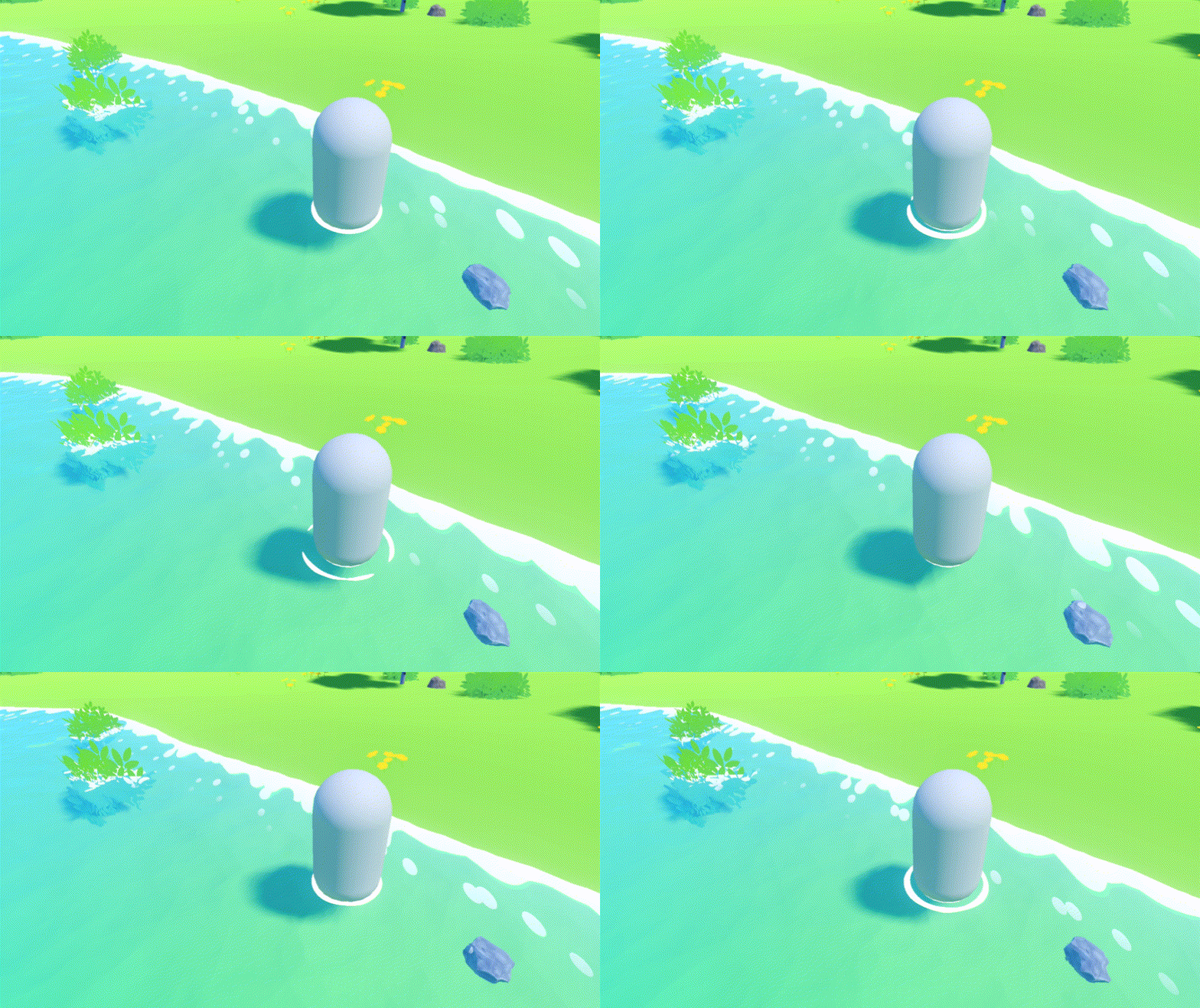
- Opacity: Connect a Depth Fade node to the Opacity input to create a soft blend where water meets the shore, avoiding harsh intersections.
- Wave Motion: Use Panner nodes to scroll two different normal maps in varied directions. Combine them to create a dynamic, non-repeating ripple effect.
- Vertex Displacement (WPO): Use Sine waves in the World Position Offset input to physically move the mesh vertices up and down for 3D waves.
- Shoreline Foam: Use the Depth Fade output as a mask to apply a white “foam” color or texture specifically where the water intersects with objects.
- Reflections: Adjust Specular and Roughness values to achieve a stylized sheen. Avoid high-frequency realistic reflections to maintain a “toon” look.
UE5 Water Shader Node Setup for Stylized Materials
Efficiency and organization are critical when building complex water graphs.
- Depth and Color: The Fresnel node is essential for edge highlights based on the camera angle. Scene Depth comparisons allow the water to darken or change tint based on actual underwater distance.
- Refraction: Use Pixel Normal Offset to let the normal maps distort the view of objects submerged under the water surface.
- Optimization: Perform UV panning in the vertex shader where possible to save pixel shader costs. Use Material Functions to package repetitive math like wave equations.

Best Material Nodes for Stylized Water in UE5
| Node | Purpose for Stylized Water |
| Depth Fade | Blends intersections and masks shoreline foam. |
| Fresnel | Creates artistic rim highlights and viewing-angle color shifts. |
| Panner | Animates textures to simulate flowing or rippling water. |
| Sine/Cosine | Generates procedural wave oscillations for movement and displacement. |
| Lerp | Blends between shallow/deep colors or foam/water textures. |
| DistanceToNearestSurface | Creates uniform foam outlines using Global Distance Fields. |
How to Use Depth Fade for Stylized Water in UE5
The Depth Fade node is the primary tool for handling intersections.
- Soft Edges: By setting a Fade Distance (e.g., 100 units), the water becomes gradually transparent as it nears a solid object, simulating shallow depths.
- Foam Masking: Inverting the Depth Fade output (using a 1-x operation) creates a mask specifically for the intersection line. This mask can be plugged into the Emissive channel to create a glowing stylized border.
- Distortion: Adding a Noise texture to the Depth Fade input can make the shoreline appear irregular and organic rather than a perfect geometric line.
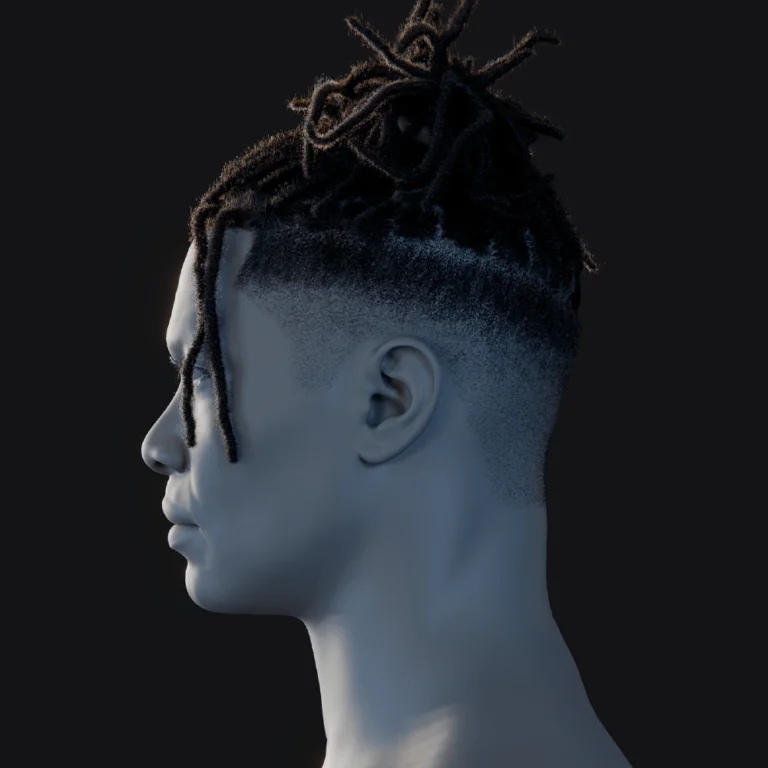
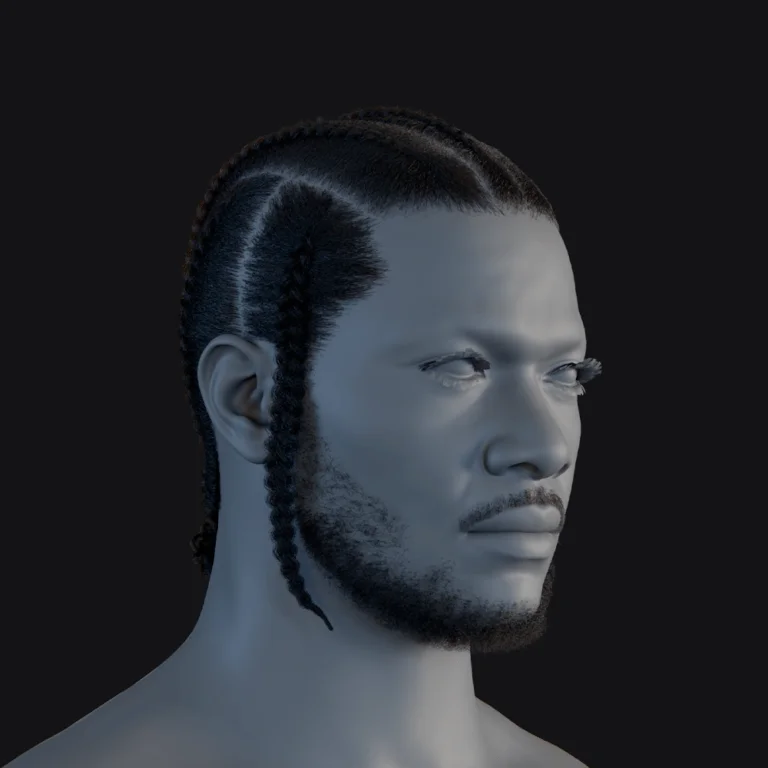
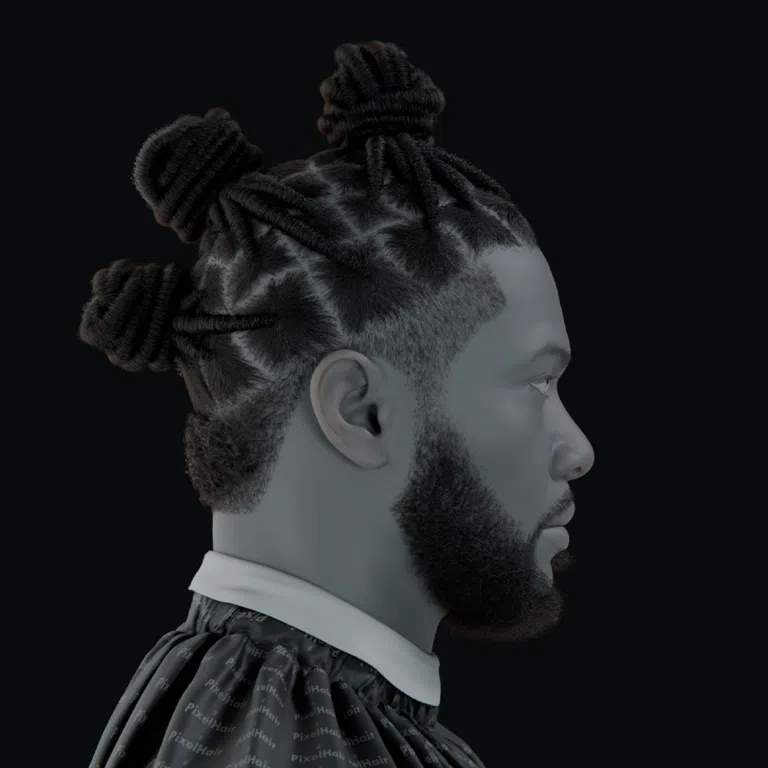
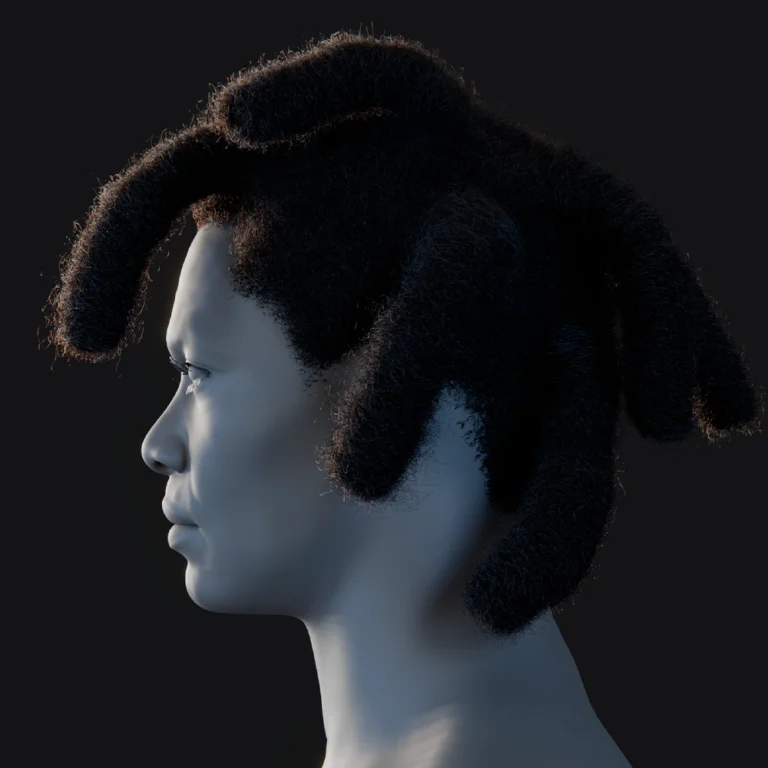
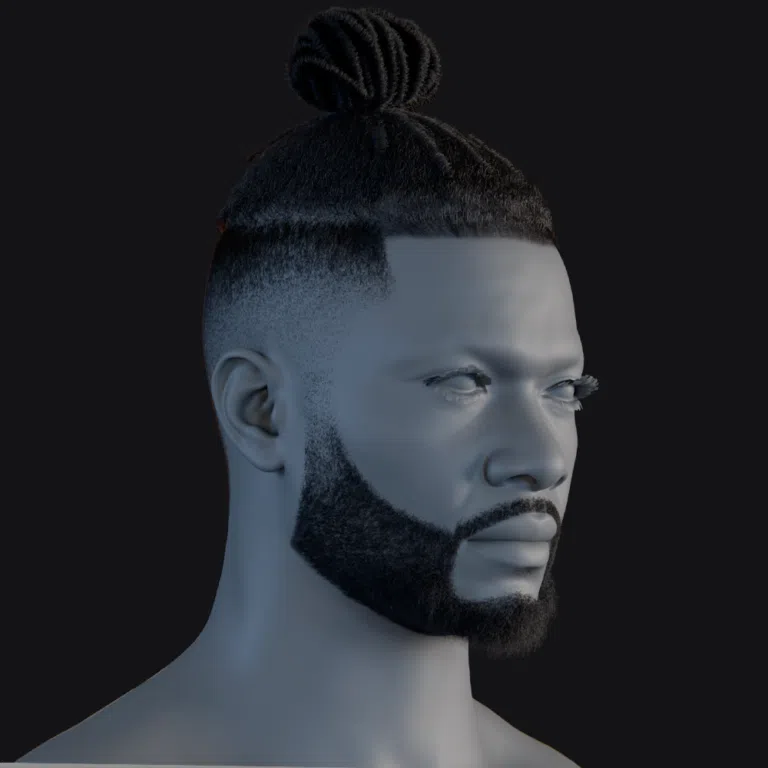
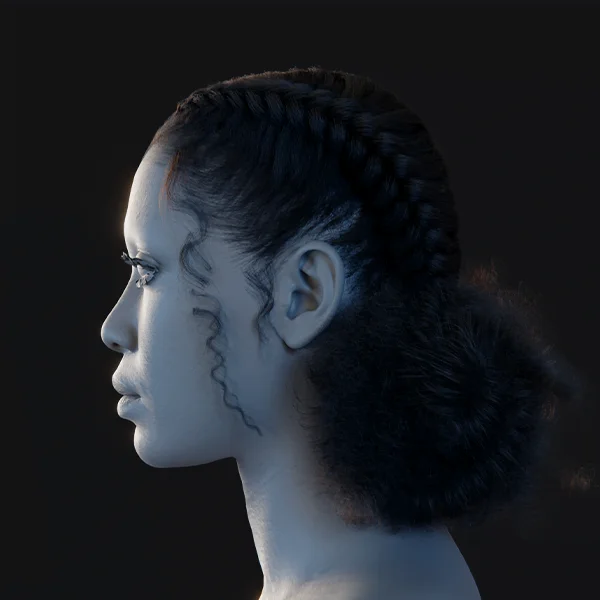
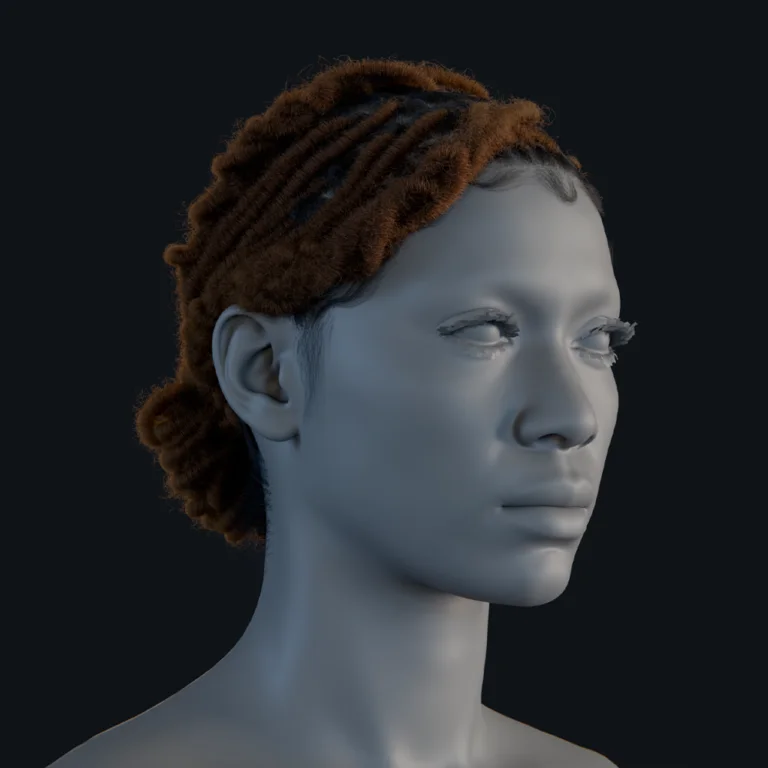
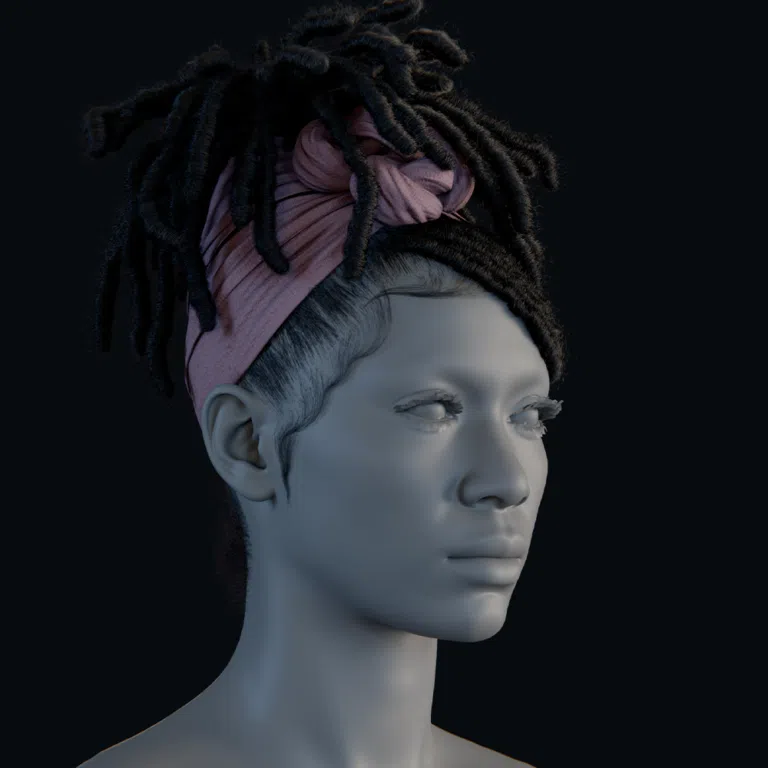
In summary, PixelHair is an excellent resource to quickly get high-quality hair on your characters, which can complement your stylized water scenes by bringing the character quality to the level of the environment. The developer Yelzkizi is actively improving it (with geometry nodes integration on the horizon), which means it will become even more flexible. By using PixelHair, you avoid the common pitfall of “everything looks good except the character’s hair,” since hair can be notoriously tricky. Instead, your characters will stand proudly in those beautiful water scenes, their hair flowing or resting naturally and looking great from all angles.

How to Capture Stylized Water Cinematics Using The View Keeper in Blender
The View Keeper is an add-on by Yelzkizi designed to simplify camera management by storing multiple camera views and settings within a single camera object. This tool is highly effective for pre-visualization or creating final cinematic sequences in complex water scenes.
What The View Keeper Does
- Consolidated Camera Data: It stores unlimited camera angles (shots) on one camera, allowing for instant switching between them.
- Per-Shot Customization: Each stored view maintains its own lens settings, depth of field (DOF), guides, and aspect ratios.
- Scene Organization: It acts like multiple virtual cameras without cluttering the Blender scene with numerous camera objects.
Setting Up Shots
To organize a sequence, such as a scene with a waterfall and character:
- Positioning: Adjust the camera for a wide establishing shot using standard controls.
- Saving: Store the current transform and settings as a named shot (e.g., “Shot1_Wide”).
- Iteration: Move to a new angle, such as a low surface shot, and save it as “Shot2_LowAngle.”
- Review: The add-on interpolates the camera to each stored position, allowing users to quickly check continuity and composition.
Precise Camera Control
- DOF Management: The add-on allows for precise, locked focus settings per shot. You can use a narrow DOF for close-ups of water ripples and a wide focus for expansive environment shots without losing previous configurations.
- Experimentation: This per-shot memory allows users to experiment with different camera settings freely.

Batch Rendering Shots
- Efficiency: The View Keeper can automatically render multiple shots in one sequence.
- Frame Ranges: Users can specify frame ranges for each shot (e.g., frames 1-100 for Shot 1, 101-200 for Shot 2), and the add-on will render them consecutively, switching camera settings automatically.
- Elimination of Manual Tasks: This feature removes the need to manually move cameras or set complex keyframes for each cut.
Focus on Creativity
- Workflow Speed: By keeping shots organized and easy to iterate, the tool allows users to focus on composition and creativity rather than technical camera management.
- Composition Aids: The add-on includes guides like the rule of thirds and safe areas to help refine shots.
Use Case – Stylized Water Scene Cinematics
- Animated Moves: Stored positions can serve as key poses. By keyframing the camera at the positions stored in Shot 1 and Shot 2, users can create smooth transitions that match their planned compositions perfectly.
- Static Cuts: For non-animated cuts, shots can be rendered as separate segments.
Blender to Unreal Cinematics
- Pre-visualization: While a Blender tool, it is useful for blocking out Unreal Engine scenes. Users can plan angles in Blender and then reproduce the coordinates or framing by eye in Unreal’s Sequencer.
- Final Rendering: If the water scene is being rendered directly in Blender (using Eevee or Cycles), the add-on simplifies the entire production process.
In summary, The View Keeper is like a director’s best friend within Blender, especially for scenes where you want to experiment with and capture multiple cinematic shots of your stylized environment (water in this case). It removes technical hurdles of camera juggling, enabling you to focus on getting the perfect angles to showcase your beautiful water shader – whether it’s for a game cutscene, a trailer, or an artistic short. By using The View Keeper, you can ensure each shot of your stylized water scene is well-composed and easy to iterate on, leading to a more professional final cinematic product.
The following summary outlines professional best practices for developing and managing stylized water within Unreal Engine 5 (UE5) and Blender.

The View Keeper for Blender Cinematics
The View Keeper add-on acts as a virtual director, allowing creators to experiment with multiple cinematic angles without the technical burden of managing numerous camera objects.
- Shot Iteration: It enables quick switches between stored views to ensure each frame effectively showcases the water shader.
- Professional Output: Using this tool leads to a more polished final product by simplifying the transition between wide establishing shots and detailed close-ups.
Final Tips for Creating Professional Stylized Water in UE5
To achieve a high-quality stylized aesthetic, follow these foundational principles:
- Reference and Research: Study both real-world water behavior (light glints, depth transitions) and stylized interpretations in games like The Legend of Zelda: Wind Waker or Genshin Impact to guide your artistic exaggerations.
- Iterative Feedback: Test water in context with characters and lighting. Small adjustments to wave speed or opacity can significantly prevent the water from looking “too solid.”
- Optimization Strategy: Prioritize the visual target first, then optimize. Use the Shader Complexity view to ensure performance remains stable, and consider toggles for expensive features like distance field foam.
Leveraging UE5 Features
- Lumen: Utilize Lumen for global illumination and reflections to create ambient lighting, such as colored light bouncing from the water onto environment assets.
- Nanite: Use Nanite for complex underwater geometry (rocks, ruins) to maintain high visual fidelity without sacrificing performance.
- Water Body System: For rivers or oceans, use built-in Water Body actors for automatic buoyancy and spline-based paths, then apply your custom stylized material.

Enhancing the Experience
- Audio and Particles: Sell the “feel” of the water with matched audio (lapping or rushing sounds) and particle effects for splashes and foam bursts.
- Consistency: Ensure all water types (swamps, ponds, oceans) follow a cohesive art direction, using unified techniques for Fresnel and foam.
- Underwater Effects: Implement post-process volumes for color shifts or distortion when the camera is submerged.
Technical Management
- Material Instances: Never apply a master material directly. Use Material Instances for real-time tweaking in different levels or biomes (e.g., a “Night” vs. “Day” instance).
- Documentation: Clearly name and document parameters (e.g., “EdgeBrightness” or “FoamToggle”) to assist team members and future-proof the project.
- Stress Testing: Test the shader under extreme lighting (sunset) and camera angles (top-down) to ensure the Fresnel and color effects remain robust.
By following these final tips, you’ll be well-equipped to create a stylized water that not only looks great on a technical level but also contributes strongly to the aesthetic and mood of your project. Water can be one of the standout features of a game’s visuals – players often stop to admire a beautiful water scene. With the knowledge you’ve gathered and careful attention to detail, your stylized water can achieve that “wow” factor while seamlessly fitting into the world you’ve built.
This summary addresses 10 frequently asked questions regarding the optimization, visual enhancement, and technical implementation of stylized water shaders in Unreal Engine 5.

Frequently Asked Question (FAQs)
- How do I make my stylized water shader use less GPU power?
Optimize by using the SingleLayerWater shading model and simplifying expensive features. Reuse noise textures to reduce texture samples, move calculations to the vertex shader, and prioritize Depth Fade over distance field foam. To manage performance, use a single large water plane to minimize overdraw and implement LODs or culling for distant water. - My water looks too dull at night – how can I improve it?
Add a low-intensity blue emissive glow to simulate moon reflection or bioluminescence. Ensure sky lighting and reflection captures contribute light to the surface, and slightly increase Roughness so the water doesn’t perfectly mirror a dark sky. Using a specific material instance for night scenes with adjusted base or scattering colors can maintain readability. - How can I add interaction like ripples when a character walks through water?
Use a Niagara system with a render target approach to spawn particles at the character’s feet that write to a height or normal map. This map is then sampled in the water material to create ripples. A simpler, non-physical alternative is spawning animated ripple decals or textures at the point of contact via Blueprints. - Is it possible to get caustics (light patterns) on the bottom of my water?
Yes. With SingleLayerWater, use the ColorScaleBehindWater input to project a moving caustic texture, such as tiling Voronoi noise. For other shading models, you can fake the effect using light functions or animated decals placed on the floor beneath the water. - My translucent water isn’t showing reflections with Lumen – what can I do?
Lumen reflections work with SingleLayerWater, though a known quirk forces mirror-like reflections regardless of roughness. To manage this, keep roughness low and use the Specular input to dim intensity. For default lit translucency, ensure “Receive SSR” is enabled, or rely on cheaper Reflection Captures for a cartoon aesthetic. - Can I use Unreal’s Water Body system for stylized water?
Yes. Water Body actors (oceans, lakes, rivers) provide spline-based surfaces and buoyancy logic. You can override the default material with your stylized one in the actor settings. This hybrid approach allows you to use the system’s shoreline foam and wave logic while maintaining your specific art style. - What’s the easiest way to do a shoreline fade between water and land?
The most straightforward method is using the Depth Fade node plugged into Opacity. This creates a smooth transparency gradient at intersections. For more uniform foam outlines on varying slopes, combine Depth Fade with DistanceToNearestSurface (distance fields). - My water foam (white outline) looks pixelated or has seams – how can I fix that?
This is often caused by UV distortion or mipmap settings. Set the foam texture sample’s MipValueMode to “MipLevel” and adjust the bias. Ensure your foam texture has sufficient resolution and proper tiling. If using distance fields, smoothing the field or combining it with Depth Fade can improve consistency. - How can I control wave size and speed easily?
Create a parametric material by exposing scalars for Wave Amplitude (height), Wave Length (frequency), and Speed (time multiplier). For normal maps, include a parameter for UV scaling. Using Material Instances allows you to tune these values in real-time for different environments, such as a calm pond versus a choppy sea. - What’s the benefit of using PixelHair for my characters in a stylized scene?
PixelHair provides high-quality, ready-made grooms that save time and integrate with UE5’s Groom system. Even in stylized scenes, detailed hair movement adds visual appeal and professional contrast. Future updates involving geometry-node-based hair will increase the versatility of these assets, ensuring character quality matches environment fidelity.
Conclusion
Stylized water in UE5 offers a wonderful blend of technical and artistic opportunities. By understanding the core concepts – from what stylized water is and how it differs from realistic water, to the step-by-step creation of shaders involving depth fades, fresnel-based color gradients, panning normals, and world position offset waves – you can craft water that perfectly fits your game’s aesthetic. We’ve explored how to add essential touches like foam lines, shoreline effects, animated ripples, and refraction to give the water depth and life, all while keeping performance in check with optimization techniques like single-layer water and efficient material setups.
Remember that achieving a professional result often lies in the details: using Depth Fade to seamlessly blend water with the environment for a clean shoreline, leveraging tools like PixelHair to ensure characters in the scene look just as polished as the water, and employing camera aids like The View Keeper to capture your water in the best light and angle for cinematics. Each element – color, movement, interaction, and integration – plays a role in selling the illusion of your stylized world.
As you implement your stylized water shader, continue to iterate and refine. Use material instances to test different looks (tranquil turquoise lagoon vs. misty green swamp), adjust wave speeds or foam intensity to match the mood, and profile the shader to avoid any performance hiccups in your target platform. Don’t hesitate to draw inspiration from other stylized works and real-world phenomena – perhaps the gentle ripples of a koi pond or the bold, graphic waves of a ukiyo-e print inspire your style.
In UE5, you have a powerful toolbox at your disposal. With smart use of Unreal’s features and a clear artistic vision, you can create water that is not only visually stunning on its own but also elevates the entire atmosphere of your game or scene. Whether your water is the serene heart of a landscape or a dynamic stage for gameplay, it will significantly contribute to the player’s immersion.
By following this complete guide – understanding the principles, applying the techniques, and heeding optimization and polish tips – you are well on your way to creating real-time cartoon water effects that look professional and captivate players. Happy shading, and may your stylized waters flow beautifully in Unreal Engine 5!
Sources and Citation
- Jess Hider – “Depth Fade: Stylized Water” (UE4 Tutorial)
https://jesshiderue4.wordpress.com/materials/stylized-water-material/ - Kolja Bopp et al. – “How To Build Stylized Water Shader: Nimue” (80 Level, 2025)
https://80.lv/articles/how-to-build-stylized-water-shader-design-implementation-for-nimue/ - Unreal Engine Forums – Distance Field Based Foam (2019 Discussion)
https://forums.unrealengine.com/t/distance-field-based-foam-for-water-shader/133034 - Unreal Engine Forums – “Highlight edges at mesh intersections?” (Ryan Brucks, 2015)
https://forums.unrealengine.com/t/highlight-edges-at-mesh-intersections/33059 - BlenderArtists – “PixelHair for Blender” (Yelzkizi, 2023)
https://blenderartists.org/t/pixelhair-for-blender/1462285 - Yelzkizi – PixelHair MetaHuman Tutorial (Instagram, 2024)
https://www.instagram.com/yelzkizi/
(Direct post URLs vary — best to link profile unless you have the exact post ID.) - Yelzkizi – “The View Keeper – Camera Management Addon” (ArtStation, 2024)
https://www.artstation.com/marketplace/p/0K6y/the-view-keeper-camera-management-addon - 80 Level – Stylized Water Reference & Comparisons (RiME, Wind Waker, etc.)
https://80.lv/articles/stylized-water-in-games/ - MinionsArt – Interactive Water / Ripple Tutorials (Unity & UE concepts)
https://minionsart.github.io/tutorials/water/
(Also often referenced via Twitter/X threads and 80.lv breakdowns.) - PrismaticaDev – 5-Minute Materials (YouTube Series)
https://www.youtube.com/c/PrismaticaDev
(No single page — link to channel or specific episode if cited.)
Recommended
- A Kratos-less God of War Spin-Off Is In The Works: Latest Rumors, Leaks, and What We Know So Far (March 2026)
- Intergalactic Reveal Trailer Breakdown: First Look at Naughty Dog’s Sci-Fi Epic “The Heretic Prophet”
- Why Hair Grooming Takes So Long and How to Speed It Up
- Wonder Dynamics: VFX with AI-Powered Wonder Studio
- The Outer Worlds 2 – Release Date, Platforms, Gameplay, Story, and Everything We Know
- DualSense Touchpad Support in UE5: Setup, Input Mapping, and Troubleshooting Guide
- How Do I Add a Camera to My Blender Scene?
- The Animal Crossing Where Villagers Bully You Is Now (Unofficially) Available On PC: How It Works, Download Guide, and What’s Different
- How to Use Mesh to Metahuman for AAA Digital Doubles in Unreal Engine 5
- Skin Texturing in Substance Painter: How to Create Realistic Digital Skin Step by Step