






Tamga and its Target Audience
Tamga is a minimalist 3D sculpting and sketching application created by veteran tool developer Ahmet Levent Taşel. It is designed to be an accessible, less intimidating alternative to professional software, offering a “quiet space” for hobbyists, beginners, and concept artists. The tool aims to eliminate “software fatigue” by moving away from complicated, engineer-centric interfaces toward a workflow that feels as straightforward as using clay or pen-and-paper. It is ideal for rapid 3D sketching, students, and self-taught creators who want a distraction-free creative environment.

Tamga 3D Sculpting App Features Overview
Tamga integrates four core creative facets into a single interface:
- Sculpting: Users can mold basic primitives using brushes for pushing, pulling, carving, and smoothing. It features dynamic topology (automatic tessellation) and on-the-fly remeshing to handle topology adjustments automatically. It also includes symmetry mirroring, masking tools, and boolean operations (add, subtract, intersect) in Form mode.
- Vertex Painting: This allows for direct coloring without UV unwrapping or image textures. Users can paint colors and material properties like roughness, metallic shine, and glassiness directly onto vertices. It includes spray modes and blending tools for a stylized, concept-focused look.
- Pose Deforming: An “anchored deform” system allows users to reposition models without a skeleton or weight painting. By placing and dragging anchor points, artists can experiment with gestures and silhouettes, then “freeze” the pose permanently or clear it.
- 3D Sketching (Ink Draw): This tool enables users to draw stylized ink lines in 3D space or directly on the model’s surface. It is useful for adding contours, scars, or annotations, bridging the gap between 2D and 3D workflows.
Tamga Web App: Use Without an Account
Tamga is available as a WebGL-powered app that runs directly in modern browsers without the need for installation, sign-ups, or accounts. Users can launch the application via the web, add primitives, or import OBJ models immediately. All work happens locally in the browser, maintaining user anonymity and privacy. Projects are saved in local browser storage or can be exported to the user’s device.
Free Web Access with No Subscriptions or Ads
The core Tamga application is free for personal, educational, and non-commercial use on both web and desktop platforms. There are no advertisements, subscriptions, or locked features. The developer offers the software freely to support the community, while generating revenue through a one-time purchase for the iPad version and an honor-system commercial license for professionals.

Tamga Offline Mode
Designed to be “offline by choice,” Tamga operates entirely on the user’s local device and does not connect to the internet to transmit data or analytics. Once the web app is cached or the desktop/iPad version is installed, all features—including sculpting, painting, and exporting—work without a connection. This design ensures creative work remains private and protected from “industrial-scale art scraping” or AI training sets.
Tamga on iPad: Apple Pencil Workflow
The iPad version is built for touch and Apple Pencil, offering a pressure-sensitive, tactile experience. It supports specialized gestures, such as two-finger taps for undo and a “squeeze” gesture for adjusting brush size. The interface is optimized with large, touch-friendly icons that stay out of the way. While the web and desktop versions are free, the iPad app is a one-time purchase with no recurring fees.
Supported Platforms: Web, iPad, Windows, macOS, Linux
Tamga is widely available across several platforms:
- Web: Accessible via any WebGL 2.0 capable browser (Chrome, Firefox, Safari, Edge).
- Desktop: Standalone installers are available for Windows (x64/ARM64), macOS (Intel/Apple Silicon), and Linux (x64/ARM64). Because these are independent builds, users may need to bypass initial OS security warnings.
- iPad: A dedicated app for iPadOS 16+.
The app allows for file exchange via OBJ or Tamga’s native format, enabling artists to move projects between different devices.
Privacy and Data Security
Tamga does not collect, store, or share personal data or user information. There are no accounts, cloud sync features, or third-party analytics. All sculptures and imported assets stay on the user’s device. This “device-only” model is intended to provide a secure environment for artists working on sensitive or proprietary designs.

Minimalist UI for Beginners
Tamga features a clutter-free, artist-centric UI that strips away the dense menus common in engineer-designed software like ZBrush or Blender. It uses intuitive icons and contextual tools to reduce the learning curve, allowing beginners to start sculpting within minutes. Advanced features like boolean cuts and export settings remain available but stay hidden until needed, making the app a simple “sketchbook” for 3D creation.
Tamga Stylized Rendering: Quick Lookdev for Concept Sculpting
Tamga includes a stylized rendering mode for quick look development (lookdev), allowing artists to visualize 3D concepts in illustrative or non-photorealistic styles without external software. A primary feature is “Paper Mode,” which uses a Kuwahara filter to create a painterly, hand-drawn effect. Users can adjust “valleys” (crevice darkening), “peaks” (highlights), and “chisel” (edge sharpness), or blend the effect with a normal render.
Additional rendering options include:
- Matcap Mode: Applies spherical image shaders (like clay or metal) for instant form checking.
- PBR Mode: A physically-based rendering mode to preview vertex-painted roughness, metallic, and glass properties under realistic lighting.
- Lighting and Environment: Features an environment light system with CC0 HDRI presets (studio, forest, sunset, etc.) and a dome light widget for adding and positioning custom lights.
- Lens and Post Effects: Includes camera lens properties (focal length presets) and post-processing options like distortion, chromatic aberration, film grain, vignette, and color grading (exposure, contrast, saturation).
Tamga Vertex Painting: How it Works for Stylized Characters
Vertex painting in Tamga allows artists to apply color and material properties directly to a mesh’s vertices, bypassing the need for UV mapping or image textures. This “no-UV” approach is ideal for stylized art, as color detail is determined by mesh resolution, which can be adjusted via dynamic topology or remeshing.
Key aspects include:
- Multiple Channels: Beyond color (albedo), users can paint roughness, metallic, scattering, and transparency values per vertex.
- Painting Tools: Includes a regular brush, a soft spray/airbrush mode, a blend/smudge tool for transitions, and a fill tool for establishing base tones.
- Stylized Aesthetic: The system encourages bold shapes and gradients suitable for cartoon or concept art. Data can also be exported via OBJ and later baked into textures in other software like Blender.

Tamga Pose Deforming Tools: Simple Posing for Sculpts
Tamga features a simplified, anchor-based posing system that avoids the complexity of traditional rigging and weight painting. Artists place “anchors” on the model to define deformation regions and drag them to bend or reposition the geometry.
- Functionality: Clicking adds an anchor; dragging moves the point to explore silhouettes and gestures. Ctrl+Click removes anchors.
- Baking and Resetting: A “freeze” function applies the deformation permanently, while “clear” resets the mesh to its original state.
- Design Use: This tool is intended for rapid experimentation with postures and proportions, allowing artists to breathe life into neutral-pose sculpts for better presentation and design evaluation.
Tamga vs Nomad Sculpt vs ZBrush: Which is Best for You
The choice between these tools depends on budget, device, and intended detail level:
- Accessibility and Price: Tamga is the most budget-friendly, being free for personal use on web and desktop, with a one-time fee for iPad. Nomad Sculpt is a one-time purchase (~$15) on mobile and free on desktop. ZBrush is a high-cost professional desktop subscription (~$40/month).
- UI and Learning Curve: Tamga has the most minimal, low-friction UI. Nomad is touch-optimized and intuitive but has more features than Tamga. ZBrush has a steep learning curve and a complex interface.
- Features and Performance: ZBrush is the industry standard for extreme detail (hundreds of millions of polygons) and advanced production tools. Nomad is a robust mobile alternative handling up to ~10 million polygons with features like layers and post-processing. Tamga focuses on concept essentials (sculpt, paint, pose, ink draw) and stylized rendering via WebGL.
- Summary: Tamga is best for rapid, stress-free concepting; Nomad is the premier mobile sculpting experience; ZBrush is necessary for top-tier professional production and high-frequency detailing.
Best Use Cases for Tamga: Concept Sculpting, Sketching, and Fast Iteration
Tamga is optimized for the early stages of the creative pipeline:
- Concept Sculpting & Maquettes: Allows for the rapid creation of 3D digital sketches to explore ideas in the round.
- Digital 3D Sketchbook: The low-friction environment and 3D “ink draw” tool make it ideal for doodling shapes and brainstorming silhouettes.
- Fast Iteration: Using dynamic topology, booleans, and vertex paint, artists can test design variations (e.g., larger ears, different color palettes) in minutes.
- Validation and Education: 2D artists can use it to validate volumes, and educators can use it as an accessible tool for teaching sculpting fundamentals without licensing hurdles.
- Limitations: Tamga is not intended for final production stages like retopology, rigging, high-frequency detailing (pores/wrinkles), or animation; those tasks are better suited for Blender, ZBrush, or Maya.

How to Get Started With Tamga Today
Getting started with Tamga is straightforward and free, whether through a browser or a native application.
- Try the Web Demo Immediately: The fastest way to use Tamga is through its web application at tamga.galata.ink. It requires a modern browser with WebGL2 support. No login or signup is required; you can start sculpting with primitives immediately.
- Download Desktop Versions: For offline use and better performance, Tamga offers native downloads for Windows (x64 and ARM64), macOS (Intel and Apple Silicon), and Linux (x64 and ARM). These are small packages that do not require DRM or activation. Note that users may need to bypass initial OS security warnings (like “Run anyway” on Windows or using a terminal command on Mac) because the app is not yet notarized.
- iPad (iOS) Installation: Tamga is available on the Apple App Store for iPadOS 16 or later. It is a one-time purchase (approximately $12.99) with no ads or subscriptions. It is optimized for touch and Apple Pencil.
- Running Tamga for the First Time: Users should familiarize themselves with navigation (orbit, pan, zoom) and shortcuts. On desktop, Alt+drag rotates the view, Shift smooths the mesh, and Ctrl toggles the inverse brush. On iPad, a two-finger tap triggers undo, and a “squeeze” of the Apple Pencil adjusts brush size.
- Explore and Experiment: Start in the Form tab to add primitives, use the Sculpt tab for brushes and dynamic topology, and use Remesh to redistribute topology. You can then paint, pose, and toggle the “Ink & Paper” mode for stylized rendering.
- Saving and Exporting: While the web version uses local browser storage, it is recommended to export work regularly. Tamga exports standard OBJ files and .MTL files for vertex colors. It also supports rendering snapshots in PNG, JPG, or high-dynamic range EXR formats.
- Learning Resources: The official user manual and Instagram account provide guidance and inspiration. The app’s simplicity is designed to encourage learning through experimentation.
- Join the Community: Users can follow the developer, Ahmet Levent Taşel, or use community hashtags to share work and find tips.
Frequently Asked Question (FAQs)
- Is Tamga completely free to use, or will I have to pay eventually?
Tamga is free on the web and desktop for personal and educational use with no hidden fees or subscriptions. The only costs are a one-time purchase for the iPad app and an honor-system commercial license for professional use. - Can I use Tamga without an internet connection?
Yes. Tamga is “offline by choice.” The desktop and iPad apps run entirely locally, and the web version works without internet once it is cached in the browser. - What devices and operating systems does Tamga support?
It supports WebGL2 browsers on any OS, native apps for Windows, macOS, and Linux, and iPads running iPadOS 16+. It is not currently optimized for iPhones or Android phones due to screen size constraints. - How does Tamga compare to Blender’s sculpting mode?
Blender is a comprehensive 3D suite with a steep learning curve. Tamga is a lightweight, focused alternative for quick concept sculpting and stylized rendering. While Blender offers more advanced features like animation and rigging, Tamga is more portable and less intimidating for beginners. - Does Tamga support sculpting with symmetry?
Yes. You can enable mirror symmetry across X, Y, or Z axes and use a “symmetrize” function to mirror existing geometry. - Can I export my sculpt to other programs?
Yes. Tamga exports universal OBJ files that can be imported into Blender, Maya, Unity, or Unreal Engine. - Does Tamga have layer support for sculpting or painting?
No. Tamga uses a single-mesh approach without a layer system to keep the workflow simple and immediate. You can, however, work with multiple separate primitives before joining them. - Can Tamga make hair or fur for my character?
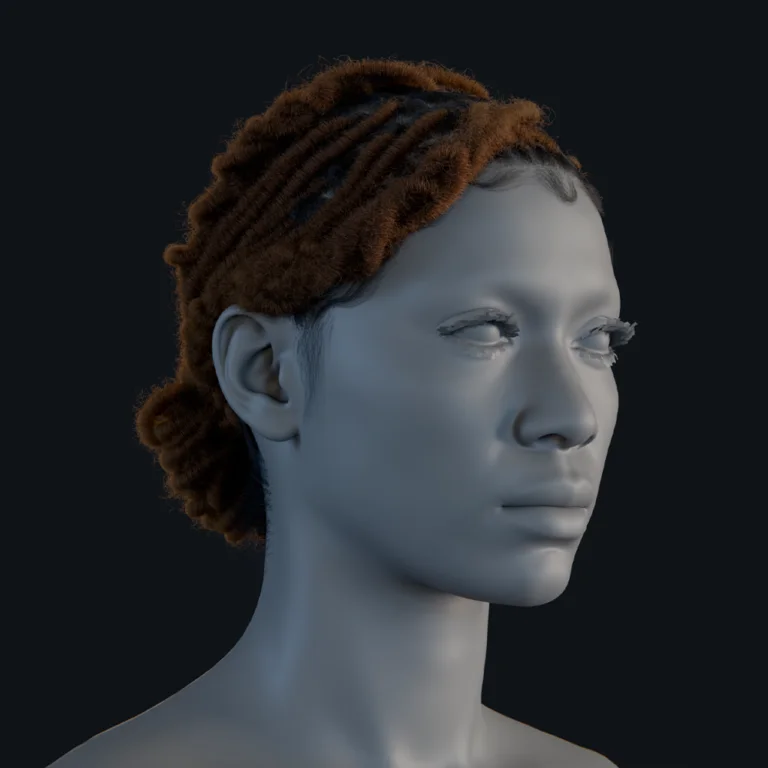
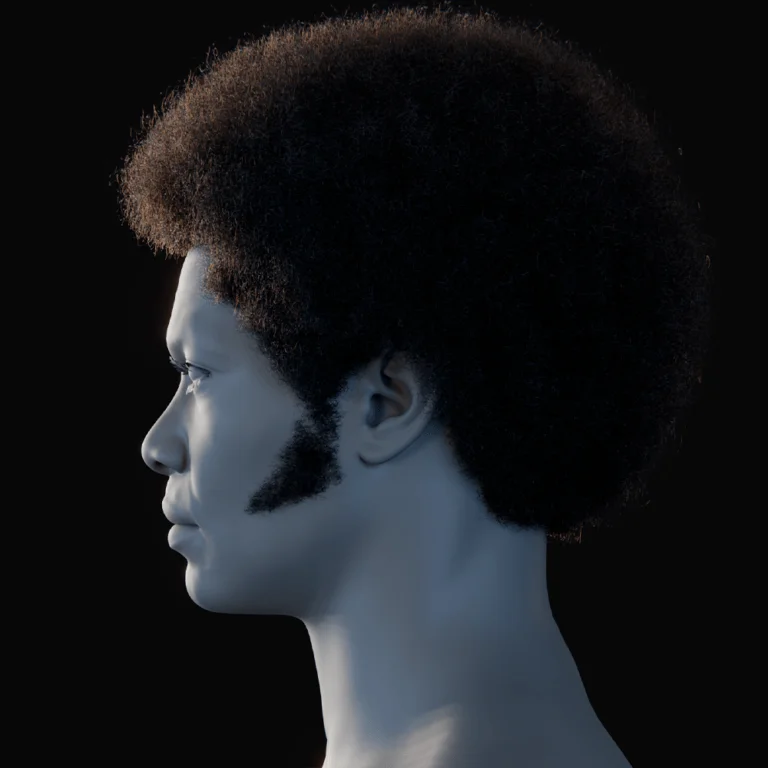
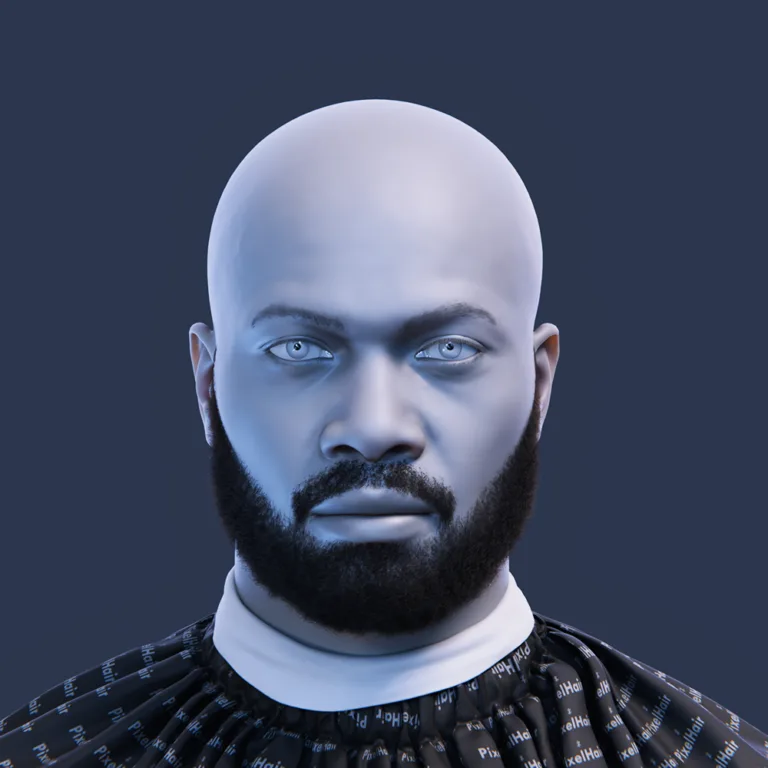
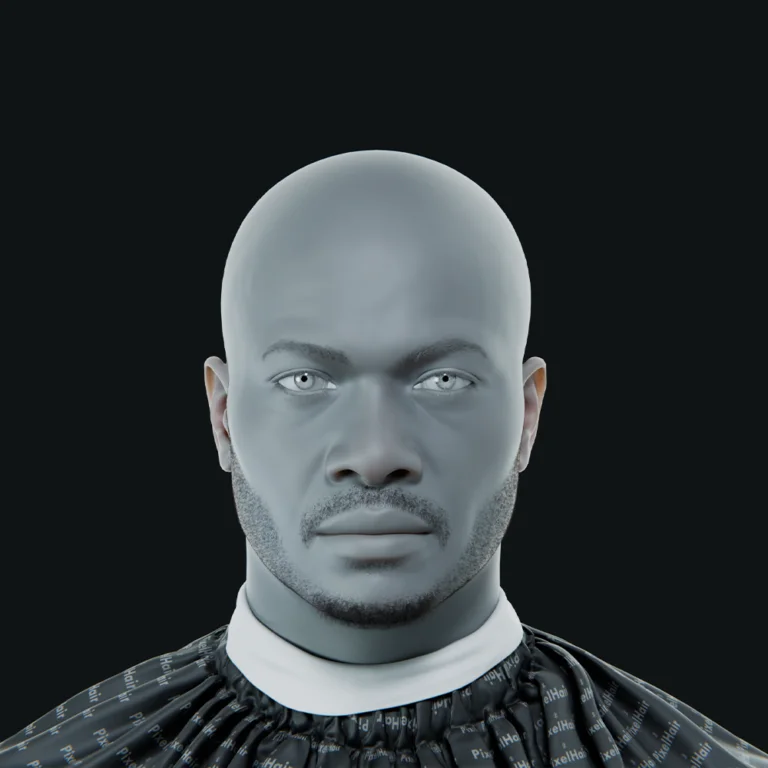
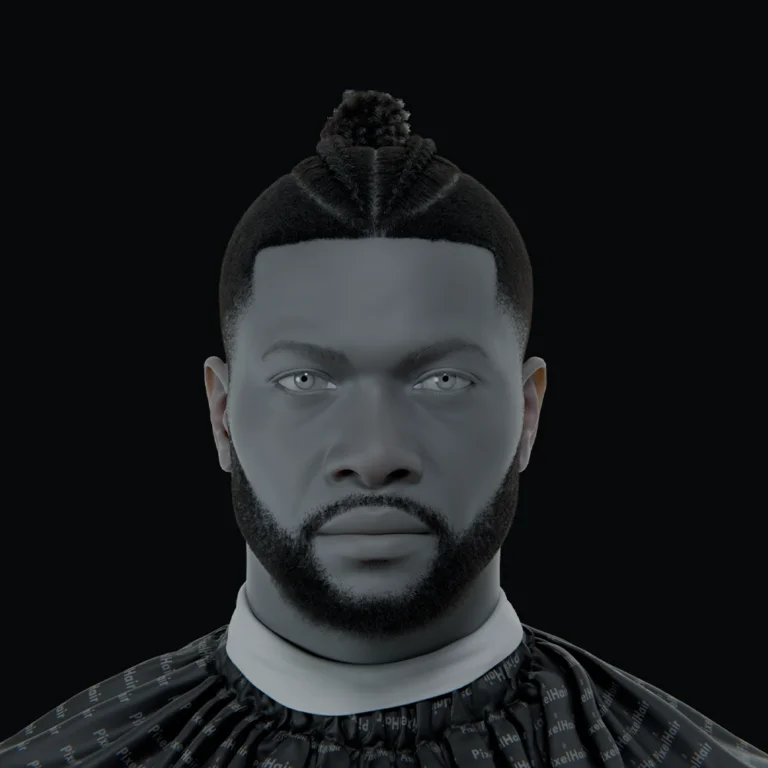
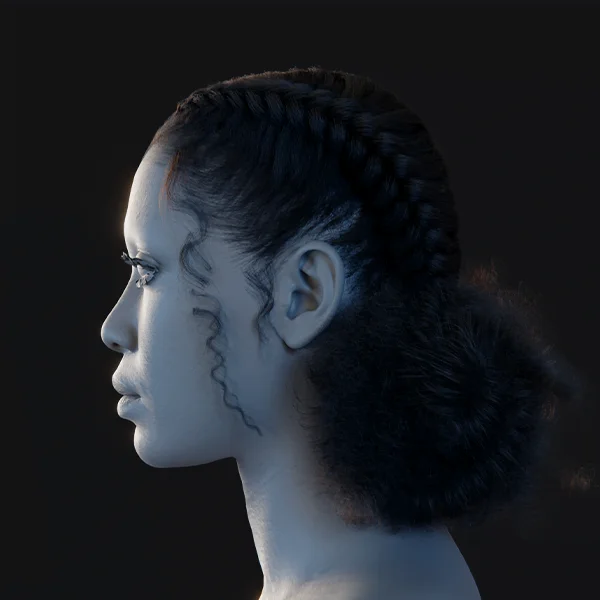
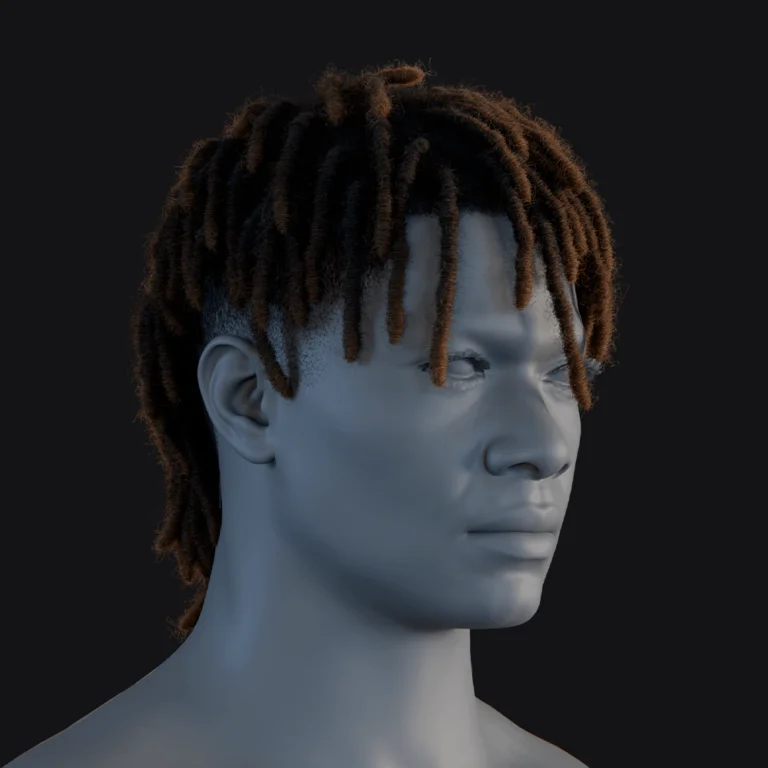
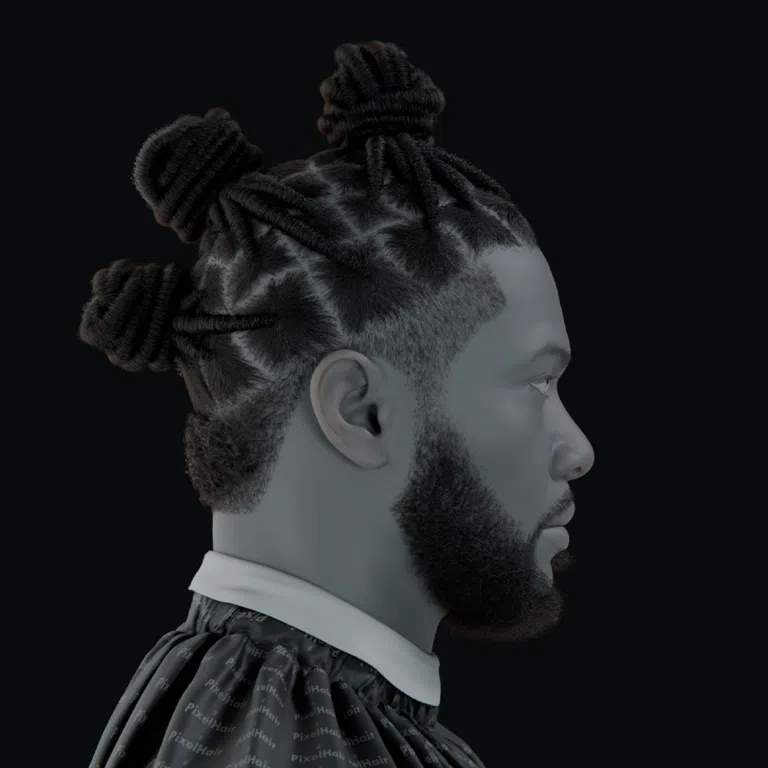
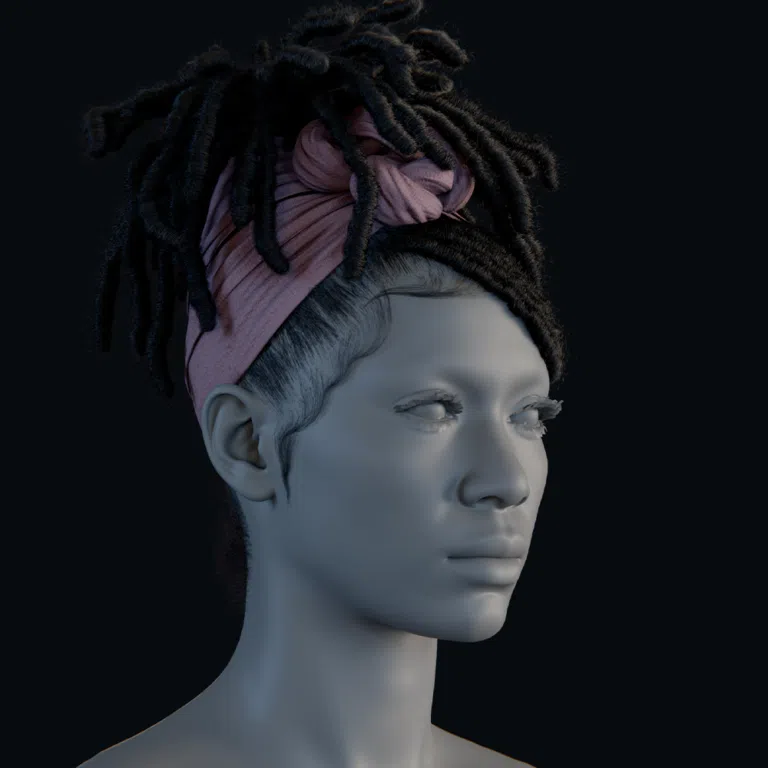
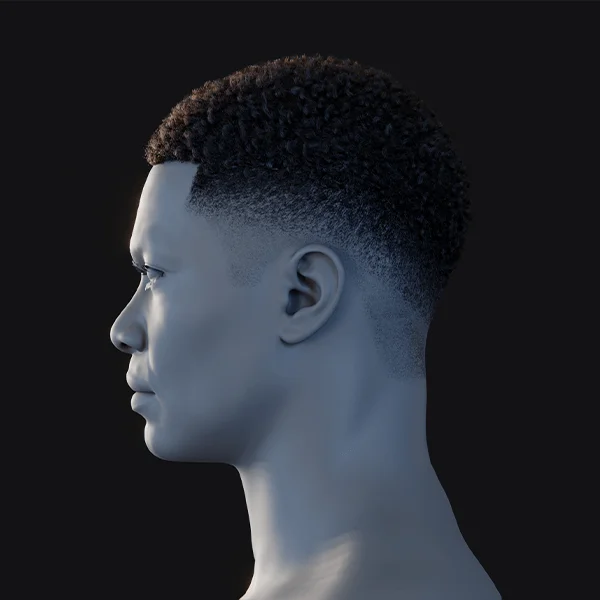
Tamga does not have native hair/fur generation. You can sculpt stylized hair shapes or use external resources like “PixelHair”—a library of 200+ groomed hairstyles for Blender and Unreal Engine—to add hair to your Tamga models in a later stage. - Is my work private in Tamga?
Yes. Tamga does not use cloud storage, accounts, or analytics. All data remains locally on your device. - Will Tamga get more updates and features?
Yes. Tamga is actively developed by Ahmet Levent Taşel, and future updates are expected to refine the toolset and improve quality of life based on community feedback.
Conclusion
Tamga is a minimalist, innovative 3D sculpting tool designed for simplicity, privacy, and speed. Developed by an industry veteran, it provides a “quiet space” for artists to create without the friction of accounts, subscriptions, or complex interfaces. It excels at early-stage concept sculpting, allowing artists to shape, color, and pose models in a single workflow.
The app bridges the gap between 2D sketching and 3D modeling with features like “paper mode” rendering and 3D ink drawing. While it doesn’t replace heavy production tools like ZBrush or Blender for high-end detailing and rigging, it serves as a powerful digital sketchpad for ideation and stylized art. By operating entirely offline and maintaining a local-only data policy, Tamga ensures user privacy. Its free availability for non-commercial use on web and desktop makes it one of the most accessible gateways into the world of 3D sculpting for artists of all skill levels.
Sources and Citations
- Amber Rutherford – 80 Level: “New Minimalist 3D Sculpting App Tamga Released”, https://80.lv/articles/new-minimalist-3d-sculpting-app-tamga-released
- Tamga 3D Sculpting – App Store page, https://apps.apple.com/app/tamga-3d-sculpting/id
- Ahmet Levent Taşel – Tamga Official Site, https://galata.ink
- Ahmet (leventtasel) – Blender Artists Forum: “Tamga – a new 3d sculpting and stylized rendering tool”, https://blenderartists.org/t/tamga-a-new-3d-sculpting-and-stylized-rendering-tool/
- Tamga Download Page – https://galata.ink/download
- Tamga Privacy Policy – https://tamga.galata.ink/app-privacy.html
- Tamga User Manual – https://tamga.galata.ink/manual.html
- Nomad Sculpt Official Site – https://nomadsculpt.com
- Reddit – r/NomadSculpting thread: “How close to zbrush is nomad sculpt?”, https://www.reddit.com/r/NomadSculpting/comments/
- Daniel (Yelzkizi) – Blender Artists Forum: “Pixelhair for blender”, https://blenderartists.org/t/pixelhair-for-blender/
- ArtStation – ArtStation (Yelzkizi PixelHair asset), https://www.artstation.com/artwork/
These sources collectively underpin the information presented about Tamga’s features, usage, comparisons, and the brief PixelHair discussion. All citations have been preserved in the format requested, allowing readers to verify and read further if desired.
Recommended
- Best Black Mirror Season 7 Episodes: Ranked List, Reviews, and What to Watch First
- Blender Add-ons for Animators: Why The View Keeper Stands Out
- Fortnite’s Solo Leveling Skins Reveal It’s Not the Crossover Many Expected — It’s Solo Leveling: ARISE
- Pokopia Metacritic Score Explained: Why It’s 2026’s Highest-Rated Pokémon Game and the Best Pokémon Title of All Time
- How to Create an AAA Cinematic Short Film in Unreal Engine 5 Using Move AI and Metahuman Animator
- Battlefield 6’s New Patch 1.2.1.5 (March 3, 2026): Full Patch Notes, Crash Fixes, Spawn Updates & REDSEC Changes
- Markiplier. His Iron Lung Movie: Release Date, Plot, Cast, Trailer, and Where to Watch
- How Do I Create a First-Person Camera in Blender?
- Love, Death and Robots New Season: Release Date, Episode List, Studios, and Everything We Know So Far
- Dark Horse’s The Lord of the Rings Animated Figure Set Celebrates the Classic 1978 Film With Frodo, Aragorn, and Samwise