








Plasticity 2026.1 Adds New Commands & Improves Old Ones is an accurate summary of what the April 2026 build delivers. Plasticity is positioned by its developer as a creativity-focused solid and surface modeling tool for industrial design, concept work, and game art, and version 2026.1 adds three headline commands PolySplines, Export Hidden Line, and Slot while also improving core modeling, export, scene-management, and device workflows.
What makes this update notable is not just the feature count, but the way the changes connect. PolySplines targets mesh-to-NURBS surfacing, Export Hidden Line targets technical drawing output, Slot speeds up common mechanical sketch work, and the surrounding improvements make it easier to keep dimensions accurate, exports correctly scaled, and object organization under control in more complex scenes.
Plasticity 2026.1 release notes (April 2026 update)
The official Plasticity 2026.1 release notes list April 16, 2026 as the release date. Plasticity describes the build as adding new commands including PolySplines, Export Hidden Line, and Slot, while also improving existing tools such as Extrude, Align, Place, and Mirror, plus interface changes like Outliner search, Construction Plane 2D Snapping, SpaceMouse refinements, and higher numerical precision across sketching commands.
The same release notes also show that the previous major update referenced there was version 2025.3 on December 15, 2025. In practical terms, that makes 2026.1 the first major Plasticity feature release of 2026, and its emphasis is clearly on better surfacing, better drafting output, more reliable scale handling on export, and stronger day-to-day command behavior rather than on a single dramatic UI overhaul.
What’s new in Plasticity 2026.1: PolySplines, Slot, Export Hidden Line
The official release notes organize Plasticity 2026.1 into five buckets: new commands, modeling enhancements, general improvements, new features, and improved commands. The three big additions at the top of that list are PolySplines, Export Hidden Line, and Slot, and together they cover three very different needs: converting polygonal meshes into editable spline surfaces, exporting technical SVG drawings from 3D objects, and rapidly building slot-shaped profiles from curves.
CG Channel’s roundup of the release reaches the same conclusion from an outside perspective, highlighting Export Hidden Line for technical drawing generation, Slot for bolt slots and similar profiles, and PolySplines for Studio users who want to turn polygonal meshes into editable NURBS surfaces. That same roundup also points out that many of the most meaningful gains in 2026.1 come from upgrades to existing commands and export controls, not only from the new tools themselves.
PolySplines in Plasticity Studio: convert mesh to G2 NURBS surfaces
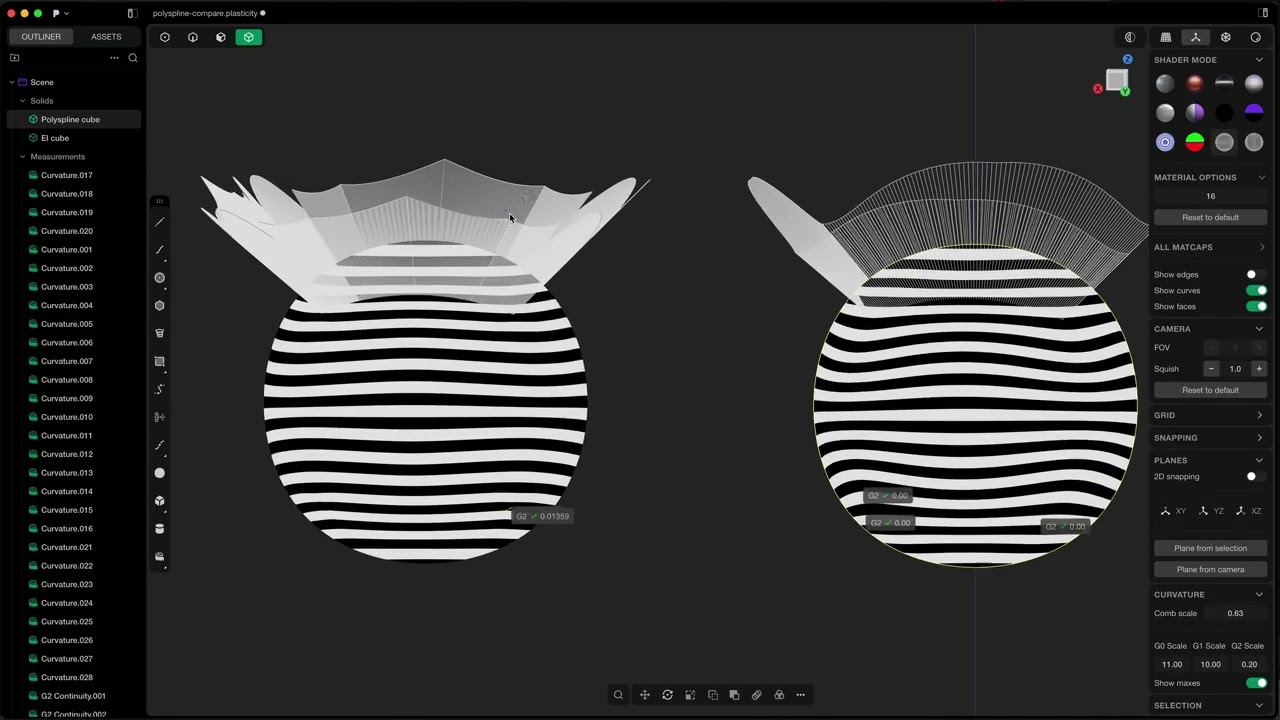
PolySplines is the most technically ambitious addition in Plasticity 2026.1. According to the release notes, it is a new third-party command that converts mesh objects into editable NURBS surfaces, generating clean single-span and multi-span surfaces with G2 continuity. The dedicated command page adds that PolySplines converts a mesh object into a smooth untrimmed spline surface, producing fewer and cleaner patches than traditional subdivision workflows, and that it is intended to output B-spline patches suitable for manufacturing and engineering use.
The official documentation says PolySplines works best with quad-dominant meshes, although it can also handle triangles and n-gons. It can be used alongside the Blender Bridge add-on, which supports live output updates and automatic import back into the scene, and the current mesh formats supported for the workflow include OBJ and FBX. The same documentation also notes an important limitation: PolySplines does not currently support vertex and edge creasing or beveling already applied in a DCC package, so the recommended workaround is to insert edge loops manually to reinforce corners and edges.

Export Hidden Line in Plasticity: SVG technical drawings with hatching and hidden edges
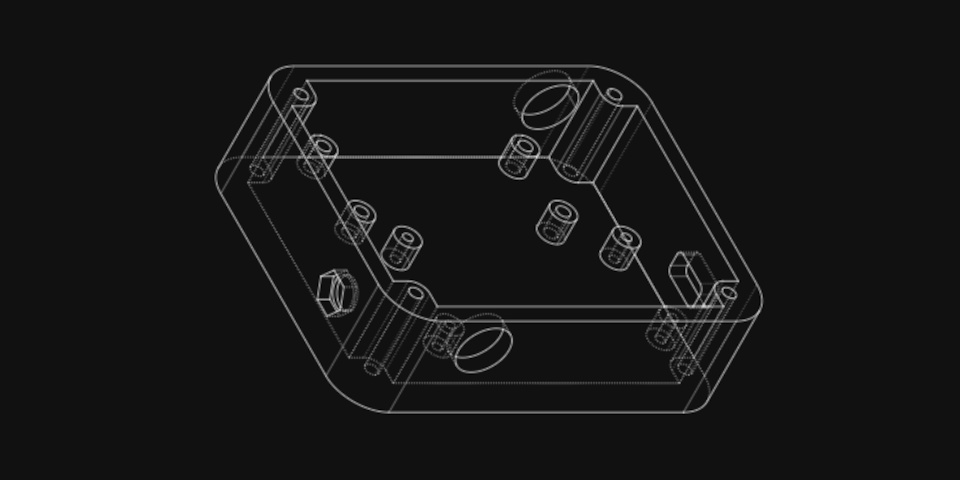
Export Hidden Line gives Plasticity a much more CAD-like drawing output path. The official command page describes it as a tool for producing technical drawings and drafts by rendering a 3D object and converting it into SVG format. Plasticity also distinguishes it from Export SVG: Export SVG is for 2D sketches in the Plasticity document that are relatively flat along an axis, while Export Hidden Line works from the 3D model itself.
The feature is detailed enough to be genuinely useful for documentation work. Standard Views can generate isometric and orthographic outputs, Style settings control visible strokes, silhouettes, smooth lines, and material-based coloring, Hidden Lines can be displayed with custom dash width, length, and gap, and the command supports multiple hatching modes including planar, section, radial, and parametric hatching. The docs also note that grid views can be used as 2D templates and that exporting SVG from a complex model may take time because the computation is relatively intensive.
Plasticity Slot command tutorial: create bolt slots and ventilation cutouts from curves
The Slot command is smaller in scope than PolySplines, but it is exactly the kind of practical modeling tool that saves time every day. In the release notes, Plasticity says the command creates a closed slot shape by offsetting an open curve symmetrically on both sides and capping the ends, making it useful for bolt slots, ventilation cutouts, and similar mechanical profiles. The dedicated Slot page describes the result even more precisely: the command offsets a curve symmetrically and closes each end with a tangent arc to produce a closed slot profile.
The official workflow is straightforward. The source curve has to be open and non-self-intersecting. From there, you select the curve, run Slot from the Command Palette, or press O twice to invoke Offset Curve and activate Slot automatically, then set the width and confirm the command. That makes Slot less like a novelty feature and more like a direct shortcut for common hard-surface and product-design sketch tasks.
Gizmo distance input in Plasticity 2026.1: press Tab for precise values
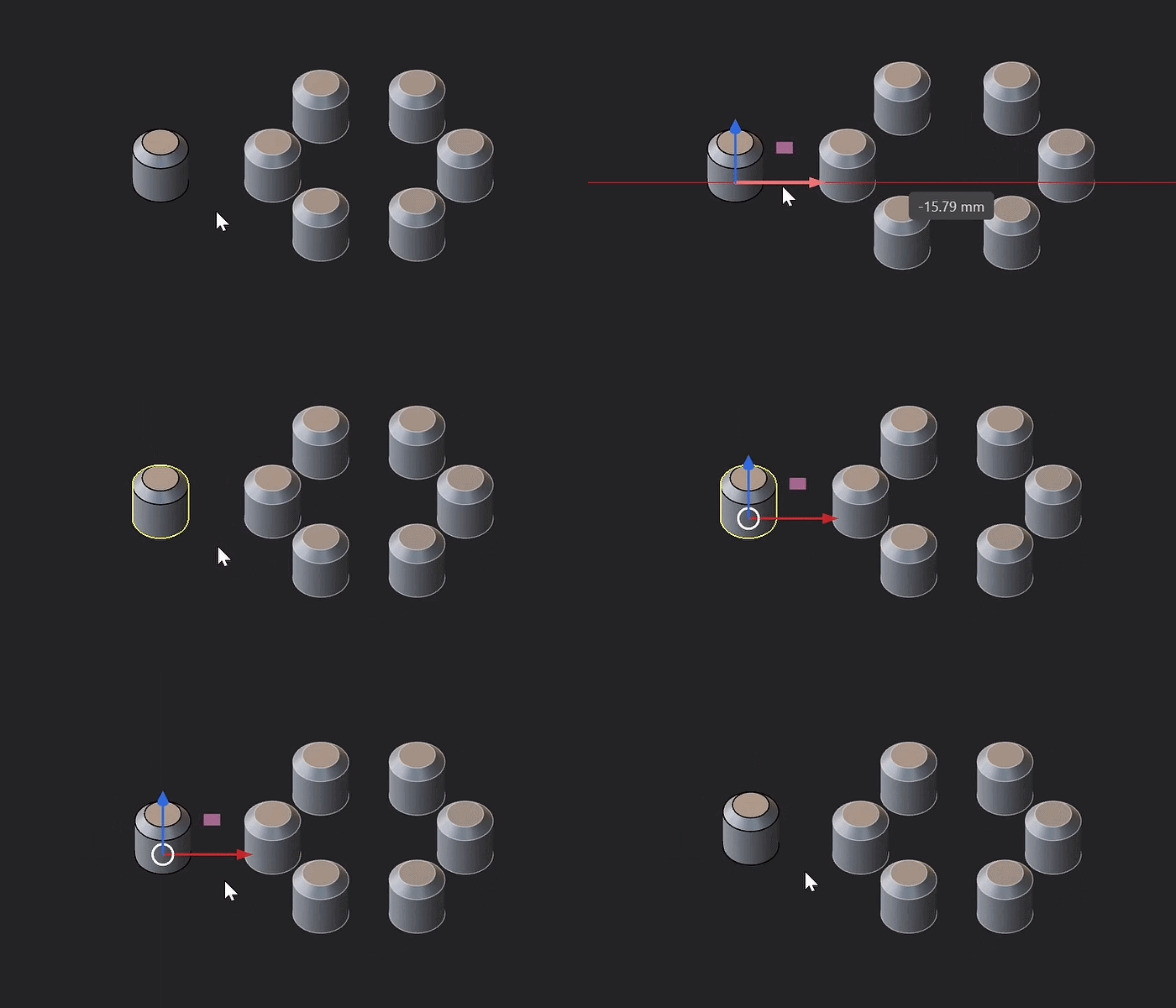
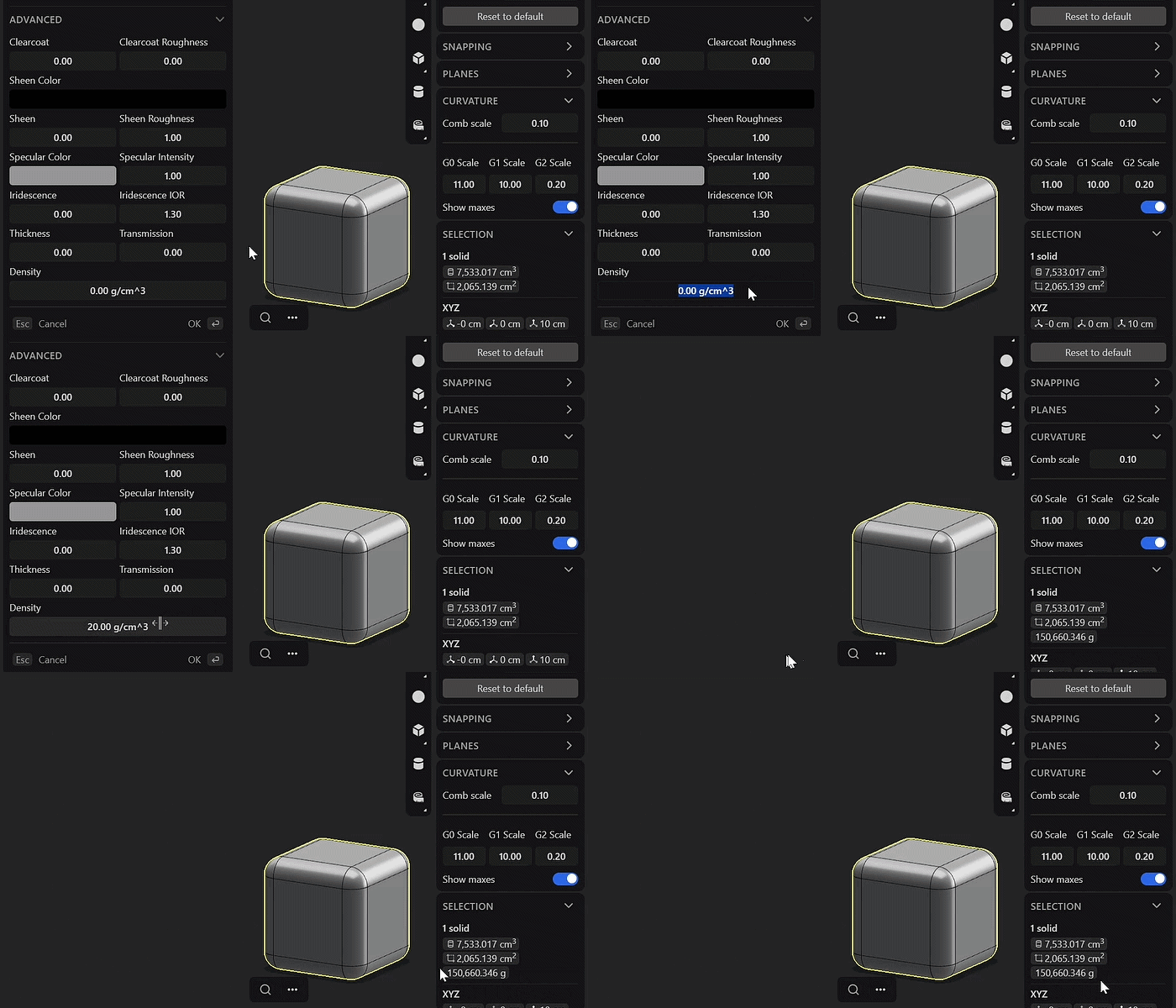
One of the best quality-of-life improvements in Plasticity 2026.1 is the new unified gizmo distance input. The release notes say that commands sharing the gizmo can now use Tab to enter a precise distance value, bringing faster and more consistent numeric control to transformations and related operations. Plasticity explicitly lists Move, Rotate, Scale, Push Face, Extrude, and Thicken as supported commands.
That matters because it reduces the friction between interactive modeling and exact input. Instead of treating the gizmo as mostly visual and the numeric dialog as the real precision tool, 2026.1 makes the gizmo itself part of the precision workflow. For users moving between artistic sketching and engineering-style control, that is a meaningful usability upgrade.
Numerical precision improvements in Plasticity sketching and input fields
Plasticity 2026.1 also improves numerical precision in the input function. The release notes say commands that use the = input function now copy up to 8 decimal places with Ctrl + C, and Plasticity gives the example of a displayed value like 30.345 copying as 30.34587689. The notes group this improvement across sketch-heavy categories including lines, spline curves, circles, arcs, rectangles, 3D primitives, and dimension-related input.
For actual production work, this is more important than it first sounds. Better copy precision means fewer rounding losses when values are reused between operations, passed into related commands, or transferred into downstream workflows where tolerances matter. It is a small change on paper, but one that improves trust in the software’s numeric behavior.
Plasticity OBJ export scale and up axis settings (unit conversion)
OBJ export gets a practical fix in Plasticity 2026.1: explicit Scale and Up Axis controls. The release notes say the Scale field multiplies all exported coordinates so users can convert units correctly for the destination application, while Up Axis lets the user match the orientation expected by the receiving software. The main Export OBJ documentation repeats that Scale is an export multiplier for proper unit conversion and Up Axis sets geometry orientation for target-app conventions.
Plasticity even provides concrete references for common apps. In the release notes, Blender uses meter units and expects Z-up, so exporting work modeled in centimeters suggests a scale of 0.01, while millimeter-based work suggests 0.001. Unreal Engine uses centimeters and Z-up, so centimeter workflows can stay at 1.0, while millimeter workflows use 0.1. Maya and Cinema 4D are listed as Y-up, Unity as Y-up with meter-based scaling, and 3ds Max as Z-up with inch-based defaults. That kind of baked-in guidance is exactly what prevents the classic “why is my model tiny, huge, or rotated wrong?” problem.
Plasticity STL export scale controls for correct real-world size
STL export is improved through unit override rather than through a separate visible “scale” term. The release notes say Plasticity now lets users override the length unit during STL export, and the available units listed are millimeter, centimeter, meter, inch, and foot. Those conversion options effectively act as scale controls for real-world output because STL files often need external unit interpretation to arrive at the correct size in other software or fabrication pipelines.
This is especially relevant for 3D printing, prototyping, and manufacturing handoff. CG Channel highlights these new OBJ and STL controls as part of Plasticity’s effort to make models appear at the correct scale when imported elsewhere, which is exactly where earlier unit ambiguity could slow a workflow down or cause avoidable mistakes.
Outliner search in Plasticity: Ctrl+F and active collection workflow
The Outliner gets a useful scene-management upgrade in Plasticity 2026.1. The official release notes say the Outliner now includes a search field that can be opened with Ctrl + F or the search icon, making it easier to find specific objects in crowded scenes. That alone is valuable in larger assemblies, where object hunting can become a workflow tax.
Plasticity also adds an Active Collection workflow. Double-clicking a group in the Outliner now sets it as the Active Collection, and newly modeled, imported, or created objects are automatically placed into that group. A visual highlight shows which collection is active. This is the kind of change that keeps scene organization cleaner without forcing users into extra housekeeping steps after every import or modeling pass.
Construction plane 2D snapping in Plasticity 2026.1
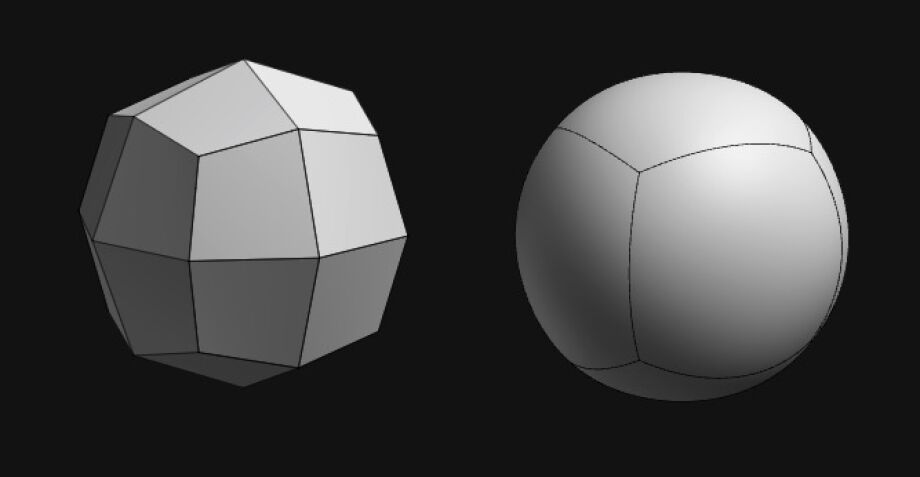
Construction Plane 2D Snapping is another deceptively important workflow improvement. Plasticity says a new 2D Snapping option has been added to the Planes menu, and when it is enabled with an active construction plane set, all picked points are projected onto that plane. Dragging points then moves them along the construction plane instead of through full 3D space, and related interactions follow the plane’s orientation.
In practice, this makes custom-plane drawing feel much more dependable. It gives users a cleaner 2D-on-plane behavior when sketching, adjusting, or laying out work on angled or localized reference planes, which is particularly useful in industrial design and surfacing workflows where off-axis construction is common.
Plasticity 2026.1 SpaceMouse changes: speed, reversed up/down, lock horizon
Plasticity 2026.1 also refines SpaceMouse behavior. The official release notes say Plasticity adjusted SpaceMouse handling to behave more consistently with other software and recommends updating to the latest driver. The listed changes are that up/down directions are now reversed, the default speed has been recalibrated, and a new Lock Horizon option in Preferences lets users toggle roll behavior.
For anyone who relies on a 3D mouse every day, those tweaks matter because consistency across applications reduces adaptation time. Instead of relearning motion feel inside Plasticity, users should find the device closer to what they expect in adjacent CAD and 3D tools.
Align command improvements: G0–G3 curve continuity alignment
The Align command gets a substantial upgrade in 2026.1. Plasticity says the command now supports aligning two curves to G0, G1, G2, and G3 continuity. It works for Vertex-to-Vertex and Curve-to-Curve alignment, including polylines and geometric shapes such as circles and polygons, and it also adds a new selection-order algorithm to make shared or overlapped vertex cases easier to manage.
Plasticity’s CAD Essentials documentation explains why that matters. G0 means only position matches, G1 means position and direction match, G2 means position, direction, and curvature match, and G3 adds curvature change rate matching. Higher continuity produces smoother, more natural curves, so bringing G0–G3 alignment directly into the command means 2026.1 is not just making alignment broader; it is making it more surfacing-aware and better suited to higher-quality shape transitions.

Extrude command upgrades: edge extrusion and direction vs individual mode
Extrude is another command that becomes meaningfully more flexible in Plasticity 2026.1. The release notes say the command can now extrude surface edges directly, and it also adds a new mode toggle: Individual mode extrudes each selected surface along its own normal, while Direction mode extrudes all selected surfaces along one unified direction.
The dedicated Extrude documentation reinforces that wider scope by listing Faces, Surface Edges, Regions, and Curves as valid selections. It also explains that the I shortcut toggles between Direct and Individual extrusion behavior. That means Extrude is no longer just a more convenient version of the old command; it is a more general-purpose construction tool that can better handle multi-face and edge-driven workflows without forcing the user into unnecessary workarounds.
Sweep/Revolve/Curve Array updates: twist in degrees, booleans, Transport alignment
Sweep becomes easier to control numerically in Plasticity 2026.1 because twist is now defined in degrees rather than radians. The release notes add that holding Ctrl snaps the value in 5-degree increments, and both the release notes and the Sweep command page confirm that Sweep now supports boolean operations while actively sweeping an object. The command page also shows twist in degrees in the dialog itself.
Revolve gets matching boolean-operation support, and Curve Array gains the new Transport alignment mode. Plasticity says Transport uses a stable frame that smoothly follows the curve, preventing twisting or flipping on complex paths; the Curve Array documentation contrasts it with Normal and Parallel and describes Transport as ideal for complex or organic curves where the older alignment methods can fail. Together, those changes make these commands better suited to precise parametric-style construction and less prone to orientation surprises.
FAQ questions and answers
1. When was Plasticity 2026.1 released?
Plasticity’s official release notes list April 16, 2026 as the release date for version 2026.1.
2. What are the three main new commands in Plasticity 2026.1?
The official release notes identify PolySplines, Export Hidden Line, and Slot as the headline new commands in the update.
3. Is PolySplines a Studio feature?
Yes. The official release notes describe PolySplines as a Studio-only feature, and CG Channel’s release coverage also says Studio users get the command.
4. What does PolySplines actually do?
PolySplines converts a mesh object into smooth, editable spline surfaces with G2 continuity, aiming for fewer and cleaner patches than traditional subdivision-based approaches.
5. Does Export Hidden Line export SVG or only viewport screenshots?
It exports SVG. Plasticity’s command page says the tool renders a 3D object and converts it into SVG format for technical drawing output.
6. Can the Slot command work on a closed curve?
No. The official Slot documentation says the source curve must be open and not self-intersecting for the command to work.
7. How do you enter exact gizmo values in Plasticity 2026.1?
Press Tab in supported gizmo-based commands such as Move, Rotate, Scale, Push Face, Extrude, and Thicken to enter precise distance values.
8. How do the new OBJ and STL export controls help with scale?
OBJ export now has Scale and Up Axis controls for unit conversion and orientation, while STL export lets you override the output length unit using mm, cm, m, inch, or foot so imported size stays correct.
9. What changed for SpaceMouse support in 2026.1?
Plasticity reversed up/down directions, recalibrated default speed, and added a Lock Horizon option to control roll behavior.
10. What are the biggest command upgrades beyond the three new tools?
The most notable upgrades are G0–G3 curve alignment in Align, edge extrusion plus Direct vs Individual behavior in Extrude, degree-based twist and booleans in Sweep, boolean support in Revolve, and Transport alignment in Curve Array.
conclusion
Plasticity 2026.1 is a strong update because it improves the software at three important levels at once. At the feature level, it adds PolySplines for mesh-to-NURBS surfacing, Export Hidden Line for technical SVG drawings, and Slot for fast mechanical curve work. At the workflow level, it improves gizmo precision, numerical input fidelity, scale-safe export, Outliner scene management, construction-plane behavior, and SpaceMouse navigation. At the command level, it makes Align, Extrude, Sweep, Revolve, and Curve Array more reliable for real production use.
The result is an update that feels less like a flashy reinvention and more like a maturation step for Plasticity as a serious artist-friendly CAD and surfacing tool. The official site continues to frame Plasticity as a workflow optimized for creativity and direct solid/surface modeling, and 2026.1 strengthens that identity by making concepting, surfacing, drafting, and export handoff work together more cleanly than before.
sources and citation
- Plasticity Manual — Plasticity 2026.1 Release Notes
https://doc.plasticity.xyz/release-notes/whats-new-2026.1 - Plasticity Manual — PolySplines
https://doc.plasticity.xyz/solid/polyspline - Plasticity Manual — Export Hidden Line
https://doc.plasticity.xyz/plasticity-essentials/export-hidden-line - Plasticity Manual — Slot
https://doc.plasticity.xyz/sketch/slot - Plasticity Manual — Export OBJ
https://doc.plasticity.xyz/plasticity-essentials/export-obj - Plasticity Manual — Continuity of Curves and Surfaces
https://doc.plasticity.xyz/cad-essentials/continuity-curve-and-surface - Plasticity Manual — Extrude
https://doc.plasticity.xyz/solid/extrude - Plasticity Manual — Sweep
https://doc.plasticity.xyz/solid/sweep - Plasticity Manual — Revolve
https://doc.plasticity.xyz/solid/revolve - Plasticity Manual — Curve Array
https://doc.plasticity.xyz/common/curve-array - Plasticity product site
https://www.plasticity.xyz/ - CG Channel — Plasticity 2026.1 is out
https://www.cgchannel.com/2026/04/plasticity-2026-1-is-out/
Recommended
- Best Blender Add-ons for Camera Management: Why The View Keeper Stands Out
- Legacy Of Kain Fans Can Now Preorder A Stunning Map Of Nosgoth (Dark Horse Direct Fine Art Print)
- Oni Press and The Nacelle Company Join Forces for The Art of The Toys That Made Us Kickstarter
- Cinematic MetaHuman Look At System in Unreal Engine: Eye + Head Tracking for Sequencer
- The Well Is Not Empty Announced for PC: Release Window, Story, Trailer, and Gameplay Details
- Rumor: Nintendo Is Working on an Ocarina of Time Remake and a New Star Fox for Switch 2
- 12 Things To Know Before Jumping Into Pokémon Champions (Release Date, Platforms, Modes, and Battle Meta Basics)
- Warner Bros. Discovery Is Rebuilding Its Video Game Pipeline After a Significant 2025
- CoD: Black Ops 7 And Warzone Season 2 Reloaded Release Date And Details (Start Time, New Maps, Weapons, Zombies, Warzone Updates)
- Godzilla Minus Zero Trailer, Plot and Cast Revealed: Release Date, Story Details, and Returning Stars