





Adobe Photoshop 27.6 New Features: What’s Included in the April 2026 Update
Adobe’s April 2026 update (version 27.6) delivers a rich mix of new AI-driven editing tools and workflow enhancements. For example, it adds a new Rotate Object tool that lets you pivot flat image layers on the canvas. The update also expands generative AI capabilities: a new Generative Credits Usage panel tracks Firefly model usage, and the Generative Fill/Expand features now use updated AI models (including Adobe’s new Firefly Image Model 5) for sharper, more photorealistic results. Multiple reference images can be uploaded to guide AI content creation, and simple text prompts can generate in-canvas edits without leaving Photoshop.
On the workflow side, Photoshop 27.6 adds an AI-powered Layer Cleanup feature. This can automatically delete all empty layers and assign descriptive names to the rest, helping organize complex documents. Other productivity updates include a redesigned Actions panel (with natural-language search and live previews) and tighter Firefly Boards integration for moving images to/from Adobe’s cloud-based moodboard app.
Core editing tools also see upgrades: the Remove tool gains a new “Find Distractions” mode for wires, people or general background clutter, Dynamic Text now auto-flows along curved paths, and a brand-new Reflection Removal command clears unwanted glare from photos shot through glass. Even styling tools are tweaked (the Filter Gallery now supports two-tone color filters, and brush resizing no longer alters opacity by default). Finally, Photoshop 27.6 includes performance optimizations (notably for AMD Zen4 CPUs) and expanded support for modern file formats.
Photoshop 27.6 vs Photoshop 27.5: Key Differences and Improvements
In contrast to version 27.5 (March 2026), which was a relatively minor release focused on Firefly Boards integration, Photoshop 27.6 is a much biggerupgrade to the core editing toolset. Version 27.5 mainly introduced the ability to open and save Photoshop cloud documents directly in Adobe Firefly Boards (for collaborative moodboarding). By contrast, 27.6 “adds the much-anticipated AI-based Rotate Tool, and a neat new reflection removal feature” along with the various AI and automation enhancements described above.
In short, 27.5’s changes were mostly around collaboration (and bug fixes), whereas 27.6 brings significant new functionality for designers and editors within Photoshop itself. It’s therefore considered a “sizeable update, particularly to the AI toolset”. (Both versions remain subscription-only with identical system requirements, Windows 10+ or macOS 14+, but 27.6 adds all these fresh features.)– ×2
How the New AI Rotate Tool Works in Photoshop 27.6
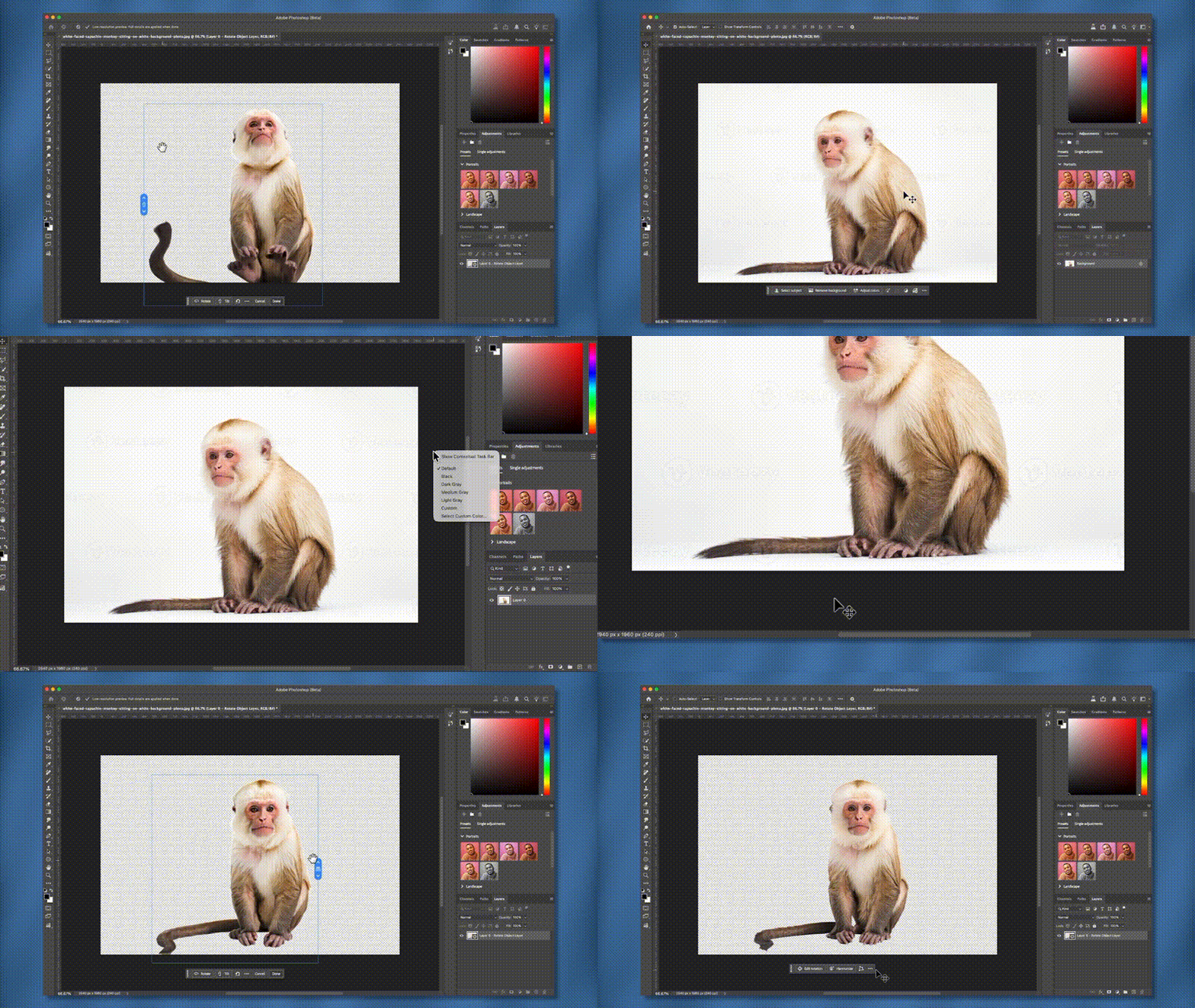
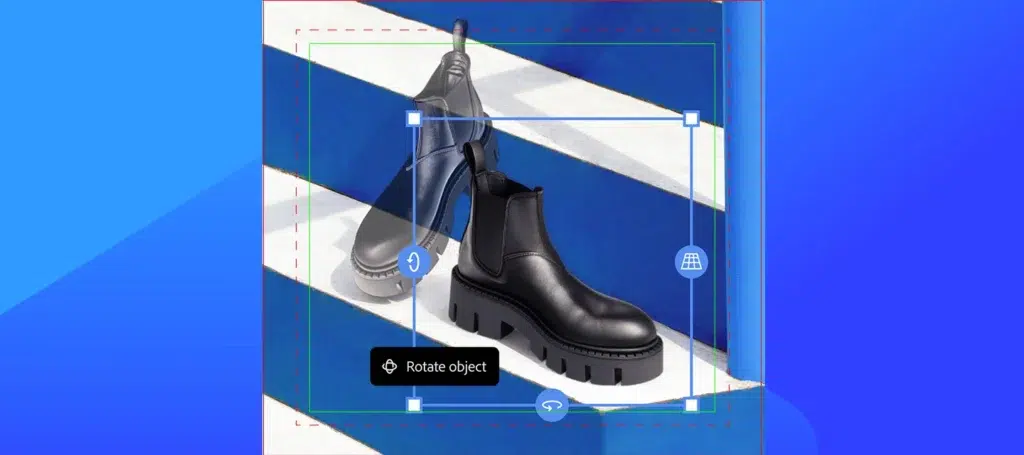
Figure: Photoshop 27.6’s new Rotate Object tool in action. In this example, a 2D image of a boot is being tilted on the canvas to match a new viewpoint. Photoshop’s Rotate Object feature lets you click and drag selected pixel layers directly on the canvas to adjust their angle. Instead of manually estimating perspective, you simply use the on-screen rotation controls and watch a real-time preview of the result. Under the hood, Photoshop uses its AI engine to re-render the image at the new viewpoint (this consumes generative AI credits).
For example, Adobe’s release notes explain: “Rotate objects directly on the canvas… Preview changes as you rotate, then render the final result at full resolution. After applying rotation, use Harmonize to seamlessly blend the object into your composition.”. In practice, an artist would select a layer, choose Edit > Rotate Object (or enter Free Transform mode), and then drag the rotation handles to the desired tilt. Once applied, the rotated object is generated with any distortions fixed, and Photoshop can use the Harmonize filter to match its color and lighting to the background. This makes it easy to composite flat images as if they were 3D models – eliminating tedious manual perspective correction.
Photoshop 27.6 3d-Like Object Rotation Explained for Designers and Creators
Photoshop’s new rotation capability effectively treats a 2D layer as a lightweight 3D object. Designers can use it to quickly adjust flat elements (photos, graphics, cut-outs) so they match a scene’s perspective. As one reviewer noted, the Rotate Object tool lets you “transform [a 2D image] to match the perspective of a background plate”without juggling multiple transform steps.
For example, if you place an image of a sign or box into a photo, you can drag its corners to align with the scene’s vanishing points, seeing the effect live on-screen. This “3D-like editing” approach greatly streamlines compositing: rather than guessing angles manually, artists can just drag to tilt and rotate layers in real time. The result looks natural and saves time, perfect for mockups, concept art, or any workflow where two-dimensional objects must appear three-dimensional.– ×1
Photoshop 27.6 Reflection Removal Tool: How to Remove Glass Reflections Easily
Photoshop 27.6 introduces a Reflection Removal command to automatically clean up glare and reflections in images shot through glass. The release notes describe it simply as: “Remove unwanted reflections from photos… generating a clearer result, with options to control output quality and separate reflection details.”. In practice, using it is straightforward via Adobe’s help steps: select the photo layer with the reflection, then go to Edit > Reflection Removal.
In the dialog box, you can adjust the output (for example, checking “Create separate reflection layer”will produce two layers: one with the cleaned image and one containing the extracted reflections). Photoshop then uses AI to analyze the image and paint out the reflections non-destructively. According to user reports, this creates a nearly reflection-free copy while preserving the original data on a separate layer. In short, the new Reflection Removal tool lets you clear large window or glass glare with one click, producing a crisp, clean photograph.– ×1
What’s New in Photoshop 27.6 AI-Powered Remove Tool and Distraction Detection
Photoshop’s classic Remove/Healing tools get smarter in 27.6. The Remove tool now includes an enhanced “Find Distractions” mode: it automatically looks for and removes unwanted objects like wires, people, or other clutter. Adobe notes that the tool can “automatically detect and remove wires, people, and general distractions” with the new update. In earlier versions the Find Distractions mode handled only people and wires; version 27.6 adds a new “General distractions” category for arbitrary background noise.
For example, if you select People, Photoshop will detect human figures to erase, or if you select General distractions, it will scan for miscellaneous clutter. The process is largely automatic: select the Remove tool, choose Find Distractions from the options bar, then pick a category. Photoshop will highlight the detected areas for review. You can brush the mask to refine it if needed, and then click the checkmark icon to commit the removal. This makes eliminating background junk (like stray cables or random objects) much easier than manually painting over them.
How Generative Fill Improves in Photoshop 27.6 with Smarter AI Models
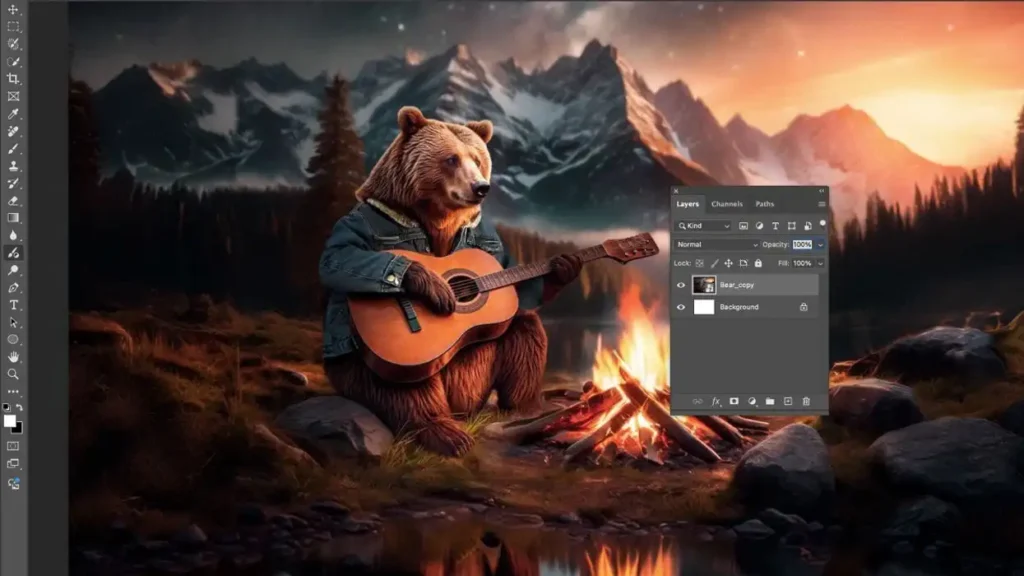
The Generative Fill feature in 27.6 is powered by significantly more advanced AI models. In addition to Adobe’s own Firefly model, Photoshop 27.6 supports Google’s Gemini 3.1 (Nano Banana 2) and Firefly Image Model 5 for fill and expand tasks. These new models are higher-capability, so they generate more realistic textures and adhere better to prompts. For example, Adobe’s release notes explain that the updated model now delivers “sharper resolution, improved photorealism, [and] better prompt understanding and more varied outputs”. Practically, this means you can use natural-language prompts (e.g. “add sunlight coming through window”) and get more precise, photorealistic results.
Photoshop 27.6 also expands multi-reference functionality: you can load multiple reference images when working with partner models (up to six references with Gemini, for instance) to guide the style of the generated content. A new Generative Credits Usagepanel lets you see exactly how many paid credits each fill operation consumes. (As a side note, the new Rotate Object feature also uses credits, it reportedly costs about 20 credits per rotate in early testing.) Overall, the Generative Fill engine is smarter and more flexible in 27.6, giving editors finer control over AI-generated imagery.– ×1
Photoshop 27.6 Performance Improvements: Faster Editing and Stability Fixes
Behind the scenes, 27.6 delivers performance optimizations to make editing faster and more stable. Adobe reports special optimizations for newer AMD hardware (Zen4 and later), so users on modern Ryzen CPUs should see speedups in compute-heavy tasks. File handling is also improved: Photoshop now has better read/write support for modern file formats (especially for web and HDR images), which can speed up common workflows.
In day-to-day use, the software feels snappier with large files and 4K+ brushes or filters. A slew of bug fixes and crash patches (listed in the release notes) further enhance stability. For example, past issues with gradient tool glitches, selection tool behavior, and incorrect generative credit deductions have been resolved. In short, version 27.6 not only adds features but also cleans up many performance bottlenecks and stability issues.
How to Use the Clean up and Auto Layer Rename Features in Photoshop 27.6
The new Layer Cleanup tool lets you tidy your document in a few clicks. To run it, open the Layers panel and click the Layer Cleanup icon (it looks like a little broom). This opens the Layer Cleanup dialog box. You can then select one or both options: “Delete empty layers” to remove all blank layers, and “Rename layers” to let Photoshop assign meaningful names based on layer contents. After choosing those, pick the scope of the cleanup: you can apply it to the entire document or only the currently selected layers.
Finally, click Apply. Photoshop will analyze the layer stack and automatically purge any empty (zero-content) layers and rename the rest. This is very useful for large files that have acquired stray empty layers or generic “Layer 5” names. Instead of manual layer-by-layer housekeeping, the AI-powered cleanup handles it automatically.
New AI Workflow Enhancements in Photoshop 27.6 for Professional Editors
Version 27.6 also streamlines common editing workflows with AI-powered UI improvements. The Actions panel has been overhauled: it now supports natural-language search and shows live canvas previews of actions before you apply them. For example, you could type “remove background noise” in the Actions panel to find a relevant cleanup action.
The Contextual Task Bar(the strip of suggested tools at the top) is now more responsive: it dynamically shows the most likely tools based on what you’ve selected. And although introduced in 27.5, the Photoshop, Firefly Boards workflow continues: you can send images and assets to Adobe Firefly Boards for ideation, then pull them back as edits (cloud document round-trips). Together, these enhancements reduce the time spent navigating menus and switching apps, letting professional editors focus on creative decisions.– ×1
Photoshop 27.6 Bug Fixes and Stability Updates You Should Know
Like any major release, Photoshop 27.6 includes many bug fixes and stability tweaks under the hood. Adobe’s notes list dozens of fixes across various tools and configurations. Key fixes include resolving UI glitches (e.g. gradient presets, panel display issues) and correcting crashes in certain edge cases. Notably, errors in credit deduction for Generative AI have been fixed, so the new features should now charge correctly. Among the many items, issues with filter effects, brush resizing, and the Remove tool have all been addressed. In short, this update not only adds features but also delivers a more reliable editing experience, with most known bugs from previous versions patched.
How to Remove Background Distractions Automatically in Photoshop 27.6
The easiest way to clear clutter from a photo is to use the updated Remove tool’s “Find Distractions” feature. Here’s how it works: first, select the Remove tool from the toolbar. In the Options bar, choose Find Distractions. Then pick the type of distraction you want to remove (in 27.6 the choices are “Wires & cables,” “People,” or “General distractions” for any random clutter). Photoshop will then automatically highlight the detected elements on-screen. You can review and refine the mask by painting on the preview if needed. Finally, click the checkmark icon in the options bar to apply the removal.
Adobe’s help documentation shows this process: for example, selecting General distractions will let Photoshop detect miscellaneous background junk. After you commit the change, the Remove tool fills in those areas seamlessly. This makes it extremely quick to clear wires, stray objects, or groups of people from your shot. (If the automatic mask isn’t perfect, you can always toggle into standard Remove/Spot Healing mode to tweak the result.)
Photoshop 27.6 System Requirements and Compatibility Guide
Photoshop 27.6 maintains the same baseline system requirements as other 27.x releases. On Windows, you must be running a 64-bit OS (Windows 10 v22H2 or later, or Windows 11). On macOS, version 27.x requires macOS 14 (Maui) or newer (MacOS Sonoma 15.x). In either case, the minimum RAM is 8 GB (16 GB or more recommended). A graphics card with DirectX 12 support is required on Windows, or Metal support on Mac, and at least 1.5 GB of GPU memory (4 GB for HiDPI/4K displays).
Because the new AI features run in the cloud, an internet connection is needed for activation and generative AI functions. Importantly, older OS versions (e.g. Windows 8/7 or macOS 12 and below) are not supported by Photoshop 2026. Ensure your system meets these specs before upgrading to avoid compatibility issues.
Is Photoshop 27.6 Worth Updating? Features, Benefits, and Limitations
For most users, the Photoshop 27.6 update is a substantial improvement worth installing. It solves several common pain points by automating complex edits: for example, rotating objects in-place, cleaning up layers, removing distractions and reflections, and refining generative AI content. Reviewers note that the update “streamlines complex editing tasks while expanding generative capabilities”, meaning everyday workflows become faster. Performance and stability have also been enhanced, so the app feels smoother.
However, there are some considerations. Because the rotation and fill features use Adobe’s GenAI, heavy use can consume your Firefly credit quota (rotate reportedly costs about 20 credits per use). The update also requires modern hardware and a subscription, so users on very old systems or perpetual licenses cannot upgrade.
In terms of limitations, some users point out that AI tools are not perfect, they sometimes need manual touch-ups or only work best on certain images, but this is true of most AI edits. Overall, the consensus is that the benefits (time saved and new capabilities) outweigh the drawbacks. If you rely on Photoshop for serious compositing or retouching, 27.6’s features and fixes make it a very worthwhile upgrade.– ×2
How Photoshop 27.6 Improves Creative Workflow with AI and Automation
By integrating more AI and automation, Photoshop 27.6 transforms how editors work. Routine tasks that once took minutes of manual effort can now be done in seconds. For instance, matching an object to a new perspective used to involve duplicating layers and careful warping, now it’s a single drag-and-drop with Rotate Object.
Similarly, clearing a scene of clutter or glare used to require painstaking masking and cloning; now the AI Remove and Reflection tools handle most of the work automatically. Adobe’s own summary is apt: this update is about “reducing friction in everyday workflows,” letting you“focus on creativity” while Photoshop handles the tedious bits. The net effect is a smoother creative loop: you spend less time on repetitive clean-up and more time experimenting with composition and effect.– ×1
Frequently Asked Questions (FAQs)
- What are the main new features in Photoshop 27.6?
The April 2026 release adds several AI-driven tools and performance upgrades. Key new features include the on-canvas Rotate Object tool (for 3D-like layer rotation), an AI-powered Reflection Removal command, an enhanced Remove tool with a “General distractions” mode, and updated Generative Fill using Firefly Image Model 5 and Gemini 3.1. It also includes AI-assisted Layer Cleanup (delete empty layers/auto-rename) and a revamped Actions panel. Under the hood, 27.6 optimizes performance on newer CPUs and fixes many bugs. All these tools combine to streamline complex editing tasks. - How do I use the new Rotate Object tool in Photoshop 27.6?
Select the layer you want to rotate, then choose Edit > Rotate Object (or enter Free Transform). Click and drag one of the rotation handles that appear on the canvas. Photoshop will show a live preview of the tilted layer in real time. Adjust until the angle looks correct, then apply the change. The software will re-render the image at the new orientation (using your Generative AI credits) and produce a final, full-resolution result. As noted in Adobe’s documentation, you can also run Harmonizeafterwards to blend the rotated layer with its background. (Note: because this is a generative AI feature, it consumes credits, beta reports indicate about 20 credits per rotate.) - How can I easily remove glass/window reflections in Photoshop 27.6?
Use the new Reflection Removal feature. With your reflection-affected photo open, select the image layer and go to Edit > Reflection Removal. In the dialog, you can choose quality settings and whether to create a separate reflection layer. Checking “Create separate reflection layer” will output two layers: one with the cleaned image and one with the extracted reflections. Click OK to run the process. Photoshop will then automatically remove the glare (using AI) and produce a clear, reflection-free result while preserving the original data non-destructively. - What is the “Find Distractions” mode in the Remove tool?
This is an AI feature that detects and removes unwanted background objects. After selecting the Remove tool, click Find Distractions in the toolbar. You’ll see options to target “Wires and cables,” “People,” or “General distractions.” Choose the appropriate category, and Photoshop will scan the image for those elements. For example, picking “General distractions” in 27.6 causes Photoshop to highlight miscellaneous clutter it thinks you want gone. You can then refine the mask by brushing if needed, and click the checkmark to commit. The tool will automatically fill in the removed areas. Adobe’s release notes and help pages explain the workflow in detail. - What improvements does Generative Fill have in 27.6?
The Generative Fill engine now uses more powerful AI models. Photoshop 27.6 adds Firefly Image Model 5 and Google Gemini 3.1 as options. These models yield higher-quality, more varied outputs from text prompts. Adobe notes that the updated model provides “sharper resolution, improved photorealism, [and] better prompt understanding”. You can also supply up to six reference images (with Gemini) to guide the style of the fill. Additionally, a new Generative Credits Usage panel breaks down exactly how many credits each AI tool is costing you, improving transparency of AI operations. - How do I clean up layers and auto-rename them?
Click the Layer Cleanup button in the Layers panel (it looks like a small broom icon). In the Layer Cleanup dialog, check “Delete empty layers” to remove all blank layers, and/or “Rename layers” to let Photoshop assign smart names based on content. Then choose the scope (entire document or just selected layers) and hit Apply. Photoshop will automatically delete any empty layers and rename the others accordingly. This one-click cleanup helps organize complex files without manual effort. - What are the system requirements for Photoshop 27.6?
Version 27.6 has the same requirements as other Photoshop 2026 releases. On Windows it requires a 64-bit OS (Windows 10 version 22H2 or later, or Windows 11). On Mac it needs macOS 14 (Ventura/Sonoma) or above. In either case, you need at least 8 GB RAM (16 GB recommended) and a GPU supporting DirectX 12 (Windows) or Metal (Mac) with at least ~1.5 GB VRAM (4 GB for high-res displays). An internet connection is required for activation and AI features. Older OS versions (Win7/8 or Mac Monterey/below) are not supported. - How is Photoshop 27.6 different from 27.5?
The short answer: 27.5 (March 2026) was mostly about Firefly Boards integration and bug fixes, while 27.6 (April 2026) adds many new editing features. Photoshop 27.5 let you open Photoshop cloud documents directly in the Adobe Firefly Boards app and send edits back. Beyond that integration and minor fixes, it had no major new tools. In contrast, Photoshop 27.6 introduces the AI-based Rotate tool, Reflection Removal, expanded Remove tool capabilities, and other generative/automation features. So 27.6 is a much larger feature update, especially for design/retouching workflows. - How can I track Generative AI credit usage in Photoshop 27.6?
A new Generative Credits Usage panel is available in 27.6. It provides a breakdown of how many Firefly credits each generative action (Fill, Remix, Rotate, etc.) costs. You can open this panel from the Windows menu (under Credits Usage), and it will show totals per image and per feature. This helps you monitor your usage and avoid surprises, since AI operations (including Rotate Object) consume credits as shown. - What are some key bug fixes or issues addressed in 27.6?
The update fixes many bugs from earlier versions. Notable fixes include correcting problems with gradients and filters, UI panels, and selection tools. In particular, issues with incorrect generative credit deductions were resolved. Several crash scenarios have been addressed (e.g. crashing when resizing brushes or using certain plugins). Overall, 27.6 is more stable than 27.5; Adobe’s release notes list dozens of patched issues to improve reliability.

Conclusion
Photoshop 27.6 represents a major step forward, especially in AI-assisted editing. Its new features like the Rotate Object and Reflection Removal tools, combined with smarter Generative Fill and distraction removal, let users accomplish complex tasks in seconds instead of minutes. Workflow improvements (cleanup layers, natural-language actions, etc.) further speed up the creative process. For professionals who rely on Photoshop, these additions can significantly enhance productivity. While heavy AI use may consume paid credits, the gains in efficiency generally justify updating. In sum, 27.6 turns many formerly difficult tasks into one-click operations, living up to Adobe’s promise of “reducing friction” in everyday editing.
Sources and Citations
- Adobe Photoshop on Desktop Release Notes April 28 2026
https://helpx.adobe.com/photoshop/using/whats-new.html - Adobe Help Center Remove Reflections
https://helpx.adobe.com/photoshop/using/remove-reflections.html - Adobe Help Center Find and Remove Distractions
https://helpx.adobe.com/photoshop/using/remove-tool.html - Adobe Help Center Clean Up Image Layers
https://helpx.adobe.com/photoshop/using/layer-cleanup.html - CG Channel Jim Thacker 2026 Adobe Releases Photoshop 27.6
https://www.cgchannel.com/2026/04/adobe-releases-photoshop-27-6/ - CG Channel Jim Thacker 2026 Adobe Releases Photoshop 27.5
https://www.cgchannel.com/2026/03/adobe-releases-photoshop-27-5/ - PetaPixel Kate Garibaldi 2026 Adobe’s Latest Photoshop and Lightroom Updates Focus on Speed
https://petapixel.com/2026/04/28/adobes-latest-photoshop-and-lightroom-updates-focus-on-speed/ - Adobe Photoshop Technical Requirements HelpX
https://helpx.adobe.com/photoshop/system-requirements.html
Recommended
- Harry Potter TV Show Trailer Reveals First Look at Classic Moments Reimagined, New Cast, and Christmas 2026 Release Date
- Artemis II Crew Watched Project Hail Mary in Quarantine Before Launch Astronaut Jeremy Hansen Gives Ryan Gosling a Thumbs Up Halfway to the Moon
- Donald Glover Is Playing Yoshi in The Super Mario Galaxy Movie: Cast, Trailer, Release Date, and Everything Confirmed
- Blender Redistribute Curve Points Geometry Nodes Preset: A Comprehensive Guide
- Ubisoft’s R.U.S.E. Has Returned from the Dead: Definitive Edition on Steam, All DLC Included, and Steam Deck Support
- Mortal Kombat Actor on Street Fighter Rivalry: Lewis Tan Reacts to Andrew Schulz’s Game Awards Jab
- Super Mario Galaxy 2 Surprise Update Adds More Story: Version 1.4.0 Patch Notes, New Storybook Chapter, and How to Unlock It
- Microsoft Tried to Ban “Microslop” in Its Copilot Discord Amid AI Criticism — and the Internet “Microslopped” Even Harder
- The Best Laptops for Gaming and Schoolwork in 2026 (student-Friendly Buying Guide)
- Gears Of War Movie on Netflix: Everything We Know So Far