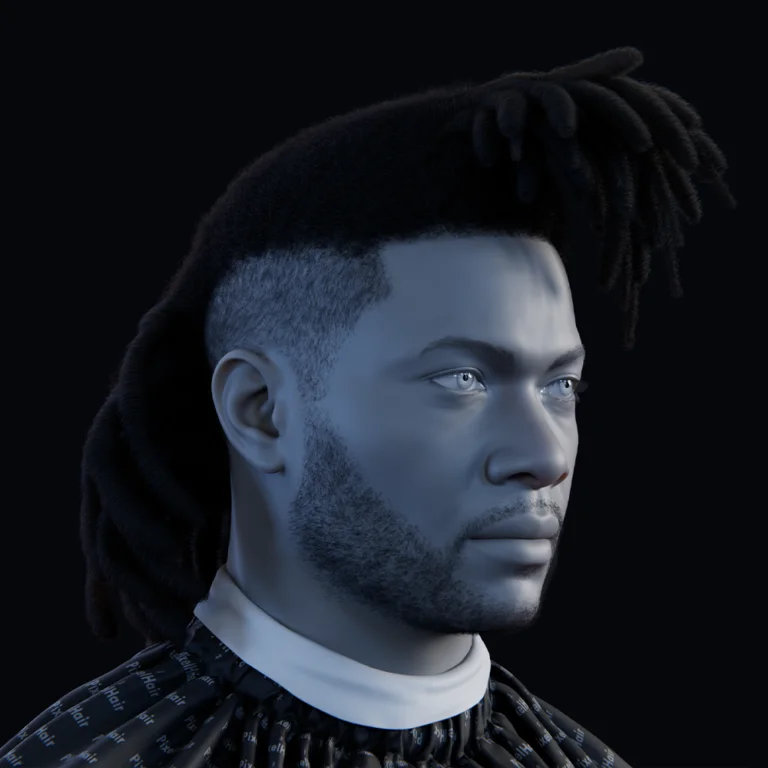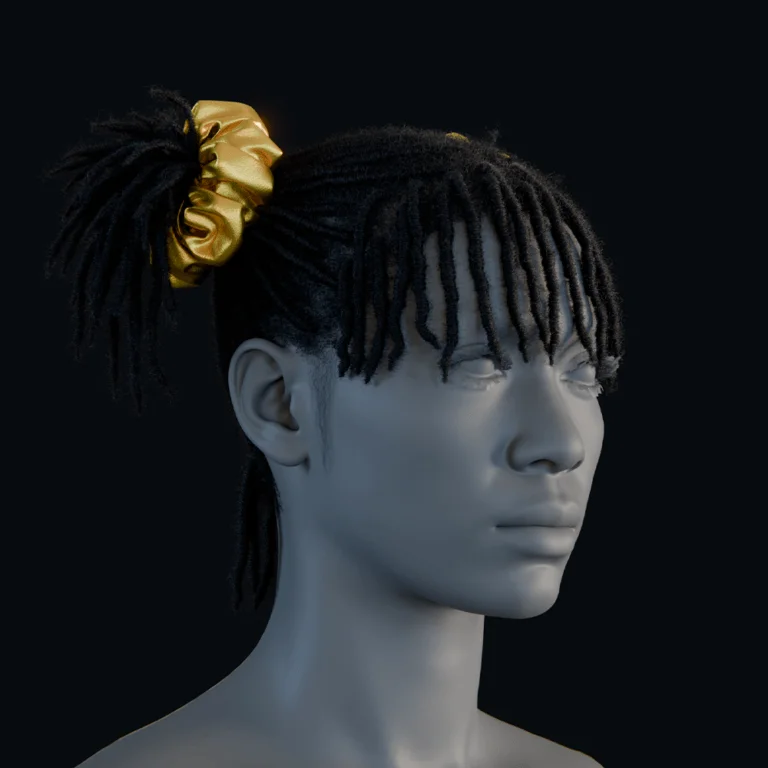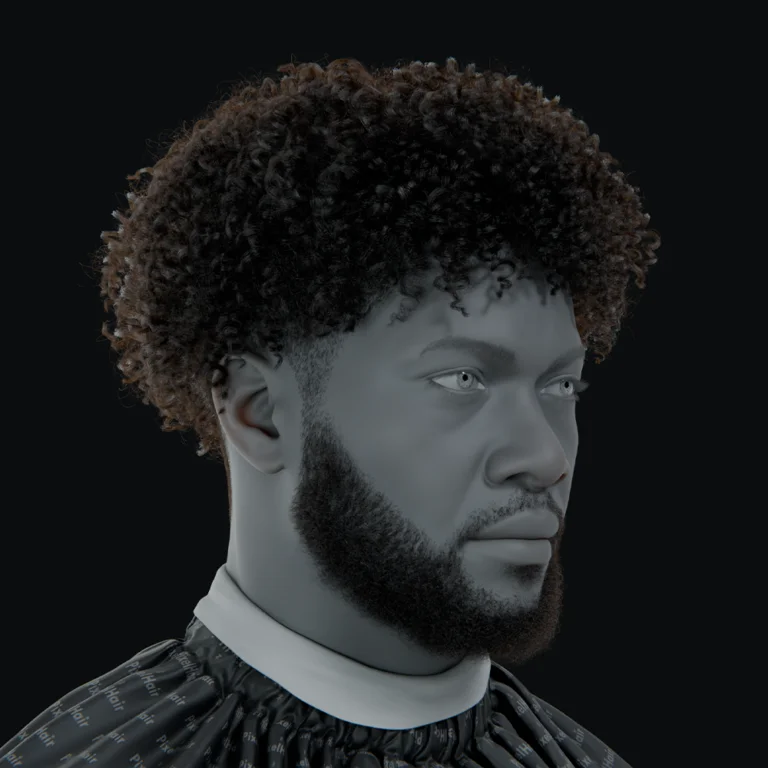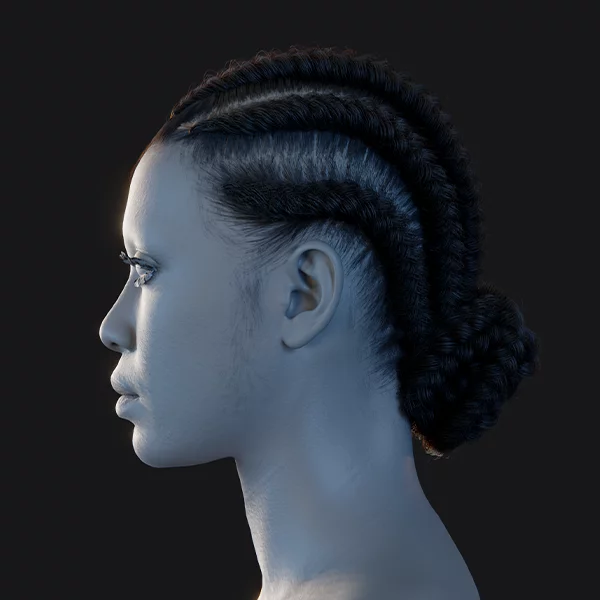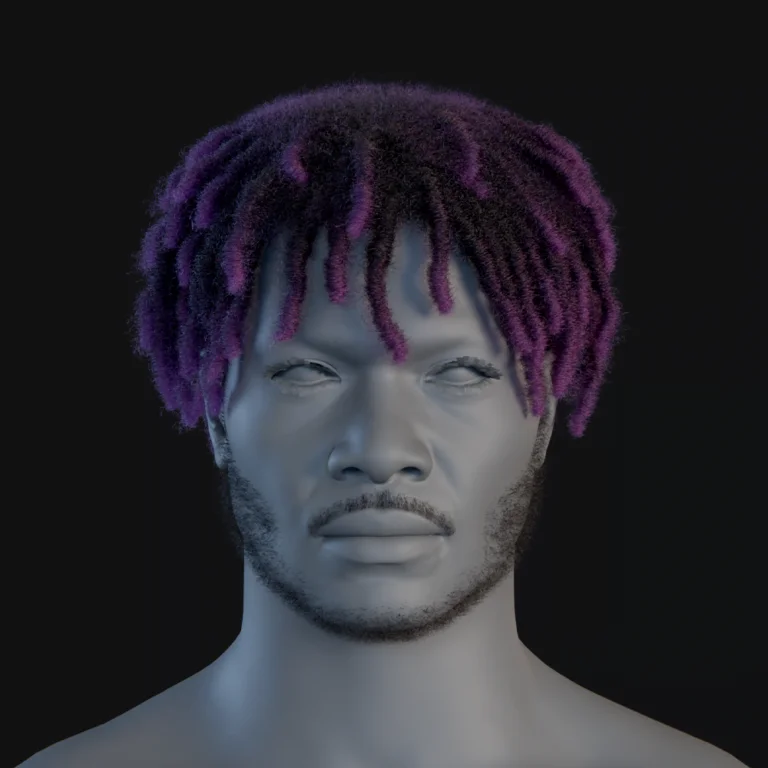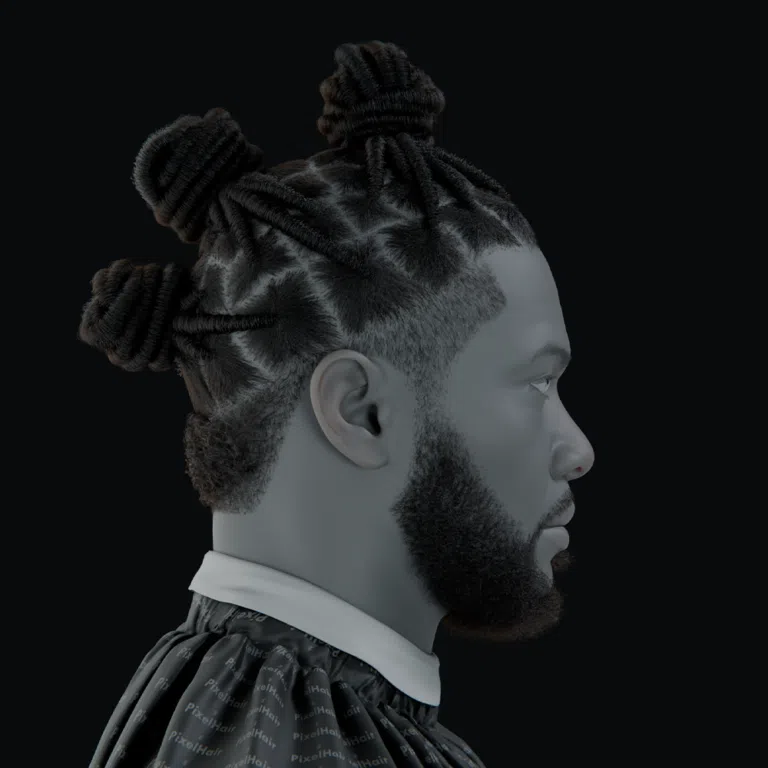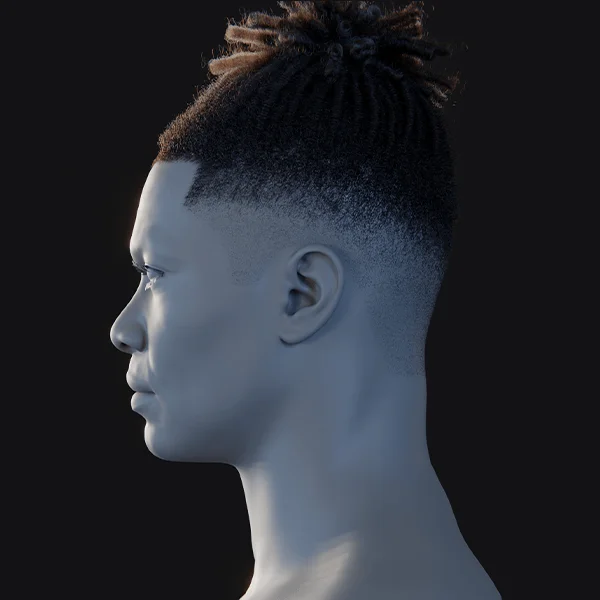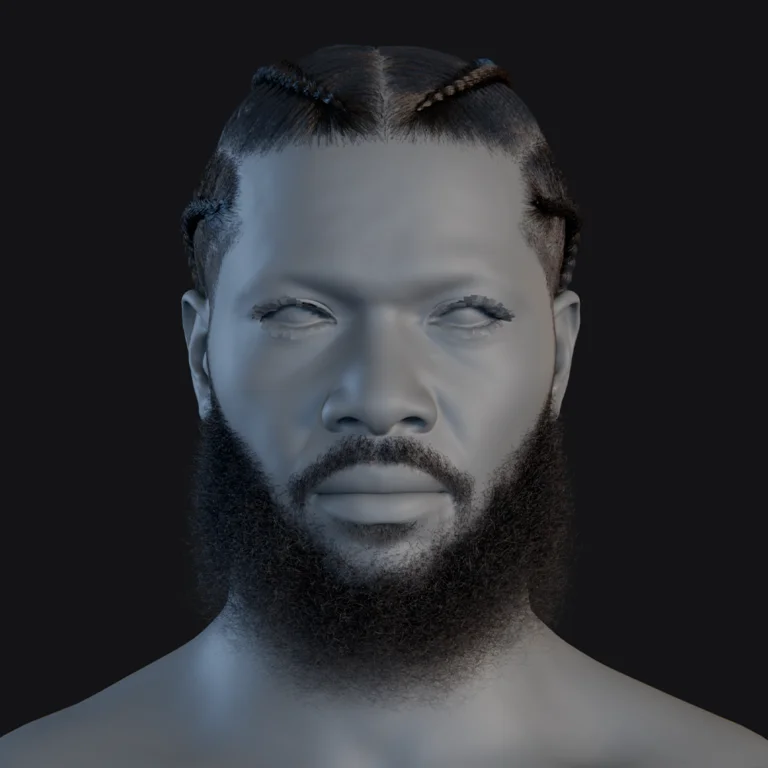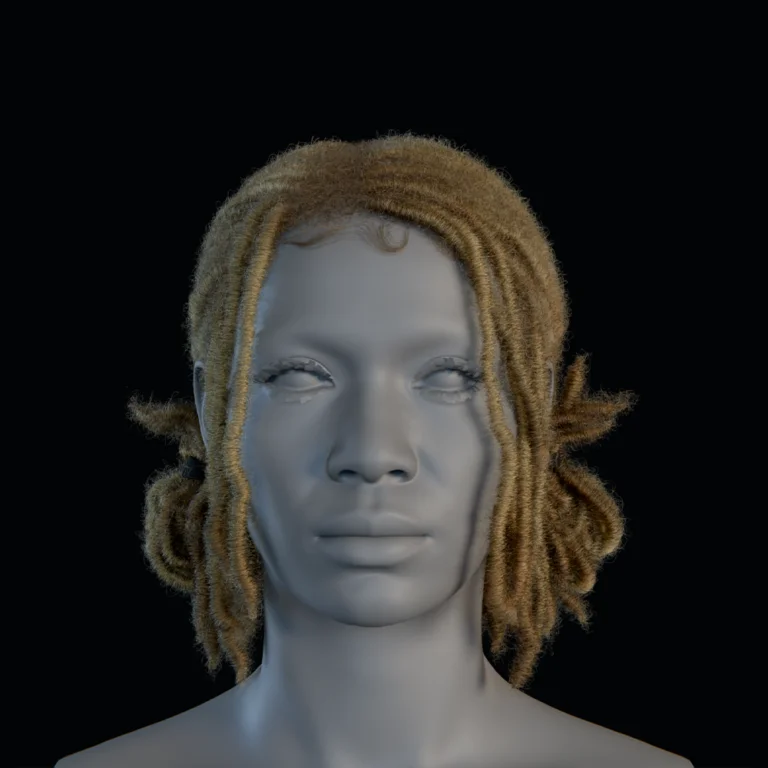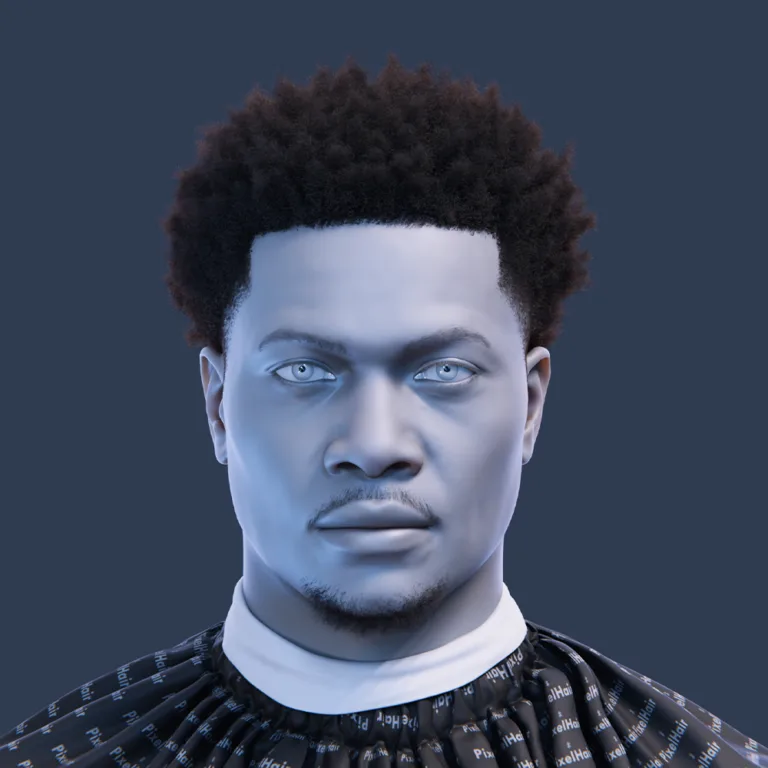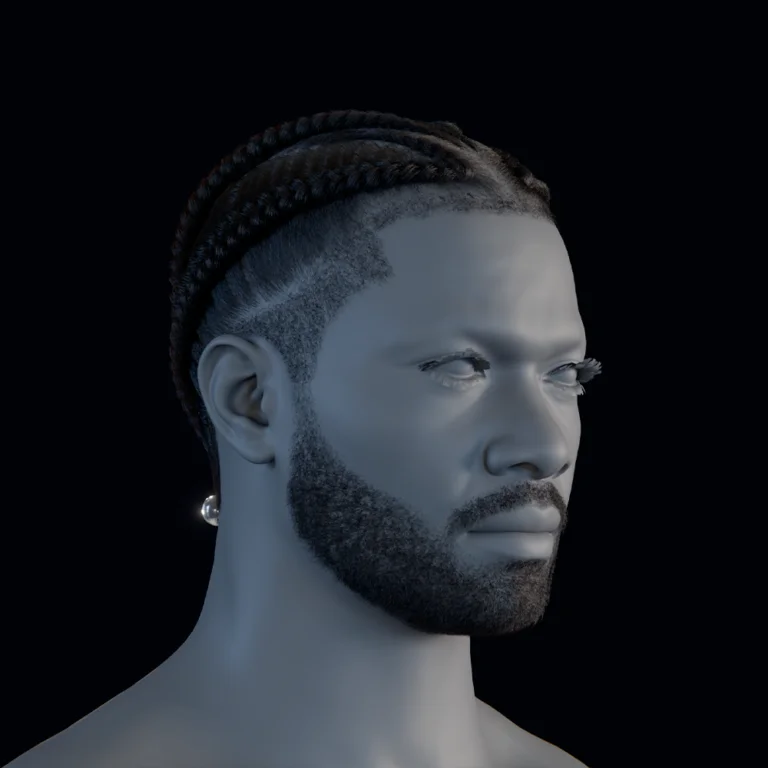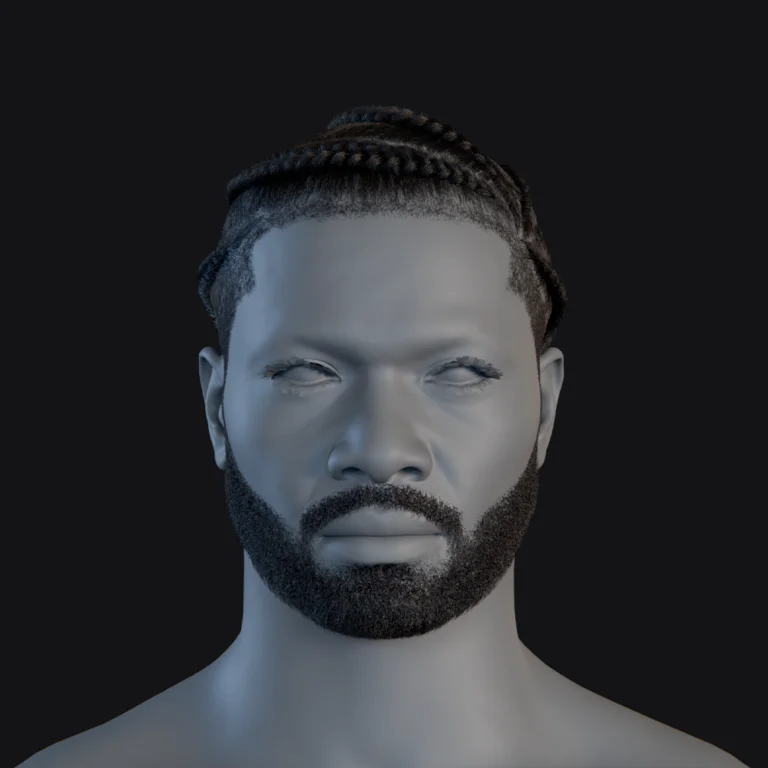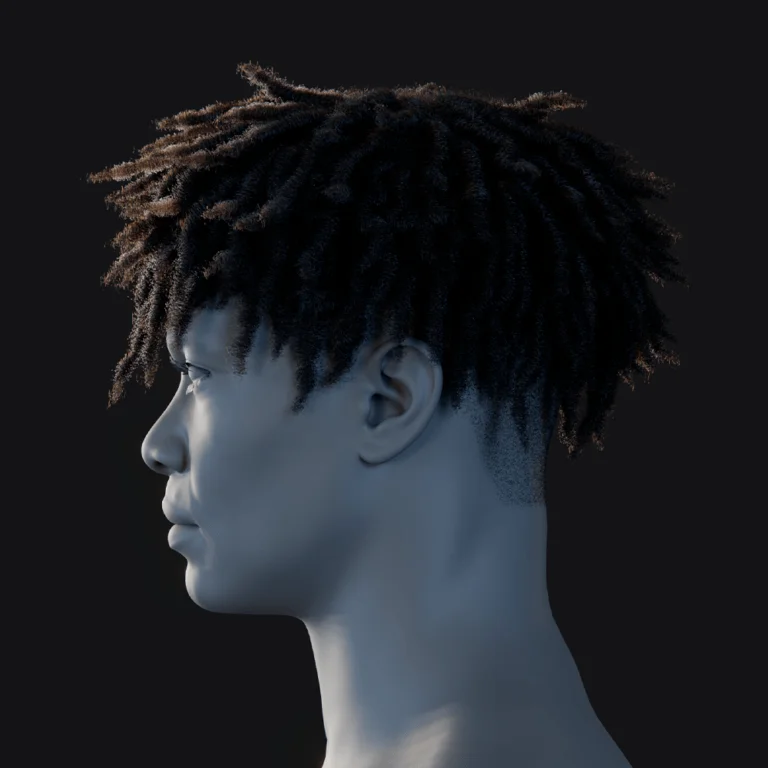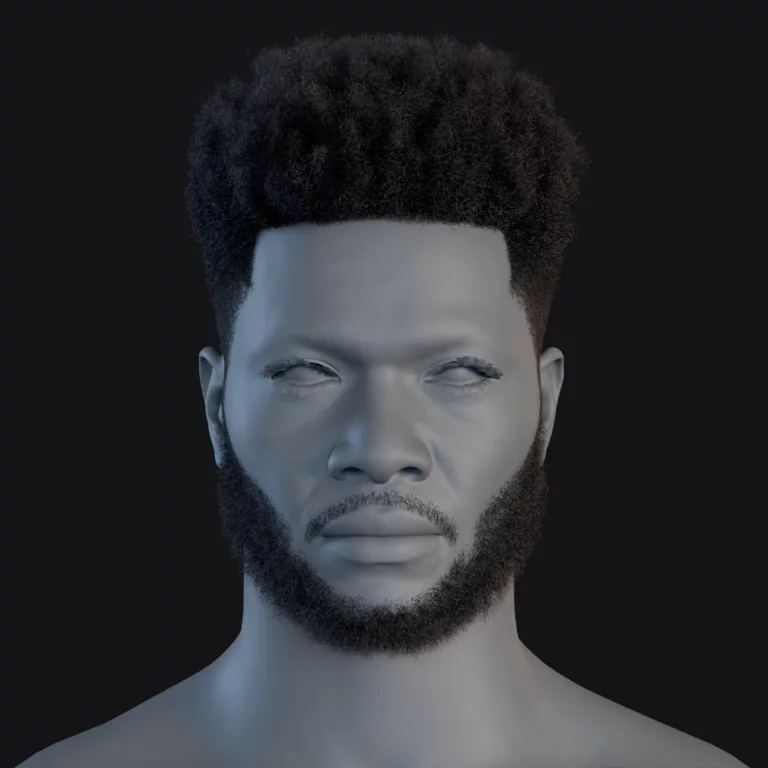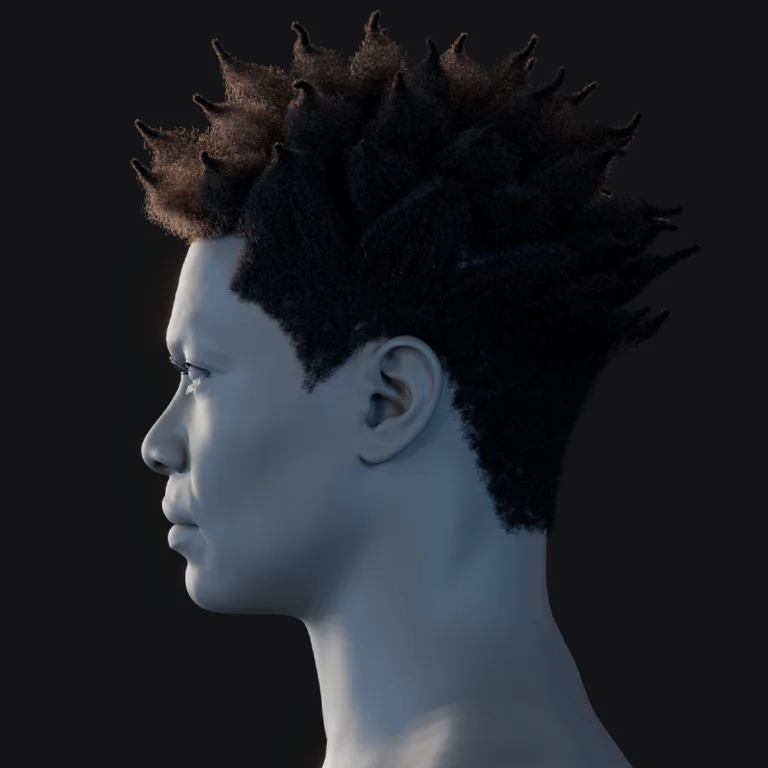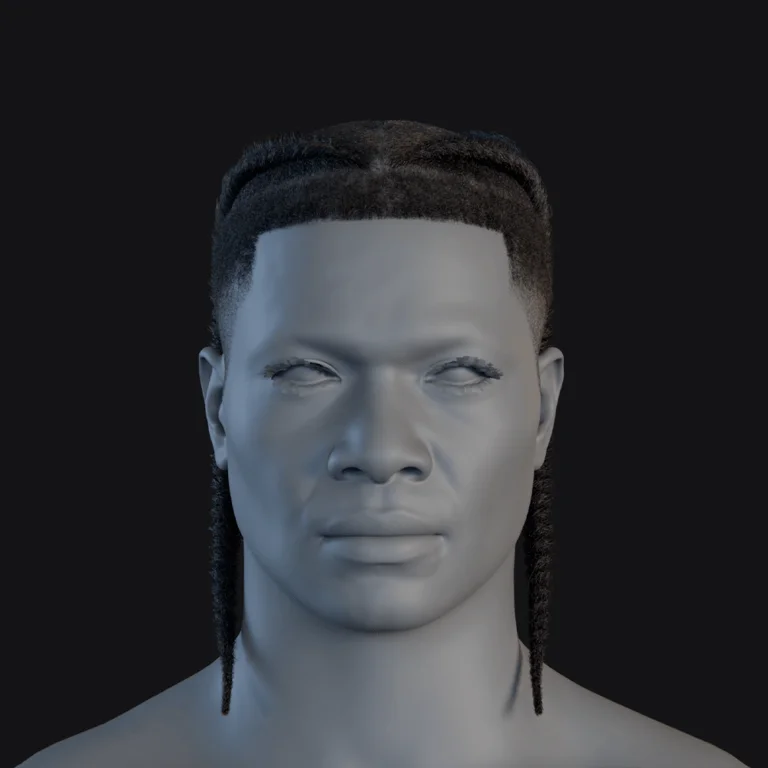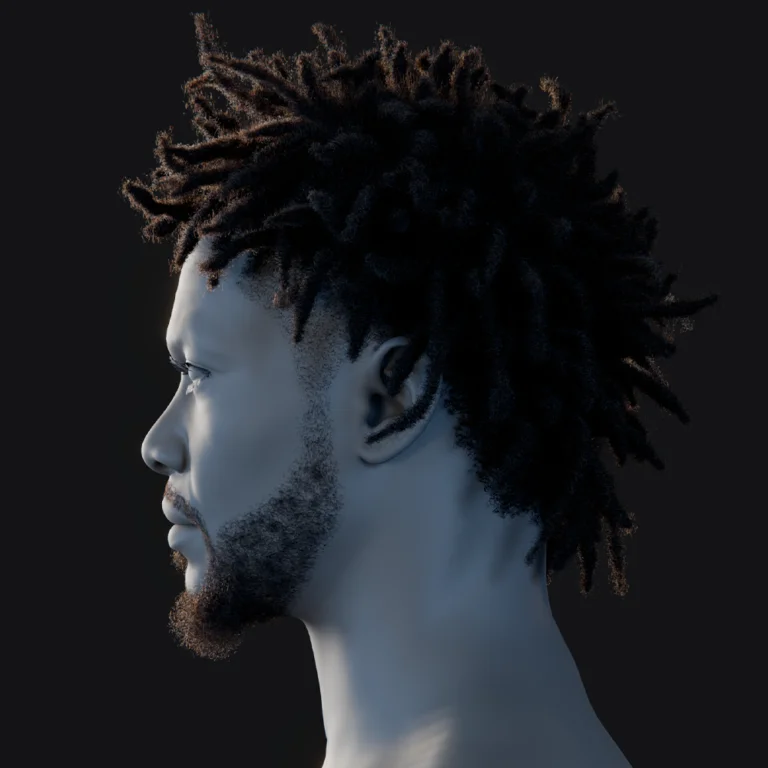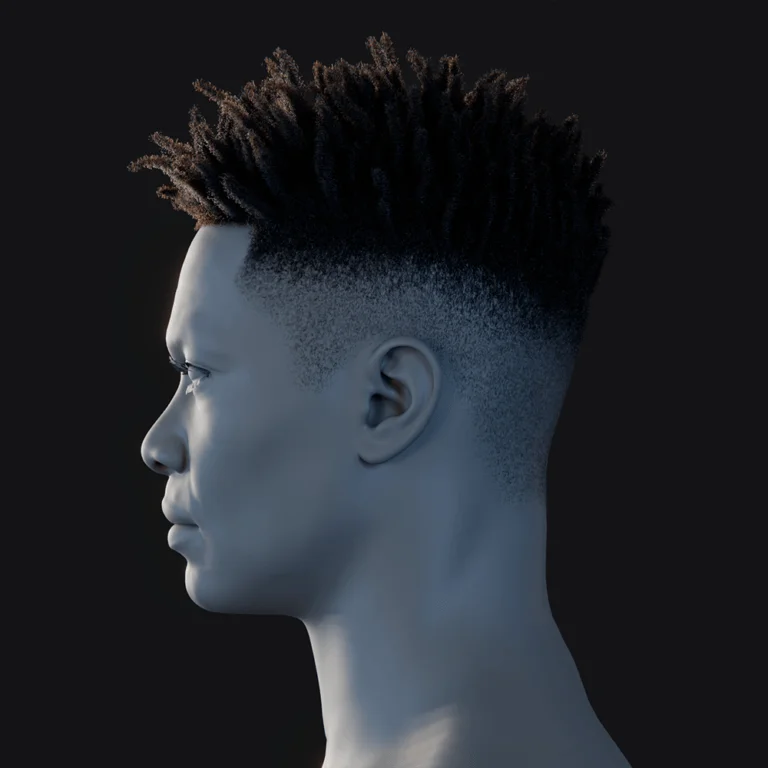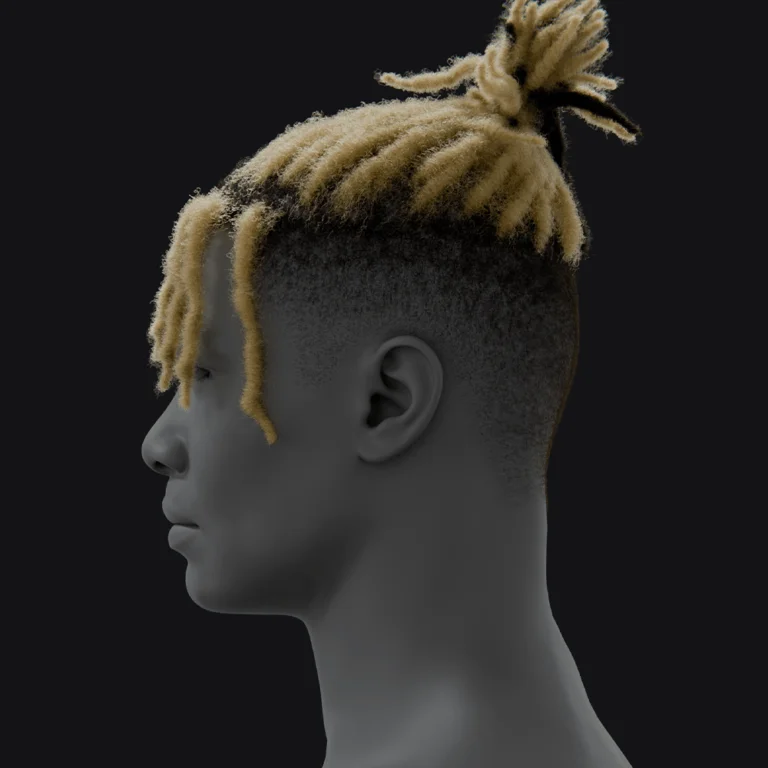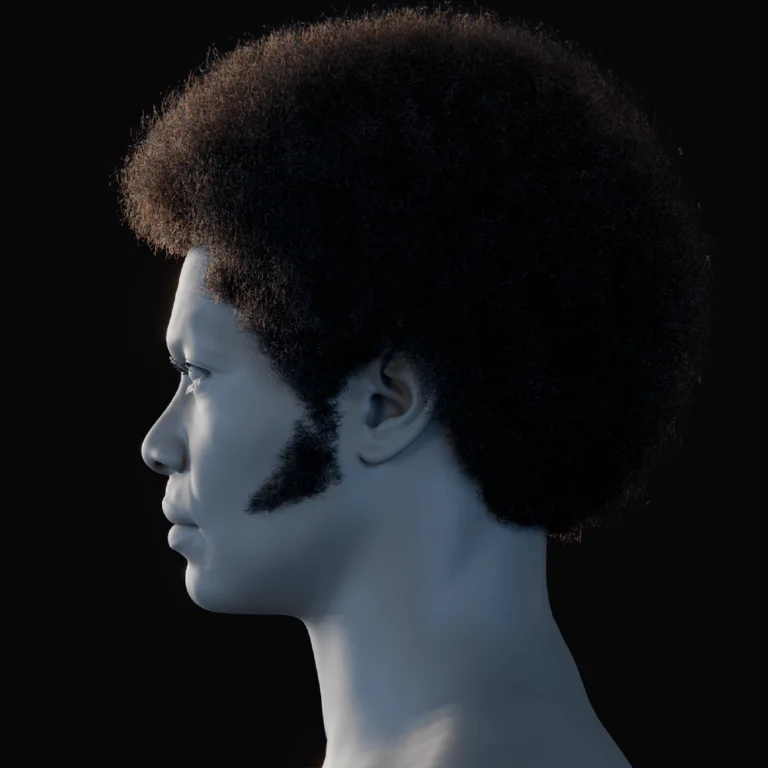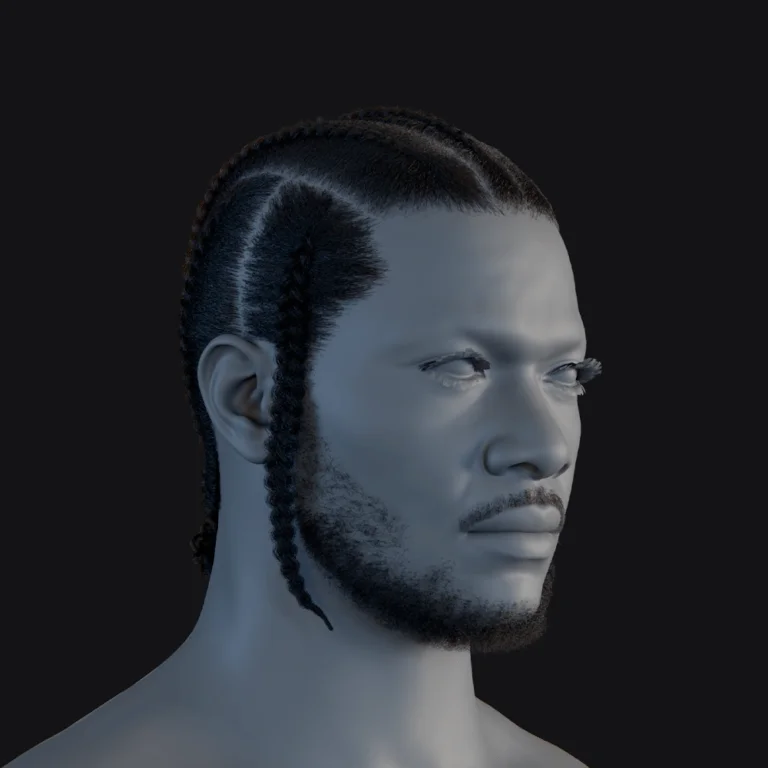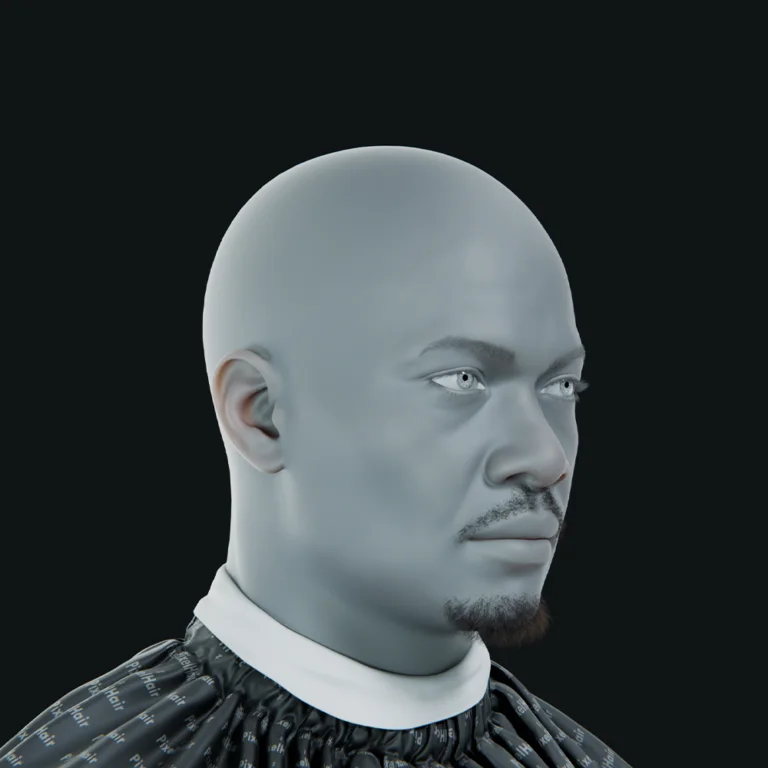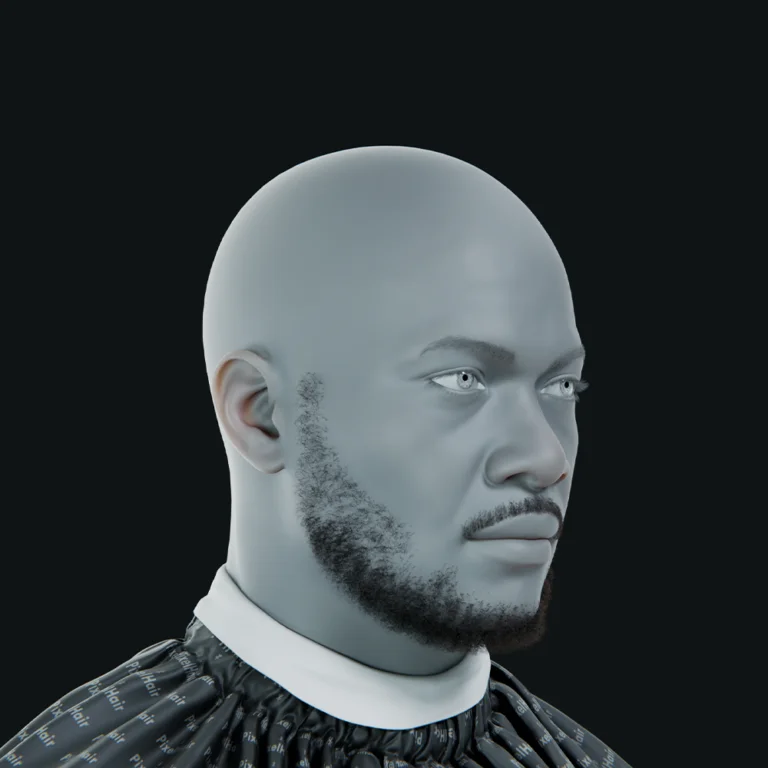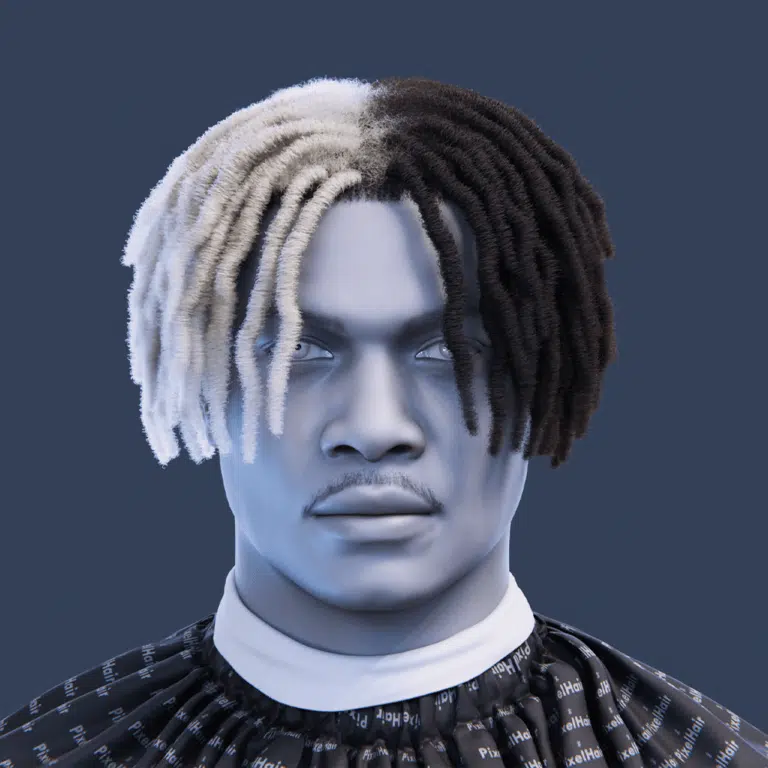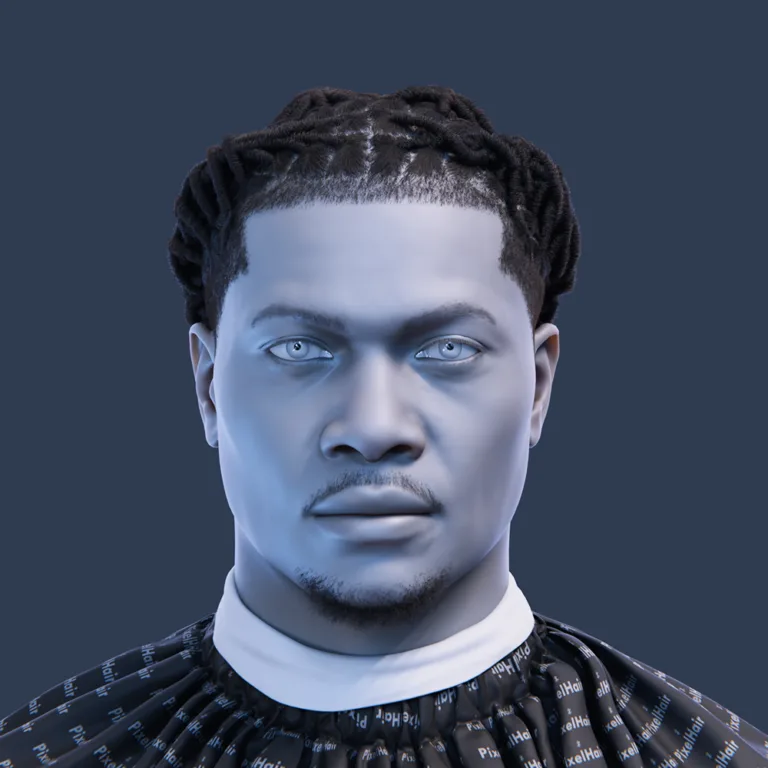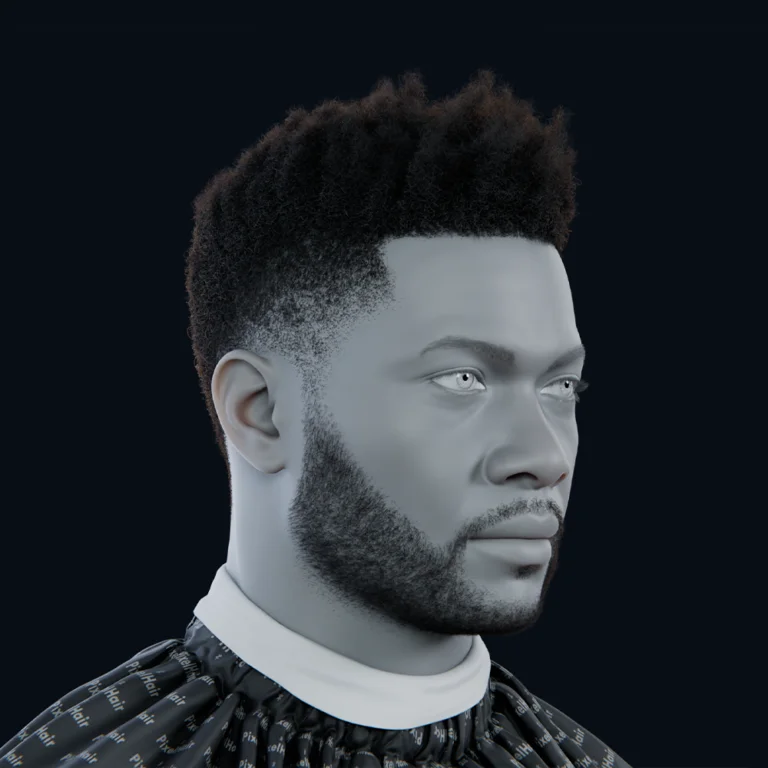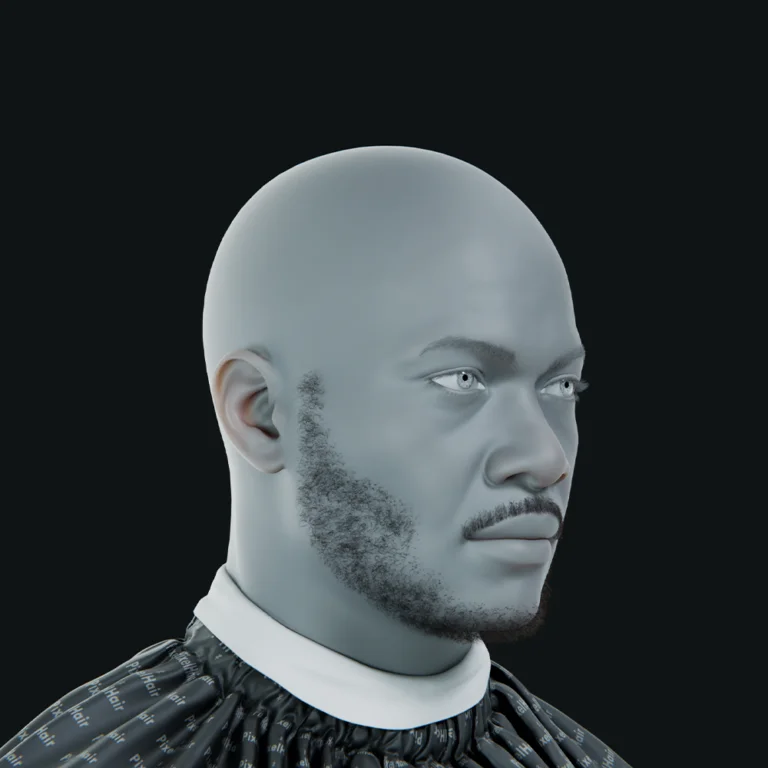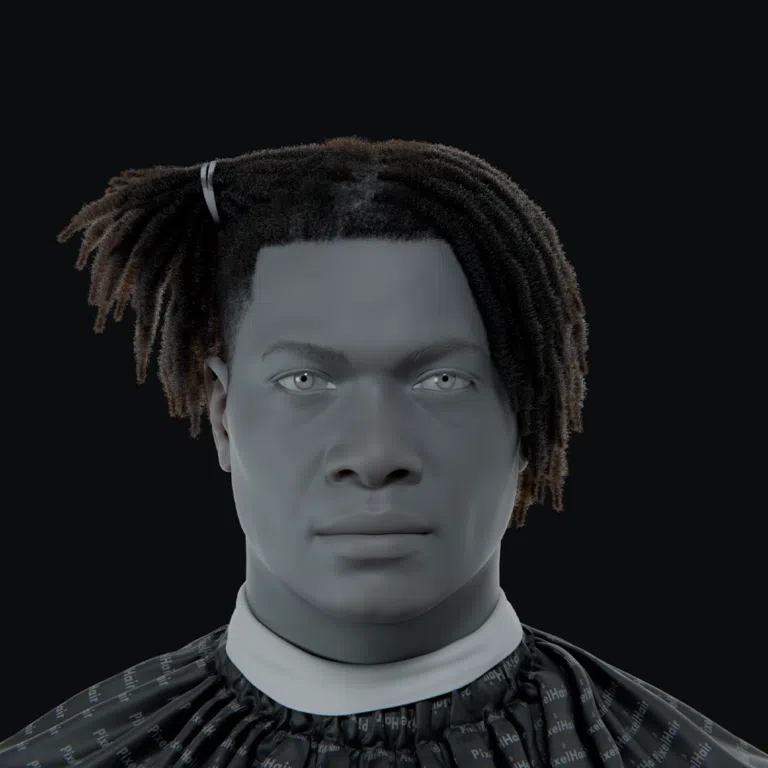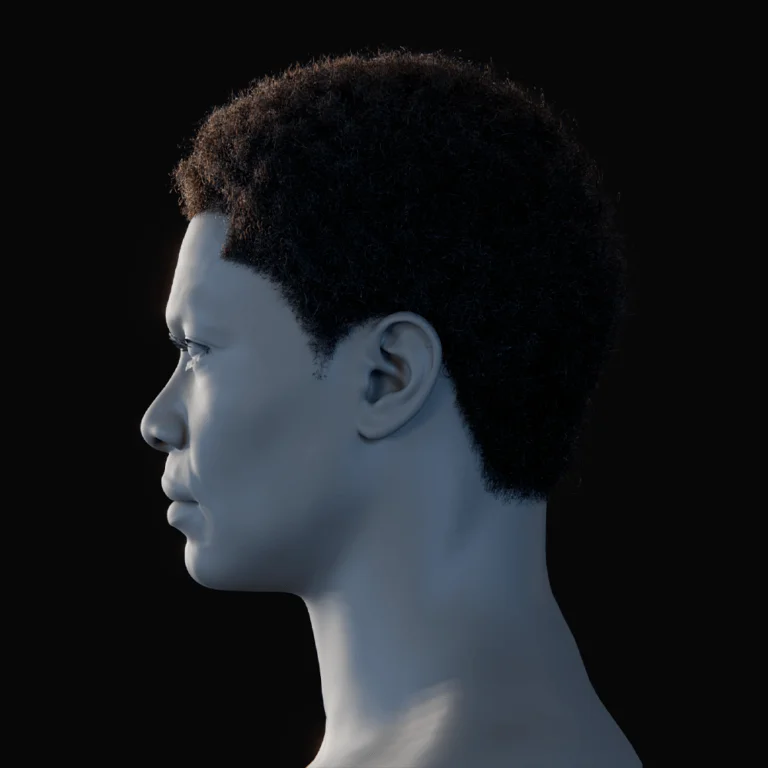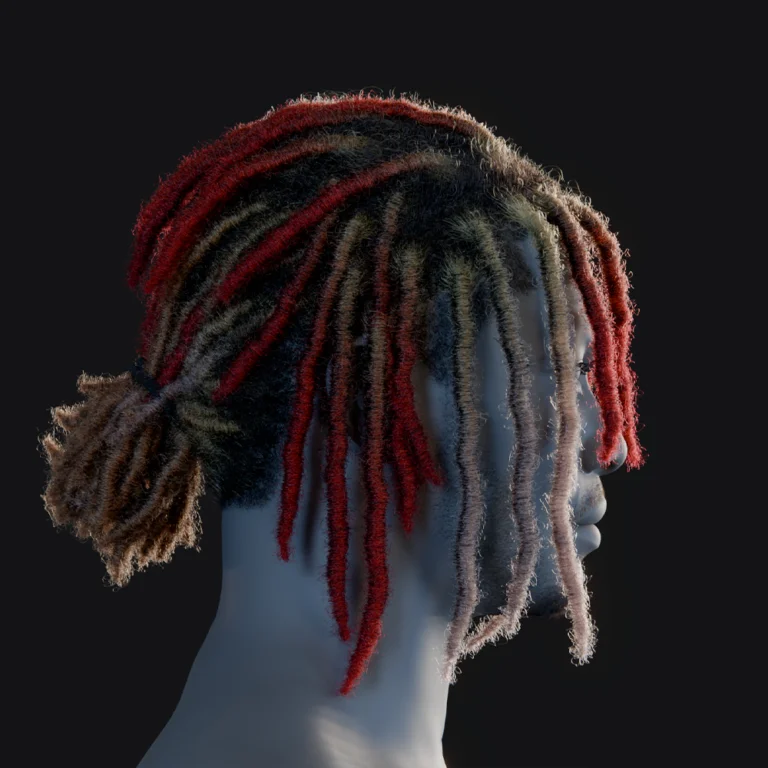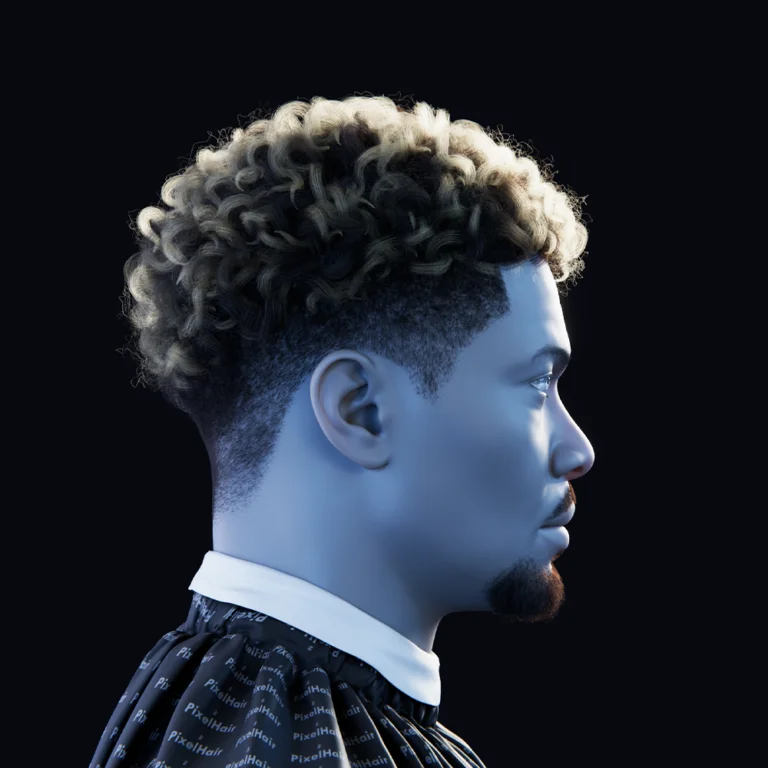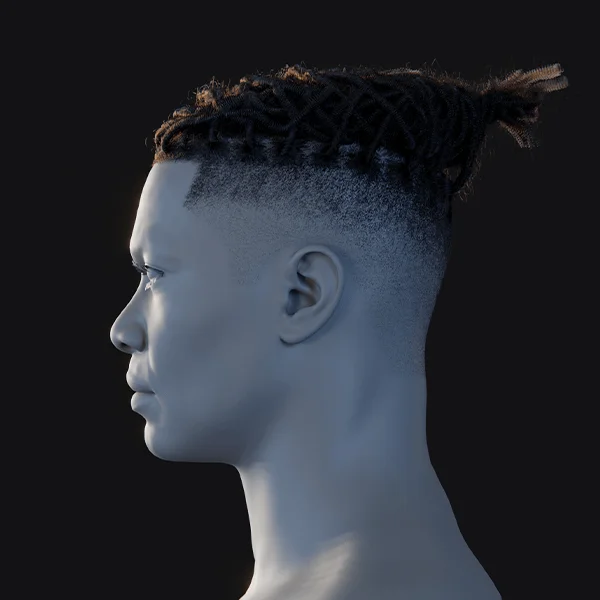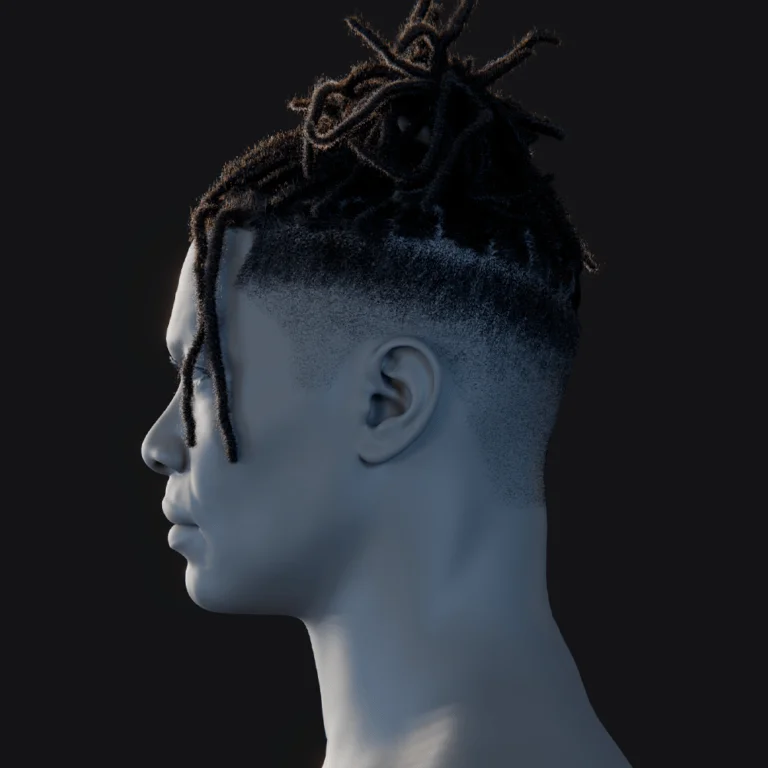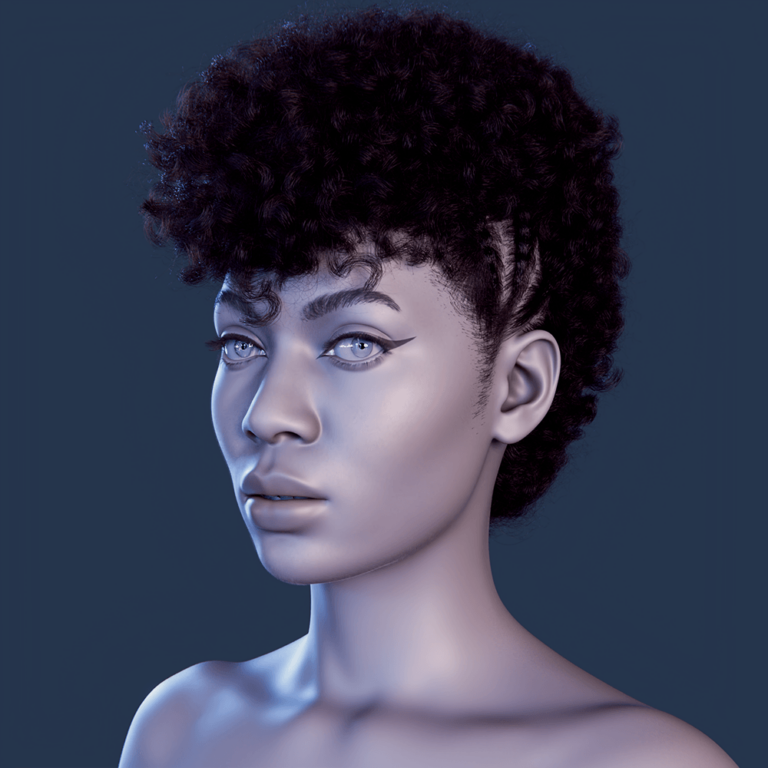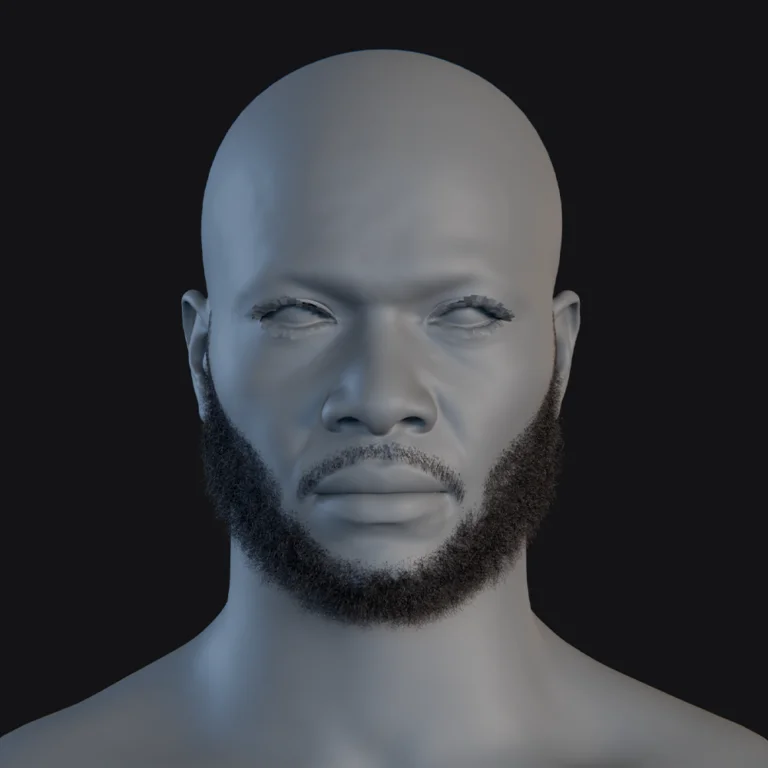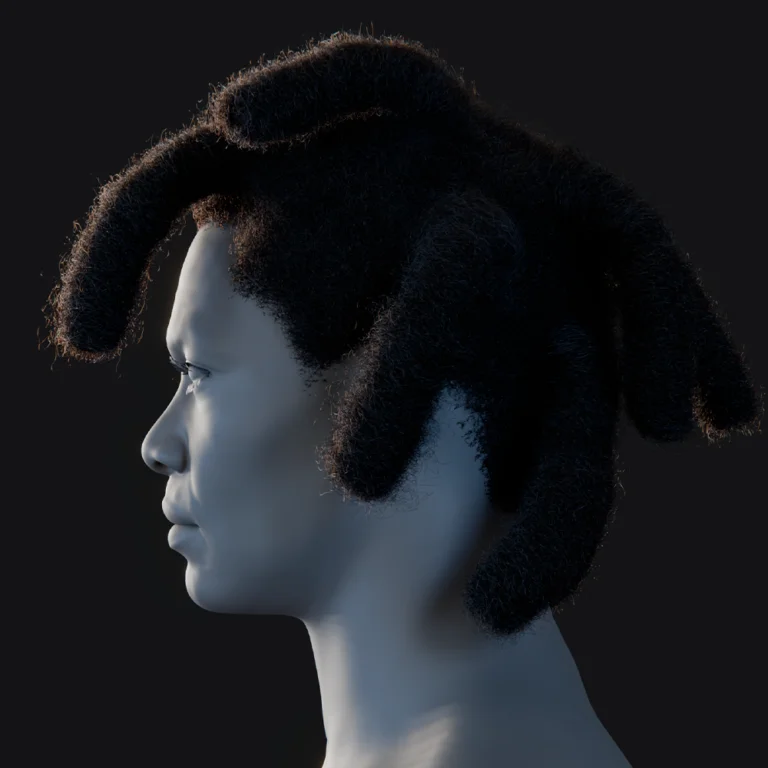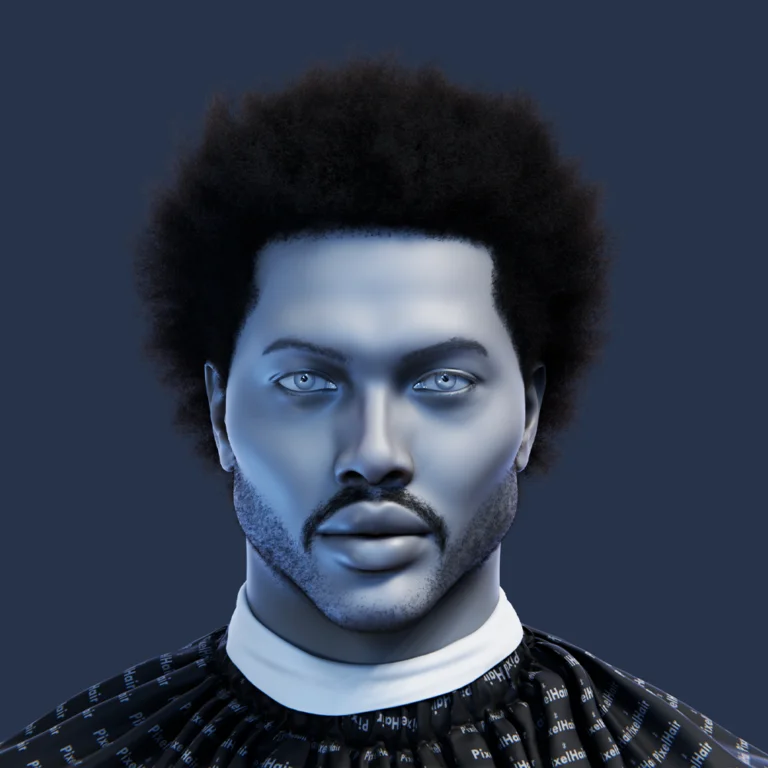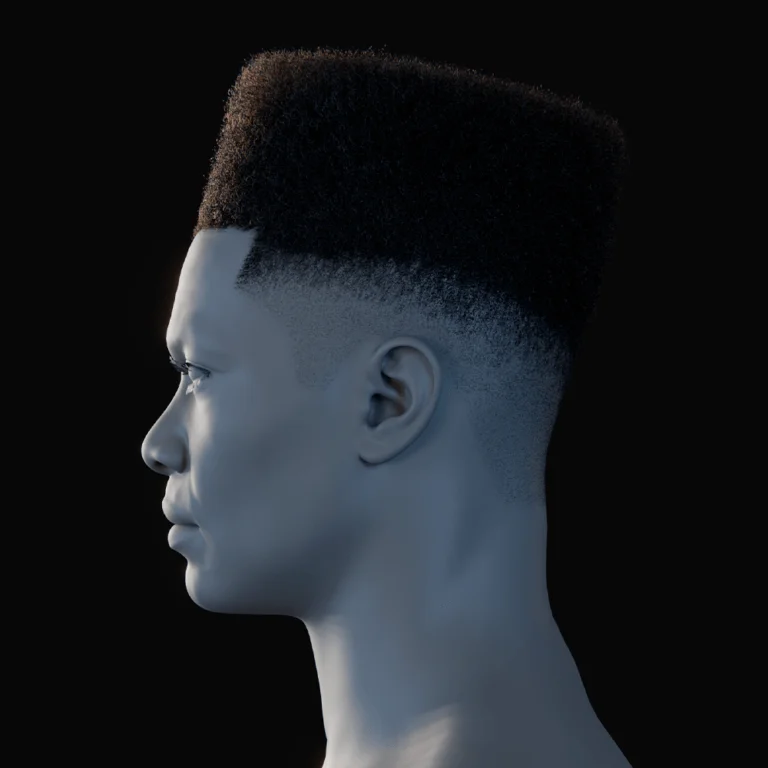








Aniimo Face Sharing is one of the most useful character customization features in Pawprint Studio’s open world creature collecting RPG. It allows players to export their character’s appearance, share customized facial designs, and import creations made by other players using Face IDs or QR codes. Instead of manually recreating complicated facial features, hairstyles, makeup arrangements, and cosmetic combinations, players can use shared appearance data as a starting point for designing their own Pathfinder.
The feature is particularly valuable for players interested in anime inspired characters, realistic facial proportions, distinctive fantasy appearances, or designs created by the wider Aniimo community. Whether players want to reproduce a friend’s character, preserve an original appearance, or experiment with a completely different style, Face Sharing makes customization more convenient by reducing the time required to adjust individual settings.
Aniimo launched on PC and consoles on September 16, 2026, followed by iOS and Android on September 23, 2026. Its appearance customization system provides players with opportunities to personalize their characters throughout their adventures in Idyll. Face Sharing expands these possibilities by allowing character designs to circulate between players rather than remaining exclusive to the person who originally created them.
The system works by converting a customized character’s appearance into shareable information that another player can import through the character editor. Instead of providing instructions for individual facial settings, the creator can generate appearance data associated with a Face ID or QR code. The recipient then uses that information to reproduce the original design within their own customization interface.
The two primary sharing methods are:
- Face IDs: Identifiers associated with saved character appearances that can be entered through the game’s import interface.
- QR codes: Scannable codes that provide access to shared appearance data without requiring players to manually reproduce individual customization settings.
Both methods serve the same general purpose: transferring cosmetic appearance information between players. The main difference involves how that information is accessed. Face IDs use an identifier entered through the appropriate menu, while QR codes offer a visual method of importing the associated design.
For example, a player might create a fantasy character with distinctive eye shapes, carefully adjusted facial proportions, a particular hairstyle, and detailed makeup. Rather than asking friends to reproduce every slider adjustment, the creator can export the appearance and share the resulting Face ID or QR code. Other players can then open the customization interface, import the information, preview the appearance, and confirm whether they want to apply it.
This process makes detailed character customization more accessible, especially for players who enjoy creative designs but prefer not to spend extensive time adjusting individual features. It also allows experienced creators to share their work with the broader community, giving others opportunities to discover new styles and experiment with appearance combinations they might not have considered independently.
The general Face Sharing process involves several stages:
- Access character customization: Open the appearance editor through the appropriate character customization interface.
- Create or select a design: Adjust facial features, hairstyles, makeup, and other supported cosmetic settings until the appearance matches the intended style.
- Export appearance data: Use the available sharing function to generate the Face ID or QR code associated with the design.
- Share the information: Send the identifier or code to another player through an appropriate communication platform.
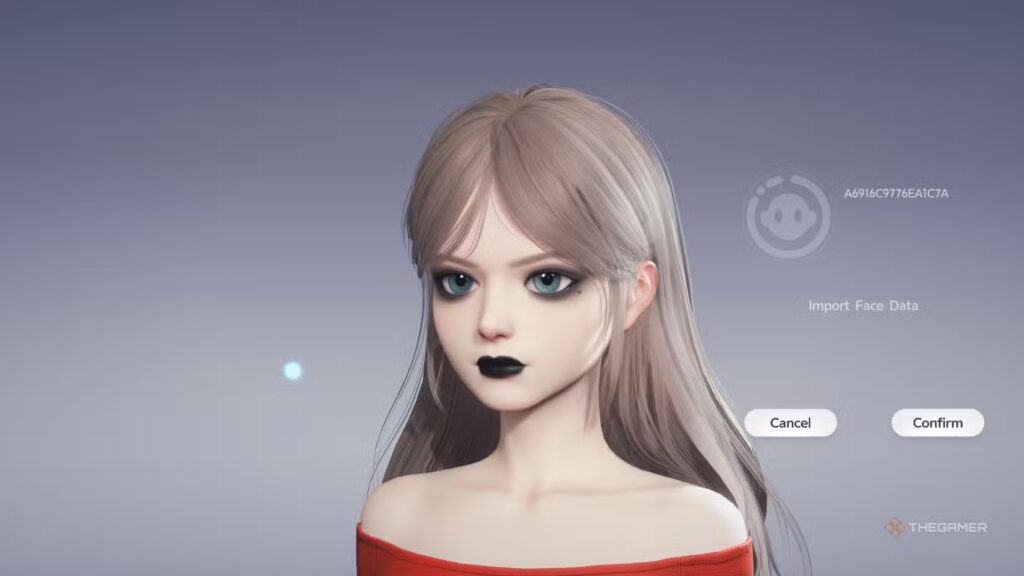
- Import a shared appearance: Open the character editor and locate the Import Face Data option.
- Preview the imported design: Examine the appearance before deciding whether to apply it.
- Confirm customization: Apply the imported appearance if satisfied, taking account of any applicable customization requirements or costs.
The system also encourages the development of community created appearance collections. Players can share customized characters through gaming communities, social platforms, and discussions dedicated to Aniimo character design. These collections may include anime inspired appearances, fantasy characters, realistic facial structures, or distinctive cosmetic combinations.
Importing an existing design does not necessarily mean players must retain every detail permanently. Shared appearance data can function as a starting point for further customization, allowing players to experiment with individual features while preserving the general look of the imported creation. This makes the system useful for both reproducing existing designs and developing original variations.
An important limitation is that Face Sharing concerns cosmetic information rather than gameplay progression. Importing another player’s appearance does not transfer their account, captured Aniimo, character level, inventory, currency, achievements, story progress, or server information. The recipient continues using their own playable character and account while changing the character’s visual presentation.
This distinction is important because community discussions sometimes use terms such as character import, Face ID, and Face Sharing interchangeably. Importing a character’s visual design is different from transferring an entire character profile or account. The system is intended to make cosmetic customization easier, not to duplicate another player’s progression.
Face IDs should also be distinguished from promotional redemption codes. Reward codes, when available, are generally intended to provide in-game items or other promotional benefits. Face IDs are associated with saved appearances and must be used through the relevant customization interface rather than a reward redemption menu.
Although Face Sharing is designed to simplify customization, players may encounter problems when importing or exporting appearance data. These can include unreadable QR codes, incorrectly entered Face IDs, unavailable import options, appearance change requirements, and the reported “Face Already in Usage” error.
Compatibility may also vary between appearance data created during earlier testing periods and designs generated after the game’s official release. Older beta customization information may not always behave identically to current appearance data, particularly if the underlying editor or supported cosmetic options have changed.
For this reason, players should ensure they are using valid appearance information and the appropriate import interface. A QR code that cannot be read may need to be obtained again in a clearer format, while an incorrectly entered Face ID may fail because of missing or mistaken characters. If an import option is unavailable, players should confirm that they have access to the relevant customization menu.
The reported “Face Already in Usage” message presents another potential complication. Because the exact circumstances behind individual reports may differ, players should avoid assuming that every failed import has the same cause. Checking the selected appearance, reviewing the available customization options, and confirming that the shared data is compatible with the current version can help narrow down the problem.
Appearance change costs are another consideration. Importing a design and applying it to an existing character may involve different requirements depending on the customization system. Players should therefore review any confirmation messages or displayed costs before finalizing an appearance change.
The most useful troubleshooting checks include:
- Unreadable QR codes: Confirm that the image is clear, complete, and suitable for scanning through the appropriate interface.
- Incorrect Face IDs: Check the identifier carefully for missing characters or entry mistakes.
- Missing import options: Verify that the correct character appearance editor is open and that the required customization features are available.
- Appearance change costs: Review any displayed requirements before confirming a new character design.
- Face Already in Usage errors: Examine the current appearance selection and import status before attempting the operation again.
- Older beta appearance data: Consider whether a saved design was created using an earlier version of the customization system.
- Unexpected imported appearances: Preview the design carefully before applying it to ensure the transferred information matches the intended character.
Aniimo Face Sharing provides several advantages beyond the convenience of copying character designs. It allows players to preserve favorite appearances, explore different styles, learn from experienced creators, and participate in community customization activities. For players who enjoy the visual design aspect of role playing games, these possibilities can make character creation an ongoing activity rather than something completed only at the beginning of an adventure.
The feature also supports greater creative variety within the community. Players who specialize in detailed facial customization can distribute their work, while others can discover interesting designs without needing extensive experience with the editor. This exchange encourages experimentation and allows individual appearances to inspire additional creations.
Ultimately, Aniimo Face Sharing makes character customization more accessible by connecting individual design tools with community created appearance data. Face IDs and QR codes provide convenient ways to exchange cosmetic information, while the Import Face Data function allows recipients to reproduce existing designs through the character editor.
Understanding the distinction between appearance sharing and account progression, using the correct import interface, and checking compatibility before applying a design can help players avoid common problems. Whether the goal is recreating a friend’s character, importing a community preset, or preserving a carefully customized Pathfinder, Face Sharing provides a practical way to explore Aniimo’s character appearance system without rebuilding every detail manually.
In This Article (8 sections)
How to Unlock Aniimo Face Sharing and Create Custom Character Designs
Aniimo Face Sharing allows players to customize their Pathfinder’s appearance and exchange facial designs with other members of the community through Face IDs and QR codes. Before accessing the feature, players must unlock the appropriate appearance customization options through the game’s early progression. Although basic character creation is available when beginning a new adventure, returning to the editor after entering the game requires access to the Appearance menu.
According to character customization information published by GameWith, the main Appearance interface becomes available after players receive their Institute uniform during the Institute Initiation Quest. Completing this part of the introductory storyline unlocks additional customization options through the main menu, allowing players to revisit their character’s design. Players who cannot immediately locate Face Sharing should therefore check their quest progression before assuming that the feature requires premium currency or a separate purchase.
It is important to distinguish access to the Appearance menu from the availability of every cosmetic adjustment. Some customization options may have additional requirements, while changing an existing appearance can involve vouchers or other in-game resources. Aniimo’s September 23, 2026 update improved how resource costs are displayed within the Appearance Design interface, making it easier to review any required expenditure before confirming a new look.
There is no reliable evidence in the supplied information that players must reach a particularly high character level, complete the entire story, or purchase premium content solely to access basic Face Sharing. The appropriate starting point is completing the introductory customization progression, opening the Appearance menu, and examining the available design controls.
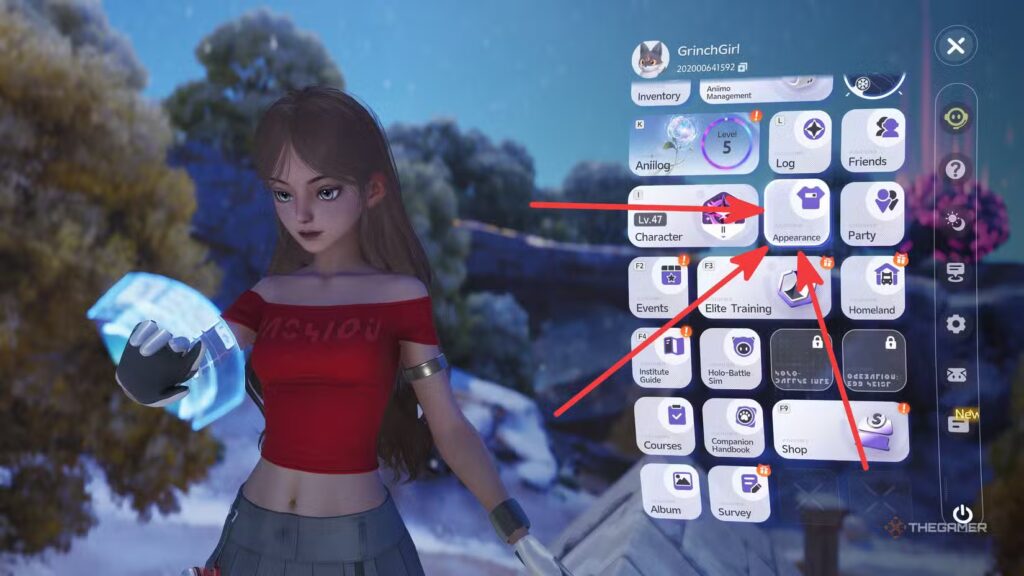
Once the relevant features are accessible, players can locate Face Sharing through the character customization interface rather than the account settings or promotional code redemption menu. Open the main menu, select Appearance, and navigate to the Design section. The Face Adjust option provides access to facial characteristics, while the broader design interface contains additional appearance controls.
The general process for accessing Face Sharing includes:
- Complete the Institute Initiation Quest: Progress through the introductory storyline until the Institute uniform and relevant appearance features become available.
- Open the main menu: Access the character customization options after unlocking the Appearance interface.
- Select Appearance: Enter the menu used to modify your Pathfinder’s visual design.
- Navigate to Design: Locate the section containing facial customization and related appearance controls.
- Open Face Adjust: Review the available facial settings if you want to create or modify a design.
- Find Import Face Data: Use this option when you want to apply another player’s shared appearance.
- Locate the export function: Select the appropriate face data sharing control when preparing your own design for another player.
The exact position of the import and export controls may differ depending on the game version, platform, and input method. Early player reports described an import option near the upper right section of the appearance editor, but that placement should not be assumed to remain identical across every interface. PC users generally navigate menus through mouse and keyboard controls, while console players should follow the displayed controller prompts. Mobile players can use the corresponding touch controls.
Aniimo’s September 23 update also addressed a controller issue that previously prevented the software keyboard from appearing when entering face customization codes. This confirms that code entry is supported through the customization interface and demonstrates why keeping the game client updated can resolve certain accessibility problems.
If Face Sharing remains unavailable after completing the relevant progression, players should confirm that they are using the correct account and server, that the client is updated, and that they have opened the character design controls rather than clothing inventory or Aniimo creature management.
After accessing the editor, creating an attractive character involves more than selecting a default preset. Aniimo offers detailed facial customization controls that allow players to modify facial structure and coordinate different cosmetic elements. Available adjustments include features associated with the cheeks, cheekbones, chin, jawline, and overall facial proportions, while hairstyles, makeup, and other visual options contribute to the finished appearance.
These detailed adjustments help explain why Face Sharing is useful. Reproducing an elaborate character manually can be difficult because small differences between individual settings may significantly change the overall appearance. Face IDs and QR codes provide a more convenient way to preserve and distribute designs without requiring recipients to recreate every adjustment.
When developing a custom character, players should begin with the overall facial structure before refining smaller details. Selecting an appropriate foundation makes it easier to maintain consistent proportions as additional modifications are introduced.
For example, an anime inspired character might emphasize expressive eyes, softer facial contours, and recognizable stylized proportions. A more realistic appearance may require careful attention to the relationship between cheekbones, jaw width, chin shape, and other facial characteristics. These choices influence the overall identity of the character before hairstyles or makeup are applied.
Rather than changing every setting randomly, players can approach facial customization through several connected elements:
- Overall facial structure: Establish the general shape of the face, including width, proportions, and the relationship between the jaw and cheekbones.
- Cheeks and cheekbones: Adjust facial fullness and structure to create softer, sharper, or more distinctive appearances.
- Chin and jawline: Refine the lower portion of the face to achieve the desired balance between angular and rounded features.
- Eyes: Experiment with available adjustments because eye shape and positioning strongly influence expression and character identity.
- Nose and mouth: Refine smaller facial characteristics to create a consistent appearance without exaggerating every adjustment.
- Hairstyle: Select a style that complements the facial structure and supports the intended character design.
- Makeup and colors: Use cosmetic details to introduce personality and coordinate the overall appearance.
The relationship between these features is particularly important. A narrow jawline combined with prominent cheekbones produces a different visual impression from a broad jaw and rounded cheeks. Similarly, changing the eyes can affect how the entire face appears, even when other proportions remain unchanged.
Hair also contributes significantly to the finished character. A hairstyle that complements a rounded face may create a different appearance when paired with angular facial features. Players should therefore consider how individual cosmetic options interact instead of evaluating each adjustment independently.
After establishing the facial structure, smaller details can be refined gradually. The objective is not necessarily to maximize every customization slider but to create a recognizable and visually consistent identity. Carefully balanced proportions often produce more convincing results than extreme adjustments applied without considering the surrounding features.
Before exporting a finished design, players should rotate the character preview and inspect the face from different angles. An appearance that looks balanced from the front may appear different from the side because of chin projection, cheekbone placement, or the relationship between facial features. Reviewing the available lighting conditions can also help identify details that are less obvious in the default preview.
It is also worth remembering that an imported face preset may not reproduce every surrounding cosmetic element exactly as expected. Hairstyles, clothing, makeup, and other available cosmetic settings can influence how the imported appearance looks on another character.
Once satisfied with the design, players should preserve its appearance data through the export function when available. Keeping a saved version makes it easier to restore a favorite appearance, experiment with additional changes, or share the creation with friends.
Ultimately, unlocking Aniimo Face Sharing and mastering its customization tools allows players to develop detailed character appearances without relying exclusively on default presets. Completing the introductory progression, locating the correct editor, and understanding how facial adjustments interact provide the foundation for creating designs that can be exported, preserved, and shared with the wider community.
How to Generate, Export, and Import Aniimo Face Sharing Codes and QR Codes
Generating and importing Face Sharing data in Aniimo allows players to exchange detailed character appearances without manually reproducing individual customization settings. The system uses shareable Face IDs and QR codes, providing different methods of transferring cosmetic information between players. Both options serve the same general purpose, but their procedures differ depending on whether the user is exporting an original design or importing an appearance created by someone else.
To generate a Face Sharing code, begin inside the character appearance editor after completing the desired facial adjustments. Locate the export or sharing control associated with face data and activate it to prepare the current design for sharing. Community guides describe a system supporting typed Face IDs and QR representations of appearance information, although the exact output may differ according to the platform and client version.
If the editor displays a Face ID, preserve the identifier exactly as shown. Avoid changing capitalization, removing characters, introducing additional spaces, or manually modifying any part of the code. Even a small transcription mistake can prevent another player from importing the intended appearance.
When the client provides a copy function, using it is preferable to entering the code manually. If copying is unavailable, record the complete identifier carefully and compare it against the original before sharing.
A screenshot showing the completed character alongside its Face ID can also be useful. This allows recipients to confirm that the identifier corresponds to the appearance they intended to import. For players who regularly create character designs, organizing exported information makes it easier to preserve multiple appearances and distinguish between different versions.
The recommended export process involves:
- Finalize the character design: Complete the desired facial adjustments and review the appearance before generating sharing data.
- Open the face data export function: Locate the appropriate sharing control within the Appearance Design interface.
- Generate the available information: Allow the game to produce a Face ID, QR code, or other supported appearance data.
- Preserve the identifier: Copy the Face ID exactly or record it carefully when direct copying is unavailable.
- Capture a character preview: Save a screenshot showing the appearance associated with the exported information.
- Organize saved designs: Use descriptive file names or folders to distinguish different character creations.
- Verify the export: Confirm that the generated information is available before distributing it to other players.
Organizational labels can be particularly useful when maintaining several character appearances. A creator might distinguish fantasy themed designs, anime inspired appearances, and realistic facial presets through descriptive names. These labels are simply methods of organizing saved files rather than special commands recognized by the game.
Players should also remember that Face Sharing codes are different from promotional reward codes. A Face ID belongs in the character customization system and cannot be used to claim promotional items through a gift redemption interface.
QR codes provide another way to share character designs. Instead of requiring the recipient to enter a lengthy identifier, an exported QR image allows the appearance to be imported through the game’s supported scanning or image recognition method.
To export a QR code, open the appearance editor and review the current character design. Activate the relevant export function and allow the client to generate the available sharing information. If the game provides an image containing both the character preview and QR code, preserve the complete file whenever possible.
A July 14, 2026 player report on the Aniimo subreddit confirmed that a beta version could export character images containing QR codes. The report also described a PC directory where the exported file was saved. However, because that information concerned a beta build, its folder location should not be assumed to apply to every current installation.
For the released game, players should use the export destination displayed by their installed client. Once the file has been generated, locate it and inspect the QR pattern before sharing it.
The image should remain clear and complete because QR recognition depends on the information encoded within the pattern. Aggressive cropping, low resolution, decorative overlays, or excessive compression can make the code difficult to recognize.
Players sharing QR images through messaging applications should use higher quality file transfer options when available. Some services compress images automatically, potentially reducing the clarity of small QR patterns. Preserving the original exported image provides a more reliable source than repeatedly forwarding screenshots.
For creators maintaining large collections, a useful organization method is to keep the original QR export, character preview, and corresponding Face ID together. This allows the appearance to be shared through whichever method is most convenient for the recipient.
Importing an existing character design follows a related process but uses the Import Face Data function instead of exporting the current appearance. Begin by obtaining a valid Face ID or QR code from the creator, preferably one generated through a recent version of Aniimo.
Open the game and navigate to the character appearance editor. Locate Import Face Data and choose the available method corresponding to the information received. For manual entry, type or paste the Face ID exactly as provided, then submit it through the customization interface.
If the data is accepted, the game should display the associated appearance for review. Players should inspect this preview carefully before confirming any changes because the imported facial structure may look different when combined with their current hairstyle, makeup, clothing, or other cosmetic settings.
The general Face ID import procedure is:
- Obtain a valid Face ID: Use appearance data provided by the original creator or a trusted community source.
- Open the Appearance menu: Access the character editor after completing the necessary introductory progression.
- Locate Import Face Data: Select the import control within the appropriate design interface.
- Choose manual code entry: Open the Face ID input field when importing a typed identifier.
- Enter the complete code: Paste or type the identifier exactly, checking for missing characters or unwanted spaces.
- Submit the import: Allow the game to interpret or retrieve the associated appearance information.
- Preview the character: Examine the imported facial design and confirm that it matches the intended appearance.
- Review any costs: Check whether applying the appearance requires a voucher, currency, or another resource.
- Confirm the change: Apply the design only after reviewing its appearance and any displayed requirements.
The preview stage is especially important because successfully importing a Face ID does not necessarily mean the player must apply it immediately. A third party guide updated on October 9, 2026 specifically advises reviewing appearance change costs before saving an imported design.
Players should therefore check any confirmation messages carefully. If the editor indicates that a voucher or currency is required, they can decide whether the imported appearance is worth applying before committing the necessary resources.
After confirming a successful import, players may be able to make additional adjustments through the editor. This allows shared appearances to function as starting points for original variations rather than requiring recipients to preserve every detail unchanged.
Compatibility is another consideration. Player discussions have reported differences between appearance data generated during some Aniimo beta tests and information produced by later builds. Older codes may not always behave identically in the released version, especially if customization options or data formats changed during development.
Whenever possible, players should obtain recently exported appearance information from creators using the current game version. This reduces uncertainty about whether an import failure is associated with outdated data.
Incorrect code entry remains one of the simplest explanations for unsuccessful imports. A missing character, unnecessary space, or incorrectly copied symbol may cause the identifier to fail. Reviewing the original information before retrying can help distinguish a transcription problem from a compatibility issue.
QR code imports introduce different considerations because the recipient must use the game’s supported image or scanning method. A blurry, compressed, or incomplete QR pattern may not provide readable information. In those cases, obtaining the original exported image is preferable to repeatedly attempting to scan a damaged copy.
The most common considerations when sharing or importing appearance data include:
- Face ID accuracy: Identifiers must be entered exactly as generated.
- QR image quality: Codes should remain clear, complete, and free from obstructing graphics.
- Game version compatibility: Older beta exports may not function identically in the released client.
- Correct menu selection: Appearance codes must be imported through character customization rather than reward redemption.
- Cosmetic differences: Hairstyles, makeup, clothing, and other settings may affect how an imported face appears.
- Appearance change requirements: Applying imported designs may involve vouchers or other resources.
- Export preservation: Keeping original files and identifiers makes future sharing more reliable.
- Preview confirmation: Players should review the imported appearance before saving changes.
These precautions are particularly useful for community creators whose designs may be downloaded and shared repeatedly. A QR image posted publicly can be copied, resized, compressed, or redistributed through different services, increasing the possibility that the original information becomes harder to read. Maintaining an intact export allows creators to provide a reliable replacement when necessary.
Testing a newly generated Face ID with another player can also help confirm that the information works correctly. However, successful importing may depend on the recipient’s game version and applicable customization requirements, so a failed attempt does not automatically mean the original export was created incorrectly.
Ultimately, Aniimo Face Sharing provides a convenient way to exchange character appearances through Face IDs and QR codes while preserving the ability to customize individual details. Generating accurate export information, maintaining clear QR images, using the correct import interface, and reviewing appearance change requirements can make the process more reliable.
Whether players want to preserve an original character, reproduce a friend’s design, or experiment with community created appearances, understanding the export and import workflow allows them to take advantage of Aniimo’s detailed customization system without manually rebuilding every facial adjustment.e ID does not replace your story progress, captured creatures, or inventory. It is a cosmetic operation rather than an account transfer.
8. How to Scan QR Codes, Find Face Sharing Presets, and Share Custom Character Designs in Aniimo
Aniimo Face Sharing allows players to exchange customized character appearances using QR codes and Face IDs, making it easier to recreate detailed facial designs without manually adjusting every customization setting. Players can import appearances created by friends, discover presets shared by the community, or preserve their own designs for future use. Understanding how to scan QR codes, find reliable presets, and organize saved appearance data can make the customization process considerably more convenient.
Using a QR code provides an alternative to entering a Face ID manually. However, the image must contain actual exported character appearance data recognized by Aniimo’s customization system. A regular screenshot showing another player’s Pathfinder is not sufficient because it does not necessarily contain the information required to reproduce the design.
To begin, obtain a valid QR image from the original creator and open Aniimo’s character appearance editor. Navigate to the Import Face Data option and select the QR import method available through your current game client. Depending on the platform and interface, the game may support scanning a displayed QR code or selecting an existing image containing the necessary information.
The general QR import process involves:
- Obtain a valid QR code: Request the original exported image containing the character’s appearance data.
- Open the Appearance menu: Access the character customization interface through the game’s main menu.
- Select Import Face Data: Locate the function responsible for importing shared character appearances.
- Choose QR import: Use the scanning or image selection method supported by your device.
- Position the QR code correctly: If camera scanning is available, display the complete image clearly within the scanning area.
- Review the imported appearance: Check that the resulting character matches the design you intended to use.
- Confirm any requirements: Examine possible appearance change costs before applying the imported face.
QR recognition depends heavily on image quality. The entire pattern should remain visible, with sufficient contrast and no obstruction from text, stickers, or decorative graphics. Poor lighting, screen reflections, aggressive cropping, and excessive image compression can interfere with scanning.
Mobile players may encounter additional difficulties when the QR image is stored on the same device running Aniimo. If the game uses camera scanning, displaying the image on another device may be easier. Alternatively, players can ask the creator for the corresponding Face ID and enter it manually through the customization interface.
The precise scanning controls may vary between PC, console, and mobile versions. Players should therefore follow the instructions displayed by their installed client rather than assuming that controls described for another platform will work identically.
Once the QR code is recognized, Aniimo should provide the corresponding appearance data for review. Players should inspect the character preview carefully because imported facial features may look different when combined with their existing hairstyles, makeup, clothing, or other cosmetic options. Any displayed customization costs should also be checked before confirming the change.
QR codes are particularly convenient for community sharing because creators can distribute a character preview alongside the information needed to reproduce the appearance. However, players should treat these images strictly as cosmetic customization data. A legitimate Face Sharing import should not require entering account passwords, verification codes, or payment credentials on unfamiliar websites.
Finding reliable Aniimo Face Sharing presets is another important part of the process. Community created appearances can provide inspiration for anime inspired characters, fantasy designs, realistic faces, and recognizable character recreations. Instead of spending considerable time adjusting every facial setting, players can start with an existing design and refine it according to their preferences.
Several community resources may help players discover shared appearances:
- Aniimo subreddit: Reddit discussions provide information about character customization, exported designs, QR codes, and technical problems encountered by other players.
- Official Aniimo Discord: Community members may exchange appearance previews, discuss customization techniques, and share Face IDs or QR images.
- Aniimo List: Provides information about Face Sharing and importing appearance data, although its guide does not contain a verified library of preset codes.
- Social media communities: Players may publish character screenshots, short customization videos, and exported appearance information.
- Community discussions: Searches for Aniimo Face ID, Aniimo QR code, Aniimo character presets, and Aniimo face import can help locate relevant posts.
The Aniimo subreddit is a useful starting point because players have discussed Face Sharing since the game’s testing period. A July 2026 discussion documented QR exports during beta testing, while later replies addressed customization sharing after the September 2026 launch. These discussions can provide practical information about how the feature behaves, although older instructions may not reflect the current game version.
The official Aniimo Discord offers another opportunity to connect with players interested in character customization. Members may exchange appearance screenshots, recommend designs, or discuss difficulties importing particular presets. Community feedback can also help determine whether a shared Face ID works correctly.
Third party resources such as Aniimo List can explain the customization system, but players should distinguish instructional guides from collections containing actual importable designs. A website that explains Face IDs does not necessarily provide a verified preset library.
Social media can also provide visual inspiration, particularly for players interested in anime inspired characters or elaborate fantasy appearances. However, a screenshot alone does not guarantee that the appearance can be imported. Before attempting to reproduce a design, confirm that its creator has provided a complete Face ID or readable QR image.
The publication date of a preset is also important. Some designs circulated during Aniimo’s beta testing period, when the customization system may have behaved differently. Older exports can present compatibility problems if the underlying appearance data format or available customization options have changed.
When choosing community presets, prioritize designs that include:
- A clear preview showing the character’s appearance.
- The complete Face ID or original QR export.
- A recent publication date or confirmation that the preset works in the current game version.
- Feedback from players who have successfully imported the design.
- Accurate information identifying the original creator when available.
These details make it easier to identify reliable appearances and avoid wasting time on incomplete or outdated information. Players should also avoid websites advertising exclusive presets that require unrelated account verification or personal login credentials.
Sharing your own Aniimo character design with friends follows a similar process. Begin by opening the character appearance editor and reviewing the design you want to distribute. If you recently modified the character, confirm that the current appearance is the correct version before generating new sharing information.
Use the face data export function to create the available Face ID or QR image. If the game provides a typed identifier, copy it accurately. If a QR image is generated, preserve the original file to avoid problems caused by compression or image cropping.
You can then send the appearance information through a preferred messaging service. Discord is particularly convenient because it allows players to share character previews, written identifiers, and QR images together.
For friends who prefer manually entering codes, a typed Face ID may be the simplest option. Players with access to a supported QR importer may find an exported image more convenient. When both formats are available, providing them together gives the recipient another option if one method fails.
If you share several appearances, label each design clearly so the recipient knows which code corresponds to which character. Descriptive names such as fantasy Pathfinder, anime inspired design, or realistic character preset can help organize multiple exports.
Your friend can then open the Appearance menu, select Import Face Data, and use the shared information to preview the design. They should confirm any displayed customization costs before applying it. Importing facial data may also produce a different overall appearance when the recipient uses other clothing, hairstyles, makeup, or cosmetic settings.
It is also appropriate to credit the original creator when redistributing someone else’s appearance. Many players spend considerable time refining facial proportions and cosmetic combinations, and attribution helps recognize their contributions to the community.
Saving custom presets is particularly useful for players who enjoy experimenting with different character appearances. Instead of relying on one permanent design, players can preserve exported appearance information and reuse it as a starting point for future customization.
The most dependable approach is to export a completed design before making substantial changes. Save the original QR image in a dedicated folder and record any corresponding Face ID alongside a clear character preview. This creates a reusable reference that can be accessed later without manually rebuilding the appearance.
A practical preset collection may include:
- Original character appearance: The design used when beginning the adventure.
- Alternative character designs: Fantasy, anime inspired, realistic, or other visual variations.
- Original QR exports: Unmodified images containing the appearance information.
- Face IDs: Text identifiers recorded exactly as generated.
- Appearance previews: Screenshots showing which design belongs to each code.
- Creation dates: Simple labels indicating when the appearance was exported.
Organizing files by character style or creation date can make larger collections easier to manage. This becomes especially useful when several designs have similar facial characteristics or when players regularly modify their Pathfinder.
However, saving exported files outside the game should not be confused with unlimited native preset storage. The number of appearance slots available within Aniimo, if supported by the current client, should be checked through the customization interface.
Preserving an export also does not guarantee permanent compatibility with every future game version. Earlier beta discussions described difficulties importing certain designs between test builds, making it sensible to retain original files and refresh important exports following major customization changes.
When reusing a saved preset, open Import Face Data, select the supported method, and preview the appearance. Review any required currency or vouchers before confirming the change. Imported appearances can also provide a foundation for further editing, allowing players to develop new variations without recreating the entire facial structure.
Ultimately, QR codes, Face IDs, and saved preset collections make Aniimo’s character customization system more flexible. Players can preserve favorite appearances, share their work with friends, discover community creations, and experiment with new designs while reducing the repetitive effort involved in detailed facial adjustments.
How to Fix Aniimo Face Sharing Codes Not Working and the Face Already in Usage Error
Aniimo Face Sharing codes may fail for several reasons, including incorrectly entered Face IDs, unreadable QR images, outdated game clients, incompatible beta exports, or temporary problems with the customization interface. Troubleshooting should begin by identifying exactly what happens when the import is attempted, since different error messages and behaviors may indicate different causes.
If Aniimo rejects a manually entered Face ID, the first step is to examine the identifier carefully. Missing characters, additional spaces, incorrect capitalization, and transcription mistakes can prevent the game from recognizing the associated appearance information. Certain characters may also be difficult to distinguish depending on the font used to display the original code.
For example, the number zero can resemble the letter O, while some lowercase letters may look similar to numbers. Whenever possible, copy the identifier directly from its original source instead of typing it from a screenshot.
QR import problems require a different approach. Examine the image to confirm that the QR pattern is complete and readable. Cropping, compression, low resolution, or decorative overlays can prevent recognition. If the image was downloaded from social media, request the original export rather than relying on a reduced quality preview.
If QR scanning continues to fail, ask the creator for the corresponding Face ID and attempt manual entry. This can help determine whether the problem is associated with image recognition or the underlying appearance data.
The most common Face Sharing problems and troubleshooting steps include:
- Incorrect Face ID: Check for missing characters, extra spaces, incorrect capitalization, and symbols that may have been copied incorrectly.
- Unreadable QR code: Use the original exported image and ensure that the complete QR pattern is visible.
- Outdated game client: Install available updates before attempting the import again.
- Missing import menu: Confirm that the Appearance feature has been unlocked through the appropriate early game progression.
- Older beta presets: Request a fresh export created using the current released version when possible.
- Unexpected imported appearance: Review hairstyles, makeup, clothing, and other cosmetic settings that may affect the overall design.
- Interface problems: Check whether the issue affects code entry, scanning, or the confirmation stage.
- Persistent errors: Contact official support with the exact error message, platform, client version, and relevant screenshots.
Compatibility between different game versions deserves particular attention. Some player discussions from July 2026 described differences in Face Sharing behavior between beta builds. These reports do not establish that every older code is incompatible, but they demonstrate why testing period exports may not always work identically after release.
If an older preset fails, obtaining a fresh export from the creator can help determine whether the problem is related to the game version. However, generating new appearance data should be treated as a troubleshooting step rather than a guaranteed solution.
Keeping Aniimo updated is also important. The September 23, 2026 patch officially addressed a software keyboard problem affecting controller users attempting to enter face customization codes. This confirms that some import problems can result from interface errors rather than invalid Face IDs.
If the import option is missing entirely, players should verify that they have completed the relevant introductory quest progression. The Appearance menu becomes available after receiving the Institute uniform during the Institute Initiation Quest, according to the character customization guidance supplied earlier. Once the feature is unlocked, players should navigate to the Design section and locate Import Face Data.
Players should avoid confusing ordinary cosmetic troubleshooting with account management problems. A failed Face ID import does not normally require deleting a character, unlinking an account, changing servers, or modifying login information. Such actions can introduce unnecessary complications and do not directly address incorrect appearance data.
Another common source of confusion involves imported appearances that look different from their original previews. A valid face preset may reproduce facial structure while appearing different because of the receiving character’s hairstyle, makeup, clothing, or lighting. Players should examine these surrounding cosmetic elements before assuming that the code itself is incorrect.
Before testing several imports, preserving the current character appearance is also advisable. Exporting an existing design provides a reference that can be reused if the player later decides to restore it.
One of the more unusual problems associated with Aniimo Face Sharing is the reported “Face Already in Usage” error. A player discussion published on July 14, 2026 described encountering this message during beta testing while attempting to import appearance data.
The same discussion confirmed that exporting a QR image was possible, but the player encountered the error when attempting an import. Although the wording suggests that the game detected a condition involving the selected appearance data, its exact internal cause has not been publicly established in the supplied sources.
It would therefore be inaccurate to claim that this error always means a face design is permanently restricted, that Face IDs can only be imported once, or that a particular facial customization slider must be changed.
There is also no independently verified universal workaround. Players encountering the message should proceed carefully rather than repeatedly attempting unconfirmed fixes that could consume resources.
The recommended troubleshooting process is:
- Preserve your current appearance: Export the existing design before attempting further changes.
- Verify the Face ID or QR code: Confirm that the appearance information was entered correctly and that the image is readable.
- Check the export’s origin: Determine whether the design was created during beta testing or through the current released client.
- Request a fresh export: Ask the original creator to generate a new Face ID or QR image using an updated game version.
- Check community feedback: Determine whether other players using the current client have successfully imported the same appearance.
- Avoid unnecessary expenditure: Do not repeatedly spend appearance change resources while testing an unsuccessful import.
- Document the error: Capture the exact message and record the platform, client version, and import method.
- Contact official support: Submit the relevant information if the problem remains unresolved.
Checking whether other players can import the same preset may help narrow down the cause. If a design works for other users but not for one particular account, the problem may involve local conditions or account specific behavior. If multiple players encounter the same message, the issue may be related to the exported data or compatibility. However, these observations alone do not establish the exact technical cause.
A fresh export may also help when the original code was generated using an earlier test build. Nevertheless, there is no guarantee that this will resolve the “Face Already in Usage” error, particularly if the underlying problem involves another restriction or software issue.
Players should also avoid repeatedly confirming appearance changes during troubleshooting. If the customization interface requires vouchers or currency, repeated attempts could create unnecessary expenses without resolving the problem. Preserving the existing design and reviewing the confirmation screen before applying changes reduces this risk.
The October 2026 Aniimo character customization troubleshooting guidance also reported that no confirmed universal fix had been established for the error and recommended contacting official support when it persisted.
When submitting a support request, provide enough detail to help identify the circumstances. The most useful information includes the exact error message, device platform, current game version, whether a QR code or manual Face ID was used, and any screenshots showing the problem. Mentioning whether the preset originated from beta testing may also be relevant.
Until Pawprint Studio provides a definitive explanation, the safest approach is to retain the current appearance and avoid destructive account changes. Import failures involving cosmetic data should be investigated through the character editor and official support channels rather than through actions that could affect account access or progression.
Overall, most Aniimo Face Sharing problems can be approached by checking the accuracy of the shared data, confirming QR image quality, updating the game client, and reviewing compatibility with older exports. More complicated errors, including “Face Already in Usage,” may require official assistance because their underlying causes have not been conclusively established.
By preserving existing designs, using original export files, and carefully reviewing error messages, players can troubleshoot Face Sharing without unnecessarily risking their character customization or in-game resources.

Frequently Asked Questions (FAQs)
- What is Face Sharing in Aniimo?
Face Sharing is a character customization feature that allows Aniimo players to save, export, and exchange facial appearance designs using Face IDs or QR codes. Instead of manually recreating another player’s facial proportions, eye shapes, and other detailed settings, users can import the appearance directly through the Import Face Data option. The feature only transfers cosmetic appearance information and does not affect character levels, inventory, captured Aniimo, story progression, or account ownership. - How do you unlock Face Sharing in Aniimo?
Players can customize their Pathfinder during initial character creation, but accessing the main Appearance menu afterward requires progressing through the introductory storyline. According to character customization guidance, this menu becomes available after receiving the Institute uniform during the Institute Initiation Quest. Once unlocked, players can open Appearance, navigate to the Design section, and access the face import and export controls. - How do you import a Face Sharing code in Aniimo?
Open Aniimo’s main menu and navigate to Appearance, then locate the Import Face Data option within the character customization interface. Select manual Face ID entry and paste or type the identifier exactly as provided by its creator. Once the game recognizes the code, preview the associated facial design before applying it. Check whether confirming the change requires a customization voucher or another in-game resource. - Can you import Aniimo face designs using QR codes?
Yes. Aniimo supports QR code importing as an alternative to manually entering Face IDs. Players need an original exported QR image containing valid character appearance data rather than a normal screenshot of another player’s character. Open the Appearance editor, select Import Face Data, choose the QR import method supported by your platform, and preview the imported appearance before applying it. - Are Aniimo Face Sharing codes free to use?
Face Sharing codes allow players to exchange appearance data without buying another player’s character design. However, importing a Face ID and applying the resulting appearance are not necessarily the same thing. Changing your character’s appearance after initial creation may require a customization voucher, currency, or another in-game resource, so always check the requirement shown before confirming the change. - Why is my Aniimo Face Sharing code not working?
Aniimo Face Sharing codes may fail because of incorrect identifiers, unreadable QR images, outdated game versions, or compatibility issues involving older beta exports. Check for missing characters, extra spaces, and confusing symbols when entering a Face ID manually. For QR imports, use the original exported image rather than a blurry or compressed screenshot. Updating the game or requesting a newly generated code may also help. - What does Face Already in Usage mean in Aniimo?
Face Already in Usage is an error reported by some players attempting to import character appearance data. Its exact technical cause has not been officially established in the available information. It does not necessarily mean that every Face ID can only be used once. Players should verify the imported data, try a fresh export from the creator, and contact Aniimo support if the error continues. - Can Aniimo Face Sharing codes change your character’s gender?
No. Face Sharing should not be treated as a method for changing the gender selected during initial character creation. Gender selection remains locked after character creation, even though players can modify many other appearance details later. Importing a Face ID primarily applies compatible facial customization information and does not bypass this restriction. - Can you use the same Aniimo Face Sharing code on PC and mobile?
Aniimo supports shared progression across PC and mobile through linked accounts, but that does not automatically guarantee that every Face ID or QR code works identically across platforms. Import methods may differ between devices, and older appearance exports may introduce compatibility issues. Keeping the game updated and using recently generated codes is the safest approach. - Where can you find Aniimo character Face IDs and QR presets?
Players can find Aniimo Face IDs and QR presets through the Aniimo subreddit, Discord communities, character customization discussions, and social media posts featuring player-created designs. These communities often share anime-inspired appearances, fantasy characters, realistic presets, and other creative styles. Prioritize recent posts with clear previews, complete Face IDs or QR images, and confirmation from other players that the presets work.
Conclusion
Aniimo Face Sharing gives players a practical way to preserve, exchange, and experiment with custom character appearances without manually rebuilding every facial adjustment.
By using Face IDs and QR codes, players can access designs created by other community members, share their own appearances with friends, and develop personalized variations from existing presets.
The essential workflow involves opening the character appearance editor, locating Import Face Data or the corresponding export option, providing the relevant Face ID or QR image, and reviewing the appearance before confirmation.
For anyone creating their own designs, exporting appearance data provides a useful backup and makes it easier to maintain several character styles.
However, players should remain aware of compatibility limitations, possible customization costs, and technical problems such as unreadable codes or the reported Face Already in Usage error.
Older beta exports deserve particular caution because community reports have identified compatibility concerns between some testing versions.
As Aniimo continues to receive updates, the exact position of its customization controls and the behavior of imported face data may change. Using the latest client and following official support guidance remains the safest approach.
Ultimately, the best results come from treating Face Sharing as both a convenience feature and a creative tool. Imported appearances can provide inspiration, while the character editor allows players to refine their designs into something distinctive.
Whether you prefer a detailed fantasy character, an anime-inspired Pathfinder, or a simple original appearance, understanding Aniimo Face Sharing makes character customization more accessible and flexible.
Sources and Citations
- Aniimo Official Website: Aniimo Is Now Live on PC & Console!
https://www.aniimo.com/newslist/detail/100115 - Aniimo Official Website: Aniimo Global Launch Dates
https://aniimo.com/newslist/detail/100051 - Aniimo Official Website: September 23 Update Notice
https://aniimo.com/newslist/detail/100145 - Aniimo List: Aniimo Face Codes, Face ID, QR Import and Presets
https://aniimolist.com/customization/aniimo-face-codes - Aniimo Help: Character Creation and Face Import
https://aniimo.help/character-creation - GameWith: How to Change Your Appearance in Aniimo
https://gamewith.ai/aniimo/en/articles/character-creation-and-appearance-guide - Reddit: You Can Export and Import Character in Aniimo
https://www.reddit.com/r/Aniimo/comments/1uvthnk/you_can_export_and_import_character_in_aniimo/ - Aniimo Wiki: Character Customization, Face Codes, Rename and Appearance
https://aniimo-game.wiki/guide/customization
Recommendations
- After Johnny Cage, Karl Urban Wants To Play Red Dead’s John Marston What It Means for a Red Dead Redemption Movie
- Warhammer 40,000: Dark Heresy Surpasses 800,000 Steam Wishlists Ahead of Release
- Godzilla Minus Zero Trailer, Plot and Cast Revealed: Release Date, Story Details, and Returning Stars
- Burglin’ Gnomes Guide: High-Gnome Tasks, Crafting System, Co-Op Heists, and Survival Strategies Explained
- Coffee Stain announces Core Values, first Satisfactory expansion
- All 13 Christopher Nolan Movies Ranked from Worst to Best, Including the Odyssey
- Arnold 7.4.5 Is Out: Release Notes, New Line Shader, Nearest Points Shader, and Faster OpenVDB Volumes
- Bloober Team Shows Off More Gameplay for Cronos: Lazarus DLC in New Dev Diary
- A Star Wars Expansion Is Coming to PowerWash Simulator 2: Everything You Need to Know About the Galactic Cleaning Adventure
- SEGA and MINTROCKET Bring Dave the Diver to Two Point Museum in New Crossover Update