






In This Article (16 sections)
Introduction
The Create Guide Index Map node is a geometry nodes preset within Blender’s hair grooming system, designed to generate an integer attribute called guide_curve_index for each hair curve, specifying its nearest guide curve. This attribute is fundamental for achieving realistic hair effects such as clumping, braiding, or curling, where numerous hair strands follow the paths of a smaller set of guide hairs. Blender employs this node internally in various hair-related nodes, including Interpolate Hair Curves, Clump Hair Curves, and Curl Hair Curves, to establish consistent guide-follower relationships.
By directly utilizing the Create Guide Index Map node, artists gain precise control over how guide strands are selected and how the remaining hair behaves in response, enabling tailored and complex hairstyling. Beyond its primary styling function, the guide index data can be creatively applied to vary material properties per guide cluster, such as randomizing color or thickness, adding visual diversity to the hair. This node serves as a cornerstone of Blender’s modern hair system, offering procedural efficiency and artistic control, making it accessible and powerful for artists at all skill levels to craft intricate hairstyles.
Uses
The Create Guide Index Map node’s primary purpose is to establish a structured guide-follower relationship among hair curves, facilitating controlled and realistic hair styling in Blender. By manually or procedurally grooming a subset of guide curves, artists can use this node to assign all other hair strands to their nearest guide, enabling a range of styling effects:
- Clumping: Hairs group around their assigned guide, creating natural clusters that mimic real hair behavior.
- Curling: Strands curl based on the shape of their guide, allowing for dynamic, wavy, or coiled effects.
- Braiding: Hairs follow guides to form organized patterns, ideal for structured hairstyles like braids or twists.
Additionally, the guide index data can be leveraged creatively to introduce variation, such as assigning different colors, thicknesses, or other material properties to hairs based on their guide cluster, enhancing visual realism and diversity. This node is essential for managing complex hairstyles, providing a procedural framework that simplifies the styling process while offering artists flexibility to achieve their desired aesthetic outcomes.

Input Sockets
The Create Guide Index Map node features several input sockets that determine how guide curves are selected and how the guide-follower mapping is generated. Understanding these inputs is key to effectively utilizing the node:
Geometry (Input Socket)
The Geometry input accepts the hair curves geometry that will be processed by the node, typically the output from a hair generation node or an existing hair curves object containing all hair strands. The node modifies this geometry by adding the guide_curve_index attribute and an internal guide selection, indicating which curves are guides and which guide each strand follows. No specific settings are required for this input, just connect the hair curves geometry, and the node will output the enhanced geometry ready for further grooming operations.
Guides (Input Socket)
The Guides input allows artists to explicitly provide a set of guide curves or points to serve as the basis for the guide index map. When connected, these manually specified guides such as hand-groomed curves or point empties are used exclusively, overriding automatic guide selection. If left unconnected, the node automatically selects guides from the Geometry input based on the Guide Distance and Guide Mask inputs. This input is ideal when artists want precise control over guide placement, ensuring consistent guide assignments even if the overall hair geometry changes, providing stability and predictability in complex styling workflows.
Guide Distance (Input Socket)
The Guide Distance input defines the minimum distance between guide curves when they are automatically selected from the hair geometry. This parameter ensures guides are spaced appropriately to avoid clustering, controlling the number of guides chosen. A smaller Guide Distance results in more guides, suitable for dense hair requiring fine control over small regions, while a larger value reduces the number of guides, ideal for sparse hair or broad clumping effects.
Artists should adjust this value based on the hair system’s scale and density, using visual feedback to ensure guides are distributed effectively, neither too close (causing redundancy) nor too far apart (leaving areas without guides). This input is only relevant when the Guides input is unconnected, relying on procedural selection.
Guide Mask (Input Socket)
The Guide Mask input is a boolean or float field that specifies which curves from the Geometry input are eligible to be selected as guides. Curves with a mask value of 1 (true) can become guides, while those with 0 (false) are excluded. If unconnected, all curves are considered eligible. This input allows artists to restrict guide selection to specific hair regions, such as painting a vertex group on the scalp mesh to prioritize guides on the crown while excluding sides. Masks can also be generated procedurally, using textures or random selections to control guide placement. The mask works in conjunction with Guide Distance, first filtering eligible curves before applying spacing rules, offering nuanced control over guide distribution.

Group ID (Input Socket)
The Group ID input assigns integer identifiers to group curves, ensuring that hairs only consider guides with matching IDs when determining their nearest guide. This enables multiple independent guide systems within a single hair object, useful for complex hairstyles with distinct regions (e.g., separate guides for bangs and a ponytail). If unconnected, all curves default to a single group (typically ID 0). Artists can set Group IDs using attributes (e.g., via a Capture Attribute node or Set ID node) to segregate hair parts, ensuring hairs in one region ignore guides from another. Consistent ID assignment between hairs and their guides is critical to prevent hairs from lacking valid guides, which could disrupt styling.
Output Sockets
The Create Guide Index Map node provides several outputs that deliver the modified geometry and guide-related data for downstream use:
- Geometry (Output Socket)
The Geometry output returns the input hair curves geometry, now enhanced with theguide_curve_indexinteger attribute for each curve and an internal guide selection marking which curves are guides. This output includes both guide and follower curves, making it ready for use in subsequent grooming nodes like Clump Hair Curves or Curl Hair Curves, which rely on the guide index to deform hairs. Artists can separate guides using the Guide Selection output if needed, but typically, this output is fed directly into other nodes to maintain the guide-follower structure for styling.
- Guide Curves (Output Socket)
The Guide Curves output provides a geometry containing only the curves selected as guides, isolating them from the rest of the hair. This is useful for visualizing guide placement (e.g., by applying a distinct material for debugging) or applying specialized processes, such as simulations or deformations, exclusively to guides. While these curves are part of the main Geometry output, this output allows artists to handle guides separately without affecting the guide-follower relationships in the broader hair system. - Guide Index (Output Socket)
The Guide Index output is a field containing the integer index of each hair’s nearest guide, mirroring theguide_curve_indexattribute stored in the Geometry output. This output can be passed to other nodes (e.g., Clump Hair Curves or Curl Hair Curves) to ensure they use the same guide assignments, maintaining consistency across grooming operations. By explicitly providing the guide index, artists can override internal guide computations in downstream nodes, ensuring predictable styling results.

- Guide Selection (Output Socket)
The Guide Selection output is a boolean field that identifies guide curves (true/1) versus non-guide curves (false/0) within the main geometry. This mask can be used to separate guides via a Separate Geometry node or to apply distinct treatments, such as coloring guides differently for debugging. It’s also stored as an anonymous attribute in the Geometry output, recognized by Blender’s hair nodes to differentiate guides internally, offering flexibility to protect or manipulate guides in downstream workflows.
Faster Hair in Blender Using PixelHair 3D Hair Asset Collection
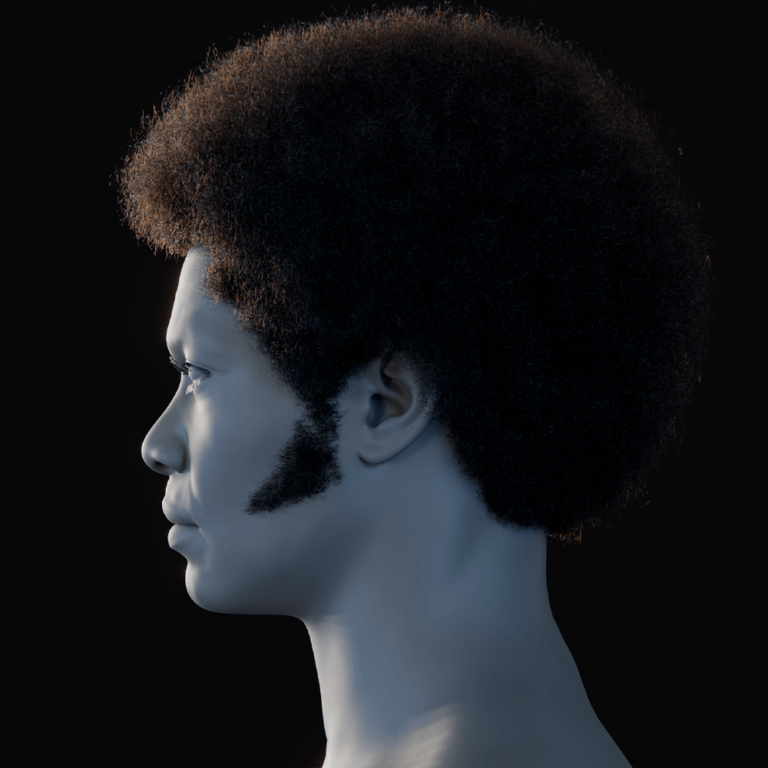
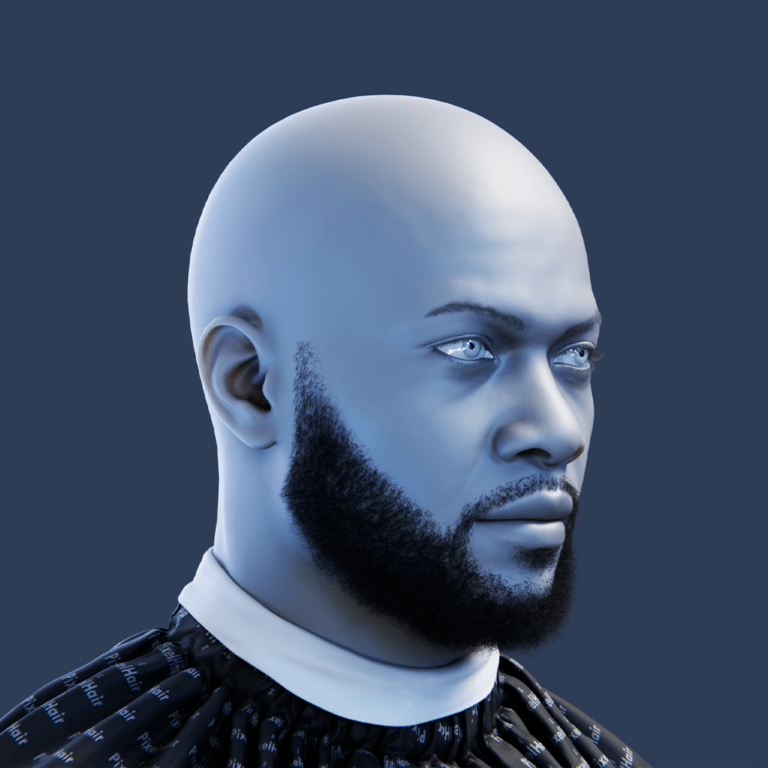
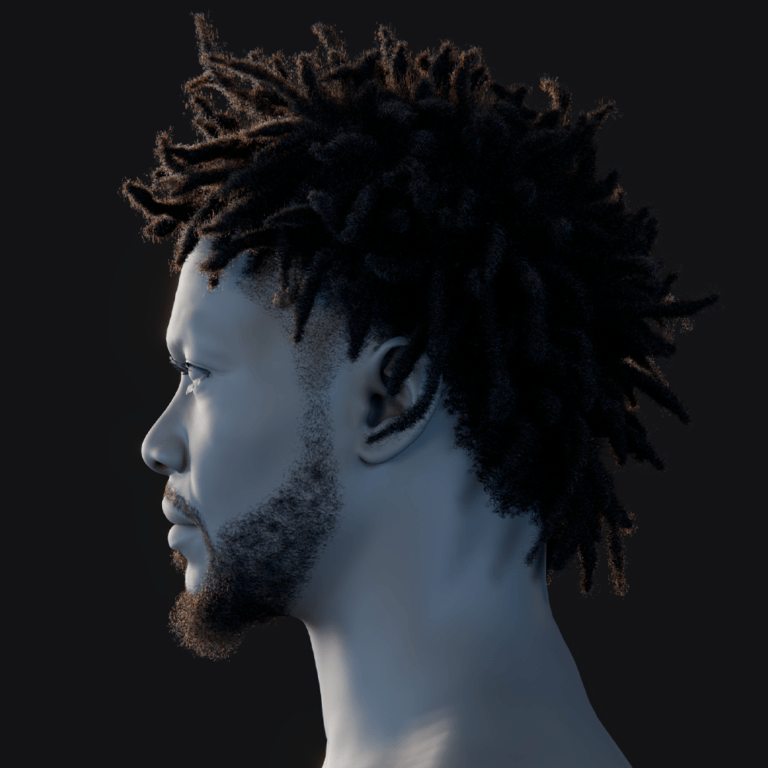
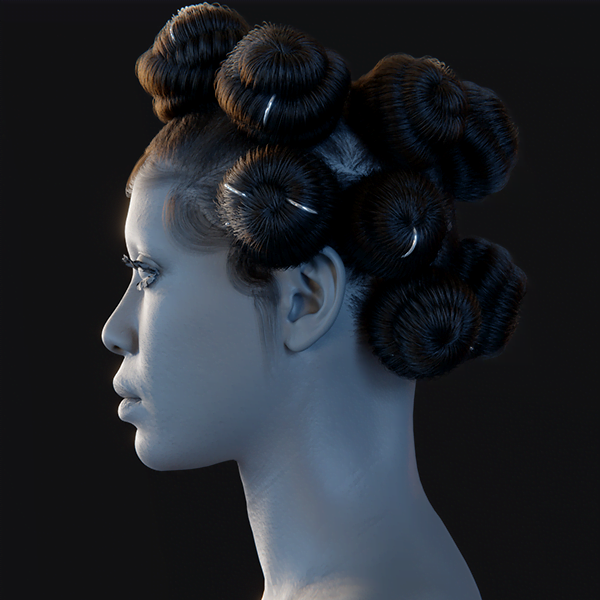
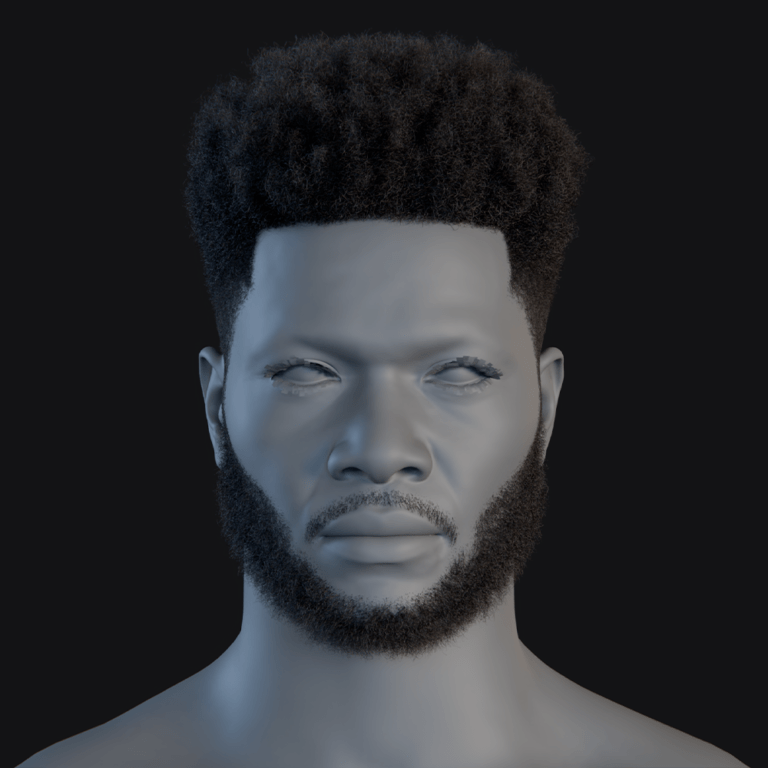
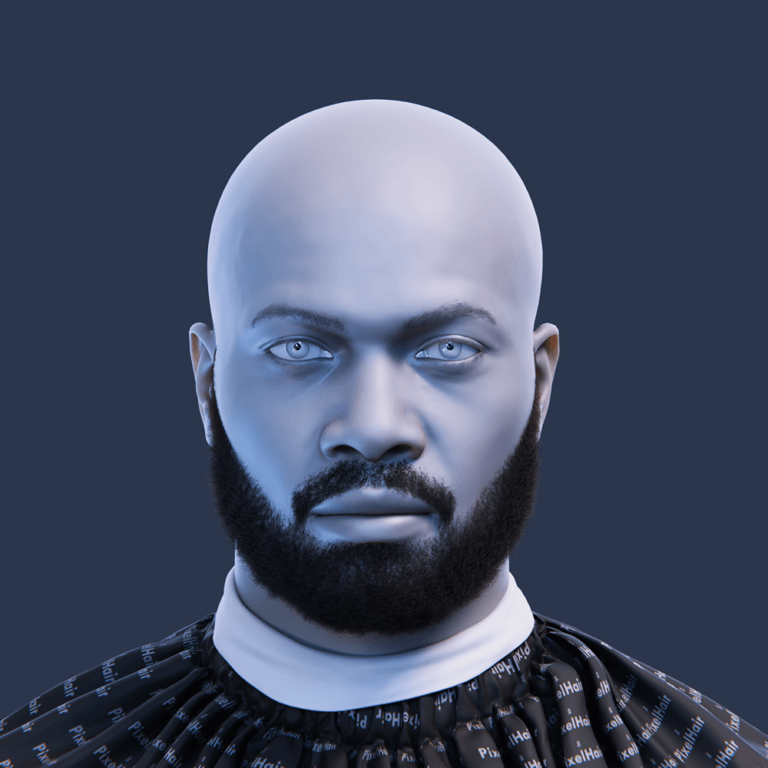
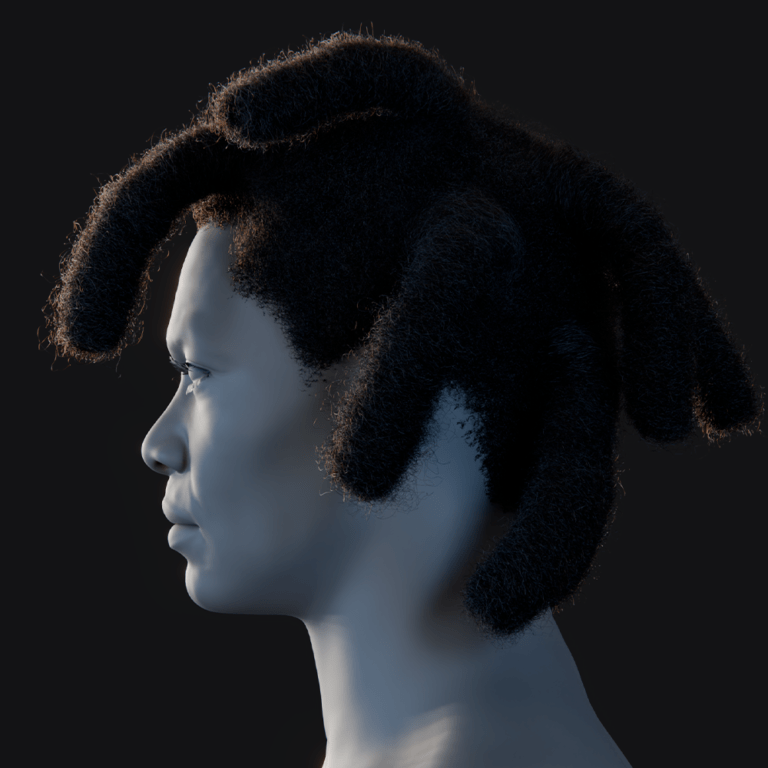
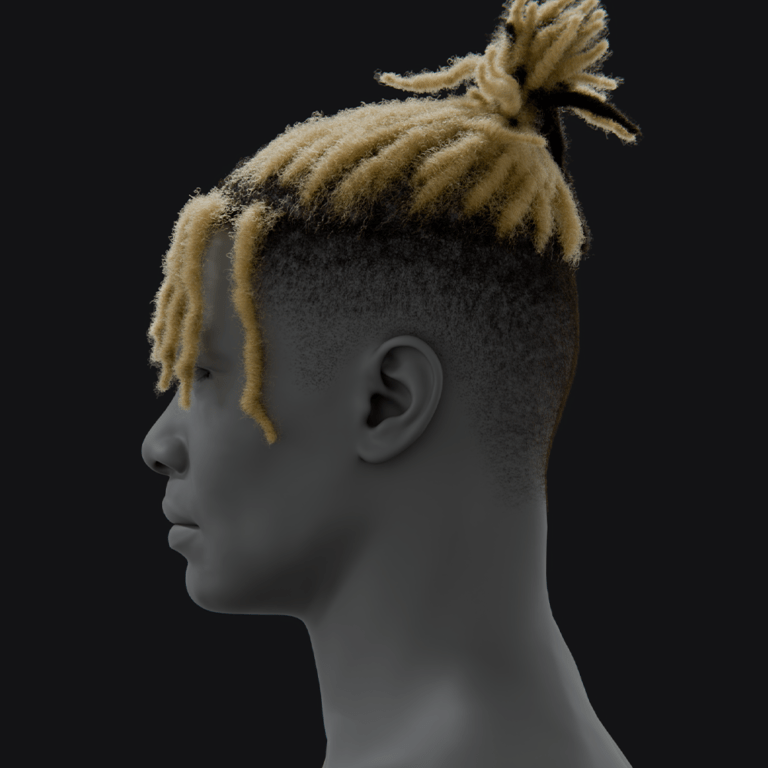
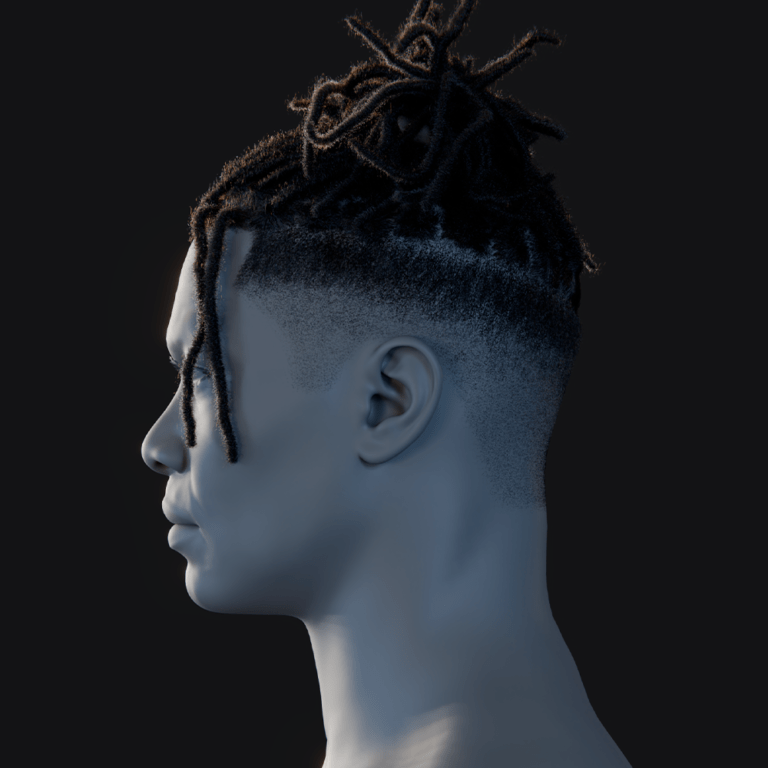
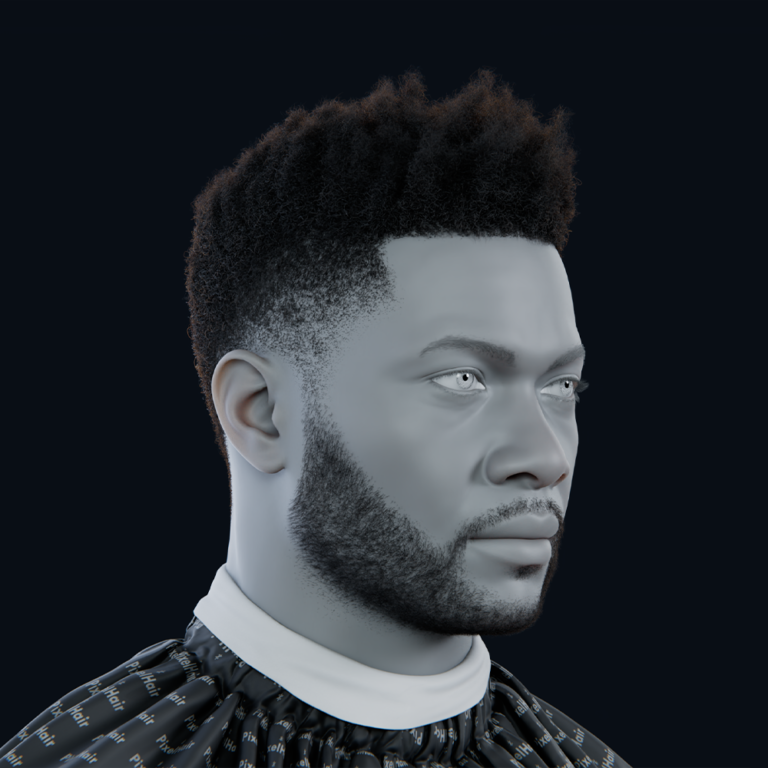
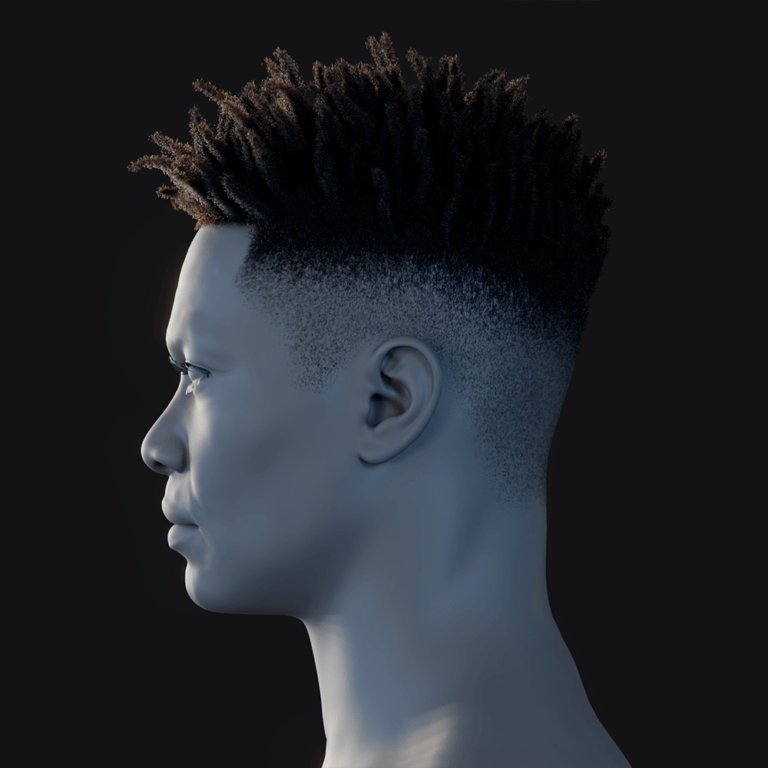
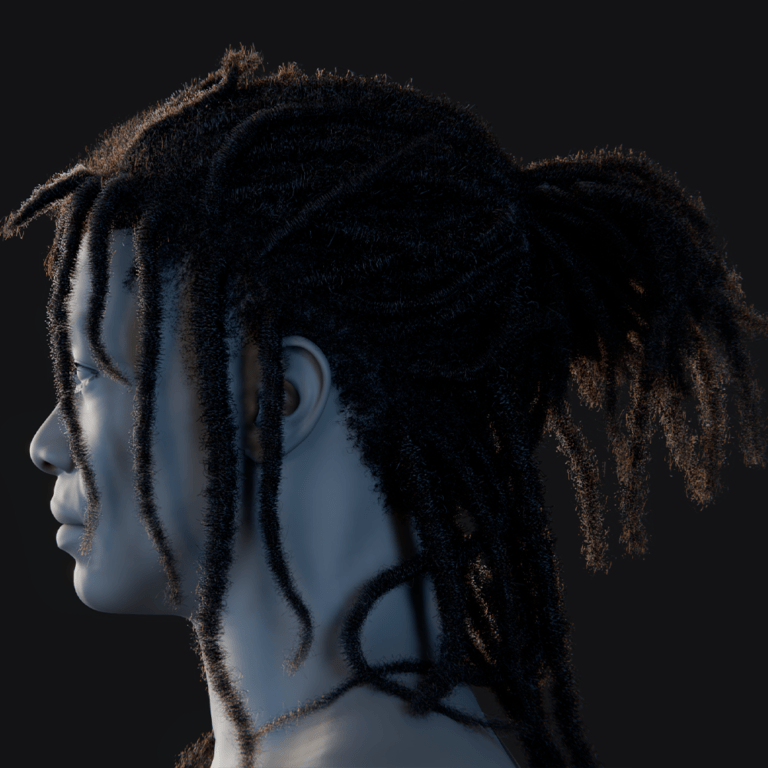
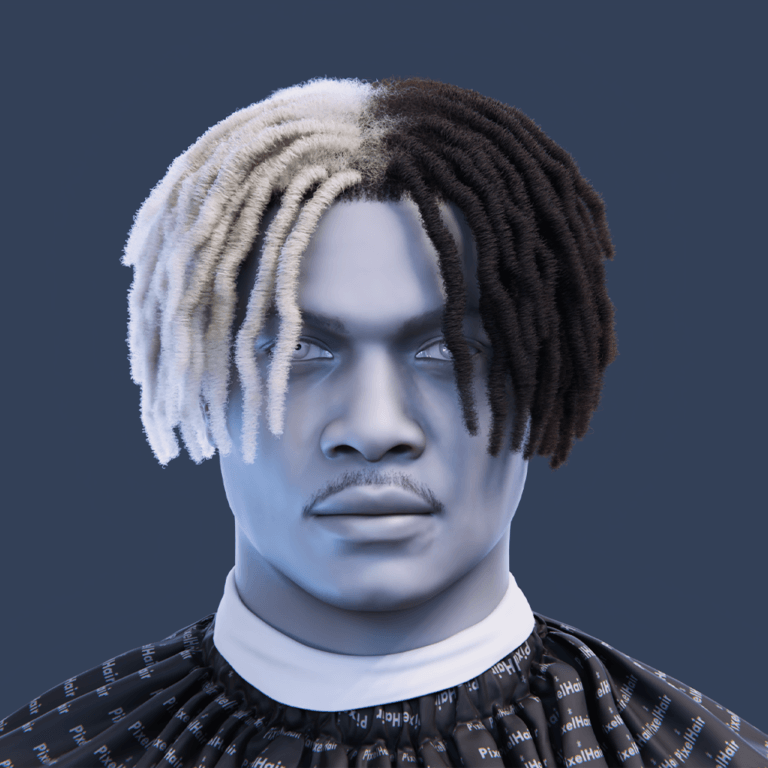
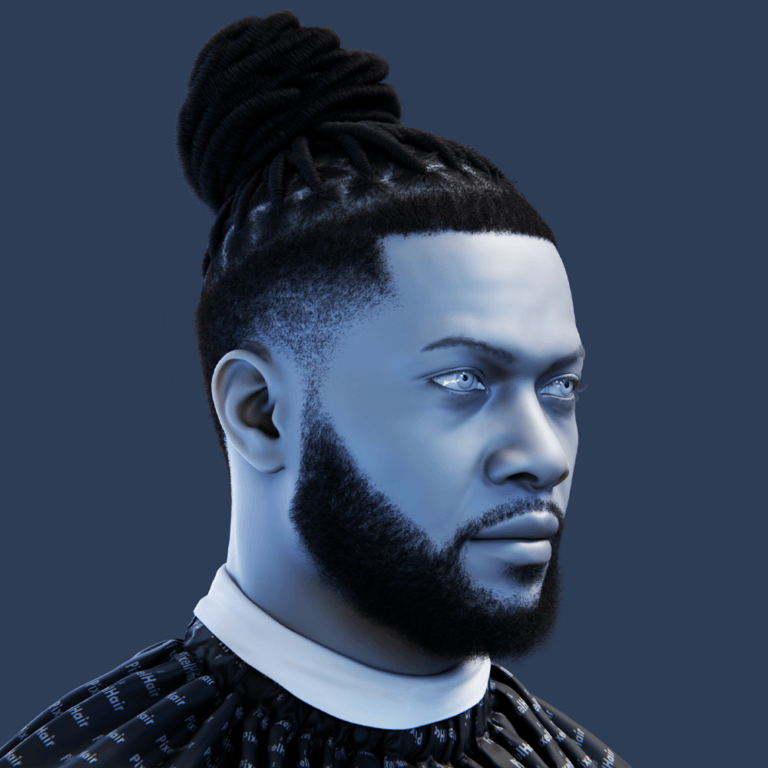
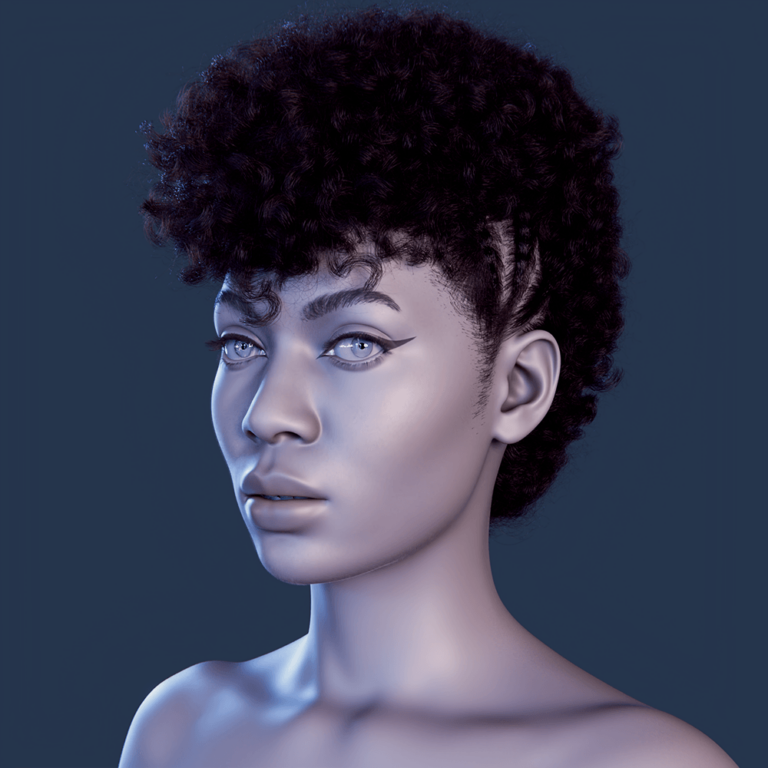
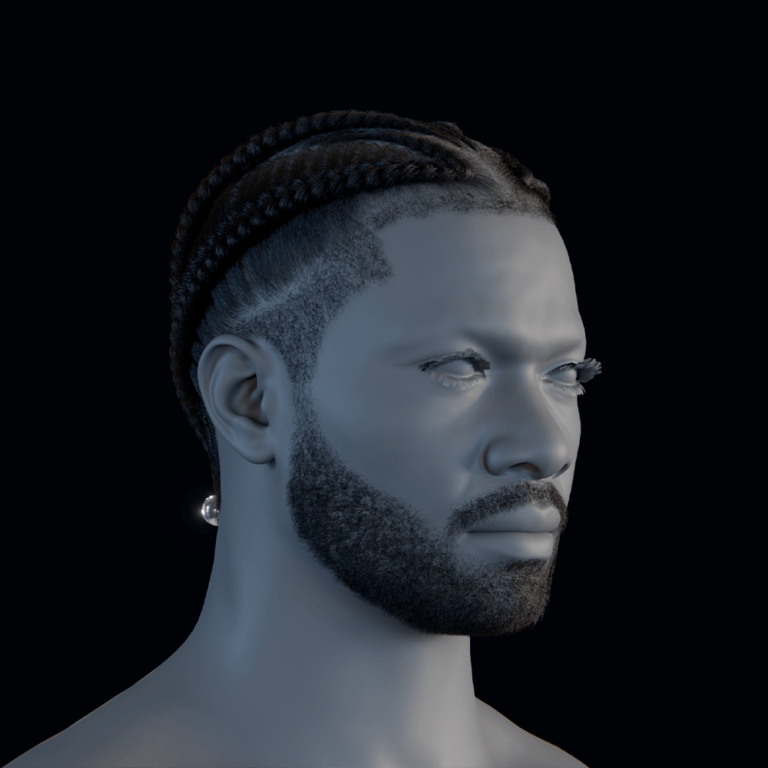
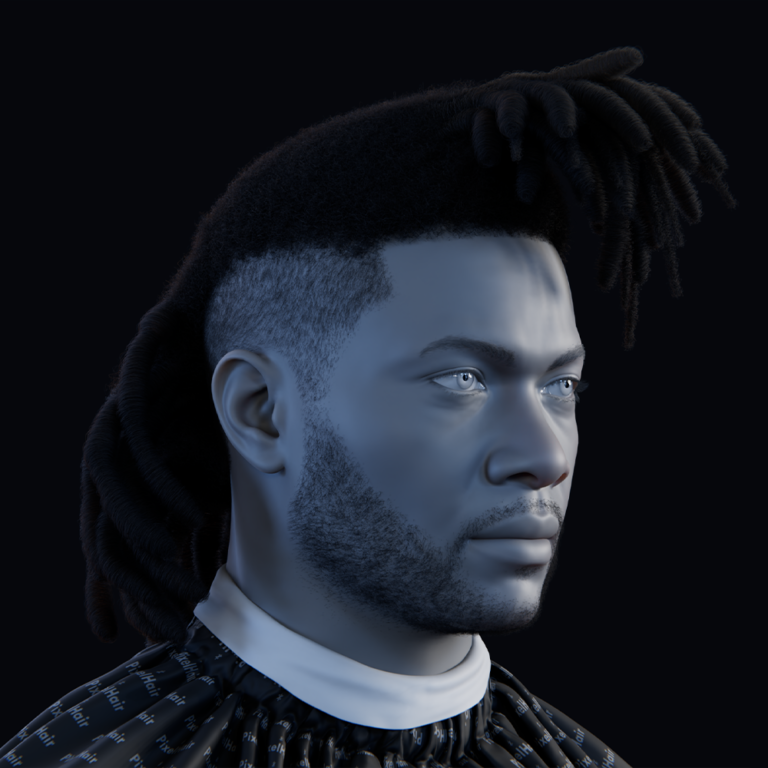
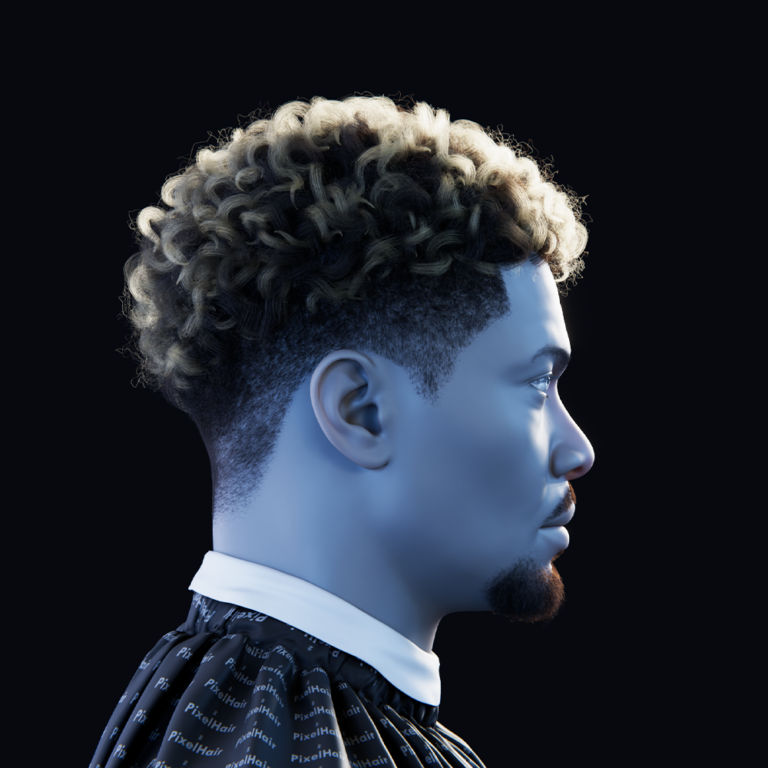
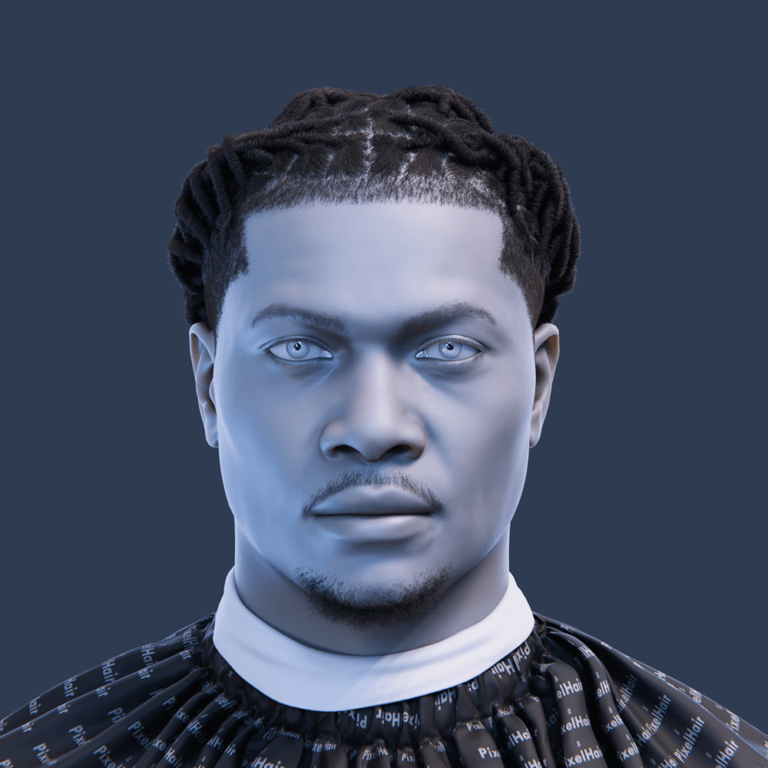
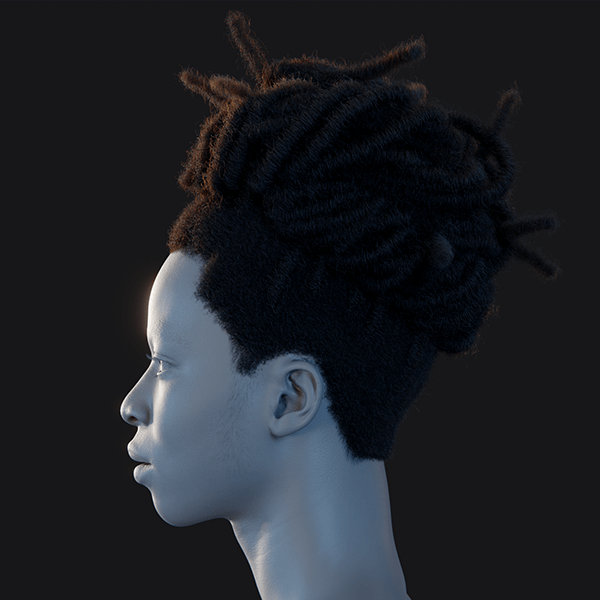
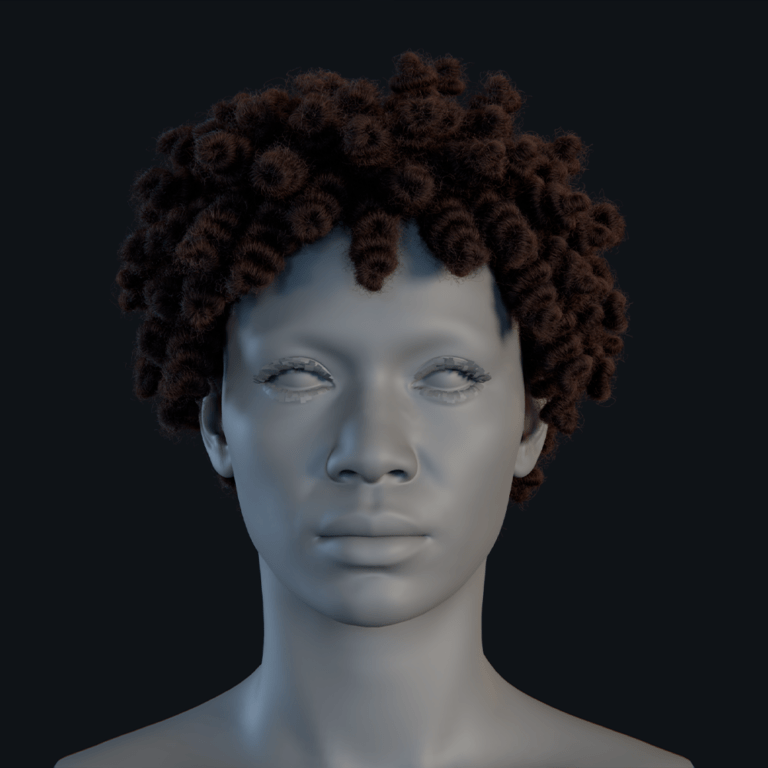
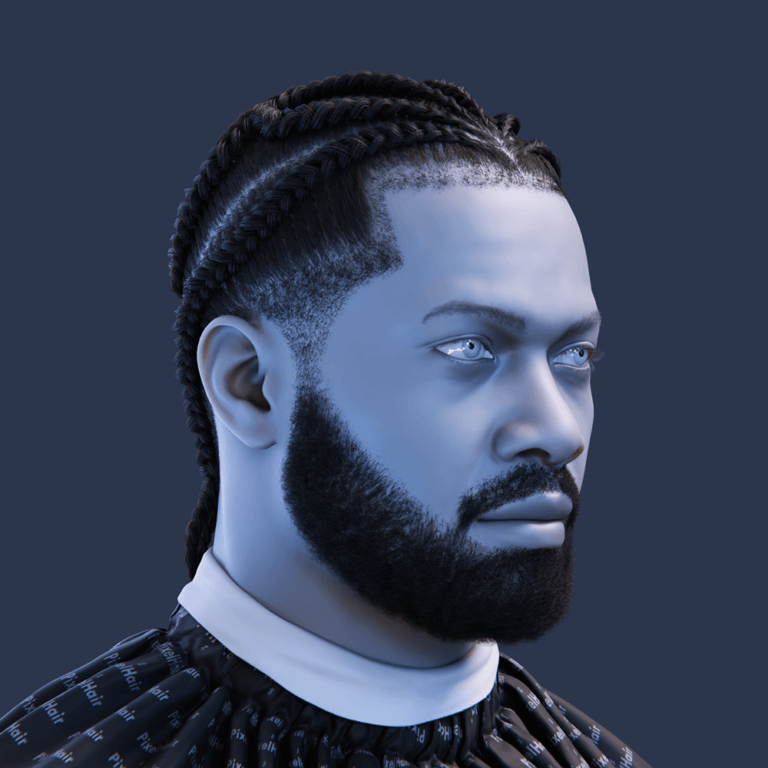
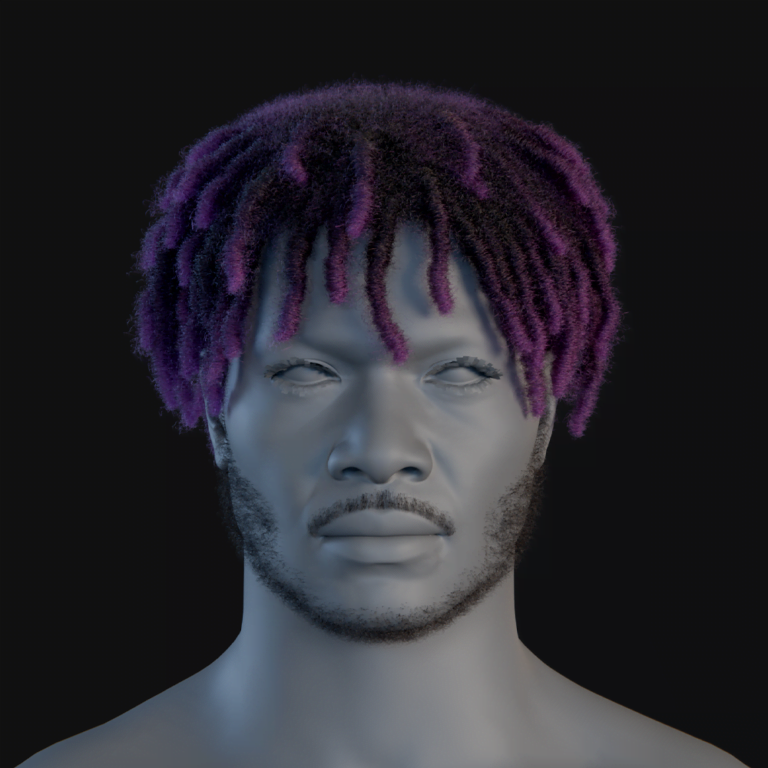
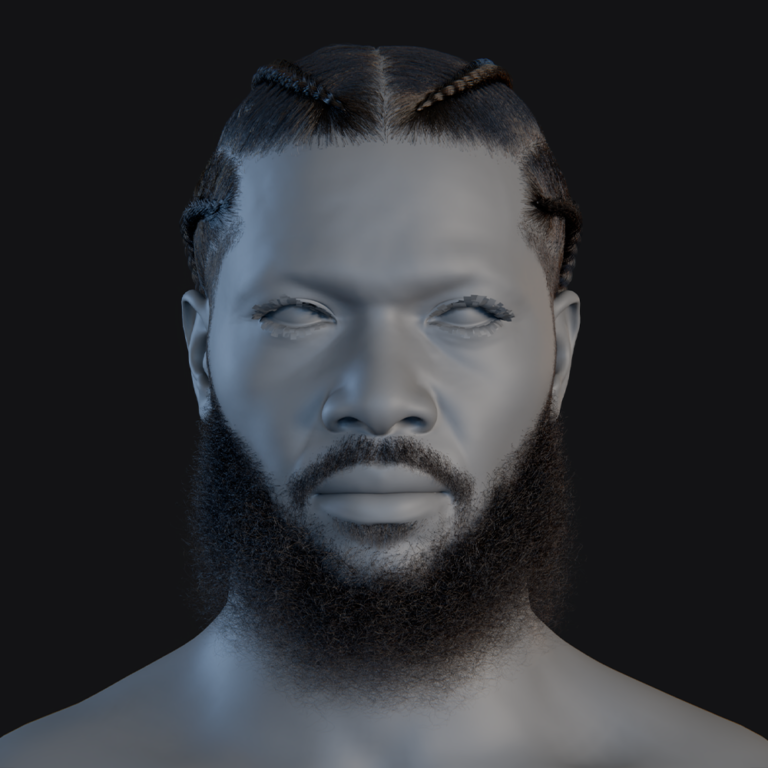
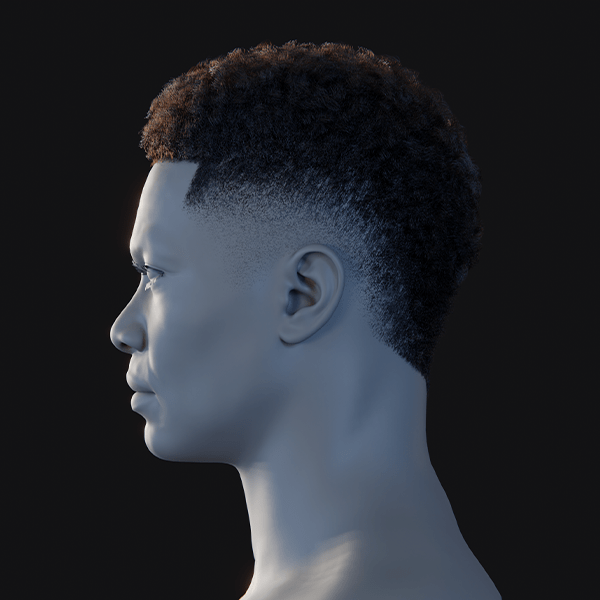
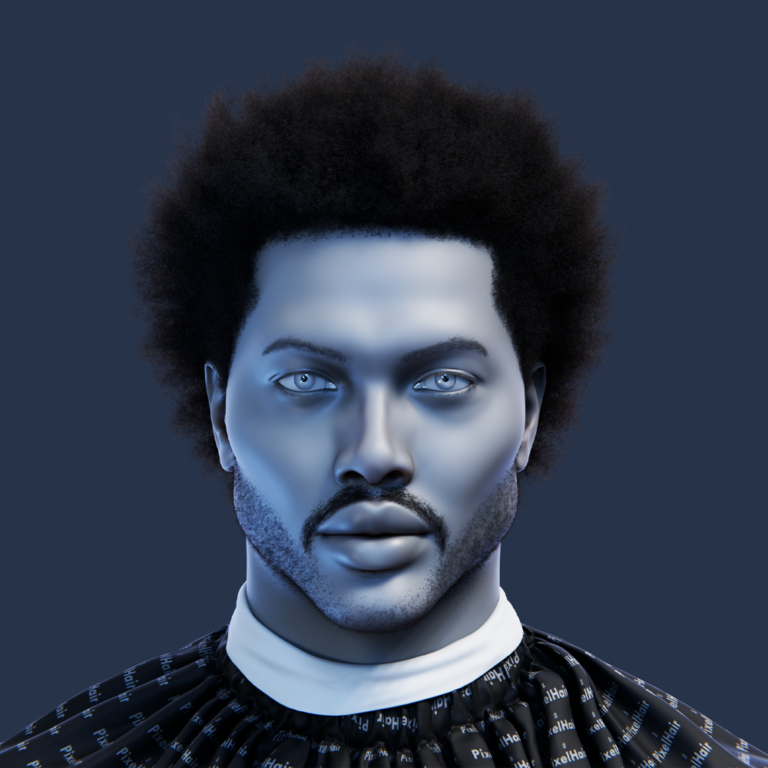
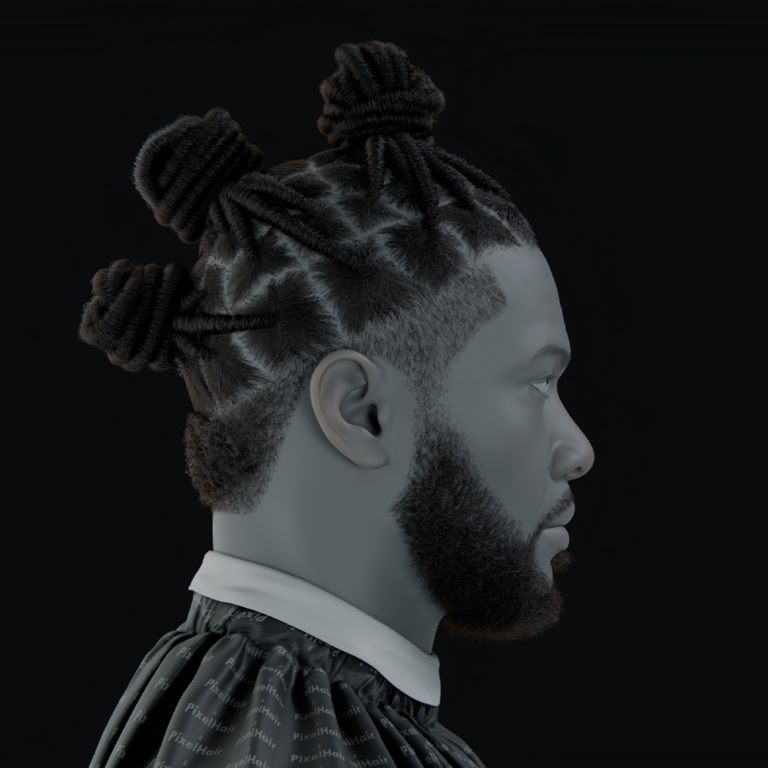
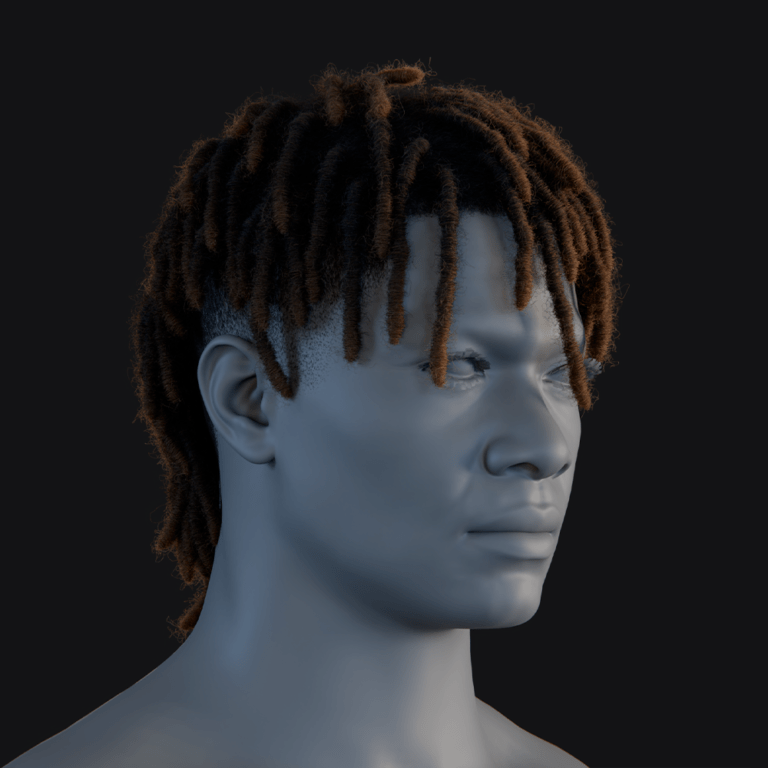
The PixelHair 3D Hair Asset Collection offers a library of pre-made, realistic hair assets for Blender, designed to streamline the creation of complex hairstyles. These professionally groomed models, built primarily with Blender’s particle hair system, allow artists to bypass the labor-intensive process of manually styling thousands of strands, saving significant time for freelancers and studios working under tight deadlines.

How PixelHair Enhances Efficiency
PixelHair assets are pre-optimized hair models featuring a balanced number of parent and child strands, delivering high detail without excessive performance costs. The assets include expertly tuned parameters for clumping, roughness, curling, and other styling attributes, reducing the need for extensive adjustments and minimizing simulation or rendering issues. By starting with a high-quality, pre-groomed hairstyle, artists can focus on refining character expressions, poses, and storytelling rather than grappling with technical grooming challenges, making PixelHair a valuable tool for efficient, professional-grade hair creation.
Workflow Integration Tips
- Appending the Hair Asset: To use a PixelHair style, extract the .blend file and import it into your scene via File > Append, selecting the hair object or collection from the “Object” or “Collection” category. This brings the hair and its associated scalp or emitter mesh into your project with all settings preserved.
- Fitting the Hair to Your Character: Position and scale the scalp mesh to align with your character’s head, using Edit Mode to adjust its shape for a precise fit. Ensure the hairline, parting, and overall style align correctly by translating or rotating the scalp object, as the hair strands are generated from this mesh.
- Customization: Modify the particle hair system’s child settings to adjust density more children for a fuller look, fewer for a lighter, performance-friendly style. Use Particle Edit mode to comb or cut strands for minor tweaks, or apply modifiers like Smooth or Displace to alter the style. Adjust the hair shader to customize color, gloss, or translucency to match your character’s aesthetic.
- Geometry Nodes Integration: PixelHair assets use Blender’s particle hair system, but they can be converted to curves via Object > Convert to > Curves for use with geometry nodes, though this may require reassigning materials and adjusting density. Alternatively, use PixelHair as a base hairstyle alongside geometry nodes for secondary effects (e.g., stray wisps) or convert a subset of strands to serve as guides in a geometry nodes setup, combining pre-made quality with procedural flexibility.
By integrating PixelHair, artists can start with a professional hairstyle and enhance it with geometry nodes like Create Guide Index Map for further customization, achieving high-quality results with reduced effort.

Frequently Asked Questions (FAQs)
- What does the Create Guide Index Map node do, and when should I use it?
The Create Guide Index Map node generates aguide_curve_indexattribute that assigns each hair curve to its nearest guide, enabling effects like clumping or curling. Use it when you need precise control over guide assignments or consistent guide mappings across multiple nodes, ensuring cohesive styling in complex hairstyles. It’s particularly useful when default guide selections in other nodes are insufficient or when you want to reuse a specific guide map. - How can I manually specify which hair strands become guides?
Manually specify guides by connecting a set of curves or points to the Guides input, such as hand-groomed curves or point empties. Alternatively, use the Guide Mask input to tag eligible curves (value 1) via vertex groups or procedural attributes, restricting guide selection to specific regions. For full control, separate desired guide curves, groom them, and feed them into the Guides input with matching Group IDs if needed. - How does the “Existing Guide Map” option in Clump/Curl Hair nodes relate to this node?
The Existing Guide Map option in nodes like Clump Hair Curves or Curl Hair Curves determines whether they use a pre-existingguide_curve_index(e.g., from Create Guide Index Map) or generate a new one. Enable it to maintain consistent guide assignments from this node; disable it to let the node select new guides, which may disrupt consistency unless intentional. Using the node with Existing Guide Map enabled ensures unified styling across operations. - What does the Guide Distance input do in practice?
The Guide Distance input sets the minimum spacing between automatically selected guides, controlling their distribution. Smaller values increase guide count for detailed styling in dense hair, while larger values reduce guides for broader effects in sparse hair. Adjust based on hair density and model scale, using visual feedback to ensure guides are neither too clustered nor too sparse, optimizing the hairstyle’s appearance. - How do I use the Guide Mask input effectively?
Create a boolean or float attribute (e.g., via vertex groups or textures) to mark curves eligible for guide selection (value 1) and connect it to the Guide Mask input. This restricts guides to specific areas, like the crown for styled hair, excluding others (value 0). Use clear 0/1 values for predictable results, ensuring the mask aligns with your styling goals, such as avoiding short strands as guides. - Can I divide my hair into multiple guide groups?
Yes, use the Group ID input to assign integer IDs to different hair regions, ensuring hairs only follow guides with matching IDs. This creates isolated guide systems for distinct hair parts (e.g., bangs vs. ponytail). Set IDs via attributes before the node, ensuring guides and followers share IDs to avoid unguided hairs, enabling complex, multi-part hairstyles within one object. - What is the guide_curve_index attribute, and how do I use it outside the node tree?
Theguide_curve_indexis an integer attribute per curve indicating its assigned guide’s index. Store it with a Store Named Attribute node for use in shaders (via an Attribute node) to drive effects like color variation or in the Spreadsheet Editor for analysis. It’s a key for clustering hairs by guide, enabling creative applications like per-guide material tweaks. - Why aren’t guide index values sequential?
Guide indices reflect the actual curve indices of selected guides, which may be non-sequential (e.g., 7, 50) based on their position in the geometry. This is normal and functional for hair nodes. For shading or debugging, normalize indices using a White Noise or math node to compress or randomize the range, ensuring usable values for visual effects. - Can I color or randomize hair attributes based on the guide they follow?
Yes, use theguide_curve_indexin shaders with a White Noise or Random Value node to generate consistent random values per guide cluster, driving color, thickness, or other attributes. This creates natural variation (e.g., subtle color tints per clump). Ensure guide assignments remain static to avoid shuffling during animation, using persistent IDs for stability. - Are PixelHair assets compatible with Blender’s geometry nodes hair system?
PixelHair uses the particle hair system but can be converted to curves via Object > Convert to > Curves for geometry nodes, requiring potential cleanup of materials and density. Alternatively, use PixelHair as-is alongside geometry nodes for separate effects or convert a subset as guides for a geometry nodes setup, blending pre-made quality with procedural control. Save backups before converting.

Best Practices
- Generate Guide Maps Once and Reuse: Compute the guide map early using Create Guide Index Map and reuse it across nodes (via Guide Index output or Existing Guide Map option) to ensure consistent styling and save computation time, avoiding discrepancies from multiple guide calculations.
- Tune Guide Density Thoughtfully: Adjust Guide Distance to balance guide count with hairstyle needs, starting with a moderate value (e.g., half the head’s radius) and refining to capture major variations without redundancy, using visual feedback to optimize distribution.
- Leverage Group IDs for Complex Hair: Use Group ID to segment hair into independent guide systems for multi-part hairstyles, assigning consistent IDs to guides and followers to prevent unguided hairs, simplifying node graphs and enhancing control.
- Protect or Preserve Guide Curves: Use the Guide Selection output to exclude guides from unintended modifications (e.g., in a Delete Geometry node), ensuring the guide structure remains intact to maintain consistent styling across operations.
- Optimize Hair Count for Performance: Groom with a manageable number of base curves, using nodes like Duplicate Hair Curves or Interpolate Hair Curves to add density for rendering, keeping viewport performance smooth during guide adjustments.
- Use Viewport and Render Settings: Reduce viewport hair density for faster iteration, incorporating sliders or switches to toggle between preview and render modes, speeding up adjustments to Guide Distance or Guide Mask.
- Visualize Guides for Debugging: Apply distinct materials to the Guide Curves output or use Guide Selection in shaders to highlight guides, verifying distribution and mask effectiveness. Check the Spreadsheet Editor for guide counts and index values.
- Avoid Overlapping Guide Maps: Use a single guide map for sequential effects (e.g., clumping then curling) to ensure alignment, enabling Existing Guide Map to prevent inconsistent guide selections that could disrupt styling coherence.
- Keep Updated with Blender Versions: Stay informed about updates to the node via the Blender Manual and community forums, as features may evolve (e.g., in Blender 4.0+), ensuring compatibility and access to new capabilities.
- Experiment and Iterate: Test manual versus automatic guide selection, explore animating Group IDs or guide positions for dynamic effects, and save effective node setups as assets for reuse, refining settings to achieve the desired hairstyle.
These practices enhance efficiency, maintain quality, and mitigate common issues, empowering artists to create sophisticated hair in Blender’s geometry nodes system.
Sources and Citations
- Blender Manual: Create Guide Index Map Node
- Create Guide Index Map — Blender Manual
- Official documentation describing the node’s purpose, inputs, and outputs.
- Blender Manual: Curl Hair Curves (Guide Map usage)
- Curl Hair Curves — Blender Manual
- Explains how hair nodes use existing guide maps or generate new ones, highlighting the interaction with Create Guide Index Map.
- Blender StackExchange: How to use the new Create Guide Index Map node
- How to use the new Create Guide Index Map node? — Blender StackExchange
- Community Q&A where users discuss correct usage and how the
guide_curve_indexattribute can be utilized for coloring and styling.
- Blender Developer Talk: Procedural Hair Nodes in 3.5
- Procedural Hair Nodes in 3.5 — DevTalk
- A forum thread by Blender developers including tips on using original guide curves or separate guide points for more control.
- PixelHair 3D Hair Asset Collection: Official Site
- PixelHair — Yelzkizi.org
- High-quality pre-made Blender hair assets designed to streamline the hair creation process.
- “Understanding PixelHair” Yelzkizi Blog
- Understanding PixelHair — Yelzkizi Blog
- In-depth article on the workflow, philosophy, and customization options for combining traditional assets with Blender’s procedural system.
- Blender Studio Tutorial: Introduction to Hair Assets in Blender 3.5
- Introduction to Hair Assets — Blender Studio (YouTube)
- A video tutorial by Simon Thommes demonstrating procedural grooming tools and the practical use of hair nodes in real projects.
Recommendations
- SAG-AFTRA Do Not Work Order Against Capcom Explained: Mega Man: Dual Override and the Signatory Process
- How to Make Your Own Character for Unreal Engine 5: A Step-by-Step Creation Guide
- James Bond Is The Latest Major Switch 2 Port To Get Delayed: 007 First Light Switch 2 Release Window, Platforms, and What Happened
- Pragmata Looks to Be Another Big Hit for Capcom in 2026: Release Date, Gameplay, Story, and What to Expect
- Spaceballs: The New One Gets Major Update – Release Date, Cast, Trailer & Everything We Know (2026)
- Mina the Hollower Has a New Release Date and an Aggressively Low Price: May 29 Launch and $19.99 Cost Explained
- Next Update and Banners: Everything We Know About Version 6.5 and 6.6 (Release Dates, Livestream, and Banner Phases)
- GIMP 3.2 Introduces Link Layers and Vector Layers: How to Use Non-Destructive Linked Assets and Editable Shapes
- Assassin’s Creed TV Show: Here’s Who Will Star In And Direct (Netflix Cast & Director Update)