







In This Article (8 sections)
Best Forza Horizon 6 PC Settings for High FPS and Stable Performance
Achieving high FPS in Forza Horizon 6 on PC requires balancing visual fidelity with the settings that place the heaviest load on the GPU and CPU. Open-world racing games are demanding because they render cars, roads, large environments, traffic systems, crowds, weather effects, reflections, shadows, and lighting changes at high speed. Even on modern hardware, pushing every option to Ultra or Extreme can cause frame drops, stuttering, or inconsistent frame pacing.
The best approach is to reduce settings that affect shading complexity, distant detail, and lighting calculations while keeping the image clear enough for fast driving. Start with Texture Quality set to High if your GPU has enough VRAM, or Medium if you are using a lower-memory card. Texture quality usually has less impact on FPS than shadows or reflections, but exceeding VRAM limits can cause stuttering, texture pop-in, and uneven performance during fast travel, city driving, or weather transitions.
Shadow Quality and Ambient Occlusion should be among the first settings to lower. Dropping shadows from Ultra to Medium can provide a major FPS boost while still keeping the game visually clean. Ambient Occlusion adds depth to objects and road surfaces, but the difference is often subtle during high-speed racing, making it a good target for optimization. Reducing Crowd Density, World Detail, and Reflections Quality can also improve performance, especially in city-heavy areas, festival locations, and rainy weather. Motion Blur should be disabled for sharper visibility, better competitive clarity, and a cleaner sense of speed, particularly on high refresh rate monitors.
For high refresh rate displays between 120Hz and 240Hz, use Exclusive Fullscreen Mode instead of borderless windowed mode when available. Exclusive fullscreen usually provides better frame pacing, lower system overhead, and fewer interruptions from background windows. It is also recommended to cap FPS slightly below your monitor’s refresh rate, such as 117 FPS for 120Hz or 141 FPS for 144Hz, to improve frame delivery consistency and reduce latency spikes.
For stable 60 FPS gameplay, consistency matters more than peak performance. A game that jumps between 70 FPS and 45 FPS can feel worse than one locked cleanly at 60 FPS, especially in a racing game where steering, braking, and cornering depend on predictable input response.
Recommended stable 60 FPS settings:
- Preset: High, not Ultra
- Shadows: Medium
- Reflections: Medium
- Crowd Density: Low or Medium
- Motion Blur: Off
- V-Sync: On, or adaptive sync if supported
Cap FPS at 60 using the in-game limiter or your GPU control panel. If your monitor supports FreeSync or G-Sync, use variable refresh rate instead of traditional V-Sync for lower latency and smoother delivery. If no VRR support is available and screen tearing is distracting, V-Sync can be enabled, though it may add some input latency. Players using controllers may especially benefit from stable frame pacing because consistent steering response makes cornering and drifting easier to control.
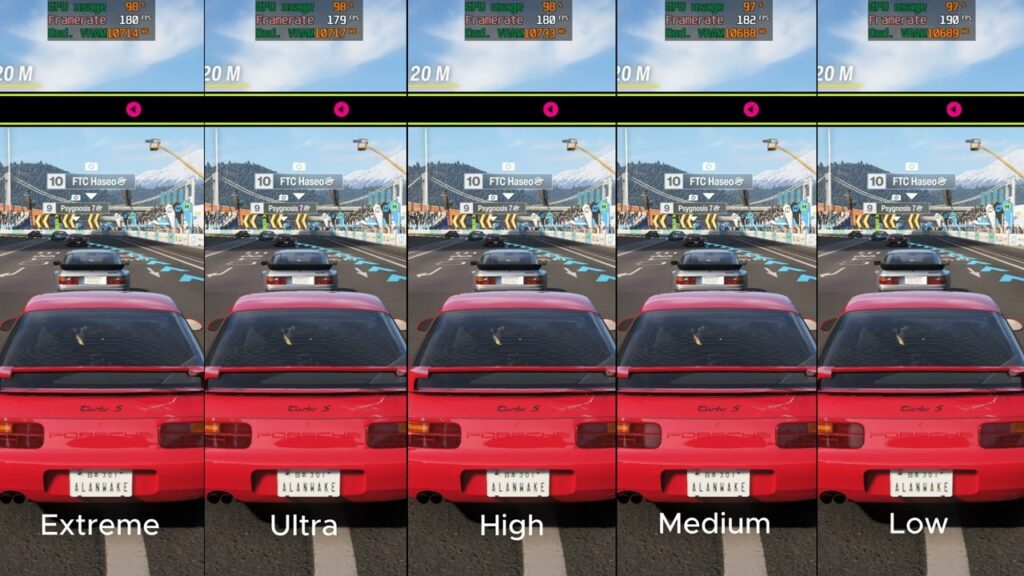
The jump from High to Extreme settings often causes a 20 to 40 percent FPS loss depending on GPU class, resolution, and whether ray tracing is enabled. Extreme settings usually increase expensive effects that are not always easy to notice during high-speed racing, such as shadow resolution, ray tracing complexity, global illumination quality, and draw distance. These upgrades are most visible when the car is stopped or moving slowly. During races, players are usually focused on braking points, traffic, opponents, and corners, so High settings often provide the better balance.
To increase FPS without losing much visual quality, target settings that are expensive but not highly noticeable during racing:
- Use DLSS, FSR, or XeSS Quality mode instead of lowering resolution manually.
- Reduce shadows before textures.
- Lower volumetric fog instead of geometry detail.
- Disable motion blur and film grain.
- Use dynamic resolution scaling if available.
Upscaling Quality modes are usually the best first step because they improve performance while maintaining a sharp final image. Shadows should be lowered before textures because Medium shadows are still acceptable during racing, while Low textures can make cars and roads look noticeably worse. Dynamic resolution scaling can also help maintain stable FPS during demanding scenes by temporarily adjusting internal resolution when performance pressure increases.

Recommended Settings by GPU, Resolution, Ray Tracing, and VRAM
RTX GPUs are designed to handle advanced rendering features such as ray tracing, AI upscaling, high-quality lighting, and improved reflection effects. In Forza Horizon 6, RTX users should take advantage of those strengths without automatically maxing every setting. The best RTX settings depend on resolution, target FPS, and GPU tier, since settings that feel smooth on an RTX 4080 may be too demanding for an RTX 3060.
Ray Traced Reflections and Ray Traced Shadows should be enabled selectively. Reflections usually provide the most visible improvement in a racing game because cars, wet roads, glass surfaces, puddles, and city lights all benefit from more accurate reflection behavior. Ray Traced Shadows can improve realism, but they are less noticeable during high-speed driving and can be lowered if performance becomes unstable.
Recommended ray tracing settings:
- Ray Traced Reflections: High, with Ultra reserved for RTX 4080-class GPUs or better
- Ray Traced Shadows: Medium for a good balance between realism and performance
- Ray Traced Ambient Occlusion: Optional, and best disabled on mid-range GPUs
For most systems, hybrid settings provide the best experience. This means using rasterized lighting for general world rendering while enabling selective ray tracing for reflections or specific high-impact effects. If FPS drops below your target, disable ray tracing entirely and rely on high-quality screen-space reflections instead. Screen-space reflections are less accurate, but they are much cheaper to render and often look good enough during racing. Players who prioritize competitive smoothness, high refresh rates, or lower latency should treat ray tracing as optional rather than essential.
For RTX 3060 and above, DLSS Quality Mode is usually the best option for 1440p gaming because it improves FPS while preserving strong image clarity. RTX 4070 and higher cards can often use DLSS Balanced for higher refresh rate targets, especially if ray tracing is enabled. At 4K, DLSS Balanced or Performance may be necessary depending on the GPU and ray tracing settings. Keep Texture Filtering Anisotropic 16x enabled because RTX GPUs handle it efficiently and it improves road texture clarity at distance. Lighting Quality can be set to High or Ultra, but Volumetric Fog should be reduced if frame dips occur during storms, foggy mountain routes, or dense city weather.
Upscaling technologies are one of the best ways to improve FPS without making the game look dramatically worse. They render the game at a lower internal resolution and reconstruct the final image using advanced scaling techniques.
- DLSS: Offers the best overall image quality on supported NVIDIA RTX GPUs, with strong performance efficiency at 1440p and 4K.
- FSR: Works across a wide range of GPUs, including NVIDIA, AMD, and some integrated graphics. It may have slightly lower image sharpness than DLSS in many cases but is useful for broad compatibility.
- XeSS: Works best on Intel Arc GPUs and can provide competitive quality depending on hardware support. It is also compatible with some non-Intel GPUs, though results can vary.
For most players, RTX users should choose DLSS Quality at 1440p or DLSS Balanced at 4K. AMD users should start with FSR Quality and move to Balanced only if more FPS is needed. Intel Arc users should test XeSS Quality first, then compare it with FSR depending on frame pacing and sharpness. Avoid aggressive Performance modes unless playing at 4K or using very low-end hardware, because they can noticeably soften image quality.
1440p is often the best balance between visual clarity and performance for modern PC gaming. It looks sharper than 1080p without being as demanding as 4K, making it ideal for mid-range GPUs such as the RTX 3060 Ti, RTX 4060, RX 6700 XT, and similar cards.
Recommended 1440p settings:
- Texture Quality: High
- Shadows: Medium
- Reflections: High, or Medium for better stability
- Volumetrics: Medium
- Anti-Aliasing: TAA or DLSS Quality
- Crowd Density: Medium
At 1440p, textures and anti-aliasing have a major impact on image quality, so they should be preserved where possible. Shadows, volumetrics, and reflections are better optimization targets because they consume significant GPU resources without always being noticeable during fast gameplay. Players targeting 90 to 120 FPS at 1440p should consider DLSS Quality, FSR Quality, or XeSS Quality instead of manually lowering resolution.
4K and ultrawide resolutions require more careful optimization because they dramatically increase the number of pixels being rendered. A 4K display is much more demanding than 1440p, and ultrawide formats such as 21:9 or 32:9 increase horizontal rendering load while also requiring proper UI scaling.
Recommended 4K and ultrawide settings:
- DLSS Quality or Balanced
- Shadows: High, not Ultra
- Reflections: Medium to High
- Textures: Ultra if VRAM allows
- Field of View: Slightly increased for ultrawide immersion
For 4K gaming, DLSS Quality is ideal on high-end RTX GPUs, while DLSS Balanced may be better if ray tracing is enabled or if the target is above 90 FPS. AMD and Intel users should use FSR or XeSS Quality first, then move to Balanced if performance is not stable. For 21:9 and 32:9 monitors, adjust UI scaling to avoid stretched HUD elements or awkward menu positioning. A slightly increased Field of View can improve immersion, but pushing it too far can distort the sense of speed and slightly reduce performance.
VRAM management is critical because the engine constantly streams high-resolution textures, car models, road surfaces, environmental assets, traffic, reflections, and weather data. If VRAM usage exceeds the GPU’s capacity, the game may stutter, show texture pop-in, or suffer from uneven frame pacing.
Recommended VRAM settings:
- 4GB GPUs: Low settings with reduced textures and no ray tracing
- 6GB GPUs: Medium textures with low or disabled ray tracing
- 8GB GPUs: High textures with balanced ray tracing or upscaling
- 12GB or higher GPUs: Ultra textures with DLSS, FSR, or XeSS support
Players with 4GB or 6GB GPUs should avoid Ultra textures, especially at 1440p or higher. It is better to use Medium or High textures with stable frame pacing than Ultra textures with constant streaming issues. Players with 8GB GPUs can usually use High textures at 1080p or 1440p, but should be careful with ray tracing and high reflection settings. Always keep some VRAM headroom available, especially in rainy weather, city areas, and crowded races.
Performance expectations also vary by GPU tier, resolution, CPU pairing, and whether ray tracing or upscaling is enabled:
- Entry-level GPUs: 1080p Low to Medium settings at around 40 to 60 FPS
- Mid-range GPUs: 1080p Ultra or 1440p Medium to High settings at around 60 to 90 FPS
- High-end GPUs: 1440p Ultra or 4K High settings at around 90 to 140 FPS
- Enthusiast GPUs: 4K Ultra with ray tracing at 120+ FPS when paired with DLSS or equivalent upscaling
Entry-level GPUs should prioritize upscaling, low shadows, low reflections, and reduced crowd density. Mid-range GPUs can usually aim for 1080p Ultra or an optimized 1440p experience. High-end GPUs can push Ultra settings at 1440p or 4K High while maintaining excellent frame rates, though ray tracing may still require tuning.
Low-End PC Optimization and Bottleneck Fixes
Low-end PCs require more aggressive optimization to maintain playable performance. The focus should be on lowering rendering resolution, reducing lighting complexity, and disabling expensive effects that do not directly improve gameplay readability. In a fast racing game, stable FPS is more important than ultra-detailed shadows or high-resolution reflections because input response and frame consistency affect driving control.
Start with the Low or Medium preset as a baseline, then adjust upward only where your system has enough performance headroom. If native resolution is too demanding, set Resolution Scaling to 70 to 80 percent. This lowers the internal render resolution while keeping the game playable, and when paired with upscaling, it can look better than simply dropping the display resolution.
Disable or set these options to Low:
- Shadows: Reduces one of the biggest GPU performance costs and helps stabilize FPS in dense environments.
- Reflections: Improves performance significantly, especially on wet roads, in city areas, and in car-heavy scenes.
- Ambient Occlusion: Removes subtle contact shading but provides a useful FPS boost on weak GPUs.
- Motion Blur: Improves clarity and reduces unnecessary post-processing.
- Weather Effects Intensity: Reduces performance drops during rain, storms, fog, and heavy atmospheric conditions.
Lowering Level of Detail is especially important for low-end CPUs and GPUs because it reduces distant object complexity and makes open-world streaming easier. Crowd Density should also be reduced because large crowd and traffic systems can increase CPU load. For integrated GPUs, enabling FSR or XeSS is essential because upscaling can make the difference between unstable frame rates and a playable experience.
Bottlenecks occur when either the CPU or GPU limits performance. In Forza Horizon 6, bottlenecks can shift depending on the environment. Dense cities, traffic-heavy roads, AI racers, and crowd systems can increase CPU load, while high resolution, reflections, ray tracing, shadows, and volumetrics place more stress on the GPU. Identifying which component is limiting performance is essential before changing settings.
CPU bottleneck fixes:
- Reduce crowd density to lower the number of active NPCs and event objects.
- Lower simulation quality to reduce CPU-heavy world and traffic calculations.
- Disable background apps to free CPU threads for the game.
- Reduce traffic density if available to stabilize minimum FPS in cities and festival areas.
GPU bottleneck fixes:
- Lower resolution scaling to immediately reduce rendering load.
- Reduce shadows and reflections, which are two of the most GPU-heavy visual systems.
- Enable DLSS, FSR, or XeSS to significantly improve FPS.
- Lower ray tracing settings to reduce advanced lighting and reflection calculations.
Open-world games often shift bottlenecks dynamically, so balancing CPU and GPU load is important. If GPU usage is near 99 percent and FPS is low, reduce resolution, shadows, reflections, and ray tracing. If GPU usage is low but FPS is still unstable, the CPU may be the limiting factor, so crowd density, traffic, simulation settings, and background tasks should be reduced.
CPU performance also affects minimum FPS in dense city environments. A powerful GPU may still show frame dips if the processor struggles with world streaming, traffic simulation, or background tasks. For better results, close unnecessary apps, use updated drivers, and test with the in-game benchmark if available.
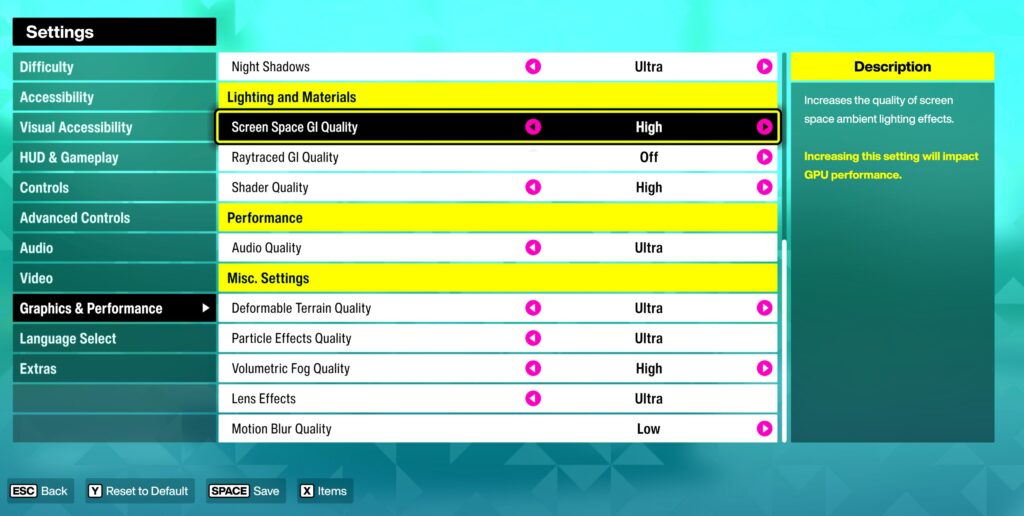
Fixing Stuttering, Frame Pacing, and NVIDIA Control Panel Settings
Stuttering in Forza Horizon 6 is usually caused by shader compilation, VRAM overload, storage limitations, background CPU tasks, or unstable frame pacing. Open-world racing games are especially vulnerable to stutter because the game must stream roads, traffic, textures, weather systems, and world details while the player is moving at high speed. Even if average FPS is high, poor asset streaming can make gameplay feel uneven.
Useful stutter fixes include:
- Enable shader pre-caching if available to reduce shader compilation stutter during gameplay.
- Lower texture streaming quality to prevent VRAM overload and reduce pop-in-related hitching.
- Close background applications to free CPU and memory resources.
- Disable overlays from Discord, GeForce Experience, Steam, and recording tools if they cause frame pacing issues.
- Install the game on an SSD instead of an HDD for smoother open-world streaming.
- Update GPU drivers regularly, since new drivers often include performance fixes for major releases.
Another important fix is adjusting Windows Page File Size to prevent memory swapping problems during high-load scenarios. If your system has limited RAM, a manually managed page file on an SSD can help reduce crashes and severe hitching. Players should also avoid exceeding VRAM limits because once VRAM usage spills into system memory, stuttering can become frequent and difficult to solve without lowering texture, reflection, or ray tracing settings.
NVIDIA Control Panel settings can also improve latency, frame pacing, and performance consistency. These settings should not replace in-game optimization, but they can help smooth out the experience, especially for players using high refresh rate monitors or G-Sync displays.
Recommended NVIDIA Control Panel settings:
- Power Management Mode: Prefer Maximum Performance
- Low Latency Mode: Ultra
- Texture Filtering Quality: High Performance
- Vertical Sync: Off if using G-Sync or FreeSync
- Shader Cache: On
Power Management Mode should be set to Prefer Maximum Performance so the GPU does not downclock during gameplay. Low Latency Mode can reduce input delay, though its impact may vary depending on whether the game is GPU-bound. Texture Filtering Quality set to High Performance can provide a small FPS gain, while players who prefer image quality may choose Quality instead.
If using G-Sync or FreeSync, keep V-Sync off in-game or configure it carefully through the driver depending on your preferred setup. Shader Cache should remain enabled because it helps reduce repeated shader compilation stutter. These control panel changes work best when combined with a sensible FPS cap and optimized in-game graphics settings.

Frequently Asked Questions (FAQs)
- What is the best overall setting for Forza Horizon 6 PC?
The best overall option is the High preset with DLSS, FSR, or XeSS enabled depending on your GPU. This provides a strong balance between visual quality, smooth performance, and stable frame pacing. High settings usually preserve the game’s most noticeable visual details while avoiding the heavy FPS cost of Extreme or Ultra options, especially shadows, reflections, and ray tracing. - How do I fix low FPS in Forza Horizon 6?
Lower shadows, reduce reflections, enable upscaling, and reduce crowd density. These settings usually provide better gains than lowering textures immediately, unless your GPU is running out of VRAM. If FPS is still low, reduce volumetric effects, lower resolution scaling slightly, and close background apps that may be using CPU or memory resources. - Does Forza Horizon 6 support DLSS?
Yes, RTX GPU users can use DLSS to improve performance while preserving image quality. DLSS Quality is best for 1440p because it keeps the image sharp while boosting FPS. DLSS Balanced can be useful at 4K, with ray tracing enabled, or when targeting higher refresh rates such as 120 FPS or above. - Is ray tracing worth it in Forza Horizon 6?
Ray tracing is worth it if you prioritize visuals, especially reflections on cars and wet roads. However, it should be used selectively because it can reduce FPS significantly on mid-range GPUs. Ray Traced Reflections usually provide the most noticeable improvement, while Ray Traced Shadows and Ambient Occlusion can be lowered or disabled if performance becomes unstable. - Why is my game stuttering?
Stuttering is usually caused by VRAM overload, shader compilation, slow storage, background CPU tasks, or unstable frame pacing. Installing the game on an SSD and lowering texture streaming quality can help. You should also keep GPU drivers updated, disable unnecessary overlays, and avoid using texture or ray tracing settings that exceed your GPU’s available memory. - What is the best resolution for performance?
1440p is the best balance for most modern mid-range GPUs. It provides better clarity than 1080p without the heavy performance cost of 4K. If your system struggles at 1440p, use DLSS, FSR, or XeSS Quality mode before dropping to a lower display resolution, since upscaling often keeps the image cleaner. - Can low-end PCs run Forza Horizon 6?
Yes, low-end PCs can run the game with Low or Medium settings, reduced resolution scaling, and upscaling enabled. Integrated GPUs should use FSR or XeSS if supported. For the biggest performance gains, lower shadows, reflections, crowd density, weather effects, and Level of Detail while keeping motion blur off for clearer gameplay. - What causes CPU bottlenecks?
CPU bottlenecks are usually caused by high crowd density, traffic simulation, physics systems, world streaming, and background processes. Lowering crowd and simulation settings can improve minimum FPS. If GPU usage is low but FPS is still unstable, the CPU is likely limiting performance, especially in cities, festival areas, or traffic-heavy races. - Should I use V-Sync?
Use V-Sync only if you experience screen tearing and do not have VRR support. If your monitor supports G-Sync or FreeSync, use VRR with an FPS cap for smoother and lower-latency gameplay. A good approach is to cap FPS slightly below your monitor’s refresh rate, such as 141 FPS on a 144Hz display. - What is the best FPS target?
60 FPS is best for stable casual play, while 120 FPS or higher is ideal for high refresh rate monitors and smoother competitive driving. The best target depends on your hardware and display. A locked, consistent frame rate is usually better than a higher but unstable FPS, especially in racing where smooth steering and braking response matter.

Conclusion
Optimizing Forza Horizon 6 on PC requires a strategic balance between visual fidelity and performance efficiency. The most impactful settings typically include shadows, reflections, volumetric effects, and resolution scaling, while modern upscaling technologies like DLSS, FSR, and XeSS provide significant performance gains without heavily compromising visual quality.
Whether targeting high FPS, 4K immersion, or low-end system compatibility, the key is understanding hardware limitations and adjusting settings accordingly. Stable frame pacing and reduced stutter often deliver a better gameplay experience than ultra settings with inconsistent performance.
Sources and Citations
- NVIDIA, Official DLSS Technology Overview : Explains NVIDIA’s AI rendering technologies, including Super Resolution, Frame Generation and Ray Reconstruction, with information about image quality, gaming performance and supported graphics hardware. NVIDIA
Citation: NVIDIA DLSS Technology. (NVIDIA). - AMD, FidelityFX Super Resolution and FSR Technologies : Provides official information about AMD’s upscaling and frame generation technologies, explaining how they improve frame rates and reconstruct detailed images from lower resolution rendering. amd.com
Citation: AMD FSR Technologies. (AMD). - Intel, Xe Super Sampling (XeSS) Developer Resources : Covers Intel’s AI upscaling, frame generation and latency reduction technologies, including quality presets, hardware compatibility and resources for integrating XeSS into games. intel.com
Citation: Intel Xe Super Sampling for Developers. (Intel). - Microsoft, DirectX Graphics and Gaming Documentation : Provides technical documentation for Windows graphics and game development, including Direct3D, Direct2D, graphics infrastructure and related APIs used to build rendering systems. Microsoft Learn
Citation: DirectX Graphics and Gaming. (Microsoft Learn).
Recommended
- Planet Zoo 2 Aquariums Explained in New Gameplay Video
- Pulsebreaker: Release Date, Gameplay, Demo, and Everything You Need to Know
- Australia Plans Mandatory AI Safety Standards: Developers Must Prove Safety Testing Works by 2026
- The Sinking City 2 Survival Horror Pivot: Why Frogwares’ Sequel Feels Like a Genre Checklist Instead of a Fresh Lovecraft Game
- OpenAI ChatGPT for Teens: Quiet Hours, Age Prediction and Safety Features
- Brazil Online Betting Ban: 3,500 Jobs Lost and 4,100 Workers on Forced Leave, ANJL Says
- Stylized Trees for Games: How to Create Stylized Procedural Trees in Houdini
- Howler 2027 with Howler 3D: Everything New in the Latest 3D Rendering and Digital Painting Update
- Mina the Hollower is Creating an Unexpected Problem for Steam Bundles Featuring Dark Scrolls and Indie Game Promotions
- Wind in Unreal Engine 5: WindDirectionalSource, Foliage Wind, Niagara Forces, Cloth, and Groom Hair Setup
- Blender 5.2 LTS Introduces New Cycles Texture Cache System: How it Works, Setup, and Best Practices
- TapePunk VHS ReShade for Cyberpunk 2077: “This Is What Nostalgia Feels Like” Mod That Makes Night City Look Real
- Planet of Lana II: Children of the Leaf Review, a Beautiful Sequel that Sticks to the Winning Formula
- Final Fantasy X/X-2 HD Remaster Switch 2 Release Guide and New Features