






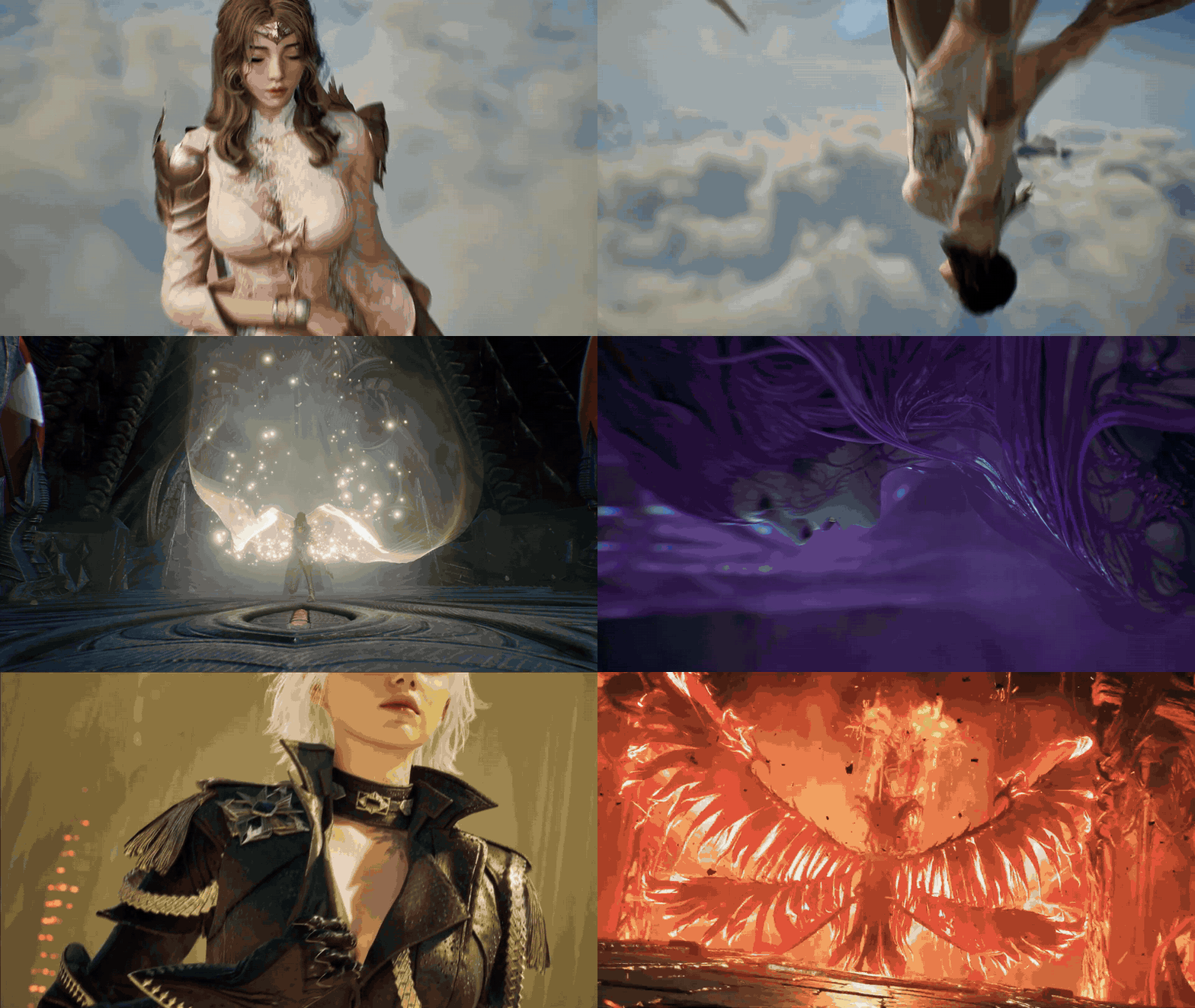

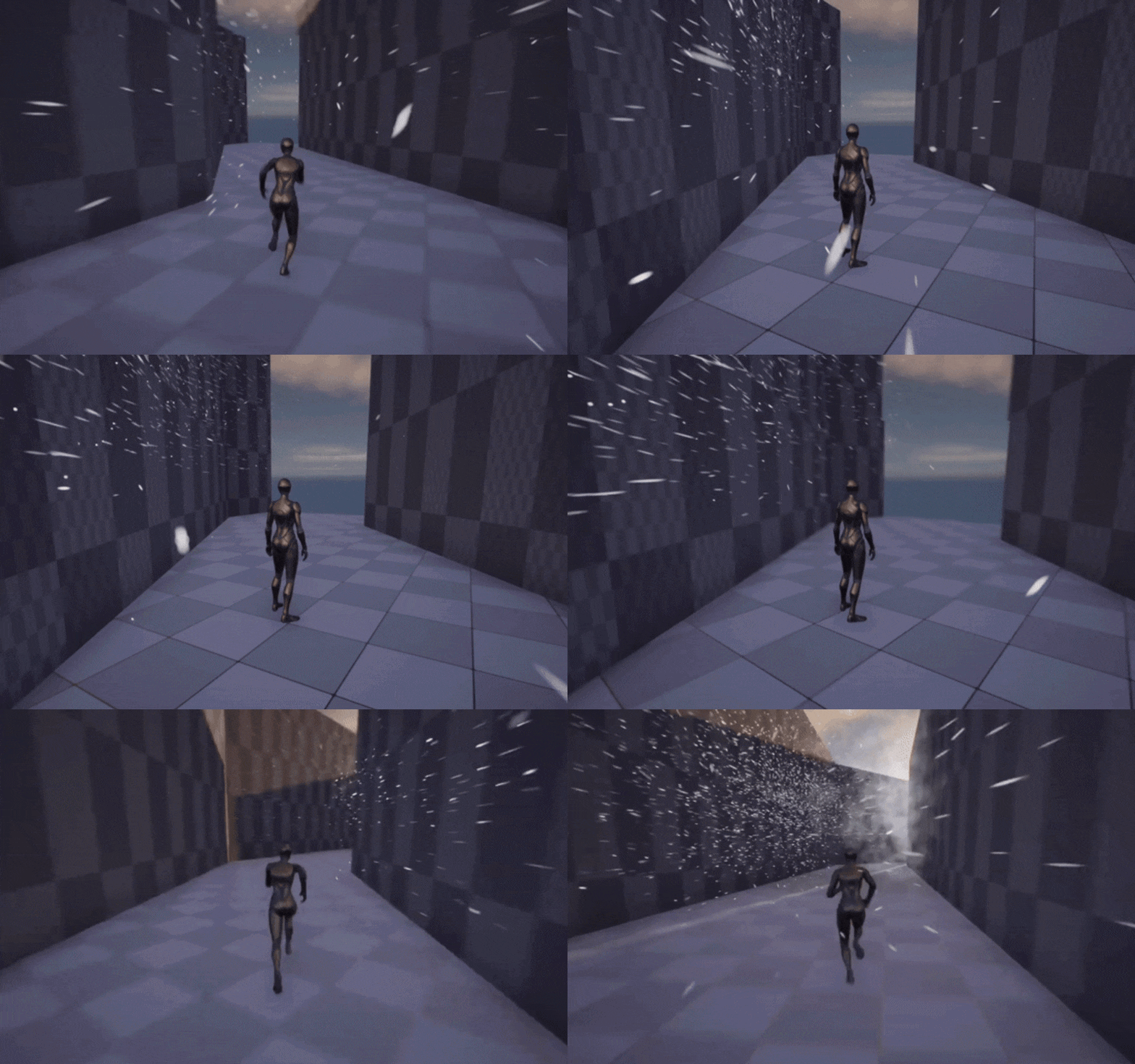
Unreal Engine 5 includes a built-in wind system to animate foliage, particles, cloth, and hair using the WindDirectionalSource actor and related tools. To add wind, simply place a WindDirectionalSource actor into your scene (e.g. via the Place Actors panel by searching “Wind” and dragging in Wind Directional Source). This actor generates a directional wind field. By rotating it you set the wind’s global direction; by adjusting its properties (strength, speed, gusts, etc.) you control how fast and strong the wind blows. UE5 retains the familiar wind component from UE4; as one forum notes, “with UE5, the wind system is still available”. In gameplay or Simulate mode, rotating the WindDirectionalSource causes foliage and other wind-enabled systems to react accordingly.
How to add wind in Unreal Engine 5
To add wind, drag a WindDirectionalSource actor into your level. For directional wind, only the rotation and settings matter, not its exact location. Rotate the actor so its arrow points in the desired direction. Adjust Strength (force) and Speed (gust variation rate) in the Details panel. By default, the source is directional and infinite, but toggling “Point Wind” creates a localized emitter with a falloff radius. You must use Simulate or Play mode to see the wind affect foliage.
WindDirectionalSource Unreal Engine 5 settings explained
Key settings in the Details panel include Strength (total force) and Speed (how fast gusts change). Minimum and Maximum Gust Amount define random fluctuations; for instance, a range of 0 to 1 allows wind to vary between 0% and 100% of the set Strength. If Point Wind is active, the Radius setting determines the area of influence. UE5’s Chaos-based wind functions normally with positive float values, unlike older UE4 Apex cloth versions that sometimes required negative values.

How WindDirectionalSource affects foliage in UE5
WindDirectionalSource drives vertex animation in foliage systems. Painted foliage and SpeedTree meshes automatically sample the actor’s wind vector and strength. When the wind actor is rotated, foliage sways downwind of the actor’s arrow. Materials must use wind nodes to translate this data into movement.
SimpleGrassWind node UE5 foliage material setup
The SimpleGrassWind material function adds non-directional sway to foliage. Connect it to the World Position Offset (WPO) in your material. It should be the last node in the WPO chain to avoid being overridden by other offsets. Use a grayscale mask or vertex color to ensure only specific parts (like leaves) move while others (like trunks) remain static. Many assets, such as SpeedTree, use the red channel of Vertex Color for this mask.
World Position Offset wind for trees in Unreal Engine 5
For larger trees, custom vertex animation in WPO is used for realistic bending. The RotateAboutAxis function can rotate vertices around the tree base. This is achieved by crossing the wind direction vector with the up-vector to find the rotation axis. Multiplying a sine-wave by this rotation creates a pendulum-like sway. While SpeedTree assets have built-in wind features, custom meshes require these manual WPO rotations or sine-based offsets to simulate trunk bending.

Unreal Engine 5 wind material functions for vertex animation
UE5 provides several functions for wind animation, including SimpleGrassWind for basic sway, RotateAboutAxis for directional bending, and Sine waves for periodic motion. Wind-related offsets should be applied at the end of the WPO chain. Advanced setups use normalized wind direction vectors to calculate specific rotation axes for complex vegetation movement.
Global wind controller blueprint in Unreal Engine 5
A Blueprint can link a WindDirectionalSource actor to a Material Parameter Collection (MPC) to provide consistent global wind. The Blueprint captures the actor’s rotation and strength every tick and writes them into the MPC. This allows all materials referencing the MPC to update simultaneously when the wind actor is adjusted during runtime or simulation.

Material Parameter Collection wind direction and wind strength UE5
An MPC stores global data like a vector parameter for WindDirection and a scalar for WindStrength. A Blueprint updates these values using the WindDirectionalSource actor’s normalized forward vector and strength value. Shaders then sample these parameters to drive vertex offsets across the entire environment.
How to make foliage sway in the correct wind direction UE5
To achieve directional swaying, materials must use the wind vector from world space or an MPC. Common methods include using the vector as a rotation axis or calculating a dot product against vertex normals so vertices bend downwind. Because SimpleGrassWind is non-directional, a wind vector must be manually injected into the shader logic to align movement with the WindDirectionalSource actor.

Wind gusts and wind noise for foliage materials in UE5
Realistic wind requires gusts and variations. This can be achieved by animating MPC parameters with timelines, curves, or sine waves. Adding noise functions or wave offsets to the material’s math creates turbulence and prevents all foliage from moving identically. You can also use the WindDirectionalSource gust settings or per-vertex noise textures to add randomized, natural movement to foliage.
Niagara wind force setup in Unreal Engine 5
To set up wind for Niagara particle systems, add the “Wind Force” or “Simple Wind Force” module to the Particle Update stack. This module simulates wind drag using inputs like Wind Velocity and Air Resistance. To sync it with scene wind, create a Vector User Parameter (e.g., User.WindDirection) in the Niagara System and update it via Blueprint every frame with the WindDirectionalSource direction. Using this parameter in the Wind Force module ensures particles respond to the global wind. For added chaos, place a Curl Noise or Vector Noise Force module before the Wind Force.

How to make Niagara particles follow wind direction UE5
Particles can be made to follow the wind by driving a Niagara User Parameter with the WindDirectionalSource forward vector. In the Level Blueprint, use the “Set Niagara Variable Vec3” function each tick to pass the actor’s direction into the Niagara System. Plug this parameter into the Force or Acceleration inputs of the wind module. This method ensures the particle force always aligns with the global wind direction.
Chaos Cloth wind simulation in Unreal Engine 5
UE5’s Chaos Cloth system uses aerodynamic forces defined by a Wind Velocity vector (measured in m/s). A velocity of 8 m/s is typically considered a gust. To use this, you must check “Enable Cloth Simulation” on the mesh within the Skeletal Mesh editor. You can then adjust settings such as collision thickness and stiffness to refine how the cloth reacts to the aerodynamic forces.
How to add global wind to Chaos Cloth in UE5
Global wind is added to Chaos Cloth by placing a WindDirectionalSource in the level. If the skeletal mesh has simulation enabled and vertices are correctly weighted for cloth, it will automatically sample the actor’s strength and gust settings. Tutorials, such as the Chaos Cloth Flag guide, demonstrate that the cloth simulation will adopt the wind vector from the scene actor.
Wind for flags and cloth in Unreal Engine 5 Chaos Cloth
For flags and banners, use a mesh with one edge or side painted with zero movement weights to act as a fixed attachment point. Assign a Chaos Cloth asset and enable simulation. Placing a WindDirectionalSource in the level pointing at the mesh will cause it to flutter. Ensure you are using curve-based Chaos cloth rather than rigid hair cards or other non-simulated geometry.

Groom hair wind in Unreal Engine 5
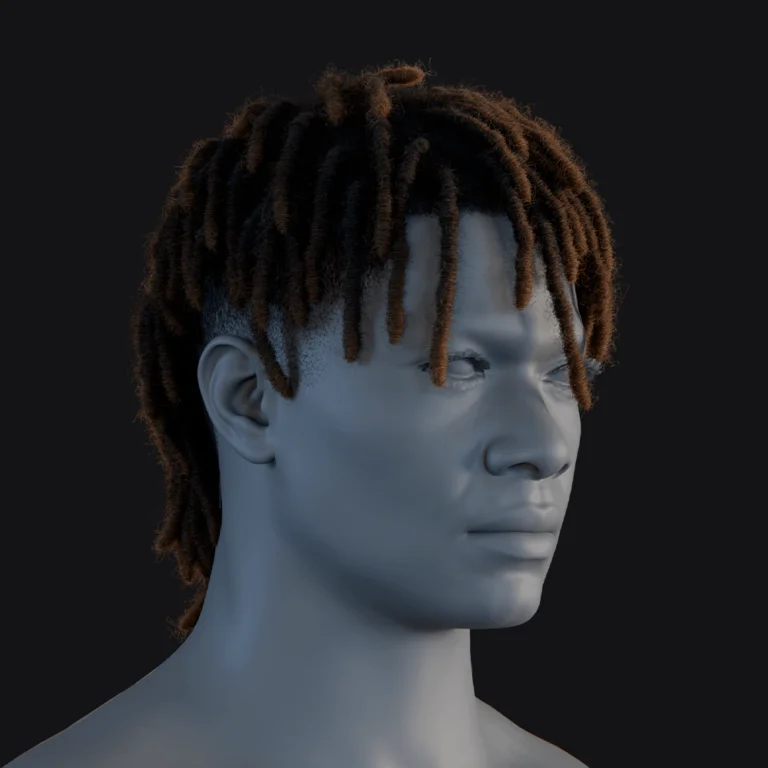
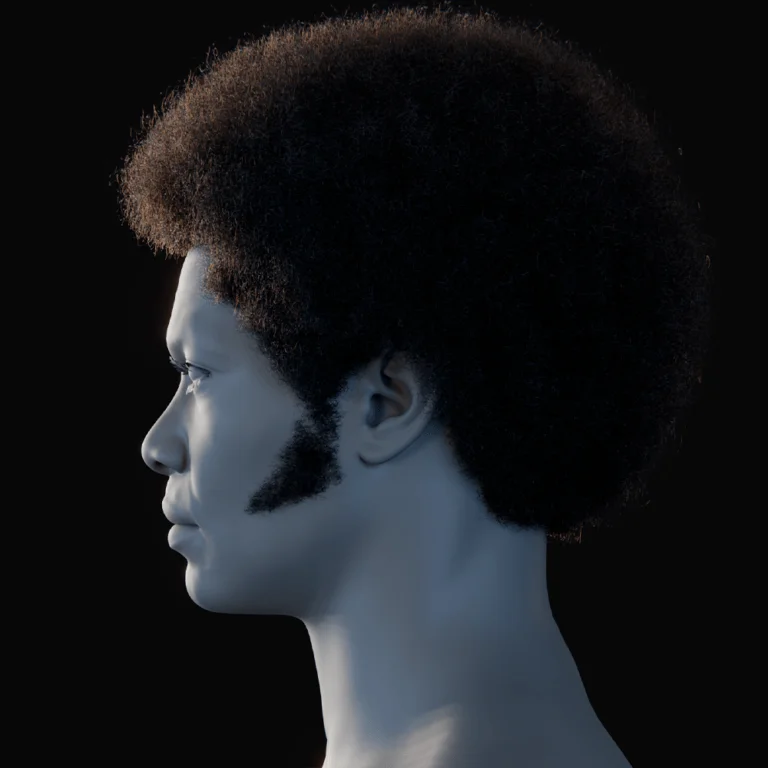
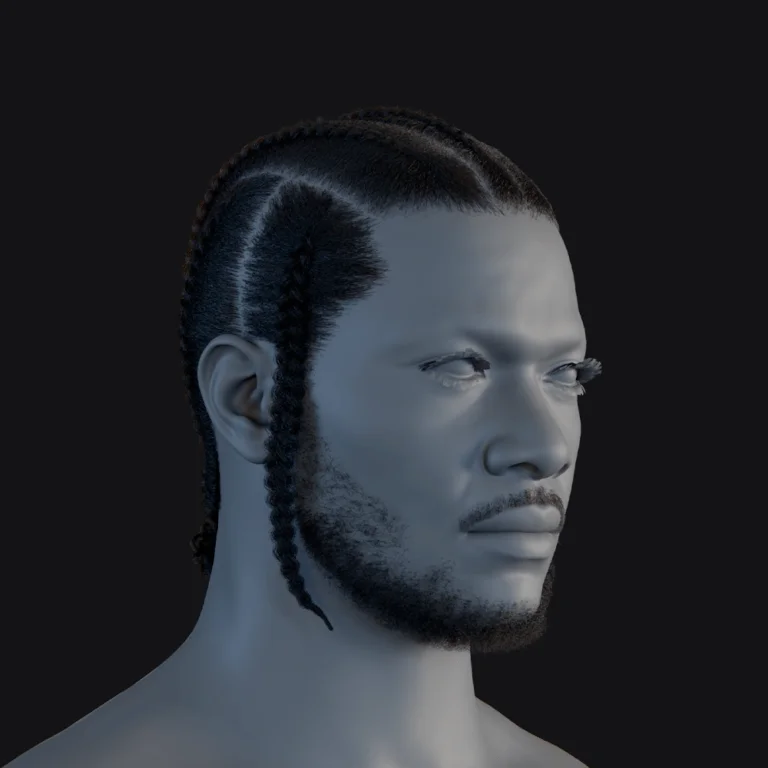
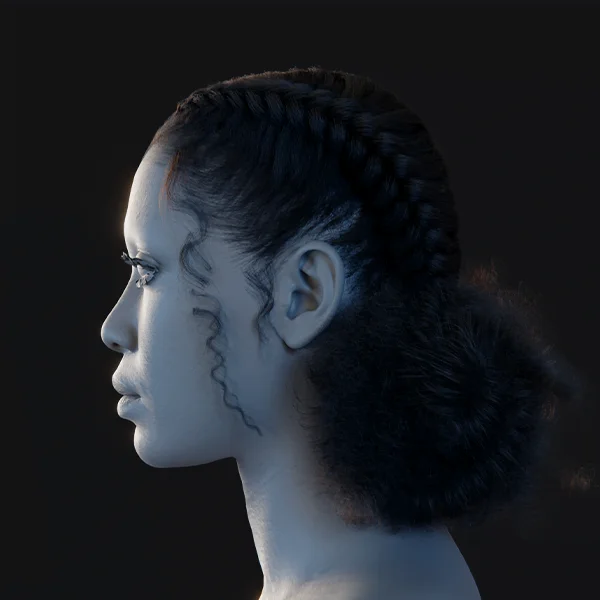
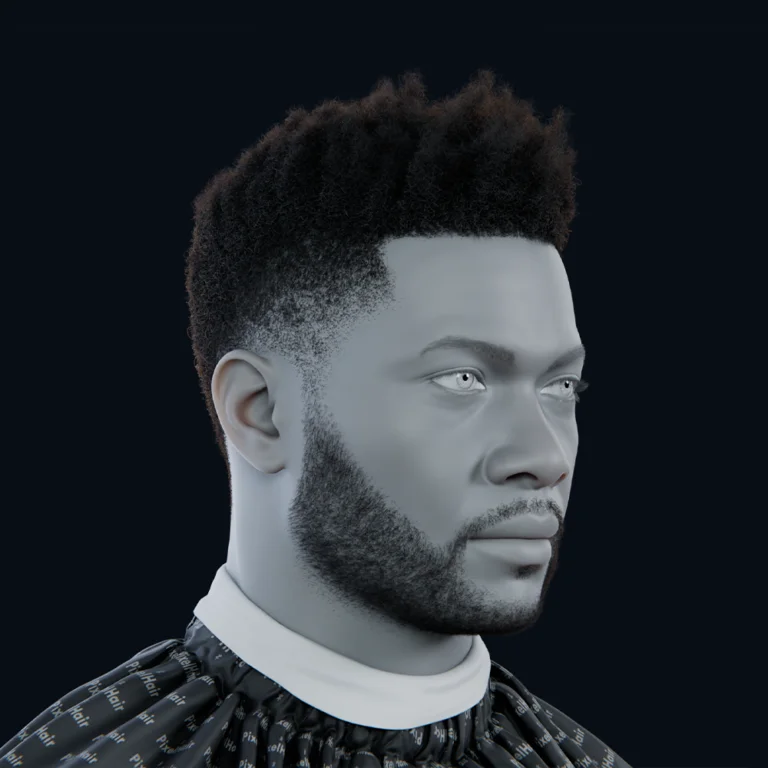
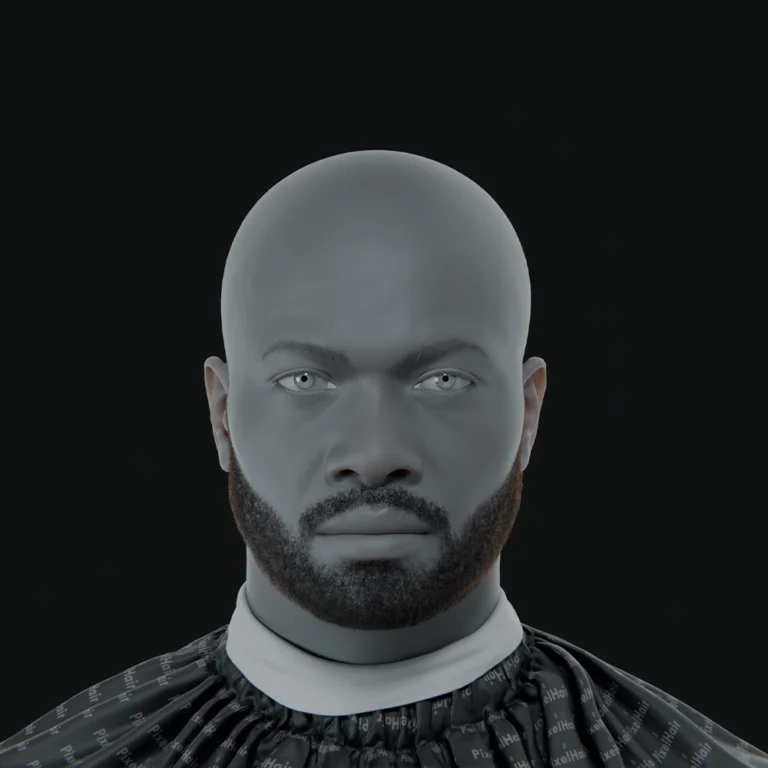
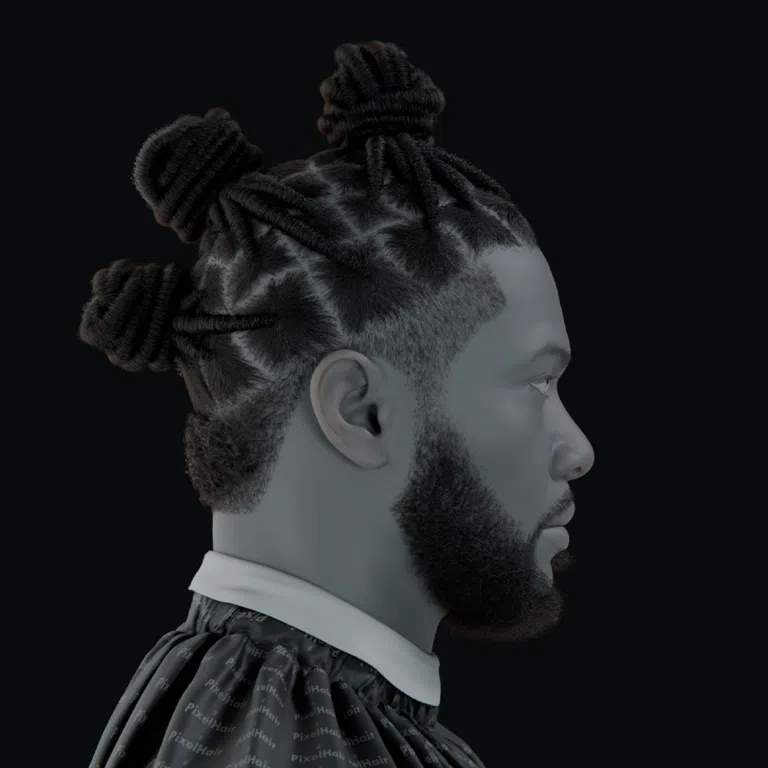
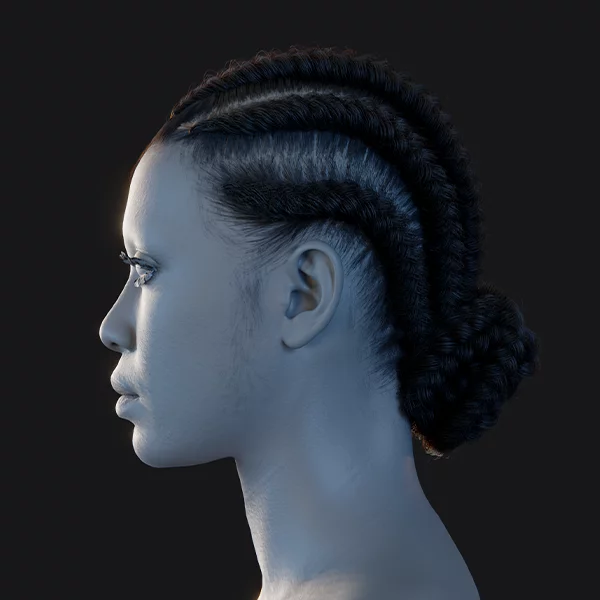
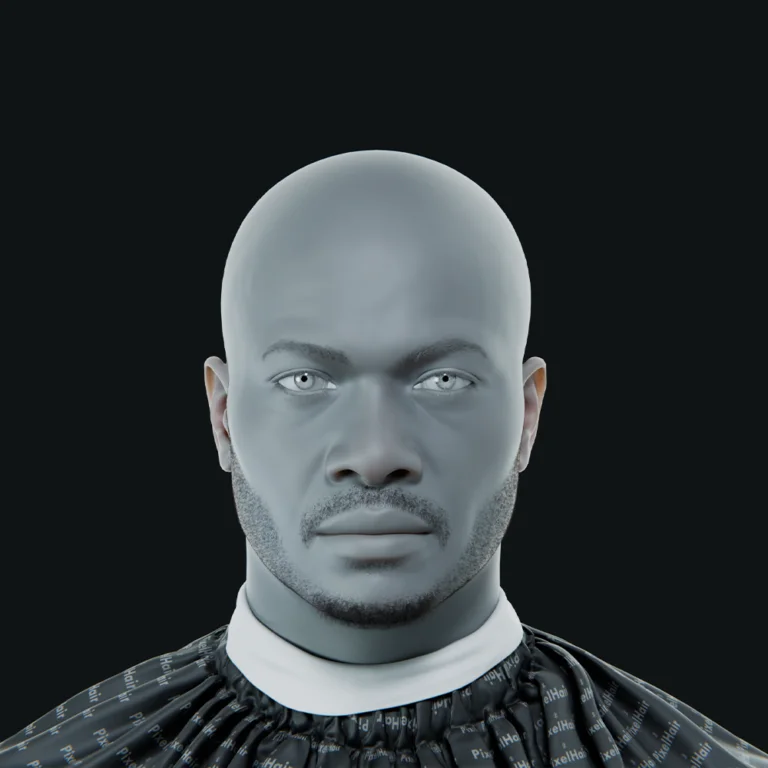
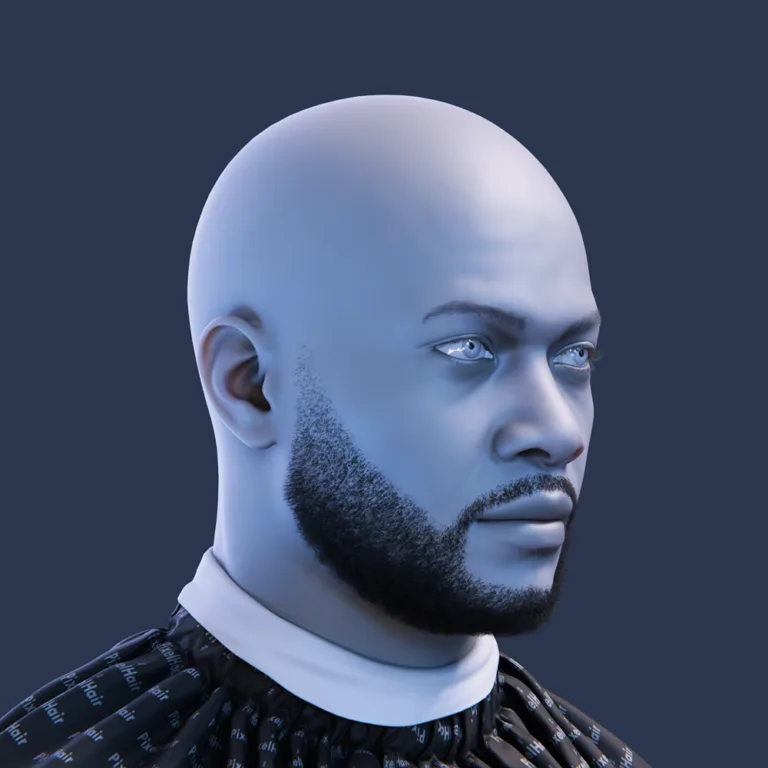
The Groom hair system utilizes Niagara-based physics to react to wind. To set this up, enable simulation on the Groom actor and assign a Niagara Hair Physics Asset. Place a WindDirectionalSource in the scene and add a Wind Force module to the Groom’s Niagara Hair Solver. This allows the hair strands to sway according to the global wind’s strength, speed, and gusts. Premade hair assets, like PixelHair, also support this simulation when used with MetaHumans or other characters.
How to enable wind on hair groom UE5
To enable wind on a hair groom, follow these steps:
- Enable Hair Simulation: In the Groom Actor’s Details, check Simulation and assign a
Niagara Hair Physics Asset. - Add Wind Actor: Place a
WindDirectionalSourcein the level and set its Strength, Speed, and Gusts. - Set up Niagara Solver: In the Groom component’s Niagara Solver, add a Wind Force module to the Update section and link it to the world wind parameters.
MetaHuman hair wind and groom simulation UE5
MetaHuman hair responds to wind through the same Groom/Niagara system. It is essential to keep the hair as a groom rather than converting it to static cards. By enabling hair simulation, assigning the necessary physics assets, and adding a WindDirectionalSource to the level, MetaHuman hair will sway naturally. Assets like PixelHair can also be attached to MetaHumans to provide different wind-reactive styles.

Common wind troubleshooting in Unreal Engine 5
- No movement on foliage: Ensure the wind node is the final operation in the World Position Offset (WPO) chain and that masks are correctly applied. The effect may only be visible during Simulate or Play modes.
- Physics objects not moving:
WindDirectionalSourcedoes not affect rigid bodies or standard skeletal meshes. You must use Blueprints or Physics Thrusters to manually apply forces based on the wind vector. - Cloth not animating: Verify that “Enable Cloth Simulation” is checked and that a Chaos cloth asset is properly attached to the mesh.
- Groom hair still static: Ensure hair is imported as curves (grooms) and not cards. Confirm that simulation is enabled and a Wind Force module is present in the Niagara solver.
- Performance drops: If performance is impacted, refer to optimization tips regarding LODs and complexity.
Wind performance tips for foliage, Niagara, cloth, and grooms in UE5
- Foliage: Use LODs to disable WPO wind at a distance. Use instanced foliage systems and only paint wind weights where movement is necessary.
- Niagara: Use GPU particles for faster solving. Lower the spawn rate of particles and simplify or cull distant particles and complex noise functions.
- Cloth: Reduce the resolution of the cloth mesh and lower the number of solver substeps and iterations. Use cloth LODs to disable simulation at long distances.
- Groomed Hair: Reduce hair density and strand counts. Increase stiffness for simpler physics and cull hair simulation based on the camera distance.
Frequently Asked Question (FAQs)
- How do I add wind to my Unreal Engine 5 scene?
Drag aWindDirectionalSourceactor into your level and rotate it to set the direction. Adjust the Strength and Speed settings in the Details panel. The wind will affect foliage and other systems once you enter Play or Simulate mode. - Why isn’t my grass or trees moving even though I added a wind source?
Ensure your foliage materials are configured for wind. Grass requires theSimpleGrassWindnode in the World Position Offset (WPO), while trees typically useRotateAboutAxis. You must also ensure the wind actor has sufficient strength and the scene is running in Simulate/Play mode. - Can WindDirectionalSource move any physics object in the scene?
No. By default, it only affects foliage and cloth. Regular physics actors (rigid bodies) ignore it. To move rigid objects, you must manually apply forces in Blueprints using a Physics Thruster or similar method. - How can I create wind gusts or variability?
You can animate the wind strength parameter using a timeline or Perlin noise to simulate gusting. Additionally, you can multiply the wind offset within materials by time-based noise or sine values. - How do I get Niagara particle effects to use my wind?
Add a Wind Force module to your Niagara emitter. Provide a wind direction vector, which can be updated from theWindDirectionalSourcevia a Niagara user parameter in Blueprints every frame. - My cloth (flag) isn’t moving with wind – what should I check?
Ensure “Enable Cloth Simulation” is checked in the Skeletal Mesh editor. You must also have a Chaos cloth asset created and aWindDirectionalSourcepresent in the scene. - How do I make hair groom assets blow in the wind?
Enable hair simulation on the Groom component, assign a Niagara Hair Physics Asset, and add a Wind Force module to the Groom’s Niagara solver. - Why isn’t my MetaHuman’s hair reacting to wind?
Wind only affects MetaHuman hair if it remains as a groom (curves). If the groom has been converted to baked hair cards, it will not react to the wind system. - Are there existing hair assets I can use with UE5?
Yes. Pre-made collections like PixelHair by Yelzkizi provide realistic hair grooms that are compatible with MetaHumans and respond to UE5 wind simulation. - How do I optimize wind for better performance?
Disable wind on distant LODs for foliage. Use GPU emitters for Niagara, reduce triangle counts and solver iterations for cloth, and use fewer strands and LODs for groomed hair.
Conclusion
Unreal Engine 5 provides a suite of tools for dynamic wind simulation. The WindDirectionalSource actor is the primary driver, affecting foliage through vertex animation (WPO) and influencing Niagara particles, Chaos Cloth, and Groomed hair through dedicated modules. Global control can be achieved by feeding the wind actor’s data into a Material Parameter Collection. Troubleshooting involves verifying material setups and simulation settings, while optimization is managed through LODs and reducing simulation complexity. Using these methods, along with compatible assets like PixelHair, allows for the creation of realistic, wind-driven environments.
Sources and Citations
- Epic Games docs (wind, materials, Niagara, cloth, hair)
Wind + materials (vertex wind / masks / global controls)
World Position Offset Material Functions (includes SimpleGrassWind) — World Position Offset Material Functions in Unreal Engine.
Material Parameter Collections (global wind parameters via MPCs) — Using Material Parameter Collections in Unreal Engine.
WindDirectionalSource (engine wind actor reference) — AWindDirectionalSource (UE API docs). - Niagara (VFX system + Wind Force module)
Niagara overview — Overview of Niagara Effects.
Niagara docs hub — Creating Visual Effects in Niagara.
Niagara Wind Force (official module reference page) — Particle Update Group Reference for Niagara Effects. - Chaos Cloth (wind settings)
Chaos Cloth wind settings (Wind Method, drag/lift coefficients, etc.) — Clothing Tool in Unreal Engine — Properties Reference.
Chaos Cloth (artist-oriented guide; includes wind concepts like drag/lift tuning) — Chaos Cloth Demystified — A zero to hero guide (Epic Dev Community). - Hair / Groom (Niagara-driven simulation)
Hair system overview — Hair Rendering and Simulation in Unreal Engine.
Hair physics overview — Hair Physics in Unreal Engine — Overview.
Groom editor guide — Groom Asset Editor User Guide.
Groom quick start (simulation + rendering) — Hair Simulation and Rendering Quick Start Guide. - Tutorials you referenced
Ryan DowlingSoka — Hanging Vertex Animation (wind-like vertex animation workflow) — Hanging Vertex Animation.
Brushify — global wind + Material Parameter Collection — Global Wind System Overview. - Unreal Engine forum threads (community tips & troubleshooting)
SimpleGrassWind + wind masks (WPO masking / vertex paint falloff)
SimpleGrassWind masking — Simple Grass Wind Masking?.
Mask wind at the bottom of grass (common “don’t move the roots” setup) — Masking wind effects on bottom of grass?.
SimpleGrassWind falloff — Simple Grass Wind falloff?.
General SimpleGrassWind discussion — SimpleGrassWind. - Groom wind + MetaHuman hair (how to get “wind” affecting strand grooms)
Enable wind on groom hair — How to Enable Wind on Hair Groom?.
Older groom wind workflow thread — How to make the groom in Unreal new hair system work with wind….
MetaHuman hair blowing in wind (discussion + constraints like strand vs cards) — MetaHuman Hair Blowing in Wind??.
MetaHuman groom stability + wind note (LOD “Rigid” vs “Skinning”) — Metahuman hair slips off in the wind?. - Extra forum references that commonly come up in “global wind” setups
Driving Niagara with a Material Parameter Collection (global wind direction/speed idea) — Using material parameter collection with Niagara — how?.
Niagara WindForce module troubleshooting thread — Niagara Module Script WindForce… “PhysicsField type invalid”.
Recommended
- How to Make Hair in Blender
- Can You Change the Focal Length of a Camera in Blender?
- Top 20 Hottest Video Game Characters: Icons of Beauty and Aura in Gaming
- Is Blender CPU or GPU Intensive? A Complete Guide to Performance in Blender
- Duskbloods is still coming this year, exclusive to Nintendo Switch 2 — 2026 release update + everything we know about The Duskbloods
- How do I animate a zoom effect with the Blender camera?
- Top 10 Cyberpunk 2077 Mods to Transform Your Night City Experience
- Can I use real-world camera settings in Blender?
- MetaHuman Creatures: Crafting Non-Human Characters with Unreal Engine’s MetaHuman Framework
- How do you change the render resolution of a Blender camera?