





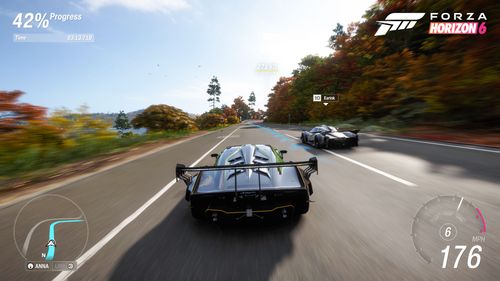
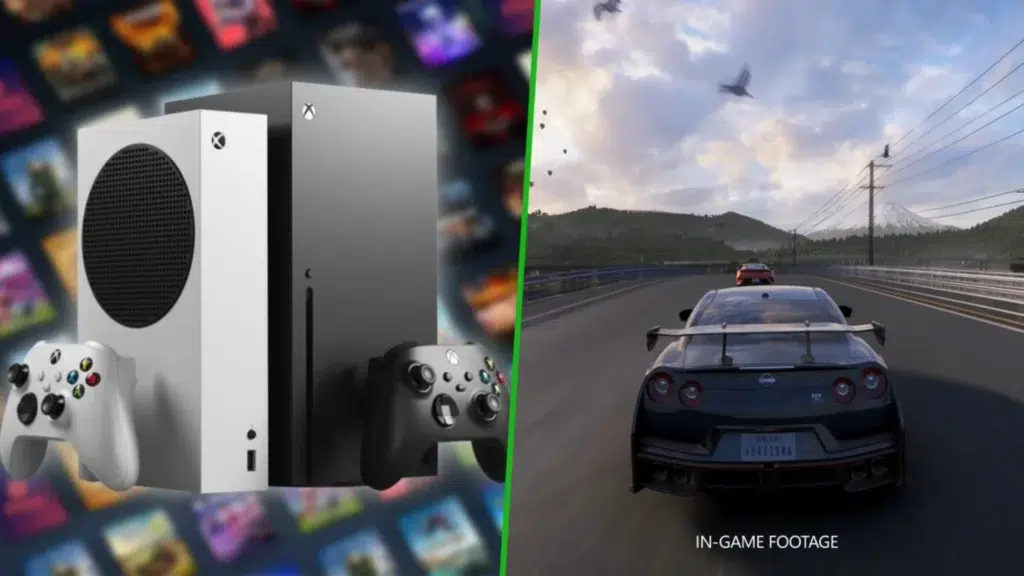
Official pre-launch materials from Playground Games, Forza Support, and Xbox confirm that Forza Horizon 6 launches on May 19, 2026, with Premium Edition early access starting May 15. For Xbox Series X|S, the game offers two rendering presets on each console: Series X gets native 4K at 30fps in Quality mode and dynamic 4K targeting 60fps in Performance mode, while Series S gets 1440p at 30fps in Quality mode and 1080p at 60fps in Performance mode, with dynamic scaling active on both Series S options. Official pages also position the game as an Xbox Series X|S-optimized title and the Xbox Store lists 4K Ultra HD capability. The game itself is set in Japan.
That already gives Xbox players the most important answer: Quality mode is the image-first preset, while Performance mode is the responsiveness-first preset. What official materials do not yet provide is a full retail-code benchmark breakdown, a scene-by-scene visual comparison, or a published split-screen specification, so the most reliable interpretation right now comes from the confirmed render targets and Xbox’s own documentation on latency, VRR, HDR, and Game Mode behavior.
Forza Horizon 6 Xbox Series X Quality Mode: Native 4K at 30fps Explained
On Xbox Series X, Quality mode is the clearest and most straightforward preset. Official messaging describes it as native 4K at 30fps with increased visual fidelity, which means this mode is built to prioritize a full-resolution 4K image and a richer visual presentation over a higher frame-rate target. If your priority is sharpness, scenic fidelity, and the best-looking still presentation on a 4K display, this is the preset designed for that job.

Forza Horizon 6 Xbox Series X Performance Mode: Dynamic 4K at 60fps Explained
On Xbox Series X, Performance mode targets 4K rather than locking the game to native 4K in every situation. The official wording says the game scales dynamically to maintain a smooth 60fps, which is crucial because it tells you the renderer can lower resolution on the fly when scene complexity rises. In practical terms, this is the mode for players who want a 4K-class image with much stronger motion fluidity and faster-feeling gameplay.
Forza Horizon 6 Xbox Series S Quality Mode: 1440p at 30fps Explained
On Xbox Series S, Quality mode is advertised as 1440p at 30fps, but the official support FAQ adds an important qualifier: both Series S rendering modes dynamically scale the output resolution to maintain their target frame rates. That means 1440p is the intended top-end target for the Quality preset, not a promise that every frame in every scenario will always stay there. Even with that caveat, this remains the sharper, more image-focused Series S option.
Forza Horizon 6 Xbox Series S Performance Mode: 1080p at 60fps Explained
Series S Performance mode is the smoother option on the smaller console, aiming for 1080p at 60fps while also using dynamic scaling to preserve that frame-rate target. The trade is exactly what it sounds like: fewer pixels than the 1440p Quality preset in exchange for double the frame-rate target and a more fluid look and feel while driving. For racing-first players on Series S, this is the setting most likely to make the game feel immediately more responsive.
Does Forza Horizon 6 Use Dynamic Resolution Scaling on Series X and Series S
Yes, but not identically across both consoles. On Series X, only Performance mode is officially described as dynamic; Quality mode is called native 4K. On Series S, both Quality and Performance dynamically scale output resolution to maintain either 30fps or 60fps. The closest one-line summary is this: Series X uses dynamic resolution scaling in Performance mode only, while Series S uses dynamic resolution scaling in both modes.

How to Change Graphics Mode in Forza Horizon 6 on Xbox Series X|S
The current official pre-launch materials confirm that Quality and Performance modes exist on Xbox Series X|S, but they still do not publish a menu-by-menu walkthrough that names the exact path for switching between them. What Xbox has documented clearly is that system-level TV & Display Options control features such as refresh rate, HDR, VRR, and calibration. That means the safest launch-day approach is to check the in-game settings for the render-mode selector and then verify your Xbox display settings separately for VRR, HDR, and Game Mode behavior.
Forza Horizon 6 Quality vs Performance Mode: Which One Looks Better
Based on the official descriptions alone, Quality mode is the better-looking preset on both consoles. On Series X, it is the only mode explicitly described as native 4K with increased visual fidelity. On Series S, it targets 1440p instead of 1080p. The key limitation is that the developer has not yet published a forensic checklist of precisely which settings differ between the presets, so “looks better” should currently be understood as more image-quality budget and a higher nominal resolution target, not as a fully documented list of changed shadows, reflections, foliage, or effect settings.
Forza Horizon 6 Quality vs Performance Mode: Which One Feels Smoother
Performance mode should feel smoother to almost every player because it targets 60fps rather than 30fps. The frame-time math explains the difference immediately: 30fps allows about 33.3 milliseconds per frame, while 60fps cuts that to about 16.7 milliseconds per frame. Higher FPS also produces smoother animation and generally lower apparent latency, so motion, panning, steering transitions, and the sensation of speed all tend to feel cleaner in the 60fps preset.

Forza Horizon 6 60fps Mode on Series X|S: Input Latency and Controller Feel
There is not yet an official end-to-end input-latency measurement for Forza Horizon 6 on Xbox Series X|S, so any precise millisecond claim would be guesswork. What can be said with confidence is that 60fps cuts frame time in half compared with 30fps, and both Xbox platform documentation and NVIDIA engineering explain that higher frame rates and higher refresh operation reduce latency and improve responsiveness. Xbox also highlights Dynamic Latency Input, VRR, and ALLM/Game Mode as parts of the broader responsiveness pipeline. In practical controller terms, that means the 60fps mode should feel more immediate during quick countersteer corrections, braking modulation, chase-camera adjustments, and traffic avoidance, even before independent launch-day measurements arrive.
Forza Horizon 6 30fps Mode on Series X|S: What “increased Visual Fidelity” Means
Officially, the studio only says that Series X Quality mode delivers increased visual fidelity at native 4K and 30fps; it does not yet publish a detailed feature list. The safest interpretation is that more of the GPU budget is being spent on image quality instead of being reserved for a 60fps target.
That reading also fits the studio’s broader explanation that Forza Horizon 6 is the first Horizon built fully around current-generation consoles and PC, allowing the team to push graphic fidelity harder. As useful historical context, an earlier Horizon optimization pass explicitly improved shadows, reflections, and particle quality in its higher-fidelity presentation, but those specific improvements have not yet been officially confirmed as the exact Quality-mode changes for Forza Horizon 6.
Forza Horizon 6 Best Settings for Racing: Performance Mode vs Quality Mode
For racing, Performance mode is the best default recommendation on both Xbox Series X and Xbox Series S. The official trade is simple: you sacrifice some image-quality headroom to gain a 60fps target, and the broader latency evidence from Xbox and Nvidia strongly favors higher frame rates for responsiveness and control feel. Quality mode still makes sense for relaxed cruising, sightseeing, and players who care more about a sharper image than moment-to-moment driving feel, but for actual racing, overtakes, fast corrections, and quick reactions, Performance mode is the stronger all-around choice.
Forza Horizon 6 Best Settings for Photo Mode and Replays on Xbox Series X|S
For scenic cruising, screenshots, and general visual showcase use, Quality mode is the stronger recommendation because official materials explicitly reserve more rendering budget for fidelity there. That pairing also makes sense alongside the Collection Journal, which saves photographed discoveries and lets players replace them later with better shots. Official materials do not yet spell out a separate replay-specific render pipeline for Xbox Series X|S, so the best guidance here is practical rather than absolute: use Quality mode when the goal is presentation, composition, and scene beauty, then switch back to Performance when the priority returns to fast driving and control feel.
Forza Horizon 6 HDR and VRR on Xbox Series X|S: What to Enable for Smoother Gameplay
For smoother gameplay, prioritize VRR and ALLM/Game Mode first. Xbox says VRR synchronizes the display refresh rate to the game’s frame rate, maintains smooth visuals without tearing, and can present missed frames with the lowest possible latency. Xbox also says ALLM automatically moves a compatible display into its lower-latency game mode. HDR is different: it improves brightness, contrast, and color presentation, but it does not make gameplay smoother by itself.
If your display supports HDR well, enable HDR10 and run Xbox’s HDR calibration for games; if HDR creates odd color behavior on your setup, Xbox’s own guidance says it can be disabled from Video Modes. Notably, current Forza Horizon 6 Xbox pages focus on the game’s resolution and frame-rate presets rather than publishing a detailed console HDR feature breakdown, and the current Xbox Store capability tags list 4K Ultra HD without a dedicated HDR tag.
Forza Horizon 6 Split-Screen and Graphics Modes: Do Quality/Performance Options Change
As of the latest official pages, split-screen is unconfirmed. The game is described as playable solo, in co-op, and in multiplayer, but the current Xbox Store Capabilities section for the Standard Edition lists only 4K Ultra HD, Optimized for Xbox Series X|S, and Xbox Play Anywhere. It does not list local multiplayer or split-screen. Because of that, there is also no official answer yet on whether Quality and Performance options would behave differently in split-screen. Until the developer or support site says otherwise, any claim that split-screen is confirmed or that it forces a particular graphics mode should be treated as speculation.
Forza Horizon 6 Preload Size and Storage Requirements on Xbox Series X|S
Preload is already live on Xbox Series X|S through the Xbox app, and the official storage requirement is large: at least 135GB free on Xbox Series X and 130GB free on Xbox Series S. Those are official pre-load figures, not community estimates. The five-gigabyte difference between the two console installs is real, but the developer has not yet published a technical explanation for why the packages differ.
Frequently Asked Questions (FAQs)
- Is native 4K exclusive to Series X Quality mode?
Yes. The official spec says Series X Quality mode runs in native 4K at 30fps with increased visual fidelity, while Series X Performance mode targets 4K dynamically at 60fps. - Does Series X Performance mode always stay at full 4K?
No official source says that. The wording is target 4K with dynamic scaling to maintain 60fps, which means the renderer can adjust resolution to hold the frame-rate target. - Do both Series S modes use dynamic resolution scaling?
Yes. Forza Support explicitly says both Series S options dynamically scale output resolution to maintain their target frame rates. - Which mode should most racers pick first?
Performance mode is the better default starting point because it targets 60fps and should feel smoother and more responsive while racing. - Which mode is best for screenshots and scenic cruising?
Quality mode is the better first choice because it prioritizes image quality and visual fidelity over frame rate. - Does VRR still matter if I already choose Performance mode?
Yes. Xbox says VRR helps synchronize the display to the game’s frame rate, reduce tearing, and deliver lower-latency presentation when frames are missed. - Does HDR make Forza Horizon 6 smoother on Xbox Series X|S?
No. HDR improves visual presentation, while smoothness is more closely tied to frame rate, VRR, and low-latency display behavior. - Is split-screen confirmed on Xbox Series X|S?
Not in the current official material. The game is listed as solo, co-op, and multiplayer, but the Xbox Store does not currently list split-screen or local multiplayer under Capabilities. - How much space do I need before preloading on Xbox?
Officially, you need at least 135GB free on Series X or 130GB free on Series S. - Are these final post-launch benchmark results?
No. These are official pre-launch rendering targets and capability notes published ahead of the May 19, 2026 release, not independent retail-code benchmark tests.

Conclusion
The official picture is already clear enough for a confident Xbox setup decision. On Series X, the choice is between the sharpest, most fidelity-focused native 4K/30 presentation and the smoother, more responsive dynamic-4K/60 option. On Series S, the trade is between a higher-resolution 1440p/30 Quality preset and a 1080p/60 Performance preset, with dynamic scaling helping both keep their targets. For most players who care primarily about racing feel, Performance mode is the best pick. For scenic play, screenshots, and image quality, Quality mode is the better fit. The only meaningful unknowns still left open before launch are deeper post-release benchmark analysis, a published mode-switching menu path, and final confirmation on whether split-screen exists at all.
Sources and Citations
- Forza official news hub (pre-launch posts, tech breakdowns, updates)
https://forza.net/news - Xbox Support FAQ (display modes, Series X|S targets, HDR, VRR, ALLM, calibration)
https://support.xbox.com/en-US/help/hardware-network/display-sound/tv-resolution-and-refresh-rate - Xbox Dynamic Latency Input (DLI, latency and input response system explanation)
https://news.xbox.com/en-us/2018/03/16/dynamic-latency-input/ - Xbox Store listing (closest official Forza Horizon Standard Edition page — FH5)
https://www.xbox.com/en-US/games/store/forza-horizon-5/9NKX70BBCDRN - Forza Horizon official franchise hub (series overview, Horizon branding, updates)
https://forza.net/horizon - Xbox HDR Game Calibration app (HDR setup + display calibration support tool)
https://www.microsoft.com/store/productId/9N7F2SMZ9D3L - Xbox platform display & HDR guidance (VRR, ALLM, TV setup, refresh rates)
https://support.xbox.com/en-US/help/hardware-network/display-sound/advanced-video-settings - Engineering explanation (FPS vs latency vs animation smoothness — general authoritative reference)
https://www.nvidia.com/en-us/geforce/news/what-is-frame-rate/ - Forza Horizon historical context (series retrospectives and evolution of visuals)
https://forza.net/horizon
Recommended
- How to Make a MetaHuman Talk: Ultimate Guide to Voice and Facial Animation
- tinyBuild on the Success of Hozy: How the Cozy Renovation Game Caught Attention Fast
- Disney Lorcana Wilds Unknown Special Lorecast Recap: All Announcements, Pixar Card Reveals, and Release Dates
- How do I set up a VR camera in Blender?
- How to Create a 3D Environment Like Arcane: A Step-by-Step Guide
- WOLFHOUND: WWII Sci-Fi Metroidvania — Release Date, Gameplay, Story, and Everything We Know
- Can you zoom the camera in Blender?
- Blender and NVIDIA GeForce RTX 5090: Everything You Need to Know
- James Gunn Confirms Clayface DCU Timeline — When It Takes Place and If Batman Will Appear
- Custom Skyboxes with Blender: Create Equirectangular HDRIs, Fix Seams, and Export to Unity & Unreal