



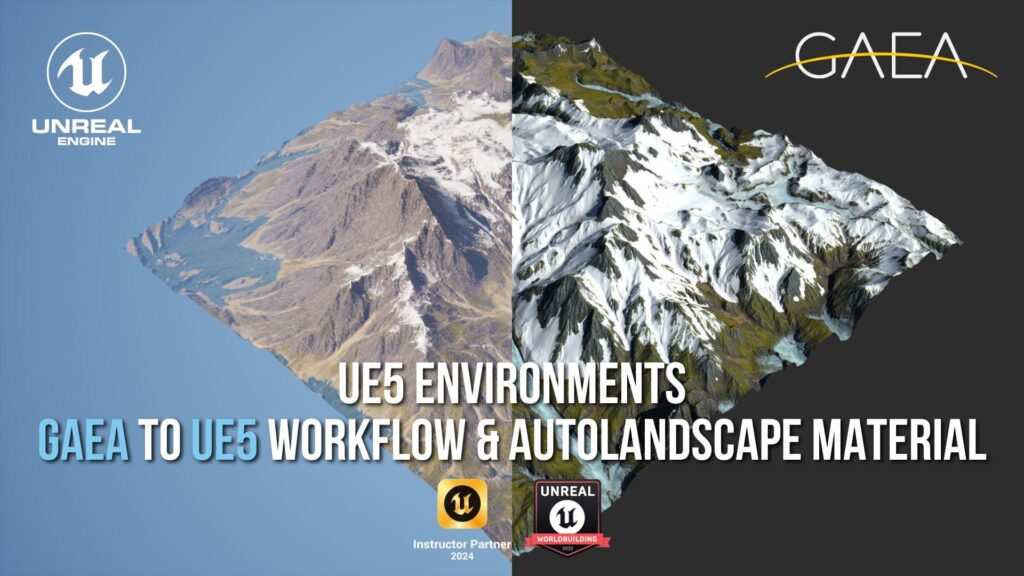
High‑fidelity landscape production in Unreal Engine 5 typically hinges on three deliverables: a correctly scaled 16‑bit heightmap, a consistent set of weightmaps/masks, and a landscape material that can consume those masks for automated texturing and biome rules. The most robust Gaea→UE5 workflow is built around Gaea’s Unreal node (for Unreal‑friendly resampling, naming, and metadata export) and the open‑source Gaea2Unreal bridge (for one‑click import, scaling, and synchronisation).
Gaea2Unreal is explicitly designed to import terrain plus weightmaps, supports re‑import/sync for iteration, and supports both standard Landscape and World Partition terrains.
In This Article (19 sections)
Gaea to Unreal Engine 5 workflow step by step
A production‑safe Gaea→UE5 landscape pipeline is typically structured as follows:
- Terrain authoring in Gaea (procedural, non‑destructive graph): generate the base heightfield and supporting data maps (erosion wear/deposits/flow, slope/height selections, custom masks).
- Prepare export for Unreal using the Unreal node to (a) resample to Unreal‑friendly landscape dimensions, (b) standardise output naming, and (c) emit a JSON definition/metadata file used by the bridge importer for accurate scale conversion.
- Install and enable Gaea2Unreal in Unreal Engine 5, ensuring the plugin is recognised and the Gaea Landscape Importer appears in the editor toolbar.
- Import the landscape (heightmap + metadata) via the Gaea Landscape Importer, which reads the exported heightmap and Gaea’s saved metadata for UE‑scale conversion and populates import settings before creating the Landscape.
- Attach a master landscape material that exposes named landscape layers (Layer Blend / Layer Weight workflow), then import/apply weightmaps aligned to those layer names (either through the bridge or manually through Layer Info assets).
- Automate texturing and biomes by routing Gaea masks into the material and/or sampling landscape layers in PCG for foliage distribution, with optional point‑cloud‑driven placement for ecosystems.
- Iterate non‑destructively by rebuilding in Gaea and re‑syncing in Unreal (bridge re‑import), keeping a stable material and layer naming strategy across iterations.
How to export a Gaea heightmap for Unreal Engine landscape import
The most reliable export path is to use Gaea’s Unreal node to generate a UE‑ready heightfield:
- Resample to Unreal‑friendly resolution: the Unreal node is explicitly designed to resample to Unreal’s preferred Landscape sizes (example given: a 2048×2048 build becomes 2017×2017 “to accommodate UE’s considerations”).
- Choose supported heightmap format: the Unreal node supports PNG and R16 as “fully supported” options and recommends PNG for maximum compatibility.
- Enable Unreal‑friendly naming: enabling Unreal Friendly Naming prefixes
H_for the heightfield andT_for masks/textures; the heightfield should be the primary input. - Build outputs + definition file: during build, the Unreal node writes the asset files plus a JSON definition file, identified as the key file needed for importing terrains through the bridge workflow.
For broader Gaea export workflows outside the Unreal node, Gaea’s build system is designed around building outputs to the target resolution and saving them to disk for downstream use.
Gaea2Unreal plugin setup for Unreal Engine 5
Gaea2Unreal installation is straightforward but path‑sensitive:
- Recommended install target (Engine‑wide): extract the version‑matched plugin ZIP to the Unreal Engine install directory under
\Engine\Plugins\GaeaUnrealTools(the folder already exists inside the ZIP). - Project‑local install option: install to
<Project>\Pluginsto keep the plugin contained within a project rather than the engine installation. - Enable and verify toolbar presence: after launching Unreal Engine, enable
Gaea2Unrealin the Plugins window (restart may be required). The Gaea Landscape Importer is expected in the main toolbar after the plugin loads. - Folder naming caveat: the documentation notes that if the plugin is not installed to the
GaeaUnrealToolsfolder, Unreal may have trouble recognising the toolbar icon.
Using Gaea Unreal Export node to import terrain and weightmaps in UE5
In the Gaea2Unreal documentation, importing height + weight data is treated as a coordinated export/import system:
- Height import via the bridge: after plugin installation, the Gaea Landscape Importer appears in Unreal’s toolbar. Importing starts by clicking
Import Heightmapand selecting the PNG exported from Gaea; the importer reads the heightmap along with metadata saved by Gaea for UE‑scale conversion, then creates the Landscape. - Weightmap preparation in Gaea (Unreal Export node): for weightmaps, the workflow specifies using the Unreal Export node to output heightmaps and weightmaps with appropriate prefixes; inputs must be explicitly typed as “Height” for heightmaps and “Weight” for weightmaps.
- Naming discipline to prevent conflicts: the weightmap workflow warns that nodes feeding the Unreal Export node should have unique names. The example specifically references avoiding naming conflicts when exporting multiple maps (e.g., Flow and Deposit outputs from an erosion workflow).
- Automatic application of weightmaps on import: the official Unreal integration page describes assigning weightmaps directly in Gaea so they are automatically applied when importing via Gaea2Unreal.

Best heightmap format for Unreal Engine (16-bit PNG vs R16 vs RAW)
Heightmap format choice is a compatibility decision across: authoring tool → transfer → Unreal import → iteration cycle.
16‑bit PNG (grayscale)
Unreal’s official documentation states the engine can export a landscape heightmap as a 16‑bit grayscale PNG, and Gaea’s Unreal node recommends PNG for maximum compatibility.
Practical advantages include broad DCC support and easier inspection/versioning; practical risks include accidental colour‑management or bit‑depth loss if the PNG is edited incorrectly in image software (a common source of banding/terracing in downstream tools).
R16 / .r16 (16‑bit grayscale)
Unreal’s documentation also references exporting heightmaps as 16‑bit grayscale .r16, and Gaea’s Unreal node lists R16 as fully supported.
R16 is often used in terrain pipelines because it is compact, lossless, and avoids PNG colour pipeline pitfalls, but it requires stricter handling (ensuring the correct dimensions and no header confusion, especially in tiled workflows).
RAW (.raw) with sidecar metadata
Unreal’s documentation indicates support for RAW heightmaps via a JSON sidecar workflow, and Epic’s “Landscape import basics” community tutorial describes the “easiest heightmap format” as 16‑bit .raw, containing unsigned 16‑bit integer height values in the range [0, 65535].
However, Gaea’s Unreal node explicitly notes that “RAW is currently not fully supported” in that node’s export path, recommending PNG for maximum compatibility.
Key takeaway (format selection rule)
If the pipeline is centred on Gaea’s Unreal node + Gaea2Unreal bridge, 16‑bit PNG or R16 aligns with the toolchain’s “fully supported” paths, with PNG explicitly recommended by Gaea for compatibility.
If a pipeline requires raw binary interchange or custom importers, Gaea documents .raw as a simple, headerless 16‑bit unsigned short array in little‑endian byte order, but Unreal import constraints and sidecar requirements must be followed exactly.
Fixing terracing and banding when importing heightmaps into Unreal Engine
Terracing (“stairs”) and banding typically arise from quantisation, incorrect scaling, or incorrect file interpretation—often in combination.
Confirm true 16‑bit height precision end‑to‑end
Community guidance on Unreal heightmap terracing highlights that usable heightmap formats for landscape import should be 16‑bit grayscale (PNG or RAW) rather than lower‑precision exports.
Unreal’s documentation similarly foregrounds 16‑bit grayscale PNG and 16‑bit grayscale R16 as supported import formats.
Validate Unreal‑friendly dimensions before blaming bit depth
Unreal landscapes are constrained to specific vertex dimensions; the Landscape Technical Guide emphasises that import heightmaps must match valid vertex counts (example: 631×631 vertices for a particular landscape configuration, because there is “always one more row of vertices than there are quads”).
Gaea’s Unreal node reduces risk by resampling to Unreal‑friendly resolutions (example 2048→2017), and therefore helps avoid “looks blocky” outcomes caused by importing invalid sizes.
Correct Z‑scale to reduce visible stepping
Unreal’s Z scale conversion uses a fixed ratio tied to its internal height range. Epic documentation describes using a ratio of 1/512 (0.001953125) when converting centimetre heights to the Z scale value.
Gaea’s Unreal workflow documentation repeats the same formula:Z scale = (Max height in metres) × 100 × 0.001953125.
Over‑scaling Z increases the physical height represented by each 16‑bit step, making terraces more visible even when using a 16‑bit source; correct Z scale reduces visible quantisation artefacts for a given terrain height range.
Avoid unintended colour transforms
A recurring Unreal landscape import issue is treating height imagery through inappropriate colour workflows; discussions on Unreal forums highlight that incorrect assumptions about colour space or supported formats can produce unexpected results when importing height data.
The safest mitigation is to avoid editing exported heightmaps as “images” and instead export directly from terrain tools (Gaea Unreal node) into Unreal‑supported landscape formats.

Unreal Engine landscape scale settings for Gaea terrains (X/Y/Z scale)
Accurate scale is a three‑part problem: units, horizontal spacing (X/Y), and vertical range (Z).
Unreal units and the “100” baseline
Epic’s landscape import guidance reiterates that Unreal’s default distance unit is 1 cm, and therefore “a 100 scale is often used to map centimetres to metres.”
This convention matches the common landscape vertex spacing assumption: X/Y scale 100 means a 1 m spacing between vertices/quads (because 100 cm = 1 m).
Z scale formula (grounded in Unreal’s internal height range)
Epic documentation provides the canonical approach: convert the target maximum height to centimetres and multiply by 0.001953125 (1/512) to compute the import Z scale.
Gaea’s Unreal workflow documentation gives the same formula and recommends using the bridge import if the calculation is error‑prone, because Gaea exports the metadata needed for scale conversion.
X/Y scale derivation (resolution‑aware)
The commonly used derivation for X/Y scale is:X/Y scale (cm) = (World width in metres × 100) / (Heightmap resolution in vertices − 1)
because a heightmap’s “overall resolution” refers to vertices, and the number of quads is one less than the number of vertices.
This resolution‑minus‑one relationship is explicitly described in Unreal landscape sizing discussions and in the Landscape Technical Guide’s emphasis on vertex counts rather than quad counts.
How to import Gaea weightmaps in Unreal Engine for landscape layers
Weightmaps are only meaningful if their resolution, alignment, and layer naming match the Landscape and its material.
Bridge importer method (recommended for Gaea Unreal node exports)
Gaea’s “Importing Weightmaps” workflow describes three critical requirements:
- Export weightmaps through the Unreal Export node with correct “Height” vs “Weight” typing and Unreal‑friendly naming/prefixes.
- Configure the importer with Weightmap Filenames, Landscape Layer Names, and a Layer Info Folder; layer names are expected to auto‑populate when a landscape master material is provided.
- Ensure the master material’s Landscape Layer Blend nodes have the correct number of layers and unique names, are placed at the top of the graph (not nested in functions), and contain at least two layers—otherwise the importer can skip weightmap import.
Manual Unreal method (Layer Info + Import from file)
A widely used manual workflow is:
- Create Layer Info assets for each target layer (commonly Weight‑Blended), then right‑click a Layer Info and use “Import from file” to associate the weightmap with that layer.
This method is simple and engine‑native but increases manual steps and is more sensitive to naming drift and iteration churn compared to a bridge workflow.
Gaea masks for landscape texturing in Unreal Engine (flow, wear, deposition)
Erosion‑derived masks are among the most valuable terrain texturing signals because they encode where geology/weathering occurred rather than only raw height.
Erosion outputs: Wear, Deposits, Flow
Gaea’s Erosion documentation defines three “key data outputs”:
- Wear: portions where erosion removes sediments
- Deposits: the resting position of sediments
- Flow: the path sediments take from origin to resting position
These maps are explicitly described as suitable for texturing or driving other nodes, and the documentation emphasises that data outputs may need visual normalisation (autolevel/equalise, absolute value) to become usable as masks.
Flow map generation outside erosion
Gaea also provides a dedicated Flow Map node to simulate rainfall and water accumulation “at any point in the graph,” with notes on how different rainfall options can be combined for texture creation.
Mask realism caution
Gaea’s erosion documentation warns against using Flow output too prominently for texturing, as it can look unrealistic and “CG” if over‑emphasised.

Auto landscape material setup using Gaea masks in UE5
Auto‑materials in UE5 Landscape workflows typically combine two blending systems:
- Landscape layer weights (imported weightmaps / painted layers)
- Procedural masks (slope/height/erosion data like wear/deposits/flow)
Landscape layer blending fundamentals
Epic’s Landscape Materials documentation notes that the Landscape Layer Weight node can be used to access layer weights and build a custom blending solution directly in the material graph.
Bridge‑friendly master material rules (critical for automated weightmap import)
For the Gaea2Unreal weightmap importer:
- Landscape Layer Blend nodes should match the layer count and use unique layer names.
- Place Layer Blend nodes at the top level of the material graph and avoid nesting them in material functions because the importer does not recursively search through functions.
If a material architecture requires material functions, a common approach is to use Landscape Layer Sample nodes to obtain 0–1 alpha masks per layer and then feed those alphas into function‑based blending.
Combining erosion masks into an auto‑material
A typical auto‑material pattern is:
- Rock layer: driven by slope and reinforced by Wear (exposed bedrock).
- Sediment/soil layer: driven by lower slopes and reinforced by Deposits.
- Wetness/riverbed accents: modulated by Flow or Flow Map, but kept subtle to avoid the “CG flow lines” failure mode.
Gaea tiled build to Unreal Engine World Partition workflow
Large worlds introduce two additional constraints: seamless tiling on export and correct streaming/partition behaviour on import.
Tiled export in Gaea (TileGates + blending)
Gaea’s tiled build workflow requires:
- Identifying non‑tile‑friendly nodes and moving them behind TileGate nodes.
- Baking TileGates prior to running a tiled build.
- Using tile blending to fix edge mismatches; documentation notes 25% is often sufficient, with warnings that higher blending increases memory and build time.
Tiled import behaviour in Unreal
Epic’s heightmap import documentation indicates that when a tiled heightmap is selected, Unreal prompts to use the “tiled image path.”
World Partition + known field issues
Gaea2Unreal explicitly supports both standard and World Partition terrains.
However, there are documented workflow risks: QuadSpinner notes that Unreal Engine 5.5 can exhibit terrain import performance issues, especially with World Partition, and attributes these issues to Unreal Engine itself.
Additionally, recent community reports describe tiled import problems when using World Partition, with a workaround of importing in a basic (non‑World‑Partition) level and then converting the level to World Partition via the editor tools.

Reimport and sync Gaea terrain changes in Unreal Engine (non-destructive iteration)
Two complementary systems enable iteration without re‑doing downstream work:
Gaea2Unreal re‑import/sync
QuadSpinner describes Gaea2Unreal as supporting re‑importing/syncing so terrains can be adapted and refined without “painful roundtrips.”
Unreal Landscape Edit Layers (heightmap + weightmap stacks)
Epic’s Landscape Edit Layers are designed to enable non‑destructive edits of Landscape Heightmap and Weightmap data using a stack‑based layer workflow.
In practice, Edit Layers can be used to preserve a “base imported terrain” layer while applying additional sculpt/paint adjustments in separate layers, reducing the cost of re‑importing updated base height data.
Iteration caveat: weightmap import caching
A recent Unreal forum report describes a scenario where re‑importing updated weightmap files can appear cached until the editor restarts, which can confuse validation of new mask outputs during iteration.
Creating foliage and biome distribution maps from Gaea for Unreal Engine
Biome‑driven foliage workflows in UE5 generally fall into two categories: raster maps (weightmaps/masks) and point‑based placement (point clouds / PCG points).
Raster‑driven biomes (masks → landscape layers → PCG sampling)
Epic’s PCG Biome documentation describes a biome system organised around local and global biome graphs, enabling control of asset distribution and supporting workflows such as using landscape layer weights to influence biome behaviour.
In a Gaea pipeline, this commonly maps to exporting biome‑meaningful masks (height bands, moisture/flow indicators, erosion deposits) as landscape layers, then sampling those layers in PCG to spawn vegetation and scatter assets in the correct zones.
Point‑cloud‑driven ecosystems (Gaea point clouds → Unreal PCG)
QuadSpinner documents that Gaea can export point clouds in PLY or XYZ and explicitly frames these exports as a way to drive “ecosystem generation, debris scattering, and other advanced workflows… or Unreal’s PCG system.”
This supports a pipeline where Gaea simulations or custom node graphs produce spatial placement points (optionally with attributes), which are then interpreted by UE5 procedural systems to instance meshes efficiently.
Gaea erosion in terrain generation for Unreal Engine environments
Erosion is both a terrain‑shaping process and a mask generator for downstream texturing and biomes.
Why erosion matters for UE5 environments
Gaea’s Erosion node is documented as producing not only sculptural terrain change but also three critical data outputs—Wear, Deposits, Flow—which are explicitly intended for texturing or driving other nodes.
The Flow Map node complements erosion by generating flow accumulation signals at arbitrary points in the graph, providing additional mask control for riverbeds, wetness zones, and biome moisture assumptions.
Reproducibility for production builds
Gaea documents that erosion flow can vary slightly due to parallel processing, and provides a Deterministic option (slower, single‑core) to ensure predictable results when exact parity across builds is required.
Practical erosion‑to‑UE5 mask strategy
A production‑centric approach is to export a restrained set of erosion masks (Wear/Deposits/Flow), then combine them with slope/height selectors in UE materials to avoid “over‑literal flow lines” and maintain realism.

Common Gaea to Unreal Engine troubleshooting (materials, masks, and import settings)
Plugin not visible / toolbar importer missing
- Confirm the plugin is installed in
\Engine\Plugins\GaeaUnrealTools(or<Project>\Plugins) and enabled in Unreal’s Plugins window; a restart may be required. - If the plugin is not installed under the expected
GaeaUnrealToolsfolder name, toolbar icon recognition issues are explicitly documented.
Landscape imports flat or with wrong dimensions
- Validate heightmap dimensions against Unreal’s Landscape vertex requirements; Unreal requires specific resolutions (vertex counts) and not arbitrary power‑of‑two sizes.
- Prefer Gaea’s Unreal node resampling (example 2048→2017) to align with Unreal’s allowed sizes.
Heightmap rejected (not grayscale / wrong file type)
- Unreal heightmap import expects supported landscape formats (not general image formats); Epic documentation lists 16‑bit grayscale PNG and 16‑bit grayscale R16 among supported formats.
- User reports indicate “not grayscale” errors can persist even after image edits, reinforcing that direct export from terrain tools is safer than post‑processing heightmaps in image editors.
Visible terracing / stair‑stepping
- Ensure the data is truly 16‑bit end‑to‑end and Z scale is computed correctly using the 0.001953125 ratio derived from Unreal’s 512‑unit internal height range.
Weightmaps not importing when using the Gaea2Unreal importer
- Confirm Landscape Layer Blend nodes are top‑level (not inside material functions), layer names are unique, and there are at least two layers; otherwise the importer can skip importing weightmaps.
- Avoid naming conflicts in exported maps by renaming nodes feeding the Unreal Export node.
Tiled landscapes show repeated tiles or World Partition import misbehaviour
- Recent community reports indicate tiled import issues under World Partition, with a documented workaround: import into a basic level without World Partition, then convert the level to World Partition.
- For Gaea tiled builds, ensure TileGates are baked and blending is sufficient to prevent seams at tile borders.
Performance stalls during import at large scale
- QuadSpinner documents Unreal Engine 5.5 terrain import performance issues—especially with World Partition—as engine‑level and outside the plugin’s control.

Frequently Asked Questions (FAQs)
- What is the most reliable way to bring a Gaea terrain into UE5 with correct scale?
Using Gaea’s Unreal node to export height + metadata and importing via the Gaea2Unreal Landscape Importer is explicitly presented as the easiest route, because the importer reads Gaea’s metadata for UE‑scale conversion. - Why does a 2048×2048 Gaea build become 2017×2017 for Unreal?
Gaea’s Unreal node resamples to “Unreal friendly” resolutions (example provided: 2048×2048 becomes 2017×2017) to match Unreal Landscape sizing considerations. - Which heightmap formats are safest for UE5 Landscape import from Gaea?
Gaea’s Unreal node indicates PNG and R16 are fully supported and recommends PNG for compatibility; Unreal documentation also supports 16‑bit grayscale PNG and 16‑bit grayscale R16 for landscape heightmaps. - Is RAW a good option for UE5 landscapes?
Epic’s community tutorial describes 16‑bit RAW as an easy interchange format (unsigned 16‑bit values in [0, 65535]), and Unreal supports RAW heightmaps via a JSON sidecar workflow; however, Gaea’s Unreal node notes RAW is not fully supported in that node’s export path. - How is Z scale calculated for correct terrain height in Unreal?
Epic documentation specifies converting maximum height (metres→centimetres) and multiplying by 0.001953125 (1/512) to compute Z scale; Gaea’s Unreal workflow documentation uses the same formula. - Why are imported weightmaps not applying to the landscape material?
The Gaea2Unreal importer requires correctly configured Landscape Layer Blend nodes (unique layer names, top‑level placement, at least two layers) and matching layer names; failure to meet these constraints can prevent weightmap import. - What are the most useful Gaea erosion masks for auto‑texturing in UE5?
Gaea’s erosion documentation identifies Wear, Deposits, and Flow as key data outputs, intended for texturing and driving other nodes; these map naturally to rock exposure, sediment accumulation, and drainage/river influence respectively. - How can tile seams be reduced when exporting huge terrains from Gaea?
Gaea’s tiled build documentation recommends TileGates and tile blending; increasing blend amount can reduce edge mismatches but increases memory and build time. - Can Gaea data help drive foliage and biomes in UE5?
Yes: Gaea can export masks for biome zoning and can also export point clouds (PLY/XYZ) specifically framed as usable for Unreal’s PCG ecosystem workflows; UE’s PCG Biome system supports controlling distribution via landscape layer weights. - What is the safest approach when World Partition tiled import behaves unexpectedly?
Community reports document a workaround to import tiled landscapes in a non‑World‑Partition level and then convert the level to World Partition; Gaea’s export side should still follow TileGate baking and blending guidance.

Conclusion
A correct Gaea→UE5 landscape workflow is defined less by “importing a heightmap” and more by preserving a consistent contract across resolution legality, scale conversion, layer naming, and mask semantics. Gaea’s Unreal node formalises Unreal‑friendly dimensions, naming, and metadata export (including a JSON definition file), while Gaea2Unreal operationalises that data into a repeatable UE5 import and sync loop with weightmaps and World Partition support.
When these constraints are satisfied, UE5 auto‑materials and PCG biomes can consume erosion‑derived masks (Wear/Deposits/Flow) and additional Gaea flow signals to produce believable, iterative, large‑scale environments without destructive rework.
Sources and Citations
- QuadSpinner / Gaea2Unreal integration overview:
- Gaea Documentation: Installing Gaea2Unreal:
- Gaea Documentation: Unreal workflow and Unreal node:
- Gaea Documentation: Importing Terrains / Importing Weightmaps:
- Gaea Documentation: Preparing Terrains for Tiled Build:
- Epic documentation snippets: Landscape heightmap import/export and technical guide:
- Epic documentation snippet: Landscape Edit Layers:
- Epic community tutorial snippet: Landscape import basics:
- I can’t confidently identify the exact tutorial page from the description alone, but this Epic community search should surface it:
- Epic Developer Community search: landscape import RAW 16-bit scale 100
- Gaea Documentation: Erosion and Flow nodes:
- QuadSpinner Build page:
- Unreal Engine Community Wiki: manual weightmap import via Layer Info + “Import from file”:
- Field issue references:
- Best official starting point: Importing Terrains
- Also relevant product page: Gaea2Unreal
- Community workaround for World Partition tiled import issues:
Recommendations
- Pokemon Go Choose Your Path Timed Research Rewards Explained
- Supergirl Trailer Reveals Kara’s 3-Day Race to Save Krypto
- Ballistic Moon, the Developer Behind the “Until Dawn” Remake, Has Shut Down: What Happened to the Studio and the Future of the Game
- Heated Arc Raiders Lobby Moment Goes Viral as Players Clash Over PvP Appeal and PvE Expectations
- Manhunt 2 Remake Mod 2026: Unreal Graphics Ultimate Visuals Install Guide, Requirements, and Best Add-On Mods
- Live-Action Tinker Bell Series in Development for Disney+ (“Tink”): Latest Updates, Writers, Story Details, and Release Timeline
- Easy Full-Body Tracking for VRChat With Moverse: Setup, Features, Price, and VRChat Compatibility
- Fortnite Now Hides D4vd Emotes by Default: Epic Adds Them to “Confrontational Emotes,” Offers Refunds, and Fans Demand Full Removal
- What is the Daz Filatoon Shader and How Does It Enhance Toon Rendering?
- 007 First Light Review Scores Call it Best Bond Since GoldenEye