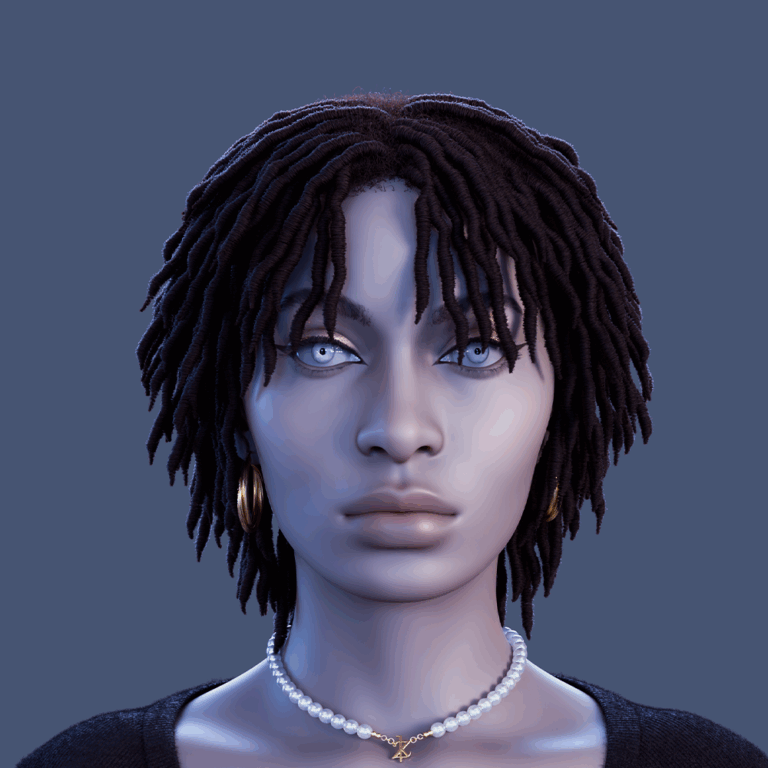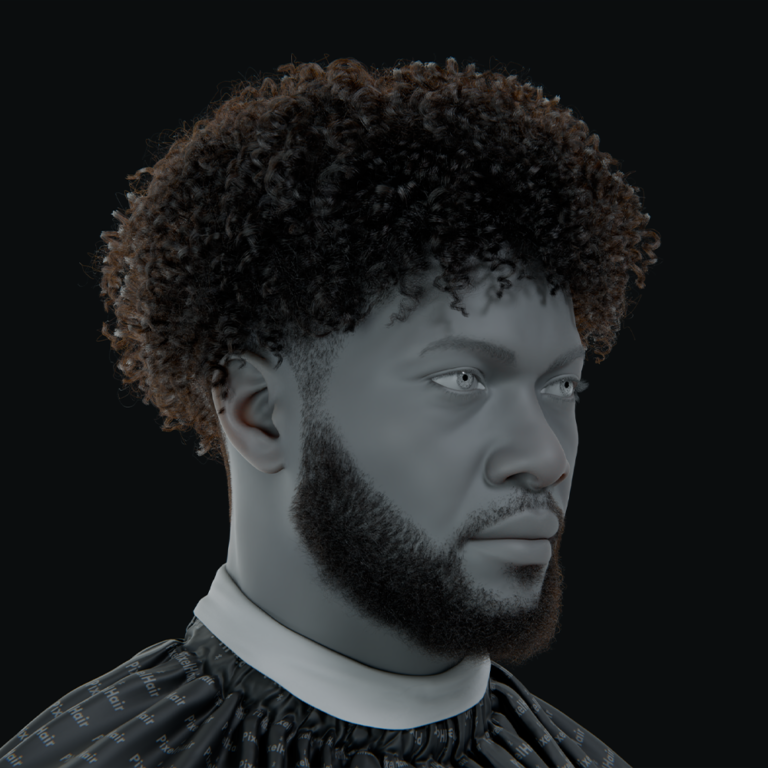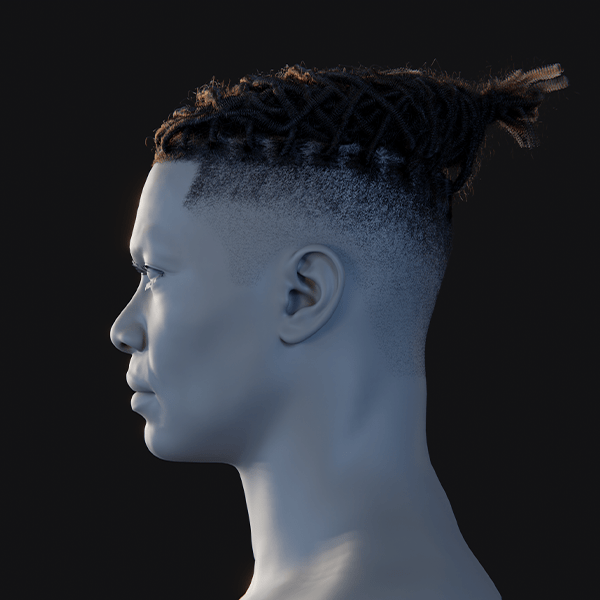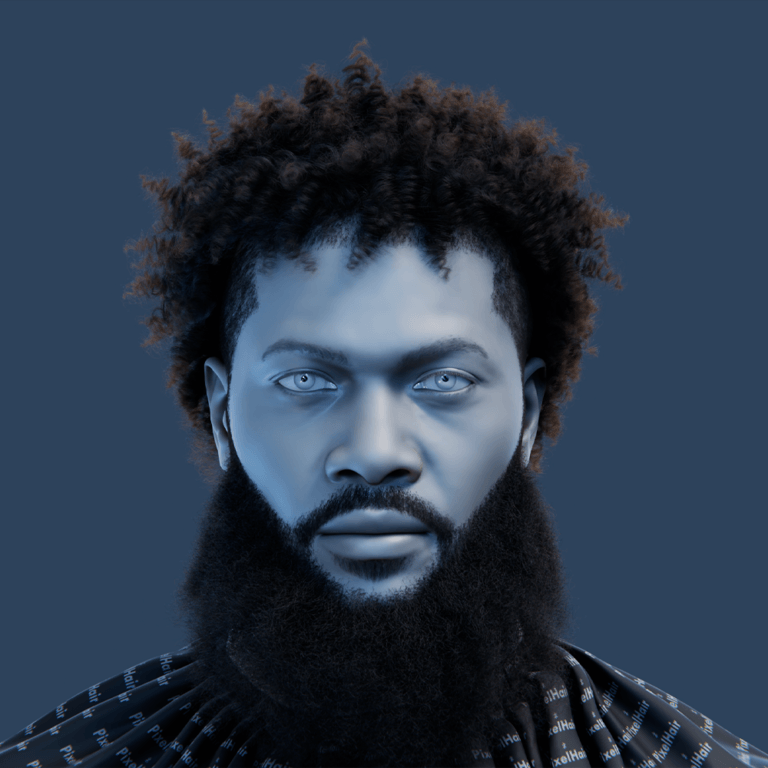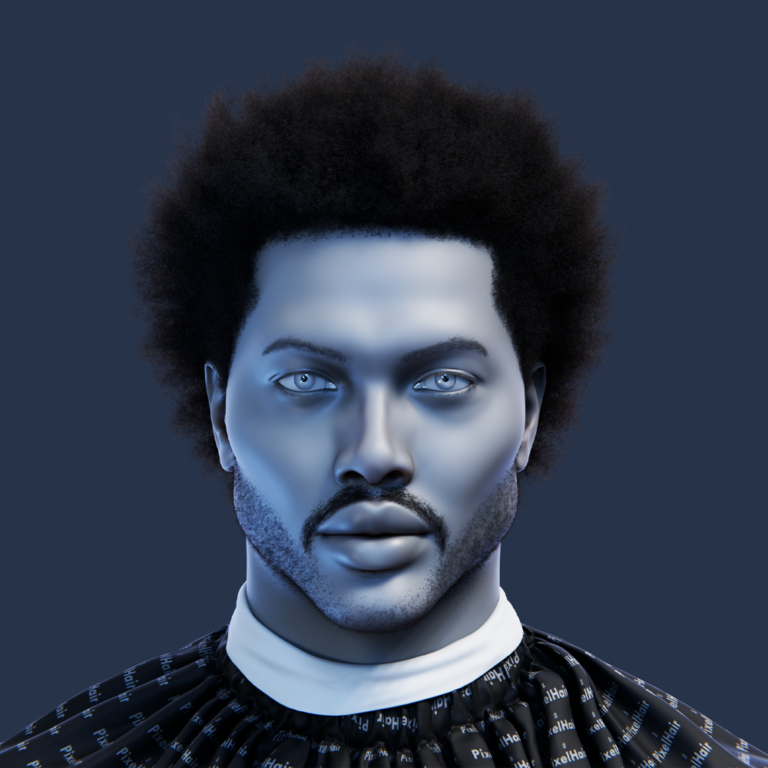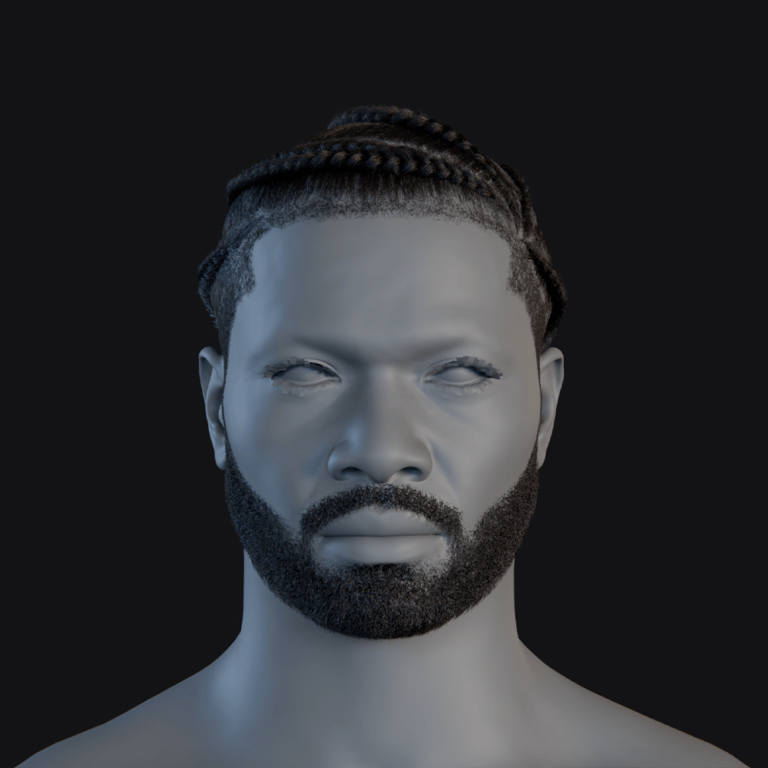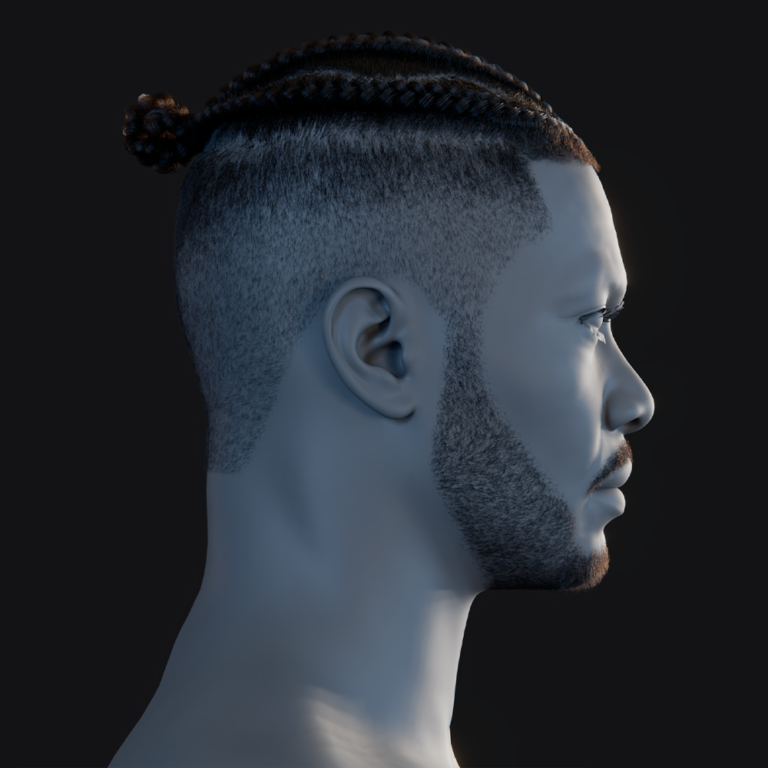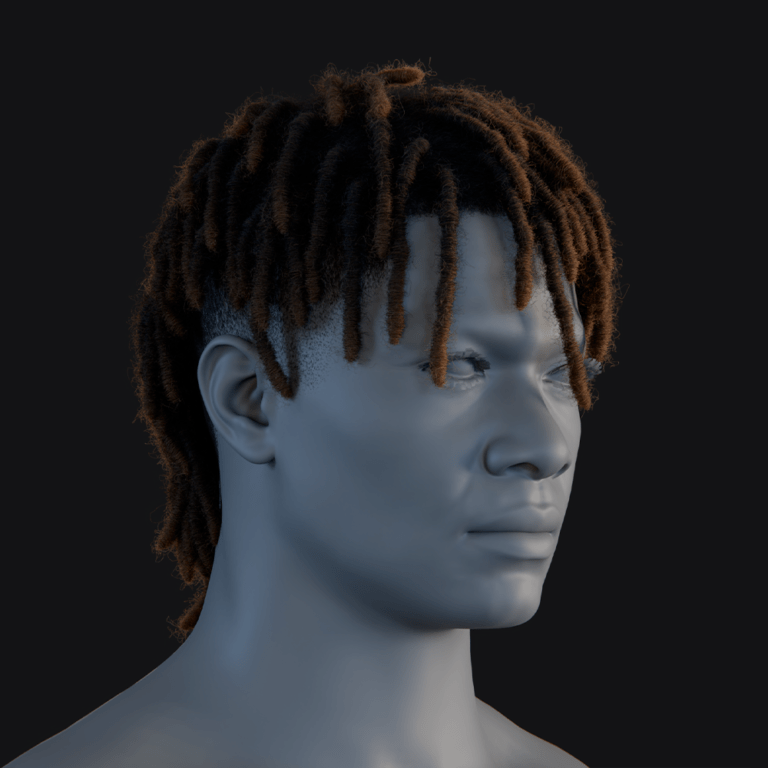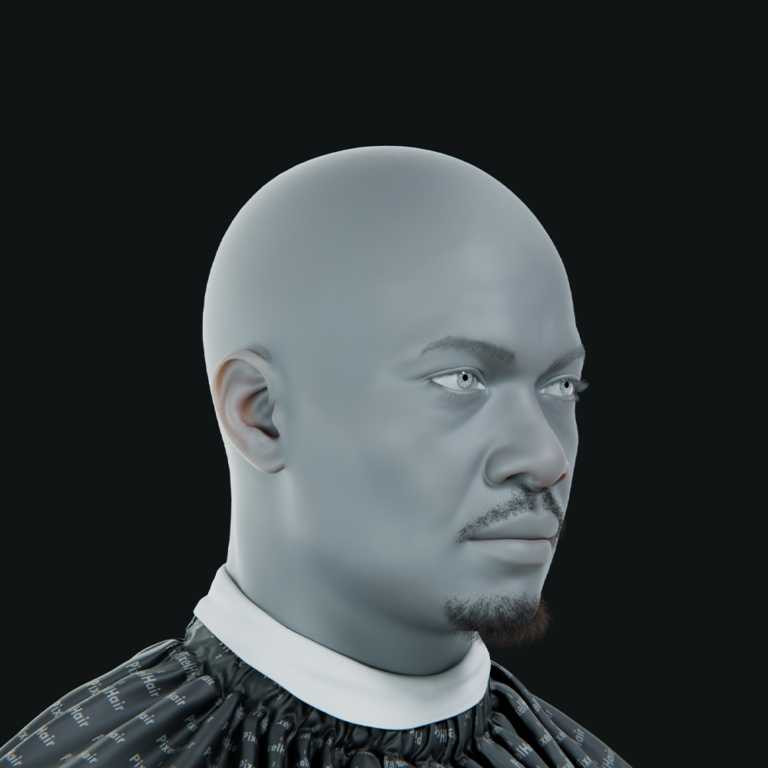



Nvidia Audio2Face is an AI-driven tool that creates realistic facial animations for 3D characters using audio input. It processes voice recordings to automatically synchronize a character’s lip movements, eye motions, and emotional expressions, leveraging advanced deep learning within NVIDIA’s Omniverse platform. This eliminates manual rigging or keyframing, delivering lifelike animations in real time.
In This Article (18 sections)
The impact of AI-driven facial animation in modern projects
AI-driven facial animation transforms character animation across industries like gaming, visual effects, VR, and virtual production. Previously, animators manually keyframed facial movements or relied on costly motion capture, but Audio2Face automates lip-sync and expressions, drastically cutting production time. This allows artists to prioritize storytelling and creative refinement, enabling efficient animation of extensive dialogue or multi-language localization. This guide covers installing and using Audio2Face to enhance your projects.
Overview of the technology behind Audio2Face
Audio2Face uses a deep neural network trained on extensive speech and facial motion data to convert audio into expressive facial movements. It analyzes audio patterns to drive a character’s lips, jaw, eyes, and other features in real time, powered by NVIDIA RTX GPUs’ tensor cores. Unlike traditional methods, it doesn’t rely on predefined phoneme shapes or manual rigging, applying learned human facial movements to any 3D character.
Key features and benefits for animators and developers
Audio2Face provides powerful features for 3D artists and developers:
- Automatic Lip-Sync: Processes voice-over tracks to create precise lip-sync animations, saving significant time compared to manually animating mouth movements for each syllable.
- Expressive Facial Expressions: Uses the Audio2Emotion system to detect emotional tones (e.g., happy, sad, angry) in the audio, adjusting facial expressions like smiles or raised eyebrows to match the mood of the voice.
- Full Face Animation (Eyes, Teeth, Tongue): Animates all facial components, including eye blinks, subtle head nods, and tongue movements, resulting in a comprehensive and realistic performance beyond just lip movement.
- Real-Time Performance and Live Input: Supports live microphone input for real-time animation, enabling interactive applications like virtual hosts or live demos where characters respond instantly to spoken words.
- Character Retargeting: Allows animation transfer to custom characters, adapting to different face shapes and rigs, making it versatile for both realistic and stylized character designs.
- Multi-Language and Versatile Audio Support: Handles any language, including non-English or fictional ones, and supports unique audio like singing, ensuring accurate animation across diverse audio inputs.
- Integration and Export: Outputs blendshape animation data in USD format for use in tools like Maya, Blender, or Unreal Engine via Live Link, facilitating seamless integration into various animation and game development pipelines.

System Requirements and Compatibility
To run Audio2Face effectively, specific hardware and software are needed:
- Operating System: Requires 64-bit Windows 10 (Version 1909 or later) or Ubuntu 20.04+. macOS is unsupported due to NVIDIA GPU requirements.
- GPU: Needs an NVIDIA RTX GPU (e.g., RTX 2060 or higher) with at least 6 GB VRAM; RTX 3070 or A4000 is recommended for professional workflows.
- CPU: A modern multi-core CPU (e.g., Intel Core i7 or AMD Ryzen, 2.5 GHz+, 4+ cores) ensures responsive performance for application logic and audio processing.
- RAM: Minimum 16 GB, with 32 GB+ preferred for handling complex scenes with multiple characters.
- Storage: SSD with 20-30 GB free for installation, 500 GB recommended for projects and cache to ensure fast asset loading.
- Omniverse Launcher and Nucleus: Distributed via the Omniverse Launcher; Nucleus is optional for accessing sample assets or networked collaboration.
A modern system with an RTX GPU ensures smooth operation, with high-end hardware improving real-time rendering for complex projects.
Where to find the official download
Audio2Face is accessed via the NVIDIA Omniverse Launcher, available on NVIDIA’s Omniverse website. Users download the launcher, sign in with an NVIDIA account, and find Audio2Face in the Apps section for installation. Advanced users can access containerized versions through NVIDIA NGC, but the launcher is the most straightforward option.
Licensing and installation prerequisites
Audio2Face is free for individual and small-team use under NVIDIA’s license agreement, requiring only an NVIDIA account. Enterprise users may need Omniverse Enterprise. Prerequisites include admin permissions, a stable internet connection, and sufficient storage (a few gigabytes). Installing Nucleus is recommended for sample assets but optional for local use.

Step-by-Step Installation Guide
- Download the Omniverse Launcher: Visit NVIDIA’s Omniverse page to download the Windows installer and save it.
- Run the Launcher Installer: Execute the installer, agree to terms, and choose an installation location.
- Launch and Log In: Open the launcher, log in with an NVIDIA account, and access the interface.
- Find Audio2Face in the Apps: Navigate to the Library tab, locate Audio2Face, and view its details page.
- Install Nvidia Audio2Face: Click Install to download and install the app, tracking progress in the launcher.
- Monitor the Installation: Keep the launcher open and grant any firewall permissions.
- Initial Setup: Ensure Nucleus is running for sample assets or set a local project directory.
- Launch Nvidia Audio2Face: Click Launch; initial startup may take a minute to initialize the AI model.
- Configure Initial Settings Post-Installation:
– Verify the correct GPU is selected for rendering.
– Ensure access to the default data repository for assets.
– Configure the microphone for live input if desired. - Install Updates if Available: Update to the latest version via the launcher for enhanced features.
Audio2Face is now installed and ready, with the launcher simplifying the process.
Preparing your 3D character for facial animation
Audio2Face typically loads a sample character (e.g., “Mark”) on first launch. If not, load a sample USD file from the Content browser. Custom characters need separated meshes (face, eyes, teeth, tongue) for AI-driven animation. Beginners should use NVIDIA’s sample or compatible characters (e.g., from Character Creator 4), with Character Transfer for custom rigs covered later.
Integrating audio input for real-time facial motion
- Pre-recorded Audio File: Load a WAV file in the Audio Player panel to drive animation, showing a waveform upon selection.
- Live Microphone Input: Enable Live Mode for real-time microphone-driven animation, ensuring the microphone is recognized by the system.
Play the audio to see the character’s lips, jaw, and expressions animate in sync. Adjust the viewport for real-time RTX rendering and view from multiple angles. If no movement occurs, check the Audio2Face pipeline and audio volume.
Using Nvidia Audio2Face: A Comprehensive Tutorial
- Importing assets and configuring the scene:
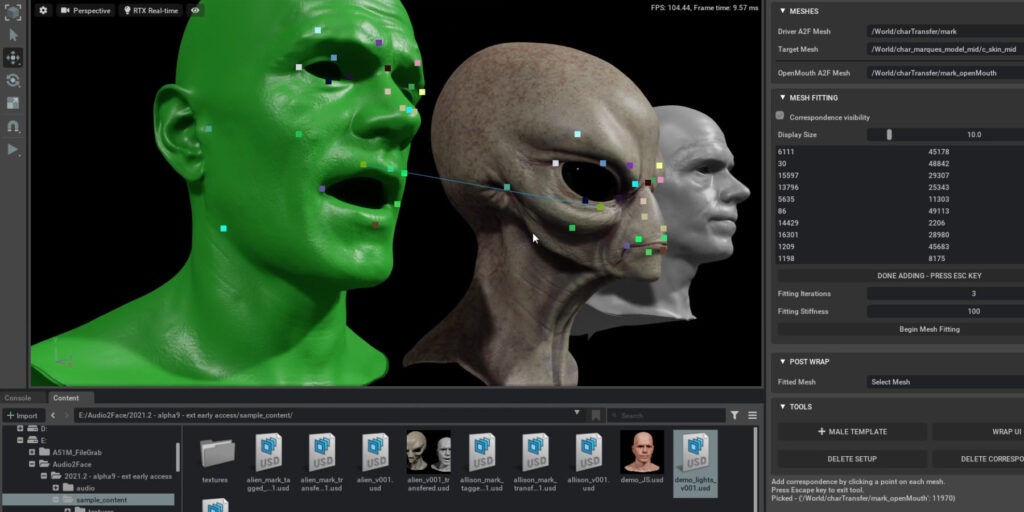
– Import a custom character (USD/OBJ/FBX) with separated meshes, using Character Transfer to map to Audio2Face’s rig for compatibility.
– Use compatible characters (e.g., from Character Creator 4 with Auto Setup) for easier setup.
– Ensure the character’s mesh is linked to the Audio2Face Tool Graph as the output target for animation. - Creating lip sync animation step-by-step:
– Load a clear WAV audio file in the Audio Player for high-quality input.
– Select an AI model (e.g., “Mark” or “Claire”) to match the character’s gender or language for optimal lip-sync accuracy.
– Play the audio to generate real-time facial animation, ensuring all facial components move correctly.
– Pause and scrub the timeline to check visemes for specific sounds, ensuring accuracy.
– Adjust Emotion sliders (e.g., Joy, Sadness) to enhance or override AI-detected expressions for a tailored performance.
– Fine-tune blendshape weights to correct specific mouth shapes if needed for precision. - Mapping audio to facial expressions:
– Phoneme mapping is automatic, driven by the AI for seamless lip-sync.
– Audio2Emotion infers expressions from voice intonation, adjustable via sliders or keyframes for precise control.
– Keyframe additional expressions (e.g., eyebrow raises) to add nuanced performance details. - Adjusting parameters for optimal performance:
– Use RTX Real-Time mode for editing, targeting 24+ FPS for smooth feedback.
– Clean noisy audio with external tools or built-in filters to improve lip-sync accuracy.
– Adjust Strength sliders to control movement intensity, balancing realism and stylization.
– For live input, tweak latency vs. smoothness settings for responsive animation.
– Optimize multi-character scenes by disabling inactive instances to maintain performance.
– Save scenes as USD files to preserve character setups and audio links.
This tutorial enables users to animate a character with audio-driven facial movements and refine results for professional output.
Tips and Best Practices for High-Quality Results
- Use High-Quality Audio: Clear, high-fidelity recordings ensure precise lip-sync; clean noisy clips with audio software or built-in filters to avoid jittery movements.
- Ensure Proper Character Setup: Align meshes (face, eyes, teeth, tongue) correctly to prevent animation errors like jaw or teeth misalignments.
- Blend AI with Keyframe Tweaks: Add manual adjustments for specific artistic beats, such as eyebrow raises or eye darts, to enhance the AI-generated animation.
- Optimize Animation Timing: Adjust audio or animation timing slightly to align phonemes perfectly, ensuring lip-sync accuracy.
- Use Subtle Motions for Realism: Incorporate micro-movements like head tilts or squints sparingly to enhance natural performance without overdoing it.
- Leverage Emotion Controls Thoughtfully: Review and adjust AI-detected emotions to fit the narrative, overriding inappropriate expressions for context.
- Check from Multiple Angles: Evaluate animations in 3D to identify issues like clipping, ensuring a polished performance from all perspectives.
- Keep Performance in Mind: Optimize scenes with LODs or simplified shaders for smooth real-time animation in live settings.
- Save Different Takes: Experiment with various audio or emotion settings, saving versions for comparison to select the best performance.
- Stay Updated and Exploit New Features: Use the latest Audio2Face versions for improved features like enhanced language support or export options.
- Community Tips: Engage with NVIDIA forums to learn workflow enhancements, such as batch processing dialogue, from other users.
These practices refine Audio2Face’s AI output, combining automation with artistic control for high-quality, believable facial animation.
Common problems and solutions
- Installation or Launch Problems:
- Verify your system has an NVIDIA RTX GPU, as non-RTX GPUs may cause Audio2Face to crash or fail to launch.
- Update to the latest NVIDIA drivers (preferably Studio drivers) to resolve performance or launch issues.
- Run the Omniverse Launcher or Audio2Face as an administrator to address permission-related problems.
- Reinstall or repair Audio2Face via the Omniverse Launcher if the installation was interrupted or corrupted, ensuring a stable internet connection during download.
- Audio2Face Opens but No Character/No Animation:
- Manually load a sample character USD file from the Content browser if the default scene doesn’t appear.
- Ensure the Omniverse Nucleus server is running or copy sample files locally to access content if Nucleus is unavailable.
- Check viewport settings to confirm RTX Real-Time mode is active and that character meshes or textures aren’t hidden due to missing references.
- Audio Plays but Mouth Doesn’t Move:
- Verify the audio node is connected to the face animation graph in the Audio2Face Tool panel, re-running Character Transfer if needed.
- Use a standard 16-bit 44.1 kHz WAV file, as unsupported formats or codecs may fail to process.
- Ensure the audio has sufficient volume, normalizing or amplifying quiet clips to enable speech detection.
- Facial Animation Looks Incorrect or Glitchy:
- Confirm proper character setup, ensuring teeth and tongue meshes are included and correctly rigged in the Character Transfer panel.
- Adjust global strength sliders to correct over- or under-exaggerated lip movements, ensuring only one Audio2Face instance drives the mesh.
- Cache the animation to fix lag or sync issues, and test with a sample audio file to isolate setup or audio-related problems.
- Performance or Compatibility Challenges:
- Ensure RTX GPU rendering is active, close other applications, and use NVIDIA Control Panel to force high-performance GPU usage on laptops.
- Test different Audio2Face versions via the Launcher if crashes occur, checking NVIDIA forums for known bug fixes.
- Set the microphone as the default recording device in Windows and use standard 44.1/48 kHz settings for Live Mode functionality.
- Export/Integration Issues:
- Export blendshape animations for compatibility with tools like Maya or Blender, ensuring the target software supports the exported format.
- Enable the Audio2Face Live Link extension and Unreal plugin, ensuring both are on the same network and firewall settings allow the connection.

Practical applications in various industries
- Game Development (NPCs and Cutscenes): Audio2Face automates lip-sync for NPC dialogue in games, reducing manual keyframing for thousands of lines and enabling real-time animation for dynamic or player-driven dialogue in open-world or interactive titles.
- Film and VFX: Used for background characters in crowd scenes or pre-visualization, Audio2Face generates quick facial animations from audio, serving as a first-pass animation that animators refine for final shots.
- Television and Animation Studios: Speeds up lip-sync for animated series, allowing smaller studios to focus on body language and acting while maintaining consistent mouth movements across episodes.
- Virtual Production and Live Events: Enables real-time facial animation for virtual hosts or avatars in livestreams and events, letting performers drive 3D characters with voice alone, without facial motion capture.
- Conversational AI and Customer Service Avatars: Drives lifelike avatars for virtual assistants or customer service kiosks, using text-to-speech audio to animate faces, enhancing engagement in retail, hospitality, or education.
- Training and Simulation: Animates virtual instructors in language learning or training apps, providing realistic mouth movements for pronunciation guides or dynamic dialogue in medical/military simulations.
- Indie Creators and YouTubers: Allows solo filmmakers or content creators to animate 3D character faces easily, enabling high-quality animations for short films, machinima, or explainer videos without large teams.
- Case Studies and Success Stories: Demonstrated in Epic MetaHuman animations via Unreal Engine Live Link and Reallusion’s Character Creator/iClone pipeline, Audio2Face streamlines workflows for accessible, high-quality results.
- Healthcare and Accessibility: Supports sign language avatars or voice-generated devices by animating faces to enhance communication, making interactions more personal in therapy or accessibility contexts.
Audio2Face enables time savings and new interactive experiences across industries, making high-quality facial animation accessible and scalable for professional and creative applications.
Anticipated advancements and trends
- More Advanced Emotional Intelligence: Future Audio2Face versions may improve emotion detection, capturing nuanced tones (e.g., sarcasm) and combining voice with text or user-defined cues for more accurate, expressive animations.
- Higher Fidelity and Realism: Advances in GPUs and AI models will enhance animation detail, capturing micro-expressions and accurate eye/tongue movements, narrowing the gap with motion-captured performances.
- Broader Language and Voice Style Support: Expect improved support for accents, dialects, and diverse voice types (e.g., child voices or fast-paced speech), with potential specialized models for enhanced accuracy.
- Integration with Full-Body Animation Systems: Audio2Face may integrate with systems like Audio2Gesture, enabling voice-driven full-body performances, including head, hand, and posture animations.
- Cloud and Multi-Platform Availability: Cloud-based APIs could allow lightweight devices to access Audio2Face, enabling scalable facial animation for games or simulations via cloud services.
- Real-Time Collaboration and Avatar Interaction: Supports multi-user virtual environments, animating avatars in real-time for engaging virtual meetings or social VR experiences within Omniverse.
- Continued Democratization of Animation: Simplified integrations into tools like Blender or Maya will make Audio2Face accessible to non-experts, streamlining workflows for broader use.
- Competition and Innovation: Competition from other AI facial animation tools will drive features like video-driven animation or hybrid systems, with NVIDIA leveraging GPU integration for an edge.
- Ethical and Creative Implications: Easier animation enables small teams and multilingual dubbing but raises deepfake concerns, potentially requiring watermarking for responsible use.
- Continuous Updates to Audio2Face: NVIDIA’s updates will add features like improved UI, faster rendering via DLSS, or streamlined character transfers, enhancing performance and usability.
These trends point to a future where AI-driven facial animation becomes more realistic, accessible, and integrated, transforming content creation with tools like Audio2Face.

Frequently Asked Questions (FAQs)
- What is Nvidia Audio2Face and what does it do?
Audio2Face is an AI tool that generates realistic facial animations from audio, automatically syncing lip movements, eye blinks, and expressions to voice recordings in real time, simplifying animation workflows. - Is Nvidia Audio2Face free to use?
Yes, it’s free for individual and small-team use via the Omniverse platform, requiring only an NVIDIA account. Enterprise users may need Omniverse Enterprise for additional support. - What are the system requirements for Audio2Face?
Requires Windows 10 (1909+) or Ubuntu 20.04+, an NVIDIA RTX GPU (e.g., RTX 2060+), a multi-core CPU (e.g., Intel i7), 16 GB+ RAM, and 20-30 GB SSD storage. Omniverse Launcher and optional Nucleus are needed. - How do I install Nvidia Audio2Face?
Download the Omniverse Launcher from NVIDIA’s website, log in, locate Audio2Face in the Apps section, and install it, following prompts to set up and launch. - Can Audio2Face work with live audio or only prerecorded audio?
It supports both prerecorded audio (e.g., WAV files) and live microphone input in Live Mode, enabling real-time facial animation for interactive applications. - Can I use my own 3D character with Audio2Face?
Yes, custom characters with separated meshes (face, eyes, teeth, tongue) can be used via the Character Transfer tool or compatible pipelines like Reallusion’s Character Creator Auto-Setup. - What output formats does Audio2Face support for exporting animations?
– Exports animations as USD files with blendshape data for tools like Maya or Blender.
– Supports live streaming via Unreal Engine Live Link or REST API for real-time integration. - Which languages does Audio2Face support for lip-sync?
Audio2Face is language-agnostic, handling any language, including non-English, fictional languages, or singing, using AI models like Mark and Claire for accurate lip-sync. - The facial animation isn’t looking right (e.g., mouth movements are off). How can I fix that?
– Verify character setup and adjust blendshape strengths.
– Cache animations for sync issues and ensure no lead silence in audio.
– Use clear audio and re-run Character Transfer for teeth/tongue issues. - Where can I find tutorials or additional help for using Audio2Face?
- Check NVIDIA’s Omniverse Audio2Face documentation for detailed guides.
- Watch NVIDIA’s YouTube tutorials or GTC demos.
- Visit NVIDIA Developer Forums for community and staff support.
- Explore Reallusion’s guides for Character Creator/iClone workflows.

Conclusion
Audio2Face revolutionizes 3D character animation by automating lip-sync and expressions, allowing artists to focus on storytelling and performance. Its rapid turnaround enables experimentation, while its integration fosters collaboration between voice actors, animators, and developers. As AI streamlines technical tasks, Audio2Face empowers creators to produce polished animations efficiently, setting a new standard for interactive and expressive character animation across industries.
Sources and Citations
- NVIDIA Omniverse Audio2Face Official Documentation –
- Comprehensive user manual and technical reference for Audio2Face. Includes setup guidance, feature details, and examples.
- https://docs.omniverse.nvidia.com/audio2face/latest/
- NVIDIA Developer Blog – “NVIDIA Omniverse Audio2Face Available in Open Beta” –
- Introduction to Audio2Face and its capabilities by NVIDIA, providing context on its development and features.
- https://developer.nvidia.com/blog/nvidia-omniverse-audio2face-available-in-open-beta/
- CG Channel –
- “Omniverse Audio2Face gets new Audio2Emotion system” – News article covering Audio2Face 2022.1 updates, including the Audio2Emotion system, system requirements, and usage details.
- https://www.cgchannel.com/2022/05/nvidia-releases-omniverse-audio2face-2022-1/
- Reallusion Audio2Face Integration Guide –
- Overview of using Audio2Face with Reallusion’s Character Creator and iClone, including workflow enhancements and tips for refining facial animation.
- https://www.reallusion.com/character-creator/nvidia-omniverse-audio2face.html
- NVIDIA Developer Forums –
- Audio2Face Section – Community forum for Q&A, troubleshooting, and tips from Audio2Face users and NVIDIA experts.
- https://forums.developer.nvidia.com/c/omniverse/audio2face/297
- Video Tutorials and Demos –
- NVIDIA On-Demand / GTC Sessions and YouTube – Visual resources demonstrating Audio2Face workflows, including Unreal Engine and MetaHuman examples.
- NVIDIA On-Demand search for Audio2Face: https://www.nvidia.com/en-us/on-demand/search/?facet.mimetype[]=event%20session&layout=list&page=1&q=Audio2Face
- NVIDIA Omniverse YouTube channel: https://www.youtube.com/@NVIDIAOmniverse
- Audio2Face + Unreal Engine / MetaHuman search: https://www.youtube.com/results?search_query=Audio2Face+Unreal+Engine+MetaHuman
- Hackernoon –
- “Omniverse Audio2Face: An End-to-End Platform For Customized 3D Characters” – Article explaining how Audio2Face supports customized 3D character animation, including common questions and system requirements.
- https://hackernoon.com/omniverse-audio2face-an-end-to-end-platform-for-customized-3d-characters
- NVIDIA Avatar Cloud Engine / ACE Information – Broader context for Audio2Face as part of NVIDIA ACE for interactive avatars, combining facial animation, speech AI, and other components for digital humans.
- NVIDIA ACE official page: https://www.nvidia.com/en-us/ai-data-science/products/ace/
- NVIDIA ACE documentation: https://docs.nvidia.com/ace/
- CG Channel overview of NVIDIA ACE: https://www.cgchannel.com/2022/09/nvidia-announces-ace-for-games/
Recommendations
- Where to Stream Every LEGO Movie Online in 2026 (Updated Streaming Guide by Country)
- KeenTools Releases GeoTracker for Houdini in Open Beta: Geometry-Based Object and Camera Tracking Inside Houdini
- Capcom Promises No GenAI In Its Games, But Wants To Use The Tech For “Efficiency” — What Capcom Actually Said to Investors
- Shannon Elizabeth Reveals ‘Difficult’ American Pie Audition: Dancing for Jason Biggs Was “Opposite of the Movie”
- Saving Render Settings for Multiple Cameras in Blender with The View Keeper
- Implementing Blender MCP Server in Python: Build an AI Tool-Calling Bridge for Blender
- How do I add a background image to the camera view in Blender?
- New Spider-Man: Brand New Day Posters Released – Teaser Poster Details, Story Clues, Release Date and Fan Theories
- Teenage Mutant Ninja Turtles Fans Can Score Hundreds Of Comic Issues in This Massive $25 Bundle (What You Get + How to Redeem)
- Brian Cox Joins Cast of Dexter: Resurrection Season 2 as the New York Ripper