









In This Article (28 sections)
What is Jiggle Physics for a VTuber Avatar
Jiggle physics, or soft-body physics, simulates natural motion for parts like hair, clothing, or body parts. It acts as secondary motion—movement that follows the avatar’s primary actions rather than being driven directly by them. This adds realism and immersion, preventing a stiff “rubber doll” appearance. Properly tuned physics ensure that accessories and hair sway or bounce believably when the character moves, jumps, or reacts.
Secondary Motion for VTuber Avatars: Hair, Clothing, and Accessory Physics
Secondary motion involves parts of a character reacting to primary movements, continuing to sway or settle after the main body stops.
- In 2D (Live2D), this is achieved through the Cubism physics system.
- In 3D (VRM/VRChat), it uses dynamic bones, spring bones, or “PhysBones” to let hair, tails, and clothes react to movement and gravity.
This motion enhances believability, ensuring that items like ponytails or skirts follow the character’s movement dynamically rather than looking robotic.
2D vs 3D VTuber Jiggle Physics: Live2D Physics vs VRM Spring Bones
VTuber avatars handle jiggle physics differently based on their format:
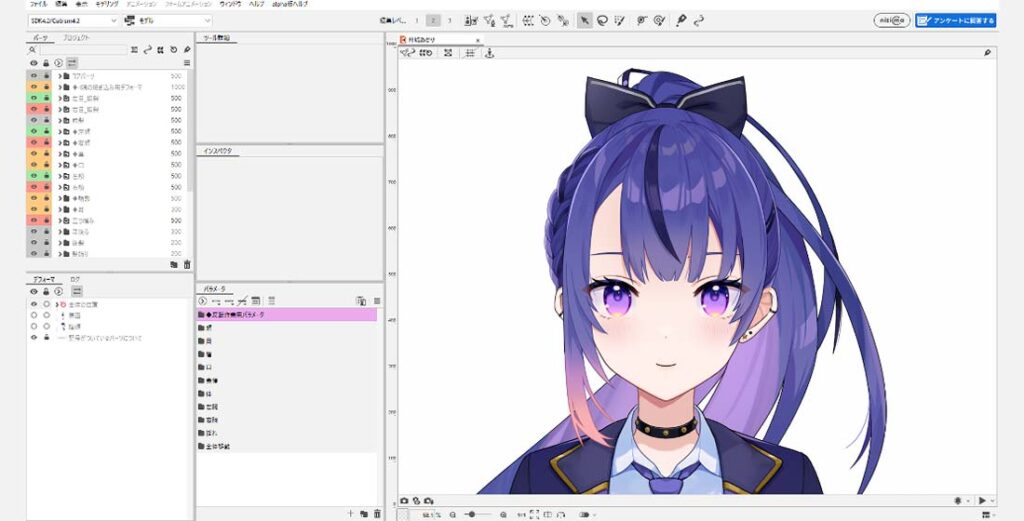
- Live2D physics (2D avatars): Configured in the Cubism Editor, these settings allow 2D meshes to respond to tracking data (head/body movement) using a pendulum-based simulation. The data is exported as a
.physics3.jsonfile. - VRM spring bones (3D avatars): These use a Spring Bone system where bones for hair or clothes simulate springs. Parameters include stiffness, gravity, and drag. They often include colliders to prevent hair or clothes from clipping through the 3D model.
The main difference is that Live2D physics are artistically controlled through tracking inputs, while VRM spring bones react automatically to 3D movement.
Live2D Cubism Physics Settings Tutorial for VTuber Models
Setting up physics in Live2D Cubism involves several steps:
- Open Physics Settings: Found under Modeling → Open Physics Settings.
- Physics Groups: Organize parts that sway together (e.g., “Swinging Bangs”).
- Inputs: Define tracking data (like head angles) that drive the motion.
- Normalization: Mapping input ranges to ensure consistent physics reactions.
- Physical Model: Configuring the pendulum behavior using variables like stiffness (resistance), mass (weight), reaction time, and speed of convergence (damping).
- Outputs: Assigning the calculated motion to specific model parameters (deformers).
- Tuning and Preview: Testing with cursor tracking to adjust scale and prevent clipping.
- Saving Physics: Exporting the final
.physics3.jsonfile.
Live2D Physics Groups Explained: Input Parameters and Output Parameters
- Physics Groups: Independent units of simulation; for example, one for front hair and one for a skirt.
- Input Parameters: These are the driving factors, such as head rotation or body movement. Multiple inputs can influence a single group with varying percentages.
- Output Parameters: These are the deformers that physically move the art. In multi-stage pendulums, different segments of an object (like the root and tip of a tail) are assigned to different pendulum steps.
The physics engine takes input changes, calculates them through the physical model, and updates the output parameters in real-time.
Live2D Physics3.json Export Guide for VTuber Avatars
To ensure physics work in an application, you must:
- Export for Runtime as a
.moc3. - Select a compatible version (SDK 4.0 is recommended for VTube Studio).
- Check the “Export Physics Settings File (physics3.json)” box.
- Verify the
.model3.jsonfile references the physics file. - Include all necessary files in the model folder:
.moc3,.model3.json,.physics3.json, and texture folders.

Live2D Hair Physics Setup for VTuber Avatars
Hair physics typically involves:
- Creating a physics group for specific hair sections.
- Using “Head Input” presets (Angle X, Y, and Z) to drive the sway.
- Using 2-step or 3-step pendulum presets for long hair to simulate a chain of movement.
- Adjusting stiffness (higher for short/thick hair, lower for long strands) and adding a small amount of gravity.
- Assigning rotation or warp deformers to outputs.
Live2D Clothing Physics Setup for VTuber Models (ribbons, Sleeves, Earrings)
Clothing physics follows a similar logic to hair but with specific tweaks:
- Ribbons/Bows: Usually 1 or 2-step pendulums with medium stiffness.
- Earrings: Simple pendulums tied to head movement with gravity to ensure they hang straight down at rest.
- Sleeves/Skirts: Often require higher damping to ensure the cloth settles quickly rather than bouncing indefinitely.
- Collisions: Advanced users can add colliders to prevent earrings or clothing from swinging through the avatar’s body.
How to Export a Live2D Model so Jiggle Physics Works in VTube Studio
For VTube Studio (VTS) compatibility:
- Use SDK 4.0 for the best balance of features and compatibility.
- Ensure the
.physics3.jsonis exported and named correctly. - Place the entire folder into VTube Studio’s
Live2DModelsdirectory. - If the model is stiff, check VTS logs to see if the physics file failed to load or is missing from the
.model3.jsonreferences.

VTube Studio Physics Strength Settings for Live2D Jiggle Physics
VTube Studio allows users to adjust physics without re-rigging the model:
- Physics Strength (Global): A slider that multiplies the overall effect of the authored physics (0 to 2.0x).
- Per-Group Multipliers: Found by clicking the gear icon, this allows for granular control over specific groups (e.g., making hair more bouncy while keeping clothes still).
- Effectiveness: Recent versions of VTS respect the “Effectiveness” setting from Cubism unless Legacy Physics is enabled.
VTube Studio Wind Strength Settings for Live2D Physics
The wind feature adds a constant, randomized force to simulate a breeze:
- Wind Toggle: Enables automated idle swaying.
- Wind Strength: A slider to control the magnitude of the breeze.
- Per-group Multipliers: Allows the user to specify which parts (like hair) are affected by wind while keeping others (like heavy jewelry) static.
VTube Studio Legacy Physics Toggle Explained
The “Legacy Physics” toggle in VTube Studio dictates how the engine interprets the model’s data:
- Legacy Physics Off (Recommended): The app respects the “Effectiveness” parameter from Live2D, allowing for more accurate damping as intended by the rigger.
- Legacy Physics On: VTS ignores the effectiveness parameter, treating all outputs at 100% strength. This is primarily for backward compatibility with older models that were tuned before VTS supported the effectiveness setting.

VTube Studio Physics FPS Settings: Match App FPS vs Fixed Physics Framerate
VTube Studio (VTS) allows users to choose how the physics simulation is calculated relative to the application’s framerate.
- Match App FPS (Default): Physics updates in sync with the app. At 60 FPS, physics runs at 60 Hz. Higher refresh rates (e.g., 144 Hz) make physics “snappier,” but very high FPS can make physics converge faster and appear stiffer, while lag slows them down.
- Fixed Framerate Options: Users can set physics to 15, 30, 60, 120, or custom FPS. This is often used to match the framerate used during the rigging process in Live2D Cubism (typically 30 or 60 FPS) to ensure the “feel” is identical.
- Performance and Stability: Any setting other than “Match App FPS” uses experimental multithreaded physics. Lowering the physics FPS (e.g., to 30 FPS while the app runs at 60) can save CPU usage at the cost of slightly choppier movement.
VTube Studio Dragging Physics Feature Explained
Dragging physics allows an avatar’s physics to react to manual movement on the screen.
- Live2D Items/Props: When an item like a hat is dragged, attached parts with physics (like a pom-pom) will lag and sway based on the movement.
- Main Model: A “Dragging Physics” slider in the model settings enables this for the avatar. If the model is yanked across the screen, the hair and clothes will trail behind realistically.
- Mechanism: This feature injects artificial input into the simulation based on the velocity of the drag.
VRoid Studio Jiggle Physics Settings: Bones Panel and Body Amplitude Slider
VRoid Studio automatically handles basic 3D physics for exported VRM models.
- Bones Panel: Located in the Look (Design) tab, this section allows for the configuration of hair, bust, and sometimes skirt bones.
- Body Amplitude Slider: This specific slider controls breast physics. A value of 0 results in no movement, while positive values increase the bounce.
- Hair Bounce: Configured within the Hair Editor using parameters like stiffness, gravity, and hit radius.
- Prevent Excessive Shaking: This default setting dampens motion to keep physics stable, but it can be disabled if the user wants more dynamic movement.

How to Add Hair Bones in VRoid Studio for Better Hair Physics
Users can manually add bone chains to hair strands in VRoid Studio to enable physics.
- Bone Groups: Created by selecting strands and clicking “Set Hair Bounce.”
- Auto-generate: VRoid can automatically distribute strands into a set number of bone groups.
- Manual Creation: Users can individually assign strands to groups, setting the bone count and axis for higher precision.
- Key Parameters:
- Bones: 1 to 16 segments; more bones allow for smoother bending.
- Fixed Point: Determines how much of the hair root remains stationary.
- Stiffness: Controls rigidity (default is often 0.4; 0.6 is common for shape retention).
- Gravity: Pulls hair downward (0.1–0.3 is usually sufficient).
- Hit Radius: Defines the collision area for each bone.
- Optimization: It is recommended to group 3-5 strands together and limit bone counts based on length (e.g., 2-3 for short hair, 8 for very long hair).
Unity Spring Bone Setup for VRoid and VRM VTuber Avatars
Unity, paired with the UniVRM plugin, is used to fine-tune VRM physics components known as VRMSpringBones.
- Secondary Object: This GameObject typically holds all the VRM Spring Bone scripts for the avatar.
- Component Fields:
- Stiffness: The snap-back strength of the spring.
- Gravity Power and Direction: The strength and vector of the pull.
- Drag Force: Damping to control oscillation.
- Root Bones: The starting bones for the physics chain.
- Collider Groups: A list of objects the bones will collide with.
- Customization: Unity allows adding physics to parts VRoid might miss, such as custom tails or specific clothing segments.
VRM Spring Bone Colliders Setup to Prevent Clipping and Body Penetration
Colliders prevent hair, clothing, or accessories from passing through the avatar’s body.
- Locations: Common collider areas include the head, shoulders, chest, back, hips, and legs.
- VRM Spring Bone Collider Group: This component is added to a specific bone (like the head bone) to create one or more collision spheres.
- Implementation: The collider group must be referenced in the “Collider Groups” list of the corresponding Spring Bone component.
- Adjustment: Setting radius and offset is a trial-and-error process to ensure items slide over the body rather than floating or clipping.
VSeeFace Spring Bone Troubleshooting for VRM Avatars (VRM0 vs VRM 1.0)
VSeeFace is a common 3D tracking app with specific requirements for physics.
- Version Compatibility: VSeeFace currently only supports VRM 0.x. Models exported as VRM 1.0 will likely have broken physics or fail to load.
- Gravity: Older versions of VSeeFace had issues with excessive gravity, which has been addressed in recent updates.
- Troubleshooting: If physics are missing, users should verify the VRM version and ensure spring bones were properly assigned in Unity or VRoid. Debug mode (backquote key) can be used to visualize colliders and bones.
Blender Jiggle Bones for VTuber Avatars (hair and Clothing Physics)
Blender is used for creation and animation rather than live tracking, but it features its own jiggle tools.
- Wiggle Bones Add-on: A popular free tool that allows bones to jiggle in real-time during animation playback. It is used to add secondary motion to renders and intro videos.
- Physics Simulations: Blender’s cloth, rigid body, and soft body systems provide realistic motion but do not export directly as live VRM physics.
- Bone Drivers and Constraints: Techniques like “Spring Magic” or delayed copy rotation constraints can fake jiggle without external add-ons.
- Pipeline Role: Blender is primarily used to test how hair and clothing might move before exporting the model to Unity for final VRM spring bone setup.
How to Fix Overactive Jiggle Physics (stiffness, Damping, Gravity, FPS)
Overactive physics, characterized by excessive bouncing or endless oscillation, can be corrected by adjusting several parameters:
- Increase Stiffness: This is the primary way to reduce floppiness. In Live2D, increasing the “ease of movement” makes a part resist swinging. In VRM, increasing the SpringBone stiffness value makes the bone follow the body more tightly, preventing jello-like motion.
- Increase Damping (Drag): Damping, resistance, or speed of convergence dictates how quickly motion stops. Increasing this value forces oscillation to dissipate faster, preventing a part from bouncing too long.
- Add or Adjust Gravity: Gravity provides a default rest direction. Without it, hair or clothing may float unnaturally. Moderate gravity helps parts settle back to a neutral position, though too much can cause clipping or drooping.
- Lower Global Physics Multiplier: In VTube Studio, reducing the global physics strength below 1.0 (e.g., to 0.8) can fix over-bounciness across all parts of the model.
- Check FPS Settings: Low physics FPS can cause a “boing” effect due to larger movement steps per frame. Setting physics to a fixed 60 FPS or matching the app FPS can often smooth out jittery or erratic oscillations.
- Prevent Feedback Loops: Ensure physics and animations or expressions are not fighting over the same parameters. In Live2D, segregating these influences or disabling legacy mode can stop unintended shaking.
- Reduce Bone Count: Using too many bones on short strands in VRoid can cause numerical instability and glitching. Reducing the bone chain or grouping multiple strands together into a single bone group provides more stability.
- Use “Prevent Excessive Shaking”: Enable this built-in option in VRoid Studio or add extra drag in Unity to stabilize the model.
- Test with Slower Motions: Observe the model frame-by-frame to see if a specific collider is causing a “pop” or snag, and reduce collider radius if necessary.
VTuber Jiggle Physics Optimization Tips for Streaming Performance
Extensive physics can tax a system. Optimization ensures the stream remains smooth:
- Limit the Number of Physics Bones: Avoid individual bones for every hair strand. Group nearby strands together into a single bone chain to reduce computation.
- Use Colliders Wisely: Use the minimum number of colliders necessary. Broader, single colliders are more efficient than multiple small ones.
- Adjust Physics Framerate: Capping physics at 60 FPS while the app runs at a higher rate can halve the calculation load with minimal visual impact.
- Simplify Live2D Physics: Merge redundant groups and avoid setting a Calculate FPS higher than 60 in Cubism.
- Profile Performance: Use stats panels in apps like VSeeFace to identify which parts (usually hair or dresses) are the most resource-heavy.
- Optimize Model Weight/Vertices: Reduce the polygon count or artmesh complexity to lower the stress of deforming vertices during physics simulation.
- Disable Physics on Minor Accessories: Focus resources on large, noticeable elements like hair and tails rather than tiny earrings.
- Streaming Dry Run: Always test the model while the streaming software (OBS) is encoding, as this consumes additional CPU/GPU resources.

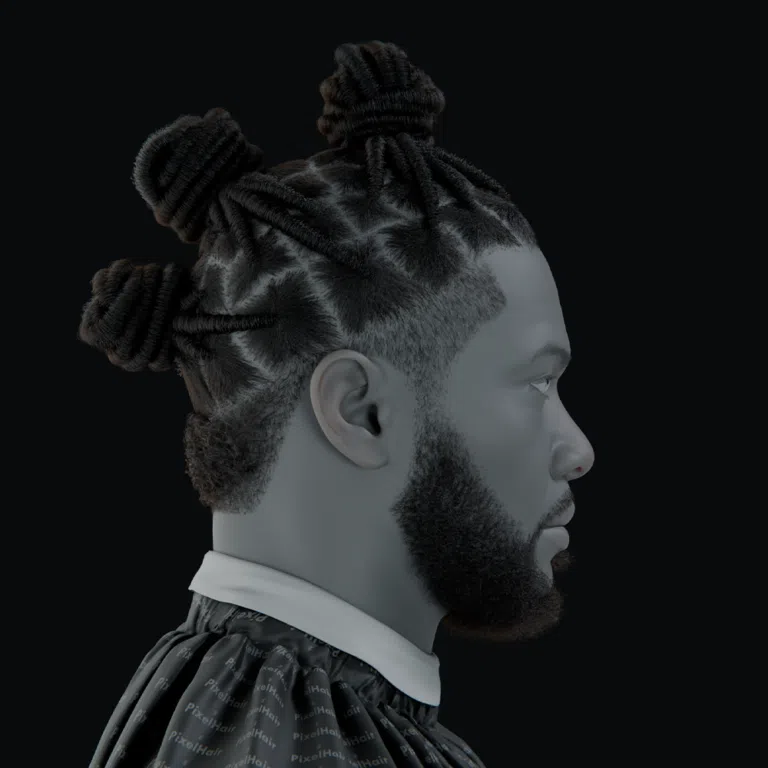
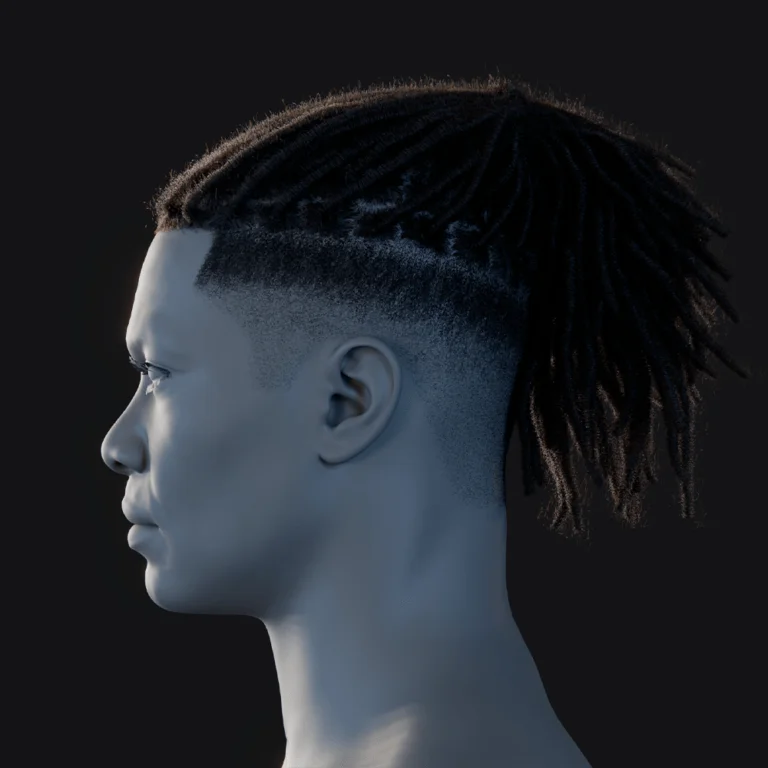
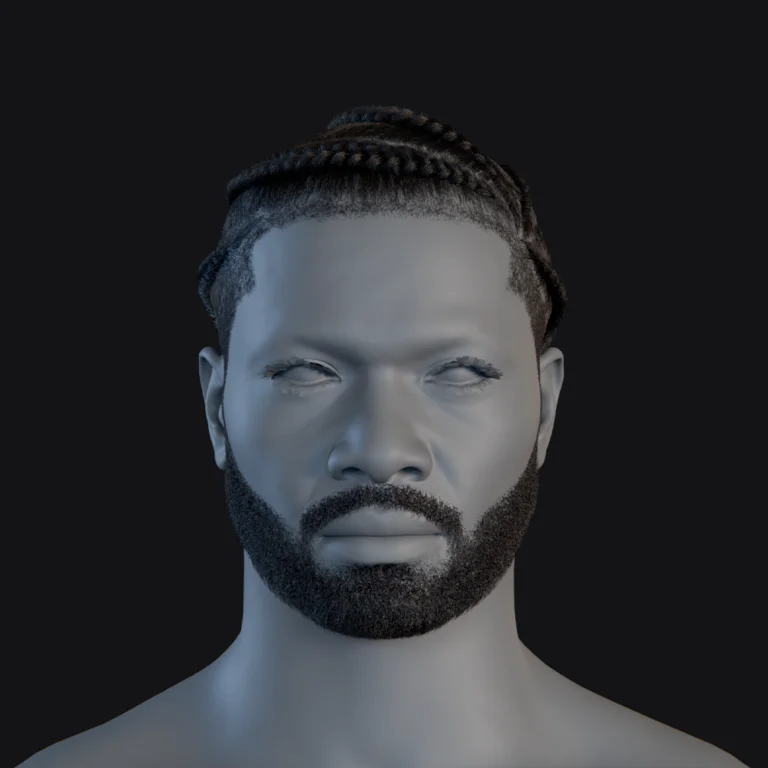
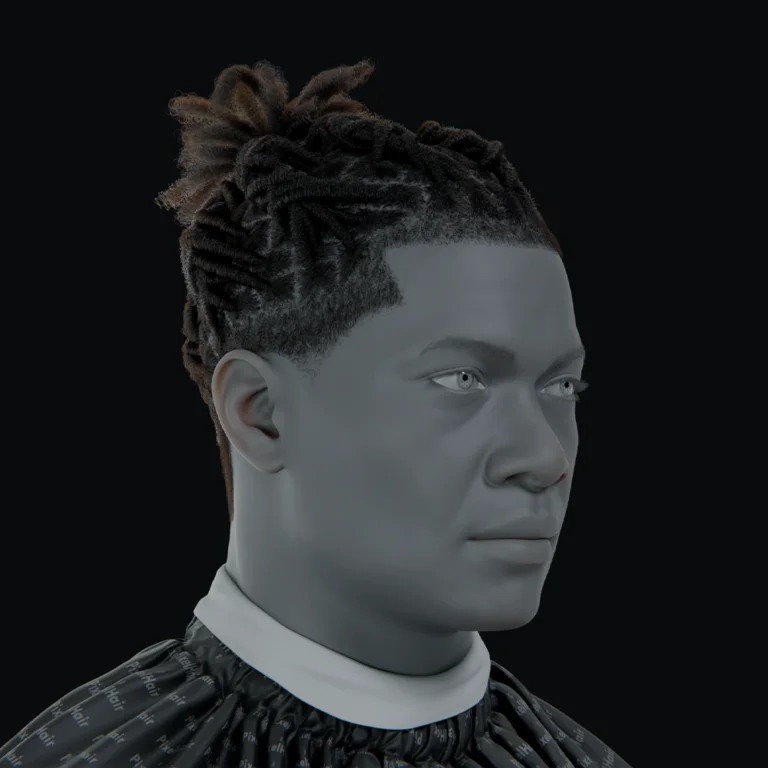
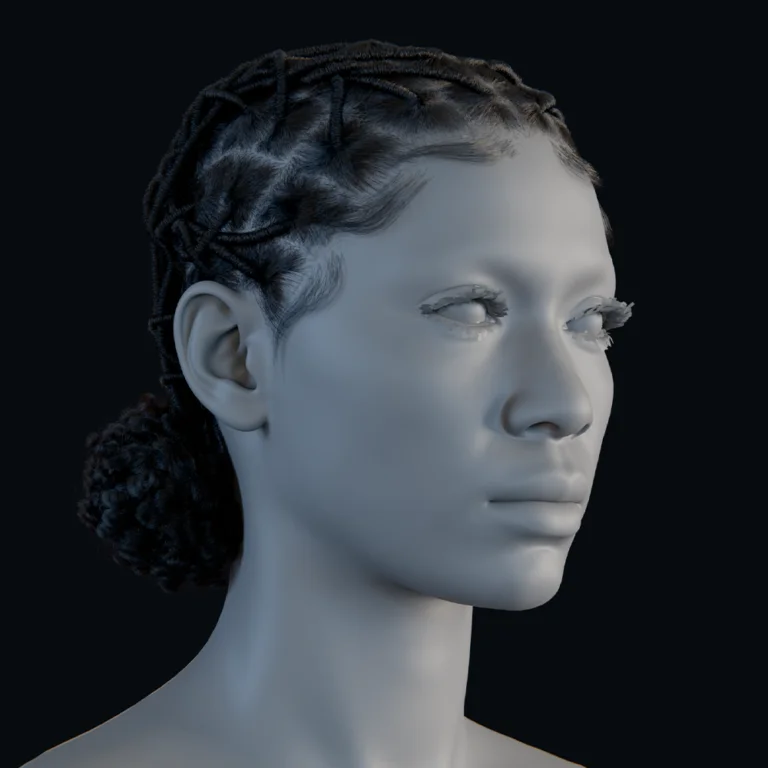
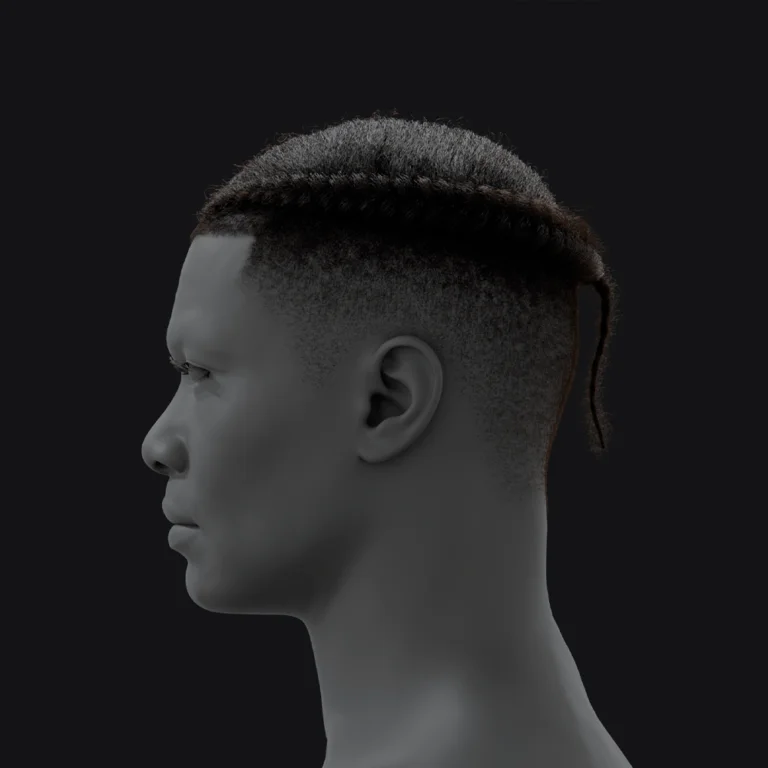
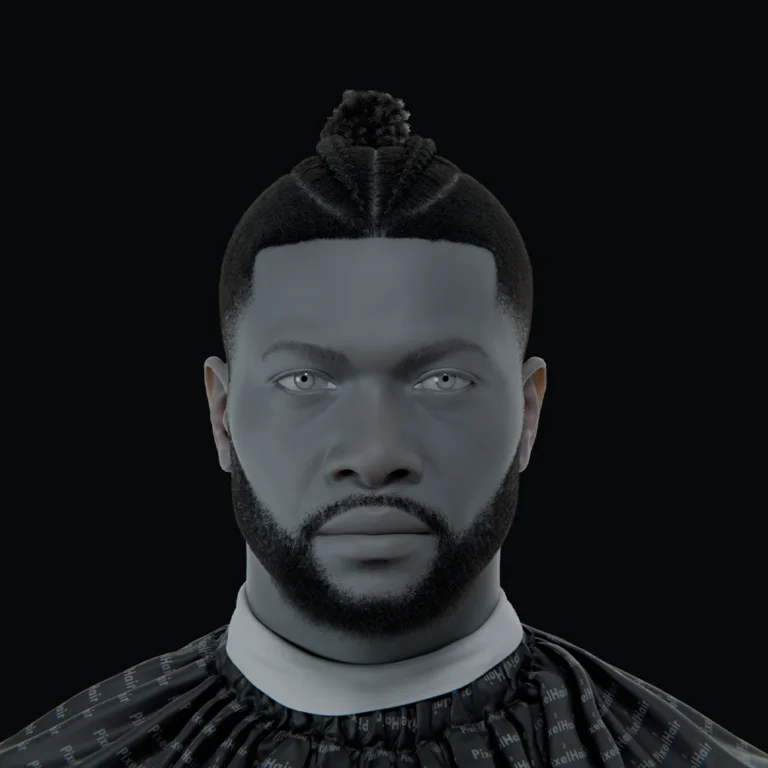
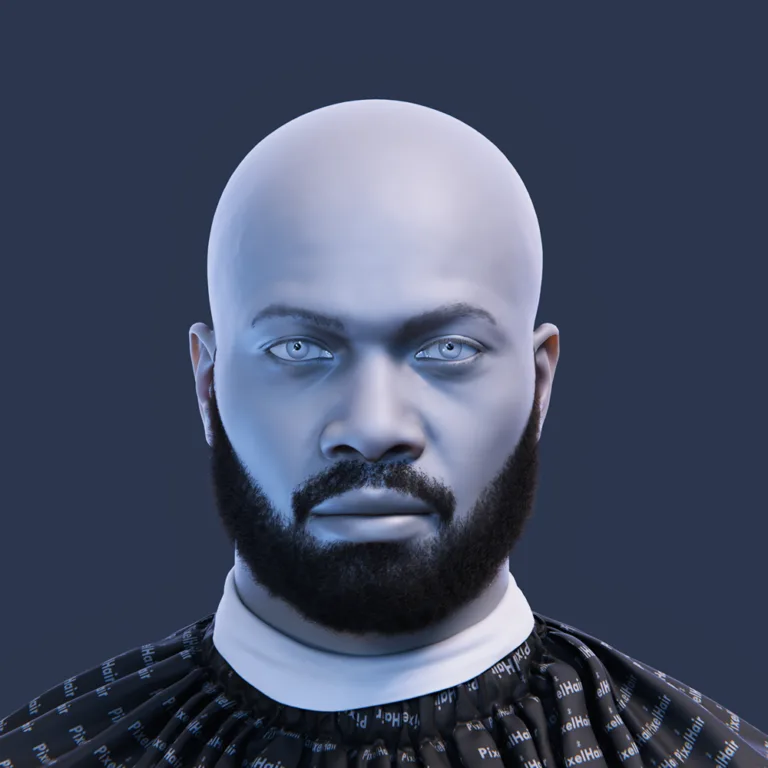
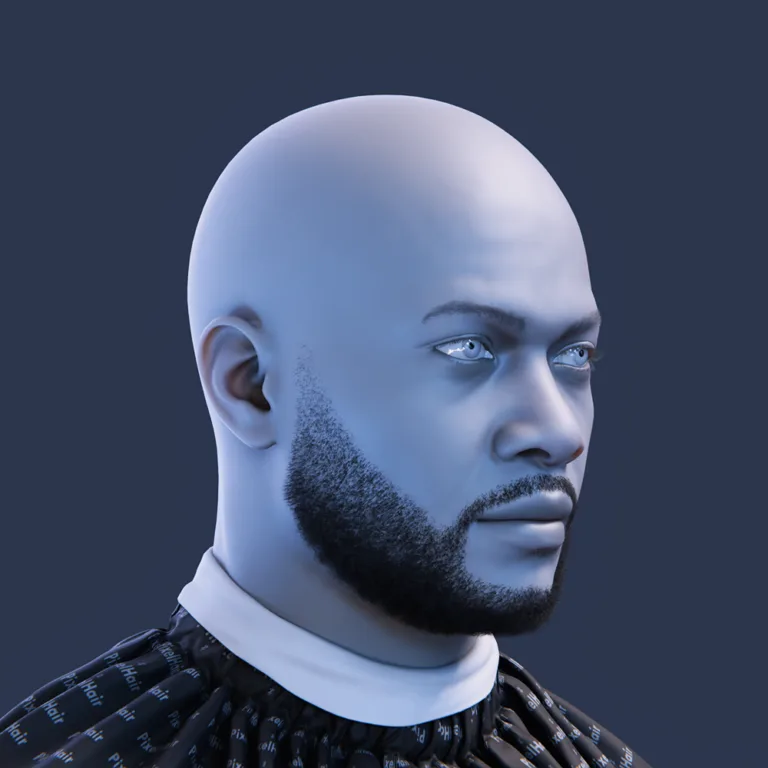
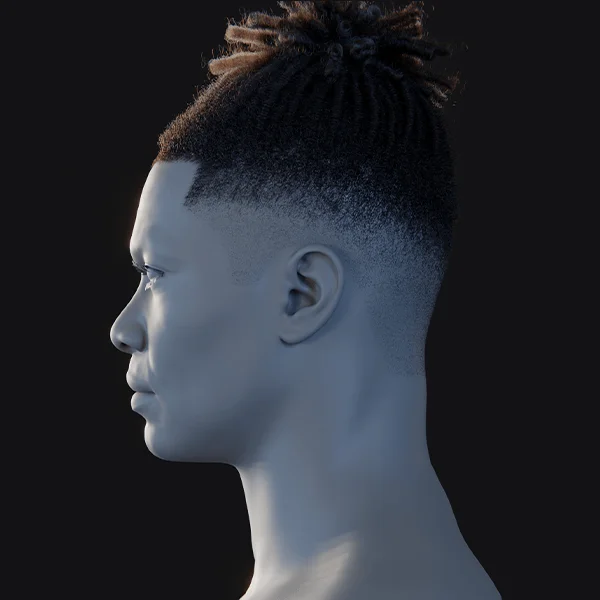
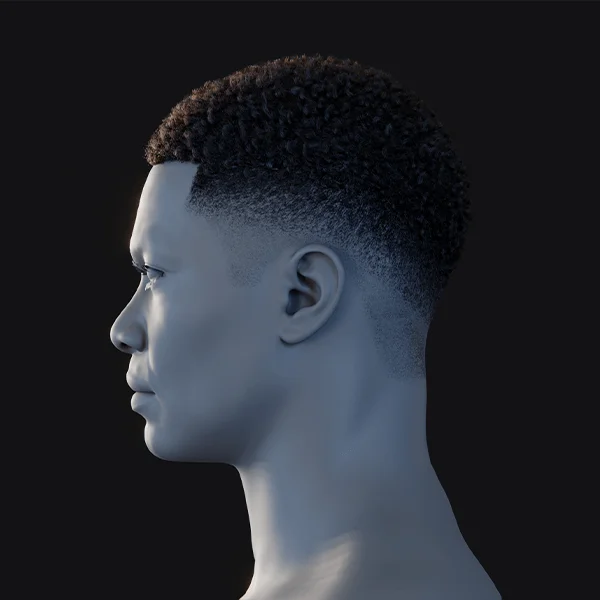
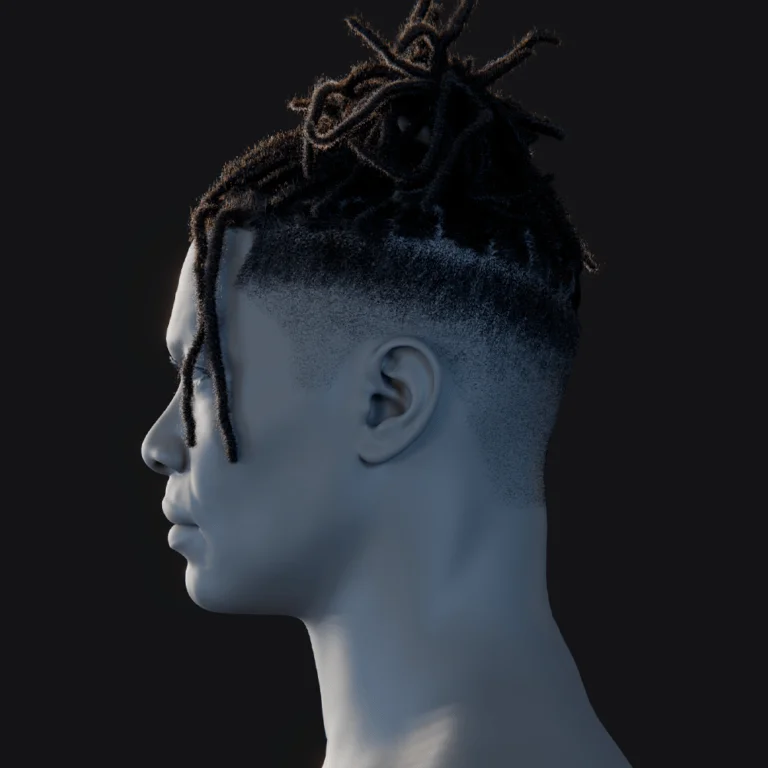
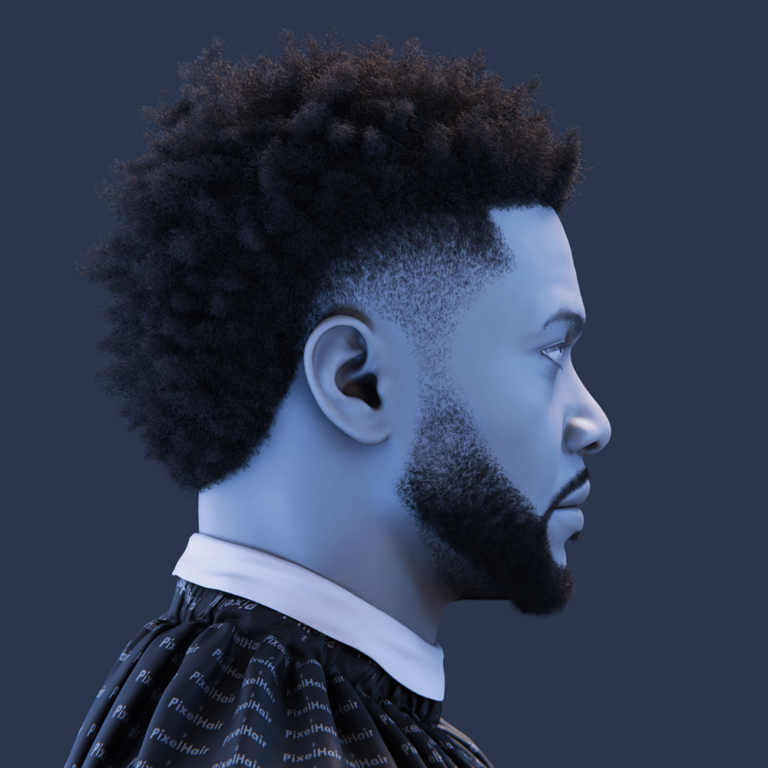
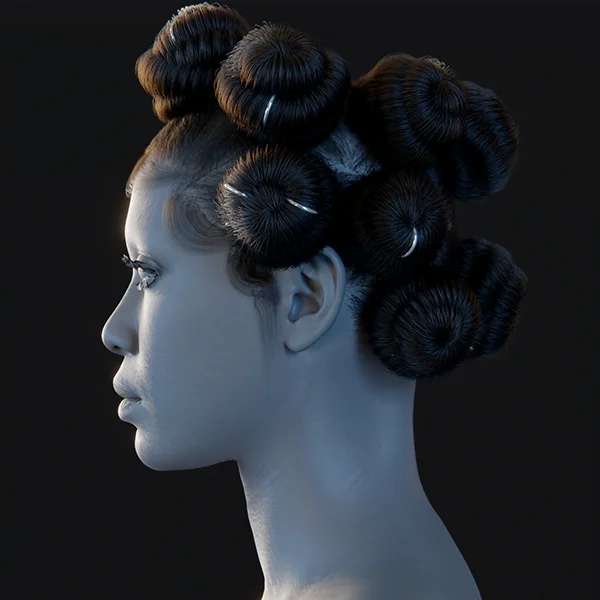
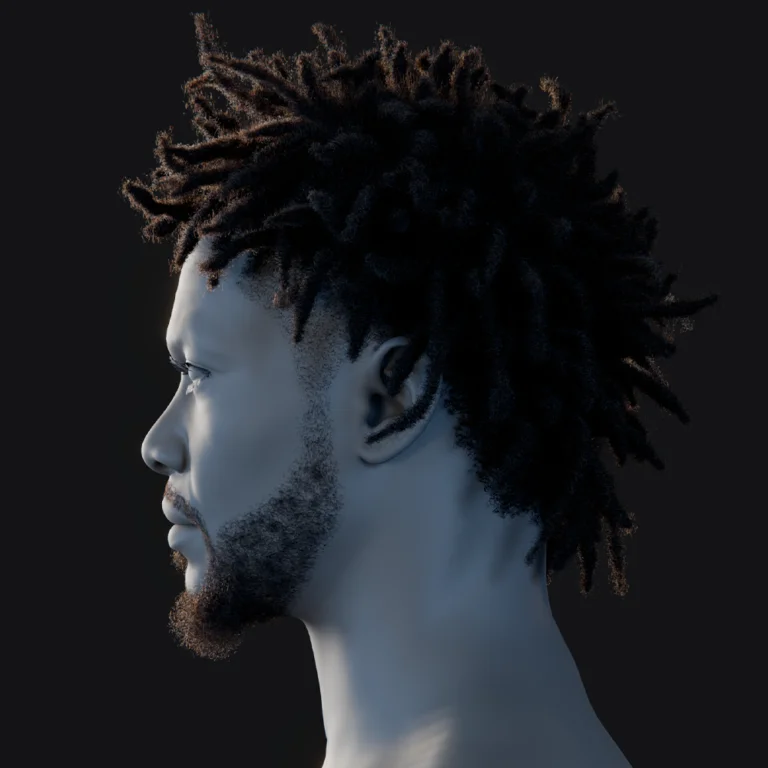
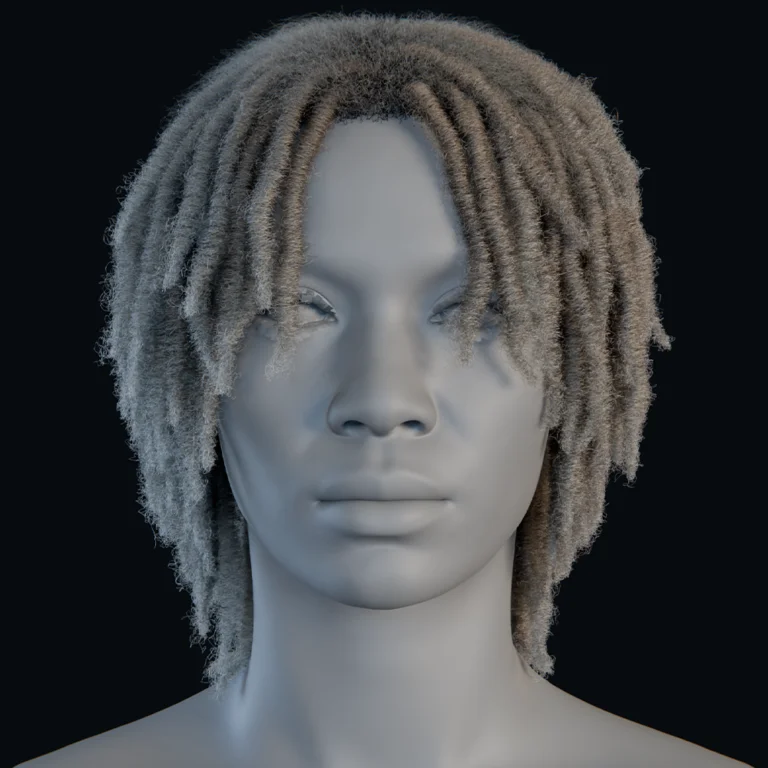
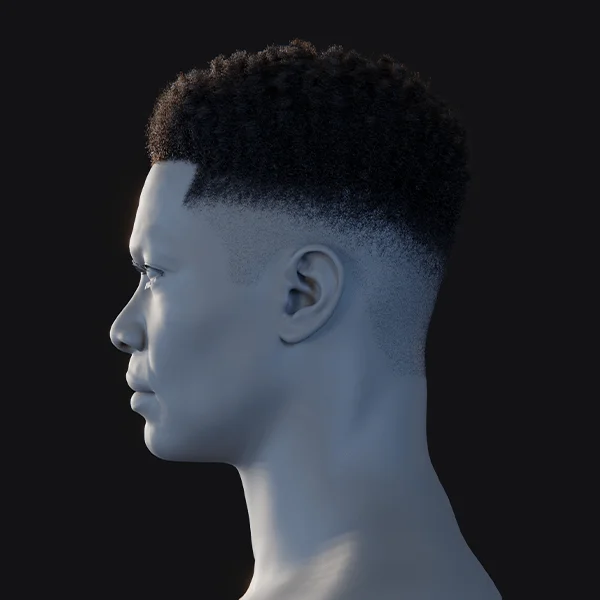
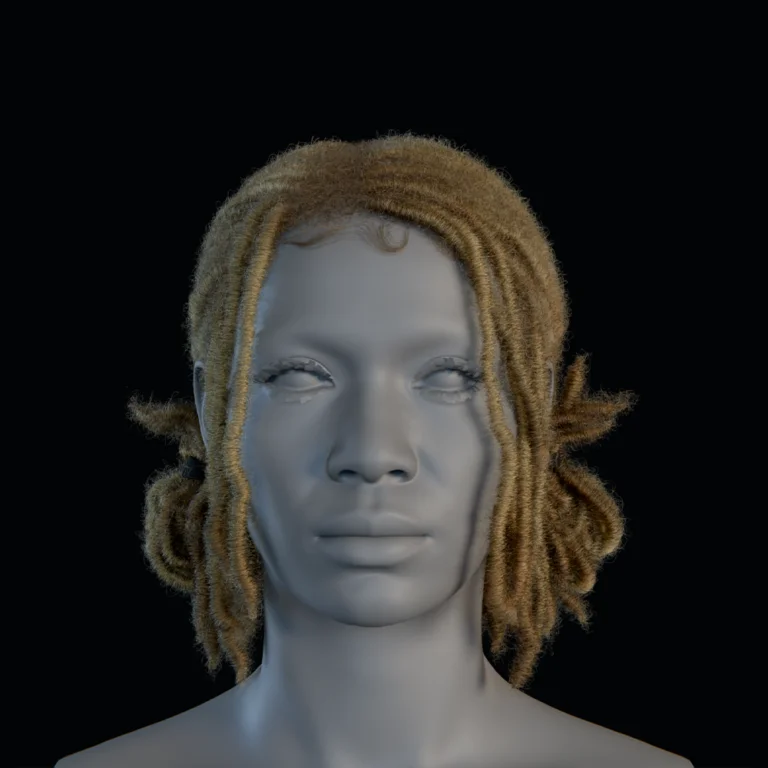
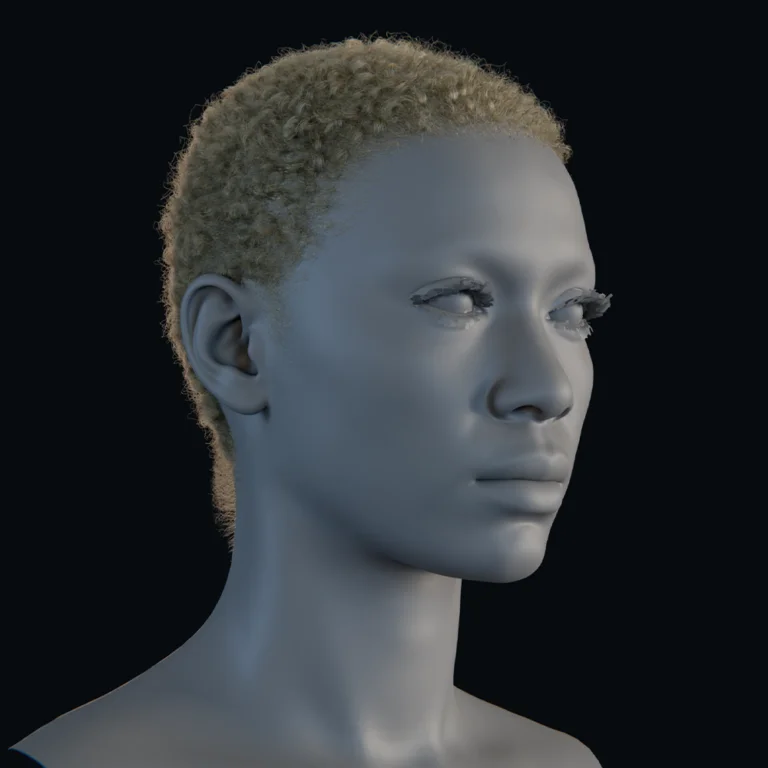
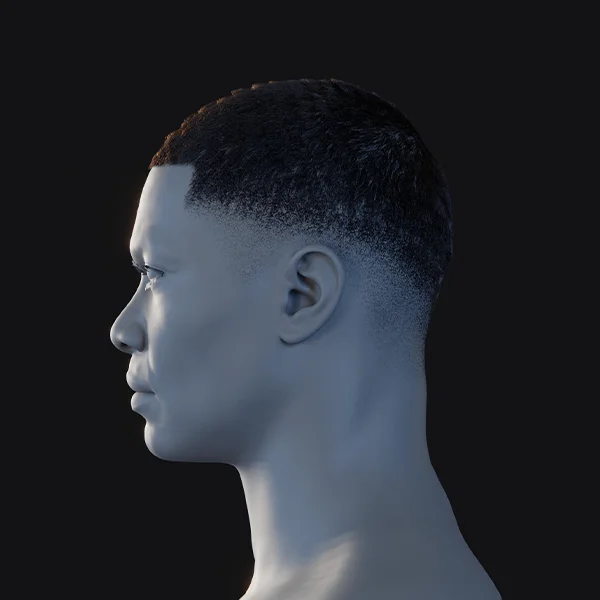
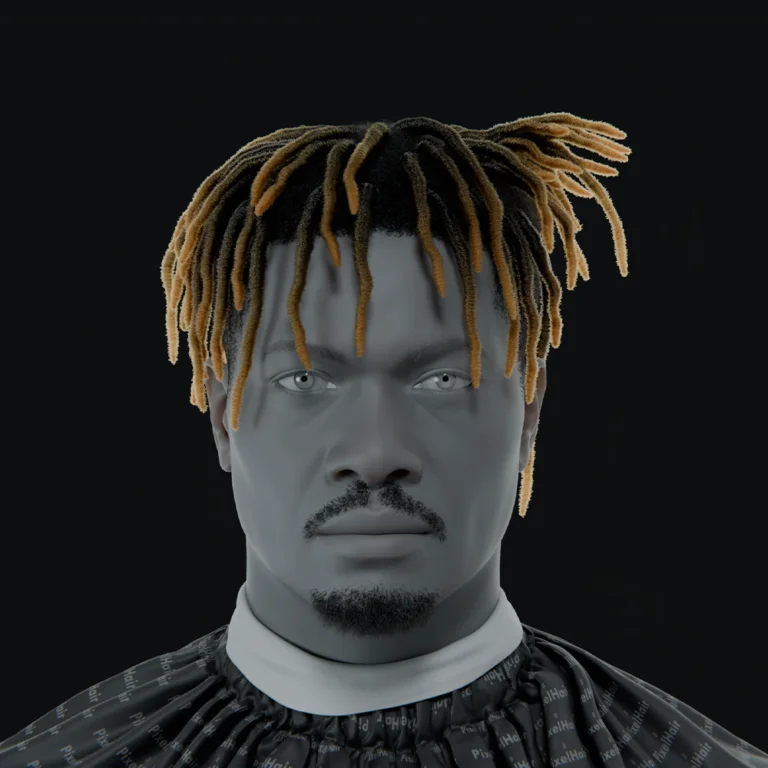
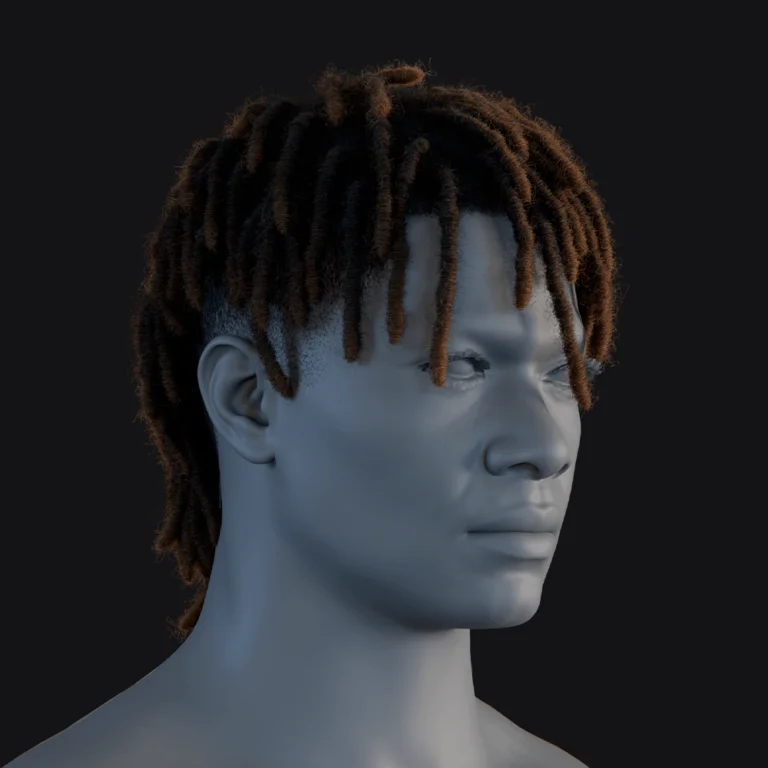
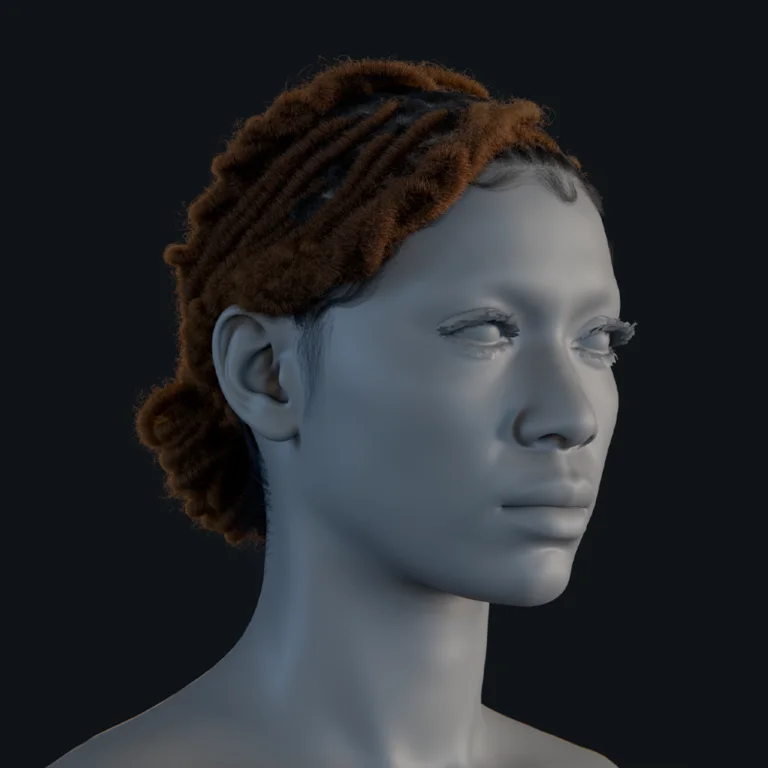
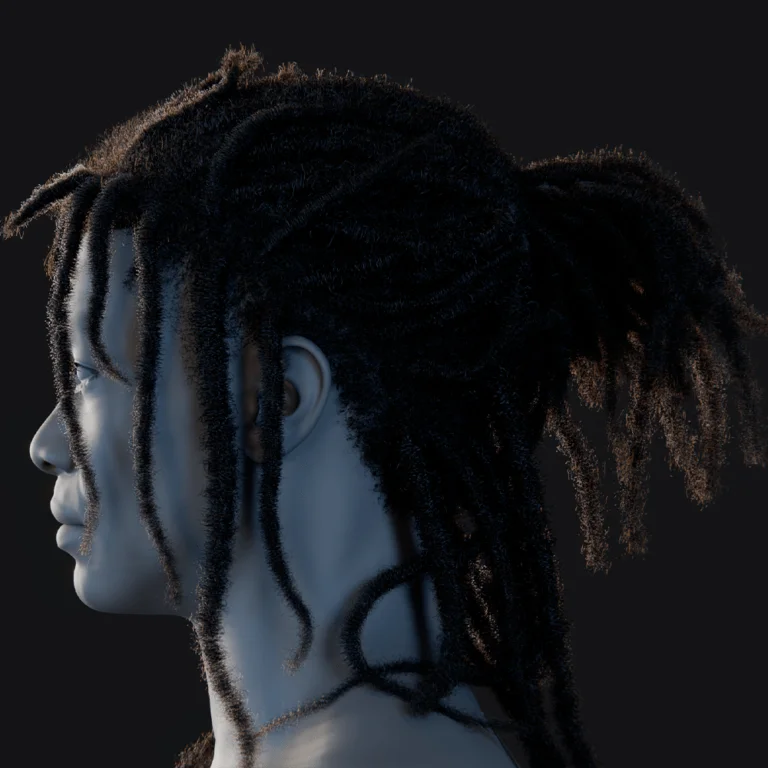
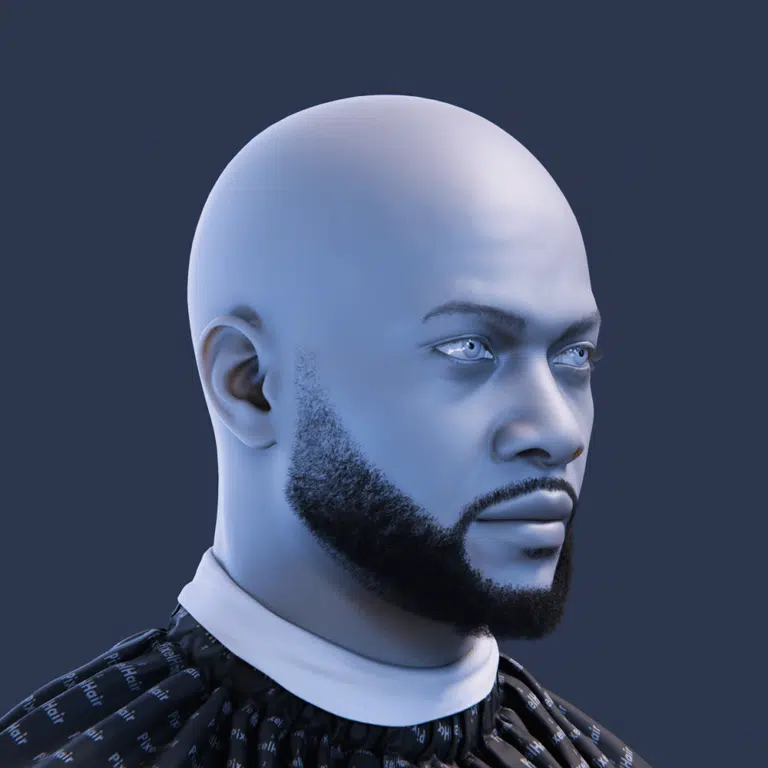
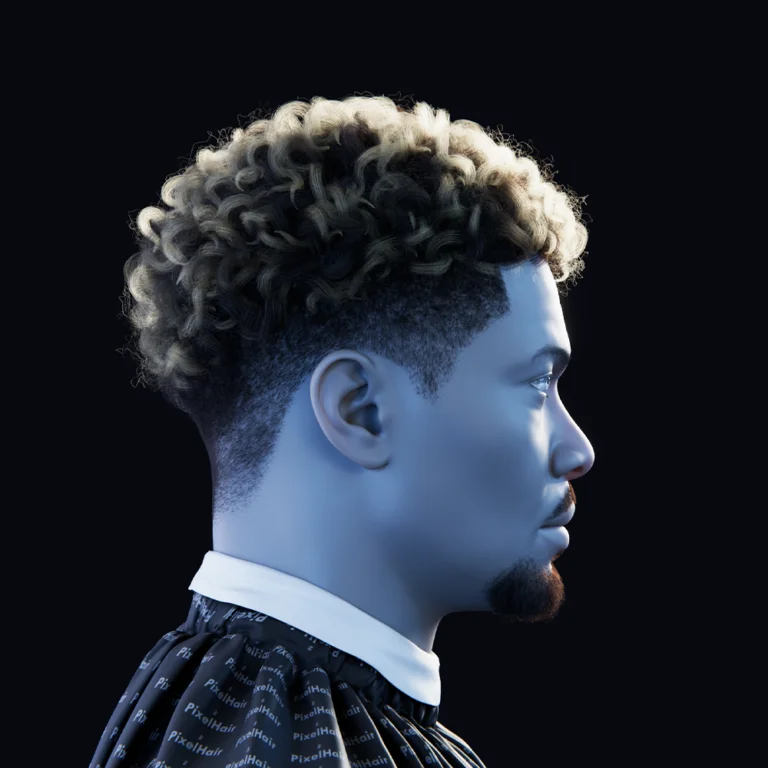
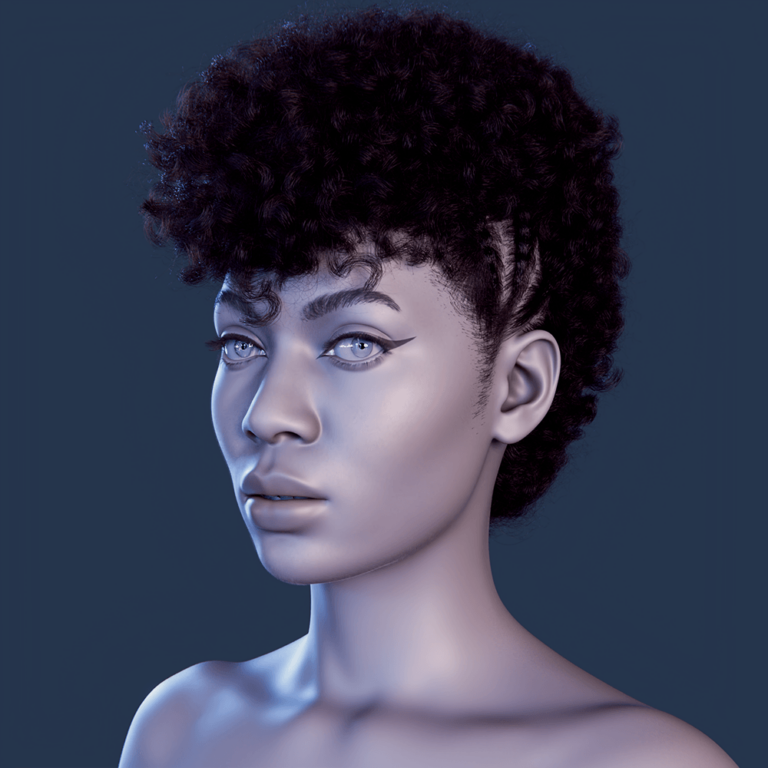
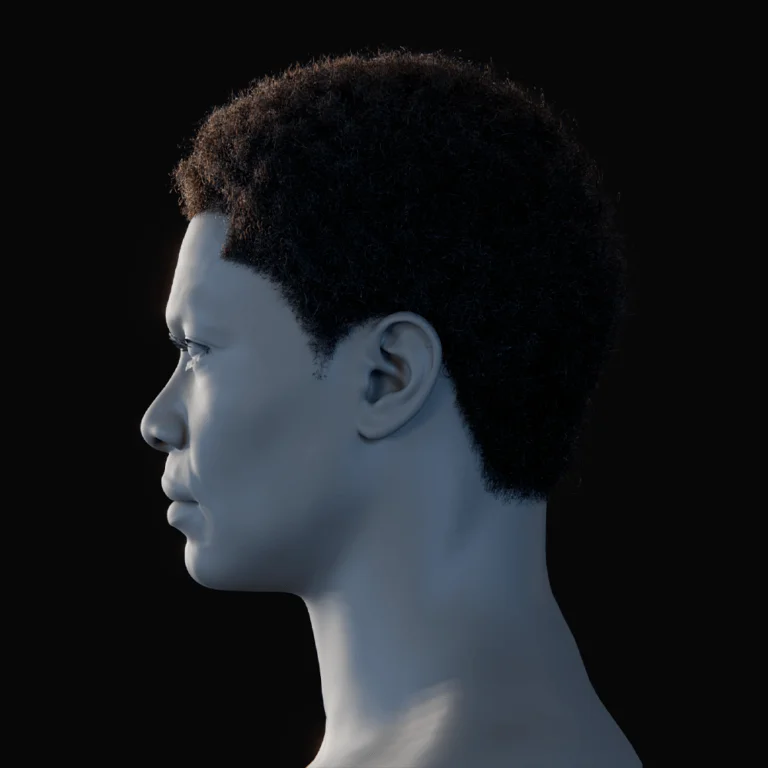
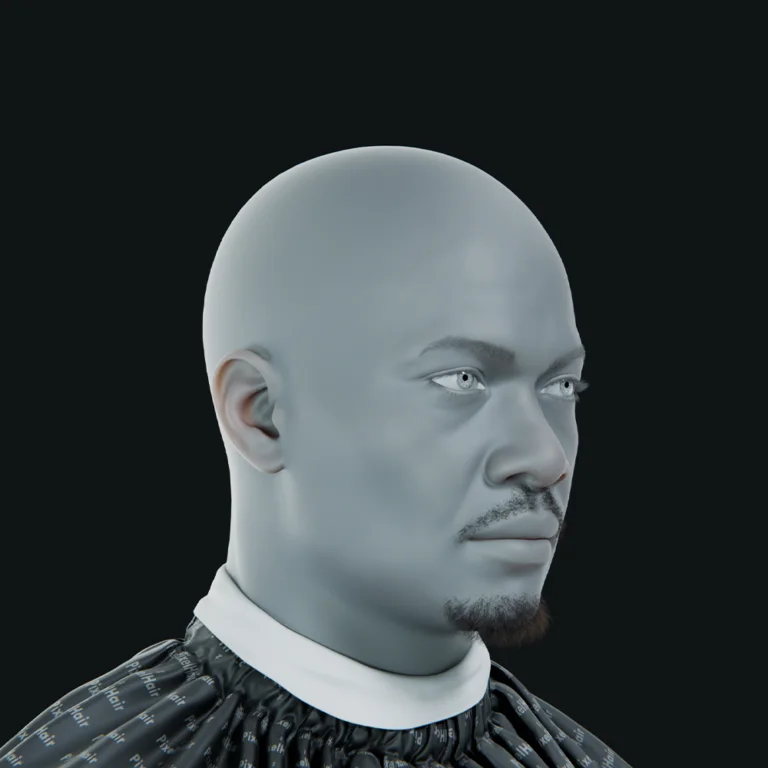
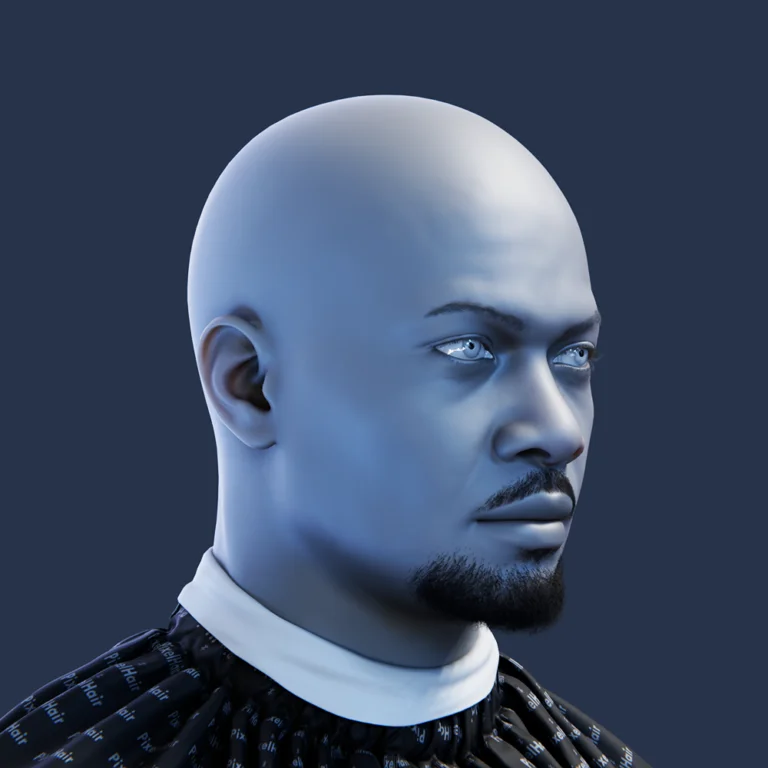
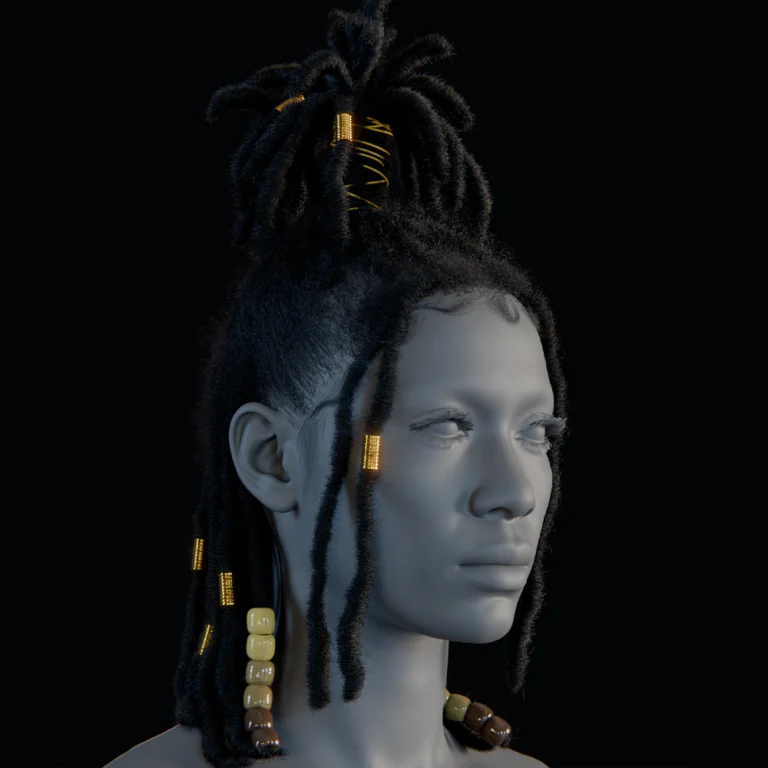
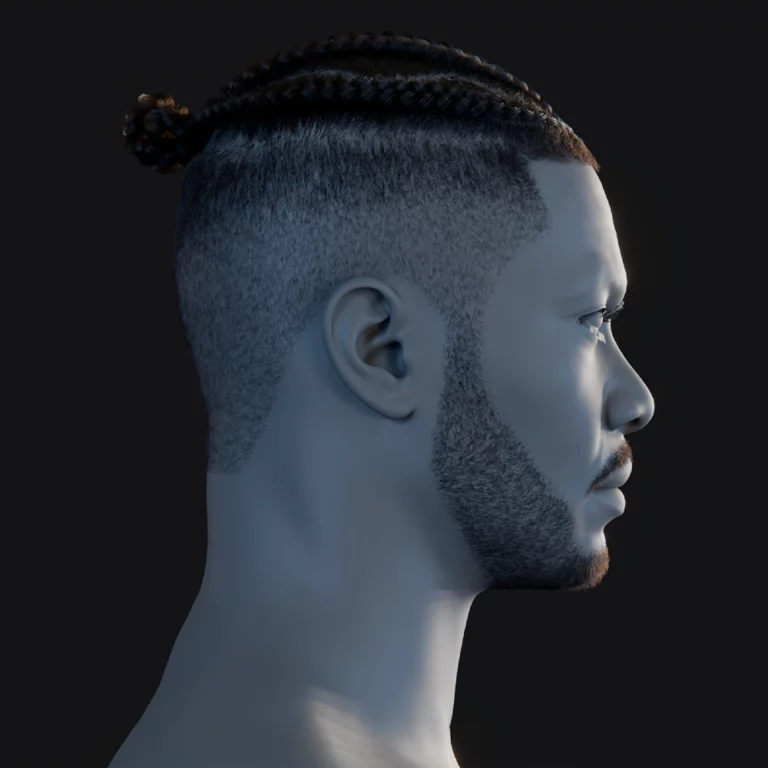
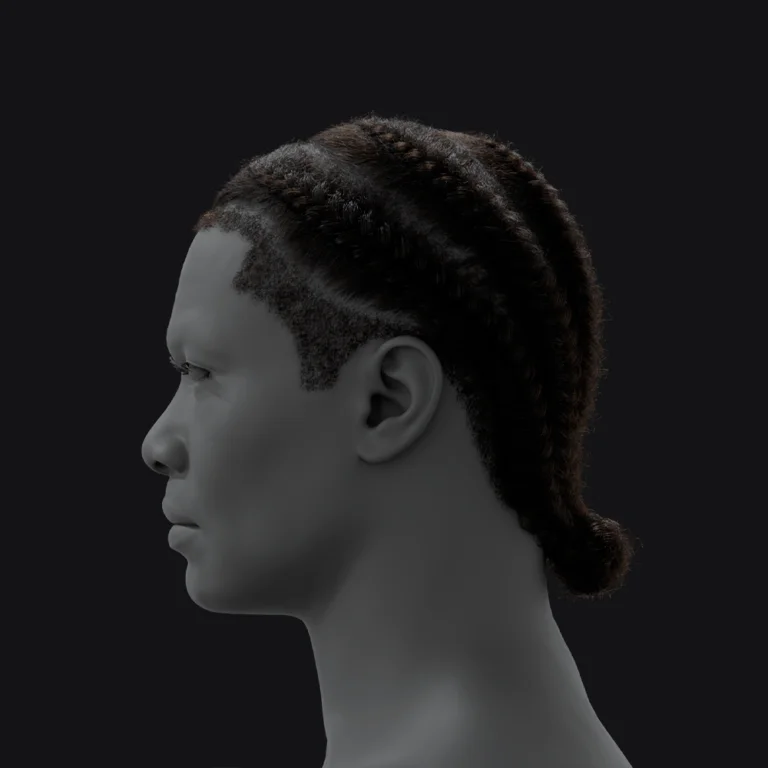
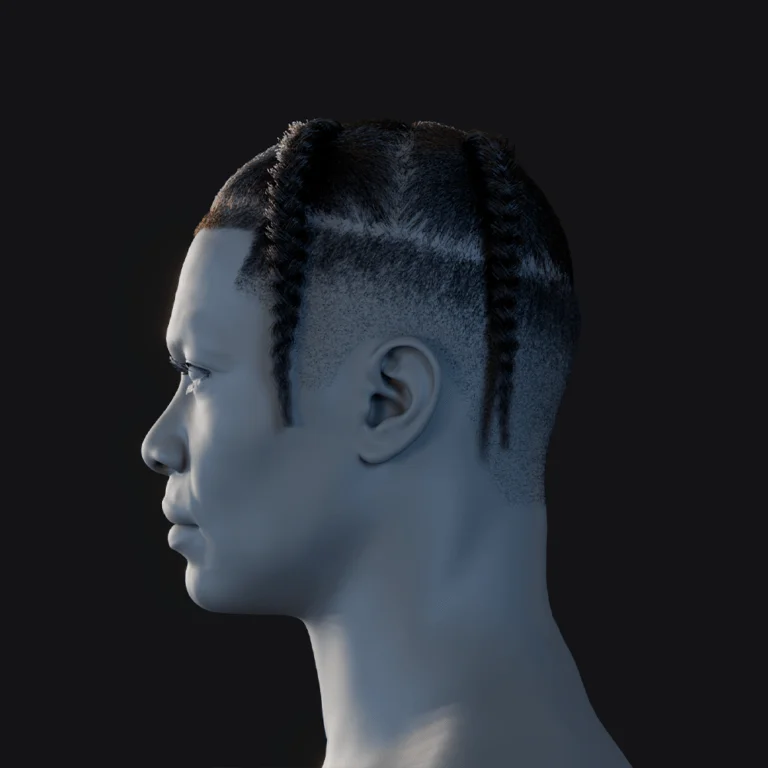
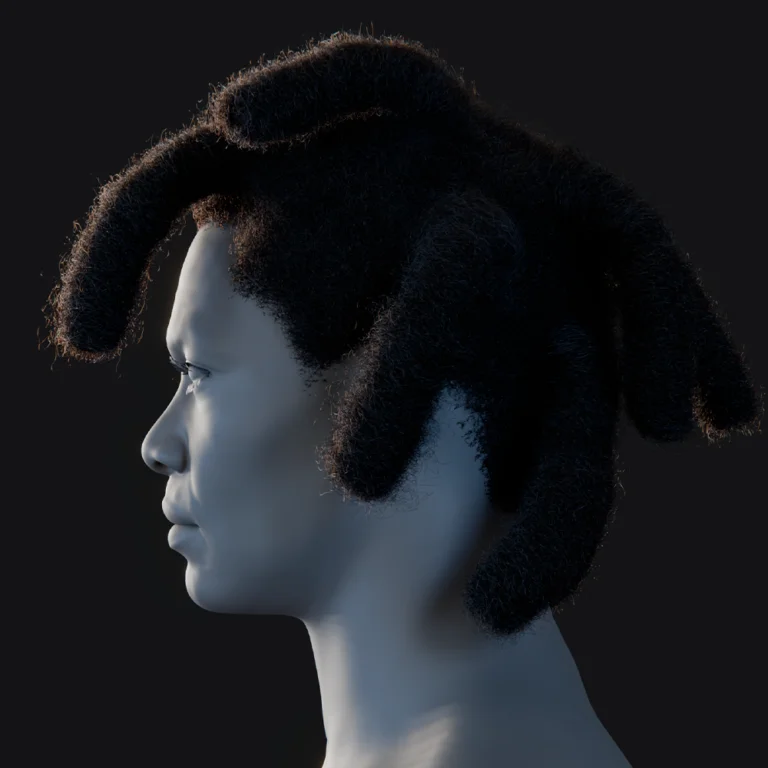
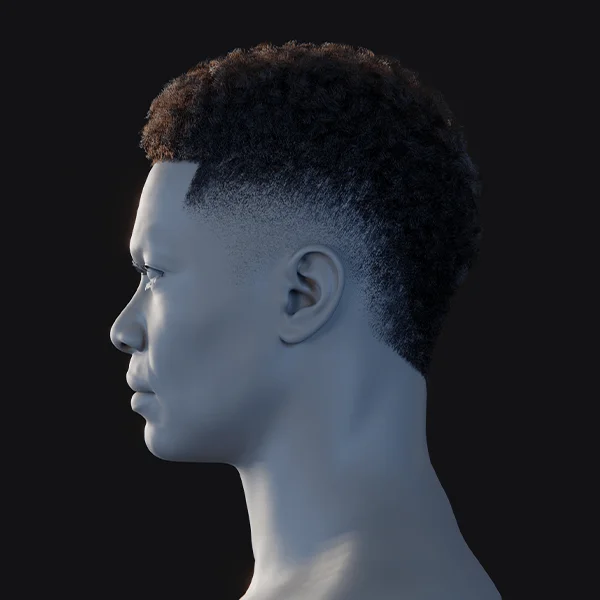
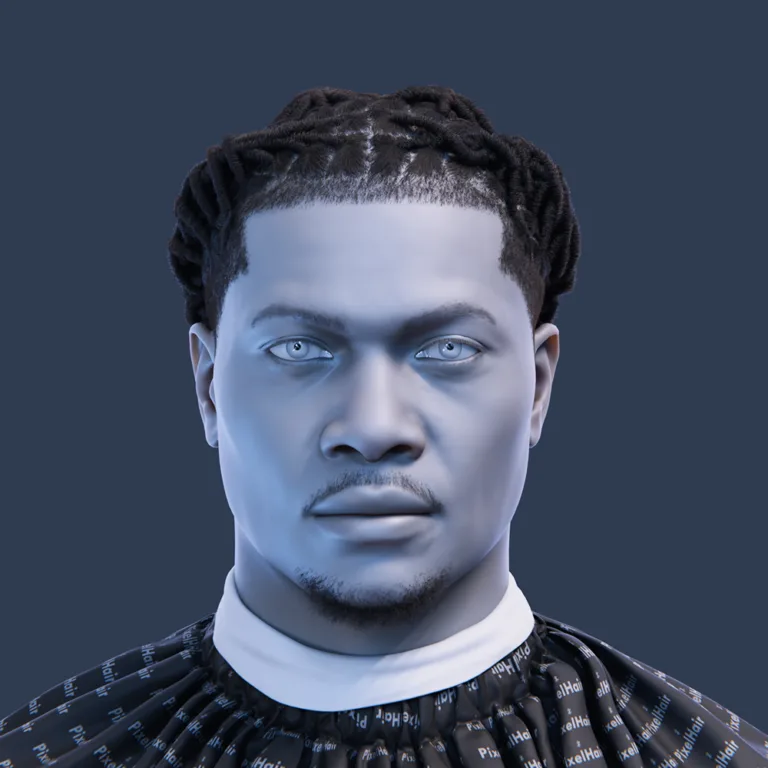
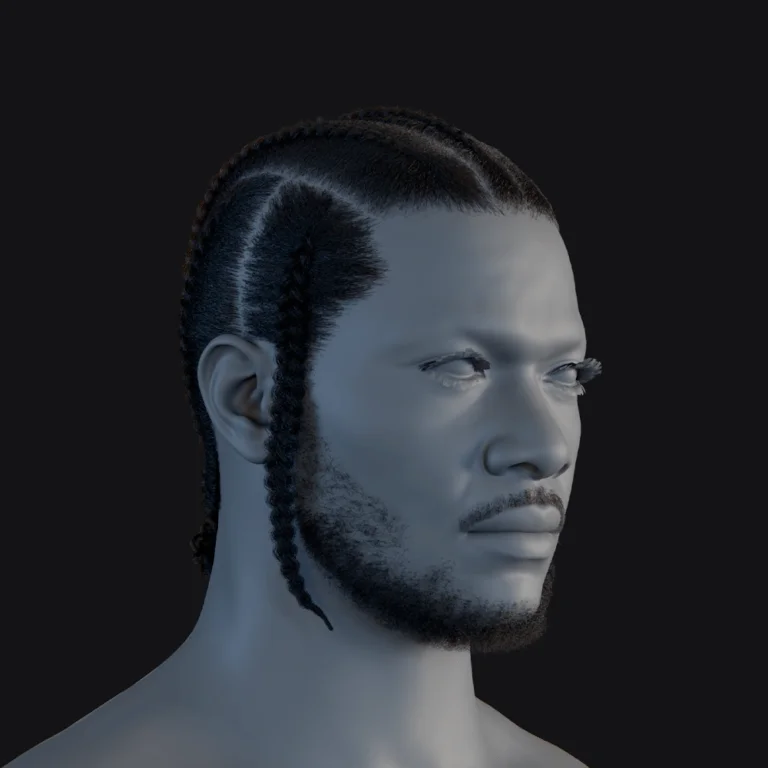
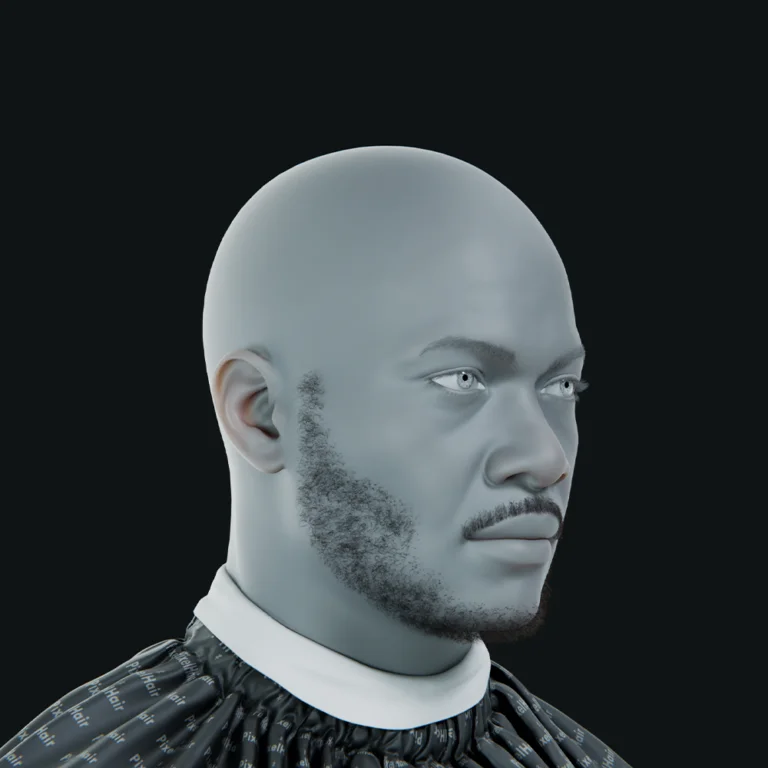
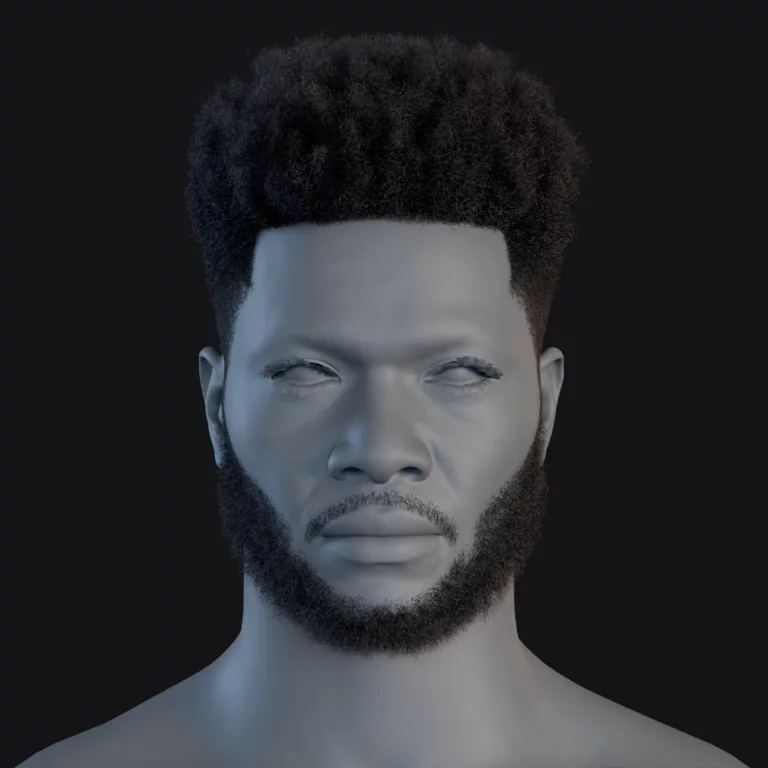
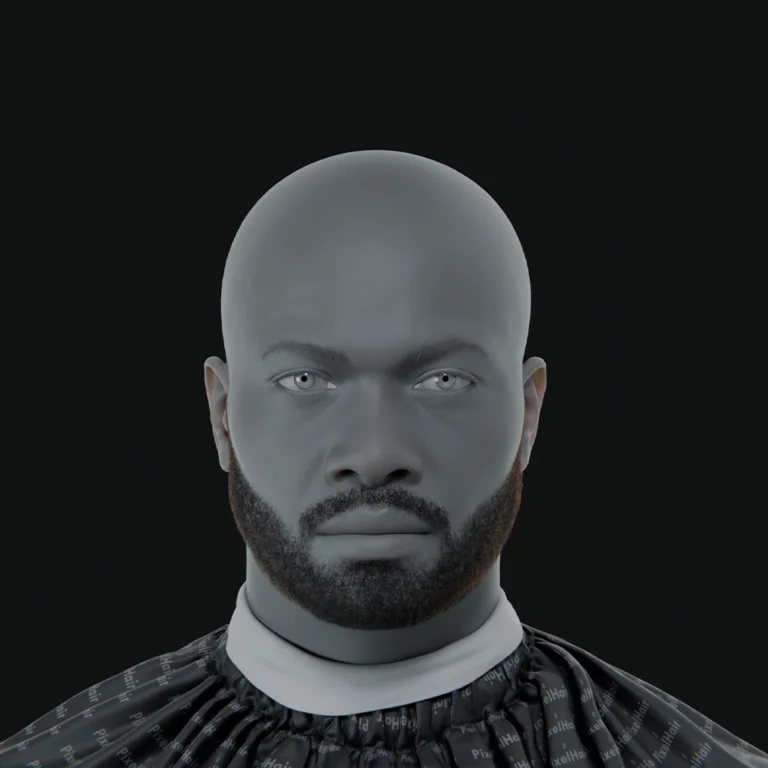
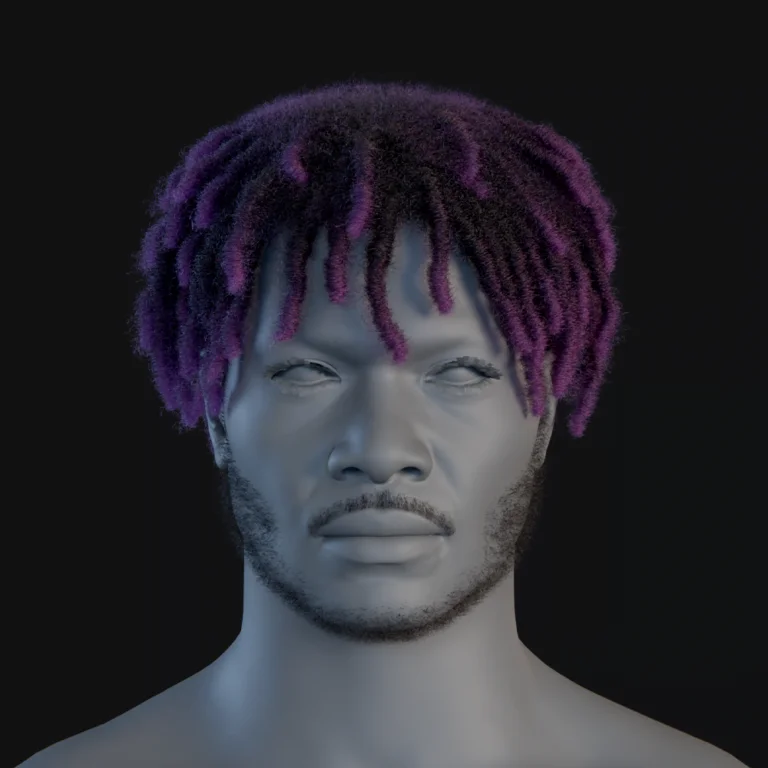
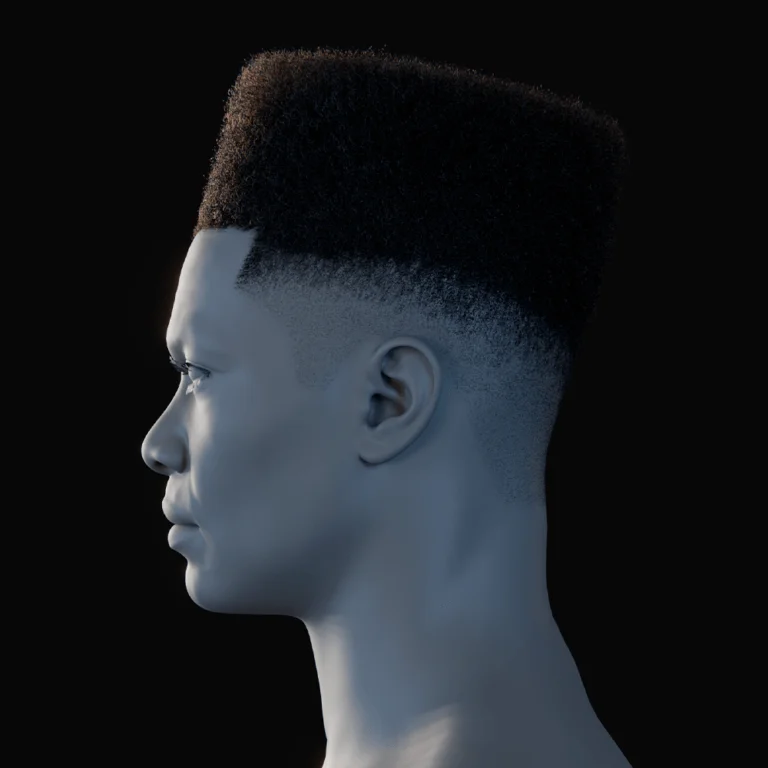
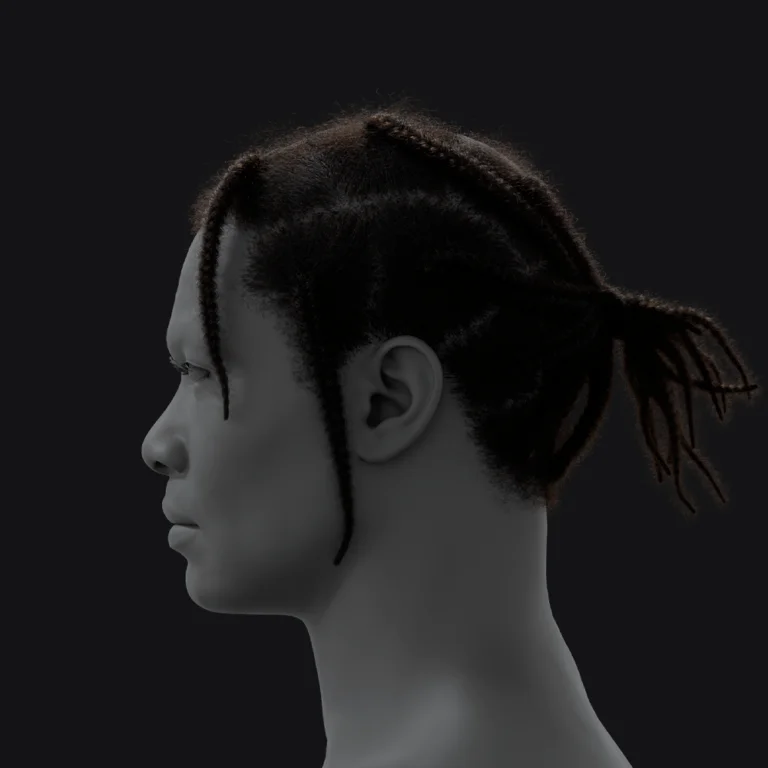
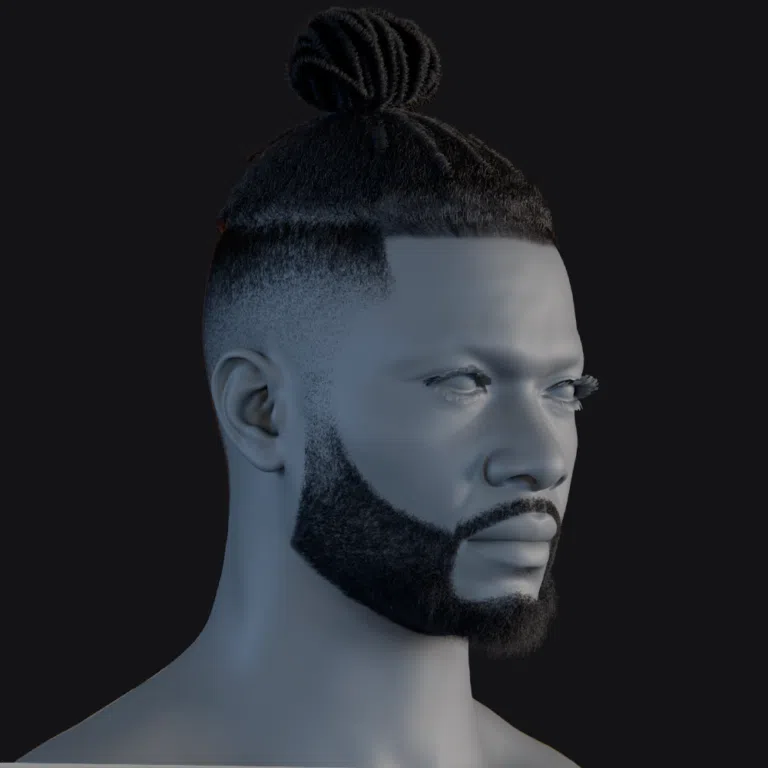
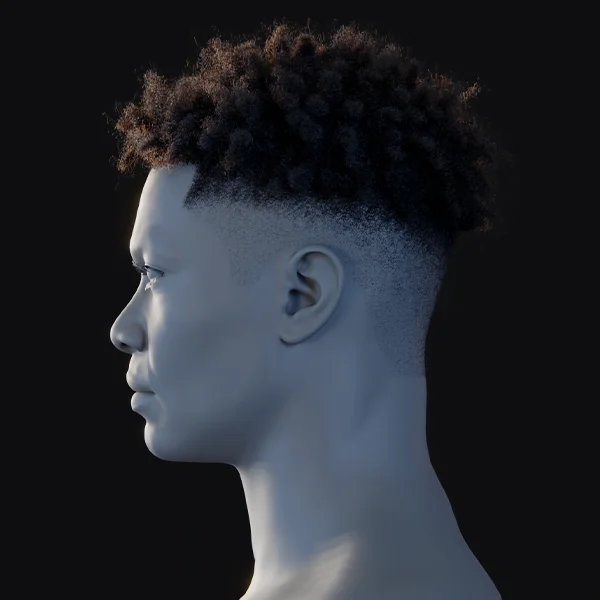
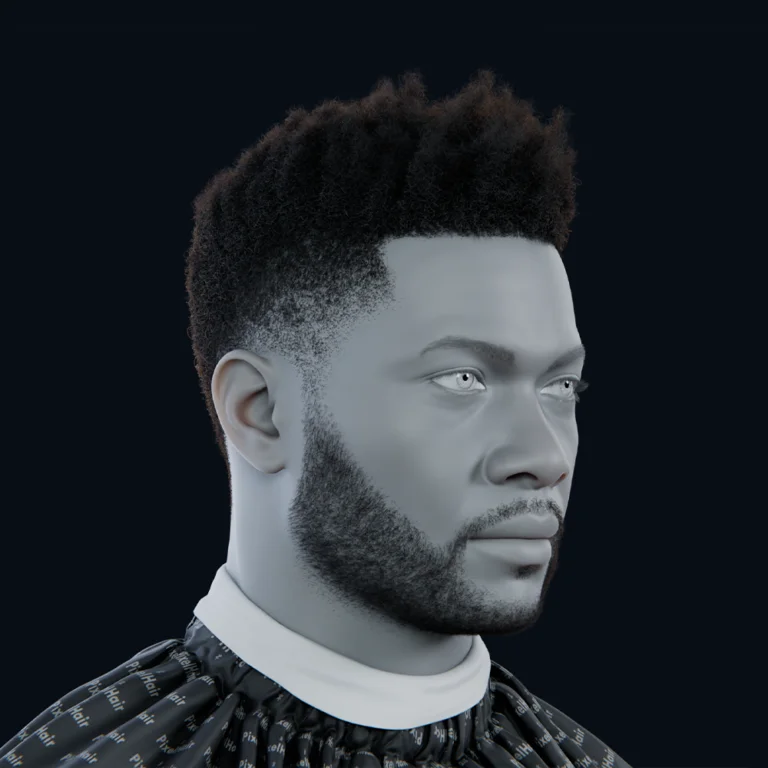
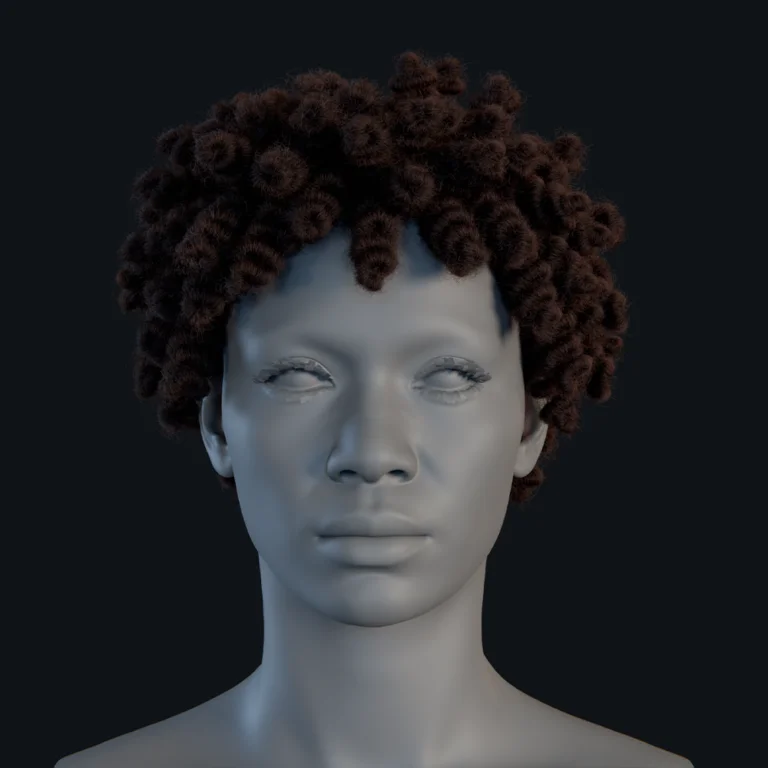
PixelHair 3D VTuber Hair Physics: Adding Natural Movement to 3D Hairstyles
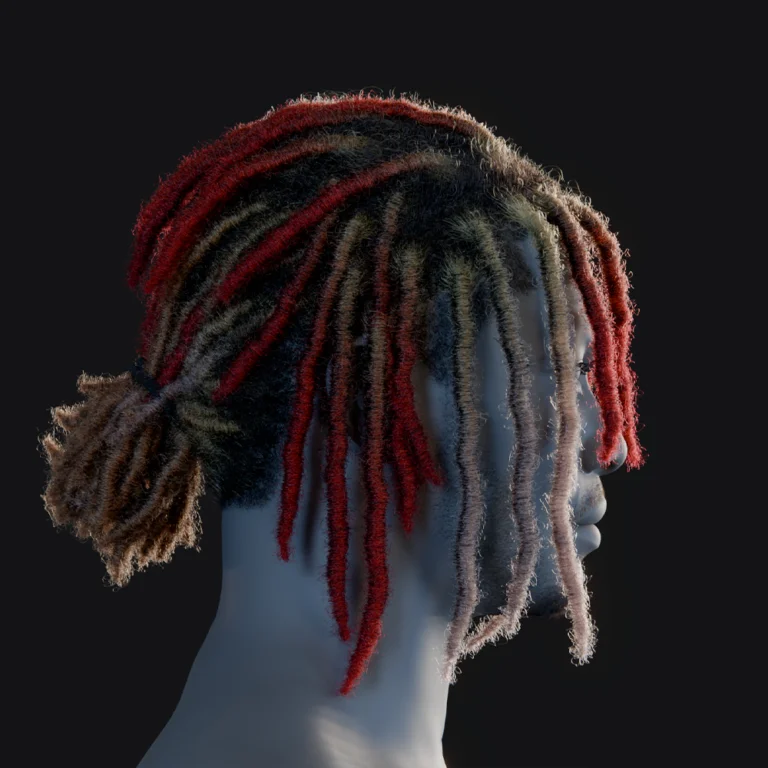
PixelHair is a collection of optimized 3D hair assets for Blender and Unreal Engine.
- Pre-groomed assets: These include nearly 200 hair presets that are modeled and ready for real-time use, featuring natural clumping and layers.
- Real-time Optimization: These can be exported to Unreal Engine as Groom assets or converted to hair cards for better performance in engines.
- Blender Integration: Currently built on the particle hair system, they are planned for future Geometry Nodes support to allow procedural control over properties like curl and length.
- High-Fidelity Simulation: When used in Unreal Engine, these assets support advanced physics via Chaos or Niagara, offering Hollywood-level hair simulation for realistic VTubers.
Jiggle Physics Testing Checklist for VTuber Avatars in VTube Studio and VRM Apps
Run through this checklist before going live to ensure stability:
- Test Range of Motion: Move to extremes (left, right, up, down) to ensure physics don’t invert or twist.
- Idle Motion: Ensure the model settles to a rest and does not vibrate when the user is stationary.
- Rapid Movements: Perform quick nods or shakes to check that physics don’t spazz out or lag too far behind.
- Expressions/Animations: Confirm that playing animations or toggling expressions doesn’t break the physics.
- Colliders Check: Verify that hair or accessories do not cut through the face, shoulders, or torso.
- Multi-App Consistency: Test the model in all intended programs (VTS, VRChat, VSeeFace) to catch platform-specific differences.
- Performance Monitoring: Check for frame drops or CPU spikes during physics-heavy actions.
- Long Duration Stability: Run the model for 30+ minutes to ensure physics don’t glitch over time.
- Wind and Drag Tests: Use wind features or dragging tools to test the general stability of the pendulums.
Frequently Asked Questions (FAQs)
- Why doesn’t my Live2D model have any jiggle physics in VTube Studio?
Ensure the physics3.json was exported by checking the box in Cubism. Verify the file is in the model folder and correctly referenced in the model3.json. If using Cubism 5, export using SDK 4.0 for better compatibility. - My Live2D physics are working, but they feel too weak/too strong in VTube Studio. How can I adjust this?
Use the Physics Strength slider in VTube Studio. You can also click the gear icon to adjust multipliers for specific physics groups individually. - What does the “Legacy Physics” toggle in VTube Studio do, and should I use it?
It toggles between the old physics behavior and the current one. Leaving it “Off” allows VTS to respect “Effectiveness” settings from Live2D. Only turn it “On” if a model rigged for older versions behaves incorrectly. - My VRoid model’s hair isn’t moving at all after export. What did I miss?
You must manually add bones in the hairstyle’s “Bone Groups” via the “Hair Bounce” feature in VRoid Studio. - My VRM model’s spring bones are working, but hair clips through the body. How can I fix clipping issues?
Edit the model in Unity using UniVRM to add VRMSpringBoneColliderGroups to the head and shoulders, then assign those colliders to the corresponding Spring Bone components. - In VSeeFace, my model’s hair physics don’t work or the model won’t load at all. What’s wrong?
VSeeFace currently supports VRM 0.x only. Re-export your model from VRoid or Unity using the VRM0 format. - My Live2D physics keep moving even when I stop moving. How can I make them stop faster?
Increase the “Speed of convergence” in Cubism or increase the drag/damping values. This forces oscillations to die out sooner. - My character’s skirt has no physics. How can I add movement to clothing like that?
This requires manual rigging. In Live2D, use deformers and physics groups. In 3D, add bones in Blender or Unity, weight the mesh, and then add spring bone components in Unity. - What are good baseline settings for physics?
For Live2D hair, aim for stiffness 10-20 and resistance 0.3-0.5. For VRM hair, try stiffness 0.5-0.8, gravity 0.2, and drag 0.5. - When I move my model quickly, some parts seem to lag or warp. How do I fix this?
Increase stiffness so the parts follow the motion more closely, and ensure your physics FPS is at least 60. In Live2D, normalize input angles to a -10 to 10 range to avoid overwhelming the simulation.
Conclusion
Jiggle physics bring VTuber avatars to life by providing secondary motion for hair, clothing, and accessories. Achieving natural-looking results requires a balance of stiffness, damping, and gravity, combined with proper export settings and optimization. Whether utilizing 2D pendulums in Live2D or 3D spring bones in Unity/VRoid, thorough testing ensures that your avatar reacts realistically to your movements, maintaining the illusion of life for your audience. With the right configuration, jiggle physics add a layer of professional quality and immersion to any stream.
Sources and Citations
- Live2D Cubism Documentation – Physics Settings and Parameters
https://docs.live2d.com/en/cubism-editor-manual/physics-operation/ - VTube Studio Official Wiki – Model Physics Settings (Strength, Wind, Legacy, FPS)
https://github.com/DenchiSoft/VTubeStudio/wiki/VTS-Model-Settings#physics-settings - VTube Studio Official Wiki – Dragging Physics for Live2D Items and Models
https://github.com/DenchiSoft/VTubeStudio/wiki/VTS-Items - VTube Studio Official Wiki – Loading Live2D Models (exporting
.physics3.jsonwith the model)
https://github.com/DenchiSoft/VTubeStudio/wiki/Getting-Started#importing-a-live2d-model - Reddit – VRoid Physics Tip (Body amplitude for chest jiggle) by vampiredirt
https://www.reddit.com/r/VRoid/search/?q=vampiredirt%20body%20amplitude%20chest%20jiggle - VRoid Studio FAQ – Hair Bounce Tutorial (hair bones and parameter explanation)
https://vroid.pixiv.help/hc/en-us/categories/900000136183-FAQ - VSeeFace Manual – VRM Support (VRM0 supported, VRM1.0 not fully supported)
https://www.vseeface.icu/#documentation - CG Cookie – Wiggle Bones Add-on for Blender
https://cgcookie.com/posts/wiggle-bones-add-on-for-blender - Steam Community – VRoid Discussion on Optimizing Hair Bones (limit ~6 per group, stiffness tips)
https://steamcommunity.com/app/1486350/discussions/ - Yelzkizi (PixelHair) – Overview of PixelHair and Unreal Engine Integration
https://pixelhair.xyz/
Recommendations
- Fewer Than 20 Staff Remain at Highguard Dev Wildlight Entertainment: Tencent Funding Pulled, Layoffs, and What’s Next
- Top Wonder Dynamics Alternatives: Exploring AI-Powered VFX Platforms for Creators
- Anthony Mackie’s $150M Saudi-Funded “” Is Bombing: Box Office Numbers, Budget, and Why It’s Being Called a Historic Flop
- Mixtape Review: Best Mixtapes, Ratings, and Music Trends Shaping 2026
- Silent Hill: Townfall Brings Atmospheric Horror to 1990S Scotland with Uncanny Detail, First-Person Survival Gameplay, and CRTV Mysteries
- What is the View Keeper?
- Magic Pie Releases a POLYARIS Demo: Open-World Survival in the Far North (Live May 12, 2026)
- Nintendo Finally Puts Super Mario Galaxy Music on Spotify: Official Playlist Has 130 Tracks (Galaxy 1 + Galaxy 2)
- PlayStation FlexStrike Fight Stick Release Date Confirmed for August 2026
- LEGO 2K Drive Disappears Just 3 Years After Release: Delisting Date, Server Shutdown, and What Players Need to Know