









In This Article (18 sections)
MetaHuman Clothing and Hair on Fab: Where to Find the MetaHuman Channel
Fab is Epic’s unified marketplace featuring a dedicated MetaHuman channel for compatible content. You can access this via Fab.com in the “Discover” section or through the integrated Fab plugin in Unreal Engine 5.6 (Window > Fab). The channel categorizes complete characters, interchangeable outfits, and grooms (hair), allowing users to find MetaHuman-specific assets without searching generic categories.
How to Check If a Fab Asset is MetaHuman Compatible (MetaHuman Format + Technical Details)
To ensure compatibility, verify that the asset uses the MetaHuman package format (.mhpkg). Check the technical details for the asset type (e.g., Groom, Outfit Clothing, or Skeletal Clothing) and whether it is resizable (parametric) or fixed-size. MetaHuman-format assets are exclusive to Unreal Engine 5.6 or later and are not backward compatible with version 5.5 or earlier.
What is a MetaHuman .mhpkg File from Fab (and Why it Matters)
The .mhpkg is a container format introduced in UE 5.6 that bundles meshes, materials, and groom data. These files are verified through the MetaHuman Manager to ensure they meet standards for skeletons and hair bindings. They allow for streamlined importing as the engine automatically unpacks them into the Content Browser. Assets created before UE 5.6 lack this format and may require manual migration or repackaging.

How to Add MetaHuman Clothing and Hair from Fab to Your Unreal Engine Project
There are two methods to add assets to a project. Using the Fab Plugin, you search the library and click “Add To Project,” which places assets in the /Game/Fab/MetaHumans/ folder. Alternatively, you can manually download the .mhpkg from the website and drag-and-drop it into the Content Browser. The engine then unpacks the files, creating Wardrobe Item assets (prefixed with WI_) and associated meshes or grooms.
Where is the MetaHuman Hair & Clothing Tool in MetaHuman Creator (wardrobe Menu)
In UE 5.6, the MetaHuman Creator is integrated into the editor. To access the wardrobe system, double-click a MetaHuman Character asset and select the “Hair & Clothing” tab from the top ribbon menu. This opens a selection panel displaying thumbnails of available hair and clothing items.
MetaHuman Wardrobe Slots Explained (head Hair, Eyebrows, Eyelashes, Beard, Outfits)
The wardrobe is organized into specific slots. Hair slots include Head Hair, Eyebrows, Eyelashes, Mustache, Beard, and Peach Fuzz. Clothing is divided into “Outfit Clothing” for parametric Chaos Cloth assets and “Skeletal Clothing” for rigid SkeletalMesh items. Only one item can typically be worn per slot category at a time; adding a new one replaces the previous selection.

How to Apply Fab MetaHuman Hairstyles (grooms) to a MetaHuman
To apply hair, ensure the groom or Wardrobe Item asset is in the project. In the Hair & Clothing tab, drag the asset into the appropriate slot (e.g., Head Hair). Once the thumbnail appears in the wardrobe list, double-click it to “Wear” it. Users can then use the Details panel to adjust hair overrides such as color and highlights.
How to Apply Fab MetaHuman Outfits to a MetaHuman in UE 5.6
To apply clothing, drag the Wardrobe Item or outfit asset into either the Outfit Clothing slot (for parametric assets) or the Skeletal Clothing slot. Double-clicking the item in the list will dress the MetaHuman. Parametric outfits auto-fit to the character’s body, while skeletal items remain fixed. You can toggle layers off by double-clicking them again.
MetaHuman Parametric Outfits vs Skeletal Clothing (which One to Choose)
Parametric outfits (Chaos Cloth) use multiple preset sizes and simulation to automatically fit various body types, making them ideal for standard garments and broad compatibility. Skeletal clothing is a fixed mesh rigged to the skeleton; it retains its authored shape perfectly but may clip or gap if the MetaHuman’s body type differs from the intended design.
Source Size Override MetaHuman Outfits (make Clothing Tighter or Baggier)
For parametric outfits, the system defaults to an “Auto Selected Source Size.” Users can manually override this in the Details panel to choose a different size. Selecting a smaller source size makes the clothing appear tighter, while a larger size makes it look baggier. This allows for stylistic adjustments without mesh editing.

MetaHuman Clothing Clipping Fixes (common Fit and Body Poke-Through Issues)
Clipping can be resolved by using opacity masks on the MetaHuman’s skin materials to hide body parts covered by clothing. Other methods include removing unnecessary body geometry, refining skin weighting for skeletal clothing, and adjusting Chaos cloth collision primitives. For layered clothing, masking the inner layer is often necessary to prevent intersection.
UE 5.6 MetaHuman Footwear Below Ground Fix (base Skeleton Offset Update)
UE 5.6 removed the 2cm floor offset to standardize barefoot animations, causing shoes to sink into the floor. This is fixed by going to the MetaHuman Blueprint, finding the Body component, and applying a positive Z-axis “Component Based Offset” (usually 2.0 cm) to raise the character until the shoe soles sit on the ground.
PixelHair MetaHuman Hair Workflow (PixelHair vs Fab Grooms)
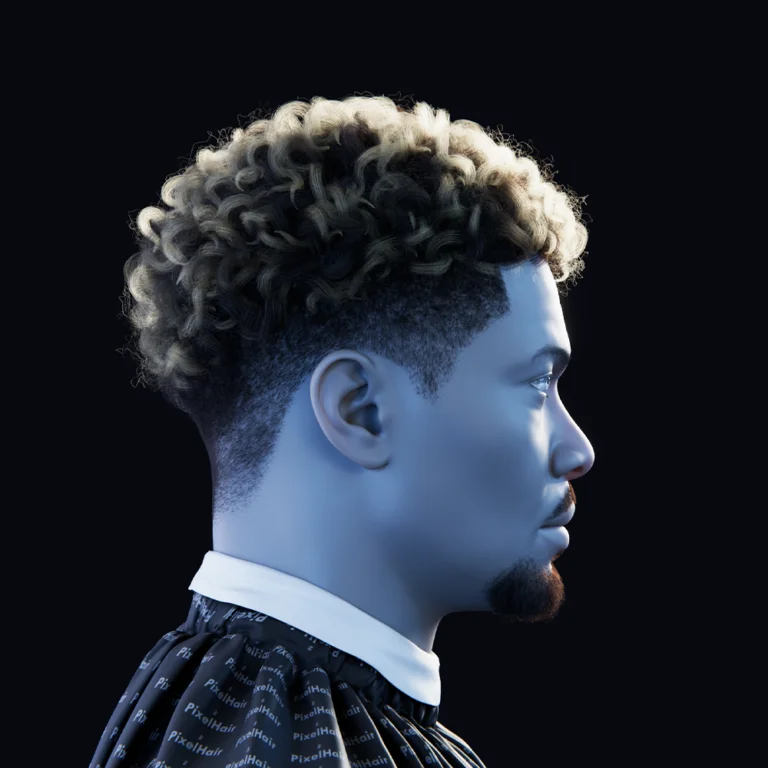
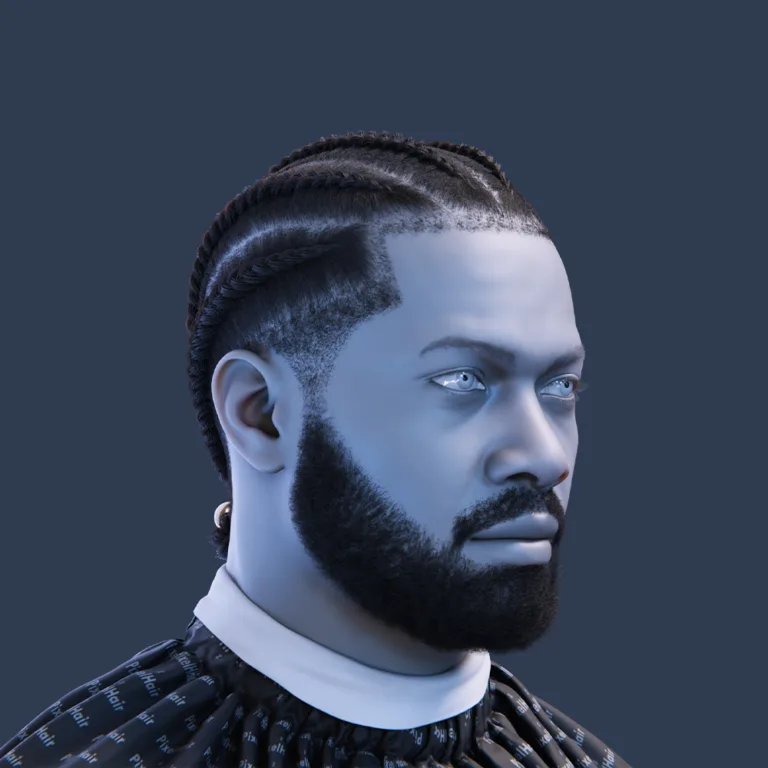
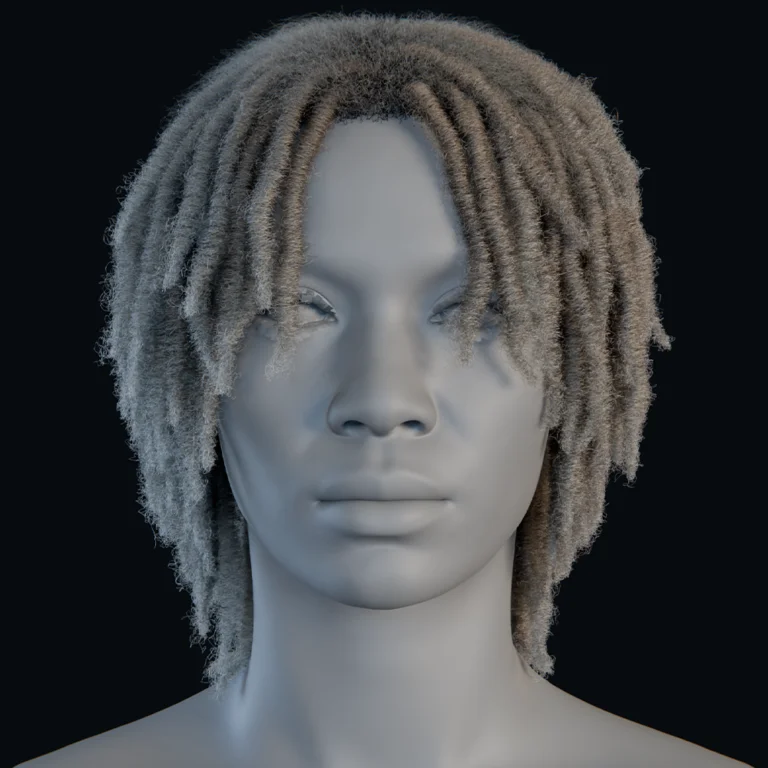
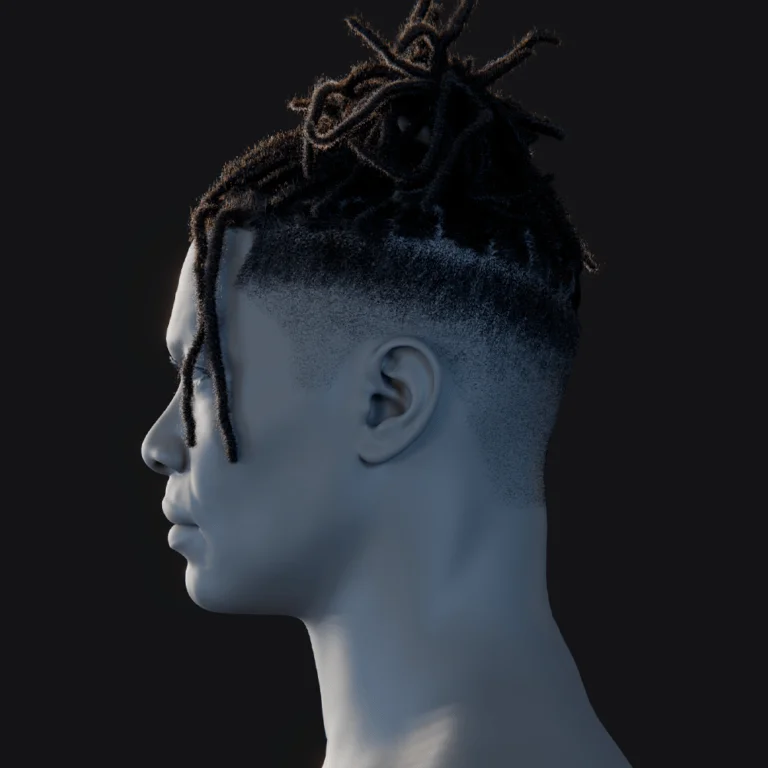
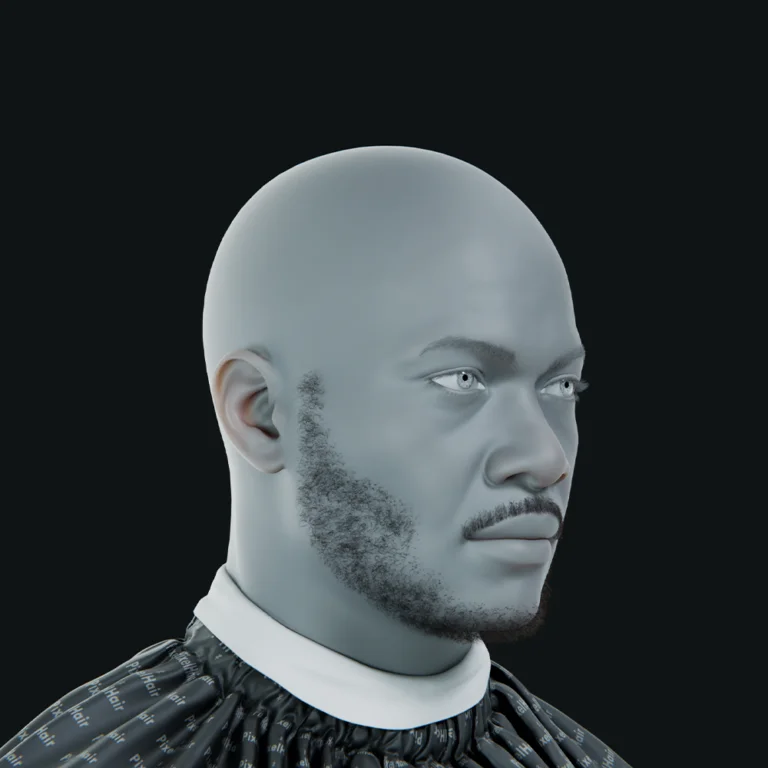
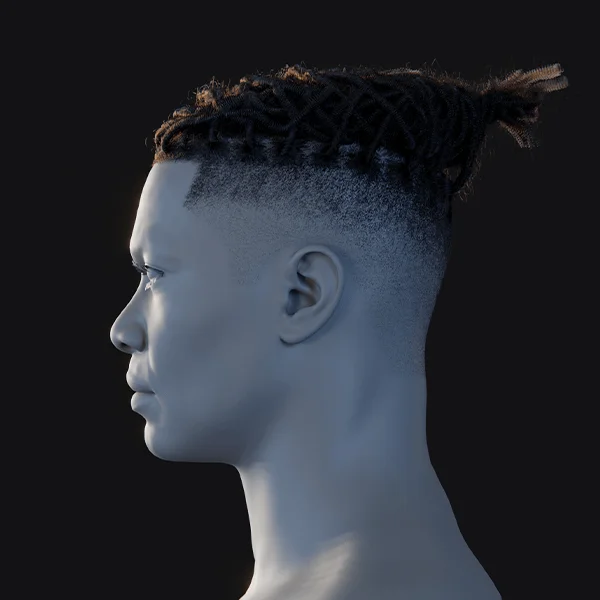
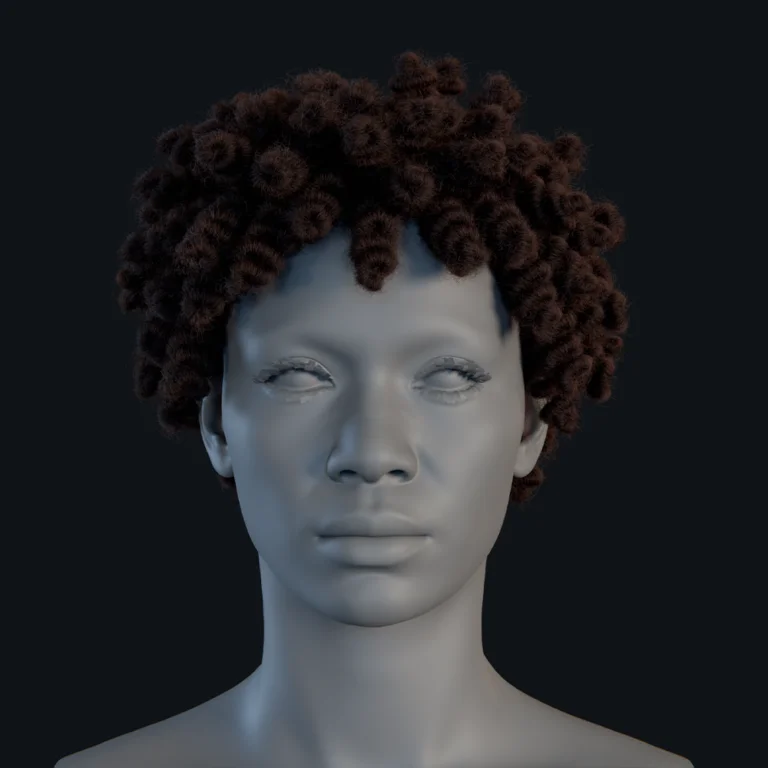
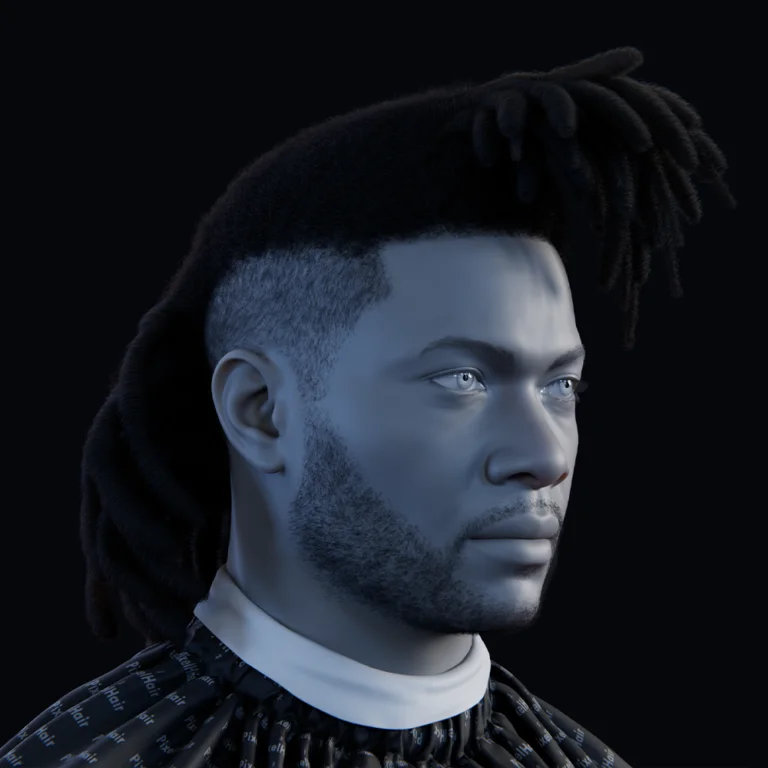
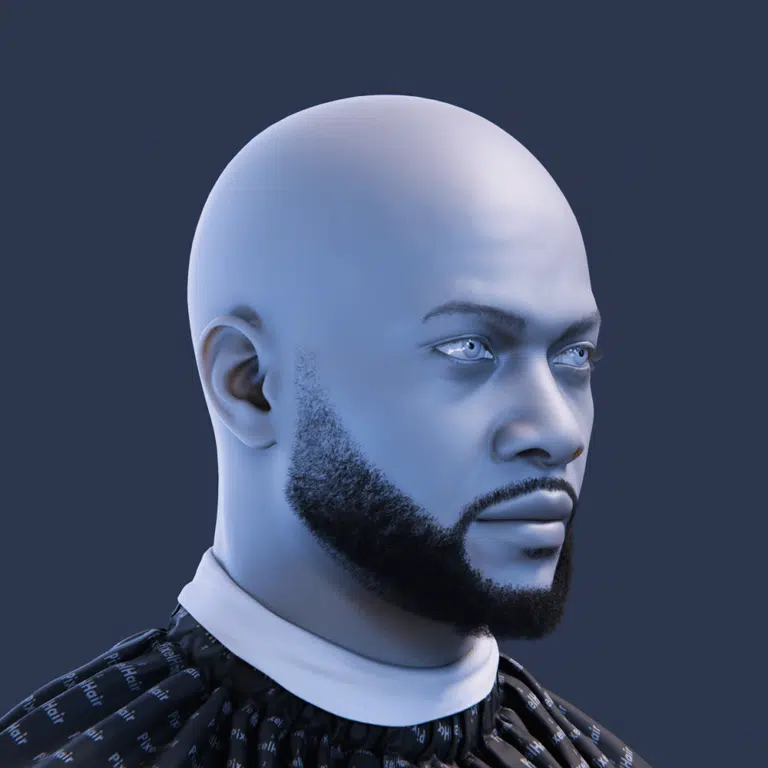
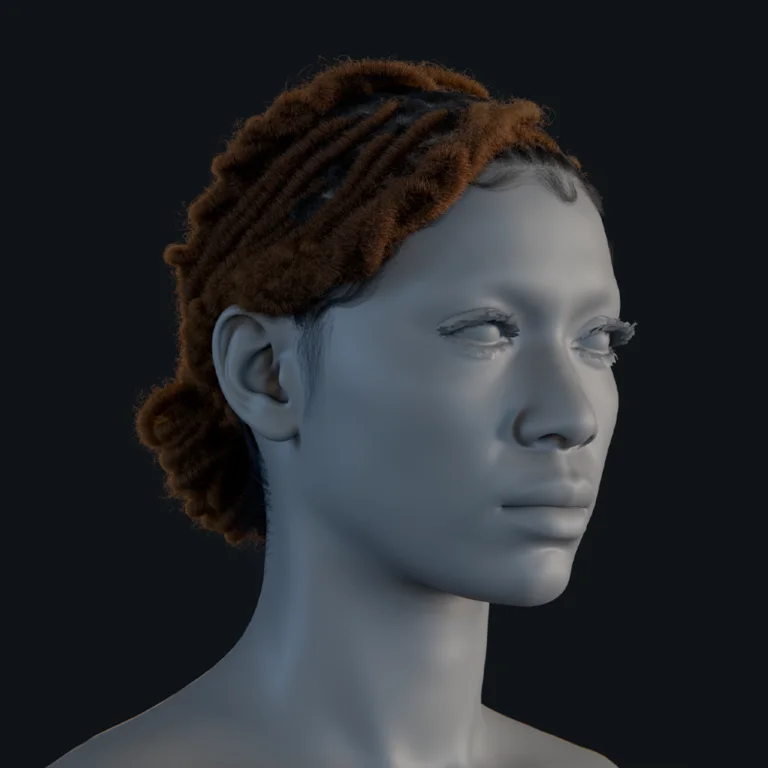
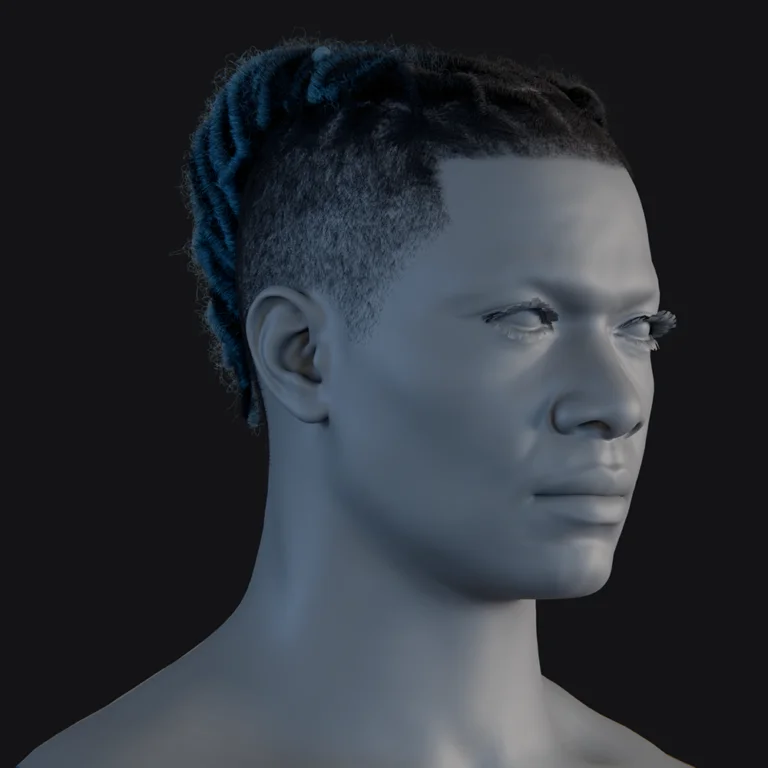
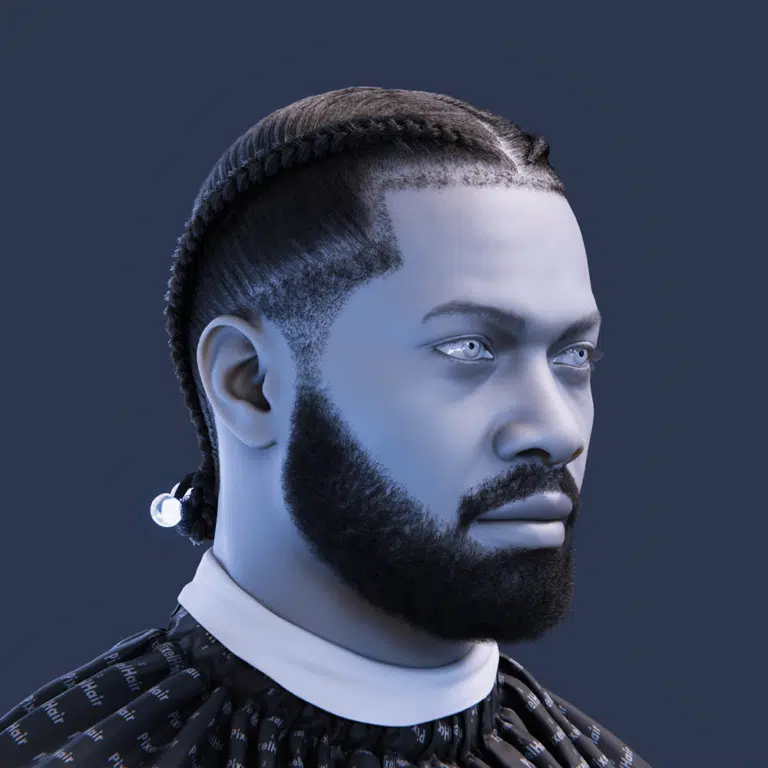
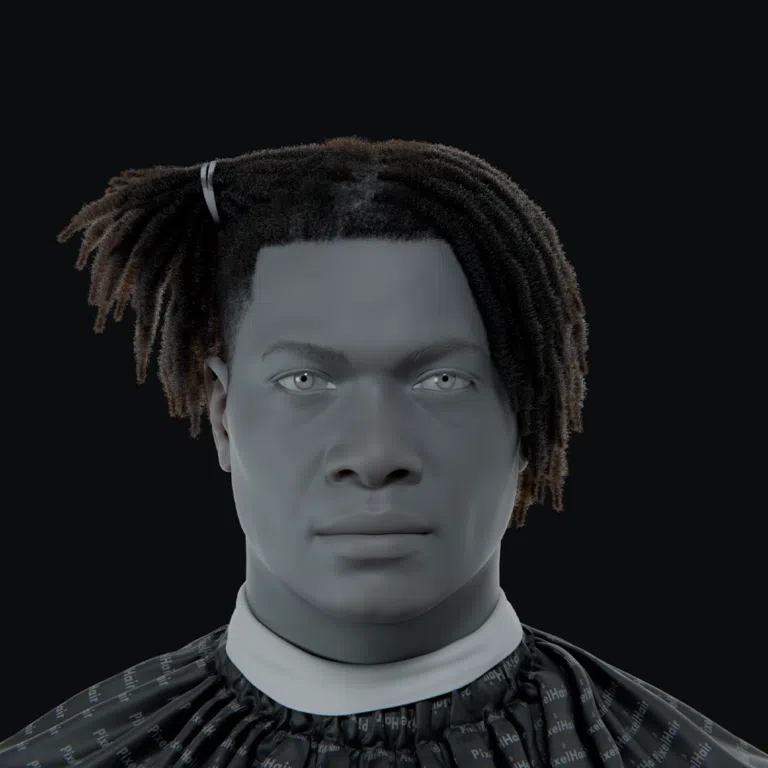
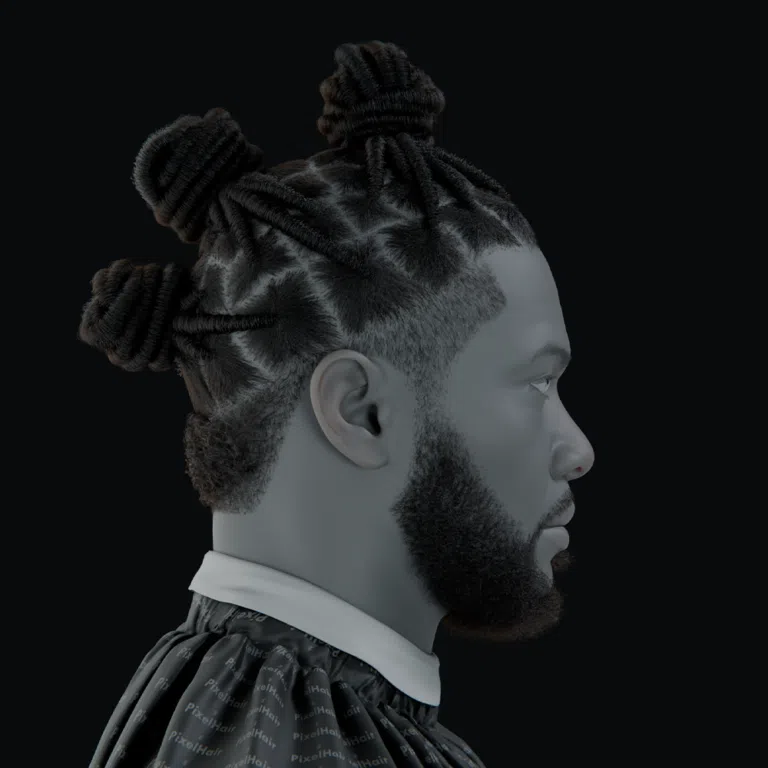
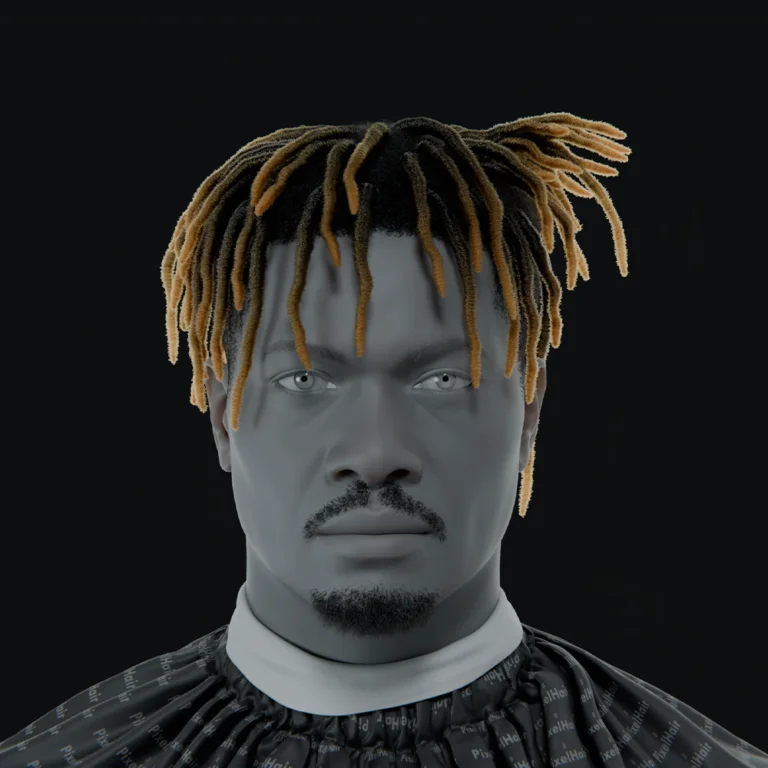
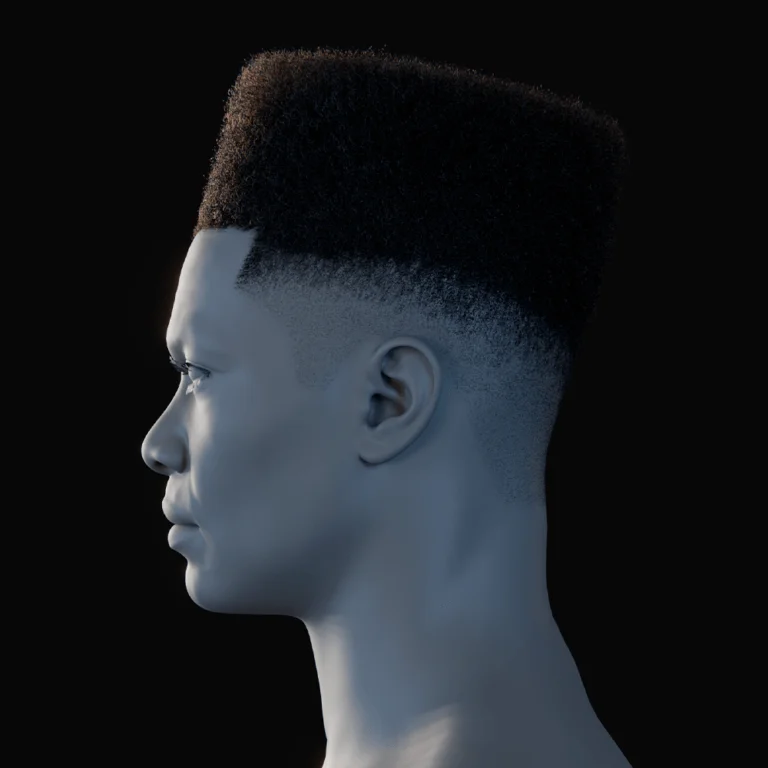
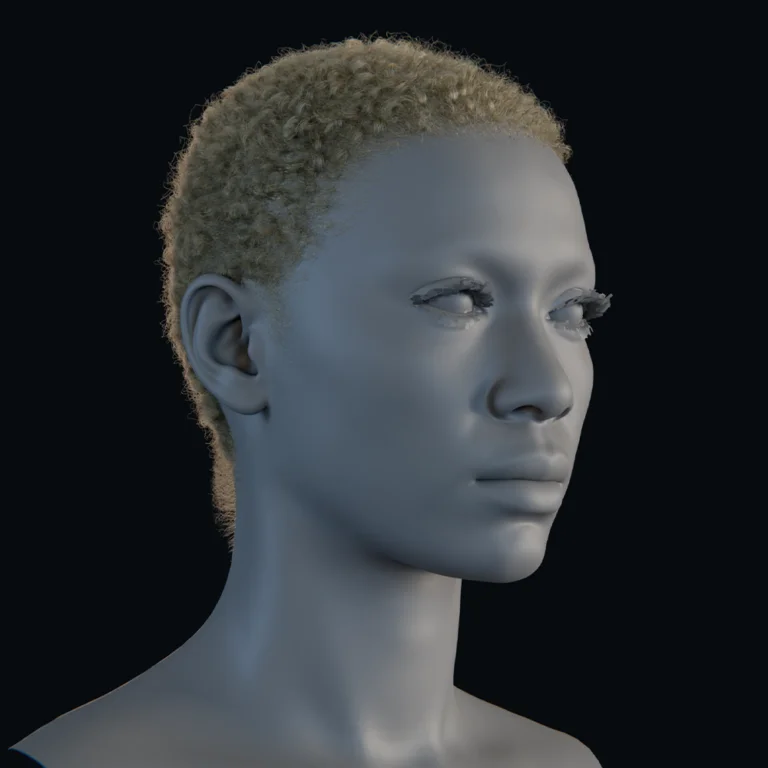
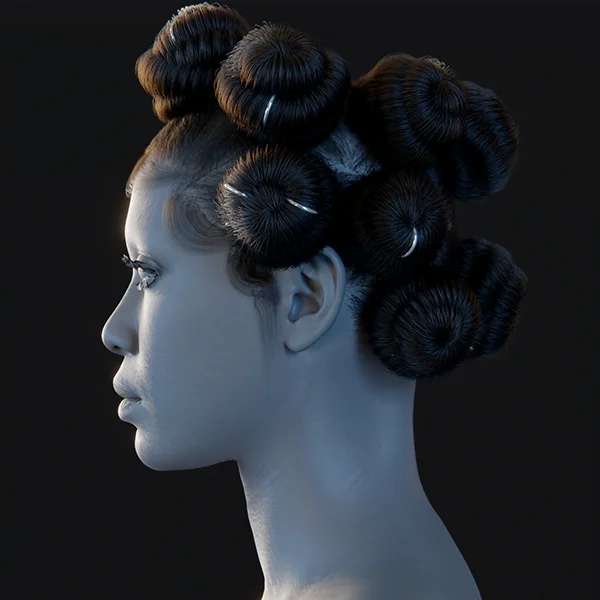
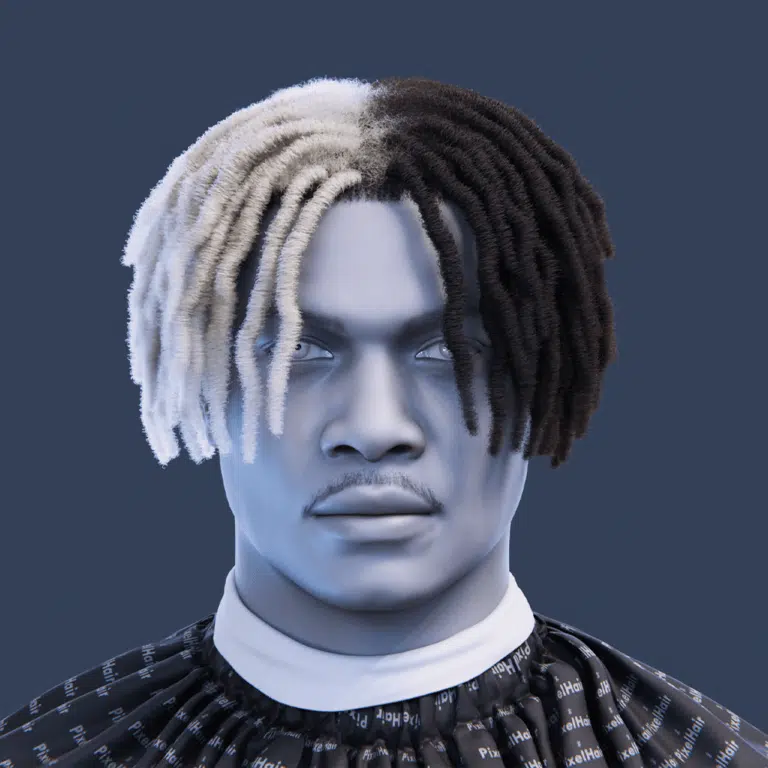
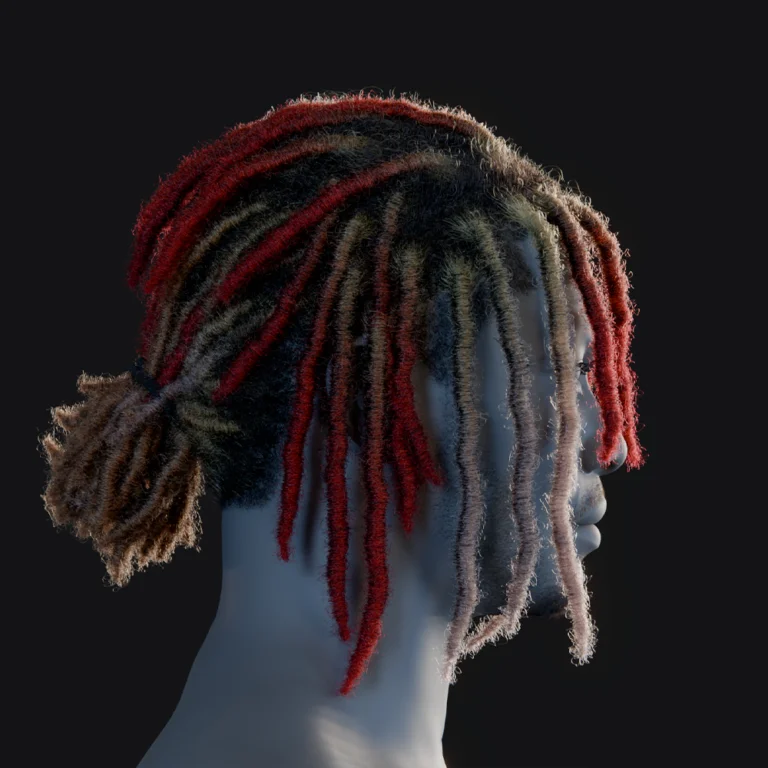
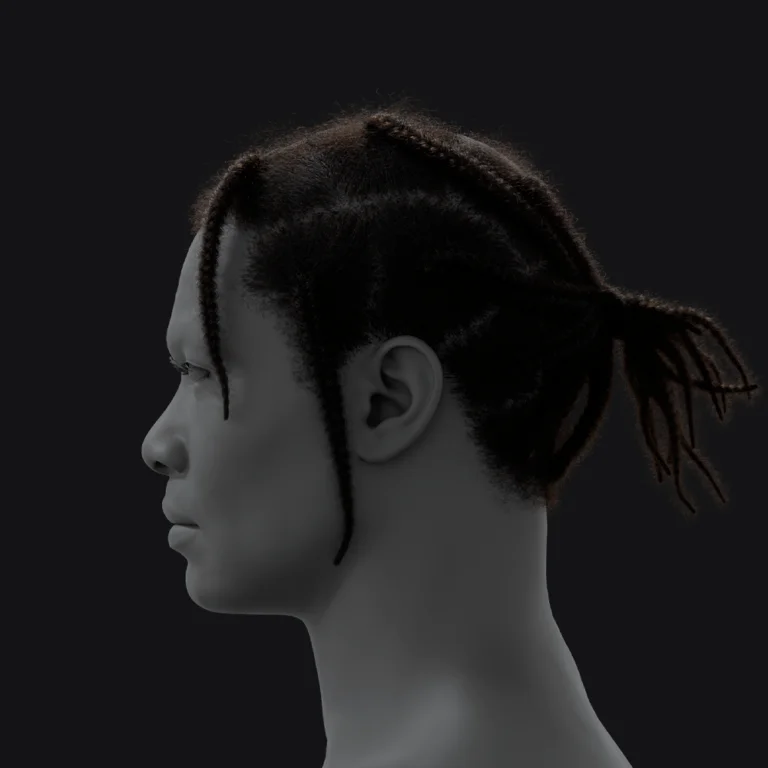
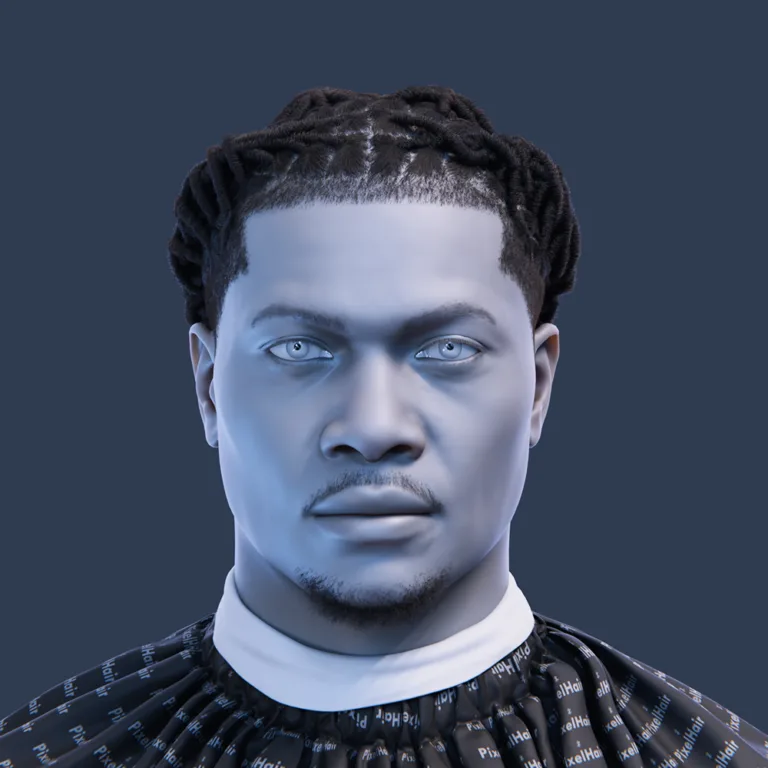
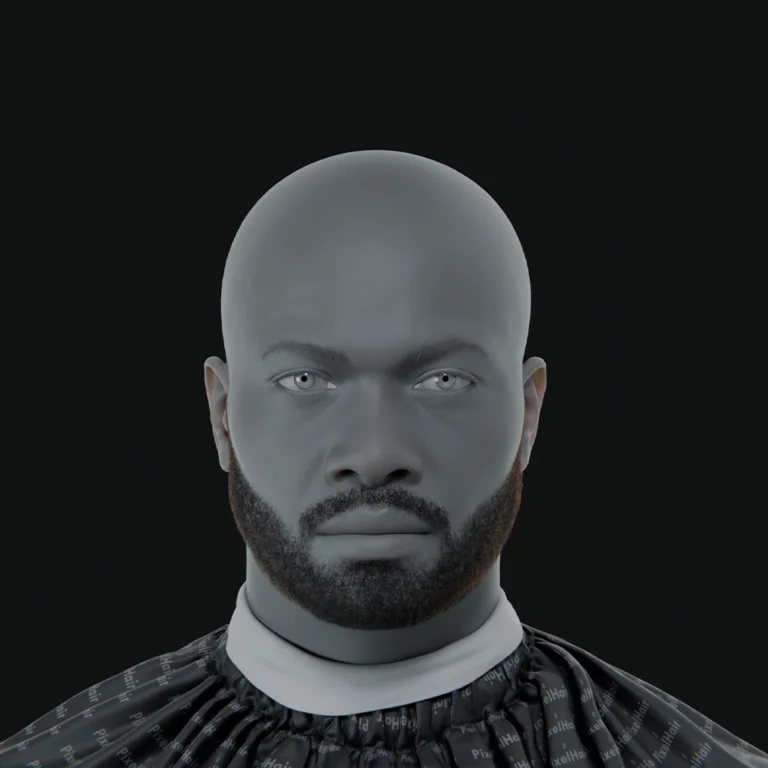
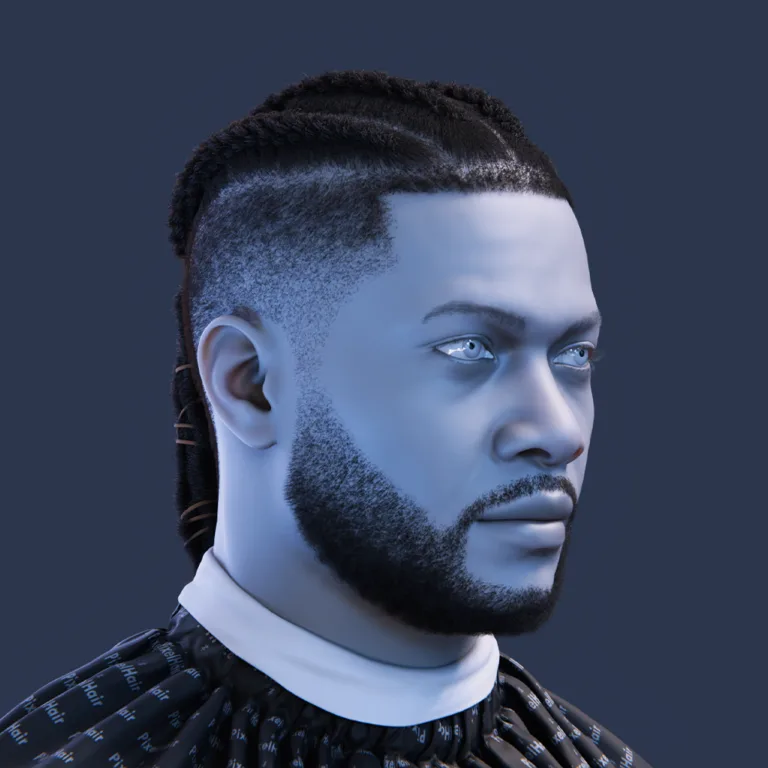
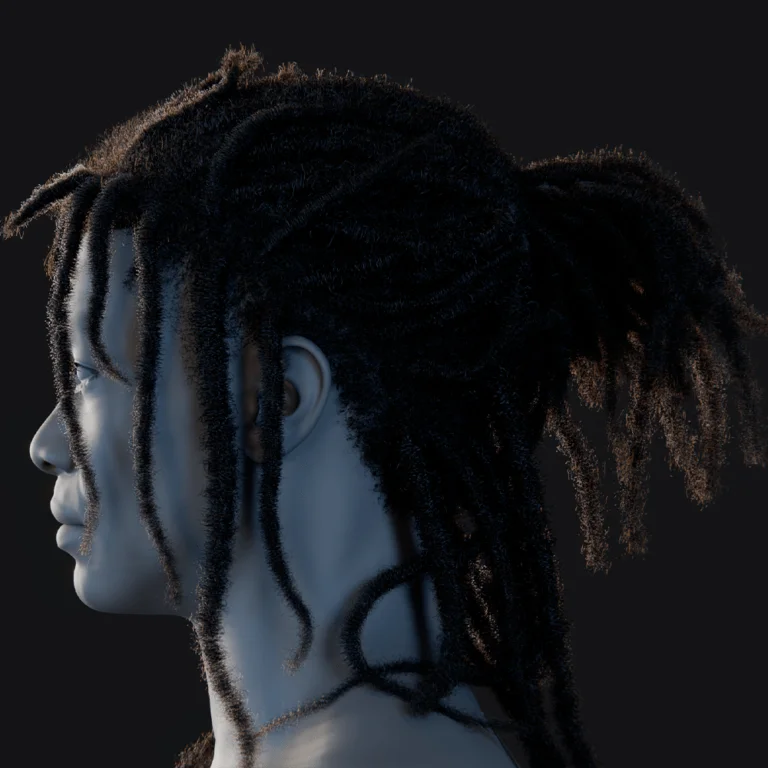
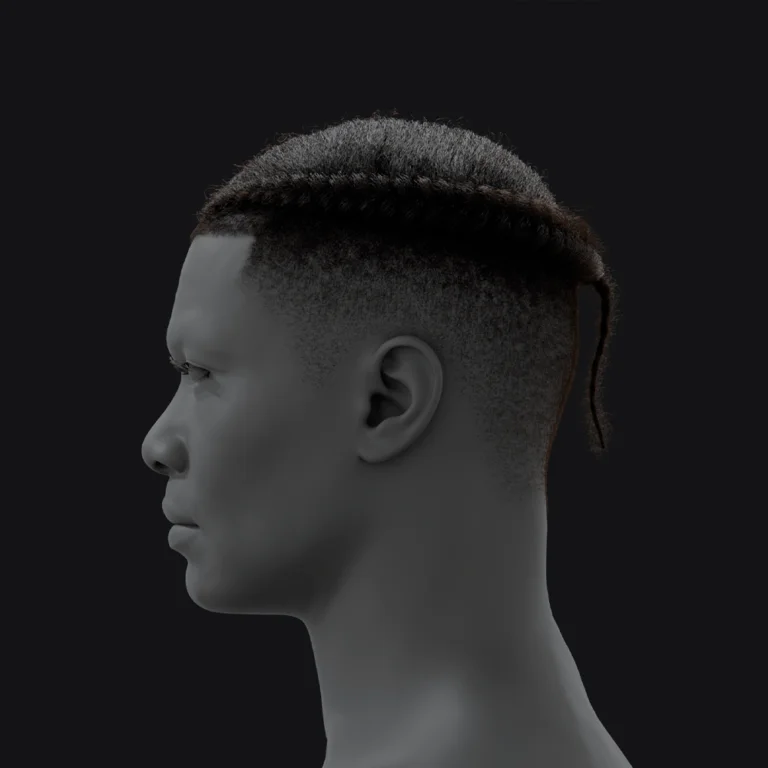
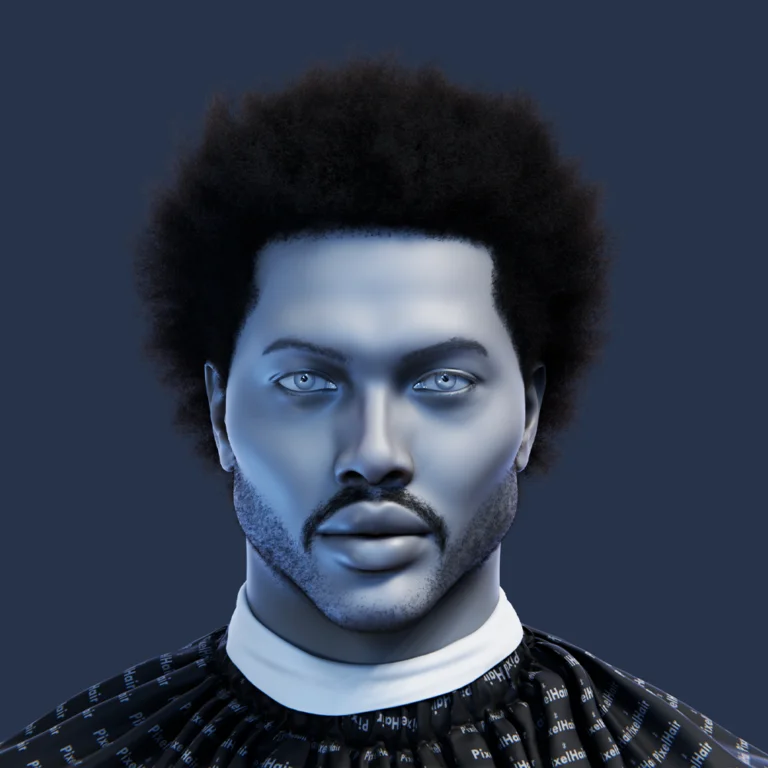
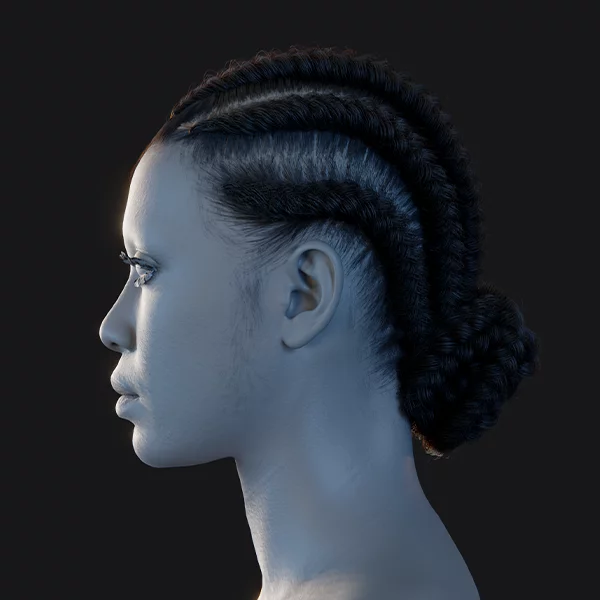
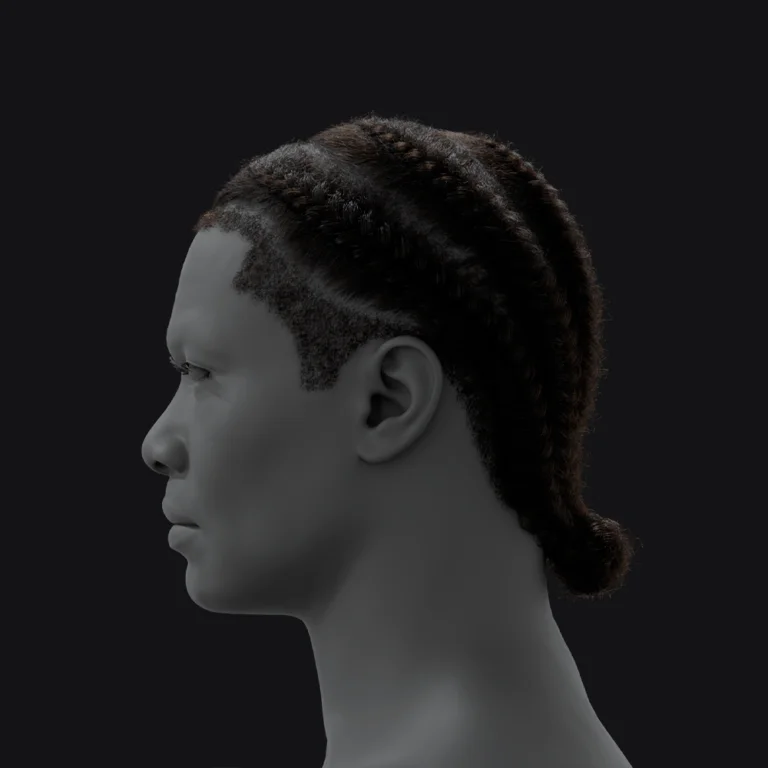
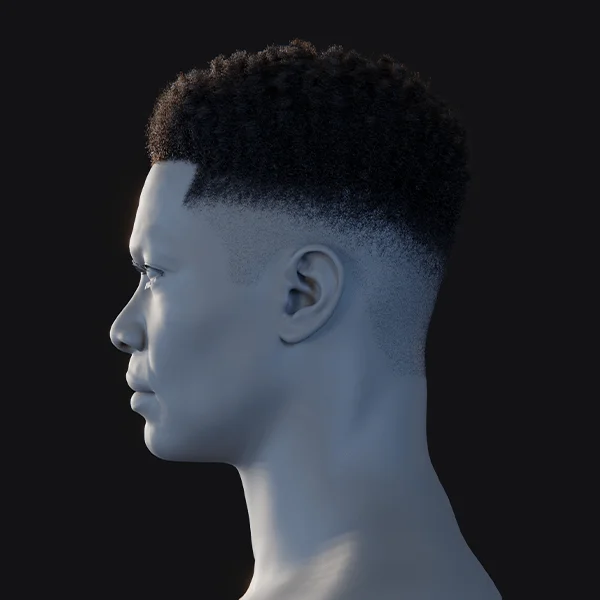
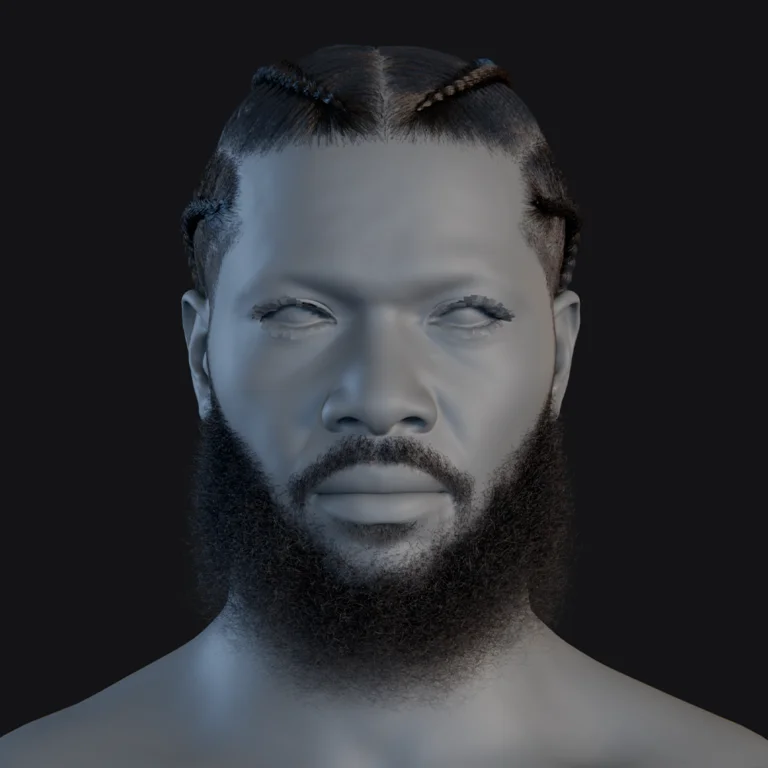
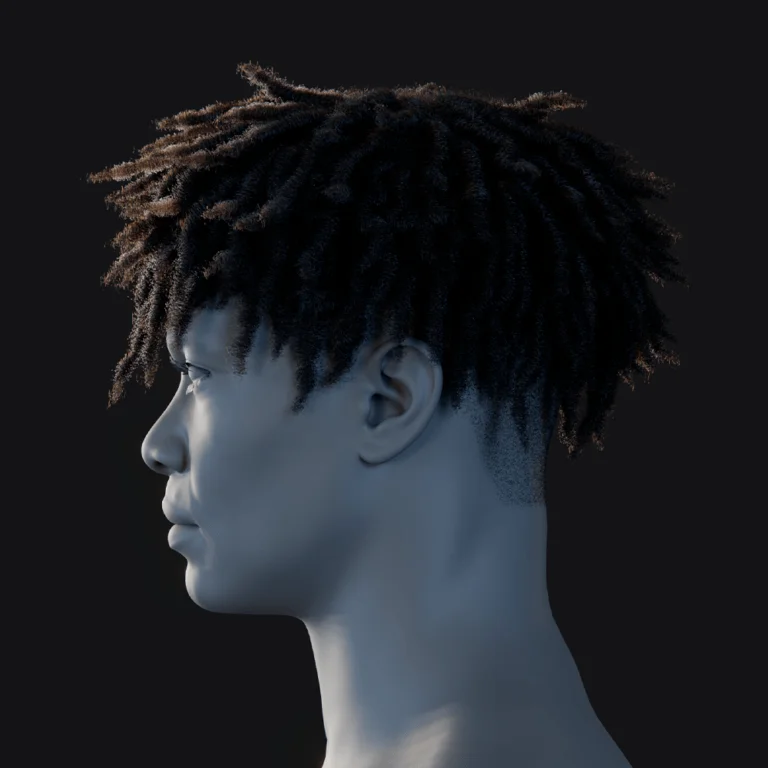
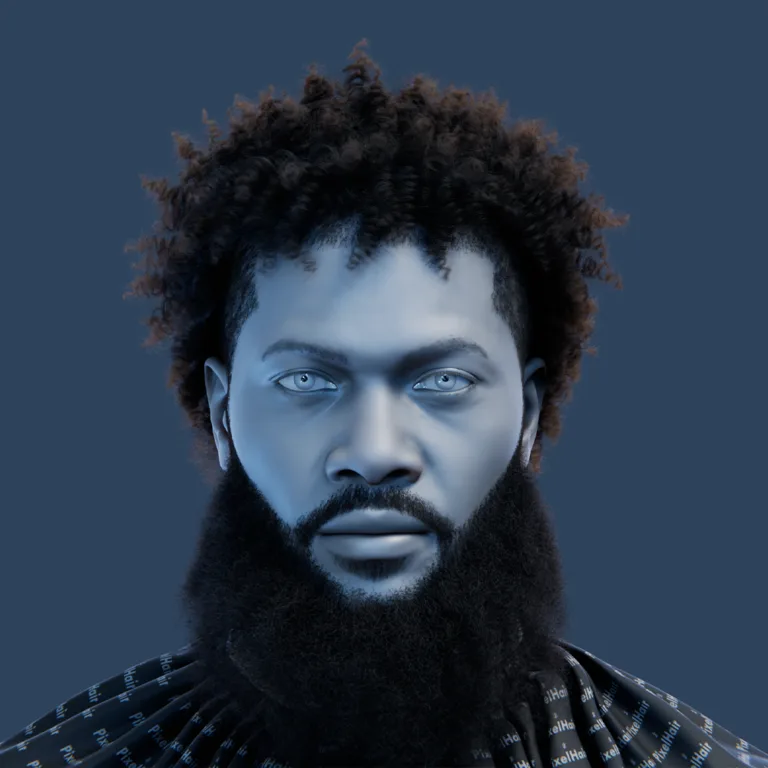
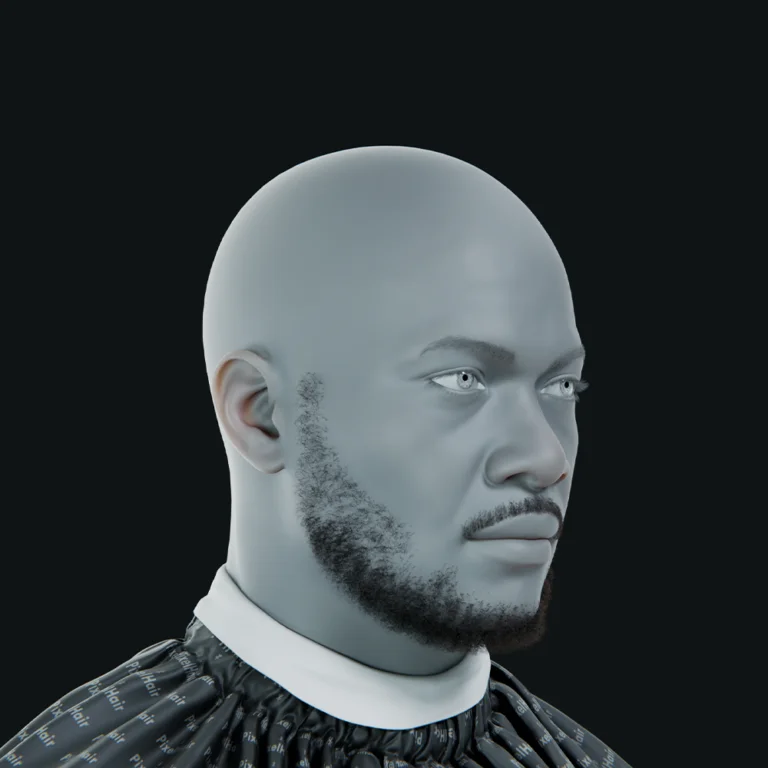
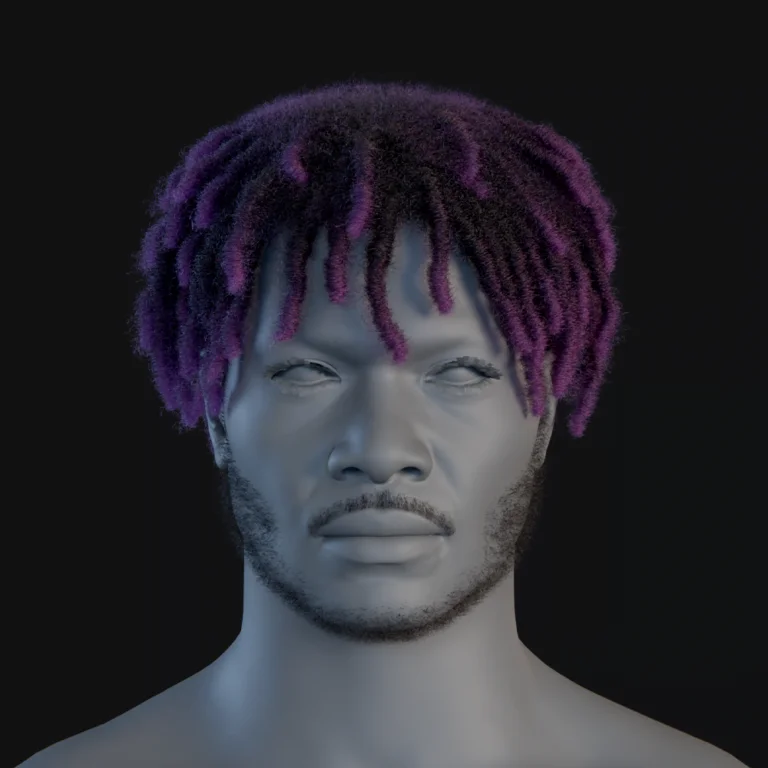
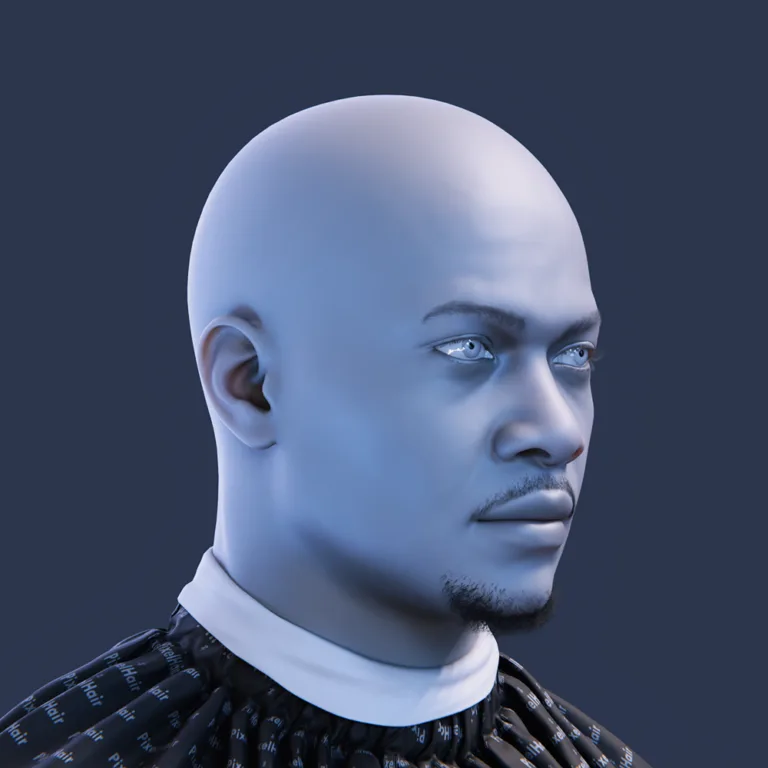
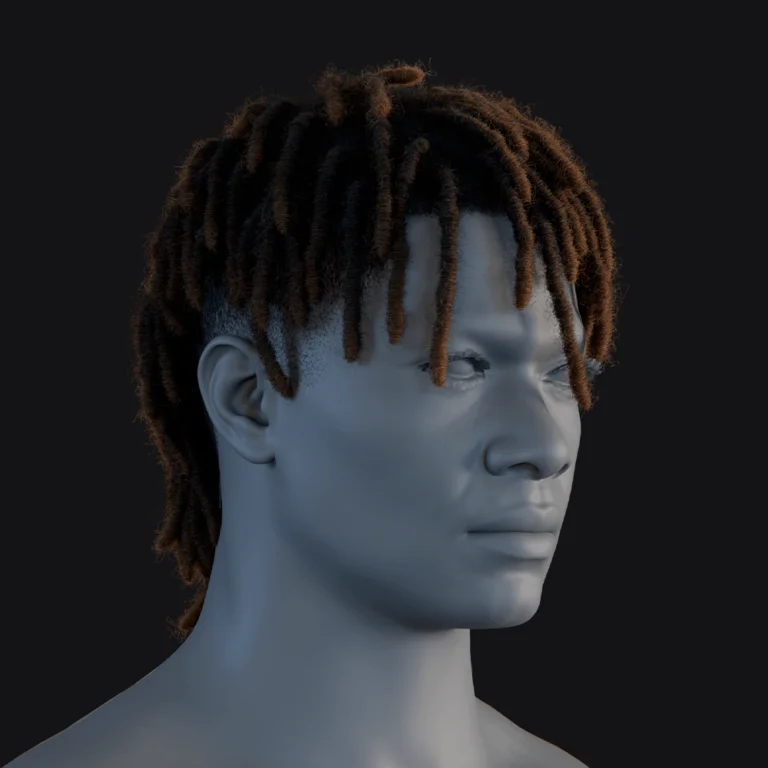
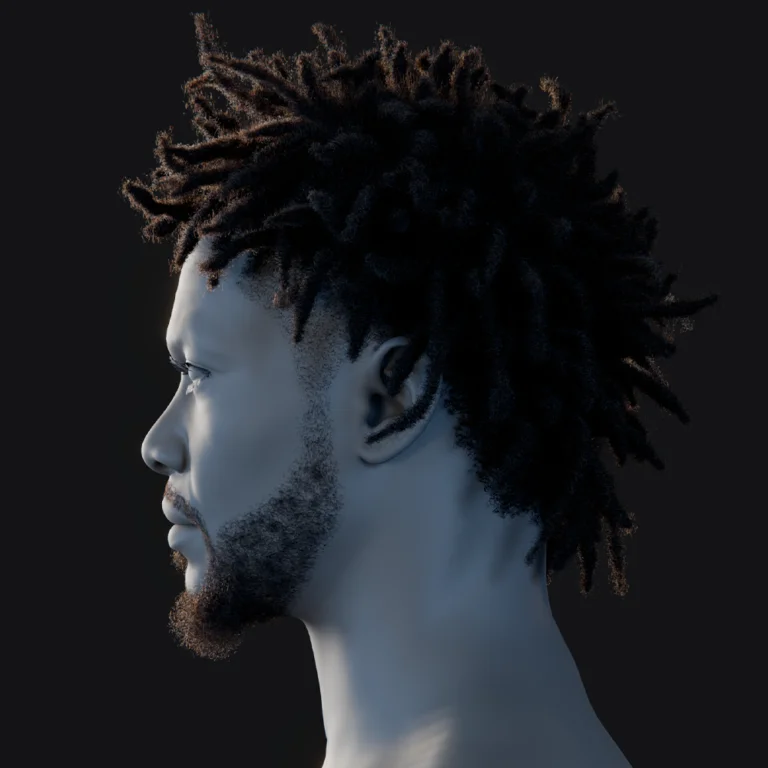
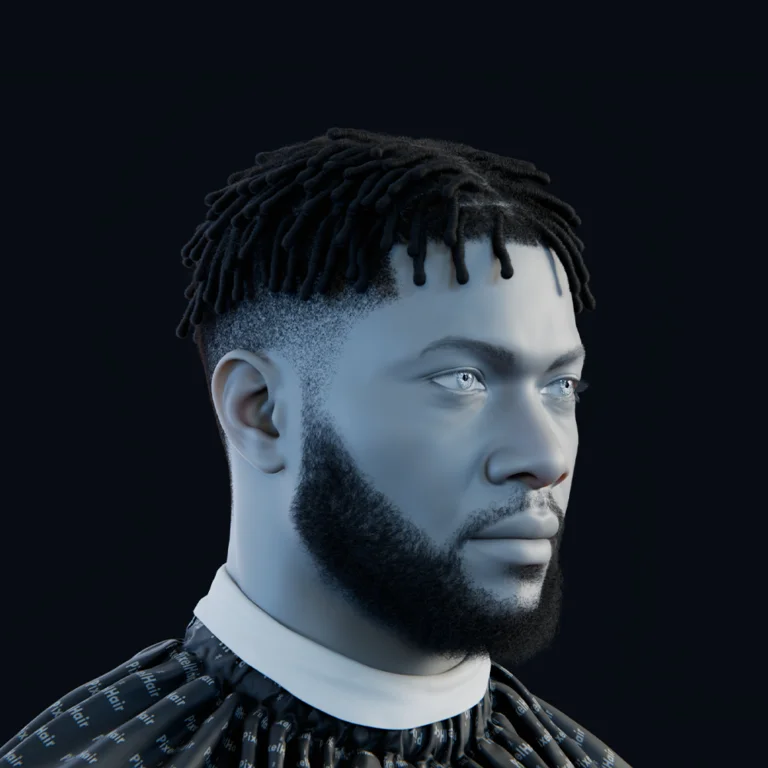
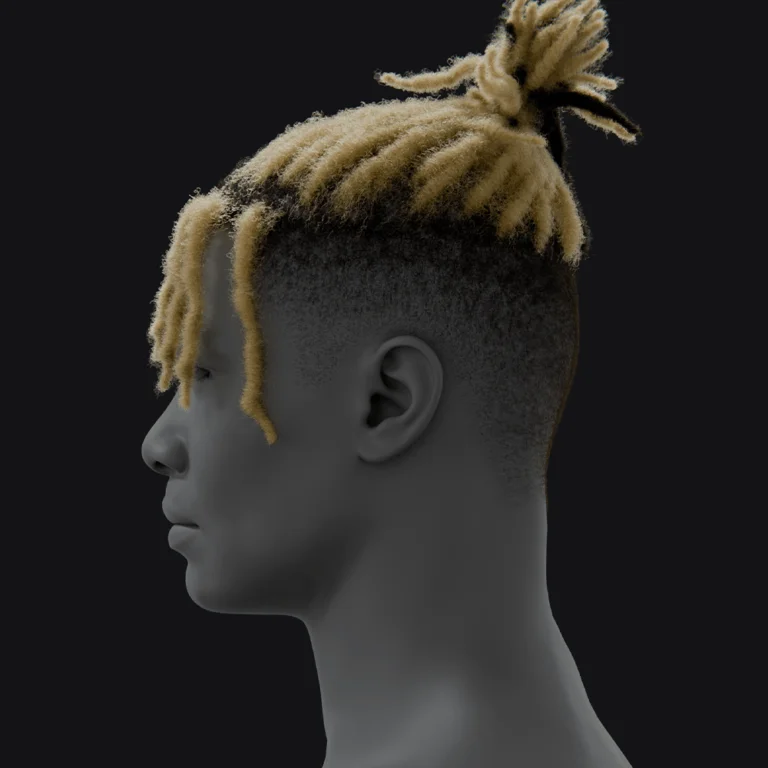
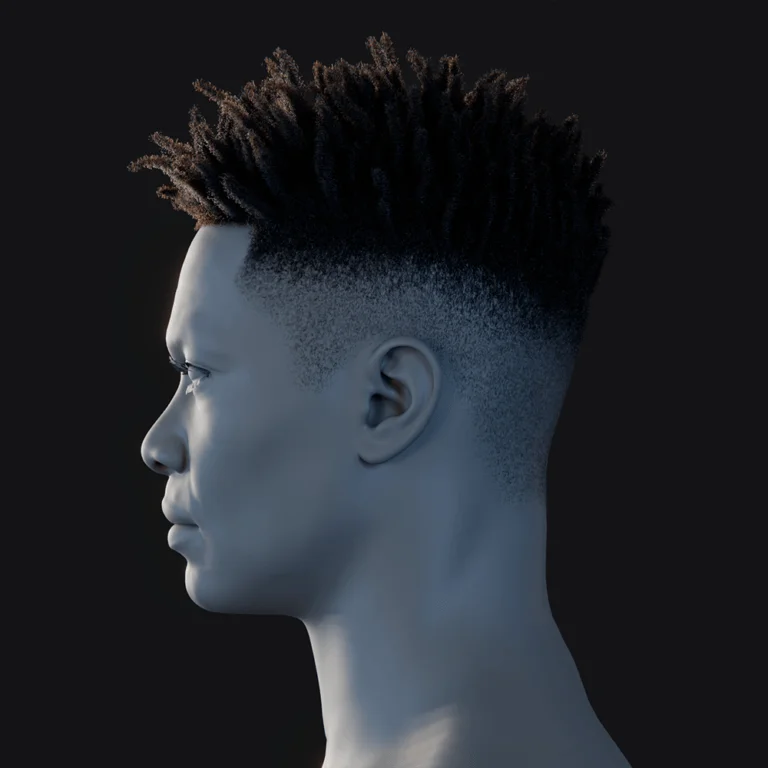
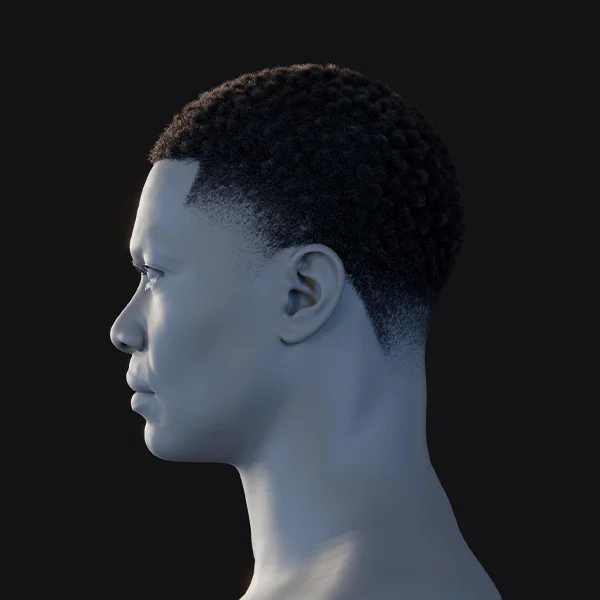
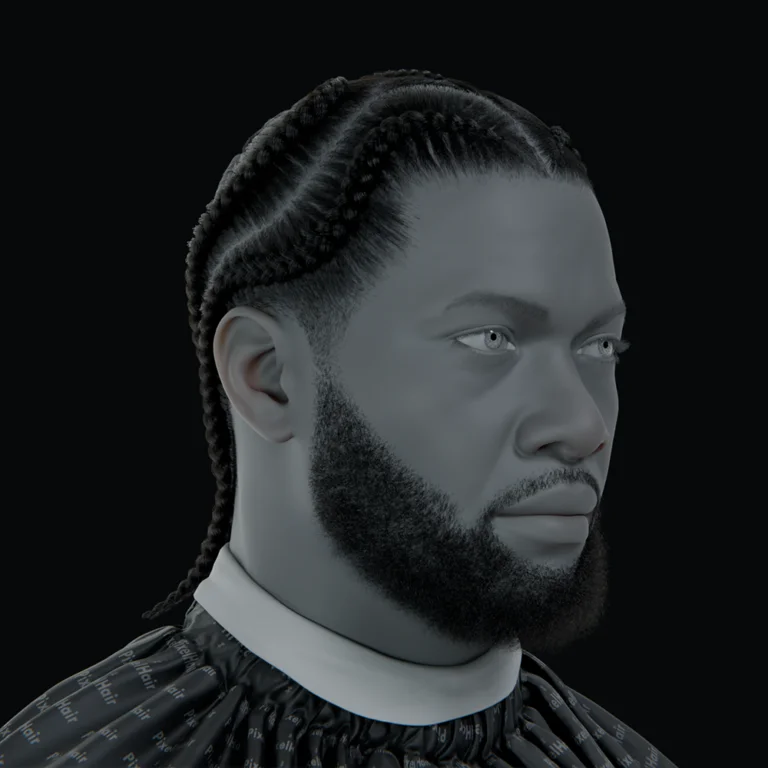
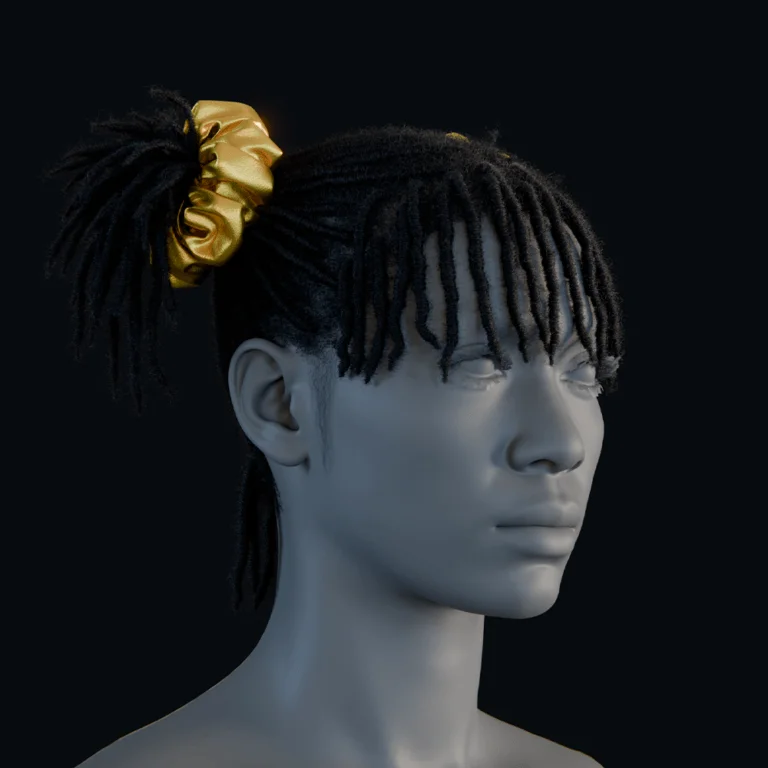
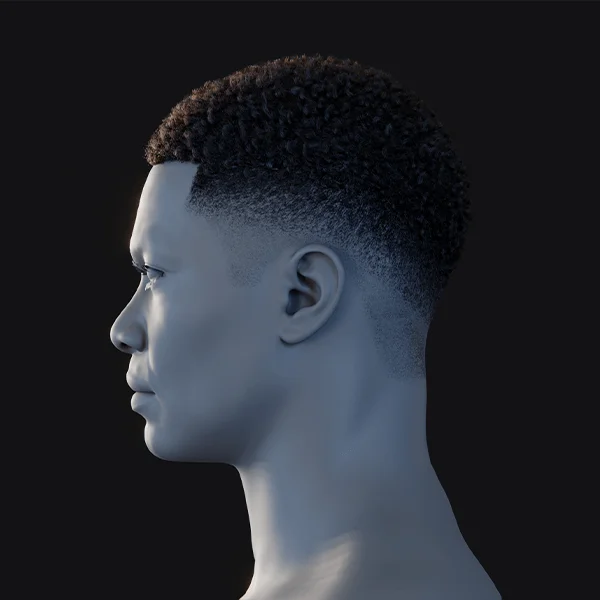
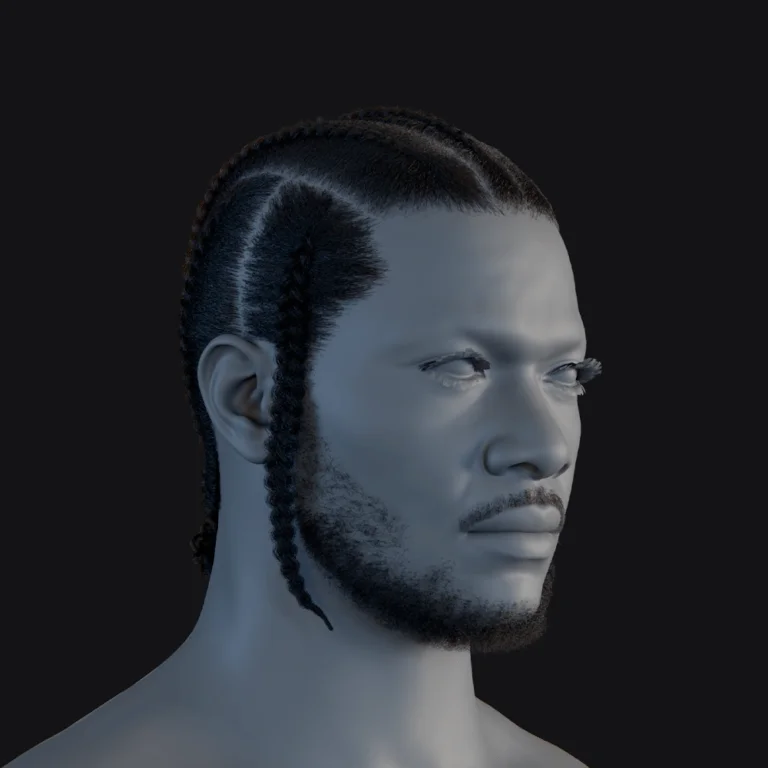
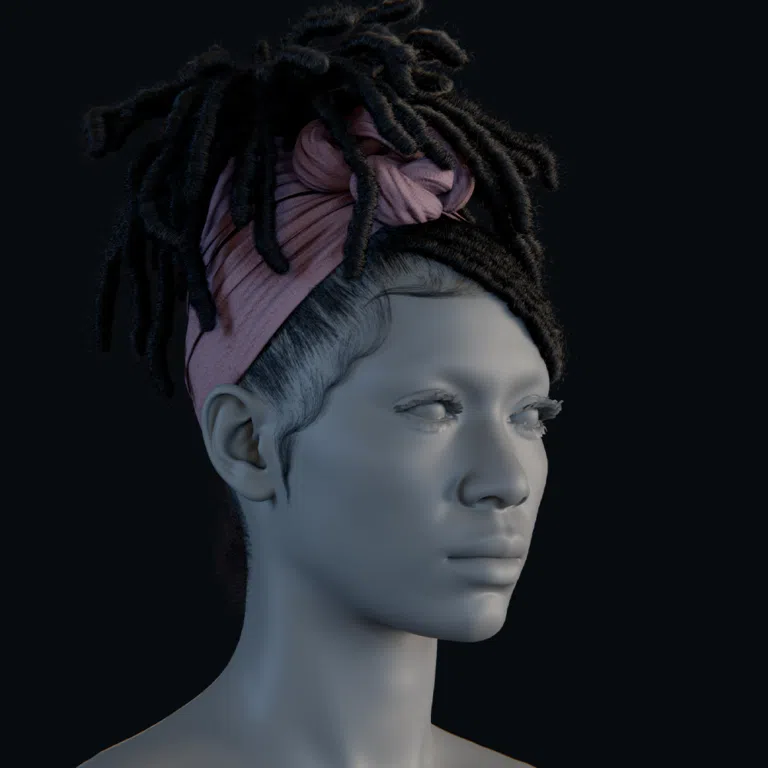
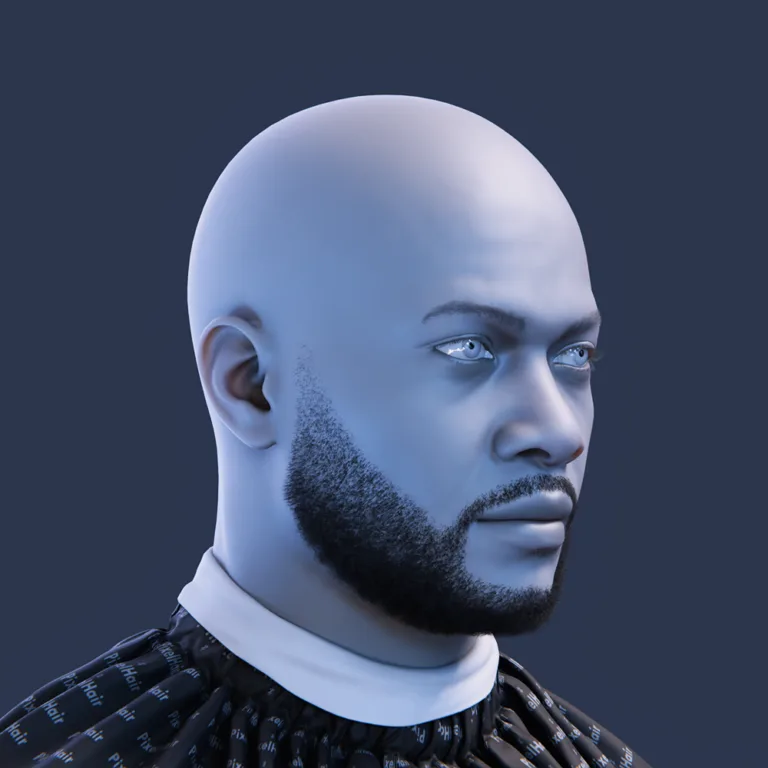
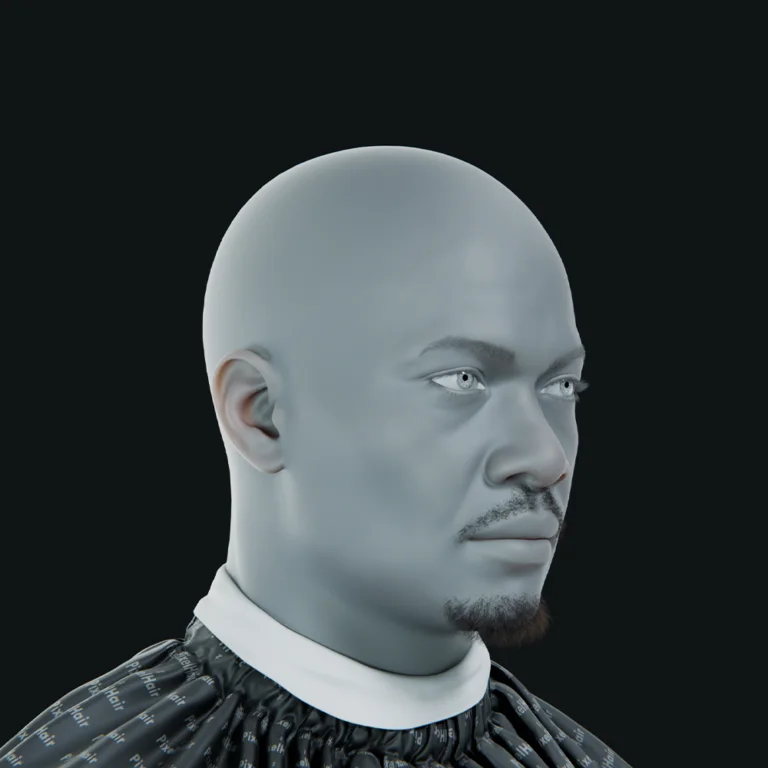
PixelHair is a third-party library by Yelzkizi offering hundreds of Blender-based hairstyles, particularly diverse and African styles. Unlike ready-to-use Fab grooms, PixelHair uses a hair cap and shrink-wrap system in Blender for custom fitting and styling before being exported to Unreal as an Alembic groom. It offers more creative control for users comfortable with external 3D software.
View Keeper MetaHuman Turntable Renders (showcasing Fab Outfits and Hair)
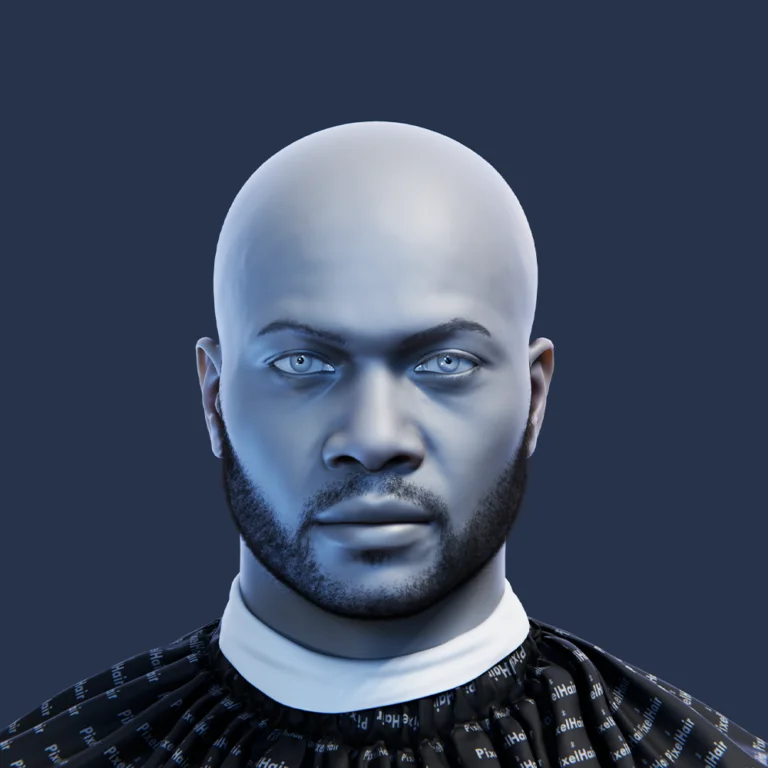
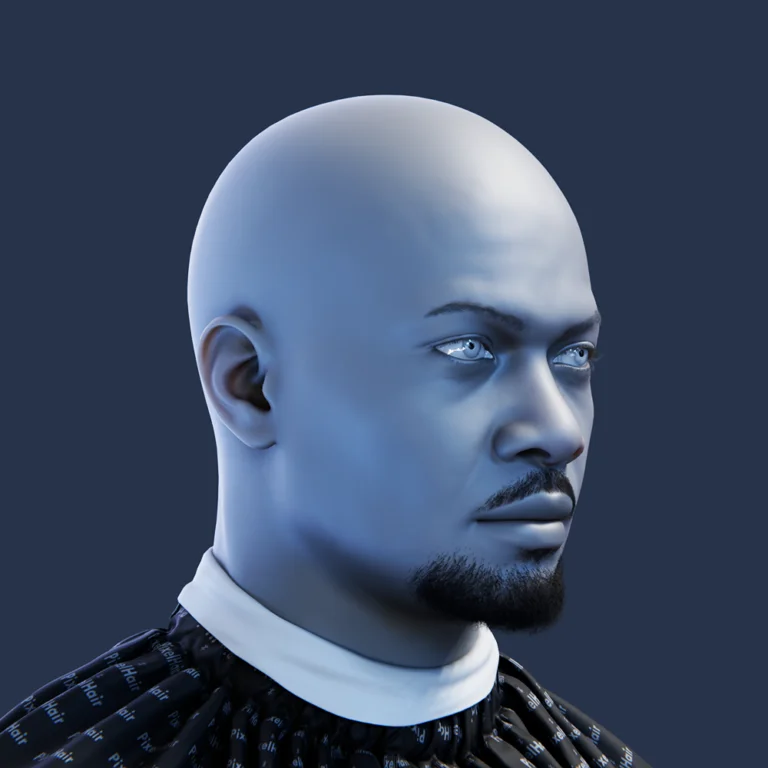
The View Keeper is a Blender addon by Yelzkizi that manages multiple camera angles on a single camera. It is used to streamline the creation of character turntables and batch renders. Artists can export their outfitted MetaHumans to Blender and use View Keeper to capture consistent front, side, and back views for professional portfolio presentations.

Frequently Asked Questions (FAQs)
Below are answers to some frequently asked questions about using the new MetaHuman clothing and hair from Fab:
- Where do I find MetaHuman clothing and hair assets on Fab?
On Fab, go to the MetaHuman channel (on the website’s Discover page or via the Fab plugin’s filters). This channel contains all MetaHuman-compatible assets, including outfits and hairstyles. You can also search and use filters for product type “MetaHuman” to locate these assets easily. - Do MetaHuman Fab assets work with Unreal Engine 5.5 or earlier?
No – MetaHuman assets from Fab require Unreal Engine 5.6 or above. The MetaHuman format (.mhpkg) is not supported in 5.5 or older versions. You’ll need to upgrade to UE5.6 to use these new clothing and hair assets. - How do I import and install a MetaHuman outfit or hair from Fab into my project?
The easiest way is to use the Fab plugin in UE5.6: search the asset in the Fab window, click “Add to Project,” and it will download and import automatically. Alternatively, download the .mhpkg from Fab.com and drag it into your Content Browser – UE5.6 will unpack it and add the assets to your project. Once imported, open your MetaHuman in the editor and drag the new asset into the appropriate wardrobe slot to apply it. - What is?
a .mhpkgfile and how do I use it? - Why are my imported MetaHuman outfit’s textures missing or the asset not visible?
This usually happens if the asset wasn’t placed in the correct folder or fully imported. Make sure you followed the steps: for example, outfit .mhpkg files should be imported into an “Outfits” folder (the engine does this by default). If you manually moved files, materials might have lost references. The fix is to re-import using the proper method (or verify the folder structure matches the packaging guidelines). Using the Fab Add to Project is the safest route to avoid missing textures, as it places everything correctly. - How can I tell if an outfit on Fab is parametric (resizable) or skeletal?
Check the asset’s Technical Details or description on the Fab listing. Parametric outfits are often labeled as “Parametric” or “Chaos Outfit” and usually mention being resizable or targeting multiple body types. Skeletal clothing might be described as “Skeletal Mesh” and could list a specific body or say it’s not auto-resizing. Also, the presence of multiple included sizes in the details is a hint it’s parametric. - Will MetaHuman outfits adapt to different body types automatically?
Parametric outfits will – when you wear a Chaos Outfit on a MetaHuman, it auto-selects the closest size for that body and fits to it. So standard body variations (thin, athletic, heavy, etc.) are handled. However, skeletal clothing will not adapt; it stays the size it was made for. If you put a skeletal outfit on a very different body, you’ll likely need adjustments or a different asset made for that body. - How do I create my own MetaHuman hair or clothing to use in the wardrobe?
Creating your own requires using DCC tools and the MetaHuman SDK:- For hair, Epic provides plugins for Maya and Houdini to create strand-based grooms that are MetaHuman-compatible. You can use those to author hair and then import it as a groom, bind it, and add to wardrobe.
- For clothing, you can either model and rig a garment to the MetaHuman skeleton (for skeletal clothing) or use the Chaos Cloth tools to create a parametric outfit. Epic’s documentation includes a “Creating Parametric Clothing” guide for Chaos outfits. Once your asset is done, use the MetaHuman Manager in UE5.6 to verify and package it into a .mhpkg for your own use or for Fab.
- In all cases, ensure you follow the MetaHuman asset structure (e.g., correct folder names like “Outfits”, “Grooms”, and include a Wardrobe Item asset). When done, you can add your item to the wardrobe by dragging it into the editor’s Hair & Clothing panel as we did with Fab assets.
- Why do my MetaHuman’s feet sink below the ground in 5.6?
This is due to the base skeleton offset removal in UE5.6. MetaHumans no longer have the 2cm floor offset by default, so they align at ground level, making shoes appear sunk in. To fix it, edit your MetaHuman’s blueprint: select the Body component and apply a small upward Component Offset (e.g., 2 cm) to raise the character. This will put the shoes back on top of the ground. You only need to do this if it looks wrong – it’s essentially adjusting for shoe sole height. - What is PixelHair and can I use it for MetaHumans?
PixelHair is a collection of pre-made 3D hairstyles by Yelzkizi, aimed at Blender users, and yes, you can use them for MetaHumans. PixelHair provides Blender hair assets (with particle/curve hair systems) that you can customize and then export to Unreal. The hair comes with a high-density cap and shrinkwrap setup to fit any head easily. After styling/fitting in Blender, you export it as a groom and import into UE, creating a groom binding for your MetaHuman. Many MetaHuman creators use PixelHair to get unique hairstyles not yet available on Fab. It’s an external workflow (not a one-click like Fab), but it offers tremendous variety and control. Once imported and bound, a PixelHair groom works like any MetaHuman hair – you can add it to the wardrobe and apply it to your characters.

Conclusion
Unreal Engine 5.6 has significantly expanded what’s possible with MetaHumans, making it easier than ever to dress up your digital humans with new looks. By leveraging the Fab marketplace’s MetaHuman channel, creators can quickly find high-quality clothing and hairstyles tailored for MetaHumans and integrate them with just a few clicks. The introduction of the .mhpkg format and the in-editor MetaHuman Creator tools mean that adding a new outfit or hair to a character is a seamless experience – no more manual tweaking of meshes or materials; it “just works” out of the box.
We covered how to import MetaHuman-compatible Fab assets and use the Hair & Clothing wardrobe interface to apply them, as well as how to address common issues like fit and clipping. Understanding the distinction between parametric outfits and skeletal clothing is key to choosing the right asset for your needs – whether you want the ease of auto-fitting cloth or the precision of a specifically rigged garment. And with features like Source Size Override, you even have artistic control over how snug or loose outfits appear, allowing for personal touches in your character design.
We also touched on advanced workflows and tools: PixelHair offers an alternate path for those wanting a vast library of hairstyle options and the ability to fine-tune hair in Blender before bringing it into UE. It’s a great complement to Fab’s offerings, especially as the community around MetaHumans continues to grow. On the presentation side, tools like View Keeper help showcase your creations in the best light, because after spending time customizing characters, you’ll want to present them professionally.
Overall, the ecosystem for MetaHuman content is richer than ever. Epic’s Fab marketplace simplifies finding and sharing character assets, and UE5.6’s MetaHuman framework makes using those assets straightforward for artists at all levels. Whether you’re a beginner just swapping a shirt on a MetaHuman, or an advanced user creating a fully custom character with bespoke hair and outfit, the combination of Fab and UE5.6 provides a powerful, user-friendly pipeline.
Now it’s your turn – dive into Fab, grab some new outfits and hairstyles, and give your MetaHumans a fresh look! With a few drags and clicks, you’ll have unique characters ready for animation, cinematics, games, or any creative project. Happy MetaHuman customizing!

Sources and Citations
- Epic Games – MetaHumans on Fab Documentation:
- Epic Games – Buying MetaHumans from Fab:
- Epic Games – Hair and Clothing Controls Documentation:
- Epic Games – Tailoring Your Own Wardrobe Items:
- Epic Games – Base Skeleton Offset Update:
- Epic Developer Community Forums – Example Solution for Importing Outfit
.mhpkg: - Reddit Discussion – Clothing Clipping Fix Advice:
- Yelzkizi / RenderHub – PixelHair Overview:
- Yelzkizi – PixelHair Geometry Nodes Update:
- SuperHive Market – The View Keeper Addon:
Recommendations
- Astro Bot Creators Are Hiring for Their Next Game: Team Asobi Job Listings, New Project Details & What It Means for PlayStation Fans
- How do I set a camera as the active camera in Blender?
- Dreamlight Valley: Springtime Floating Festival Event Guide (All Puzzles, Rewards & Solutions)
- Ahoge Hair: Meaning, Cultural Significance, and 3D Modeling Techniques
- King’s Quest: Complete Guide to the Games, Characters, Story, and Walkthroughs
- Xbox Promises Gears of War: E-Day Exclusivity is Not a Limited-Time Fake Out
- Blender Add-Ons for Customizable Procedural Clouds: Best Tools for Volumetric Sky, Cloudscapes, and Fast Art Direction
- Adobe Releases Photoshop 27.7: New AI Tools and Features
- Ace Combat 8 Wings of Theve Receives New PEGI Rating Ahead of Release
- How to Reduce Topology in Blender: Decimate, Remesh, and Retopology Methods to Lower Polycount