
In This Article (23 sections)
Why camera management is critical for studios using Blender in multi-shot productions
Effective camera management is vital for studios handling multi-shot productions in Blender to maintain continuity and efficiency. Without proper management, manually switching multiple cameras with varied settings (focal length, depth of field, aspect ratio) leads to cluttered scenes and errors, risking incorrect renders. Specialized add-ons streamline this by centralizing control, condensing camera setups into one interface, ensuring consistent output, and freeing teams to focus on storytelling, enhancing quality and workflow in professional Blender productions.

Best Blender camera add-ons for animation studios working on character-driven scenes
Animation studios rely on camera add-ons to enhance character-driven scenes in Blender, streamlining dynamic and cinematic workflows:
- The View Keeper: Stores multiple camera views (e.g., close-up, wide shot) in one camera, preserving render settings for rapid composition iteration.
- Camera Shakify: Adds realistic handheld shake or motion presets (e.g., Handycam run) to static shots, enhancing immersion in dialogue or action scenes.
- Add Camera Rigs: Built-in add-on offering dolly and crane rigs for smooth, professional camera moves like push-ins or arcs around characters.
- Shot Manager or Shot List: Organizes shots with named labels (e.g., “Hero Close-Up”), enabling quick tweaks and timing adjustments for multi-shot sequences.
These tools reduce clutter, ensure cinematic quality, and improve efficiency, with free options like Camera Shakify suiting small teams and paid tools like Shot Manager excelling in larger productions.
How The View Keeper helps animation teams manage camera switches in timeline-heavy projects
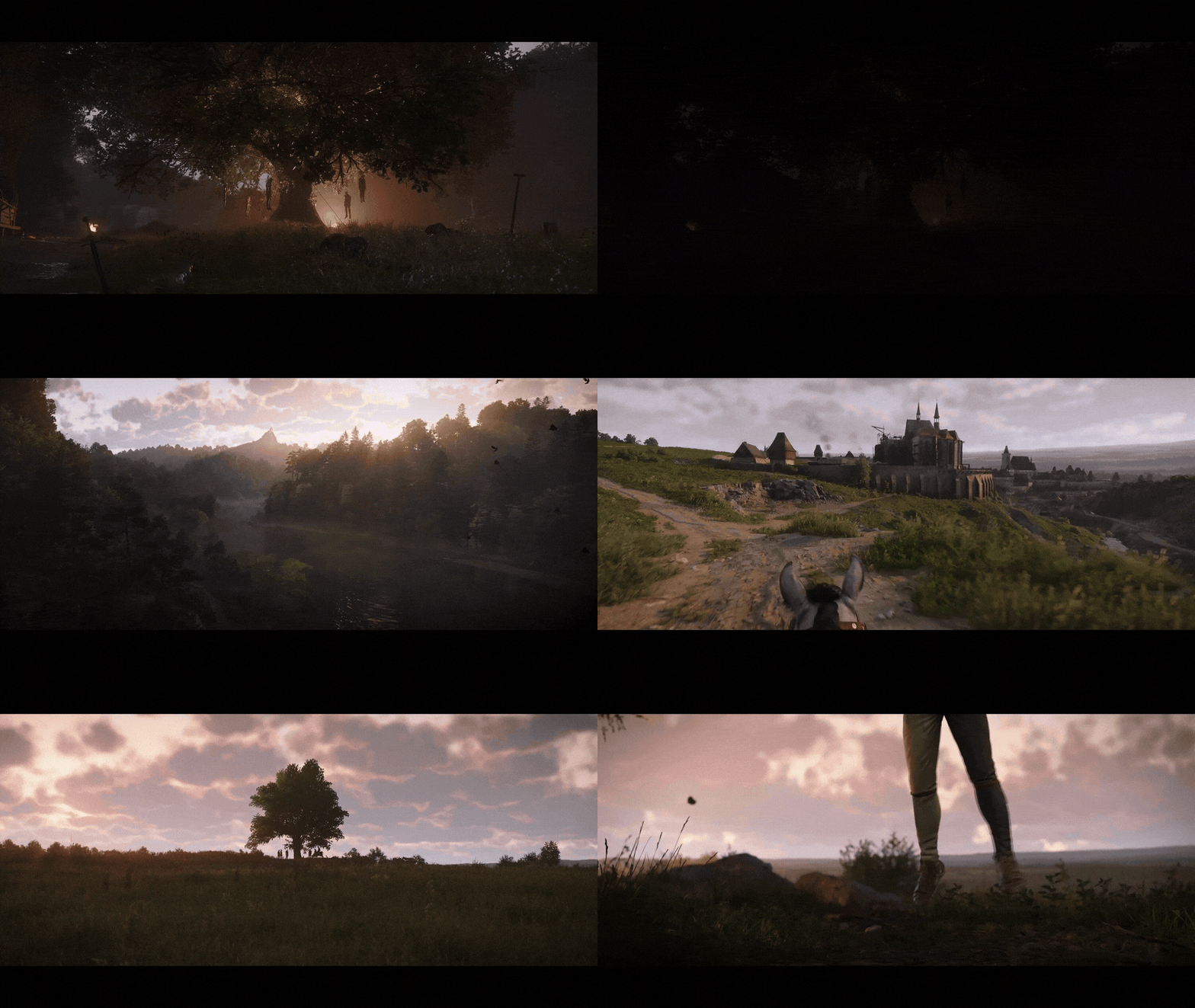
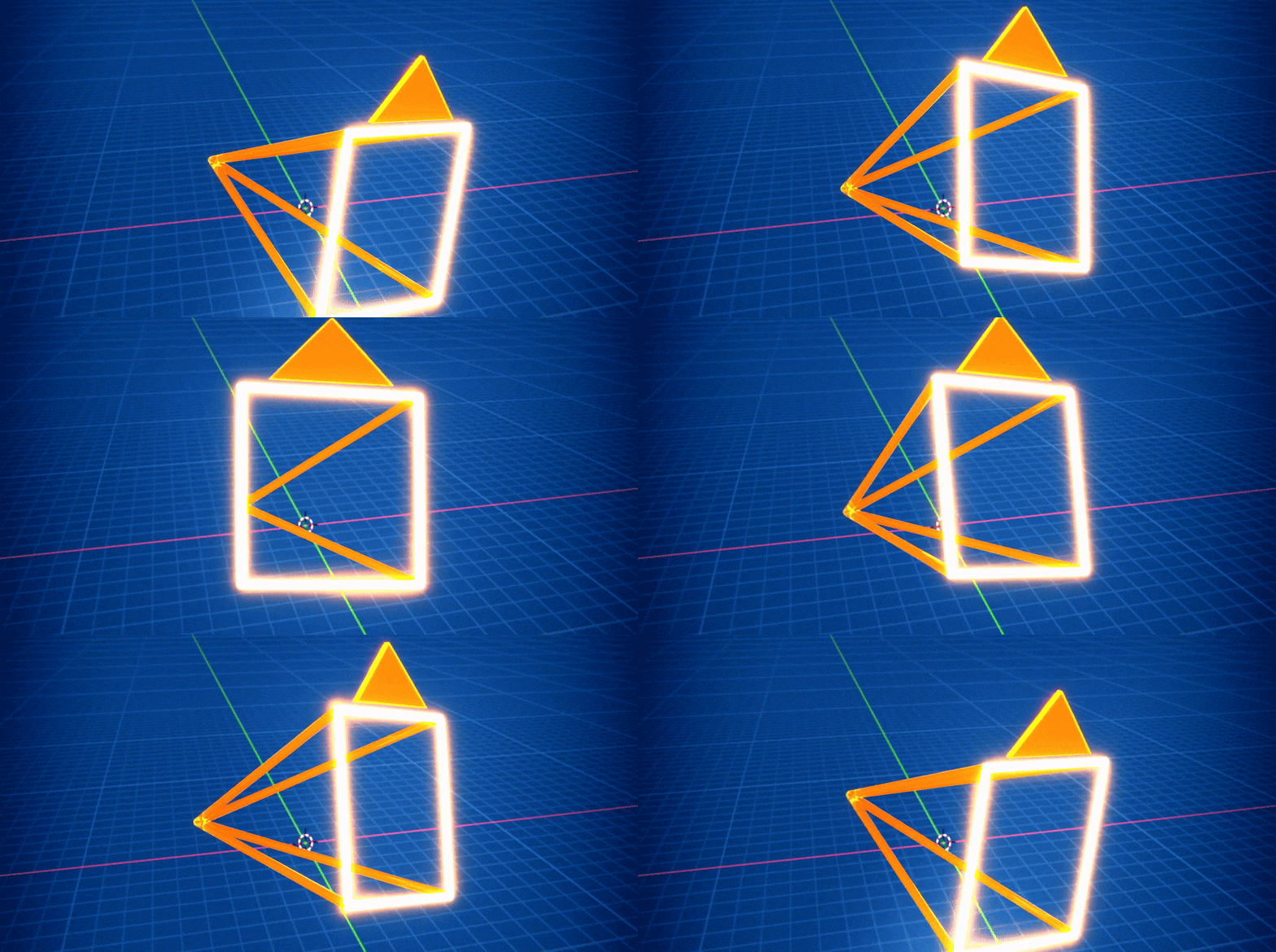
The View Keeper add-on simplifies camera switches in timeline-heavy Blender projects by storing multiple camera views (records) in one camera, eliminating the need for numerous cameras and timeline markers. Animators save presets (e.g., wide shot, close-up) and keyframe view changes on the timeline for seamless shot transitions. Benefits include:
- Reduced scene clutter and errors by managing all shots in one camera.
- Easy focal length adjustments across shots.
- Batch-rendering capabilities for efficiency.
- Simplified revisions by adjusting or adding records without reworking markers.
This streamlined approach enhances collaboration, reduces technical overhead, and lets teams focus on animation and storytelling.

Top Blender camera tools for VFX companies needing consistent shot framing across comps
VFX companies use Blender camera tools to ensure consistent shot framing for compositing CG with live-action plates:
- Shot Listing Interface (Shot List): Organizes shots with labels and frame ranges for unified access and review.
- Physical Camera Simulation (Real Camera, Photographer): Matches real-world camera settings (focal length, aperture, ISO) for seamless CG integration with live footage.
- Camera Tracking and Alignment Tools: Uses Blender’s Camera Tracker and add-ons like Blender For UnrealEngine to import/export camera data, maintaining consistency across scenes.
- Shot List / Shot Manager: Manages multiple shots in one project, ensuring uniform framing parameters (e.g., 2.39:1 aspect ratio).
- Naming and Framing Conventions: Encourages clear shot naming (e.g., “CU_car_tire”) for compositor clarity and consistent communication.
These tools ensure precise, organized camera setups, minimizing discrepancies in VFX pipelines.
How film production teams use Blender camera add-ons for previsualization and cinematic layout
Film production teams leverage Blender camera add-ons for previsualization (previz) to plan cinematic layouts:
- Add Camera Rigs: Built-in add-on provides dolly, crane, and 2D rigs for realistic camera moves (e.g., push-ins, sweeping arcs).
- Shot List / Shot Manager: Organizes shots with descriptive names, allowing quick sequence playback and edit adjustments, simulating storyboards.
- Photographer Add-on: Simulates real camera settings (ISO, aperture) and viewport filters (film grain) to align previz with cinematic intent.
- The View Keeper: Stores multiple angle versions for rapid comparison and non-destructive shot reordering.
These add-ons enable flexible, realistic previz, allowing directors to refine shots cost-effectively before live-action shoots.

Blender camera presets for fast iteration in AR/VR development environments
Blender camera presets and add-ons accelerate iteration in AR/VR development by managing diverse camera configurations:
- The View Keeper: Stores multiple presets (e.g., 360° equirectangular, stereoscopic) for instant switching between VR, AR, and debug views.
- VR Scene Inspection Add-on: Enables real-time VR preview with headset/controller navigation, supporting natural camera motion recording.
- Physical Camera Presets (Photographer): Matches device intrinsics (e.g., iPhone focal length) for AR compositing or simulates lens distortion for VR headsets.
- Camera Markers and Binding: Switches cameras/presets on the timeline for quick comparisons (e.g., left-eye vs. right-eye views).
- Community VR Add-ons: Provides preset rigs for cubemaps or fisheye lenses for non-traditional VR renders.
These tools streamline testing and validation, ensuring efficient camera management in immersive AR/VR workflows.
Using Blender’s camera tools to align real-world VR headset tracking for virtual cinematography
Blender’s camera tools enable virtual cinematography by aligning with VR headset tracking:
- VR Scene Inspection Add-on: Maps headset/controller movements to Blender’s viewport for real-time virtual scouting and organic camera motion capture.
- Custom Object VR Landmark: Records VR-tracked camera paths as keyframes, simulating Steadicam-like movements.
- Third-Party Tools (BlenderXR, Python Scripts): Streams iPhone/iPad tracking data to drive Blender cameras, acting as virtual viewfinders.
- Motion Capture Add-on: Captures VR suit/device motions for camera animation.
- Photographer Add-on: Matches real camera parameters (lens distortion, focal length) for LED volume shooting alignment.
These tools allow directors to “film” in VR, capturing nuanced camera moves for previz or animation, bridging physical and virtual cinematography.

Camera management workflows for digital agencies delivering multi-platform content
Digital agencies creating content for platforms like YouTube (16:9), Instagram (1:1), and TikTok (9:16) need efficient camera management in Blender to ensure consistent multi-format output. The View Keeper add-on enables saving camera records for different aspect ratios within one camera, allowing batch rendering of all formats without manual adjustments. Naming conventions and presets (e.g., “Camera – Instagram”) with composition guides ensure critical elements stay in view. Shot Manager organizes shots for quick tweaks, aiding collaboration and client reviews. Automation via Python or user-friendly add-ons like The View Keeper streamlines rendering multiple outputs, ensuring cohesive branding and fast turnarounds while minimizing errors.
Blender camera shot planning in advertising pipelines: quick variations for client approval
In advertising, Blender’s camera add-ons enable rapid shot variations for client approvals under tight deadlines. The View Keeper stores multiple camera records (e.g., swoop shot, static head-on) in one scene, allowing instant viewport switching or low-sample renders for comparison. Shot List labels shots clearly (e.g., “Option A – Low Angle”), facilitating sequential playbacks for client feedback. These tools ensure consistency across variations, as all shots share the same scene, reducing errors from outdated assets. Deprecated shots are retained for easy reversion, and add-ons like Photographer simulate lens settings (e.g., wide-angle vs. telephoto) to test different moods, enhancing responsiveness and client trust.
Managing virtual camera exposure, depth of field, and focal length for marketing projects
For marketing projects, Blender add-ons like Photographer and Real Camera simulate real-world camera settings for high-quality visuals:
- Photographer Add-on: Offers DSLR-like controls (ISO, shutter speed, f-stop) for precise exposure and depth of field (DOF), matching real camera references for consistent perspective in campaigns.
- Real Camera Add-on: Provides aperture and shutter controls for realistic motion blur and DOF, ideal for stills or slow-motion product shots.
- Auto Focus Add-ons: Automate focus on target objects, supporting dynamic focus pulls for cinematic effects in videos.
- Lens Sim Add-on: Simulates lens optics (distortion, bokeh) for high-end renders, like automotive visuals.
These tools streamline settings management in one interface, ensuring photographic quality with crisp focus, tasteful blur, and consistent exposure, crucial for emotionally appealing marketing imagery.

Blender camera management for e-learning projects: clarity, zoom automation, and viewport guides
Blender camera management for e-learning prioritizes clarity to support educational content:
- Zoom Automation: AutoCam or “Focus on Object” enables smooth, human-like zooms to highlight details (e.g., zooming into a molecule’s benzene ring).
- Auto-Focus: Add-ons like Auto Focus Camera ensure the subject remains sharp, automating focus for interactive or animated sequences.
- Viewport Guides: Built-in guides (rule of thirds, safe areas) prevent overlap with subtitles or UI, keeping visuals clear.
- Multiple Camera Angles: The View Keeper or Shot List stores wide and close-up views for consistent context switching.
- Smooth Transitions: Quick Shot or Follow Path constraints create gentle pans/zooms to avoid disorienting learners.
These tools ensure the camera directs attention clearly, enhancing learning without distracting from the content.
How educational institutions use Blender camera add-ons to teach storytelling and cinematography
Educational institutions use Blender’s camera add-ons to teach storytelling and cinematography:
- Photographer/Real Camera: Simulates DSLR settings (aperture, shutter) to teach lens effects (e.g., shallow DOF vs. deep focus).
- Shot List: Enables students to plan shot sequences (e.g., establishing, close-ups), practicing scene coverage and pacing with filmmaker terminology.
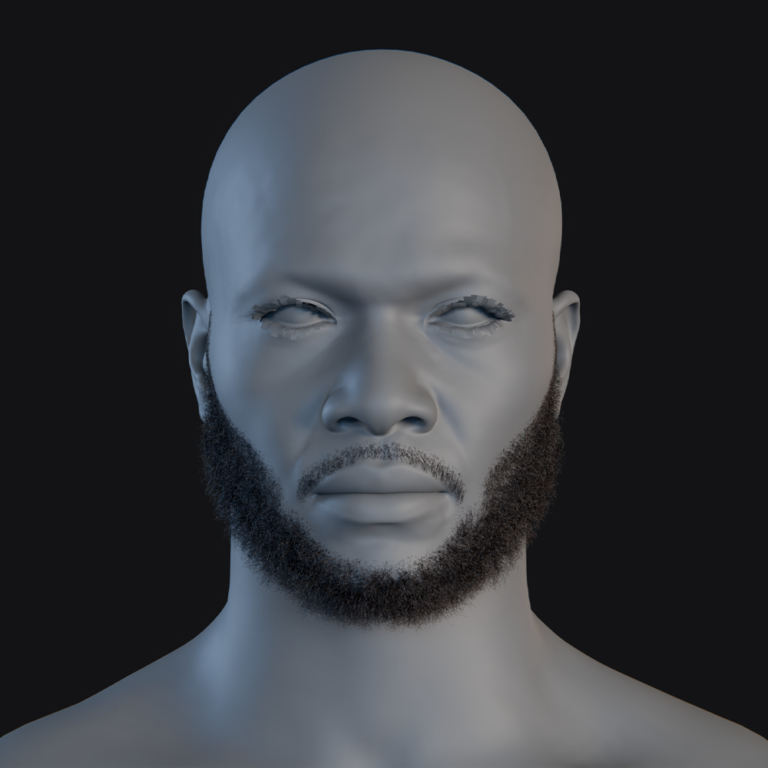
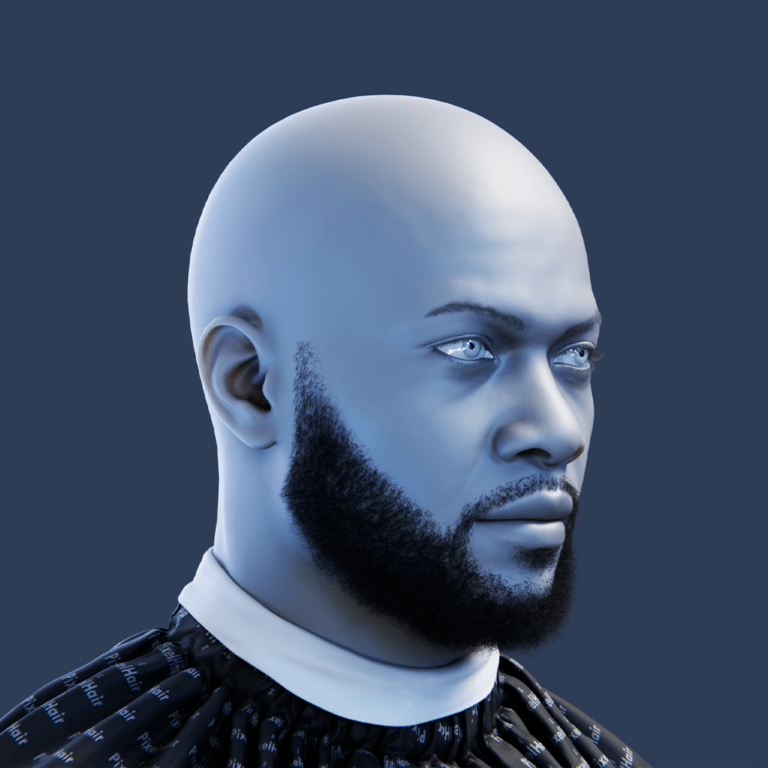
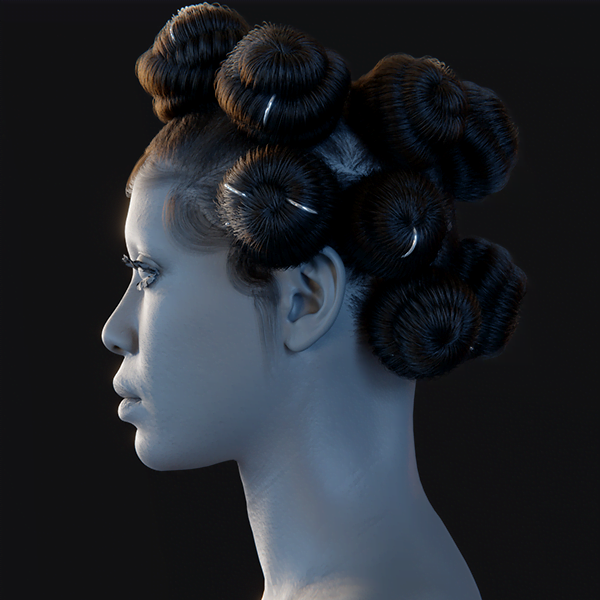
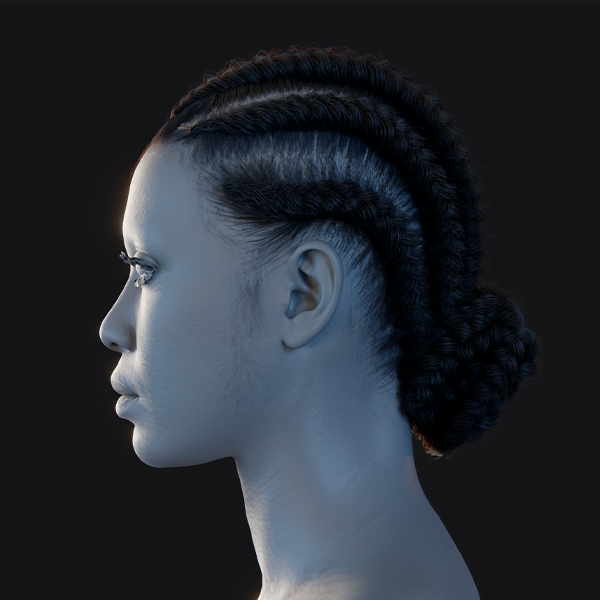
- PixelHair (Character Asset): Saves modeling time, allowing focus on camera work to explore emotional impacts of angles.
- The View Keeper: Stores consistent camera views for group projects, ensuring unified vision.
These add-ons provide instant feedback, enabling students to experiment with framing and movement in a cost-free virtual film studio, preparing them for real-world filmmaking.

Camera rigging in Blender for design firms working with architectural and motion design visualization
Design firms use Blender’s camera rigging for polished architectural and motion design visualizations:
- Add Camera Rigs: Built-in dolly and crane rigs create smooth flythroughs or dramatic reveals (e.g., hallway dolly, crane over a façade).
- Cablecam Add-on: Enables dynamic gliding shots along a virtual cable, ideal for car or stadium visuals.
- Turntable Rigs: Parent cameras to empties or use add-ons for perfect 360° product spins, synced with motion graphics.
- Geometry Nodes: Programmatically control camera paths for parametric adjustments (e.g., widening a path).
- Shot Manager: Manages view layers for mood variations (e.g., night vs. day shots) in one file.
These rigs and add-ons ensure smooth, reusable camera movements, delivering cinematic quality while maintaining style consistency and efficiency on tight schedules.
How to manage large scenes with multiple cameras and render passes in studio pipelines
Managing large Blender scenes with multiple cameras and render passes in studio pipelines requires organization to prevent errors and ensure efficiency. Key tools and techniques include:
- Shot Manager: Organizes shots with assigned cameras, frame ranges, and view layers (e.g., Shot 1: Camera A, frames 1–100, “Characters” layer). Automates collection visibility and batch rendering, reducing manual toggling errors.
- Non-Linear Shot Sequencing: Allows overlapping or non-chronological shots within one .blend file, supporting parallel work by artists.
- Render Passes: Uses Blender’s view layers for passes (e.g., beauty, depth) with Shot Manager queuing renders to ensure all passes align.
- Library Overrides/Linked Cameras: Links master environment files to shot-specific files, keeping geometry referenced and cameras consistent.
- VSE and Markers: Uses Video Sequence Editor for rough cut previews, with markers or scripts converting to scene strips for multi-scene management.
- Hide Inactive Cameras (Shot List): Declutters views by hiding unused cameras, improving performance.
- Naming Conventions: Labels cameras with shot numbers/descriptions (e.g., “Camera_Shot007”) for clarity.
These methods streamline complex scenes, ensuring accurate camera and pass management for compositing and rendering.

Best Blender camera switching workflows for turntable animations and explainer videos
For turntable animations and explainer videos, efficient camera switching ensures clarity and polish:
- Quick Shot (QShot): Automates camera moves/cuts (e.g., 360° orbit, zoom to detail) with non-destructive editing, ideal for product showcases.
- Timeline Markers with “Bind Camera to Markers”: Manually binds cameras to markers for cuts (e.g., frame 150 switches to close-up), reliable for simple projects without add-ons.
- Fly/Walk Navigation: Records viewport navigation (Shift+F) as keyframes for smooth pans, enhanced by add-ons like AutoCam.
- Shot List: Organizes shots as modular segments for quick tweaks, ideal for explainer videos with text overlays.
- Turntable Automation: Parents cameras to rotating empties or uses scripts for perfect 360° spins, with Quick Shot coordinating multi-angle cuts.
These workflows, especially Quick Shot, simplify camera animations, ensuring professional results with minimal effort.
Using The View Keeper to maintain angle consistency across episodic content
The View Keeper ensures angle consistency in episodic content (e.g., web series) by storing camera records in one camera object:
- Stored Records: Saves angles (e.g., “LivingRoom Wide,” “Couch CloseUp”) with focal length and DOF, reusable across episodes via appending/linking.
- Master File Workflow: Maintains a library .blend with approved camera setups for consistent framing in recurring sets.
- Multi-Format Support: Stores records for different aspect ratios (e.g., 16:9, 1:1) to maintain consistency across platforms.
- Revision Safety: Retains deprecated angles for easy reversion if directors change preferences.
- Collaboration: Clear record names guide animators across episodes, codifying style and reducing setup time.
This add-on preserves visual continuity, streamlining production and ensuring audiences experience familiar framing.

Blender camera tools for exporting camera paths to Unreal Engine and Unity for hybrid pipelines
Blender camera tools enable accurate camera path exports to Unreal Engine and Unity for hybrid pipelines:
- Blender to Unreal Engine Add-on: Exports cameras and animations to Unreal’s Level Sequence, preserving keyframes, focal length, and cuts via FBX or JSON/clipboard.
- FBX/Alembic for Unity: Exports cameras as FBX for Unity’s Timeline/Cinemachine or Alembic for baked animations.
- USD Support: Emerging USD exporters transfer cameras with FOV and DOF, supported by both engines.
- Unreal Live Link/Reverse Import: Syncs Unreal cameras to Blender or imports Unreal VR-scouted cameras via FBX.
- Unit Conversion: Blender to Unreal add-on auto-scales metric units for accurate sizing.
These tools ensure seamless camera transfers, maintaining framing and motion for previz or final rendering in game engines.
How Blender camera tools streamline collaborative workflows between layout, lighting, and comp teams
Blender camera tools enhance collaboration across layout, lighting, and compositing teams:
- Shot Manager/Shot List: Organizes shots with locked cameras to prevent unintended changes, providing a clear shot roster.
- The View Keeper: Centralizes camera records for updates to propagate across departments, ensuring a single source of truth.
- Photographer Add-on: Sets consistent exposure/DOF settings across shots, aligning lighting with camera parameters.
- Composition Guides/Grease Pencil: Saves camera-specific notes (e.g., “clear for text”) for lighting and comp guidance.
- Batch Rendering (Shot Manager Pro): Automates rendering with correct cameras and view layers, streamlining comp imports.
- Shot Naming/Overlays: Labels shots clearly (e.g., “Shot 5A – Over Shoulder”) for easy review and feedback.
These tools enforce consistency, reduce miscommunication, and automate processes, allowing teams to focus on creative tasks while maintaining aligned camera setups.

Handling shot revisions and camera version control in Blender production environments
Shot revisions and camera version control in Blender are streamlined using add-ons and organized workflows:
- The View Keeper: Stores multiple camera records (e.g., “Shot7_v1”, “Shot7_v2”) within one camera, enabling quick A/B comparisons and reversion without cluttering the scene with duplicate cameras.
- Shot Manager: Supports parallel shot versions with clear labeling, allowing non-destructive experimentation and easy reordering of shots for editorial changes.
- Naming Conventions: Labeling cameras/records (e.g., “Shot5_new”) and using Blender’s text editor for revision notes (e.g., “zoomed in 10%”) acts as a changelog.
- Drivers/Constraints: Adjusts multiple cameras uniformly (e.g., offsetting all by 10 degrees) for batch revisions.
- External Versioning: Saves .blend files as versions (e.g., Shot01_v001.blend) or exports camera data as JSON for backups.
- Playblast Comparisons: Uses The View Keeper or Shot Manager to render viewport previews of old vs. new camera versions for director feedback.
These tools ensure non-destructive revisions, clear communication, and agility in handling changes, maintaining production efficiency.
Conclusion: Why production teams across industries rely on camera management add-ons like The View Keeper
Camera management add-ons like The View Keeper are critical for production teams across animation, VFX, film, AR/VR, digital agencies, education, and design:
- Efficiency: Consolidate multiple camera views into one interface, reducing setup time and scene clutter.
- Consistency: Ensure uniform framing across shots, episodes, or platforms, preserving visual identity.
- Quality Control: Simulate real camera effects (DOF, motion blur) with add-ons like Photographer, delivering cinematic results.
- Collaboration: Centralize shot data for seamless handoffs between layout, lighting, and compositing teams.
- Creative Freedom: Non-destructive workflows (e.g., storing old versions) encourage bold experimentation.
- Accessibility: Enable small teams and freelancers to achieve studio-level results with intuitive tools.
These add-ons save time, reduce errors, and enhance storytelling, making them indispensable for professional Blender workflows.

Frequently Asked Questions (FAQs)
- Simulating real camera effects like DOF/motion blur?
Photographer and Real Camera add-ons provide DSLR-like controls for accurate DOF, motion blur, and exposure. - Best Blender camera add-on for managing many shots?
Shot Manager organizes shots with cameras, frame ranges, and view layers, ideal for studios with collaborative workflows. - How to switch cameras during animation without manual work?
Use The View Keeper to keyframe view records in one camera or Shot List for shot-based switching, automating marker management. - Free camera add-ons for small teams?
Camera Shakify (handheld shake), Add Camera Rigs (dolly/crane), and Real Camera (DSLR settings) are free and effective. - Maintaining consistent camera angles across scenes?
Use The View Keeper to store angles in a reusable camera library, appended/linked to new scenes for identical setups. - Difference between The View Keeper and Shot Manager?
The View Keeper manages multiple views in one camera; Shot Manager organizes entire shot sequences. They complement each other. - Exporting camera animations to Unreal/Unity?
Use Blender to Unreal Engine add-on for Unreal (preserves cuts, focal data) or FBX/Alembic for Unity’s Timeline/Cinemachine. - Quickest way to show multiple camera options?
The View Keeper allows instant switching between saved records; Shot List toggles shots for playblast comparisons. - Creating a smooth camera orbit for turntables?
Parent camera to a rotating empty, use Add Camera Rigs’ turntable preset, or Quick Shot for automated orbits. - Managing confusion with many cameras?
Camera Manager/Shot List lists and hides inactive cameras; The View Keeper consolidates angles into one camera.
Conclusion
Blender’s camera add-ons and tools bring a new level of efficiency and cinematic quality to 3D productions. By investing time in proper camera management – whether through The View Keeper’s multi-view magic, Shot Manager’s sequence oversight, or realistic lens simulators like Photographer – teams and solo creators alike can dramatically streamline their workflow. The result is a win-win: less time spent on technical camera setup and more time crafting impactful visuals and stories. Modern production demands both speed and excellence, and as we’ve seen, the right camera tools in Blender deliver exactly that.
They empower artists to iterate freely, maintain consistency across any number of shots or platforms, and achieve professional results that rival big-studio productions. Adopting these add-ons is like adding a skilled camera crew inside Blender, one that handles the heavy lifting while you direct the show. In short, smarter camera workflow transforms what you can do in Blender – so you can focus on creativity, confident that every shot is backed by precision and ease.
Sources and Citations
- Yelzkizi. (n.d.).
- How The View Keeper simplifies multi-camera animations in Blender. Yelzkizi.
- https://yelzkizi.org/how-the-view-keeper-simplifies-multi-camera-animations-in-blender/
- Yelzkizi. (n.d.).
- Top 10 Blender add-ons for camera animation: Cinematic shots & workflow boosters. Yelzkizi.
- https://yelzkizi.org/top-10-blender-add-ons-for-camera-animation-cinematic-shots-workflow-boosters/
- Yelzkizi. (n.d.).
- Install and set up The View Keeper in Blender. Yelzkizi.
- https://yelzkizi.org/install-and-set-up-the-view-keeper-in-blender/
- Yelzkizi. (n.d.).
- Understanding PixelHair: Realistic 3D hair assets. Yelzkizi.
- https://yelzkizi.org/understanding-pixelhair-realistic-3d-hair-assets/
- Blender Developer Documentation. (n.d.).
- Blender 3.0: Virtual Reality — Controller support. Blender Developer Documentation.
- https://developer.blender.org/docs/release_notes/3.0/virtual_reality/#controller-support
- Yelzkizi. (n.d.).
- How do I set up a VR camera in Blender? Yelzkizi.
- https://yelzkizi.org/how-do-i-set-up-a-vr-camera-in-blender/
- xavier150. (n.d.).
- Blender For Unreal Engine Add-ons. GitHub.
- https://github.com/xavier150/Blender-For-UnrealEngine-Addons
- Yelzkizi. (n.d.).
- Shot Manager — discussed in Top 10 Blender add-ons for camera animation. Yelzkizi.
- https://yelzkizi.org/top-10-blender-add-ons-for-camera-animation-cinematic-shots-workflow-boosters/
- Yelzkizi. (n.d.).
- Real Camera add-on — discussed in Top 10 Blender add-ons for camera animation. Yelzkizi.
- https://yelzkizi.org/top-10-blender-add-ons-for-camera-animation-cinematic-shots-workflow-boosters/
- Yelzkizi. (n.d.).
- Photographer add-on / Photographer 5 — discussed in Top 10 Blender add-ons for camera animation. Yelzkizi.
- https://yelzkizi.org/top-10-blender-add-ons-for-camera-animation-cinematic-shots-workflow-boosters/
Recommendations
- Adobe Will Pay $75 Million to Settle Lawsuit Over Hard-to-Cancel Subscriptions: What It Means for Users
- Clair Obscur: Expedition 33 Wins Best Game at BAFTA 2026
- Clayface Teaser Breakdown: DC’s Body Horror Take on the Shapeshifting Villain Explained + Fan Reactions
- Battlefield 6 Season 3 Brings Reimagined Golmud Railway Map With Major Gameplay Changes and Train Overhaul Explained
- The Publisher ARK Is Facing Delisting From the Exchange Due to Financial Difficulties: What It Means for Snail Games and the ARK Franchise
- The Best Laptops for Gaming and Schoolwork in 2026 (student-Friendly Buying Guide)
- Apparent Elden Ring Movie Set Leak Videos Go Viral: First Look at a Game-Accurate Church of Marika Statue
- Project Rabbit Official Reveal Trailer: Everything We Know, Release Date, Gameplay Details, Leaks & Full Breakdown
- How to Bake High Poly to Low Poly in Substance Painter: A Complete Workflow Guide
- Directive 8020 Review: Is Supermassive’s Sci-Fi Horror Worth Playing?