



In This Article (7 sections)
Paralives Create a Para: Character Customization Tools and Interface
Paralives is a life simulation game that emphasizes detailed character customization through its Paramaker, the editor used to create and modify your Paras. The editor is designed to give players extensive control over appearance, moving beyond preset options through modular customization and detailed adjustments. Players begin with a base Para model, which provides a foundation for shaping an individual character. Body shape, facial structure, skin tone, hairstyles and clothing can then be adjusted within a unified interface. These categories work together visually, so changing one feature can influence the character’s overall proportions and appearance. This flexibility supports both realistic and stylized designs, allowing players to refine their Para without relying entirely on fixed combinations of features.
Paralives entered Steam Early Access on May 25, 2026, so character customization is now a playable feature rather than an upcoming promise. However, the distinction between creating a household, changing an outfit and reopening full character editing remains important. A wardrobe change does not necessarily give access to facial proportions or body shape. Decide whether you need a cosmetic refresh or a complete redesign before opening the editor, especially when working with a Para who already lives in your town.
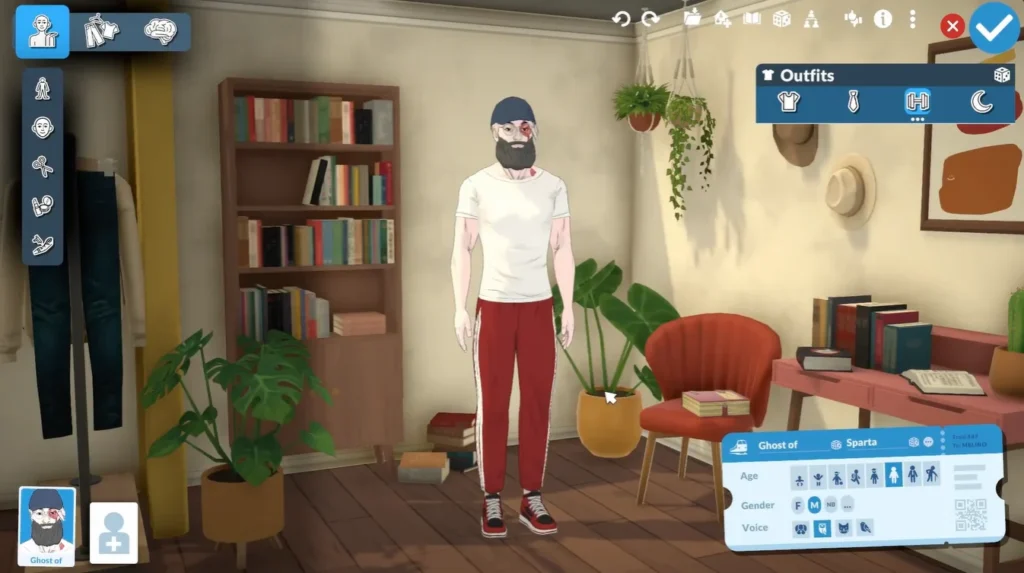
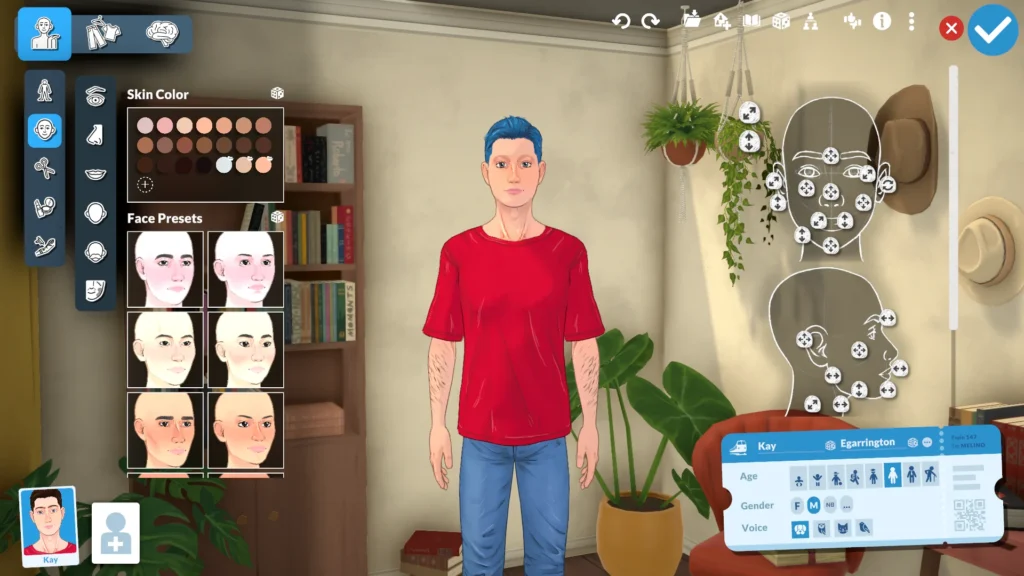
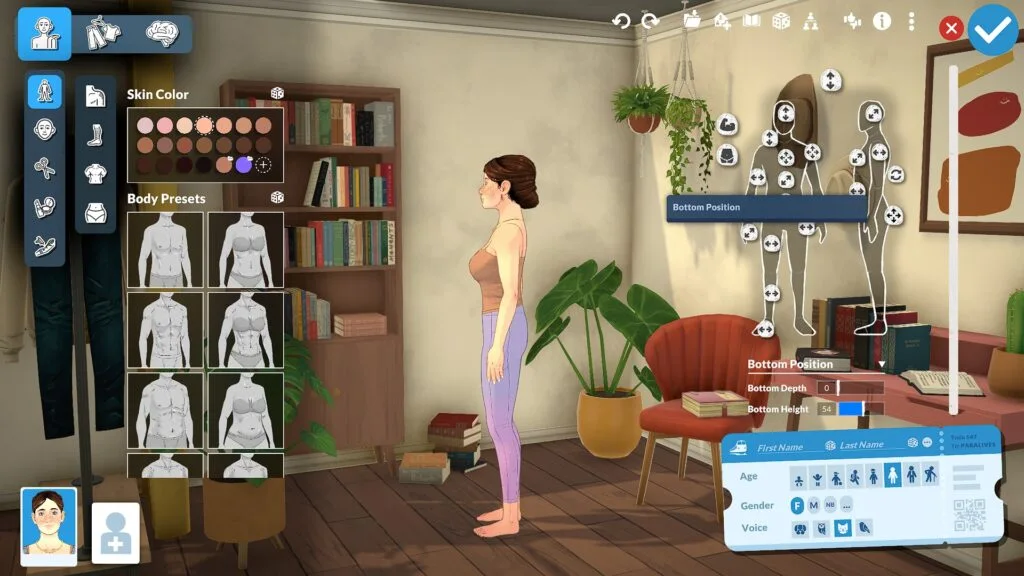
The customization interface centres on a real time 3D preview, with editing panels organised into categories such as body, face, hair and clothing. Controls relevant to the selected feature appear alongside colour pickers for skin, hair and clothing. Instead of clicking and pulling the character’s face or body directly, use the separate editing diagrams and numerical sliders. The developers removed direct manipulation of the character model, so older demonstrations of that interaction should not be treated as instructions for the current editor.
Changes appear immediately in the preview, making it easier to assess how individual adjustments affect the complete character. Rotation and zoom controls support closer inspection from different angles, helping players review proportions and smaller details before continuing. By keeping related tools together and limiting menu clutter, the interface aims to make experimentation accessible to beginners while giving experienced users the control needed for more detailed designs.
The main editing areas are Appearance, Clothing and Personality. Physical styling is not restricted by gender, so clothing and body choices do not require switching to a different gender category. This makes it easier to combine a particular build, hairstyle and outfit without redesigning the character’s identity around catalogue restrictions. For an appearance only makeover, leave unrelated identity and personality settings unchanged.
Before touching individual features, choose a simple visual goal. You might want a recognisable version of yourself, a fictional character, a coordinated household or an entirely original Para. Identify the defining features first, such as a broad jaw, close cropped hair, a particular silhouette or a distinctive colour combination. This provides a reference point when several individually attractive changes begin pulling the design in different directions. A clear goal also helps you decide which details deserve attention and which can remain close to the starting preset.
The diagram controls are useful for exploring shape visually, while numerical values help with precise adjustments. The developers have also documented entering exact values and copying slider values between Parafolks. For a consistent comparison, change one feature group at a time and keep notes on the values you prefer. This is particularly useful when you want related characters to share selected features without making their entire faces identical.
Recent updates have made browsing more convenient. Patch 0.1.7, released on August 10, 2026, introduced optional filters for clothes and hairstyles. Patch 0.1.8, released on August 24, expanded Paramaker menus to support up to four columns. Use filters when searching for a specific look, then clear them before concluding that an item is missing. A wider catalogue can help you compare more thumbnails without repeatedly scrolling past the same options.
A complete Create a Para workflow begins with body shaping, followed by facial structure, skin tone, hair design and clothing selection. Once these elements are established, sliders and advanced tools allow you to refine the smaller details. Working through the character in layers helps maintain consistency and visual harmony across the overall appearance. Choose broad presets early, then make smaller changes, rather than repeatedly replacing the foundation after completing detailed work.
How to Edit Your Para’s Appearance in Paralives
To edit an existing Para’s full appearance, load their household and select the character you want to change. Save your game before experimenting. On PC, open the cheat console with Ctrl + F1 or Ctrl + Shift + C, enter EDITCHARACTER without spaces, and press Enter. This reopens Paramaker for character editing. Check which household member is selected before making changes, then confirm the finished design when you are ready to return to gameplay. The command is the important distinction between a complete makeover and ordinary outfit editing.
For clothing changes without a full body or face edit, select your Para and open the shirt icon beneath their name to choose a saved outfit. Wardrobes also provide a Change Outfit interaction. To build a different look rather than switch between existing ones, use Create New Outfit from the outfit menu. This opens the clothing focused editor for items such as clothes, hair, makeup and accessories. Use the full editing command when you need structural changes instead of another wardrobe variation.
For a new Para, or once the full editor is open, use the following sequence:
- Launch character creation in Paralives: Enter Paramaker when creating a household, or reopen it for an existing character using the editing command.
- Select a base character: Choose the model or presets you want to use as the foundation for your Para in Paralives.
- Open the appearance panel: Access the customization options for your character’s features in Paralives.
- Adjust body proportions: Use the diagrams and sliders to refine the character’s build and silhouette in Paralives.
- Modify facial features: Shape the eyes, nose, mouth and other facial details when customizing your Para in Paralives.
- Customize the hair: Choose a hairstyle and adjust its available colours in Paralives.
- Set skin tone and complexion: Refine the base tone, colour balance and smaller skin details using Paralives’ customization options.
- Choose clothing and accessories: Complete your Para’s appearance in Paralives with your preferred outfit.
- Save your Para: Confirm the finished character and save a reusable household version after reviewing your adjustments.
Although this sequence provides a starting point for character customization in Paralives, the process is flexible, allowing you to revisit any step as your design develops. Undo and redo controls support experimentation. Body editing moves beyond fixed types by allowing adjustments to height, shoulder width, waist and hip proportions, muscle definition and body shape. These features can be modified through the relevant sliders and diagrams. Increasing height changes the character’s stature, while changing hip width alters the balance of the silhouette. Review the result yourself rather than assuming the editor will automatically prevent every exaggerated combination.
Treat height, build and clothing silhouette as separate decisions. A tall Para does not need broad shoulders, and a shorter character can still have a muscular or fuller build. Start with an outfit that leaves the silhouette easy to judge, then return to bulkier clothing after the proportions feel right. When a jacket makes the shoulders look wider, temporarily remove that garment before changing the body. Otherwise, you may compensate for the clothing rather than correcting the underlying character.
Facial customization in Paralives provides independent control over the features that establish a Para’s identity. Eye size, spacing and tilt can be adjusted alongside nose proportions, lip fullness and shape, jawline and cheek structure. Changes appear in real time, making it easier to assess how individual adjustments affect the overall face while creating a character in Paralives. Fine controls support subtle differences as well as more dramatic transformations. For a realistic appearance, concentrate on balanced proportions, while stylized designs can exaggerate selected features to express personality.
Review the face from the front, side and an intermediate angle. A nose that looks narrow from the front may project further than expected in profile, while a chin adjustment can change the apparent position of the mouth. Work on one area, rotate the preview and then compare it with the rest of the face. Avoid treating every small difference as a flaw. A distinctive expression or slightly unusual proportion may be the feature that makes the Para recognisable.
Eye customization also includes heterochromia, allowing different eye colours. Eyebrows, eyelashes and skin details provide further ways to distinguish faces without substantially changing their structure. Makeup categories include eyeshadow, eyeliner, lipstick, blush and full face makeup. Add these after the underlying features are settled so that shading and cosmetics do not distract from the shape you are evaluating.
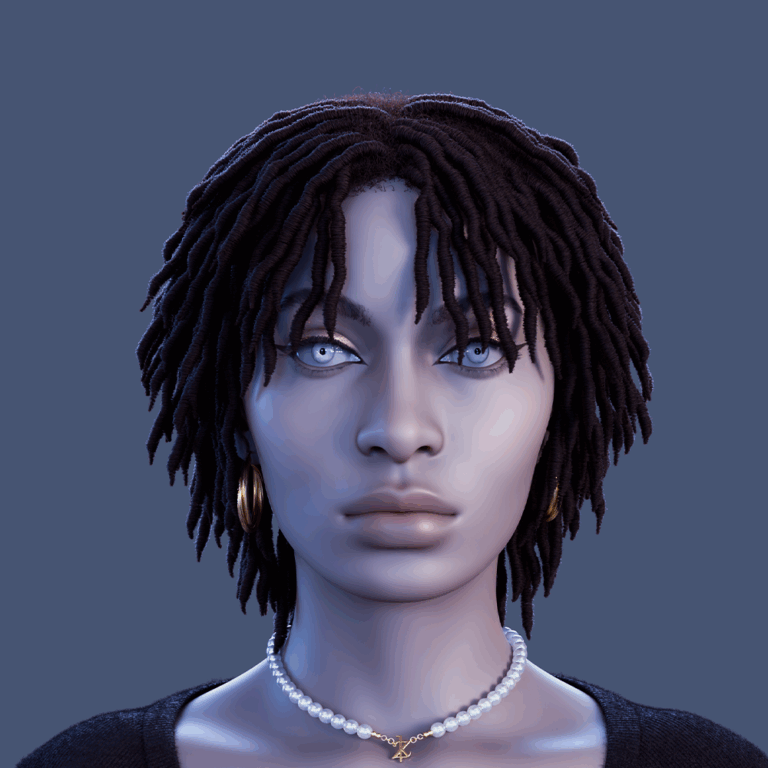
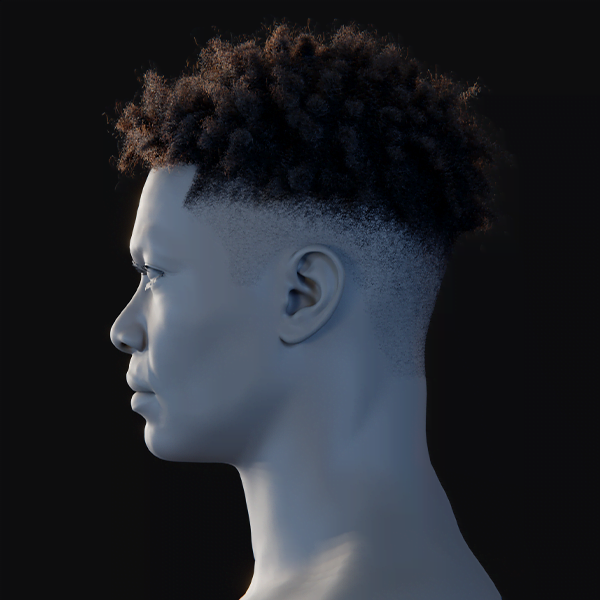
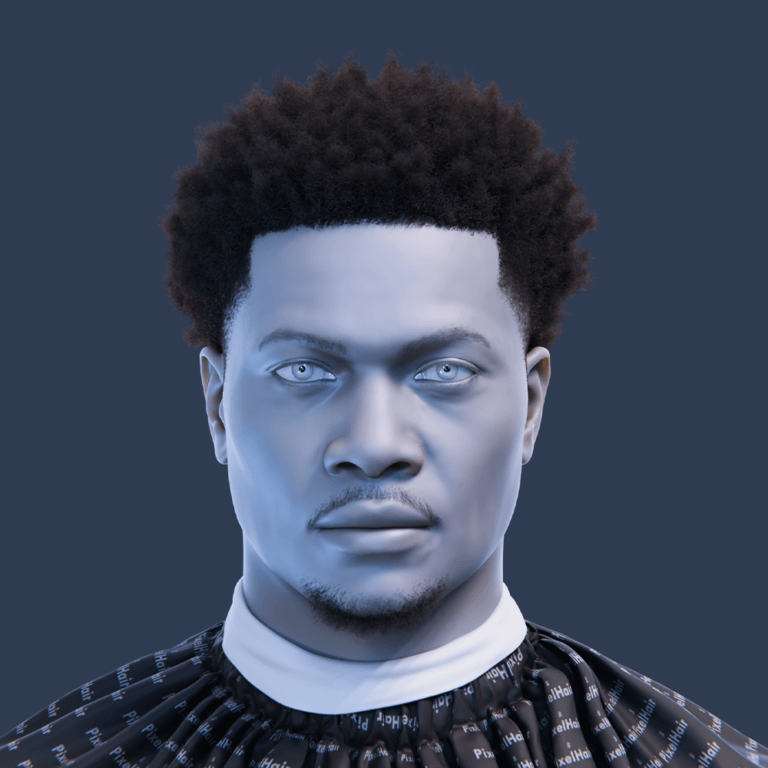
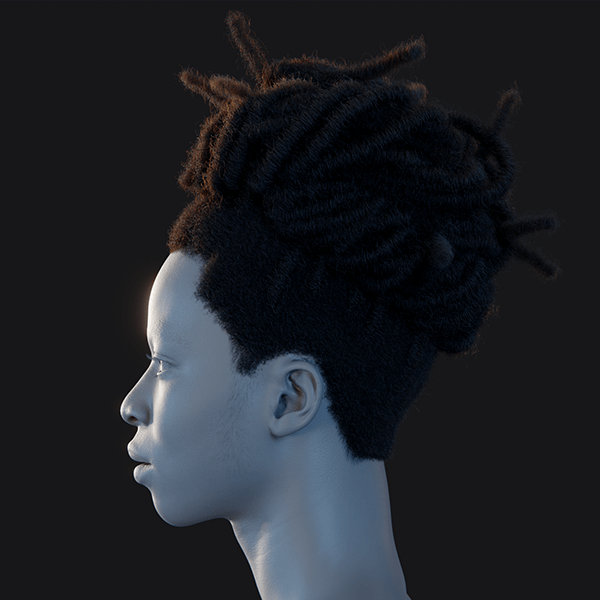
Hair and complexion settings in Paralives provide further ways to distinguish your Para beyond body and facial structure. Hair choices include styles with different lengths, layering, curl patterns, bangs, fringes and volumes. These are characteristics of the available hairstyles, not a universal set of procedural hair sculpting controls. Multiple colour regions support both natural highlights and fantasy inspired combinations. Skin customization offers a broad range of base tones that can be adjusted towards warmer, cooler or more neutral appearances.
For hair colouring, begin with the main colour and then inspect the additional regions supported by that hairstyle. The developers have demonstrated separate base, root, tip and accent regions, with availability varying between hairstyles. Keeping neighbouring shades close can produce a subtle transition, while a stronger contrast creates a deliberately dyed appearance. Do not expect every style to expose identical controls. A different shape or texture may use different colour regions, so review the available settings whenever you switch hairstyles.
Patch 0.1.9, released on October 8, 2026, added the ability to edit hair colour directly on hairstyle thumbnails. This makes it easier to compare styles without repeatedly returning to a separate colour selection area. When deciding between several hairstyles, compare them in a similar colour first. Then experiment with roots or tips after choosing the shape. This separates two decisions that otherwise make it difficult to tell whether you prefer the hairstyle or simply its colour treatment.
Skin detail presets and colour controls allow finer changes to the complexion, including freckles, marks and blush. Together, these customization options help create varied appearances, with subtle complexion choices suggesting age or personal style and more expressive hair choices reinforcing the character’s overall look. Avoid assuming that every texture has its own density or smoothness slider; inspect the controls attached to the selected detail.
Advanced skin colouring separates skin, highlights, shadows, natural blush, lips and palms. Adjust the base first, then refine the other regions gradually. For example, an overly strong blush colour can make an otherwise suitable complexion look much redder than intended. Keep a copy of the original colour combination before experimenting with dramatic contrasts, especially when matching a specific reference. To reduce the default cheek redness, open the skin style’s Advanced Mode and match Natural Blush to the Skin colour. Copying the Skin hexadecimal colour value into Natural Blush gives an exact match. This changes the complexion’s built in blush treatment, so review any separately applied blush makeup as well rather than assuming one colour setting controls every cosmetic layer.
Give body hair, facial hair and tattoos a separate review rather than stopping once the head hairstyle is finished. These systems add detail that can change how a Para reads even when the underlying body and face remain untouched. For tattoos with placement controls, check the design from several angles and with the intended clothing equipped. A mark that works well on an exposed shoulder may be partly hidden by a sleeve. Decide whether that coverage suits the character before changing the tattoo or replacing the outfit.
For family resemblance, the genetics tools offer another starting point. The developers explain that facial feature groups can be inherited from either parent, such as one parent’s nose settings and the other’s cheek settings. Use that result as a foundation rather than manually rebuilding every shared feature. You can then distinguish relatives through hairstyle, clothing and selected adjustments. The game’s inheritance system is a simplified creative system, not a prediction of real human genetics.
Refining Your Para’s Appearance in Paralives: Clothing, Saved Designs and Advanced Editing
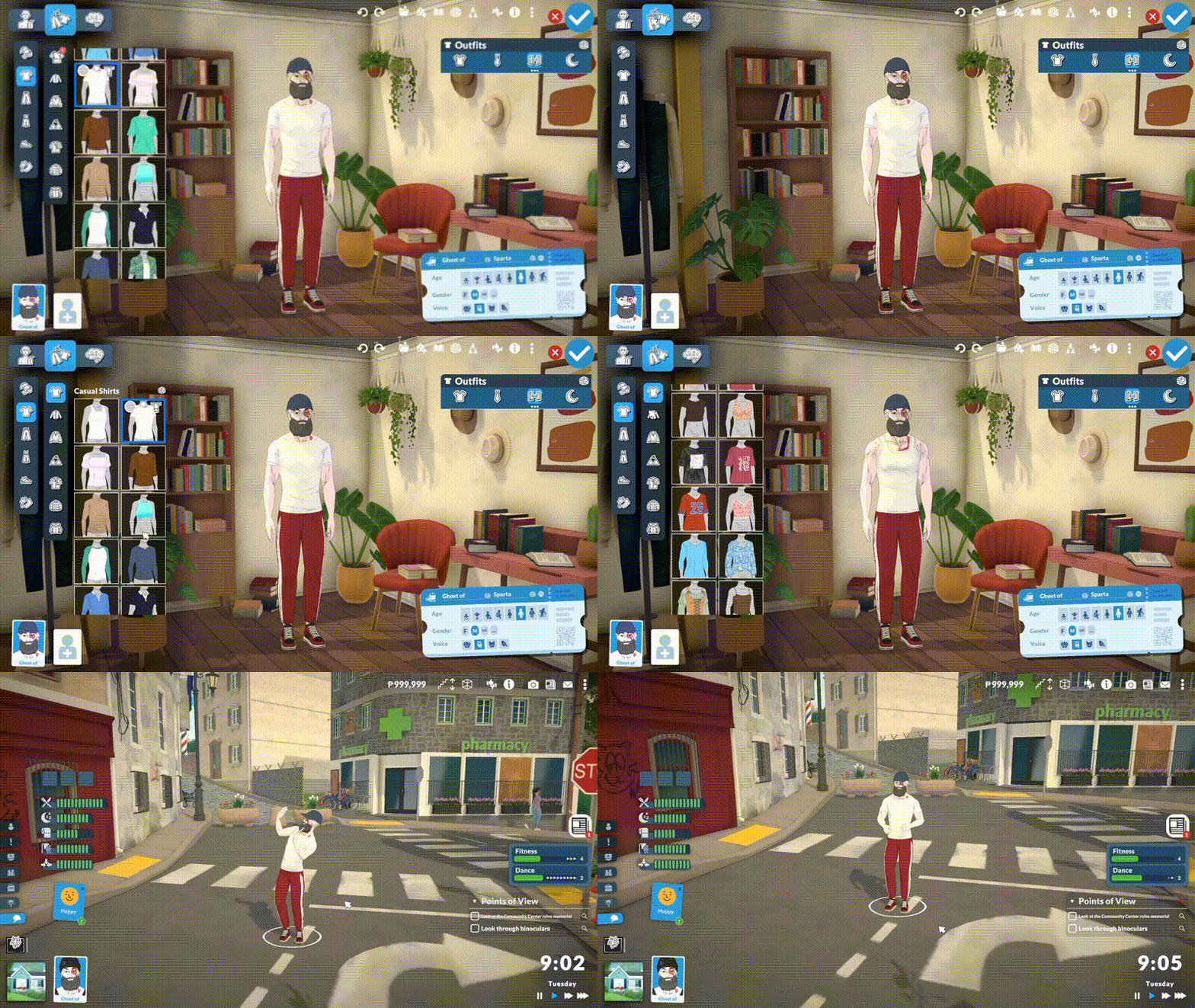
Sliders provide precise control over a Para’s facial proportions, body scale, muscle and fat settings, feature positioning and colour intensity. The real time preview makes each adjustment immediately visible, helping you assess how individual changes affect the overall design. Combining several slider adjustments allows more detailed results than relying on one setting alone. Clothing adds another layer of personalisation, with a catalogue organised into wardrobe categories. You do not need to treat the entire clothing collection as something that must first be unlocked through gameplay progression.
Players can mix and match tops, bottoms, complete outfits, shoes and accessories, alongside different colours, patterns and available fabric appearances. Layering allows compatible coats, jackets and other garments to be combined, creating styles that reflect the character’s personality. Together, these tools support detailed appearance editing without limiting the design to a single preset or coordinated outfit.
Clothing layering uses supported combinations rather than unlimited stacking. The developers describe a system in which an outer garment offers selected compatible pieces underneath it. Those pieces can have their own colours and patterns. Open the garment’s extra customization options to see which combinations are available instead of assuming any two tops will work together. For example, keeping the same jacket but changing its supported inner layer can produce a different outfit without replacing the whole look. Check the neckline, sleeves and waist when comparing combinations.
The core outfit categories are Casual, Formal, Workout and Pajamas. Build each around the same Para rather than treating every category as an unrelated character design. You could repeat one favourite colour across the wardrobe, carry a signature accessory into several looks or reserve a dramatic hairstyle for formal clothing. Review the selected outfit before changing anything so that you do not accidentally spend time editing a category you were not intending to update.
Saving tools make it possible to refine characters without rebuilding them from the beginning. You can save household presets containing your Paras and create alternate versions with different appearances. Reopening a saved household allows you to continue adjusting the design. Keeping a separate copy also provides a way to experiment with another look while preserving the earlier version. This approach is useful when comparing changes to facial features, body proportions or clothing combinations. Rather than committing every experiment to one design, you can maintain alternatives and return to the appearance you prefer.
Use Save Household to Library in Paramaker to preserve a reusable household. The Household Library is separate from simply saving your current town, so complete both actions when you want to protect gameplay progress and retain a creation for reuse. Give alternate versions clear descriptions, such as an original appearance and a revised wardrobe. Before replacing an existing entry, make sure it is the version you intended to update. A library template should not be treated as a substitute for a backup of your ongoing save.
Paralives supports custom content and sharing through Steam Workshop. Downloaded households can be found through the library’s Workshop area, while installed clothing and other customization items appear in their relevant categories. Check the required content before relying on a downloaded Para as a permanent template. Keeping an additional version dressed in standard game items is a practical way to preserve a usable appearance when you later change your installed content.
For realistic Paras, focus on balanced proportions and subtle adjustments rather than pushing sliders towards their extremes. Maintain harmony between the face and body, keep anatomical proportions consistent and check facial symmetry as the design develops. Hairstyles should complement the face shape, while skin tones benefit from natural transitions instead of excessive saturation. Hair colours can also appear visually unbalanced when their intensity overwhelms the rest of the design.
Use lighting, preview rotation and views of the Para in motion to identify issues that may remain hidden from a single angle. Small facial adjustments can have a substantial effect, so review the overall result before making further dramatic changes. Exaggerated features remain appropriate for intentional stylization, but avoiding unnecessary editing helps preserve a coherent appearance when realism is the goal. It is also worth checking the character at normal gameplay distance, where tiny details matter less than silhouette and overall contrast.
Advanced customization is best approached as combining the available systems: facial shaping, skin details, colour regions, hair selection and supported clothing layers. Heterochromia or deliberately placed details can introduce visual differences without assuming the editor includes independent asymmetrical sculpting for every facial feature. The developers have worked on hair and dress physics, but that does not establish a player facing physics editor or procedural hair grooming system. Use the controls actually exposed by the selected asset when refining the finished appearance.
Undo and reversion tools support experimentation by allowing you to reconsider recent adjustments. For a broader reset, return to a saved baseline or reapply a suitable preset. A preset can replace settings within its scope, so review the result before continuing. Undoing individual changes is more selective than abandoning the entire design. These options are useful when correcting accidental changes, comparing different approaches or moving away from a direction that no longer fits. Choose between undoing, restoring a preset and reopening a saved version according to how much you need to reverse, rather than assuming every category has an identical reset button.
Before troubleshooting an apparent customization problem, check the editor mode, active filters and installed game version. Missing body controls can mean you opened outfit editing rather than the full Paramaker. A short catalogue can be caused by filters rather than missing content. For younger Paras, patch 0.1.9 specifically addressed baby and toddler outfit editing through the Change Outfit interaction. These checks help separate navigation mistakes from issues that actually require further investigation.
Finish by reviewing the Para’s face, body, hair and each intended outfit together. Confirm the edits, return to gameplay and save the result. Keep the reusable library version and the current game save distinct, and preserve a baseline before your next substantial makeover. This makes appearance editing an ongoing creative process instead of a design you feel obliged to finish perfectly in one session.
Frequently Asked Questions (FAQs)
- Can I freely change my Para’s appearance anytime?
Yes, you can reopen saved Paras and refine their appearance rather than creating a new character from scratch. Previous customization settings are retained, allowing you to continue adjusting individual features. Body proportions, facial details, hairstyles and clothing can be revisited as your ideas develop. Duplicating a character also lets you explore an alternative appearance without replacing the original design. This flexibility supports repeated editing, although the supplied information does not specify every circumstance in which the editor can be accessed during gameplay. - Does Paralives use presets or full customization?
Paralives combines preset starting points with detailed manual editing. You begin with a base Para model and then adjust its appearance through sliders and direct manipulation. These tools cover body shape, facial structure, skin, hair and clothing. Presets therefore provide a foundation rather than locking the character into a fixed combination of features. You can make small changes for a straightforward design or combine multiple adjustments to create a more distinctive appearance. - Can I create realistic-looking characters?
Yes, the described customization tools support realistic proportions and detailed skin and facial adjustments. Balanced body proportions and subtle feature changes help create a natural-looking character. Skin undertones, freckles and complexion settings provide detail without requiring exaggerated shapes or colours. Matching the hairstyle to the face also helps maintain a coherent appearance. Review the Para from several angles and in motion, since a design that looks balanced from the front may reveal problems when viewed differently. - Are hairstyles limited or fully customizable?
Hair editing extends beyond selecting an unchangeable preset style. Adjustable elements include length, volume, shape, layering and curl pattern or straightness. Bangs, fringe styles and density provide additional ways to refine the silhouette. Colour controls include gradients and multiple tones, supporting natural highlights as well as more stylized combinations. These options offer substantial flexibility, although “fully customizable” should not be taken to mean that every possible hairstyle or adjustment is available without limits. - Can clothing be mixed and matched?
Yes, you can combine tops, bottoms, shoes and accessories rather than relying exclusively on complete outfits. Layering allows items such as coats and jackets to become part of a coordinated look. Colour and fabric variations provide further ways to personalise individual pieces. Seasonal clothing options also broaden the wardrobe, with some items described as becoming available through gameplay progression. Together, these features let you build outfits around a Para’s style instead of choosing only a predetermined ensemble. - Is there a reset option if I make mistakes?
Yes, the reset tools allow you to restore individual categories or return the entire character to its base model. A category-specific reset is useful when you want to reconsider the face, body or hair without discarding unrelated work. Step-by-step undo provides a narrower way to reverse individual adjustments. Redo controls also support comparing changes during experimentation. Choose the smallest reset that addresses the problem so you preserve the parts of the design you already like. - Can I save multiple Paras?
Yes, the described saving system supports multiple characters, presets and alternate versions. You can preserve one finished design while developing another rather than repeatedly overwriting the same Para. Duplicating an existing character provides a starting point for experimenting with different features or outfits. Saved customization settings remain available when you reopen the character. This makes it easier to compare design directions and continue refining earlier work without rebuilding everything manually. - Does skin tone include undertones?
Yes, skin customization includes warm, cool and neutral undertones alongside the base skin tone. These controls help distinguish complexions that might otherwise look similar when judged only by overall lightness or darkness. Gradual blending allows smoother transitions instead of restricting you to fixed combinations. Freckle density, texture smoothness, blush and facial redness add further detail. For a natural result, assess these settings together rather than increasing each one independently until the complexion becomes overly saturated. - Are facial features symmetrical by default?
Yes, the supplied description presents symmetry as the starting point, with manual asymmetry available through advanced controls. You can retain balanced features or introduce deliberate differences to give the face more individuality. Small adjustments are useful when you want variation without creating unintended distortion. Review the eyes, nose, lips, jawline and cheekbones together to see how each change affects the overall face. Rotating the preview helps distinguish intentional asymmetry from an imbalance that was difficult to notice from one angle. - Can I share my Paras with others?
Sharing is described as an expected feature rather than a confirmed set of available tools. Community features or exports are mentioned as possible ways to distribute character designs. However, the supplied information does not establish a sharing procedure, supported file format or destination. Saving and duplicating Paras should therefore be distinguished from transferring them to another player. Sharing remains a possibility to qualify, not a feature with instructions that can be stated confidently from the material provided.

Conclusion
Paralives offers one of the most advanced character customization systems in modern life simulation games. The Create-a-Para tool provides extensive control over body structure, facial features, hair, skin, and clothing, enabling players to design highly unique and expressive characters. With intuitive sliders, direct manipulation tools, and advanced customization options, the system supports both realism and creativity. Whether building simple everyday characters or highly detailed artistic designs, Paralives empowers players to fully control their virtual identity creation process.
Sources and Citations
- Steam, Paralives Official Store Page : Official listing confirming the May 25, 2026 Early Access release, with Alex Massé and team credited as developer and Paralives Studio as publisher. It introduces the Paramaker’s height, facial, body, clothing and personality customisation, while providing Windows and macOS requirements, supported languages, Steam Workshop integration and details of ongoing development. Steam Store
Citation: Paralives on Steam. (Steam) - Paralives Studio, Character Editing and Slider Preview, December 7, 2021 : Official development post explaining the diagram controls used to adjust facial and body features, alongside numerical sliders whose values can be copied between Parafolks. It also records the decision to remove direct pushing and pulling of the character model, providing historical background on why the Paramaker adopted its alternative editing interface. Patreon
Citation: Sneak Peek at the New Sliders & Character Editing in Paralives. (Paralives on Patreon) - Sims Community, Paramaker Guide, May 20, 2026 : Claire Maria’s hands on overview examines the character creator’s interface, body and facial controls, eye colours, skin details, makeup, tattoos and clothing categories. It explains that appearance options are not restricted by gender and describes outfit management, personality settings and household creation. These observations document the build available to the publication before Early Access launched. Sims Community
Citation: Exploring Paramaker Features in Paralives: Guide to Character Creator. (Sims Community) - Paralives Studio, Patch 0.1.7, August 10, 2026 : Official patch notes introducing optional clothing and hairstyle filters, five new Paramaker patterns and additional patterned clothing swatches. They also document revised baby appearances and a genetics fix intended to make babies resemble their parents, with slider adjustments carrying into later life stages. This establishes which improvements arrived after the original launch. Paralives
Citation: Patch Notes 0.1.7: Quality of Life. (Paralives) - Paralives Studio, Patch 0.1.8, August 24, 2026 : Official update confirming that Paramaker menus can expand to four columns, while Build Mode menus can expand to seven. It also introduces an alternative camera scheme and documents interface fixes and optimisation work. The separate column limits help distinguish character customisation improvements from changes made to the building catalogue. Paralives
Citation: Patch Notes 0.1.8. (Paralives) - TheGamer, Editing Existing Parafolks, May 25, 2026 : Launch period guide explaining how to reopen character creation after a Para has been created. Its indexed text confirms that the
EDITCHARACTERcommand returns the selected character to the Paramaker for detailed editing. The full article could not be retrieved during verification, so its listed keyboard shortcuts were not directly rechecked. The Gamer
Citation: How to Edit Parafolk After You’ve Created Them in Paralives. (TheGamer) - Paralives Studio, Detailed Hair Colour Preview, March 5, 2020 : Early developer announcement introducing a colour wheel and separately recolourable hair regions, including the base, roots, tips and accents or streaks. It explains that these regions vary between hairstyles because different hair shapes require different treatments. This documents the original design approach rather than promising identical colour controls for every hairstyle. Steam Store
Citation: Hair Color: Detailed Mode. (Steam) - Paralives Studio, Patch 0.1.9, October 8, 2026 : Official patch notes confirming that players can recolour hair directly from hairstyle thumbnails, reducing repeated scrolling when testing different combinations. They also document fixes for baby and toddler outfit editing and layout problems involving expandable menus, alongside improvements to mod searching and the game’s transition to Unity 6. Paralives
Citation: Patch Notes 0.1.9. (Paralives) - Paralives Studio, Genetics and Appearance Inheritance, August 8, 2025 : Developer explanation of how children inherit grouped facial sliders, height characteristics and selected visual traits from their parents. It distinguishes straightforward inheritance from the simplified dominant and recessive systems used for features such as eye colour and hair texture. The article describes a game design model, not a comprehensive simulation of real human genetics. Patreon
Citation: Genetics and Visual Features Inheritance in Paralives. (Paralives on Patreon) - Paralives Studio, Clothing Layering Development Diary, April 8, 2022 : Official design discussion explaining how compatible garments can be combined while retaining independent colour and pattern customisation. It describes curated combinations of outer and inner layers and the visual and interface problems caused by unrestricted stacking. This clarifies why layered clothing does not mean that every garment can be worn over every other garment. Patreon
Citation: Clothing Layering Video and Development Diary. (Paralives on Patreon) - Sims Community, Steam Workshop Guide, May 24, 2026 : Claire Maria’s guide explains subscribing to community creations, locating downloaded households and recognising custom items inside the Paramaker. It also covers saving households to the library, adding descriptions and thumbnails, and uploading creations to Steam Workshop. The instructions distinguish keeping a household locally from publishing it for other players to download. Sims Community
Citation: Paralives Steam Workshop Guide: Uploading and Downloading Creations and Mods. (Sims Community) - Paralives Studio, Official FAQ : Official reference confirming support for sharing creations, custom content and mods through Steam Workshop, while stating that script mods are not currently planned. It also explains PC and Mac availability, offline single player support and the commitment to free updates. This provides the developer’s stated support boundaries alongside the more detailed community Workshop guide. Paralives
Citation: Paralives Frequently Asked Questions. (Paralives) - Paralives Studio, Development Progress and History : Official development record tracing features such as body and facial hair, tattoos, placement tools, muscle and fat sliders, undo and redo support, and hair and clothing physics. Its current overview separately lists available Paramaker tools and planned additions, helping distinguish completed features from prototypes, historical experiments and future development goals. Paralives
Citation: Paralives Development Progress and History. (Paralives) - Nerd’s Chalk, Clothing and Outfit Guide, Updated June 21, 2026 : Practical guide explaining the shirt icon beneath a Para’s name, wardrobe interactions and creating additional outfits within existing categories. It distinguishes the clothing focused editor, which includes hair, makeup and accessories, from broader character editing involving body shape or genetics. The article also describes automatic outfit changes associated with sleeping and work. Nerd’s Chalk
Citation: How to Change Your Para’s Clothes, Create Outfits and Customise Your Look. (Nerd’s Chalk) - Steam Community, Mermaniac’s Blush and Outline Guide, May 21, 2026 : Moderator authored tutorial identifying the six advanced skin colour components and explaining how matching Natural Blush to the Skin hexadecimal value reduces facial blush. It separately describes lightening shadows to soften internal outlines, rather than removing the character’s outer outline. This is community guidance, not an official developer patch announcement. Steam Community
Citation: How to Remove the Face Blush and Adjust Outlines. (Steam Community) - Paralives, Official Website : Official game website introducing house building, character creation and everyday life simulation, with direct links to Steam and the FAQ. It confirms that the game remains in active development and is available in Early Access for PC and Mac. The homepage provides broader product context, while dated patch notes document specific changes to the Paramaker. Paralives
Citation: Paralives Official Website. (Paralives) - Wikipedia, Paralives Development and Gameplay Overview : Community maintained reference covering the studio, game engine, character customisation, building systems, crowdfunding and release history. It links to interviews, official materials and published reporting, offering background on the project’s development. Individual developer announcements remain the more precise references for current editing controls, patch changes and supported features. Wikipedia
Citation: Paralives. (Wikipedia)
Recommendations
- How to Make Hair Cards in Blender for Real-Time Rendering and Animation
- Australian Sand Sculpting Championships 2026 Unveil 65-Tonne Super Mario Sand Sculpture in Frankston, Victoria
- Overwatch players beg Blizzard to revert Mystery Heroes changes after removing perks and 5v5 matches: “Who asked for this?”
- Stars Reach Early Access Launches August 18, 2026: Price, Gameplay and Features
- Belgian Gambling Market Revenue Fell in 2024 for the First Time Since COVID-19
- How to Do Hair in Unreal Engine 5 from Blender: Materials, Physics, Modular Hair, Transparency, and Real-Time Shading
- The Boys Finale Homelander Scene Explained
- State of Decay 3 Closed Beta 2026: Sign-Ups, Platforms, and 2027 Release
- New Horrified D&D board game goes to Ravenloft, and here’s your exclusive first look at it
- Mesh to Metahuman: How to Scan Yourself and Create a Realistic Digital Double in Unreal Engine 5