






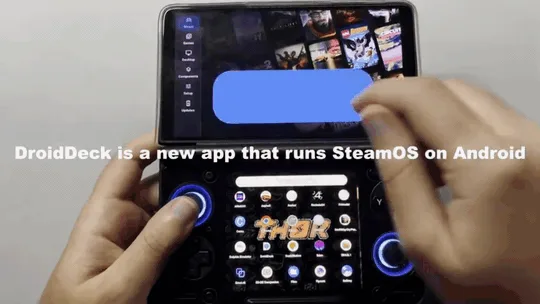
DroidDeck is an open source Android application that allows compatible smartphones and handheld gaming devices to run Valve’s Steam client and launch supported Windows PC games locally using ARM64 Proton. The application introduces an alternative approach to portable PC gaming by combining Linux runtime technology, Windows compatibility tools, processor instruction translation, and Vulkan graphics acceleration. This allows players to access their existing PC gaming libraries directly on supported Android hardware without requiring a separate gaming computer or relying on cloud streaming services.
Unlike conventional remote gaming applications that use a desktop computer to process gameplay and transmit the results to a mobile device, DroidDeck attempts to execute compatible PC games directly on the Android device. This means players can potentially enjoy their Steam libraries without maintaining a continuous connection to a gaming desktop. However, successful gameplay depends on the device’s processor, graphics hardware, available memory, supported drivers, and the specific software requirements of individual games. Not every Windows title will function correctly, and performance can vary considerably between devices.
DroidDeck is designed to reproduce important elements of the SteamOS gaming experience without replacing Android with Valve’s operating system. Its primary attraction is the ability to launch Valve’s Steam client in Big Picture mode, browse an existing game library, configure controllers through Steam Input, and execute supported titles within a specialized Linux environment. Rather than treating an Android smartphone as a remote display, the application establishes the software environment necessary for compatible PC games to operate locally.
Running Windows games on Android presents several technical challenges because the two platforms use different processor architectures and software environments. Most Android devices rely on ARM64 processors, while conventional Windows PC games are commonly developed for x86 and x86-64 processors and Microsoft Windows APIs. DroidDeck addresses these differences by combining several compatibility technologies that work together to translate processor instructions, manage Windows software requirements, and support graphics rendering.
The application creates a Linux runtime within Android without requiring root access. This environment supports an ARM64 version of Valve’s Steam client, allowing users to access familiar Steam functionality. A graphics compositor manages display output, while additional compatibility components enable supported Windows games to execute through the Linux environment. The architecture uses FEX to translate x86 and x86-64 processor instructions and Proton to provide Windows software compatibility. DXVK and VKD3D Proton translate supported DirectX graphics operations into Vulkan, allowing compatible games to use the Android device’s graphics hardware.
The main technologies supporting DroidDeck include:
- Linux Runtime: Creates a Linux environment within Android without requiring root access, providing the foundation for Steam and its supporting components.
- ARM64 Steam Client: Allows Valve’s Steam client to operate within the Linux environment, giving players access to their existing game libraries.
- FEX Translation: Translates supported x86 and x86-64 processor instructions so software developed for conventional PC processors can execute on compatible ARM64 hardware.
- Proton Compatibility: Provides Windows software compatibility, helping supported PC games operate within DroidDeck’s Linux environment.
- DXVK: Translates supported DirectX graphics operations into Vulkan for compatible graphics hardware.
- VKD3D Proton: Handles supported Direct3D 12 translation requirements, allowing certain games using newer DirectX technologies to operate through Vulkan.
- Graphics Compositor: Manages game presentation and display output within the application’s gaming environment.
- Steam Input: Provides controller configuration and customizable input options, helping players use compatible gamepads and handheld controls.
These technologies create an interface resembling Steam on a dedicated gaming handheld. Players can browse their libraries, configure input devices, and launch compatible games without manually assembling an entirely separate Windows compatibility environment for every title. However, DroidDeck does not automatically convert Windows games into native Android applications. Instead, it runs supported software through its Linux runtime and compatibility layers, making game support dependent on the interaction between several technologies.
DroidDeck version 0.4.0, released on October 12, 2026, introduced significant improvements that expanded the application’s capabilities beyond basic Steam integration. The update added support for Epic Games, GOG, and Amazon Games libraries, allowing users to access additional PC gaming storefronts through the same environment. It also introduced expanded controller support, touchscreen controls, and a SteamOS style KDE Plasma desktop environment, improving usability for smartphone and handheld gaming users.
These additions move DroidDeck closer to a comprehensive portable PC gaming platform. Access to multiple storefronts provides greater flexibility for players with existing digital game collections, while improved controller and touchscreen functionality makes navigating PC games more practical on mobile devices. The KDE Plasma desktop environment also introduces additional desktop functionality beyond the standard gaming interface.
Nevertheless, DroidDeck remains an evolving community project rather than an officially supported Steam Deck replacement. Although it integrates Valve software and technologies, it is not developed or endorsed as an official Valve product. The application also does not install the complete SteamOS operating system onto an Android device. Instead, it creates a compatible gaming environment within Android, an important distinction when evaluating its operating system capabilities, game compatibility, and performance.
The project’s source code is distributed under the GPL 3.0 license, allowing public inspection, modification, and redistribution under the applicable licensing requirements. This open source approach enables developers and community contributors to examine the software, investigate compatibility limitations, and participate in its continued development.
For players interested in running Steam games locally on Android, the official DroidDeck GitHub repository remains the primary reference for installation instructions, releases, hardware requirements, and compatibility updates. Its combination of ARM64 Steam integration, Windows compatibility technologies, expanded storefront support, and handheld gaming features offers a developing alternative to conventional game streaming. However, the experience ultimately depends on supported hardware and individual game requirements, making compatibility verification essential before expecting a particular PC title to run successfully.

In This Article (8 sections)
How to Download and Install DroidDeck APK on Android: System Requirements and Supported Devices
Installing DroidDeck on Android requires more preparation than downloading a conventional mobile game from the Google Play Store. The application uses an APK alongside a separate Linux runtime and several gaming compatibility components, making it important to verify hardware support, available storage, and Android compatibility before beginning. Although DroidDeck does not require root access, certain devices may need additional configuration to run Steam and supported Windows PC games successfully.
The safest place to obtain DroidDeck is the project’s official GitHub repository, Droid-Deck/DroidDeck, which provides application releases, installation documentation, and compatibility information. As of October 13, 2026, the latest verified application release was DroidDeck 0.4.0, published on October 12. Users should distinguish the main Android application from separate runtime components and other downloadable archives because not every file included in the release history is an installable APK.
After locating the appropriate APK in the GitHub release assets, users can download it directly to their Android device. Because the application is distributed outside the usual Android marketplace, the operating system may request permission to install applications from the browser or file manager used for the download. This permission should only be granted after verifying the file’s origin and can be disabled again once installation is complete.
DroidDeck’s initial setup involves downloading and preparing its Linux runtime, which requires approximately 3 GB of storage. Optional desktop functionality and emulator components need around another 1.1 GB. These figures do not include the additional space required for Steam, Proton, graphics drivers, downloaded games, shader caches, updates, or saved data. Players intending to install several Windows games should therefore ensure their devices have substantially more storage available than the minimum runtime requirement.
The installation process involves the following steps:
- Verify Device Compatibility: Confirm that the Android device meets the project’s operating system and graphics processor requirements before downloading the application.
- Visit the Official GitHub Repository: Locate Droid-Deck/DroidDeck and open the published releases section to find the latest appropriate Android application build.
- Download the Correct APK: Select the Android installation package rather than unrelated runtime archives or component files.
- Authorize Installation: If Android blocks the installation, allow the verified browser or file manager to install applications from that source.
- Install and Launch DroidDeck: Complete the Android installation process and open the application to begin its initial configuration.
- Prepare the Linux Runtime: Follow the setup instructions to download and install the required Linux environment and supporting components.
- Configure Android Settings if Necessary: Disable the Restrict child processes developer option when required by the project’s documentation.
- Start Steam: Select the Steam launch option and allow DroidDeck to obtain Valve’s Steam client during its initial startup.
- Sign In to Steam: Authenticate with an existing Steam account to access the associated game library.
- Test a Compatible Game: Begin with a smaller title to confirm that the Steam client, graphics drivers, input controls, and compatibility tools function correctly.
One important installation consideration involves Android’s restrictions on child processes. DroidDeck’s documentation explains that the developer option called Restrict child processes must be disabled on affected devices before Steam can launch successfully. On some Android 12 and Android 13 devices where this setting is not visible, DroidDeck includes a Fix it for me option to assist with the necessary configuration. This is a system compatibility adjustment rather than a requirement to root the device, and users should follow the project’s instructions instead of changing unrelated developer settings.
Once the Linux runtime is prepared, DroidDeck can obtain Valve’s Steam client and present the familiar Steam interface. Players can sign in, browse their existing libraries, and download supported titles directly onto Android storage. However, owning a game on Steam does not guarantee that it will run through DroidDeck. Compatibility depends on the game’s software requirements, graphics API, external launchers, and the capabilities of the device.
Starting with a smaller PC game is a practical way to evaluate the installation before committing substantial storage to demanding releases. This allows users to check whether Steam launches correctly, graphics drivers function as expected, and controllers or touchscreen configurations respond properly. If the initial test succeeds, players can experiment with additional games and compatibility settings.
DroidDeck also includes an application update feature that can install newer project builds, reducing the need to repeat manual APK installation for every supported update. Nevertheless, users should continue obtaining releases and updates through verified project channels. The developers have warned against websites impersonating the DroidDeck team, making the official GitHub repository the authoritative distribution reference.
Hardware compatibility is equally important because DroidDeck requires more than a recent Android operating system. According to the project’s published requirements, Android 9 or newer is the baseline operating system requirement, but graphics processor compatibility is the more significant limitation.
DroidDeck primarily targets devices equipped with Qualcomm Adreno 730 or supported newer graphics processors, including compatible Adreno 8xx hardware. These GPUs are found in selected Snapdragon powered smartphones and dedicated Android gaming handhelds, including devices using Snapdragon 8 Gen 1, Snapdragon 8+ Gen 1, Snapdragon 8 Gen 2, and Snapdragon 8 Gen 3 processors.
However, Snapdragon branding alone does not guarantee support. Different processors within the Snapdragon family contain different graphics hardware, and some lower tier models use Adreno configurations that fall outside DroidDeck’s supported range. Users should therefore identify their exact GPU model rather than relying solely on the processor name or the device’s advertised gaming capabilities.
The project’s published graphics compatibility information includes:
- Android Version: Android 9 or newer is required.
- Adreno 730 and Supported Newer GPUs: The primary graphics hardware targets for DroidDeck.
- Adreno 8xx: Supported configurations are included among the project’s principal hardware targets.
- Snapdragon 8 Gen 1 and Newer Selected Models: Certain devices using Snapdragon 8 Gen 1, Snapdragon 8+ Gen 1, Snapdragon 8 Gen 2, and Snapdragon 8 Gen 3 processors contain compatible graphics hardware.
- Adreno 6xx: Experimental support is available, with some DirectX 11 games potentially functioning through DXVK 2.
- Adreno 710: Specifically listed as unsupported.
- ARM Mali: Not supported under the project’s published hardware requirements.
- Samsung Xclipse: Listed as unsupported.
- PowerVR: Outside the currently supported graphics processor families.
Older Adreno 6xx hardware requires particular caution because its support is experimental rather than equivalent to the primary recommended configurations. Certain DirectX 11 games may operate through DXVK 2, while DirectX 12 titles can encounter crashes or other compatibility problems. Users should not interpret experimental support as a guarantee that the application or its games will function reliably.
The exclusion of Mali, Samsung Xclipse, PowerVR, and Adreno 710 graphics processors also means that some otherwise powerful Android phones cannot currently provide the graphics compatibility required by DroidDeck. A device may have substantial general processing performance while lacking suitable Vulkan drivers or graphics features for the application’s Windows gaming environment.
Storage requirements extend beyond the initial installation. The Linux runtime requires approximately 3 GB, and optional desktop and emulator components increase that requirement by around 1.1 GB. Steam, Proton components, shader caches, and game installations consume additional space, with some modern PC games requiring tens of gigabytes individually. Devices with limited internal storage may therefore struggle to accommodate larger gaming libraries even when their processors are compatible.
Memory requirements are less clearly defined because DroidDeck does not provide a universal minimum RAM specification that guarantees game compatibility. Actual memory consumption depends on the individual game, background Android processes, and the overhead introduced by processor instruction translation and Windows compatibility technologies. Devices with generous RAM capacity are generally better candidates for demanding games, although additional memory alone cannot overcome unsupported graphics hardware or software dependencies.
Thermal management also influences performance. Running Windows PC games locally can place sustained demands on an Android device’s CPU and GPU, generating heat during extended sessions. Thin smartphones may reduce processor speeds to maintain safe temperatures, while dedicated Android gaming handhelds equipped with active cooling may sustain performance for longer periods. However, cooling improvements do not guarantee that every supported game will achieve acceptable frame rates.
The absence of a root requirement makes DroidDeck more accessible than solutions requiring extensive Android system modifications. Its Linux runtime and compatibility components operate within Android, allowing users to experiment with supported PC games without replacing the device’s operating system.
Nevertheless, meeting the published requirements should be understood as establishing basic compatibility rather than guaranteeing smooth gameplay. Performance will continue to depend on processor capabilities, graphics drivers, available memory, thermal conditions, and the software requirements of individual titles.
For prospective users, the most important preparation is confirming the exact GPU model, ensuring sufficient storage, downloading the correct APK from the official repository, and completing the Linux runtime configuration. Once Steam launches successfully, testing smaller compatible games provides a practical starting point before exploring more demanding Windows releases. This approach helps users understand their device’s capabilities while reducing unnecessary downloads and compatibility problems.
How to Set Up Your Steam Library on DroidDeck and the Best Steam Games to Play on Android in 2026
Setting up a Steam library in DroidDeck is designed to provide an experience familiar to players who have previously used Steam on a Windows PC or Steam Deck. Once the application has installed its Linux runtime and Steam client, users can sign in with an existing Steam account, browse their purchased games, and download compatible titles directly onto their Android devices. The application uses Valve’s Steam interface in Big Picture mode, making navigation more convenient for handheld gaming devices and controllers.
One of DroidDeck’s main advantages is that players can access their existing Steam purchases without buying separate copies simply because they are using another device. However, owning a Windows PC game does not guarantee that it will function through DroidDeck. The application relies on compatibility technologies to run supported games locally, and individual titles may encounter problems involving graphics requirements, anti cheat systems, third party launchers, processor translation, or unsupported Windows components.
Before downloading a large game, players should examine its hardware requirements and available compatibility information. This is particularly important because some PC titles require substantial storage, memory, and processing power. Games with complicated launchers or online authentication systems may also introduce additional difficulties, even when their basic graphics requirements appear manageable.
DroidDeck provides several configuration options that allow users to adjust how individual games operate. These include selecting Proton versions, modifying FEX settings, managing graphics translation components, and applying compatibility adjustments. Version 0.4.0, released on October 12, 2026, introduced persistent compatibility profiles for individual games, allowing users to maintain separate configurations without changing the settings used by every title in their libraries.
For example, one game may function more reliably with conservative FEX settings, while another could benefit from a different graphics driver or Proton implementation. Persistent profiles make experimentation more convenient because successful configurations can be preserved when switching between games. This is useful for players who maintain libraries containing titles with different engines, graphics requirements, and software dependencies.
The recommended Steam library setup process includes:
- Complete DroidDeck Installation: Ensure that the Linux runtime, Steam client, and required compatibility components have been installed successfully.
- Sign In to Steam: Open Steam through DroidDeck and authenticate with the account containing the games you want to access.
- Browse Your Library: Use Steam’s Big Picture interface to examine available purchases and identify suitable games.
- Check Game Compatibility: Review graphics requirements, external launcher dependencies, anti cheat restrictions, and available compatibility reports before downloading.
- Install a Smaller Game First: Begin with a lightweight title to verify that the application, graphics drivers, and controller configuration function correctly.
- Configure Proton and FEX: Adjust supported compatibility settings when necessary to improve game stability or resolve launch problems.
- Use Individual Game Profiles: Save working configurations separately so adjustments for one game do not interfere with another.
- Verify Controller Support: Configure Steam Input, physical gamepads, or touchscreen layouts according to the game’s requirements.
- Check Cloud Saves: Confirm that existing progress is recognized and that newly created saves synchronize correctly.
- Expand Your Library Gradually: Install additional titles after verifying the stability and performance of the initial setup.
DroidDeck also supports importing games from outside Steam. The October 2026 update expanded the application with integrations for GOG, Epic Games, and Amazon Games, allowing supported purchases from these storefronts to be downloaded and incorporated into the Steam interface. This provides additional flexibility for players whose PC gaming collections are distributed across several digital marketplaces.
The application’s non Steam game management features include automatic game detection, artwork integration, bulk imports, and editing tools. These functions help organize games within a familiar interface rather than requiring users to manage each storefront separately. However, storefront integration does not guarantee that every game available through those services will run successfully on Android. Individual compatibility requirements still apply.
Cloud save support is another important consideration. DroidDeck includes cloud save functionality for supported GOG and Epic Games integrations, while Steam Cloud is available for games that support synchronization. However, successful transfers depend on the individual game, its save file locations, and whether the compatibility environment can access the appropriate files.
Players should not assume that every saved game will automatically transfer between Windows, Linux, and Android environments. Before relying on progression across multiple devices, it is advisable to confirm that the game recognizes existing cloud saves and correctly uploads new progress. This is particularly important when switching between computers and Android handhelds, since synchronization problems could otherwise result in conflicting or missing save data.
Choosing suitable Steam games is equally important because DroidDeck’s compatibility technologies introduce considerations that do not apply in the same way to conventional Windows gaming. A game’s popularity, age, or published minimum PC requirements do not automatically determine how well it will perform on an Android device. Processor instruction translation, graphics driver support, memory availability, and individual software dependencies can influence whether a title launches and maintains playable performance.
The most promising candidates generally have modest graphics requirements, straightforward controls, and limited reliance on complicated third party launchers. Games using relatively lightweight rendering engines or older graphics technologies may also be easier to investigate than recent high budget releases. However, there was no comprehensive, independently verified database guaranteeing DroidDeck compatibility for every major Steam title as of October 13, 2026.
The following games are reasonable candidates for testing, but they should not be interpreted as universally confirmed compatible titles:
– Stardew Valley: A farming simulation with modest PC hardware requirements, controller friendly gameplay, and a relatively lightweight presentation. Its structure suits portable gaming sessions, although the existing native Android version may be easier to install for players who do not specifically need their Steam purchase.
– Terraria: A side scrolling adventure with comparatively modest graphics requirements. Its exploration and crafting gameplay makes it an interesting compatibility candidate, although complex inventories and menus may require careful controller or touchscreen configuration.
– Vampire Survivors: A survival game with simple controls that work naturally with gamepads. Its accessibility makes it appealing for handheld play, but performance may become more demanding when large numbers of enemies and visual effects appear simultaneously.
– Hollow Knight: A precision platforming game featuring controller based combat and relatively contained graphics requirements. Its gameplay suits portable devices, although stable frame pacing and responsive controls remain essential.
– Celeste: A lightweight platformer that emphasizes precise movement and timing. Because responsiveness is central to its gameplay, compatibility testing should focus on input latency and consistent performance rather than merely confirming that the game launches.
– Dead Cells: A fast paced action game with controller friendly mechanics. It may appeal to players who already own the Steam version, although successful execution and sustained performance must still be verified on individual devices.
– Slay the Spire: A turn based card game that may tolerate occasional performance fluctuations better than demanding action titles. Its interface could also be suitable for touchscreen interaction when configured appropriately.
– Balatro: A card based strategy game with modest visual presentation and gameplay that does not depend on extremely high frame rates. These characteristics make it another useful candidate for experimenting with DroidDeck’s portable gaming environment.
– Hades: A more demanding action game that may interest owners of powerful Snapdragon devices. Its fast combat requires dependable controller input, consistent frame pacing, and suitable graphics compatibility.
– Portal 2: A puzzle game with established PC controller support and an older rendering engine. However, its age does not eliminate possible problems involving processor translation, graphics compatibility, executable requirements, or game specific dependencies.
These games cover several genres, including farming simulations, platformers, action games, puzzle adventures, and card based strategy titles. Their different requirements make them useful for investigating how DroidDeck handles various gameplay styles, input systems, and rendering workloads.
For players beginning with DroidDeck, games that use straightforward controls and have limited external dependencies are sensible starting points. Turn based titles such as Slay the Spire and Balatro may be easier to evaluate because their gameplay does not require the same level of responsiveness as precision platformers or fast action games. Similarly, lightweight farming and exploration games may provide useful opportunities to test controller configuration, graphics stability, and basic compatibility.
More demanding titles such as Hades require additional attention to sustained performance. A game might launch successfully but experience inconsistent frame rates during intense combat or extended sessions. Hollow Knight and Celeste introduce another important consideration because their gameplay depends heavily on precise timing and reliable input. Even when graphics performance appears acceptable, noticeable input latency can significantly affect the experience.
Portal 2 demonstrates why older PC games should not automatically be considered compatible. Although its engine and graphics requirements differ from those of modern high budget releases, processor translation, Windows software dependencies, and graphics API support can still produce technical difficulties. Successful compatibility depends on the entire software environment rather than graphics complexity alone.
Players should also consider whether a game already has an official Android version. Native Android releases generally provide a more straightforward installation process and may offer more predictable performance because they are developed specifically for the platform. However, DroidDeck serves a different purpose by allowing players to experiment with existing PC purchases instead of requiring separate mobile editions.
The most useful approach is to treat these recommendations as a practical testing shortlist rather than a verified ranking. Users should confirm successful installation, gameplay stability, controller functionality, and sustained performance on their specific devices before considering a title fully compatible.
Ultimately, DroidDeck’s Steam library integration offers a way to access existing PC game collections on compatible Android hardware. Its support for multiple storefronts, persistent game profiles, configurable compatibility components, and cloud saves makes it increasingly flexible, but reliable gameplay still depends on individual titles and device capabilities. By beginning with smaller games, verifying saved data, and preserving working configurations, players can gradually develop a portable PC gaming library suited to their Android smartphones or handheld gaming devices.

DroidDeck vs Steam Link, Winlator, and GameHub: Which Is Better for Android Gaming?
DroidDeck, Steam Link, Winlator, and GameHub offer different approaches to playing PC games on Android devices, but their underlying technologies, hardware requirements, and supported features vary considerably. While all four applications can provide access to PC gaming experiences on mobile hardware, they differ in how games are executed, how much configuration they require, and whether a separate gaming computer is necessary. Understanding these differences is important when choosing between local Windows game execution, remote streaming, and configurable PC gaming environments.
DroidDeck and Steam Link demonstrate two fundamentally different approaches to Android gaming. Steam Link focuses on remote gameplay, allowing users to stream games from a compatible host computer to an Android smartphone or handheld device. The host computer runs the game, performs graphics processing, and transmits the resulting video and audio to the Android device. The phone displays the stream and sends controller or touchscreen inputs back to the computer.
This arrangement allows relatively modest Android hardware to access demanding PC games because the primary computing workload remains on the host system. However, the experience depends heavily on network stability, available bandwidth, latency, and the gaming computer’s performance. An unstable connection can introduce delays, reduce visual quality, or interrupt gameplay, particularly in games requiring precise and responsive controls.
DroidDeck takes a different approach by attempting to execute supported Windows PC games directly on Android hardware. Instead of receiving a video stream from another computer, the device performs game processing and rendering through its own CPU, GPU, and compatibility software. This removes the need for a separate gaming desktop but introduces substantially greater hardware requirements. The application relies on ARM64 Proton, processor instruction translation, and graphics compatibility technologies to run supported Windows games locally.
As a result, an Android phone capable of receiving high quality Steam Link streams may still be incompatible with DroidDeck because its graphics processor lacks the necessary support. Similarly, a demanding PC game that runs smoothly through Steam Link may perform poorly or fail to launch when executed locally through DroidDeck. This distinction is particularly important because streaming performance and local game compatibility depend on different hardware capabilities.
Offline functionality is another major difference. Steam Link requires a connection to the computer executing the game, while DroidDeck can support local offline gameplay after the necessary components have been installed and Steam has completed its initial authentication. However, offline access still depends on individual game requirements. Titles that rely on external launchers, persistent online services, or additional license verification may require an internet connection even when running locally.
For players who already own powerful gaming computers and have reliable home networks, Steam Link may provide a simpler way to access demanding titles on Android. DroidDeck is more relevant to users who want to travel without carrying a separate computer or depending on continuous streaming. Neither application is universally superior because Steam Link prioritizes remote access to established gaming hardware, while DroidDeck focuses on local execution and greater independence.
Winlator provides another alternative for Android users interested in running Windows PC games. The application uses Wine alongside x86 compatibility technologies to execute supported Windows software within configurable environments. Its official project documentation identifies Wine, Box86, and Box64 among its principal compatibility components.
Unlike DroidDeck, which emphasizes Steam library integration, Winlator generally provides configurable Windows style environments where users can install applications, manage game files, adjust graphics settings, and experiment with compatibility options. This flexibility makes it particularly relevant to technically experienced users who prefer detailed control over how individual Windows applications operate.
However, Winlator’s approach can require substantial manual configuration. Different games may need specific graphics drivers, runtime settings, or compatibility adjustments before they function correctly. Users who enjoy experimenting with Windows software may appreciate this flexibility, while those seeking a more integrated handheld gaming interface may prefer DroidDeck’s Steam focused design.
DroidDeck places greater emphasis on making Valve’s Steam client central to the experience. Its ARM64 Steam integration allows players to access familiar libraries through a handheld oriented interface, configure supported games, and launch titles without treating every installation as a completely separate Windows environment. This creates a workflow intended to reduce the complexity between finding a purchased game, preparing compatibility settings, and beginning gameplay.
GameHub, associated with GameSir’s Android gaming ecosystem, offers another approach to organizing and accessing PC gaming functionality on mobile hardware. Its available capabilities depend on the application version, supported hardware, account integrations, and whether a particular game uses local execution or remote streaming. Comparisons with GameHub should therefore distinguish these operating methods rather than assuming every supported feature provides the same experience.
GameHub may appeal to players already using compatible GameSir controllers or its supported gaming environment. DroidDeck, meanwhile, is particularly relevant to users who want a Steam Deck inspired interface and direct integration with an existing Steam library. Winlator remains attractive for those who prefer installing and configuring Windows applications without making Steam the central component of their gaming setup.
The primary differences between these applications include:
- DroidDeck: Focuses on running supported Windows PC games locally through an Android Linux runtime, ARM64 Proton, and related compatibility technologies. Its main advantages include Steam library integration, a handheld oriented interface, and the ability to play compatible games without a separate gaming computer.
- Steam Link: Streams games from a compatible host PC to Android. It allows less powerful devices to access demanding games but requires suitable host hardware and a reliable network connection.
- Winlator: Provides configurable Windows compatibility environments using Wine and processor translation technologies. It offers detailed control over application installation and compatibility settings but may require more manual troubleshooting.
- GameHub: Provides PC gaming access and controller integration within GameSir’s ecosystem, with functionality varying according to the supported hardware, application version, and execution or streaming method.
Performance comparisons between DroidDeck, Winlator, and GameHub require particular caution. A Windows game that performs well through Winlator may behave differently in DroidDeck because the applications can use different graphics drivers, translation components, runtime libraries, and compatibility configurations. Even when two applications successfully launch the same title, their frame rates, loading behavior, input responsiveness, and stability may differ.
Results can also vary significantly between Android devices. A configuration that works on one Snapdragon powered smartphone may produce different results on another device because of graphics hardware, memory capacity, thermal management, or driver support. Consequently, performance should be assessed using the same game, device, and comparable settings rather than relying on general claims about which application is faster.
There is no universally reliable benchmark establishing that DroidDeck consistently outperforms Winlator or GameHub across every game and processor. The more useful comparison concerns game compatibility, interface design, configuration requirements, controller options, and the user’s preferred method of accessing PC games.
DroidDeck’s greatest attraction is its integration of the Steam client into a portable Android gaming environment. Players who already own substantial Steam libraries may appreciate the ability to browse their purchases and experiment with supported titles through a familiar interface. Its local execution approach also makes it relevant to players who want greater independence from gaming desktops and remote streaming services.
Winlator offers a different advantage through its configurable Windows environments. Users who want to install individual Windows applications, work directly with game installers, or experiment with detailed compatibility settings may find its approach more suitable. However, this flexibility can introduce additional setup complexity, particularly for games with demanding graphics or external dependencies.
Steam Link remains a practical option for users who already possess capable gaming computers. Because the host system performs the demanding processing work, the Android device does not need the same graphics compatibility required for local Windows execution. Its main limitation is dependence on network quality and access to the host computer.
GameHub provides another option for players interested in PC gaming functionality alongside supported GameSir controller integrations. However, its suitability depends on the particular features available in the installed version and whether the intended games use local execution or streaming.
Ultimately, choosing between DroidDeck, Steam Link, Winlator, and GameHub depends on the games being played, the Android device’s hardware, access to a gaming computer, and the amount of configuration the user is willing to perform. DroidDeck offers a promising Steam focused handheld experience, Winlator provides a traditional Windows compatibility environment, Steam Link prioritizes convenient remote access, and GameHub offers another approach through its supported gaming ecosystem. Each serves a different purpose, making device specific compatibility and preferred gameplay requirements more important than assuming one application is universally better.
DroidDeck Offline Steam Gaming, Performance, FPS, and Graphics Settings Explained
DroidDeck supports local Steam gaming on compatible Android devices without requiring a continuous connection to a desktop gaming computer or cloud streaming service. Unlike remote gaming applications, which depend on another machine to process gameplay and transmit video, DroidDeck executes supported Windows PC games directly on Android hardware. This allows players to enjoy compatible Steam titles while traveling, commuting, or spending time in locations without reliable internet access. However, offline functionality depends on completing the necessary setup and meeting the individual game’s authentication and connectivity requirements.
According to the project’s release documentation, DroidDeck supports starting Steam in offline mode after an initial successful sign in. Before using this feature, players must install the application, prepare its Linux runtime, configure the required compatibility components, and complete Steam’s initial authentication process. The intended games must also be downloaded and configured before the device loses internet connectivity. Once these conditions are satisfied, supported titles can potentially operate without requiring a gaming desktop or constant online connection.
Offline compatibility varies considerably between games. Many single player titles can function without an internet connection because their essential files and gameplay systems are stored locally. However, other games depend on external launchers, periodic license verification, third party digital rights management, or online authentication services. These requirements may prevent offline access even when the game itself is installed on the device. Similarly, multiplayer titles that rely on online servers cannot provide their normal network dependent features without connectivity.
Steam Cloud synchronization introduces another consideration. When players make progress while disconnected, their save files may remain stored locally until Steam reconnects and synchronizes them. If the same game has been played on another computer or handheld during that period, conflicting save versions may occur. Players should therefore verify important save files before switching between multiple devices, particularly when planning extended offline gaming sessions.
DroidDeck’s developers have highlighted improvements to Steam startup behavior and offline functionality in the project’s releases. These changes make the application more practical for portable gaming, although users should test offline access with individual titles before relying on it during travel.
For reliable offline gameplay, players should complete several preparations:
- Install Required Components: Ensure DroidDeck, its Linux runtime, Steam, and the necessary compatibility tools are installed before disconnecting.
- Authenticate With Steam: Complete the initial sign in while connected to the internet so Steam can establish the required account information.
- Download Games in Advance: Install and configure the intended titles before traveling or entering areas without connectivity.
- Verify Offline Compatibility: Check whether games require third party launchers, persistent authentication, or periodic license verification.
- Test Offline Mode: Disconnect from the internet and confirm that the intended games launch and function correctly.
- Manage Save Files: Verify local progress and allow cloud synchronization to complete after reconnecting.
- Check Multiplayer Requirements: Remember that games dependent on online servers cannot provide their normal multiplayer functionality without an internet connection.
Beyond offline support, performance is one of the most important considerations when using DroidDeck because it attempts to execute Windows PC games on hardware originally designed for Android applications. Unlike native Android games, which are developed for the platform’s processor architecture and graphics environment, Windows titles running through DroidDeck require additional compatibility technologies. These systems introduce processing overhead that can affect frame rates, stability, loading behavior, and overall responsiveness.
The achievable FPS depends on several interconnected factors, including CPU performance, GPU capabilities, graphics driver compatibility, available memory, thermal conditions, and processor instruction translation. A powerful Snapdragon processor does not automatically guarantee smooth gameplay because individual games may depend on unsupported Windows features, demanding DirectX operations, or compatibility components that require substantial processing resources.
DroidDeck uses technologies such as FEX, Proton, DXVK, and VKD3D Proton to execute supported games. FEX translates processor instructions, while Proton provides Windows compatibility functionality. DXVK and VKD3D Proton translate supported DirectX graphics operations into Vulkan. Although these technologies allow Windows software to operate on compatible Android hardware, their interaction can introduce performance limitations that native Android applications generally avoid.
Graphics translation can become particularly demanding when games use complex rendering techniques or advanced DirectX features. Even when the processor and GPU appear powerful enough, translation overhead or compatibility problems may prevent the game from reaching expected performance levels. This makes it important to distinguish between hardware limitations and software compatibility issues when troubleshooting.
DroidDeck provides several settings that can help players balance performance, graphics quality, and stability. One of the most practical adjustments is reducing rendering resolution. Lower resolutions decrease the number of pixels the GPU must process, potentially improving FPS when graphics rendering is the primary bottleneck. However, resolution changes cannot resolve every performance problem. If a game is limited by processor translation, unsupported graphics features, or a launcher that fails to initialize, reducing resolution may provide little improvement.
Texture quality and memory usage also affect performance. Many Windows games are designed around graphics hardware with dedicated video memory, while Android devices commonly use shared memory architectures. Large textures and demanding graphical assets can therefore place significant pressure on available memory. Reducing texture quality may help limit resource consumption, while lowering shadows, reflections, and post processing effects can decrease rendering workloads.
Frame rate stability is another important consideration. A game that frequently fluctuates between high and low FPS may feel less responsive than one maintaining a lower but consistent frame rate. Applying an appropriate FPS limit can improve frame pacing and provide a smoother experience, especially on devices that struggle to sustain higher performance targets.
DroidDeck includes performance monitoring functionality inspired by the Steam Deck experience. According to its release documentation, available overlays can display CPU and GPU usage, temperatures, battery information, memory related statistics, and other operating metrics. These measurements can help players determine whether performance problems result from excessive hardware workloads, memory limitations, or sustained thermal throttling.
The most useful graphics and performance adjustments include:
- Rendering Resolution: Lower the resolution when GPU processing limits performance, reducing the number of pixels rendered during gameplay.
- Texture Quality: Reduce texture settings when memory consumption becomes excessive or the device struggles with demanding graphical assets.
- Shadows and Reflections: Lower these settings to reduce rendering workloads in visually demanding environments.
- Post Processing Effects: Simplify additional graphics effects when attempting to improve frame rates or stability.
- Frame Rate Limits: Select a stable FPS target instead of prioritizing the highest possible reading.
- FEX Configuration: Experiment with supported processor translation settings when a particular game experiences compatibility or performance problems.
- Proton Versions: Test available compatibility versions when games fail to launch or behave unexpectedly.
- DXVK and VKD3D Proton: Adjust supported graphics translation components when necessary for individual games.
- Performance Monitoring: Use available overlays to observe processor usage, GPU activity, memory consumption, temperatures, and battery behavior.
- Thermal Management: Monitor sustained temperatures and consider cooling conditions during extended gaming sessions.
Changing compatibility components can improve certain games, but the results depend on individual titles. One game may function more reliably with a particular Proton version, while another may benefit from different graphics translation settings or FEX configurations. These adjustments should therefore be tested individually rather than applied universally across the entire game library.
DroidDeck version 0.4.0, released in October 2026, introduced improvements intended to reduce runtime overhead, including PRoot optimizations. The project’s release announcement reported performance gains of up to 57% in certain PRoot workloads. However, this figure does not mean every Windows game receives a 57% FPS improvement. Optimizations measured in specific runtime operations do not necessarily produce equivalent gains in graphics performance or overall gameplay.
Reliable comparisons require identical hardware, game versions, compatibility components, graphics settings, and testing conditions. A performance improvement observed in one application or workload may not apply to another title with different processor and GPU demands. Players should therefore evaluate actual gameplay performance rather than assuming that a reported runtime optimization guarantees proportional frame rate improvements.
Thermal management can also significantly affect performance. Running PC games locally places sustained demands on the processor and graphics hardware, generating heat over extended sessions. Smartphones may reduce CPU and GPU speeds when temperatures rise, causing performance to decline after several minutes of gameplay. A title that initially runs smoothly may therefore experience lower frame rates during longer sessions as the device attempts to remain within safe operating temperatures.
Dedicated Android gaming handhelds with active cooling may sustain performance more effectively than thin smartphones using similar processors. However, cooling alone cannot resolve software compatibility limitations, unsupported graphics features, or excessive memory requirements. Hardware capability and software support must work together to deliver reliable gameplay.
Battery consumption is another practical consideration. Running Windows games through DroidDeck can require prolonged CPU and GPU activity, memory access, graphics translation, and display operation. These demands may consume substantial battery power, particularly when playing graphically intensive titles or using high frame rate settings. Lowering resolution, reducing demanding graphics options, and selecting a reasonable FPS limit may help manage resource usage, although actual battery life will vary between devices.
Players should also distinguish between a game launching successfully and delivering a consistently playable experience. A title may reach its menu or begin gameplay without errors but later suffer from unstable frame rates, excessive memory consumption, overheating, or compatibility failures. Testing sustained gameplay is therefore more informative than relying solely on whether the executable starts correctly.
For the best results, DroidDeck users should prioritize stable frame pacing, suitable graphics settings, verified game compatibility, and effective thermal management. Smaller or less demanding titles may provide a more predictable experience, while advanced PC games can require substantial experimentation with resolution, compatibility tools, and hardware limitations.
Ultimately, DroidDeck’s offline functionality and configurable graphics environment make it an interesting option for accessing supported PC games directly on Android. Its ability to operate without continuous streaming provides greater independence from gaming desktops, while performance settings and monitoring tools allow players to experiment with different configurations. However, the quality of the experience remains dependent on individual games, supported hardware, available memory, thermal conditions, and the efficiency of the compatibility technologies involved.

Frequently Asked Questions (FAQs)
1. What is DroidDeck, and can it run Steam games on Android?
DroidDeck is a free, open source Android application that allows compatible smartphones and handheld gaming devices to run supported Windows PC games locally. It uses Valve’s ARM64 Steam client alongside technologies such as Proton, FEX, and Vulkan graphics translation to create a Steam Deck inspired gaming environment. Users can access their existing Steam libraries, download compatible games, and launch them directly on Android without installing the complete SteamOS operating system. However, DroidDeck cannot run every Steam game. Compatibility depends on the device’s processor, graphics hardware, available memory, supported drivers, and the game’s software requirements. Some titles may also require additional configuration before functioning correctly.
2. Is DroidDeck free to download and use in 2026?
Yes. DroidDeck is completely free to download and use in 2026, with its source code distributed under the GPL 3.0 open source license. Users can obtain the Android application through the project’s official GitHub releases without paying a subscription fee or purchasing an application license. However, DroidDeck does not provide paid PC games for free. Players must still own or purchase titles through Steam or other supported storefronts, including GOG, Epic Games, and Amazon Games. Any games accessed through these services remain subject to their respective licensing requirements. Although the application itself is free, users should also consider the storage and hardware requirements associated with running PC games locally.
3. Can DroidDeck run Steam games without a gaming PC?
Yes. DroidDeck can execute compatible Steam games directly on supported Android hardware without requiring a separate gaming desktop, laptop, or remote streaming service. Unlike Steam Link, which relies on another computer to process gameplay, DroidDeck uses the Android device’s own CPU and GPU to run supported Windows games through its Linux compatibility environment. Technologies such as ARM64 Proton and FEX help bridge the differences between Windows software and ARM processors. Once the required components are installed, users can download compatible games directly to their devices. However, demanding titles may experience reduced frame rates, compatibility problems, or launch failures because mobile hardware cannot always provide the same performance as a dedicated gaming PC.
4. Which Android phones support DroidDeck?
DroidDeck primarily supports Android 9 or newer devices equipped with Qualcomm Adreno 730 or supported newer graphics processors, including compatible Adreno 8xx hardware. These GPUs are found in selected smartphones and handheld gaming devices powered by Snapdragon 8 Gen 1, Snapdragon 8+ Gen 1, Snapdragon 8 Gen 2, and Snapdragon 8 Gen 3 processors. Older Adreno 6xx graphics processors have experimental support, although certain DirectX 12 games may encounter crashes or compatibility problems. Adreno 710, ARM Mali, Samsung Xclipse, and PowerVR graphics processors are currently listed as unsupported. Users should verify their device’s exact GPU model before installation because having a powerful Snapdragon processor or a recent Android version does not automatically guarantee compatibility.
5. Does DroidDeck require root access?
No. DroidDeck is designed to operate without rooting an Android device or replacing its existing operating system. It uses a Linux runtime and PRoot based technologies to create the environment needed for Steam and Windows game compatibility. This makes installation more accessible than solutions requiring extensive modifications to Android’s system files. However, certain Android versions may require adjustments to developer settings, particularly disabling the Restrict child processes option so Steam can launch correctly. On some Android 12 and Android 13 devices where this option is not visible, DroidDeck provides a Fix it for me feature to assist with configuration. These changes are different from obtaining root privileges and should be performed according to the project’s instructions.
6. Can DroidDeck play Steam games offline?
Yes. DroidDeck supports offline gameplay for compatible Steam titles after the Linux runtime, Steam client, and required game files have been installed and configured. Steam must also complete its initial authentication before offline operation becomes available. Because games execute directly on Android hardware, players do not need a continuous connection to a gaming computer or cloud streaming service. However, offline functionality depends on individual game requirements. Titles using online multiplayer servers, third party launchers, persistent authentication, or periodic license verification may still require internet access. Players should test their games in offline mode before traveling and ensure that important cloud saves synchronize correctly when connectivity returns.
7. Is DroidDeck better than Steam Link for Android gaming?
DroidDeck and Steam Link serve different purposes, so the better option depends on the player’s hardware and gaming preferences. DroidDeck runs supported Windows PC games locally on compatible Android devices, eliminating the need for a separate gaming computer during gameplay. Steam Link instead streams games from a host PC, allowing relatively modest Android hardware to access demanding titles because the computer handles most processing tasks. Steam Link is generally more practical for players who already own capable gaming PCs and have reliable network connections. DroidDeck provides greater independence for portable gaming, including potential offline access, but its compatibility and performance depend more heavily on the Android device’s hardware.
8. Can DroidDeck use Bluetooth controllers and touchscreen controls?
Yes. DroidDeck supports compatible Bluetooth controllers, built in handheld controls, and customizable touchscreen input through Steam Input integration. Version 0.4.0 introduced beta support for Steam’s native touchscreen controller, allowing players to use community layouts, create individual game configurations, and adjust virtual controls through an on screen editor. The application also supports controller emulation modes such as Xbox 360, DualShock 4, DualSense, Steam Controller, and Steam Deck. Additionally, users can connect up to four independent controllers for supported local multiplayer games. However, controller compatibility and available features may vary depending on the device and game. Physical gamepads generally provide a more comfortable experience for titles requiring precise movement or complicated control combinations.
9. How much storage does DroidDeck need?
DroidDeck requires approximately 3 GB of available storage for its main Linux runtime, while optional desktop and emulator components require another 1.1 GB. However, these figures cover only the supporting software and do not represent the total storage needed for gaming. Users must also account for the Steam client, Proton components, graphics drivers, downloaded games, shader caches, updates, and saved data. Some modern Windows PC games require tens of gigabytes individually, so storage consumption can increase significantly when installing multiple titles. Devices with generous internal storage are generally more practical, particularly for players planning to maintain larger Steam libraries. Checking the storage requirements of individual games before downloading can help prevent installation problems.
10. Where can I safely download the latest DroidDeck APK?
The safest download location is the official Droid-Deck/DroidDeck GitHub releases repository, where the developers publish application updates, installation instructions, and compatibility information. As of October 13, 2026, DroidDeck 0.4.0, released on October 12, was the latest verified application version. Users should open the appropriate release and download the actual Android APK rather than unrelated runtime archives or component packages. Because Android may require permission to install applications from outside its usual marketplace, users should verify the download source before authorizing installation. The project has also warned about websites impersonating its developers, making the official GitHub repository the most reliable source for obtaining the application and future updates.

Conclusion
DroidDeck represents a significant development in the effort to bring PC gaming experiences to Android smartphones and handheld devices.
By combining Valve’s ARM64 Steam client, Proton compatibility technologies, FEX instruction translation, and supported Vulkan graphics drivers, the application makes it possible to run selected Windows PC games directly on mobile hardware.
Its greatest advantage is independence from traditional remote streaming.
Instead of requiring a gaming computer to remain powered on, DroidDeck allows compatible Android devices to perform the gaming workload locally.
For players who already own Steam libraries, this creates an appealing opportunity to access existing purchases through a portable gaming environment.
The release of DroidDeck 0.4.0 on October 12, 2026, also demonstrates how quickly the project is evolving.
Additional storefront integrations, improved controller functionality, touchscreen support, enhanced compatibility settings, and desktop features make the application more versatile than a basic Windows game launcher.
However, several limitations remain.
Hardware compatibility is concentrated on supported Adreno graphics processors, meaning many Android phones cannot currently use the application as intended.
Game compatibility is also variable, and the overhead associated with translation and graphics compatibility can significantly affect performance.
DroidDeck should therefore be viewed as a developing alternative for technically interested Android gamers rather than a guaranteed replacement for a Windows gaming PC or Steam Deck.
Users who prioritize reliability across demanding PC games may still prefer traditional computers or remote streaming applications.
Those who value local execution, portable access to existing Steam purchases, and the flexibility of open-source software may find DroidDeck particularly compelling.
As Android processors become more powerful and compatibility technologies continue improving, projects like DroidDeck could help narrow the gap between mobile gaming and conventional PC gaming.
For now, its strongest appeal lies in what it already demonstrates: a compatible Android device can run the real Steam client and execute selected PC games locally, creating new possibilities for portable gaming without depending entirely on cloud services or remote computers.
Sources
- DroidDeGitHub: DroidDeck Official Repository
https://github.com/Droid-Deck/DroidDeck - GitHub: DroidDeck Releases
https://github.com/Droid-Deck/DroidDeck/releases - GitHub: DroidDeck README Documentation
https://github.com/Droid-Deck/DroidDeck/blob/main/README.md - GitHub: DroidDeck Development Repository
https://github.com/sqwu/droiddeck - GitHub: Winlator Official Repository
https://github.com/brunodev85/winlator - Winlator: Official Website
https://winlator.org/ - DroidDeck: Installation and Troubleshooting Guide
https://droiddeck.org/install/ - DroidDeck: Project Overview and Release Information
https://droiddeck.org/
Recommendations
- World Creator 4 Revealed: BiteTheBytes’ New Terrain Generation Software and Features
- German Court Rules Google is Liable for AI Overviews Answers
- How do I simulate a drone camera in Blender?
- UE5 Cinematic Lighting: Lumen, Exposure, Color Grading & Movie Render Queue
- The Legend of Aang: the Last Airbender Movie Shadow Drop Rumors Explained After Full Movie Leak
- Over 1,000 Mario Maker Levels Have Been Deleted, And It May Be Just One Person’s Fault
- Jason Schreier Says The Last of Us Online Was a Major Naughty Dog Project, Not a Side Project
- Captain Tsubasa 2: World Fighters Launches August 28, 2026: Release Date, Platforms, Gameplay and More
- Mina the Hollower Secret Bad Ending Explained
- Shinji Mikami Establishes High-Profile Game Development Studio Unbound: What We Know About the New AAA Original IP