

Introduction: Bridging GoPro and Faceware for Real-Time Facial Animation
GoPro Faceware setup is a markerless facial motion capture technology that uses a single camera feed to transfer an actor’s facial performance onto a digital character in real time. This guide explores the advantages of using a GoPro camera with Faceware Live/Studio, detailing the complete setup process, including hardware and software requirements, connection methods, troubleshooting, and integration into animation pipelines. It provides step-by-step instructions, real-world use cases, and answers to common questions to enable professional-quality real-time facial animation for both indie and studio animators.
This comprehensive guide covers the benefits of Faceware GoPro, necessary hardware and software configurations, detailed steps to connect the GoPro to a computer, solutions for common issues, and methods to integrate captured facial data into 3D animation workflows, along with advanced tips and best practices for optimal results.
Why Use a GoPro for Faceware?
- High-Quality, High FPS Capture: GoPro cameras support high-resolution recording (1080p or higher) and high frame rates (60fps or more), which align with Faceware’s recommendation of 60fps to reduce motion blur and enhance tracking precision. Unlike standard webcams limited to 30fps, GoPros achieve 720p/1080p at 60fps, significantly improving tracking accuracy for facial movements, as noted by industry artists.
- Wide Field of View and Optics: The GoPro’s wide-angle lens captures the entire face, even when mounted close in head-mounted setups, ensuring all facial movements are in frame without framing concerns. Its sensor provides strong dynamic range, handling challenging lighting conditions (e.g., backlit windows) effectively with HDR capabilities, reducing tracking issues caused by lighting contrasts.
- Portability and Durability: GoPros are compact, lightweight, and designed for rugged use, making them ideal for head-mounted rigs where low weight enhances actor comfort. Their durability supports long capture sessions without overheating, and their portability allows actors to move freely, even during dynamic performances, as seen in Faceware’s Indie Headcam system built around the GoPro.
- Flexibility (Wired or Wireless): GoPros offer multiple connection options, including wired HDMI for uncompressed, high-quality video feeds, USB webcam mode (Hero8+), and wireless streaming possibilities. This versatility suits various studio setups, providing stable wired connections or wireless freedom for untethered captures, catering to different production needs.
- Cost-Effective for Quality: Compared to specialized mocap cameras, GoPros are affordable, often already owned by creators, yet deliver professional-grade 1080p/60fps capture. They match the quality of expensive headcam systems while doubling as action cameras, making them a cost-effective, multi-purpose tool for facial animation with Faceware.
These attributes position the GoPro as an exceptional choice for Faceware-based facial motion capture, balancing quality, affordability, and flexibility for animators across skill levels.

Hardware Requirements and Setup
- Compatible Faceware GoPro Models:
- Hero5 Black / Hero6 Black / Hero7 Black: Feature Micro HDMI output for live feed via capture card and USB for file transfer (no direct webcam mode). Faceware’s Indie Headcam uses Hero7 Black, leveraging its reliable HDMI output for high-quality real-time input.
- Hero8 Black: Requires Media Mod for Micro HDMI output; supports USB webcam mode at 1080p. The removal of a built-in HDMI port necessitates the Media Mod, but webcam mode simplifies setup without a capture card.
- Hero9 Black / Hero10 Black / Hero11 Black: Use Media Mod for Micro HDMI output and support USB webcam mode at 1080p. Improved sensors support higher resolutions (e.g., 5K recording), but live output for Faceware is limited to 1080p.
- Older Models (Hero4 Black, etc.): Offer Mini HDMI output or analog video with adapters; usable with capture cards but have lower image quality and low-light performance compared to newer models.
- Capture Card and Cables: For HDMI setups, a capture device (e.g., Elgato Cam Link 4K, AJA U-TAP) is needed to convert the GoPro’s HDMI signal to a PC-readable feed. Use Micro HDMI (Hero5-7) or Media Mod HDMI (Hero8+) cables for connection; USB-C cables are required for webcam mode, ensuring data transfer capability.
- Power Supply:
- Internal Battery: Provides decent battery life; start fully charged with spares to avoid interruptions during extended captures, especially with Wi-Fi or recording enabled.
- USB Power: Connect via USB-C to a power bank or AC adapter for continuous operation, ideal for long sessions. Hero8+ Media Mod supports pass-through charging during HDMI use.
- Extra Battery or AC Adapter: Optional for extended captures; USB power is generally sufficient, but dummy battery adapters can be used for specific setups.
- Mounting Solutions:
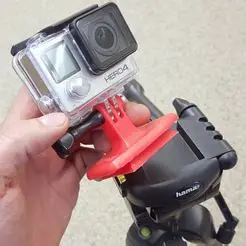
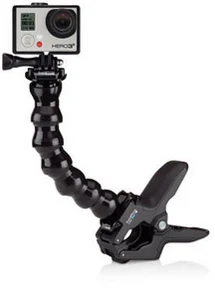
- Head-Mounted Rig: Mount GoPro on a helmet (e.g., bicycle helmet, hardhat) using a mounting arm or modified selfie stick to keep the face centered. Faceware’s Indie Headcam supports side or hoop mounting for stability; DIY rigs may need counterweights for balance.
- Tripod or Desk Mount: Position GoPro on a tripod or clamp at eye level for stationary captures; suitable for seated performances but requires actors to stay in frame.
- Stabilization Mounts: Disable GoPro’s electronic stabilization (HyperSmooth) to prevent latency and warping; ensure physical mounts are secure to avoid wobble during capture.
- Computer Specifications: Requires an Intel i7 or equivalent CPU, 16GB+ RAM, NVIDIA GTX 1060+ GPU, and USB 3.0 ports for capture devices. Windows 10/11 (64-bit) is mandatory; Mac users need Windows via Boot Camp. An SSD is recommended for recording data.
- Summary of Hardware Setup: Requires a compatible GoPro, capture card (for HDMI) or USB port (for webcam), appropriate cables (Micro HDMI, USB-C), a head-mounted or stationary mount, a Windows PC meeting specs, and optional lighting gear to enhance capture quality.

Software Prerequisites
- Faceware Software: Install Faceware Live (older) or Faceware Studio for real-time tracking; requires a license or trial. Include plugins for 3D software (e.g., Unreal, Maya) to stream or retarget data.
- GoPro Webcam Utility: For Hero8+ in USB webcam mode, install the GoPro Webcam app (Windows/Mac) to register the camera as a webcam; ensure firmware is updated for webcam functionality.
- Capture Card Drivers/Software: Install drivers for HDMI capture devices; most are UVC-compliant for plug-and-play. Test with OBS Studio to confirm feed quality before Faceware integration.
- Faceware Calibration Profiles: Prepare for neutral pose calibration within Faceware; no separate drivers needed, but calibration is required per session to establish tracking baseline.
- Other Faceware Tools: Optionally install Faceware Analyzer for offline tracking and Retargeter for applying data in Maya/MotionBuilder; use trial/PLE for experimentation.
- Supporting Software: Use OBS Studio to test/record GoPro feed; GoPro can record to SD card during HDMI output (Hero5-7). Plan audio recording separately, as Faceware doesn’t use audio.
- Firmware and Updates: Update GoPro firmware via GoPro Quik app; keep Windows and GPU drivers current to optimize Faceware’s real-time processing performance.
These software components ensure seamless integration of the GoPro feed into Faceware for real-time capture.
Step-by-Step Guide: Connecting Your GoPro to Your Computer
A. Wired Connection via HDMI (Capture Card Method)
- Set Up the GoPro Camera: Power on GoPro, set to 1080p/720p at 60fps, disable stabilization and horizon leveling. Use Linear/Narrow FOV to minimize fisheye distortion. Frame the face using GoPro’s preview or mobile app, ensuring proper centering for head-mounted or stationary setups.
- Connect the HDMI Cable: Plug Micro HDMI into GoPro (or Media Mod for Hero8+), connect the other end to the capture card’s HDMI input, ensuring a secure connection.
- Plug in the Capture Device to PC: Connect the capture card to a USB 3.0 port; verify Windows recognizes the device (may auto-install drivers).
- Provide Power to the GoPro: Use USB-C to a power bank/AC adapter to maintain power; for Hero8+, use Media Mod’s pass-through USB-C port. Confirm charging status via GoPro’s indicators.
- Verify the Video Feed on PC: Test feed in OBS Studio, VLC, or Windows Camera app; ensure GoPro is in camera mode, not menus. Check capture card compatibility with resolution (e.g., 1080p60); adjust to 720p60 or 1080p30 if needed.
- Launch Faceware Live/Studio: In Faceware’s Realtime Setup, select the capture device; verify the GoPro feed appears in the tracking viewport, adjusting resolution if necessary.
- Configure Faceware for Headcam vs Stationary: Select Professional Headcam for helmet-mounted GoPro or Stationary for tripod setups to optimize tracking for camera motion.
- Calibrate Neutral Pose: Actor faces camera with neutral expression; click Calibrate in Faceware to initialize tracking. Verify overlay aligns with facial features (eyes, mouth).
- Tweak Camera Settings if Necessary: Adjust GoPro Protune for fixed white balance, high shutter speed to reduce blur; ensure focus (1ft+ distance) and disable special modes (e.g., hindsight).
This method provides a high-quality, low-latency 60fps feed for optimal Faceware tracking.

B. Wired Connection via USB (GoPro Webcam Mode)
- Activate GoPro Webcam Mode: Update Hero8+ firmware, install GoPro Webcam utility, connect via USB-C, set GoPro to GoPro Connect mode (displays webcam icon). Verify utility shows “Ready” status.
- Open Faceware and Select GoPro: Choose “GoPro Webcam” in Faceware’s camera list; confirm 1080p/30fps feed with linear FOV appears in the viewport.
- Check Quality and Lag: Verify minimal latency on USB 3.0; 30fps may track less smoothly than 60fps. Adjust Faceware smoothing for optimal performance.
- Power Consideration: USB powers GoPro; remove battery if overheating, ensure ventilation to prevent thermal shutdown.
This method is simpler, requiring no capture card, but limited to 1080p/30fps.
C. (Optional) Wireless Connection Options
- Wi-Fi Streaming via GoPro App: GoPro streams to app/RTMP server, but high latency (seconds) and complexity (e.g., OBS with NDI) make it unsuitable for real-time Faceware.
- Wireless HDMI Transmitters: Use devices like Teradek Bolt for near-zero latency; connect GoPro HDMI to transmitter, receiver to capture card. Costly but ideal for untethered professional setups.
Wired connections (HDMI/USB) are preferred for reliability; wireless HDMI suits high-end, cable-free captures.
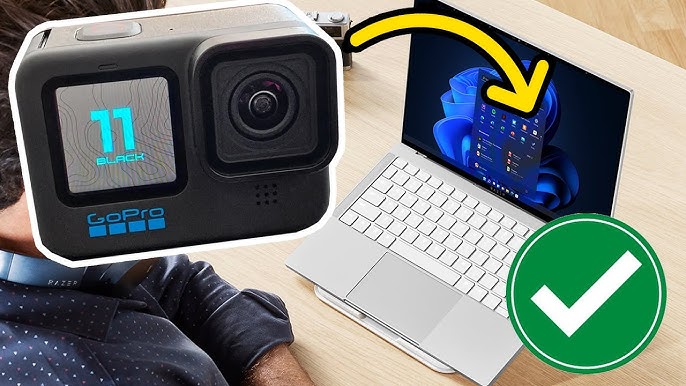
This setup ensures robust real-time facial tracking using the GoPro feed in Faceware.
Troubleshooting Common Connection Issues
- No Video Signal / Black Screen in Faceware:
- Verify GoPro is on, in camera mode (not menus); check HDMI/USB connections for security.
- Test feed in OBS/VLC; confirm capture card supports GoPro’s resolution (e.g., 1080p60); adjust to 720p60 if needed.
- Ensure correct device selected in Faceware; close other apps using the camera to free the feed.
- Faceware Tracking is Jittery or Losing Track:
- Improve lighting for even, shadow-free face; add fill lights to eliminate brow/eye shadows.
- Position GoPro 1–2ft from face for optimal frame fill; recalibrate neutral pose if tracking drifts.
- Use plain background; remove reflective glasses or use anti-reflective lenses to avoid false detections.
- Monitor PC performance; reduce resolution if CPU/GPU overload causes frame drops.
- Latency (Delay) in the Facial Data:
- Prefer HDMI for minimal latency; use USB 3.0 for webcam mode, avoiding slow hubs.
- Minimize network streaming delays (e.g., local Unreal client); reduce Faceware smoothing for responsiveness.
- GoPro Overheating or Turning Off:
- Remove battery when USB-powered; ensure ventilation, avoid sealed cases.
- Disable WiFi/Bluetooth; use a fan in hot environments to prevent thermal shutdown.
- Audio Issues: Faceware doesn’t use audio; record via capture card or separate microphone for lip-sync reference, ensuring high-quality sound.
- Compatibility or Driver Conflicts: Disable other webcam devices in Device Manager to prevent conflicts; simplify Faceware’s device selection.
Isolate issues systematically (camera, connection, PC, Faceware) for quick resolution.
Best Practices for High-Quality Facial Capture
To achieve high-quality, usable facial motion capture data with a GoPro and Faceware, follow these best practices to optimize lighting, camera setup, and performance conditions:
- Optimize Lighting: High-quality lighting is essential for accurate tracking. Use soft, even lighting to illuminate the actor’s face without shadows or hotspots. A recommended setup includes two diffuse lights positioned at 45-degree angles (left-front and right-front) to ensure both sides of the face are evenly lit. Alternatively, a ring light or LED panel near the camera works well. Maintain consistent lighting throughout the session, avoiding changes that could disrupt tracking. Natural light from windows is unreliable due to variability, so use controlled artificial lighting. For head-mounted GoPro setups, attach a small LED light (e.g., GoPro Light Mod or helmet-mounted LED) to follow the actor, ensuring consistent face illumination. Apply powder to reduce facial shine, as reflective skin can confuse tracking.
- Camera Placement and Framing: Position the GoPro at eye level or slightly above to avoid perspective distortion (e.g., exaggerated chin or forehead). Eye-level placement ensures clear visibility of brows and eyes. For head-mounted rigs, adjust the mounting arm to keep the face centered even during movement, accounting for vigorous head motions. For stationary setups, use a tripod or clamp and instruct the actor to stay within the frame, possibly marking floor positions. The face should fill most of the frame (at 720p/1080p) to maximize tracking detail, but avoid overly tight framing to prevent cutting off facial features.
- Maintain 60 FPS Capture: Capture at 60fps for optimal tracking of fast expressions (e.g., eyebrow raises, blinks, speech), as recommended by Faceware. Higher frame rates reduce motion blur and provide more data, improving fidelity compared to 30fps or 24fps. GoPro Hero5+ supports 1080p60 or 720p120 (Hero7+), ideal for Faceware. USB webcam mode (Hero8+) is limited to ~30fps, which may cause choppy tracking for rapid motions; test and consider HDMI for 60fps if needed.
- Monitor the Performance: Assign someone to monitor Faceware’s tracking in real time, watching for tracking breaks (e.g., due to extreme head turns or face touching). Call for recalibration if needed. Check the GoPro lens for fogging or smudges, cleaning with a microfiber cloth before starting to maintain clear footage.
- Use a Clap or Marker for Sync: For multi-device setups (e.g., body mocap or separate audio), perform a clap or use LTC timecode to sync facial data with other recordings, ensuring alignment in post-production.
These practices maximize the quality of facial capture data, leveraging Faceware’s algorithms for clean, reliable results.

Integrating Captured Data into Your Animation Pipeline
To use Faceware’s GoPro-captured facial data in animation projects, integrate it into real-time or offline workflows as follows:
Real-Time Character Animation (Live Puppeteering):
- Use Faceware Live Link (Unreal) or Unity plugin to stream facial data to a character with morph targets or blendshapes (e.g., ARKit or Faceware shapes).
- In Faceware Studio, enable streaming in the Streaming panel, connecting to the client (localhost for same machine). The character mirrors the actor’s face in real time for virtual production or live streams.
- Fine-tune mapping in the plugin to align shapes; record sequences in Unreal (Take Recorder) or MotionBuilder for later editing.
- Applications include live CG character streams (e.g., Barbie Vlogger), interactive events, or rapid prototyping.
Recording and Editing Animation:
- Record in Unreal/MotionBuilder using their tools to capture Faceware-driven animation curves, editable for cleanup or blending.
- Faceware Studio relies on clients for recording; older Faceware Live supports UDP output to MotionBuilder. Edit recorded curves to refine exaggerated or faulty movements.
- Minimal cleanup is needed due to Faceware’s high fidelity, but artistic tweaks enhance results.
Editing and Refinement:
- Smooth jitter in animation curves, add exaggeration, or fix unwanted movements (e.g., eye glances) for scene fit.
- Blend multiple takes by splicing animation curves in engine or retargeter for desired performance segments.
Lip Sync and Audio:
- Faceware captures accurate mouth movements for spoken performances; refine phonemes in post for clarity if needed.
- Optionally blend with audio lip-sync tools, though Faceware’s nuanced capture often suffices.
Example Workflows:
- Small Studio: Capture face (GoPro+Faceware) and body (Xsens) for a short film, apply to Maya character, and playblast for quick cutscenes.
- Live Streaming VTuber: Stream GoPro+Faceware to Unity for real-time CG character interaction in live streams or events (e.g., RTX with RWBY characters).
- Game Development/Previs: Use Faceware for rapid cutscene prototyping in Unreal, refining with professional actors later.
- Data Management: Organize Faceware profiles, video files, and Analyzer projects by take/scene for easy reassembly and future use.
These methods ensure seamless integration of facial data into real-time or polished animation pipelines, supporting diverse creative applications.
Advanced Tips and Customizations
To enhance the GoPro+Faceware setup, consider these advanced techniques for improved accuracy and creative control:
- Advanced Tuning in Faceware Studio: Adjust sliders in the Animation Tuning panel for each facial shape (e.g., blink, smile) to match actor movements to character needs. Increase sensitivity for subtle motions (e.g., jaw open) or reduce for twitchy features (e.g., eyebrows). Save actor profiles for reuse, especially for asymmetrical faces requiring side-specific calibration.
- Motion Effects and Scripting: Use Faceware Studio’s Motion Effects to add logic/filtering (e.g., dampen rapid head movements). Write Python scripts for custom effects, like delaying blinks for cartoonish exaggeration or filtering micro-expressions for simpler rigs.
- Adding a Facial Mocap Helmet Light: Attach a diffused LED ring or strips to the helmet for consistent face lighting across sets. Ensure lights don’t blind the actor or add weight, maintaining comfort and tracking quality.
- Stereo Camera Setups and Future Tech: While Faceware uses a single camera, experimental stereo setups for depth are unnecessary, as Faceware’s markerless system delivers robust results with one GoPro.
- Latency Reduction Techniques:
- Use wired gigabit networks or direct Ethernet for streaming to clients (e.g., Unreal) to minimize delays.
- Sync Faceware and client frame rates in streaming settings; close GoPro Webcam preview to reduce overhead.
- Use high shutter speeds on GoPro under good lighting for crisp frames, minimizing perceived lag.
- Blend Faceware with Other Inputs:
- Layer hand-keyed animation over Faceware data in Maya for stylization or fine tweaks.
- Experimentally combine with ARKit (e.g., iPhone for tongue tracking) via custom coding, though Faceware typically suffices.
- Plugins and Third-Party Tools:
- Use Reallusion’s Motion Live for iClone to apply Faceware data.
- Import Faceware’s JSON stream into Blender with custom scripts for community-driven workflows.
- Augment with OpenSeeFace or Tobii eye trackers for precise eye data, merging with Faceware’s facial capture.
- Multi-Character or Multi-Actor Setups: Run multiple GoPros/Faceware instances on separate PCs for multi-actor captures, combining interactions in post. Ensure sufficient PC resources for single-machine setups.
- Continuous Improvement: Monitor Faceware updates for enhanced tracking algorithms or new features (e.g., auto-calibration); stay current to leverage improvements.
- Case Study Learning: Study Faceware’s blog for project insights (e.g., Indie Headcam in VR events). Learn from professional setups to optimize workflows and direct actors effectively with headcams.
These customizations push the GoPro+Faceware setup for precise, flexible, and professional facial capture.
Real-World Applications and Case Studies
The GoPro+Faceware combination is widely used across industries, showcasing its versatility:
- Independent Animators and Small Studios: A small game studio used a GoPro Hero6 on a DIY helmet with an Xsens suit for cutscenes, investing in softbox lights for clean data. Stabilizing the helmet with straps and counterweights was key. Takeaway: Prioritize lighting over expensive cameras for quality results on a budget.
- Professional Studios (Entry-Level Productions): A studio used Faceware’s Indie Headcam (GoPro Hero7) for VR character interactions at events, switching wireless channels to resolve interference. A wired backup ensured reliability. Takeaway: Test wireless setups and have wired fallbacks for live environments.
- Hasbro’s Monopoly Live and Barbie Vlog: Used Faceware for real-time CG character performances (e.g., Barbie Vlogger on YouTube). Rehearsals ensured actor expressions matched character style. Takeaway: Practice performances to optimize translation to digital characters.
- Game Development – Cloud Imperium Games (Star Citizen): Integrated Faceware for player-driven avatar expressions via cameras like GoPro, ensuring robustness for varied user conditions. Takeaway: Guide users on lighting/camera setup for consumer applications.
- Animation & VFX Studios: An indie film used GoPro headcams for alien character facial captures, addressing outdoor sunlight with diffusers and overcast scheduling. Takeaway: Control outdoor lighting with diffusers/canopies for consistent results.
- Training and Education: Universities use GoPro+Faceware for animation training, teaching students about facial acting. Takeaway: Affordable setups make mocap accessible for learning.
Lessons Learned Summary:
- Preparation: Ensure technical (lighting, wireless) and performance (rehearsal) readiness.
- Tech Strengths: Leverage real-time feedback for quick iteration.
- Know Limits: Address frame rate, glasses, or reflective issues proactively.
- Iterate and Calibrate: Continuously refine calibration and processes for better results.
These applications highlight the GoPro+Faceware setup’s ability to deliver professional facial animation across indie, commercial, and educational contexts.
Conclusion: Maximizing Your Facial Capture Setup with a GoPro and Faceware
Using a GoPro with Faceware enables powerful real-time facial animation and motion capture, suitable for indie animations to live interactive projects. This guide has covered the rationale for choosing a GoPro, hardware and software setup, capture execution, troubleshooting, and data integration. By following these steps, you can confidently set up a GoPro+Faceware rig for professional-quality results.
Key Steps Recap:
- Use the Right Gear and Settings: Select a GoPro Hero5+ with HDMI or webcam output at 60fps, paired with a capable PC (i7 CPU, 16GB+ RAM, strong GPU) and proper capture hardware. Prioritize even lighting to ensure clear facial visibility for accurate tracking.
- Set Up Faceware Properly: Choose the correct input source, calibrate the neutral pose accurately, and select the appropriate tracking mode (Stationary or Headcam) to ensure stable, reliable tracking.
- Practice and Refine: Conduct test captures to review results, adjusting settings or performance as needed to minimize cleanup in post-production.
- Leverage Real-Time for Iteration: Utilize real-time feedback to prototype animations or direct performances live, significantly speeding up the creative process compared to manual keyframing.
- Troubleshoot Systematically: Address issues like signal loss, calibration errors, or tracking jitter using provided tips, such as improving lighting or replugging cables, for quick resolutions.
- Follow Best Practices: Treat the setup like a professional shoot by maintaining equipment, backing up data, and controlling the environment (e.g., marking actor positions, minimizing background noise for audio).
- Continuously Improve: Learn from each session, refining elements like helmet mounts or lighting setups, and save optimized Faceware profiles for future use.
Future Trends:
- Higher Resolution & Frame Rates: Future GoPro models may offer higher frame rates at elevated resolutions, potentially capturing finer details like wrinkles or micro-expressions for enhanced tracking.
- AI Enhancements: Advancements in AI and deep learning could improve Faceware’s tracking under challenging conditions (e.g., extreme angles, heavy makeup), with software updates enhancing robustness.
- Lighter, Wireless Setups: Improved wireless streaming (e.g., via Wi-Fi 6) may allow low-latency 1080p60 feeds, reducing cables for more comfortable head-mounted setups.
- Integration with AR/VR: As AR/VR grows, facial capture skills will be vital for avatar-driven experiences, with Faceware’s setup supporting metaverse and virtual production applications.
- Affordable Competing Solutions: While alternatives like Apple’s ARKit exist, Faceware+GoPro offers hardware independence and high fidelity for PC/console pipelines, remaining a studio-proven choice.
This setup combines an accessible GoPro with Faceware’s robust software, delivering a scalable, high-quality DIY facial mocap solution for creators and studios. Experimentation and practice will unlock emotive, believable digital performances, limited only by your creativity.
Frequently Asked Questions (FAQs)
- Can I use any GoPro model with Faceware Live?
Any GoPro with live video output works, but Hero5–Hero7 Black are recommended for Micro HDMI output, with Hero7 used in Faceware’s Indie Headcam. Hero8–Hero11 require Media Mod for HDMI or support USB webcam mode. Older models (e.g., Hero4) work with capture cards but offer lower image quality. Hero5+ ensures optimal performance. - Do I need a capture card to connect my GoPro, or can I use USB?
- HDMI + Capture Card: Hero5–Hero11 use HDMI output (Media Mod for Hero8+) with a capture card (e.g., Elgato Cam Link) for uncompressed 1080p60 video, requiring a USB 3.0 port.
- USB Webcam Mode: Hero8+ supports USB webcam mode (1080p, ~30fps) without a capture card, using a USB cable and GoPro Webcam utility. HDMI offers better frame rates, while USB is cost-effective.
- Can I connect the GoPro wirelessly to Faceware (without a cable)?
GoPro’s Wi-Fi streaming has high latency, unsuitable for real-time Faceware. Use a wireless HDMI system (e.g., Teradek Bolt) for near-zero latency, connecting GoPro HDMI to a PC receiver. These are costly, so cables (HDMI/USB) are recommended for reliability, unless cable-free setups are critical. - What GoPro settings are best for facial capture (resolution, frame rate, FOV)?
Use 1080p60 (or 720p60) with Linear/Narrow FOV to minimize fisheye distortion, disable stabilization (HyperSmooth) to avoid lag, and lock exposure/white balance via Protune for consistency. Keep the camera ~1ft from the face for sharp focus, ensuring clear, stable video for accurate tracking. - How do I mount the GoPro for facial capture? Do I need a special helmet rig?
Use a head-mounted rig (e.g., Faceware’s Indie Headcam, DIY bike helmet with a GoPro arm) for mobile actors, ensuring stability and balance. For stationary setups, mount on a tripod/clamp at eye level, ~1ft away, with floor marks to keep the actor in frame. Prioritize secure, comfortable mounting. - What kind of lighting do I need for good facial capture?
Use soft, even lighting (e.g., LED softboxes, ring lights) at 45° angles to eliminate shadows. Avoid overhead/backlighting, maintain consistency, and use low ISO with fast shutter speeds. Add a helmet-mounted diffused LED for headcam setups and powder the face to reduce glare. - What are the computer requirements to run Faceware with a GoPro feed?
Requires an Intel i7 CPU, 16GB+ RAM, NVIDIA GTX 1060+ GPU, SSD storage, USB 3.0 ports, and Windows 10/11 (64-bit). A strong CPU ensures 60fps tracking, while a decent GPU supports rendering/streaming. A second monitor and gigabit network aid multi-app workflows. - Do I have to use the setup in real time, or can I record footage and process it later?
Use real-time for live tracking/streaming or record GoPro footage for offline processing in Faceware Analyzer, which allows frame-by-frame corrections. Save to SD card during HDMI streaming for flexibility. Offline workflows suit polished outputs, while real-time speeds up previz/live events. - How do I use the facial capture data in my animation software or game engine?
Stream to Unreal/Unity via Faceware Live Link for real-time animation, recording via Take Recorder/Timeline. For Maya/Max, use Faceware Retargeter to map Analyzer’s .FWR/.FACE files to rigs. iClone’s Motion Live plugin supports real-time integration. Map blendshapes, then edit curves as needed. - The face tracking sometimes loses track or isn’t accurate – how can I improve it?
- Re-calibrate Neutral Pose: Recalibrate with a relaxed, forward-facing expression if tracking drifts.
- Avoid Occlusions: Keep hair, hands, or props from blocking the face; correct occlusions in post if needed.
- Tighten Headcam: Secure helmet/camera arm to minimize shaking for head-mounted setups.
- Improve Lighting/Background: Use uniform lighting and plain backdrops to reduce flicker or interference.
- Use Tuning: Adjust Faceware Studio sliders for shape sensitivity to enhance subtle movements or reduce noise.
- Ensure 60fps: Verify 60fps throughput; lower to 720p or close apps if bottlenecking.
- Performer Adjustments: Minimize extreme head angles to maintain tracking accuracy.
- Software Updates: Use the latest Faceware version for improved algorithms.
Cleanup in animation curves can address persistent issues, but proper setup (calibration, lighting) ensures reliable tracking.

References & Additional Resources
- Faceware Technologies. “Faceware Technologies Official Website.”
- Faceware Technologies. “Support / Knowledge Base.”
- Faceware Technologies. “Learn.”
- Faceware Technologies. “Hardware / Headcam Information.”
- Faceware Technologies. “Facial Motion Capture Best Practices.” Faceware Blog.
- 80 Level. “Faceware Live 2.5 Is Out.”
- Reallusion Forum. “Faceware with Motion Capture / GoPro / Webcam Discussions.”
- Polycount Forum. “Facial Mocap Experiences / GoPro 60fps Discussions.”
- Reddit. “GoPro as Webcam Discussions.”
- Faceware Technologies. “Faceware YouTube Channel.”
- Cloud Imperium Games. “Faceware Technologies and Cloud Imperium Games.” Roberts Space Industries, 2017.
Recommendations
- The NEW IRON FIST SKIN Is AMAZING | Marvel Rivals — Lin Shao: The Knockout (Release Date, Price, How to Get It)
- The Blood of Dawnwalker Studio Uses AI, but There’s No AI Assets in the Game: Rebel Wolves Explains
- Why The View Keeper Is the Best Blender Add-on for Scene Management
- TouchDesigner and Unreal Engine Integrations: TouchEngine Plugin Workflows for Real-Time Data + Video
- Overwatch’s Most Annoying Tank Is Getting Rebalanced in Season 2: Roadhog Nerfs, Perk Changes, and What It Means
- Five Nights At Epstein’s: The Viral “Five Nights at Freddy’s”-Style Game “Sweeping the Country” Explained
- Resurrection of the Insomnia Gaming Festival cancelled: Insomnia 74 (i74) called off, refunds, and what happens next
- Blizzard Apologizes, Admits World of Warcraft Patch 12.0.5 “Not Up to Our Standards”: What Broke, What’s Fixed, and What’s Next
- Helldivers 2’s First Content Roadmap Reveals New Enemies Are Coming Soon — What to Expect in Updates 6.1–6.3
- Ubisoft’s R.U.S.E. Has Returned from the Dead: Definitive Edition on Steam, All DLC Included, and Steam Deck Support